How do I use the Luffy Wano template?
Choose the primary action to open PicX Studio with the available template settings. Review the model and format, personalize the creative direction, and generate when ready.

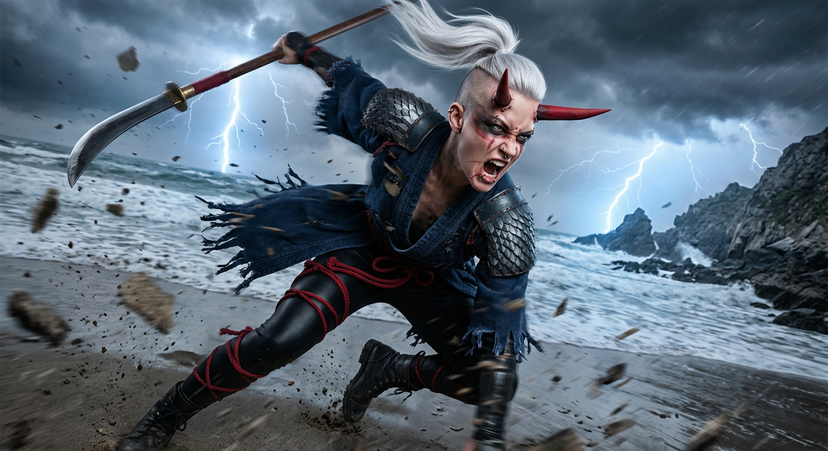
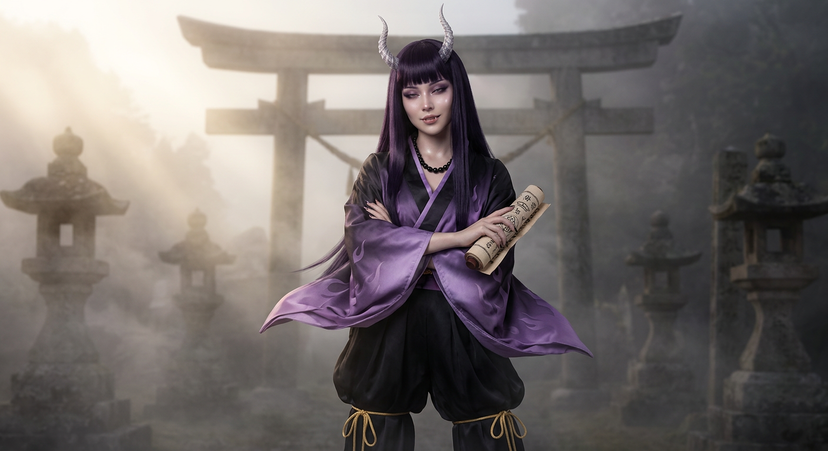
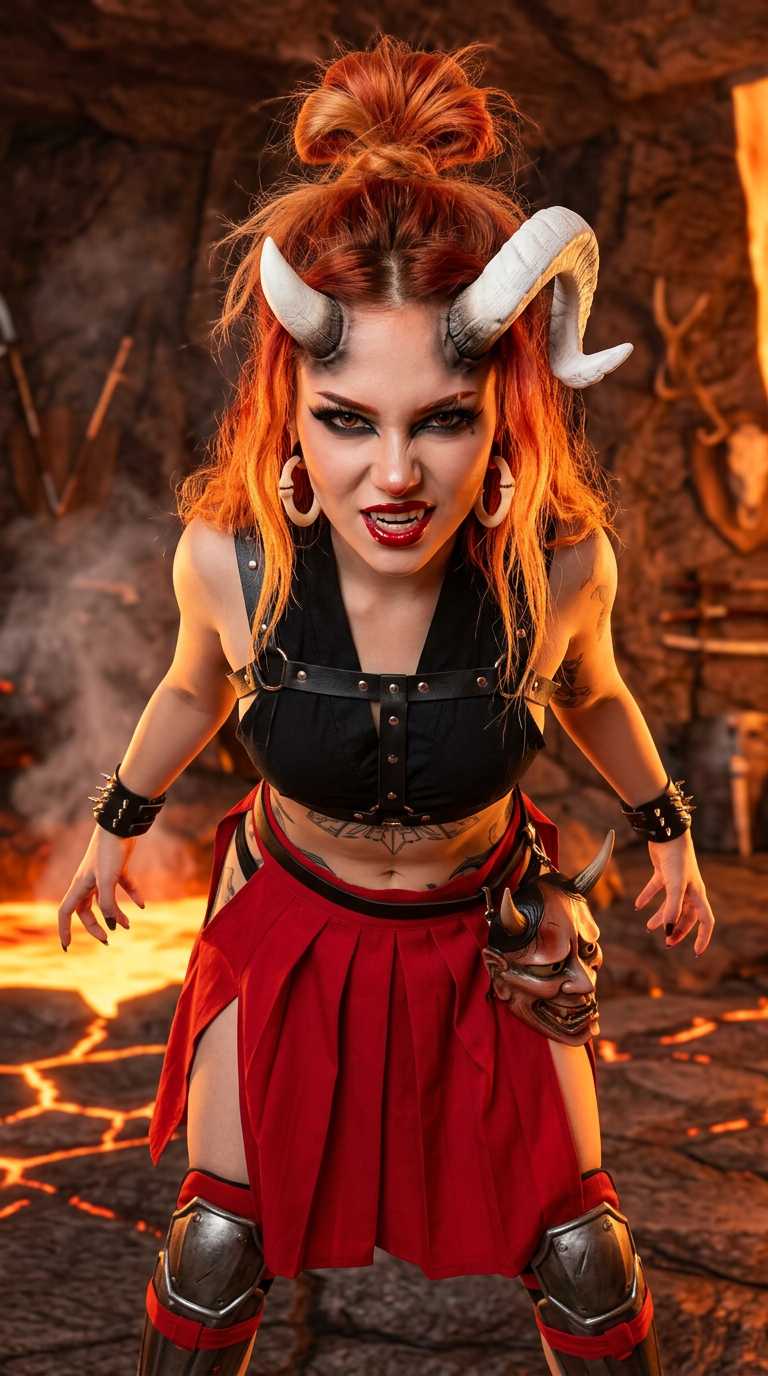
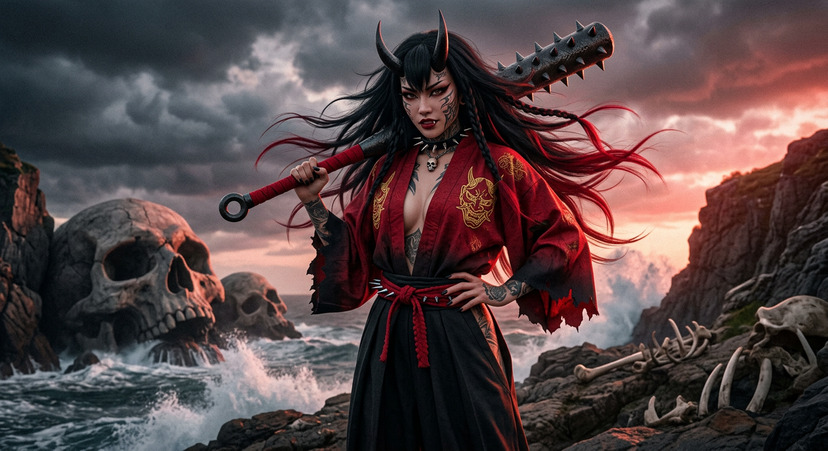
Use the Luffy Wano AI image template on PicX Studio. Free template, no signup required.
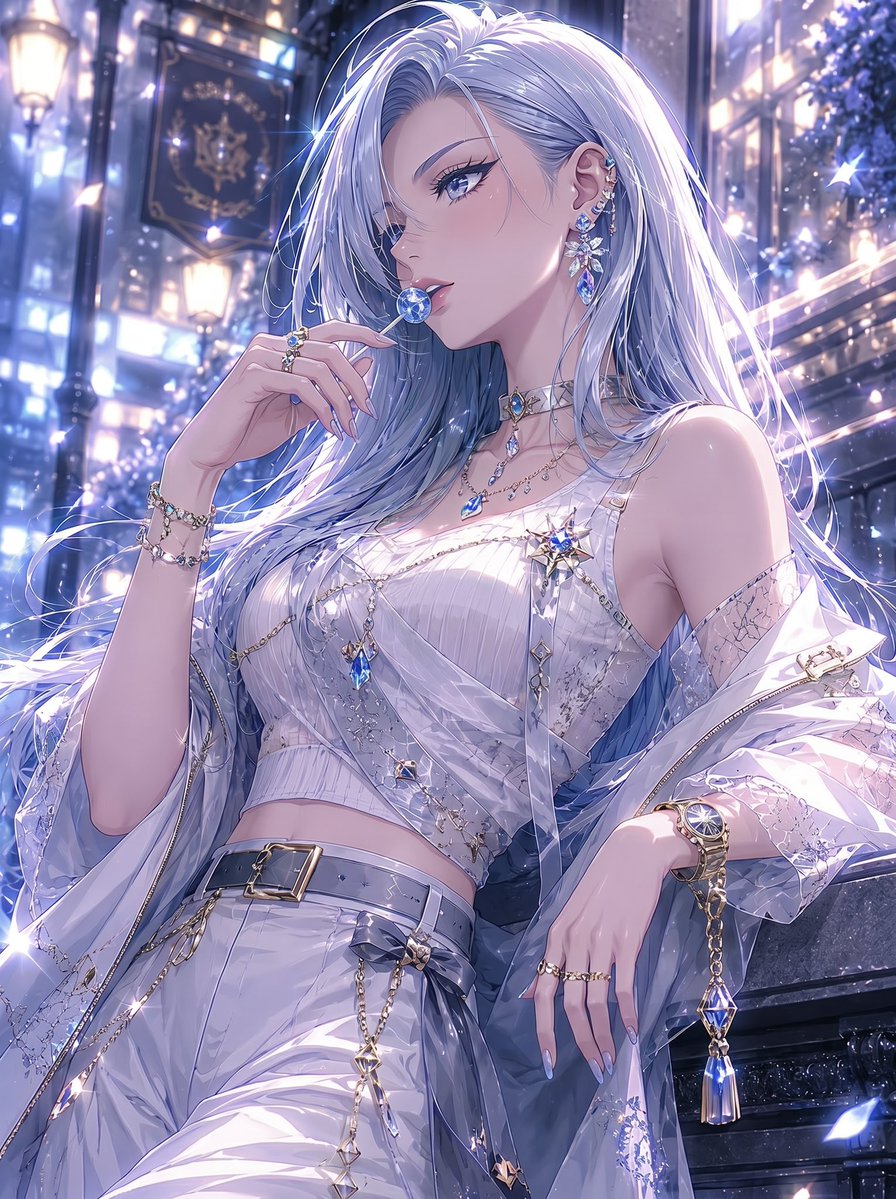
{ "subject": { "description": "mystical Onigashima Oni girl, elegant menacing pose with crossed arms", "age": "22", "expression": "mysterious half-lidded gaze, enigmatic smile", "hair": {"color": "deep purple-black", "style": "sleek long straight with blunt bangs"}, "clothing": { "top": {"type": "layered yukata robe", "color": "gradient black to purple", "details": "silk with subtle flame patterns, wide sleeves"}, "bottom": {"type": "flowing black pants", "color": "obsidian", "details": "billowy, gold ankle ties"} }, "face": {"preserve_original": false, "makeup": "dewy ethereal glow, purple shadow smokey eyes, nude lips with fang hint"} }, "accessories": { "jewelry": {"horns": "delicate spiraled silver demon horns", "necklace": "onyx beads"}, "prop": {"type": "scroll", "details": "ancient cursed scroll in hand"} }, "photography": { "camera_style": "studio editorial fashion", "angle": "slight overhead", "shot_type": "medium shot", "texture": "soft focus edges, velvet skin tones" }, "background": { "setting": "foggy Onigashima mountain shrine", "elements": ["torii gates", "lanterns", "mist swirling"], "atmosphere": "haunting serene", "lighting": "soft golden hour diffusion, god rays through fog" } }
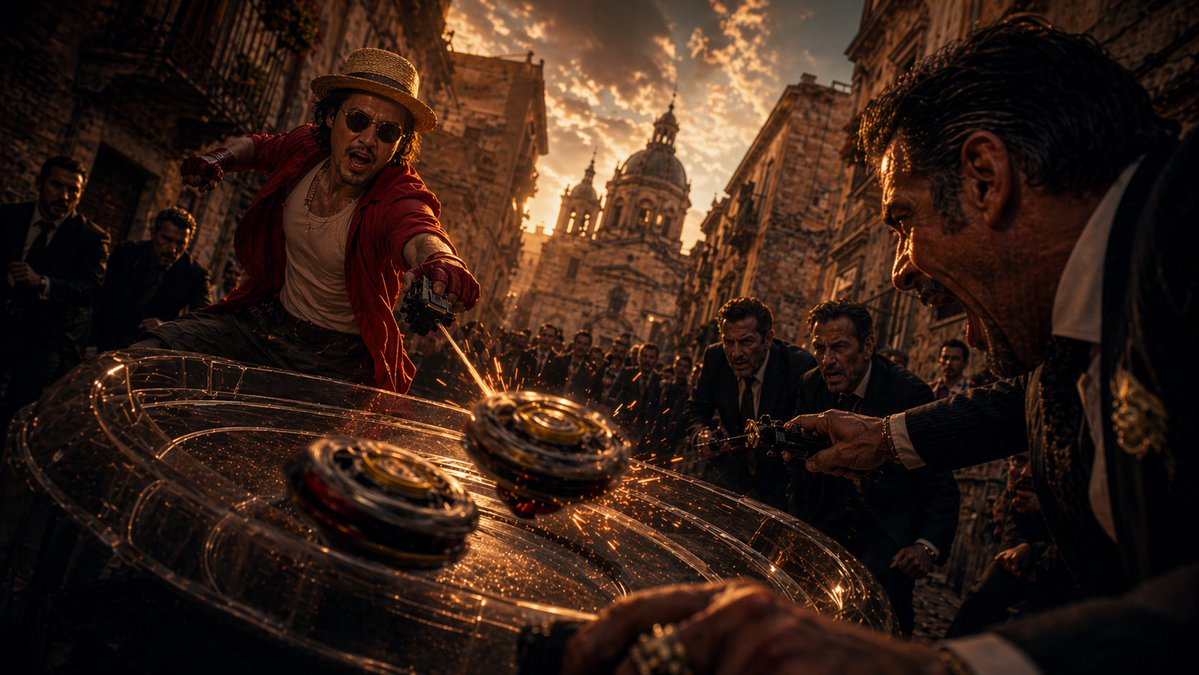
Treat Luffy Wano as a focused AI image concept rather than a finished brief. Read the preview for composition, choose the intended destination, and then personalize one creative variable at a time.
Use the primary action to load the template settings in PicX Studio.
Adjust the subject and creative details for your destination.
Create the image, compare the result with the preview, and refine one variable at a time.
A continuous mix — similar concepts first, woven with same-model prompts and fresh picks from the catalog.
Choose the primary action to open PicX Studio with the available template settings. Review the model and format, personalize the creative direction, and generate when ready.
Yes. You can change the subject, setting, lighting, mood, format, and available model controls before creating your image.
This template is free to open and customize. Generation usage is shown in PicX Studio before you create.
Choose a compatible model in PicX Studio based on the style, speed, and output controls your project needs.
Follow a topic to a crawlable collection of related PicX Studio templates.
39,155 public templates available. Verified via the PicX Studio public templates API; refreshed hourly.
A continuous mix — similar concepts first, woven with same-model prompts and fresh picks from the catalog.