
Gear 5 Chalkboard Classroom Mural
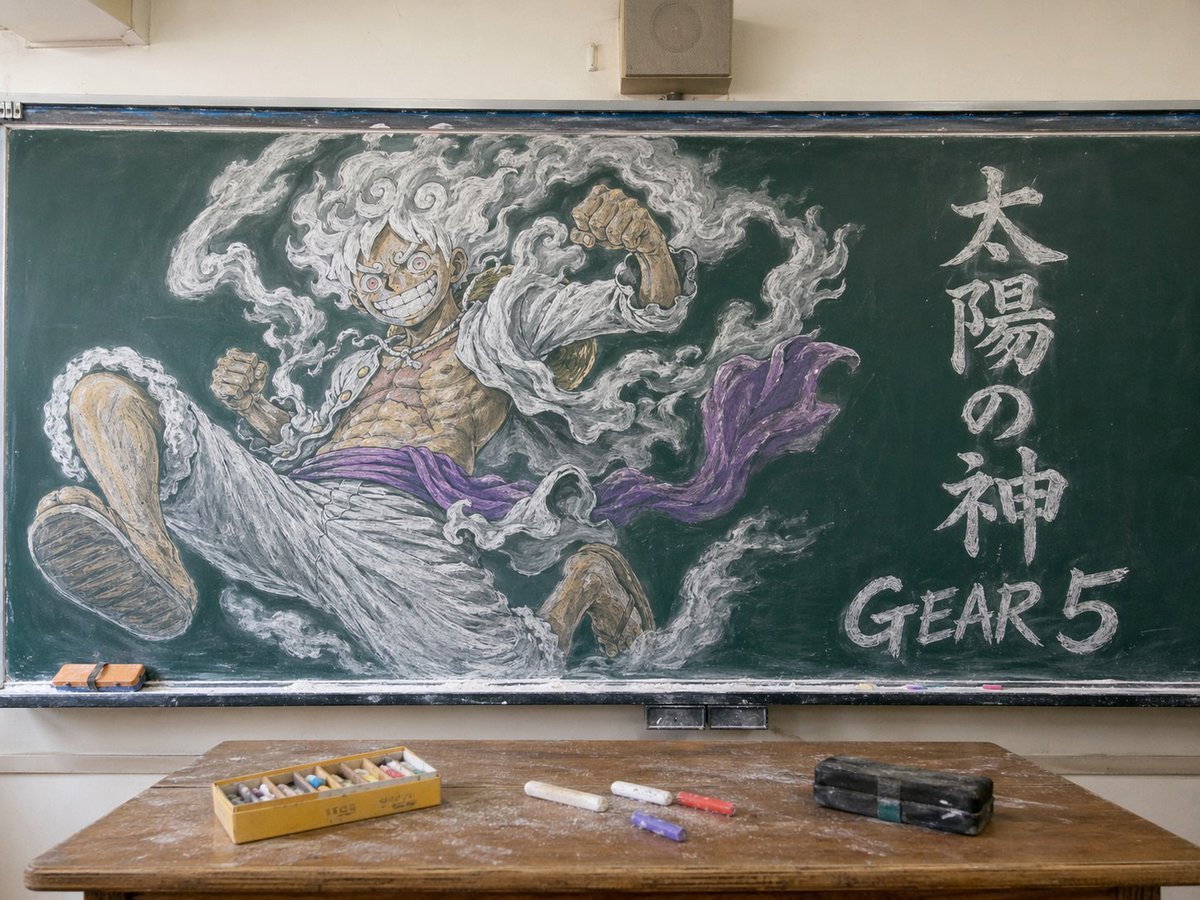
This prompt generates a realistic classroom photo featuring a dramatic chalkboard mural of Gear 5 Luffy, ideal for anime-themed poster art or social media comparisons of image models.
- Prompt included
- Model and format preset
- Free template
The prompt behind this image
Copy the exact prompt behind Gear 5 Chalkboard Classroom Mural, or open it in the studio and make it yours.
A photorealistic classroom interior centered on a large green chalkboard filled with an elaborate chalk mural of Monkey D. Luffy in Gear 5 from One Piece. The drawing dominates the board: a dynamic low-angle foreshortened pose with one oversized foot thrust toward the viewer, both fists raised, wild curly white hair, huge manic grin, intense round eyes, open white jacket, bare muscular chest with visible scars, loose white pants, and a flowing purple sash. Surround him with swirling white smoke-like aura drawn in expressive chalk strokes. On the right side of the chalkboard, include 2 text elements written in chalk: 1 vertical Japanese phrase reading "太陽の神" and 1 large English label reading "GEAR 5" near the lower right. Render the chalk art with layered white, gray, tan, and purple pastel-chalk texture, visible smudging, dust, and hand-drawn shading. Show the full blackboard frame, tray, and a realistic classroom setting with beige walls and a small speaker box above the board. In the foreground, place a worn wooden teacher's desk covered in chalk dust, with exactly 5 visible desk items: 1 open yellow box of multicolored chalk sticks, 3 loose chalk sticks on the desk, and 1 black rectangular chalkboard eraser. Add 2 small erasers resting on the left side of the chalk tray. Soft natural indoor lighting, straight-on composition, highly detailed, realistic photograph of a classroom with spectacular anime chalkboard art.
How to use Gear 5 Chalkboard Classroom Mural in 3 steps
- 1Upload ImagePNG, JPG or paste
Add your photo
Upload the photo the template builds on. The prompt, model and format are already set.
- 2…a portrait of your subject in softgolden-hour light, 85mm…
Personalize
Edit the subject and creative details for your destination.
- 3Generate
Generate
Press Generate — your image is created in PicX Studio, so you can compare it with the original and refine one variable at a time.
More like this
Templates with the same subject, style or setup. Open one to see its prompt.
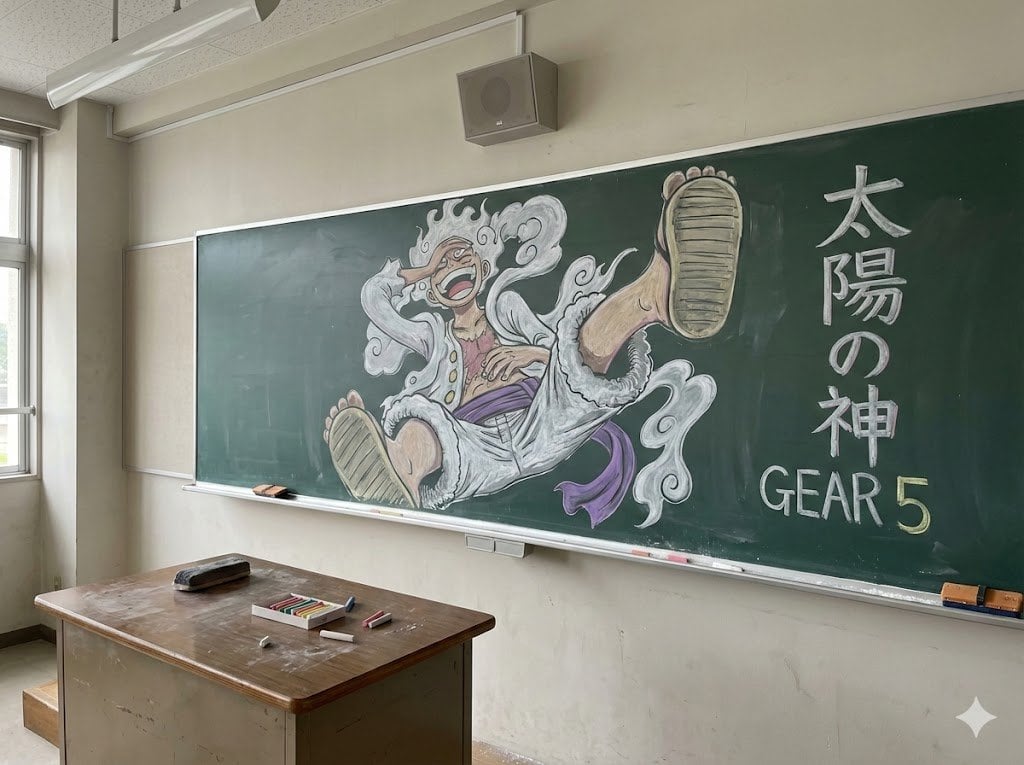
Japanese Classroom Gear 5 Chalk Art
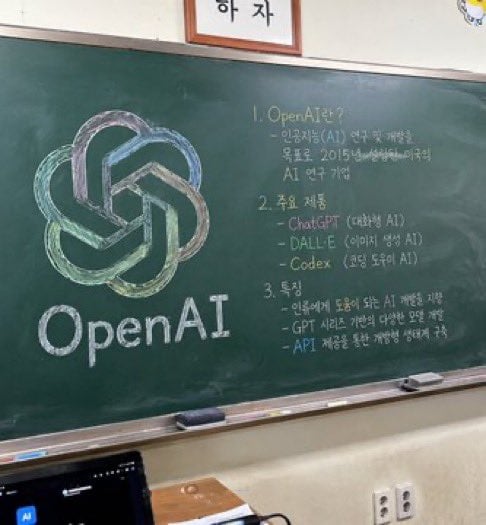
Classroom Chalkboard Lesson
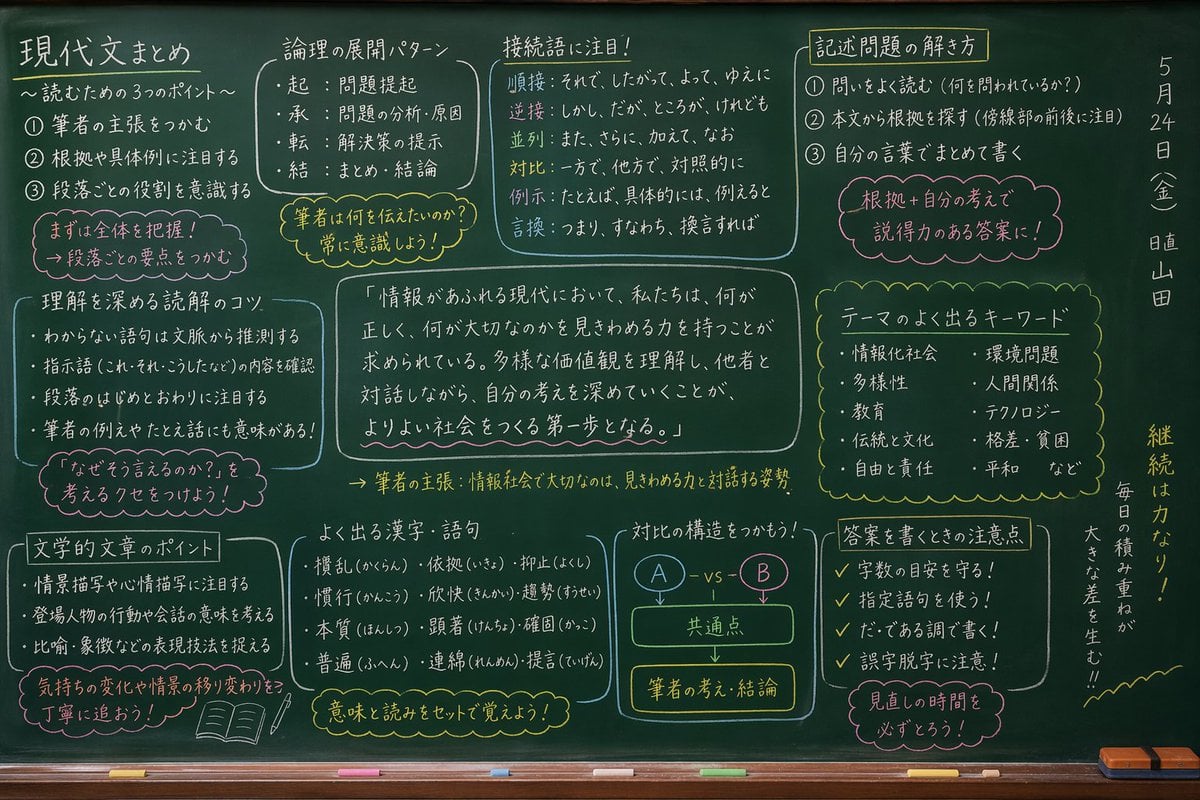
Japanese Classroom Chalkboard Notes
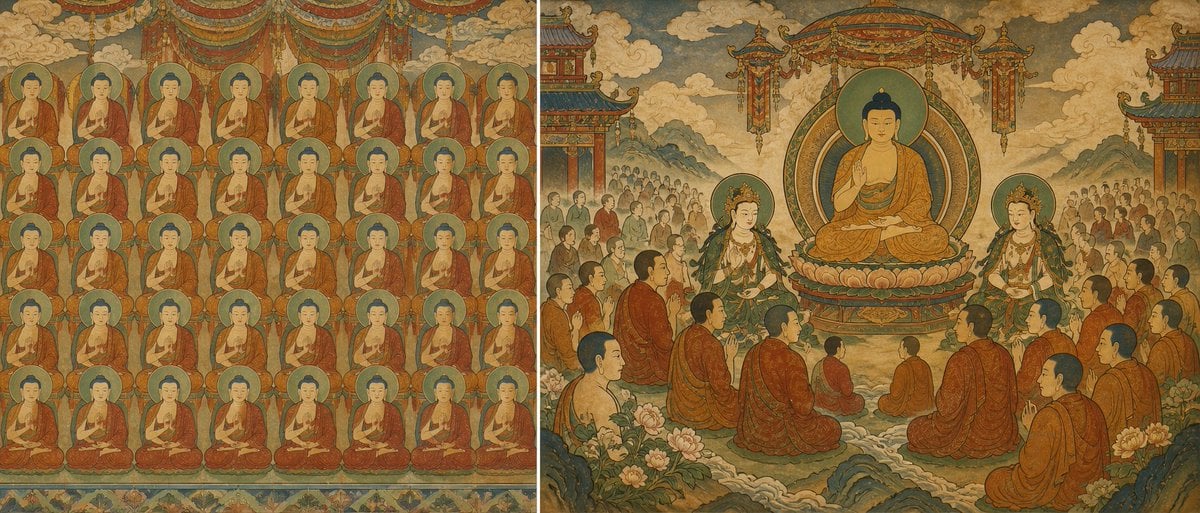
Buddhist Mural Composition Diptych
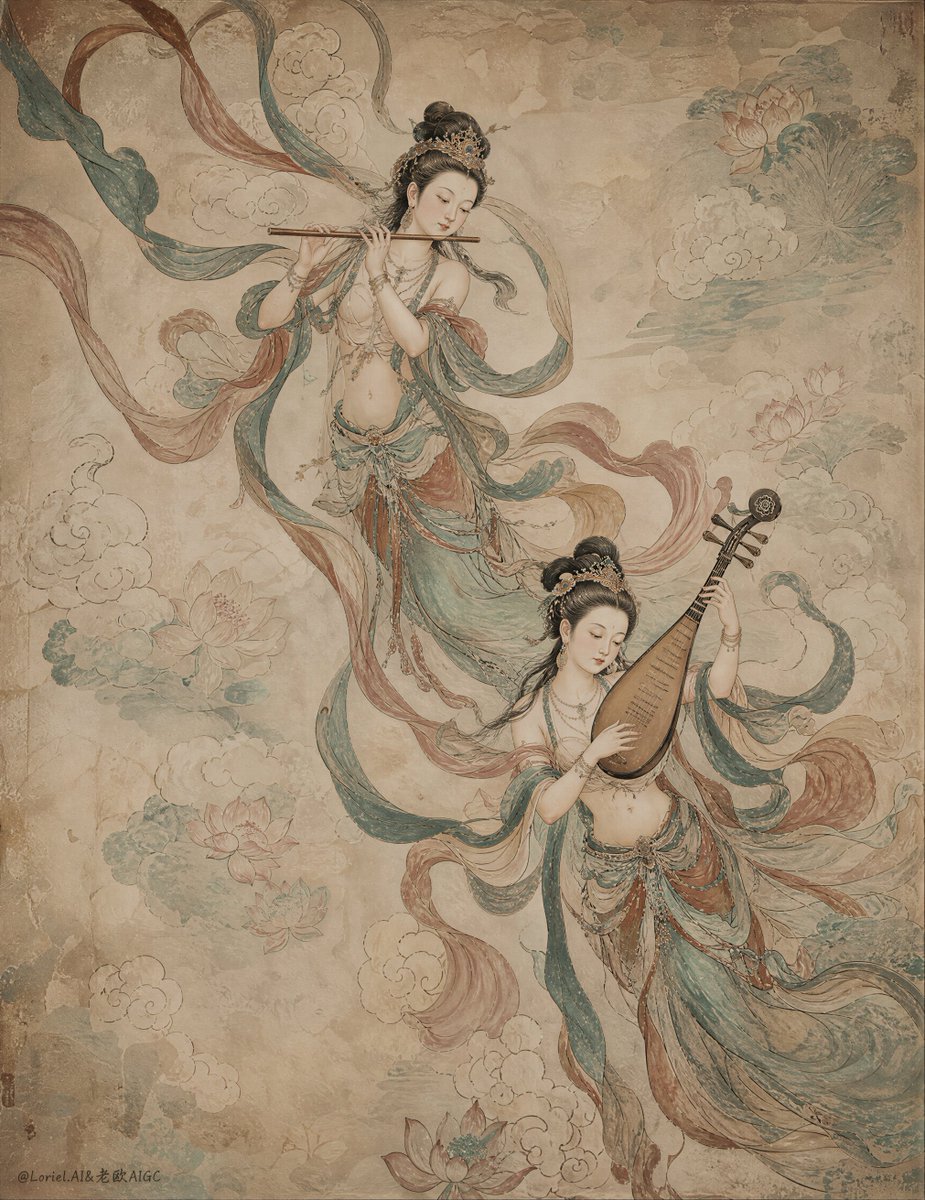
Ancient Chinese Mural of Celestial Musicians

Anime Losing Heroines Classroom Still

Anime Classroom Losing Heroines Key Visual

Anime Losing Heroines Classroom Key Visual
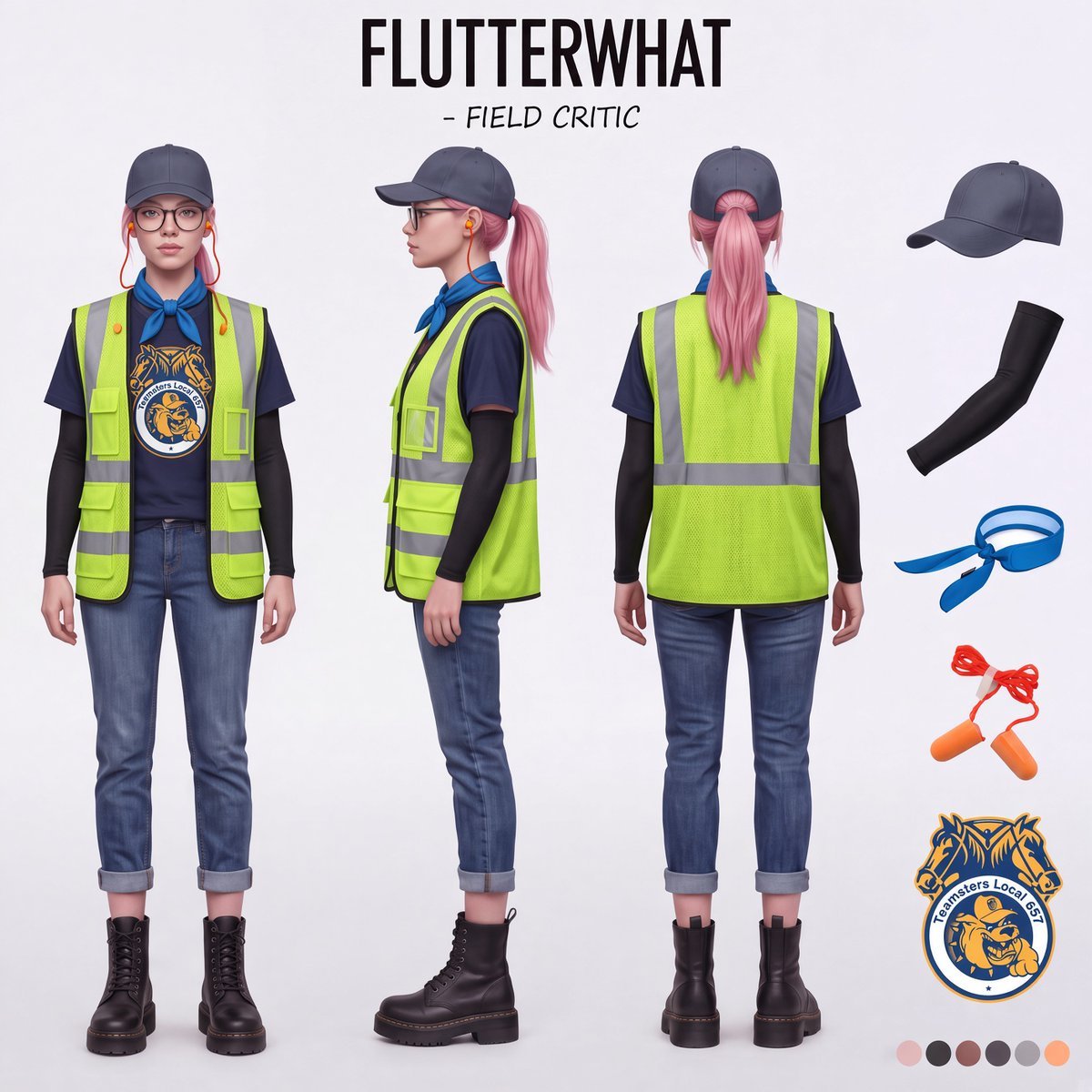
Airport Ready Cooling Gear Critic
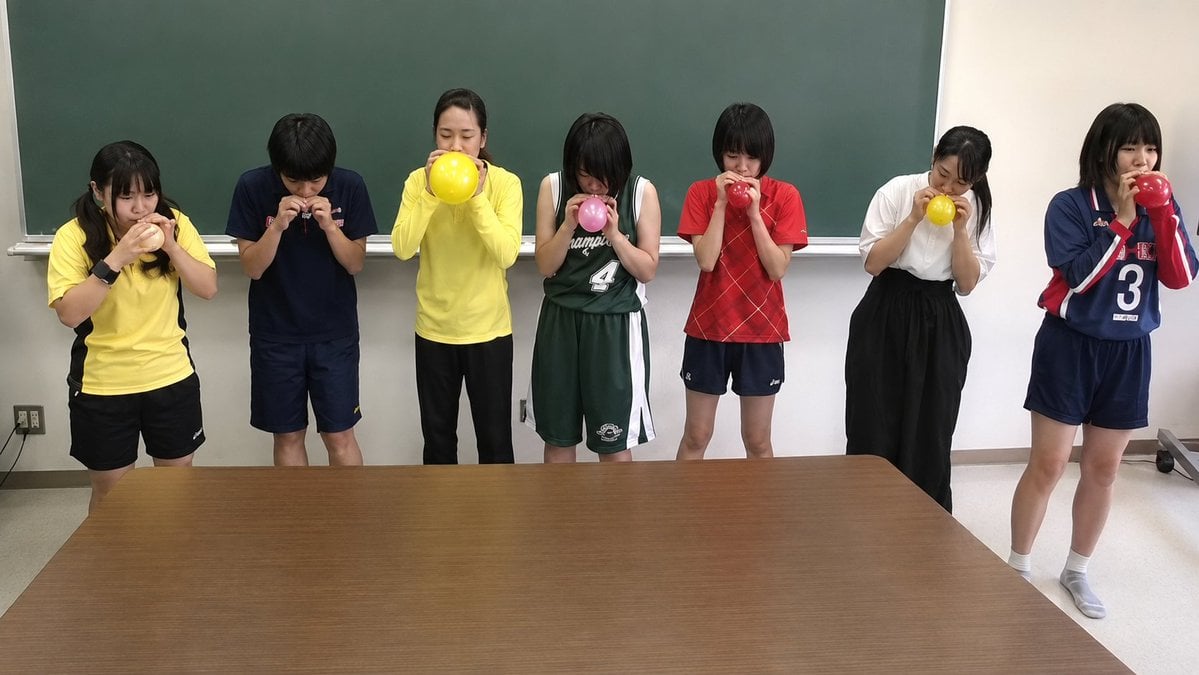
Classroom Balloon Photo Upscale

Anime Schoolgirl Chalkboard Quote
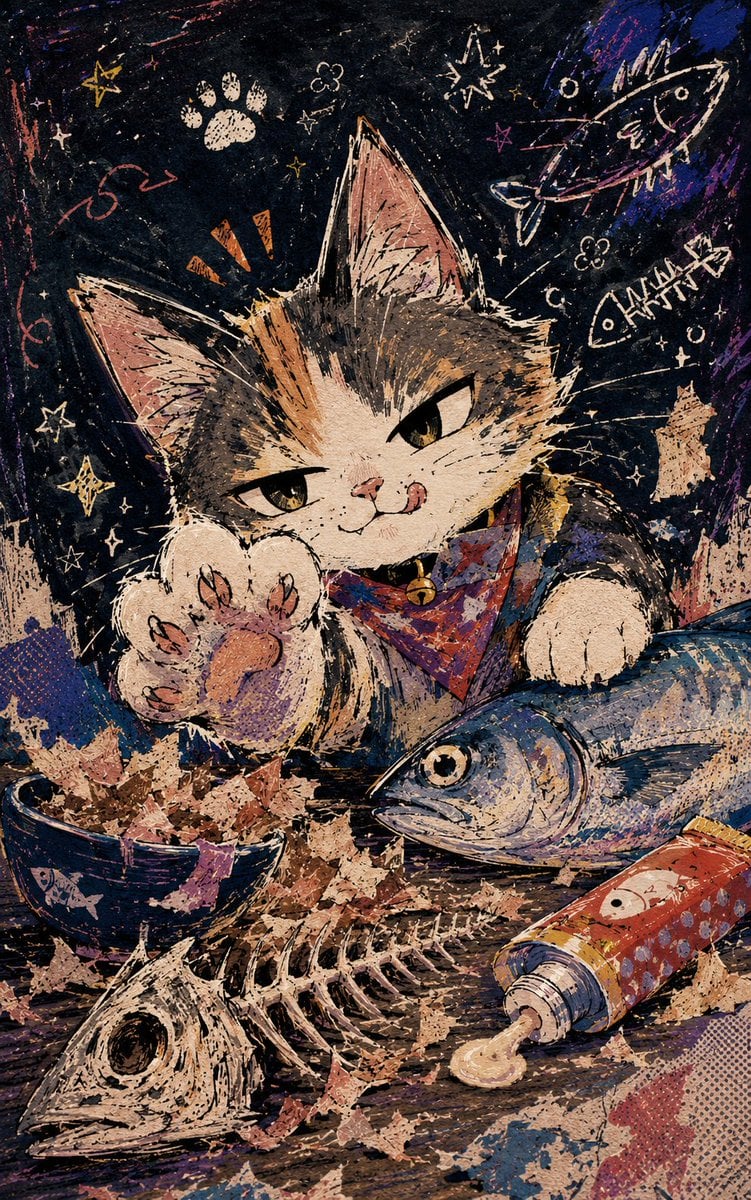
Chalkboard Cat Fish Feast
Make it yours
Gear 5 Chalkboard Classroom Mural works as-is. These are the safest ways to change it without losing the look.
Change one field
Copy a single group, rewrite it, and generate again so you can see what that field is doing.
Keep the frame, change the subject
Hold the composition and light of Gear 5 Chalkboard Classroom Mural, then swap wardrobe, props or the person for a new take.
| If the result… | Why | Fix |
|---|---|---|
| The result drifts from the preview | Too many fields changed at once. | Reuse Gear 5 Chalkboard Classroom Mural as-is first, then change one group — subject, light, or setting. |
| The model over-stylizes the scene | The prose prompt leaves finish and camera underspecified. | Add one camera or lighting sentence and stay on GPT Image 2. |
More GPT Image 2 templates
Other prompts made for GPT Image 2.

Six VTuber Japanese Logo Sheet

Realistic Portrait of Woman and Deer

The Vista Modular Condo Poster

AI Model Routing Comparison Infographic

2.5D Anime Art Board

Isometric Productivity Desk Scene

New York Double Exposure Poster

Four-Panel AI Landscape Comparison

Japanese Tatami Lifestyle Magazine Cover

NESCAFÉ Coffee Map Poster
More image prompts
Fresh picks from across the catalog.

Tiny Self Motivational Collage

Three Colorful Cheerleaders Studio Pose

BBL Cricket Action Shot with Face Match
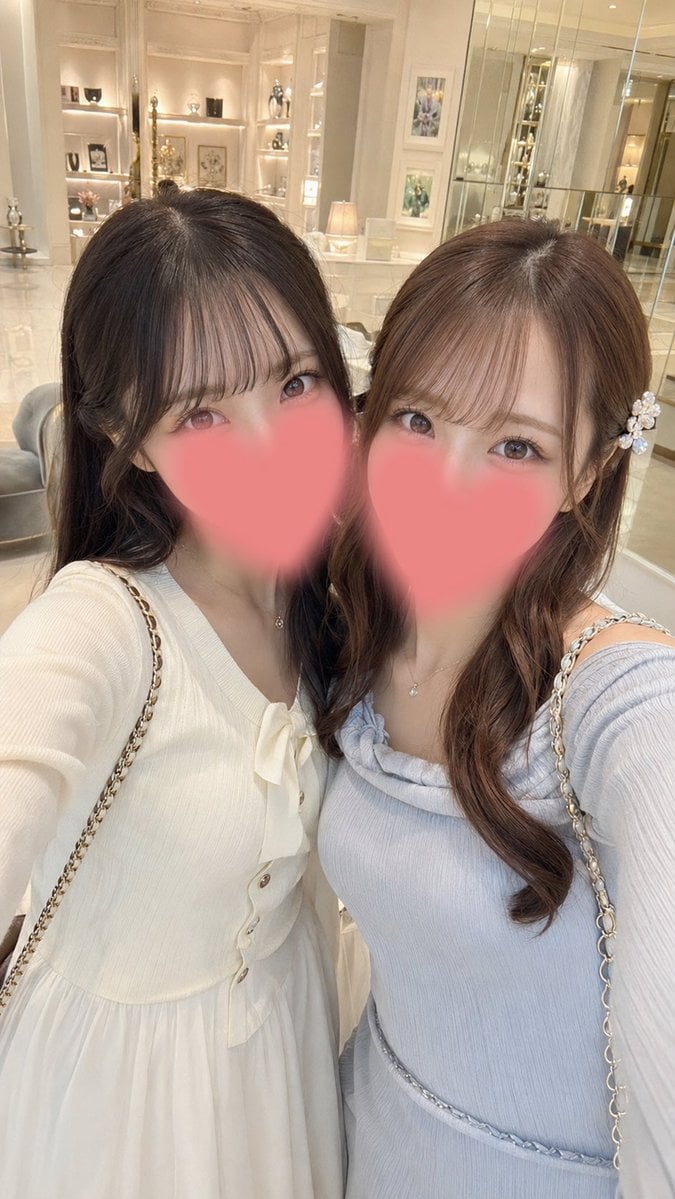
Luxury Boutique Two-Woman Selfie
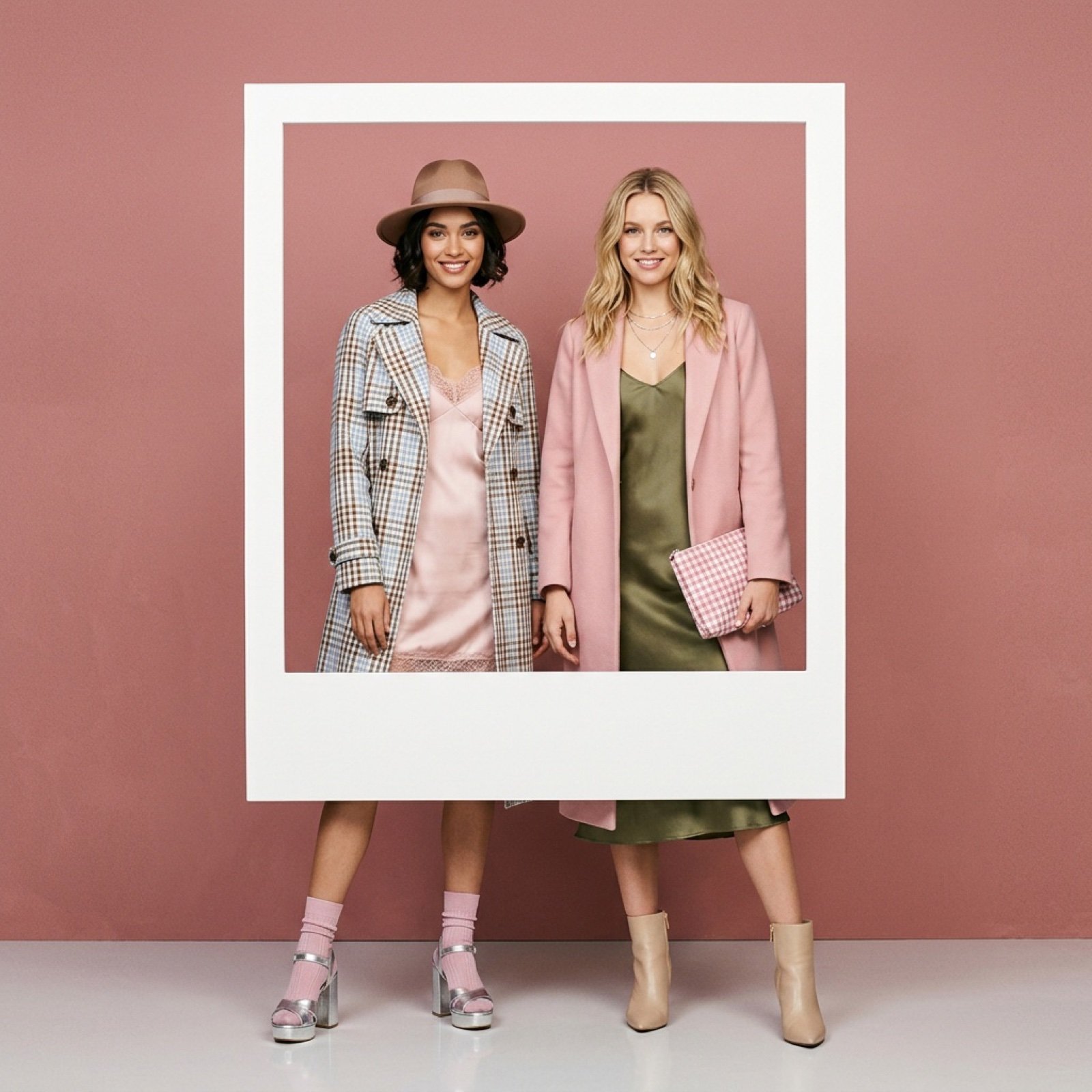
Fashion editorial with two models in a polaroid frame
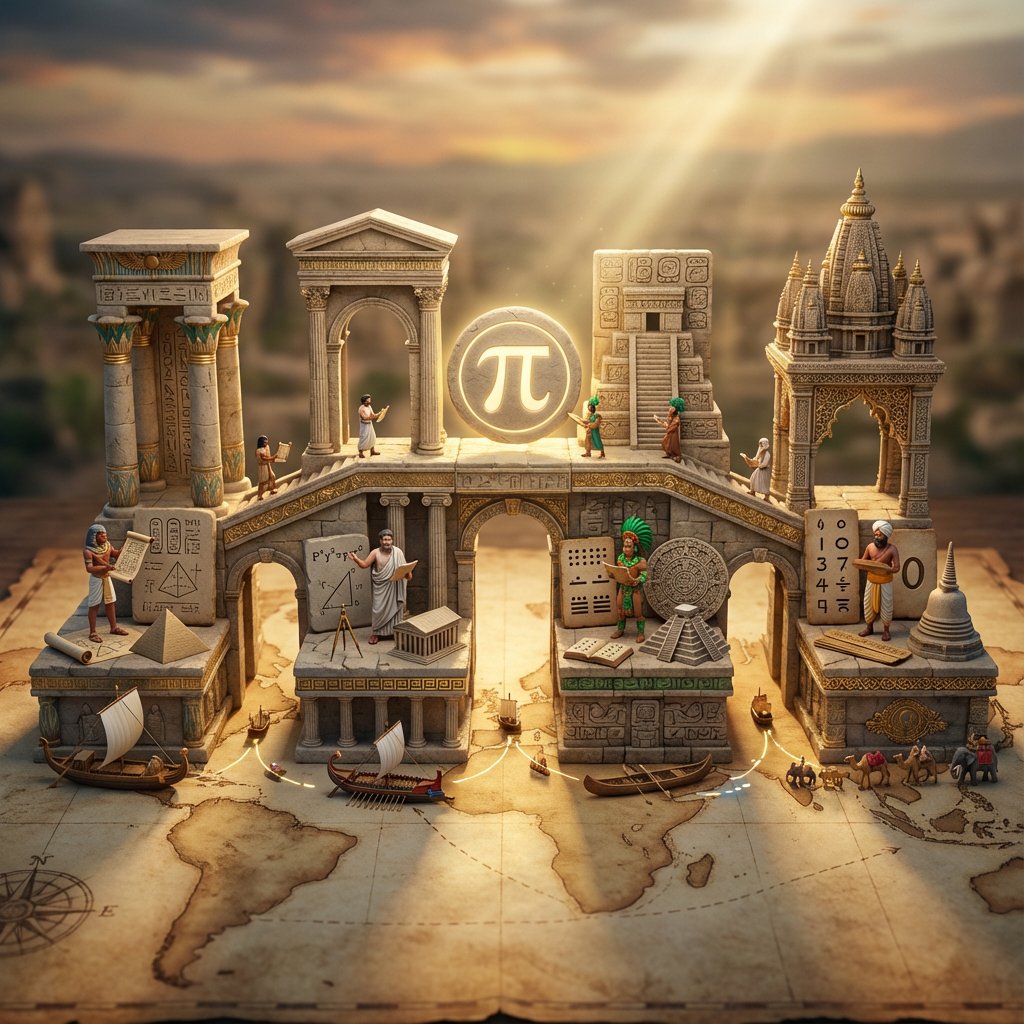
Miniature Bridge of Ancient Mathematical Knowledge
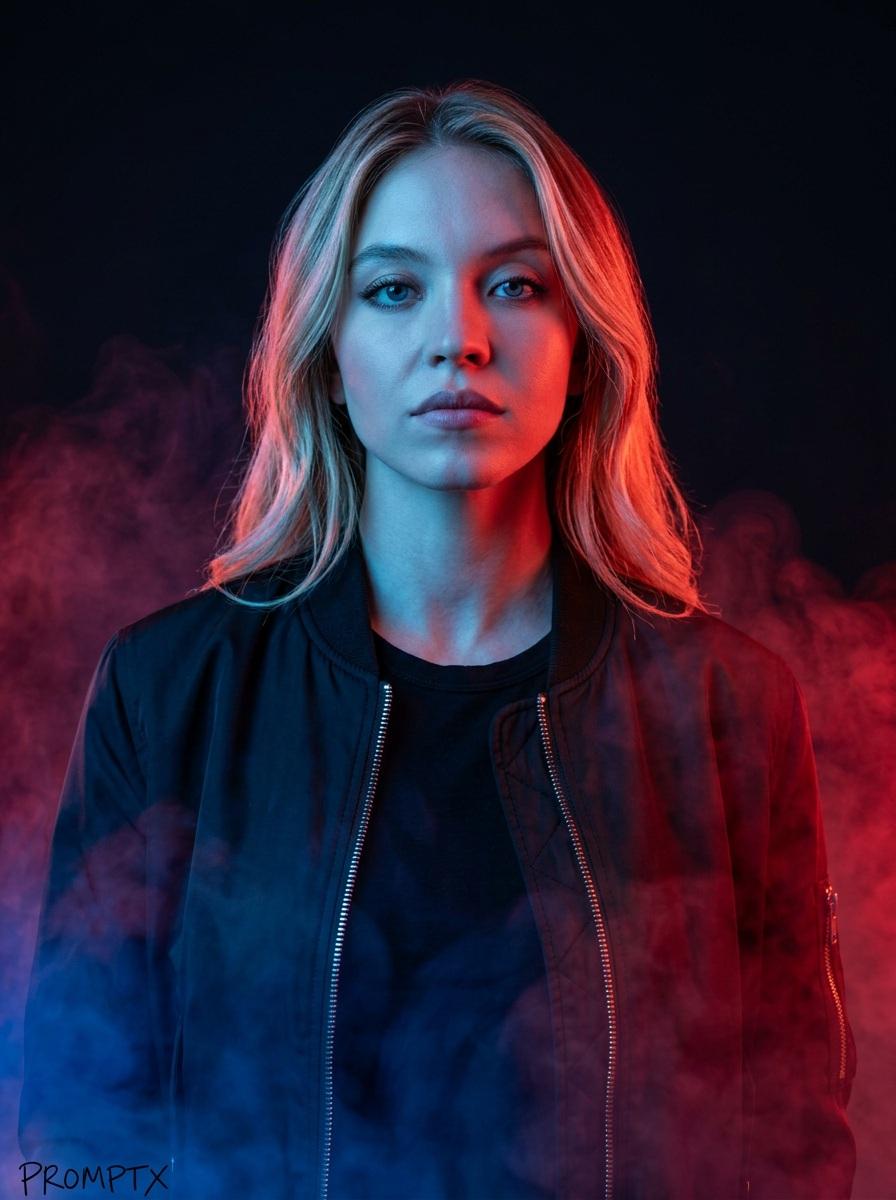
Cinematic portrait prompt for Nano Banana Pro
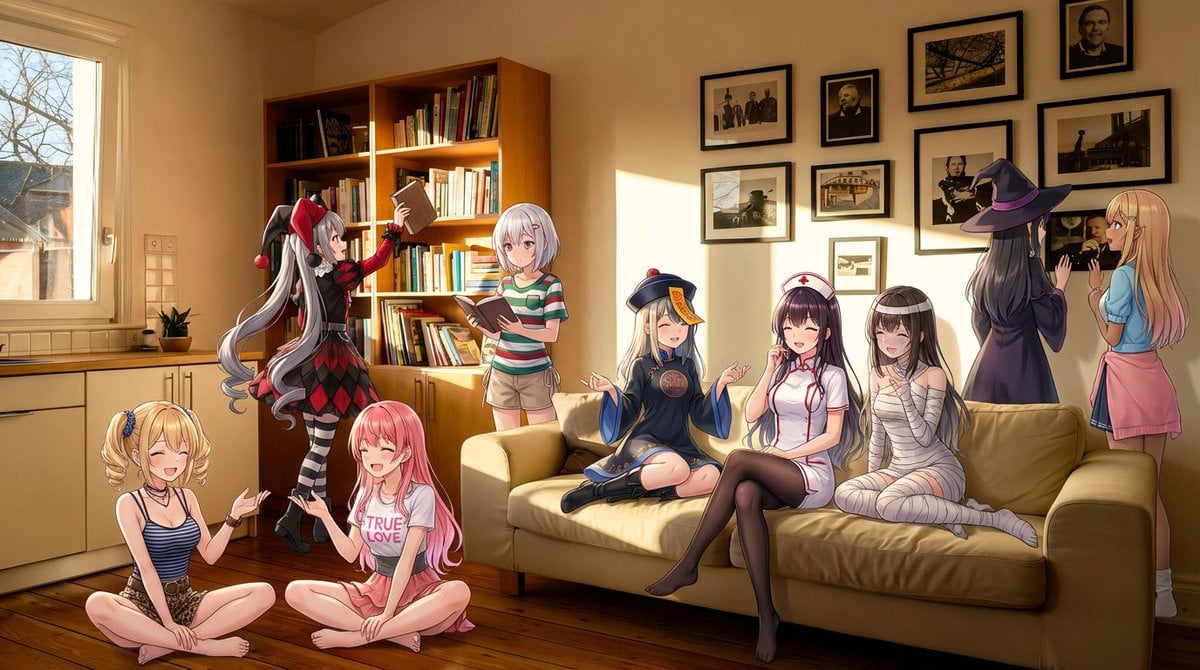
Nine-character group scene in living room background
Candid Fashion Lifestyle Shot with Reference
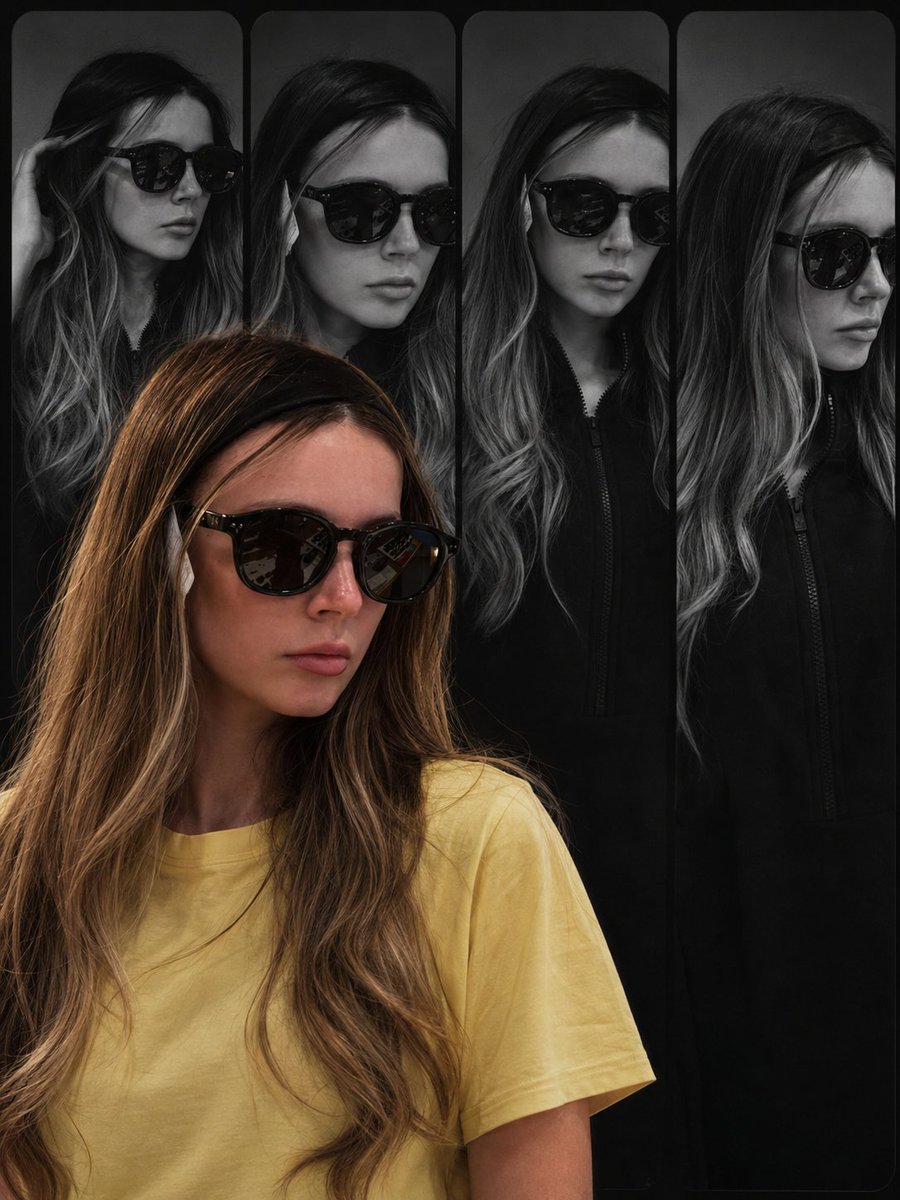
Haute Couture Editorial Collage
Browse template categories
Gear 5 Chalkboard Classroom Mural questions
How do I use the Gear 5 Chalkboard Classroom Mural template?
Add your photo if the template asks for one, edit the prompt if you like — the template's model and format are already selected — and press Generate. Your version opens in PicX Studio.
Can I customize the Gear 5 Chalkboard Classroom Mural template?
Yes. You can change the subject, setting, lighting, mood, format, and available model controls before creating your image.
Is the Gear 5 Chalkboard Classroom Mural template free?
Opening and editing this template is free. Generating uses credits, shown on the Generate button when you are signed in.
Which AI model should I use?
Start with GPT Image 2, which is the model associated with this template. You can compare another compatible model for a different finish.
Looking for something else? Browse all templates.

Your photo, any look
Thousands of ready templates for every top image and video model, from one credit balance.