
Anime Schoolgirl Chalkboard Quote
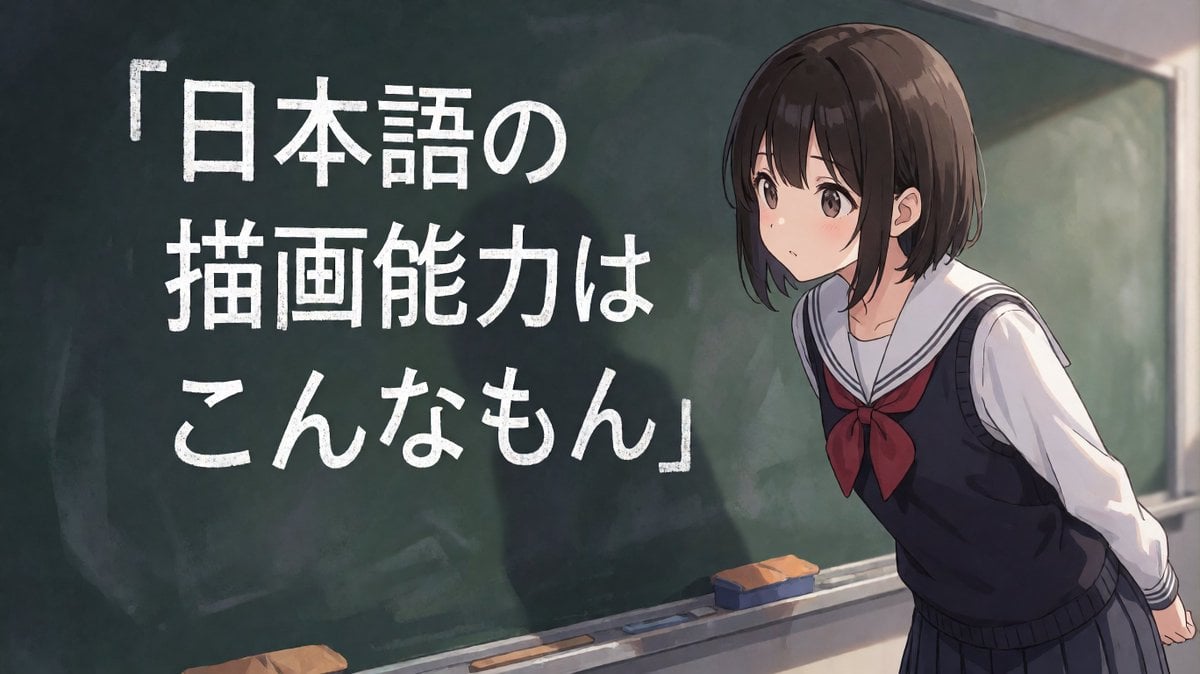
A wide anime classroom scene with a censored schoolgirl beside a chalkboard carrying a large Japanese chalk quote, useful for social media commentary visuals.
- Prompt included
- Model and format preset
- Free template
The prompt behind this image
Copy the exact prompt behind Anime Schoolgirl Chalkboard Quote, or open it in the studio and make it yours.
Create a wide 16:9 anime classroom illustration of a Japanese schoolgirl standing at the right side in front of a large dark green chalkboard. The girl is a half-body/three-quarter view character wearing a navy sailor-style school uniform with a white long-sleeve blouse, striped sailor collar, dark vest, pleated skirt, and a large burgundy red bow at the chest. She has short chin-length {argument name="hair color" default="dark brown"} bob hair with soft highlights and bangs, leaning forward slightly with her hands clasped behind her back; her face is intentionally obscured by a vertical blurred rectangular censor block so facial details are not visible. On the left side of the chalkboard, write large white chalk Japanese text exactly: {argument name="chalkboard quote" default="「日本語の\n描画能力は\nこんなもん」"}. Make the lettering look hand-drawn with chalk texture, thick strokes, slightly imperfect edges, and three stacked lines. Include chalkboard smudges, erased marks, subtle dust, a metal chalk tray along the bottom, and exactly 4 visible erasers/chalk-tray objects: one tan eraser partly visible at the far lower left, one long tan chalkboard eraser near the lower center, one small pale chalk stick/tray item near the center, and one blue eraser with an orange top near the girl. Use soft cinematic classroom lighting from the upper right, gentle depth of field, detailed anime rendering, painterly background, muted green and gray tones, no extra characters, no watermark, and keep the composition balanced with text dominating the left two-thirds and the student occupying the right third.
How to use Anime Schoolgirl Chalkboard Quote in 3 steps
- 1Upload ImagePNG, JPG or paste
Add your photo
Upload the photo the template builds on. The prompt, model and format are already set.
- 2…a portrait of your subject in softgolden-hour light, 85mm…
Personalize
Edit the subject and creative details for your destination.
- 3Generate
Generate
Press Generate — your image is created in PicX Studio, so you can compare it with the original and refine one variable at a time.
More like this
Templates with the same subject, style or setup. Open one to see its prompt.

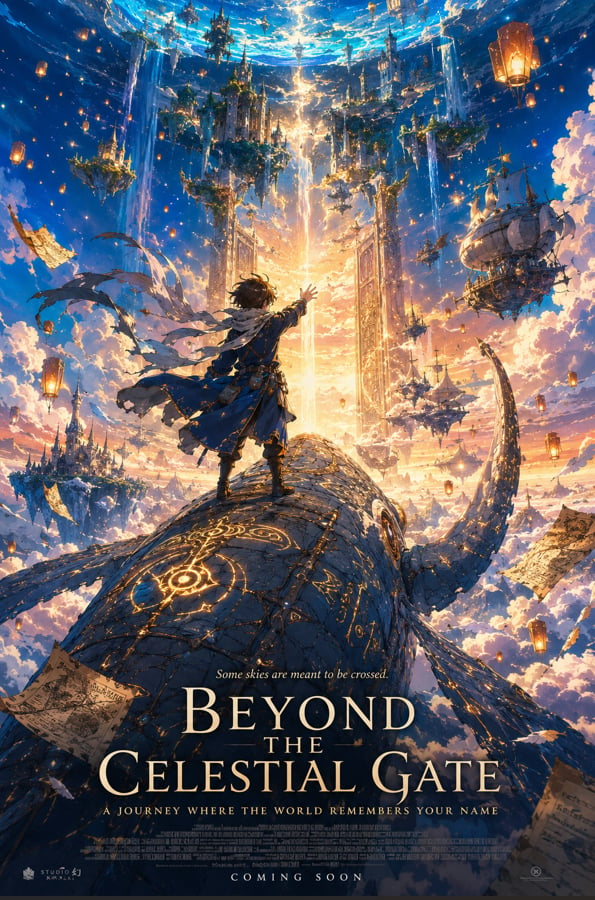
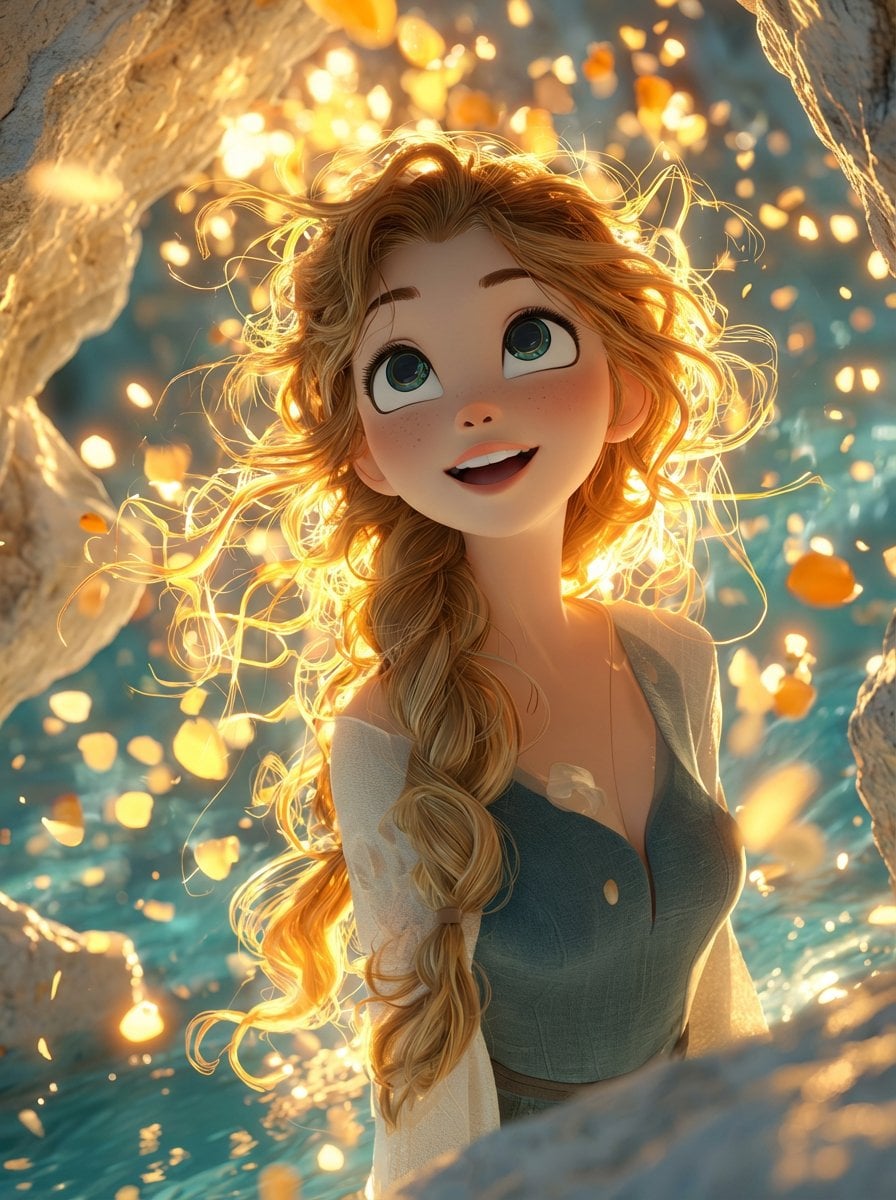
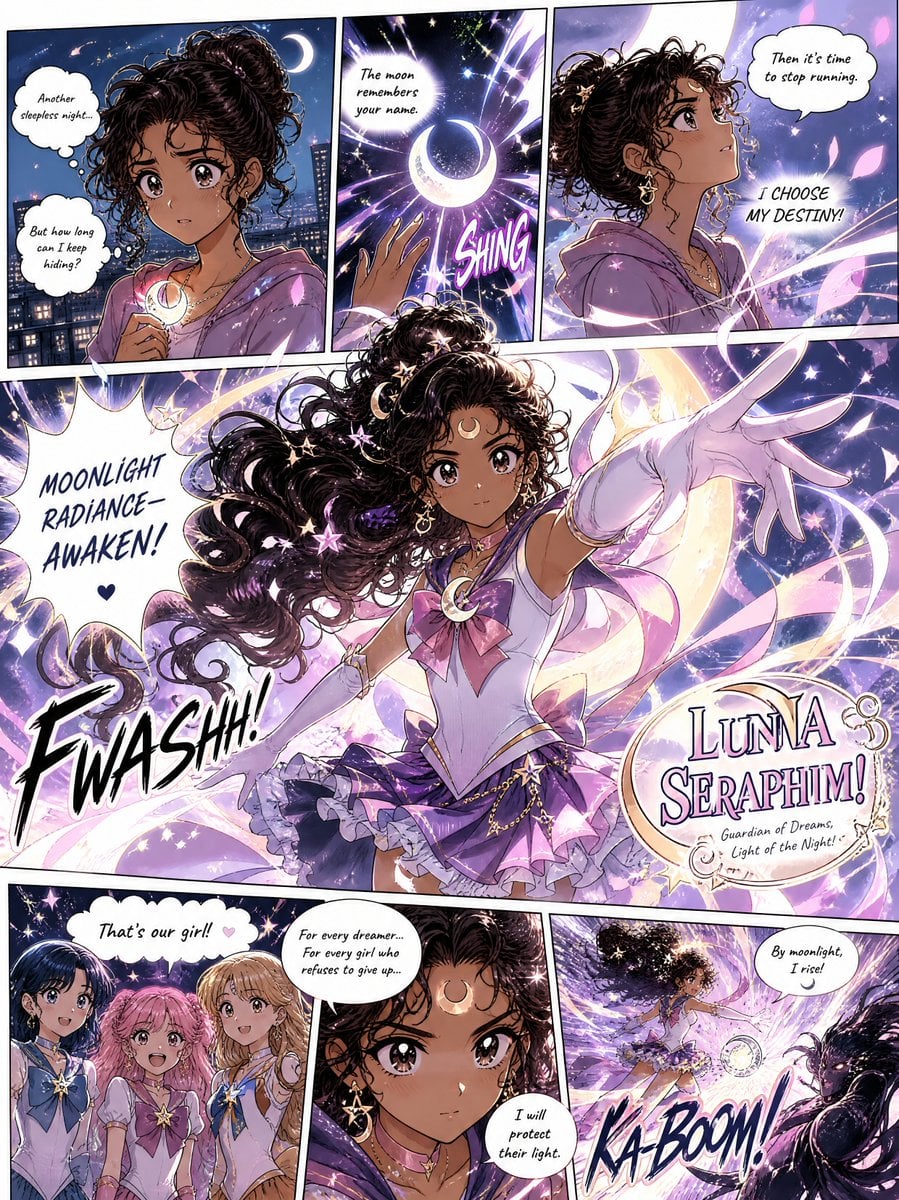
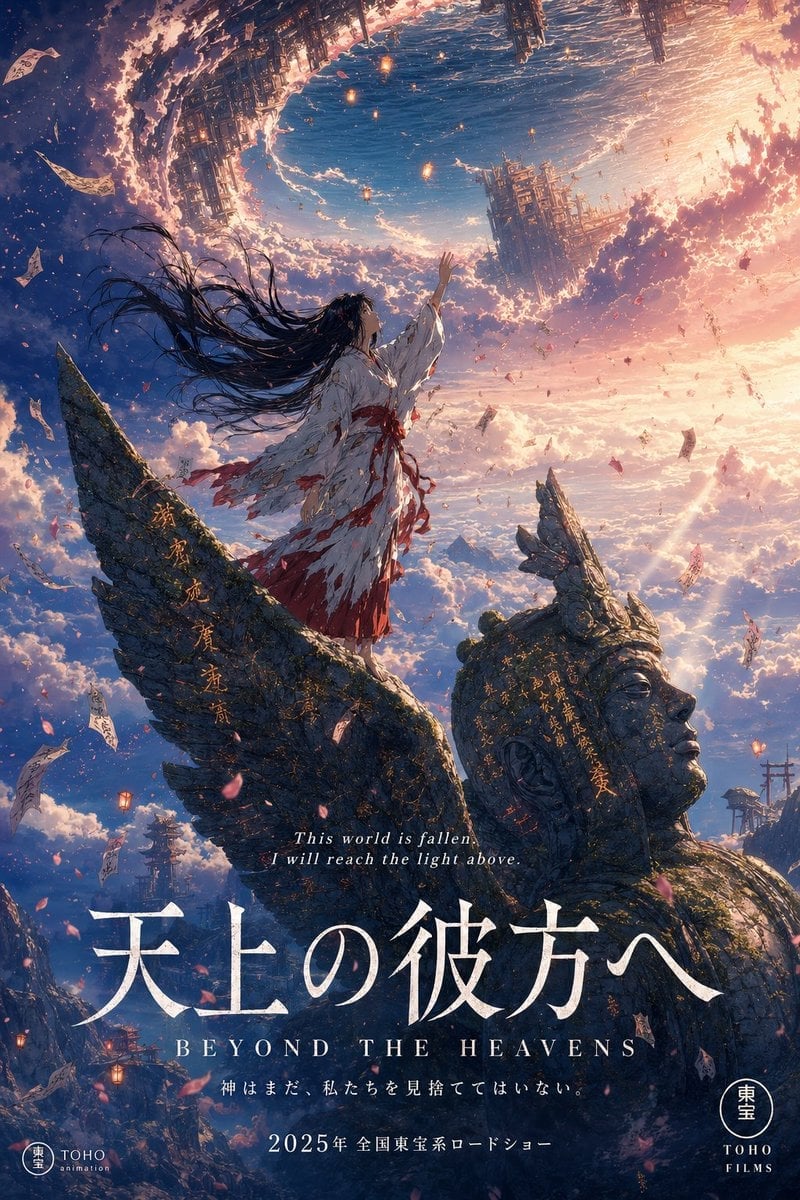

Make it yours
Anime Schoolgirl Chalkboard Quote works as-is. These are the safest ways to change it without losing the look.
Change one field
Copy a single group, rewrite it, and generate again so you can see what that field is doing.
Keep the frame, change the subject
Hold the composition and light of Anime Schoolgirl Chalkboard Quote, then swap wardrobe, props or the person for a new take.
| If the result… | Why | Fix |
|---|---|---|
| The result drifts from the preview | Too many fields changed at once. | Reuse Anime Schoolgirl Chalkboard Quote as-is first, then change one group — subject, light, or setting. |
| The model over-stylizes the scene | The prose prompt leaves finish and camera underspecified. | Add one camera or lighting sentence and stay on GPT Image 2. |
More GPT Image 2 templates
Other prompts made for GPT Image 2.

Six VTuber Japanese Logo Sheet

Realistic Portrait of Woman and Deer

The Vista Modular Condo Poster

AI Model Routing Comparison Infographic

2.5D Anime Art Board

Isometric Productivity Desk Scene

New York Double Exposure Poster

Four-Panel AI Landscape Comparison

Japanese Tatami Lifestyle Magazine Cover

NESCAFÉ Coffee Map Poster
More image prompts
Fresh picks from across the catalog.
Candid Portrait in Football Jersey
Singer AR Floating Play Card Effect
Double Exposure Motion Blur Portrait
Hyper-realistic Tea Photography Prompts (Still Life and Exploded View)
Cyberpunk Pink Mecha Angel Girl
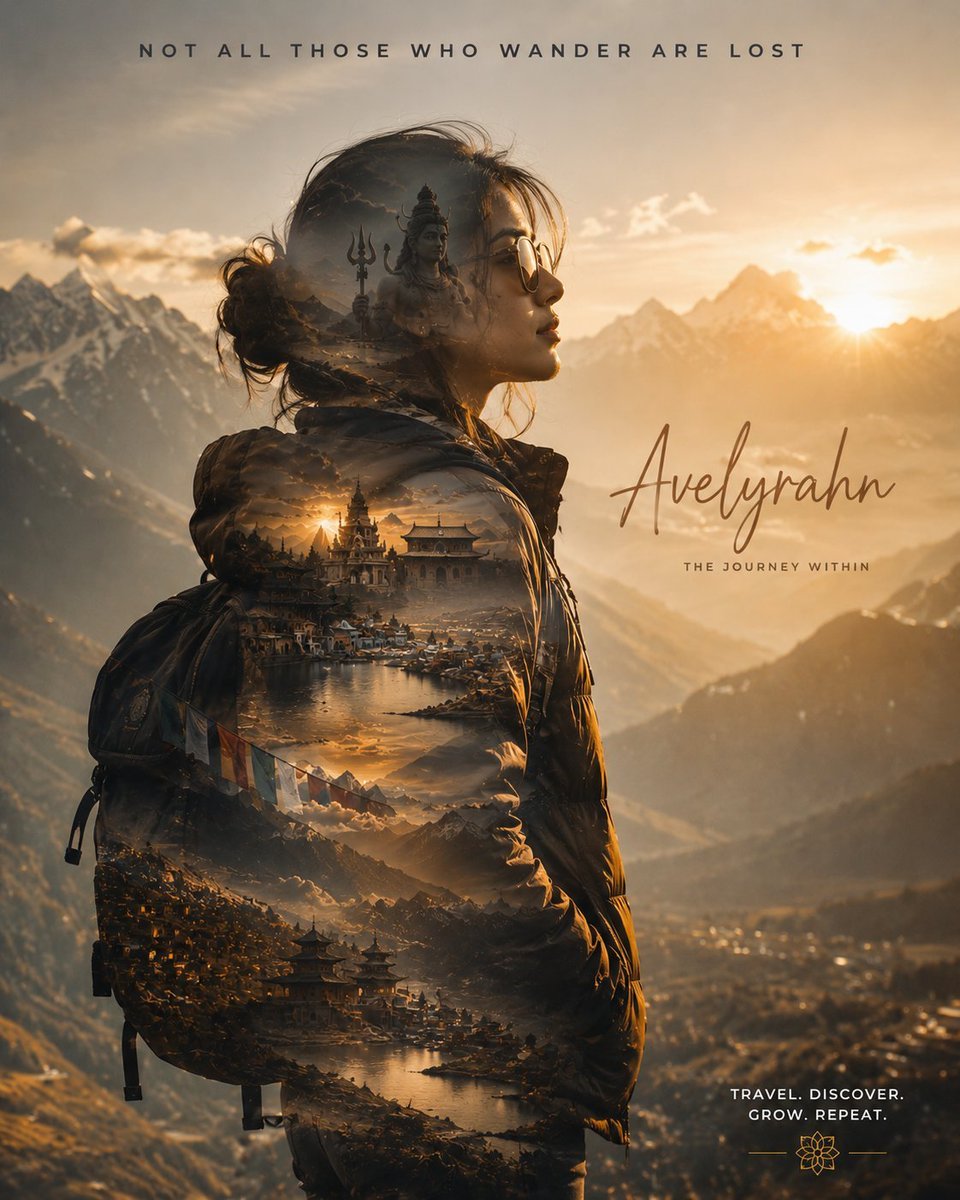
Double Exposure Spiritual Travel Poster
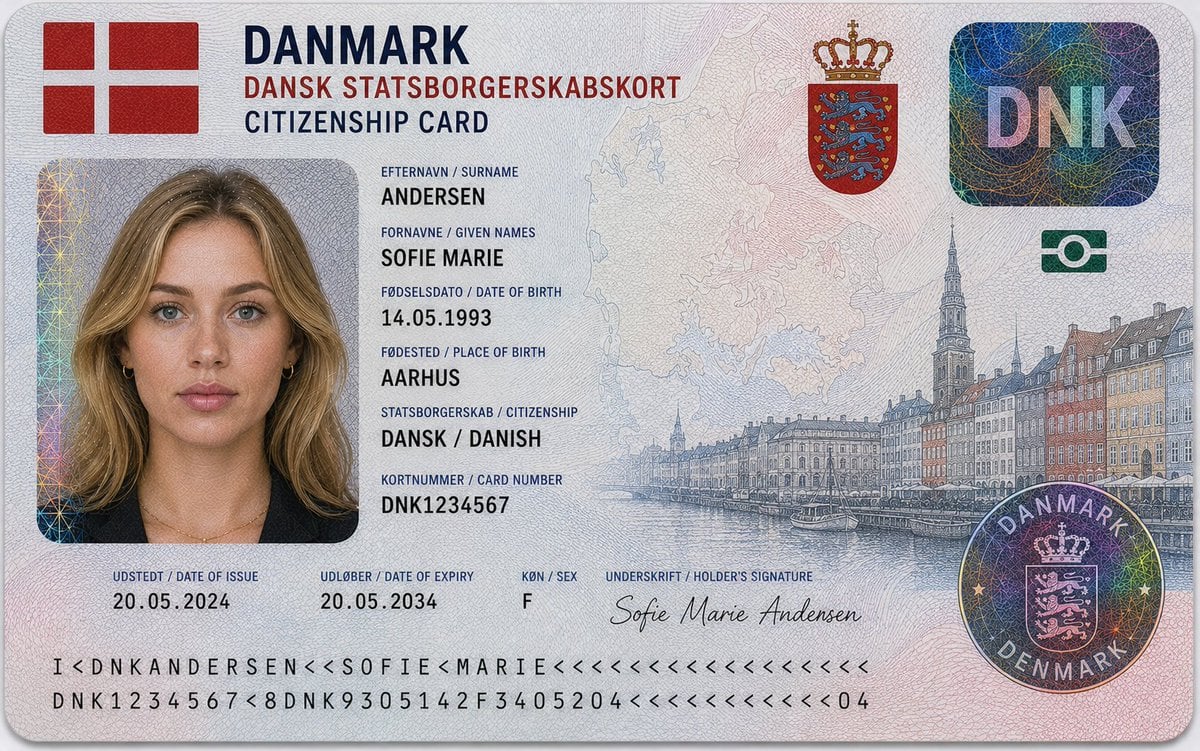
Algerian Identity Card Mockup
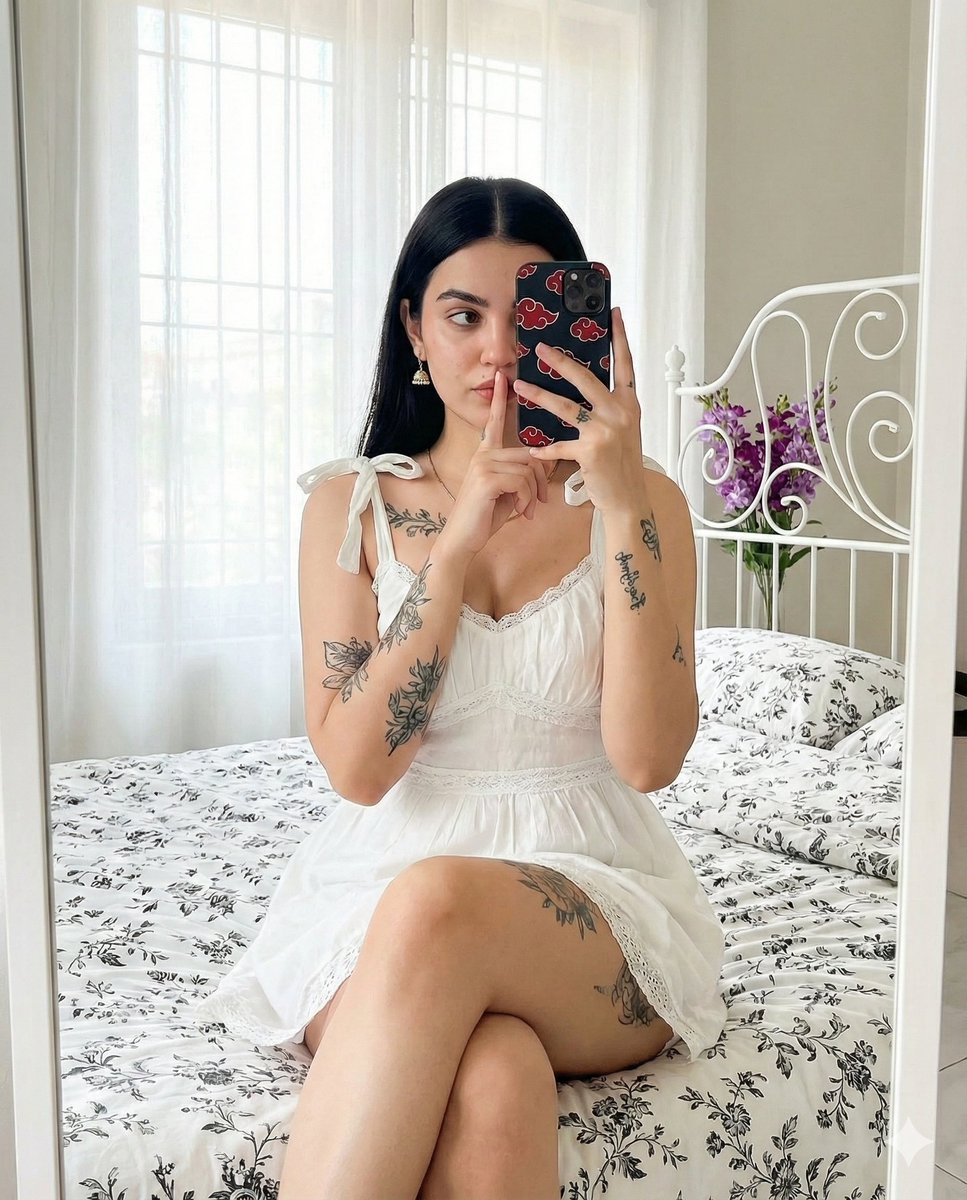
Ultra-Realistic Mirror Selfie with Akatsuki Phone Case
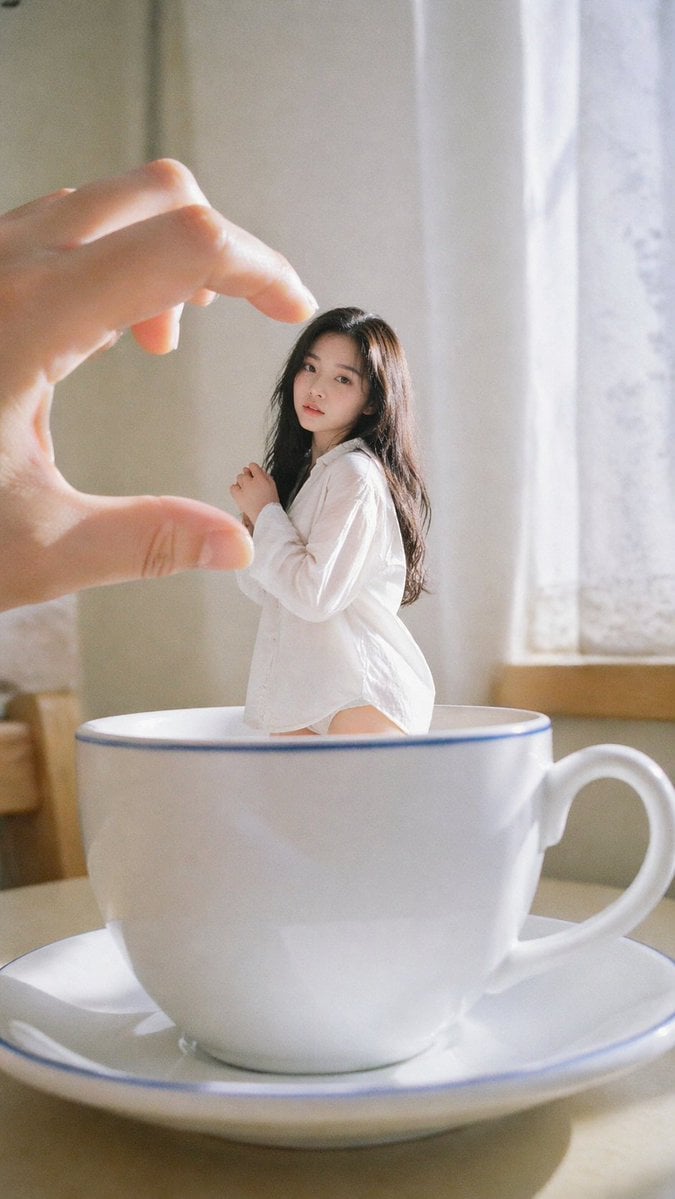
Forced Perspective Idol Portrait
Cinematic Sunset Lifestyle Photo Prompt for Nano Banana Pro
Browse template categories
Anime Schoolgirl Chalkboard Quote questions
How do I use the Anime Schoolgirl Chalkboard Quote template?
Add your photo if the template asks for one, edit the prompt if you like — the template's model and format are already selected — and press Generate. Your version opens in PicX Studio.
Can I customize the Anime Schoolgirl Chalkboard Quote template?
Yes. You can change the subject, setting, lighting, mood, format, and available model controls before creating your image.
Is the Anime Schoolgirl Chalkboard Quote template free?
Opening and editing this template is free. Generating uses credits, shown on the Generate button when you are signed in.
Which AI model should I use?
Start with GPT Image 2, which is the model associated with this template. You can compare another compatible model for a different finish.
Looking for something else? Browse all templates.

Your photo, any look
Thousands of ready templates for every top image and video model, from one credit balance.