
AI Model Routing Comparison Infographic
A square social media infographic comparing chaotic all-GPT usage with smart task-based AI model routing.

- Prompt included
- Model and format preset
- Premium template
The prompt behind this image
Copy the exact prompt behind AI Model Routing Comparison Infographic, or open it in the studio and make it yours.
Create a square 1:1 dark futuristic tech infographic for social media comparing two AI workflow approaches. Canvas: 768x768 or similar, deep navy-to-black background with subtle dotted grid texture and a vertical split down the center. At the top, place a huge bold uppercase headline: “STOP USING GPT FOR {argument name="headline word" default="EVERYTHING"}.” The words “STOP USING GPT FOR” are white, and the final word is a left-to-right gradient from lime green to cyan-blue, with a cyan period. Use a clean heavy sans-serif font, high contrast, crisp vector-like rendering. Layout: two side-by-side columns. Left column is labeled as the bad workflow, right column as the improved workflow. The left side has a red/pink theme with a pill label reading “THE OLD WAY,” a small subtitle “WASTE MONEY,” and a central rounded-square GPT/OpenAI-style knot icon. Around it are exactly 5 smaller rounded-square task icons connected by messy red dashed routing lines: 1 video clapper/play icon at upper center, 2 design pen-nib/Bezier icon at left, 3 microphone icon at right, 4 image/photo icon at lower left, 5 code brackets icon at lower right. The messy dashed lines loop and cross, showing chaos. Right column has a teal/blue theme with a pill label reading “THE SMART WAY,” a small subtitle “ROUTE TO THE BEST MODEL,” and a central rounded-square robot router icon. Connect it with clean glowing solid lines to exactly 5 model cards: 1 top card with OpenAI knot icon labeled “GPT 5.6” and “DESIGN,” 2 left purple card with code brackets labeled “{argument name="coding model" default="FABLE"}” and “CODE (HARD),” 3 right blue card with clapper/play icon labeled “{argument name="video model" default="SEEDANCE 2.0"}” and “VIDEO,” 4 bottom-left gold card with image icon labeled “{argument name="image model" default="GPT 2.0"}” and “IMAGE,” 5 bottom-right blue card with microphone icon labeled “{argument name="voice model" default="HUME"}” and “VOICE.” Use rounded glassmorphism cards with neon outlines and soft glow. Bottom callouts: under the left column, place a red outlined rounded status bar with a red X icon and text “EXPENSIVE. CHAOTIC. INEFFICIENT.” Under the right column, place a teal/green outlined rounded status bar with a green check icon and text “SMARTER. CHEAPER. BETTER RESULTS.” Keep all text legible, centered, and aligned. Use strong contrast, modern SaaS marketing style, subtle gradients, neon highlights, no extra logos, no watermark, no additional text beyond the specified labels.
How to use AI Model Routing Comparison Infographic in 3 steps
- 1Upload ImagePNG, JPG or paste
Add your photo
Upload the photo the template builds on. The prompt, model and format are already set.
- 2…a portrait of your subject in softgolden-hour light, 85mm…
Personalize
Edit the subject and creative details for your destination.
- 3Generate
Generate
Press Generate — your image is created in PicX Studio, so you can compare it with the original and refine one variable at a time.
More like this
Templates with the same subject, style or setup. Open one to see its prompt.
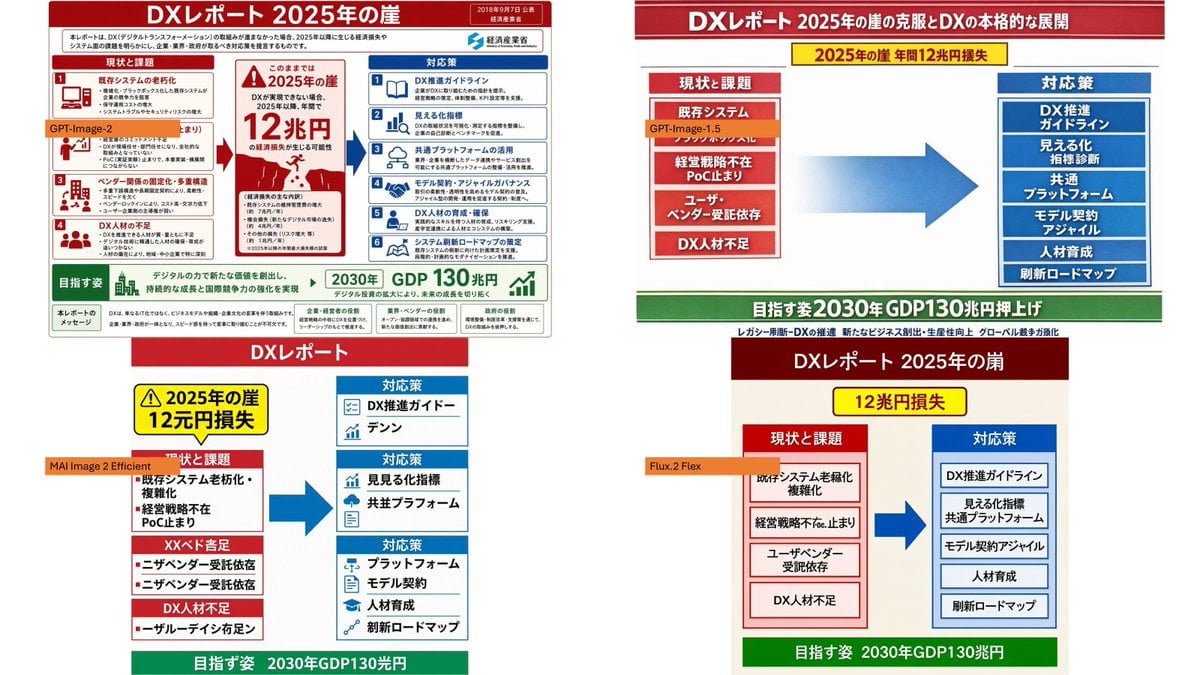
DX Infographic Model Comparison

Japan Travel Brochure Poster
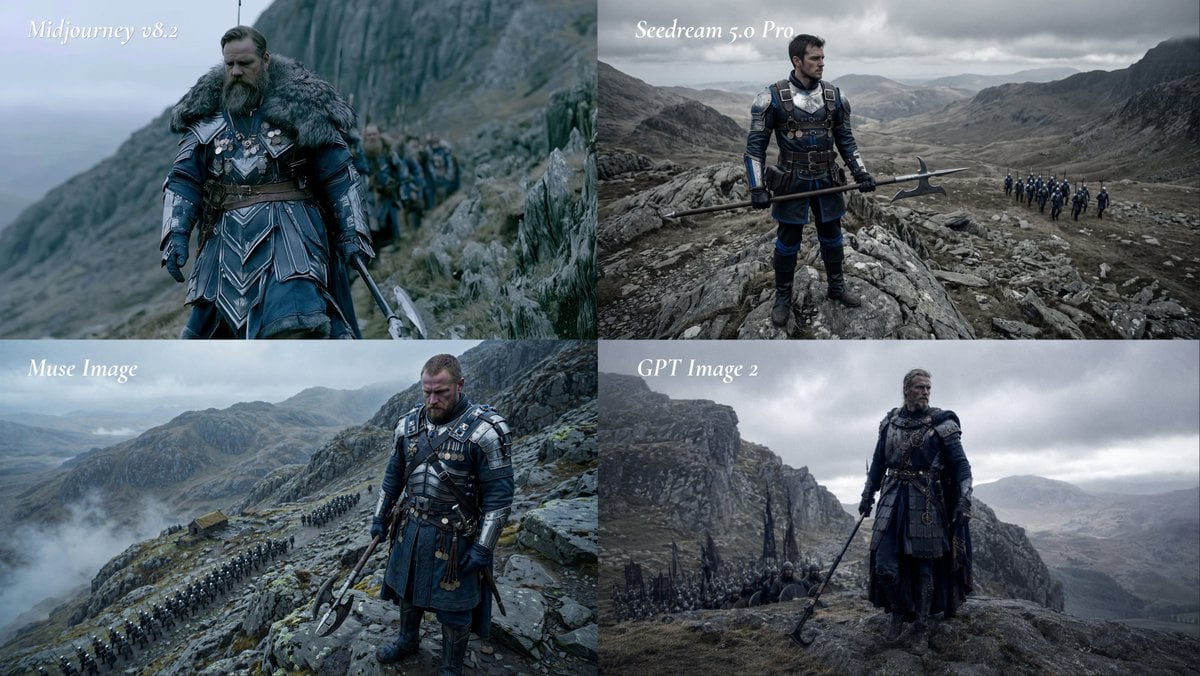
Fantasy Model Comparison Grid
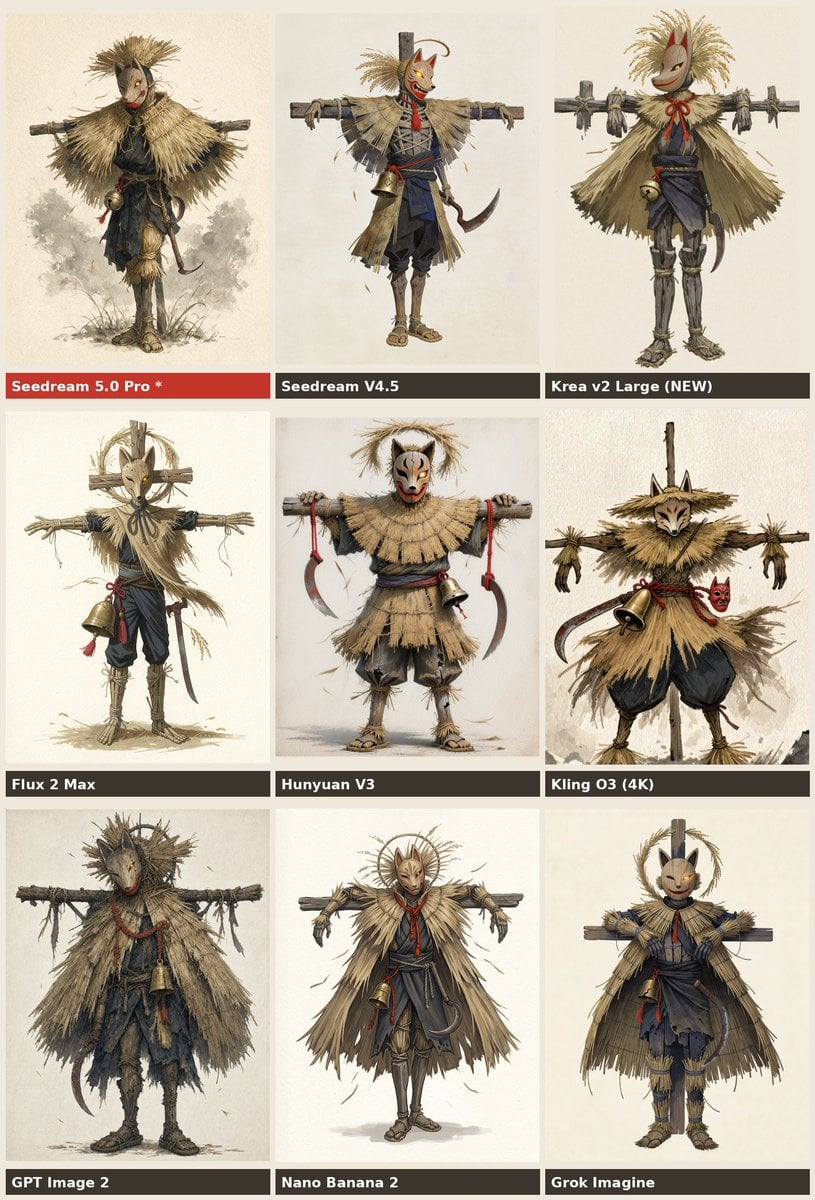
Nine-Model Scarecrow Yokai Comparison
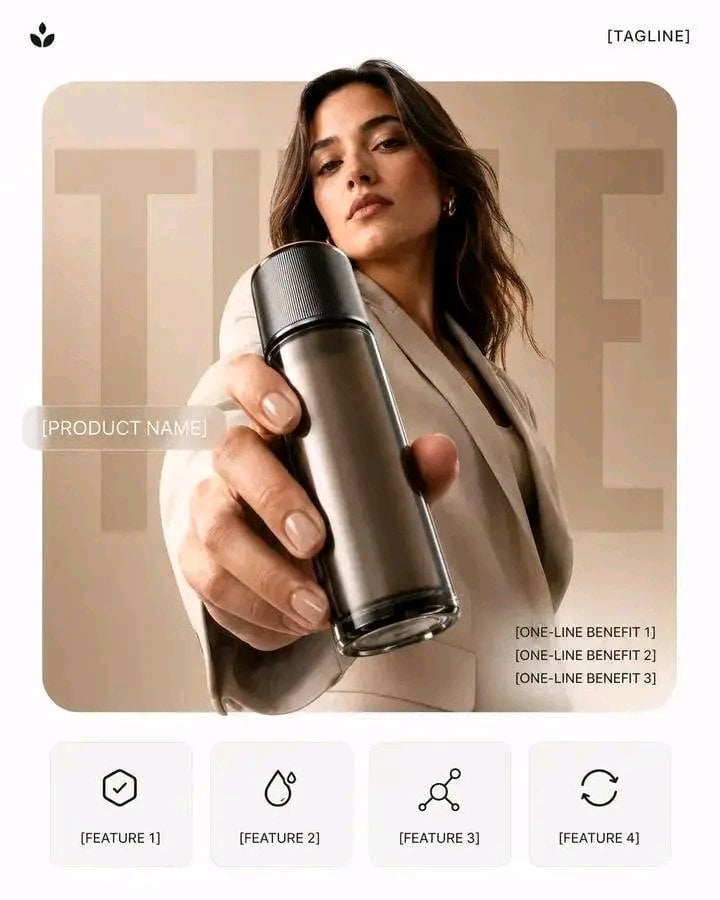
Premium Vertical Product Campaign Poster

Isometric Process Educational Diorama

Isometric Vehicle Teardown Infographic Template
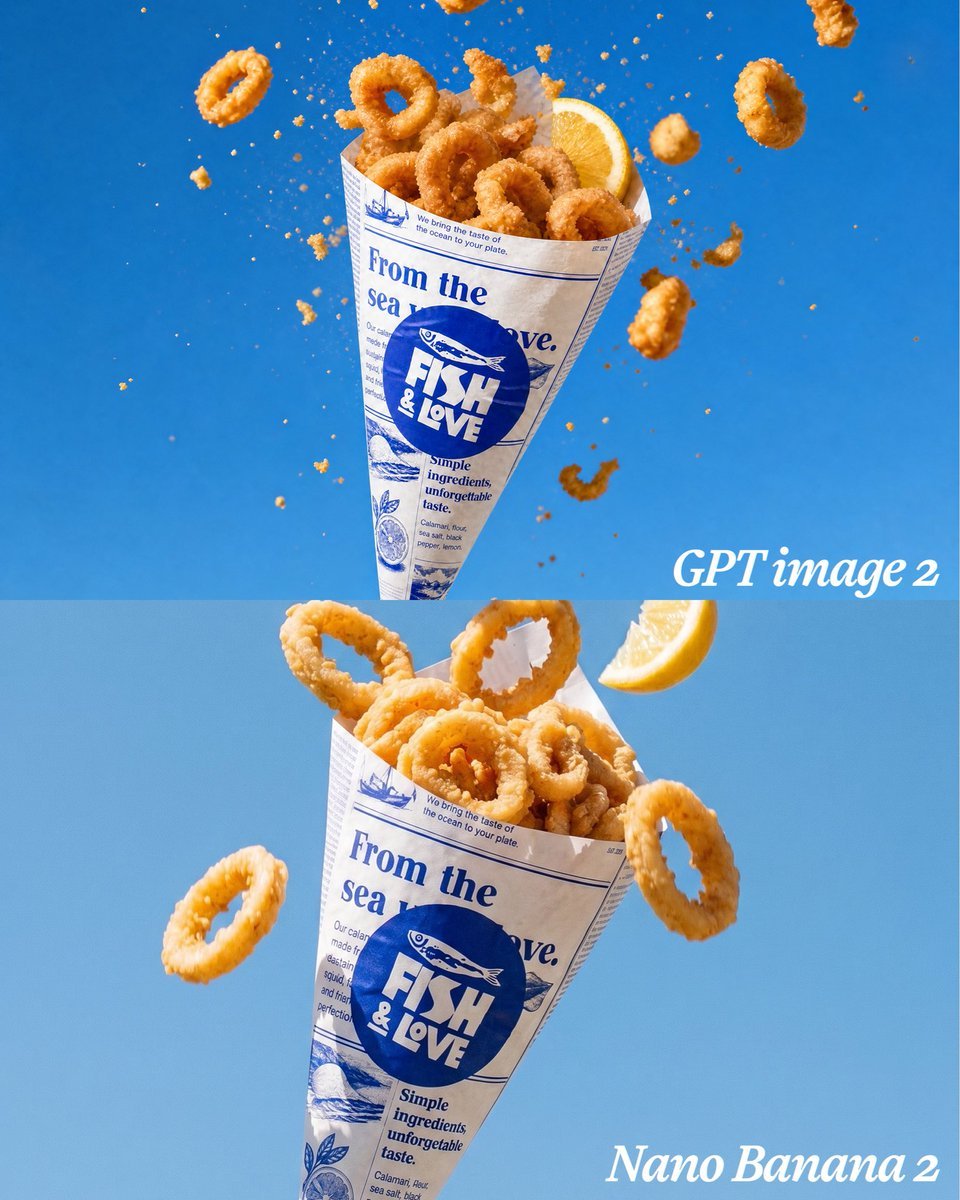
Calamari Cone Model Comparison
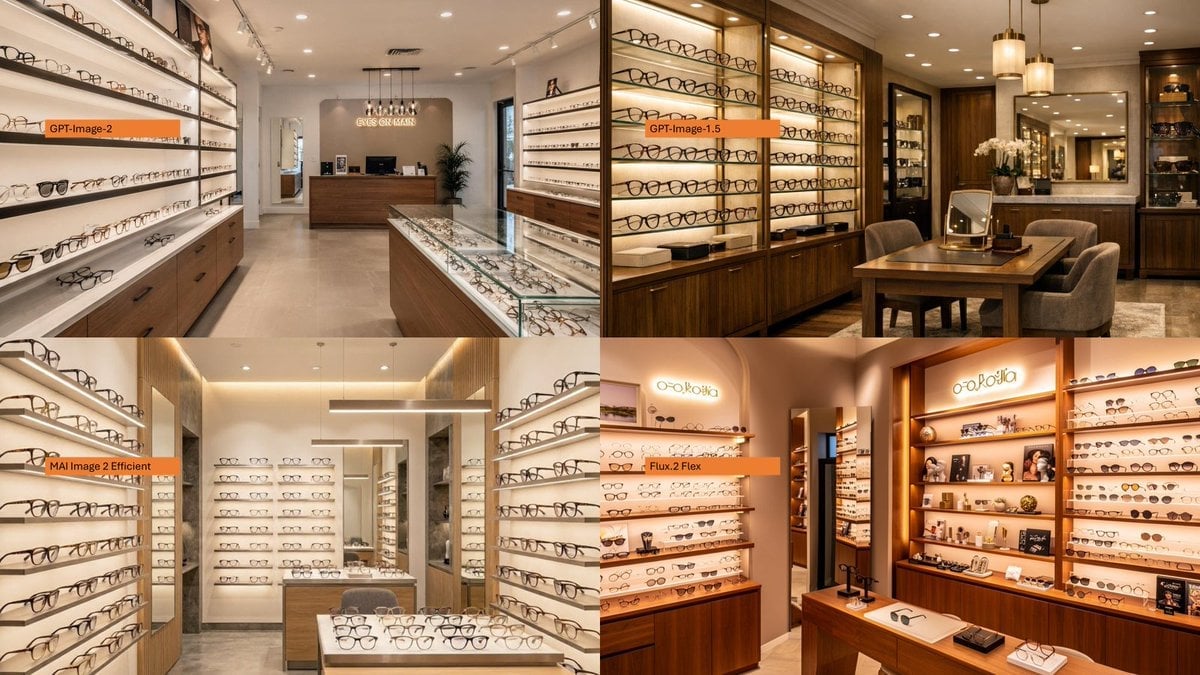
AI Model Eyewear Store Comparison
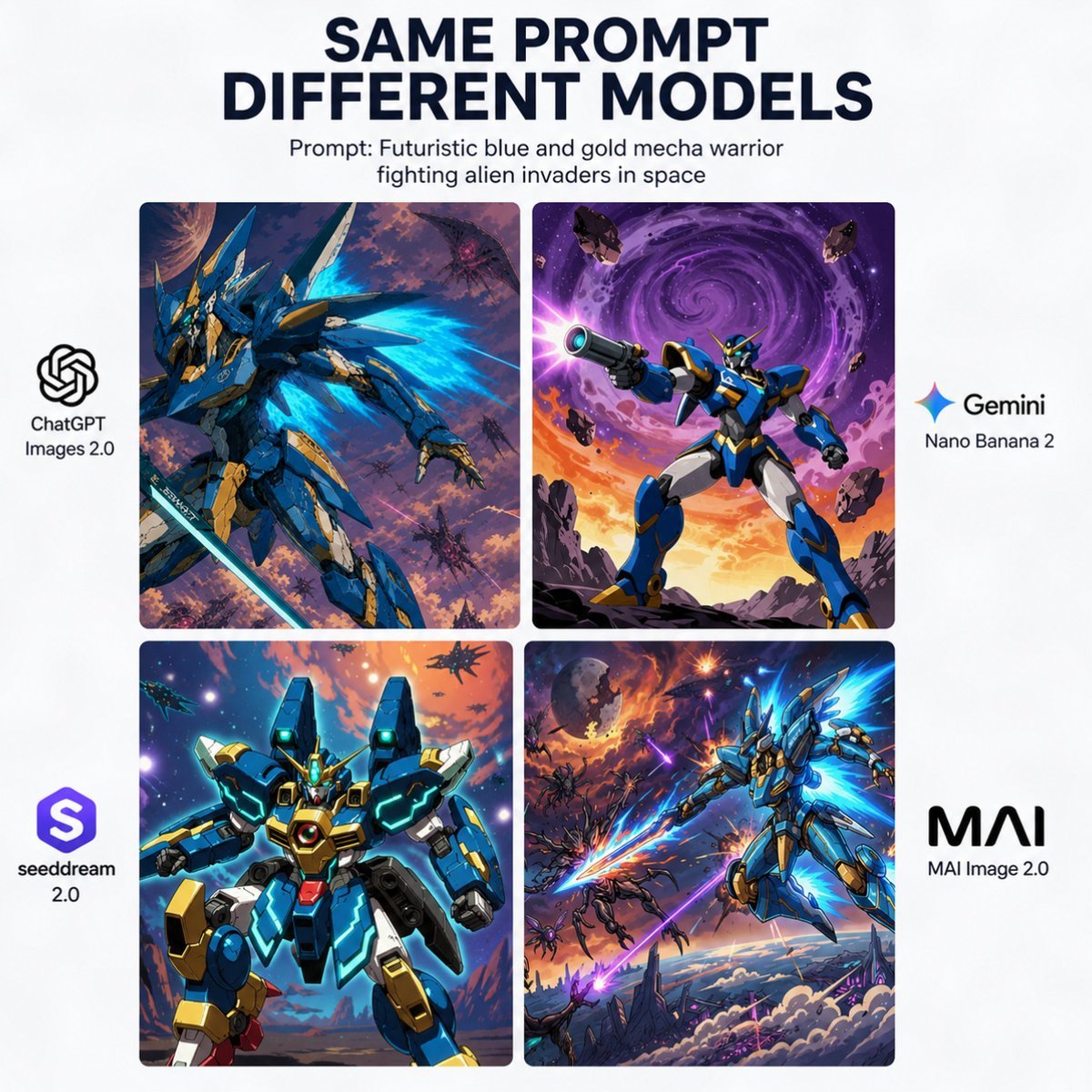
AI Model Mecha Comparison Poster
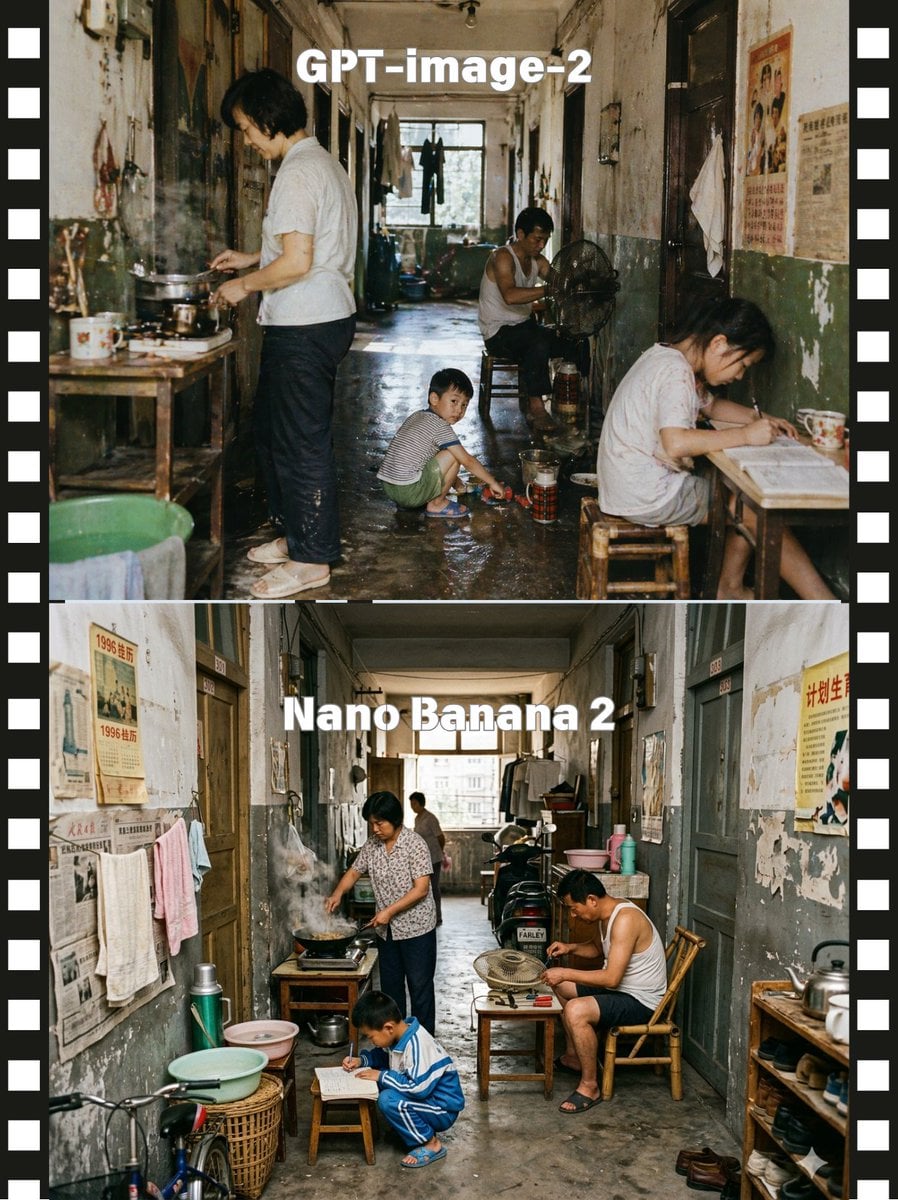
Stacked Corridor Model Comparison

AI Model Comparison Ad Poster
Make it yours
AI Model Routing Comparison Infographic works as-is. These are the safest ways to change it without losing the look.
Change one field
Copy a single group, rewrite it, and generate again so you can see what that field is doing.
Keep the frame, change the subject
Hold the composition and light of AI Model Routing Comparison Infographic, then swap wardrobe, props or the person for a new take.
| If the result… | Why | Fix |
|---|---|---|
| The result drifts from the preview | Too many fields changed at once. | Reuse AI Model Routing Comparison Infographic as-is first, then change one group — subject, light, or setting. |
| The model over-stylizes the scene | The prose prompt leaves finish and camera underspecified. | Add one camera or lighting sentence and stay on GPT Image 2. |
More GPT Image 2 templates
Other prompts made for GPT Image 2.

Six VTuber Japanese Logo Sheet

Realistic Portrait of Woman and Deer

The Vista Modular Condo Poster

2.5D Anime Art Board

Isometric Productivity Desk Scene

New York Double Exposure Poster

Four-Panel AI Landscape Comparison

Japanese Tatami Lifestyle Magazine Cover

NESCAFÉ Coffee Map Poster

Brutalist Cogito Chinese Typography Poster
More image prompts
Fresh picks from across the catalog.

Optical Metaphor Poster Logic
Photorealistic Portrait of a Woman on a Seaside Terrace at Blue Hour

Image Manipulation Prompt for Advertising Placement
Cinematic Red Backdrop Portrait Prompt
Nighttime Mercedes S-Class Interior Portrait with Purple Ambient Light

Retro-Modern Fashion Editorial Advertisement

Cinematic Portrait of Kashmiri Woman with Baby Goat
Hyper-Realistic Pet Food Ad Series Prompt

Cinematic Energy Drink Ad
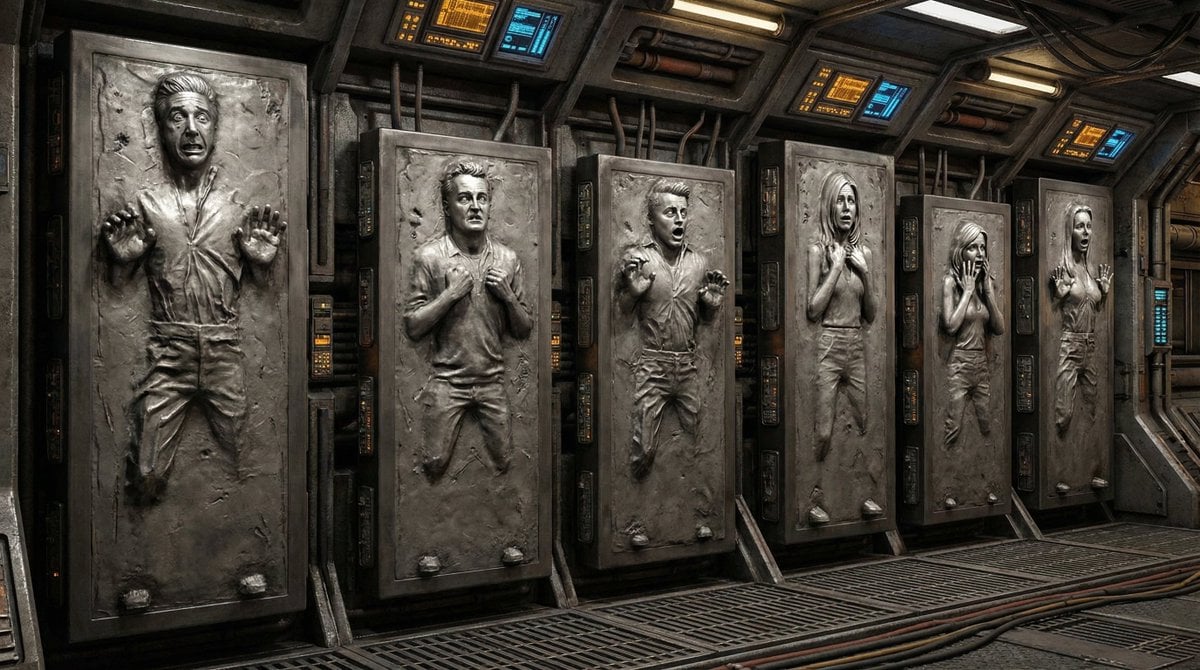
Image-to-Image 'Carbonite' Effect Prompt
Browse template categories
AI Model Routing Comparison Infographic questions
How do I use the AI Model Routing Comparison Infographic template?
Add your photo if the template asks for one, edit the prompt if you like — the template's model and format are already selected — and press Generate. Your version opens in PicX Studio.
Can I customize the AI Model Routing Comparison Infographic template?
Yes. You can change the subject, setting, lighting, mood, format, and available model controls before creating your image.
Is the AI Model Routing Comparison Infographic template free?
Opening and editing this template is free. Generating uses credits, shown on the Generate button when you are signed in.
Which AI model should I use?
Start with GPT Image 2, which is the model associated with this template. You can compare another compatible model for a different finish.
Looking for something else? Browse all templates.

Your photo, any look
Thousands of ready templates for every top image and video model, from one credit balance.