How do I use the AI Model Eyewear Store Comparison template?
Edit the prompt in the box under the preview — the template's model and format are already selected — and press Generate. Your version appears right on this page.
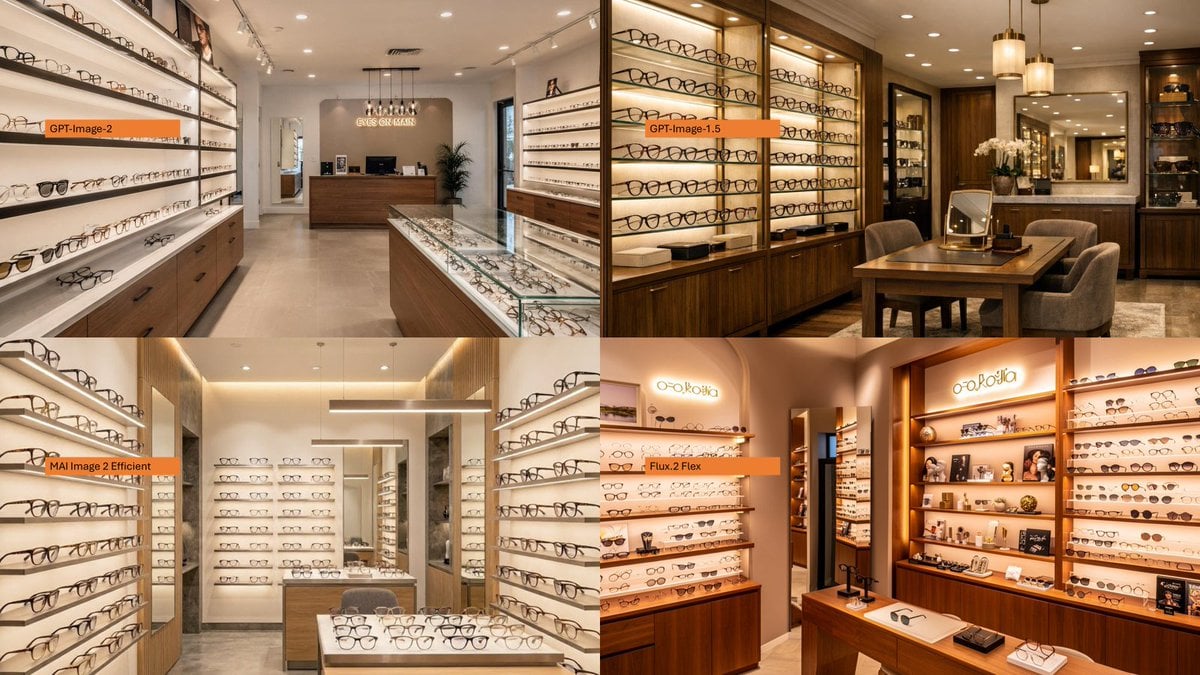
Creates a four-panel photorealistic comparison collage of optical shop interiors labeled by image model names.

This template uses your photo — add one with the + button.
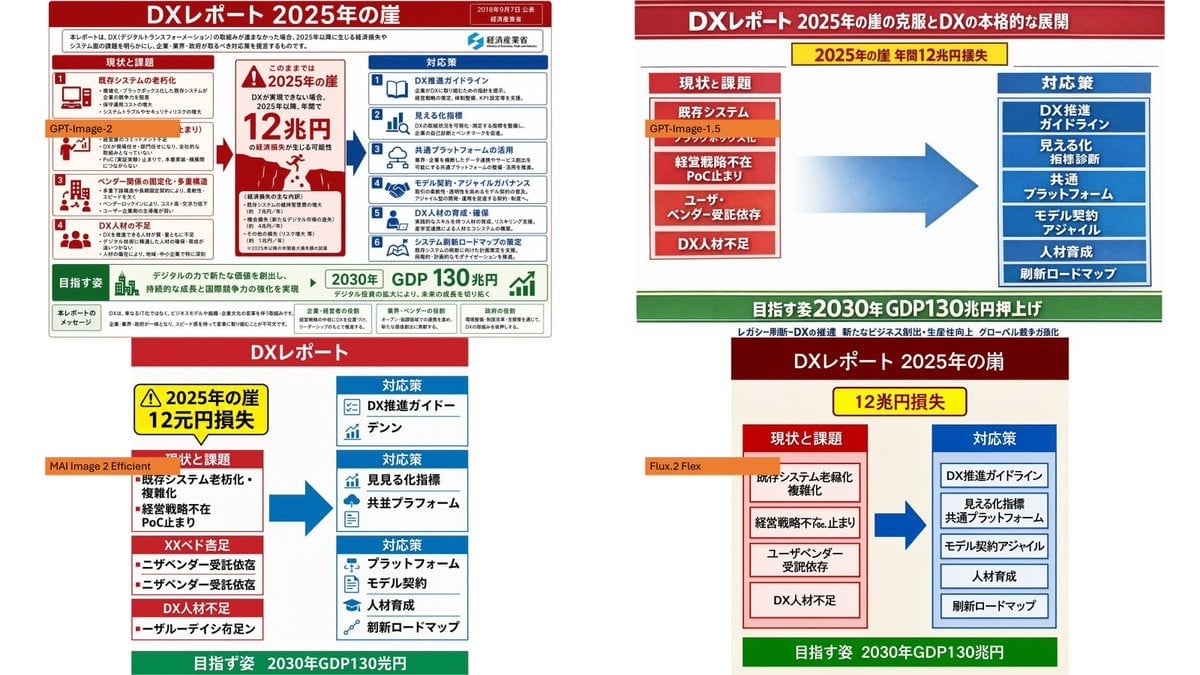
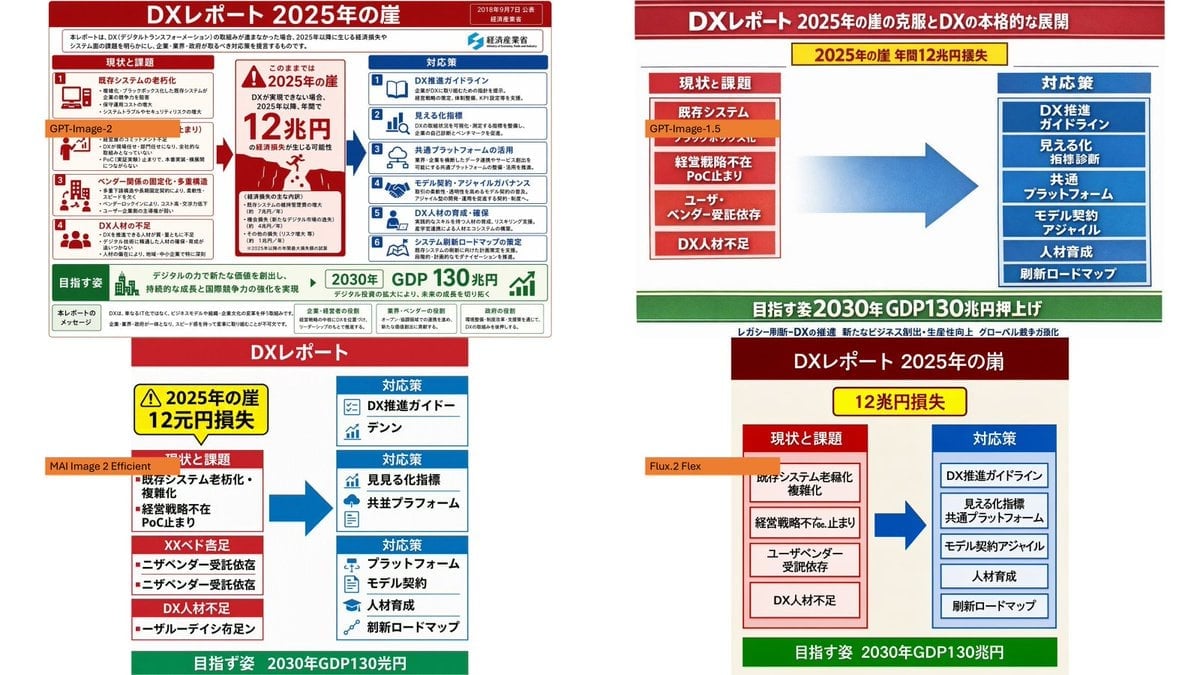
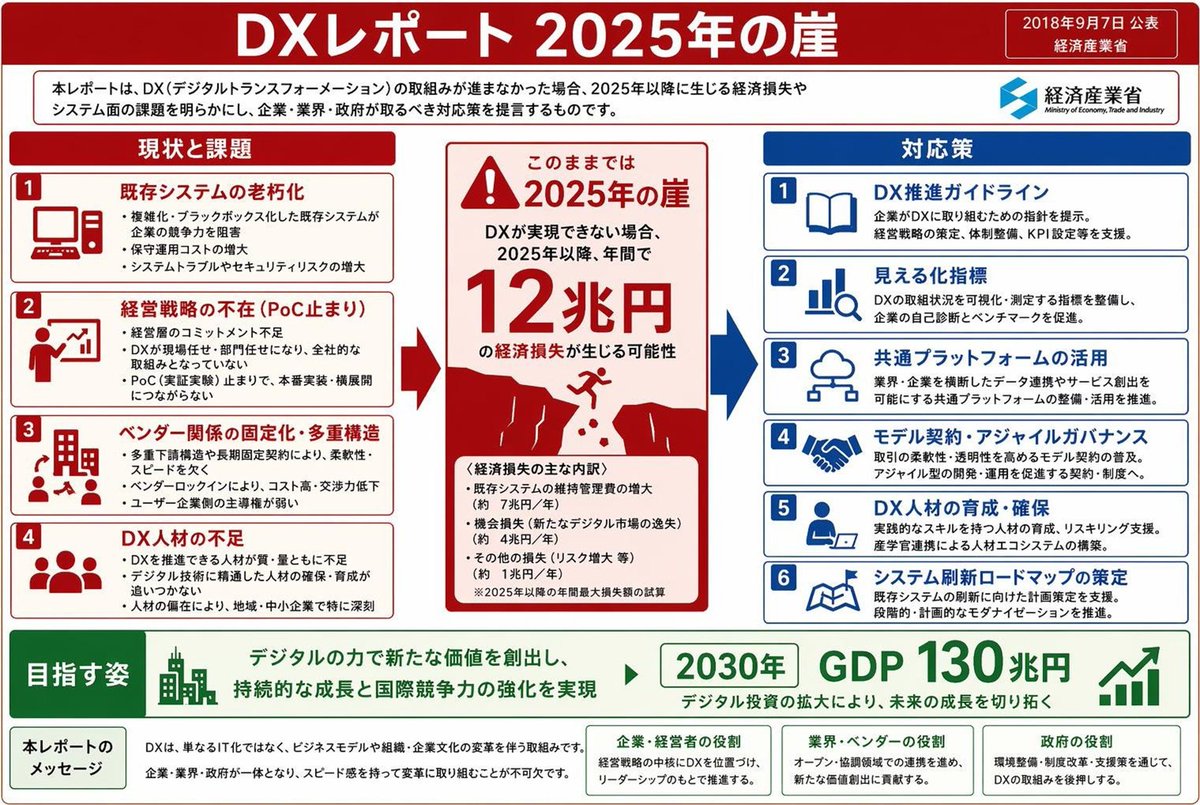
Using the provided reference image as a loose layout inspiration for a model-comparison graphic, replace the Japanese DX infographic with a clean 2×2 comparison collage of photorealistic eyeglasses store interiors. Create exactly 4 panels: top-left labeled {argument name="first model label" default="GPT-Image-2"}, top-right labeled {argument name="second model label" default="GPT-Image-1.5"}, bottom-left labeled {argument name="third model label" default="MAI Image 2 Efficient"}, and bottom-right labeled {argument name="fourth model label" default="Flux.2 Flex"}. Each panel should show a different upscale optical boutique interior filled with wall displays of eyeglass frames, glass counters, warm lighting, wood cabinetry, mirrors, and showroom depth. Use small horizontal orange label bars with black text near the left side of each panel. Make the final image a wide 16:9 collage with thin panel boundaries, no extra explanatory text, no Japanese report content, and no watermark.
Using the provided reference image as a loose layout inspiration for a model-comparison graphic, replace the Japanese DX infographic with a clean 2×2 comparison collage of photorealistic eyeglasses store interiors. Create exactly 4 panels: top-left labeled {argument name="first model label" default="GPT-Image-2"}, top-right labeled {argument name="second model label" default="GPT-Image-1.5"}, bottom-left labeled {argument name="third model label" default="MAI Image 2 Efficient"}, and bottom-right labeled {argument name="fourth model label" default="Flux.2 Flex"}. Each panel should show a different upscale optical boutique interior filled with wall displays of eyeglass frames, glass counters, warm lighting, wood cabinetry, mirrors, and showroom depth. Use small horizontal orange label bars with black text near the left side of each panel. Make the final image a wide 16:9 collage with thin panel boundaries, no extra explanatory text, no Japanese report content, and no watermark.
AI Model Eyewear Store Comparison needs input media to work. Open it in the studio and these load alongside the prompt — pick whichever ones your chosen model can take.
Edit the prompt in the box under the preview — the template's model and format are already selected — and press Generate. Your version appears right on this page.
Yes. You can change the subject, setting, lighting, mood, format, and available model controls before creating your image.
Opening and editing this template is free. Generating uses credits, shown on the Generate button when you are signed in.
Start with GPT Image 2, which is the model associated with this template. You can compare another compatible model for a different finish.
Follow a topic to a crawlable collection of related PicX Studio templates.