
Japanese Classroom Gear 5 Chalk Art
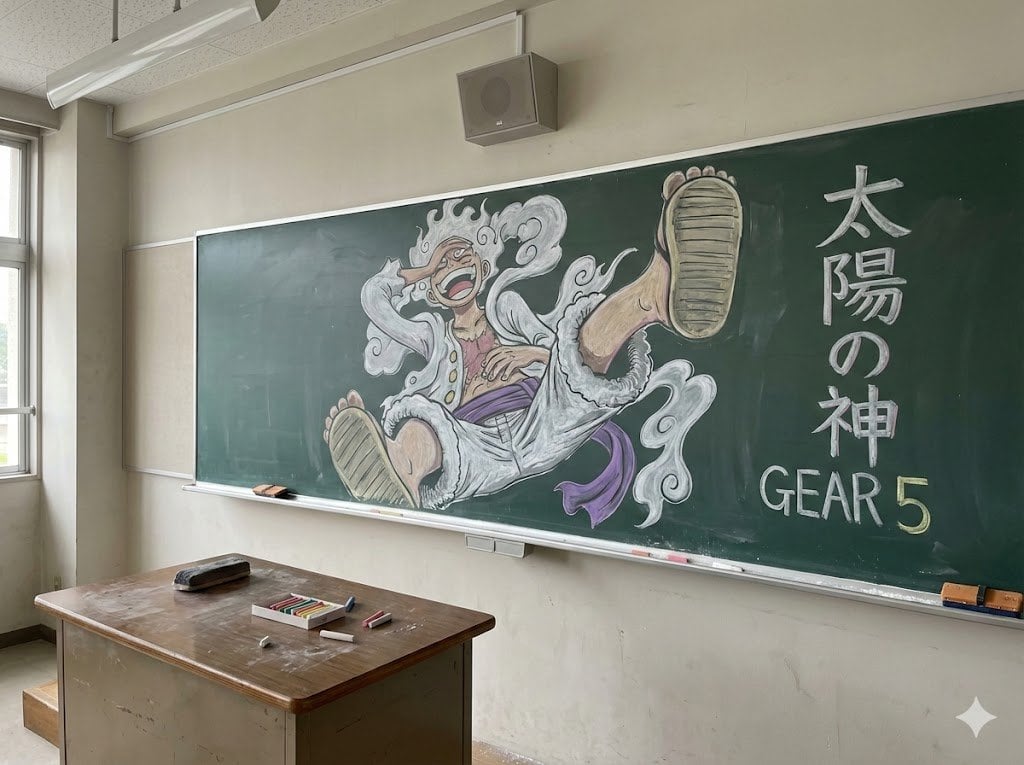
This prompt generates a photorealistic empty classroom scene featuring a large anime-inspired chalkboard mural, ideal for fan art, cinematic school interiors, or social media comparison posts.
- Prompt included
- Model and format preset
- Free template
The prompt behind this image
Copy the exact prompt behind Japanese Classroom Gear 5 Chalk Art, or open it in the studio and make it yours.
A photorealistic Japanese classroom interior shot in soft daytime light, viewed from the front-left corner at a slight angle, with an old green chalkboard dominating the wall. On the chalkboard is a large hand-drawn chalk illustration of an anime pirate boy in a wild, joyous pose inspired by Gear 5, with fluffy white cloud-like hair and swirling white smoke around his body, open laughing mouth, white loose jacket and shorts with fluffy trim, a purple sash, one foot thrust toward the viewer and the other leg bent forward, drawn in colored chalk with visible sketch texture. On the right side of the chalkboard, include 2 lines of large chalk text: vertical Japanese characters reading "太陽の神" and below them the English text "GEAR 5". The room should include 1 wooden teacher's desk in the foreground with 1 chalkboard eraser on top, 1 open box of colored chalk, and 3 loose chalk sticks scattered nearby. Add realistic classroom details: a chalk tray running across the board, a left-side window letting in natural light, beige worn walls, a ceiling-mounted fluorescent light, and 1 wall speaker above the board. Make it look like a real photograph of impressive chalkboard fan art in an empty school classroom, clean composition, natural perspective, subtle wear and dust, highly realistic.
How to use Japanese Classroom Gear 5 Chalk Art in 3 steps
- 1Upload ImagePNG, JPG or paste
Add your photo
Upload the photo the template builds on. The prompt, model and format are already set.
- 2…a portrait of your subject in softgolden-hour light, 85mm…
Personalize
Edit the subject and creative details for your destination.
- 3Generate
Generate
Press Generate — your image is created in PicX Studio, so you can compare it with the original and refine one variable at a time.
More like this
Templates with the same subject, style or setup. Open one to see its prompt.
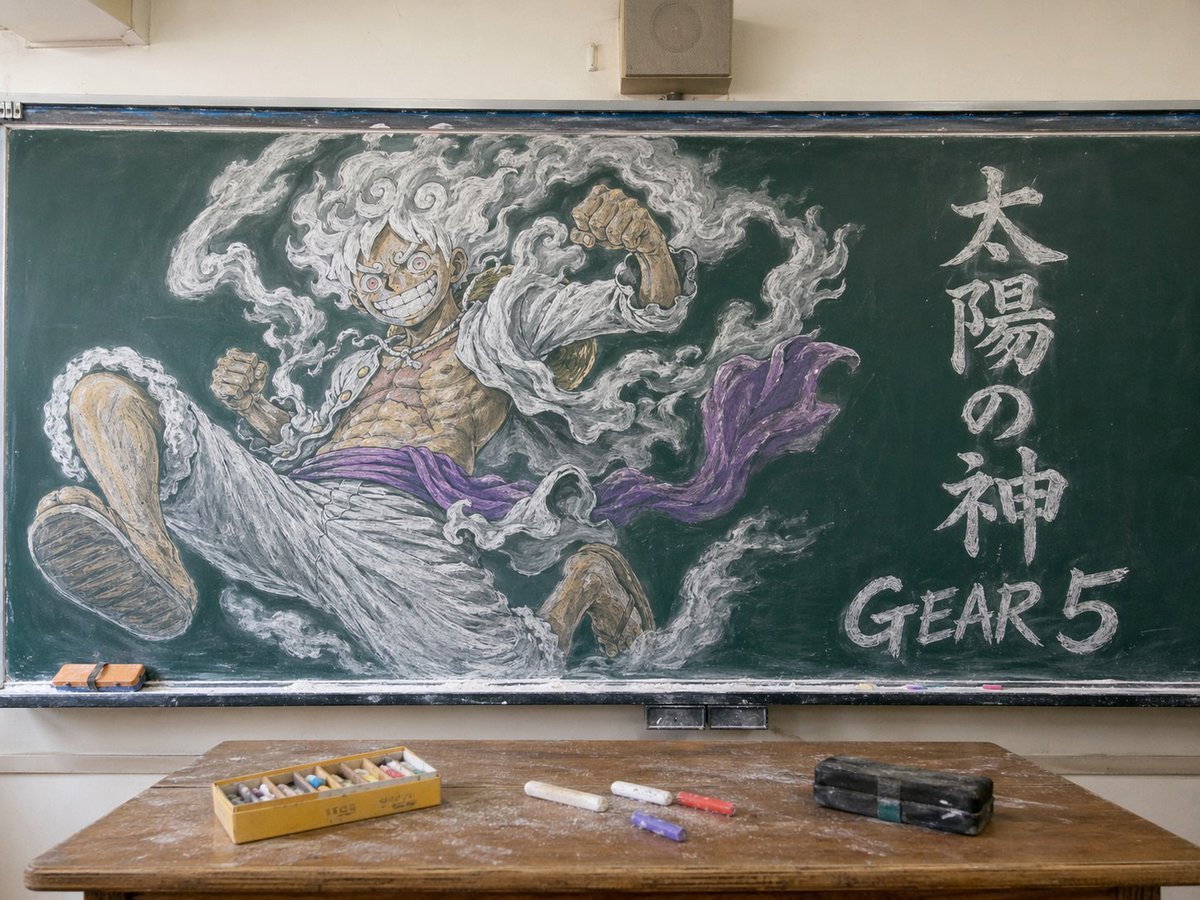
Gear 5 Chalkboard Classroom Mural
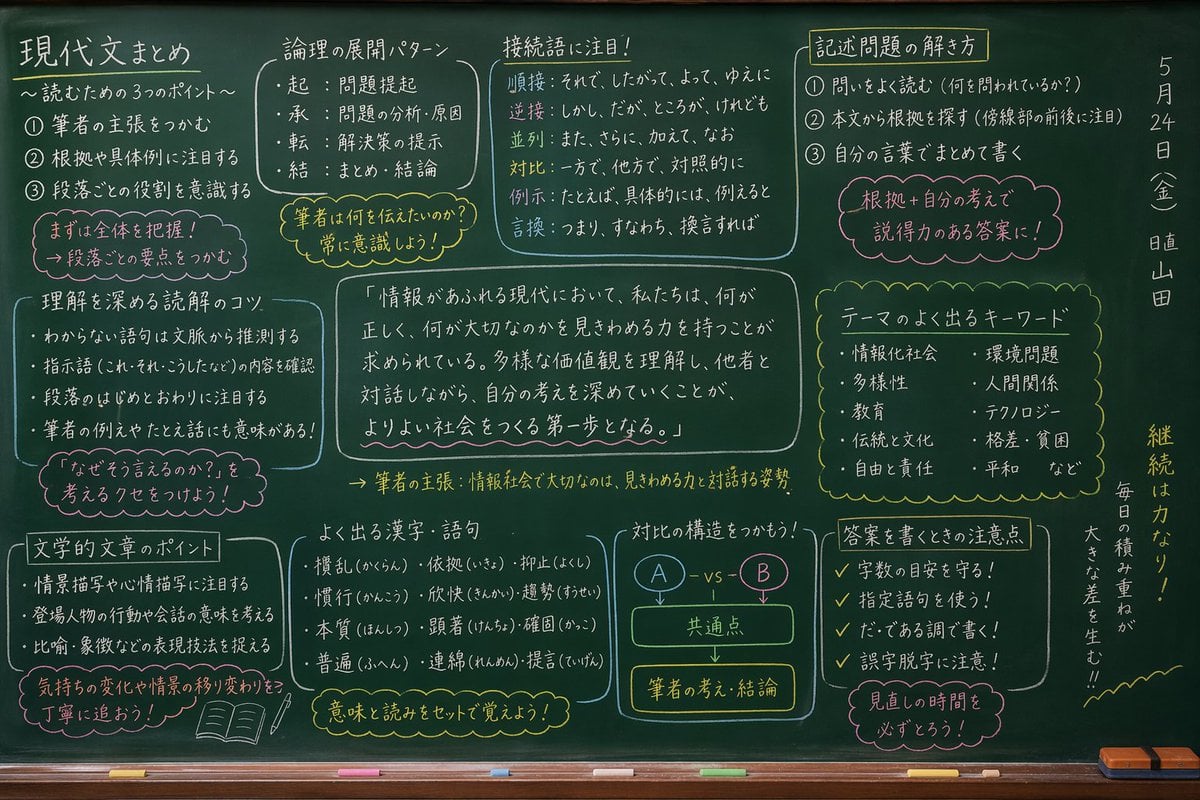
Japanese Classroom Chalkboard Notes

Minecraft Japanese Research Lab Exploration

Japanese Architectural Concrete Studio Fashion Campaign

Japanese Minimalist Concrete Studio Fashion Editorial

Blue Backdrop Luxury Fashion Portrait Campaign
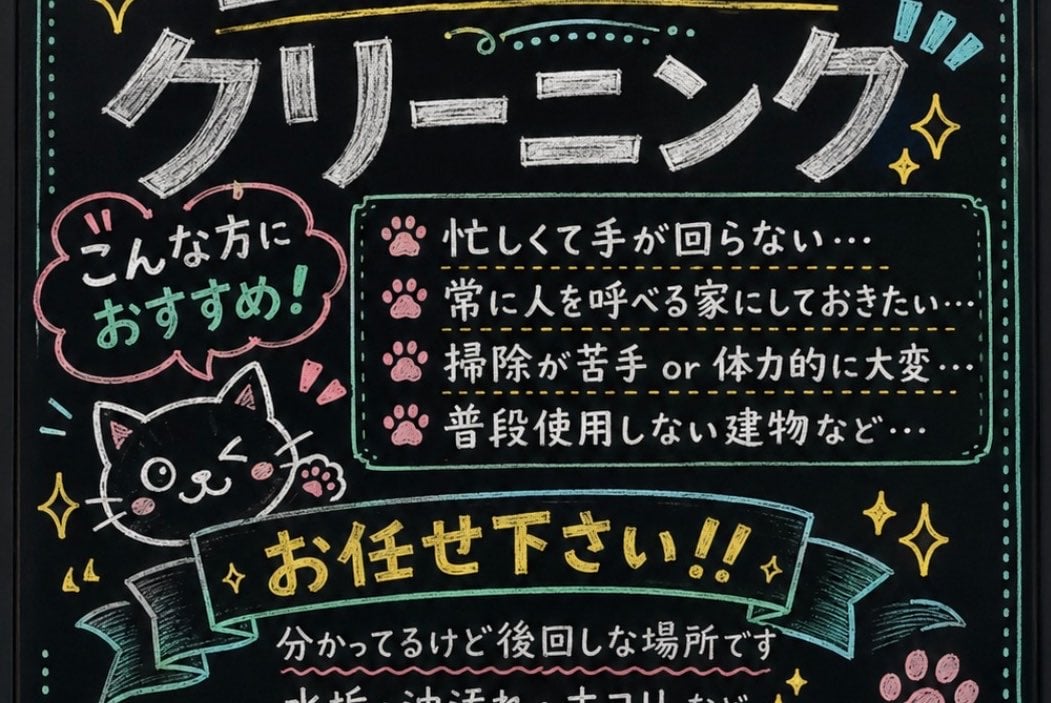
Japanese Chalkboard Cleaning Sign
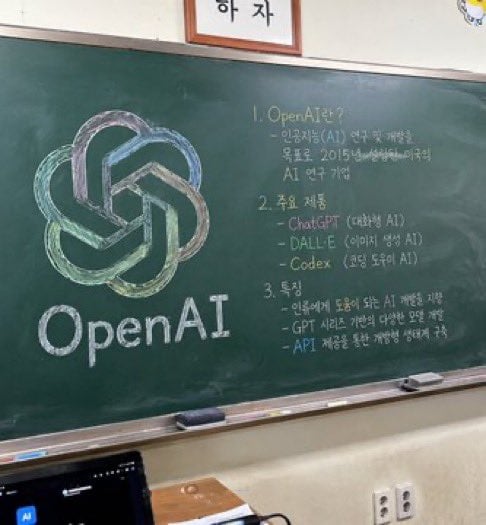
Classroom Chalkboard Lesson
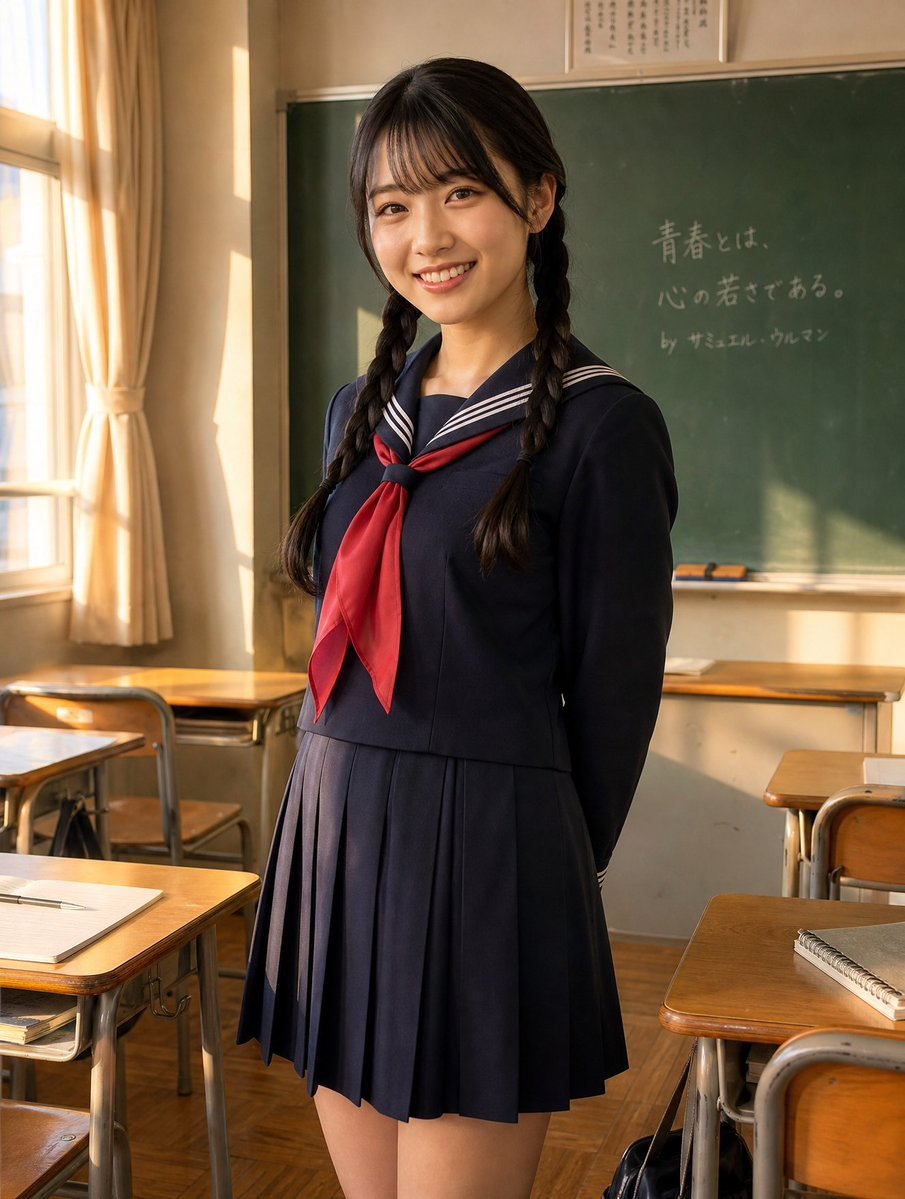
Sunlit Japanese Classroom Sailor Uniform Portrait
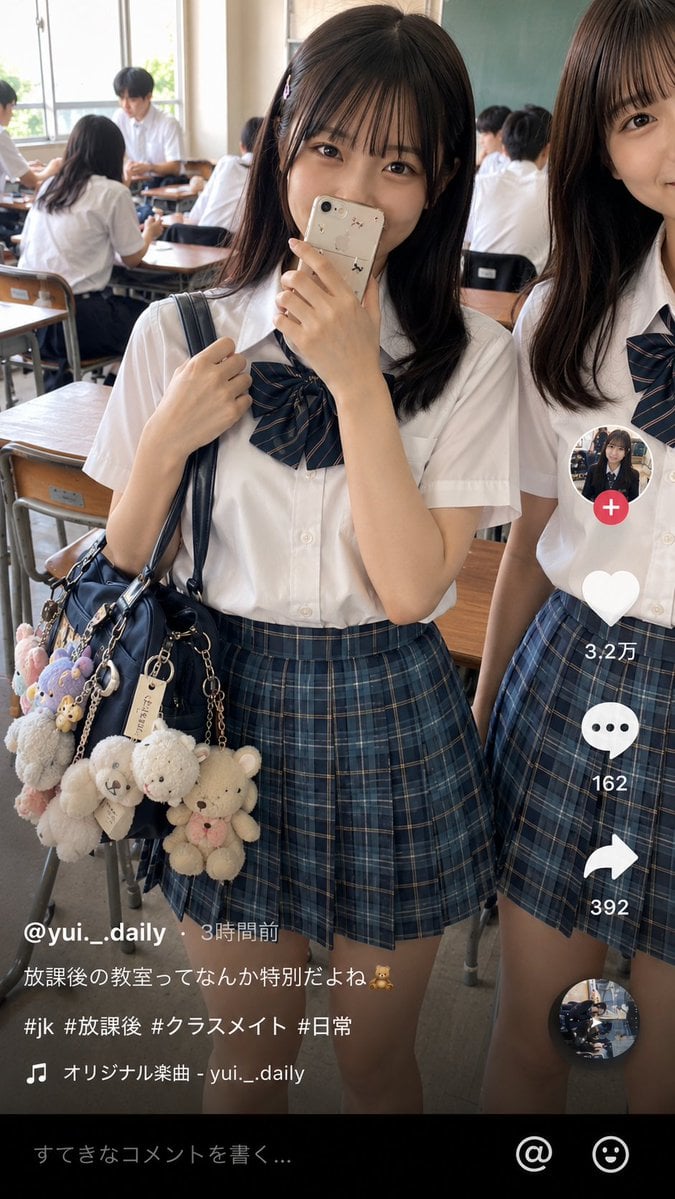
Japanese Classroom Short Video Screenshot
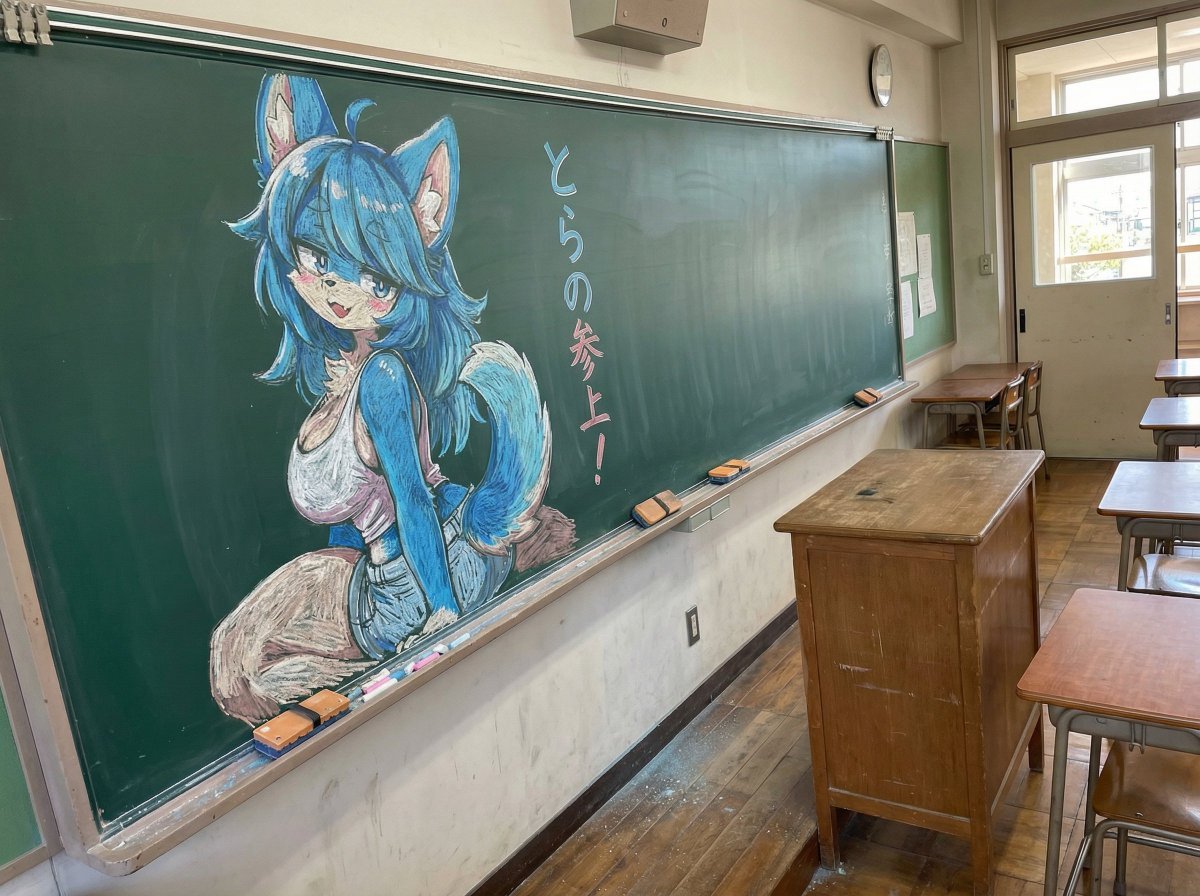
Chalk drawing of an illustration on a classroom blackboard
Japanese Film Reflection Idol
Make it yours
Japanese Classroom Gear 5 Chalk Art works as-is. These are the safest ways to change it without losing the look.
Change one field
Copy a single group, rewrite it, and generate again so you can see what that field is doing.
Keep the frame, change the subject
Hold the composition and light of Japanese Classroom Gear 5 Chalk Art, then swap wardrobe, props or the person for a new take.
| If the result… | Why | Fix |
|---|---|---|
| The result drifts from the preview | Too many fields changed at once. | Reuse Japanese Classroom Gear 5 Chalk Art as-is first, then change one group — subject, light, or setting. |
| The model over-stylizes the scene | The prose prompt leaves finish and camera underspecified. | Add one camera or lighting sentence and stay on GPT Image 2. |
More GPT Image 2 templates
Other prompts made for GPT Image 2.

Realistic Portrait of Woman and Deer

The Vista Modular Condo Poster

AI Model Routing Comparison Infographic

2.5D Anime Art Board

Isometric Productivity Desk Scene

New York Double Exposure Poster

Four-Panel AI Landscape Comparison

Japanese Tatami Lifestyle Magazine Cover

NESCAFÉ Coffee Map Poster

Brutalist Cogito Chinese Typography Poster
More image prompts
Fresh picks from across the catalog.
Cozy bedroom fashion editorial in black mini dress
Multi-Angle Character Reference Sheet

AI Footballer Goal Celebration Generation
Seedance - Arrow Microscopic Battle
Nightlife Glamour Fashion Shoot in Glass Elevator

World Champion Stadium Victory Poster

LLM Architecture Chat Screenshot
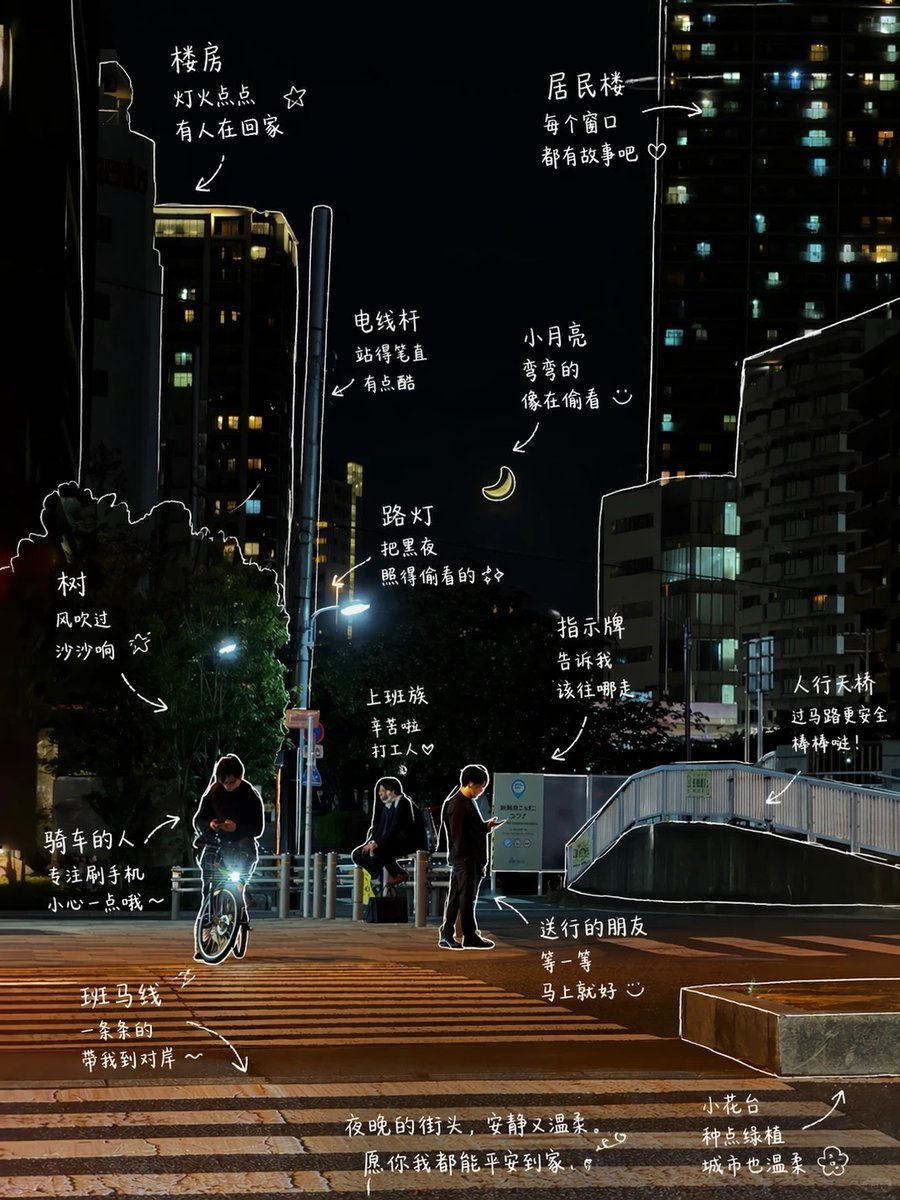
Hand-Drawn Style Photo Annotation
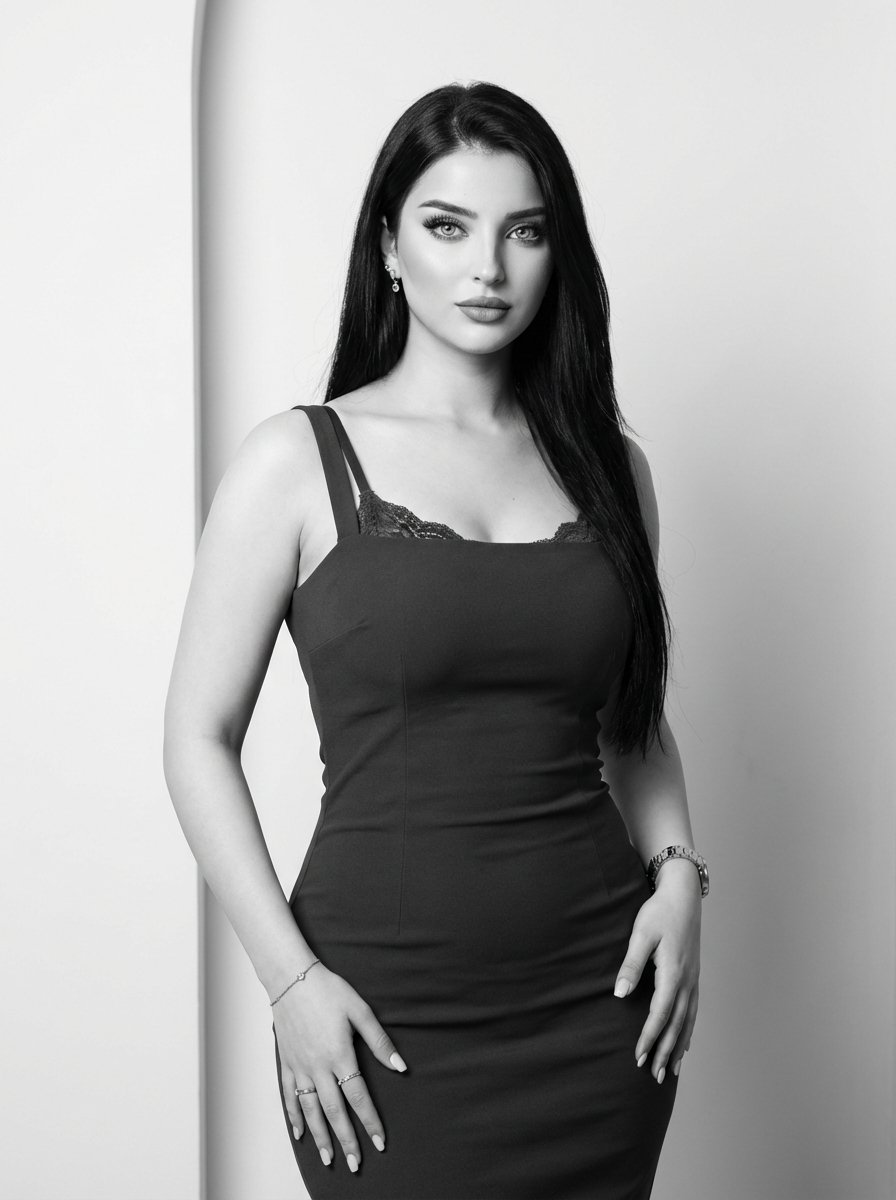
Classic Monochrome Portrait Style
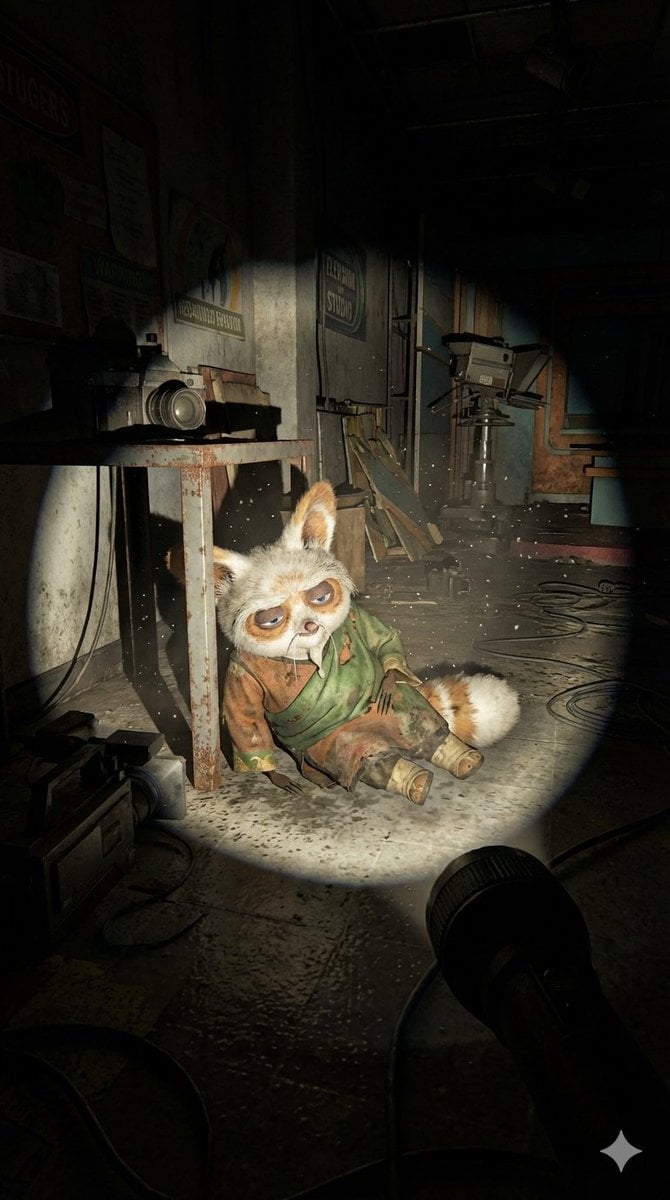
Abandoned Promotional Statue Conversion Prompt
Browse template categories
Japanese Classroom Gear 5 Chalk Art questions
How do I use the Japanese Classroom Gear 5 Chalk Art template?
Add your photo if the template asks for one, edit the prompt if you like — the template's model and format are already selected — and press Generate. Your version opens in PicX Studio.
Can I customize the Japanese Classroom Gear 5 Chalk Art template?
Yes. You can change the subject, setting, lighting, mood, format, and available model controls before creating your image.
Is the Japanese Classroom Gear 5 Chalk Art template free?
Opening and editing this template is free. Generating uses credits, shown on the Generate button when you are signed in.
Which AI model should I use?
Start with GPT Image 2, which is the model associated with this template. You can compare another compatible model for a different finish.
Looking for something else? Browse all templates.

Your photo, any look
Thousands of ready templates for every top image and video model, from one credit balance.