
Classroom Chalkboard Lesson
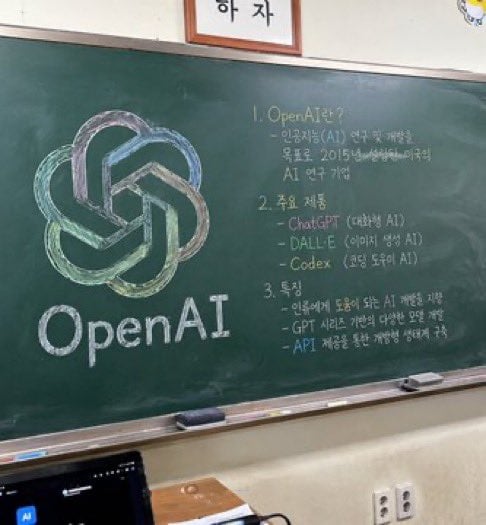
Generates a photorealistic image of a classroom chalkboard featuring a colorful logo drawing and structured handwritten lesson notes.
- Prompt included
- Model and format preset
- Premium template
The prompt behind this image
Copy the exact prompt behind Classroom Chalkboard Lesson, or open it in the studio and make it yours.
A photorealistic, slightly angled snapshot of a green classroom chalkboard. On the left side of the board is a large, meticulously drawn chalk illustration of the {argument name="company name" default="OpenAI"} logo, rendered in blended pastel colors like green, blue, and purple, with the word "{argument name="logo text" default="OpenAI"}" written in neat white chalk beneath it. The right side of the board features handwritten text organized into exactly 3 numbered sections. Section 1 is titled "{argument name="section one title" default="1. OpenAI란?"}" followed by a brief explanatory paragraph. Section 2 is titled "{argument name="section two title" default="2. 주요 제품"}" and lists 3 bullet points including ChatGPT, DALL-E, and Codex. Section 3 is titled "{argument name="section three title" default="3. 특징"}" and contains 3 bullet points describing features. The chalkboard has a silver metal frame and a chalk ledge holding 2 rectangular erasers and scattered pieces of chalk. Below the board is an off-white wall with a double electrical outlet. In the bottom left foreground, the top edge of a dark laptop screen is partially visible, and above the chalkboard, the bottom edge of a framed sign is cut off by the frame.
How to use Classroom Chalkboard Lesson in 3 steps
- 1Upload ImagePNG, JPG or paste
Add your photo
Upload the photo the template builds on. The prompt, model and format are already set.
- 2…a portrait of your subject in softgolden-hour light, 85mm…
Personalize
Edit the subject and creative details for your destination.
- 3Generate
Generate
Press Generate — your image is created in PicX Studio, so you can compare it with the original and refine one variable at a time.
More like this
Templates with the same subject, style or setup. Open one to see its prompt.
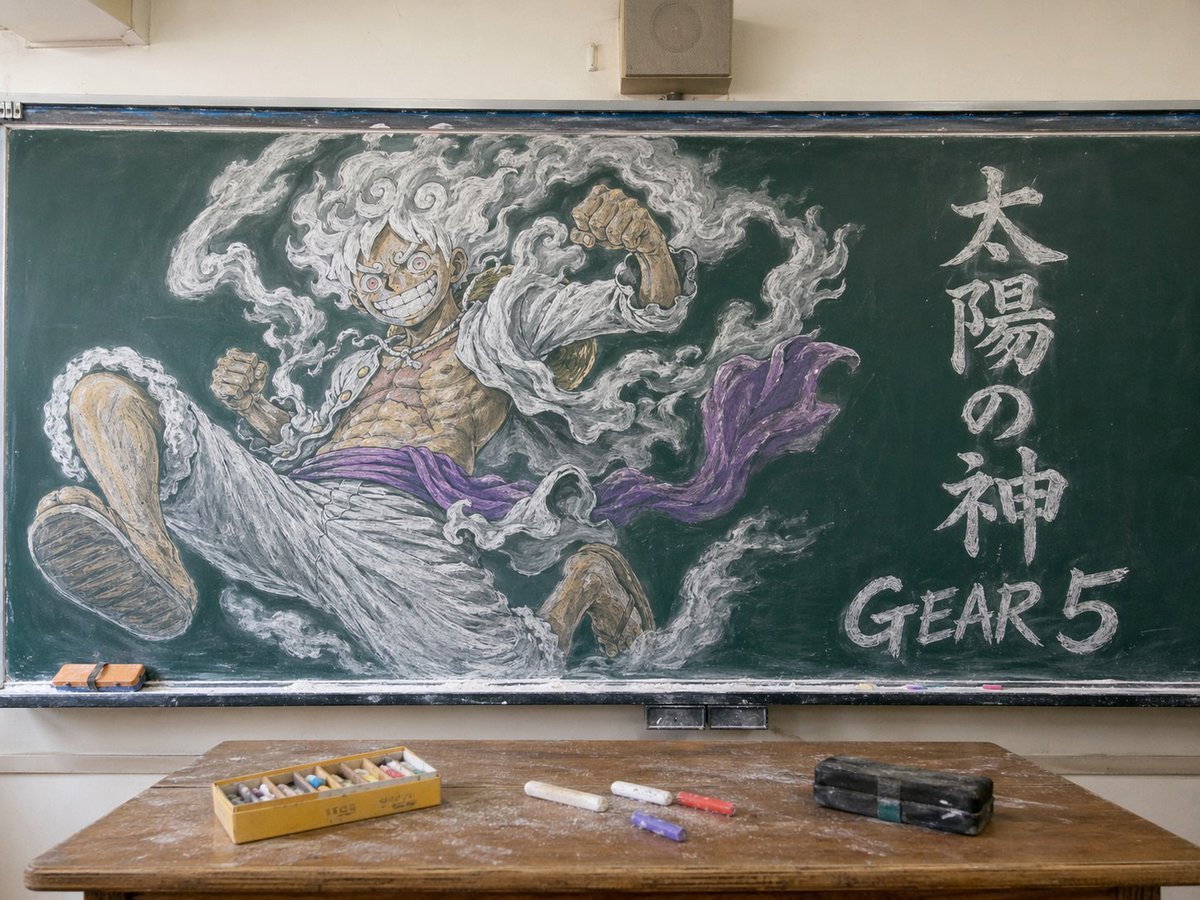
Gear 5 Chalkboard Classroom Mural
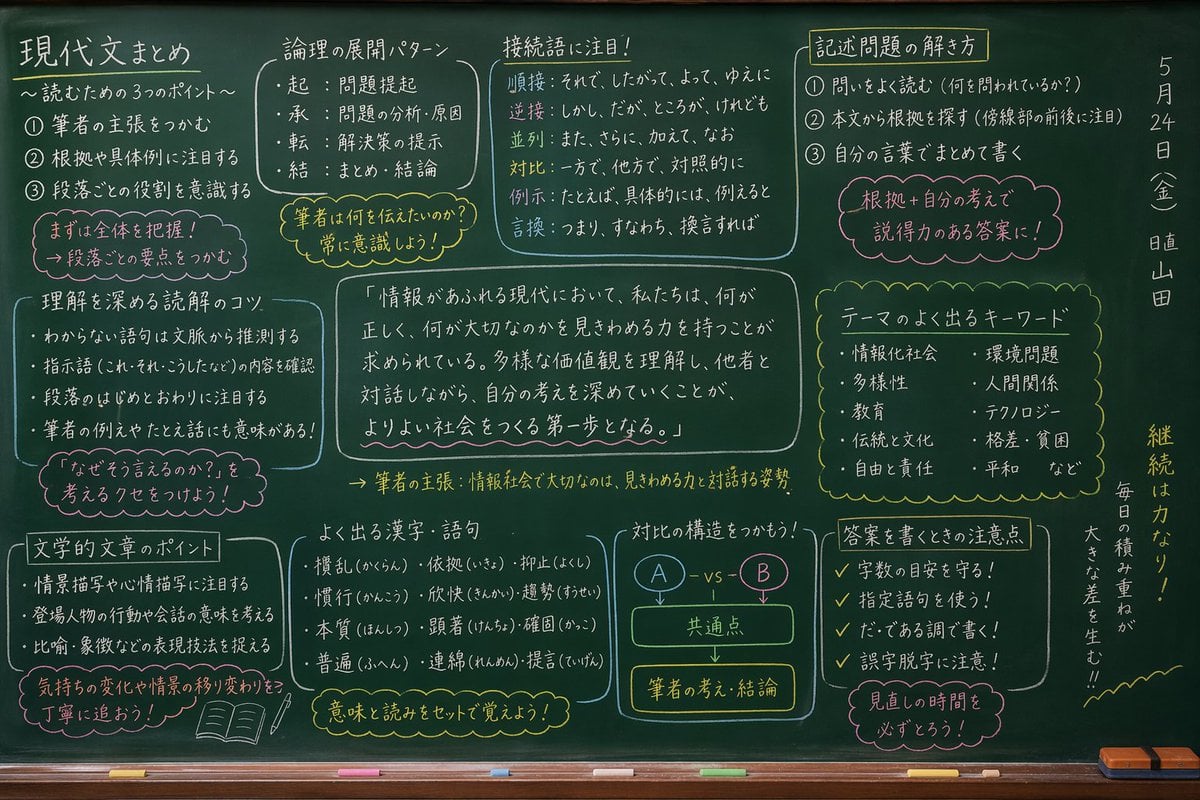
Japanese Classroom Chalkboard Notes
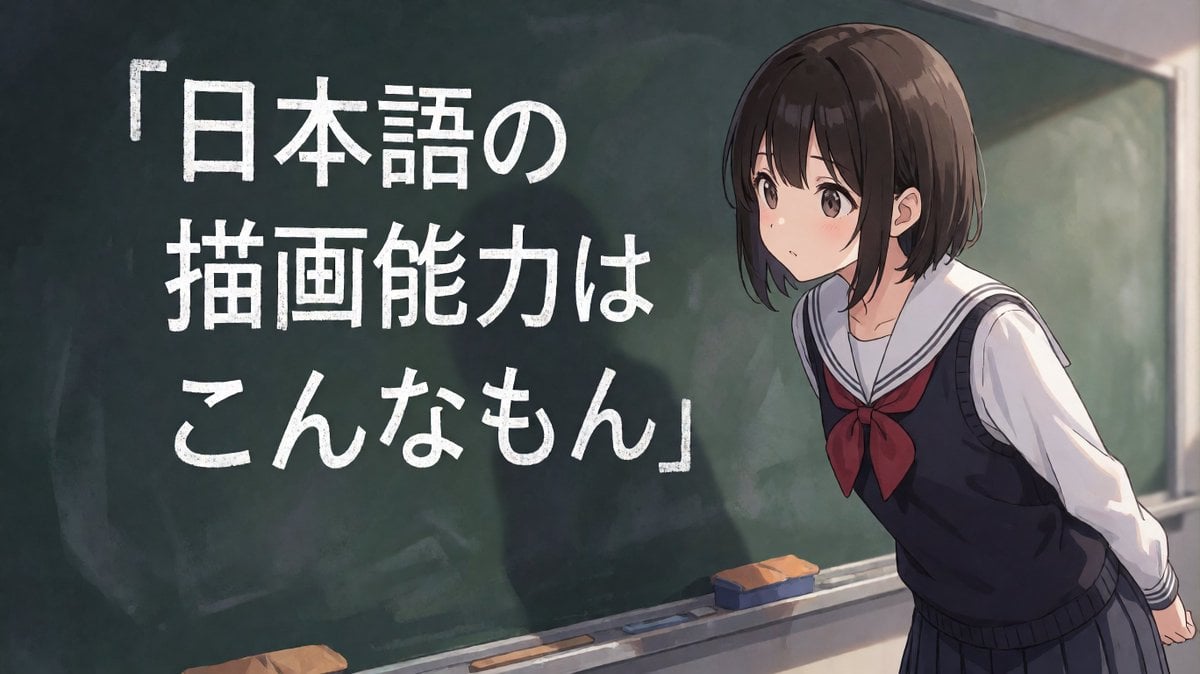
Anime Schoolgirl Chalkboard Quote
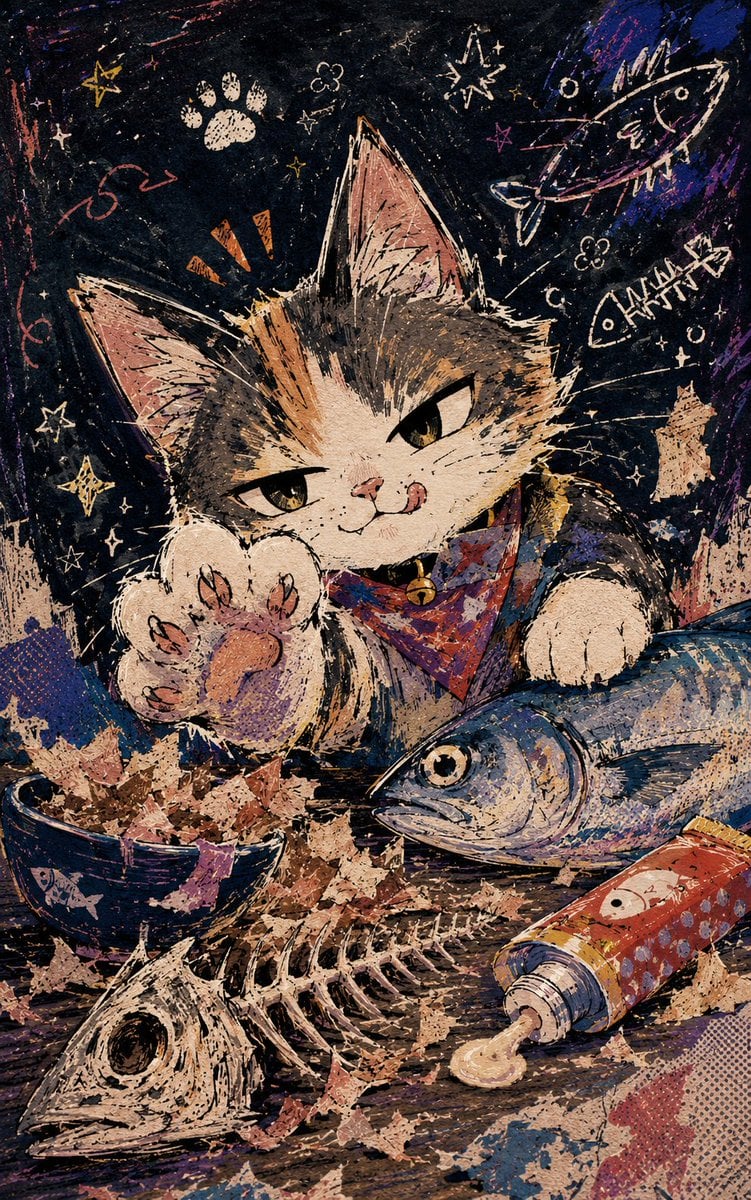
Chalkboard Cat Fish Feast
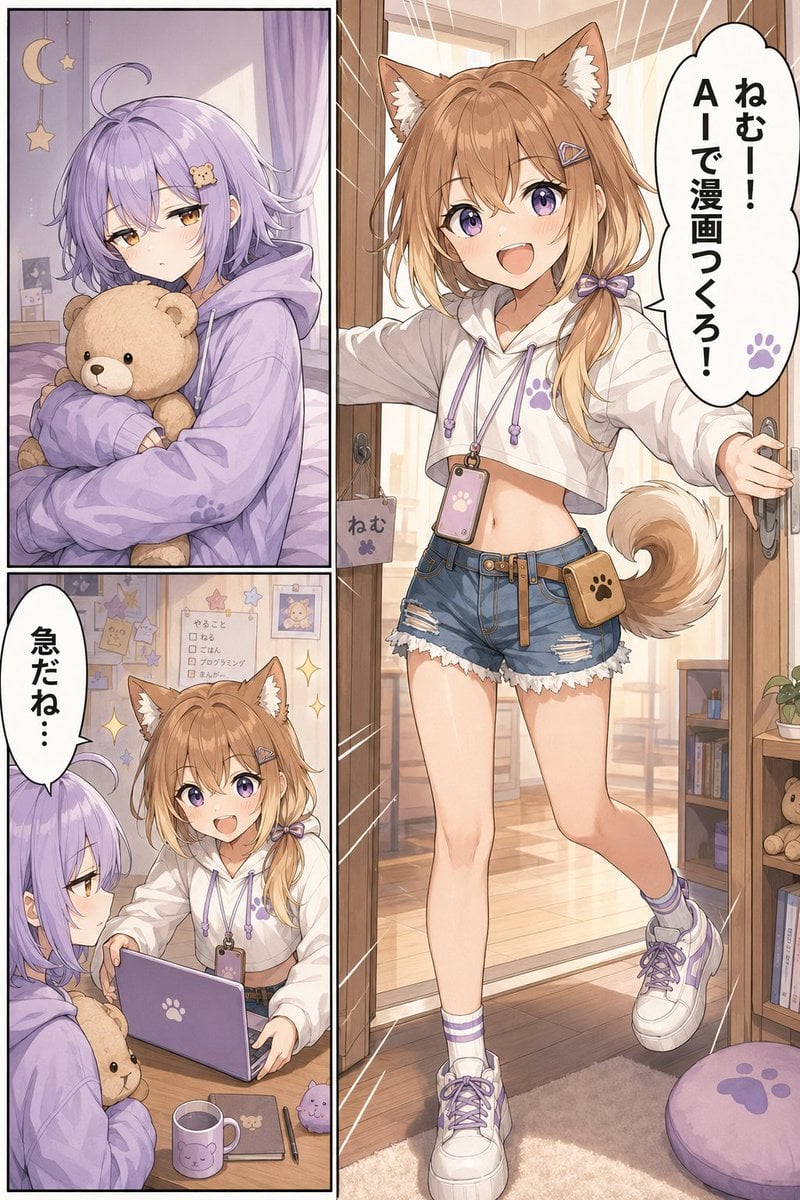
Cute AI Manga Lesson Comic Page
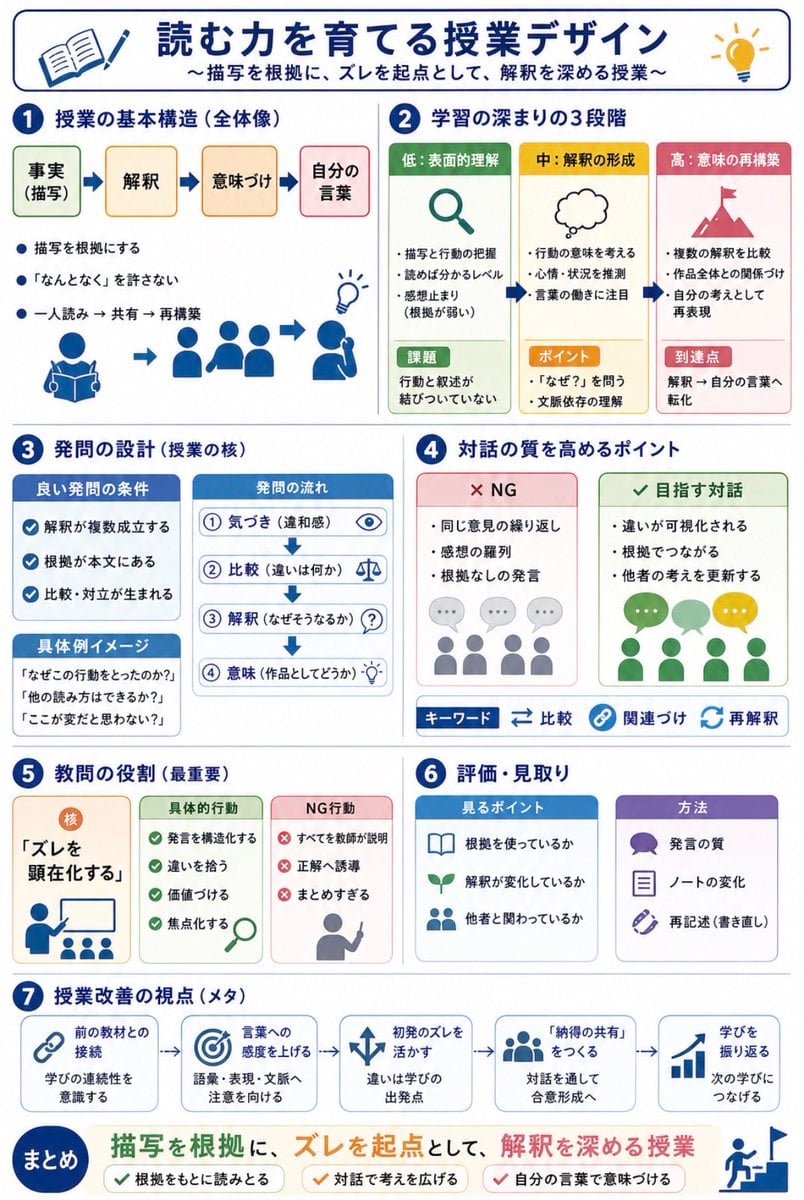
Japanese Reading Lesson Infographic
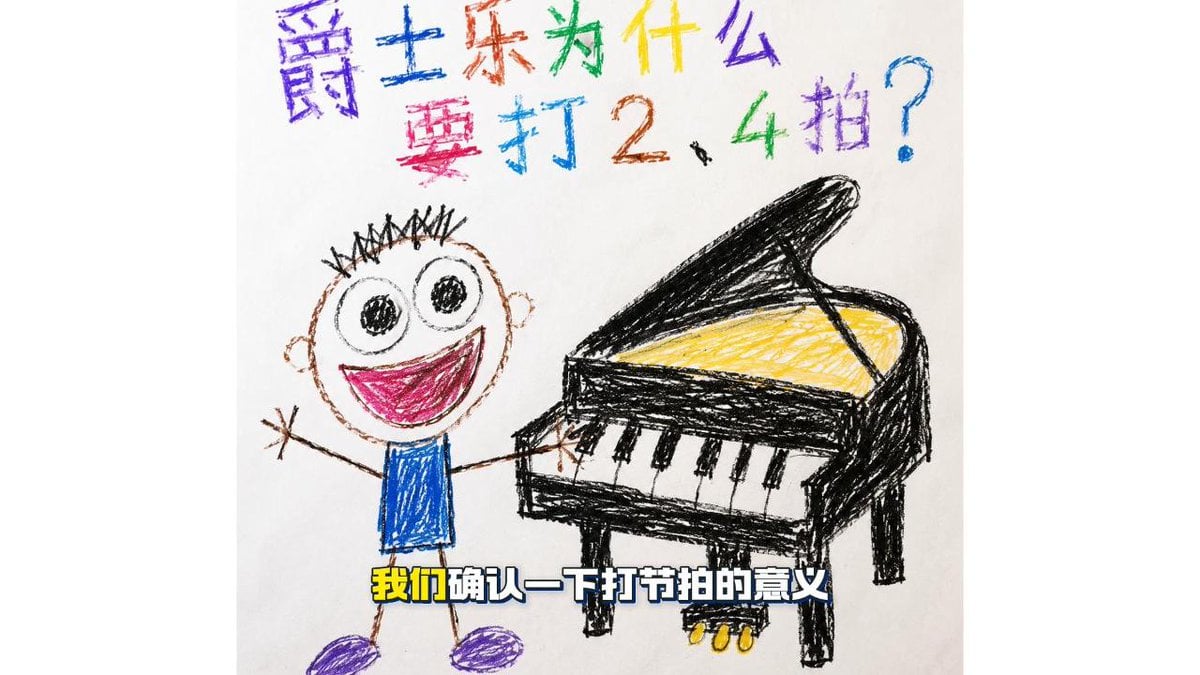
Childlike Jazz Beat Crayon Lesson
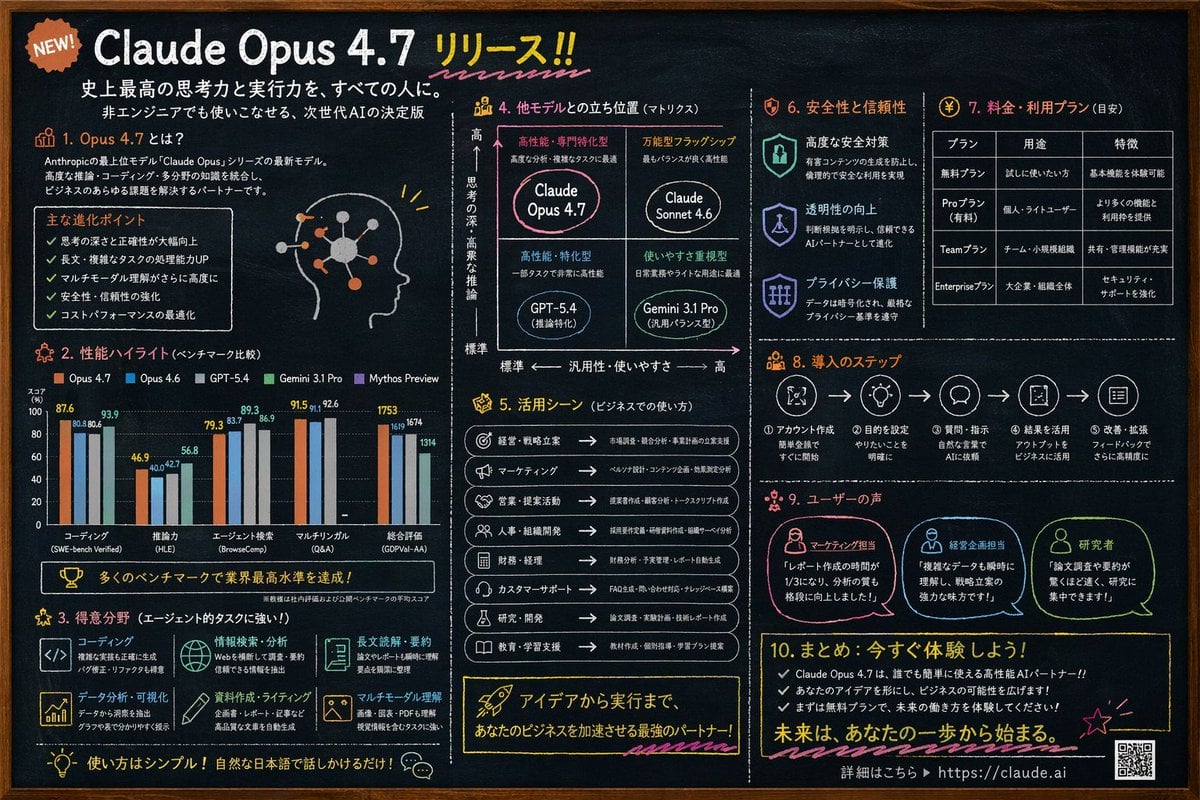
Chalkboard AI Product Infographic
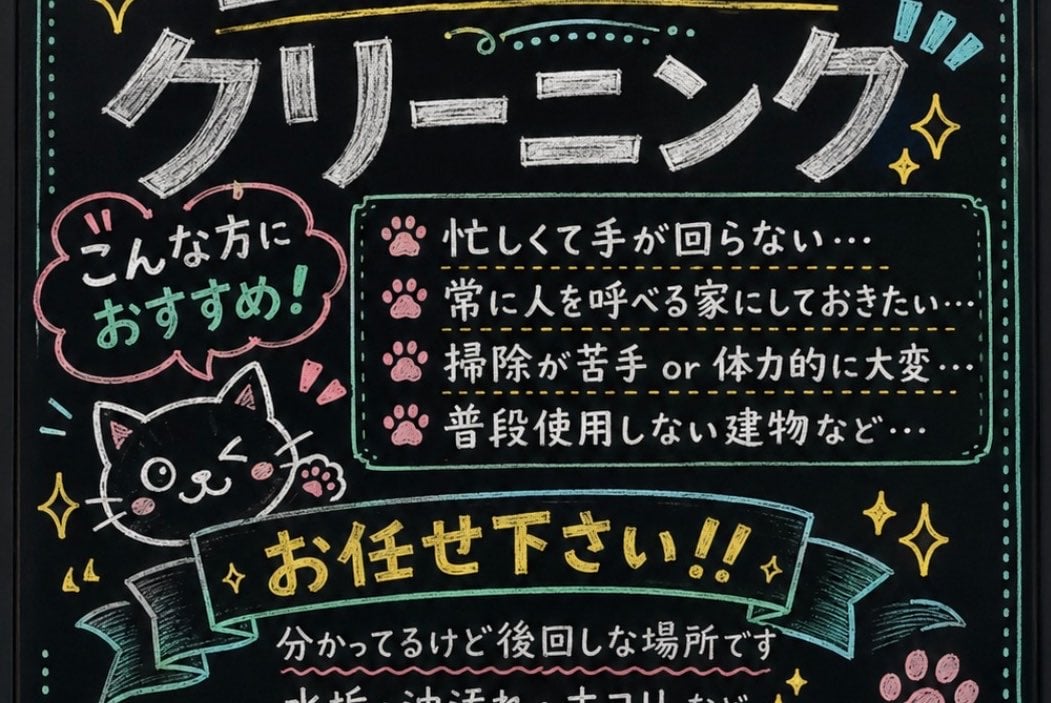
Japanese Chalkboard Cleaning Sign
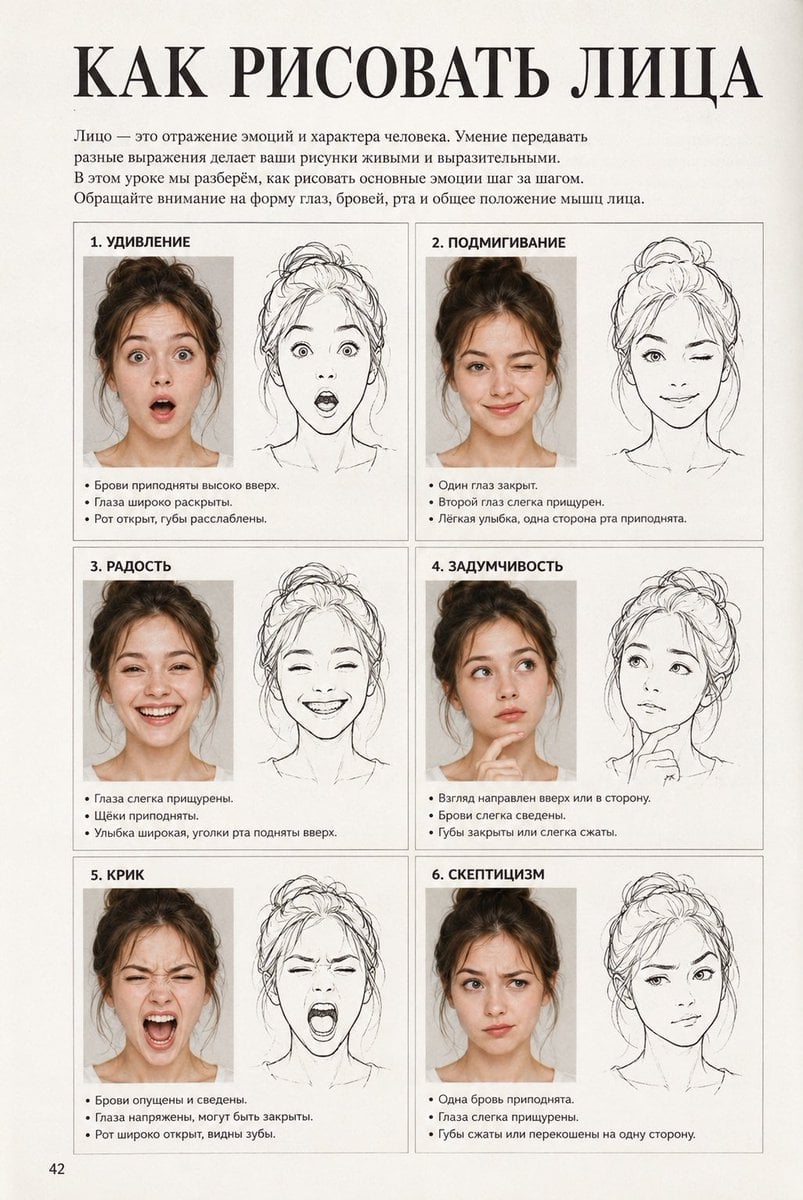
Vintage Russian Face Drawing Lesson
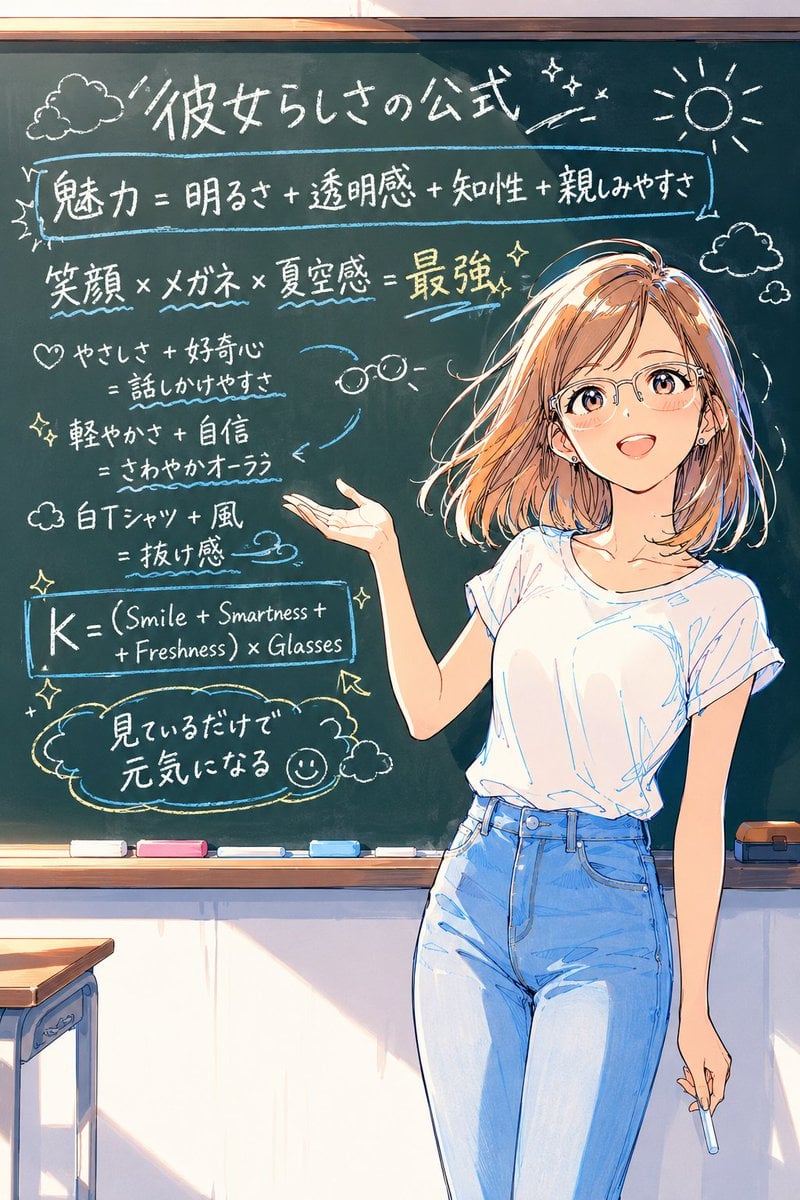
Anime Chalkboard Character Formula
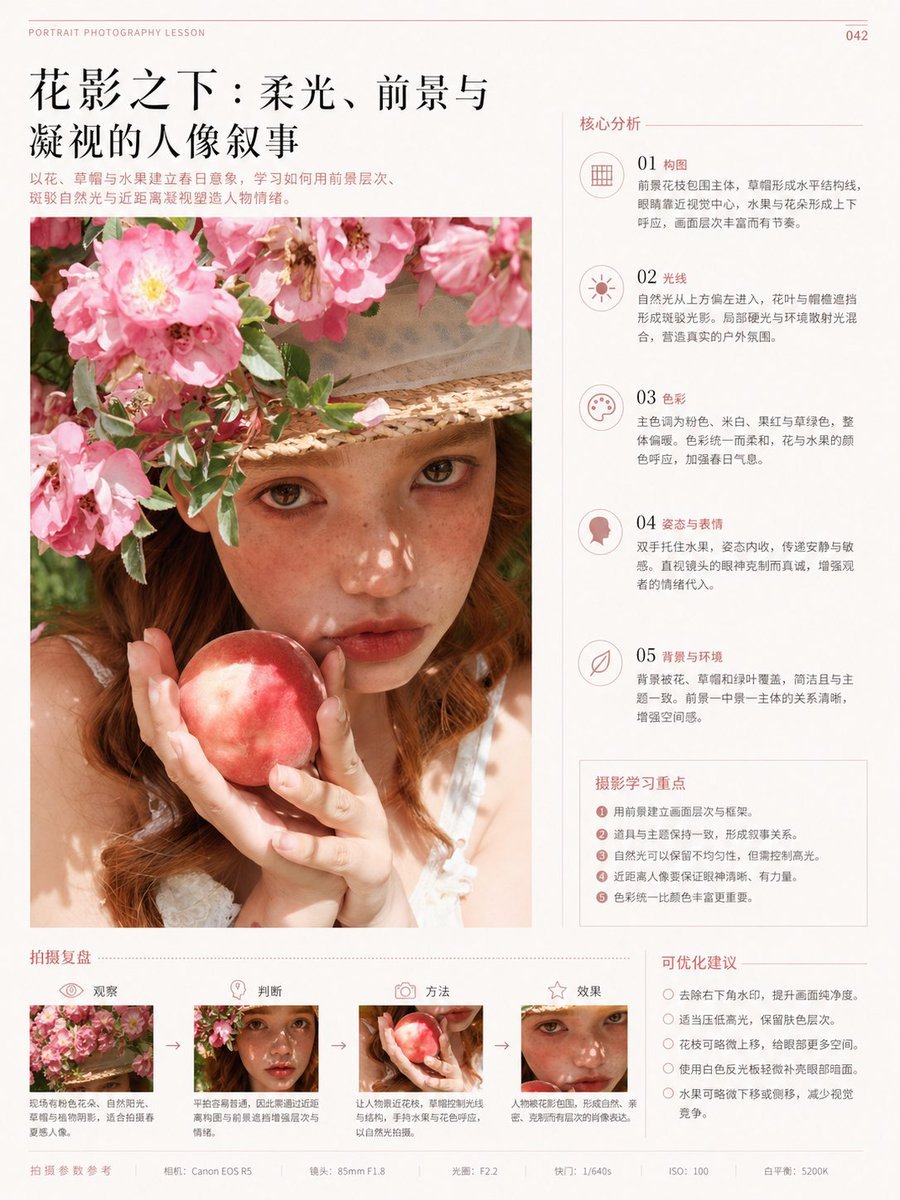
Chinese Editorial Photography Lesson Page
Make it yours
Classroom Chalkboard Lesson works as-is. These are the safest ways to change it without losing the look.
Change one field
Copy a single group, rewrite it, and generate again so you can see what that field is doing.
Keep the frame, change the subject
Hold the composition and light of Classroom Chalkboard Lesson, then swap wardrobe, props or the person for a new take.
| If the result… | Why | Fix |
|---|---|---|
| The result drifts from the preview | Too many fields changed at once. | Reuse Classroom Chalkboard Lesson as-is first, then change one group — subject, light, or setting. |
| The model over-stylizes the scene | The prose prompt leaves finish and camera underspecified. | Add one camera or lighting sentence and stay on GPT Image 2. |
More GPT Image 2 templates
Other prompts made for GPT Image 2.

Six VTuber Japanese Logo Sheet

Realistic Portrait of Woman and Deer

The Vista Modular Condo Poster

AI Model Routing Comparison Infographic

2.5D Anime Art Board

Isometric Productivity Desk Scene

New York Double Exposure Poster

Four-Panel AI Landscape Comparison

Japanese Tatami Lifestyle Magazine Cover

NESCAFÉ Coffee Map Poster
More image prompts
Fresh picks from across the catalog.
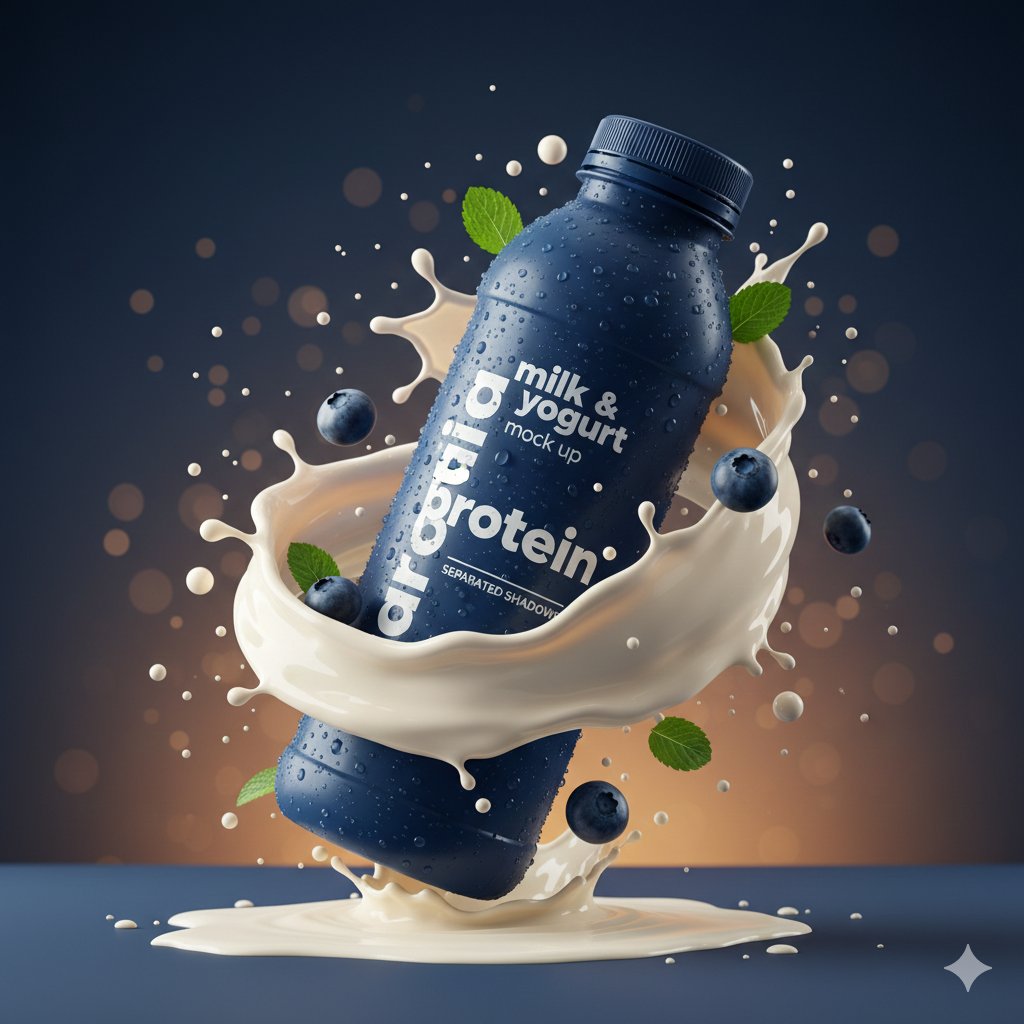
Hyper-realistic Product Photography with Dynamic Splash Effects

Dark Mode X Post Mockup
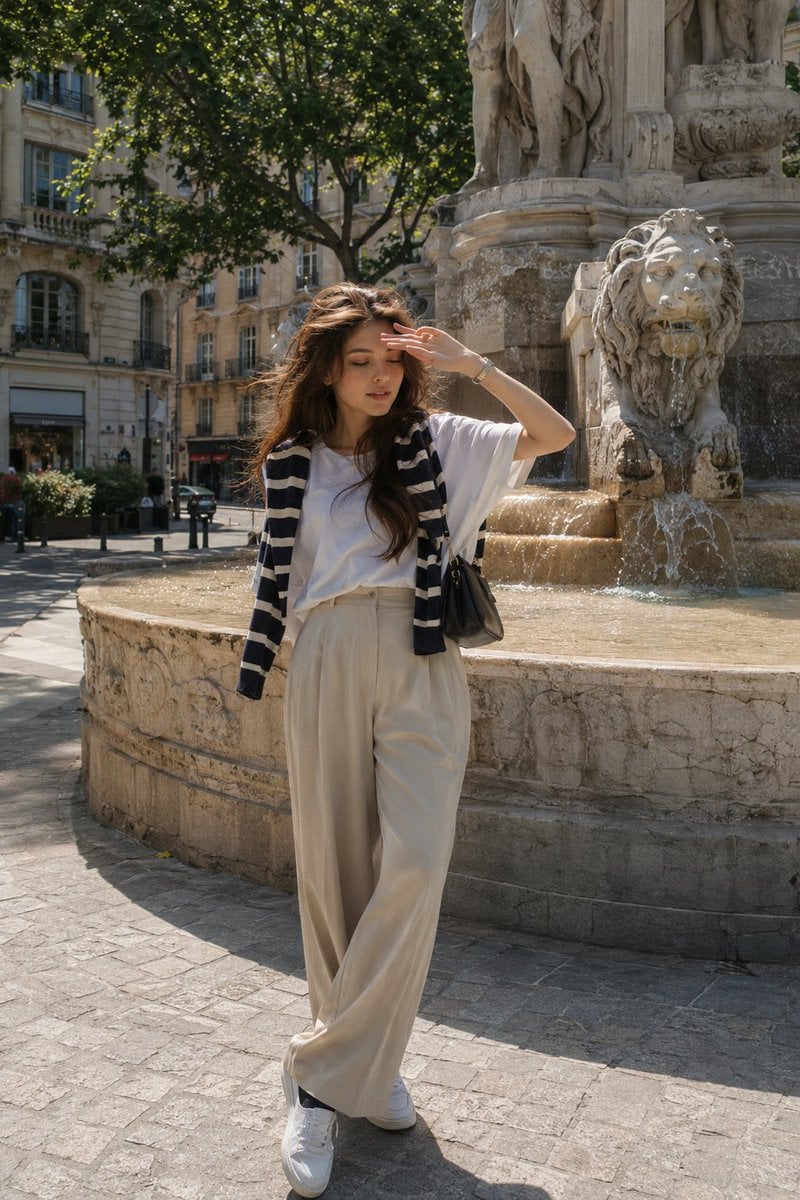
European Street-Style Portrait
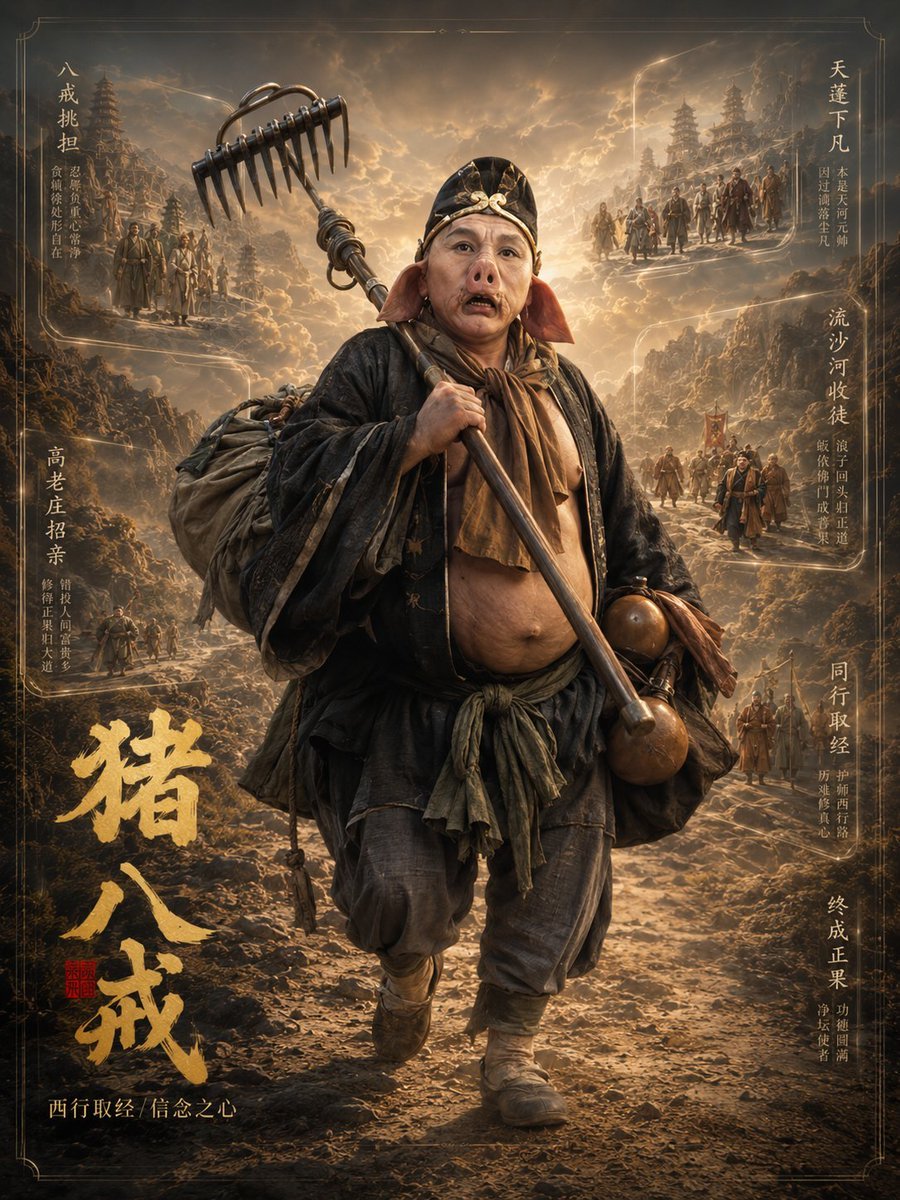
Zhu Bajie 3D Character Poster

Raw Candid Portrait with Hyper-realistic Skin Texture
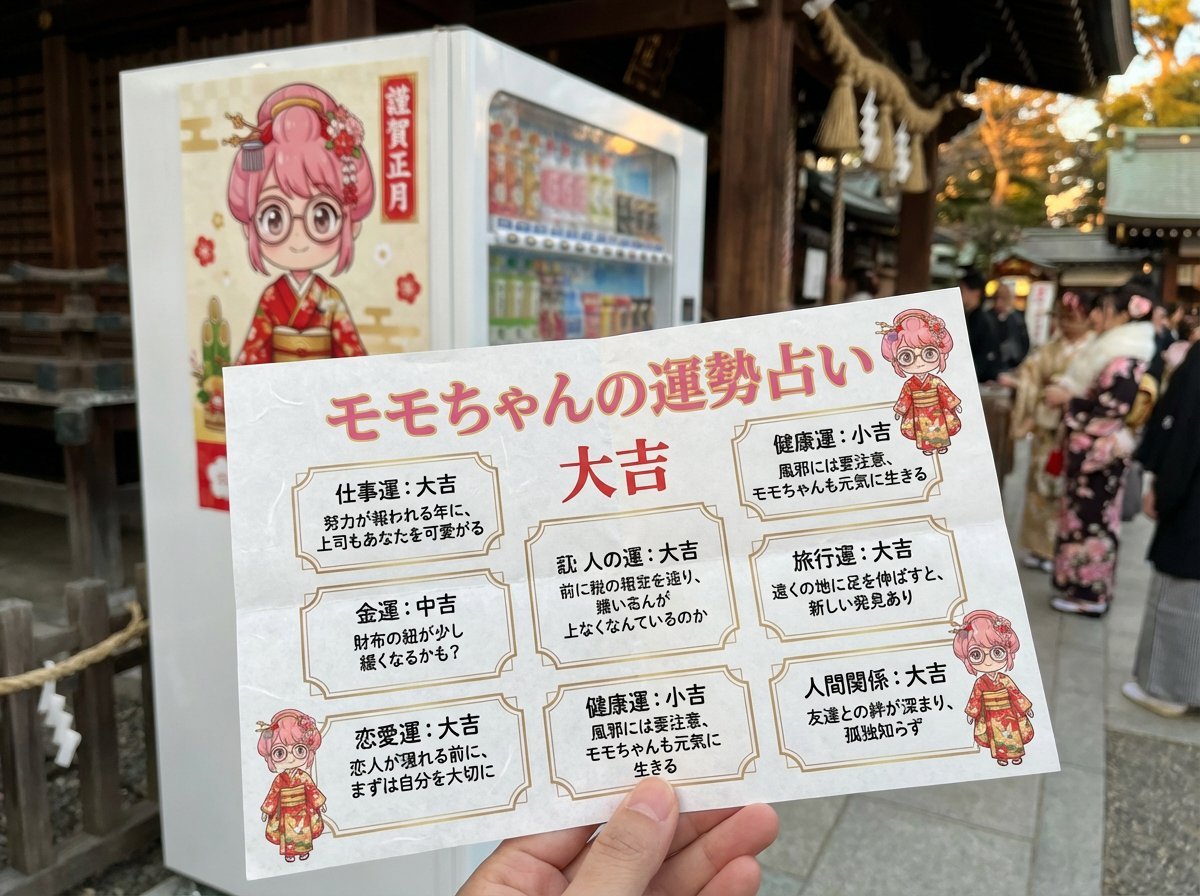
Omikuji (Fortune Slip) Generation Prompt with Character Integration
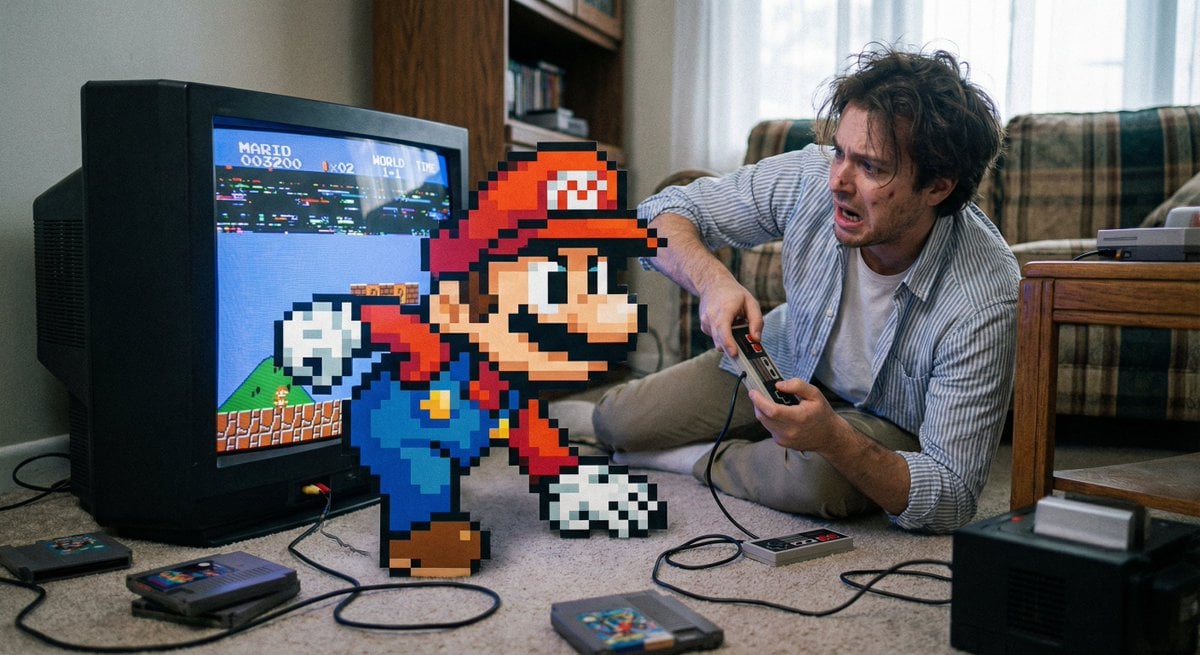
Pixel game character climbing out of TV
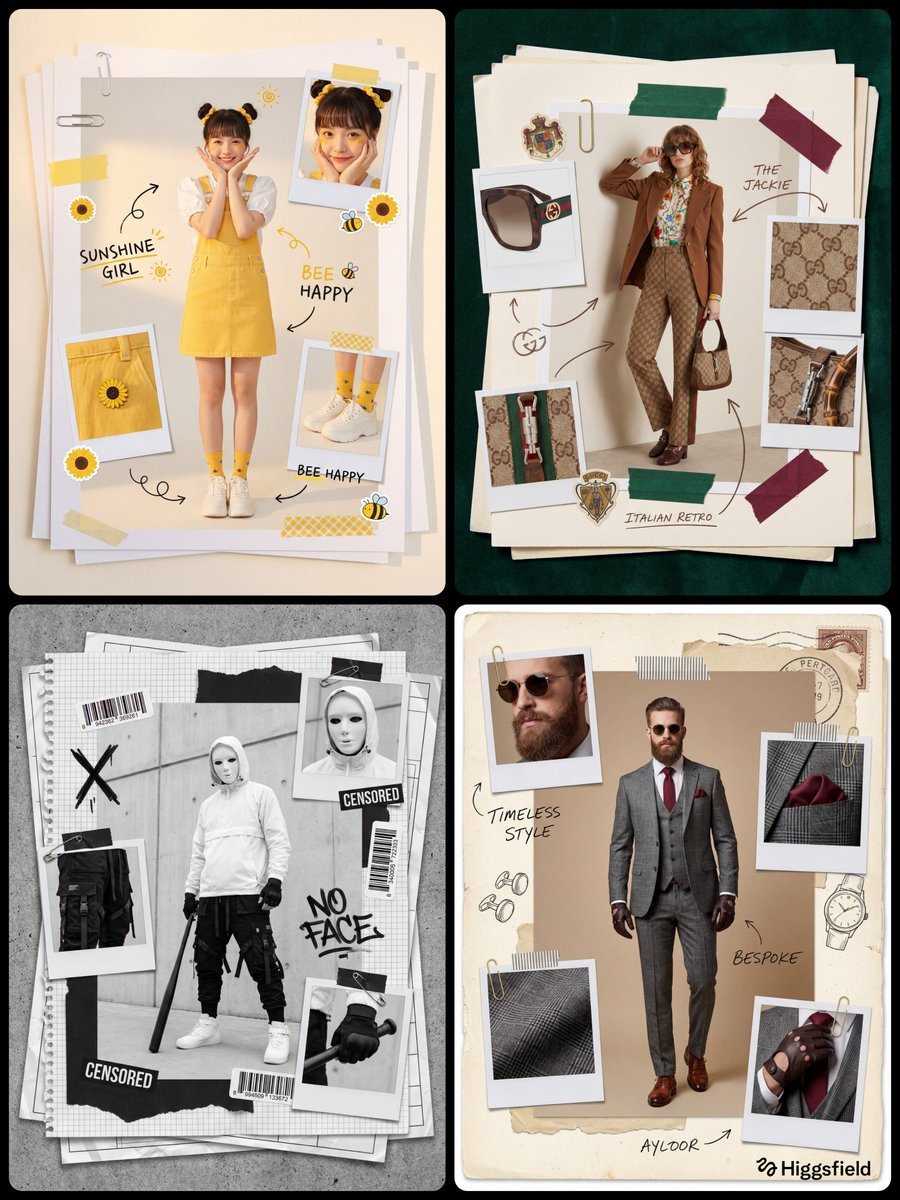
Fashion Scrapbook Page Layout Prompt Template
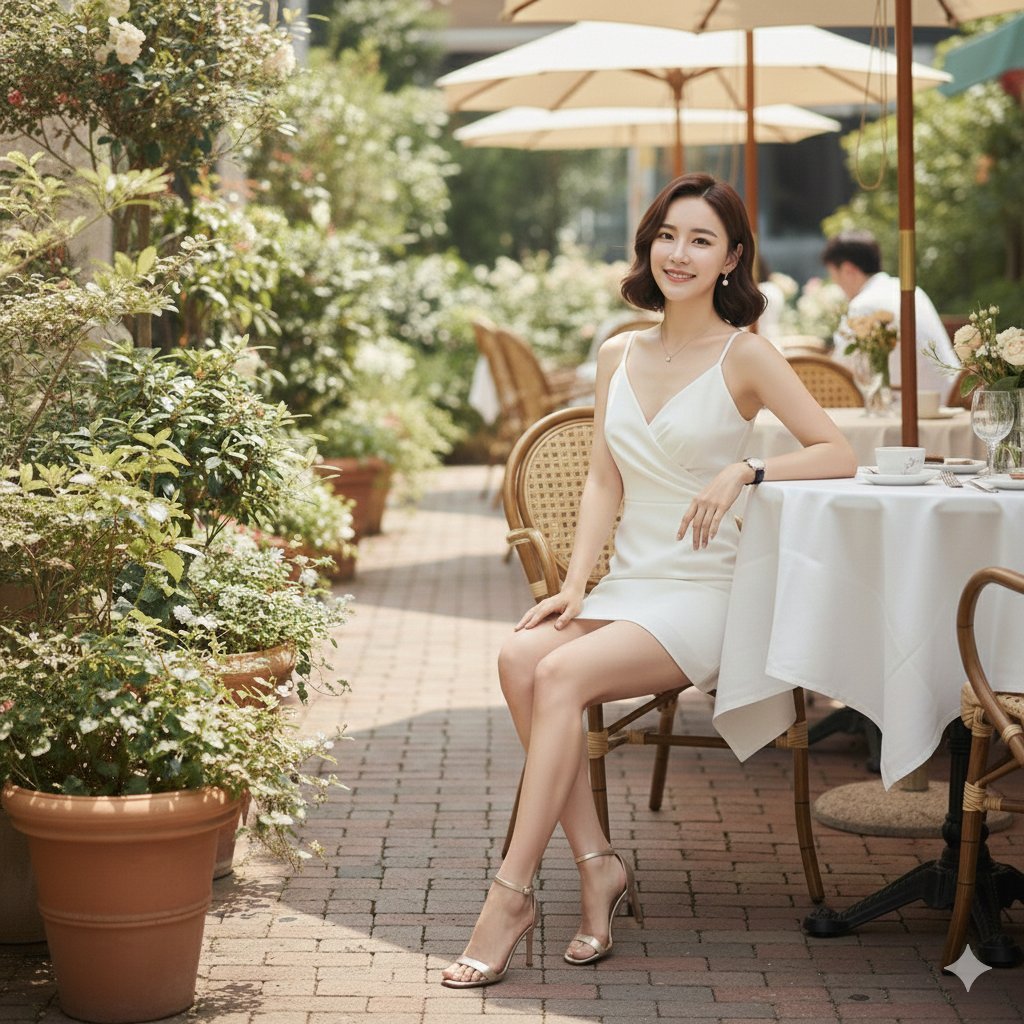
Hyper-Realistic High-Fashion Seated Portrait Prompt
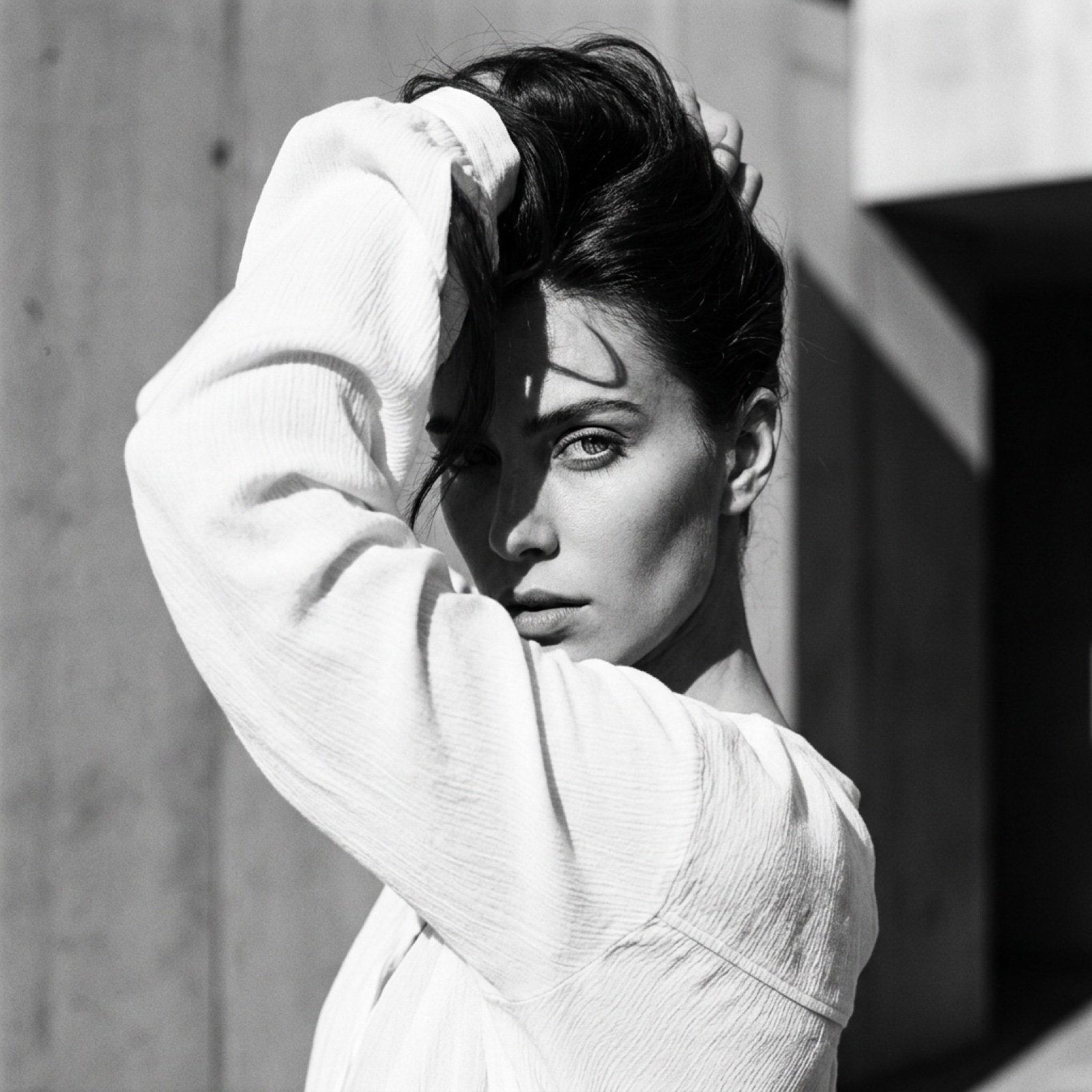
High-Fashion Black and White Editorial Portrait Prompt (Facial Lock)
Browse template categories
Classroom Chalkboard Lesson questions
How do I use the Classroom Chalkboard Lesson template?
Add your photo if the template asks for one, edit the prompt if you like — the template's model and format are already selected — and press Generate. Your version opens in PicX Studio.
Can I customize the Classroom Chalkboard Lesson template?
Yes. You can change the subject, setting, lighting, mood, format, and available model controls before creating your image.
Is the Classroom Chalkboard Lesson template free?
Opening and editing this template is free. Generating uses credits, shown on the Generate button when you are signed in.
Which AI model should I use?
Start with GPT Image 2, which is the model associated with this template. You can compare another compatible model for a different finish.
Looking for something else? Browse all templates.

Your photo, any look
Thousands of ready templates for every top image and video model, from one credit balance.