
Childlike Jazz Beat Crayon Lesson
Generates a cute crayon-style educational frame explaining jazz beats with a smiling child, grand piano, and Chinese lesson text.
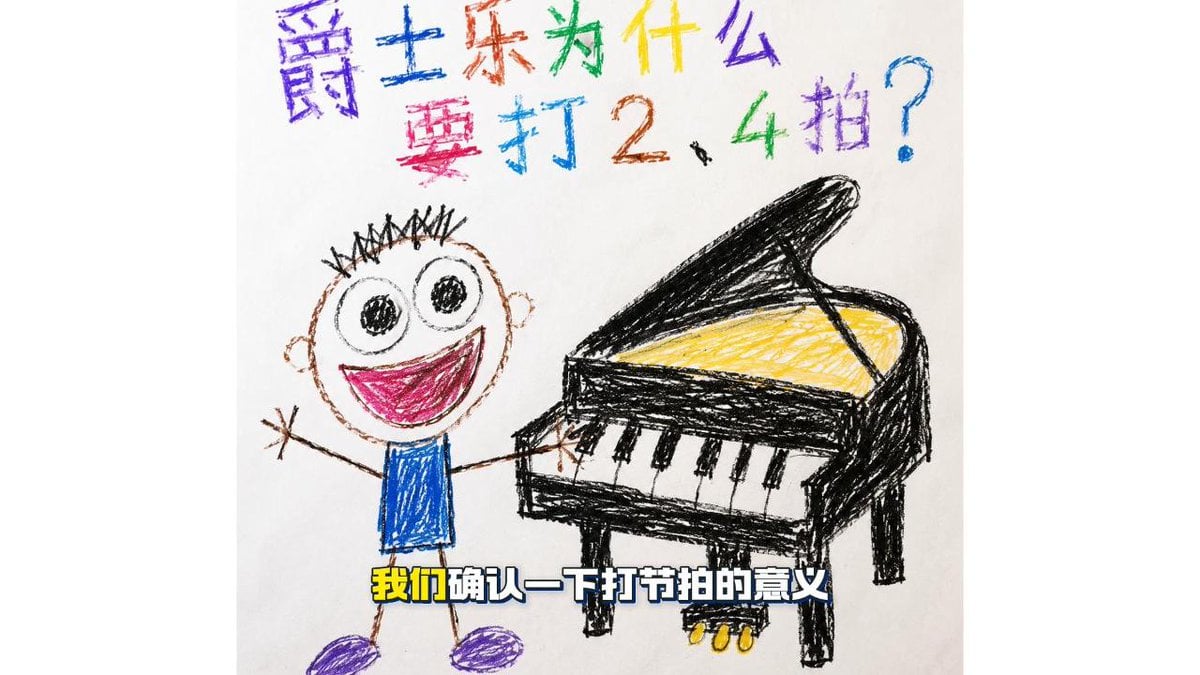
- Prompt included
- Model and format preset
- Free template
The prompt behind this image
Copy the exact prompt behind Childlike Jazz Beat Crayon Lesson, or open it in the studio and make it yours.
Create a cheerful children's crayon drawing on white paper in a 16:9 frame, like a hand-drawn educational video keyframe about jazz rhythm. At the top, write a large colorful Chinese crayon headline in two lines: {argument name="headline text" default="爵士乐为什么要打2、4拍?"}, with each character in a different bright color such as purple, blue, red, green, yellow, and cyan, slightly uneven like a child wrote it. In the center-left, draw one smiling cartoon child with a round head, spiky black hair, huge circular eyes, a wide open magenta mouth, stick arms raised happily, a blue scribbled shirt, thin brown stick legs, and purple shoes. On the center-right, draw one black grand piano in rough crayon lines with its lid open, yellow scribbled strings inside, four visible legs, a keyboard showing 7 white keys and 5 black keys, and 3 small yellow pedals beneath it. The child reaches toward or plays the piano, creating a cute beginner music lesson feeling. Add a bold subtitle near the bottom over the drawing reading {argument name="subtitle text" default="我们确认一下打节拍的意义"}, styled as thick white Chinese characters with a dark blue outline and yellow emphasis on the first two characters. Use messy wax-crayon texture, simple childlike proportions, imperfect perspective, bright primary colors, and lots of visible scribble strokes; keep the background plain white with no extra objects.
How to use Childlike Jazz Beat Crayon Lesson in 3 steps
- 1Upload ImagePNG, JPG or paste
Add your photo
Upload the photo the template builds on. The prompt, model and format are already set.
- 2…a portrait of your subject in softgolden-hour light, 85mm…
Personalize
Edit the subject and creative details for your destination.
- 3Generate
Generate
Press Generate — your image is created in PicX Studio, so you can compare it with the original and refine one variable at a time.
More like this
Templates with the same subject, style or setup. Open one to see its prompt.
Decorative Folk Flat Paper Cut Illustration
Clay Miniature Landmark Travel Diorama
Childlike Crayon Illustration Style
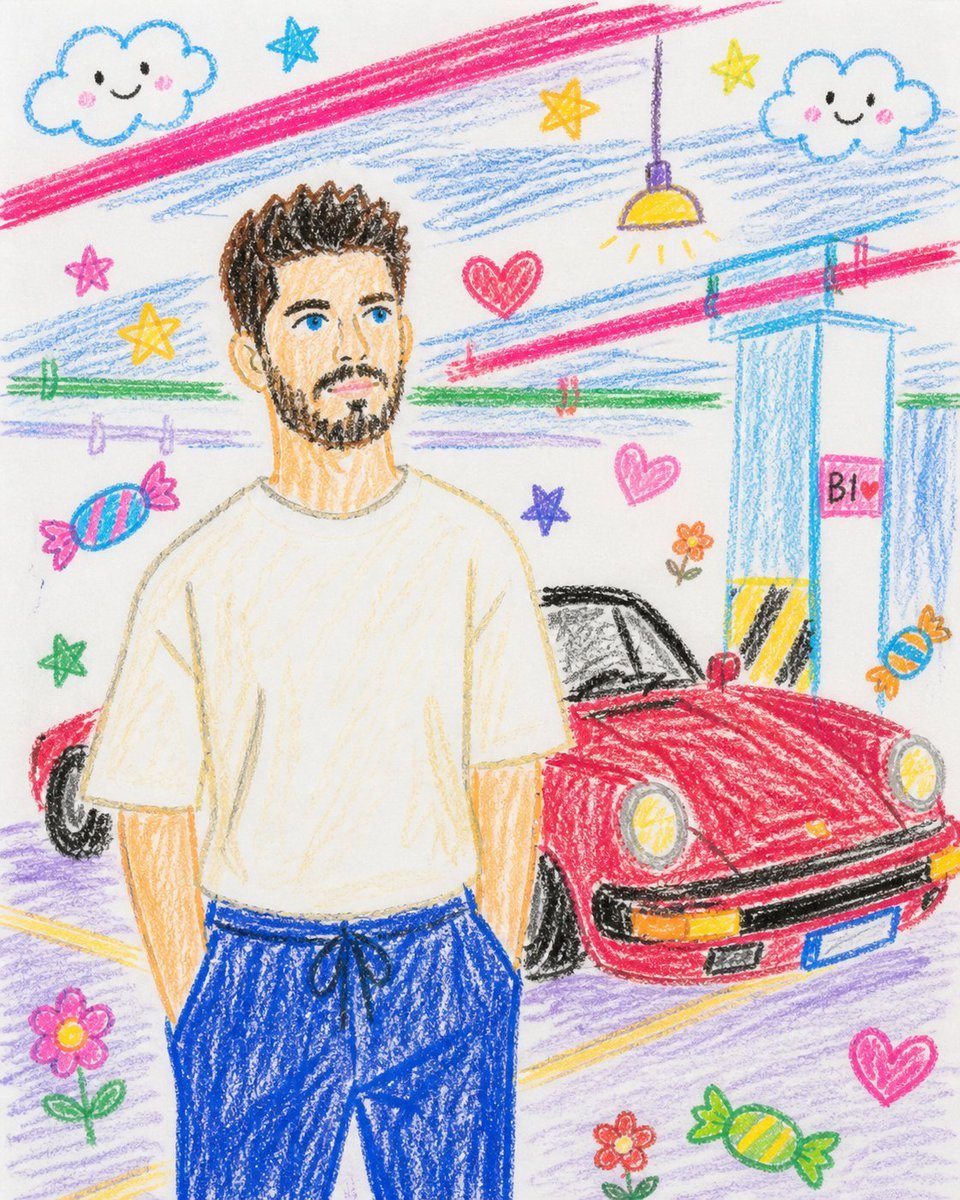
Childlike Crayon Drawing Re-creation
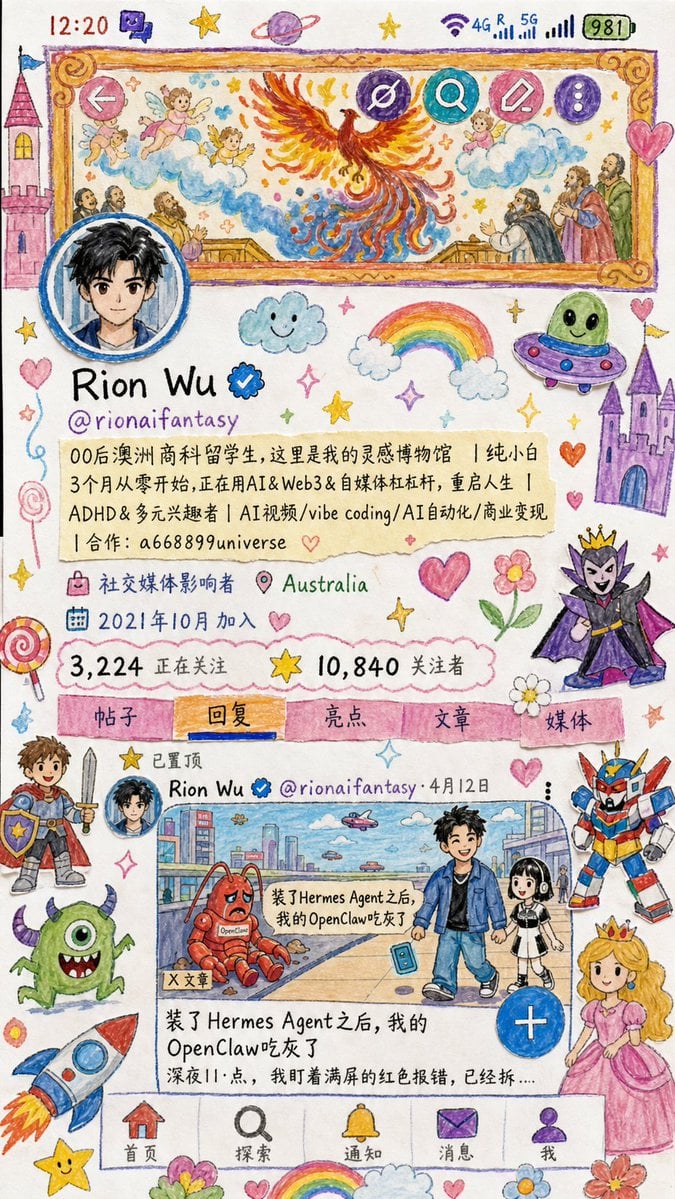
Childlike Watercolor and Crayon Art
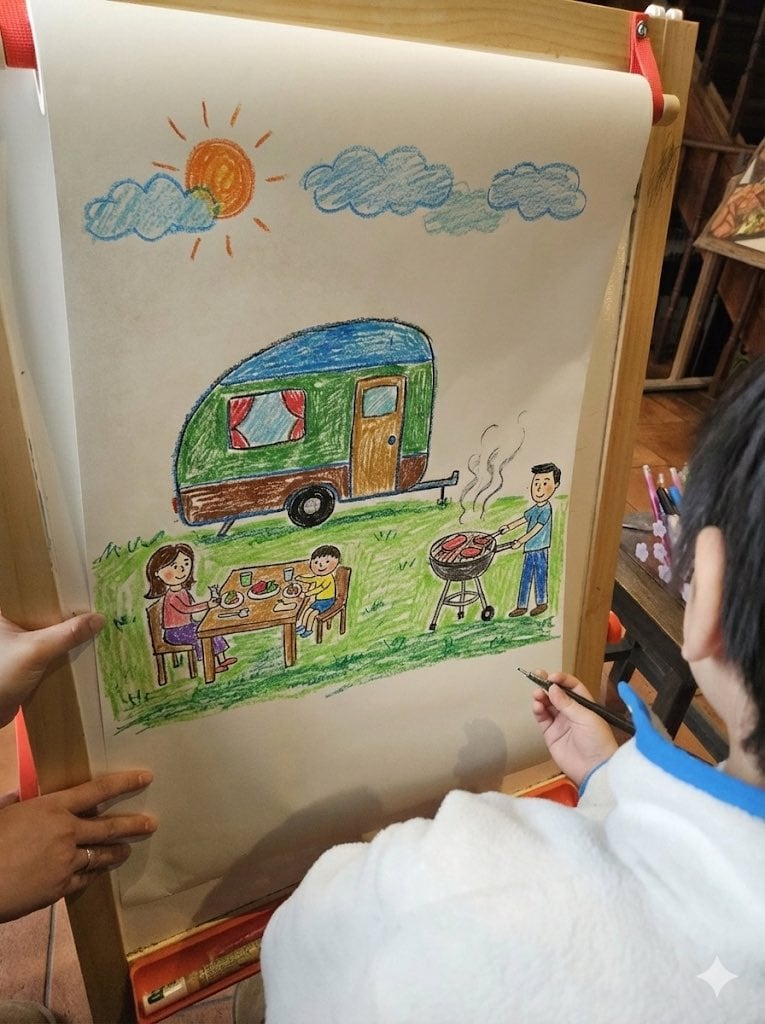
Childlike crayon-style family camping drawing
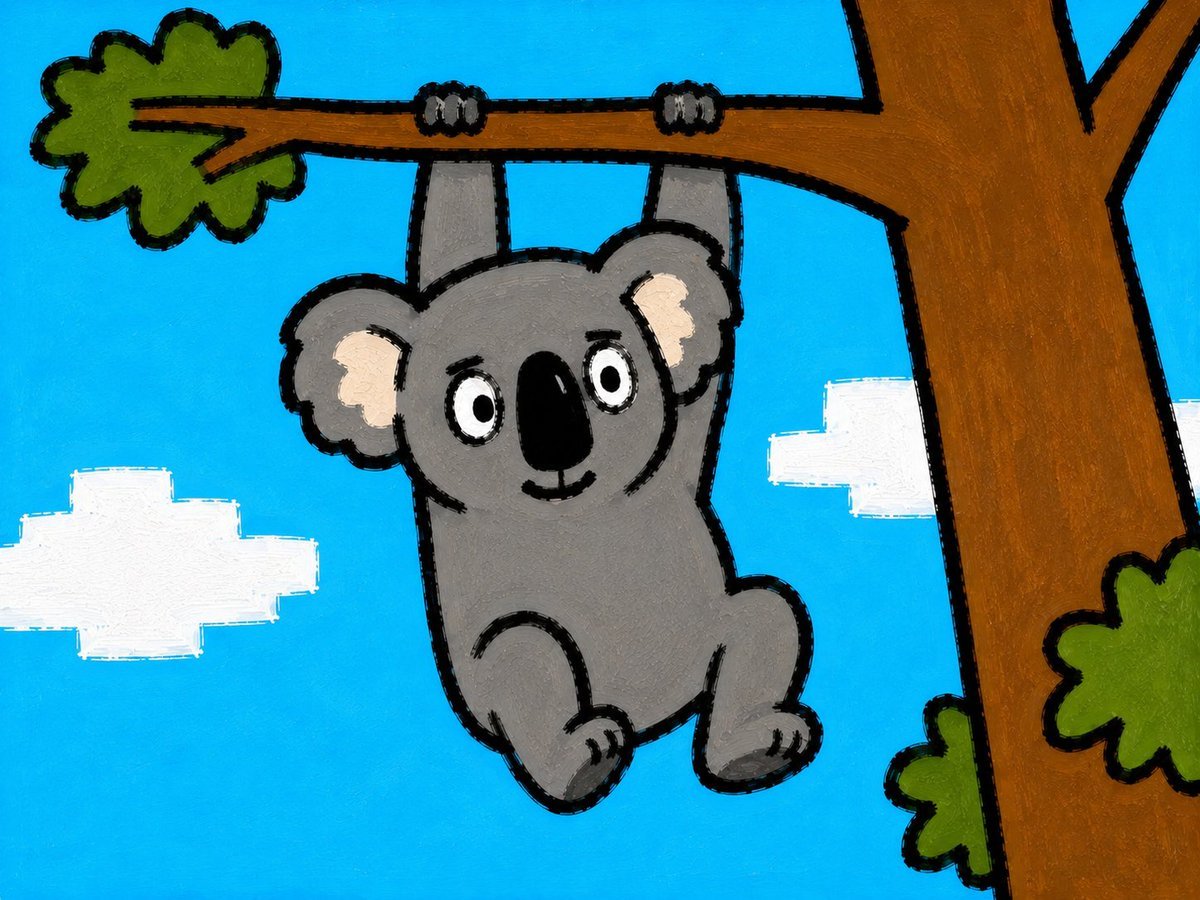
Childlike Koala Hanging From Tree
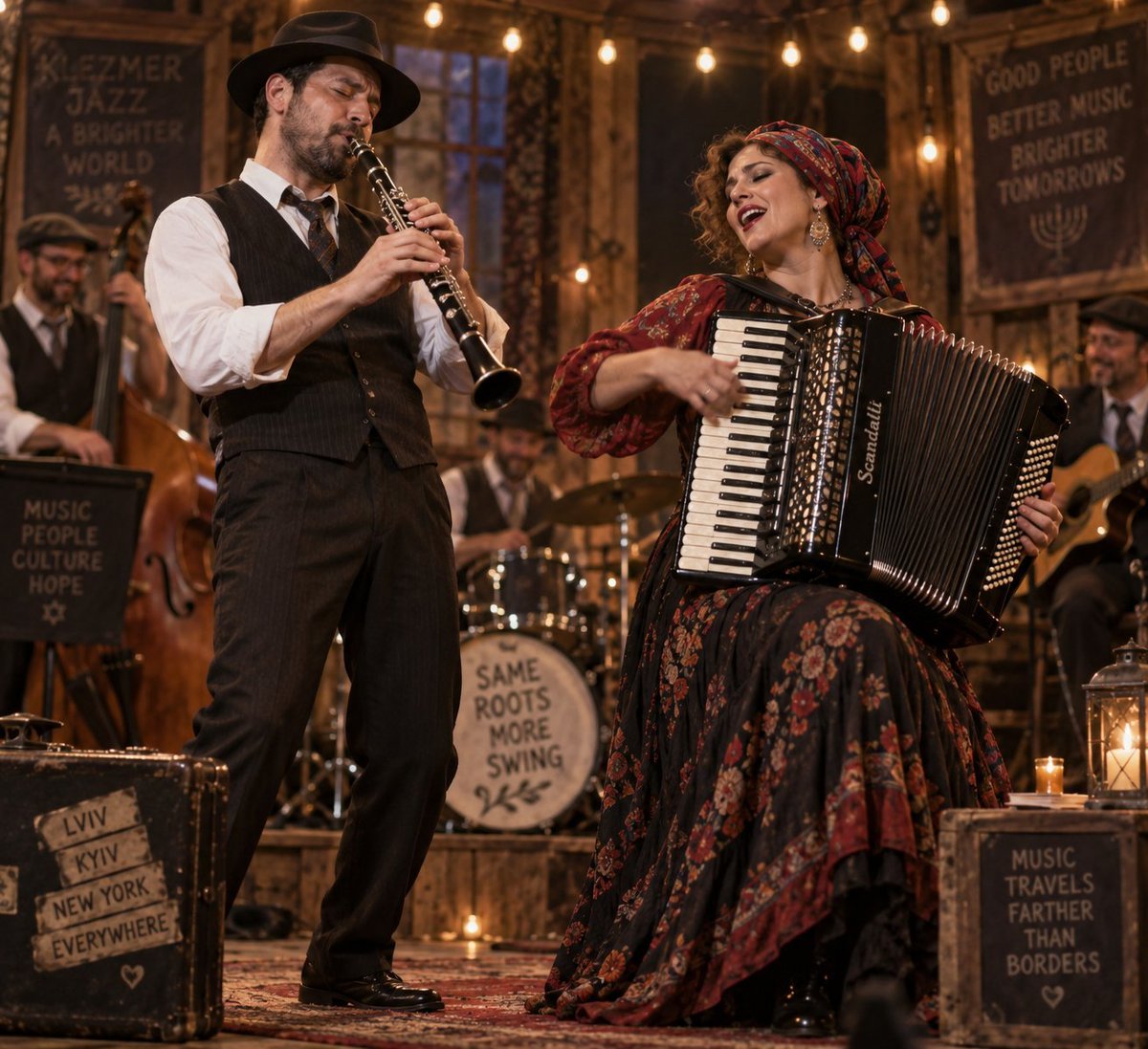
Klezmer Jazz Accordion Stage
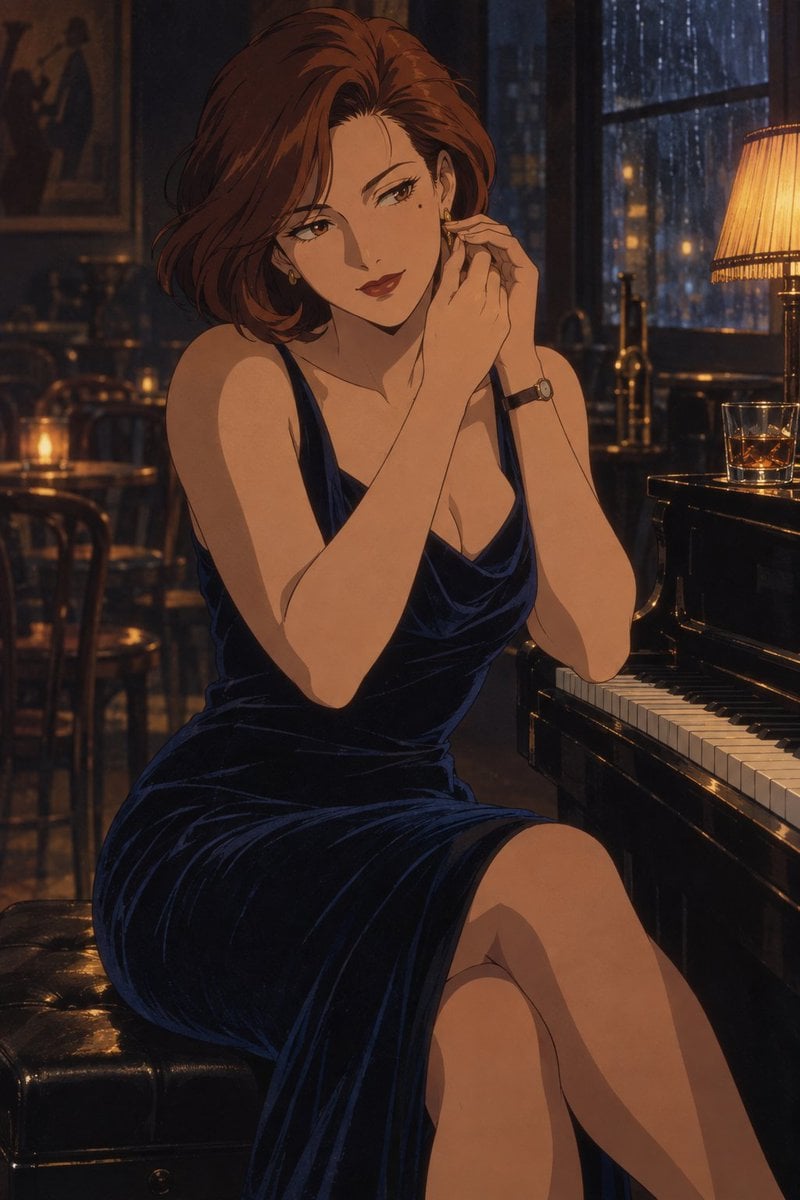
Rainy Jazz Bar Anime Portrait
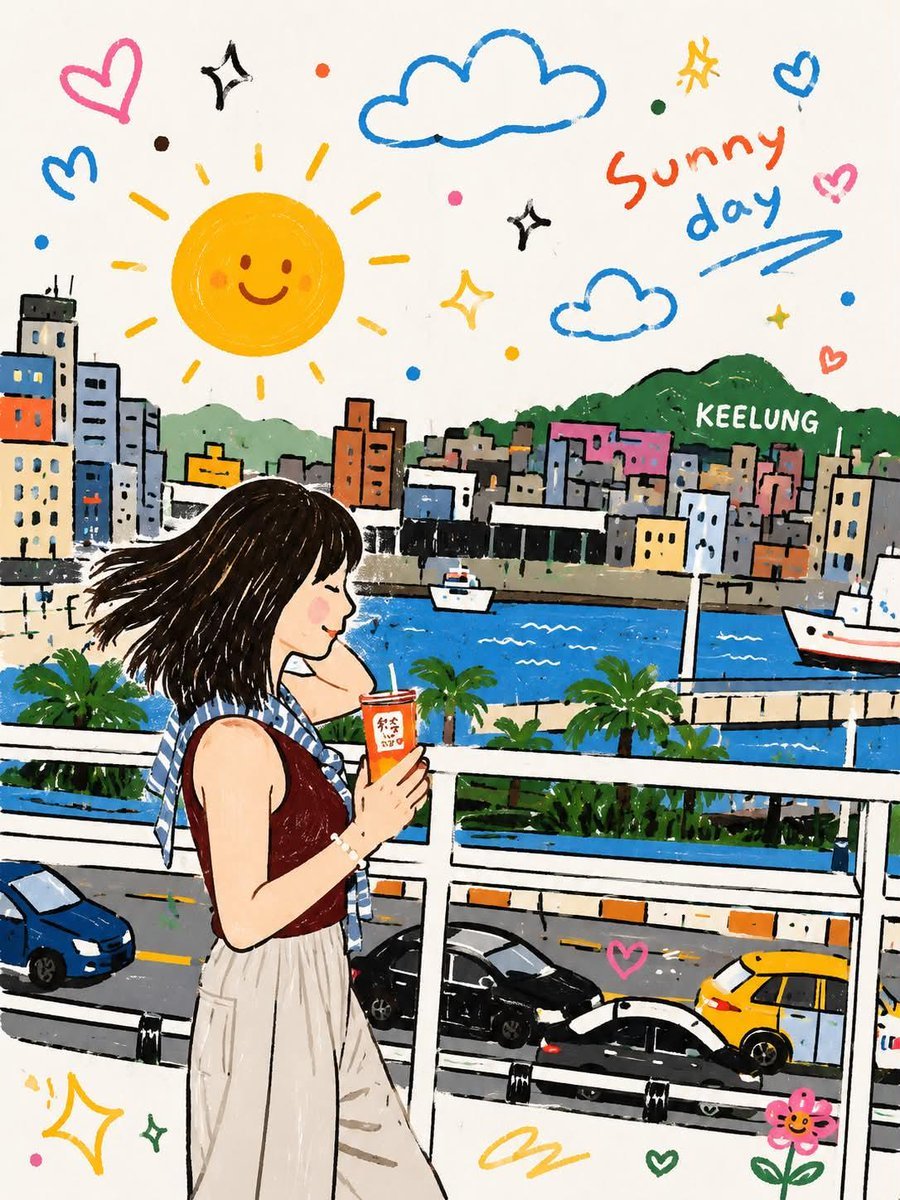
Whimsical Childlike Doodle Reconstruction
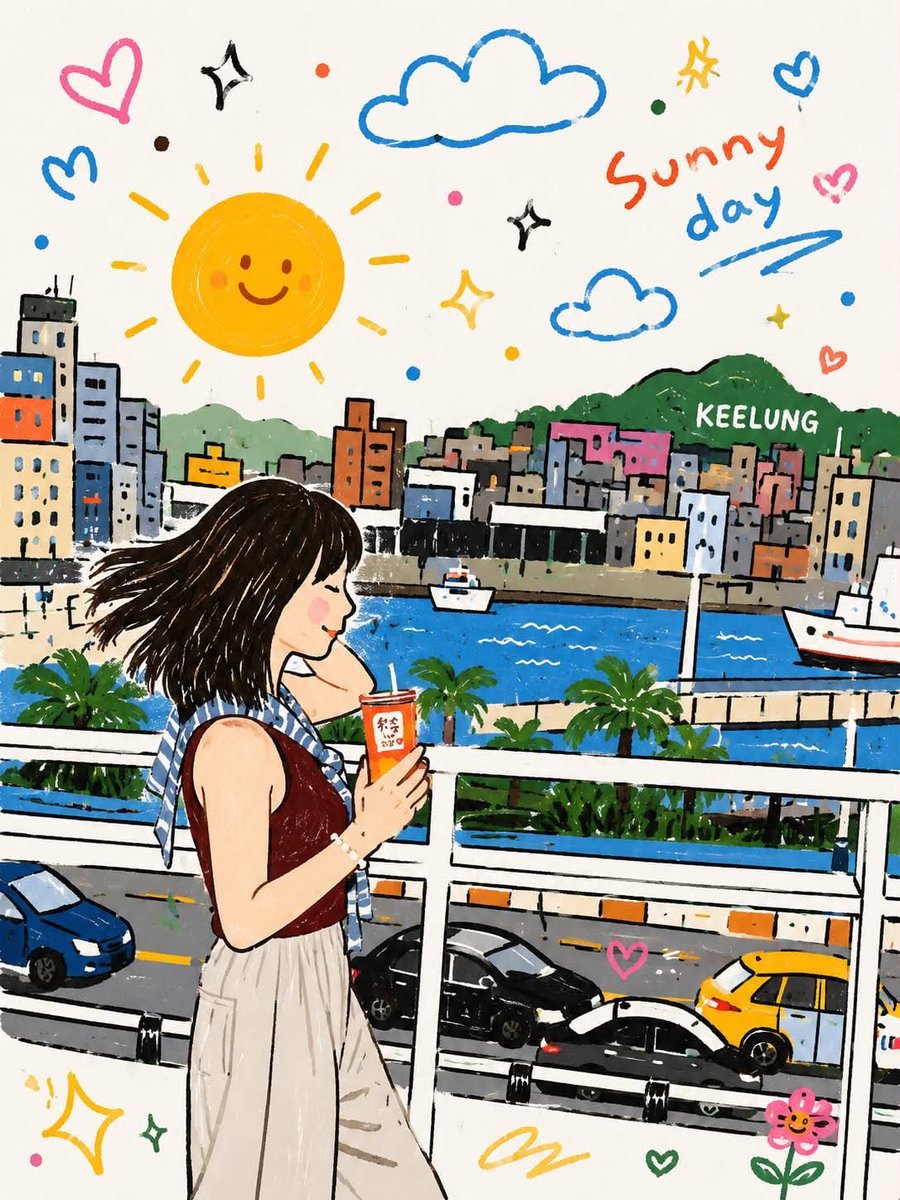
Playful Childlike Doodle Illustration
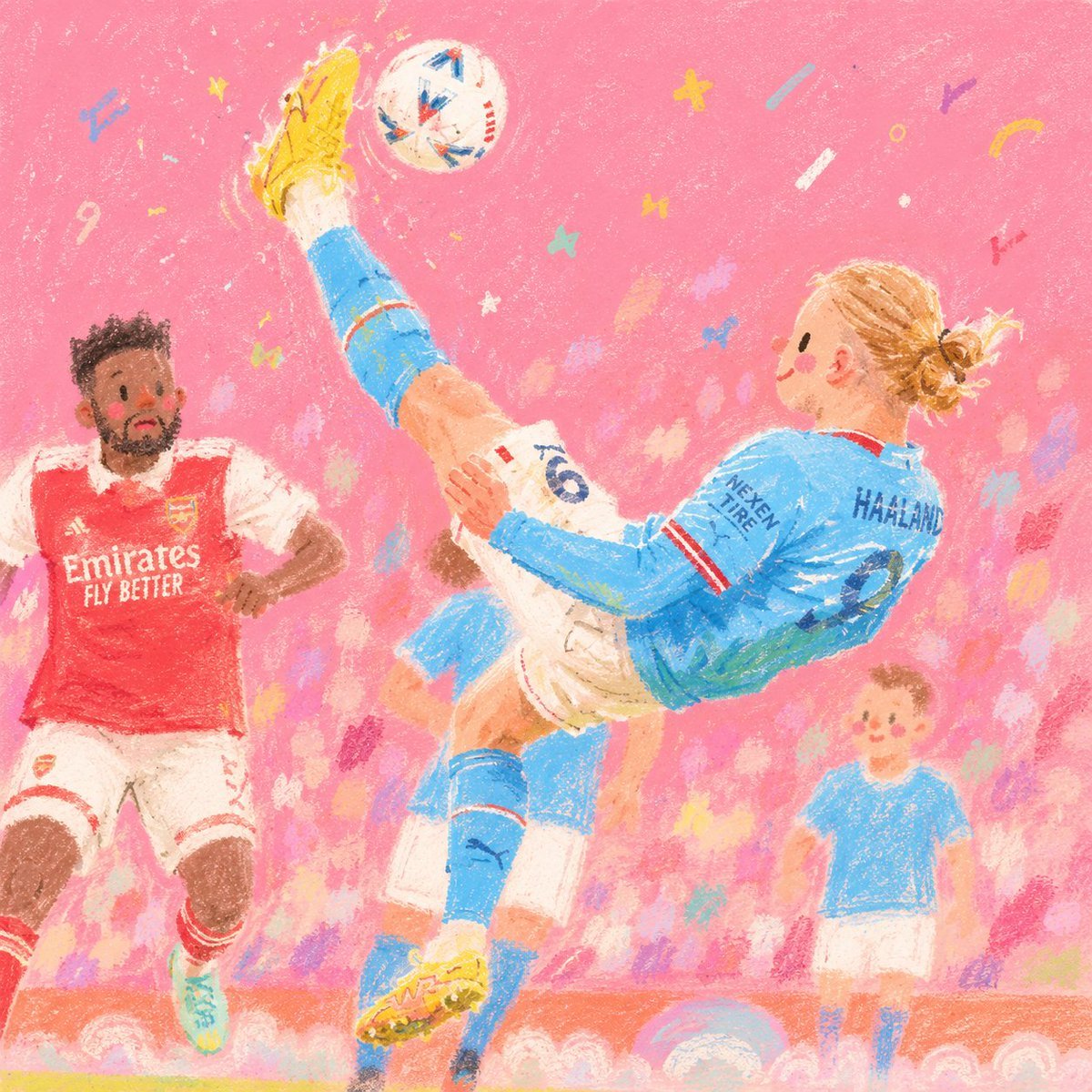
Pink Childlike Soccer Illustration
Make it yours
Childlike Jazz Beat Crayon Lesson works as-is. These are the safest ways to change it without losing the look.
Change one field
Copy a single group, rewrite it, and generate again so you can see what that field is doing.
Keep the frame, change the subject
Hold the composition and light of Childlike Jazz Beat Crayon Lesson, then swap wardrobe, props or the person for a new take.
| If the result… | Why | Fix |
|---|---|---|
| The result drifts from the preview | Too many fields changed at once. | Reuse Childlike Jazz Beat Crayon Lesson as-is first, then change one group — subject, light, or setting. |
| The model over-stylizes the scene | The prose prompt leaves finish and camera underspecified. | Add one camera or lighting sentence and stay on GPT Image 2. |
More GPT Image 2 templates
Other prompts made for GPT Image 2.

Six VTuber Japanese Logo Sheet

Realistic Portrait of Woman and Deer

The Vista Modular Condo Poster

AI Model Routing Comparison Infographic

2.5D Anime Art Board

Isometric Productivity Desk Scene

New York Double Exposure Poster

Four-Panel AI Landscape Comparison

Japanese Tatami Lifestyle Magazine Cover

NESCAFÉ Coffee Map Poster
More image prompts
Fresh picks from across the catalog.
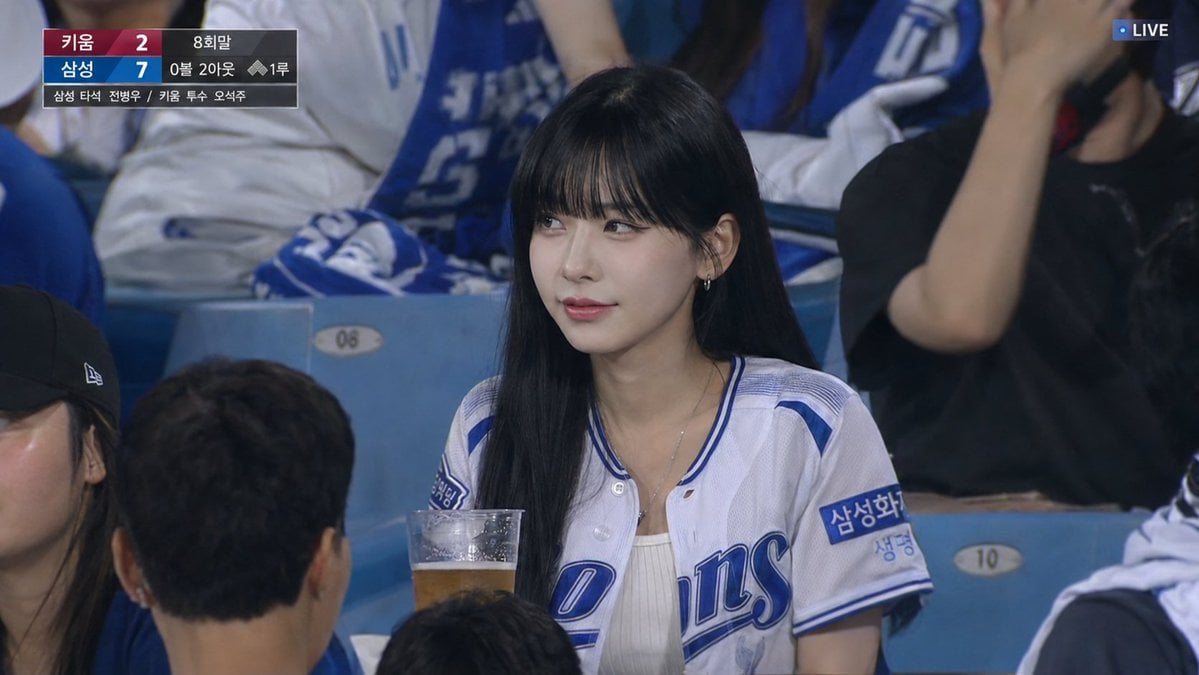
Korean Baseball Live TV Screenshot
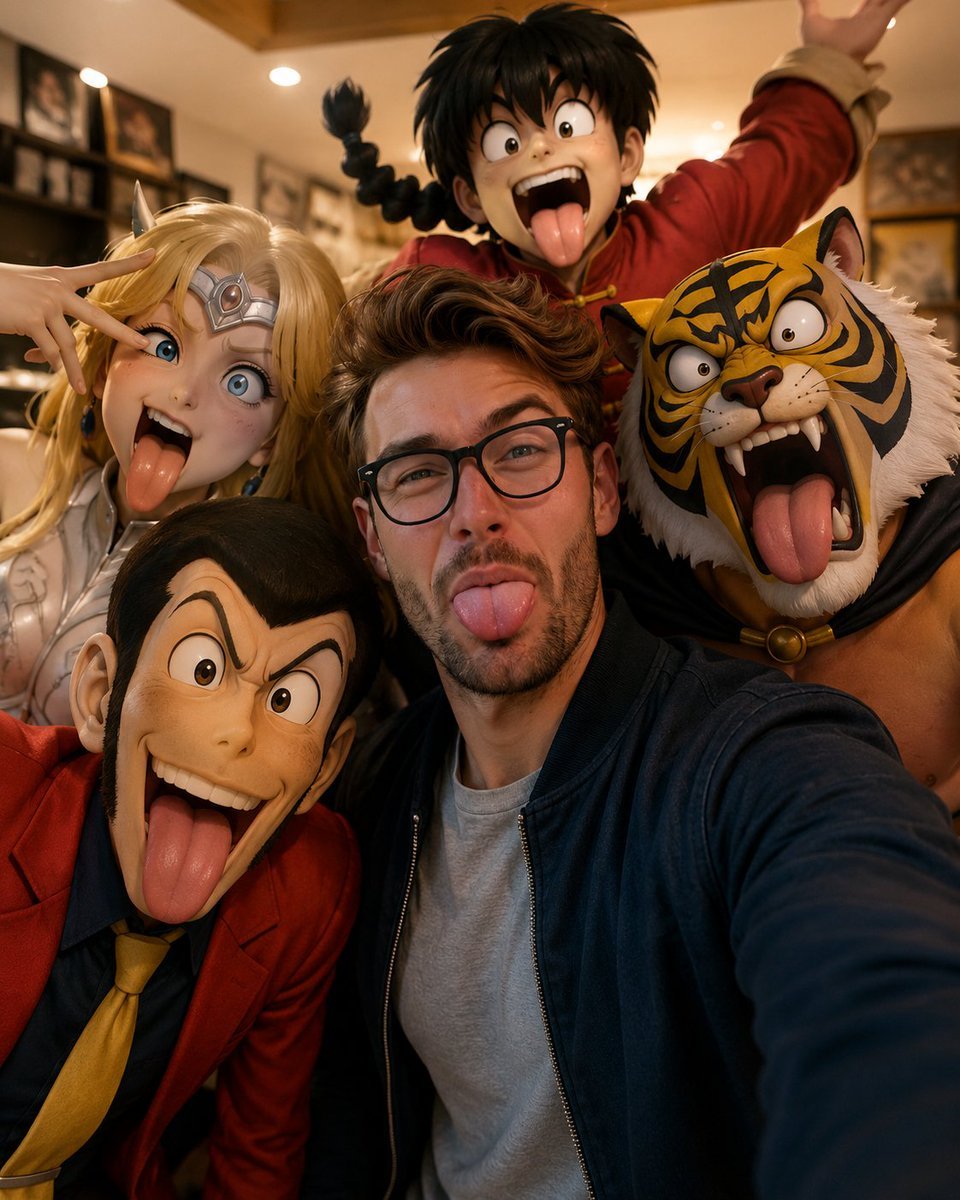
Realistic Selfie with Cartoon Characters
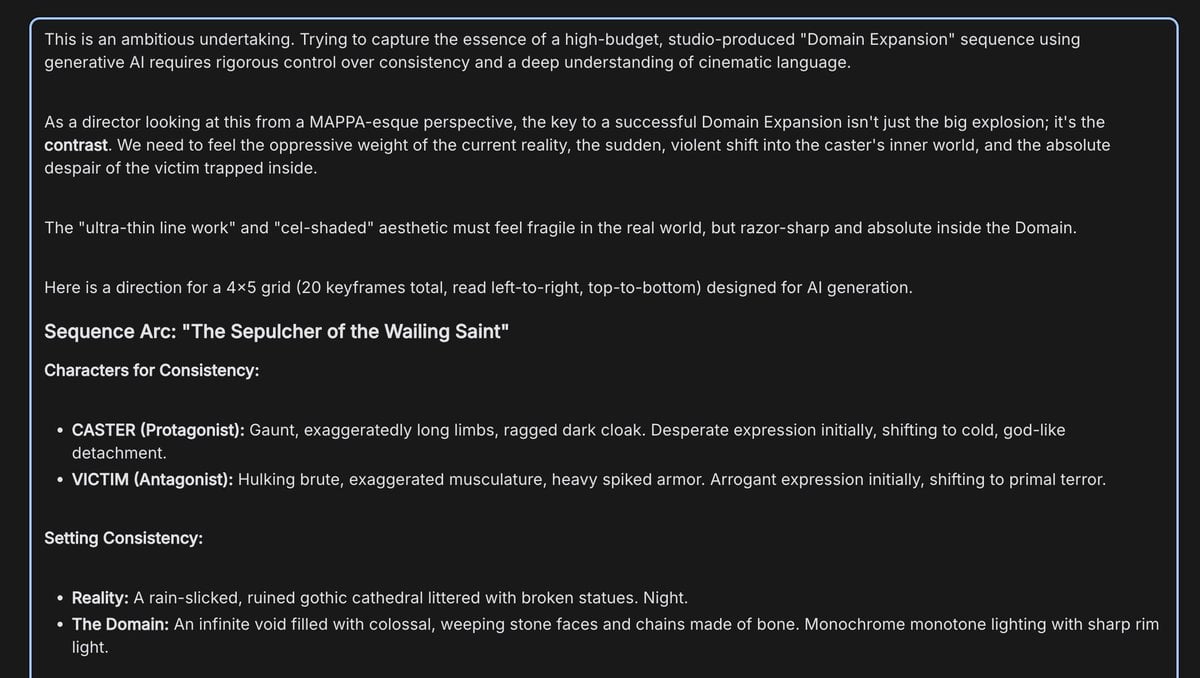
Anime Keyframe Sequence for Domain Expansion
Elegant Woman Blowing a Kiss Portrait
High-Speed Beverage Ad with Strawberry Splash
Skincare E-commerce Landing Page Mockup
Surreal Giant Man Riding Miniature London Bus
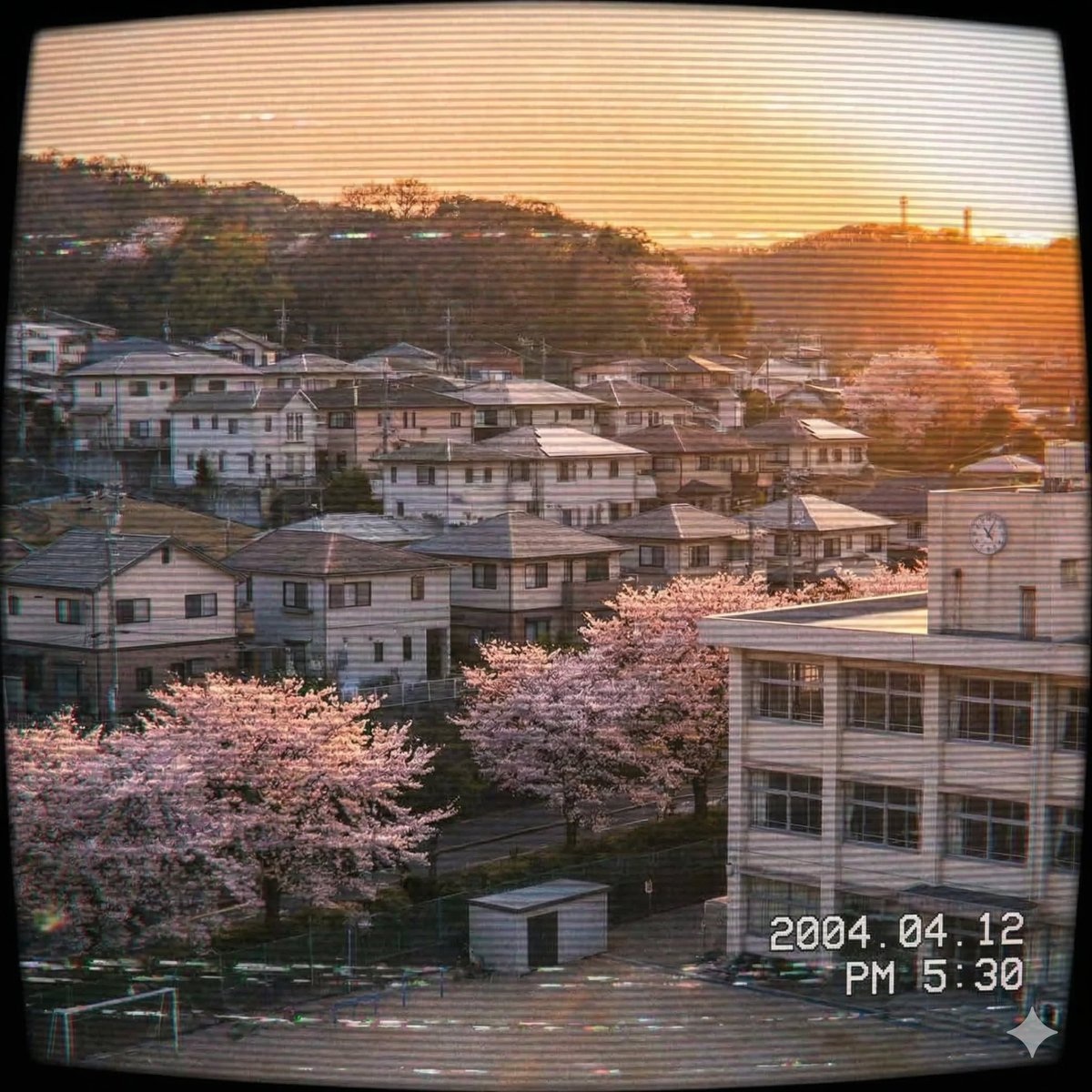
Japanese Suburb in 2000s Old Footage Style
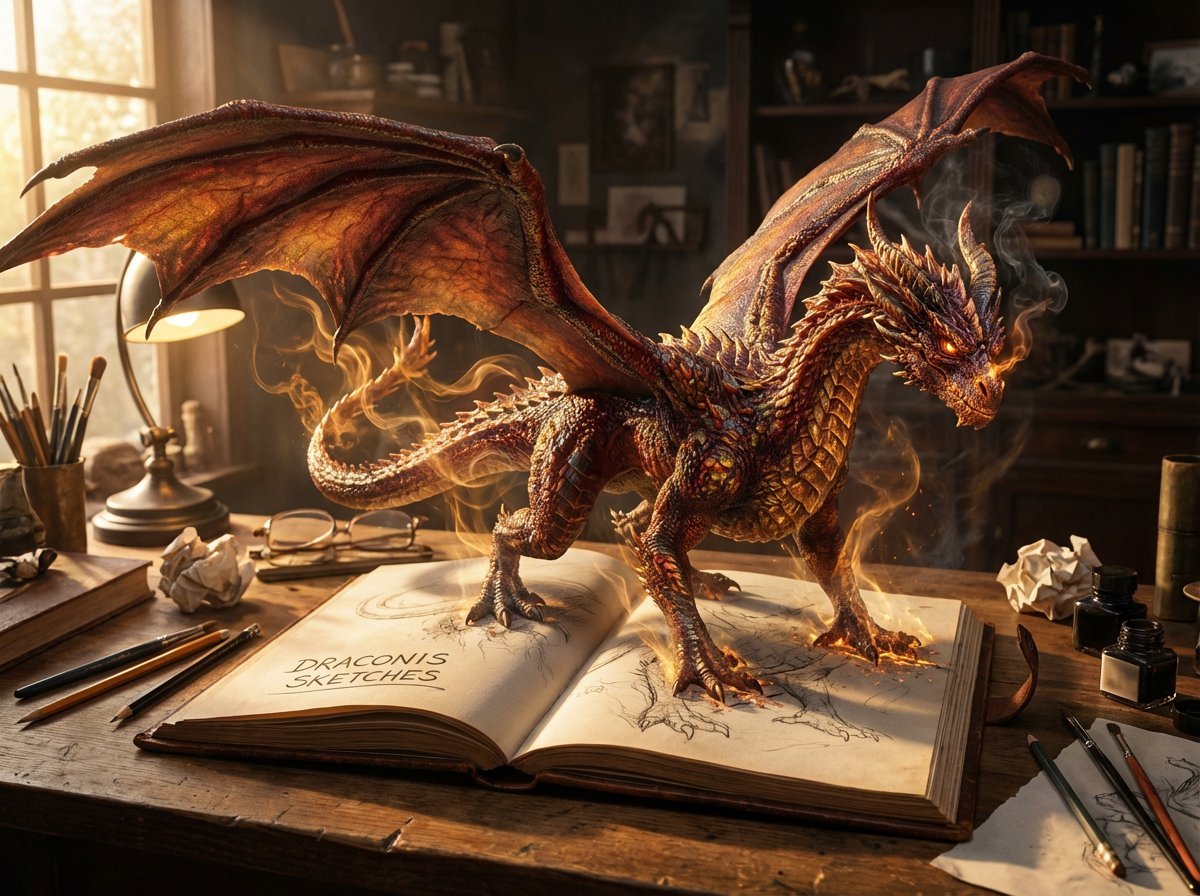
Magical Sketchbook Art Coming to Life
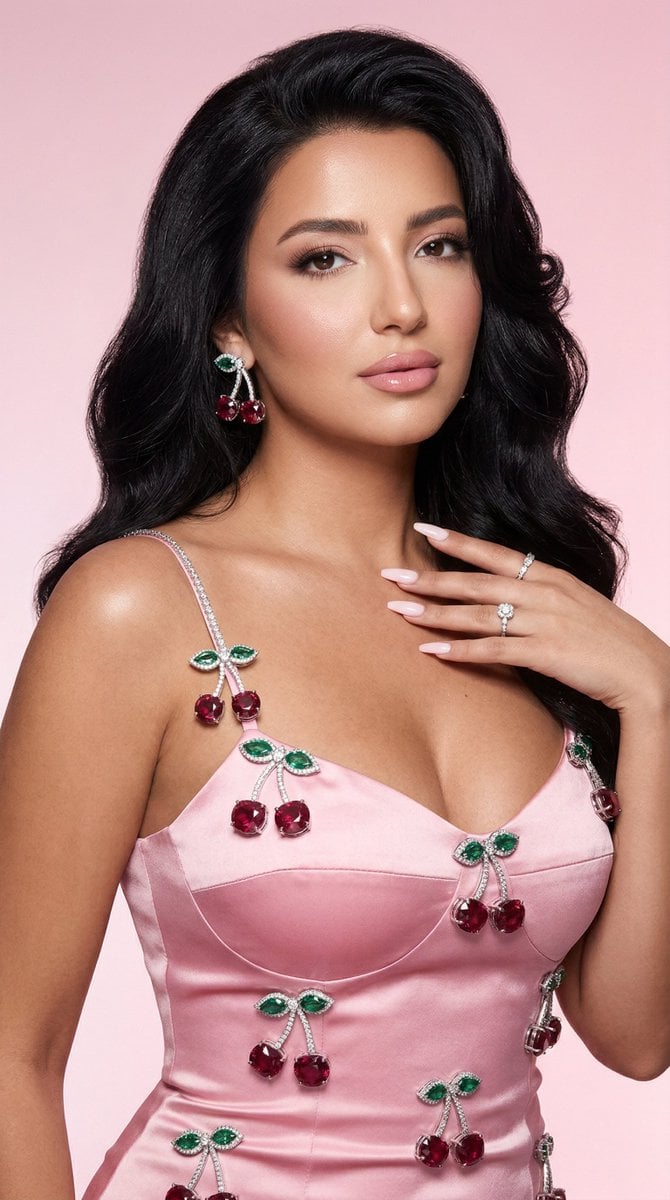
Luxury Fashion Editorial Portrait with Diamond Cherry Jewelry
Browse template categories
Childlike Jazz Beat Crayon Lesson questions
How do I use the Childlike Jazz Beat Crayon Lesson template?
Add your photo if the template asks for one, edit the prompt if you like — the template's model and format are already selected — and press Generate. Your version opens in PicX Studio.
Can I customize the Childlike Jazz Beat Crayon Lesson template?
Yes. You can change the subject, setting, lighting, mood, format, and available model controls before creating your image.
Is the Childlike Jazz Beat Crayon Lesson template free?
Opening and editing this template is free. Generating uses credits, shown on the Generate button when you are signed in.
Which AI model should I use?
Start with GPT Image 2, which is the model associated with this template. You can compare another compatible model for a different finish.
Looking for something else? Browse all templates.

Your photo, any look
Thousands of ready templates for every top image and video model, from one credit balance.