
Chalkboard AI Product Infographic
Generates a highly detailed, 10-section chalkboard-style infographic for a software release, featuring charts, matrices, and tables.
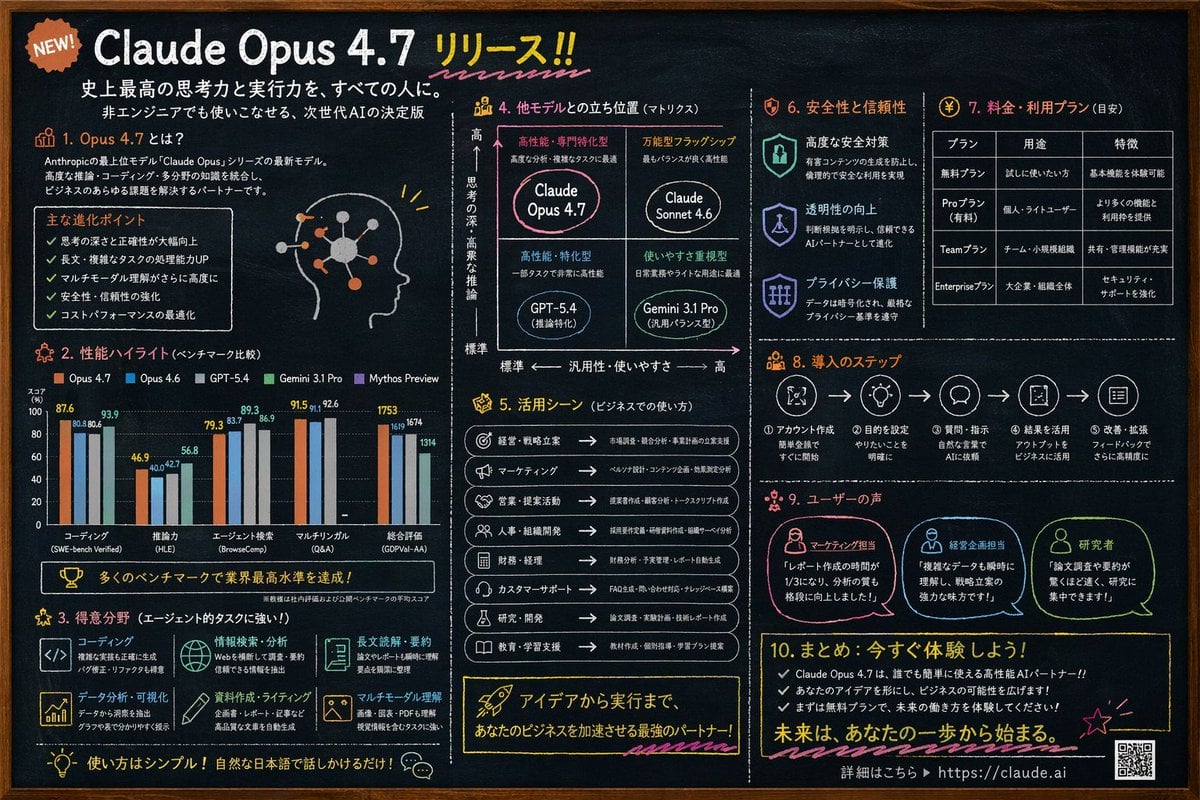
- Prompt included
- Model and format preset
- Free template
The prompt behind this image
Copy the exact prompt behind Chalkboard AI Product Infographic, or open it in the studio and make it yours.
- Type
- chalkboard style infographic
- Style
- dark slate background, white text, hand-drawn accents, clean typography
- Colors › Background
- dark slate grey
- Colors › Text
- white
- Colors › Accents
- {argument name="accent color 1" default="orange"}, {argument name="accent color 2" default="light blue"}, yellow, pink
- Header › Badge
- NEW!
- Header › Title
- {argument name="main headline" default="Claude Opus 4.7 リリース!!"}
- Header › Subtitles
- 史上最高の思考力と実行力を、すべての人に。, 非エンジニアでも使いこなせる、次世代AIの決定版
- Layout › Sections › 0 › Id
- 1
- Layout › Sections › 0 › Title
- 1. Opus 4.7 とは?
- Layout › Sections › 0 › Content
- Description text, 5 bullet points, profile head illustration with glowing neural nodes
- Layout › Sections › 1 › Id
- 2
- Layout › Sections › 1 › Title
- 2. 性能ハイライト (ベンチマーク比較)
- Layout › Sections › 1 › Content
- Grouped bar chart comparing 5 models across 5 categories: コーディング, 推論力, エージェント検索, マルチリンガル, 総合評価
- Layout › Sections › 2 › Id
- 3
- Layout › Sections › 2 › Title
- 3. 得意分野 (エージェント的タスクに強い!)
- Layout › Sections › 2 › Content
- 2x3 grid of 6 strengths with icons: コーディング, 情報検索・分析, 長文読解・要約, データ分析・可視化, 資料作成・ライティング, マルチモーダル理解
- Layout › Sections › 3 › Id
- 4
- Layout › Sections › 3 › Title
- 4. 他モデルとの立ち位置 (マトリクス)
- Layout › Sections › 3 › Content
- 2x2 positioning matrix with 4 quadrants: {argument name="product name" default="Claude Opus 4.7"}, Claude Sonnet 4.6, GPT-5.4, Gemini 3.1 Pro
- Layout › Sections › 4 › Id
- 5
- Layout › Sections › 4 › Title
- 5. 活用シーン (ビジネスでの使い方)
- Layout › Sections › 4 › Content
- List of 8 business use cases with icons and arrows
- Layout › Sections › 5 › Id
- 6
Raw JSON
{
  "type": "chalkboard style infographic",
  "style": "dark slate background, white text, hand-drawn accents, clean typography",
  "colors": {
    "background": "dark slate grey",
    "text": "white",
    "accents": ["{argument name=\"accent color 1\" default=\"orange\"}", "{argument name=\"accent color 2\" default=\"light blue\"}", "yellow", "pink"]
  },
  "header": {
    "badge": "NEW!",
    "title": "{argument name=\"main headline\" default=\"Claude Opus 4.7 リリース!!\"}",
    "subtitles": ["史上最高の思考力と実行力を、すべての人に。", "非エンジニアでも使いこなせる、次世代AIの決定版"]
  },
  "layout": {
    "sections": [
      {
        "id": "1",
        "title": "1. Opus 4.7 とは?",
        "content": "Description text, 5 bullet points, profile head illustration with glowing neural nodes"
      },
      {
        "id": "2",
        "title": "2. 性能ハイライト (ベンチマーク比較)",
        "content": "Grouped bar chart comparing 5 models across 5 categories: コーディング, 推論力, エージェント検索, マルチリンガル, 総合評価"
      },
      {
        "id": "3",
        "title": "3. 得意分野 (エージェント的タスクに強い!)",
        "content": "2x3 grid of 6 strengths with icons: コーディング, 情報検索・分析, 長文読解・要約, データ分析・可視化, 資料作成・ライティング, マルチモーダル理解"
      },
      {
        "id": "4",
        "title": "4. 他モデルとの立ち位置 (マトリクス)",
        "content": "2x2 positioning matrix with 4 quadrants: {argument name=\"product name\" default=\"Claude Opus 4.7\"}, Claude Sonnet 4.6, GPT-5.4, Gemini 3.1 Pro"
      },
      {
        "id": "5",
        "title": "5. 活用シーン (ビジネスでの使い方)",
        "content": "List of 8 business use cases with icons and arrows"
      },
      {
        "id": "6",
        "title": "6. 安全性と信頼性",
        "content": "3 vertical items with shield/lock icons: 高度な安全対策, 透明性の向上, プライバシー保護"
      },
      {
        "id": "7",
        "title": "7. 料金・利用プラン (目安)",
        "content": "Data table with 3 columns and 4 rows for pricing tiers: 無料プラン, Proプラン, Teamプラン, Enterpriseプラン"
      },
      {
        "id": "8",
        "title": "8. 導入のステップ",
        "content": "Horizontal flowchart with 5 numbered steps connected by arrows"
      },
      {
        "id": "9",
        "title": "9. ユーザーの声",
        "content": "3 user testimonials with profile icons: マーケティング担当, 経営企画担当, 研究者"
      },
      {
        "id": "10",
        "title": "10. まとめ: 今すぐ体験しよう!",
        "content": "3 bullet points, call to action, URL {argument name=\"website url\" default=\"https://claude.ai\"}, and a QR code"
      }
    ]
  }
}How to use Chalkboard AI Product Infographic in 3 steps
- 1Upload ImagePNG, JPG or paste
Add your photo
Upload the photo the template builds on. The prompt, model and format are already set.
- 2…a portrait of your subject in softgolden-hour light, 85mm…
Personalize
Edit the subject and creative details for your destination.
- 3Generate
Generate
Press Generate — your image is created in PicX Studio, so you can compare it with the original and refine one variable at a time.
More like this
Templates with the same subject, style or setup. Open one to see its prompt.

Japan Travel Brochure Poster

A k.pop idol on the stage with mic
Trendy Cafe Drink Promo Poster
Minimalist Skincare Product Water Stone Still

Giant Forced Perspective Street Product Selfie
Playful Futuristic Brand Kit Board
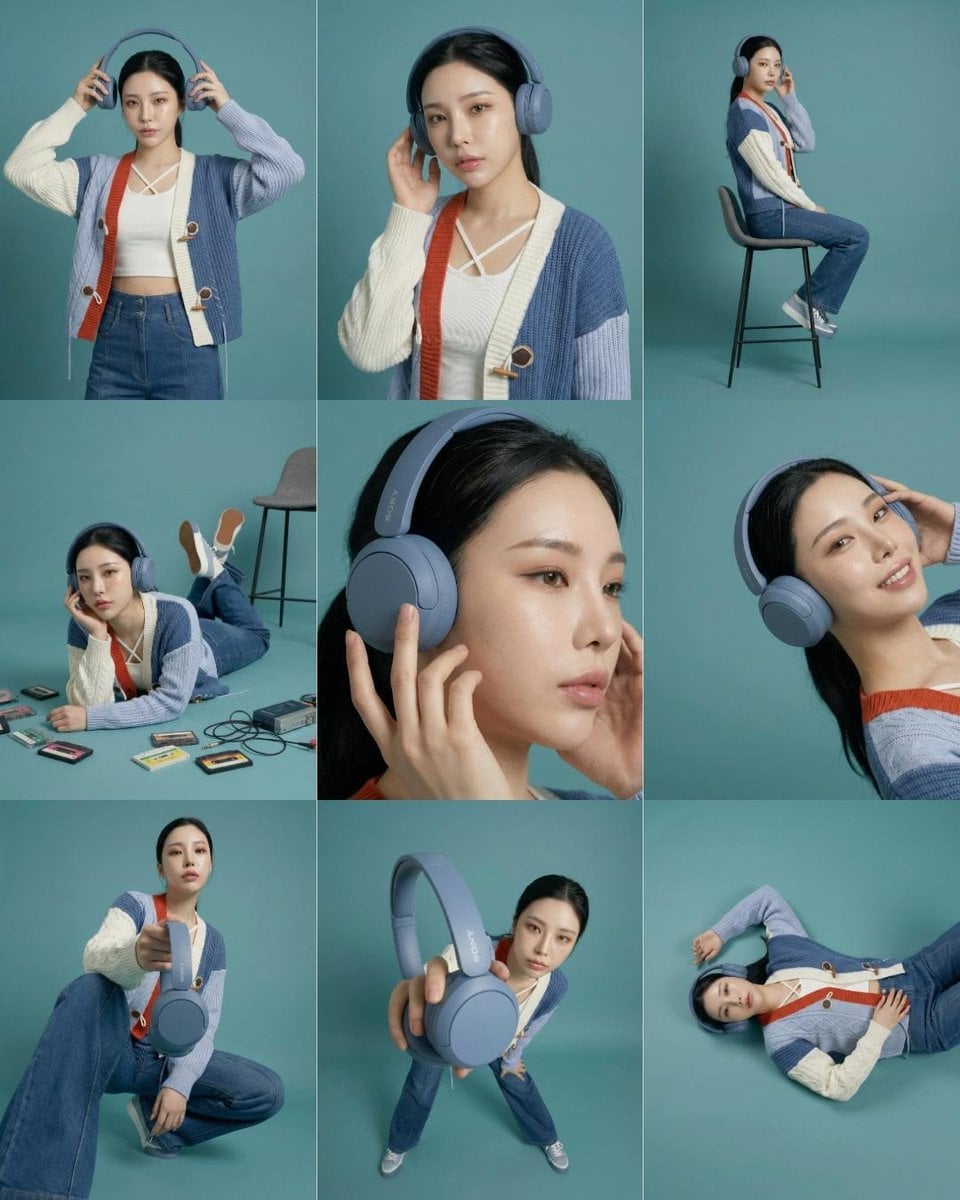
Headphones Lifestyle Nine Panel Grid

Isometric Process Educational Diorama
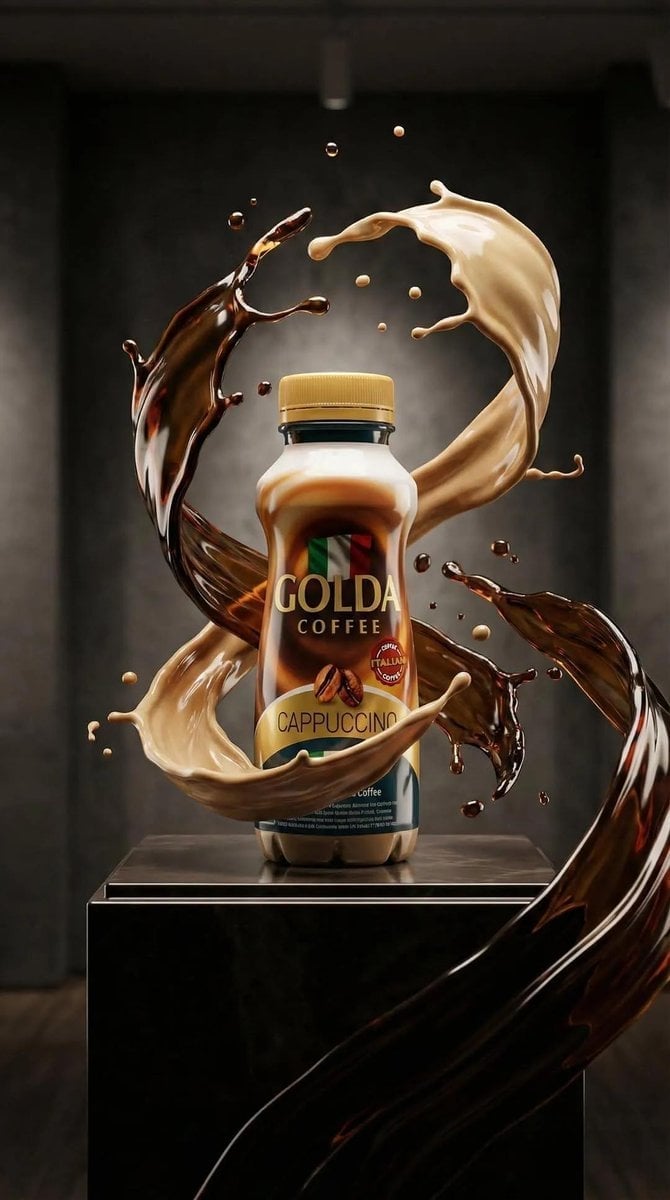
Cappuccino Bottle Splash Product Ad
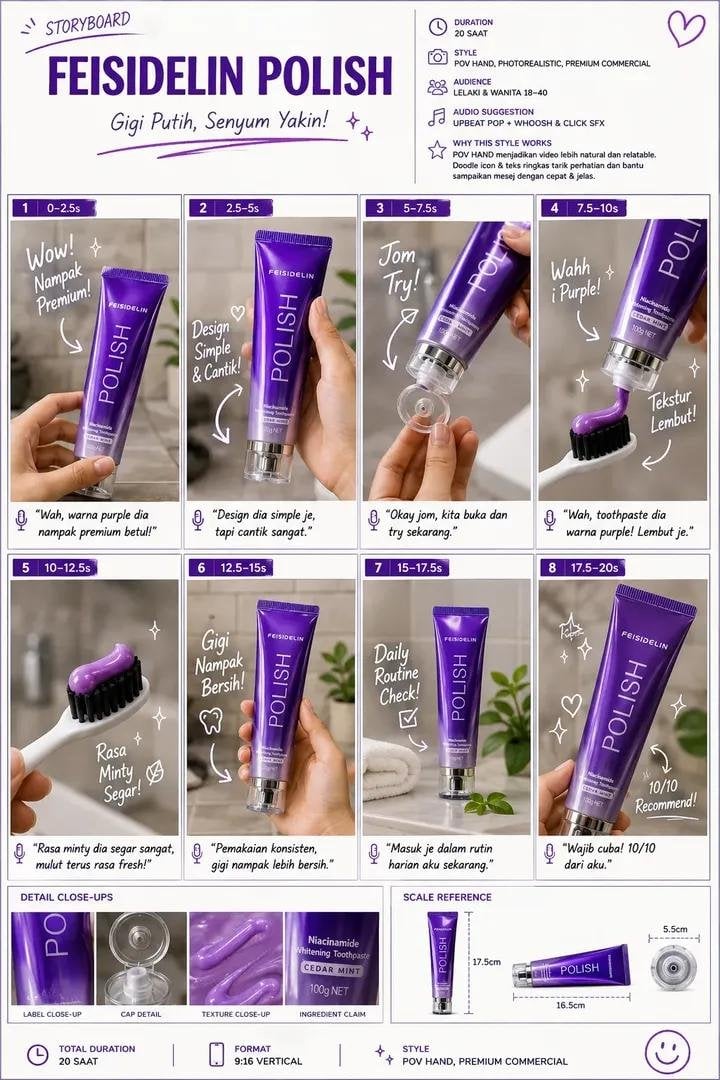
Luxury Toothpaste Commercial Storyboard

Parle Hide and Seek Cookie Campaign Poster
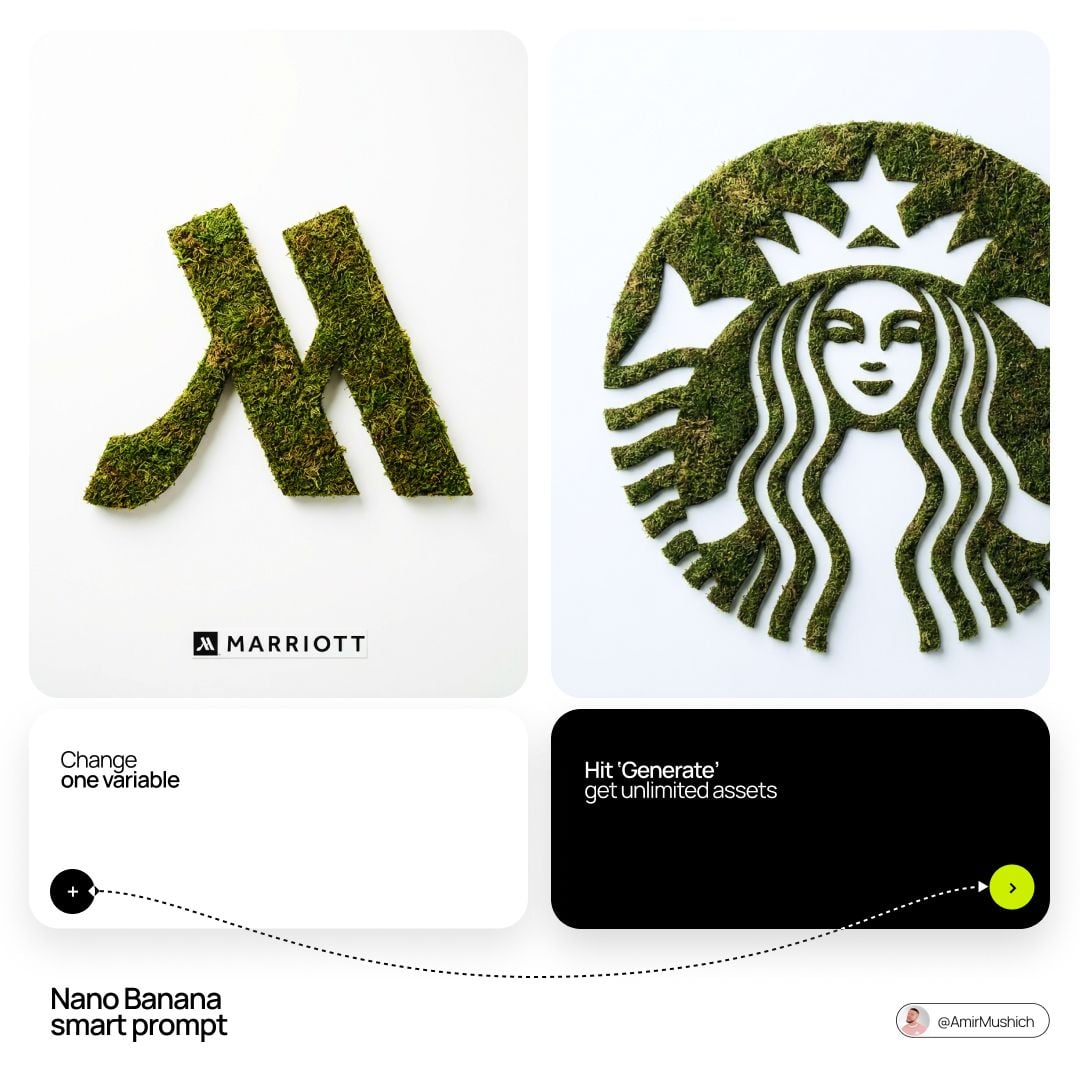
Moss Logo Minimalist Brand Flat Lay
Make it yours
Chalkboard AI Product Infographic works as-is. These are the safest ways to change it without losing the look.
Swap the setting
Keep the rest of the prompt and replace the location block. The current setting is “dark slate grey”.
Change one field
Copy a single group, rewrite it, and generate again so you can see what that field is doing.
Keep the frame, change the subject
Hold the composition and light of Chalkboard AI Product Infographic, then swap wardrobe, props or the person for a new take.
| If the result… | Why | Fix |
|---|---|---|
| The result drifts from the preview | Too many fields changed at once. | Reuse Chalkboard AI Product Infographic as-is first, then change one group — subject, light, or setting. |
| GPT Image 2 ignores part of the JSON | Some models flatten or skip nested keys. | Keep the same values and paste them as a short paragraph instead. |
More GPT Image 2 templates
Other prompts made for GPT Image 2.

Six VTuber Japanese Logo Sheet

Realistic Portrait of Woman and Deer

The Vista Modular Condo Poster

AI Model Routing Comparison Infographic

2.5D Anime Art Board

Isometric Productivity Desk Scene

New York Double Exposure Poster

Four-Panel AI Landscape Comparison

Japanese Tatami Lifestyle Magazine Cover

NESCAFÉ Coffee Map Poster
More image prompts
Fresh picks from across the catalog.

Ultra-Photorealistic Parisian Cafe Lifestyle Photography
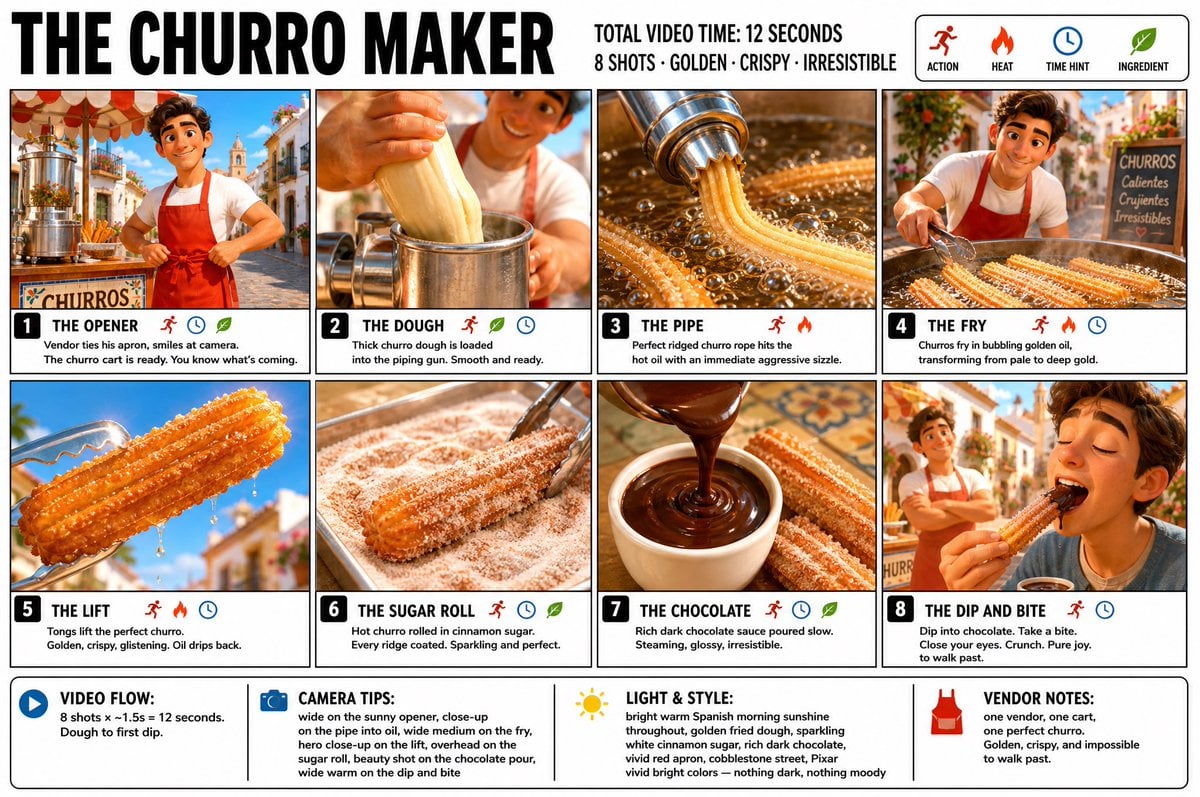
Churro Maker Infographic Storyboard

Unplanned paparazzi-style street portrait of a man

Cinematic Black & White Portrait with Face Match
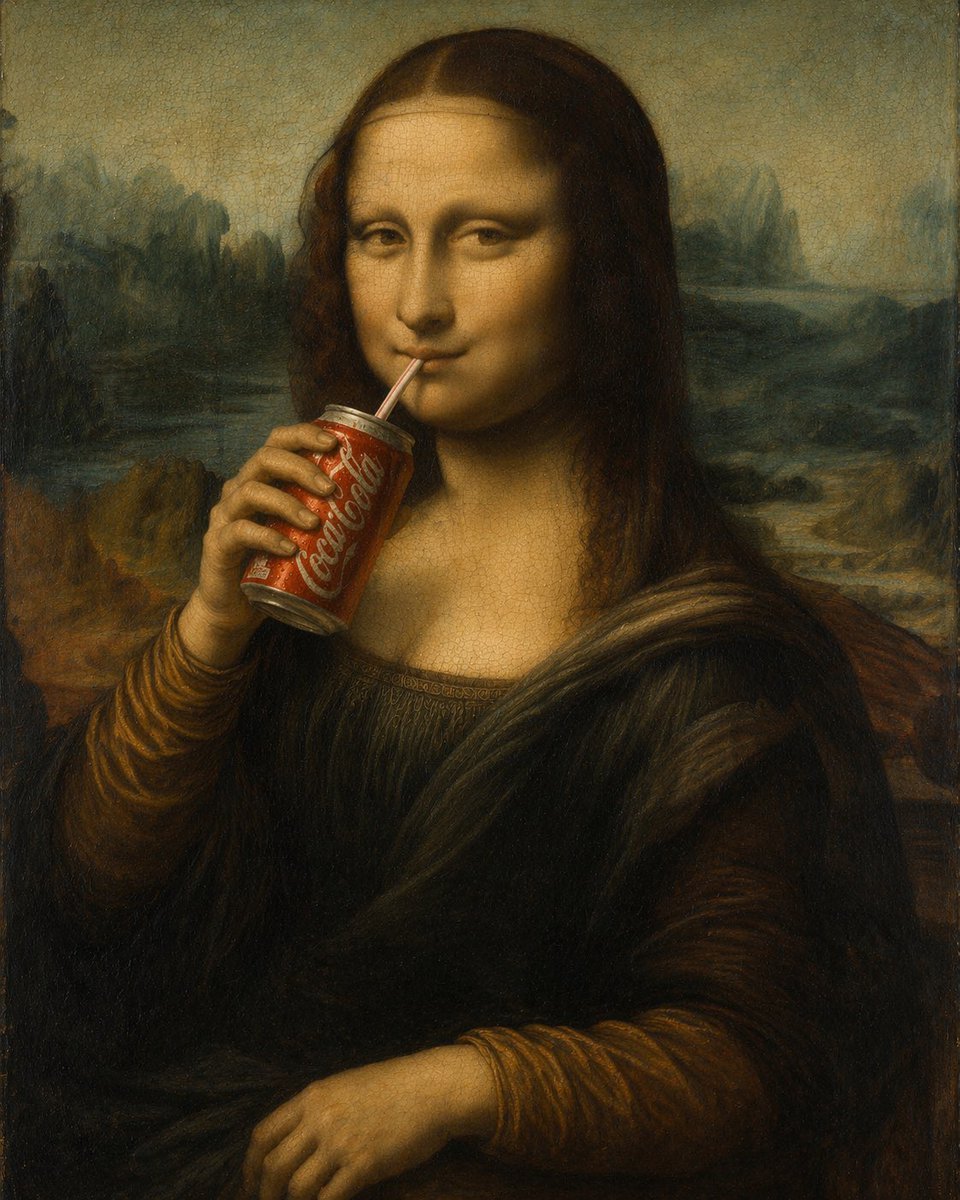
Mona Lisa Drinking Coke Oil Painting

Toddler Crayon Art Transformation
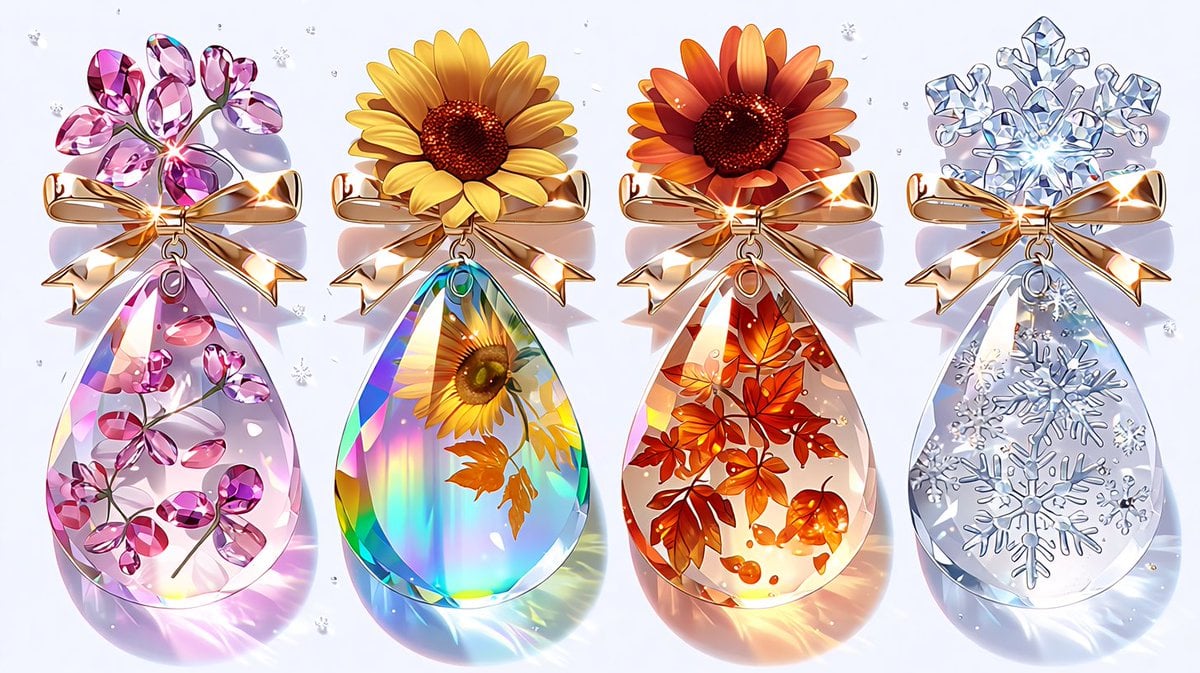
Luxury Jewelry Set Design Prompt for Nano Banana Pro
Collection of Emotional Kaomoji and Emoticons

Surreal Miniature Dancing Composite Photo Prompt
Cinematic Dark Fantasy Scene of Elemental Collision
Browse template categories
Chalkboard AI Product Infographic questions
How do I use the Chalkboard AI Product Infographic template?
Add your photo if the template asks for one, edit the prompt if you like — the template's model and format are already selected — and press Generate. Your version opens in PicX Studio.
Can I customize the Chalkboard AI Product Infographic template?
Yes. You can change the subject, setting, lighting, mood, format, and available model controls before creating your image.
Is the Chalkboard AI Product Infographic template free?
Opening and editing this template is free. Generating uses credits, shown on the Generate button when you are signed in.
Which AI model should I use?
Start with GPT Image 2, which is the model associated with this template. You can compare another compatible model for a different finish.
Looking for something else? Browse all templates.

Your photo, any look
Thousands of ready templates for every top image and video model, from one credit balance.