How do I use the 1 template?
Choose the primary action to open PicX Studio with the available template settings. Review the model and format, personalize the creative direction, and generate when ready.
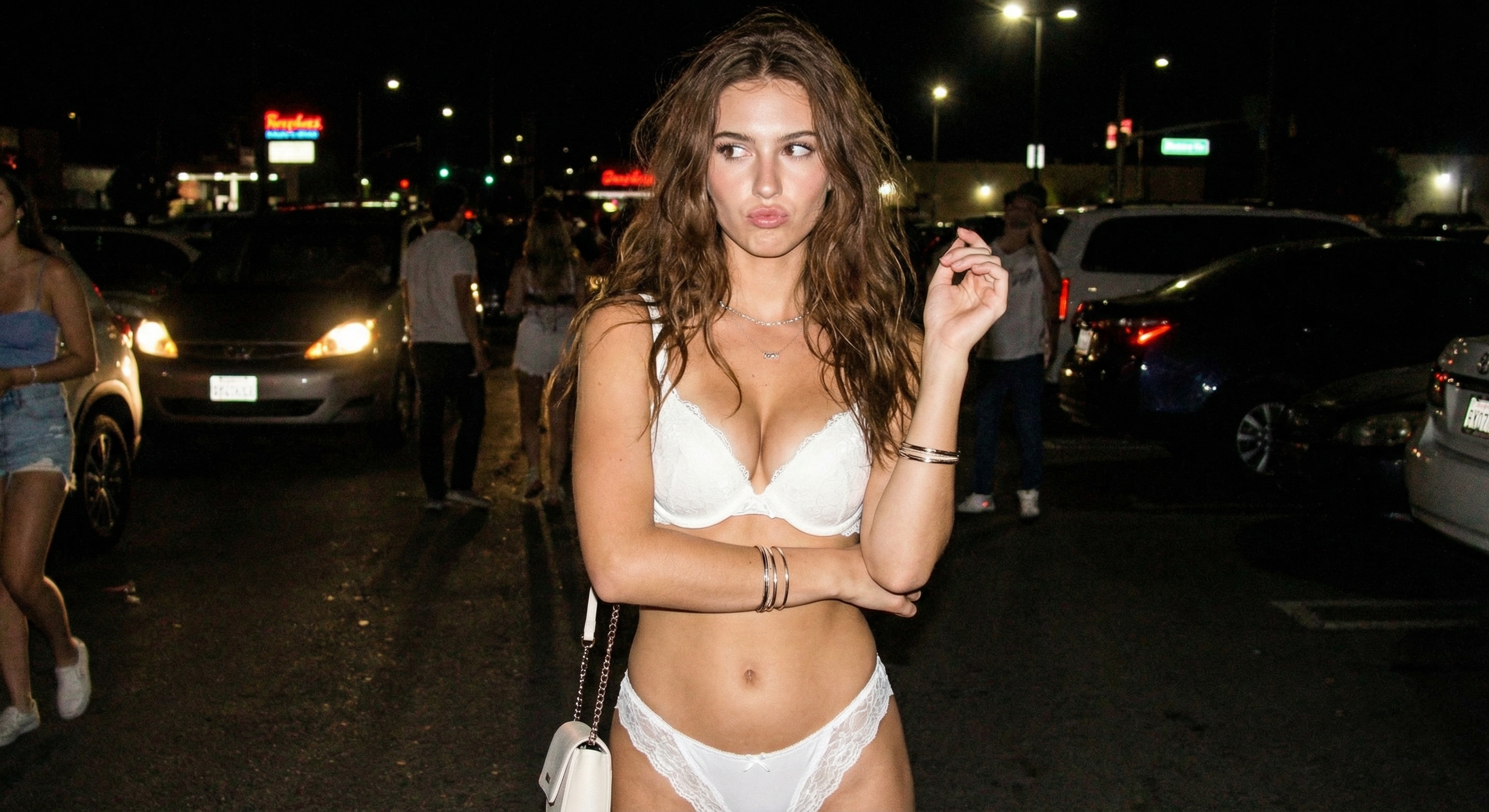


Use the 1 AI image template on PicX Studio. Free template, no signup required.
Gemini: { "image_request": { "subject": "Woman", "setting": { "location": "Party parking lot", "time_of_day": "Night", "lighting": "Flash photography, slightly blurry" }, "woman_details": { "hair": { "description": "Respecting original size and color, unchanged from provided image", "style": "As in provided image" }, "facial_features": "Exactly as in provided image, no alterations", "makeup": { "lips": "Light lip gloss", "general": "Visible makeup" }, "pose": { "main_body": "Arms crossed, close up in front of the camera", "hands": "One hand raised near face, giving impression of covering face from camera" }, "expression": "Distracted" }, "attire": { "top": "white lacey bra", "bottom": "white thong", "accessories": { "bag": "White shoulder bag", "jewelry": [ "Necklace (not removed)", "Bracelet (not removed)" ] } }, "style_keywords": [ "Party night", "Y2K", "Fashionable" ], "camera_perspective": { "distance": "Very close to her", "framing": "Close up", "angle": "Front-facing" }, "image_specifications": { "dimensions": "1200x1200px" }, "additional_notes": "Photo taken by a friend." } } edit this image
Treat 1 as a focused AI image concept rather than a finished brief. Read the preview for composition, choose the intended destination, and then personalize one creative variable at a time.
Use the primary action to load the template settings in PicX Studio.
Adjust the subject and creative details for your destination.
Create the image, compare the result with the preview, and refine one variable at a time.
A continuous mix — similar concepts first, woven with same-model prompts and fresh picks from the catalog.
Choose the primary action to open PicX Studio with the available template settings. Review the model and format, personalize the creative direction, and generate when ready.
Yes. You can change the subject, setting, lighting, mood, format, and available model controls before creating your image.
This template is free to open and customize. Generation usage is shown in PicX Studio before you create.
Choose a compatible model in PicX Studio based on the style, speed, and output controls your project needs.
A continuous mix — similar concepts first, woven with same-model prompts and fresh picks from the catalog.
Follow a topic to a crawlable collection of related PicX Studio templates.
32,032 public templates available. Verified via the PicX Studio public templates API; refreshed hourly.


