
Aviation Archives Great Wall Boarding Pass
Negative prompt: cheap travel brochure, playful scrapbook style, cartoon monument, fake Great Wall, messy watercolor splashes, toy airplane, generic mountain landmark, over-saturated tourism colors, cluttered collage…
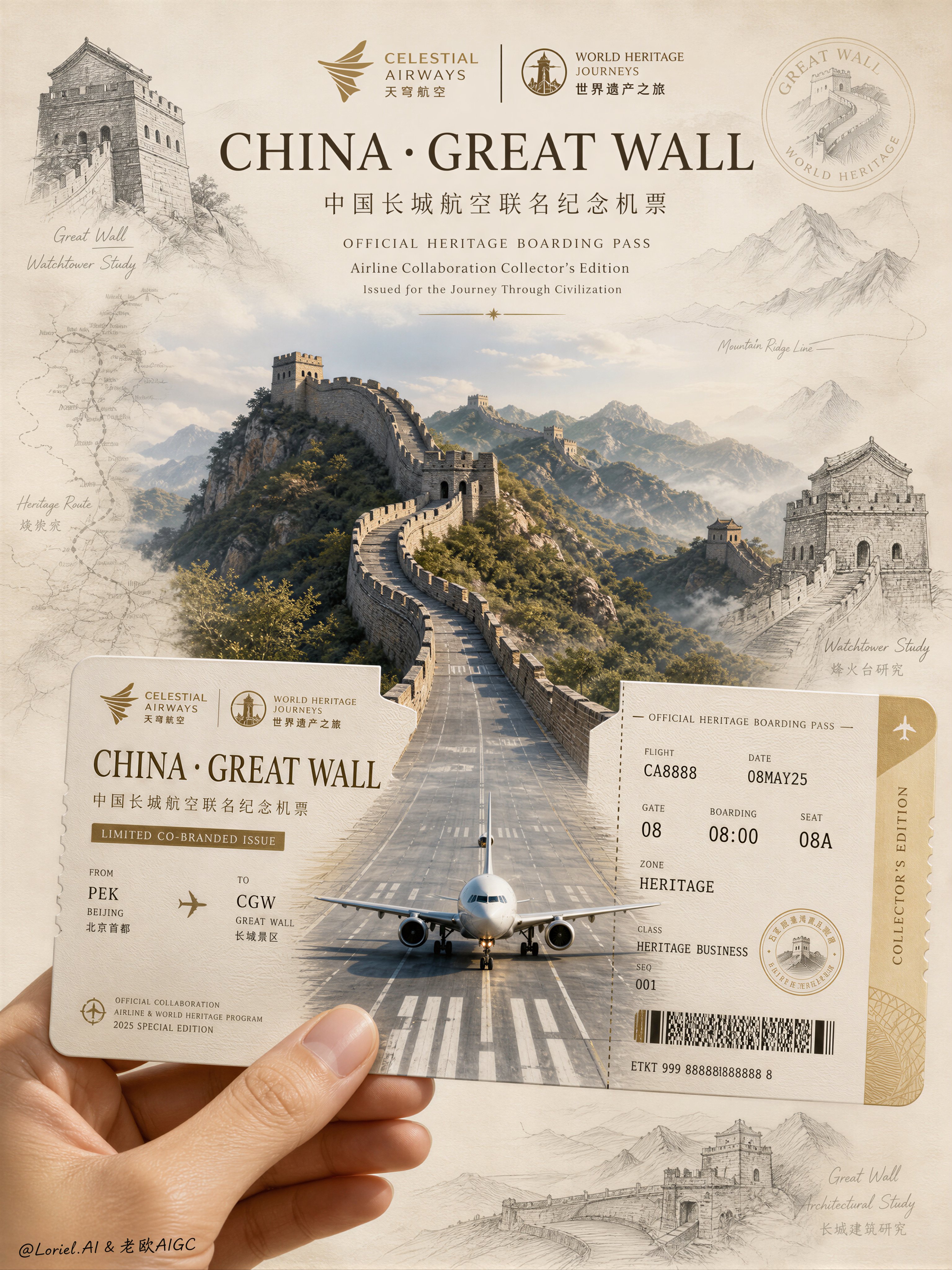
- Prompt included
- Model and format preset
- Premium template
The prompt behind this image
Copy the exact prompt behind Aviation Archives Great Wall Boarding Pass, or open it in the studio and make it yours.
A premium co-branded airline commemorative boarding-pass poster set in China. Vertical composition: an elegant realistic hand holds a luxury boarding pass in the lower foreground, the ticket opening seamlessly into the Great Wall at the top, an airport runway extending outward, and a sleek modern commercial aircraft aligned with the runway. Surrounding pencil-drawn heritage studies on warm ivory archival paper, graphite watchtower and mountain-contour sketches. Formal airline-heritage typography with CHINA · GREAT WALL and 中国长城航空联名纪念机票. Soft editorial daylight, seamless elegant transitions, warm ivory and stone-gray palette. Hyper-real, official, collectible, 8k.
How to use Aviation Archives Great Wall Boarding Pass in 3 steps
- 1
Open
The prompt is already in the box next to the preview, with the template's model and format selected.
- 2…a portrait of your subject in softgolden-hour light, 85mm…
Personalize
Edit the subject and creative details for your destination.
- 3Generate
Generate
Press Generate — your image is created in PicX Studio, so you can compare it with the original and refine one variable at a time.
More like this
Templates with the same subject, style or setup. Open one to see its prompt.
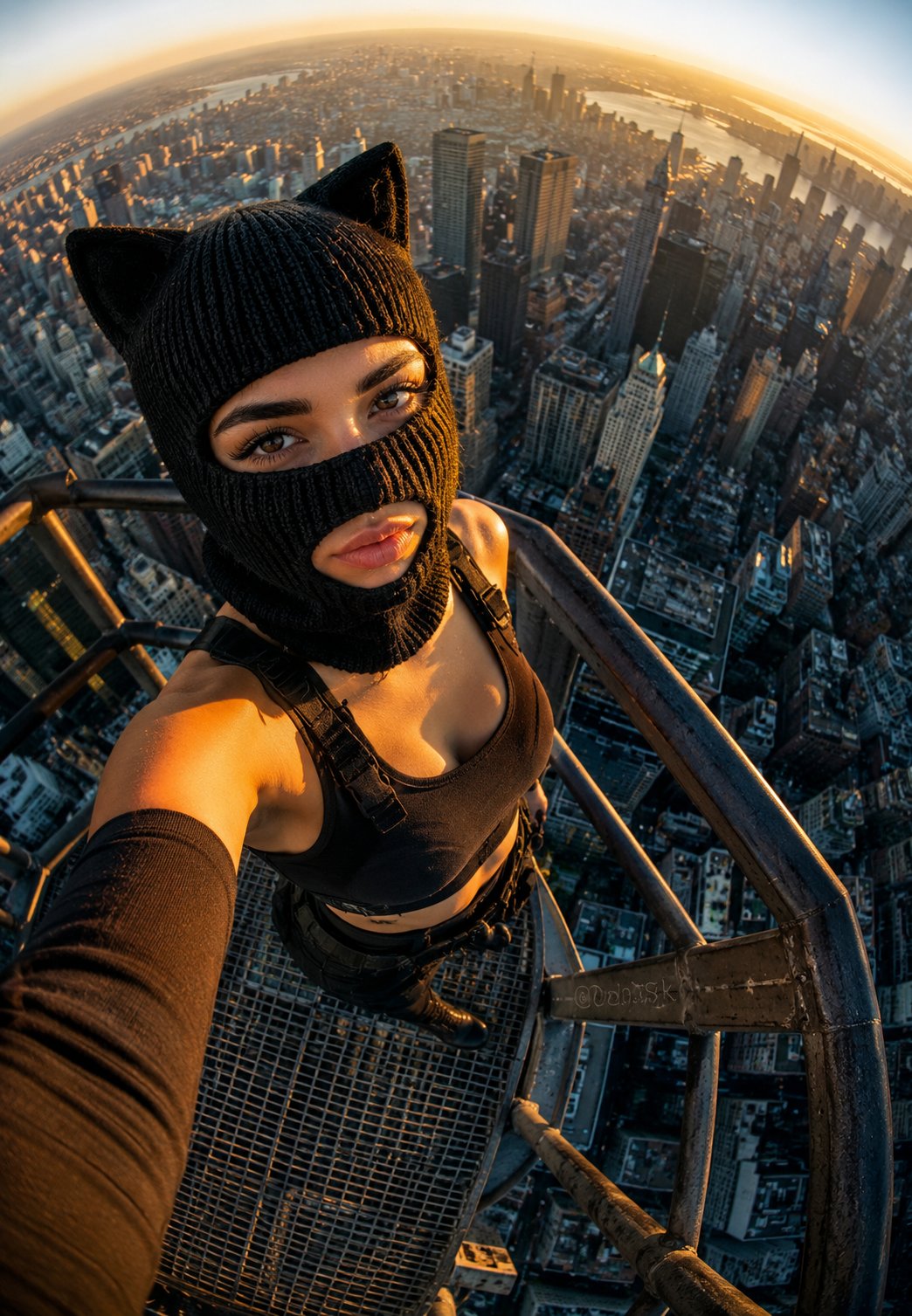
Rooftop Fisheye — Cat-Ear Balaclava at Golden Hour
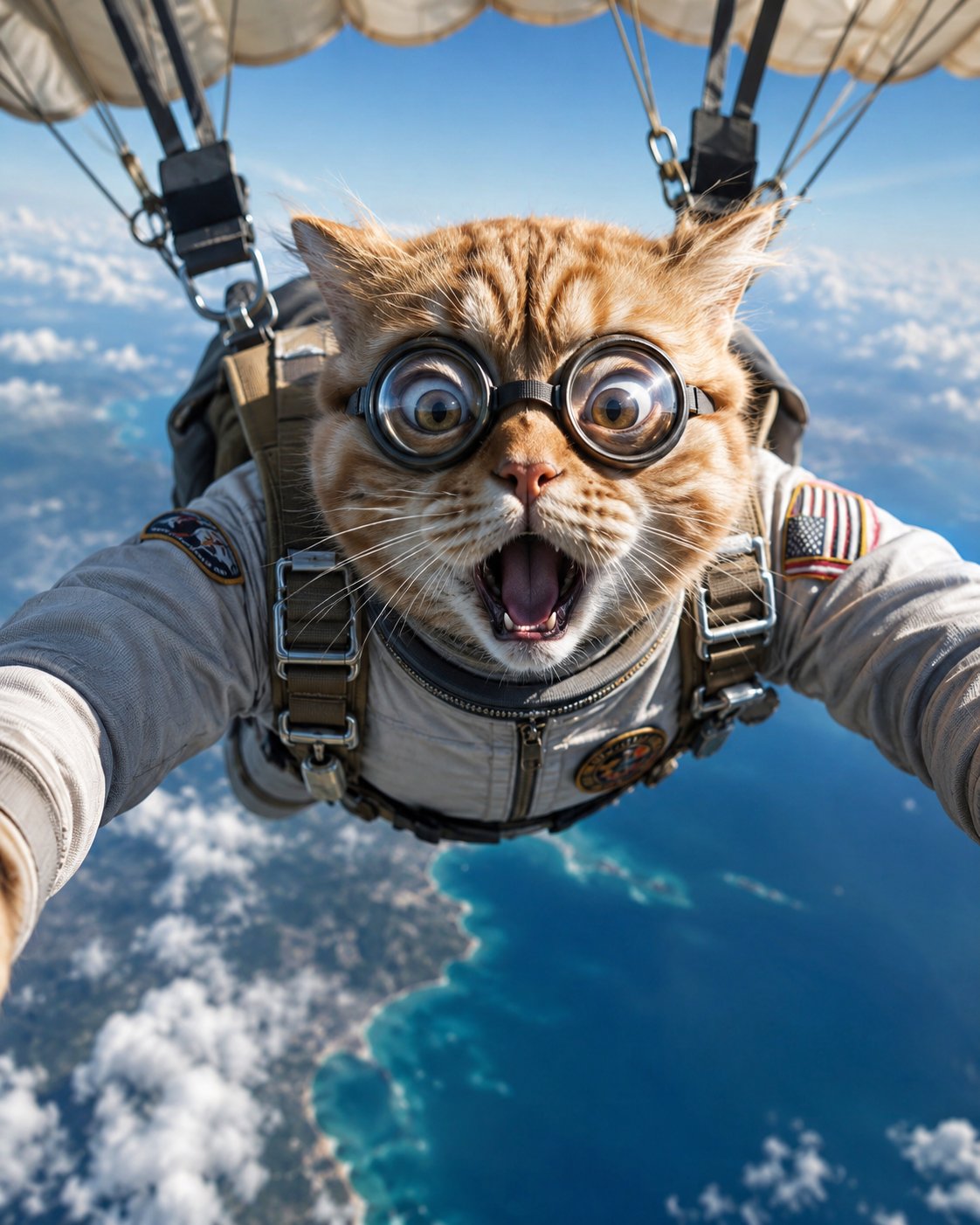
Surreal Cat Astronaut — Humanoid Face Freefall

Sealing Wax Letter Desk
Ballroom Floor Reflections
Vintage Camera Leather Case
Hedge Maze Aerial Dawn
Tuxedo Cuff Adjust
Cathedral Choir Loft
Pearl Necklace Vanity
Carriage House Courtyard
Leather Bound Law Books
Monochrome Jazz Club
Make it yours
Aviation Archives Great Wall Boarding Pass works as-is. These are the safest ways to change it without losing the look.
Change one field
Copy a single group, rewrite it, and generate again so you can see what that field is doing.
Keep the frame, change the subject
Hold the composition and light of Aviation Archives Great Wall Boarding Pass, then swap wardrobe, props or the person for a new take.
| If the result… | Why | Fix |
|---|---|---|
| The result drifts from the preview | Too many fields changed at once. | Reuse Aviation Archives Great Wall Boarding Pass as-is first, then change one group — subject, light, or setting. |
| The model over-stylizes the scene | The prose prompt leaves finish and camera underspecified. | Add one camera or lighting sentence and stay on PicX Studio. |
More image prompts
Fresh picks from across the catalog.
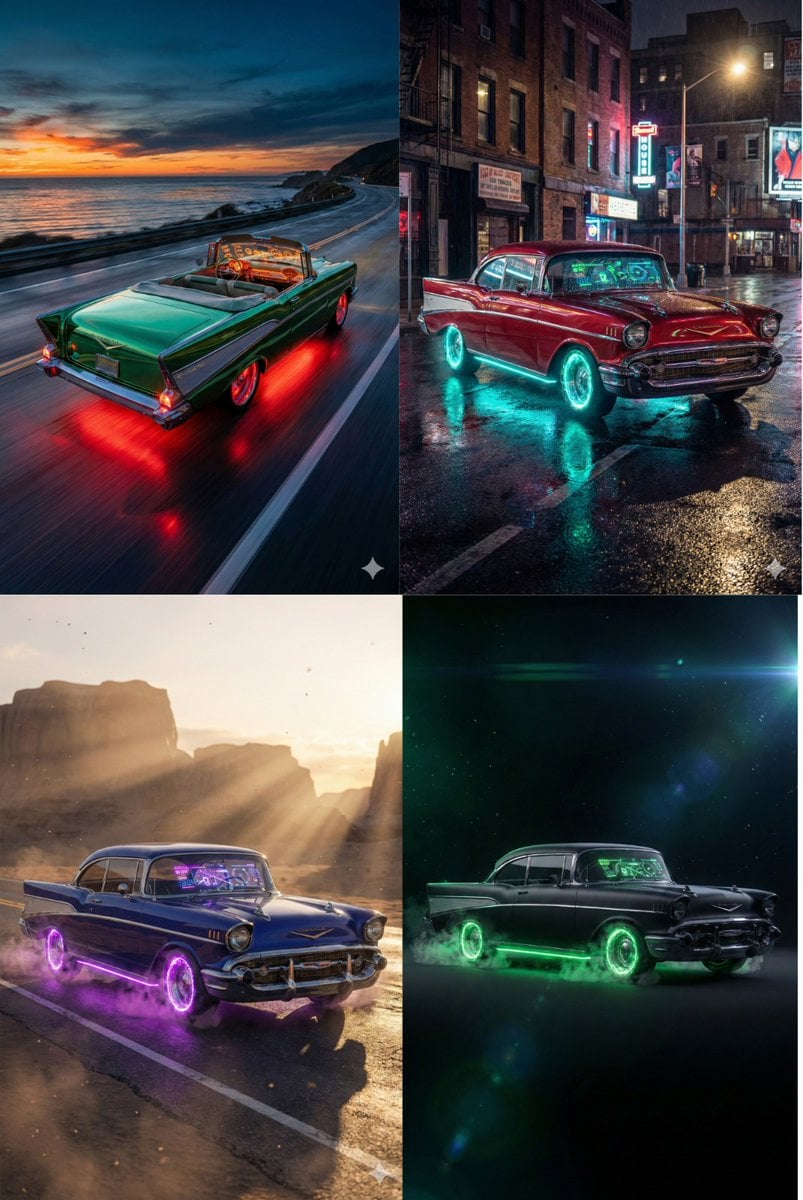
Retro-Futuristic Muscle Car Prompt

Ultra-realistic cinematic portrait on a luxury yacht at sunset

Blue Pen Campaign Poster
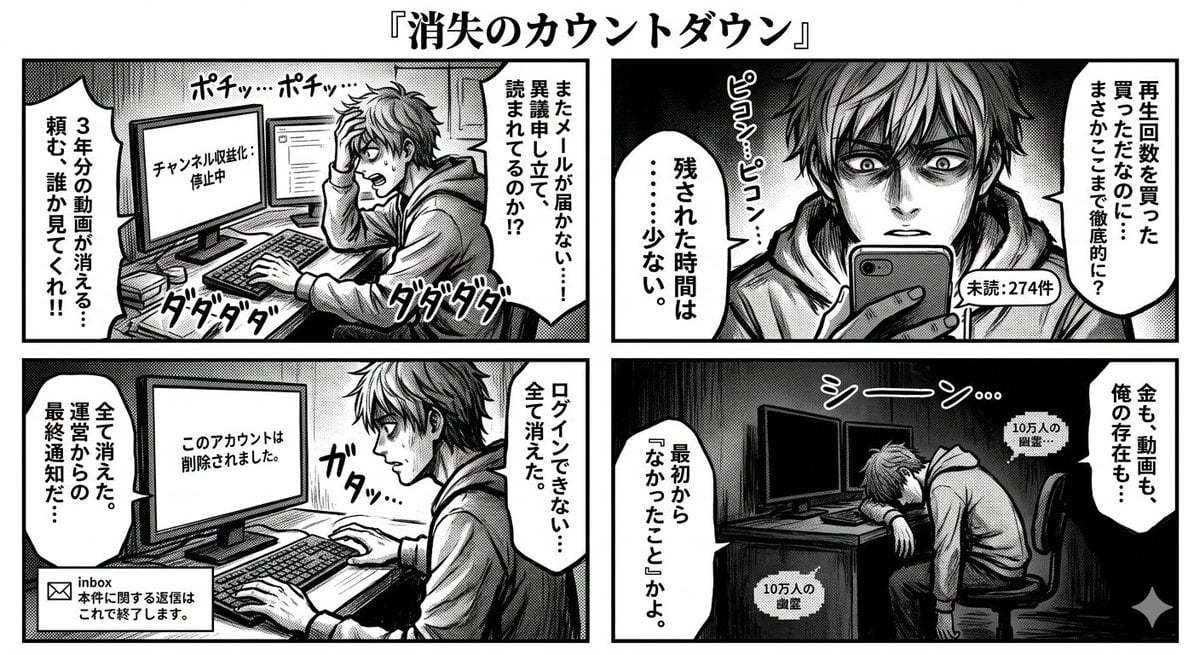
Four-Panel Manga: Countdown to Disappearance
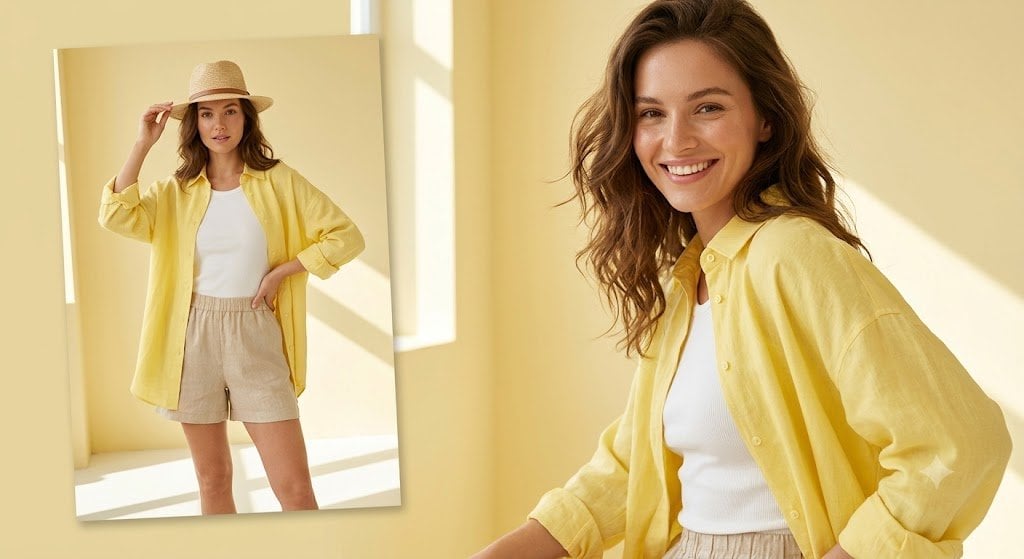
Sunlit Summer Fashion Lookbook

Prompt: Transform the reference photo into an auth
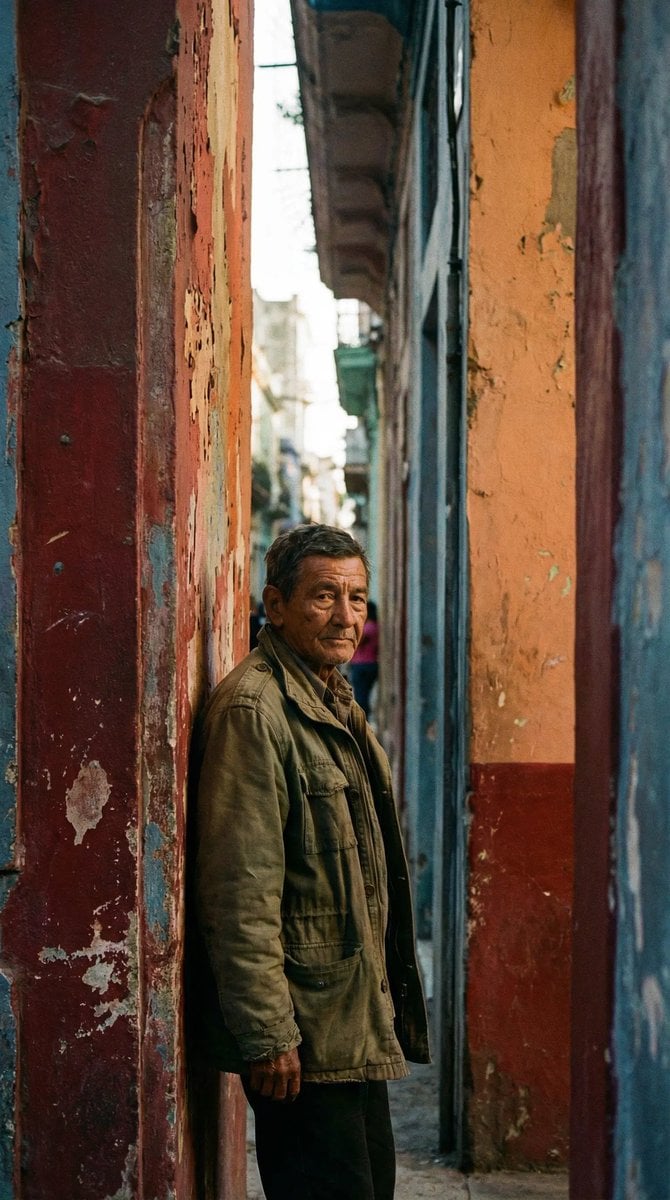
Timeless human-centered street photography

Universal Christmas Filter Prompt Template
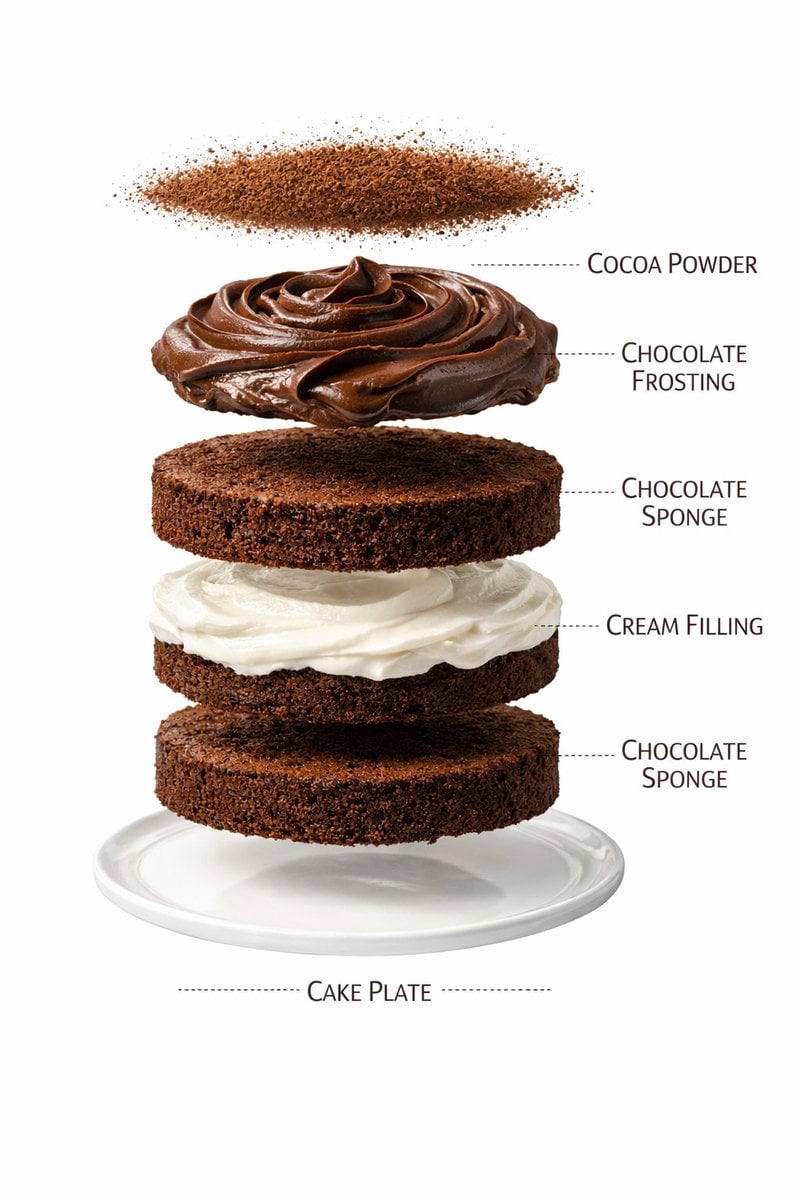
Ultra-Realistic Chocolate Cake Food Photography with Motion Prompt
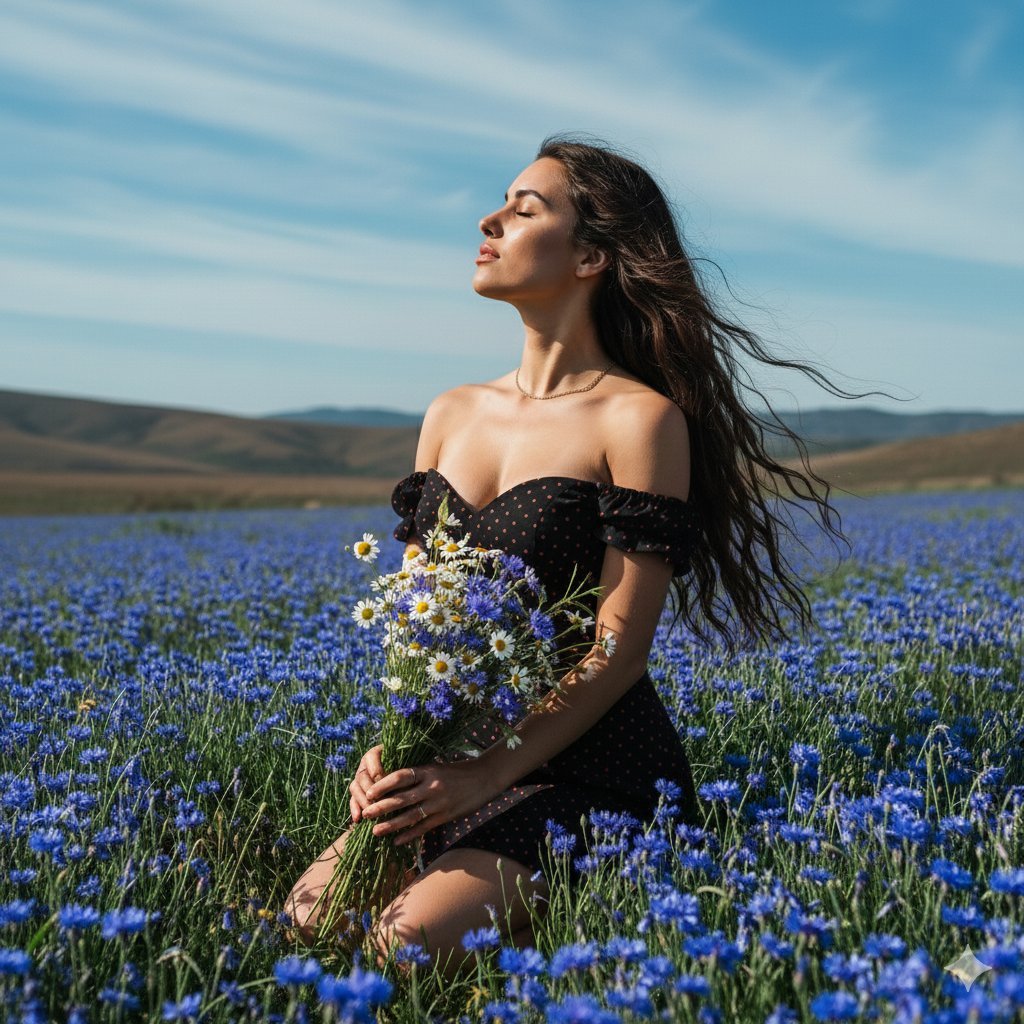
Serene Portrait of a Woman Kneeling in a Wildflower Field
Browse template categories
Aviation Archives Great Wall Boarding Pass questions
How do I use the Aviation Archives Great Wall Boarding Pass template?
Add your photo if the template asks for one, edit the prompt if you like — the template's model and format are already selected — and press Generate. Your version opens in PicX Studio.
Can I customize the Aviation Archives Great Wall Boarding Pass template?
Yes. You can change the subject, setting, lighting, mood, format, and available model controls before creating your image.
Is the Aviation Archives Great Wall Boarding Pass template free?
Opening and editing this template is free. Generating uses credits, shown on the Generate button when you are signed in.
Which AI model should I use?
Choose a compatible model in PicX Studio based on the style, speed, and output controls your project needs.
Looking for something else? Browse all templates.

Your photo, any look
Thousands of ready templates for every top image and video model, from one credit balance.