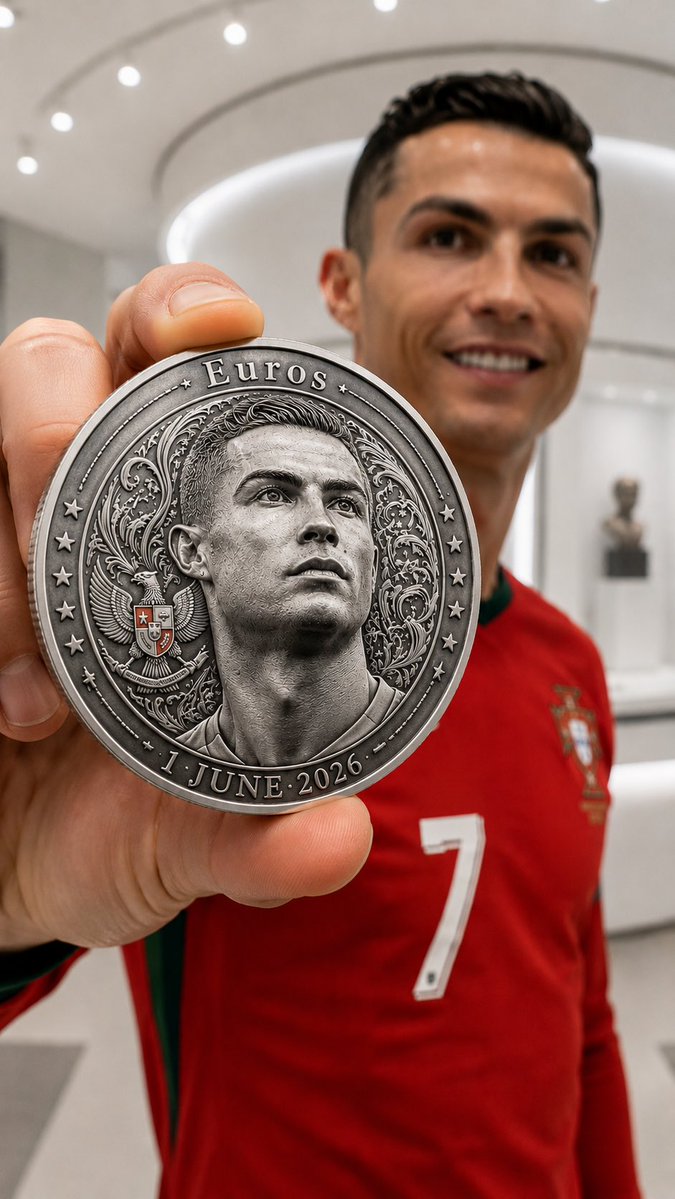
How do I use the Upscaling Image from Book template?
Choose the primary action to open PicX Studio with the available template settings. Review the model and format, personalize the creative direction, and generate when ready.
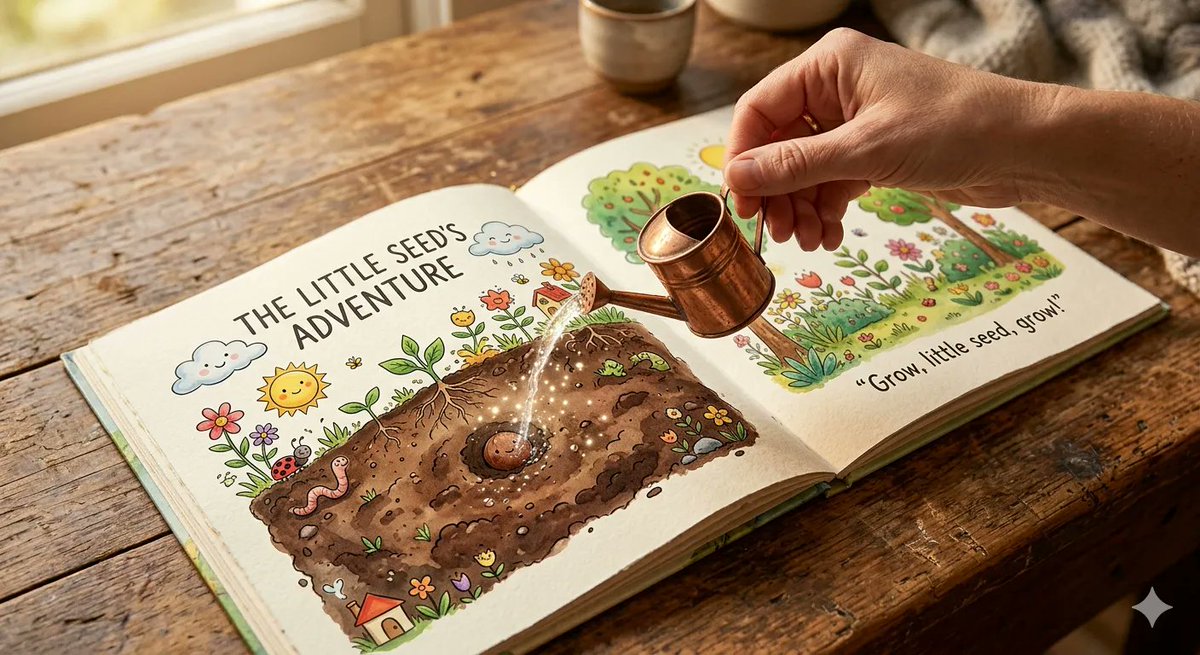
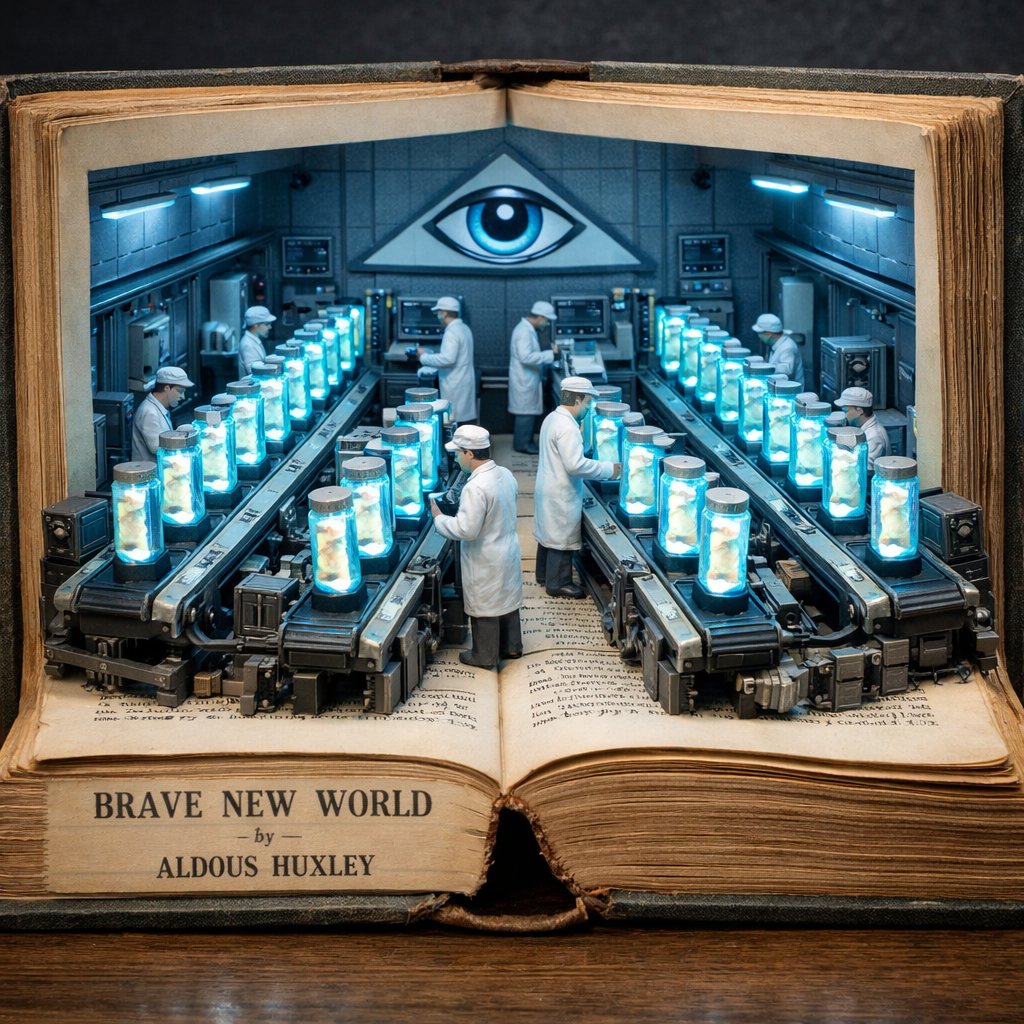
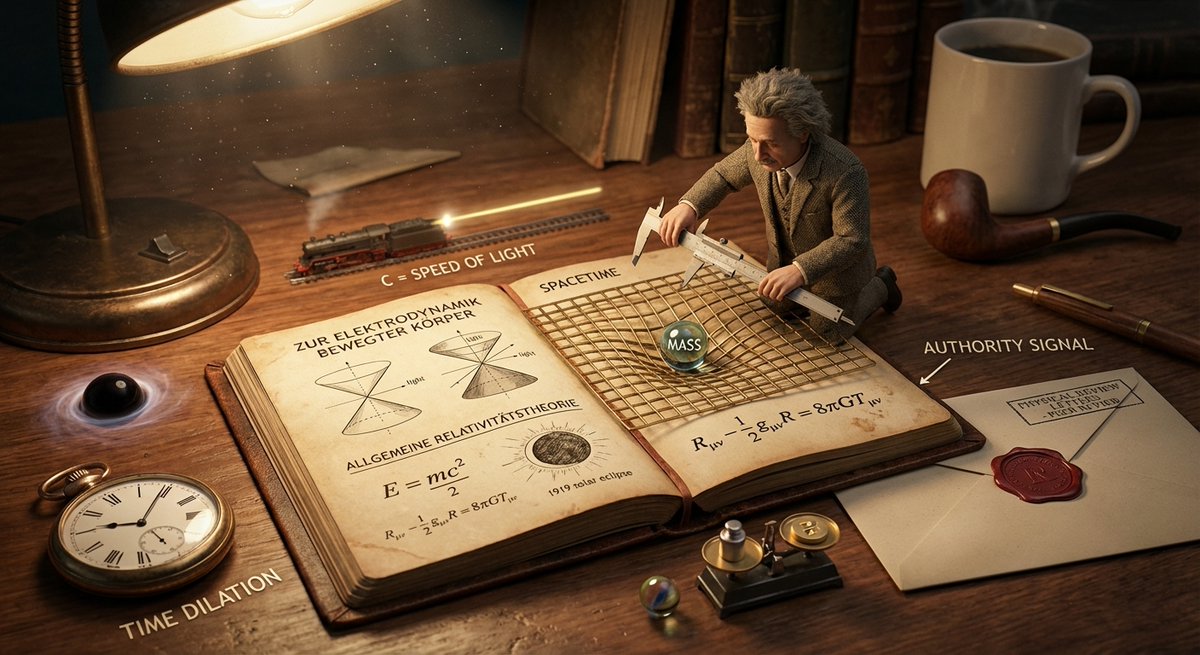
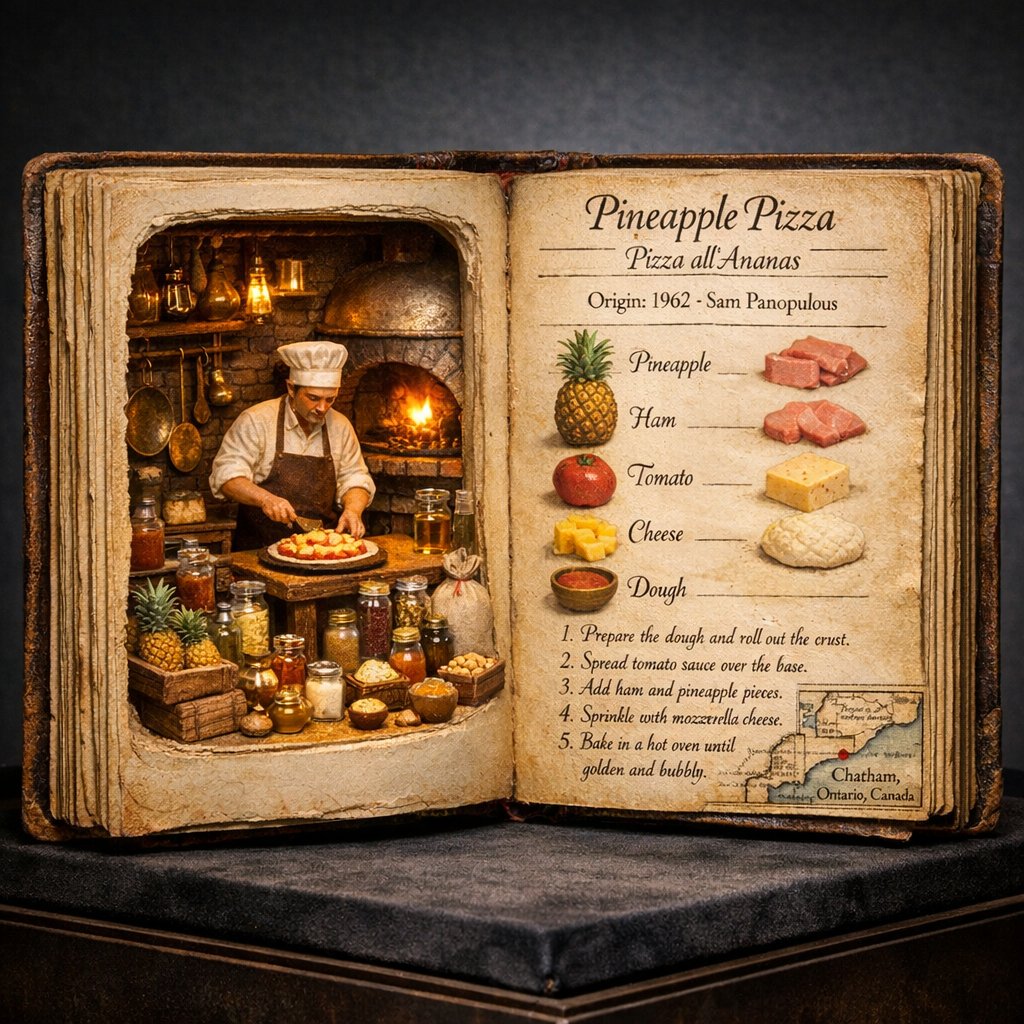
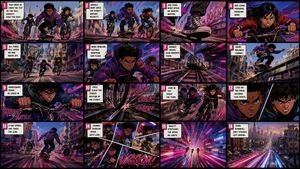
A user shares a prompt used on Nano Banana 2 to extract and upscale an image (likely a map for a Dungeons and Dragons campaign) from a book to fit a full screen. (free to use) — Free AI image template on PicX Studio.
"extract the image from my book and upscale it to fit full screen"
Use Upscaling Image from Book to plan an AI image around nano-banana-2 generation. Match the preview's composition first, then personalize the subject, setting, and mood for your own project.
Use the primary action to load the template settings in PicX Studio.
Adjust the subject and creative details for your destination.
Create the image, compare the result with the preview, and refine one variable at a time.
A continuous mix — similar concepts first, woven with same-model prompts and fresh picks from the catalog.
Choose the primary action to open PicX Studio with the available template settings. Review the model and format, personalize the creative direction, and generate when ready.
Yes. You can change the subject, setting, lighting, mood, format, and available model controls before creating your image.
This template is free to open and customize. Generation usage is shown in PicX Studio before you create.
Start with nano-banana-2, which is the model associated with this template. You can compare another compatible model for a different finish.
Follow a topic to a crawlable collection of related PicX Studio templates.
39,157 public templates available. Verified via the PicX Studio public templates API; refreshed hourly.
A continuous mix — similar concepts first, woven with same-model prompts and fresh picks from the catalog.