PNG to JPG: when it makes sense
PNG is lossless. That's perfect for logos, icons and screenshots with flat colors and sharp text, but wasteful for photographs: a photo saved as PNG can easily be several times the size of the same photo as JPG, with no difference you can see. Converting PNG to JPG (or PNG to JPEG, it's the same thing) is the quickest way to reduce file size for photos.
For screenshots it depends. A screenshot of a web page or a chart often stays crisper and sometimes even smaller as PNG, because JPEG compression can leave faint smudges around text. Try High quality, look at the preview, and keep whichever looks right at the size you need.
| Image type | Better as | Why |
|---|---|---|
| Photos | JPG | Much smaller, no visible difference |
| Screenshots with text | Usually PNG | Sharp edges stay clean |
| Logos with transparent background | PNG | JPG can't store transparency |
| Photos for an upload limit | JPG | Quality slider lets you hit a size |
Transparent PNGs turn white
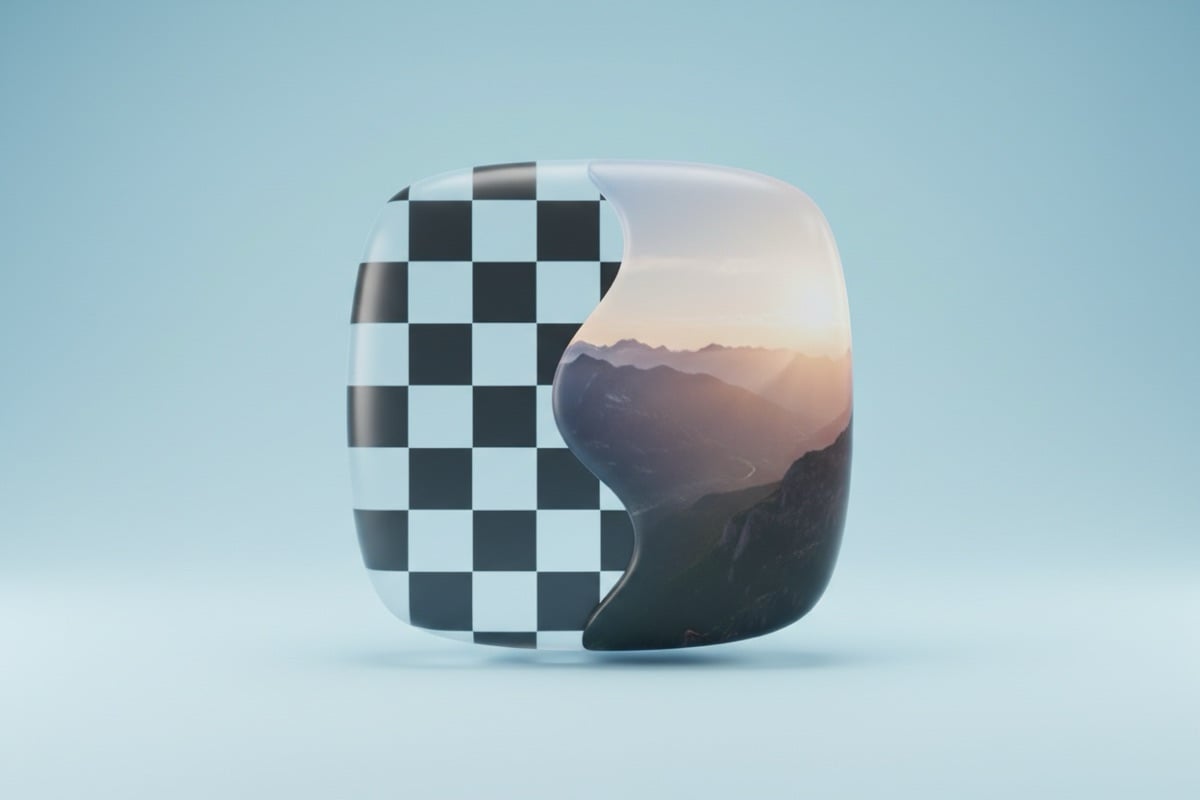
JPEG has no alpha channel, so it can't store a transparent background. When you convert a transparent PNG to JPG, every see-through area is filled with white. If the logo or cutout will sit on a white page that's exactly what you want; on a colored background you'll see a white box, so keep the PNG for that.
The white fill applies to semi-transparent pixels too. Soft shadows and anti-aliased edges that faded into transparency are blended with white, so a logo with a drop shadow keeps a clean edge on a white page. If you need a different background color, place the image on that color in a design app before converting.
How to convert PNG to JPG without losing quality
Strictly speaking, every JPG is lossy, but at 90% quality and above the difference is invisible for photos. These habits keep it that way:
- Convert once, from the original PNG. Re-saving a JPG again and again adds artifacts each time.
- Use Max (100%) for anything you'll print or edit further, and High (90%) for sharing.
- If the file is still too big, resize it with the Image Resizer before lowering quality much below 75%. Fewer pixels shrink a file more gracefully than heavy compression.