
Realistic Cinematic Skydiving Scene
A detailed multi-scene prompt designed for maximum character consistency, describing a 15-second skydiving sequence from aircraft exit to a soft meadow landing.
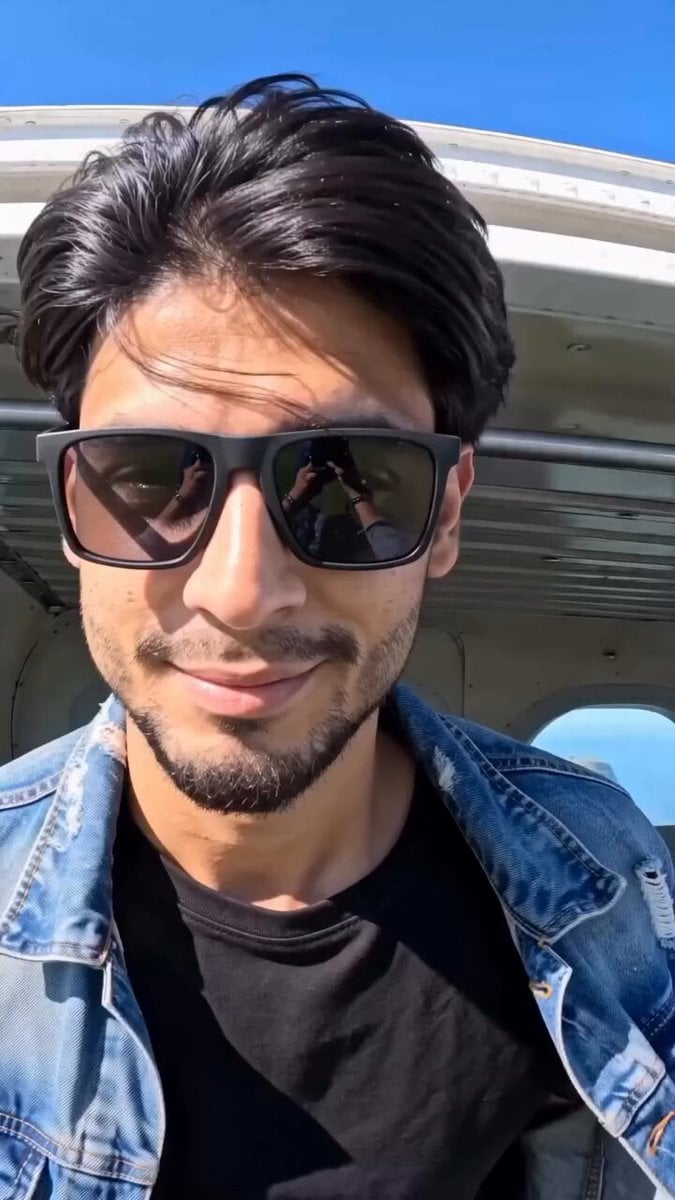
- Prompt included
- Model and format preset
- Premium template
The prompt behind this video
Copy the exact prompt behind Realistic Cinematic Skydiving Scene, or open it in the studio and make it yours.
Create a 15-second ultra-realistic cinematic skydiving video using the uploaded photo as the exact character reference. The person's face must remain identical to the uploaded image throughout the entire video. Preserve facial structure, eyes, nose, lips, jawline, skin texture, hairstyle, and overall identity with maximum consistency. No face changes, no beautification, no age changes, no identity drift. The person is wearing a realistic skydiving jumpsuit and a visible parachute backpack securely attached to their back before the jump. The parachute bag should be clearly visible in multiple shots. Scene 1 (0–3s) Inside an aircraft at high altitude. The person stands near the open aircraft door wearing the parachute backpack. Wind blowing naturally. Close-up cinematic shots of the face, hands adjusting straps, and the parachute pack. Bright blue sky and clouds outside. Scene 2 (3–8s) The person slowly exits the aircraft and begins a controlled, graceful freefall. Do not make the fall appear excessively fast. Create the feeling of floating through the sky. Use smooth cinematic slow-motion photography. Camera angles: •Front-facing shot with face clearly visible •Side profile shot •Camera above looking downward •Camera below looking upward toward the person against the blue sky •Wide aerial shot showing the vast landscape below The parachute backpack remains visible and realistic. Scene 3 (8–11s) Alternate between: •First-person POV looking down at Earth •Ultra-wide aerial shots showing rivers, forests, valleys, clouds, and distant mountain ranges •Close-up shots of the person's face enjoying the experience The descent feels calm, smooth, and majestic rather than extreme or aggressive. Scene 4 (11–13s) The parachute opens smoothly. Realistic canopy deployment. The person gently glides through the air above a beautiful green meadow surrounded by mountains. Golden sunlight, cinematic atmosphere, floating sensation. Scene 5 (13–15s) Soft landing in a lush green meadow with mountains in the background. The person removes one hand from the parachute controls and walks toward the camera naturally. Dialogue (natural lip sync): "That was a good adventure. Try this." Cinematography •Hollywood adventure film quality •Ultra-realistic live-action footage •Slow-motion aerial photography •Smooth drone movements •Camera above, below, side, front, and POV perspectives •Blue sky, white clouds, breathtaking Earth views •Green meadow landing zone •Mountain panorama •Natural lighting •Realistic wind interaction •Professional color grading •4K cinematic quality Identity Lock •Face consistency: maximum •Identity preservation: maximum •Same person in every frame •No facial modifications •No face swapping •No AI beautification •No age change •No hairstyle change •No facial flicker •Face clearly recognizable throughout the video
How to use Realistic Cinematic Skydiving Scene in 3 steps
- 1Upload ImagePNG, JPG or paste
Add your photo
Upload the photo the template builds on. The prompt, model and format are already set.
- 2…a portrait of your subject in softgolden-hour light, 85mm…
Personalize
Edit the subject and creative details for your destination.
- 3Generate
Generate
Press Generate — your video is created in PicX Studio, so you can compare it with the original and refine one variable at a time.
More like this
Templates with the same subject, style or setup. Open one to see its prompt.
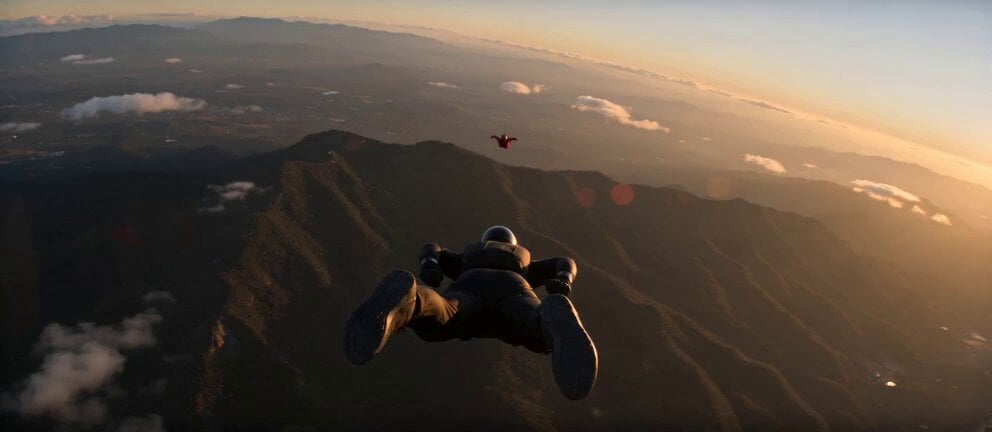

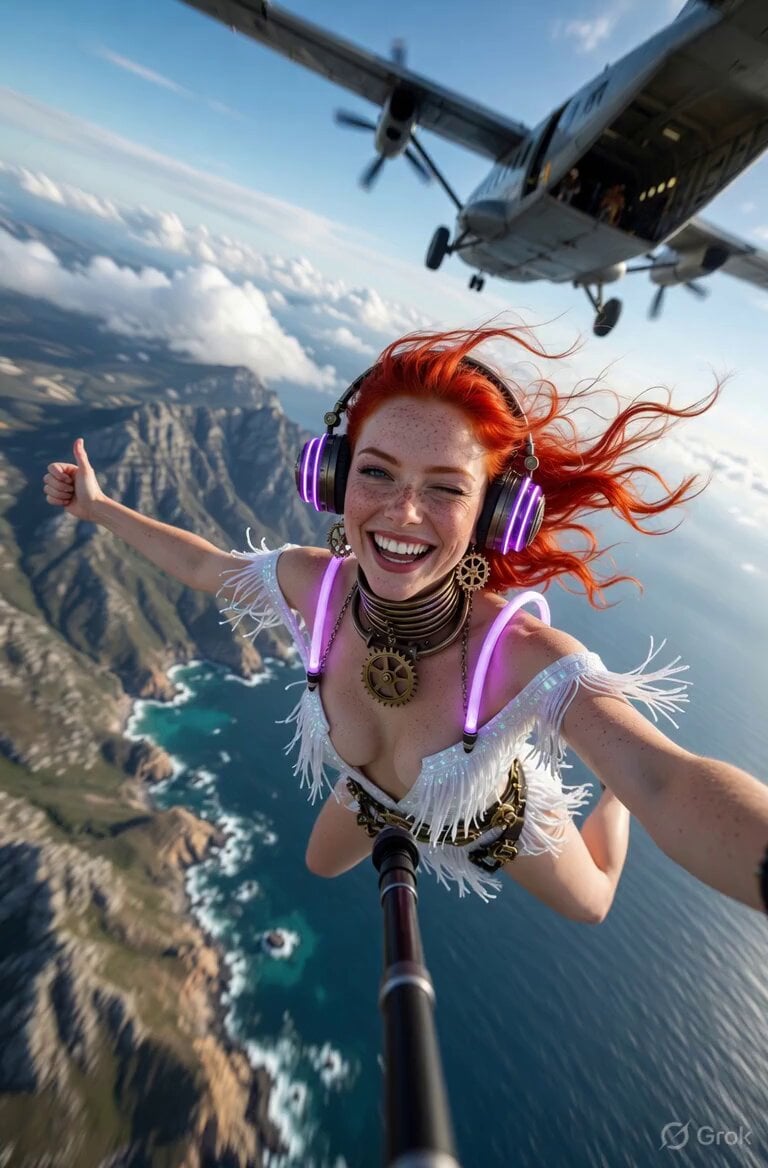
Make it yours
Realistic Cinematic Skydiving Scene works as-is. These are the safest ways to change it without losing the look.
Change one field
Copy a single group, rewrite it, and generate again so you can see what that field is doing.
Keep the frame, change the subject
Hold the composition and light of Realistic Cinematic Skydiving Scene, then swap wardrobe, props or the person for a new take.
| If the result… | Why | Fix |
|---|---|---|
| The result drifts from the preview | Too many fields changed at once. | Reuse Realistic Cinematic Skydiving Scene as-is first, then change one group — subject, light, or setting. |
| The model over-stylizes the scene | The prose prompt leaves finish and camera underspecified. | Add one camera or lighting sentence and stay on Seedance 2.0. |
More Seedance 2.0 templates
Other prompts made for Seedance 2.0.
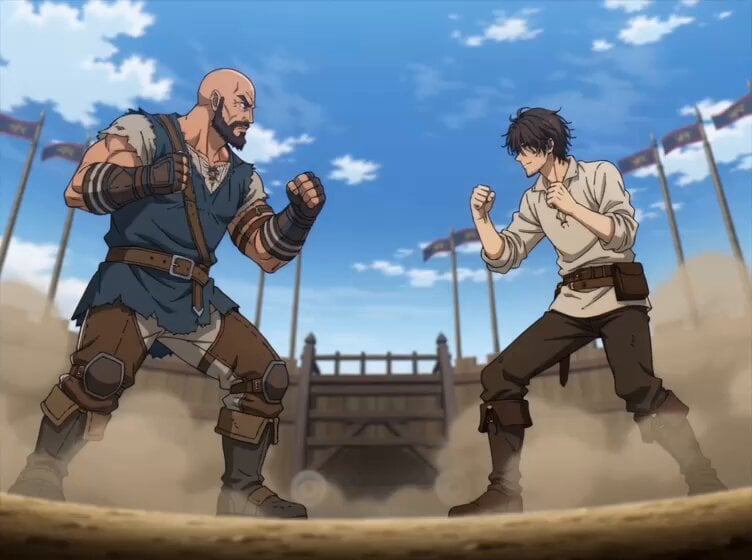
Comical Martial Arts Punch Scene
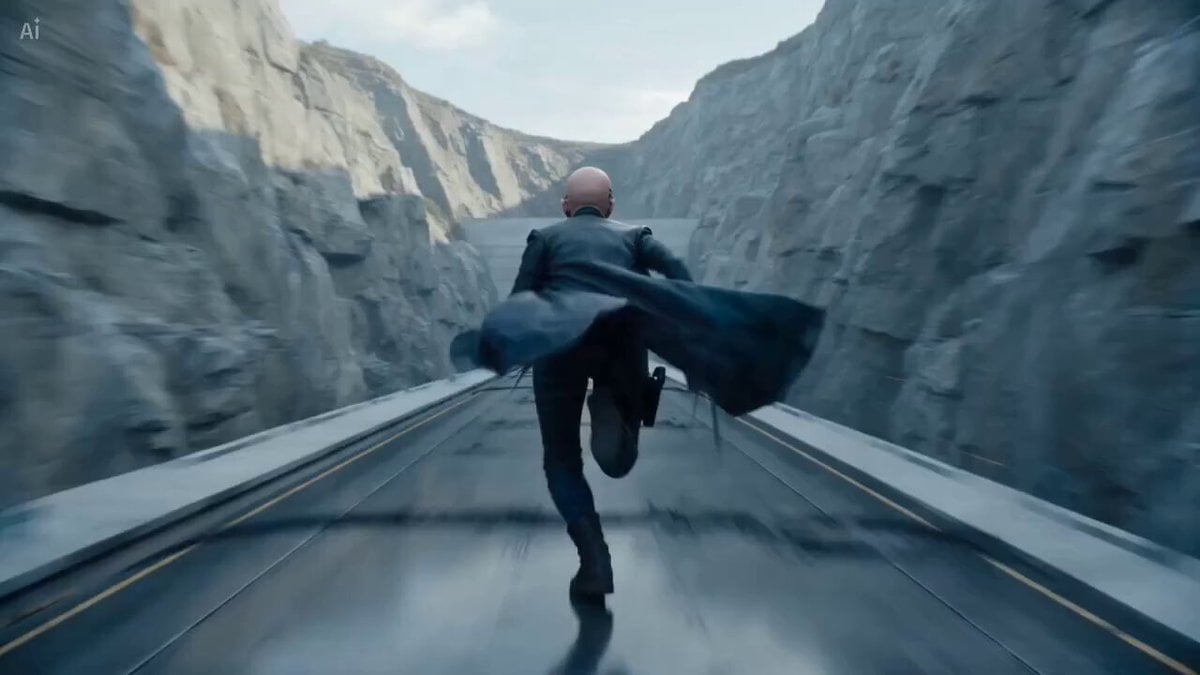
Maglev Train Action Sequence
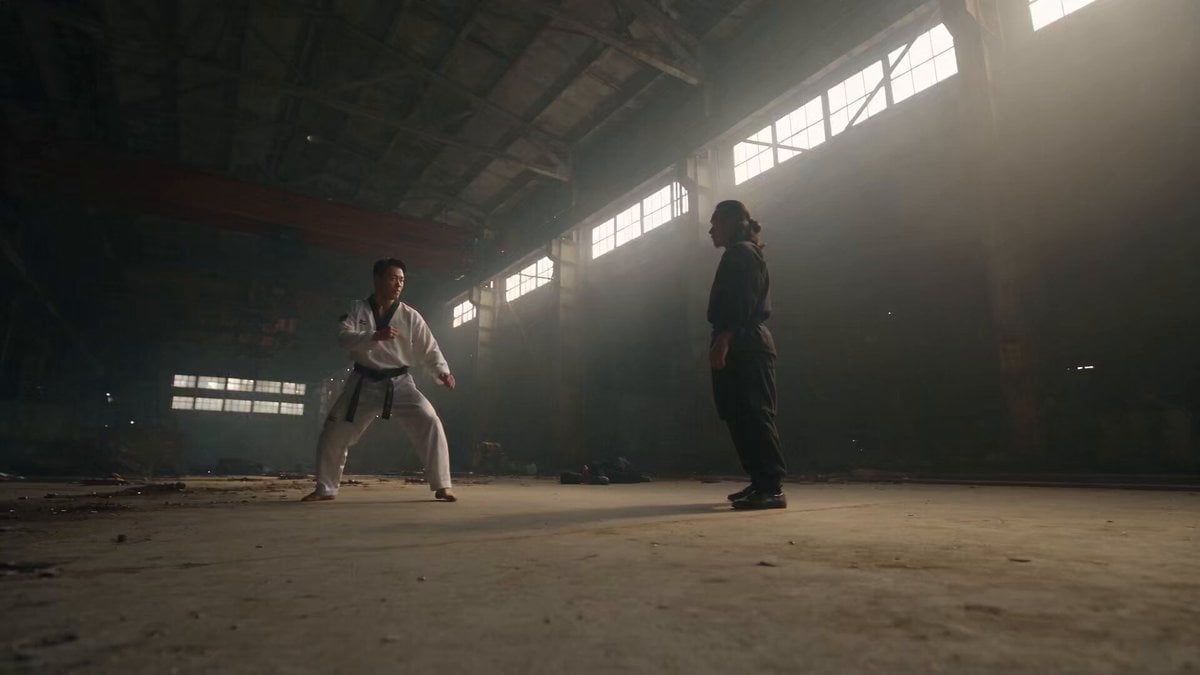
Martial Arts Fight Sequence
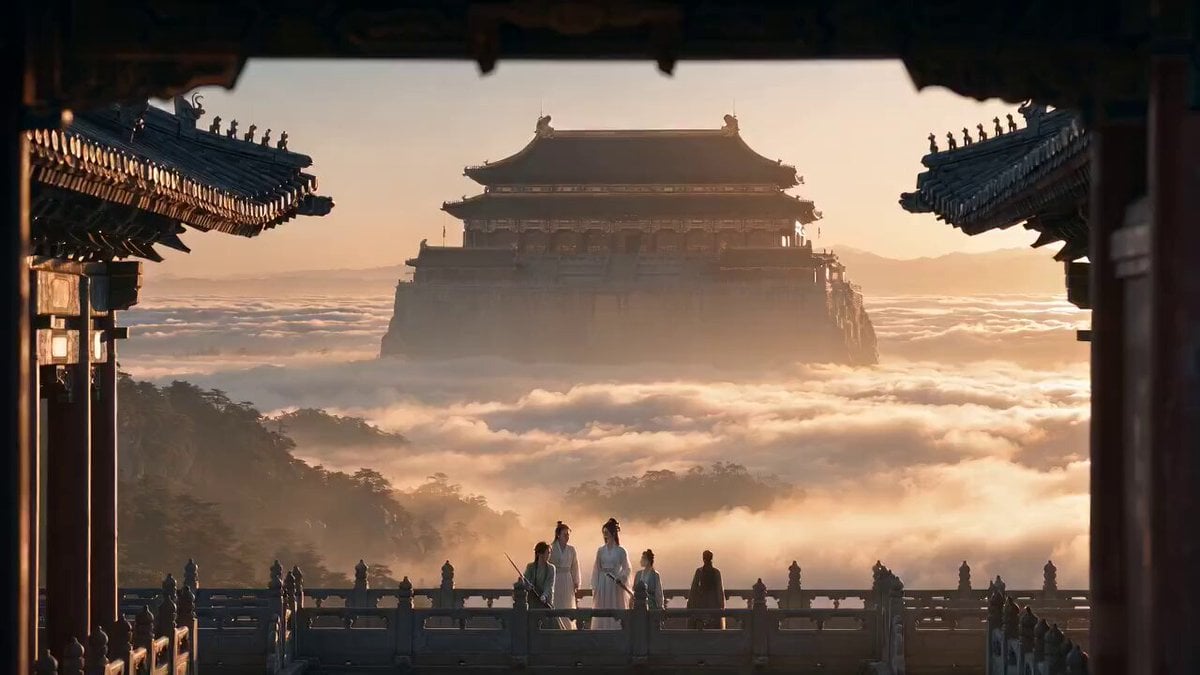
Wuxia Protection and Trust Script
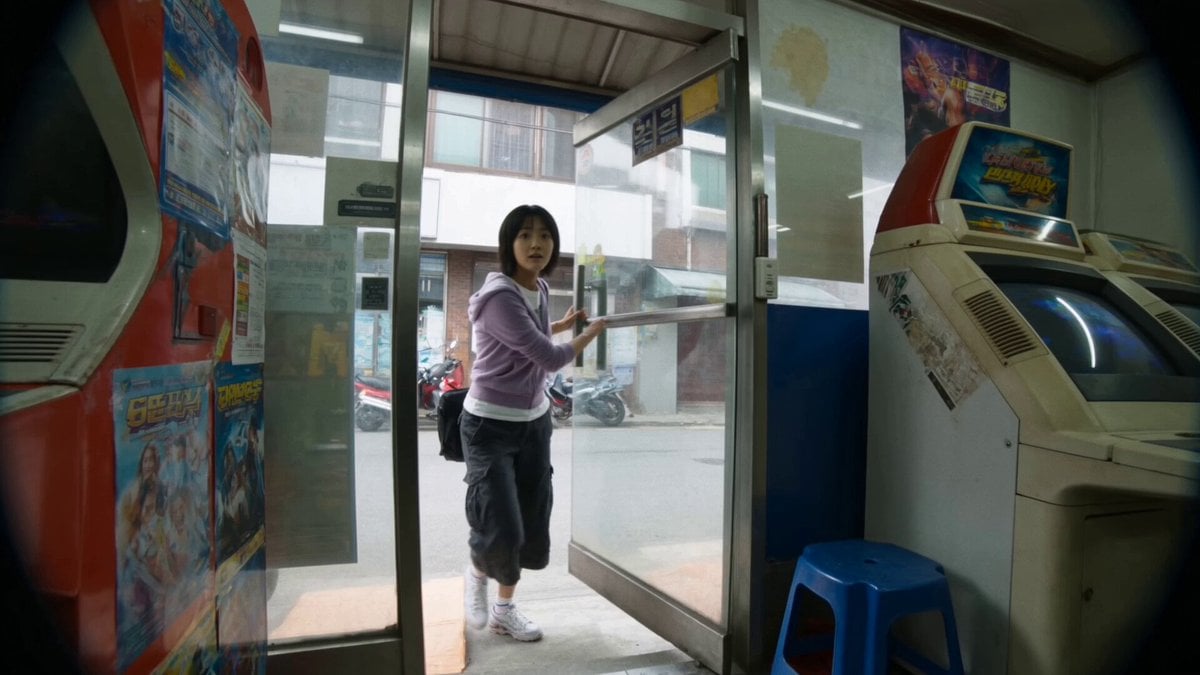
Vintage Korean Arcade MiniDV Vlog
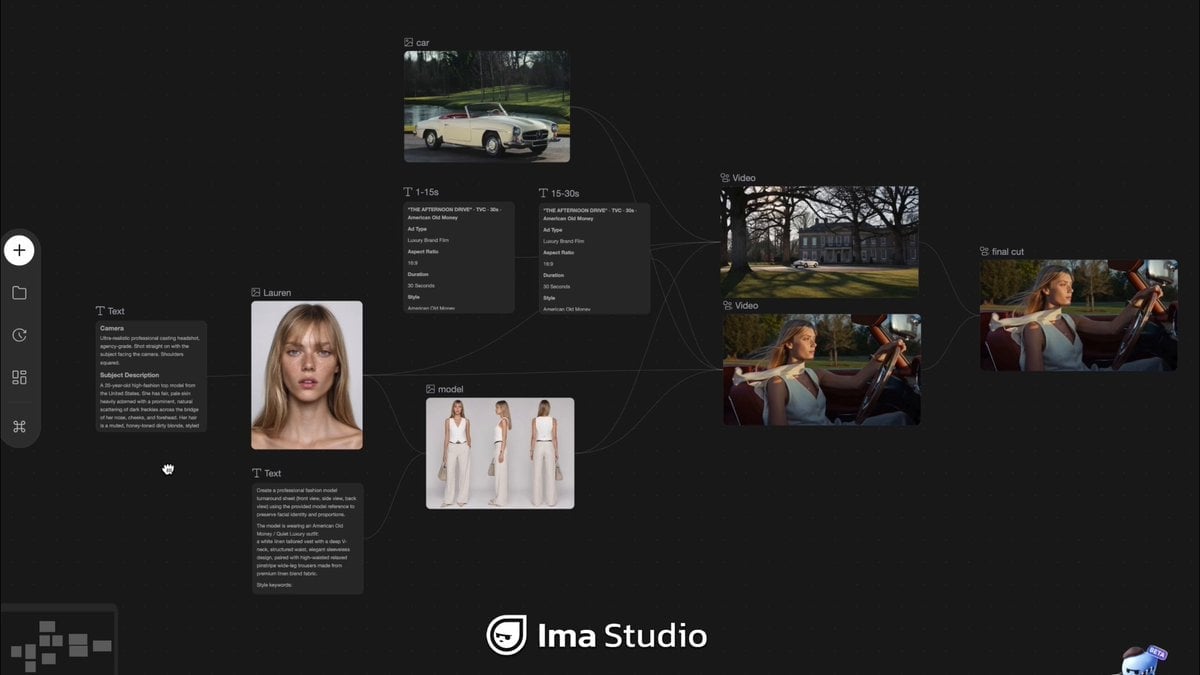
Mercedes 190 SL Luxury Ad
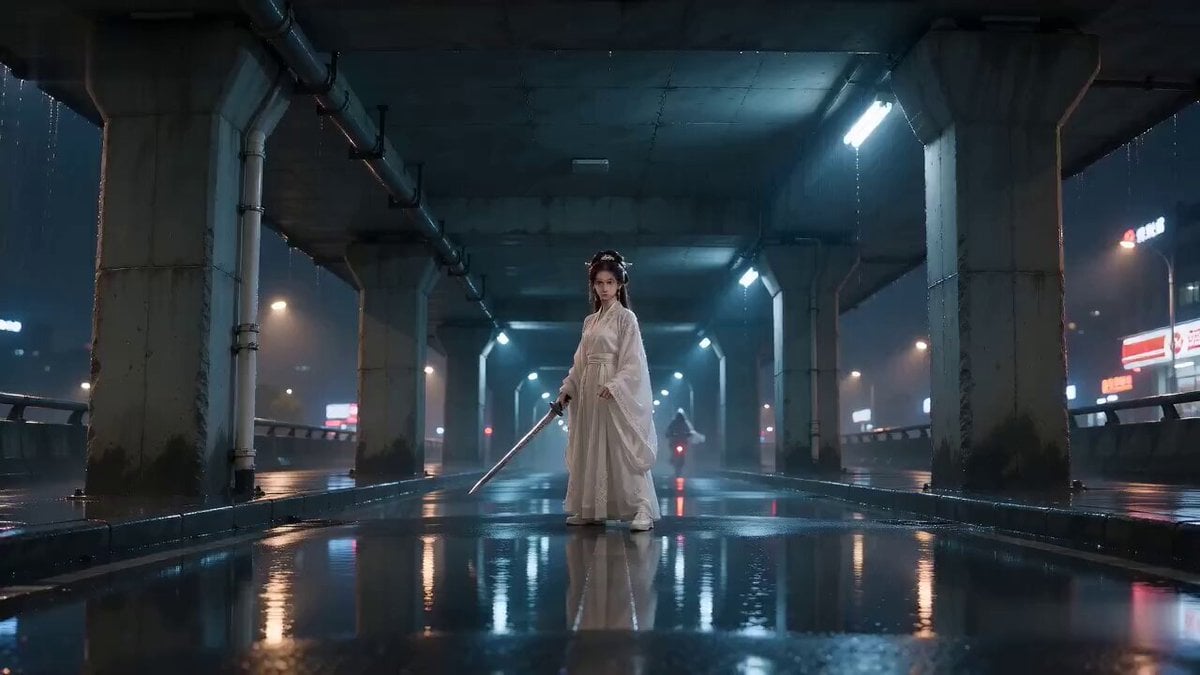
Rainy Night Supernatural Reverse Comedy Video Script
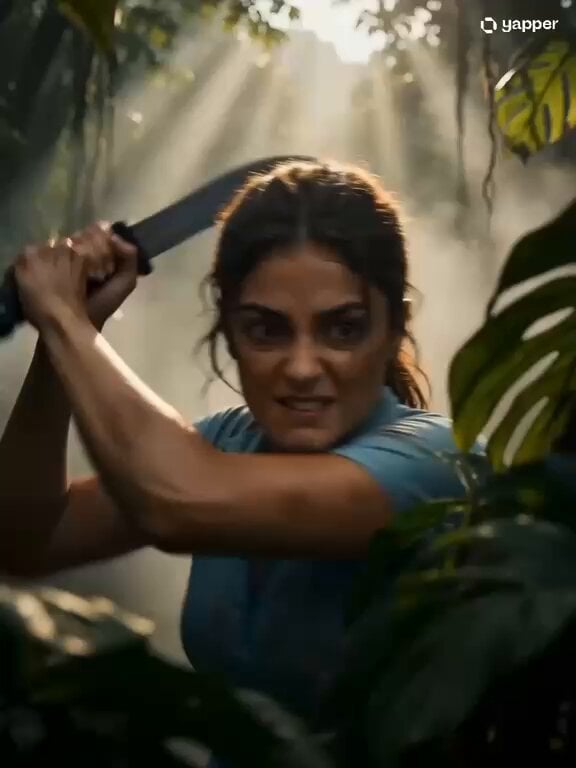
Amazon Civilization Discovery
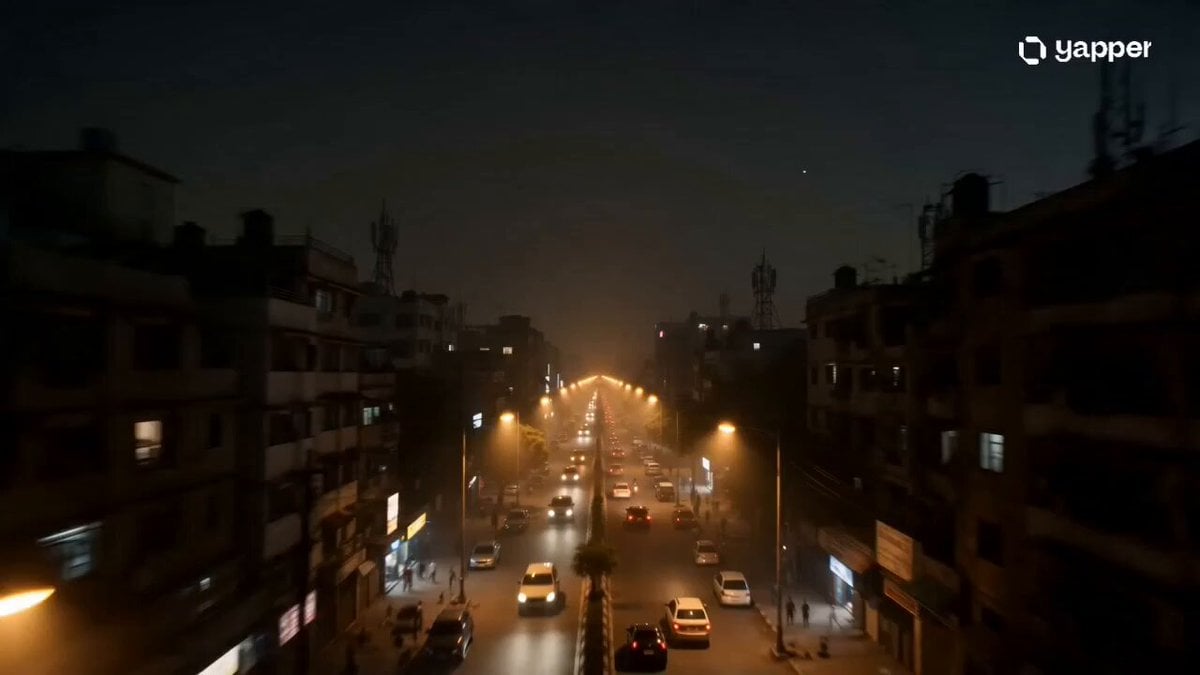
Futuristic South Asian City Transformation
Cozy Luxury Cafe Commercial
More video prompts
Fresh picks from across the catalog.
Cinematic Slice-of-Life Comedy: Dropping a Coffee Mug
VHS Home Video Jetpack Jump
Over-the-Top Anime Comedy Battle
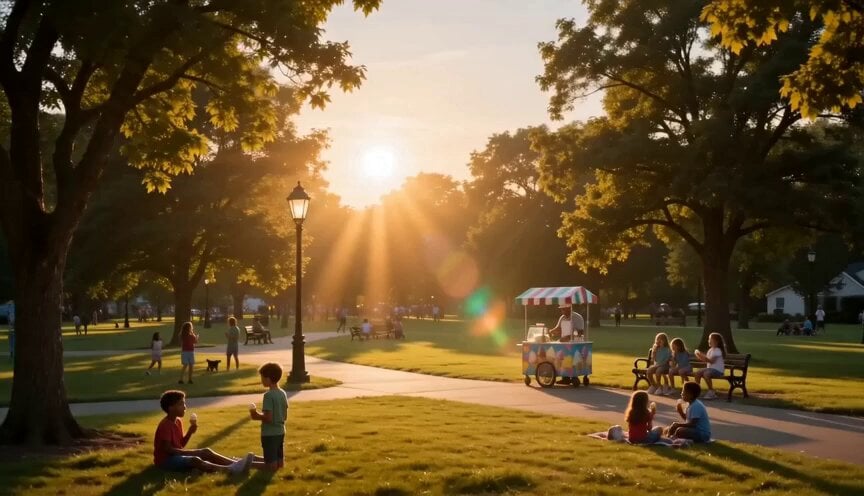
Summer Park Kindness Story
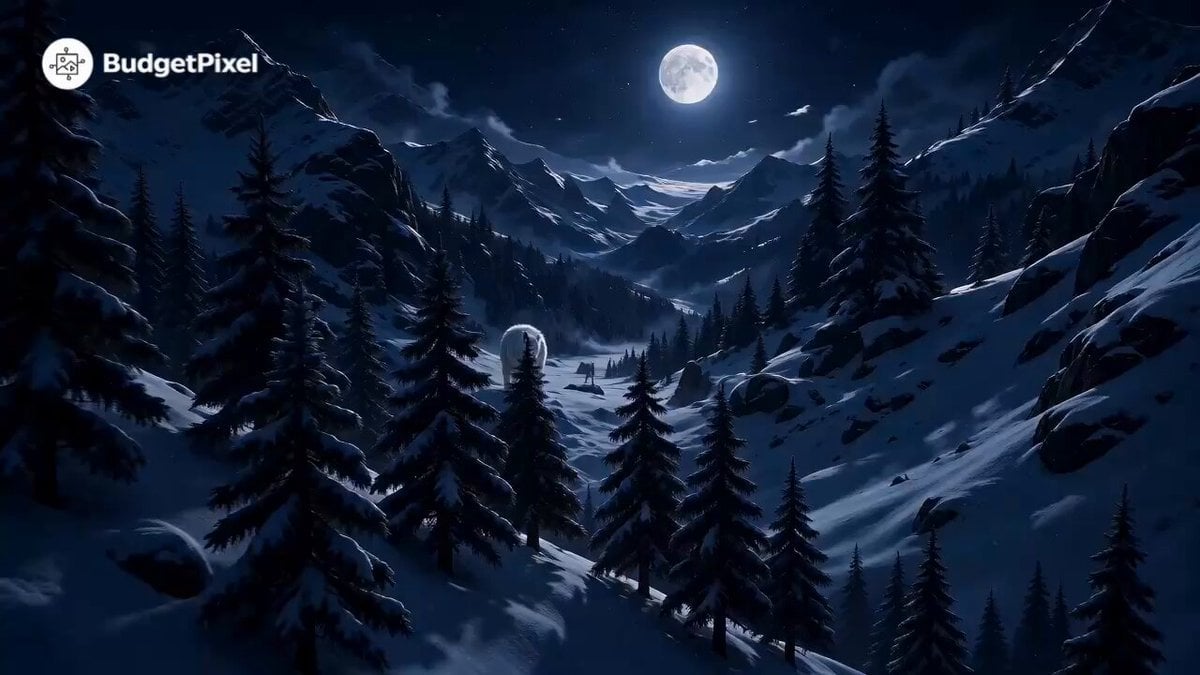
Cinematic Wolf Guardian Survival Trailer
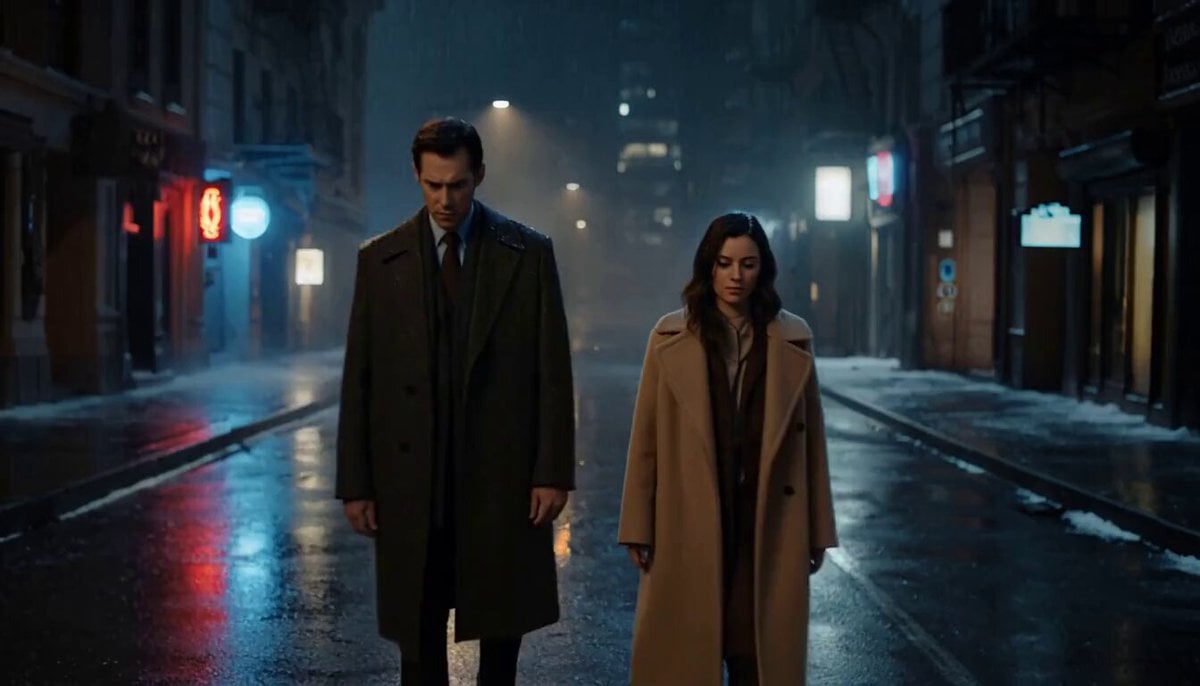
Musical City Transformation Sequence
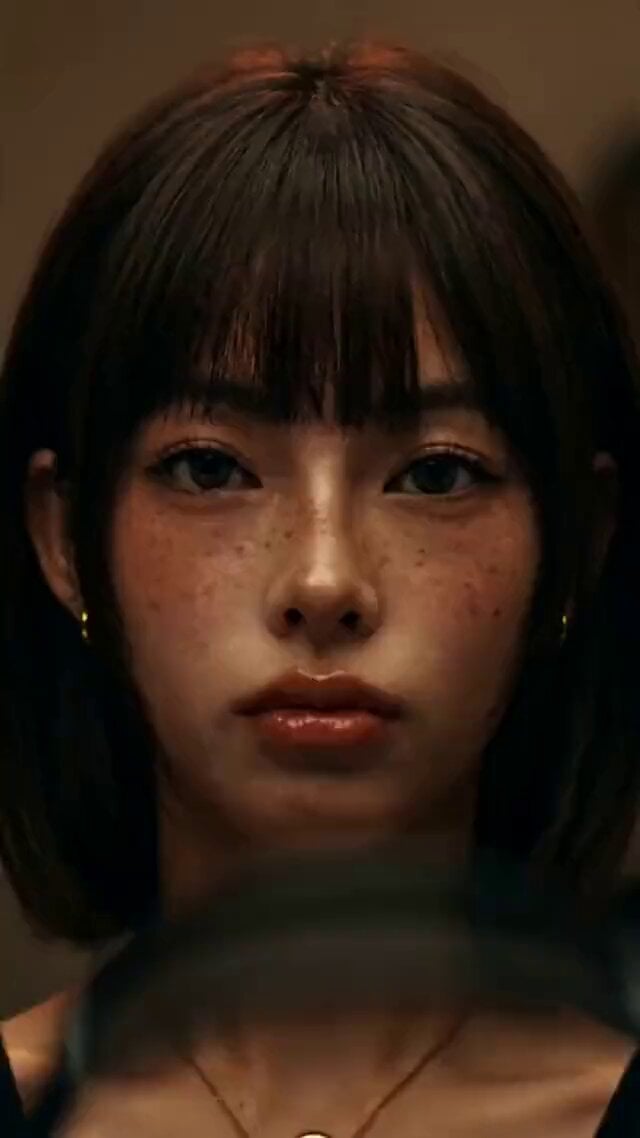
Music Streaming Brand Film Commercial
Mastercard MarsCard concept
Bayou Hippo Surge Attack

Dissolving Spiritual Scientific Body
Browse template categories
Realistic Cinematic Skydiving Scene questions
How do I use the Realistic Cinematic Skydiving Scene template?
Add your photo if the template asks for one, edit the prompt if you like — the template's model and format are already selected — and press Generate. Your version opens in PicX Studio.
Can I customize the Realistic Cinematic Skydiving Scene template?
Yes. You can change the subject, setting, lighting, mood, format, and available model controls before creating your video.
Is the Realistic Cinematic Skydiving Scene template free?
Opening and editing this template is free. Generating uses credits, shown on the Generate button when you are signed in.
Which AI model should I use?
Start with Seedance 2.0, which is the model associated with this template. You can compare another compatible model for a different finish.
Looking for something else? Browse all templates.

Your photo, any look
Thousands of ready templates for every top image and video model, from one credit balance.