How do I use the Ghost River Cinematic Push-In template?
Edit the prompt in the box under the preview — the template's model and format are already selected — and press Generate. Your version appears right on this page.
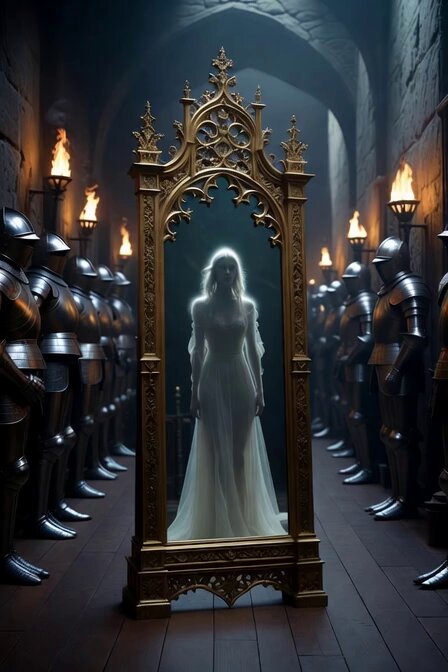
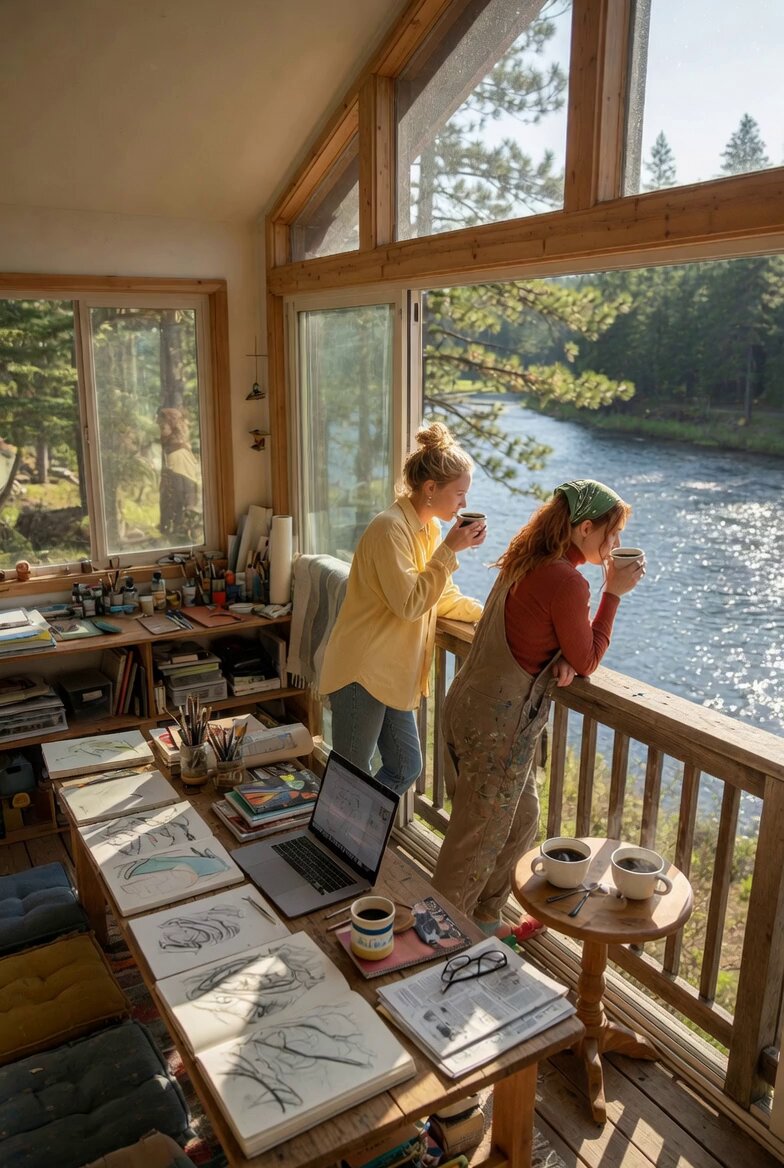
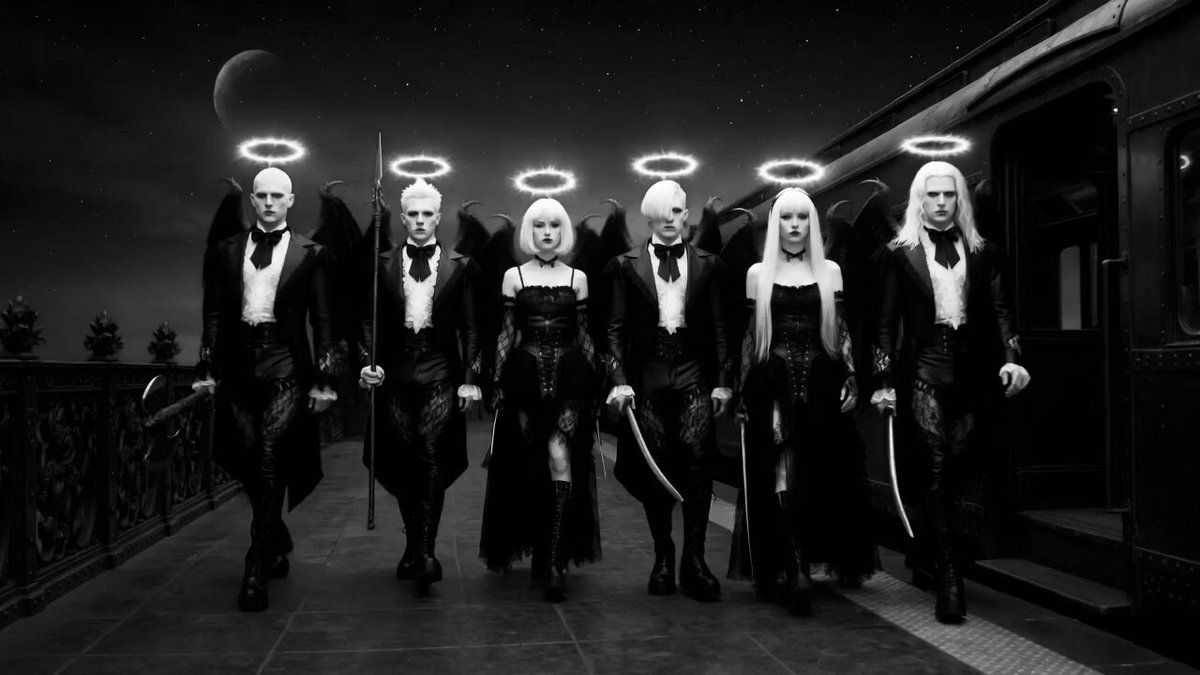
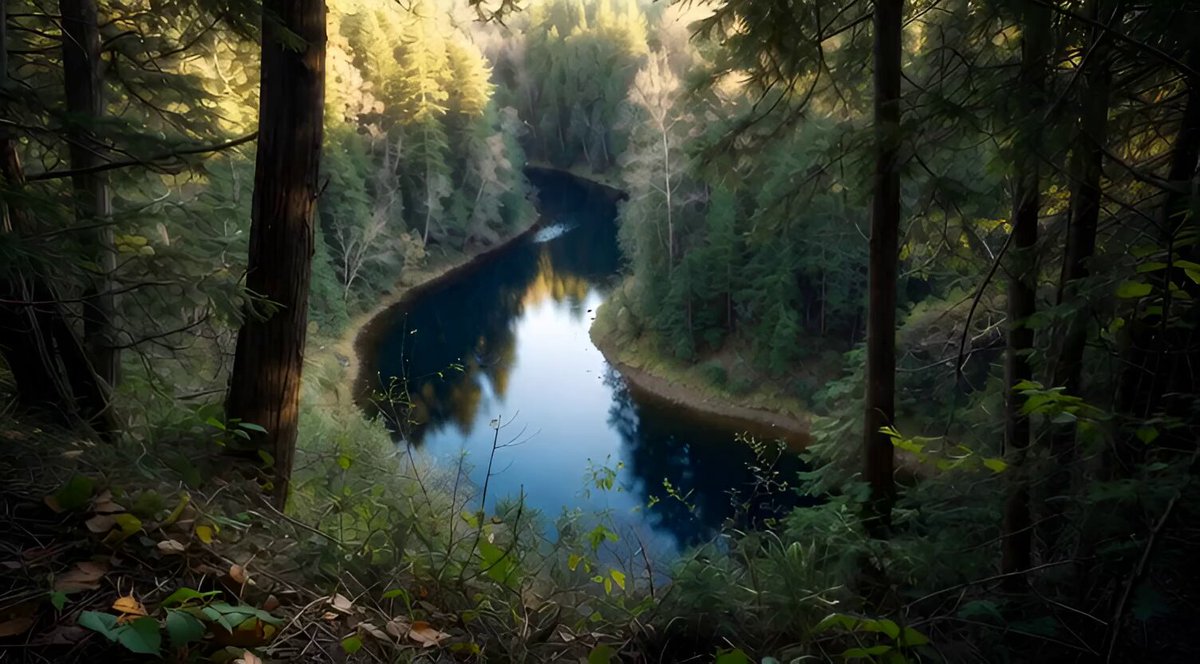
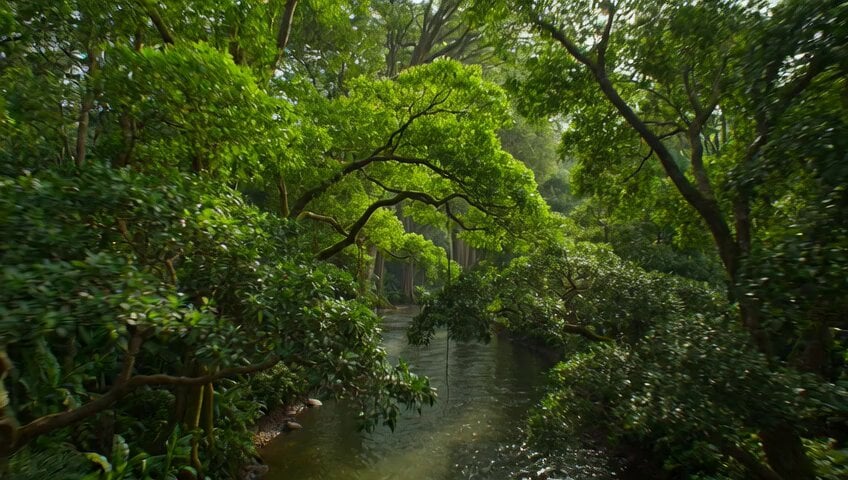
A technical video prompt specifying camera movement and staging for a cinematic scene featuring a ghost river and a mill.
VIDEO 4 SCENE LOCK: Static hero composition with an extremely subtle cinematic push-in toward the mill, preserving perspective and geometry. STAGE: Full expression of the ghost river, followed by a slow fading of memory back into darkness.
VIDEO 4 SCENE LOCK: Static hero composition with an extremely subtle cinematic push-in toward the mill, preserving perspective and geometry. STAGE: Full expression of the ghost river, followed by a slow fading of memory back into darkness.
Edit the prompt in the box under the preview — the template's model and format are already selected — and press Generate. Your version appears right on this page.
Yes. You can change the subject, setting, lighting, mood, format, and available model controls before creating your video.
Opening and editing this template is free. Generating uses credits, shown on the Generate button when you are signed in.
Start with Grok Imagine, which is the model associated with this template. You can compare another compatible model for a different finish.
Follow a topic to a crawlable collection of related PicX Studio templates.