
VIDEOGoogle · from 15 credits / sec
Google's image-to-video model, up to 4K
Gemini Omni Flash 1.1 — Image to Video
One image in. 3 to 10 seconds. 360p to 4K. Native audio.
Start with one image, describe the motion and the sound, and get a 3 to 10 second clip. Gemini Omni Flash 1.1 renders from 360p for cheap tests up to 4K for the final.

- 3–10s
- 360p–4k
- Native audio
- Image
Start from one image

Your image sets the look
Gemini Omni Flash 1.1 only works from a picture. That is the point: the product shot, portrait or illustration you already approved fixes the colors, the framing and the subject, and the prompt only has to say what moves. There is no text-only mode to drift away from your art direction.
Sound in the same prompt
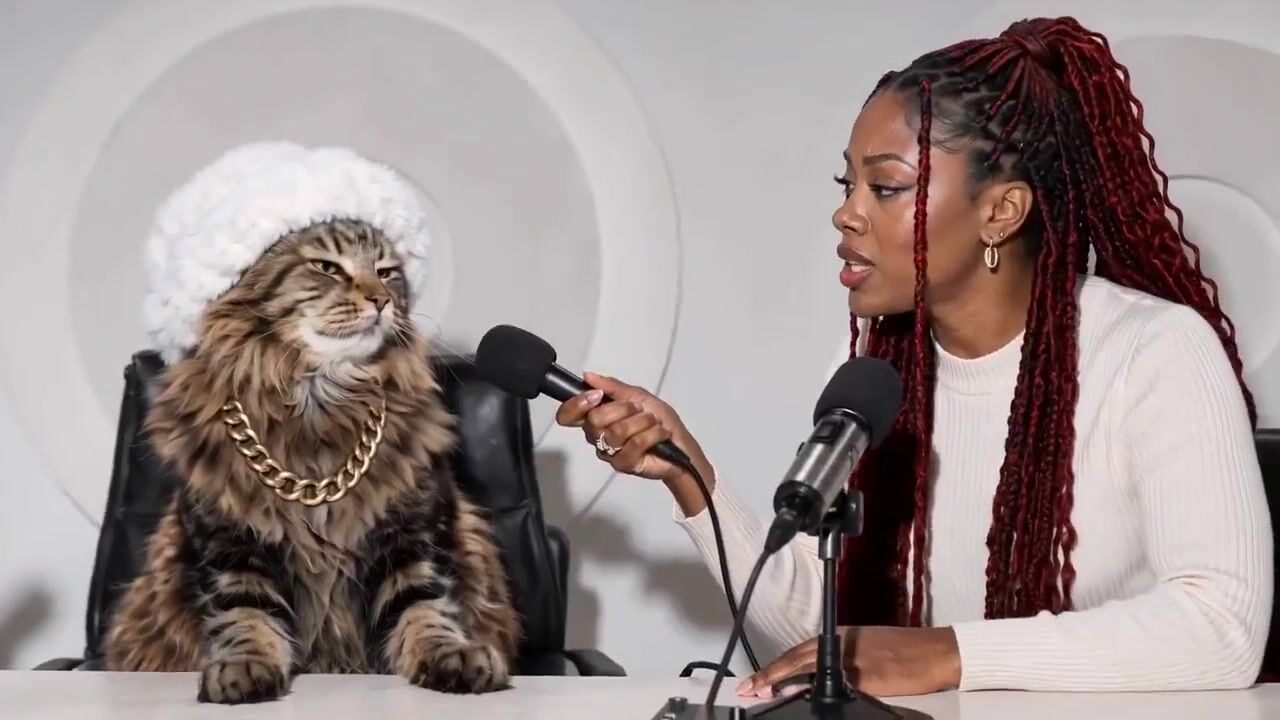
Every clip comes back with audio. Write the soundscape next to the action, such as room tone, a voice, rain or a glass clink, and the model generates both together. Dialogue in quotes works for talking-head and podcast-style clips.
360p to test, 4K to deliver
Four resolution tiers on one model. Try motion ideas at 360p for 15 credits a second, then render the keeper at 1080p or 4K.
Gemini Omni Flash 1.1
One image in. 3 to 10 seconds. 360p to 4K. Native audio.
Made for the images you already have
Animate product photography. Turn a product image into a short motion concept for a storefront, launch page, or social post without rebuilding the visual direction from scratch.
Create social-ready moments. Start from a strong image and explore several compact motion treatments for attention-grabbing posts, teasers, and announcements. Pick 9:16 for reels and stories.
Add motion to illustrations. Give artwork and editorial images a sense of camera movement, atmosphere, and scene action while beginning with the composition you already like.
Prototype a creative direction. Test pacing, motion, and audio ideas quickly from a reference image before investing in a larger campaign or video production.
Why pick Omni Flash
- 4KTop resolutionRender the final at 4K. 360p, 720p and 1080p are there for everything before it.
- 15Credits per secondAt 360p, sound included. A 5 second test costs 75 credits.
- AudioAlways onVoices, effects and ambience come back with every clip.
- 10sLongest clipPick any length from 3 to 10 seconds.
- 1 imageIs all it needsUpload a picture, write the motion and the sound. No reference stack to prepare.
- 9:16Or 16:9Vertical for reels and stories, widescreen for YouTube and sites.
What Gemini Omni Flash 1.1 costs
Billed per second of video, at the resolution you pick. The same prices the generator shows before you run it.
- 360p15credits / sec5s clip 75 creditsOn Starter≈ 48 clips / mo
- 720p50credits / sec5s clip 250 creditsOn Starter≈ 14 clips / mo
- 1080p74credits / sec5s clip 370 creditsOn Starter≈ 9 clips / mo
- 4k147credits / sec5s clip 735 creditsOn Starter≈ 4 clips / mo
Every model on every planCredits never expireSee plans
Pay for Gemini Omni Flash 1.1 with crypto
Buy credits with Bitcoin, USDT, USDC, ETH, Solana and more — no card, nothing auto-renews, packs from $5, and 15% extra credits on crypto payments.
How it compares on PicX
Three video models with sound. Per-second credit costs are in the pricing table on this page.
How to use Gemini Omni Flash 1.1 in 3 steps
- 1
Choose Gemini Omni Flash 1.1
Open the studio and select Gemini Omni Flash 1.1 from the model picker.
- 2
Add an image and direction
Upload the image you want to animate, then describe the subject motion, camera movement and sound.
- 3
Set duration, resolution, and generate
Choose 3 to 10 seconds and 360p, 720p, 1080p or 4K, generate your clip, then review and download it.
Gemini Omni Flash 1.1 prompts to copy
Real prompts and what they made. Copy one, or open it in the generator with the model already picked.
Product still life
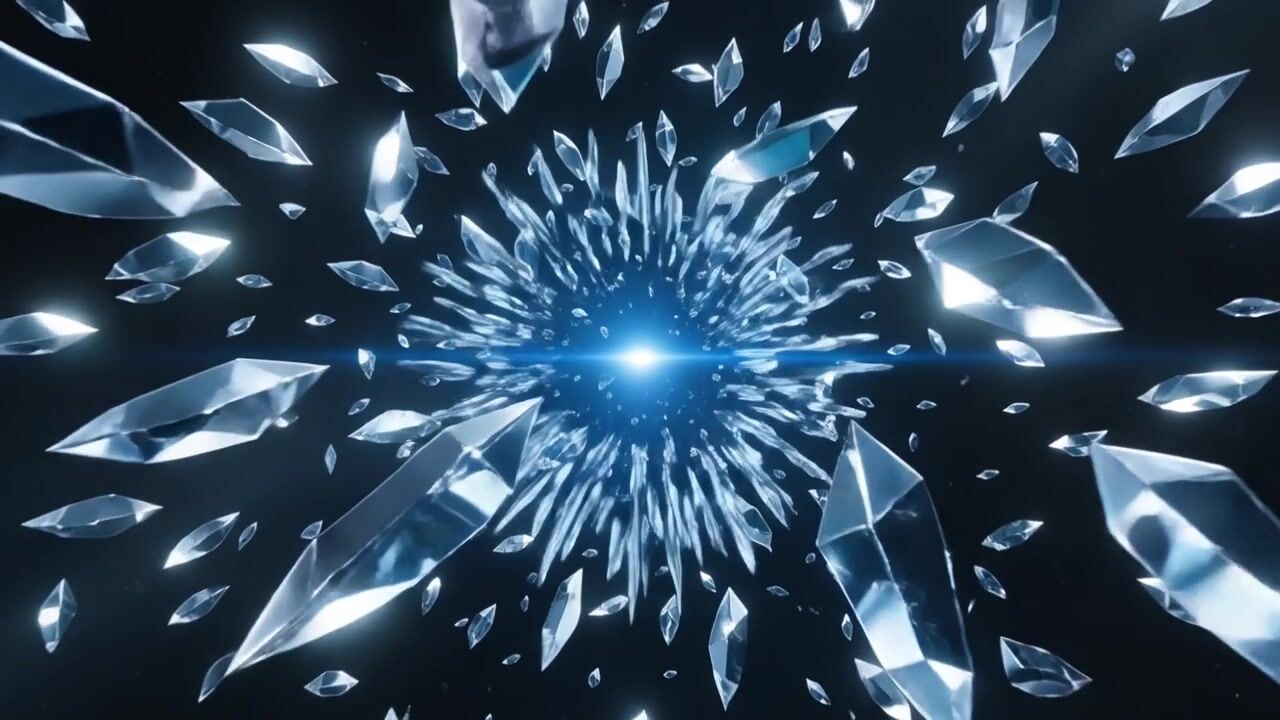
Animate this product photo: a glass sphere rolls slowly across the table between crystal blocks, light refracting through it, slow orbit around the set, soft studio reflections, quiet glassy chimes.
Podcast interview
Animate this image: the woman leans toward the cat with her microphone, the cat in a white wig turns and answers into its mic, small head movements, studio room tone, the woman laughs and says: "So, tell us everything."
Hologram in hand
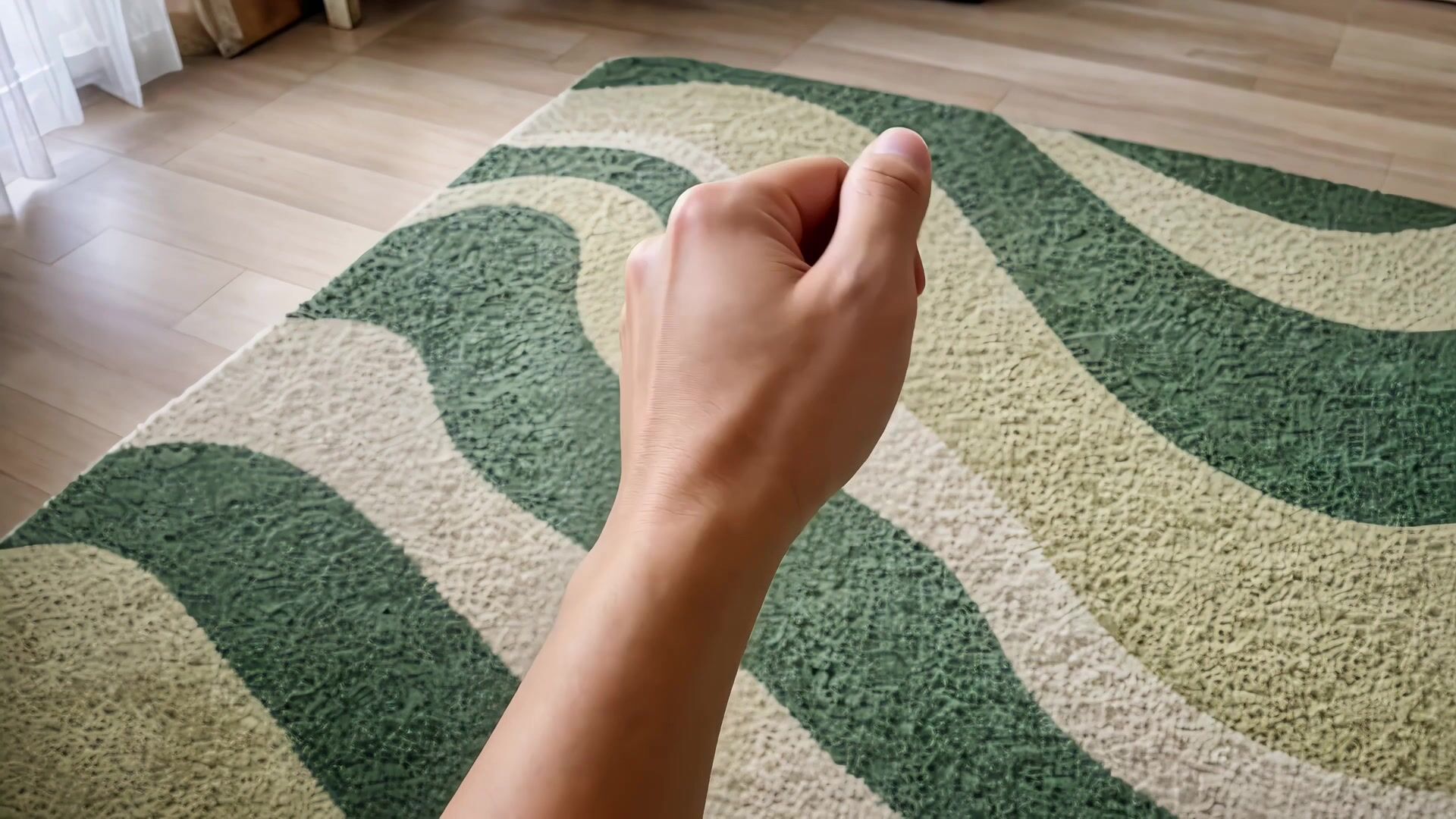
Animate this image: a small glowing blue cube hovers and slowly rotates above an open hand, particles drifting off it, the camera pushes in gently, soft electronic hum and a quiet room.
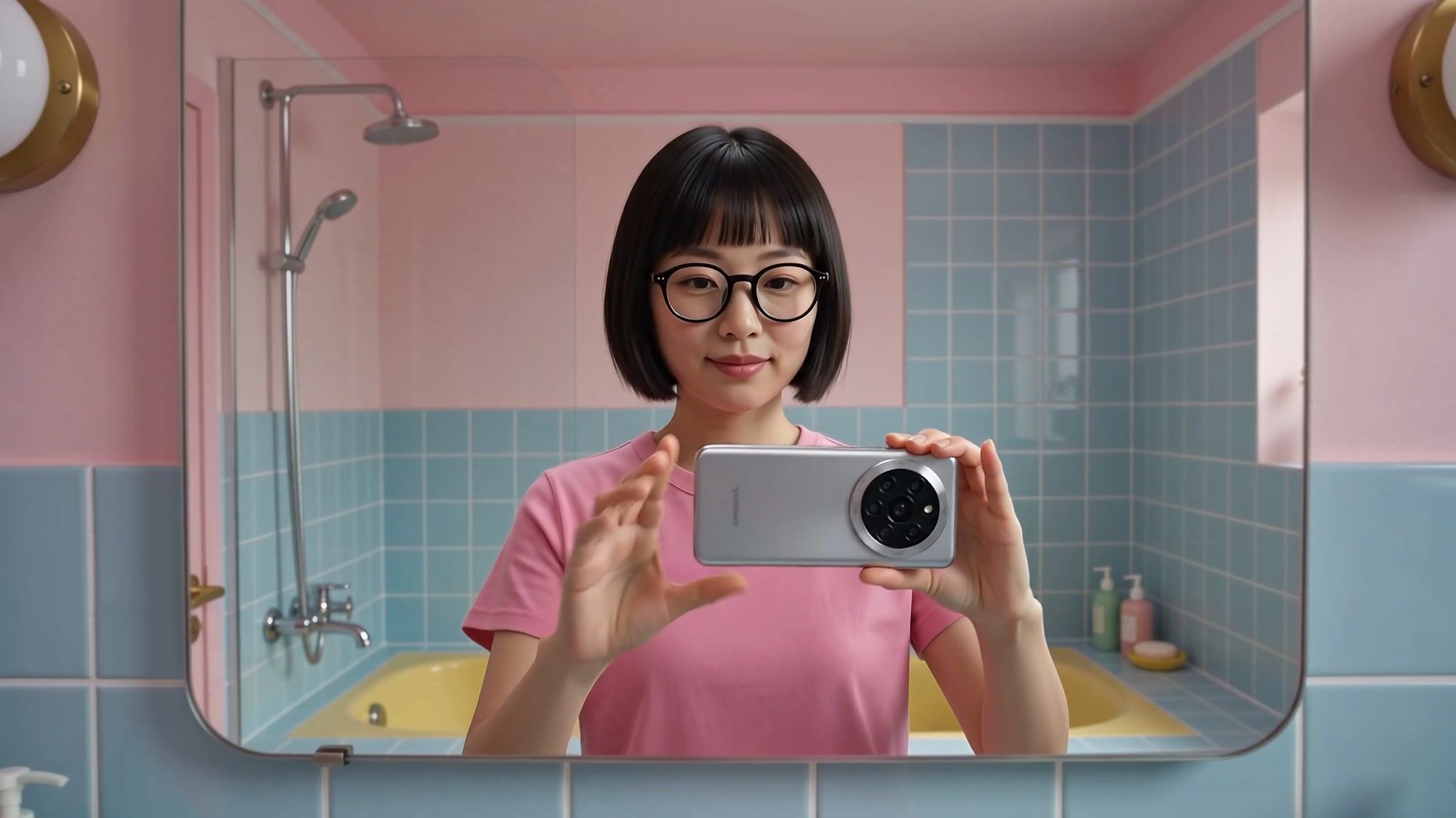
Mirror selfie
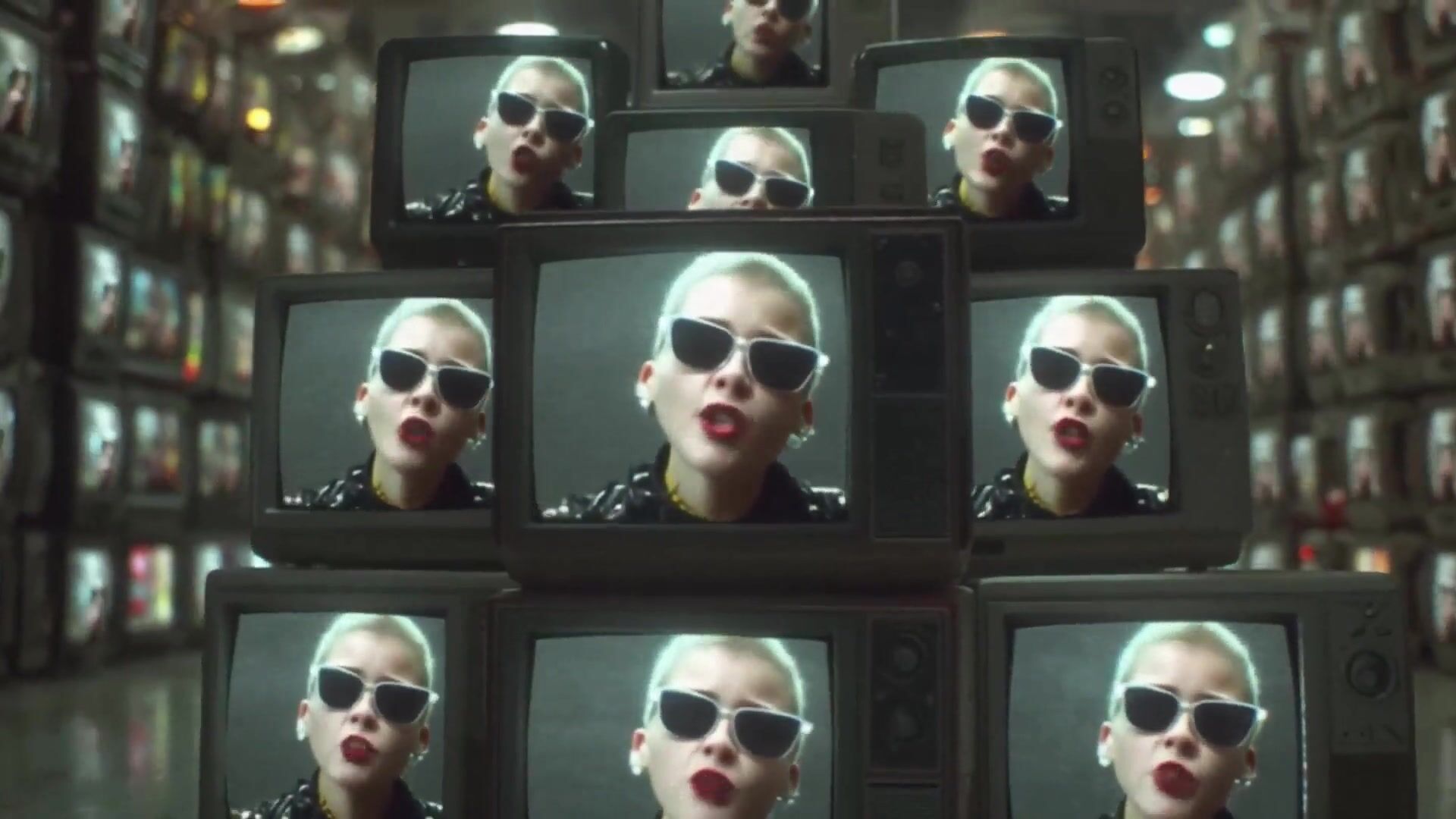
Animate this image: the woman in the bathroom mirror adjusts her glasses, smiles and taps her phone screen to take a photo, subtle natural movement, soft daylight, a camera shutter sound.
Templates to start from
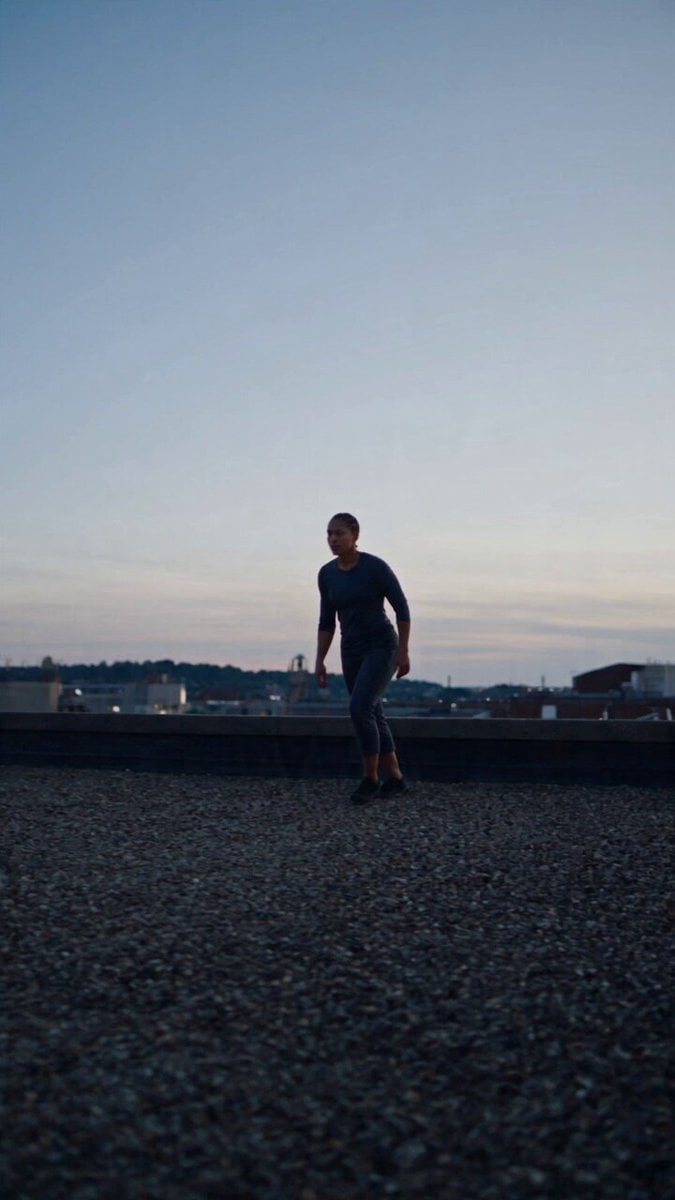
Browse all templates Rooftop Parkour Motion Control
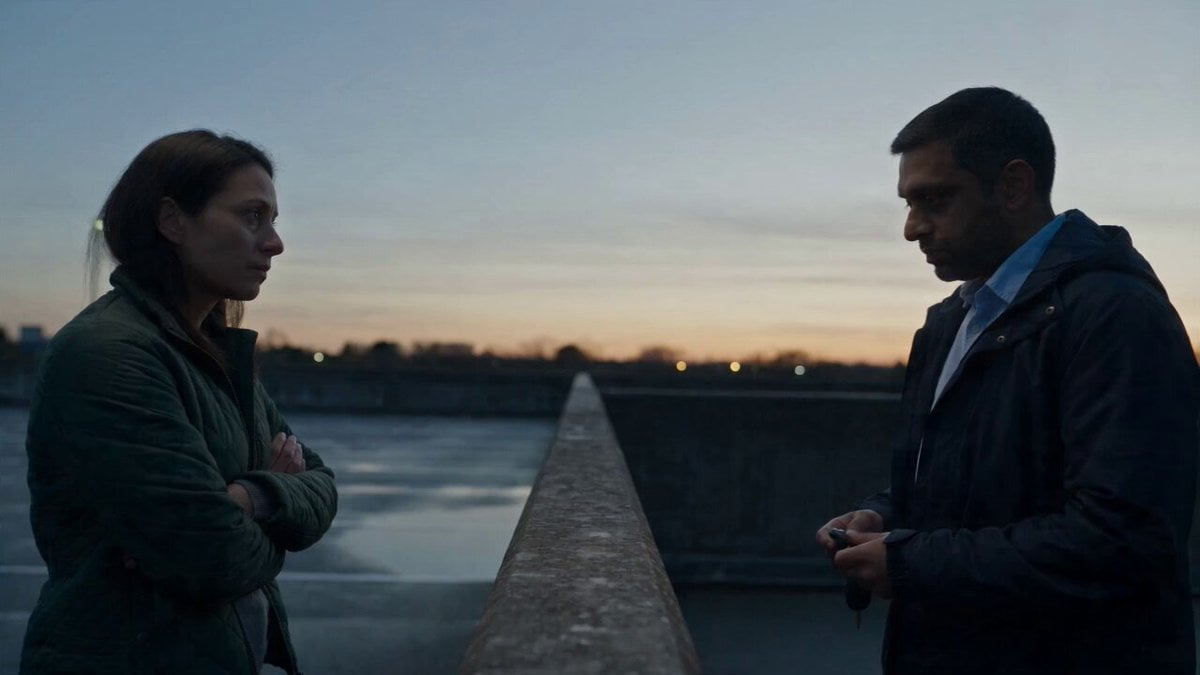 Hospital Car Park Dialogue Lip Sync
 Product Ad Drink Can 110° Orbit
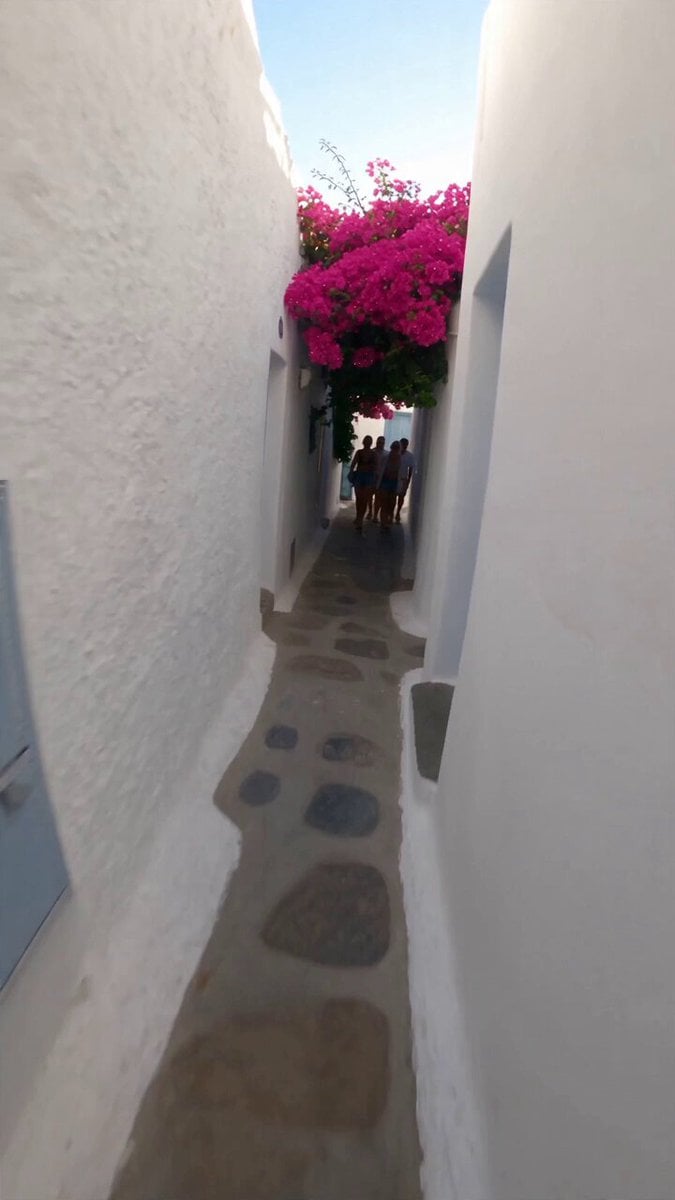 Selfie Travel Vlog Mykonos
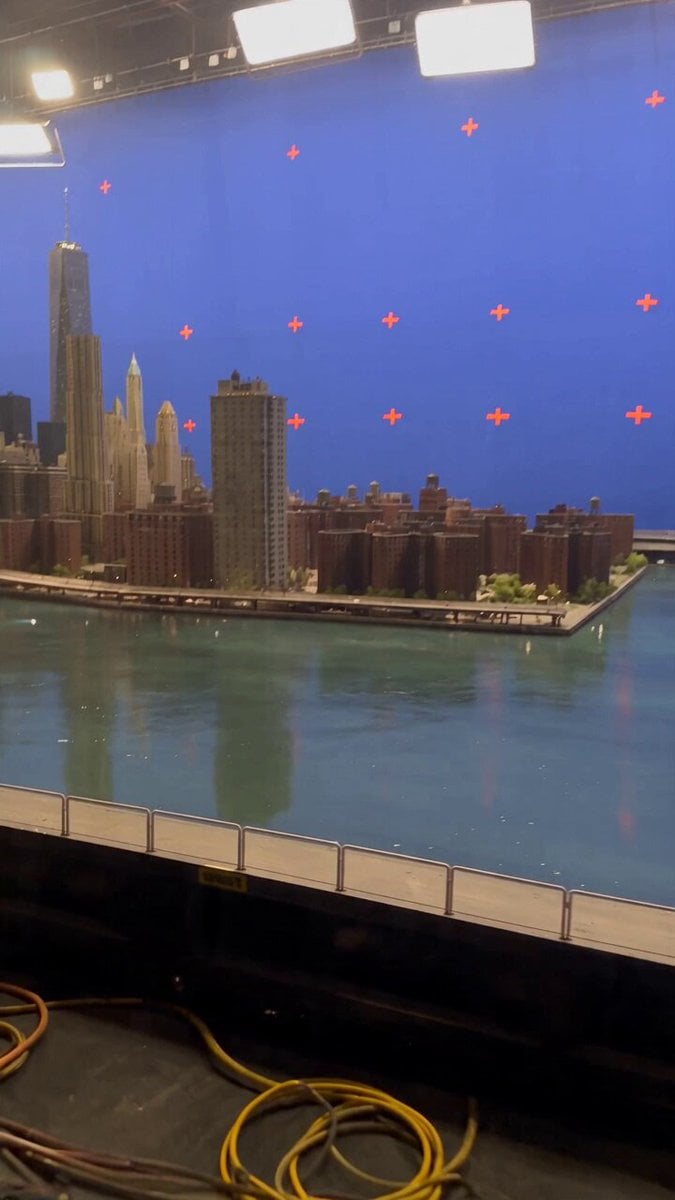 Miniature City Flood Soundstage
- Miniature City Flood Soundstage
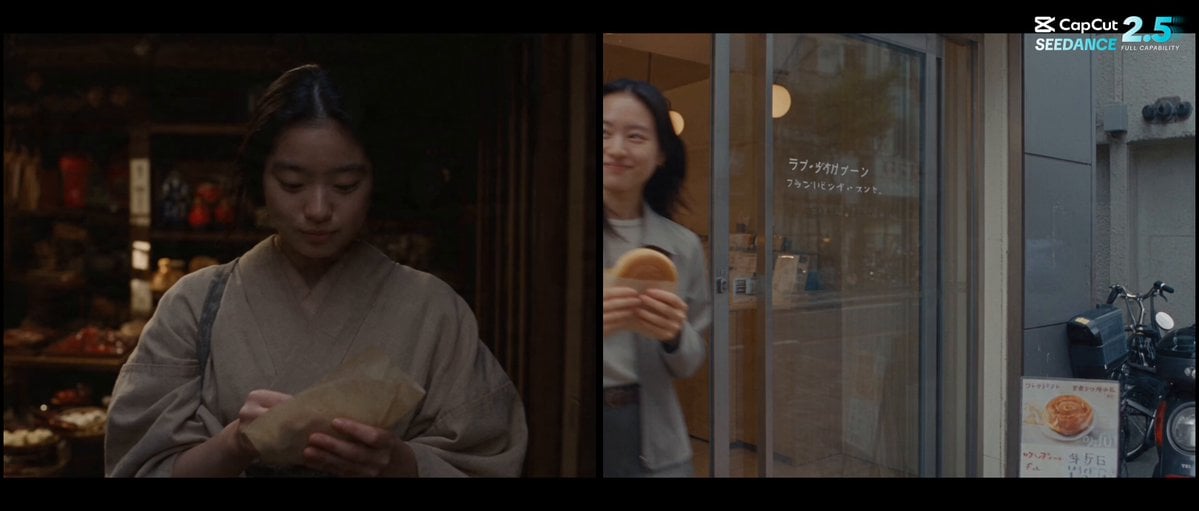 Forgotten 1980s High School Documentary Seedance
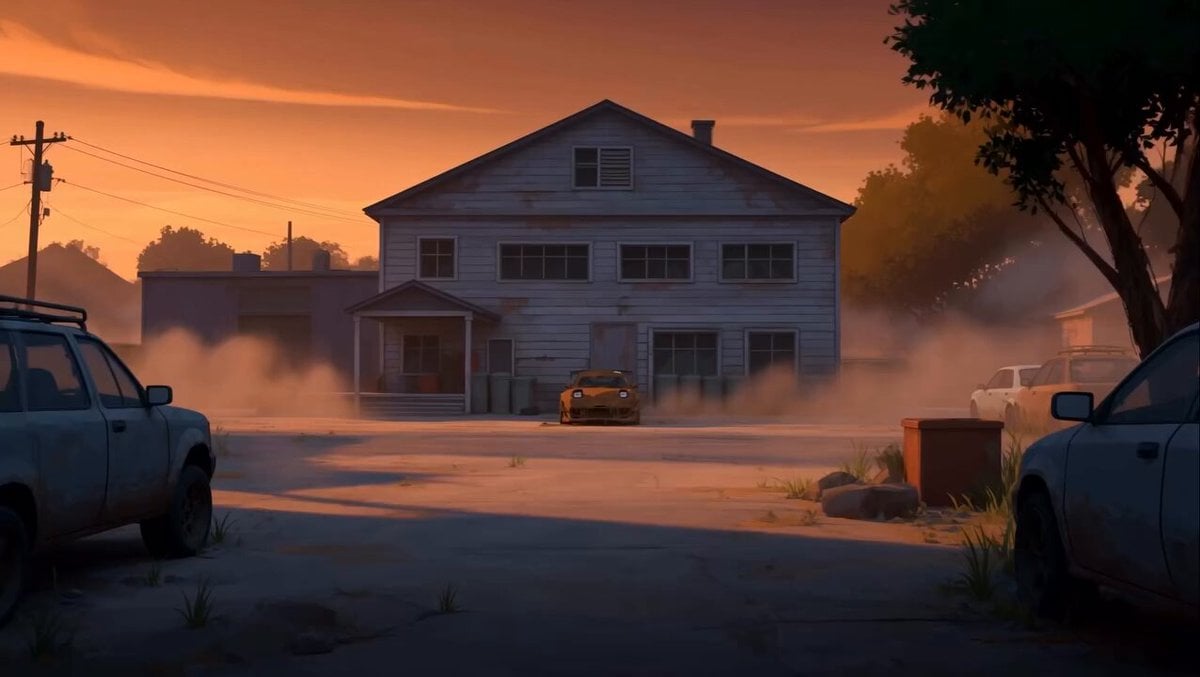 RX-7 to Mech Transformation Cyberpunk
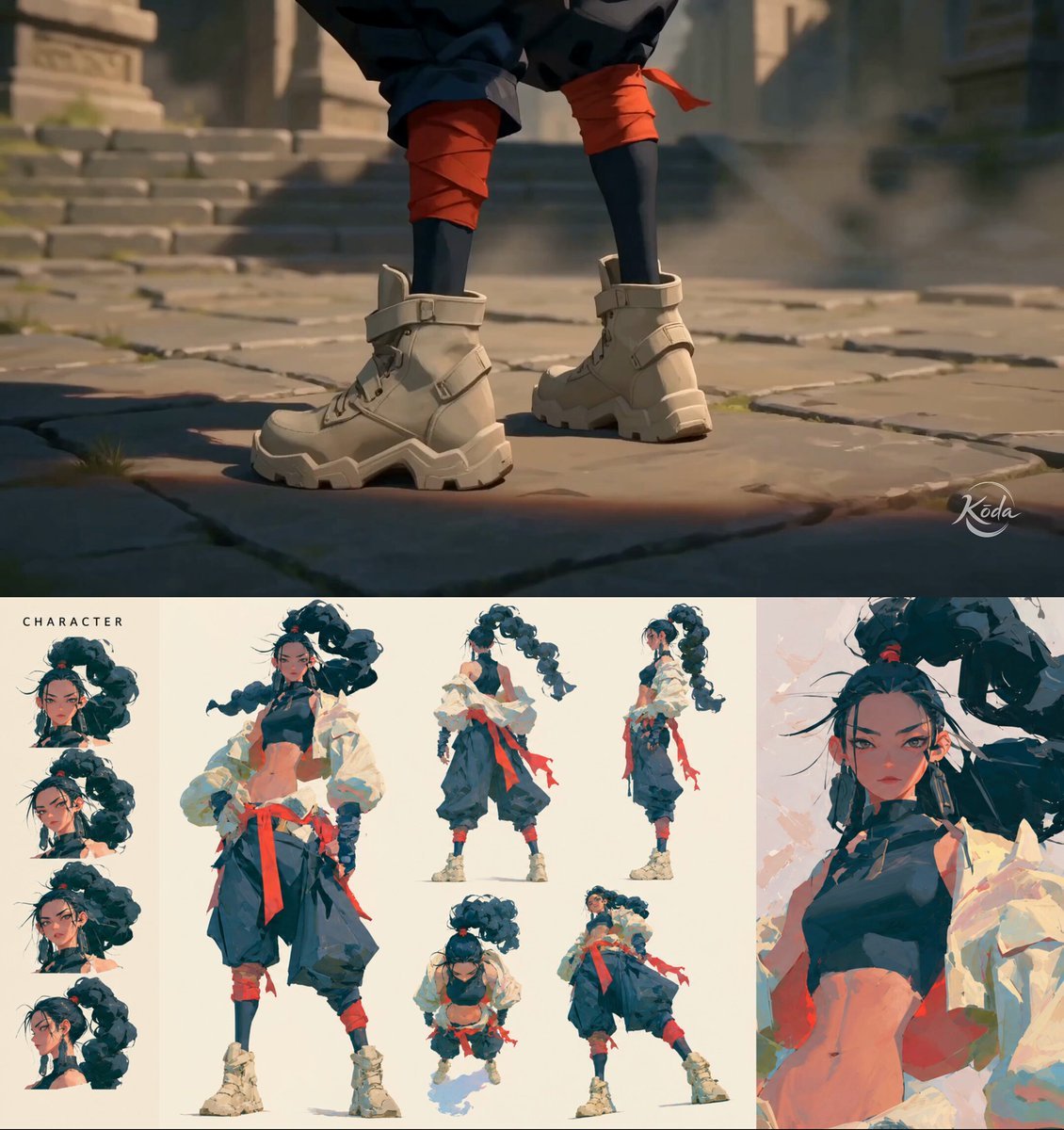 MiniMax H3 Character Introduction
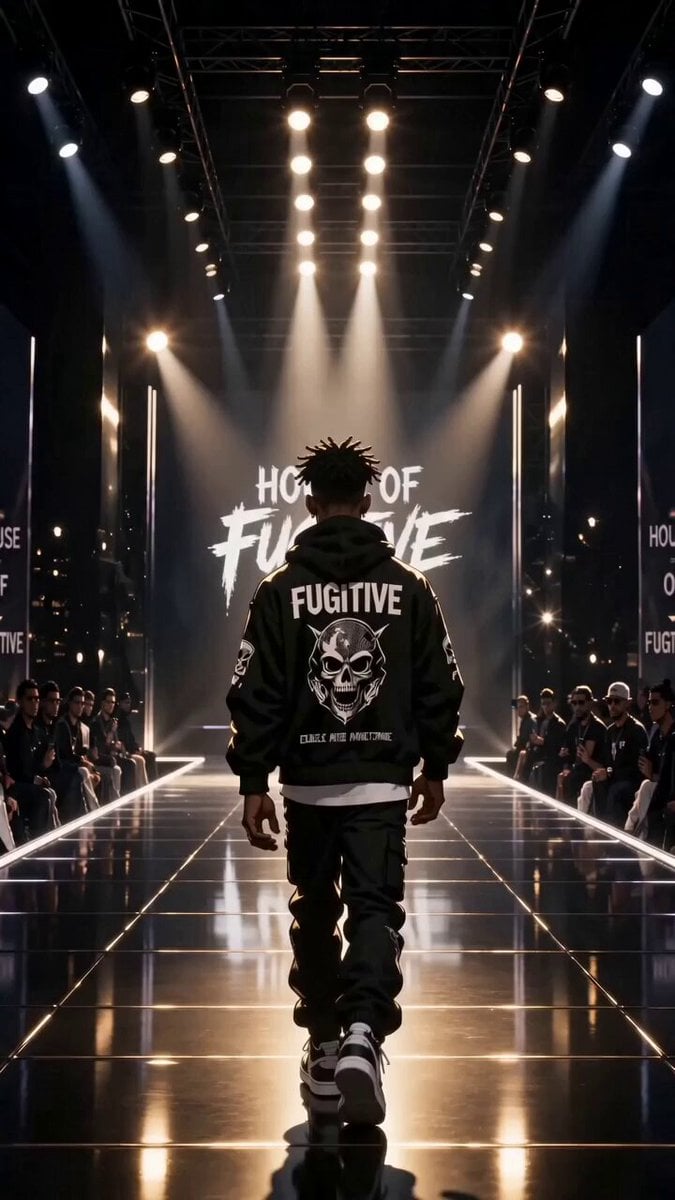 Luxury Streetwear Fashion Runway Film
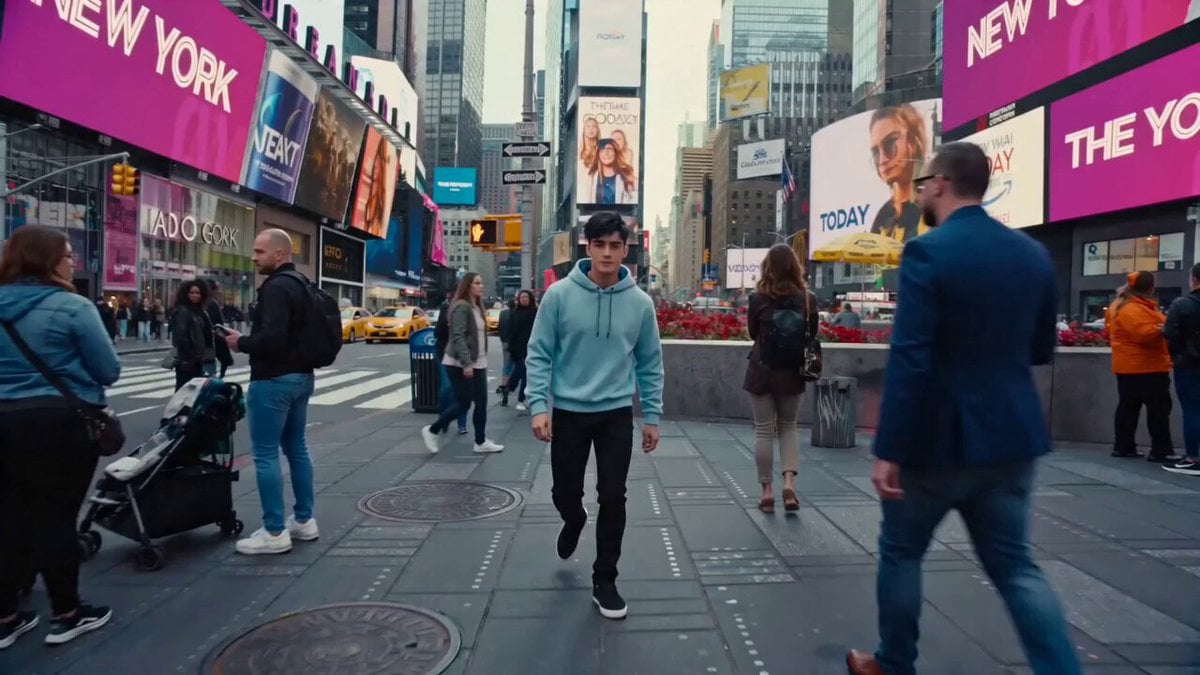 Cinematic Times Square Confidence Walk
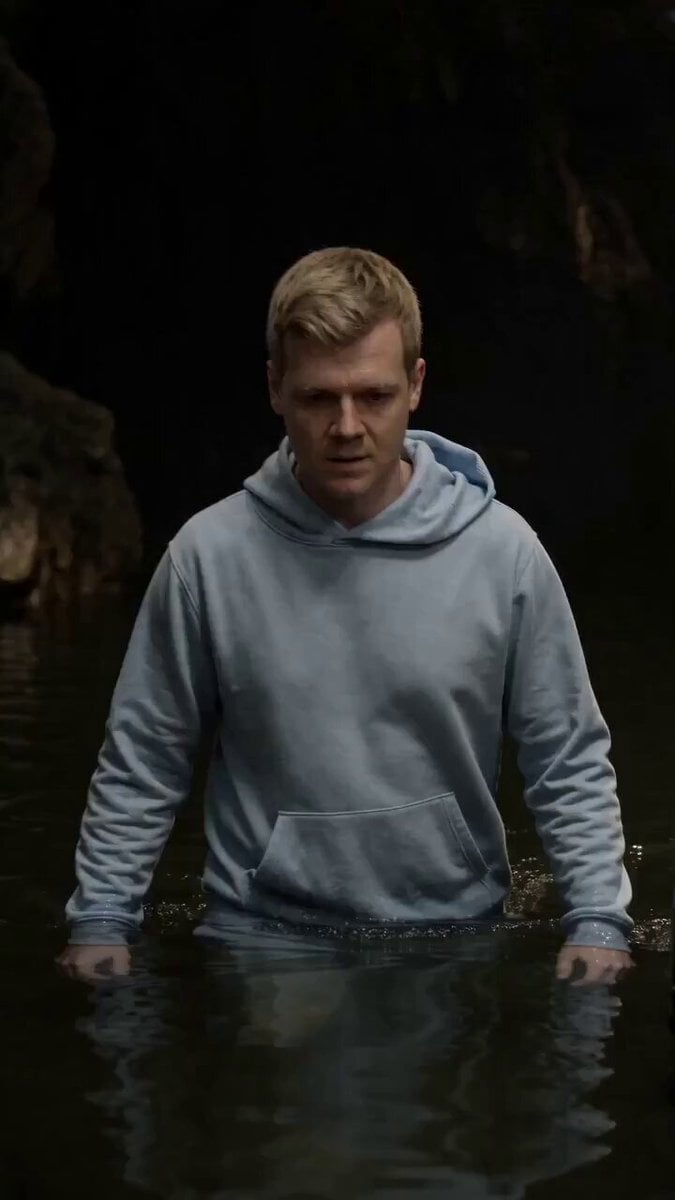 Cinematic Cave Exploration Multi-Shot Sequence
Gemini Omni Flash 1.1 questions
What is Gemini Omni Flash 1.1?
Gemini Omni Flash 1.1 is an image-to-video model available in PicX Studio. It turns a source image and written direction into a short AI video with native audio.
What input does Gemini Omni Flash 1.1 use?
Gemini Omni Flash 1.1 uses an image as the visual starting point. Upload an image in PicX Studio, then describe the motion, camera movement, and sound you want.
How long can Gemini Omni Flash 1.1 videos be?
Gemini Omni Flash 1.1 supports video durations from 3 to 10 seconds in PicX Studio.
Which resolutions are available?
Gemini Omni Flash 1.1 generates 360p, 720p, 1080p, or 4K video. Credits are charged per second and scale with the resolution you pick: 15, 50, 74 or 147 credits a second.
Does Gemini Omni Flash 1.1 create audio?
Yes. Gemini Omni Flash 1.1 supports native audio generation as part of the image-to-video workflow.
How can I get better results?
Use a clear source image and keep each prompt focused on one scene. Describe the visible action, camera movement, and the sound you want to hear.
Is Gemini Omni Flash free?
Your first image is free after you sign up, no card needed, and you can use it as the starting frame. Video models, including Gemini Omni Flash 1.1, need a plan or a one-time credit pack. Credits never expire.
Can Gemini Omni Flash make a video from text only?
No, it needs an image. Make one first with an image model such as Nano Banana Pro, then animate it with Gemini Omni Flash 1.1.
Which aspect ratios does it support?
16:9 for widescreen and 9:16 for vertical video.
How much does a Gemini Omni Flash video cost?
A 5 second clip costs 75 credits at 360p, 250 at 720p, 370 at 1080p and 735 at 4K. Audio is always included.
Is Gemini Omni Flash 1.1 made by Google?
Gemini Omni Flash 1.1 is an image-to-video model from Google, part of the Gemini Omni family. It creates short AI video clips from an image and written creative direction, with native audio. On PicX Studio it renders 3 to 10 second clips at 360p, 720p, 1080p or 4K, in 16:9 or 9:16, and it is billed per second from the same credit balance as every other model.
How do I create a Gemini Omni Flash 1.1 video?
Select Gemini Omni Flash 1.1 in the studio and upload an image. Describe the visible action, the camera movement and the sound you want. Choose a duration from 3 to 10 seconds, an aspect ratio and an output resolution from 360p to 4K, then generate. Review the clip with sound on and download it, or change one detail in the prompt and run it again.
Which Gemini Omni Flash resolution should I choose, from 360p to 4K?
Resolution sets the price. 360p costs 15 credits a second, 720p costs 50, 1080p costs 74 and 4K costs 147. Use 360p to check that the motion and the sound are right; it is cheap enough to try several ideas. 720p is the default and fine for social posts. Use 1080p for websites and ads, and 4K when the clip will be shown on a large screen or cropped in editing.
How do I write motion and sound into one Gemini Omni Flash prompt?
Because the image already shows what things look like, spend the prompt on what changes. Say what moves and how: a slow orbit, a push in, hair in the wind, a hand turning a product. Then add the sound: room tone, footsteps, rain, a line of dialogue in quotes. Keep it to one moment. Ten seconds is short, and one clear action reads better than three rushed ones.
How do I make the starting image for Gemini Omni Flash image to video?
Gemini Omni Flash 1.1 has no text-only mode, so the first step is a good still. Make one with Nano Banana Pro, GPT Image 2 or Seedream in the same studio, at the aspect ratio you want the video to be, then switch to Gemini Omni Flash and animate it. A clean subject, clear light and some space around the subject give the model room to move the camera.
How does Gemini Omni Flash compare to other video models?
Choose Gemini Omni Flash 1.1 when you already have the image and need the highest resolution, up to 4K, or very cheap test renders at 15 credits a second at 360p. Choose Kling 3.0 Pro when you want to start from text or need clips up to 15 seconds. Choose Grok Imagine when you want to build a scene from several reference images or extend a clip after it ends.

Start with an image. Direct the motion.
Animate your next visual with Gemini Omni Flash 1.1: image-to-video, 3–10 second clips, output up to 4K, and native audio in PicX Studio.