What an AI image enhancer actually does
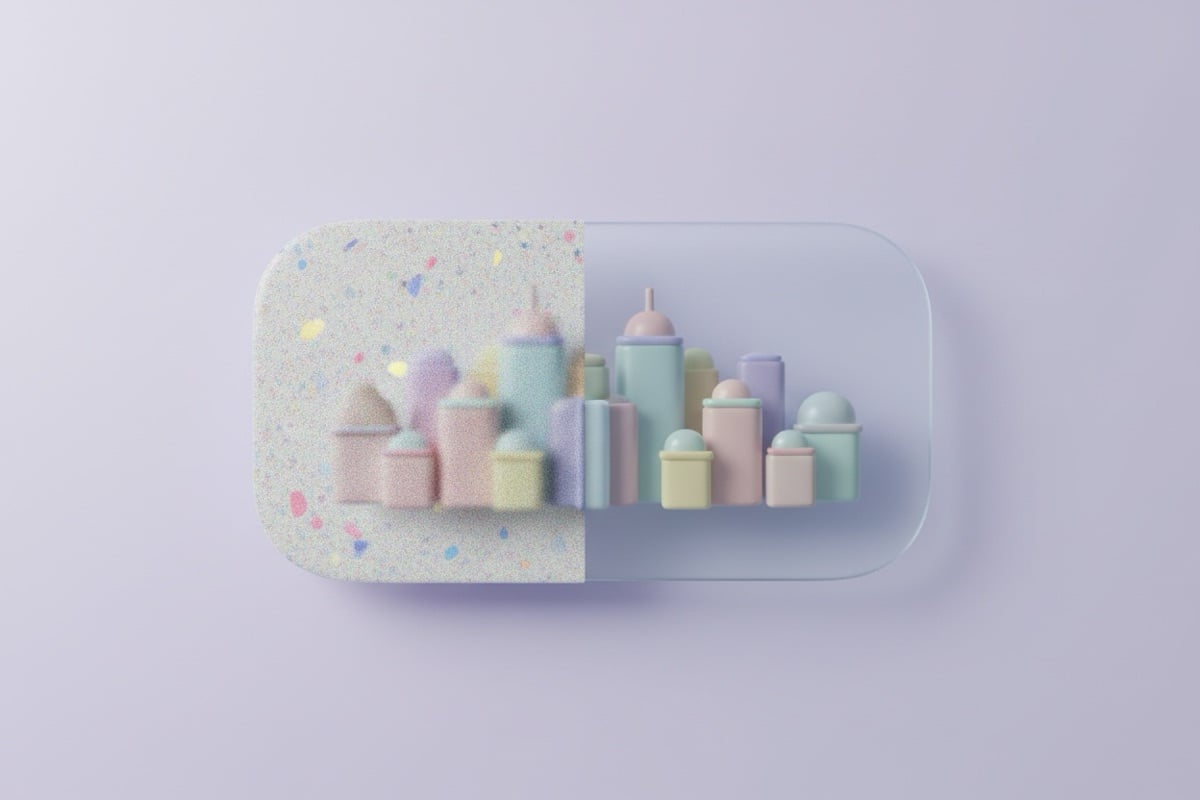
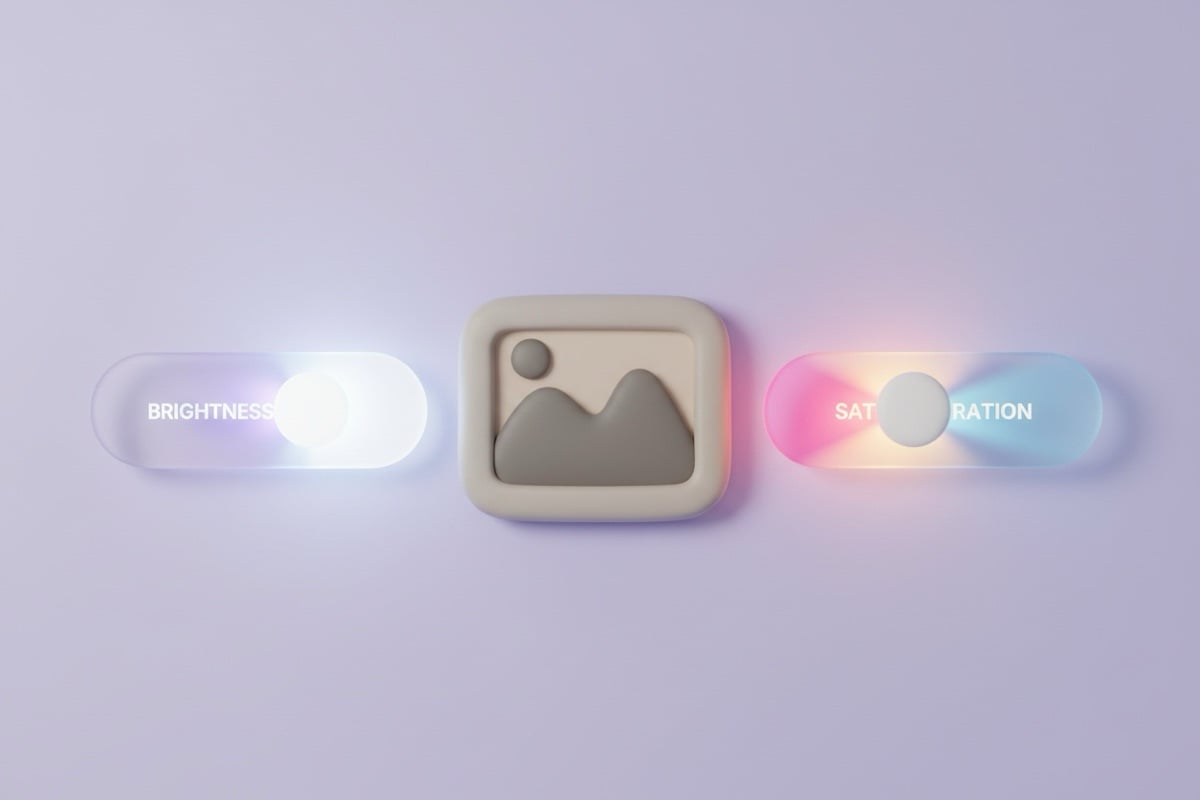
A classic photo editor gives you sliders: exposure, contrast, saturation, sharpening. You move each one and judge the result. An AI image enhancer does the same job in one pass. The model looks at the whole picture, decides what is wrong with it (soft focus, flat light, muddy color, compression blotches) and produces an improved version.
PicX sends your photo to an AI image model with a strict instruction: improve sharpness, clarity, lighting and color balance, but keep the subject, composition and content unchanged and natural-looking. That last part matters. You want to enhance photo quality, not get a different photo back.
Enhance vs upscale vs denoise vs sharpen
These tools overlap, so pick by the problem you see. If more than one applies, enhance first, then upscale.
| Problem | Best tool | What it changes |
|---|---|---|
| Photo looks dull, soft or badly lit | Image enhancer | Overall quality at roughly the same size |
| Image is too small for print or a big screen | Image upscaler | Resolution (more pixels) |
| Grain or speckle from low light | Image denoise | Noise, while keeping edges |
| Slightly blurry edges only | Image sharpen | Edge contrast, runs in your browser |
Tips to improve image quality before you upload
The AI works from what is in the file, so give it the best version you have.
- Upload the original, not a screenshot of it or a copy saved from a chat app. Messaging apps compress photos heavily.
- Crop out what you don't need first. The model spends its effort on the part you keep.
- Don't expect a fully out-of-focus face to become sharp. Enhancement improves what's there; it can't recover detail the camera never captured.
- Check faces and text in the result before you publish. AI can smooth fine detail, so compare the before and after.