
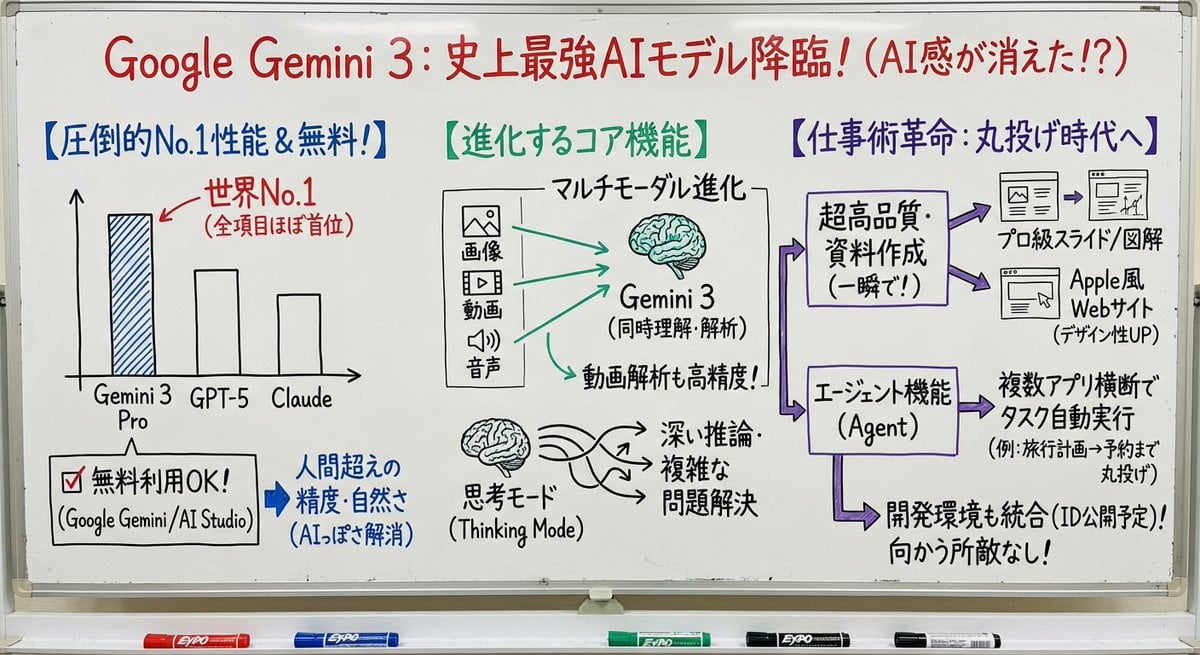
Professor explaining content on a whiteboard
A reusable ‘whiteboard prompt’ that turns pasted text into an image of a professor explaining the core ideas on a whiteboard with diagrams, arrows, boxes, captions, and color.
- Prompt included
- Model and format preset
- Free template
The prompt behind this image
Copy the exact prompt behind Professor explaining content on a whiteboard, or open it in the studio and make it yours.
nano banana proを使って日本語にて教授がホワイトボードで説明しているイメージに変換してください。図や矢印、ボックス、キャプションを使って、コアとなるアイデアを視覚的に説明してください。色も使ってください。
How to use Professor explaining content on a whiteboard in 3 steps
- 1
Open
The prompt is already in the box next to the preview, with the template's model and format selected.
- 2…a portrait of your subject in softgolden-hour light, 85mm…
Personalize
Edit the subject and creative details for your destination.
- 3Generate
Generate
Press Generate — your image is created in PicX Studio, so you can compare it with the original and refine one variable at a time.
More like this
Templates with the same subject, style or setup. Open one to see its prompt.
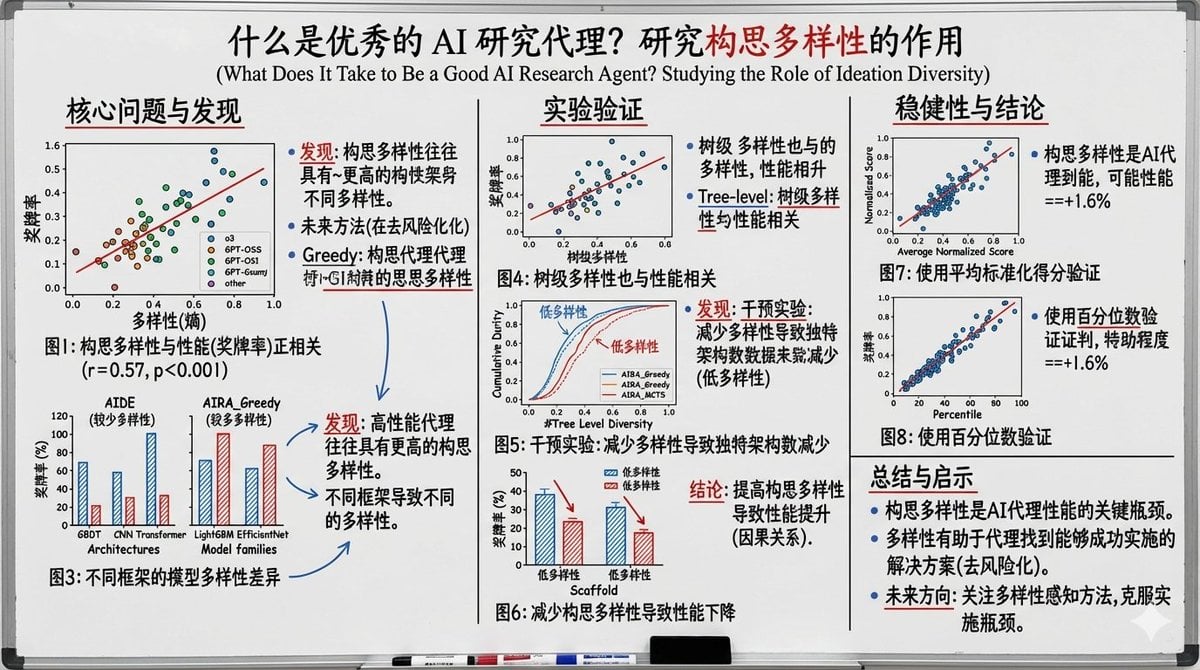
Whiteboard-style slide explaining a research paper
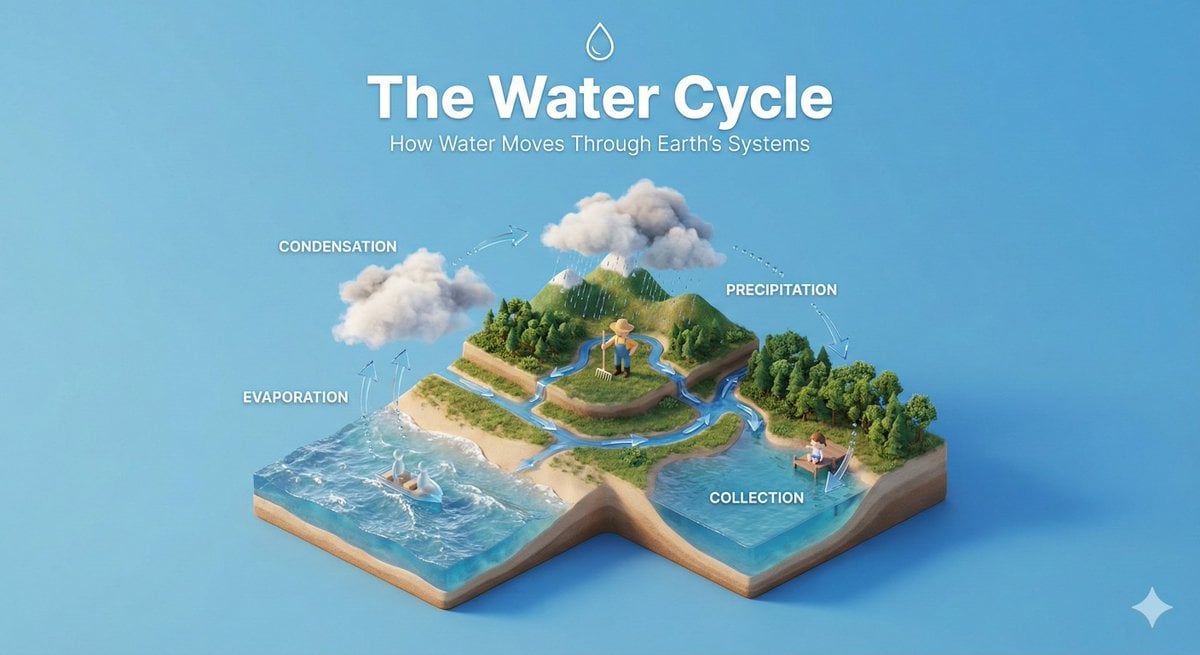
Clear, 45 top-down isometric miniature 3D educational diorama explaining
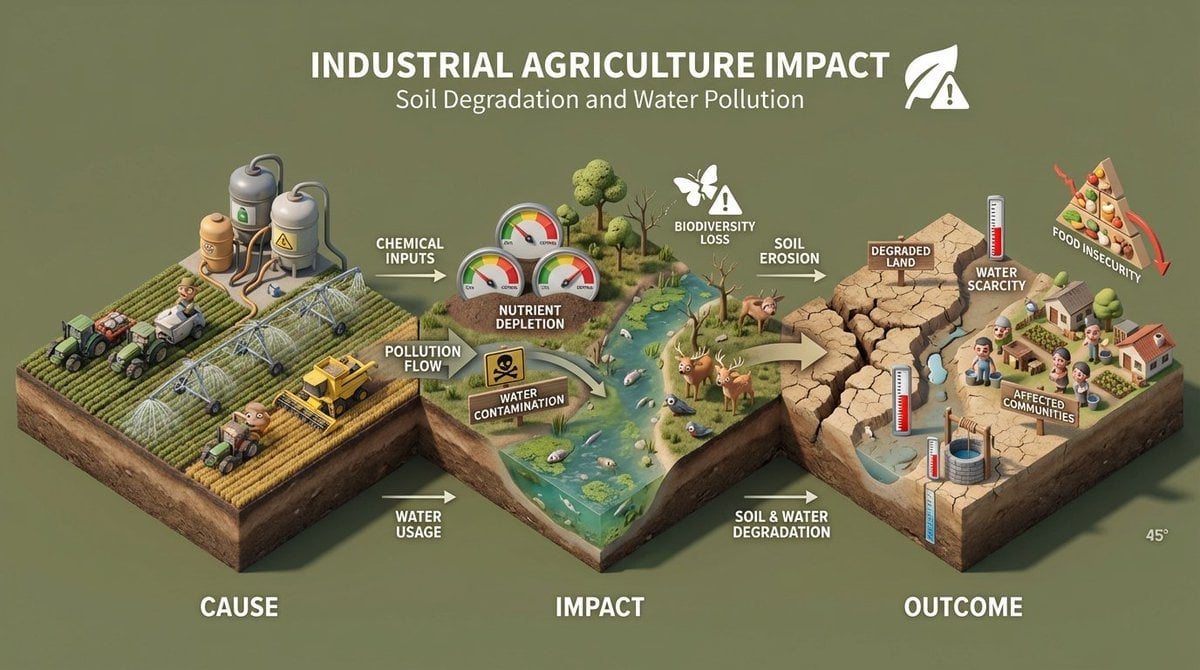
Build an isometric miniature 3D diorama explaining the environmental
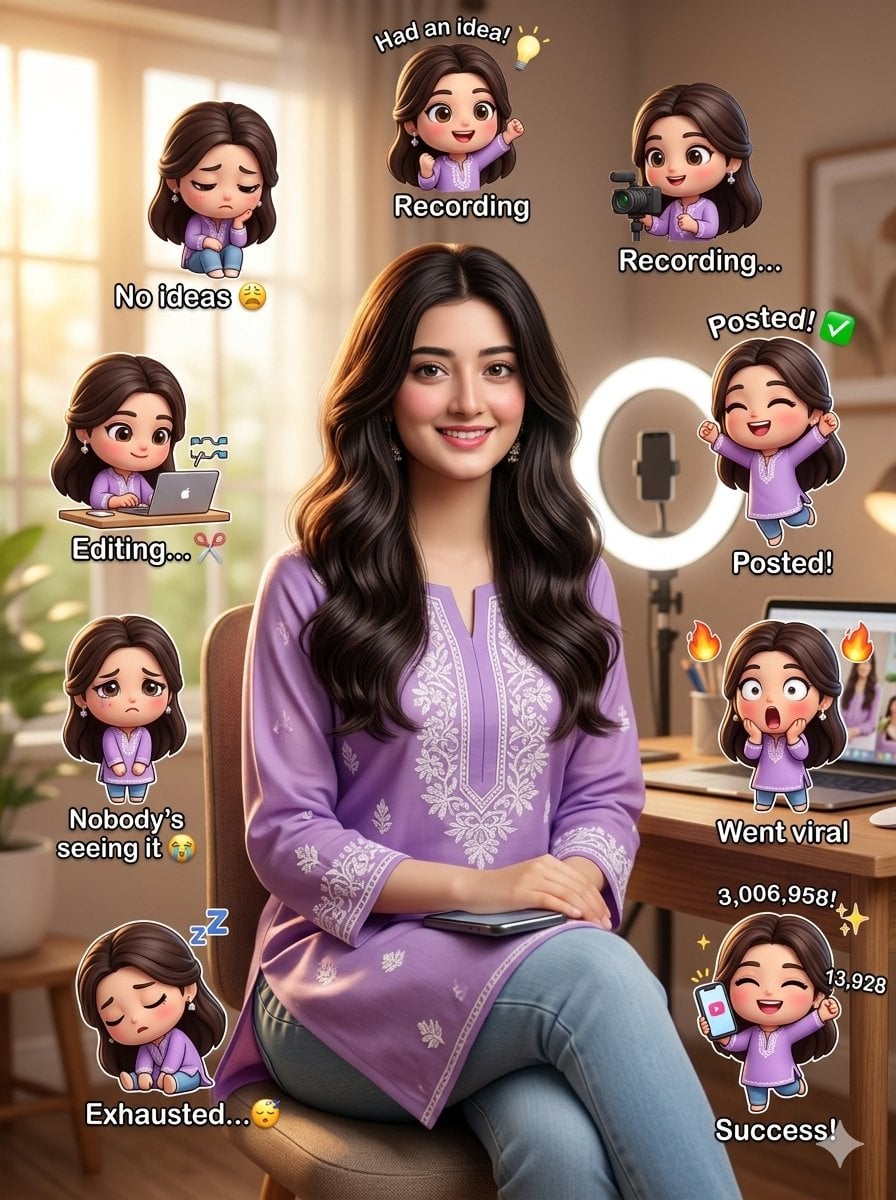
Content creator journey infographic
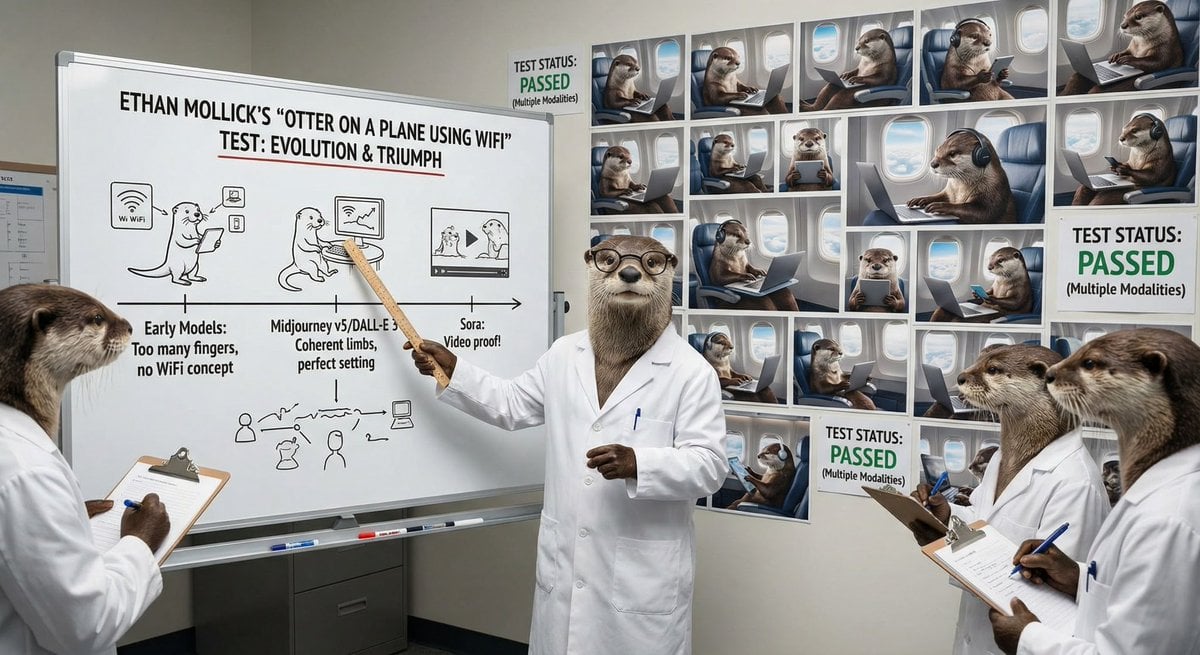
Otter scientists explaining the WiFi plane test
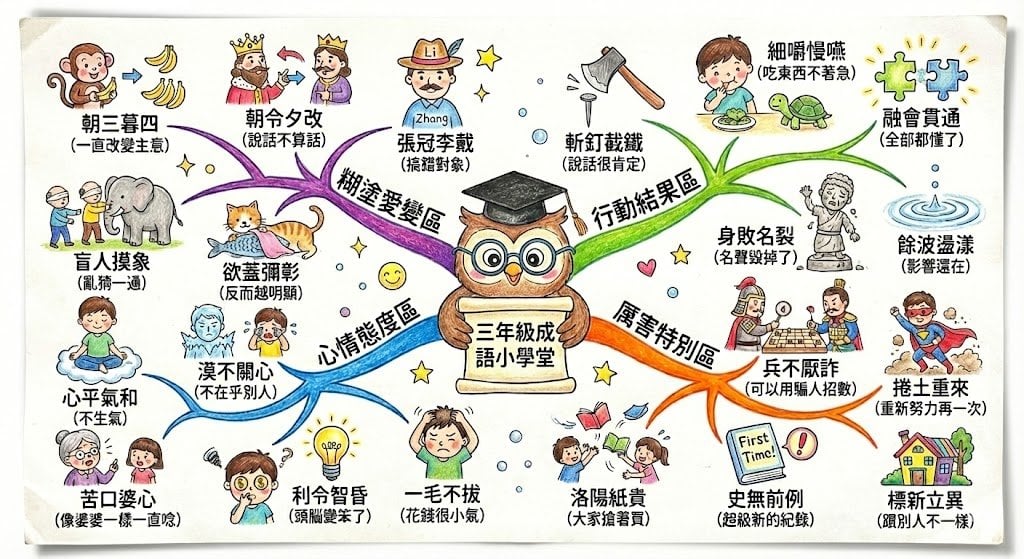
Hand-drawn mind map for explaining Chinese idioms
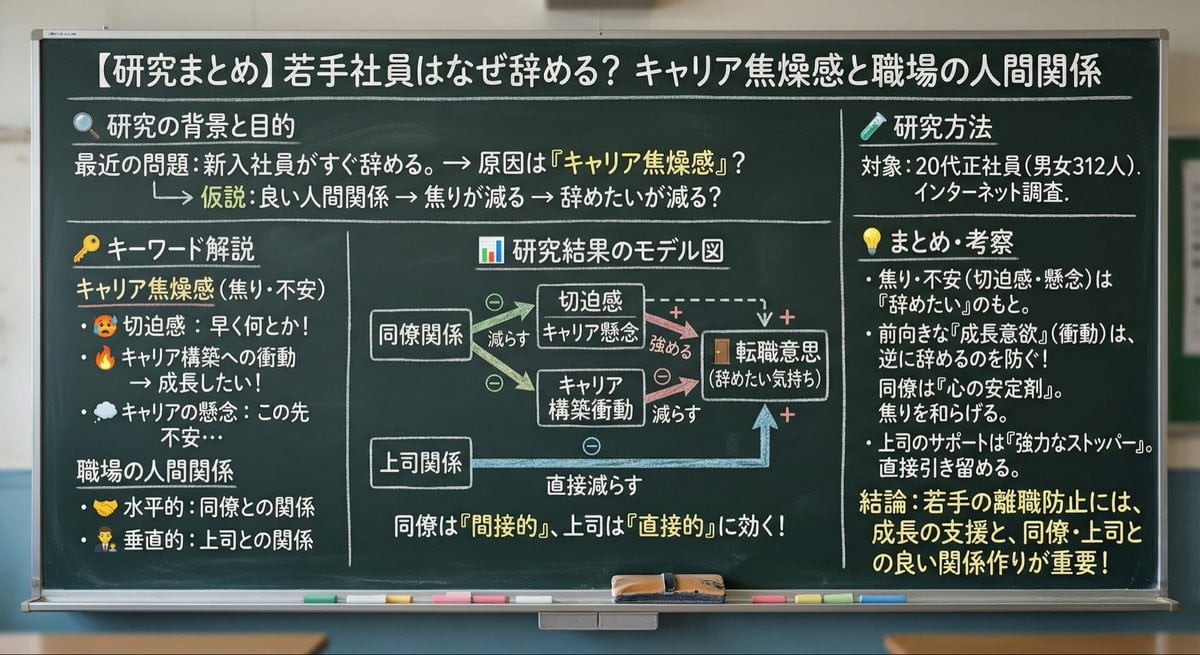
Blackboard summary of pasted content
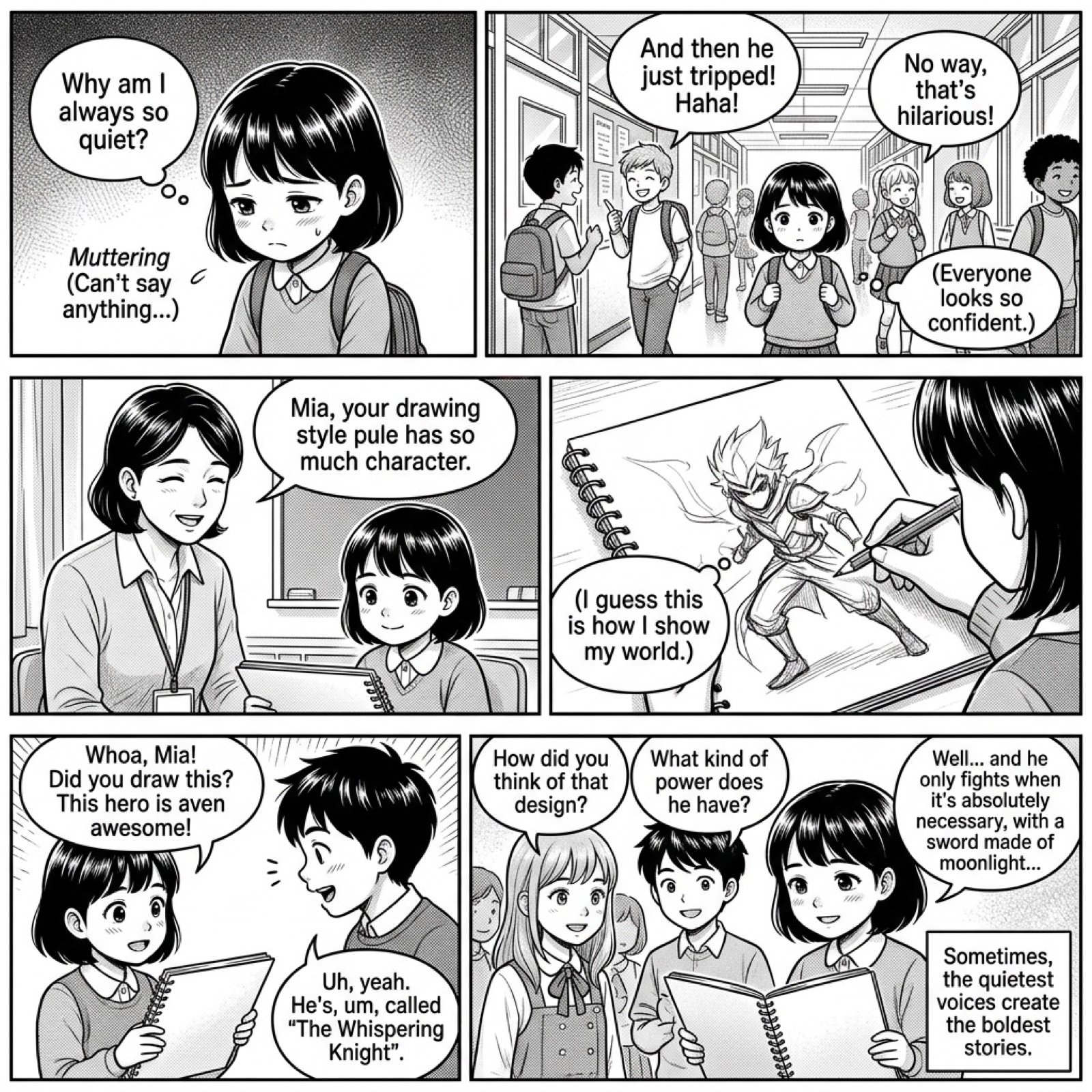
Add dialogue to a manga based on its content
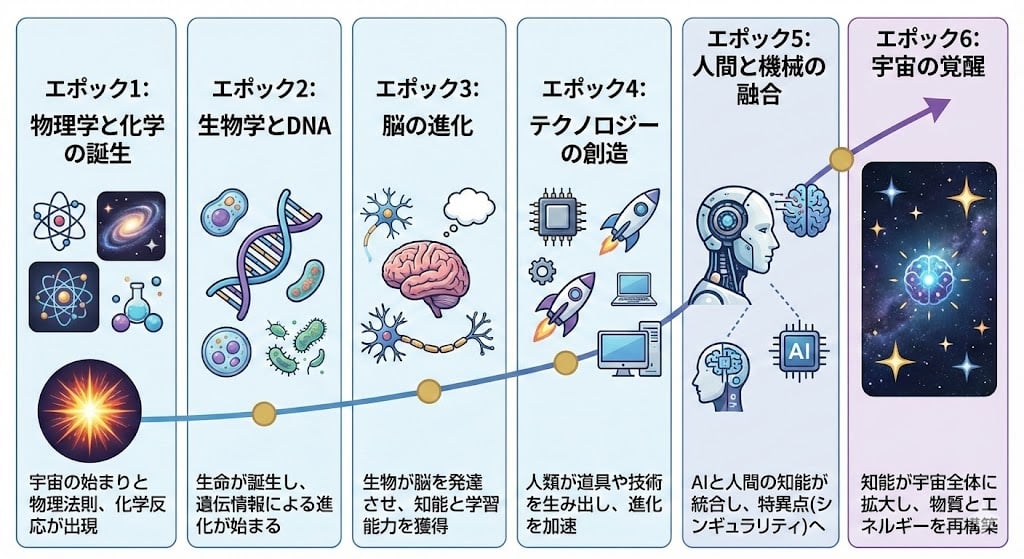
Illustration explaining Kurzweil’s six epochs in Japanese
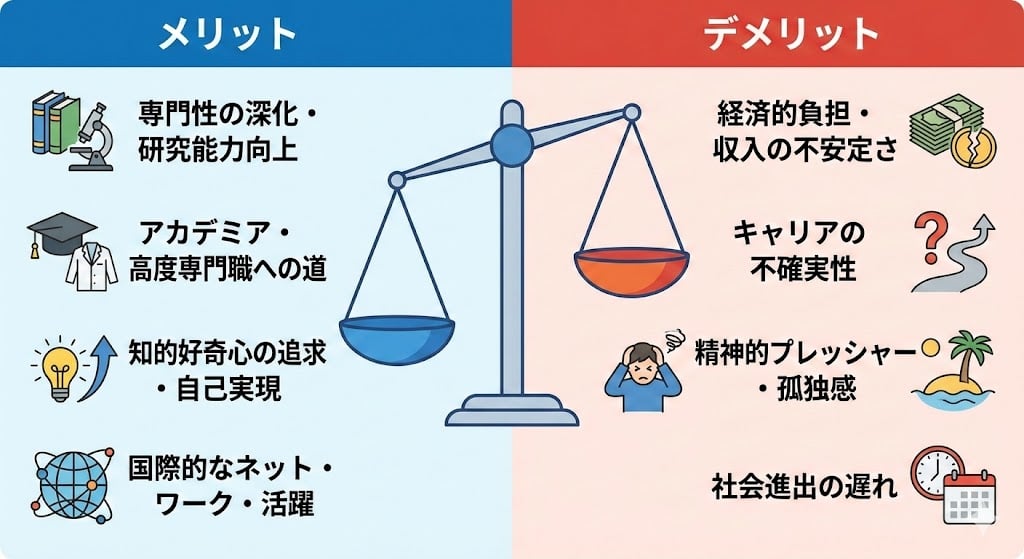
Diagram explaining pros and cons of D-course graduate study

Thumbnail design prompt for articles or content
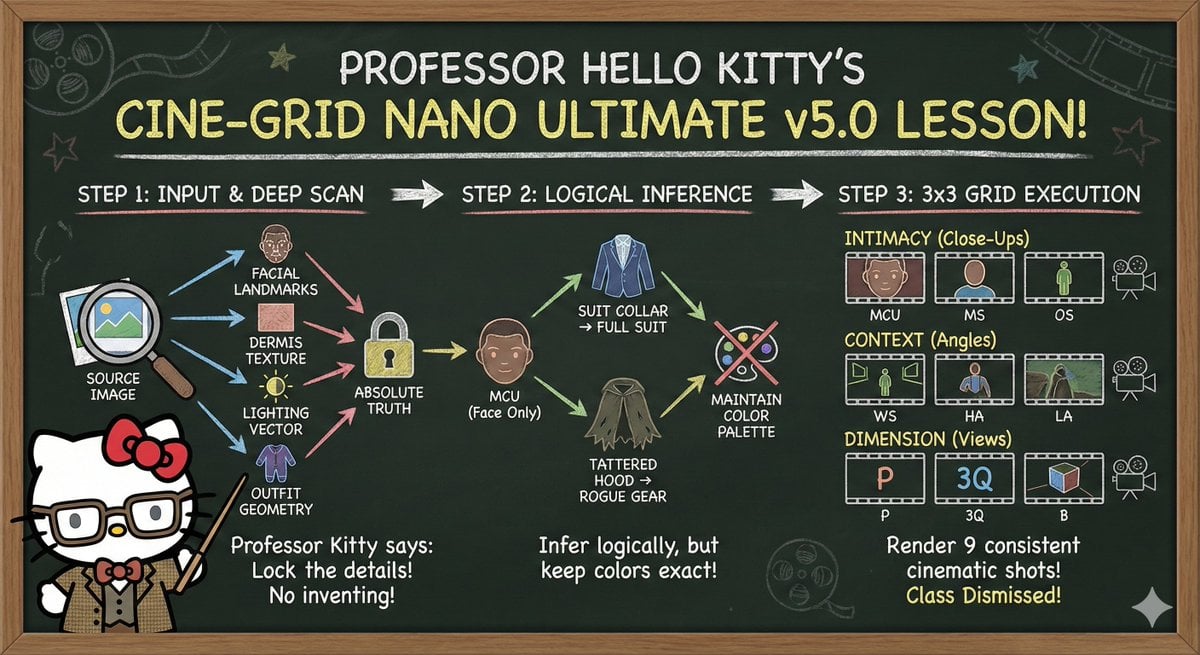
Informative Page Generation Prompt (Professor Hello Kitty)
Make it yours
Professor explaining content on a whiteboard works as-is. These are the safest ways to change it without losing the look.
Change one field
Copy a single group, rewrite it, and generate again so you can see what that field is doing.
Keep the frame, change the subject
Hold the composition and light of Professor explaining content on a whiteboard, then swap wardrobe, props or the person for a new take.
| If the result… | Why | Fix |
|---|---|---|
| The result drifts from the preview | Too many fields changed at once. | Reuse Professor explaining content on a whiteboard as-is first, then change one group — subject, light, or setting. |
| The model over-stylizes the scene | The prose prompt leaves finish and camera underspecified. | Add one camera or lighting sentence and stay on Nano Banana 2. |
More Nano Banana 2 templates
Other prompts made for Nano Banana 2.

Photorealistic Leaf Shaped Like a Dragon

K-Pop Idol Portrait Grid for Rapid Selection

Poetic Rain Forest Portrait During Golden Hour

Urban Street Portrait with Cartoon Inner Self Duo

Candid Nighttime Photo with Cat Prompt

High-Concept 3D Diorama Generation Prompt

Cinematic Futuristic Studio Portrait Template

Skincare Editorial Photography Collage Prompt

Hyper-Realistic Commercial Product Photography (Splash Effect)

Hyper-Realistic Nightclub Portrait Prompt
More image prompts
Fresh picks from across the catalog.
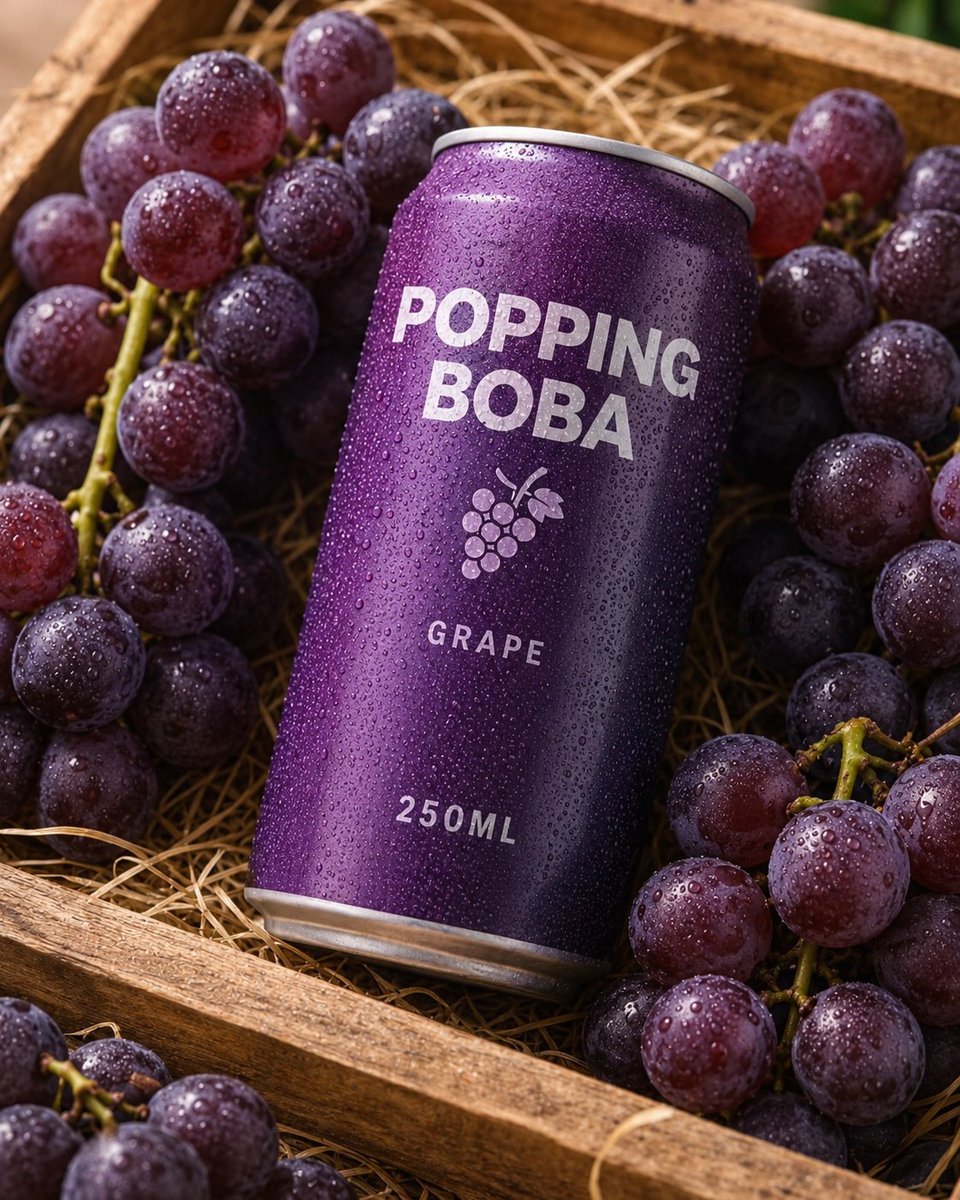
Splash Hero Beverage Photography

Elegant beauty in luxury lounge

Alpine Snow Portrait with Trapper Hat
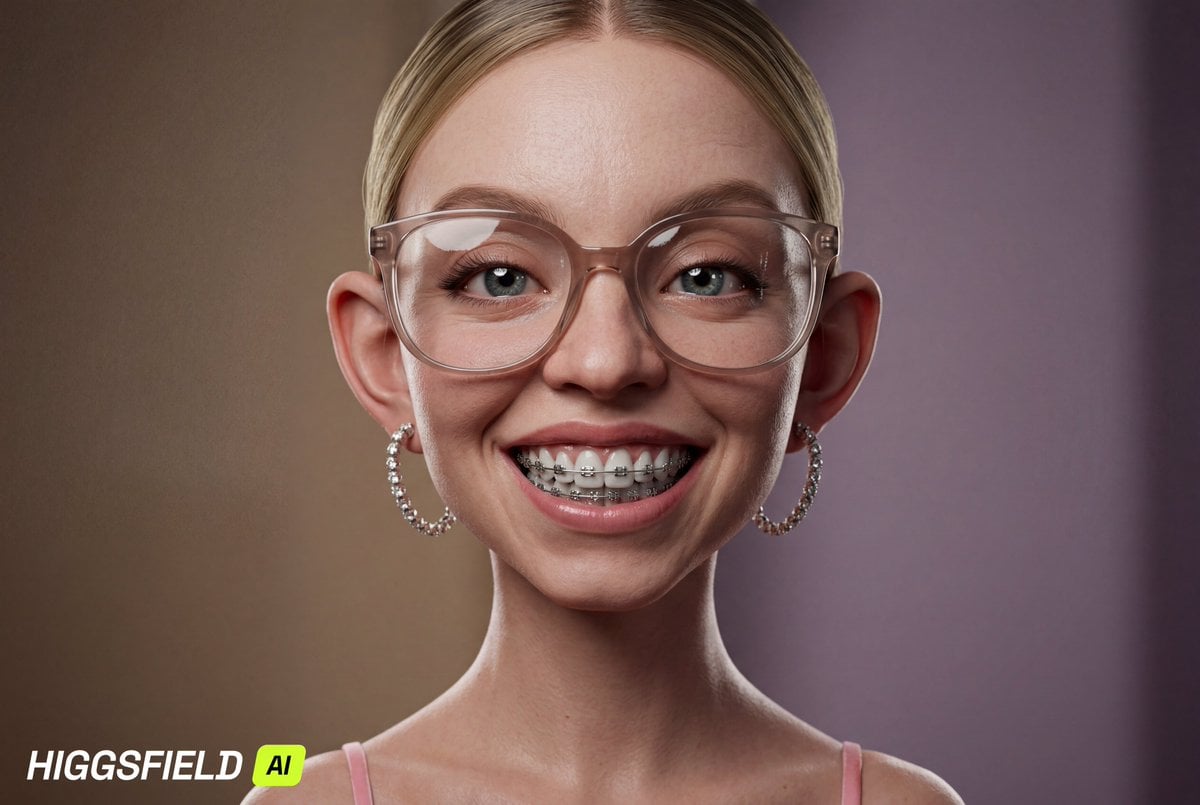
Hyper-Realistic 3D Caricature with Extreme Exaggeration
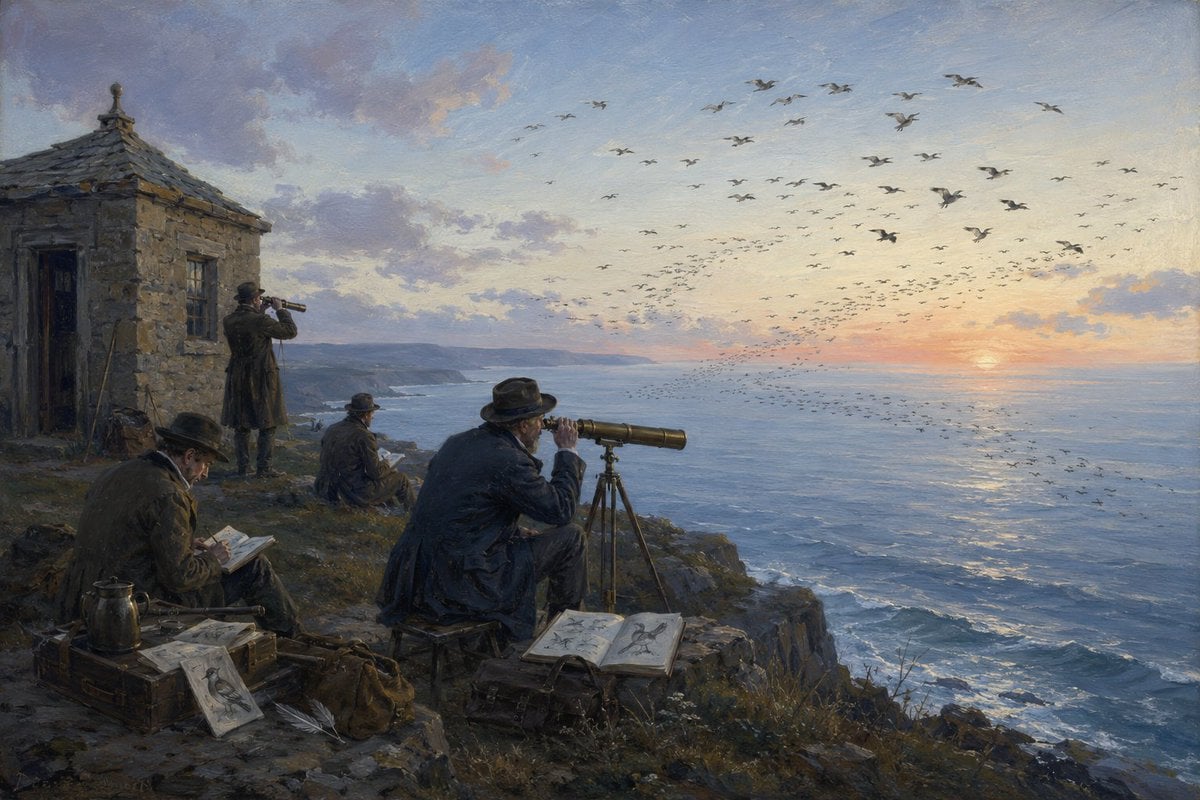
Victorian Coastal Birdwatchers

Japanese AI Clinic Billing Statement
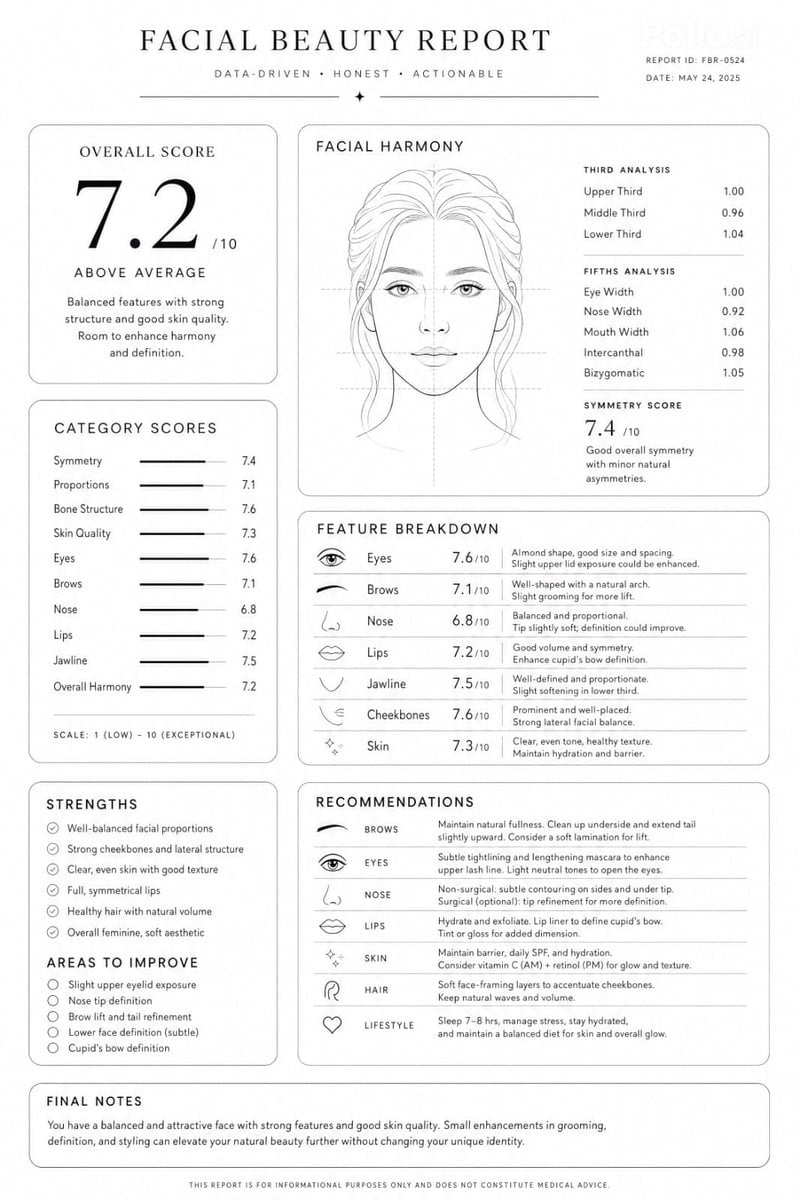
Facial Beauty Analysis Report Layout
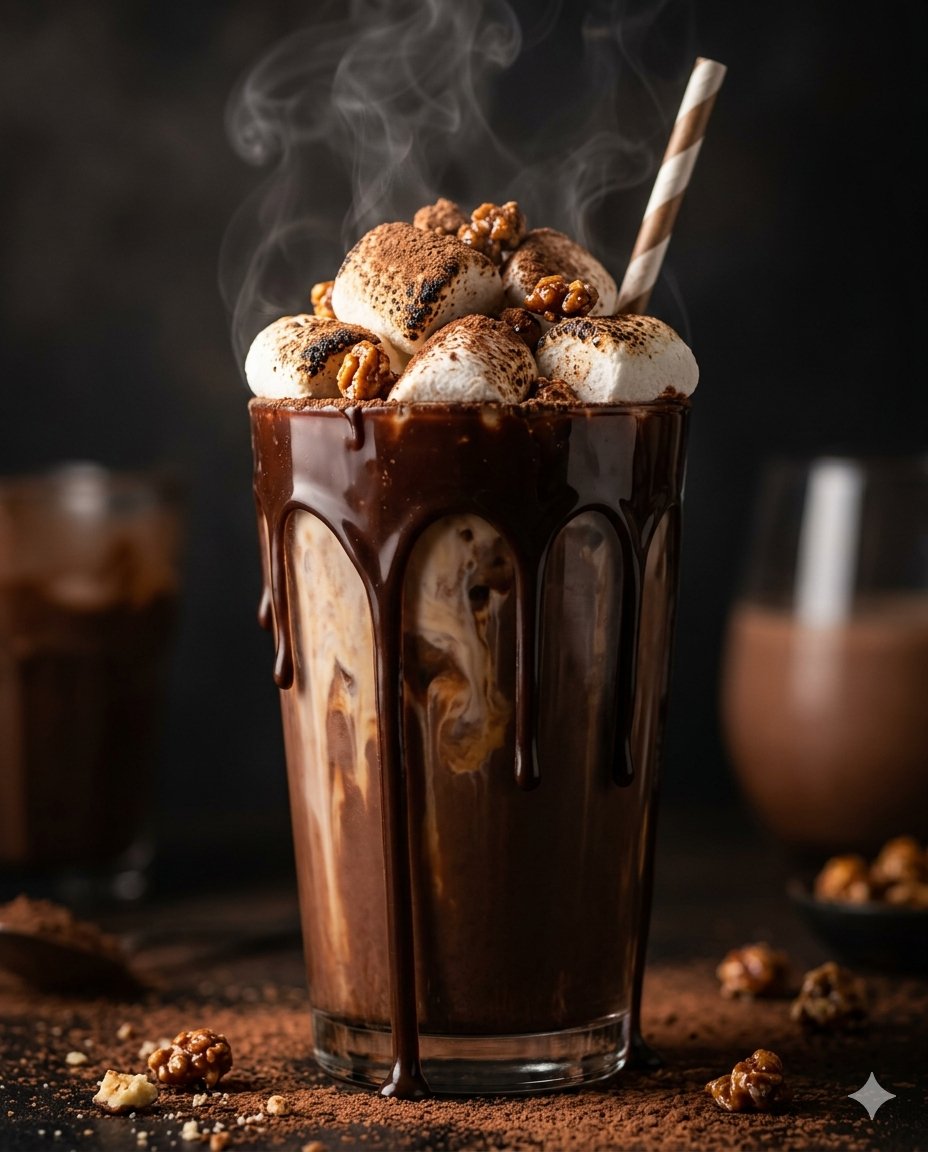
Editorial Food Photography of Chocolate Brownie Stack
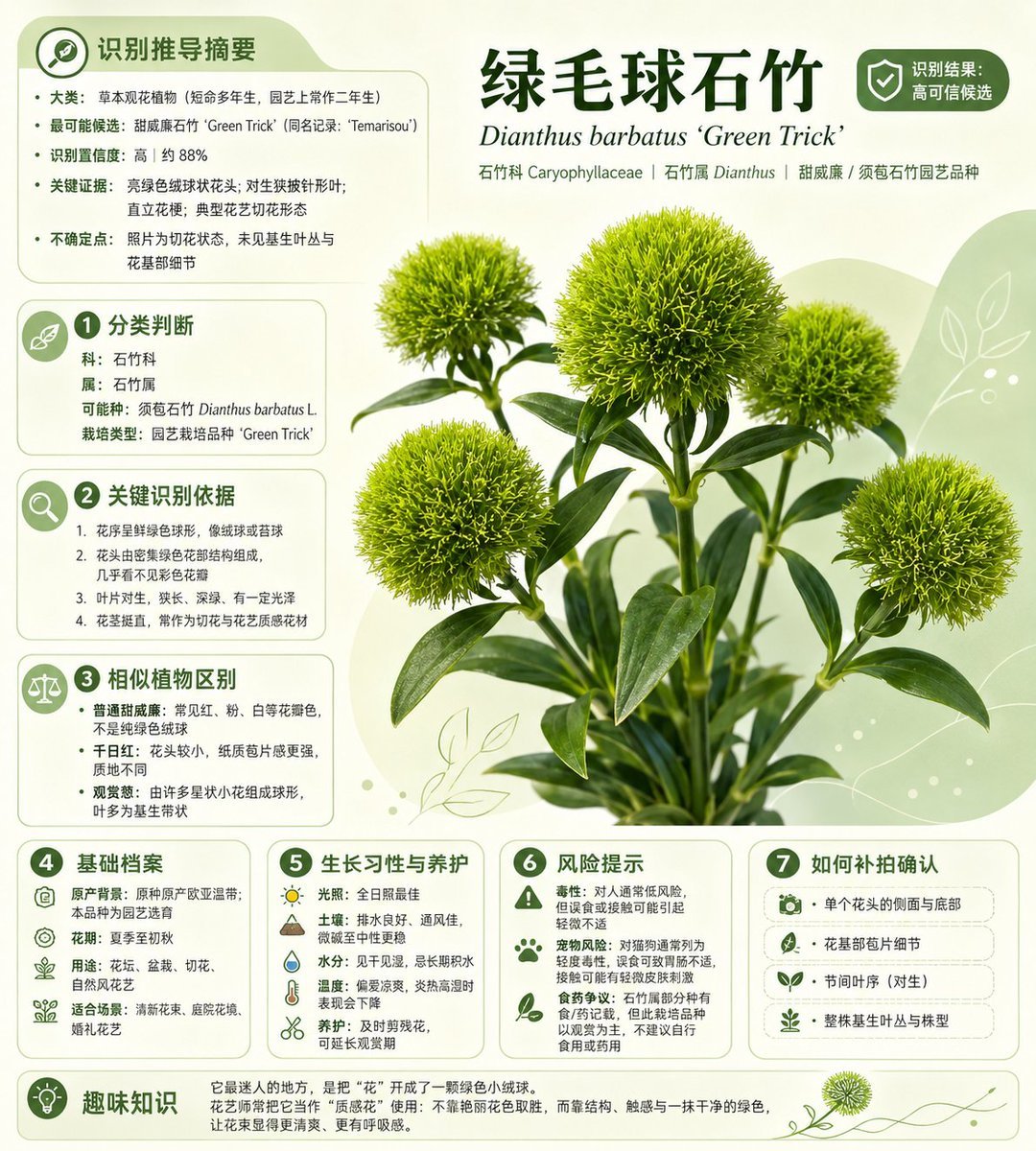
Chinese Plant ID Infographic

Gym Besties Mirror Selfie
Browse template categories
Professor explaining content on a whiteboard questions
How do I use the Professor explaining content on a whiteboard template?
Add your photo if the template asks for one, edit the prompt if you like — the template's model and format are already selected — and press Generate. Your version opens in PicX Studio.
Can I customize the Professor explaining content on a whiteboard template?
Yes. You can change the subject, setting, lighting, mood, format, and available model controls before creating your image.
Is the Professor explaining content on a whiteboard template free?
Opening and editing this template is free. Generating uses credits, shown on the Generate button when you are signed in.
Which AI model should I use?
Start with Nano Banana 2, which is the model associated with this template. You can compare another compatible model for a different finish.
Looking for something else? Browse all templates.

Your photo, any look
Thousands of ready templates for every top image and video model, from one credit balance.