
Chinese Plant ID Infographic
Generates a polished Chinese plant-identification poster from a reference plant photo, suitable for botanical apps, social sharing, or care guides.
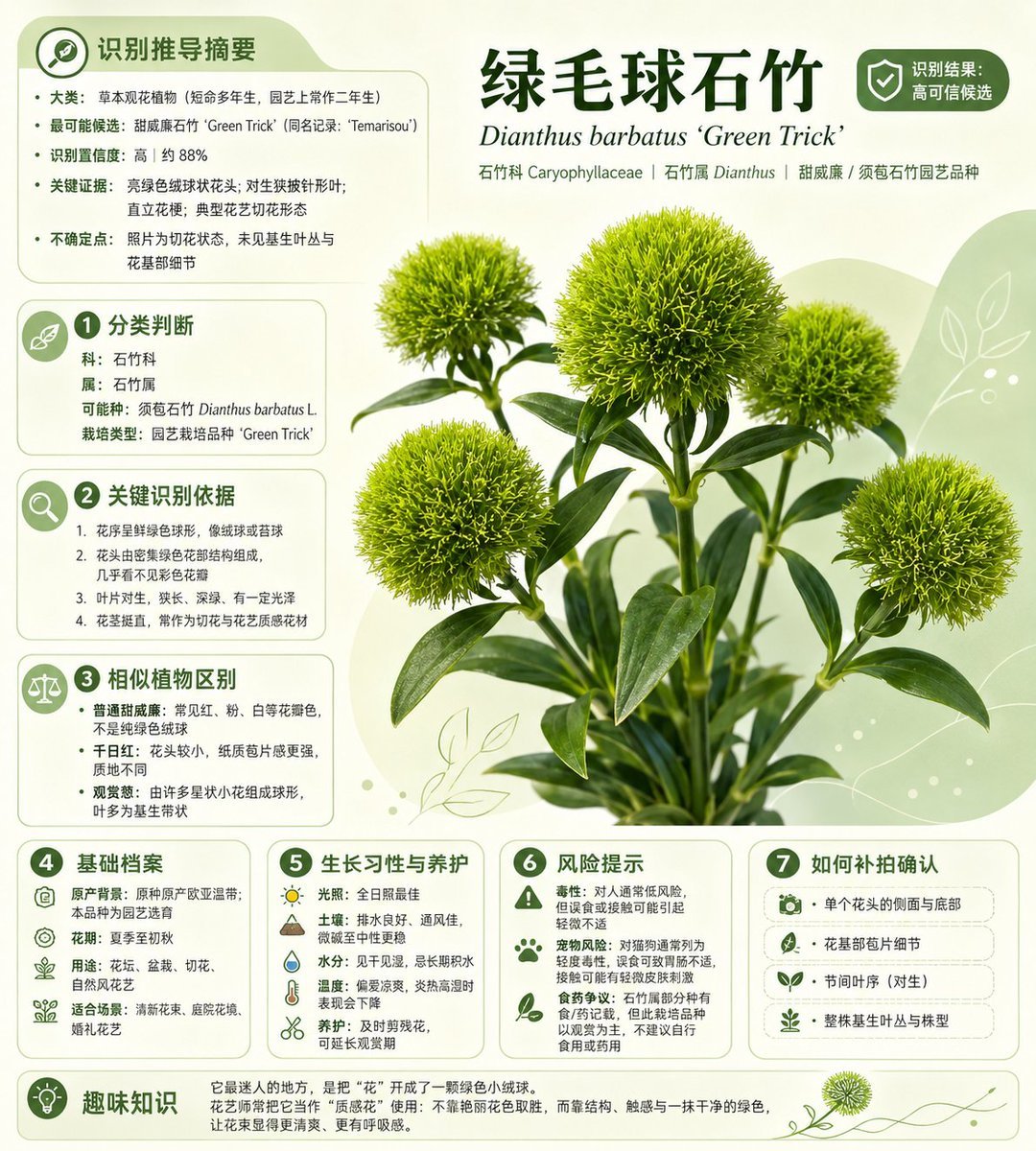
- Prompt included
- Model and format preset
- Free template
The prompt behind this image
Copy the exact prompt behind Chinese Plant ID Infographic, or open it in the studio and make it yours.
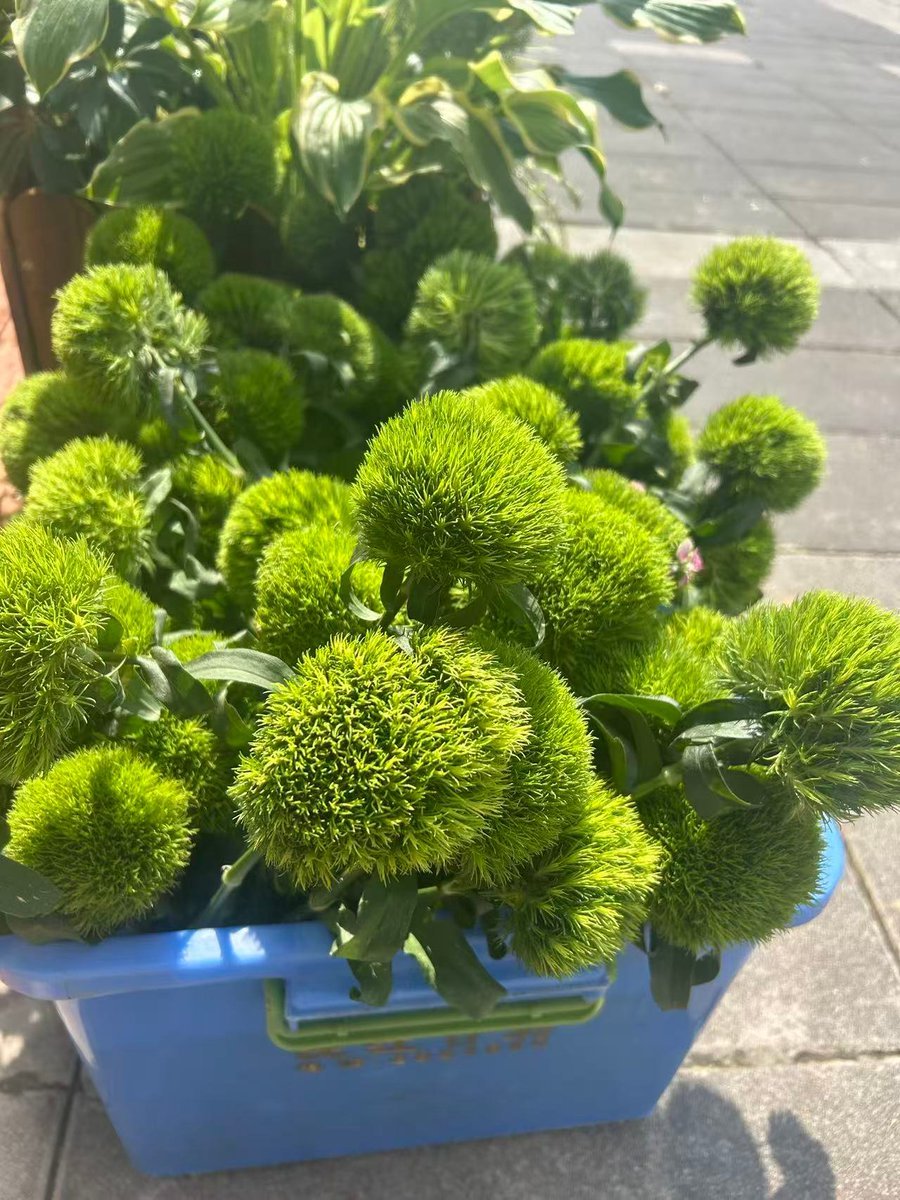
Using the provided reference photo as the source plant, transform it into a clean plant-identification infographic poster. Isolate the fuzzy green spherical Dianthus stems from the busy street/florist background, retouch them into a crisp studio botanical cutout, and place them on a soft pale green botanical layout with rounded information cards, leaf-line decorations, small green icons, and a trustworthy plant-app aesthetic. Use Simplified Chinese typography. Main headline: {argument name="headline text" default="绿毛球石竹"}; Latin name subtitle: {argument name="latin name" default="Dianthus barbatus ‘Green Trick’"}; show a confidence badge at the upper right reading high-confidence identification. Add exactly 9 content panels: 1 top-left identification recommendation summary, 2 classification judgment, 3 key identification evidence, 4 similar plant distinction, 5 basic file, 6 growth habits and care, 7 risk warning, 8 how to confirm, and 9 bottom fun-fact strip. Keep the infographic text dense but neatly aligned, with numbered green circle markers for panels 2 through 8, icons matching each topic, and the plant image as the central visual focus. Plant identity to present: {argument name="identified plant" default="Dianthus barbatus ‘Green Trick’, also called Green Trick"}; family/genus line: {argument name="taxonomy line" default="Caryophyllaceae | Dianthus | sweet william / Dianthus barbatus horticultural cultivar"}.
Reference images included
Chinese Plant ID Infographic needs input media to work. They load alongside the prompt when you open it in the studio.
How to use Chinese Plant ID Infographic in 3 steps
- 1Upload ImagePNG, JPG or paste
Add your photo
Upload the photo the template builds on. The prompt, model and format are already set.
- 2…a portrait of your subject in softgolden-hour light, 85mm…
Personalize
Edit the subject and creative details for your destination.
- 3Generate
Generate
Press Generate — your image is created in PicX Studio, so you can compare it with the original and refine one variable at a time.
More like this
Templates with the same subject, style or setup. Open one to see its prompt.
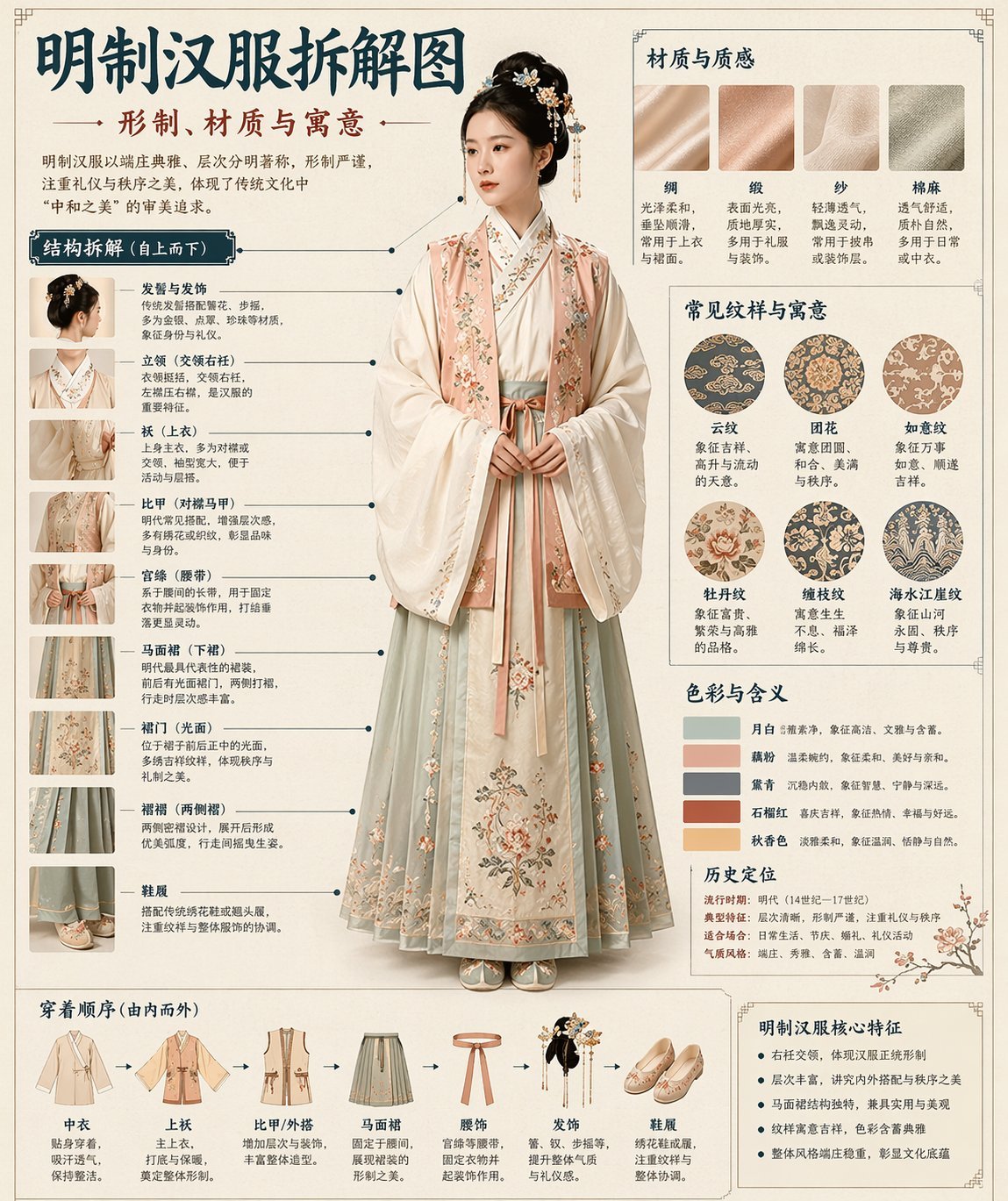
博物馆图鉴式汉服拆解图 — GPT-image-2

Japan Travel Brochure Poster

Isometric Process Educational Diorama

Isometric Vehicle Teardown Infographic Template

Gpt2 E Commerce Main Image Earbuds E Commerce Infographic
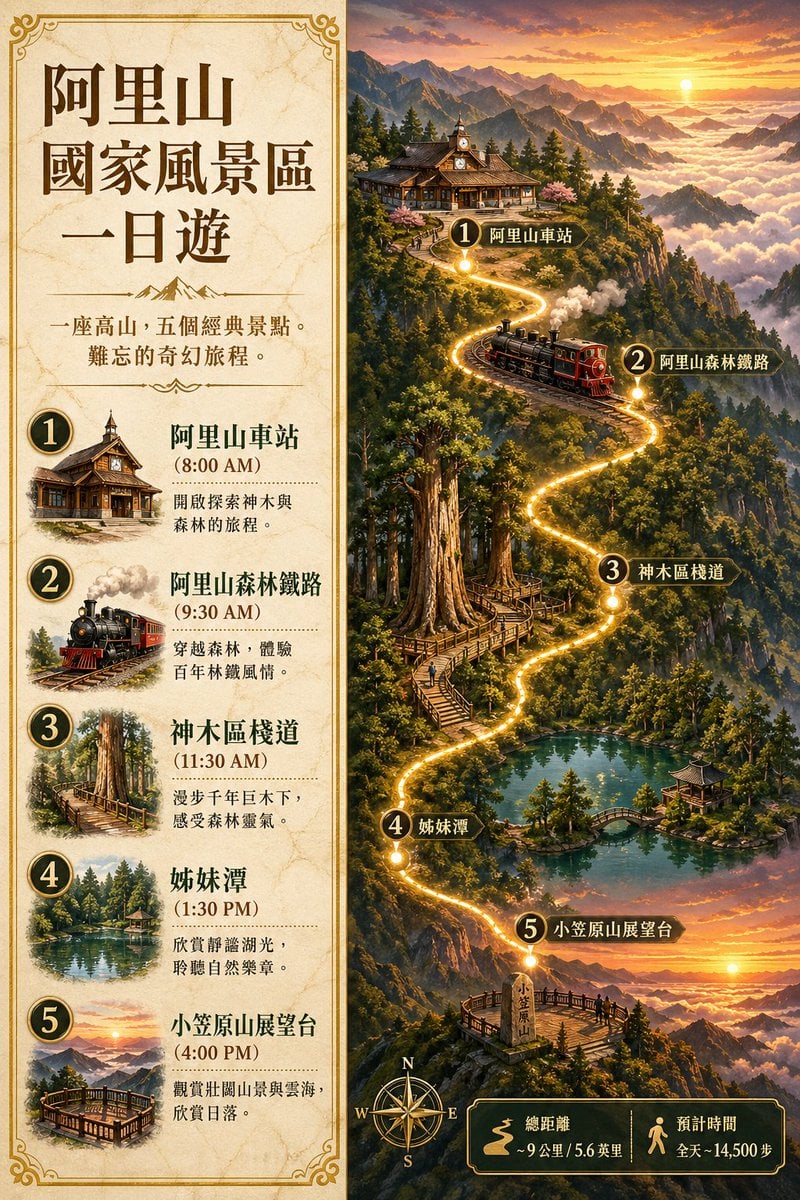
Gpt2 Infographic Edu Visual Alishan One Day Travel Poster

Gpt2 Infographic Edu Visual Ethnographic Plate for Tibetan Ceremonial Hat
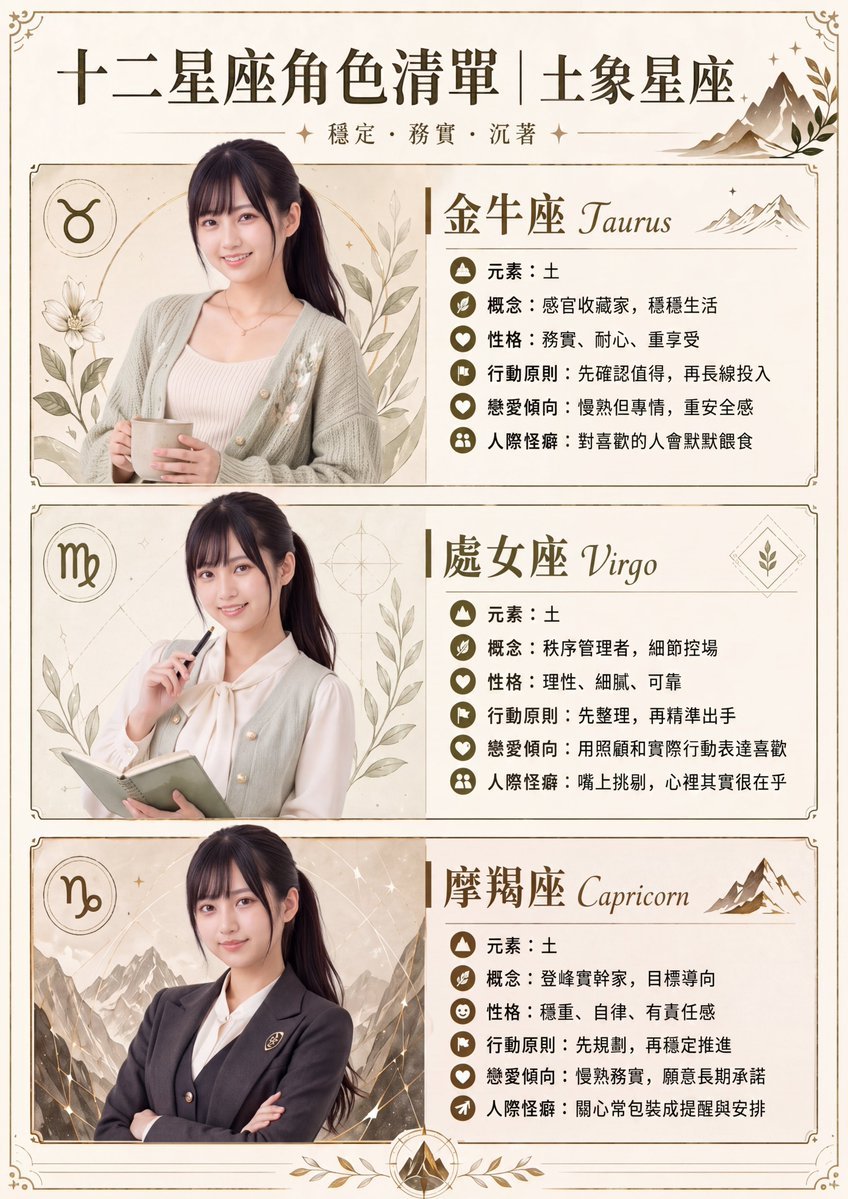
Gpt2 Infographic Edu Visual Earth Signs Zodiac Character Poster
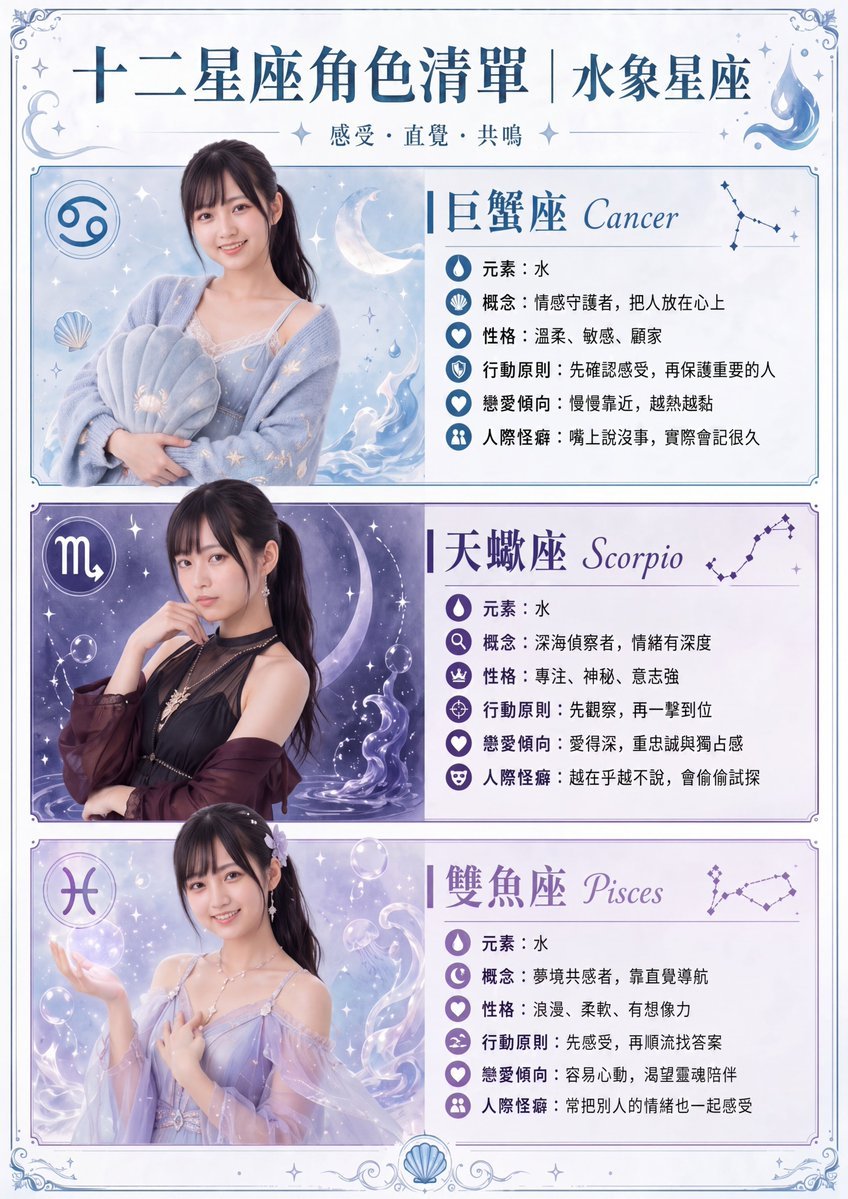
Gpt2 Infographic Edu Visual Water Signs Zodiac Character Poster
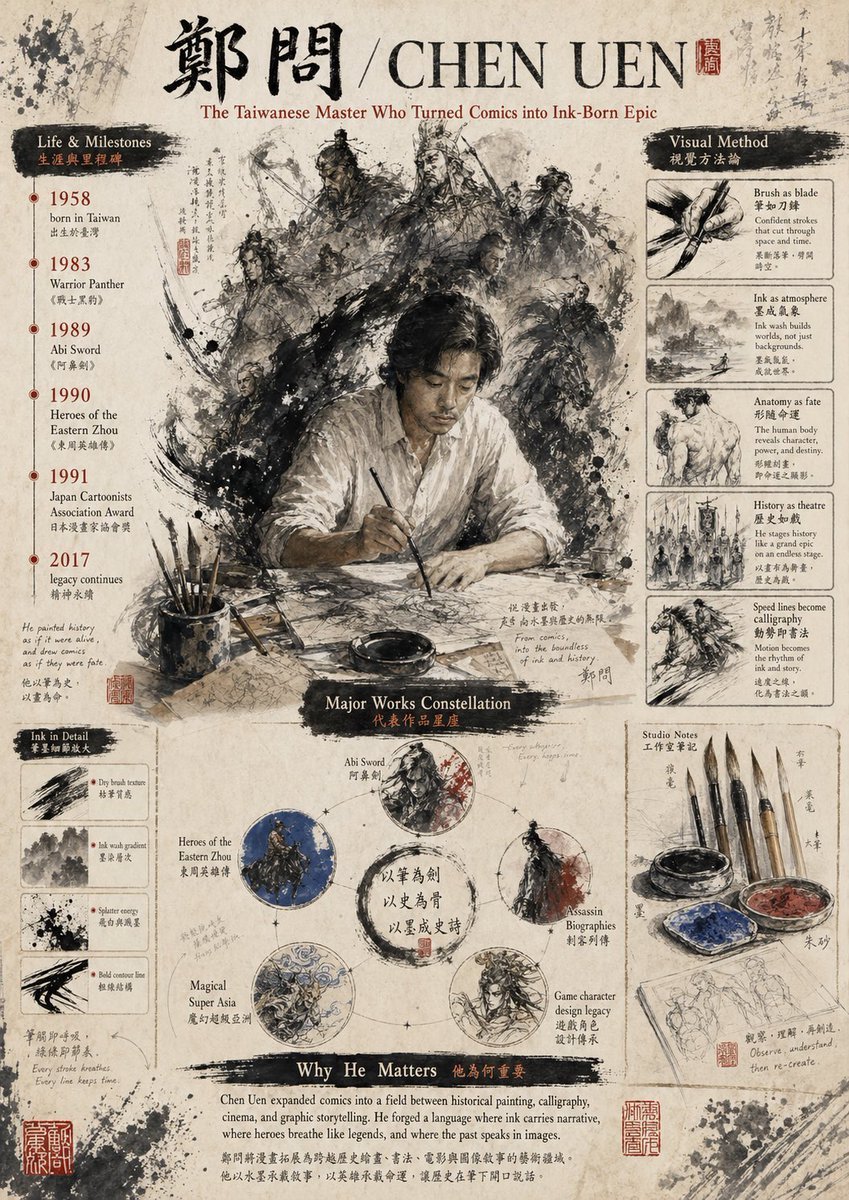
Gpt2 Infographic Edu Visual Ink Wash Tribute Poster for Chen Uen
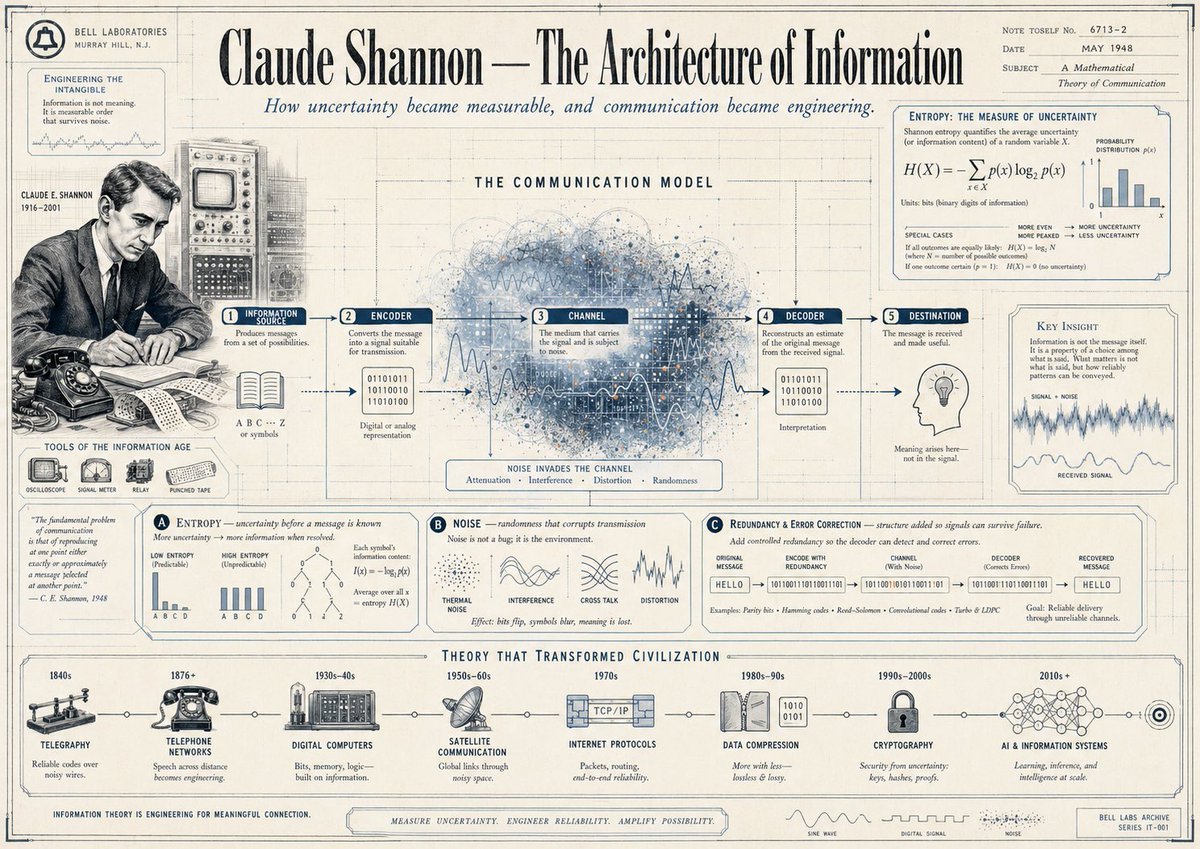
Gpt2 Infographic Edu Visual Vintage Claude Shannon Infographic Poster
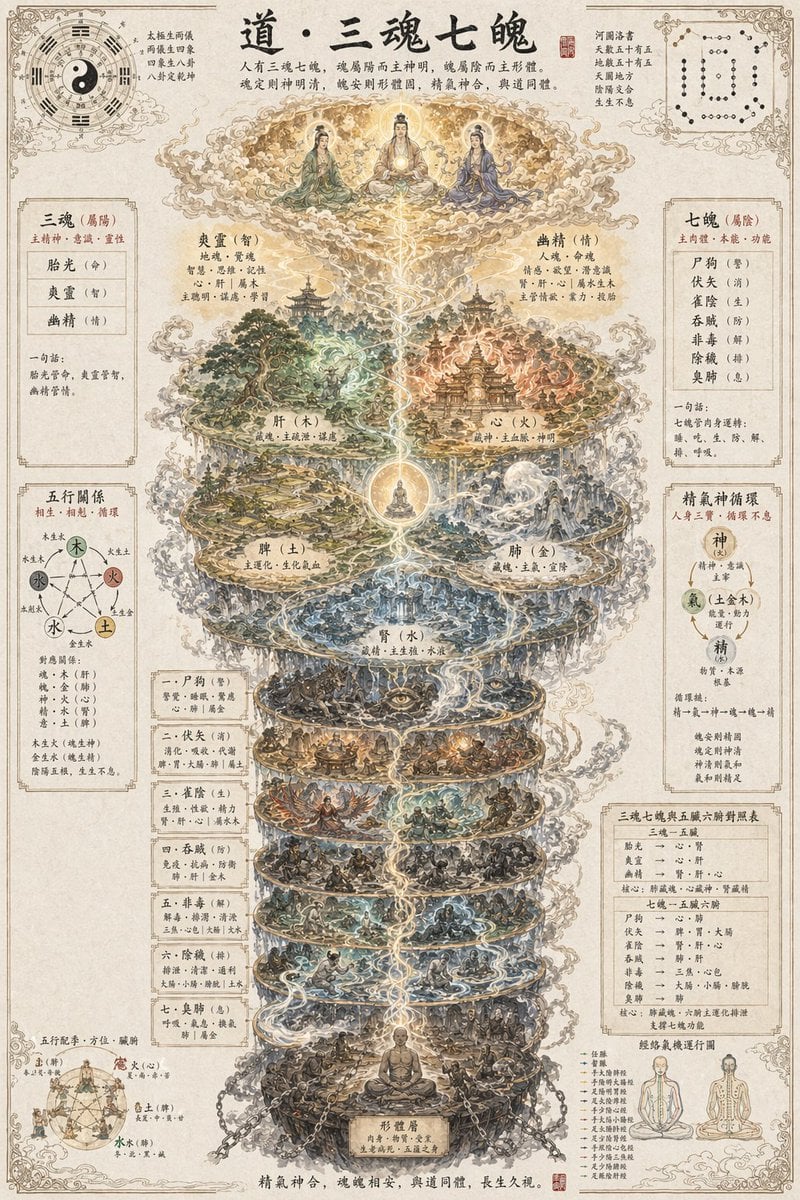
Gpt2 Infographic Edu Visual Taoist Three Souls Seven Po Poster
Make it yours
Chinese Plant ID Infographic works as-is. These are the safest ways to change it without losing the look.
Change one field
Copy a single group, rewrite it, and generate again so you can see what that field is doing.
Keep the frame, change the subject
Hold the composition and light of Chinese Plant ID Infographic, then swap wardrobe, props or the person for a new take.
| If the result… | Why | Fix |
|---|---|---|
| The result drifts from the preview | Too many fields changed at once. | Reuse Chinese Plant ID Infographic as-is first, then change one group — subject, light, or setting. |
| The model over-stylizes the scene | The prose prompt leaves finish and camera underspecified. | Add one camera or lighting sentence and stay on GPT Image 2. |
More GPT Image 2 templates
Other prompts made for GPT Image 2.

Six VTuber Japanese Logo Sheet

Realistic Portrait of Woman and Deer

The Vista Modular Condo Poster

AI Model Routing Comparison Infographic

2.5D Anime Art Board

Isometric Productivity Desk Scene

New York Double Exposure Poster

Four-Panel AI Landscape Comparison

Japanese Tatami Lifestyle Magazine Cover

NESCAFÉ Coffee Map Poster
More image prompts
Fresh picks from across the catalog.

2027 BMW iM3 Launch Poster

Cyber Angel Mecha Battle HUD
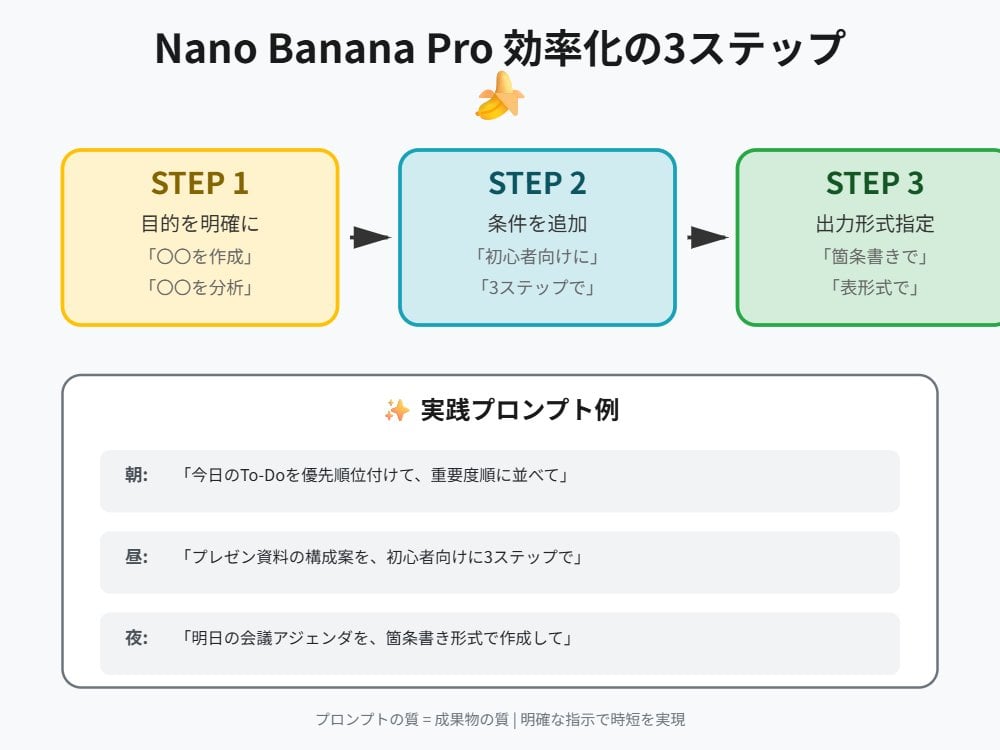
Nano Banana Pro Prompt Technique for Beginners

Pop-Art Graffiti Portrait

Cinematic Potato Chips Ad

High-Contrast Nightlife Portrait Prompt with Flash Photography Aesthetic

Cute Morning Greeting Figure Sticker

Taiwanese Nostalgic Travel Collage
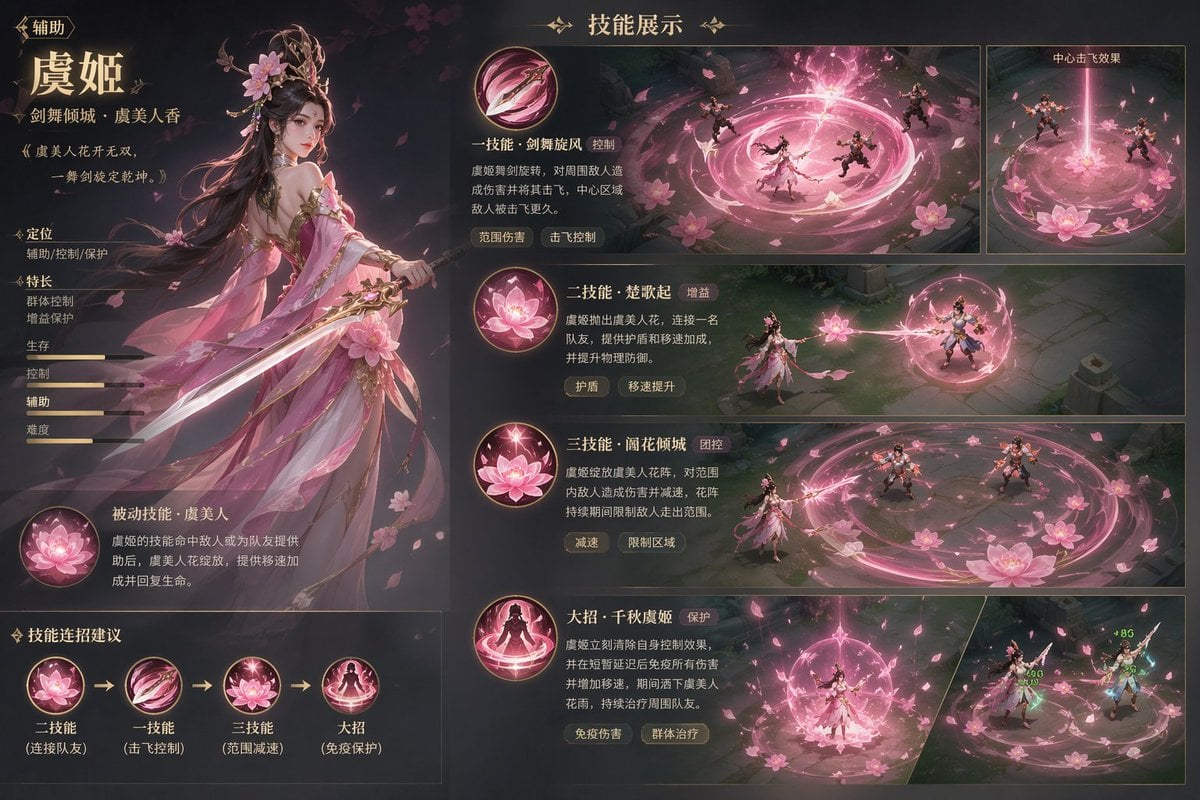
Game character skill concept prompt

Cinematic Street Photo in Neon Rain
Browse template categories
Chinese Plant ID Infographic questions
How do I use the Chinese Plant ID Infographic template?
Add your photo if the template asks for one, edit the prompt if you like — the template's model and format are already selected — and press Generate. Your version opens in PicX Studio.
Can I customize the Chinese Plant ID Infographic template?
Yes. You can change the subject, setting, lighting, mood, format, and available model controls before creating your image.
Is the Chinese Plant ID Infographic template free?
Opening and editing this template is free. Generating uses credits, shown on the Generate button when you are signed in.
Which AI model should I use?
Start with GPT Image 2, which is the model associated with this template. You can compare another compatible model for a different finish.
Looking for something else? Browse all templates.

Your photo, any look
Thousands of ready templates for every top image and video model, from one credit balance.