How do I use the Master Prompts on Vadoo AI template?
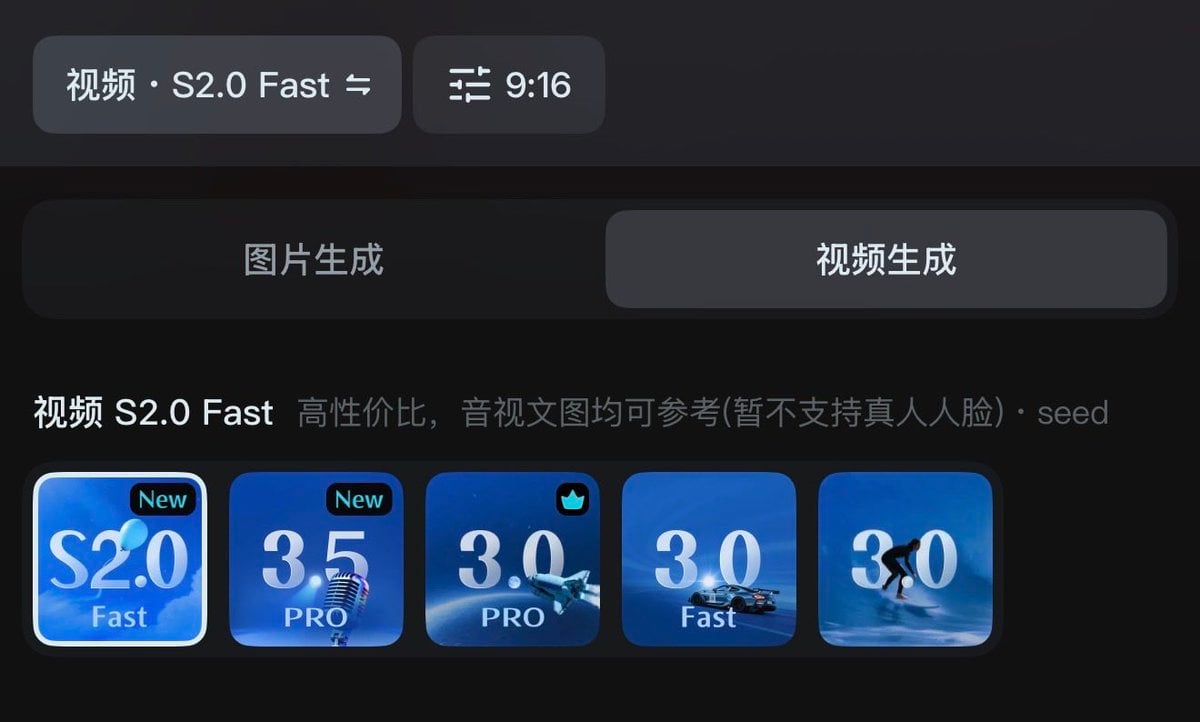
Edit the prompt in the box under the preview — the template's model and format are already selected — and press Generate. Your version appears right on this page.
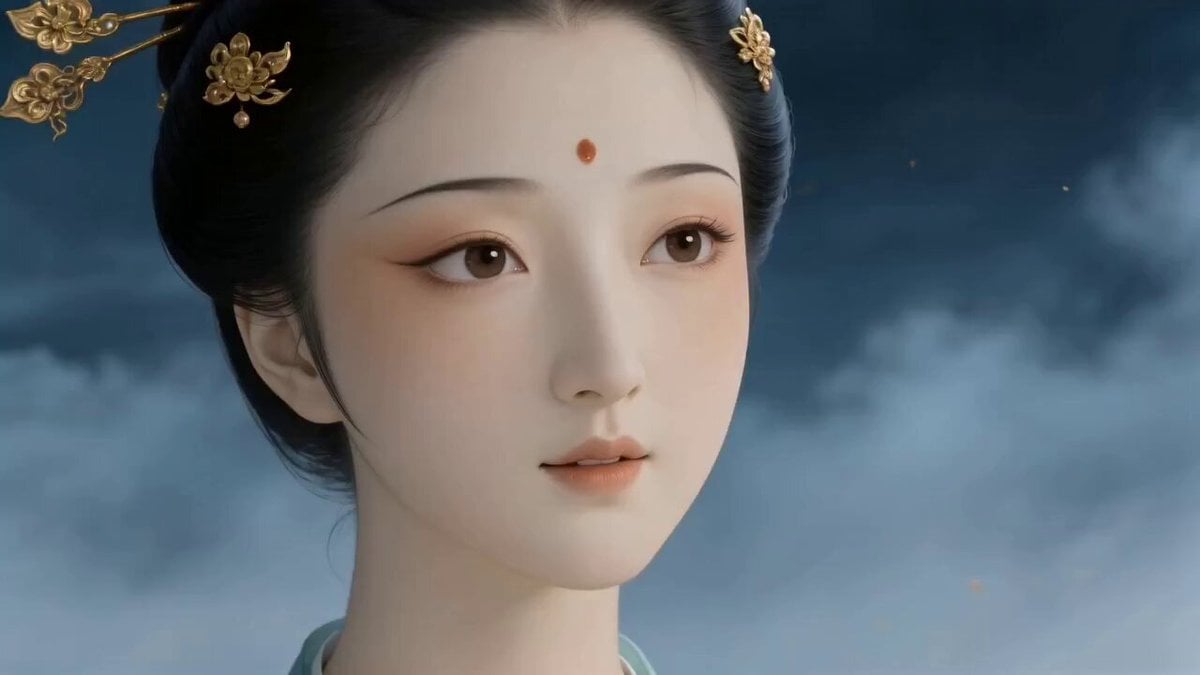
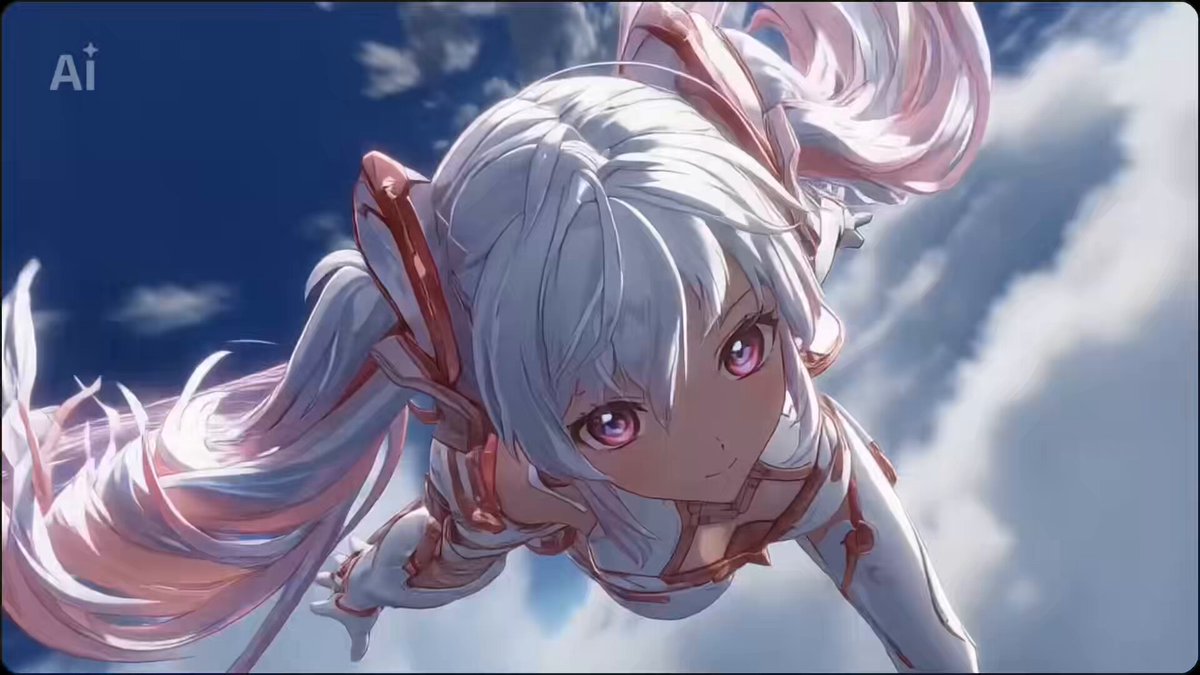
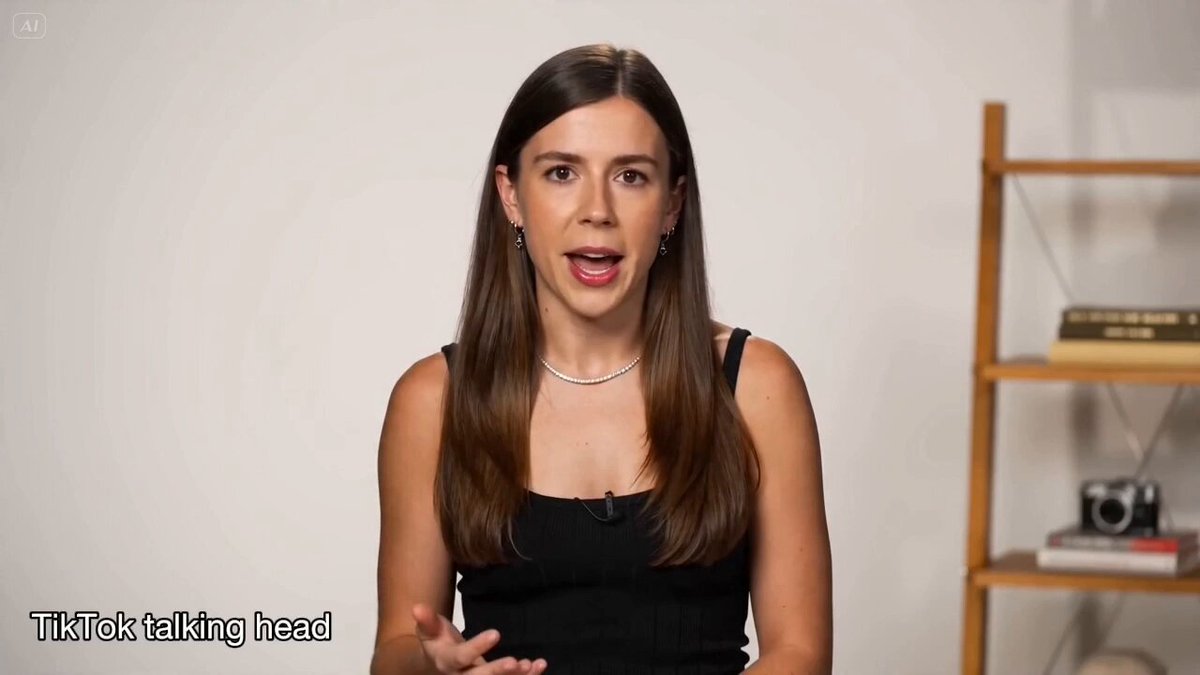
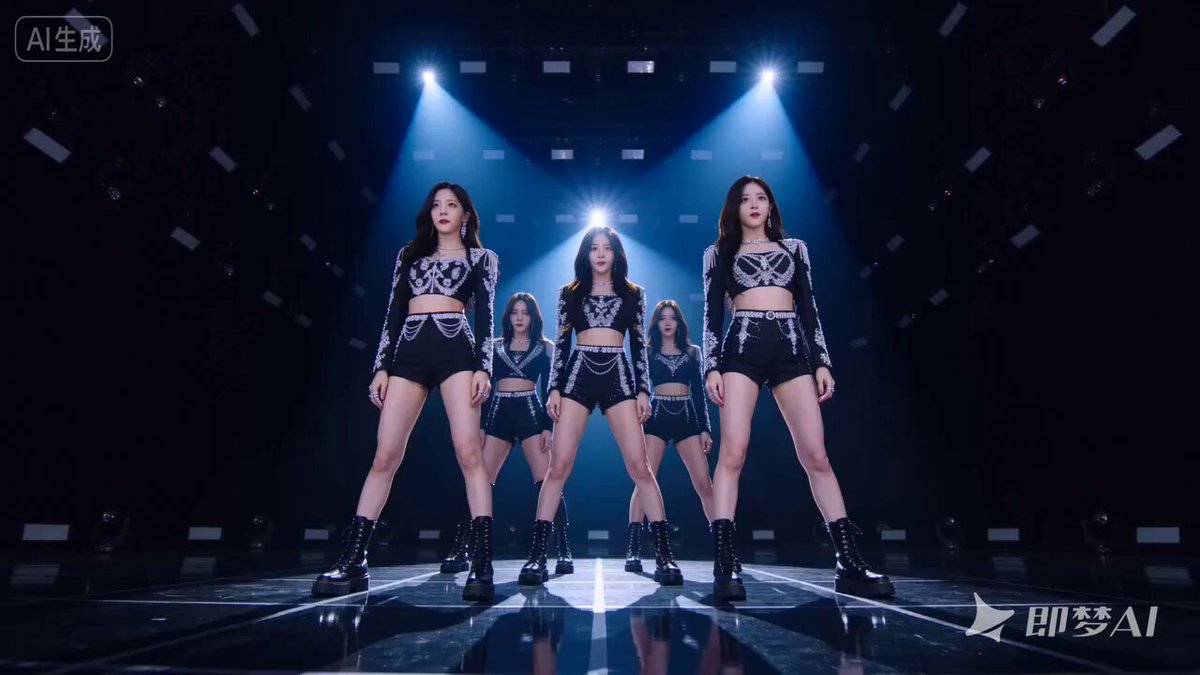
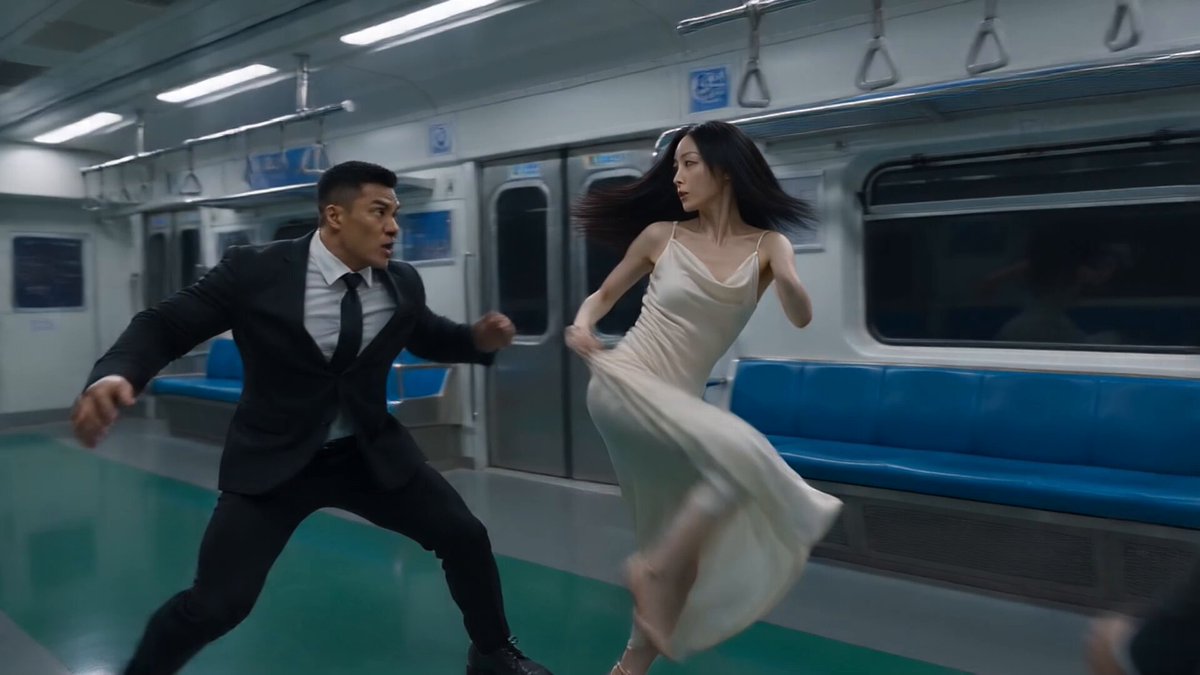
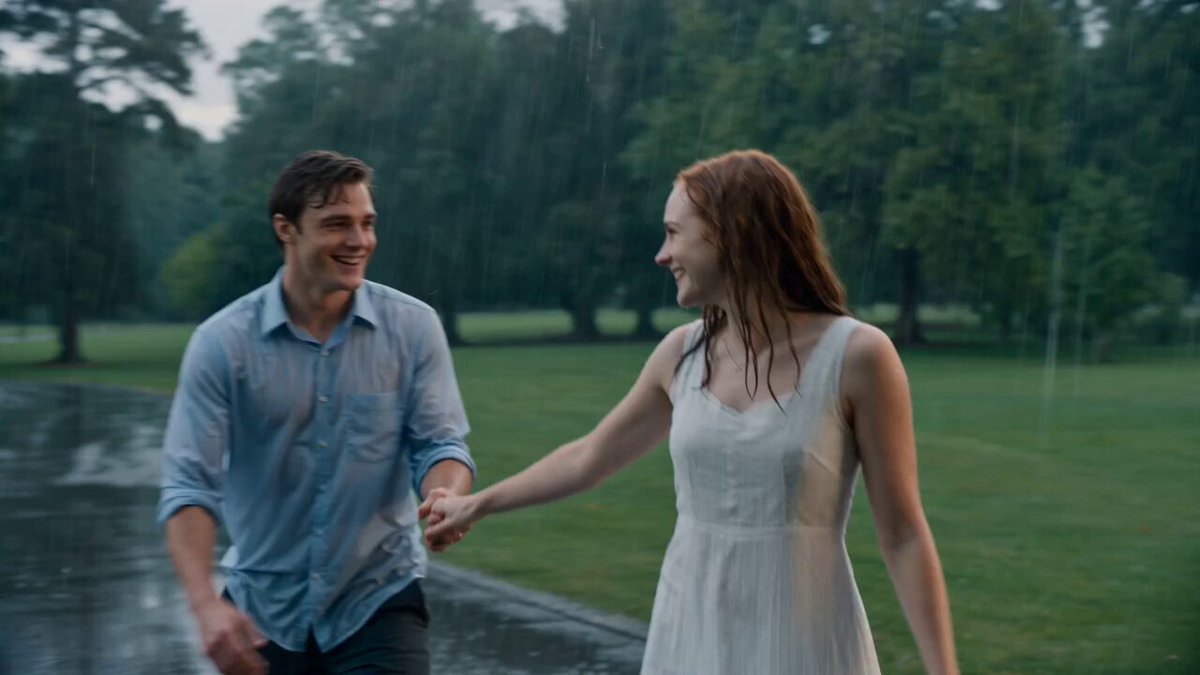
This tweet introduces a video generation series focusing on mastering Seedance 2.0 prompts, using a cinematic scenario of a space station collapse as an example.
Alarms blare, gravity disappears, and a space station begins to collapse… one engineer races against time to stop total destruction.
Alarms blare, gravity disappears, and a space station begins to collapse… one engineer races against time to stop total destruction.
Edit the prompt in the box under the preview — the template's model and format are already selected — and press Generate. Your version appears right on this page.
Yes. You can change the subject, setting, lighting, mood, format, and available model controls before creating your video.
Opening and editing this template is free. Generating uses credits, shown on the Generate button when you are signed in.
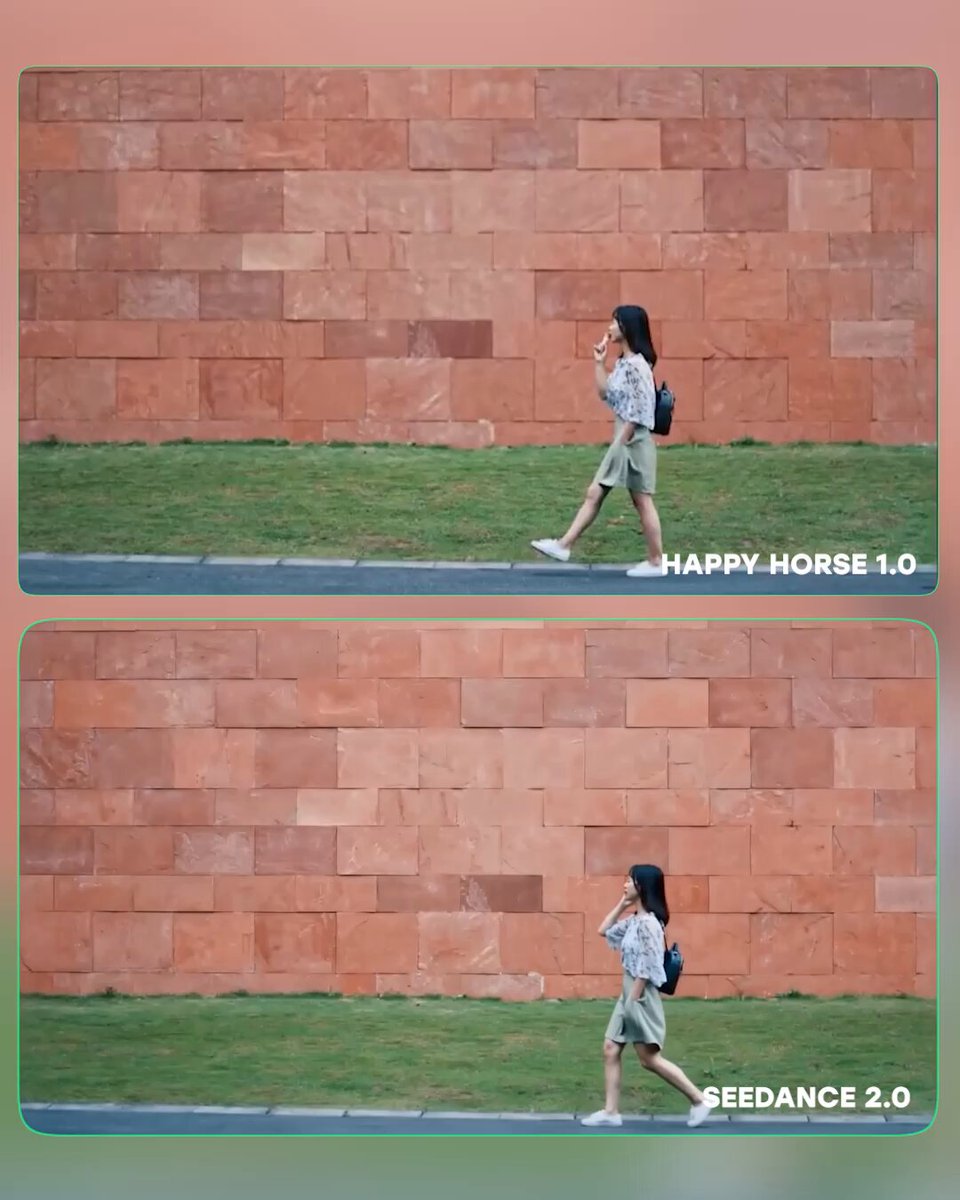
Start with Seedance 2.0, which is the model associated with this template. You can compare another compatible model for a different finish.
Follow a topic to a crawlable collection of related PicX Studio templates.