
High-Tempo 9-Image Glitch Edit
A technical 15-second video prompt designed for rapid-fire transitions and complex grid layouts using nine reference images for an MV/CM-style density.
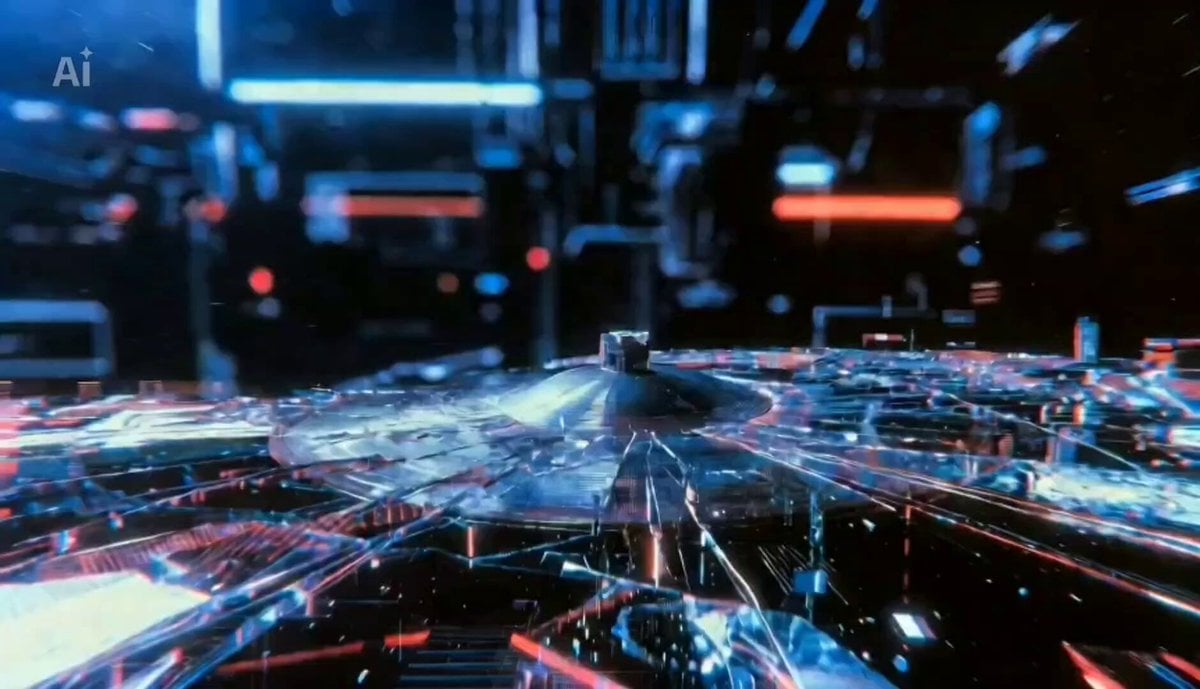
- Prompt included
- Model and format preset
- Premium template
The prompt behind this video
Copy the exact prompt behind High-Tempo 9-Image Glitch Edit, or open it in the studio and make it yours.
15秒・9枚画像ハイテンポ編集プロンプト 使用画像はimage1、image2、image3、image4、image5、image6、image7、image8、image9のみ。指定以外の画像は生成しない。映像全体はMV・CMレベルのテンポ感と編集密度を重視し、常に画面が変化し続ける構成とする。 0〜2秒 0.1秒ごとに高速切り替え。 表示順 image1→image2→image3→image4→image5→image6→image7→image8→image9→以降ランダム。 Flash Cut、Smash Cut、Glitch、RGB Split、White Flash、Strobe、Film Burn、Motion Blurをランダム使用。 --- 2〜4秒 3×3グリッド表示。 9マスに image1 image2 image3 image4 image5 image6 image7 image8 image9 を配置。 0.3〜0.5秒ごとに各マスが独立してランダム入れ替えされ、全マス同時ではなくバラバラに更新される。 Split Screen、Sliding Panel、Tile Shuffle、Push、Pull、Flip、Mask Revealを使用。 --- 4〜6秒 画面を多数の小さなタイルへ分割。 各タイルにはimage1〜image9をランダム表示。 タイルは高速でシャッフルされ、Checker、Random Block、Diagonal、Crossパターンへ次々変化する。 --- 6〜8秒 円形グリッド演出。 image1〜image9を円周上へ均等配置。 高速回転しながら配置順がランダムに入れ替わる。 Rotate、Spin、Circular Wipe、Radial Blurを組み合わせる。 --- 8〜10秒 縦9分割、横9分割、ストライプ分割を高速で切り替える。 各帯にはimage1〜image9をランダム表示。 帯は左右・上下からスライドし、絶えず画像が入れ替わる。 --- 10〜12秒 コラージュ演出。 大小さまざまな矩形へimage1〜image9をランダム配置。 出現・消失・拡大・縮小・回転を高速で繰り返し、画面全体が絶えず再構成される。 Grid Animation、Mosaic Reveal、Tile Shuffle、Alpha Dissolveを使用。 --- 12〜14秒 9枚を同時表示。 グリッド配置→円形配置→横一列→縦一列→ランダム配置を高速で切り替える。 各レイアウト間はFlash Cut、Glitch、Sliding Panelで接続する。 --- 14〜15秒 9枚が高速シャッフルされながら一瞬ずつ全面表示。 最後に最も印象的な1枚を画面いっぱいに表示し、 White Flash →Bloom →Light Leak →Freeze Frame で締める。 使用推奨トランジション・編集効果 Flash Cut、Smash Cut、Jump Cut、Match Cut、Glitch、RGB Split、Strobe、Film Burn、White Flash、Split Screen、Grid Animation、Tile Shuffle、Mosaic Reveal、Sliding Panel、Push、Pull、Flip、Rotate、Spin、Circular Wipe、Diagonal Wipe、Checker Wipe、Random Block、Mask Reveal、Alpha Dissolve、Motion Blur、Radial Blur、Zoom Cut、Freeze Frame、Echo Frame。 同じ演出を連続使用せず、15秒間を通して画面構成が絶えず変化する、情報量と勢いのある映像として表現する。
How to use High-Tempo 9-Image Glitch Edit in 3 steps
- 1
Open
The prompt is already in the box next to the preview, with the template's model and format selected.
- 2…a portrait of your subject in softgolden-hour light, 85mm…
Personalize
Edit the subject and creative details for your destination.
- 3Generate
Generate
Press Generate — your video is created in PicX Studio, so you can compare it with the original and refine one variable at a time.
More like this
Templates with the same subject, style or setup. Open one to see its prompt.
Energy Bow Jungle Edit

Weekly OOTD Car Edition Video
Professional Text Overlay Edit
Video Editing and Animation Prompt
Nighttime Dock Silhouette Video Edit

GRWM Gym Edition Video Sequence
Nike Denim Edition Commercial
Video Prompt for 'The Dentist — Bomb Squad Edition' Comedy Hook
High-Tempo Dark Fantasy Action Trailer
Glitch Mirror DNA Transformation
Multidimensional Glitch Morphing Animation
Glitches in the Simulation Prompt
Make it yours
High-Tempo 9-Image Glitch Edit works as-is. These are the safest ways to change it without losing the look.
Change one field
Copy a single group, rewrite it, and generate again so you can see what that field is doing.
Keep the frame, change the subject
Hold the composition and light of High-Tempo 9-Image Glitch Edit, then swap wardrobe, props or the person for a new take.
| If the result… | Why | Fix |
|---|---|---|
| The result drifts from the preview | Too many fields changed at once. | Reuse High-Tempo 9-Image Glitch Edit as-is first, then change one group — subject, light, or setting. |
| The model over-stylizes the scene | The prose prompt leaves finish and camera underspecified. | Add one camera or lighting sentence and stay on Seedance 2.0. |
More Seedance 2.0 templates
Other prompts made for Seedance 2.0.
Comical Martial Arts Punch Scene
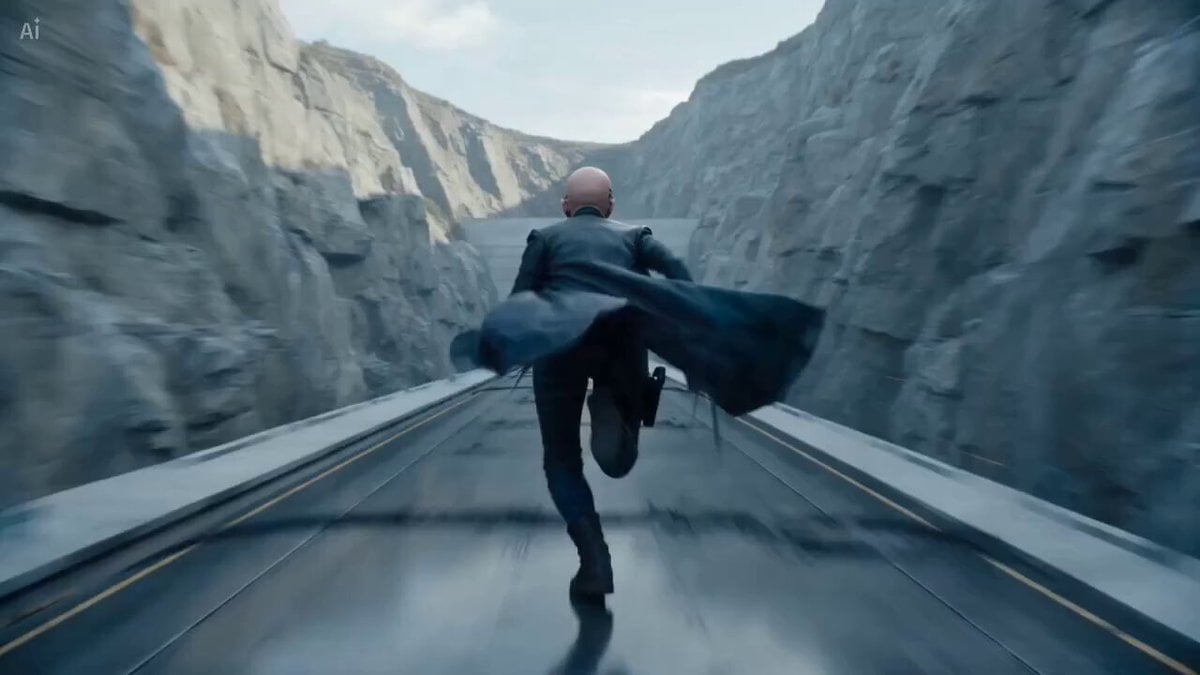
Maglev Train Action Sequence
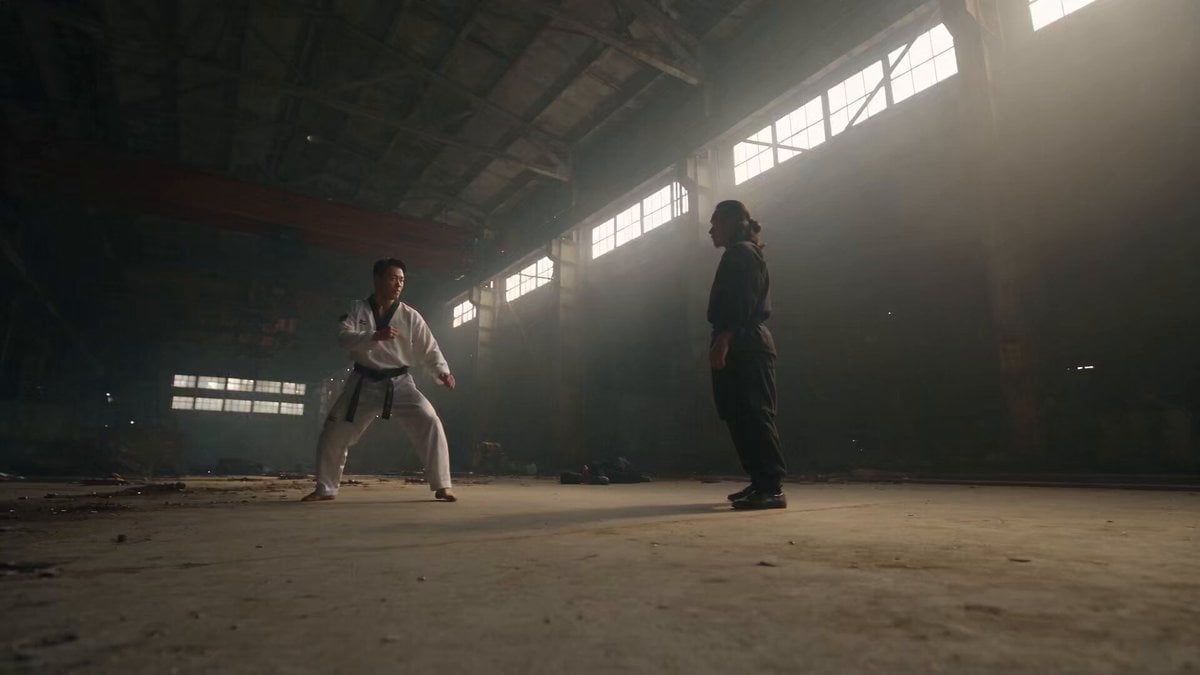
Martial Arts Fight Sequence
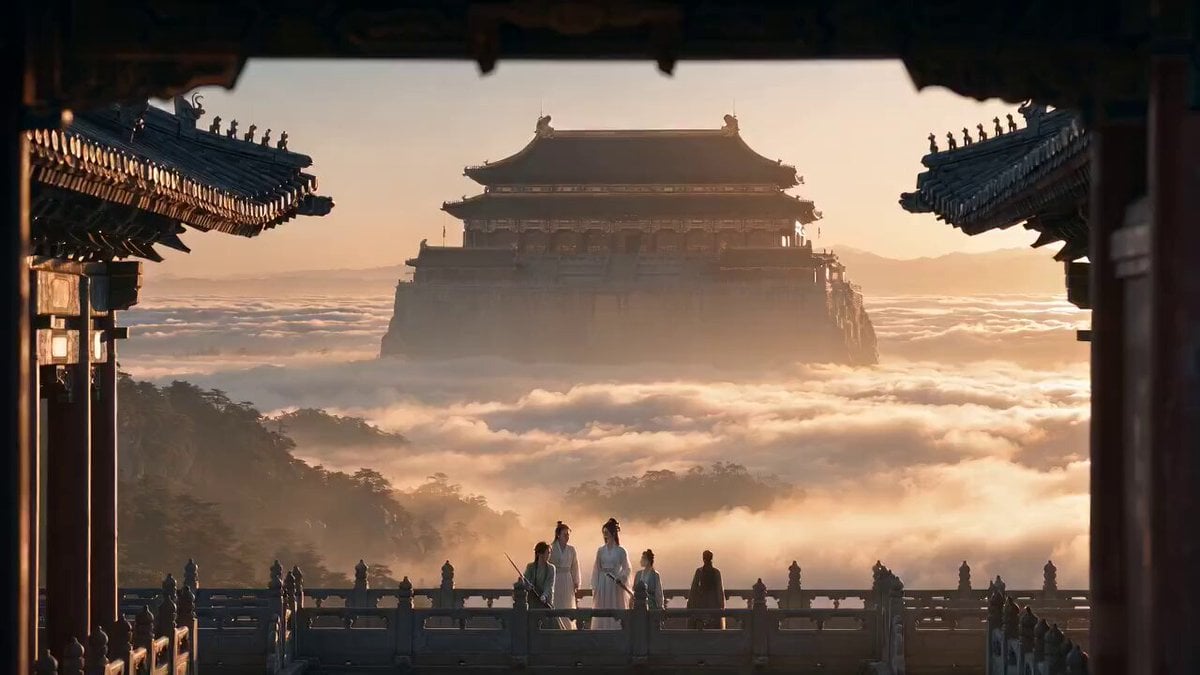
Wuxia Protection and Trust Script
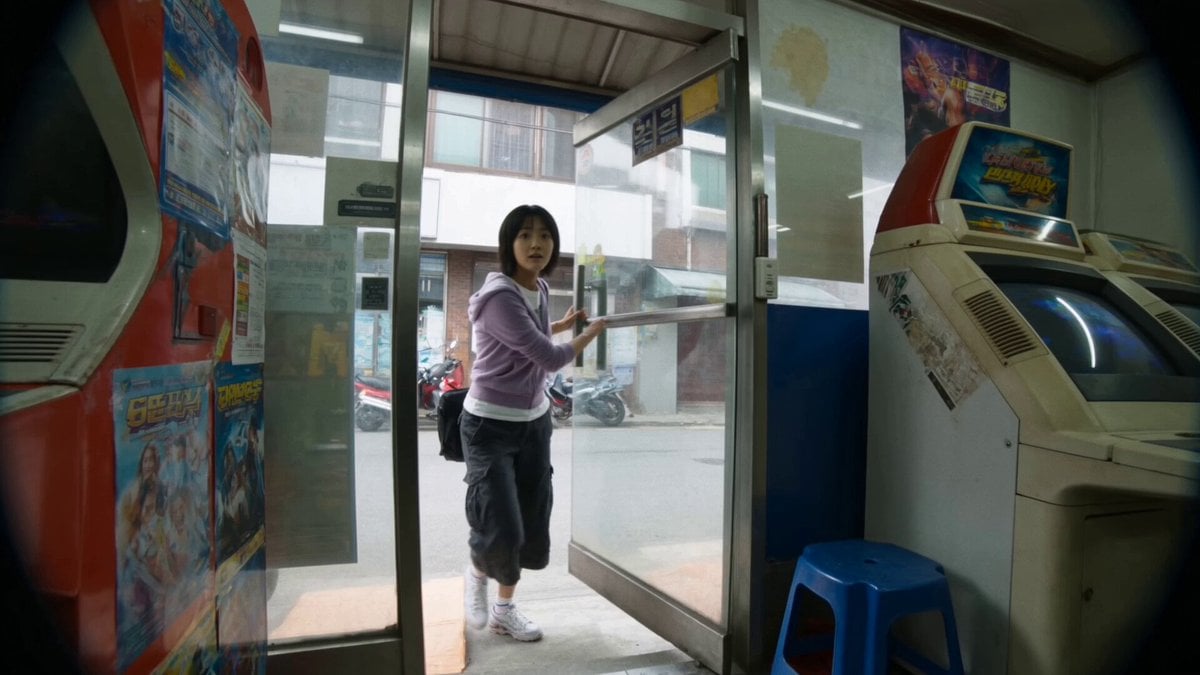
Vintage Korean Arcade MiniDV Vlog
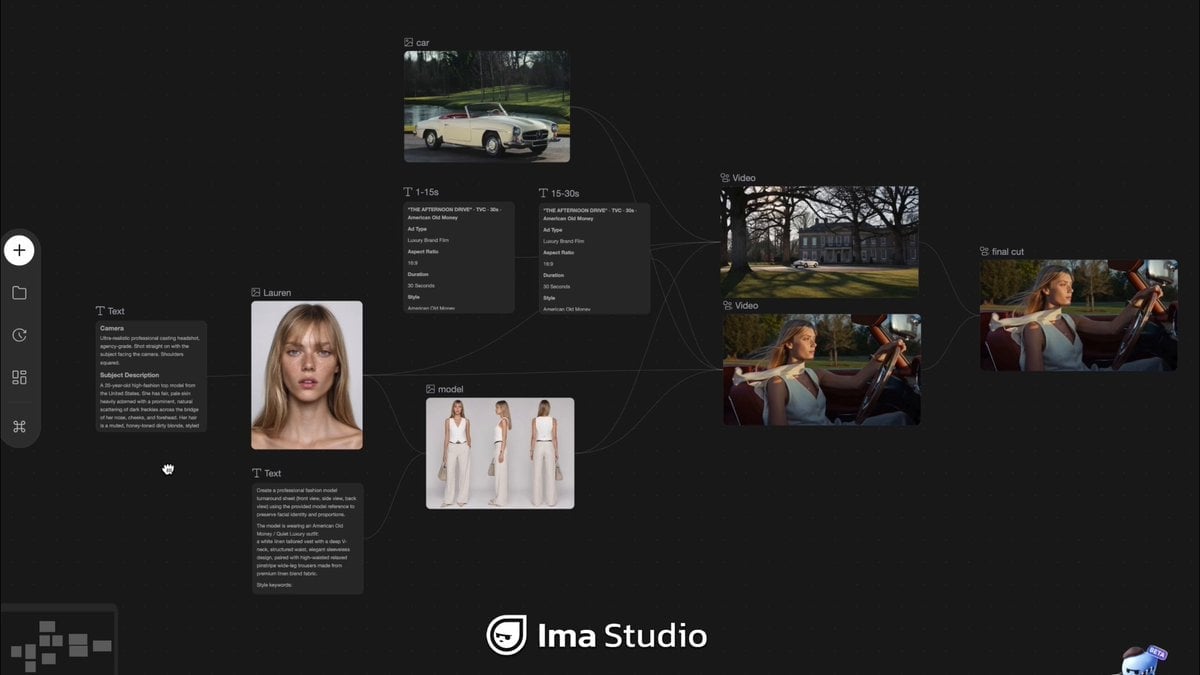
Mercedes 190 SL Luxury Ad
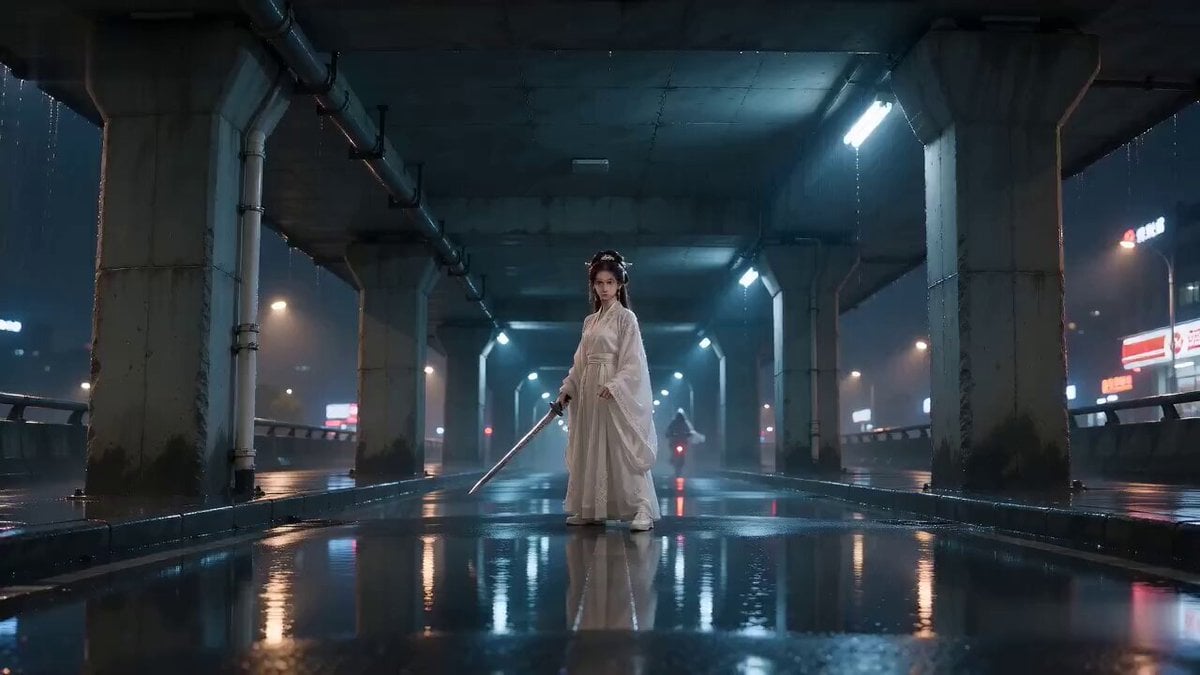
Rainy Night Supernatural Reverse Comedy Video Script

Amazon Civilization Discovery
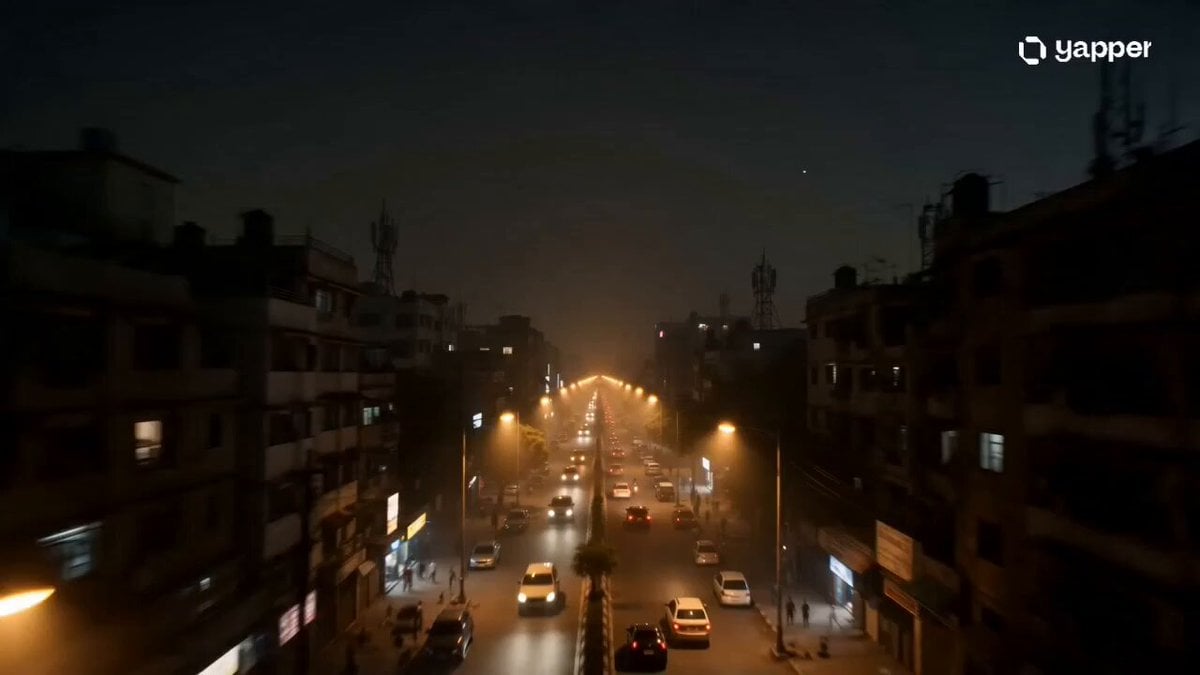
Futuristic South Asian City Transformation
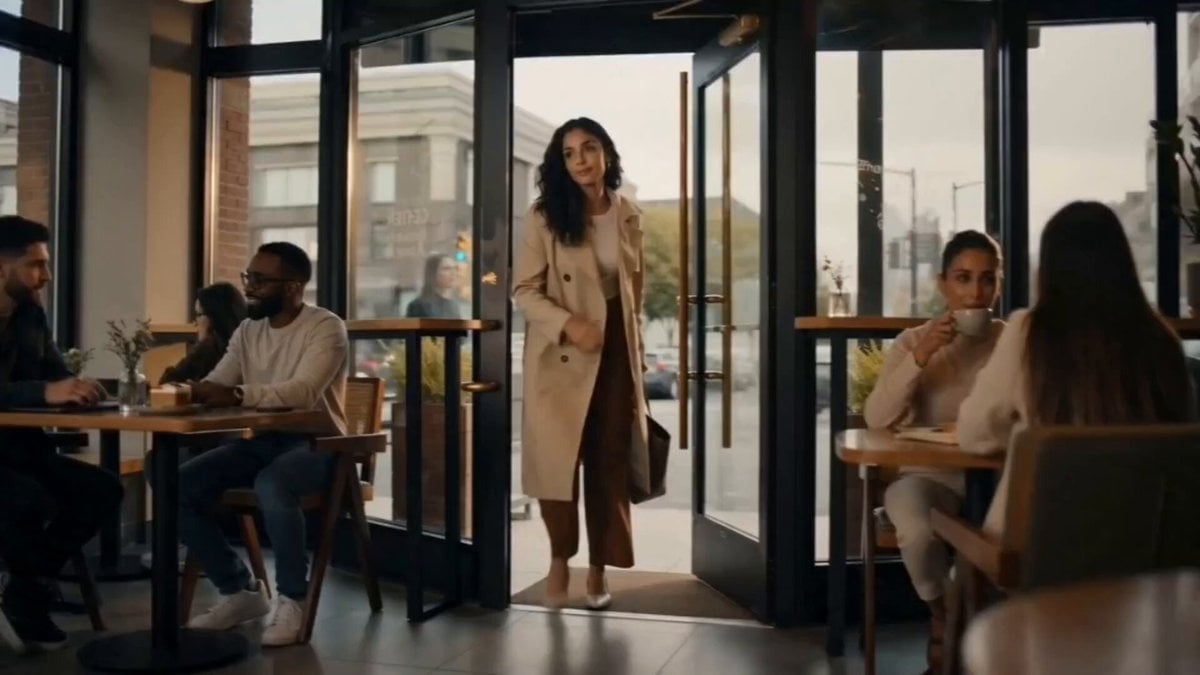
Cozy Luxury Cafe Commercial
More video prompts
Fresh picks from across the catalog.

Camera Pullback Character Reveal
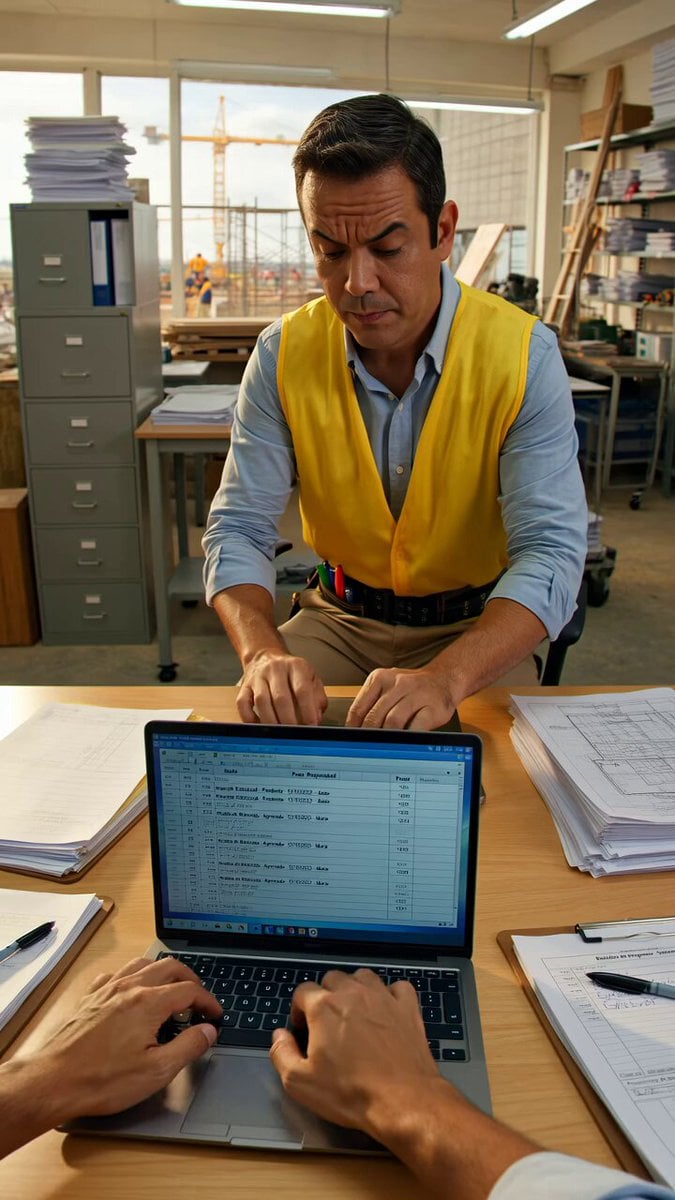
Busy Construction Manager Scene
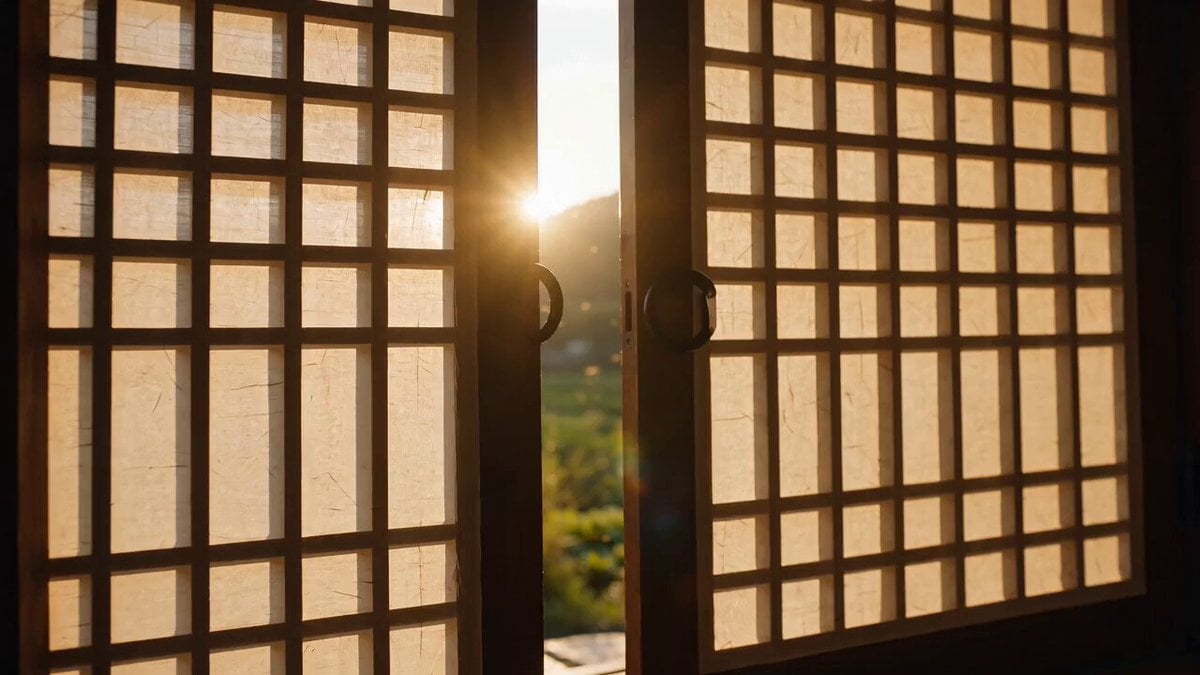
Korean Countryside Slow Living Film

Steampunk Aviator Girl vs Mechanical Wolf
Cinematic Beach Scene with Sandworm and Warrior
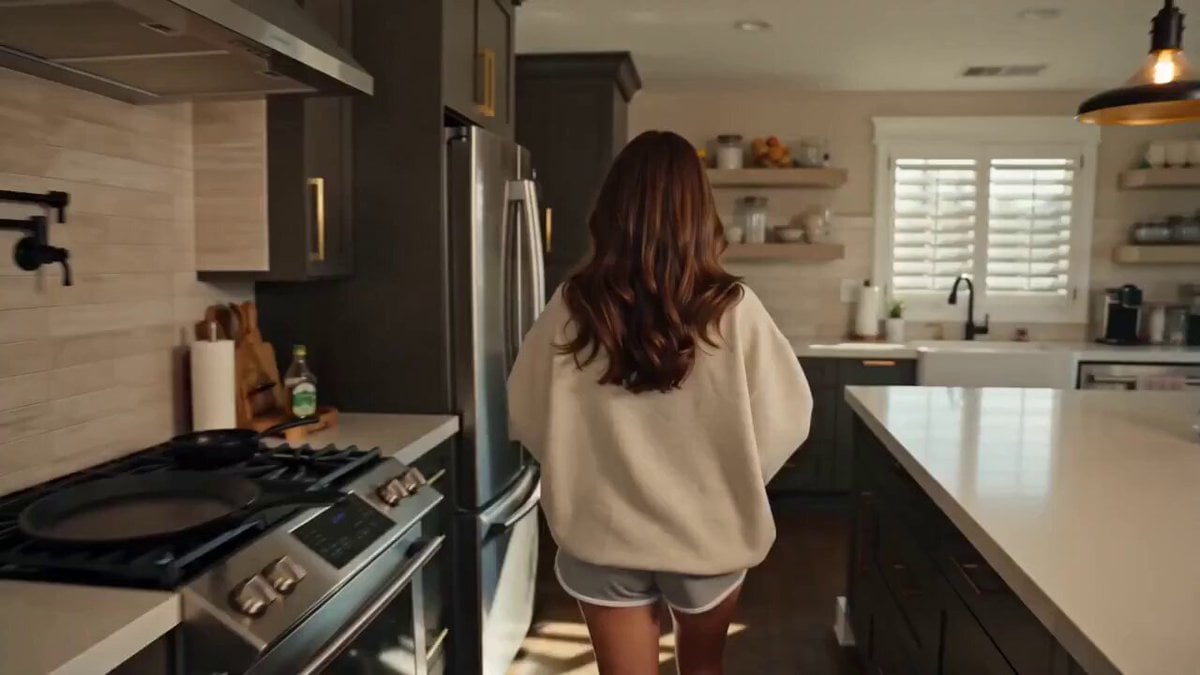
Photorealistic Lifestyle Influencer Vlog Prompt
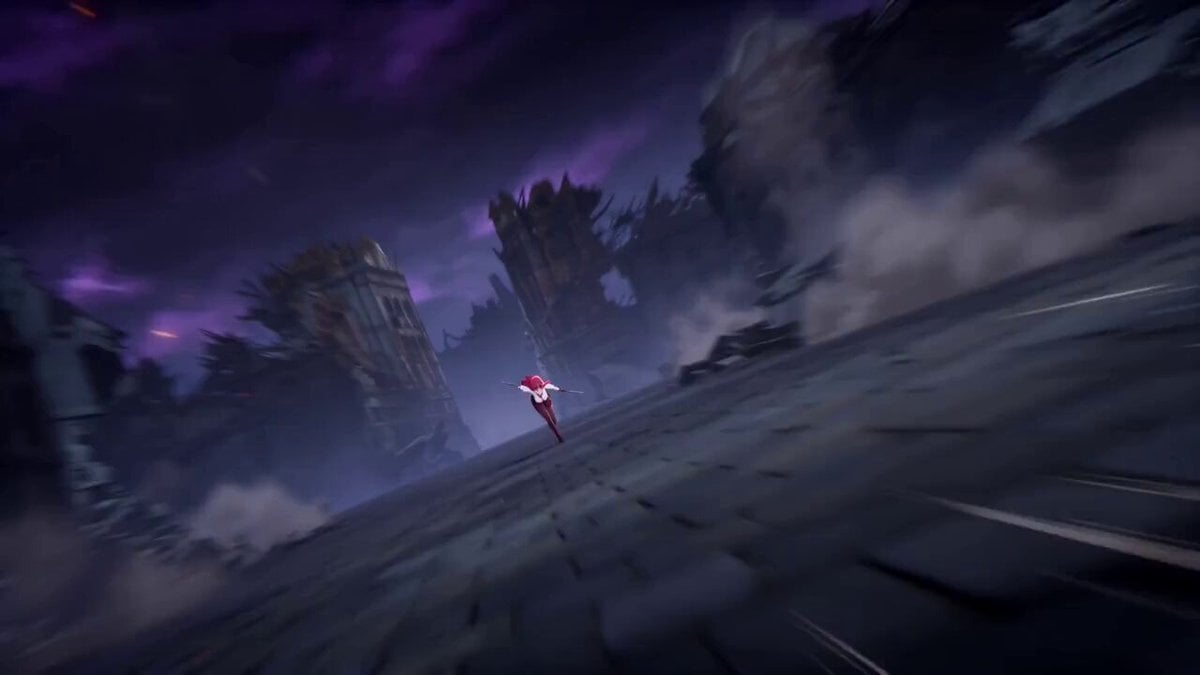
High-Speed Female Warrior Combat Sequence (Simplified Chinese)
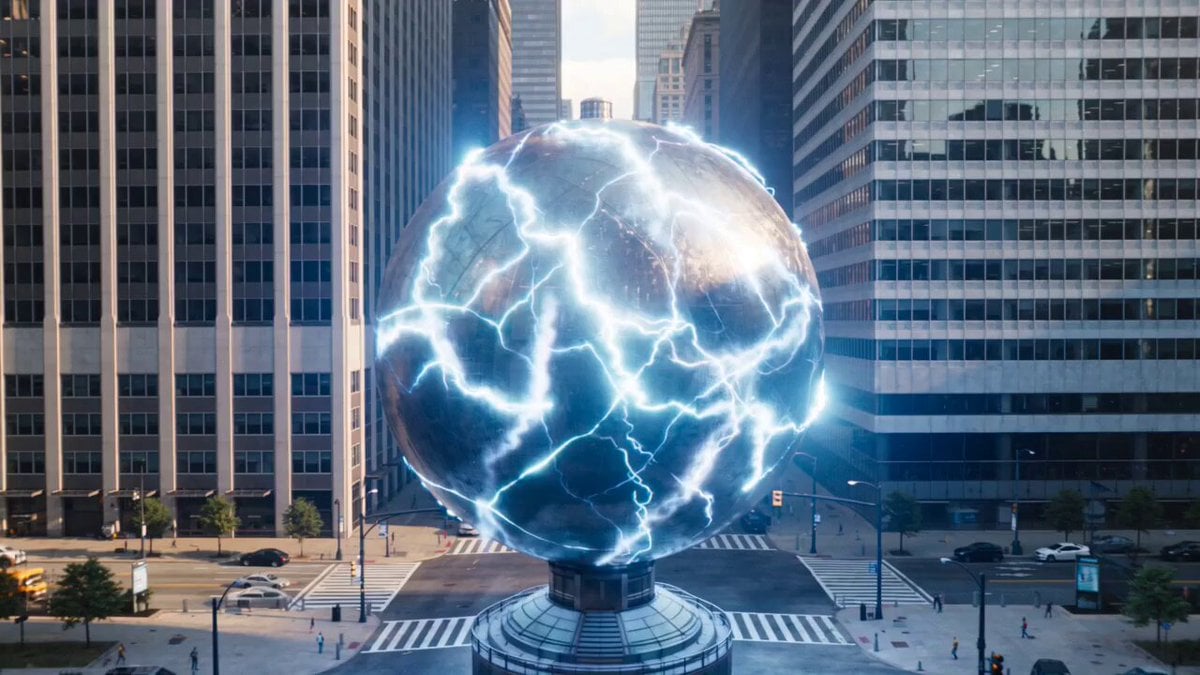
Urban destruction energy core detonation
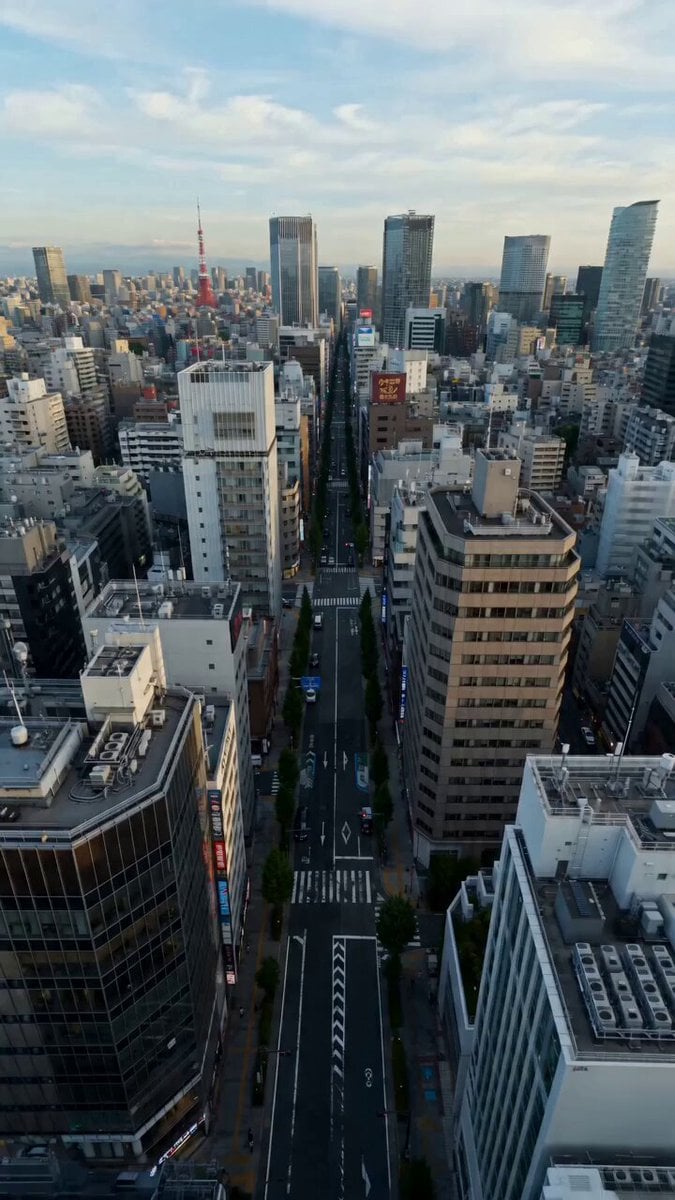
Cinematic Drone Dive into a Person's Eye
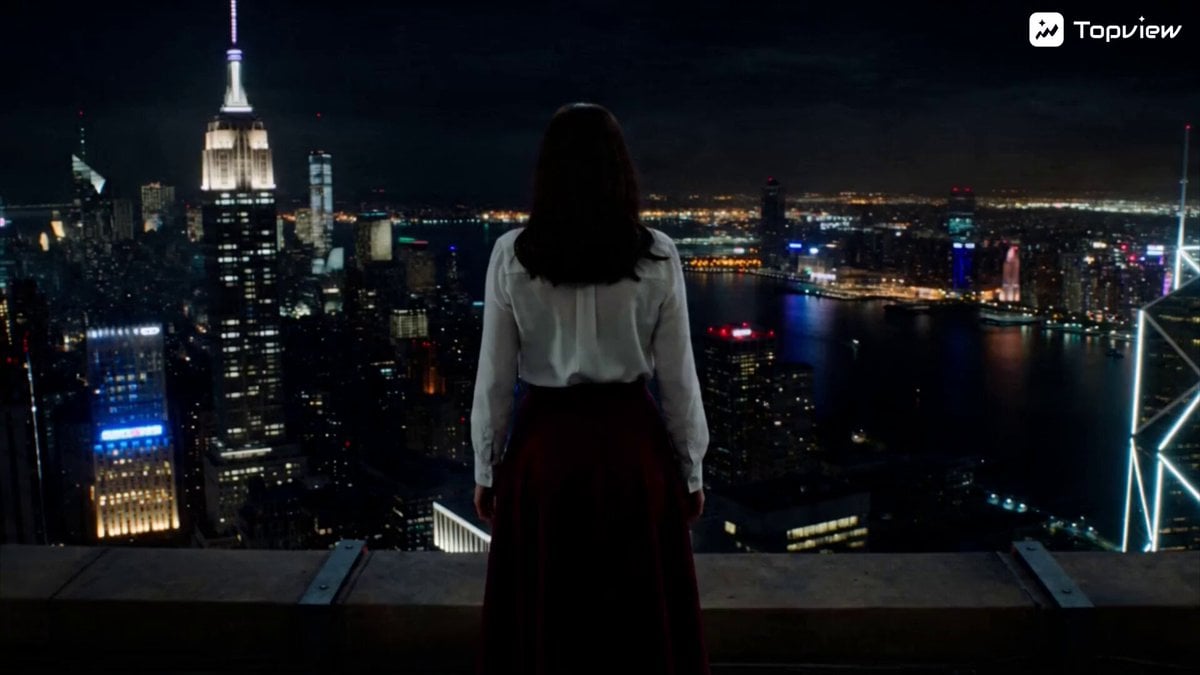
Woman Falling from Rooftop into Surreal Dreamscape
Browse template categories
High-Tempo 9-Image Glitch Edit questions
How do I use the High-Tempo 9-Image Glitch Edit template?
Add your photo if the template asks for one, edit the prompt if you like — the template's model and format are already selected — and press Generate. Your version opens in PicX Studio.
Can I customize the High-Tempo 9-Image Glitch Edit template?
Yes. You can change the subject, setting, lighting, mood, format, and available model controls before creating your video.
Is the High-Tempo 9-Image Glitch Edit template free?
Opening and editing this template is free. Generating uses credits, shown on the Generate button when you are signed in.
Which AI model should I use?
Start with Seedance 2.0, which is the model associated with this template. You can compare another compatible model for a different finish.
Looking for something else? Browse all templates.

Your photo, any look
Thousands of ready templates for every top image and video model, from one credit balance.