
Step 2: Just put your storyboard as refference ima
Step 2: Just put your storyboard as refference ima is a ready video look for Seedance 2.0.

- Prompt included
- Model and format preset
- Free template
The prompt behind this video
Copy the exact prompt behind Step 2: Just put your storyboard as refference ima, or open it in the studio and make it yours.
14-second cute 3D style animated comedy short, ultra-detailed, vibrant colors, warm cinematic lighting, smooth 24fps animation, exaggerated expressions and physics, emotional and funny tone.
How to use Step 2: Just put your storyboard as refference ima in 3 steps
- 1
Open
The prompt is already in the box next to the preview, with the template's model and format selected.
- 2…a portrait of your subject in softgolden-hour light, 85mm…
Personalize
Edit the subject and creative details for your destination.
- 3Generate
Generate
Press Generate — your video is created in PicX Studio, so you can compare it with the original and refine one variable at a time.
More like this
Templates with the same subject, style or setup. Open one to see its prompt.
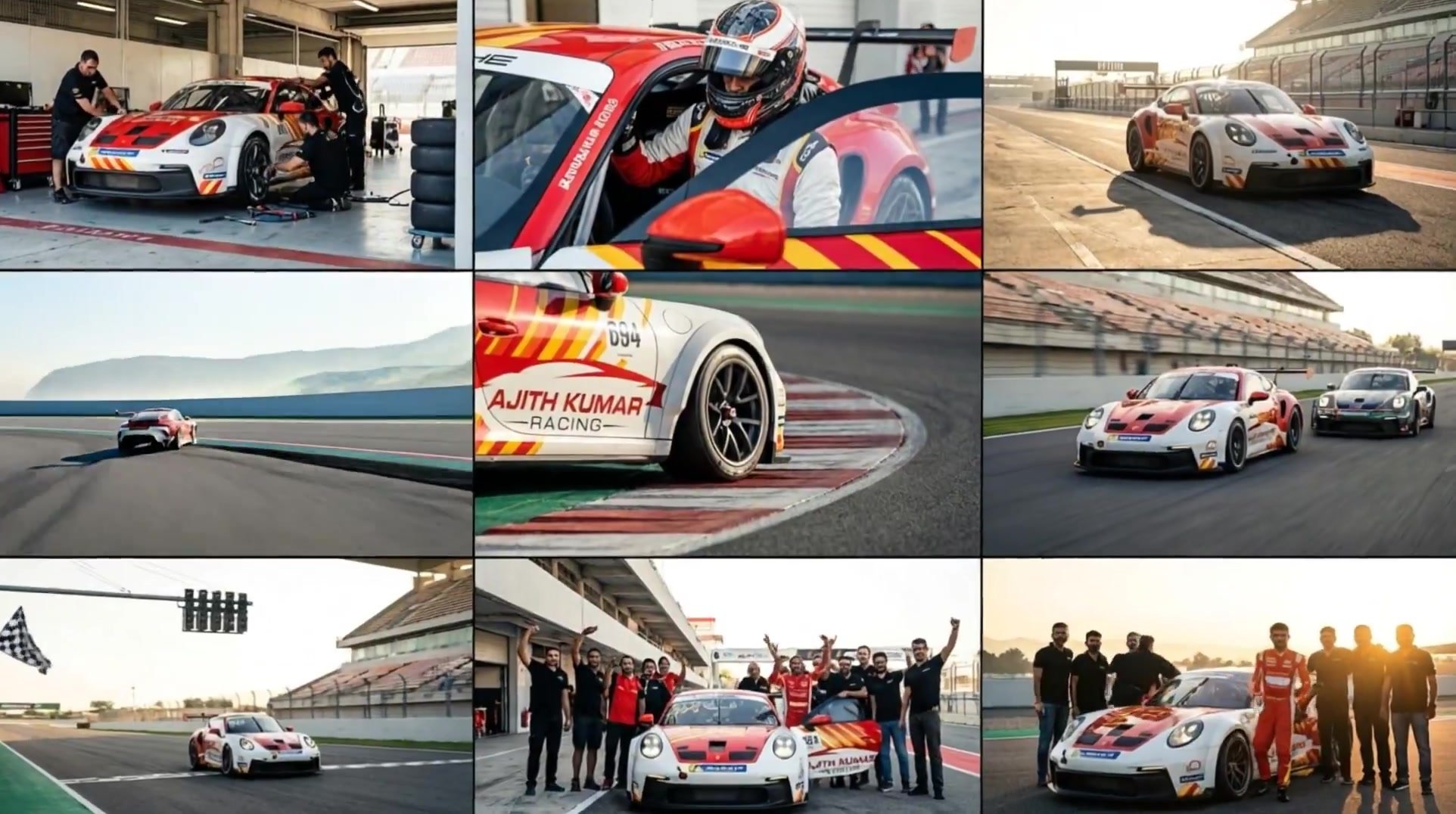
3x3 Grid Storyboard Racing — Kling 3.0 O3 Pro

Dragon Rider Cinematic Flight — Seedance 2.5
Animate Person Putting on Visor Sunglasses
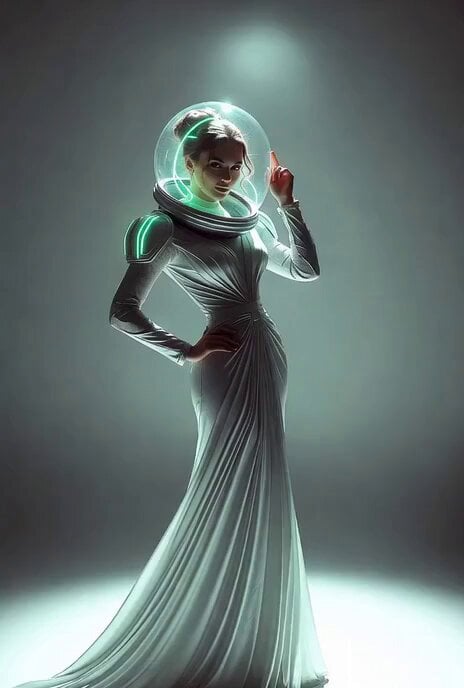
Grok Imagine multi-step video prompt for Saint Patrick’s Day
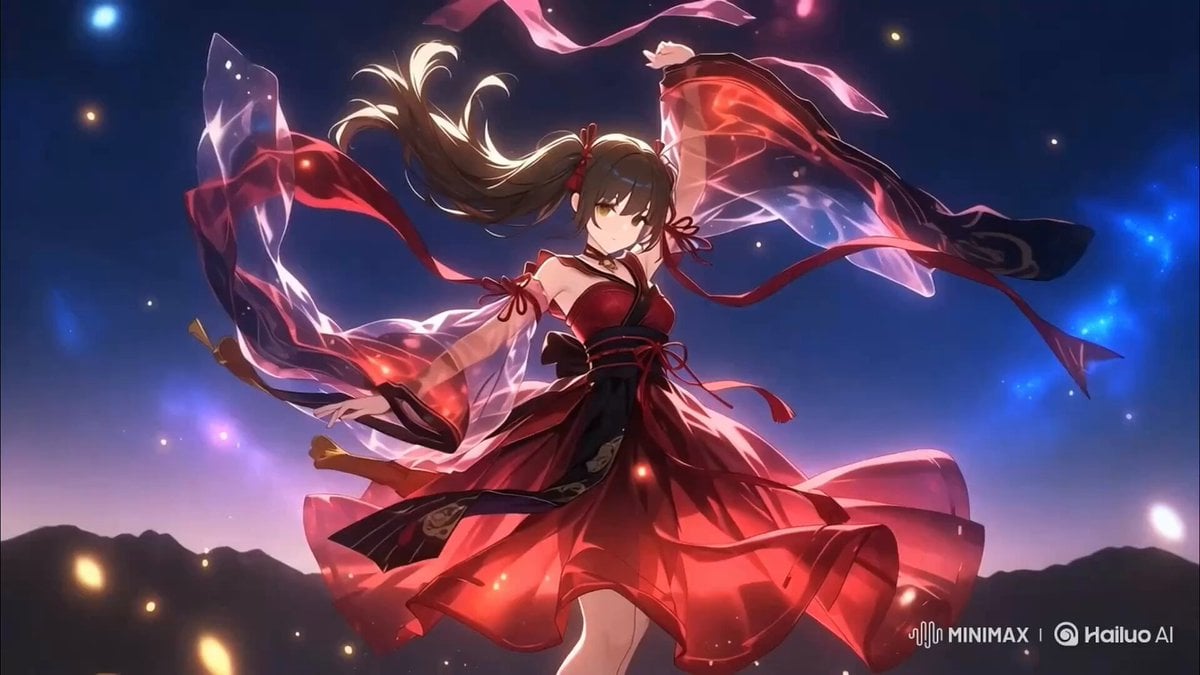
Two-Step Generation for Dancer Video using Grok Imagine and Hailuo 2.3
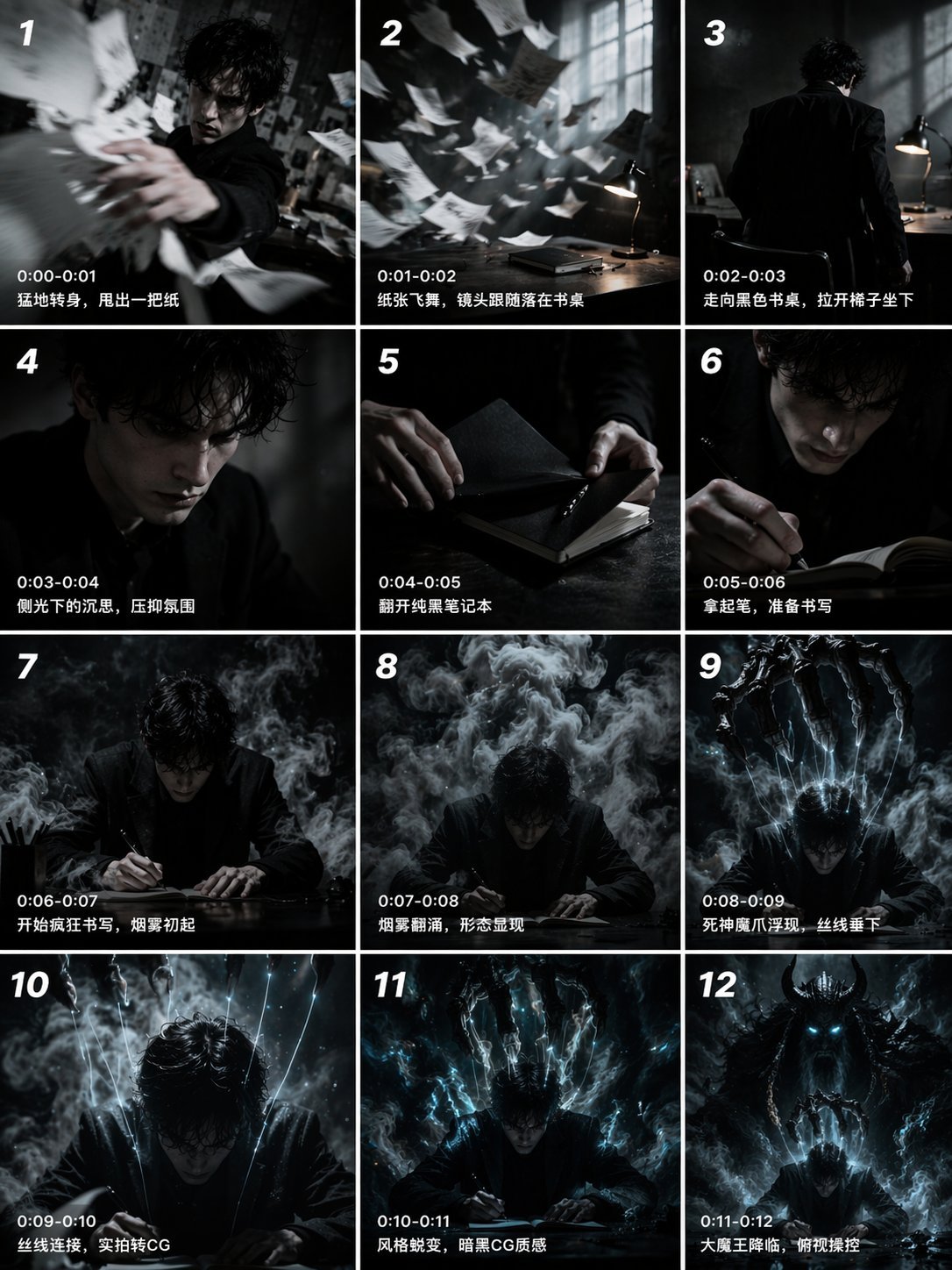
Gpt2 Gpt2 Seedance Storyboard to Video
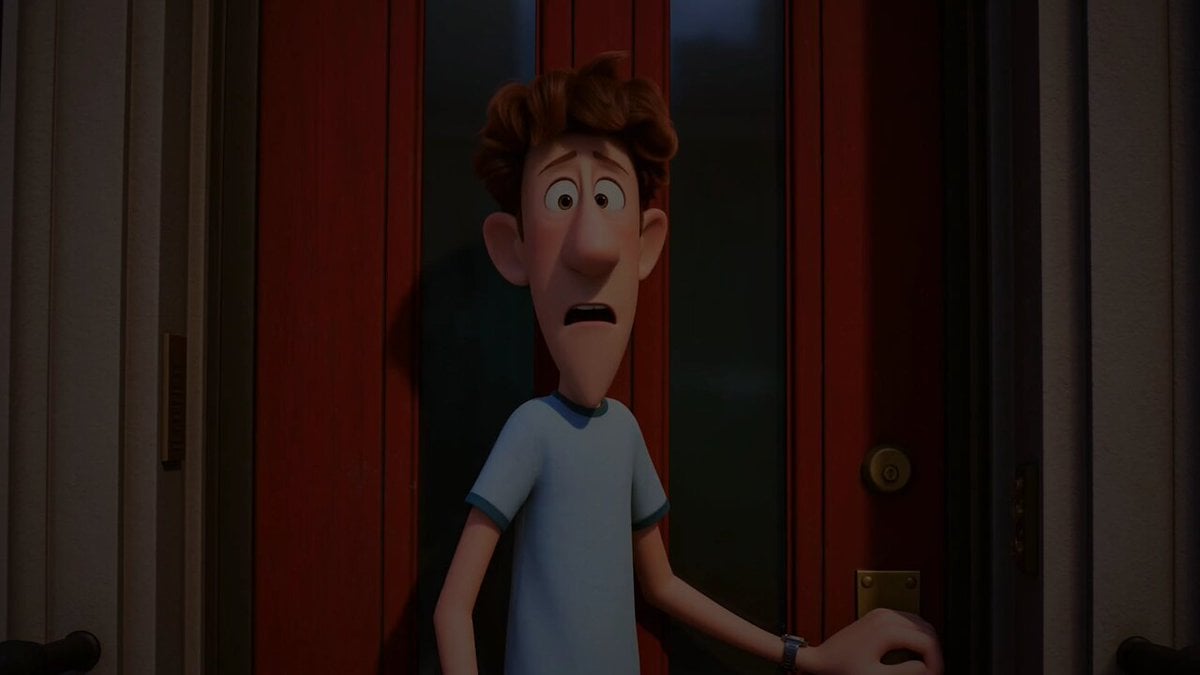
Pigeon Nemesis Pixar Animation Storyboard
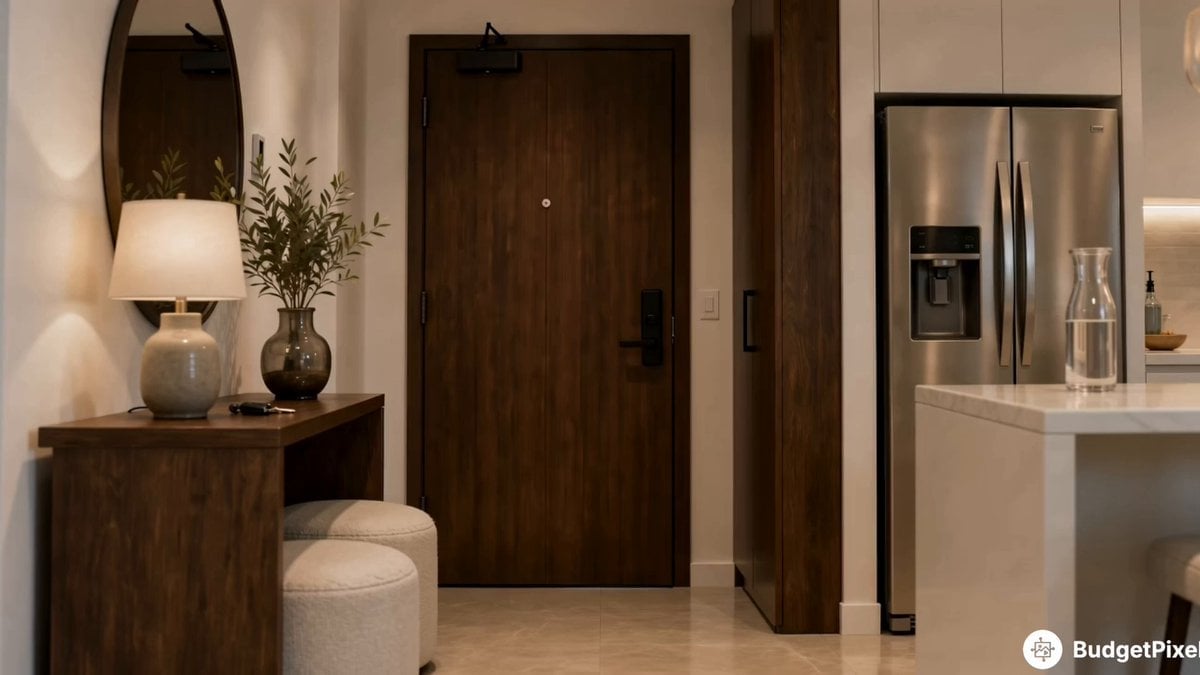
Apartment Arrival Storyboard Animation

Adorable Ghost 3D Animation Storyboard
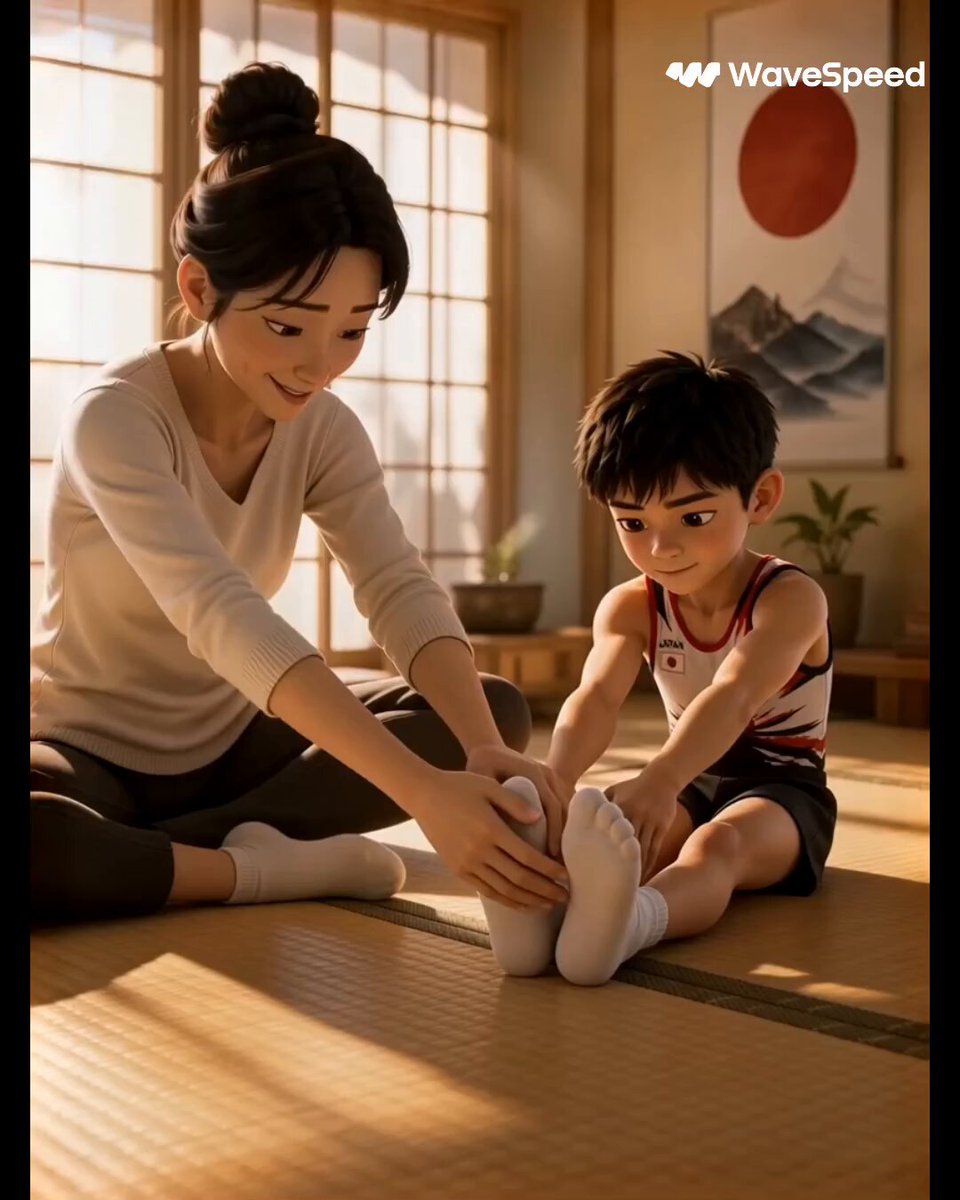
3D Animated Commercial from Storyboard
Storyboard to Cinematic 3D Animation
Freestyle Football 16-Step Storyboard
Make it yours
Step 2: Just put your storyboard as refference ima works as-is. These are the safest ways to change it without losing the look.
Change one field
Copy a single group, rewrite it, and generate again so you can see what that field is doing.
Keep the frame, change the subject
Hold the composition and light of Step 2: Just put your storyboard as refference ima, then swap wardrobe, props or the person for a new take.
| If the result… | Why | Fix |
|---|---|---|
| The result drifts from the preview | Too many fields changed at once. | Reuse Step 2: Just put your storyboard as refference ima as-is first, then change one group — subject, light, or setting. |
| The model over-stylizes the scene | The prose prompt leaves finish and camera underspecified. | Add one camera or lighting sentence and stay on Seedance 2.0. |
More Seedance 2.0 templates
Other prompts made for Seedance 2.0.

Comical Martial Arts Punch Scene
Maglev Train Action Sequence
Martial Arts Fight Sequence
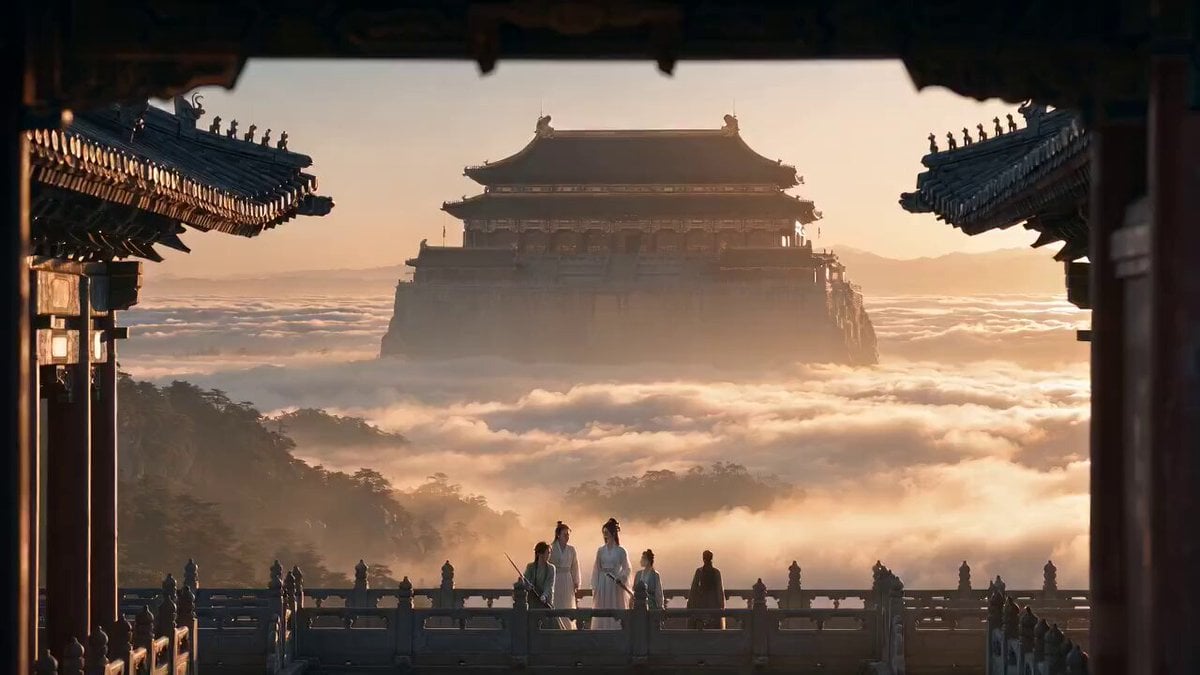
Wuxia Protection and Trust Script
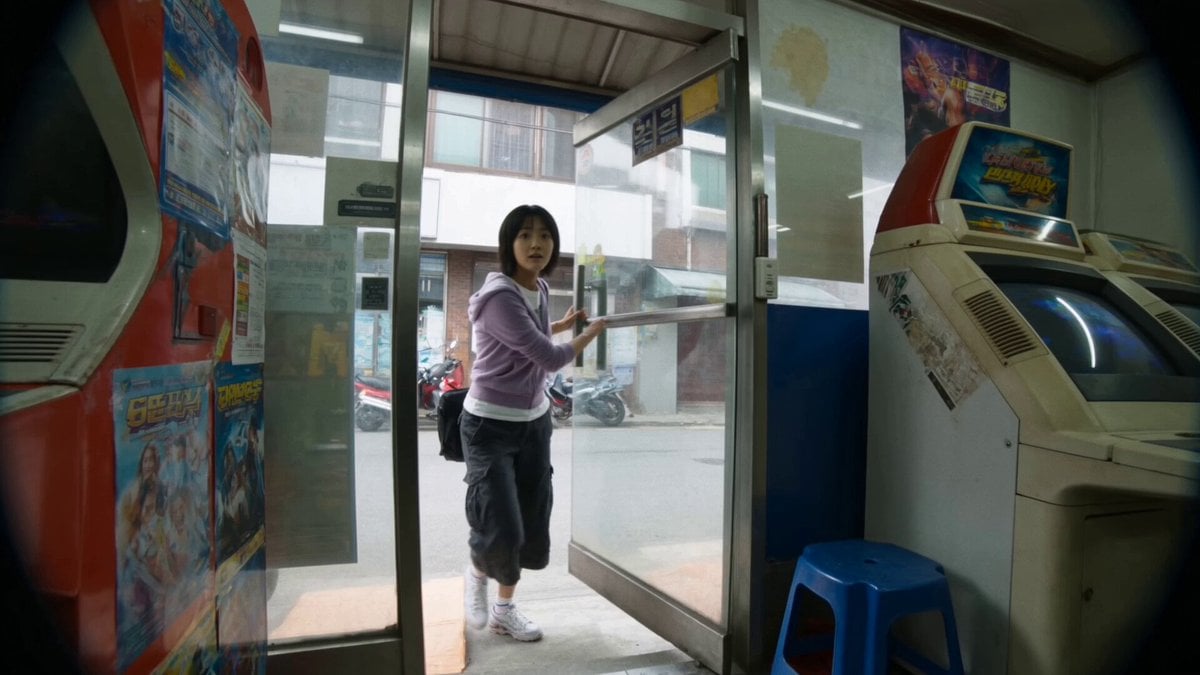
Vintage Korean Arcade MiniDV Vlog
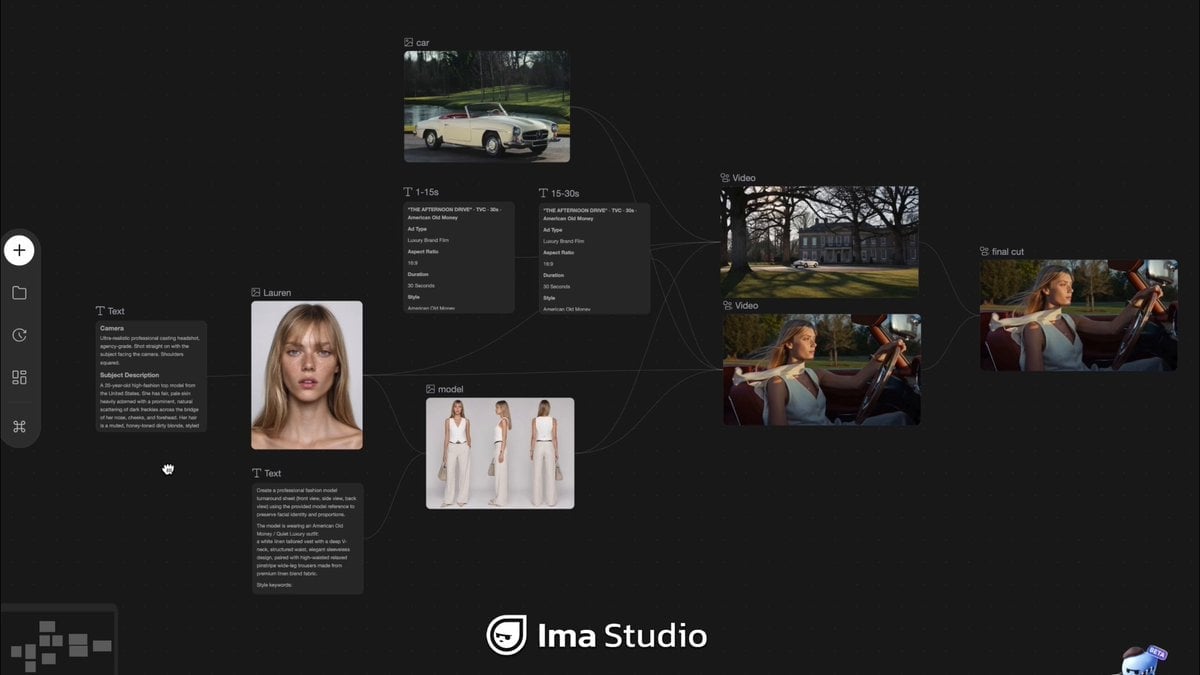
Mercedes 190 SL Luxury Ad
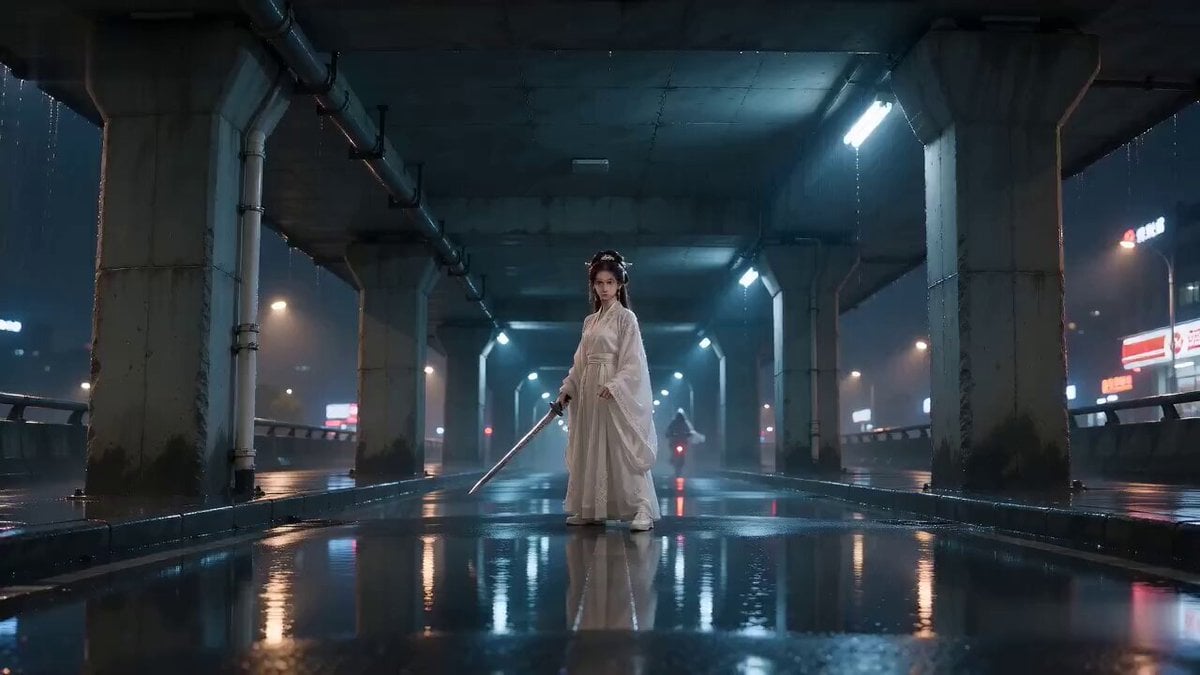
Rainy Night Supernatural Reverse Comedy Video Script

Amazon Civilization Discovery
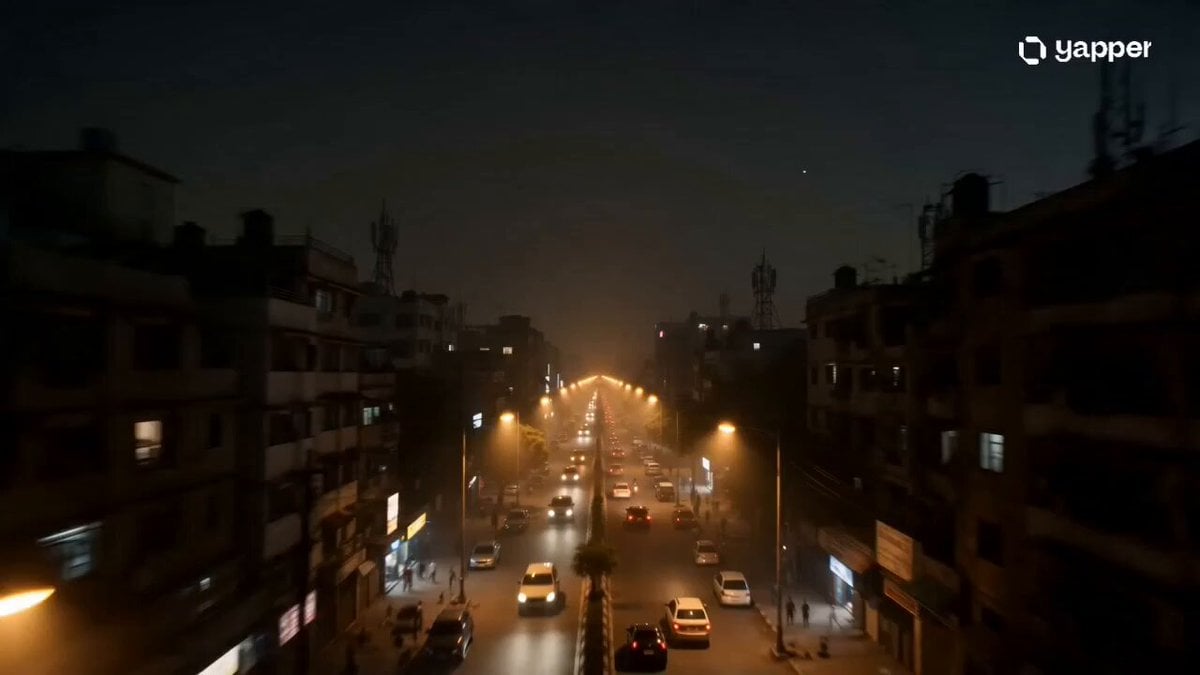
Futuristic South Asian City Transformation
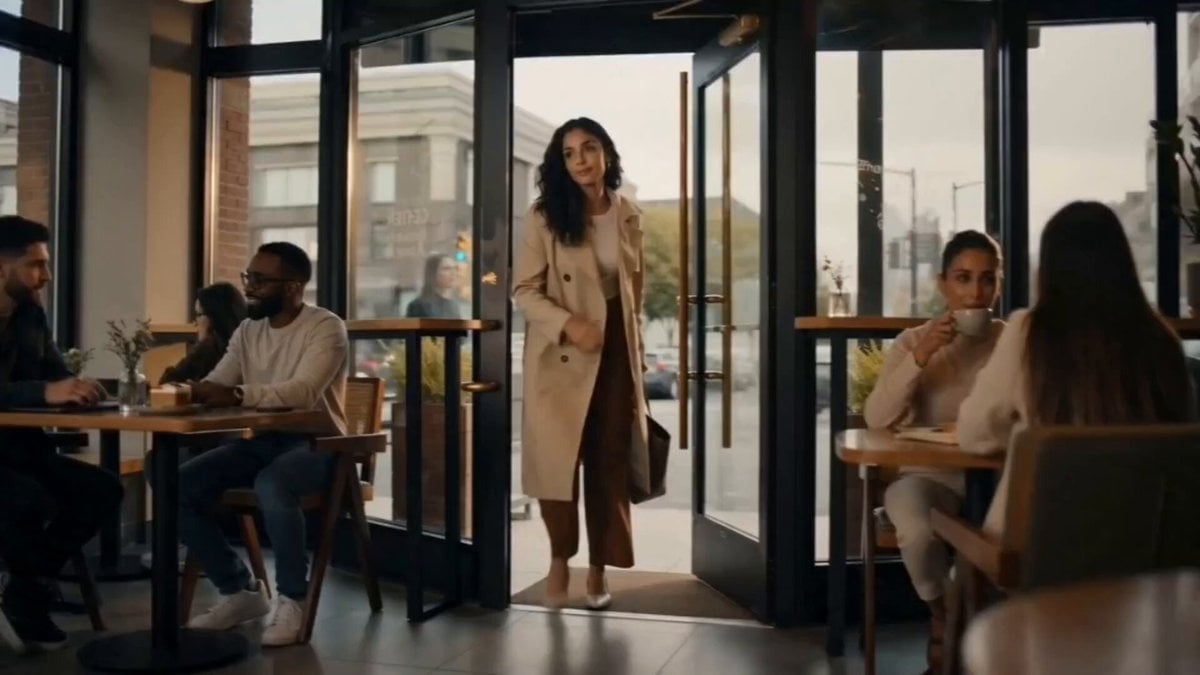
Cozy Luxury Cafe Commercial
More video prompts
Fresh picks from across the catalog.

Seedance 2.0 Qing Dynasty Painting Revival Prompt

God of Mars Battle Scene
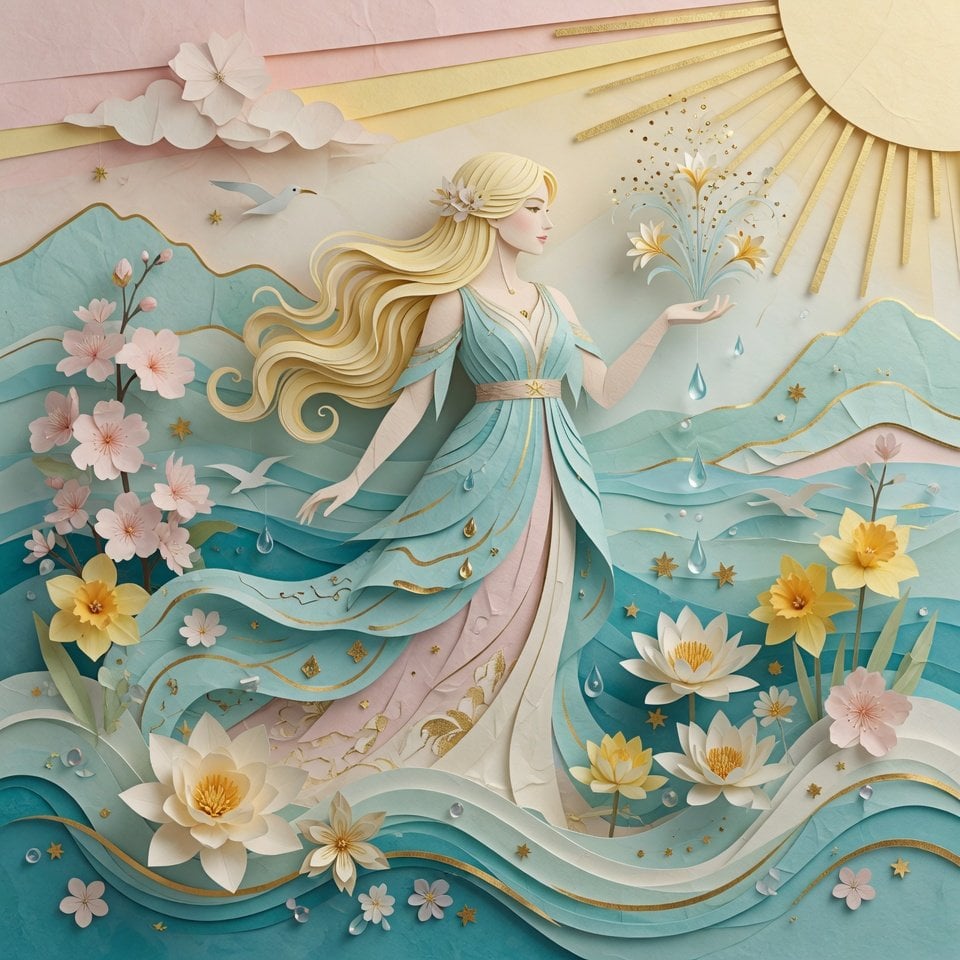
Grok Imagine Prompt: 3D Paper Art Water Goddess
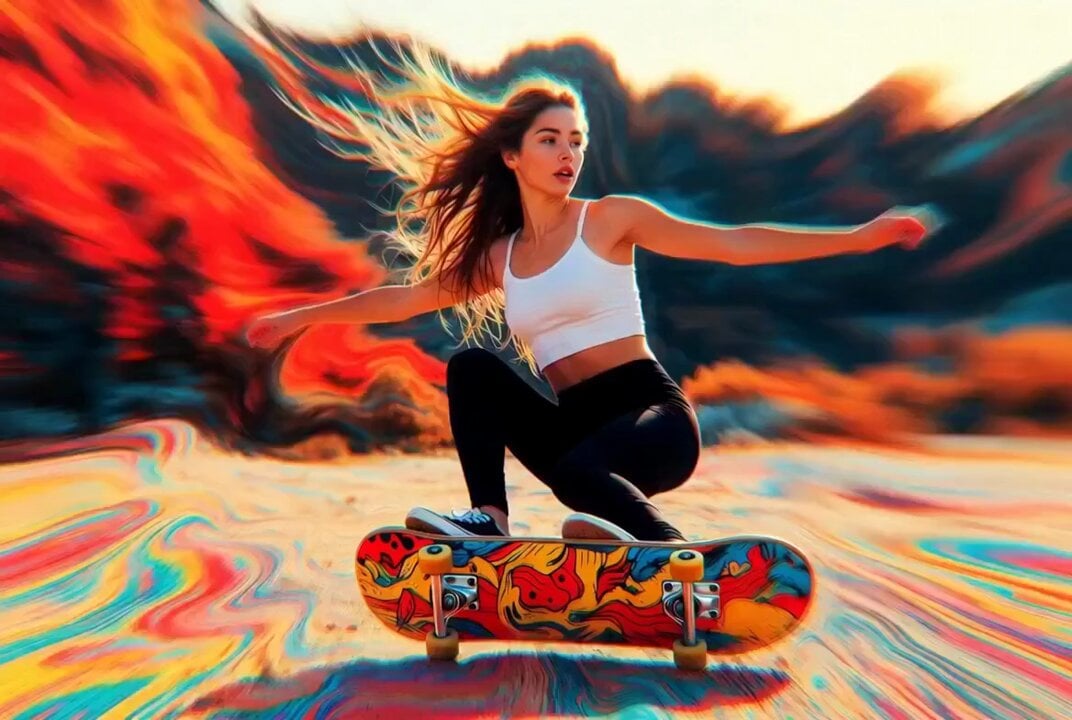
Detailed multi-part video prompt
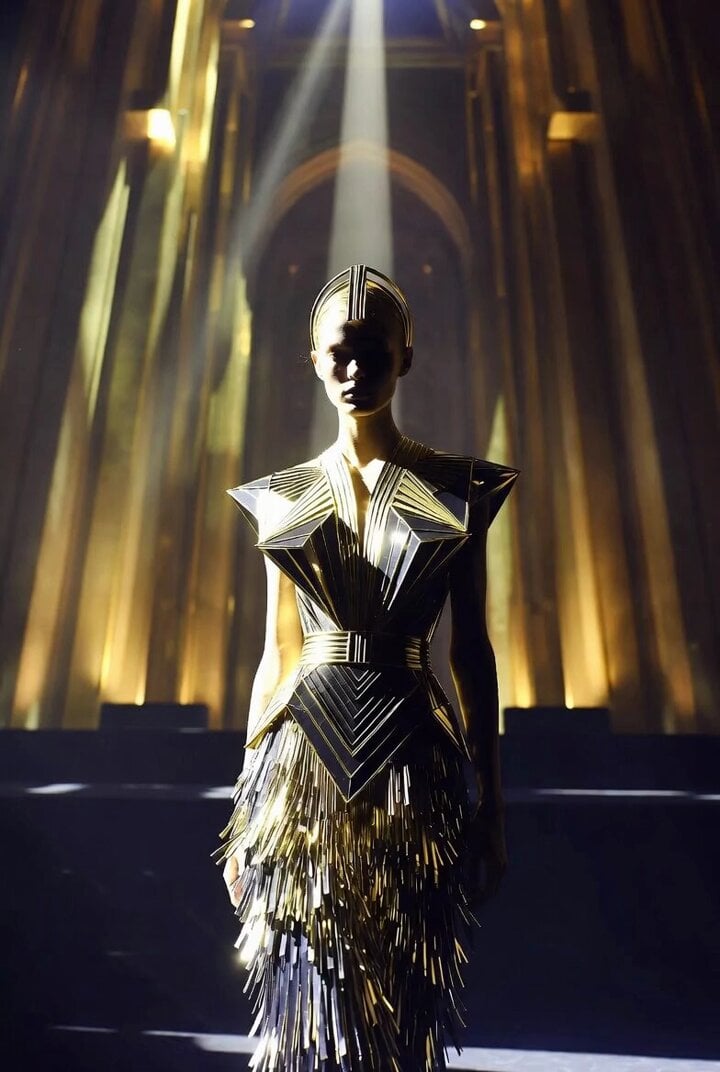
Art Deco Hall Runway Fashion Video

Frostbound Blade Bearer Fantasy Cinematic
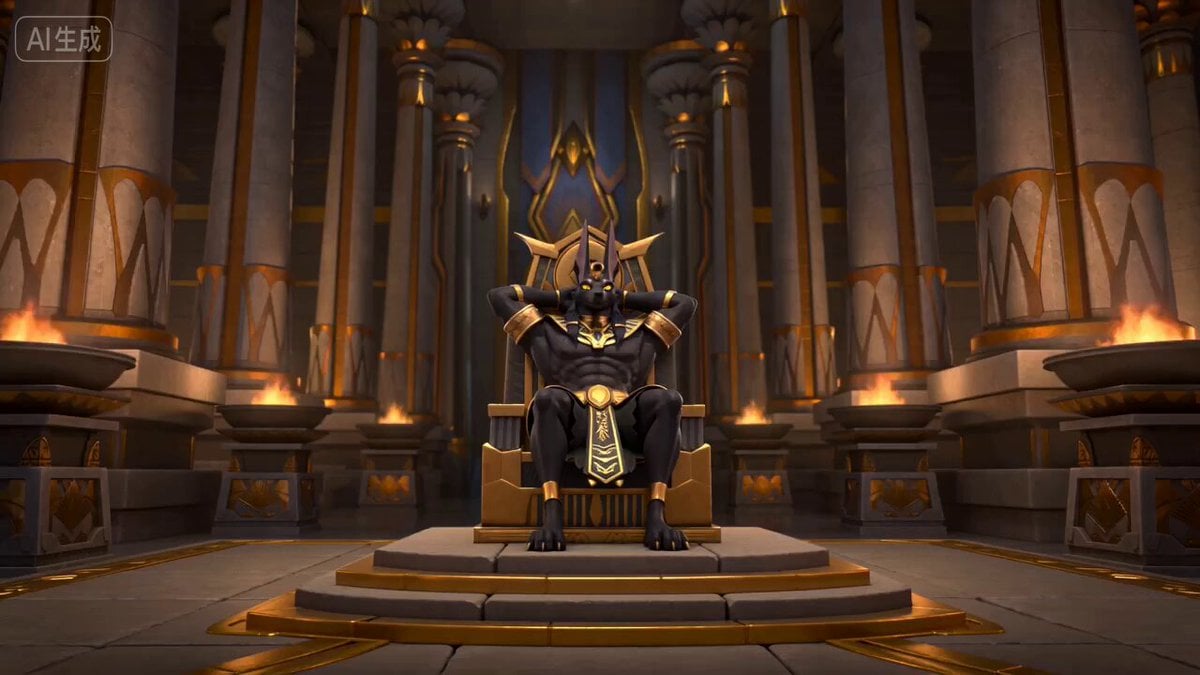
Anubis Tickle Scene
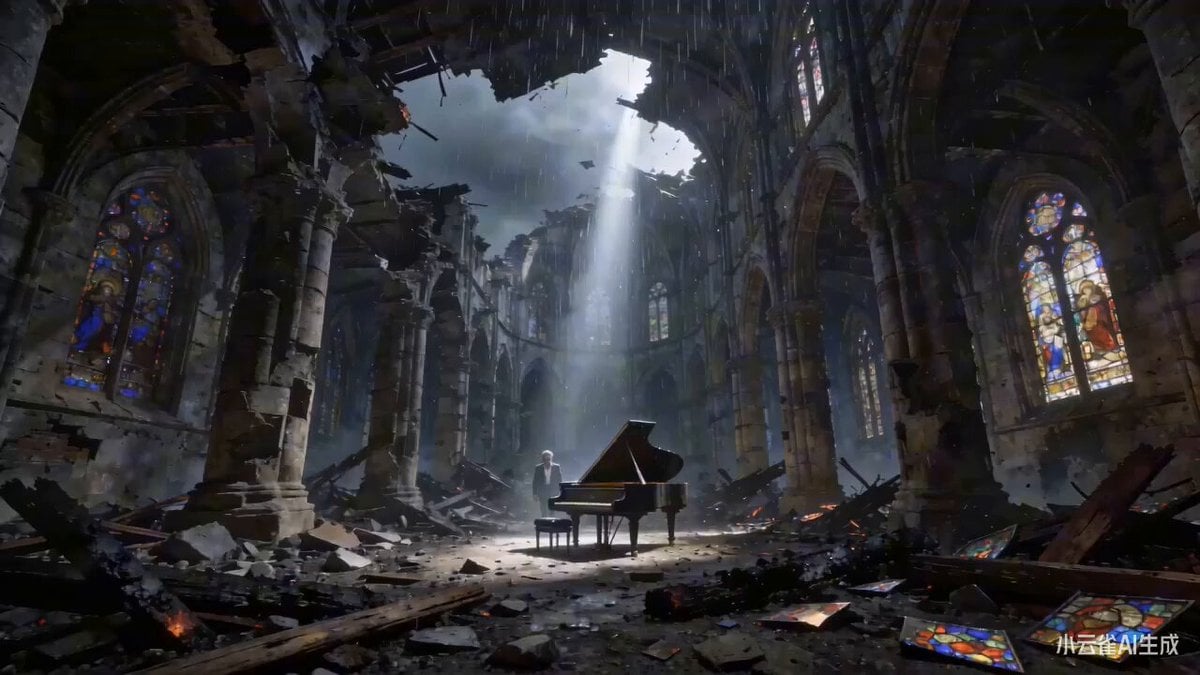
The Pianist and the Ruins (Time Reversal)
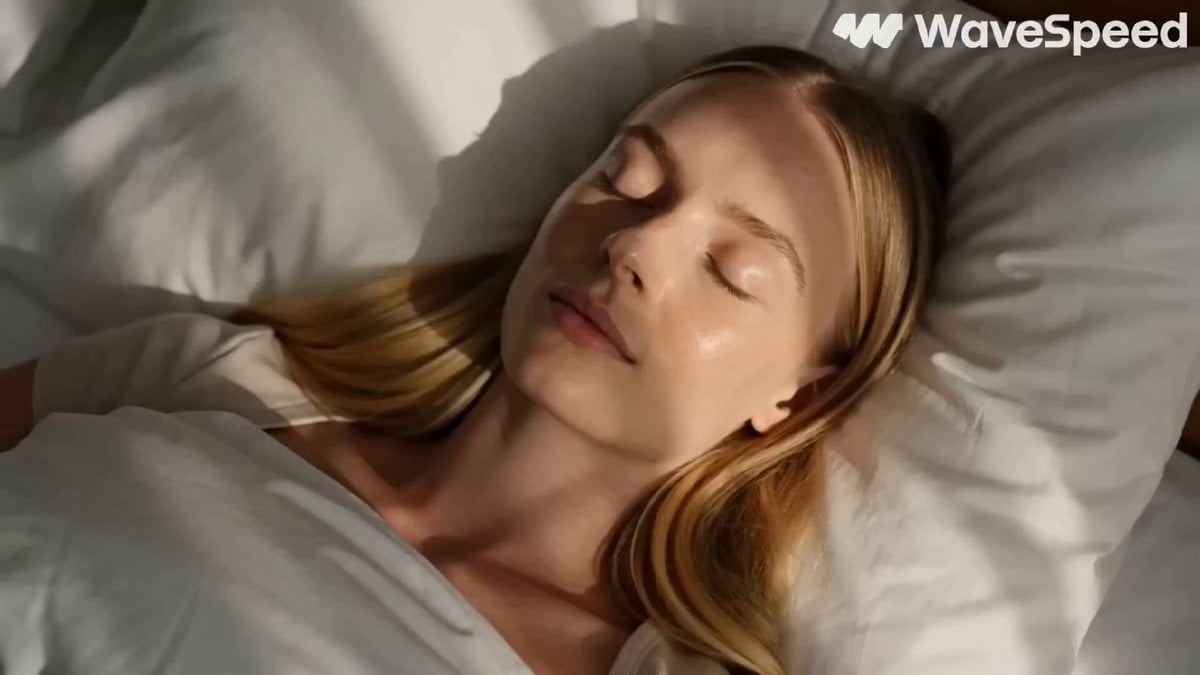
Aesthetic Morning Energy Routine
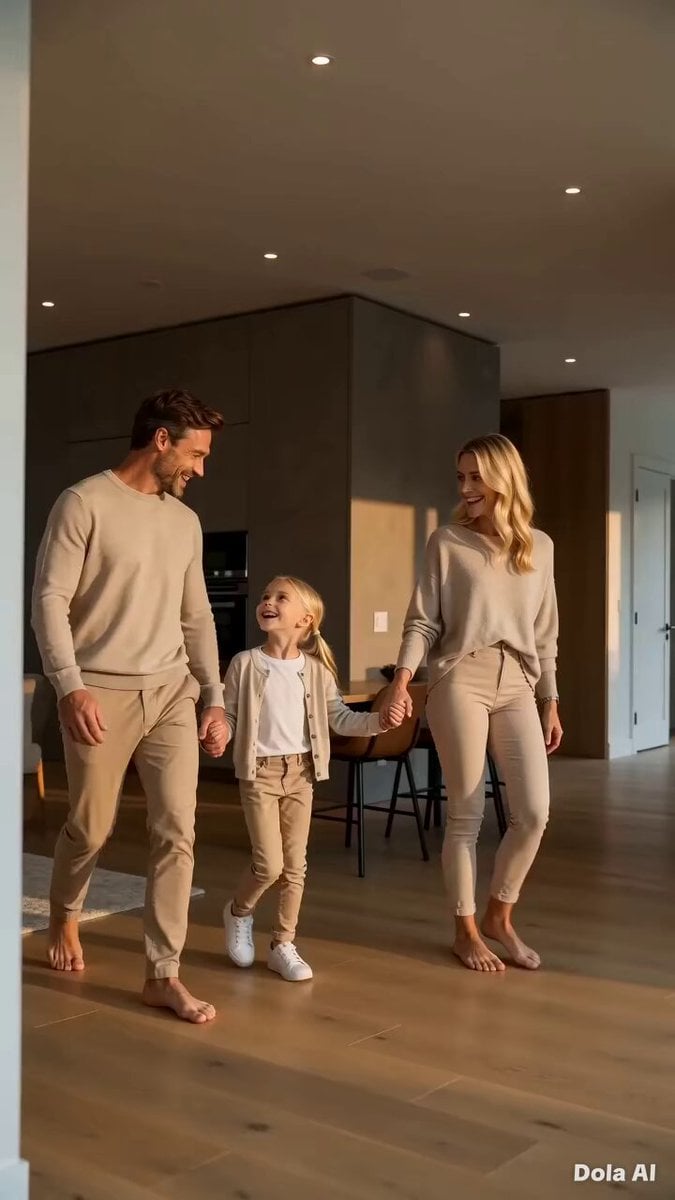
Modern Family Home Walkthrough
Browse template categories
Step 2: Just put your storyboard as refference ima questions
How do I use the Step 2: Just put your storyboard as refference ima template?
Add your photo if the template asks for one, edit the prompt if you like — the template's model and format are already selected — and press Generate. Your version opens in PicX Studio.
Can I customize the Step 2: Just put your storyboard as refference ima template?
Yes. You can change the subject, setting, lighting, mood, format, and available model controls before creating your video.
Is the Step 2: Just put your storyboard as refference ima template free?
Opening and editing this template is free. Generating uses credits, shown on the Generate button when you are signed in.
Which AI model should I use?
Start with Seedance 2.0, which is the model associated with this template. You can compare another compatible model for a different finish.
Looking for something else? Browse all templates.

Your photo, any look
Thousands of ready templates for every top image and video model, from one credit balance.