
IMAGEByteDance · from 15 credits / image
The low-cost Seedream 5.0
Seedream 5 Lite — AI Image Generator
15 credits at 2K. Up to 10 references. Edits included.
Seedream 5 Lite is the budget model in ByteDance's Seedream 5.0 family. It makes 2K images for 15 credits, edits from a sentence and still takes up to 10 reference images, so you can try ten ideas for the price of a few on a premium model.

- 1K–4K
Draft more, spend less
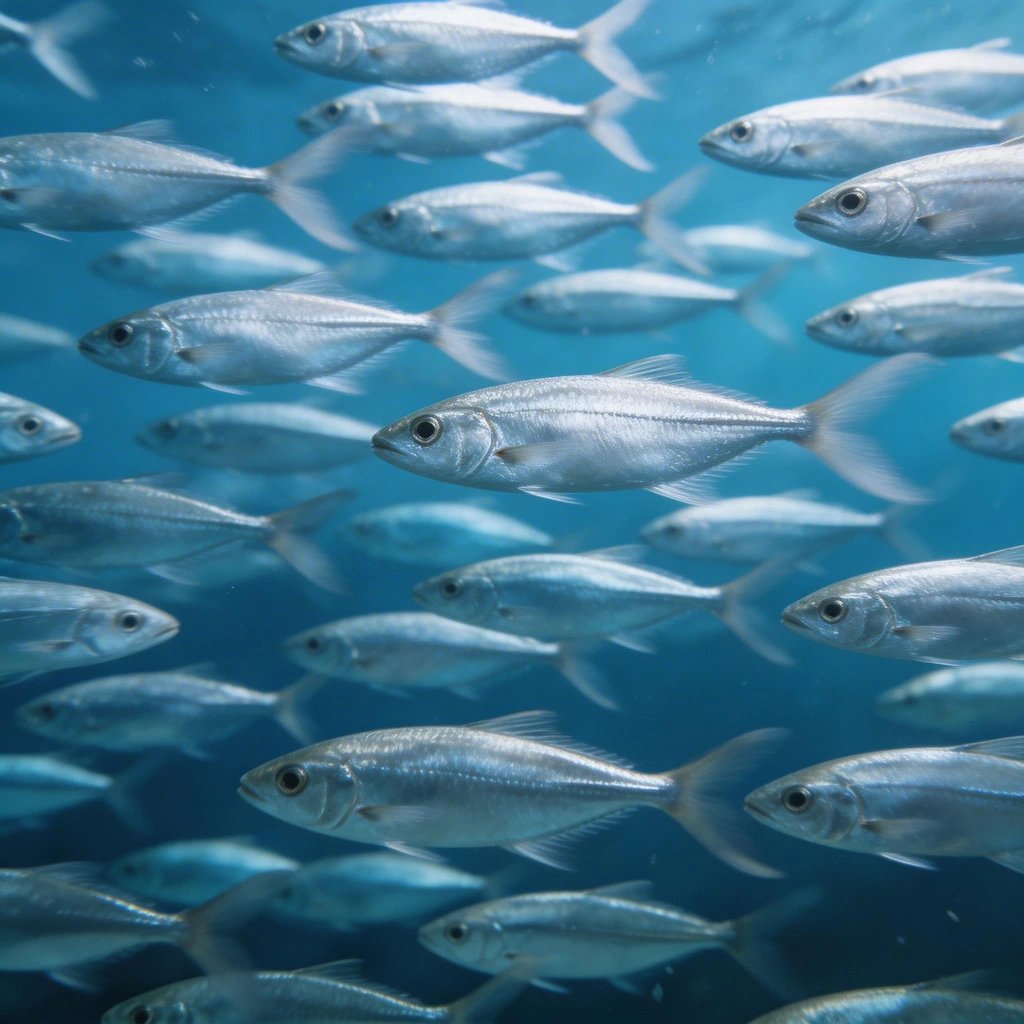
2K images for 15 credits
Every Seedream 5 Lite image starts at 2K, about 4 megapixels, and costs 15 credits. That is under half the price of Seedream 4.5 at the same size. Use it for the exploring phase: testing compositions, palettes and angles before you commit a premium model to the final.
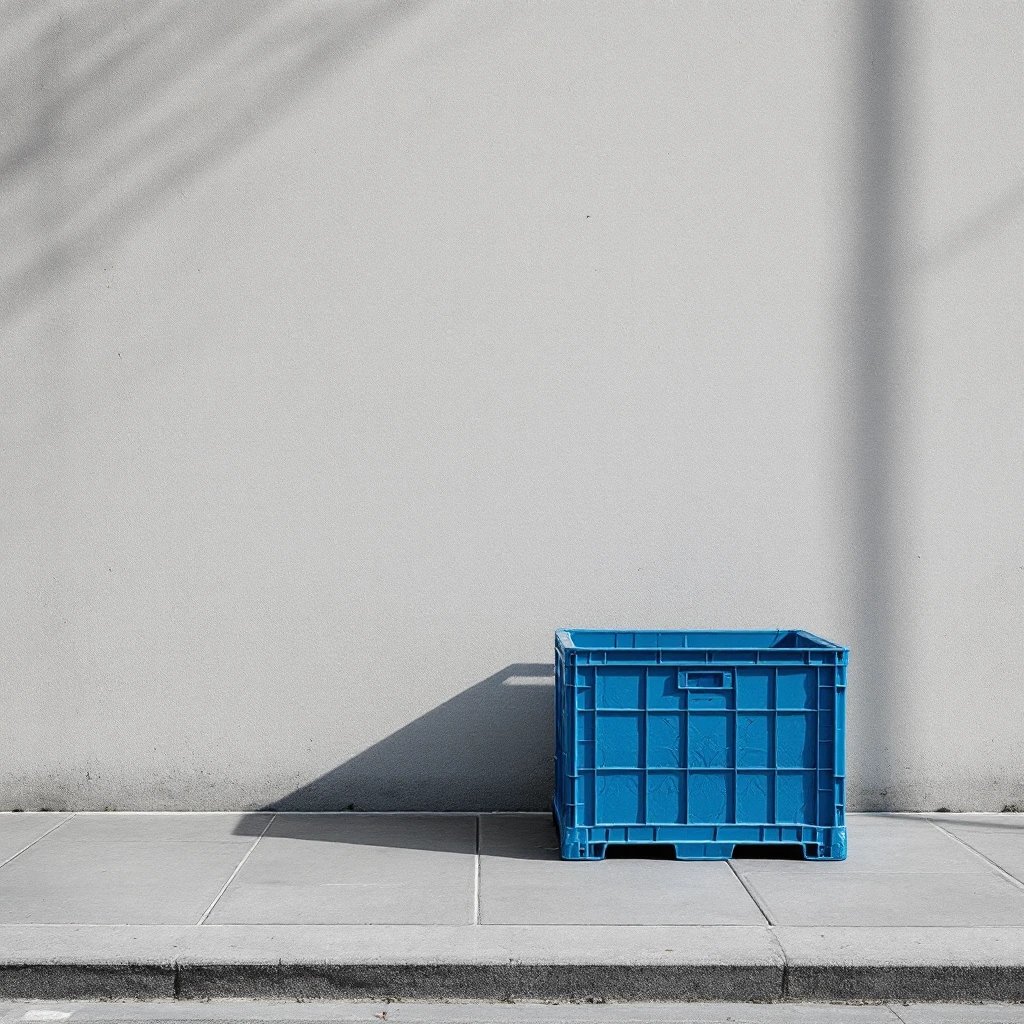
Edits and references still included
Lite does not drop the editing tools. Upload an image and describe the change, or add up to 10 references to set the product, subject and style. Background swaps, recolors and object changes work from one sentence.
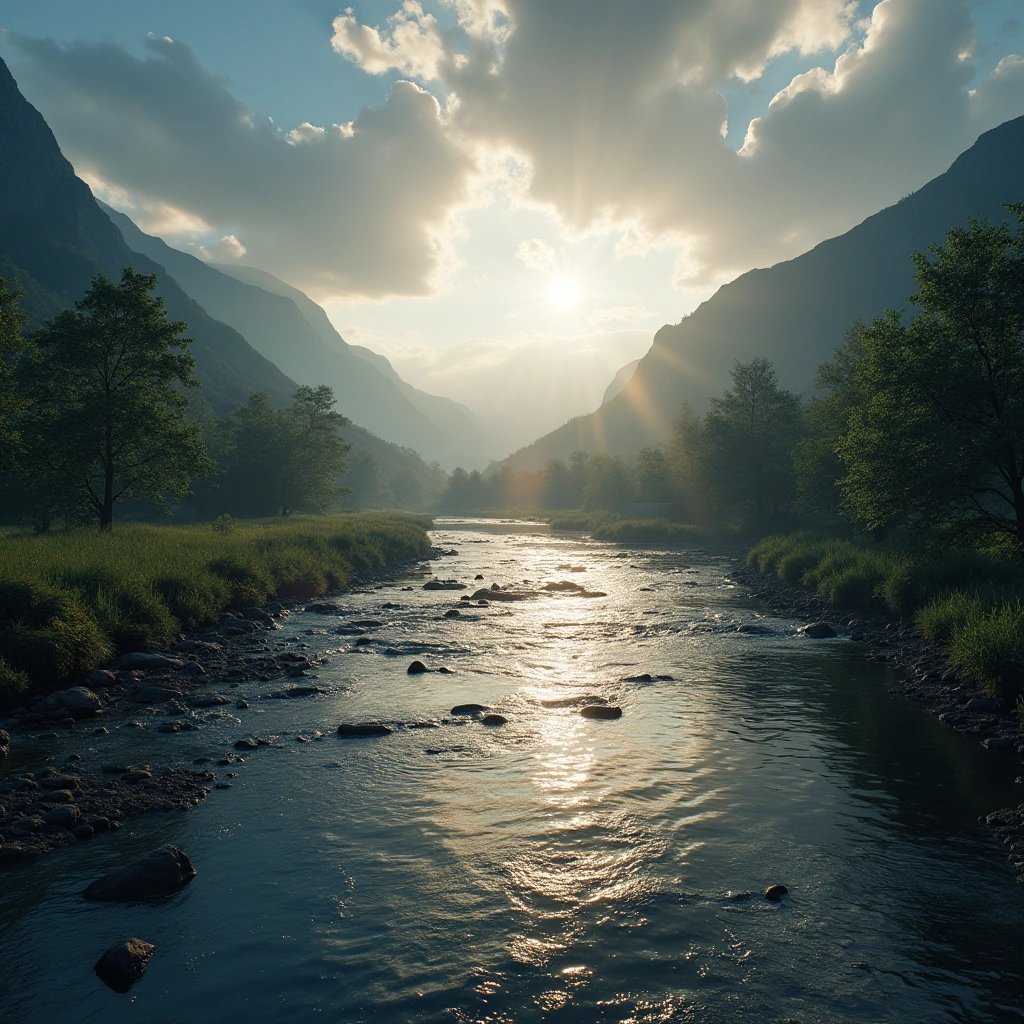
4K when the draft is a keeper
Found the frame? Run it again at 4K, about 16 megapixels, for 30 credits. You stay on the same model, so the look you picked carries over to the large file.
Seedream 5 Lite
15 credits at 2K. Up to 10 references. Edits included.
Built for everyday volume

Social posts every day. A feed that needs fresh images daily adds up fast. At 15 credits a post, Lite keeps the cost of volume low.
Concept rounds. Generate ten directions for a pitch, keep the two that work, then finish them here at 4K or on Seedream 5 Pro.
Quick product edits. Change a product's color, background or setting from the photo you already have, without a reshoot.
Stock-style backgrounds. Landscapes, water, textures and skies for slides, blog headers and site sections.

Moodboards. Fill a board with fast variations on one idea, then pick a direction with the team.
Why pick Seedream 5 Lite
- 15Credits at 2KThe lowest-priced Seedream on PicX.
- 2KStarting sizeAbout 4 megapixels on every image, no small tier.
- 4KFinal sizeAbout 16 megapixels for 30 credits.
- 10 refsReference imagesCombine product, subject and style references in one run.
- EditImage to imageChange backgrounds, colors and objects by describing them.
- 9Aspect optionsAuto plus 1:1, 4:3, 3:4, 3:2, 2:3, 16:9, 9:16 and 21:9.
What Seedream 5 Lite costs
Billed per image, at the resolution you pick. The same prices the generator shows before you run it.
- 1K–2K15credits / imageOn Starter≈ 240 images / mo
- 4K30credits / imageOn Starter≈ 120 images / mo
Every model on every planCredits never expireSee plans
Pay for Seedream 5 Lite with crypto
Buy credits with Bitcoin, USDT, USDC, ETH, Solana and more — no card, nothing auto-renews, packs from $5, and 15% extra credits on crypto payments.
Lite, 4.5 or Pro
How Seedream 5 Lite compares with the other Seedream models on PicX. Credit costs are in the pricing table below.
How to use Seedream 5 Lite in 3 steps
- 1
Write the prompt
Describe the subject, setting, light and style. Add a reference image if you have one.
- 2
Generate a batch at 2K
Run a few variations at 15 credits each and change one detail per run.
- 3
Finish the keeper
Edit the best result, or run it again at 4K for the final file.
Seedream 5 Lite prompts to copy
Real prompts and what they made. Copy one, or open it in the generator with the model already picked.
Motion in water
Close-up image of hundreds of silver fish swimming in clear blue water, motion shot, light catching their scales, dense school filling the frame, square
Graphic silhouette
A silhouette of a basketball player dribbling against a gradient blue background, strong rim light, clean studio floor reflection, minimal sports poster style
Anime fantasy
A white spirit fox leaping through a glowing ring of light above a city of ice and clouds, crescent moon, pastel blue and peach sky, detailed anime illustration, 16:9
Landscape light
A shallow river winding through a green mountain valley at golden hour, sun breaking through heavy clouds, wet stones in the foreground, cinematic landscape photo
Templates to start from
Browse all templates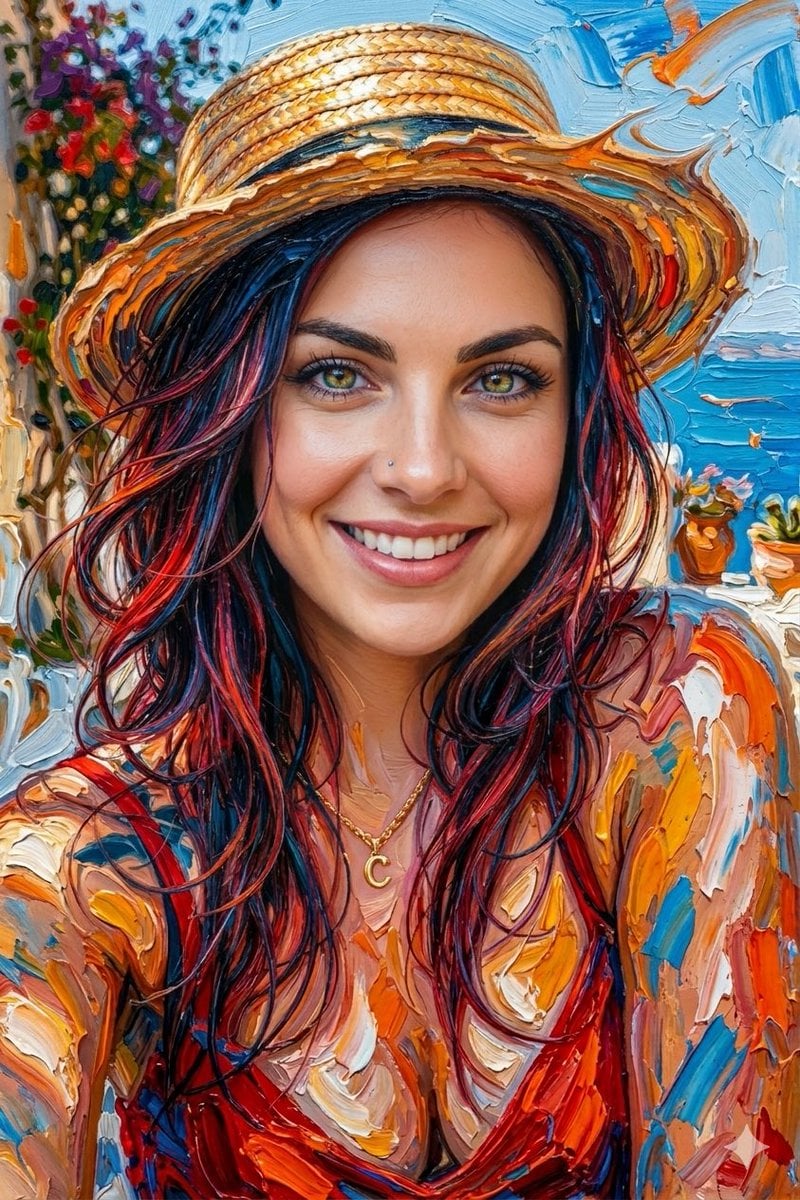

Seedream 5 Lite questions
What is Seedream 5 Lite?
Seedream 5 Lite is a fast, high-quality ByteDance AI image model in PicX Studio for text-to-image creation and natural-language image editing.
What can I create with Seedream 5 Lite?
Use it for rapid product concepts, campaign scenes, social graphics, styled product edits, visual moodboards, illustrations, and everyday marketing assets.
Can I use a reference image?
Yes. Add a reference image when you want to guide a composition, color direction, visual style, or overall creative feel. You can attach up to 10.
How do I get better results?
Start with a clear subject, then add the setting, framing, lighting, palette, and style. Refine one important choice per variation.
Does Seedream 5 Lite support high-resolution output?
Yes. Images start at 2K (about 4 megapixels) for 15 credits, and 4K (about 16 megapixels) costs 30 credits.
How much does Seedream 5 Lite cost?
15 credits per 2K image and 30 credits per 4K image, from the same credit balance as every other PicX model. Your first image is free after sign-up.
Is Seedream 5 Lite the same as Seedream 5.0?
It is one of the two Seedream 5.0 models from ByteDance. Lite is the faster, lower-cost one with editing. Seedream 5 Pro is the flagship text-to-image model.
Can Seedream 5 Lite edit photos?
Yes. Upload a photo and describe what to change, such as the background, color, lighting or an object, and what to keep the same.
Should I use Seedream 5 Lite or Seedream 4.5?
Use Lite for drafts, volume and the lowest price. Use Seedream 4.5 when you want a seed setting for repeatable sets or a 4K tier that costs close to its 2K price.
How does Seedream 5 Lite compare to Seedream 5 Pro?
The two Seedream 5.0 models split the work. Lite edits images and takes references; Pro is text-to-image only on PicX. Pro adds stronger art direction and native lettering in 14 languages, and costs 20 credits at 1K or 40 at 2K. Lite costs 15 at 2K and goes up to 4K. If your image starts from a photo or a product shot, use Lite. If it starts from a written brief and must look finished or carry text in more than one language, use Pro.
What are the best prompt tips for a fast model like Seedream 5 Lite?
Fast models reward short, concrete prompts. Name the subject first, then one setting, one light source and one style. Skip stacks of quality words like "masterpiece, 8K, ultra detailed"; they add noise, not detail. Because each run is cheap, test by changing a single variable: same prompt, different light; same prompt, different lens. Keep the version that wins and build from it. For edits, write what changes and what stays: "make the crate red, keep the wall and shadow".
How do I edit with reference images in Seedream 5 Lite?
Attach one image to edit it, or several to combine them. Say what each image contributes: "image 1 is the product, image 2 is the room". Clean inputs give clean outputs, so use sharp photos on simple backgrounds where you can. Lite handles background swaps, recolors, weather and time-of-day changes and adding or removing objects. If an edit drifts from the original, shorten the instruction and name the parts to keep.
Is Seedream 5 Lite free?
Your first image on PicX Studio is free after you sign up, with no card needed, and you can spend it on Seedream 5 Lite. After that it uses credits from the same balance as every other model: 15 credits per 2K image and 30 per 4K image. Because it is the lowest-priced Seedream, it is the best way to stretch a credit balance across a lot of images.

Try ten ideas with Seedream 5 Lite
2K images for 15 credits, edits and references included. Your first image is free.