
Vector Art Style Transformation Prompt
A highly detailed, structured prompt designed to transform an uploaded reference image into a clean vector art illustration.
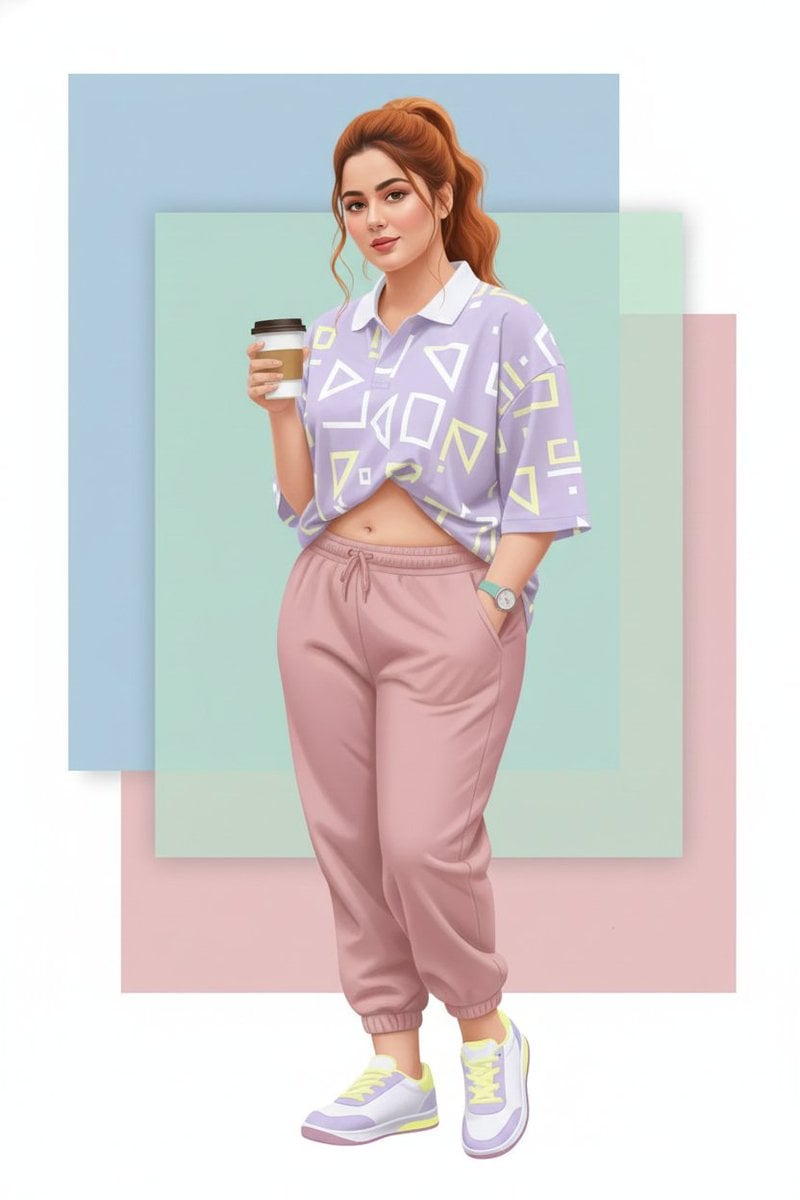
- Prompt included
- Model and format preset
- Free template
The prompt behind this image
Copy the exact prompt behind Vector Art Style Transformation Prompt, or open it in the studio and make it yours.
- Prompt
- Use the uploaded image as a strict identity reference only. Preserve 100% exact face match, facial structure, expressions, skin tone, hairstyle, and identity of every person visible in the reference image. Do not add or remove any person. While keeping identity intact, change the pose to a new natural and visually appealing pose suitable for illustration (for example: slight body turn, relaxed stance, different hand placement, or subtle interaction between people). Update the color palette to a fresh, modern scheme with harmonious tones, such as pastel gradients, warm–cool contrast, or bold contemporary colors, while keeping skin tones realistic and consistent. Convert the scene into a high-quality illustration blended with clean vector art style. Use crisp outlines, smooth curves, flat-to-semi-flat color fills, and soft gradient accents. Clothing design should remain similar in type but recolored to match the new palette, with clean vector shapes and refined edges. Lighting should be soft and even, optimized for illustration and vector clarity. Background should be redesigned into a minimal, stylish vector backdrop using gradients or abstract shapes that complement the new pose and colors. Render in ultra high resolution with sharp edges, clean layers, and a professional illustration + vector finish.
- Negative Prompt
- face mismatch, identity change, extra person, missing person, wrong facial features, wrong skin tone, bad anatomy, extra fingers, extra limbs, distorted hands, photorealism, rough textures, painterly brush strokes, dull colors, low quality, blur, noise, grain, watermark, logo, text
- Style
- illustration + vector art
- Mood
- modern, fresh, stylish
- Lighting
- soft even lighting
- Background
- minimal vector background with abstract shapes or gradients
- Detail Level
- high but clean
- Render Quality
- ultra high resolution, crisp vector clarity
- Composition
- same persons, new pose, updated colors
- Reference Strength
- 0.85
Raw JSON
{
  "prompt": "Use the uploaded image as a strict identity reference only. Preserve 100% exact face match, facial structure, expressions, skin tone, hairstyle, and identity of every person visible in the reference image. Do not add or remove any person. While keeping identity intact, change the pose to a new natural and visually appealing pose suitable for illustration (for example: slight body turn, relaxed stance, different hand placement, or subtle interaction between people). Update the color palette to a fresh, modern scheme with harmonious tones, such as pastel gradients, warm–cool contrast, or bold contemporary colors, while keeping skin tones realistic and consistent. Convert the scene into a high-quality illustration blended with clean vector art style. Use crisp outlines, smooth curves, flat-to-semi-flat color fills, and soft gradient accents. Clothing design should remain similar in type but recolored to match the new palette, with clean vector shapes and refined edges. Lighting should be soft and even, optimized for illustration and vector clarity. Background should be redesigned into a minimal, stylish vector backdrop using gradients or abstract shapes that complement the new pose and colors. Render in ultra high resolution with sharp edges, clean layers, and a professional illustration + vector finish.",

  "negative_prompt": "face mismatch, identity change, extra person, missing person, wrong facial features, wrong skin tone, bad anatomy, extra fingers, extra limbs, distorted hands, photorealism, rough textures, painterly brush strokes, dull colors, low quality, blur, noise, grain, watermark, logo, text",

  "style": "illustration + vector art",
  "mood": "modern, fresh, stylish",
  "lighting": "soft even lighting",
  "background": "minimal vector background with abstract shapes or gradients",
  "detail_level": "high but clean",
  "render_quality": "ultra high resolution, crisp vector clarity",
  "composition": "same persons, new pose, updated colors",
  "reference_strength": 0.85
}How to use Vector Art Style Transformation Prompt in 3 steps
- 1Upload ImagePNG, JPG or paste
Add your photo
Upload the photo the template builds on. The prompt, model and format are already set.
- 2…a portrait of your subject in softgolden-hour light, 85mm…
Personalize
Edit the subject and creative details for your destination.
- 3Generate
Generate
Press Generate — your image is created in PicX Studio, so you can compare it with the original and refine one variable at a time.
More like this
Templates with the same subject, style or setup. Open one to see its prompt.
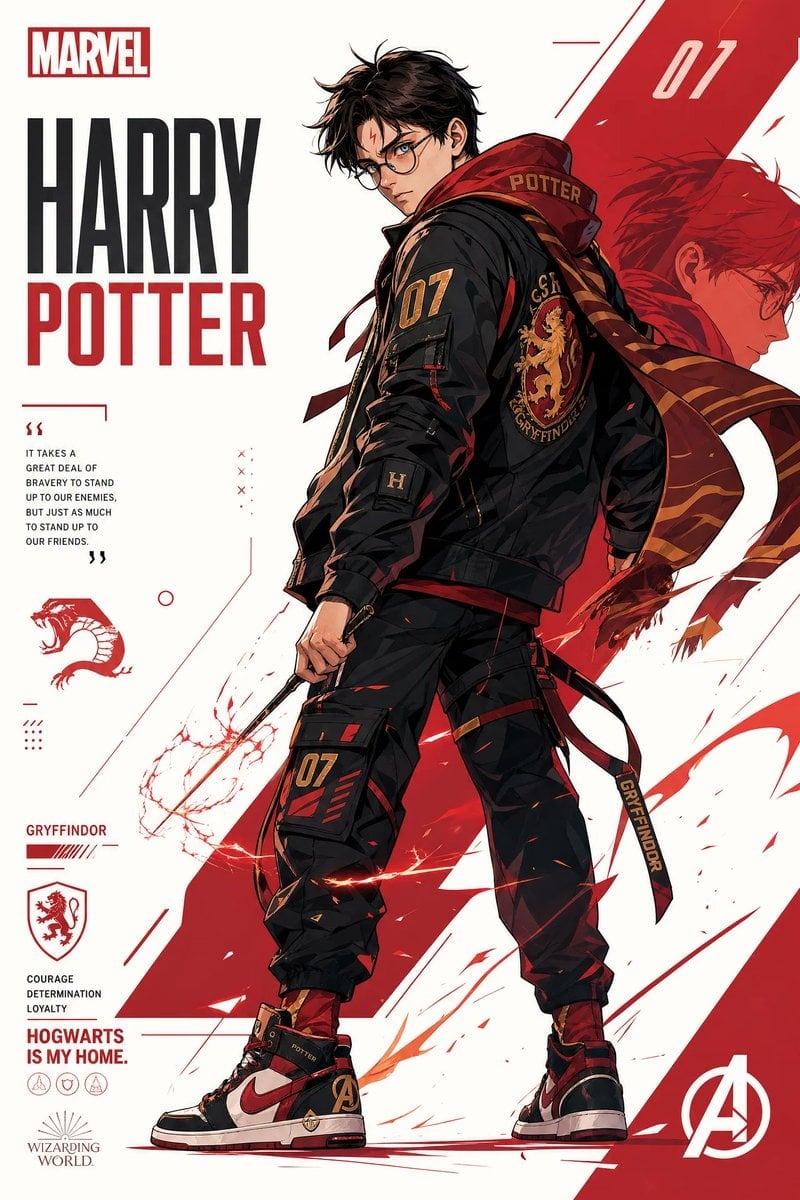
Franchise Hero Stylized Poster Blueprint
Seedance - Character Transition
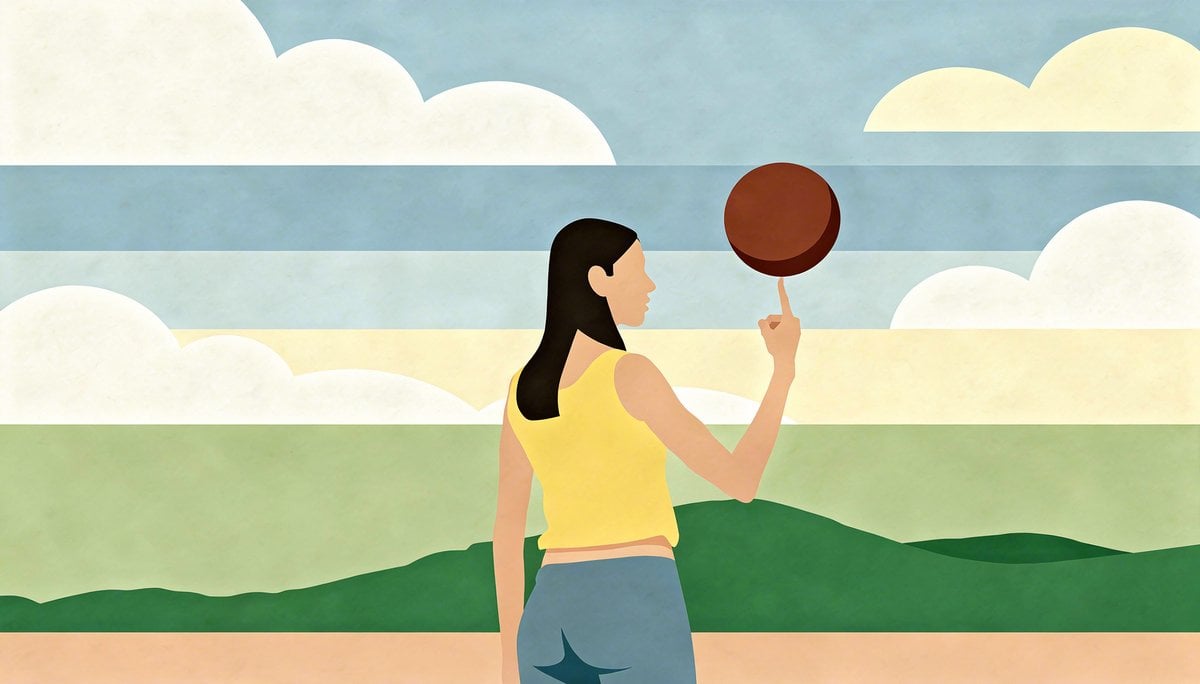
Image Transformation to Minimal Vector Poster
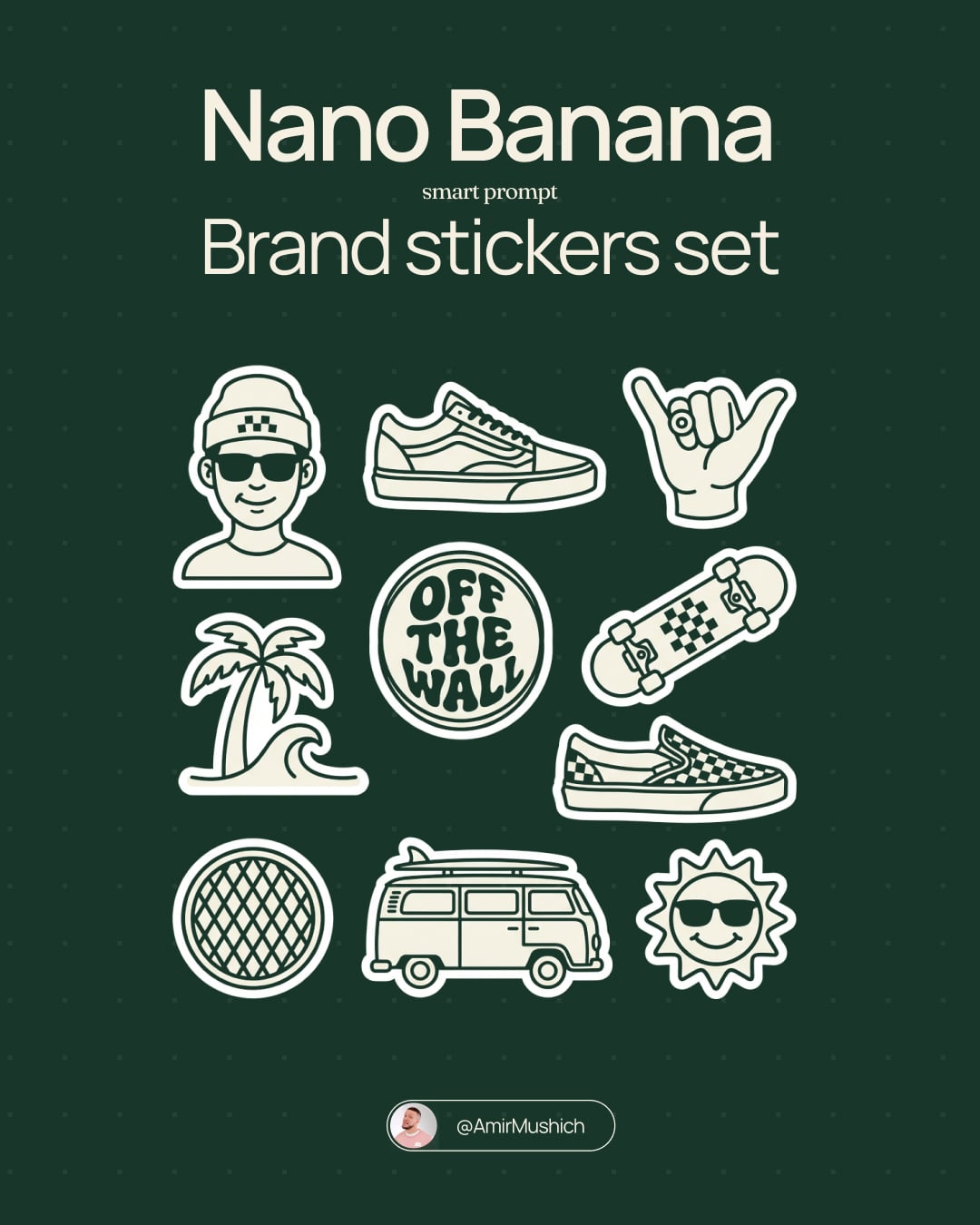
Brand Sticker Sheet Monoline Vector
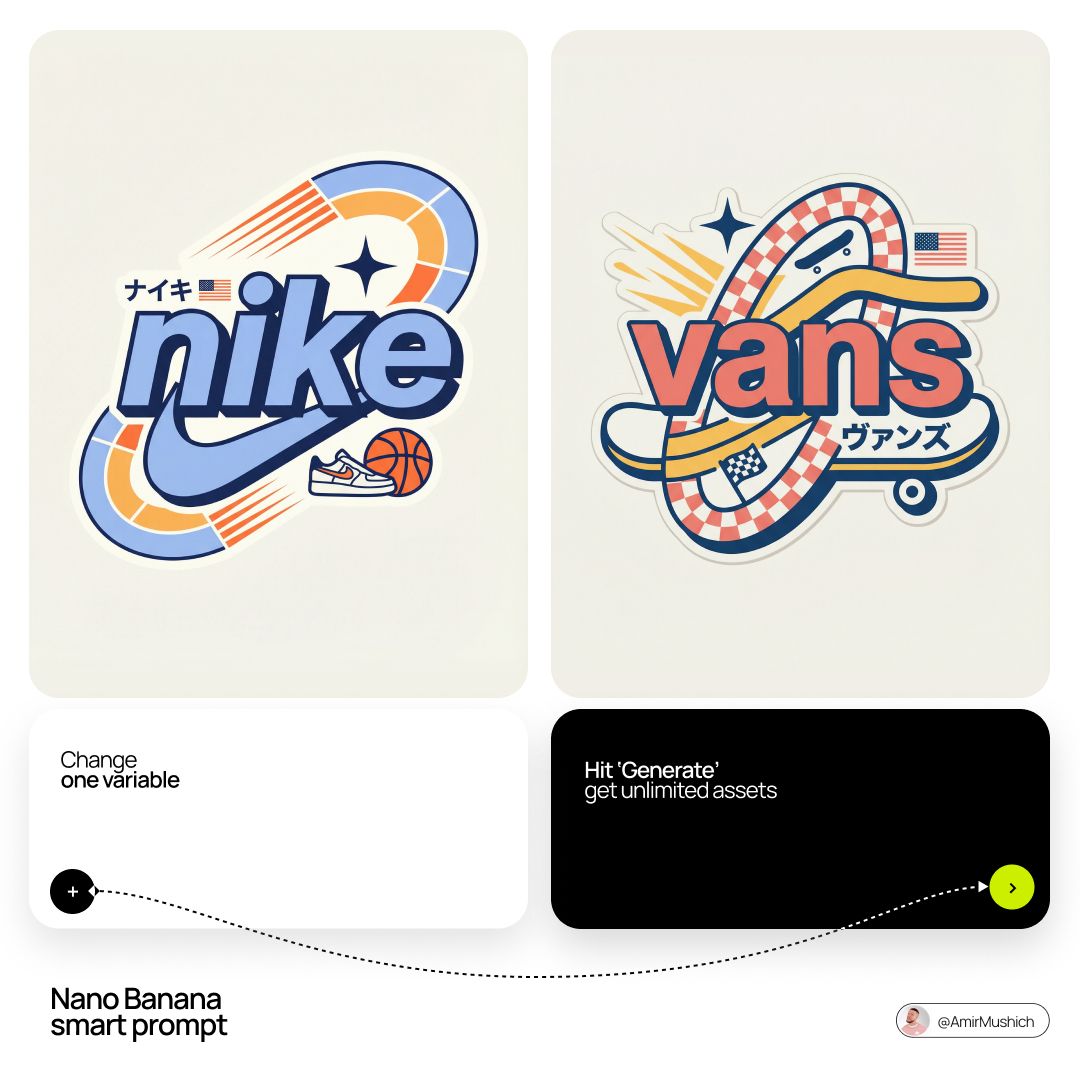
Act as a Senior Vector Graphic Designer specializing in Y2K Japanese
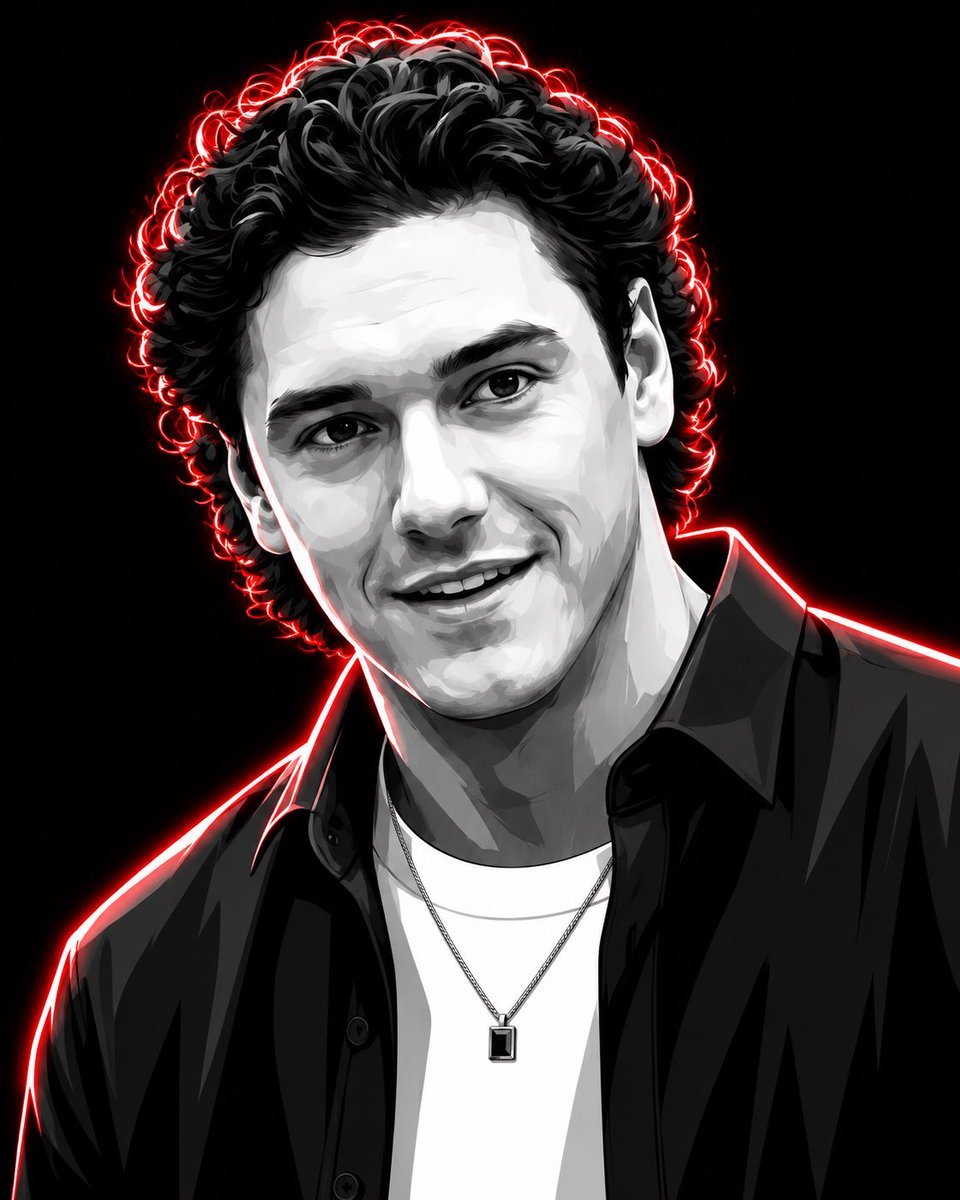
High-Contrast Monochrome Vector Portrait

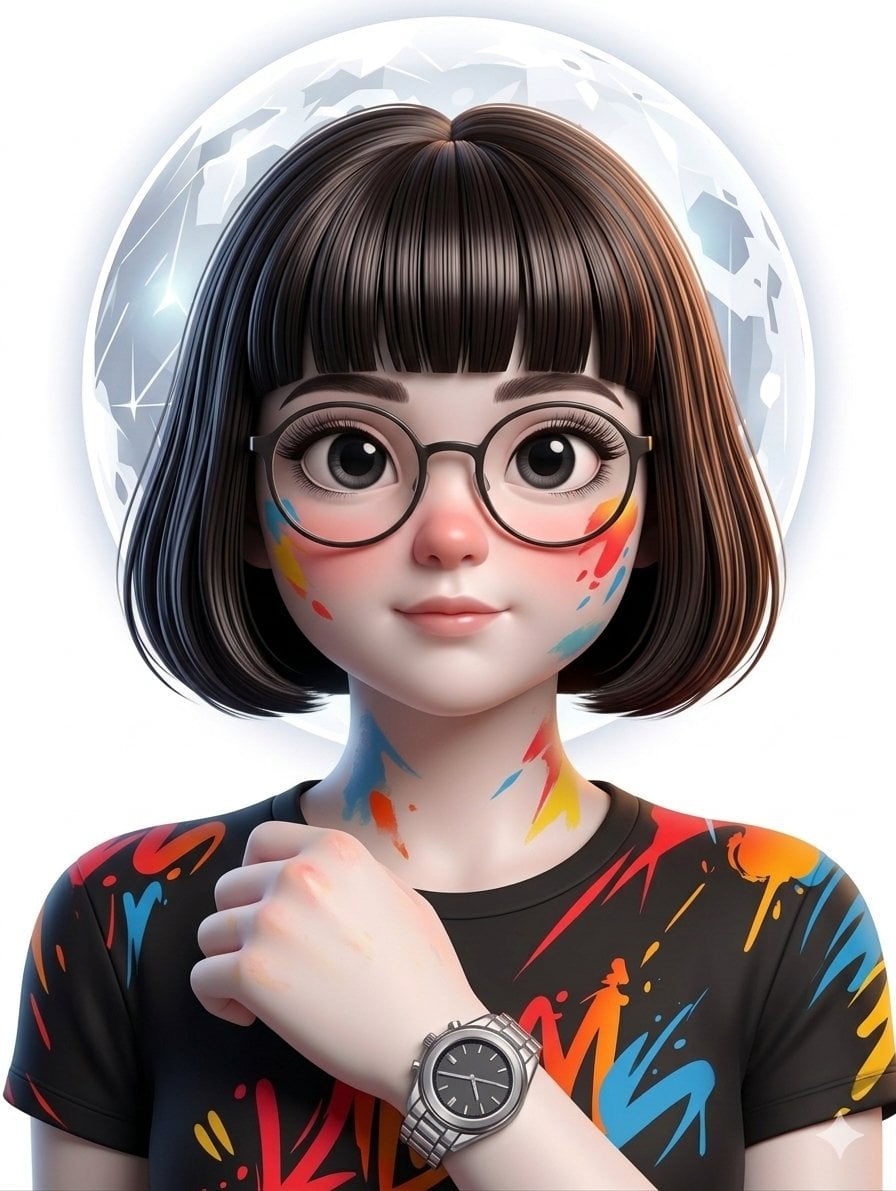
Vector Animation Style Character Illustration
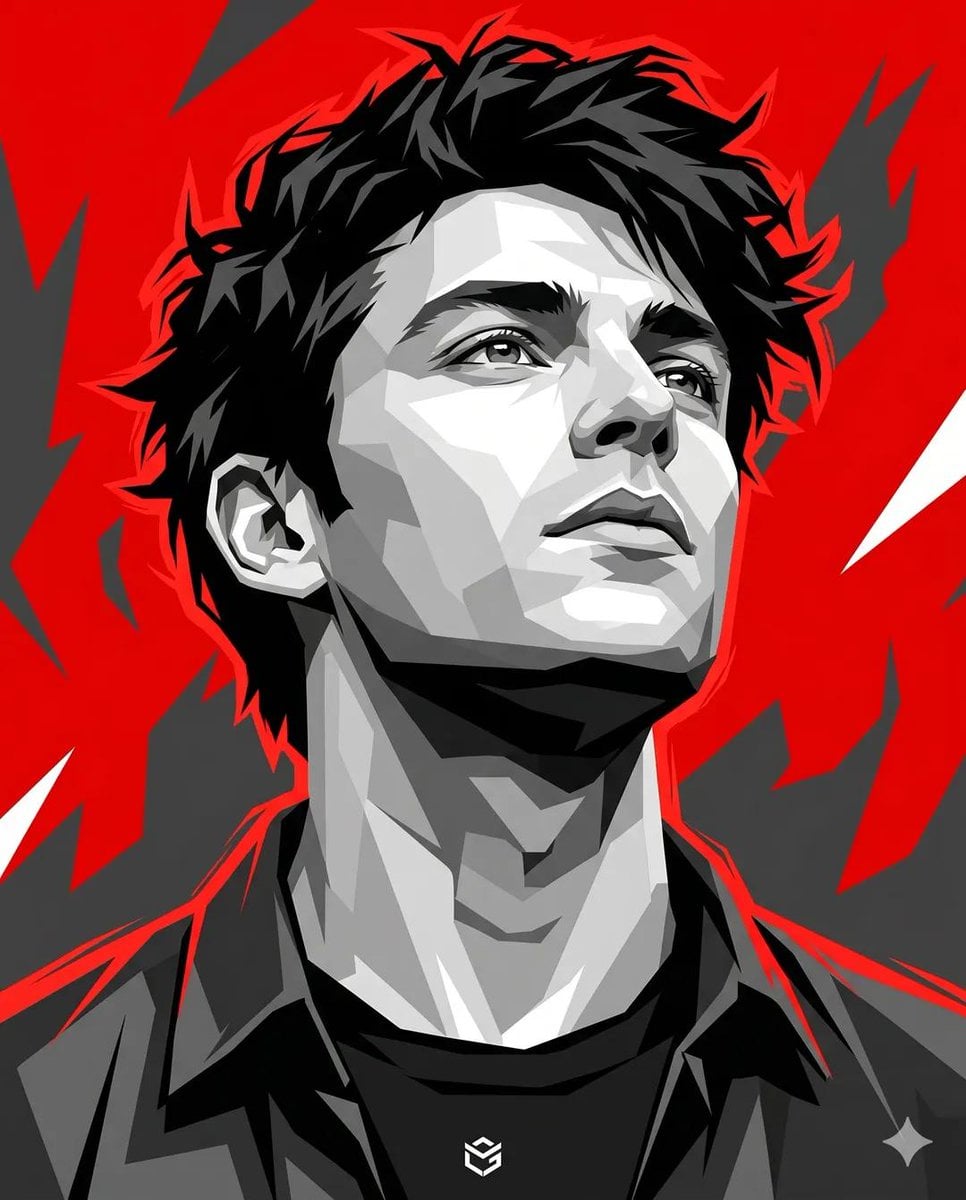
Vector Pop Art Portrait
Vector Cyberpunk Logo Art

Kerala Woman Anime Vector Illustration
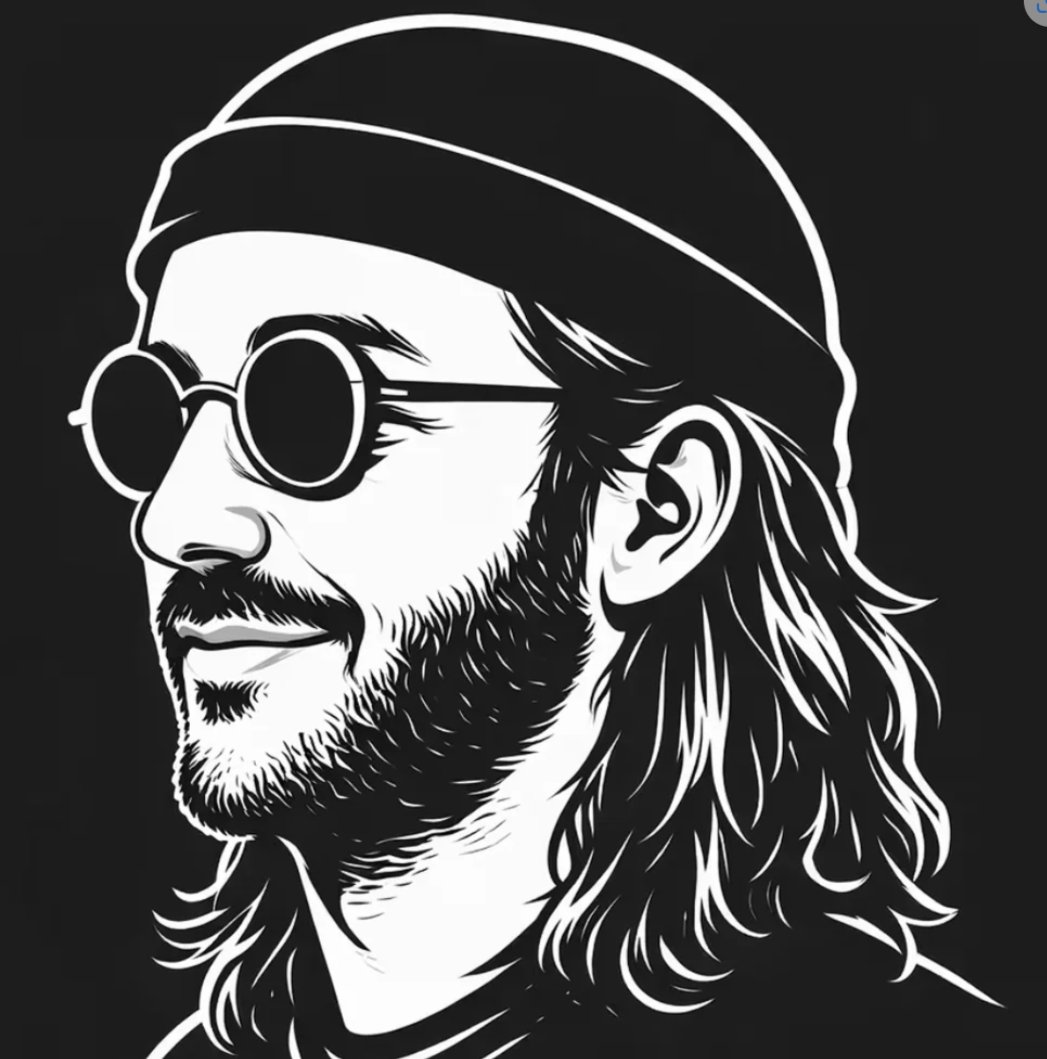
Black White Vector Musician Avatar
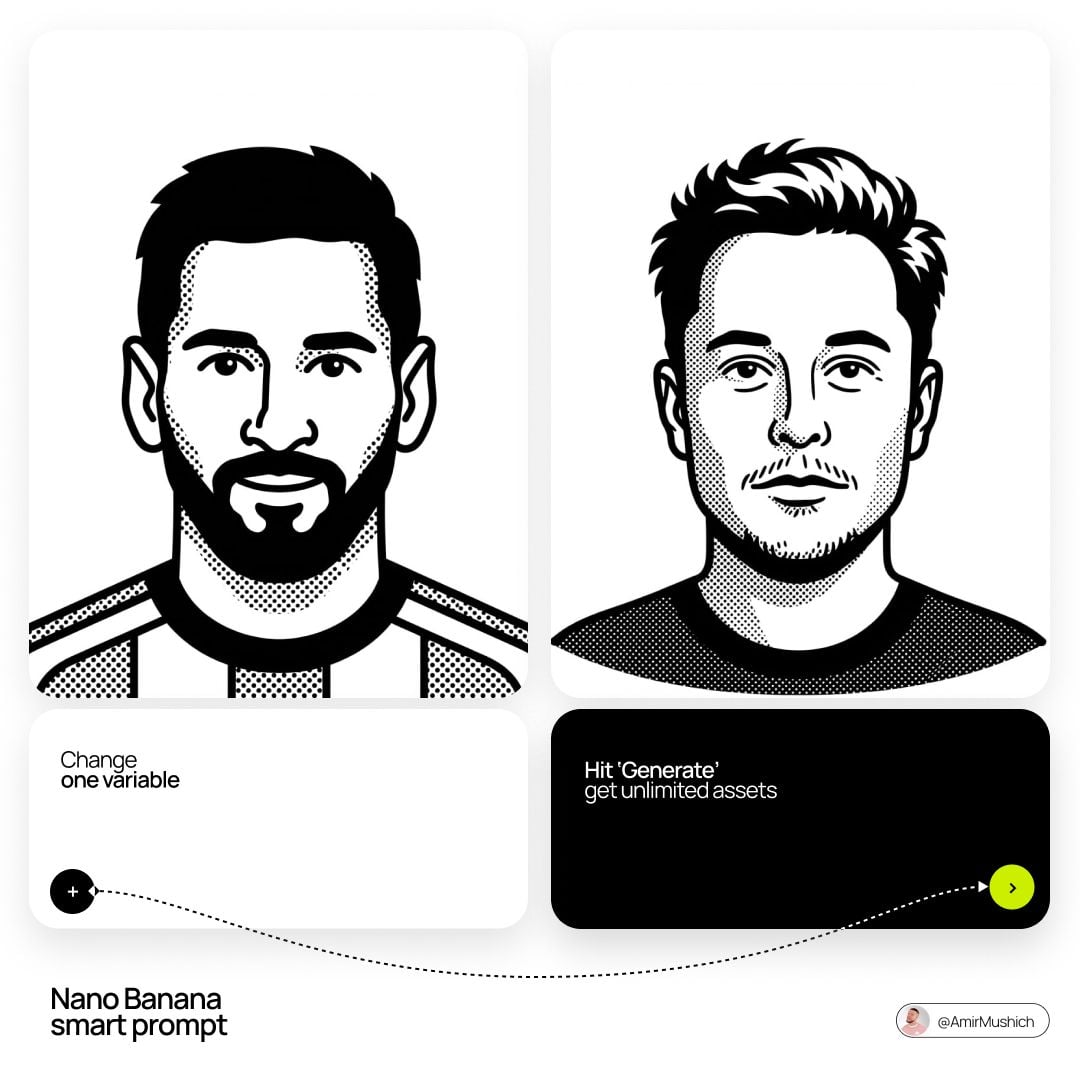
Notion Style Flat Vector Portrait
Make it yours
Vector Art Style Transformation Prompt works as-is. These are the safest ways to change it without losing the look.
Swap the setting
Keep the rest of the prompt and replace the location block. The current setting is “minimal vector background with abstract shapes or gradients”.
Swap the light
One lighting change is enough to compare takes. Current light: “soft even lighting”.
Change one field
Copy a single group, rewrite it, and generate again so you can see what that field is doing.
| If the result… | Why | Fix |
|---|---|---|
| The result drifts from the preview | Too many fields changed at once. | Reuse Vector Art Style Transformation Prompt as-is first, then change one group — subject, light, or setting. |
| Nano Banana 2 ignores part of the JSON | Some models flatten or skip nested keys. | Keep the same values and paste them as a short paragraph instead. |
More Nano Banana 2 templates
Other prompts made for Nano Banana 2.

Photorealistic Leaf Shaped Like a Dragon

K-Pop Idol Portrait Grid for Rapid Selection

Poetic Rain Forest Portrait During Golden Hour

Urban Street Portrait with Cartoon Inner Self Duo

Candid Nighttime Photo with Cat Prompt

High-Concept 3D Diorama Generation Prompt

Cinematic Futuristic Studio Portrait Template

Skincare Editorial Photography Collage Prompt

Hyper-Realistic Commercial Product Photography (Splash Effect)

Hyper-Realistic Nightclub Portrait Prompt
More image prompts
Fresh picks from across the catalog.
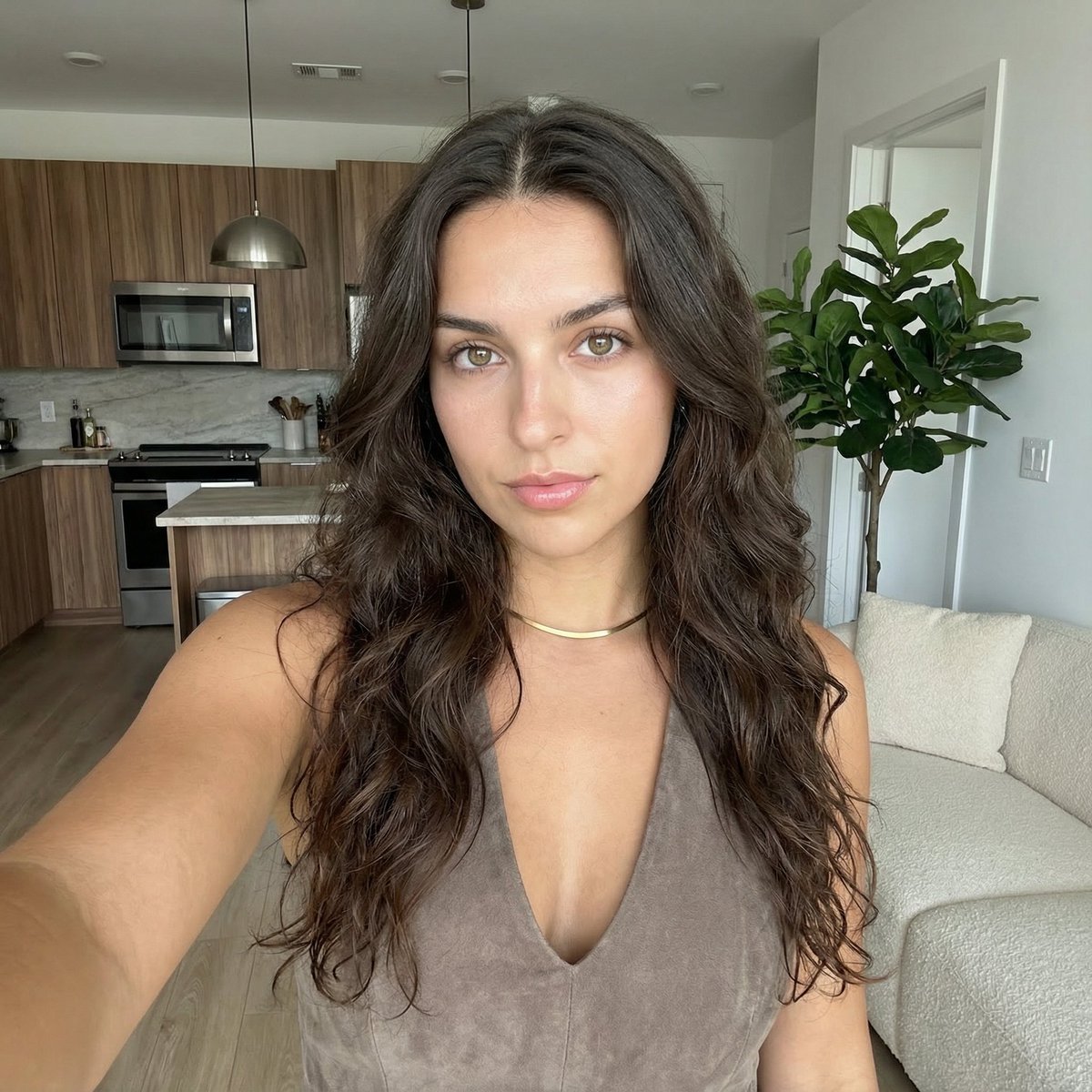
Clean Girl Aesthetic Selfie in Upscale Apartment (JSON Format)
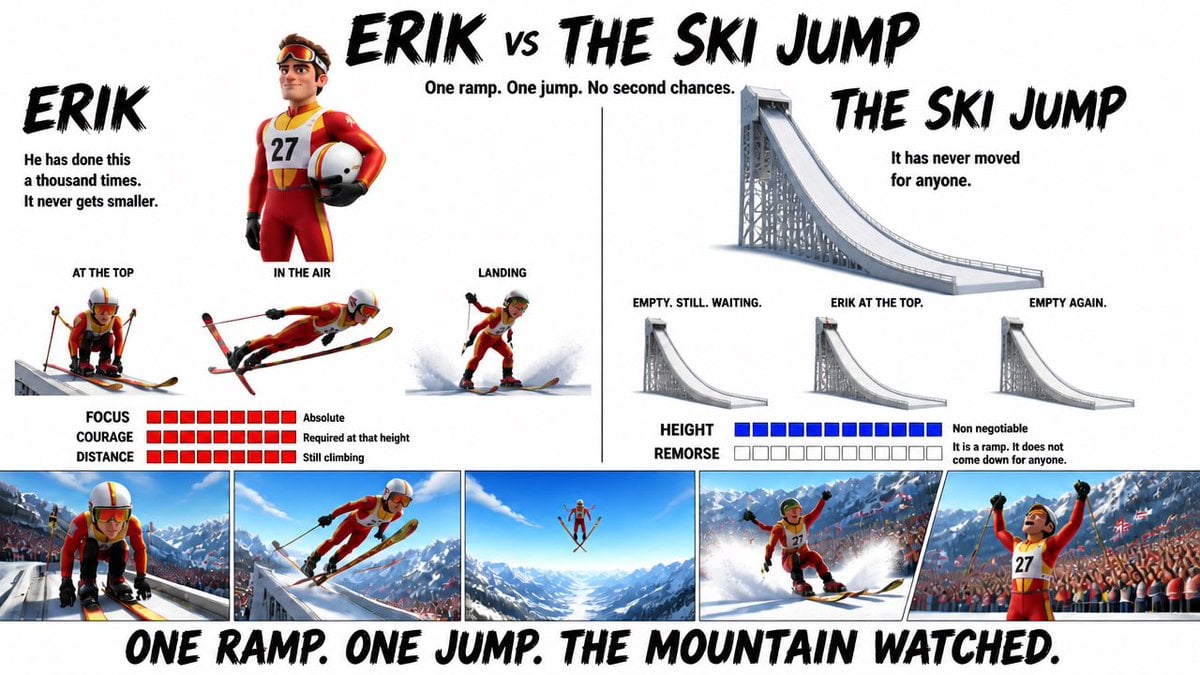
Pixar Style Character Design Sheet
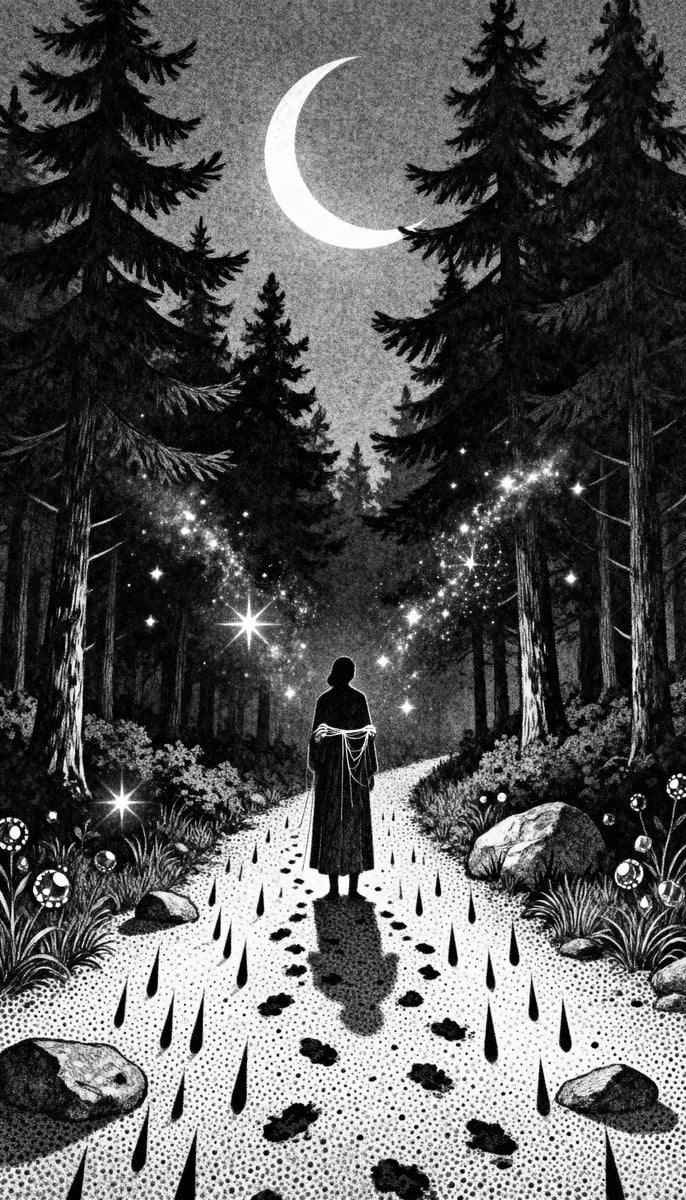
Gothic Stipple Art Poem Visualization
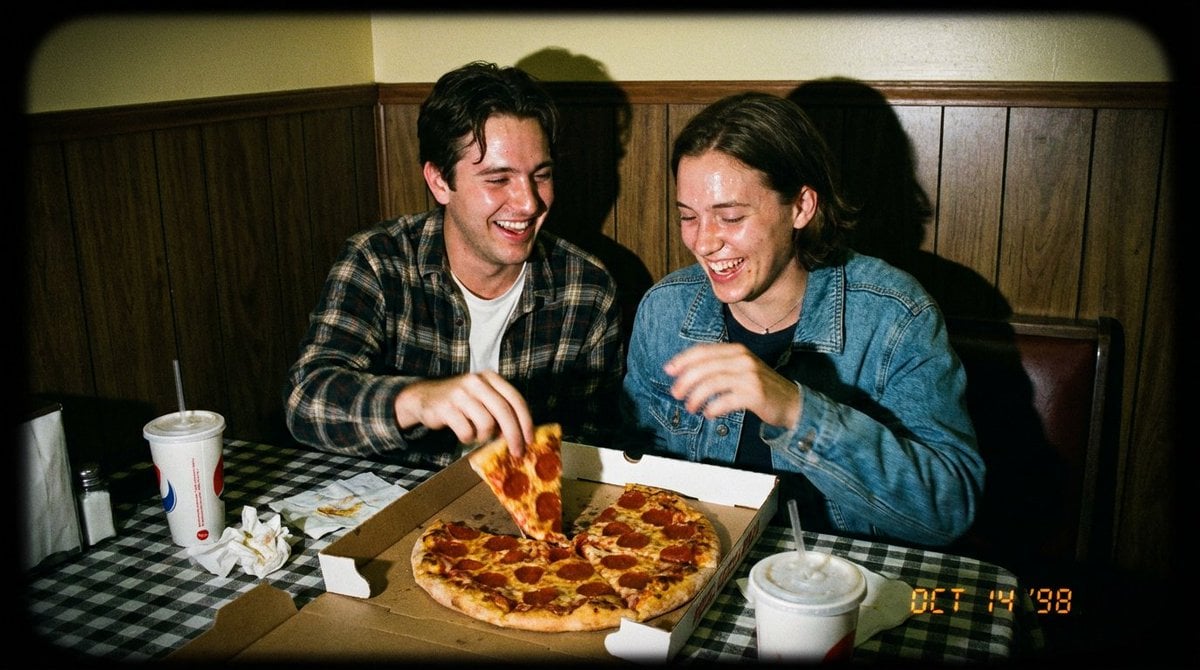
1998 Disposable Camera Photo of Friends in a Diner
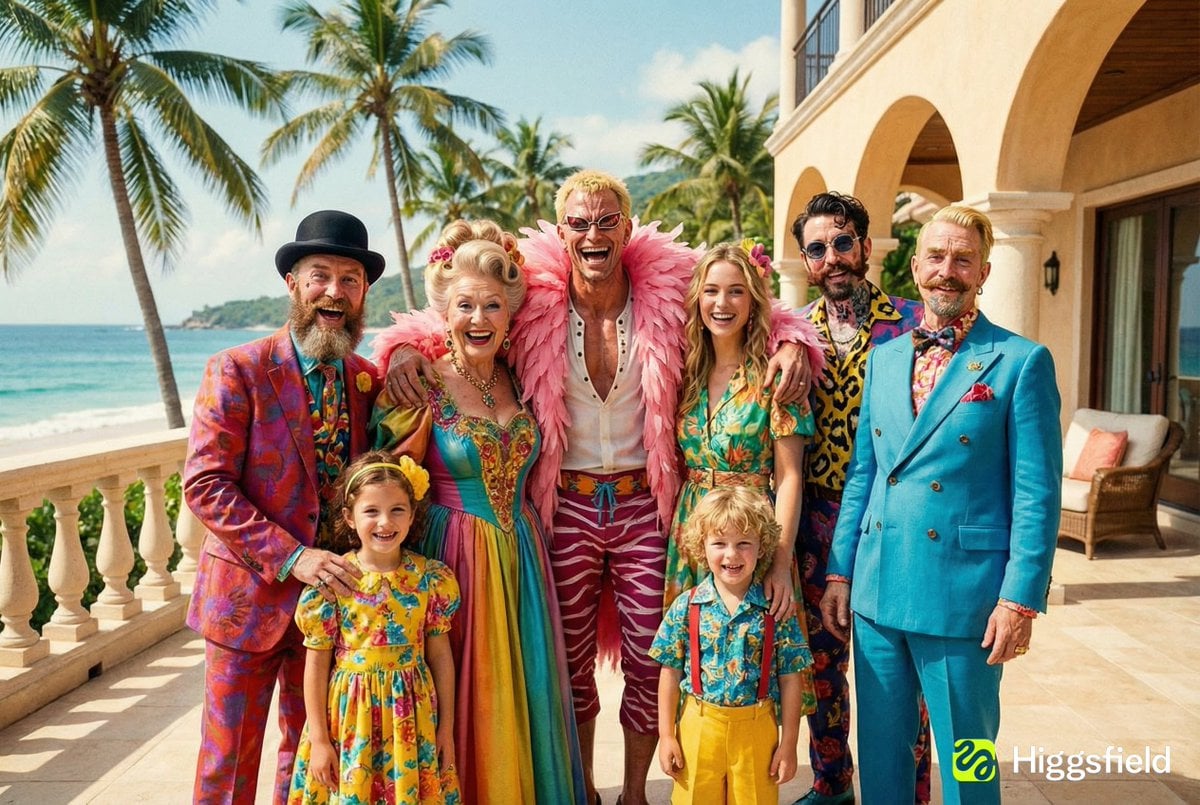
Family Photo Generation from Single Character Image
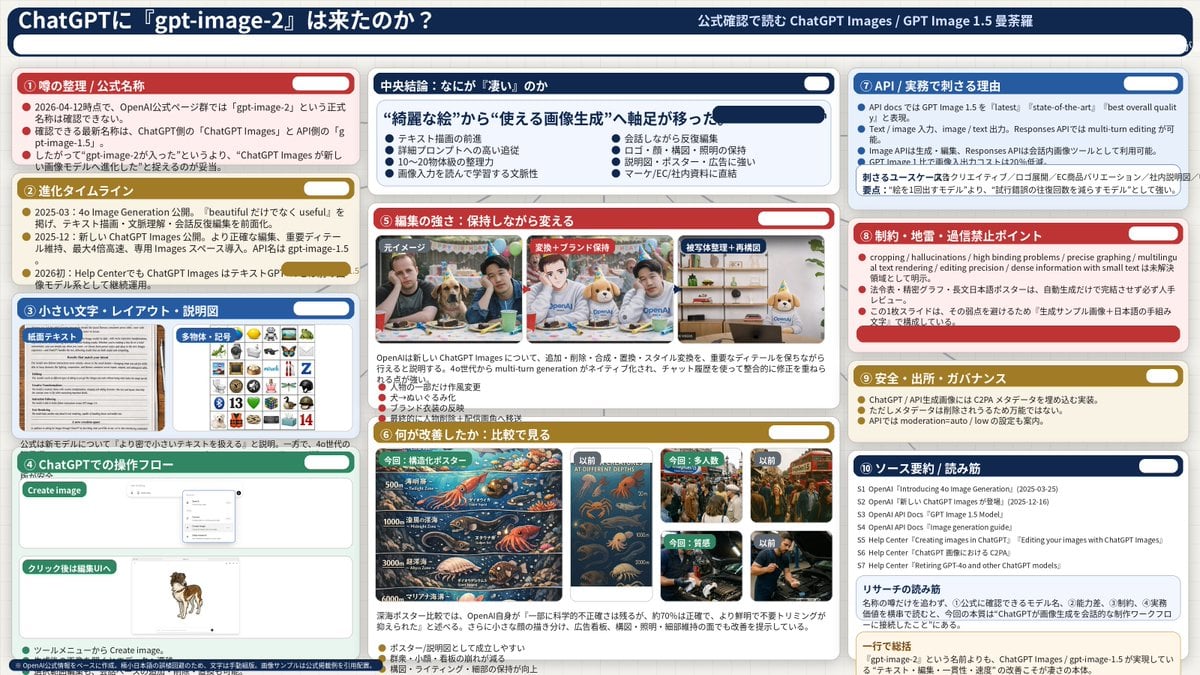
Complex AI Model Analysis Infographic

Higgsfield Nano Banana Pro Aspect Ratio Prompt
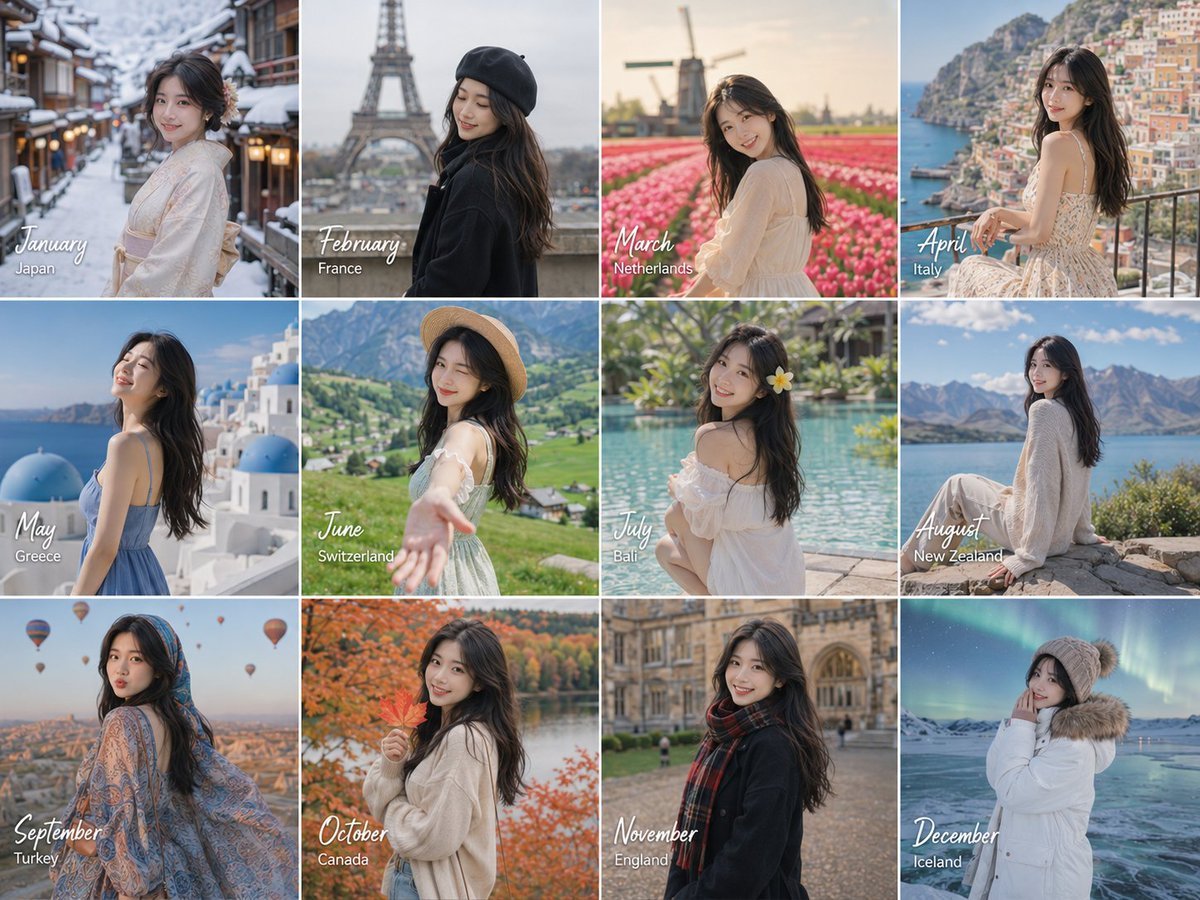
Month Travel Memory Grid
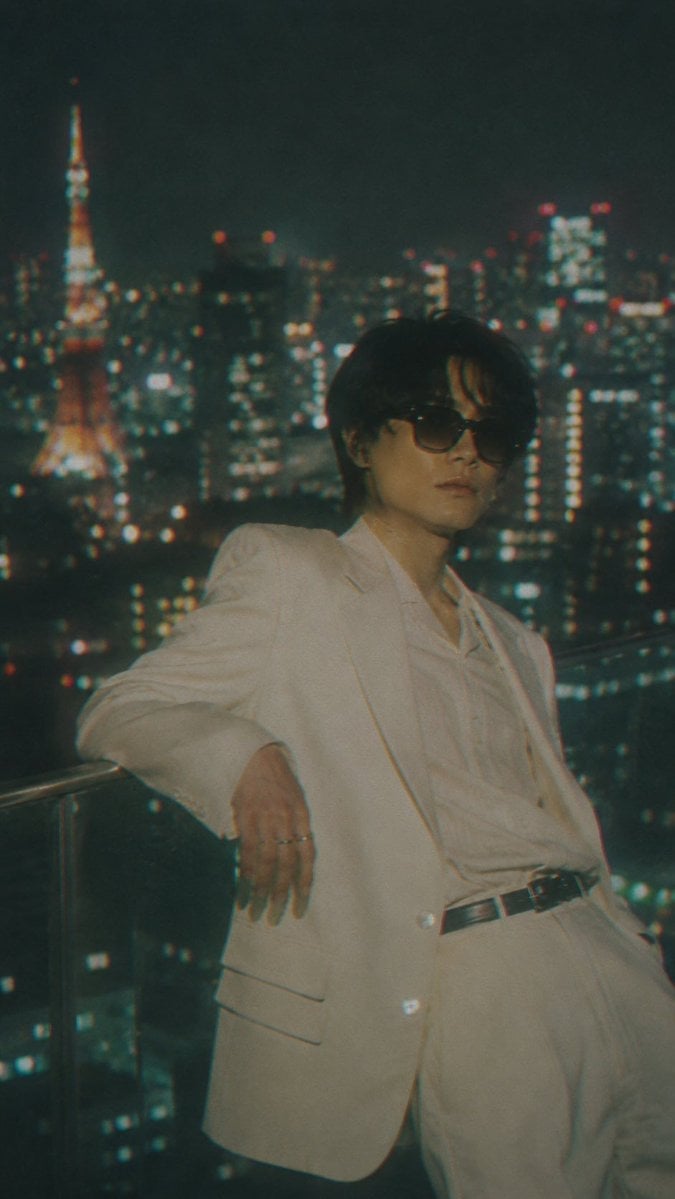
Censored Tokyo Rooftop Night Portrait
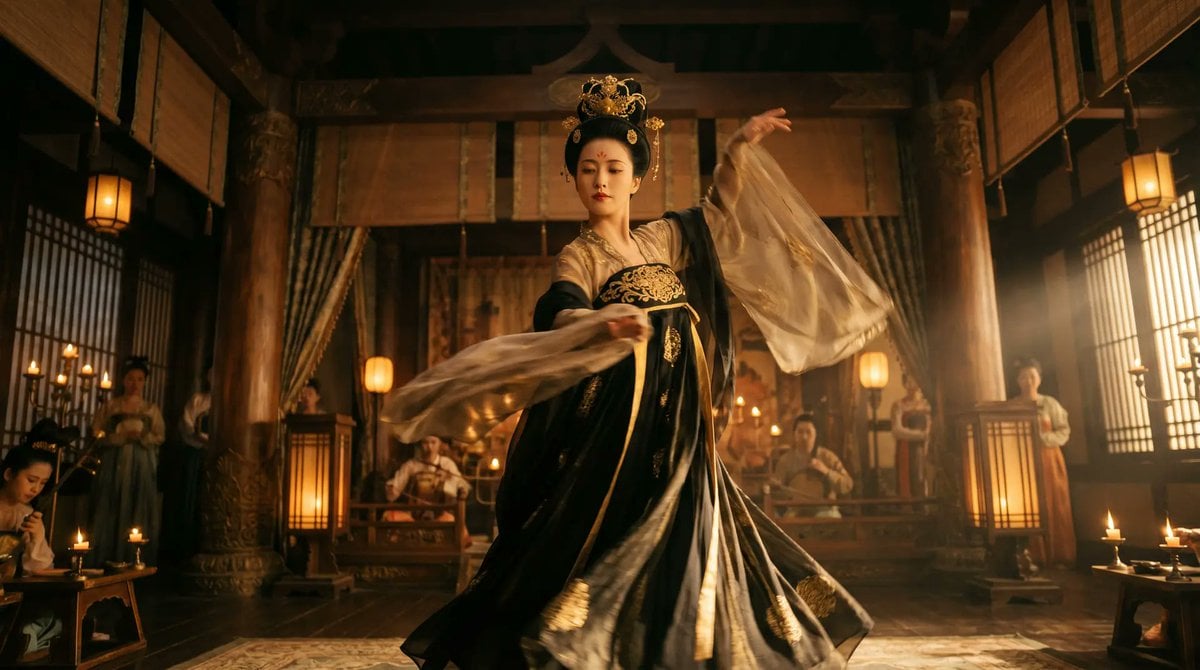
Cinematic Tang Court Dancer at Night
Browse template categories
Vector Art Style Transformation Prompt questions
How do I use the Vector Art Style Transformation Prompt template?
Add your photo if the template asks for one, edit the prompt if you like — the template's model and format are already selected — and press Generate. Your version opens in PicX Studio.
Can I customize the Vector Art Style Transformation Prompt template?
Yes. You can change the subject, setting, lighting, mood, format, and available model controls before creating your image.
Is the Vector Art Style Transformation Prompt template free?
Opening and editing this template is free. Generating uses credits, shown on the Generate button when you are signed in.
Which AI model should I use?
Start with Nano Banana 2, which is the model associated with this template. You can compare another compatible model for a different finish.
Looking for something else? Browse all templates.

Your photo, any look
Thousands of ready templates for every top image and video model, from one credit balance.