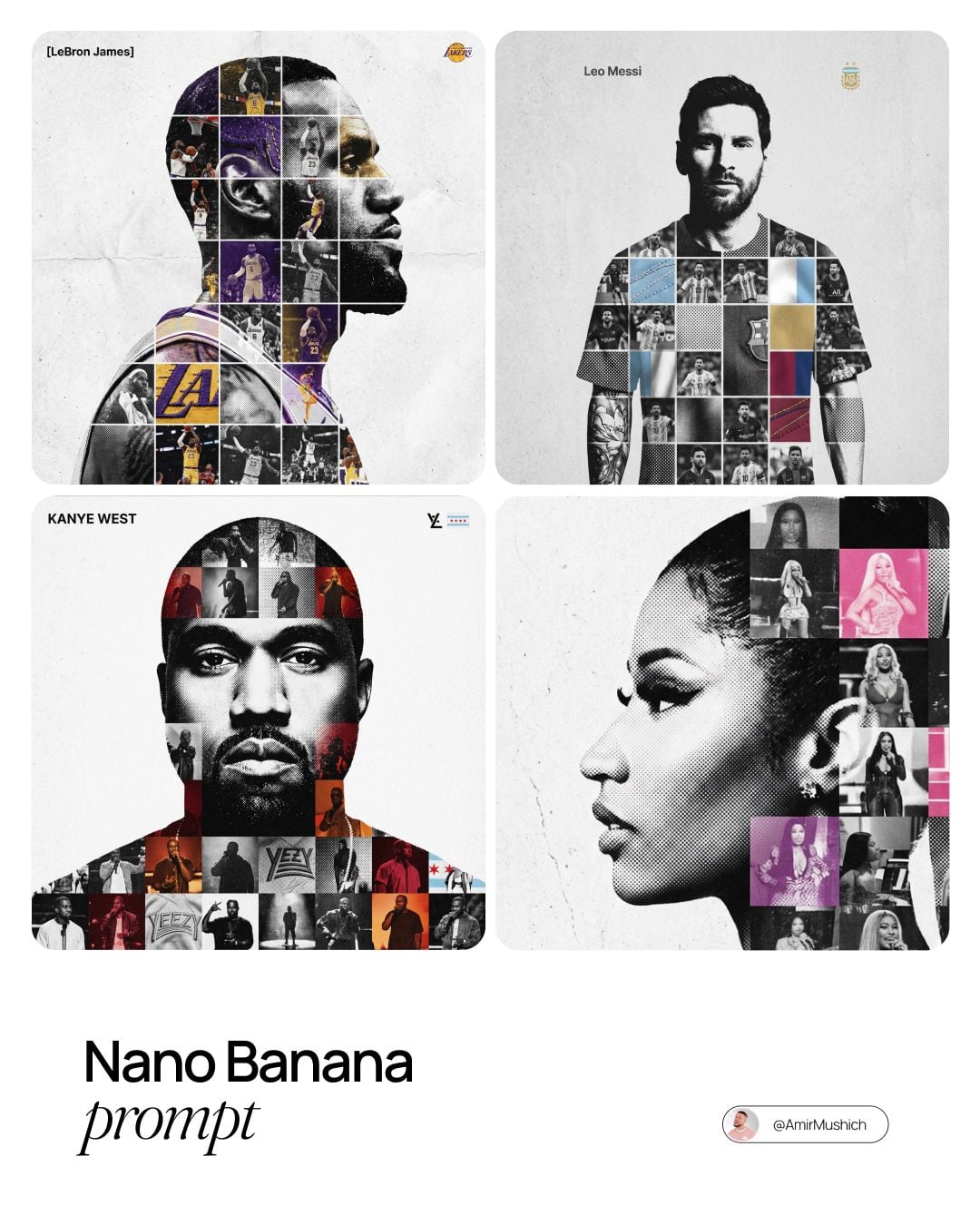
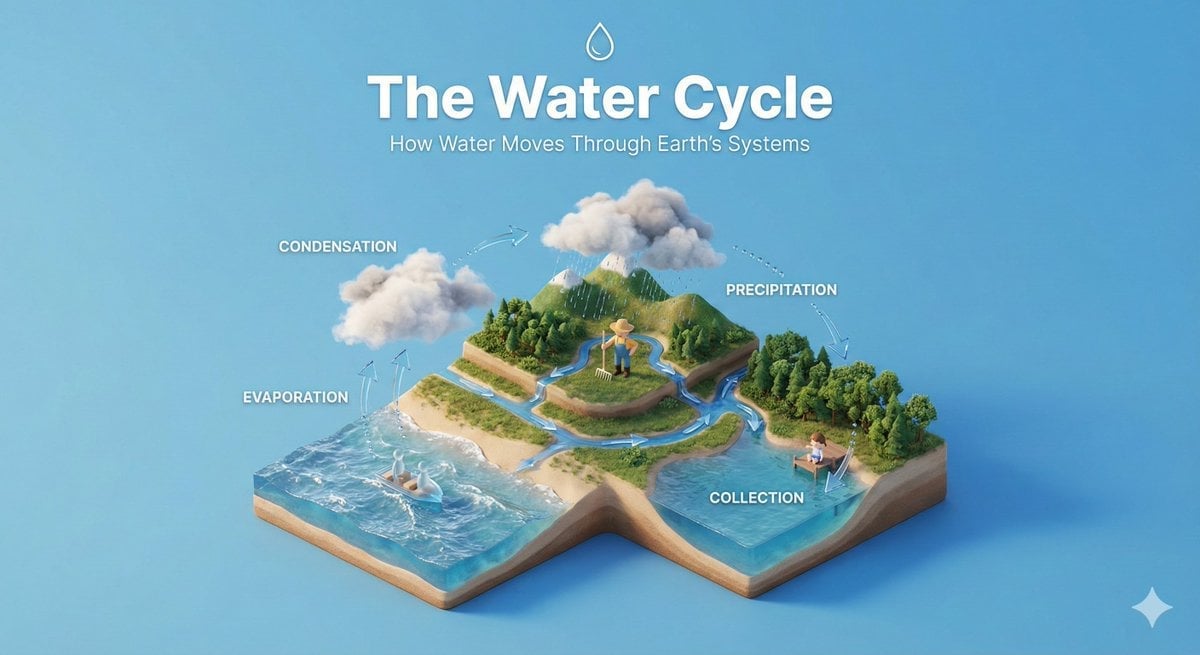
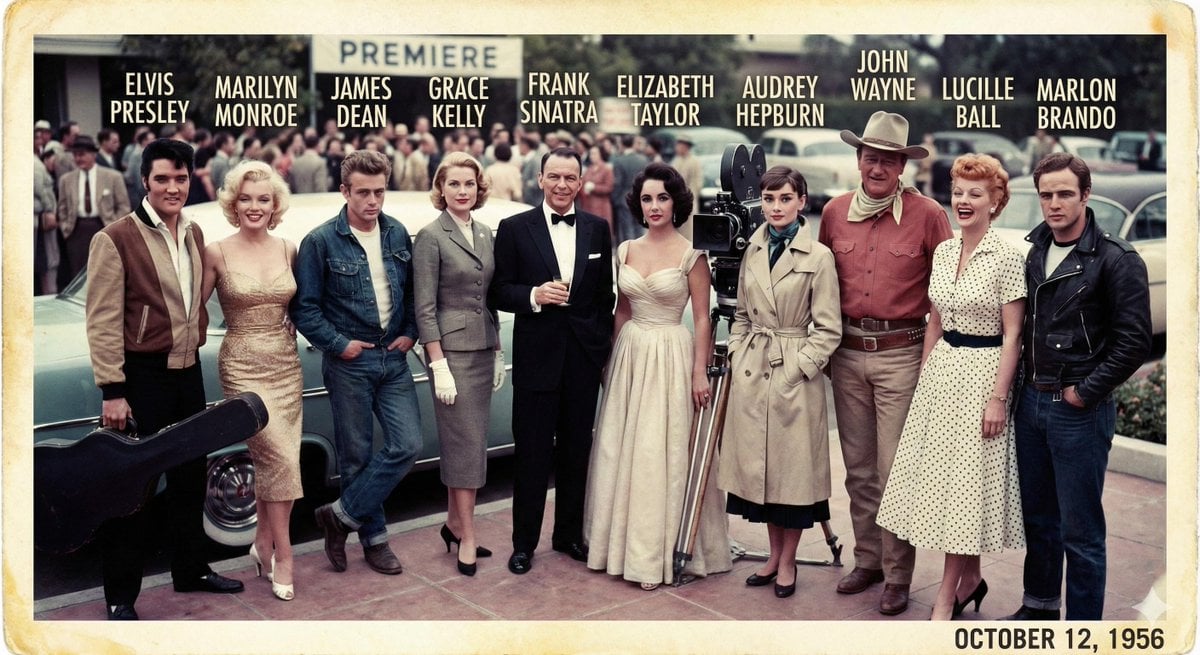
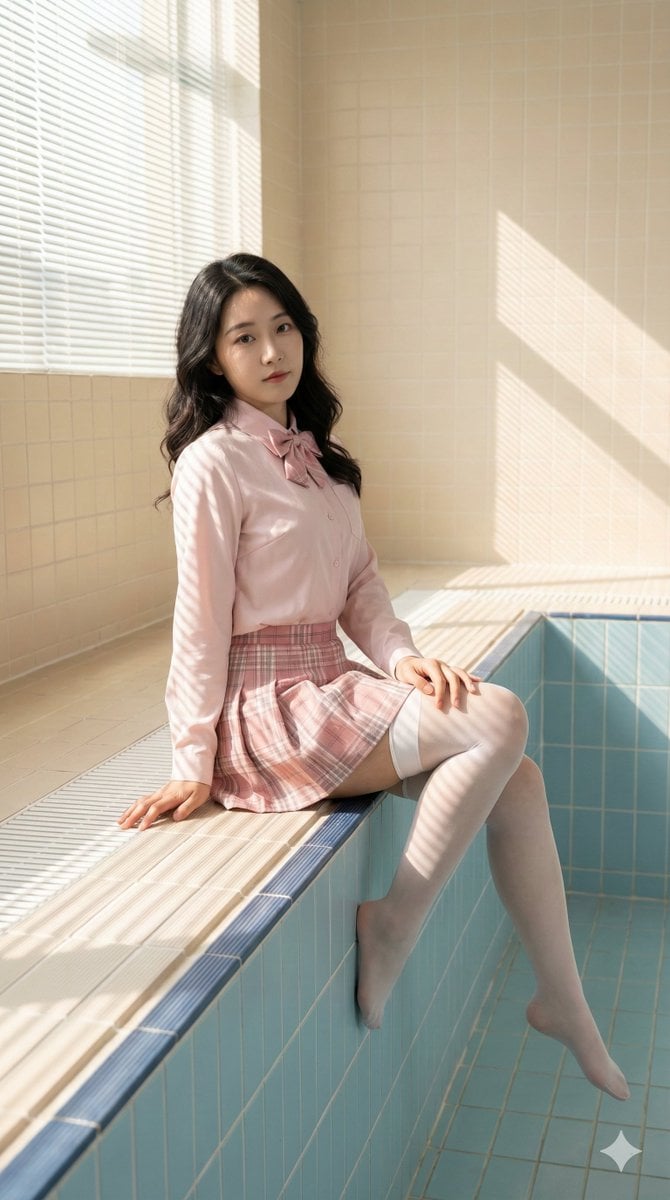
How do I use the Brand Sticker Sheet Monoline Vector template?
Edit the prompt in the box under the preview — the template's model and format are already selected — and press Generate. Your version appears right on this page.
Curated from MeiGen gallery (ID: 2009717451710509473) by AmirMušić.

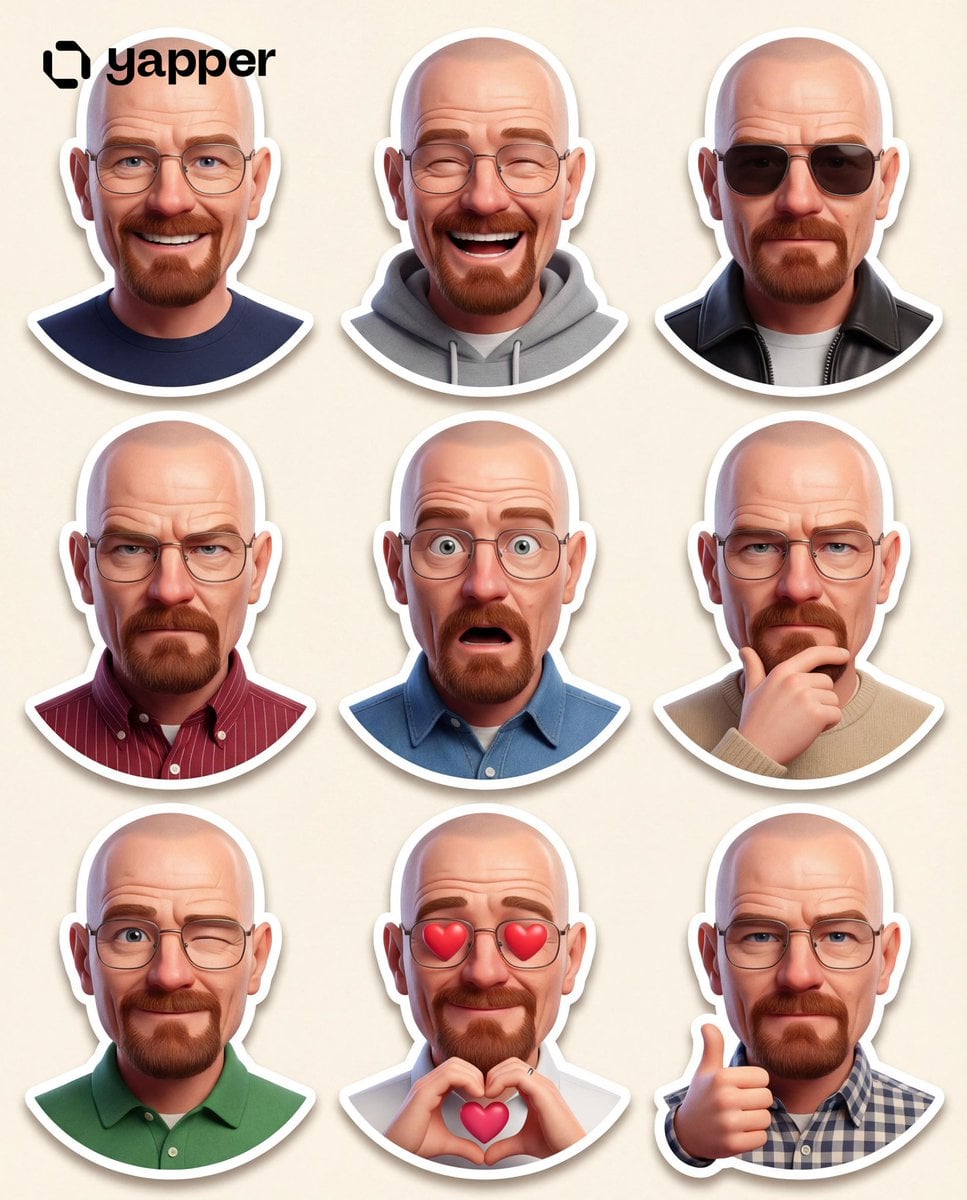
[BRAND NAME]. Act as a vector illustrator designing a trendy, high-end "Sticker Sheet" set. THE TASK: Deconstruct the brand identity of [BRAND NAME] into a playful, cohesive set of approximately 8-10 unique sticker designs arranged on a single sheet. Content Generation: Do not just make logos. Autonomously invent a mix of: Mascots/Characters: Stylized busts of people wearing brand-relevant accessories or expressing emotions. Key Products: Iconic items associated with the brand. Symbols/Objects: Abstract shapes or tools relevant to the brand's lifestyle. VISUAL STYLE (MONOLINE VECTOR): The art style must strictly match "Modern Trendy Line Art." Line Work: Use a THICK, UNIFORM line weight (monoline) for all internal details. The lines should be smooth, rounded, and confident. Coloring: The stickers must be filled with Solid Off-White or Cream, utilizing the line color for details. NO gradients, NO shading, NO 3D effects. Flat 2D vector look. The "Sticker" Effect: Every element must have a thick, distinct White (or Cream) Die-Cut Border surrounding it, separating it from the background. COLOR PALETTE (HIGH CONTRAST): Background: A solid, deep, saturated color to create maximum contrast. Stickers: High-brightness Cream or White fill with Dark (Black or Dark Brown) outlines. COMPOSITION: The stickers are scattered naturally across the sheet (knolling layout) with even spacing. No overlapping.
[BRAND NAME]. Act as a vector illustrator designing a trendy, high-end "Sticker Sheet" set. THE TASK: Deconstruct the brand identity of [BRAND NAME] into a playful, cohesive set of approximately 8-10 unique sticker designs arranged on a single sheet. Content Generation: Do not just make logos. Autonomously invent a mix of: Mascots/Characters: Stylized busts of people wearing brand-relevant accessories or expressing emotions. Key Products: Iconic items associated with the brand. Symbols/Objects: Abstract shapes or tools relevant to the brand's lifestyle. VISUAL STYLE (MONOLINE VECTOR): The art style must strictly match "Modern Trendy Line Art." Line Work: Use a THICK, UNIFORM line weight (monoline) for all internal details. The lines should be smooth, rounded, and confident. Coloring: The stickers must be filled with Solid Off-White or Cream, utilizing the line color for details. NO gradients, NO shading, NO 3D effects. Flat 2D vector look. The "Sticker" Effect: Every element must have a thick, distinct White (or Cream) Die-Cut Border surrounding it, separating it from the background. COLOR PALETTE (HIGH CONTRAST): Background: A solid, deep, saturated color to create maximum contrast. Stickers: High-brightness Cream or White fill with Dark (Black or Dark Brown) outlines. COMPOSITION: The stickers are scattered naturally across the sheet (knolling layout) with even spacing. No overlapping.
Edit the prompt in the box under the preview — the template's model and format are already selected — and press Generate. Your version appears right on this page.
Yes. You can change the subject, setting, lighting, mood, format, and available model controls before creating your image.
Opening and editing this template is free. Generating uses credits, shown on the Generate button when you are signed in.
Choose a compatible model in PicX Studio based on the style, speed, and output controls your project needs.
Follow a topic to a crawlable collection of related PicX Studio templates.