
Complex AI Model Analysis Infographic
Generates a highly detailed, 3-column presentation slide analyzing AI model features with 10 distinct sections and embedded comparison images.
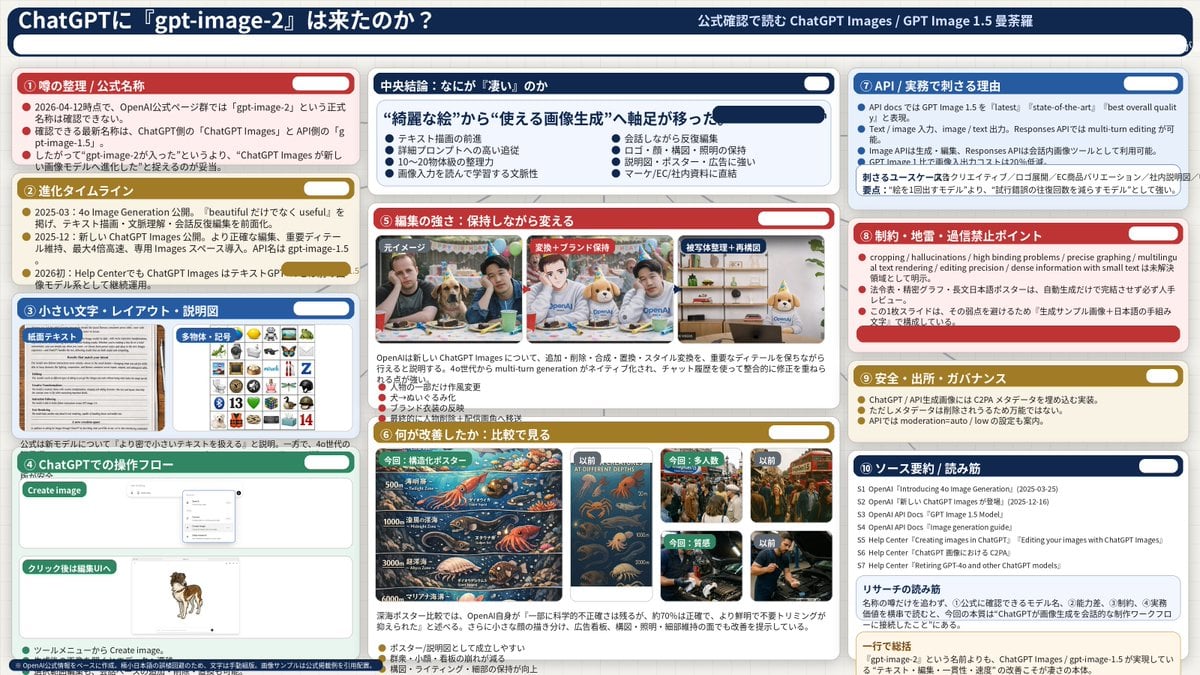
- Prompt included
- Model and format preset
- Free template
The prompt behind this image
Copy the exact prompt behind Complex AI Model Analysis Infographic, or open it in the studio and make it yours.
- Type
- infographic dashboard
- Style
- corporate presentation slide, dense information layout, flat design
- Header › Left Title
- {argument name="main title" default="ChatGPTに『gpt-image-2』は来たのか?"}
- Header › Right Subtitle
- {argument name="subtitle" default="公式確認で読む ChatGPT Images / GPT Image 1.5 曼荼羅"}
- Header › Background Color
- {argument name="theme color 1" default="dark blue"}
- Layout › Columns
- 3
- Layout › Sections › 0 › Id
- 1
- Layout › Sections › 0 › Title
- ① 噂の整理 / 公式名称
- Layout › Sections › 0 › Color
- {argument name="theme color 2" default="red"}
- Layout › Sections › 0 › Content Type
- 3 bullet points
- Layout › Sections › 1 › Id
- 2
- Layout › Sections › 1 › Title
- ② 進化タイムライン
- Layout › Sections › 1 › Color
- gold
- Layout › Sections › 1 › Content Type
- 3 timeline bullet points
- Layout › Sections › 2 › Id
- 3
- Layout › Sections › 2 › Title
- ③ 小さい文字・レイアウト・説明図
- Layout › Sections › 2 › Color
- blue
- Layout › Sections › 2 › Content Type
- 2 embedded images showing text document and icon grid
- Layout › Sections › 3 › Id
- 4
- Layout › Sections › 3 › Title
- ④ ChatGPTでの操作フロー
- Layout › Sections › 3 › Color
- green
- Layout › Sections › 3 › Content Type
- UI mockups showing chat interface and dog image
- Layout › Sections › 4 › Id
- central
- Layout › Sections › 4 › Title
- 中央結論:なにが『凄い』のか
Raw JSON
{
  "type": "infographic dashboard",
  "style": "corporate presentation slide, dense information layout, flat design",
  "header": {
    "left_title": "{argument name=\"main title\" default=\"ChatGPTに『gpt-image-2』は来たのか?\"}",
    "right_subtitle": "{argument name=\"subtitle\" default=\"公式確認で読む ChatGPT Images / GPT Image 1.5 曼荼羅\"}",
    "background_color": "{argument name=\"theme color 1\" default=\"dark blue\"}"
  },
  "layout": {
    "columns": 3,
    "sections": [
      {
        "id": 1,
        "title": "① 噂の整理 / 公式名称",
        "color": "{argument name=\"theme color 2\" default=\"red\"}",
        "content_type": "3 bullet points"
      },
      {
        "id": 2,
        "title": "② 進化タイムライン",
        "color": "gold",
        "content_type": "3 timeline bullet points"
      },
      {
        "id": 3,
        "title": "③ 小さい文字・レイアウト・説明図",
        "color": "blue",
        "content_type": "2 embedded images showing text document and icon grid"
      },
      {
        "id": 4,
        "title": "④ ChatGPTでの操作フロー",
        "color": "green",
        "content_type": "UI mockups showing chat interface and dog image"
      },
      {
        "id": "central",
        "title": "中央結論:なにが『凄い』のか",
        "color": "dark blue",
        "subtitle": "{argument name=\"central conclusion\" default=\"“綺麗な絵”から“使える画像生成”へ軸足が移った\"}",
        "content_type": "2 columns of 4 bullet points each"
      },
      {
        "id": 5,
        "title": "⑤ 編集の強さ:保持しながら変える",
        "color": "red",
        "content_type": "3 sequential images showing photo editing progression"
      },
      {
        "id": 6,
        "title": "⑥ 何が改善したか:比較で見る",
        "color": "gold",
        "content_type": "6 comparison images (This time vs Before) for posters, crowds, textures"
      },
      {
        "id": 7,
        "title": "⑦ API / 実務で刺さる理由",
        "color": "blue",
        "content_type": "3 bullet points"
      },
      {
        "id": 8,
        "title": "⑧ 制約・地雷・過信禁止ポイント",
        "color": "red",
        "content_type": "3 bullet points"
      },
      {
        "id": 9,
        "title": "⑨ 安全・出所・ガバナンス",
        "color": "gold",
        "content_type": "3 bullet points"
      },
      {
        "id": 10,
        "title": "⑩ ソース要約 / 読み筋",
        "color": "dark blue",
        "content_type": "list of 7 sources and a summary box"
      }
    ]
  }
}Reference images included
Complex AI Model Analysis Infographic needs input media to work. They load alongside the prompt when you open it in the studio.
How to use Complex AI Model Analysis Infographic in 3 steps
- 1Upload ImagePNG, JPG or paste
Add your photo
Upload the photo the template builds on. The prompt, model and format are already set.
- 2…a portrait of your subject in softgolden-hour light, 85mm…
Personalize
Edit the subject and creative details for your destination.
- 3Generate
Generate
Press Generate — your image is created in PicX Studio, so you can compare it with the original and refine one variable at a time.
More like this
Templates with the same subject, style or setup. Open one to see its prompt.
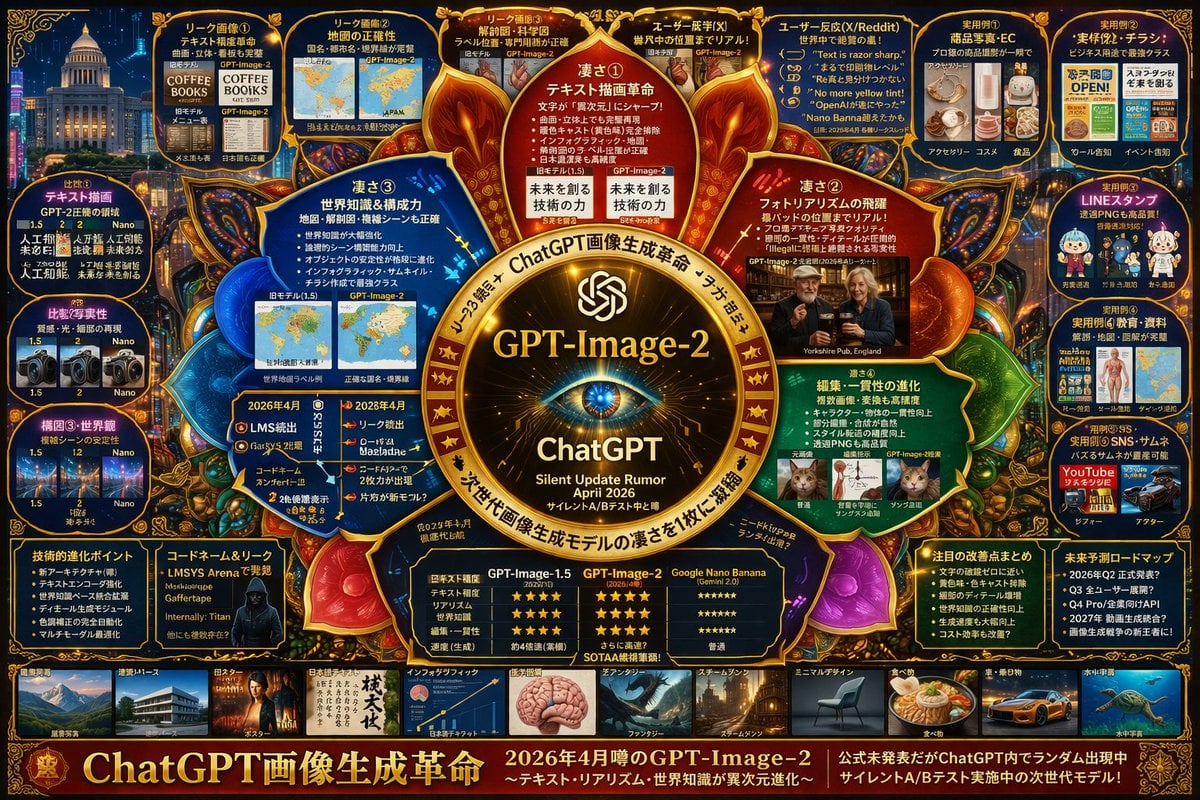
Complex AI Model Infographic Board

Japan Travel Brochure Poster

AI Model Routing Comparison Infographic

Premium Vertical Product Campaign Poster

Isometric Process Educational Diorama

Isometric Vehicle Teardown Infographic Template
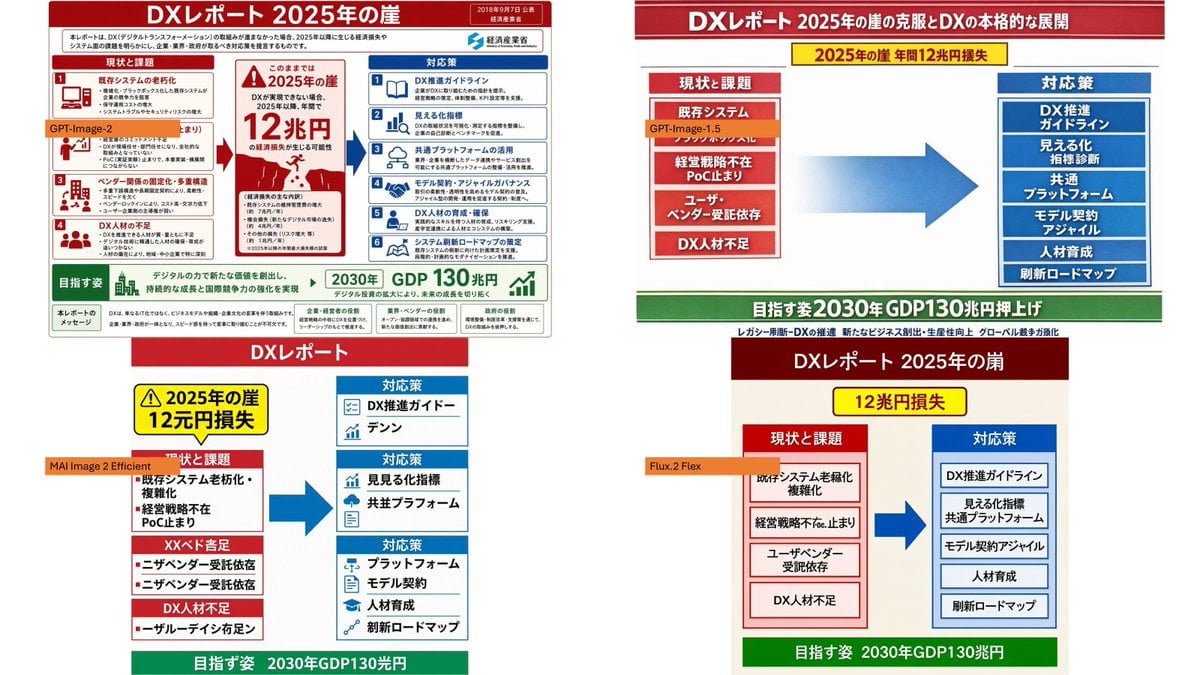
DX Infographic Model Comparison
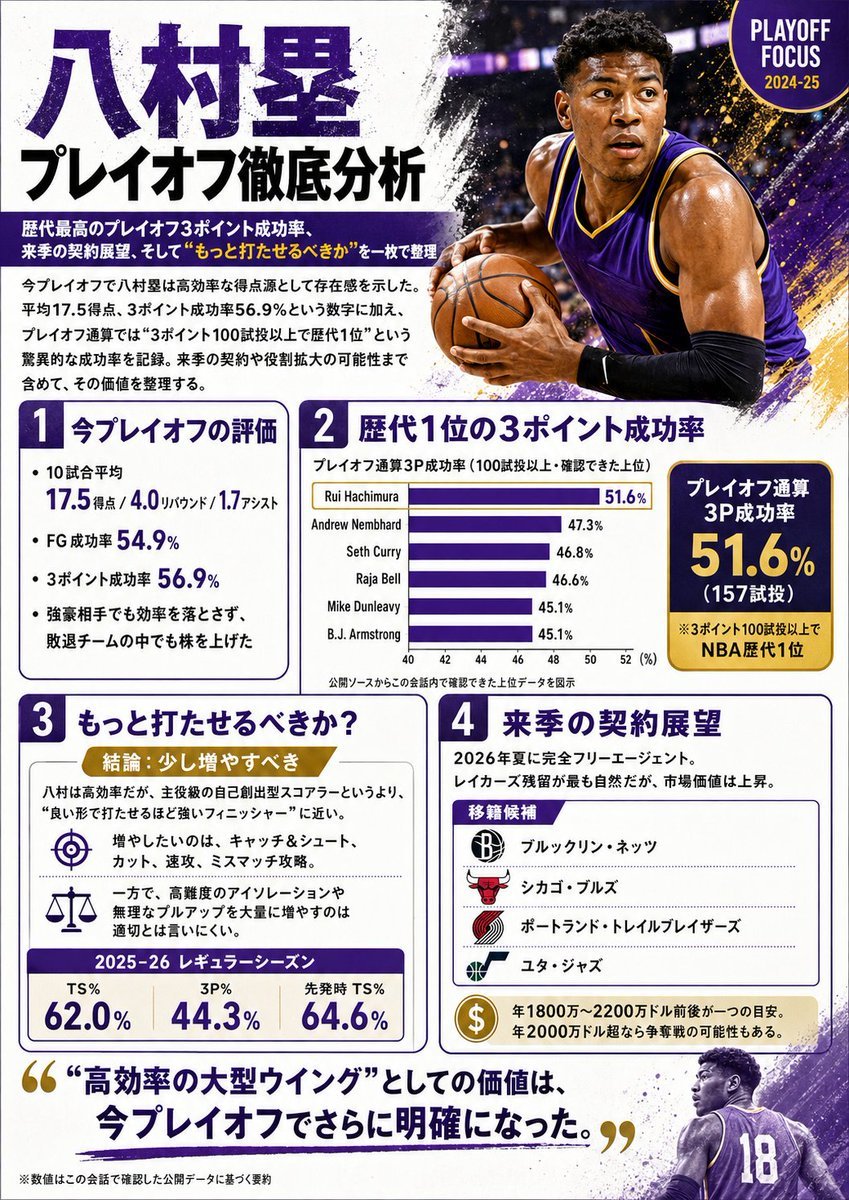
Japanese NBA Playoff Analysis Infographic
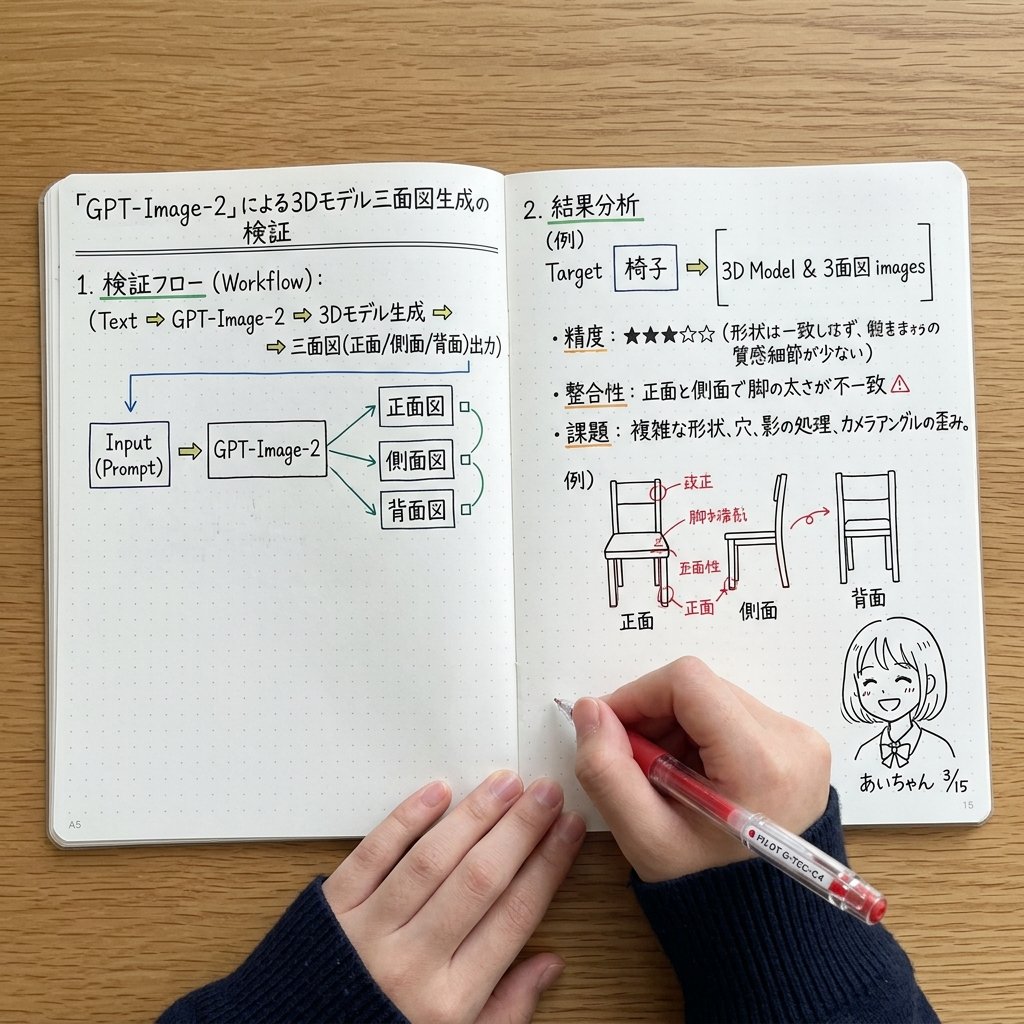
Notebook Spread with 3D Model Analysis Diagrams
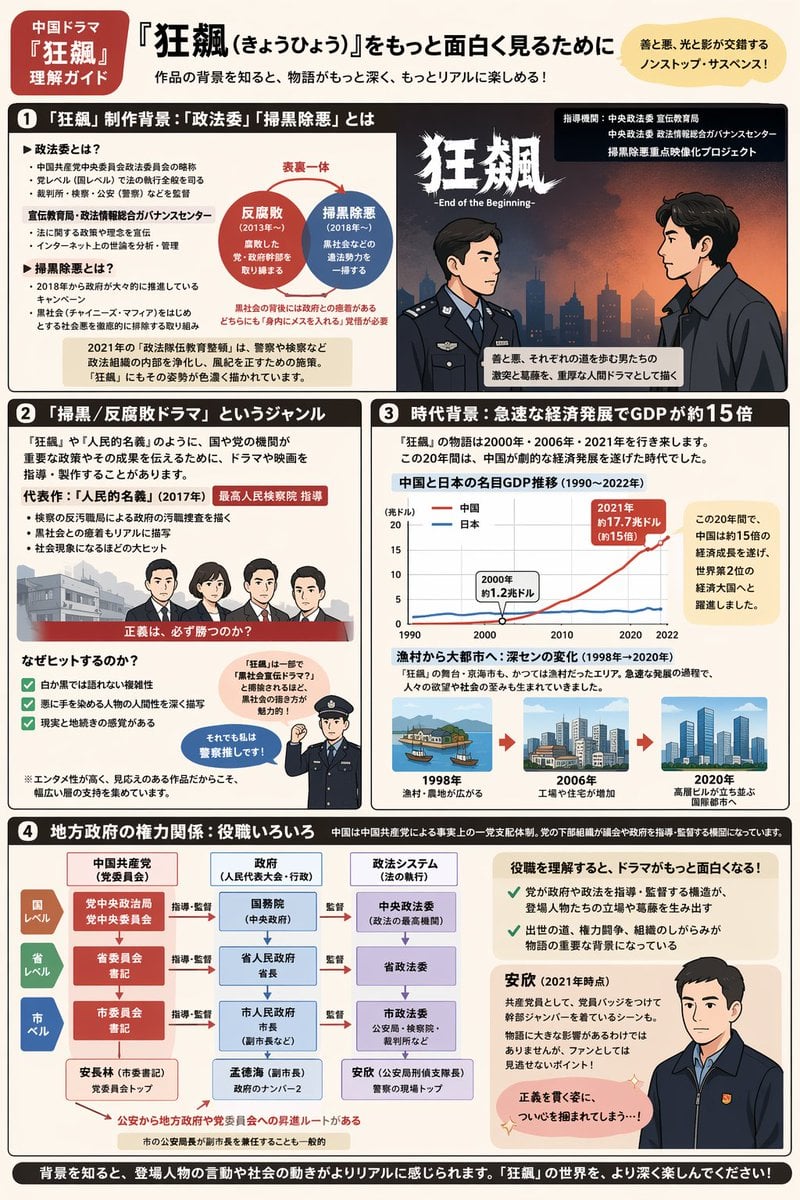
Complex Infographic Explainer Sheet
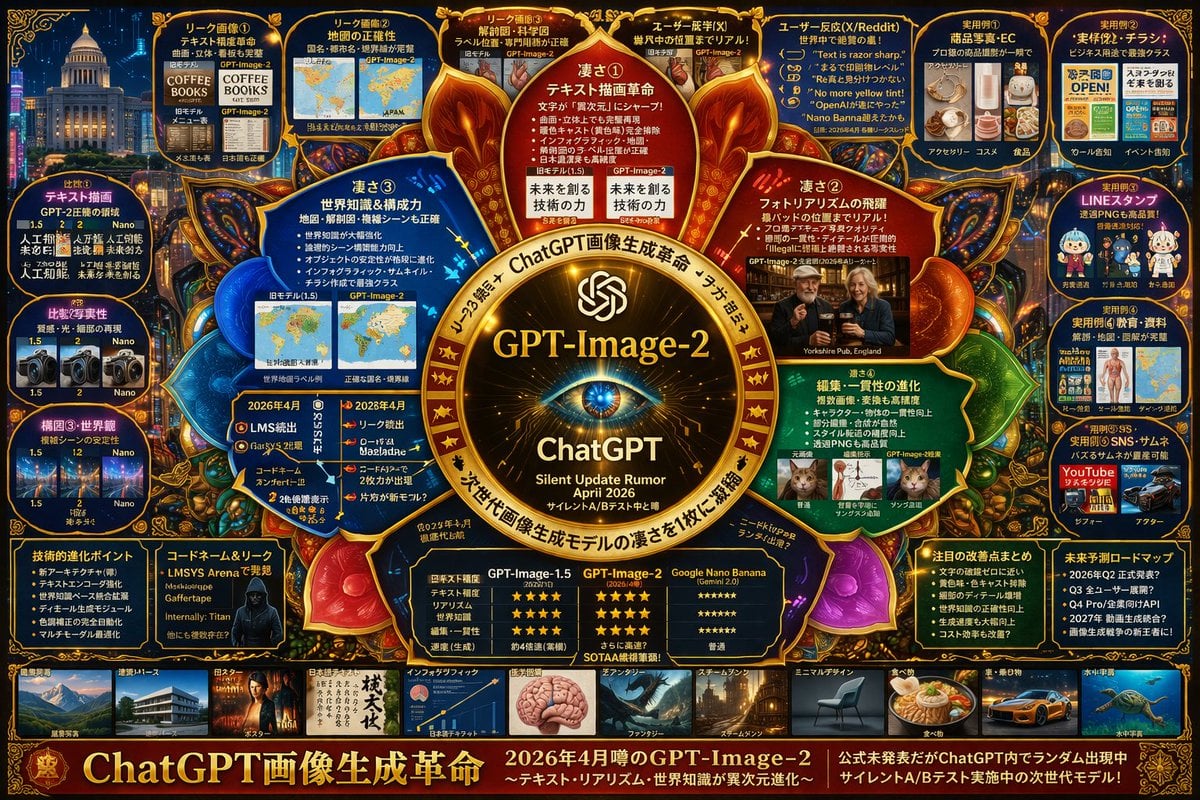
Complex Tech Speculation Infographic
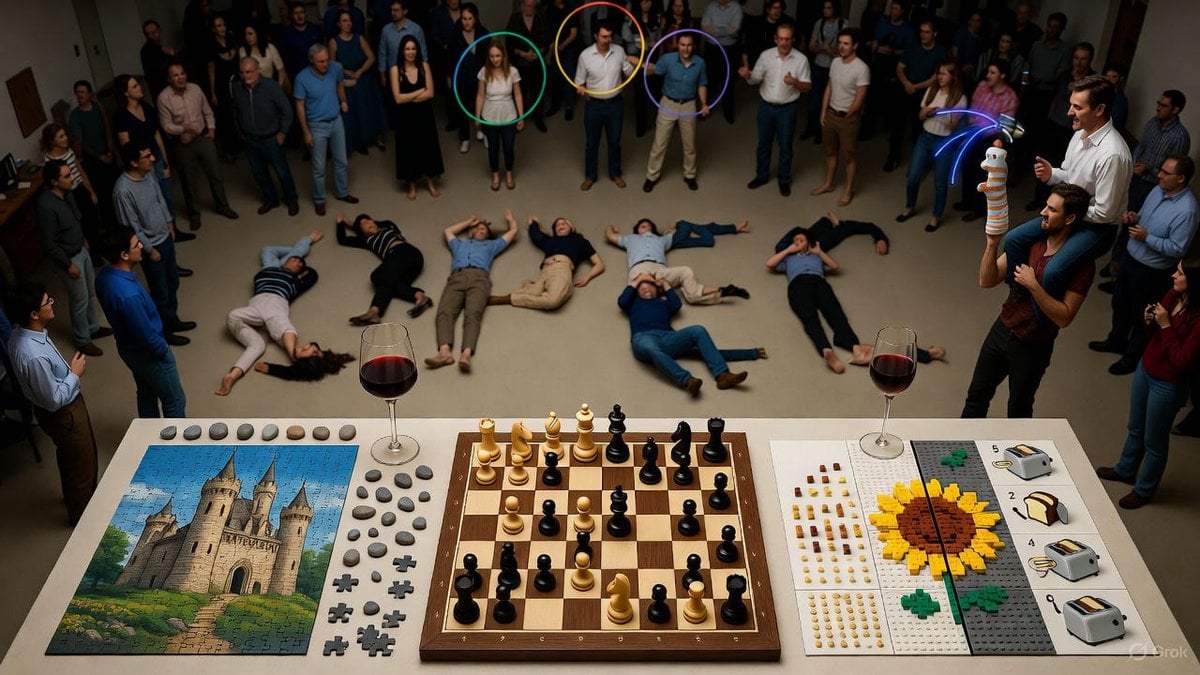
Complex Image Generation Test Prompt for Model Coherence
Make it yours
Complex AI Model Analysis Infographic works as-is. These are the safest ways to change it without losing the look.
Swap the setting
Keep the rest of the prompt and replace the location block. The current setting is “{argument name="theme color 1" default="dark blue"}”.
Change one field
Copy a single group, rewrite it, and generate again so you can see what that field is doing.
Keep the frame, change the subject
Hold the composition and light of Complex AI Model Analysis Infographic, then swap wardrobe, props or the person for a new take.
| If the result… | Why | Fix |
|---|---|---|
| The result drifts from the preview | Too many fields changed at once. | Reuse Complex AI Model Analysis Infographic as-is first, then change one group — subject, light, or setting. |
| GPT Image 2 ignores part of the JSON | Some models flatten or skip nested keys. | Keep the same values and paste them as a short paragraph instead. |
More GPT Image 2 templates
Other prompts made for GPT Image 2.

Six VTuber Japanese Logo Sheet

Realistic Portrait of Woman and Deer

The Vista Modular Condo Poster

2.5D Anime Art Board

Isometric Productivity Desk Scene

New York Double Exposure Poster

Four-Panel AI Landscape Comparison

Japanese Tatami Lifestyle Magazine Cover

NESCAFÉ Coffee Map Poster

Brutalist Cogito Chinese Typography Poster
More image prompts
Fresh picks from across the catalog.

Coquette Aesthetic Cozy Portrait Prompt
Futuristic Audi Tron Concept Coupe

Four-Color Chick Mascot Photo Collage

Chibi Clone Sticker Diary
Mixed Media Sketch Portrait

Ultra-Cute Chibi Character Prompt
NanoBanana2
Cyberpunk Anime Character Select Screen

Makoto Shinkai Inspired Anime Cinematic Scene
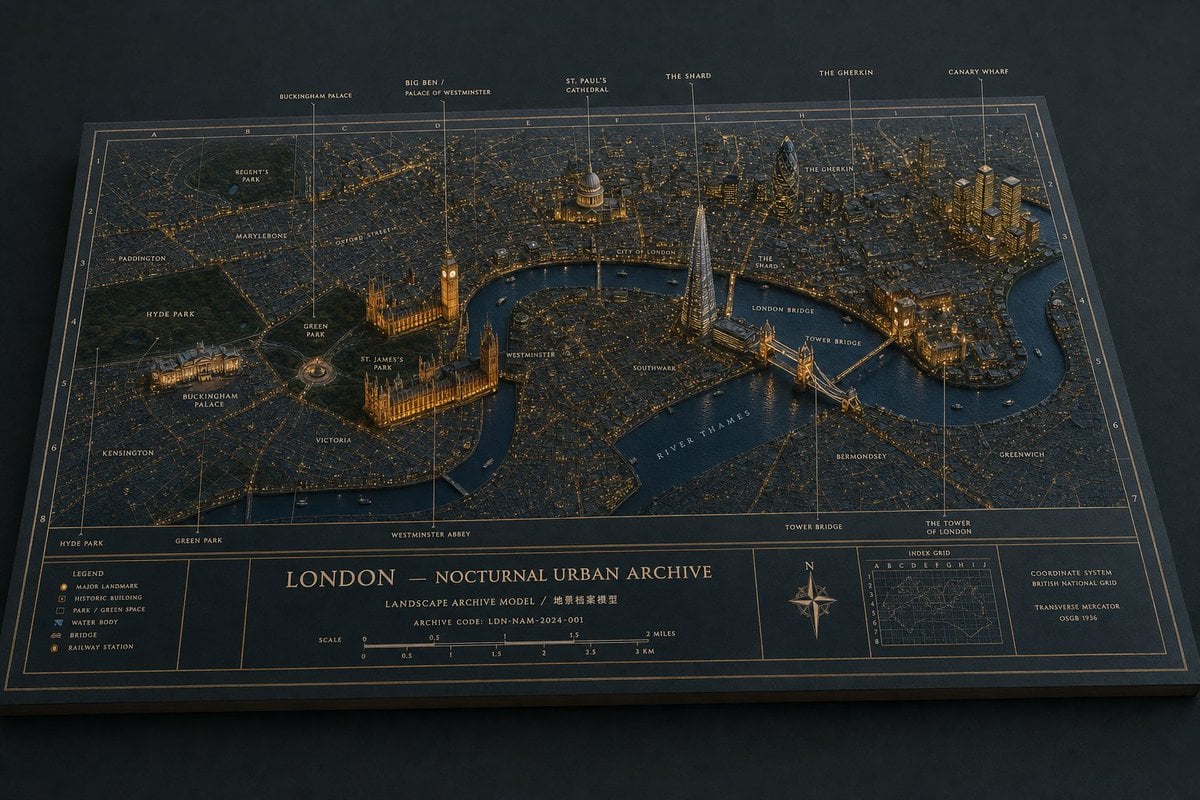
London Nocturnal Urban Archive Diorama
Browse template categories
Complex AI Model Analysis Infographic questions
How do I use the Complex AI Model Analysis Infographic template?
Add your photo if the template asks for one, edit the prompt if you like — the template's model and format are already selected — and press Generate. Your version opens in PicX Studio.
Can I customize the Complex AI Model Analysis Infographic template?
Yes. You can change the subject, setting, lighting, mood, format, and available model controls before creating your image.
Is the Complex AI Model Analysis Infographic template free?
Opening and editing this template is free. Generating uses credits, shown on the Generate button when you are signed in.
Which AI model should I use?
Start with GPT Image 2, which is the model associated with this template. You can compare another compatible model for a different finish.
Looking for something else? Browse all templates.

Your photo, any look
Thousands of ready templates for every top image and video model, from one credit balance.