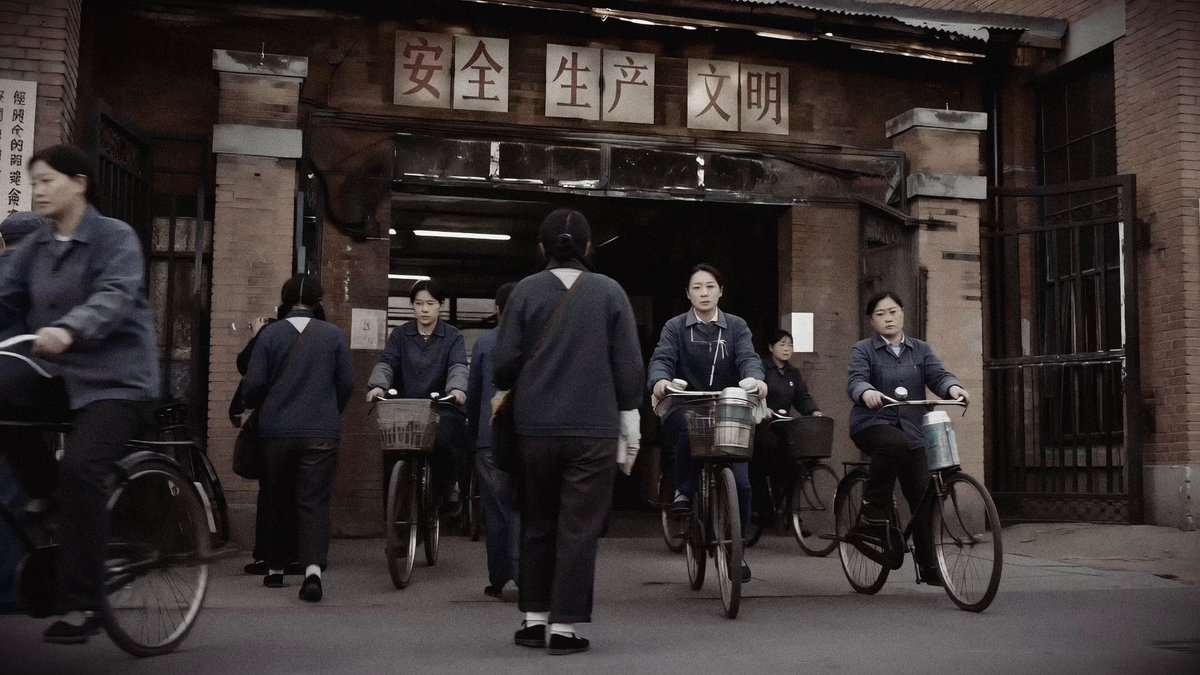
How do I use the Visual Journey Project template?
Edit the prompt in the box under the preview — the template's model and format are already selected — and press Generate. Your version appears right on this page.
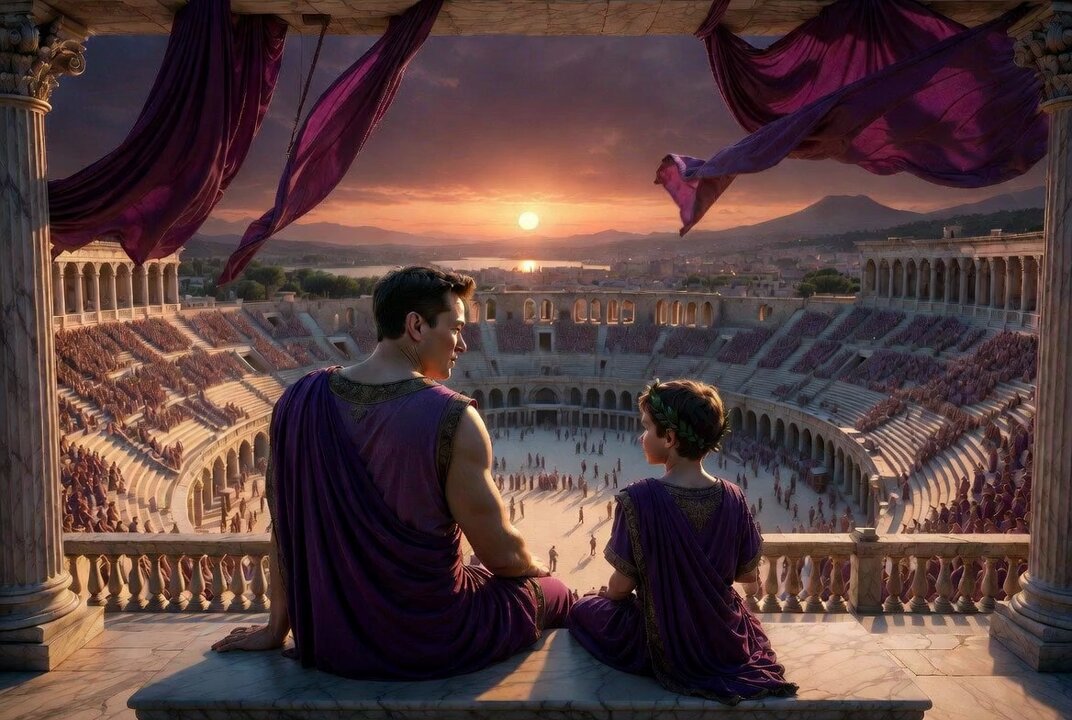
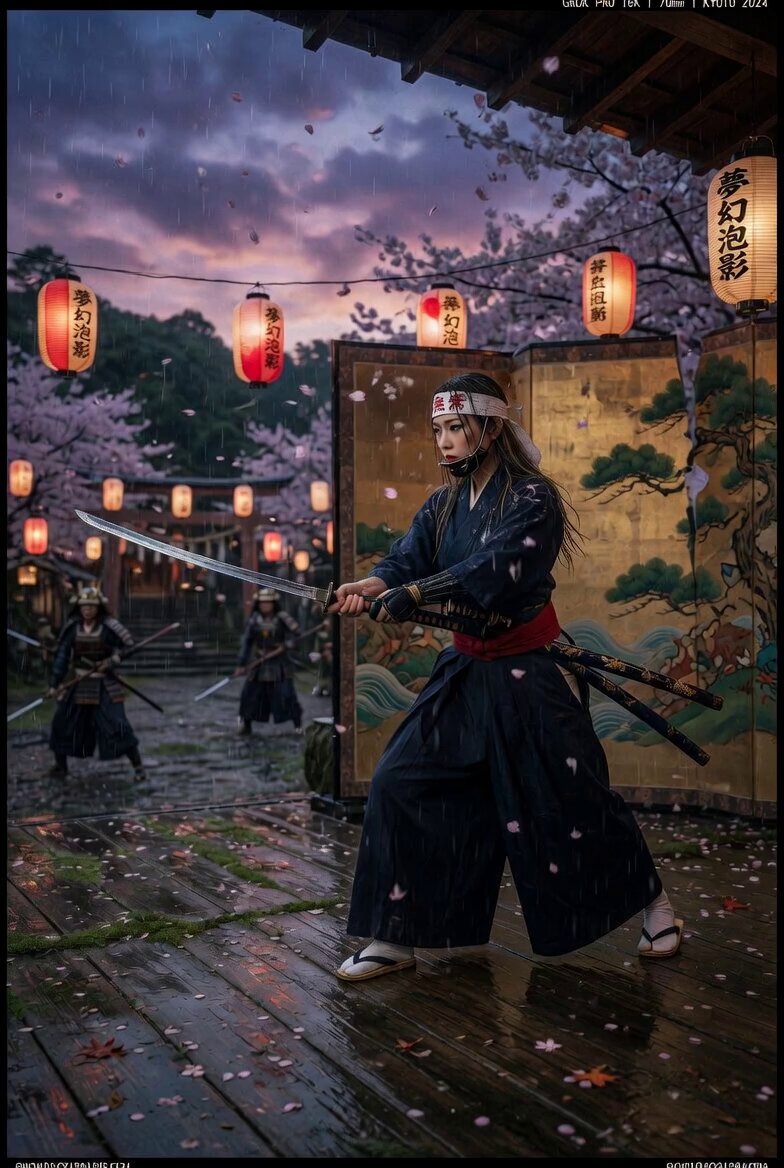
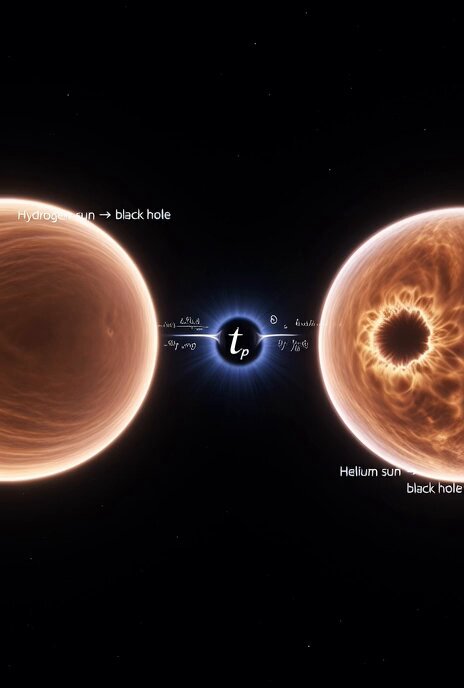
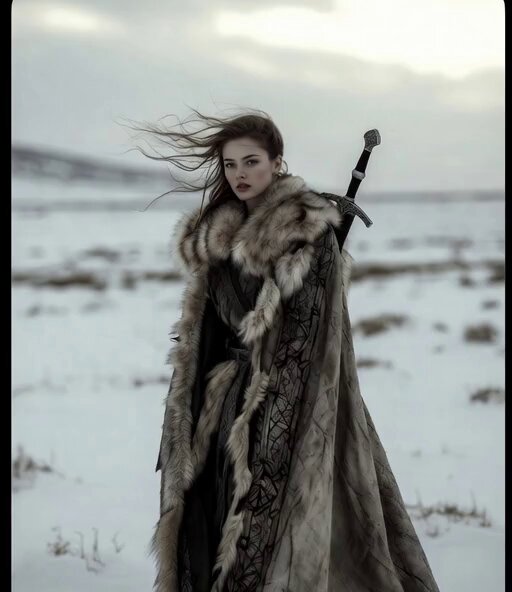
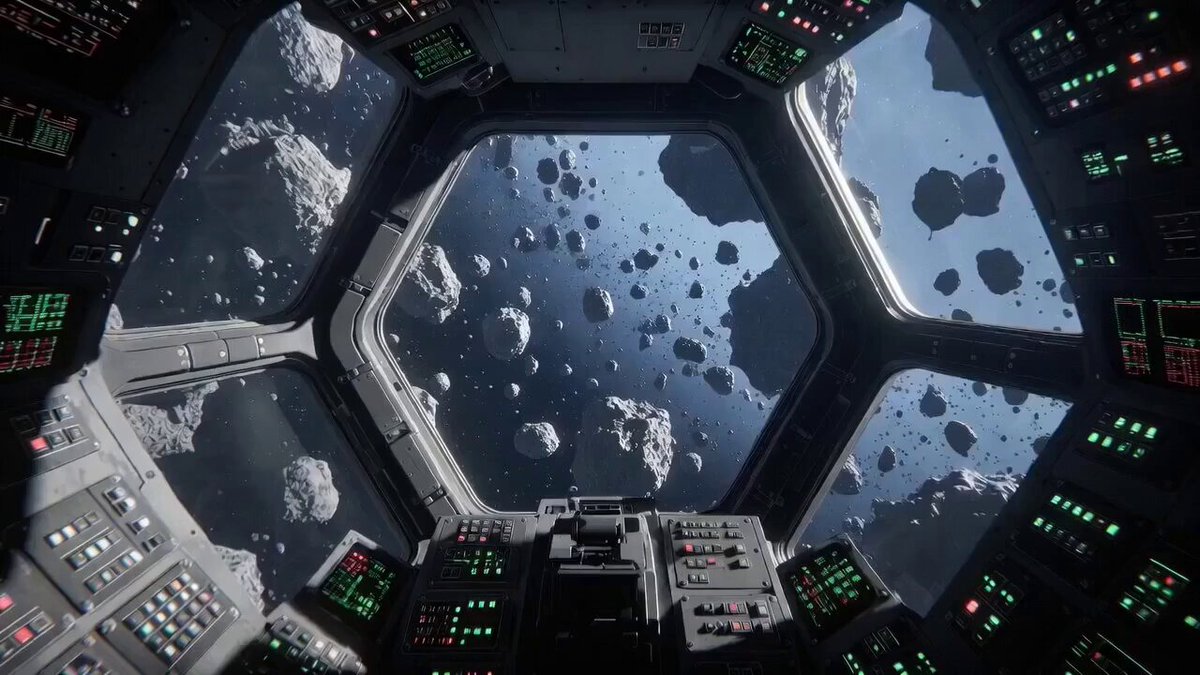
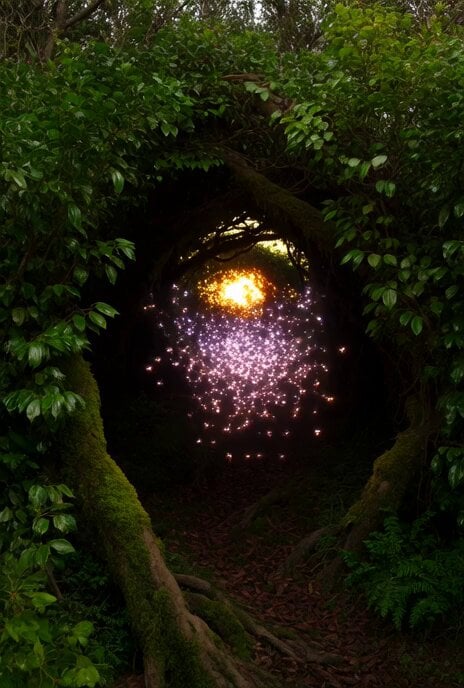
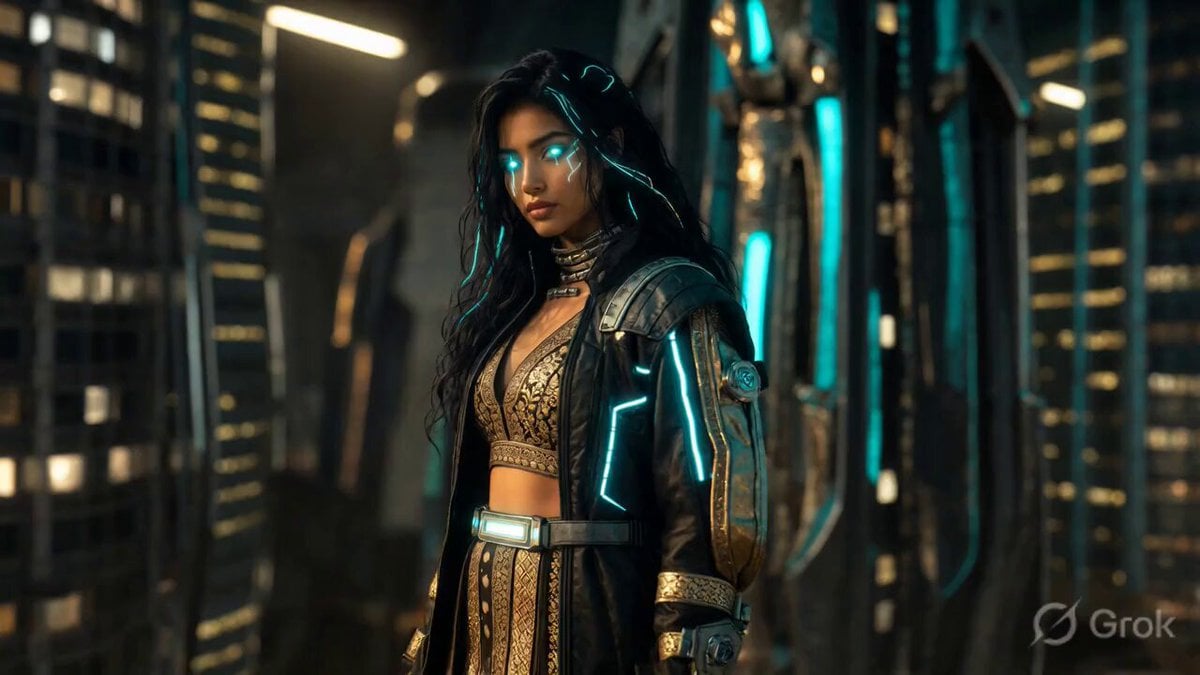
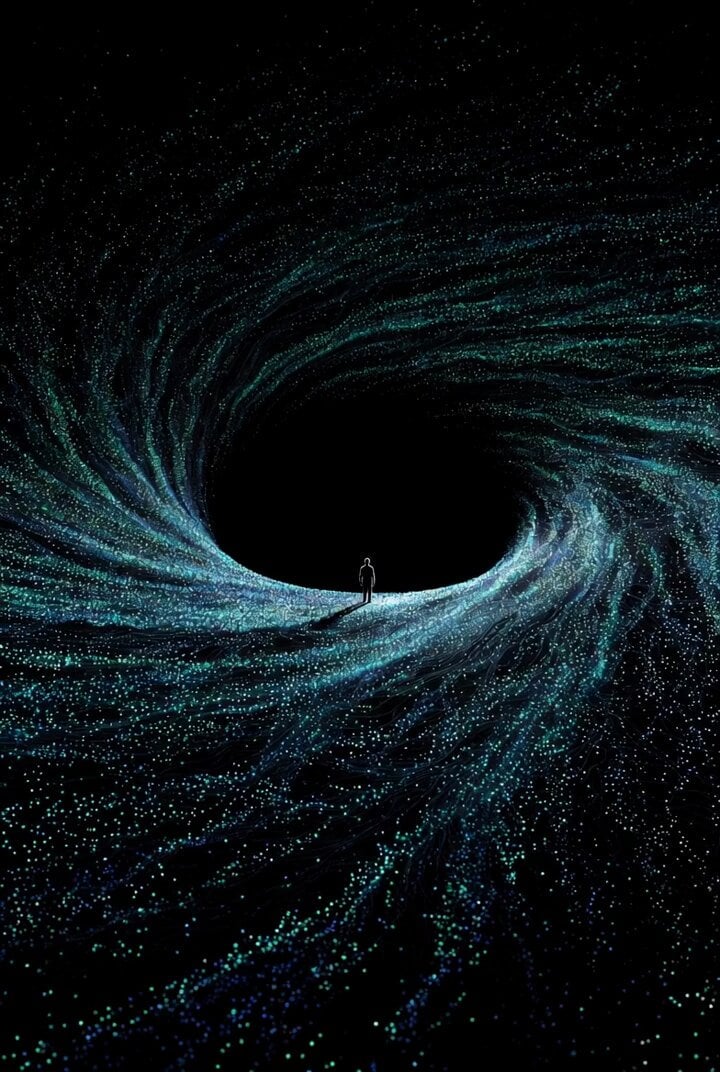
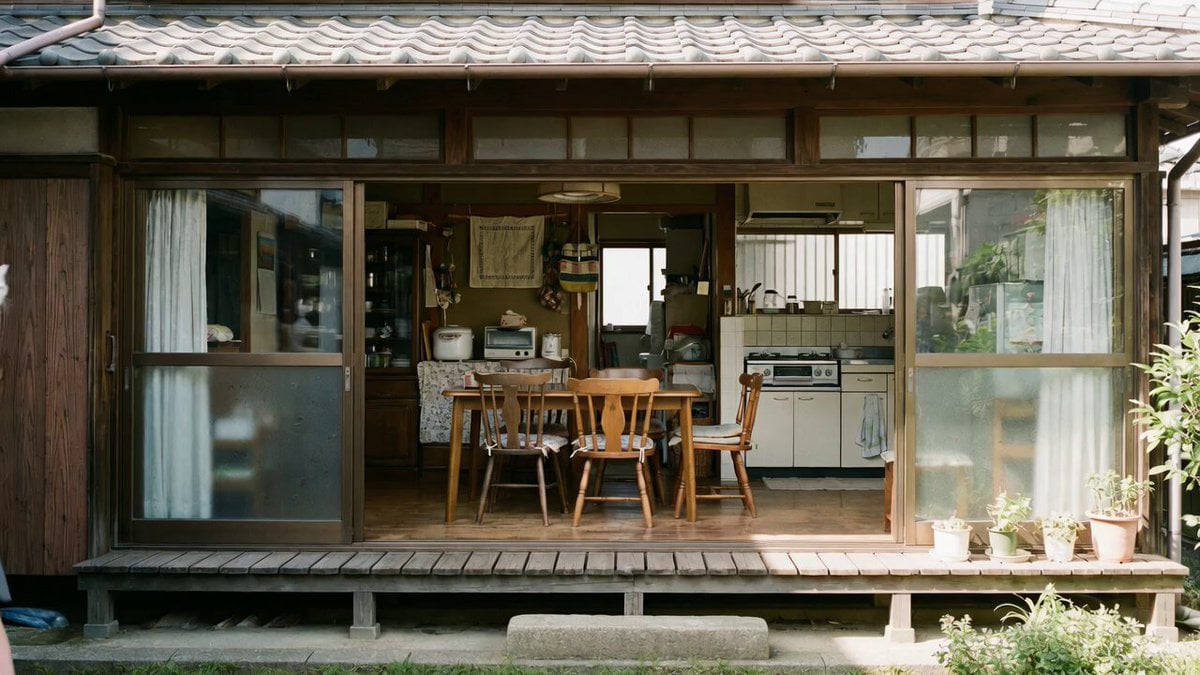
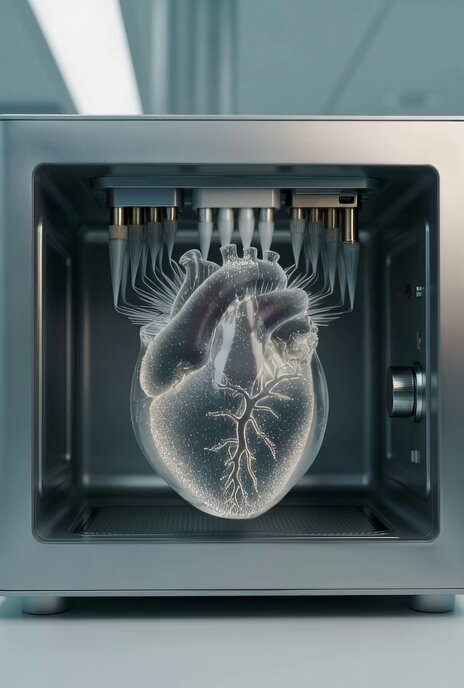
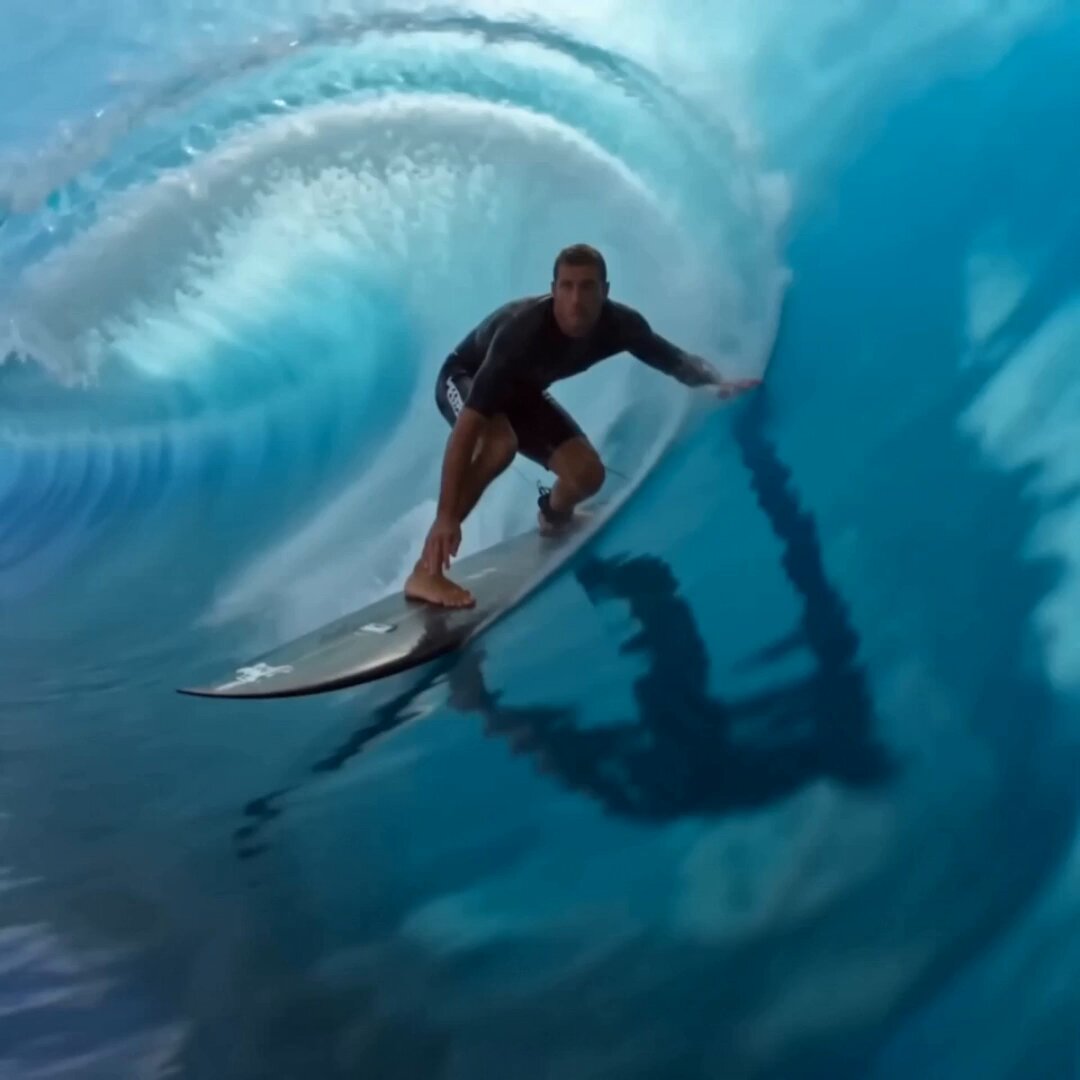
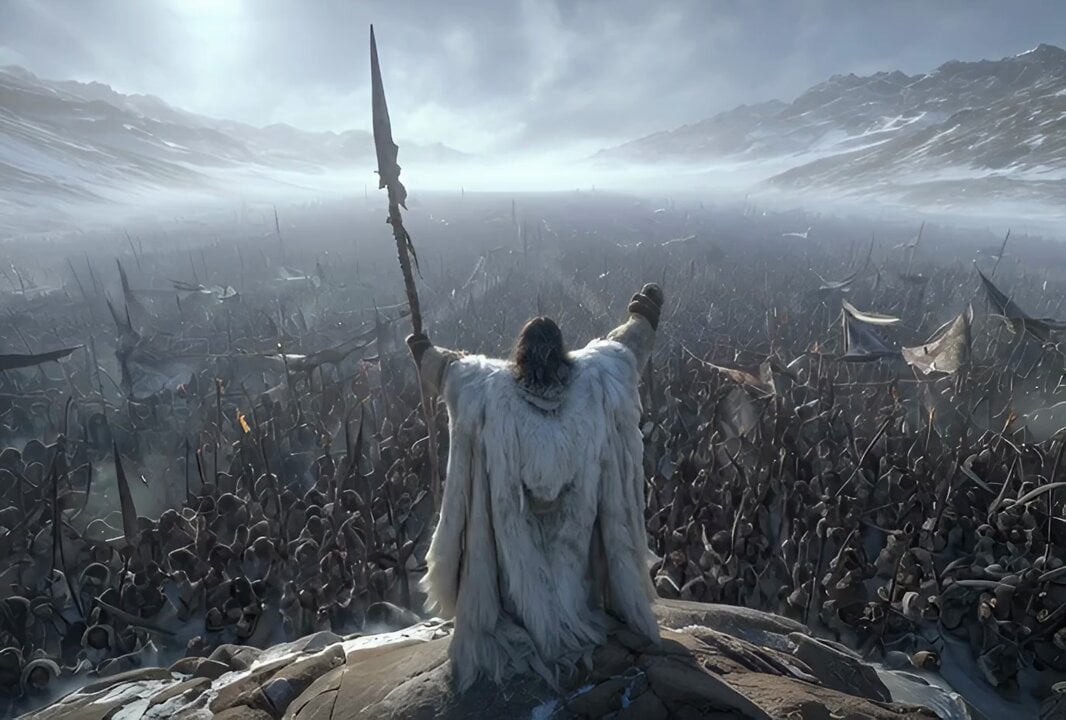
A stylistic video prompt focusing on slow movement, mist, and layering for a visual project titled "Two Weeks Early".
PROJECT: "Two Weeks Early" — visual journey GLOBAL SETTINGS: Speed 0.04 to 0.05 maximum for entire video. No cuts, no hard transitions. Only layered dissolves, mist, and shading.
PROJECT: "Two Weeks Early" — visual journey GLOBAL SETTINGS: Speed 0.04 to 0.05 maximum for entire video. No cuts, no hard transitions. Only layered dissolves, mist, and shading.
Edit the prompt in the box under the preview — the template's model and format are already selected — and press Generate. Your version appears right on this page.
Yes. You can change the subject, setting, lighting, mood, format, and available model controls before creating your video.
Opening and editing this template is free. Generating uses credits, shown on the Generate button when you are signed in.
Start with Grok Imagine, which is the model associated with this template. You can compare another compatible model for a different finish.
Follow a topic to a crawlable collection of related PicX Studio templates.