
Surreal Optical Illusion Tunnel
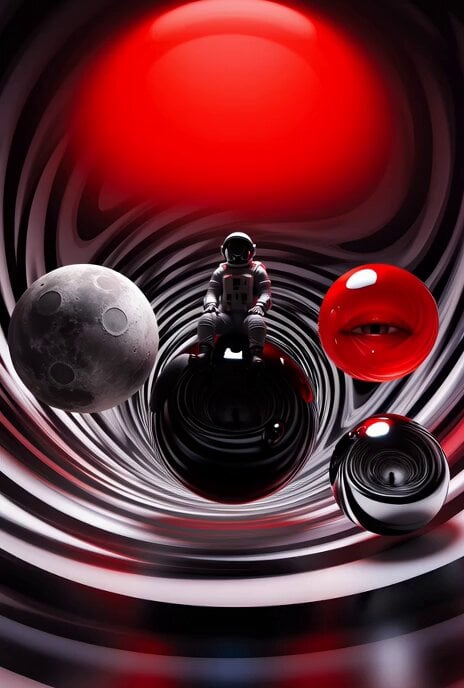
A highly complex and detailed prompt for Grok Imagine describing a surreal optical illusion scene inside a massive twisting tunnel with an astronaut and floating spheres.
- Prompt included
- Model and format preset
- Premium template
The prompt behind this video
Copy the exact prompt behind Surreal Optical Illusion Tunnel, or open it in the studio and make it yours.
Surreal optical illusion scene inside a massive twisting tunnel with hypnotic concentric black, white, and red swirling stripes that create a strong sense of infinite depth and motion. The tunnel walls and floor form a continuous warped vortex pattern with a bold red circular band in the upper background. In the center, a faceless astronaut in a smooth gray spacesuit with black helmet and boots sits contemplatively on a large glossy black sphere that reflects the swirling tunnel pattern. Floating in the air: a detailed realistic gray cratered Moon on the left, a large shiny translucent red sphere containing a distorted human eye on the right, and a smaller reflective black-and-white striped sphere in the lower right foreground. The entire scene has high contrast, dramatic lighting, smooth 3D rendering, and a strong psychedelic, dreamlike atmosphere. Cinematic composition, perfect symmetry in the tunnel, sharp details, 8k resolution
How to use Surreal Optical Illusion Tunnel in 3 steps
- 1
Open
The prompt is already in the box next to the preview, with the template's model and format selected.
- 2…a portrait of your subject in softgolden-hour light, 85mm…
Personalize
Edit the subject and creative details for your destination.
- 3Generate
Generate
Press Generate — your video is created in PicX Studio, so you can compare it with the original and refine one variable at a time.
More like this
Templates with the same subject, style or setup. Open one to see its prompt.
Cinematic Motorcycle Tunnel Jump
Surreal Paradise Ethereal Transaction
Surreal cyborg animal and young girl
Light at the End of the Tunnel
Video prompt for a surreal volcanic goddess
Hypercar Tunnel Tracking Shot Video Prompt
Woman Pulled Deep into a Winding Tunnel
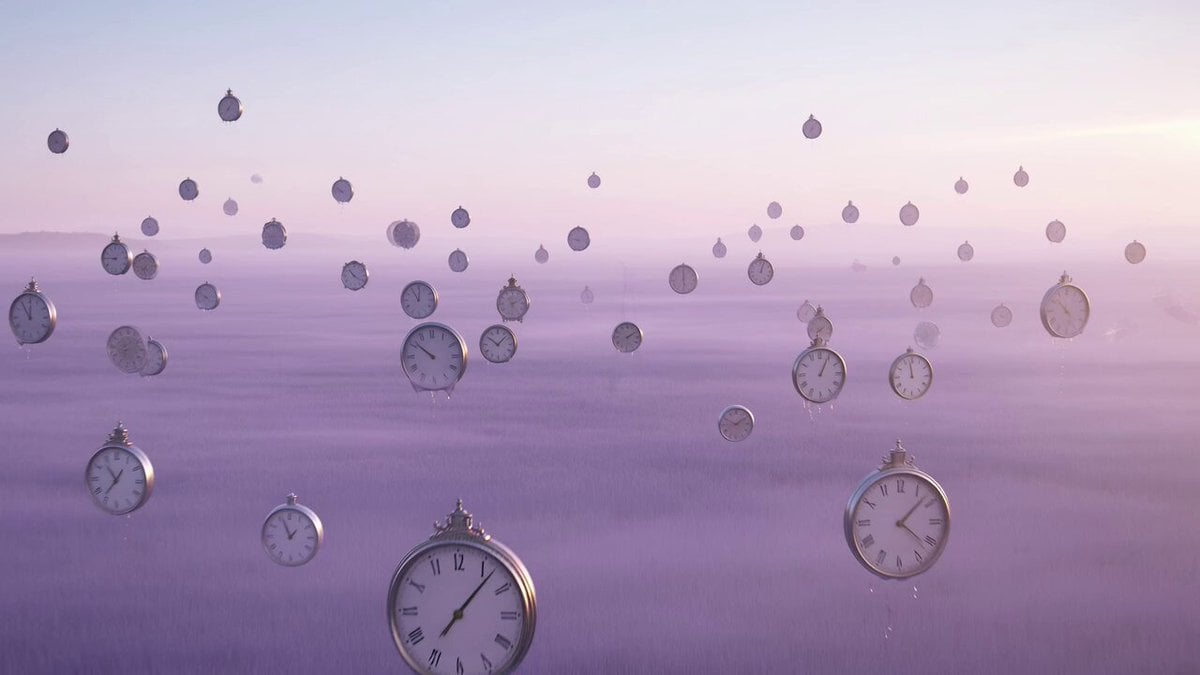
Surreal time-bending reverie video prompt
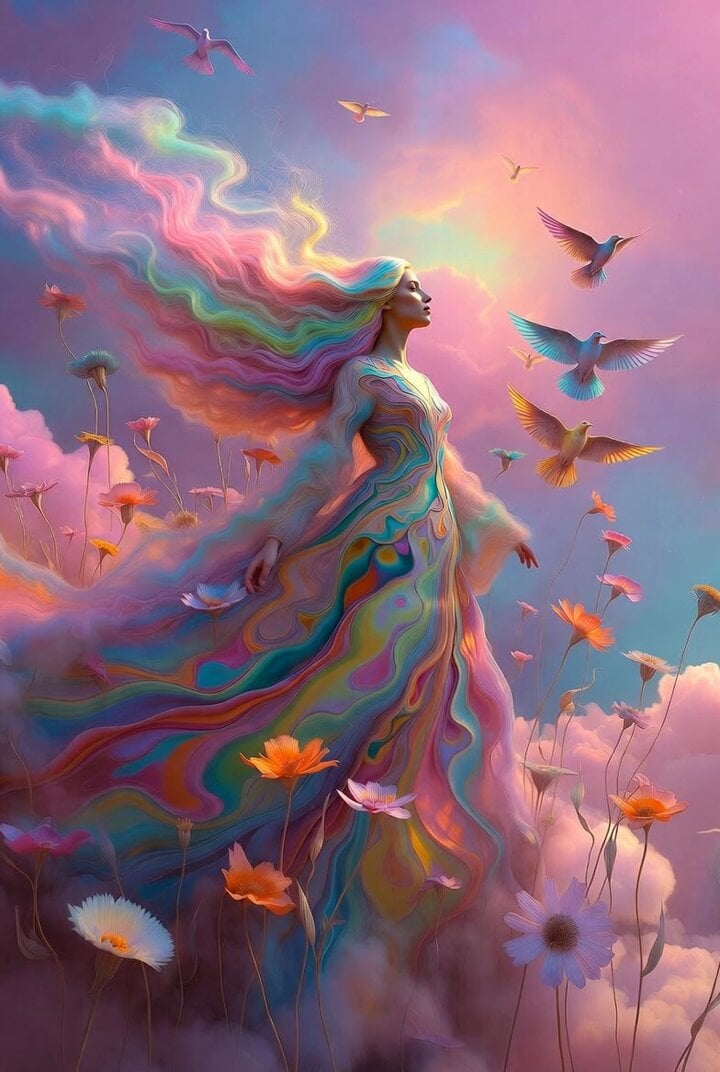
Surreal Dream Queen
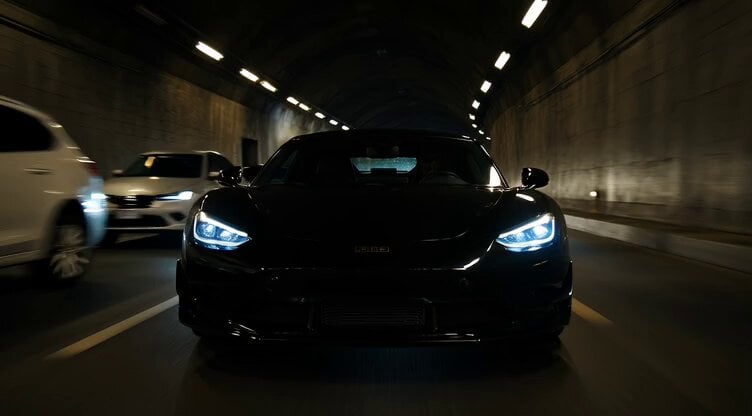
Forward Tracking Tunnel Race
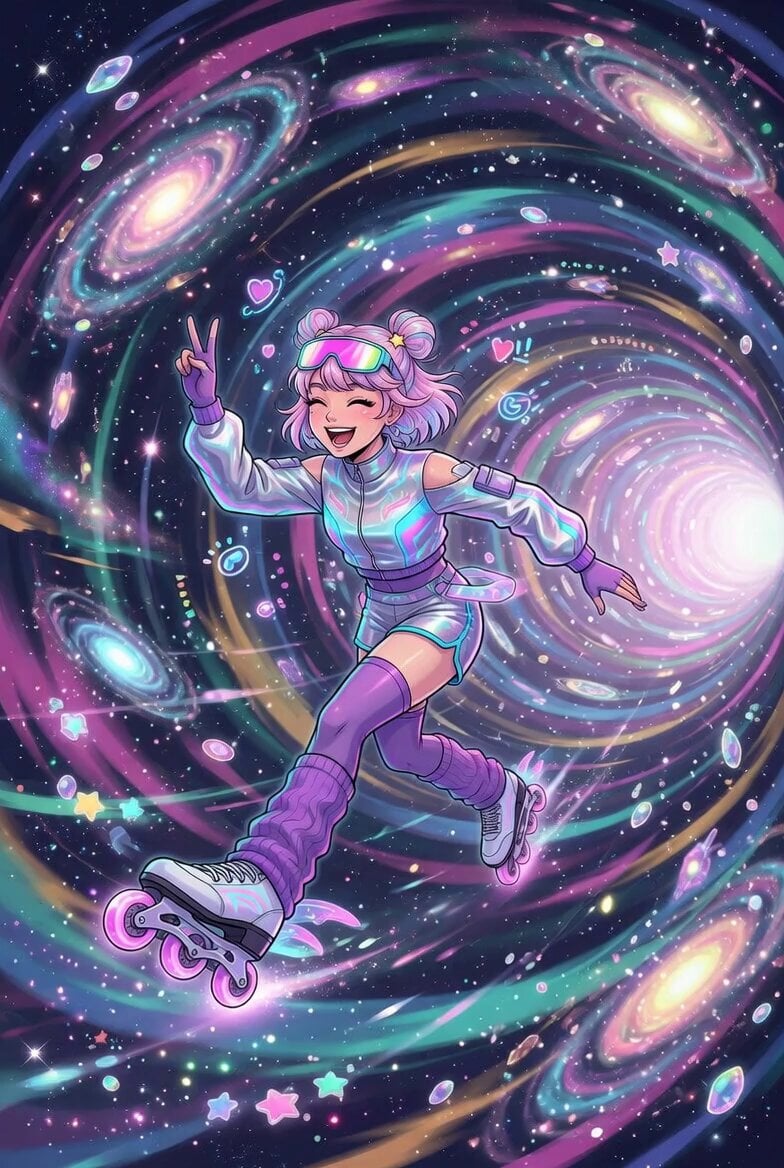
Futuristic Anime Skating Tunnel
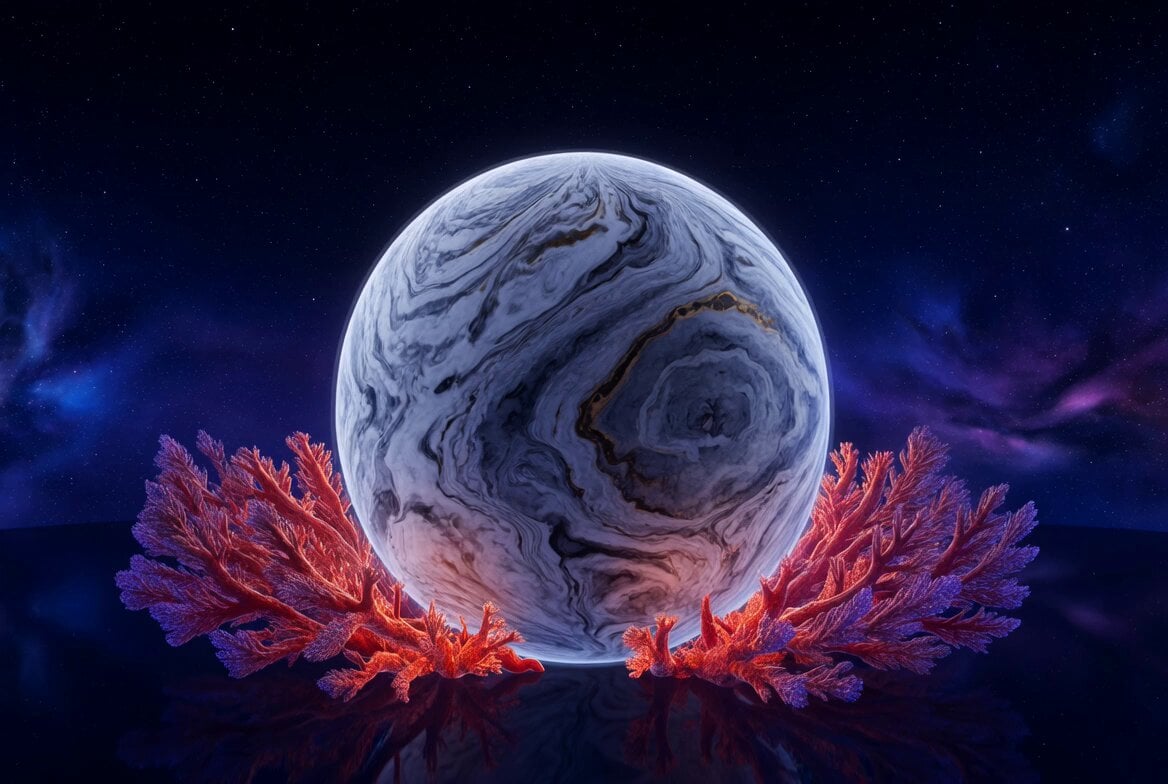
Kaleidoscopic Cosmic Dolphin Video
Make it yours
Surreal Optical Illusion Tunnel works as-is. These are the safest ways to change it without losing the look.
Change one field
Copy a single group, rewrite it, and generate again so you can see what that field is doing.
Keep the frame, change the subject
Hold the composition and light of Surreal Optical Illusion Tunnel, then swap wardrobe, props or the person for a new take.
| If the result… | Why | Fix |
|---|---|---|
| The result drifts from the preview | Too many fields changed at once. | Reuse Surreal Optical Illusion Tunnel as-is first, then change one group — subject, light, or setting. |
| The model over-stylizes the scene | The prose prompt leaves finish and camera underspecified. | Add one camera or lighting sentence and stay on Grok Imagine. |
More Grok Imagine templates
Other prompts made for Grok Imagine.
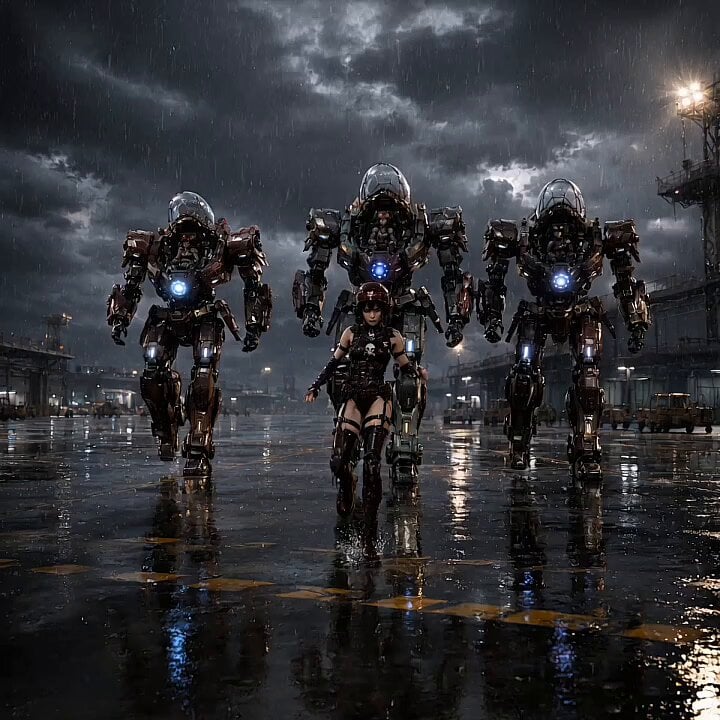
Mecha Runway Tap Dance Video Prompt
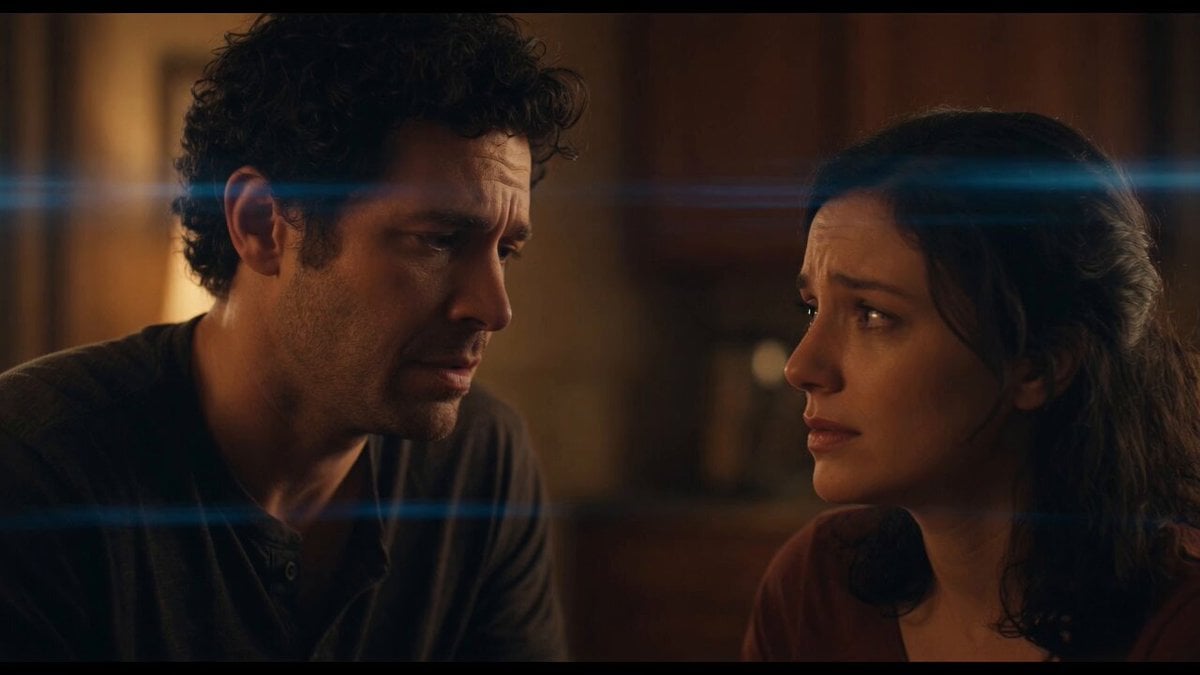
Emotional Angry Couple Drama
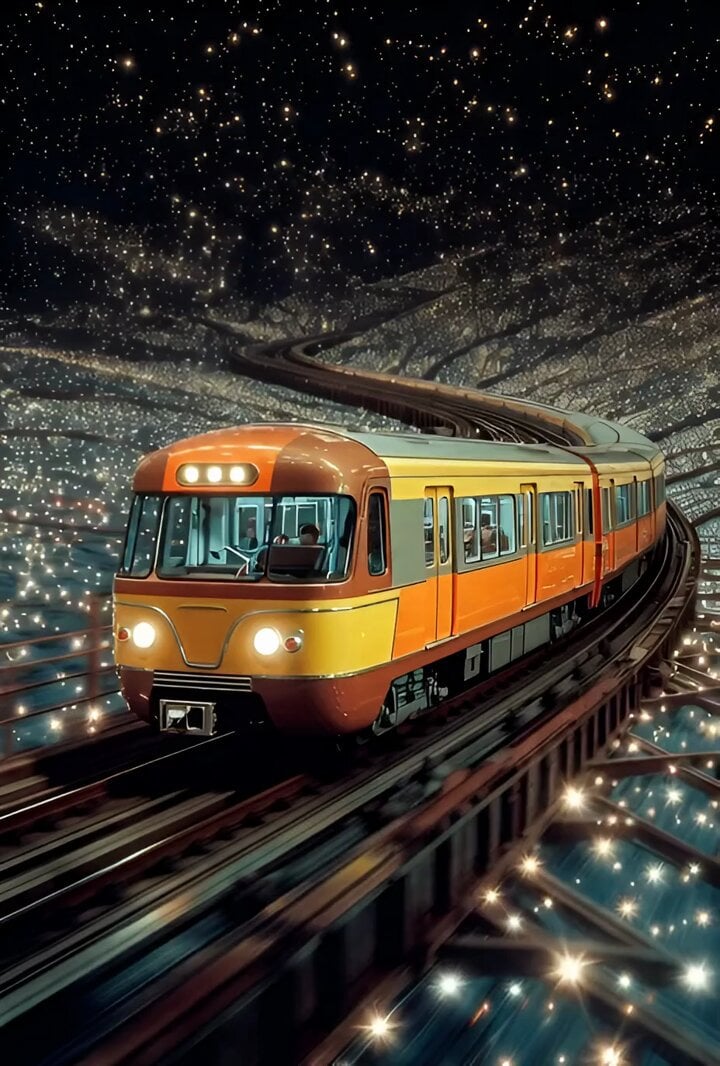
Train Zooming in Star Field Video Prompt
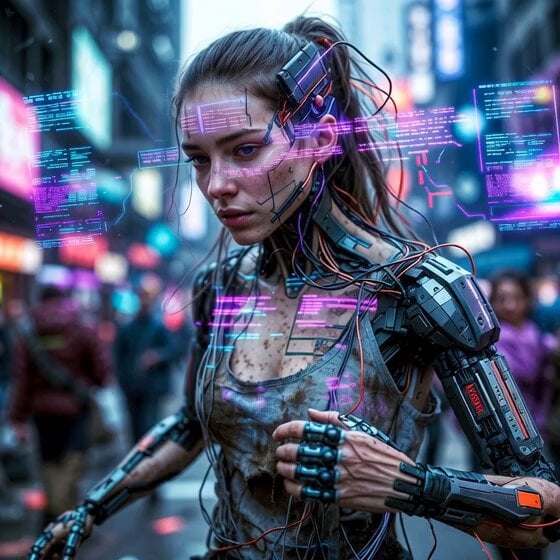
Cyberpunk Guerrilla Girl Video Generation
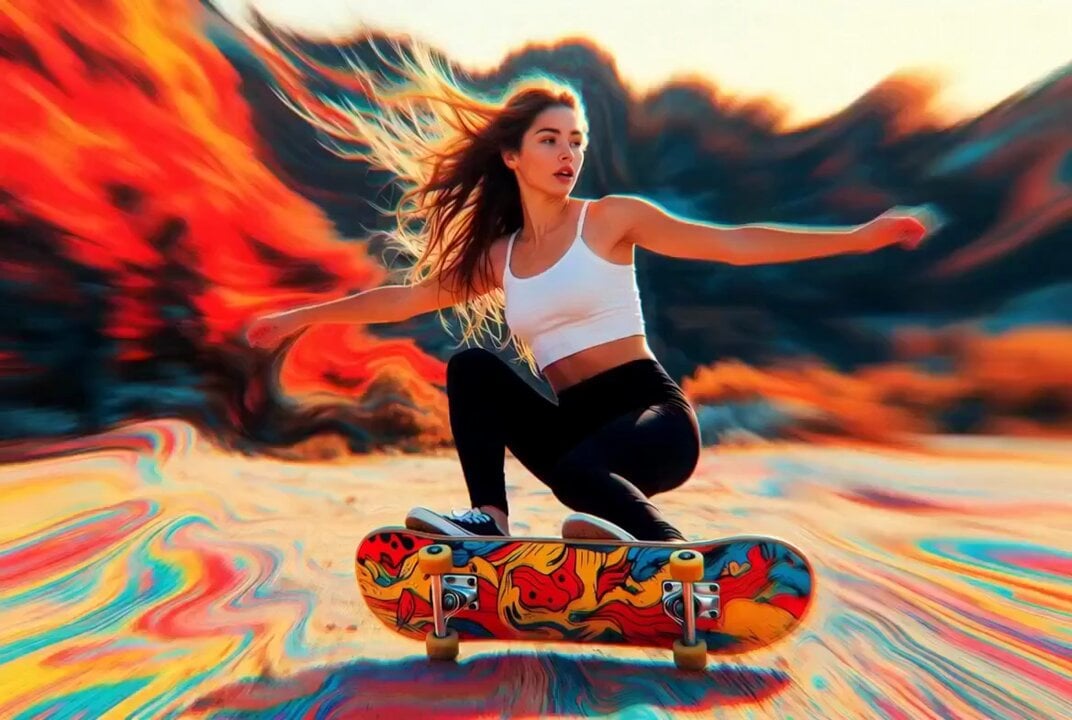
Detailed multi-part video prompt
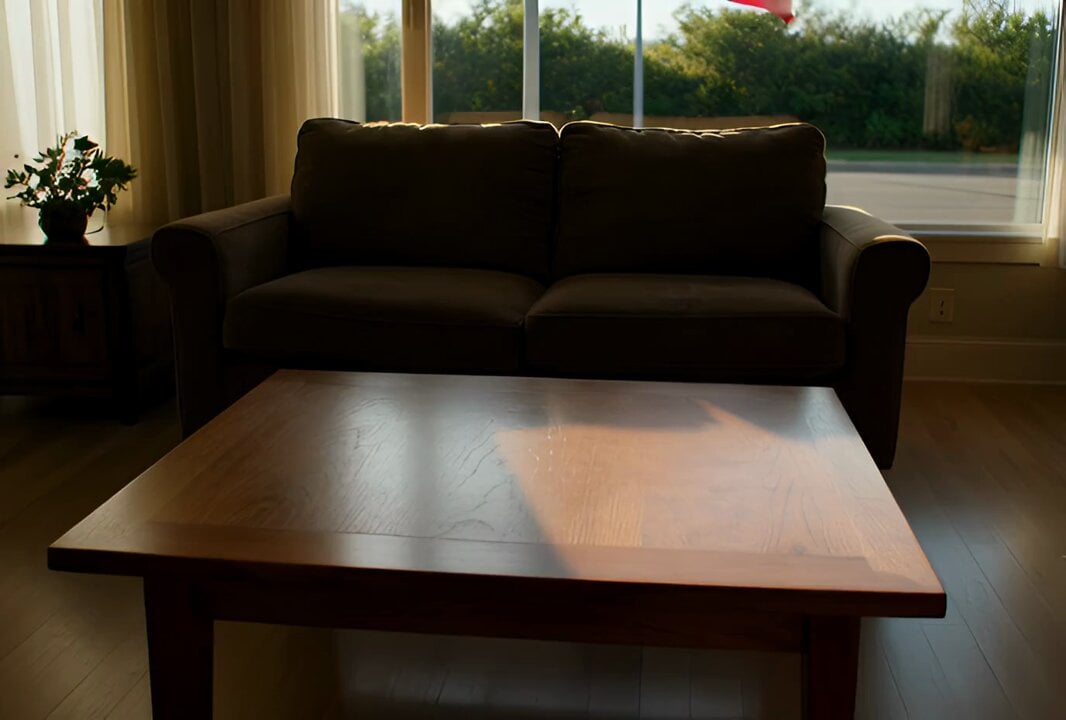
Interior View Video Generation Prompt
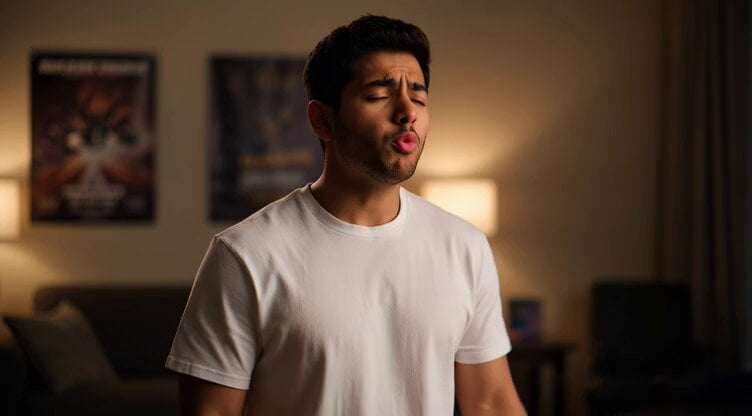
GTA 6 never came out in 1 million years

Bitcoin liferaft video prompt

Woman floating down, opening eyes and looking deeply into the viewer's eyes

Utopian World of Harmony and Peace
More video prompts
Fresh picks from across the catalog.
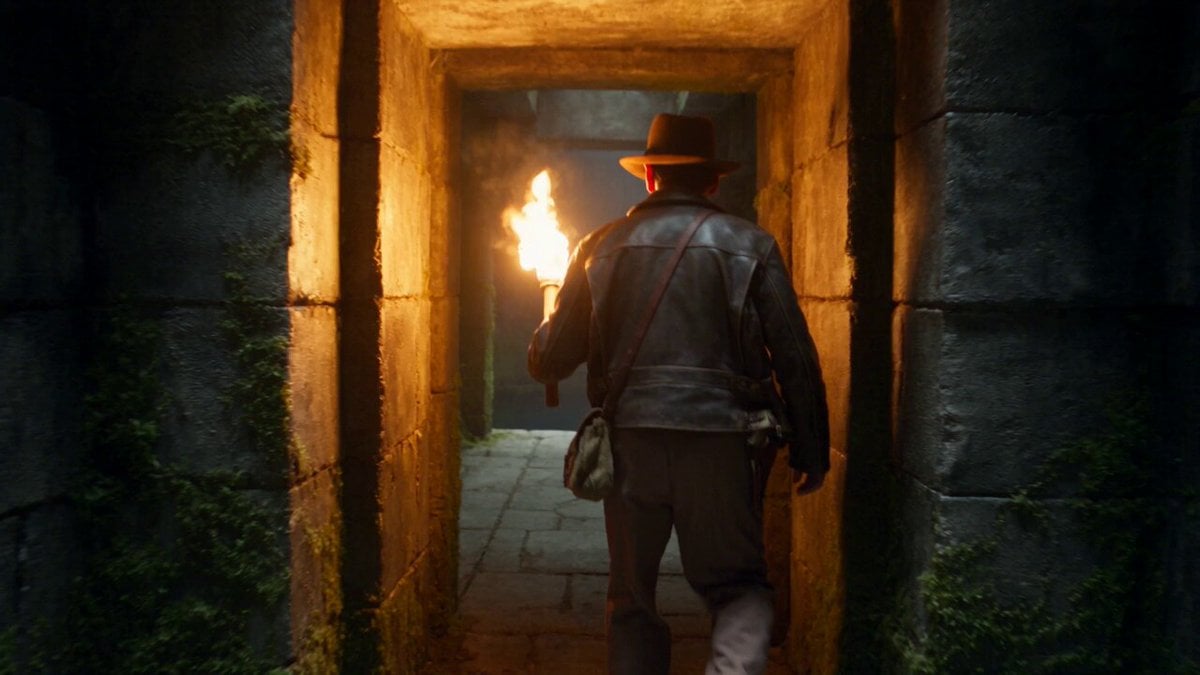
Cinematic One-Shot Temple Adventure

One-Shot War Disaster Film Sequence
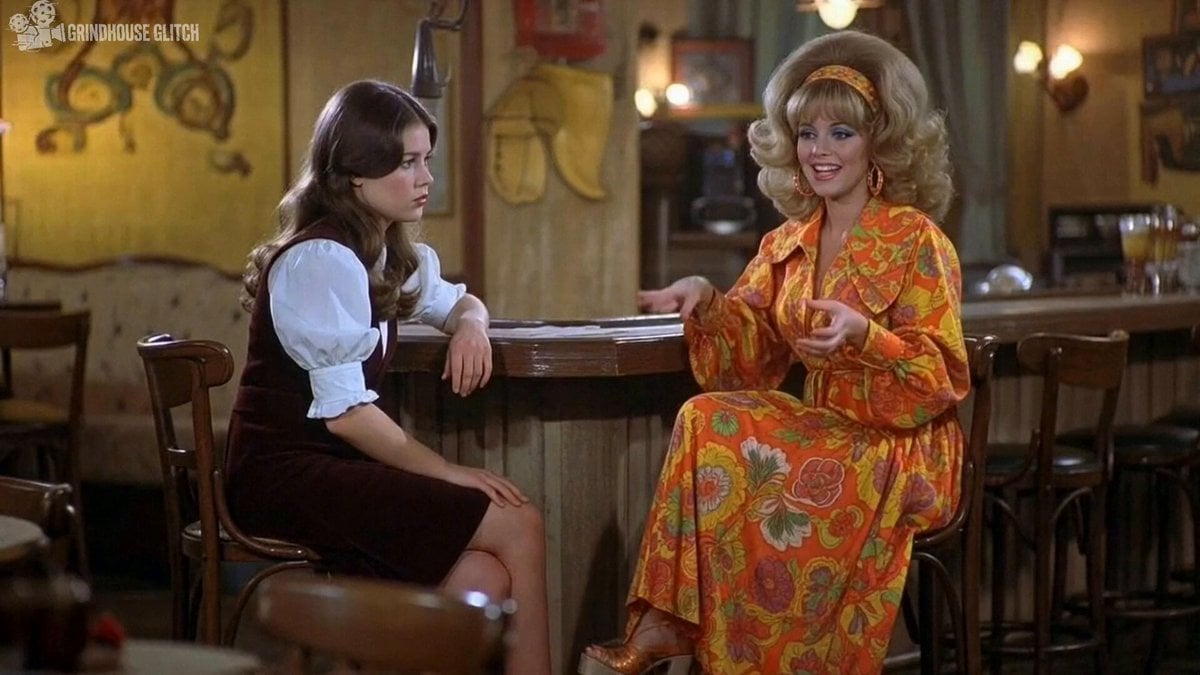
2000s-era 1970s-style American sitcom scene
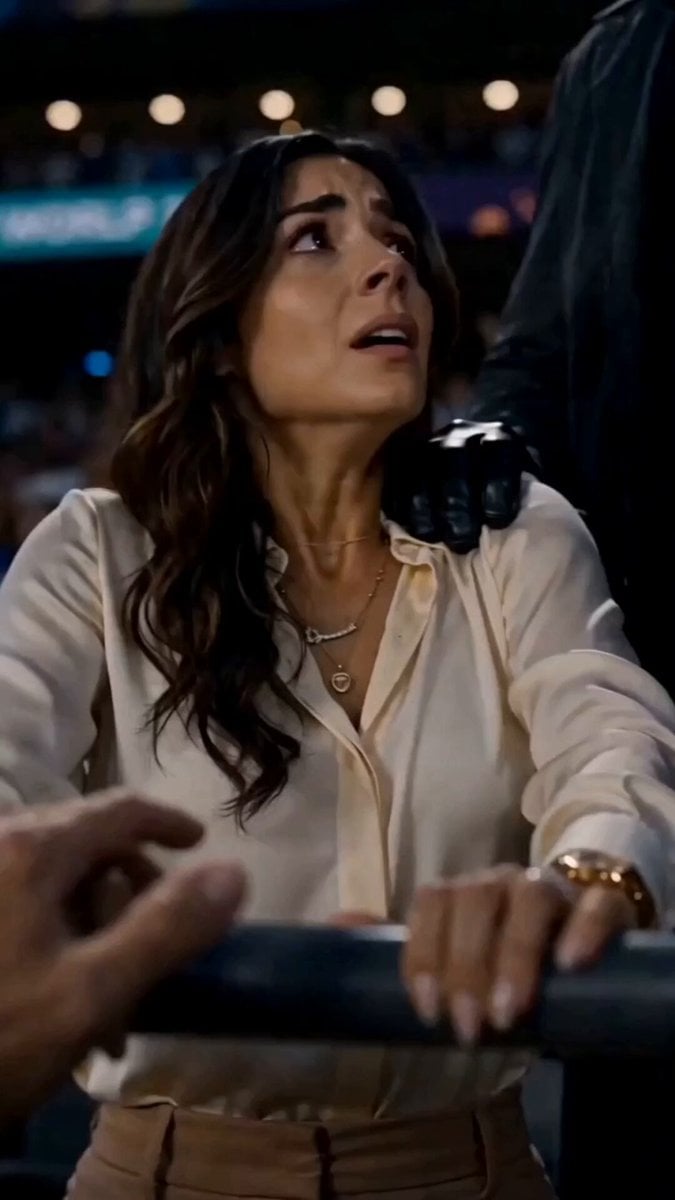
Cinematic Football Drama Sports Thriller
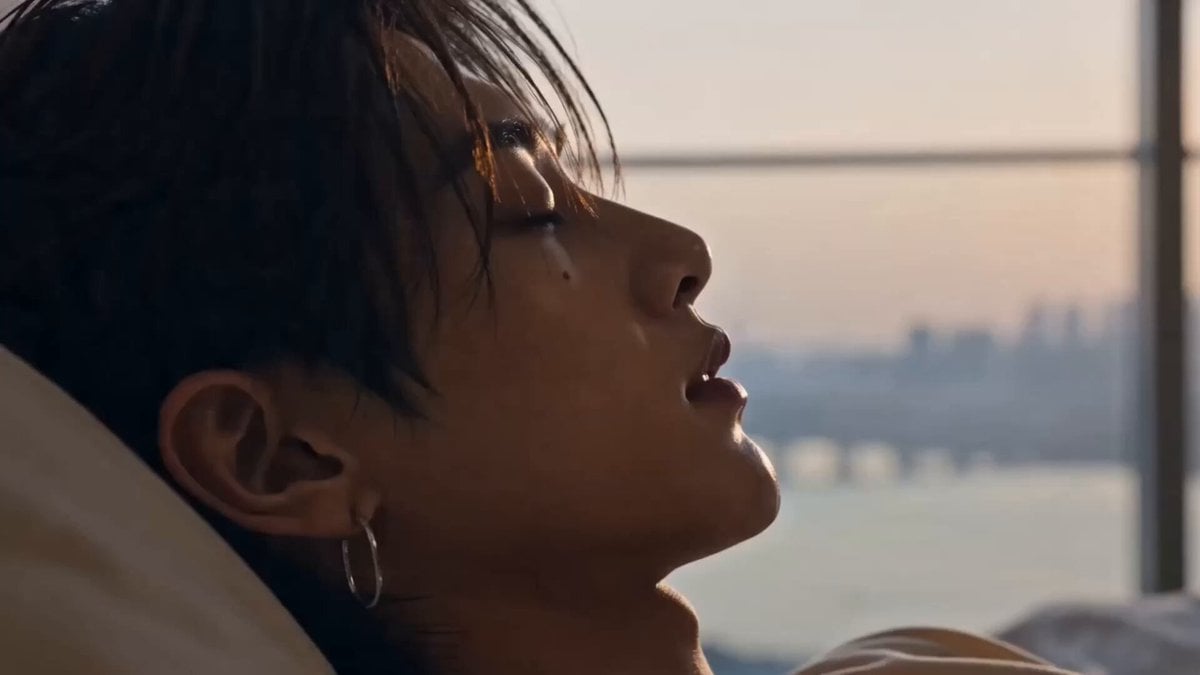
Successful Korean Man Lifestyle Vlog

Hyperrealistic Soap Bubbles in a Park
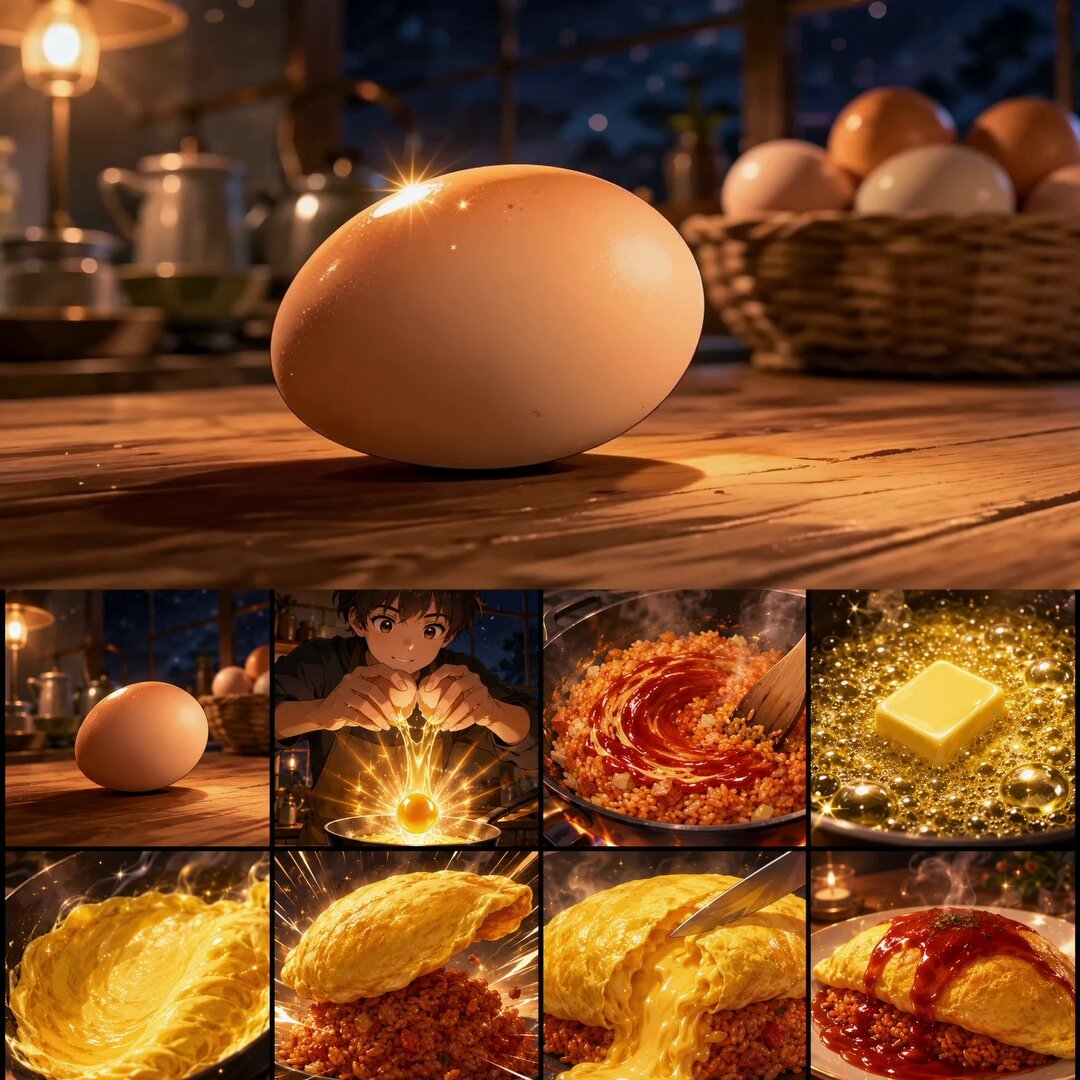
Cinematic Anime Omelet Cooking
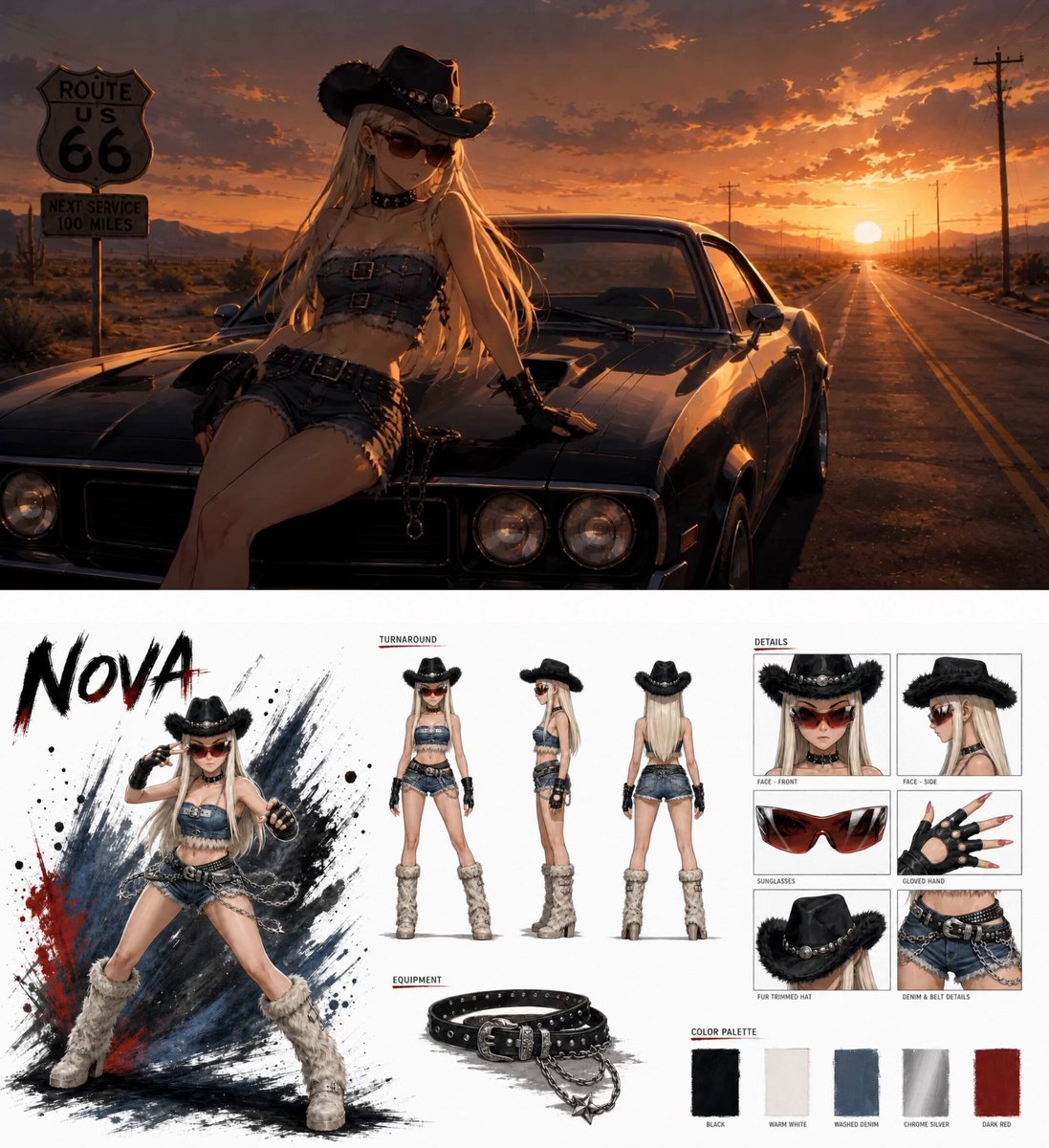
Anime Fashion Short on Route 66
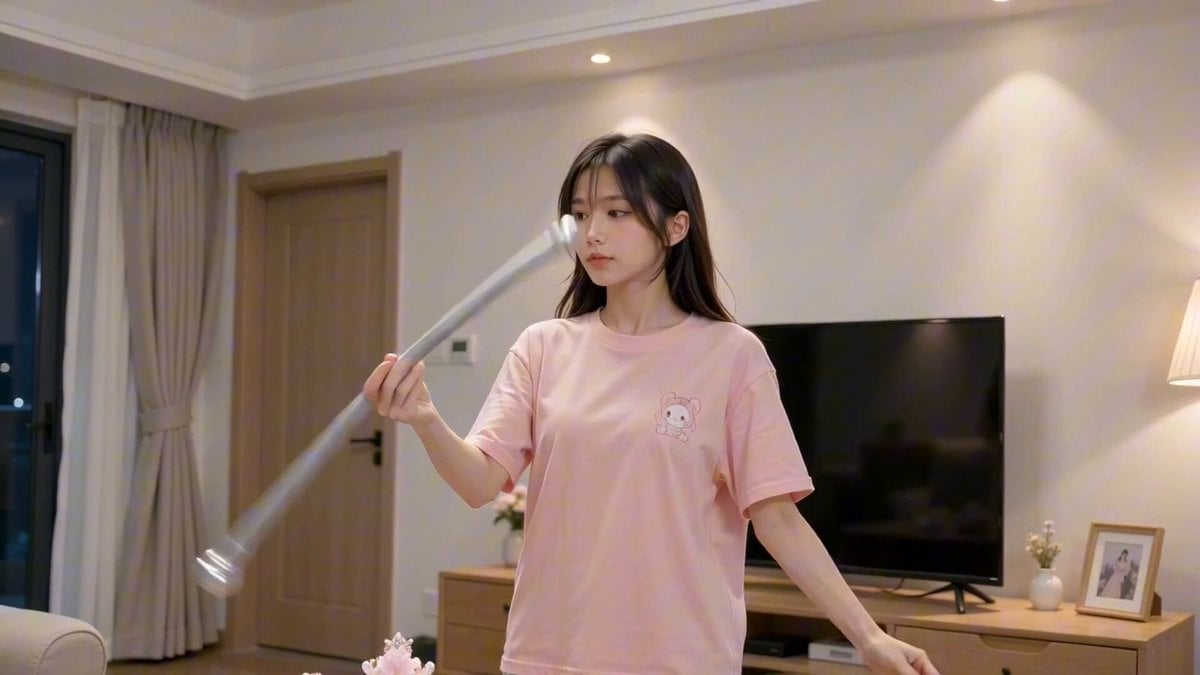
Magical Girl Transformation Sequence

Fresco Artwork and Crystal Tiles Video
Browse template categories
Surreal Optical Illusion Tunnel questions
How do I use the Surreal Optical Illusion Tunnel template?
Add your photo if the template asks for one, edit the prompt if you like — the template's model and format are already selected — and press Generate. Your version opens in PicX Studio.
Can I customize the Surreal Optical Illusion Tunnel template?
Yes. You can change the subject, setting, lighting, mood, format, and available model controls before creating your video.
Is the Surreal Optical Illusion Tunnel template free?
Opening and editing this template is free. Generating uses credits, shown on the Generate button when you are signed in.
Which AI model should I use?
Start with Grok Imagine, which is the model associated with this template. You can compare another compatible model for a different finish.
Looking for something else? Browse all templates.

Your photo, any look
Thousands of ready templates for every top image and video model, from one credit balance.