
Hypercar Tunnel Tracking Shot Video Prompt
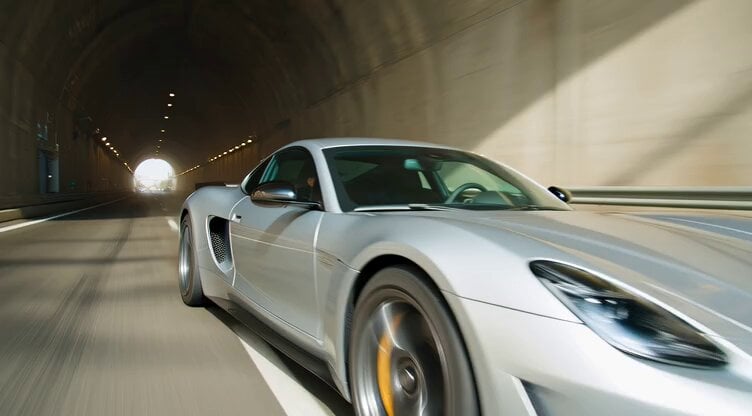
A prompt for Grok Imagine requesting a dynamic tracking shot video of a sleek silver hypercar entering a massive concrete highway tunnel at extreme speed, emphasizing reflections, nitro flames, and acceleration out into…
- Prompt included
- Model and format preset
- Free template
The prompt behind this video
Copy the exact prompt behind Hypercar Tunnel Tracking Shot Video Prompt, or open it in the studio and make it yours.
Midday sunlight floods the entrance of a massive concrete highway tunnel. A sleek silver hypercar enters at extreme speed. The camera tracks tightly along the side panel as reflections of tunnel lights streak across the bodywork. The driver slams the nitro. Blue flames burst from the exhaust. The camera accelerates forward along the car’s body to the front bumper while the environment blurs into streaks of light. The shot ends with the hypercar blasting out of the tunnel into daylight
How to use Hypercar Tunnel Tracking Shot Video Prompt in 3 steps
- 1
Open
The prompt is already in the box next to the preview, with the template's model and format selected.
- 2…a portrait of your subject in softgolden-hour light, 85mm…
Personalize
Edit the subject and creative details for your destination.
- 3Generate
Generate
Press Generate — your video is created in PicX Studio, so you can compare it with the original and refine one variable at a time.
More like this
Templates with the same subject, style or setup. Open one to see its prompt.
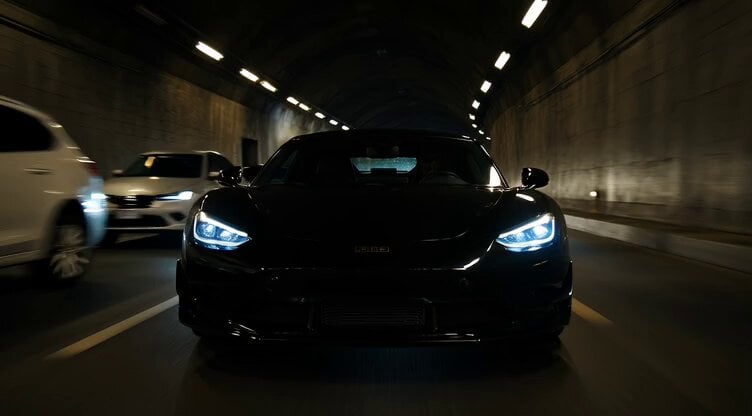
Forward Tracking Tunnel Race
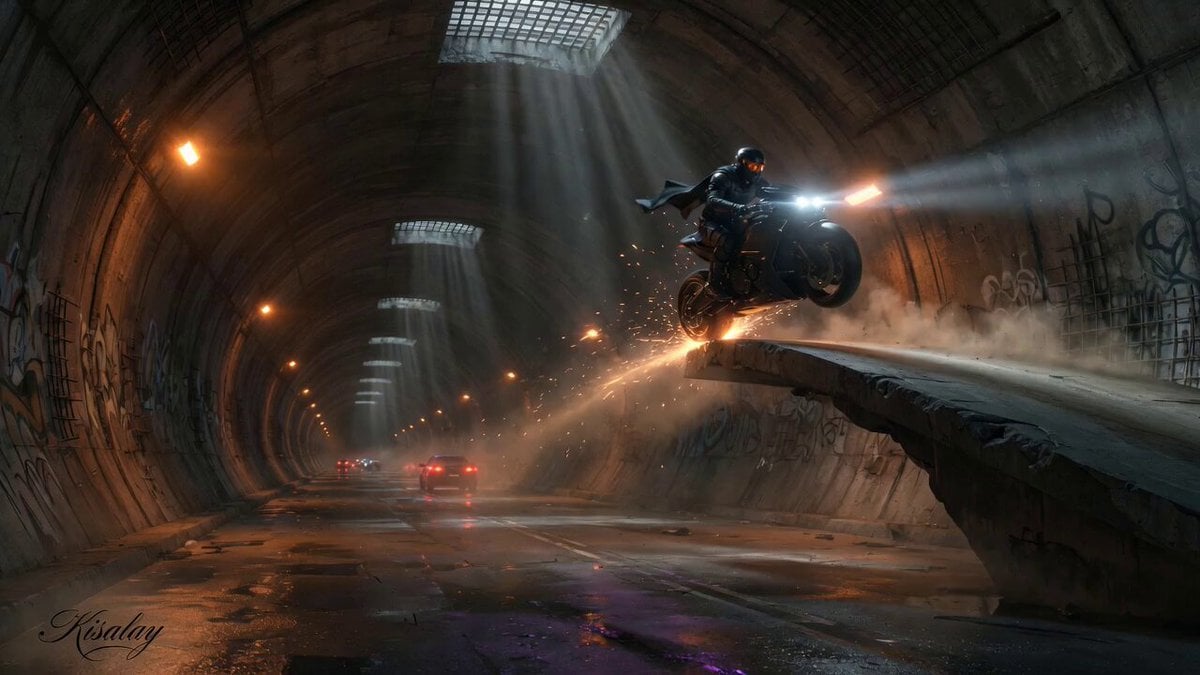
Cinematic Motorcycle Tunnel Jump
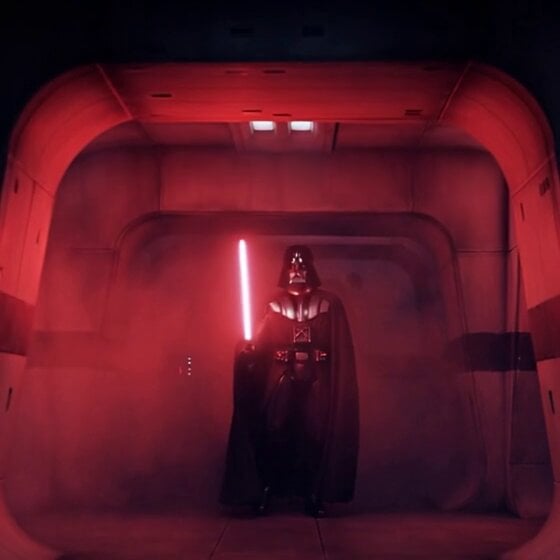
Light at the End of the Tunnel
Woman Pulled Deep into a Winding Tunnel

Tracking shot of armored muscle car in desert
Surreal Optical Illusion Tunnel
Badass tracking shot of a van speeding through an industrial complex
Futuristic Anime Skating Tunnel
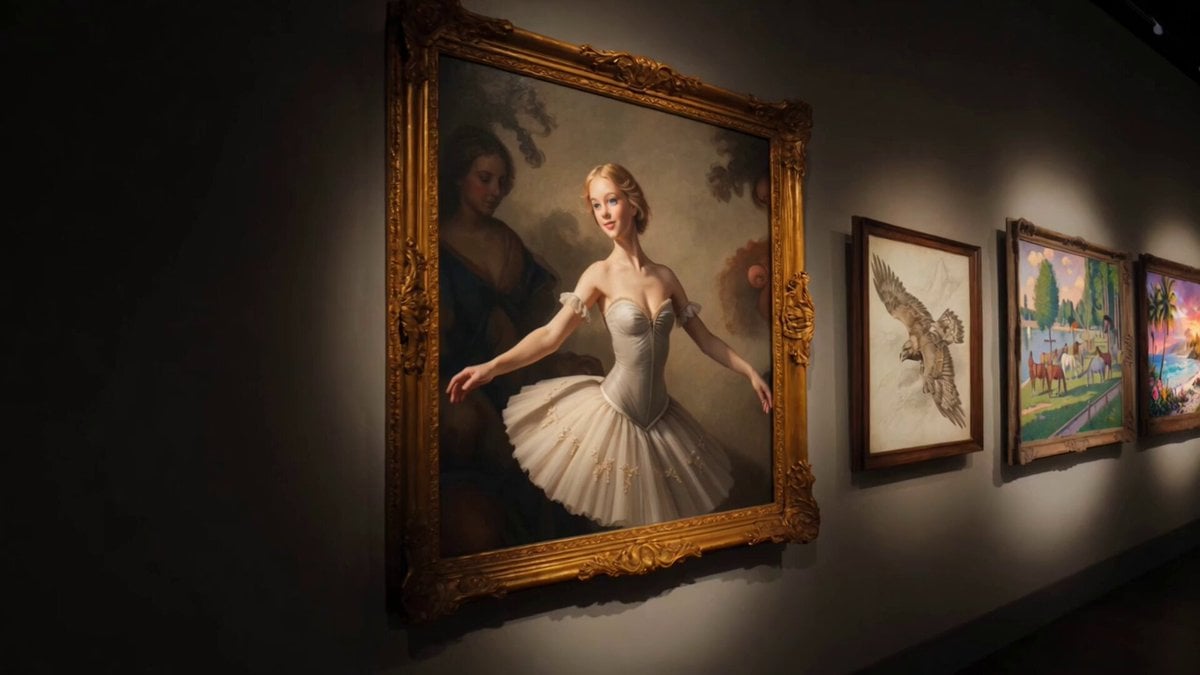
Museum Gallery Tracking Shot

Kaleidoscopic Cosmic Dolphin Video
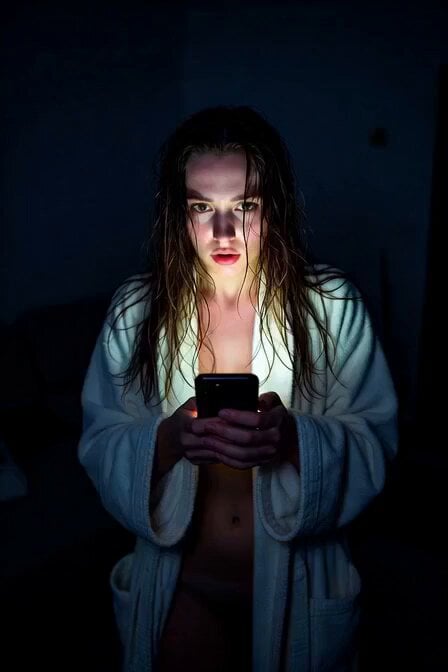
Horror Daffy Duck Video Transition

America 250th Anniversary Celebration
Make it yours
Hypercar Tunnel Tracking Shot Video Prompt works as-is. These are the safest ways to change it without losing the look.
Change one field
Copy a single group, rewrite it, and generate again so you can see what that field is doing.
Keep the frame, change the subject
Hold the composition and light of Hypercar Tunnel Tracking Shot Video Prompt, then swap wardrobe, props or the person for a new take.
| If the result… | Why | Fix |
|---|---|---|
| The result drifts from the preview | Too many fields changed at once. | Reuse Hypercar Tunnel Tracking Shot Video Prompt as-is first, then change one group — subject, light, or setting. |
| The model over-stylizes the scene | The prose prompt leaves finish and camera underspecified. | Add one camera or lighting sentence and stay on Grok Imagine. |
More Grok Imagine templates
Other prompts made for Grok Imagine.
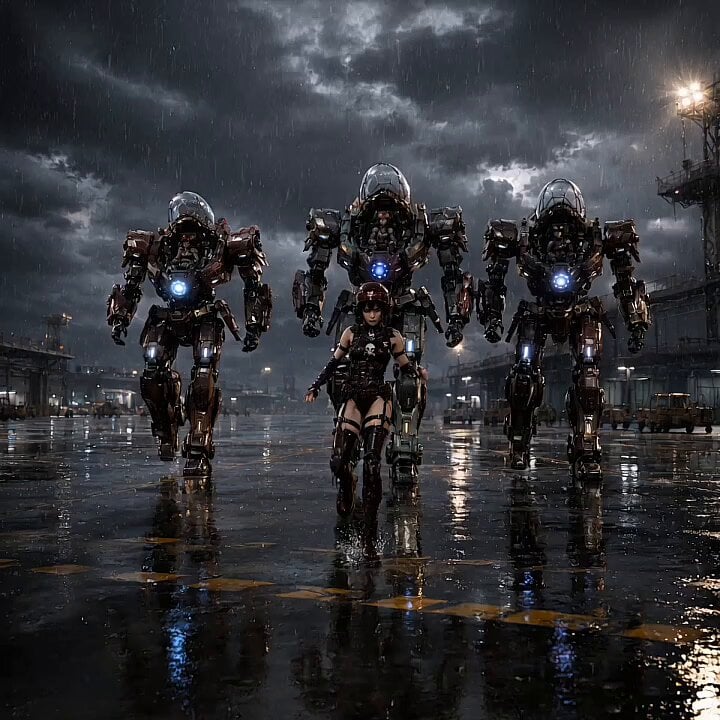
Mecha Runway Tap Dance Video Prompt
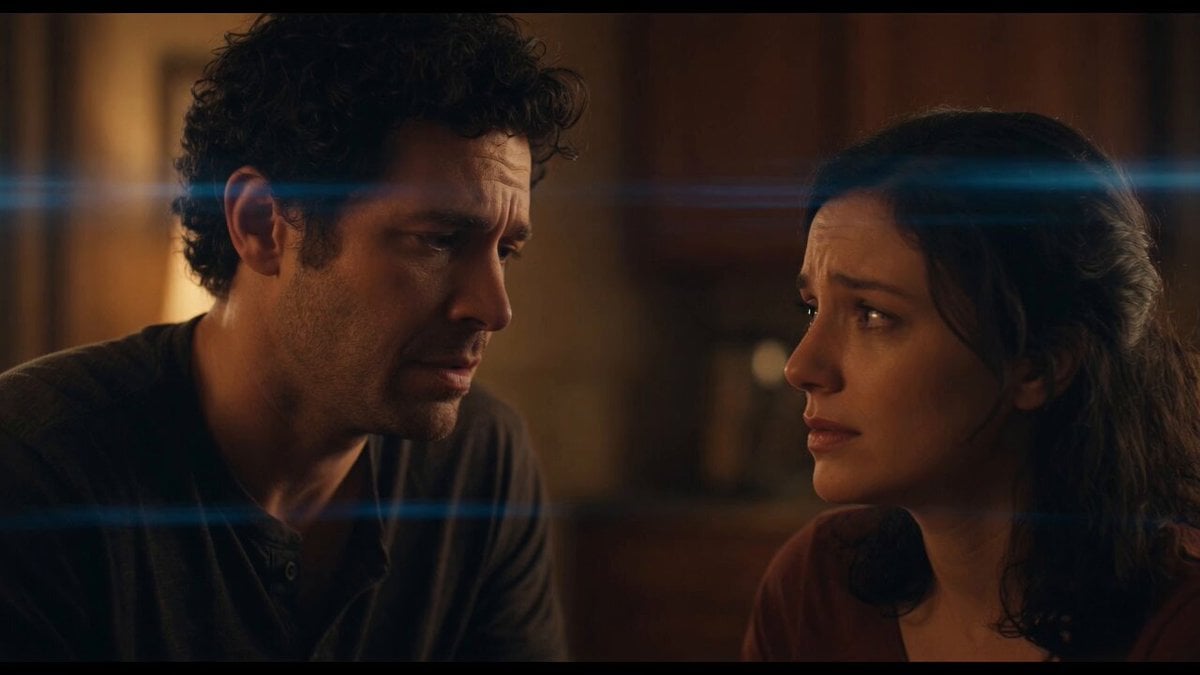
Emotional Angry Couple Drama
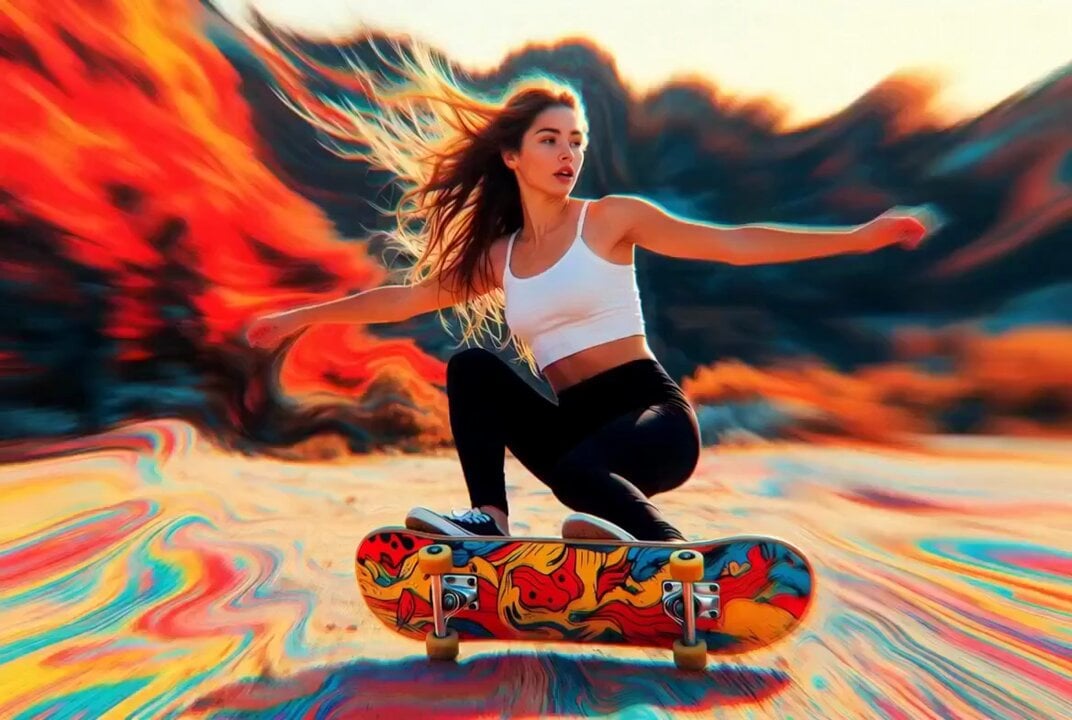
Detailed multi-part video prompt
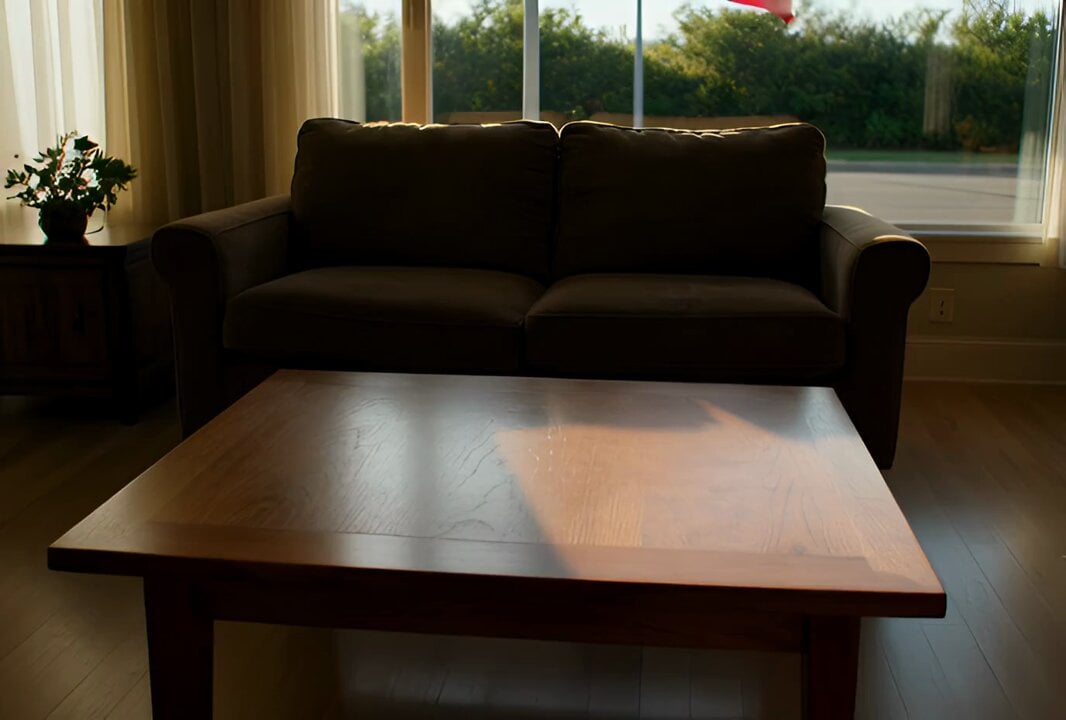
Interior View Video Generation Prompt
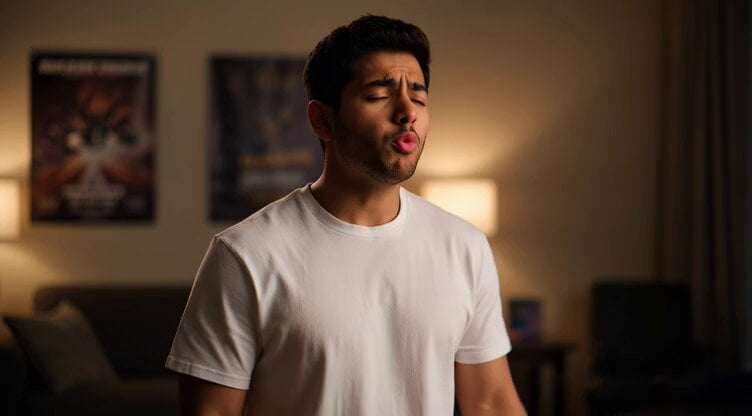
GTA 6 never came out in 1 million years

Bitcoin liferaft video prompt

Woman floating down, opening eyes and looking deeply into the viewer's eyes

Utopian World of Harmony and Peace
Runner with BE 2060 i inscription passing through sequential doors video prompt
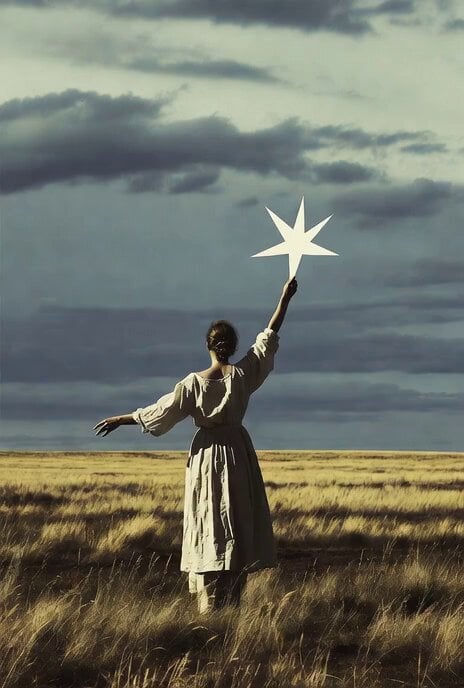
Wind Blows Paper, Camera Follows
More video prompts
Fresh picks from across the catalog.
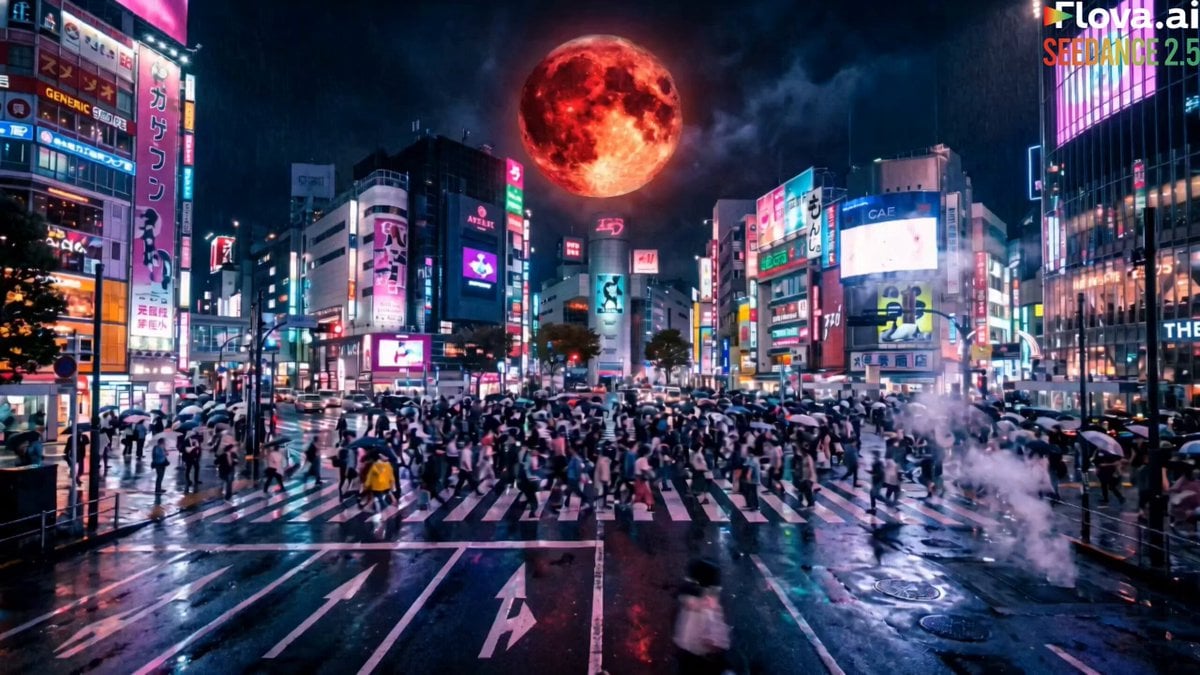
Cinematic Beast Transformation Sequence
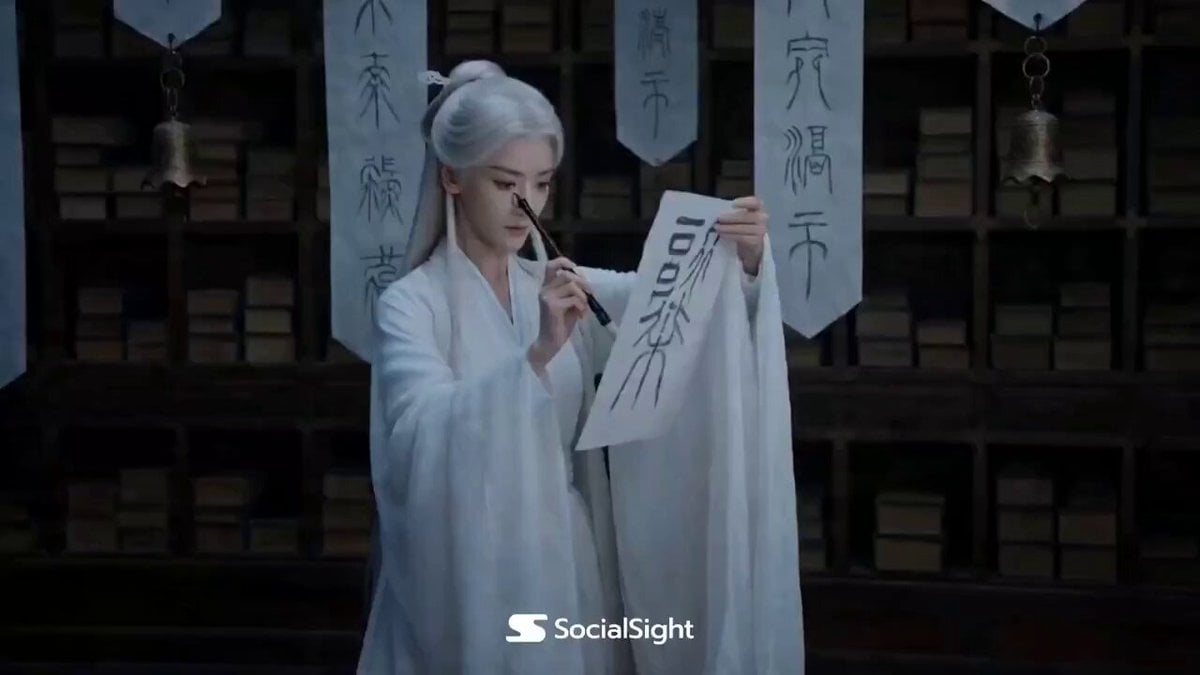
Sorceress Sigil Battle
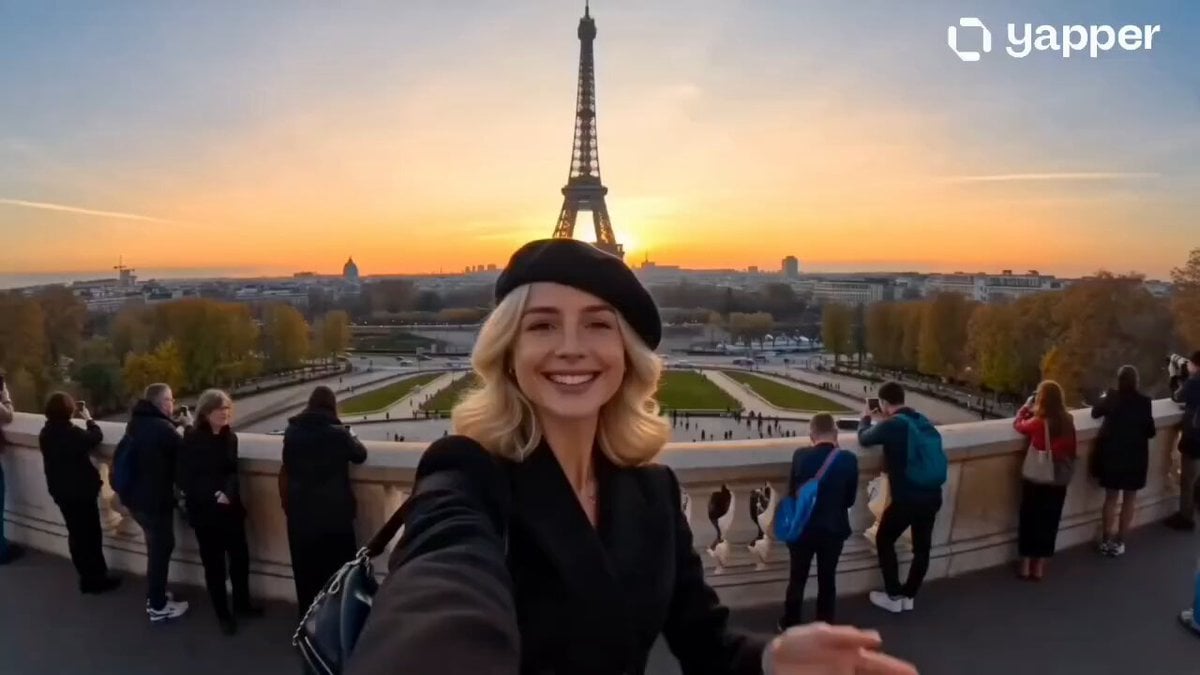
Cinematic World Travel Hyper-lapse
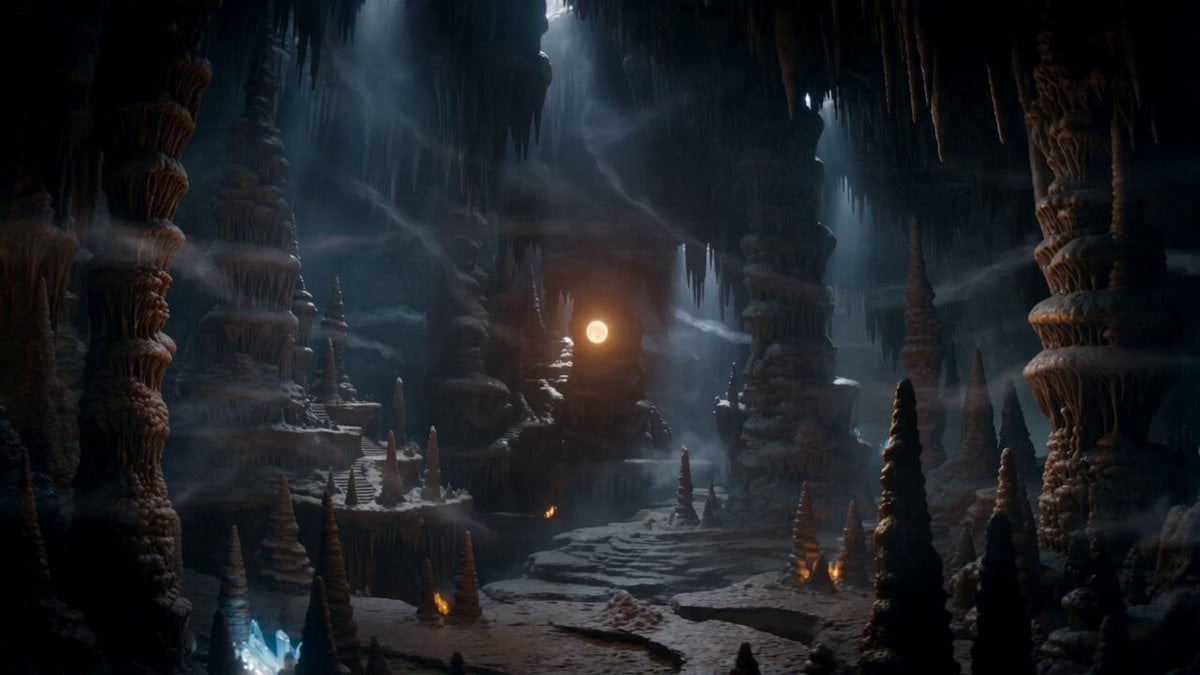
Magical Dragon Portal Cave
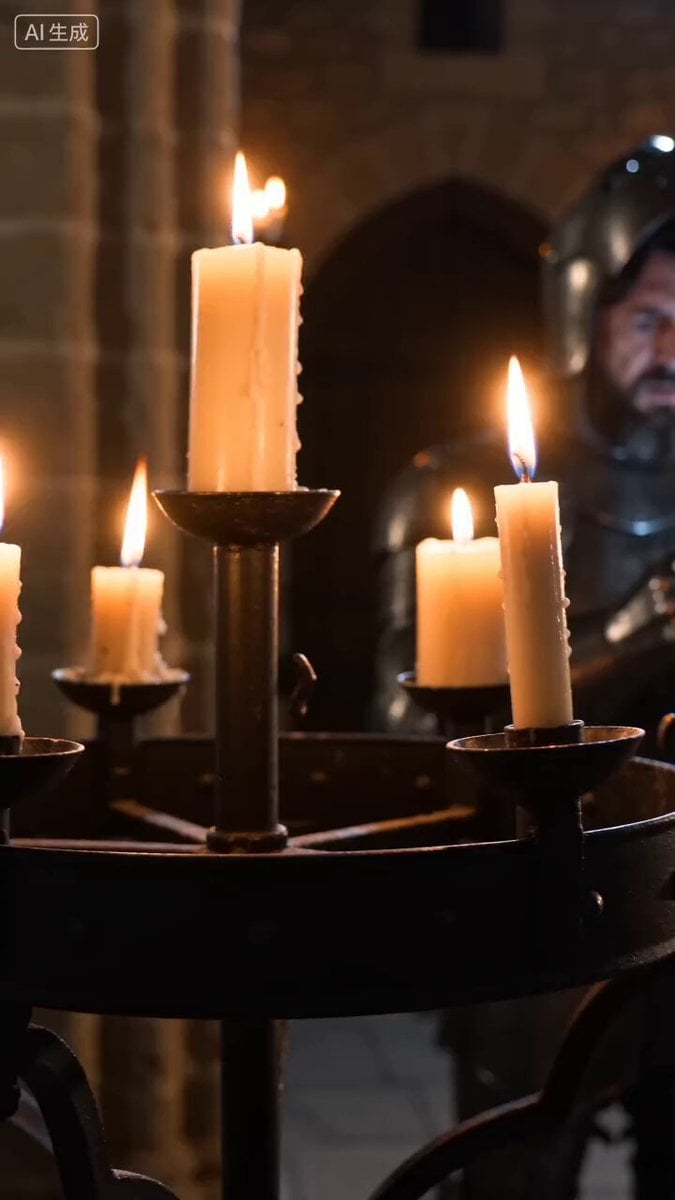
Medieval Knight with Smartphone

Ethereal Ghostly Galaxy Video Prompt
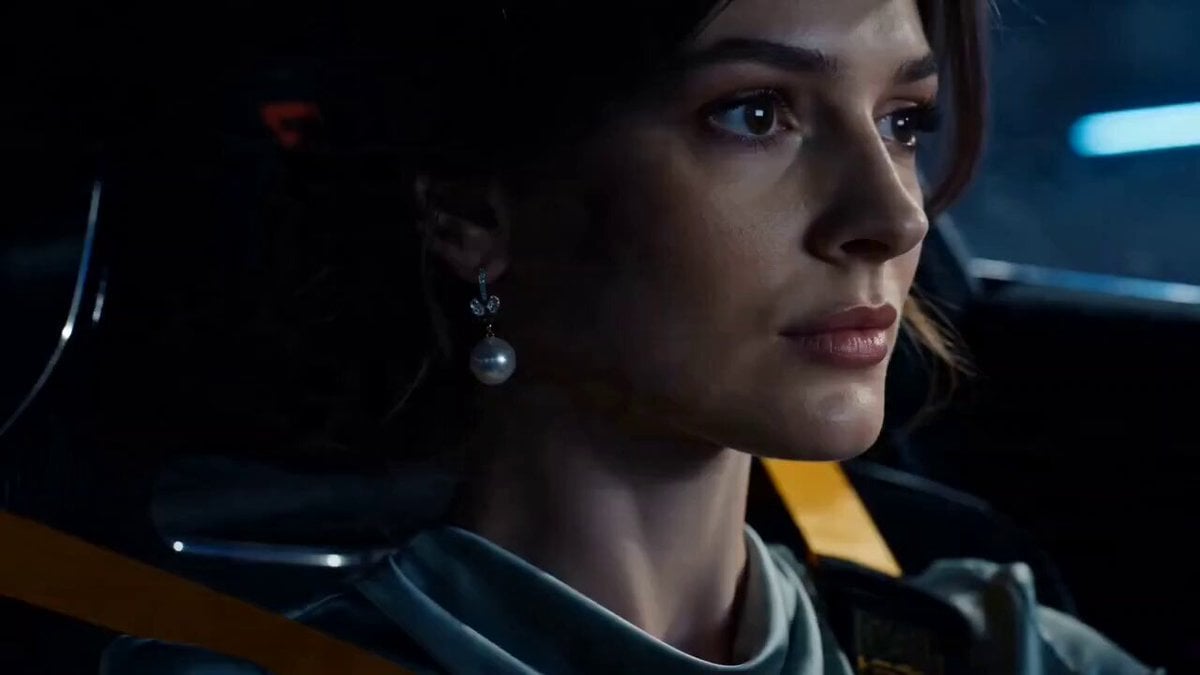
Porsche 911 GT3 RS Night Street Race
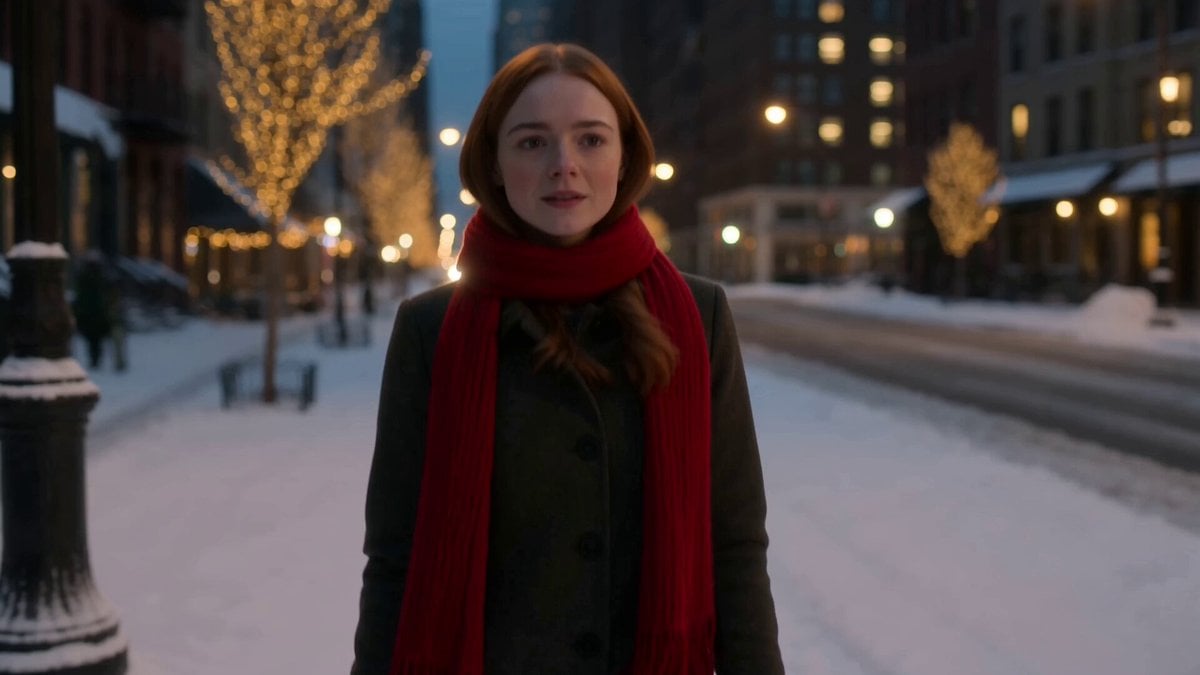
Winter Romance Scarf Sequence
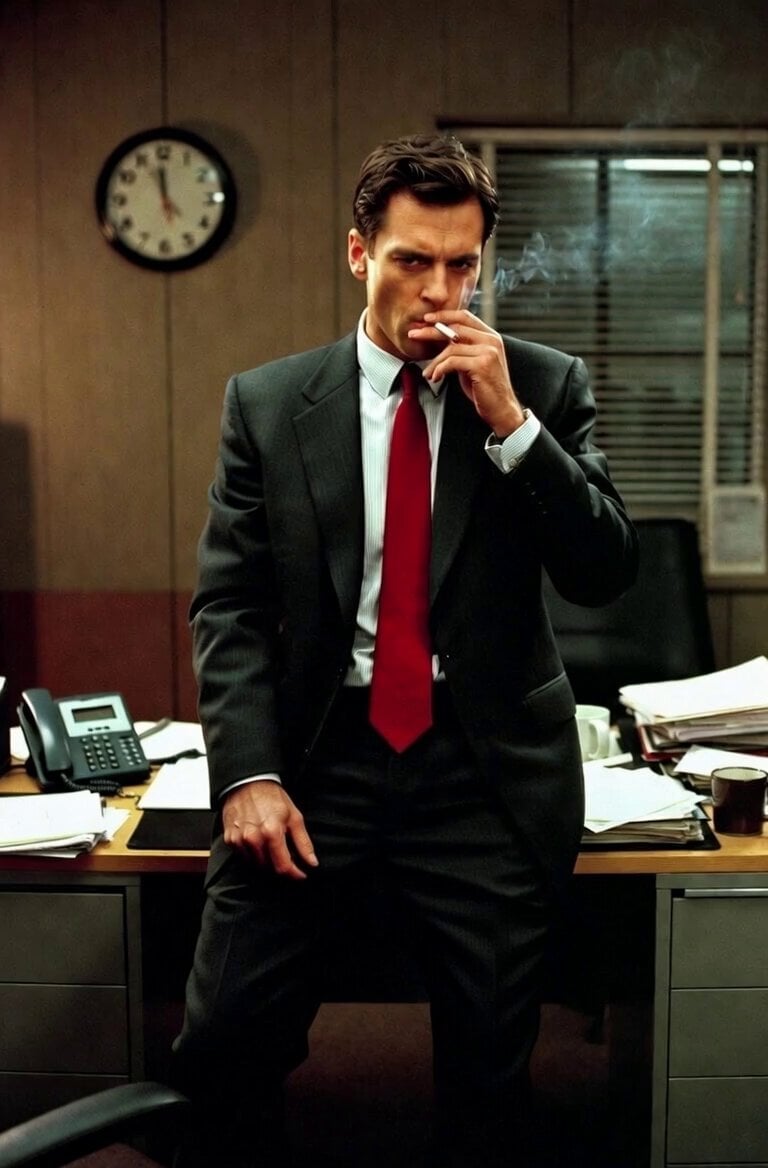
Executive Interaction with Painting
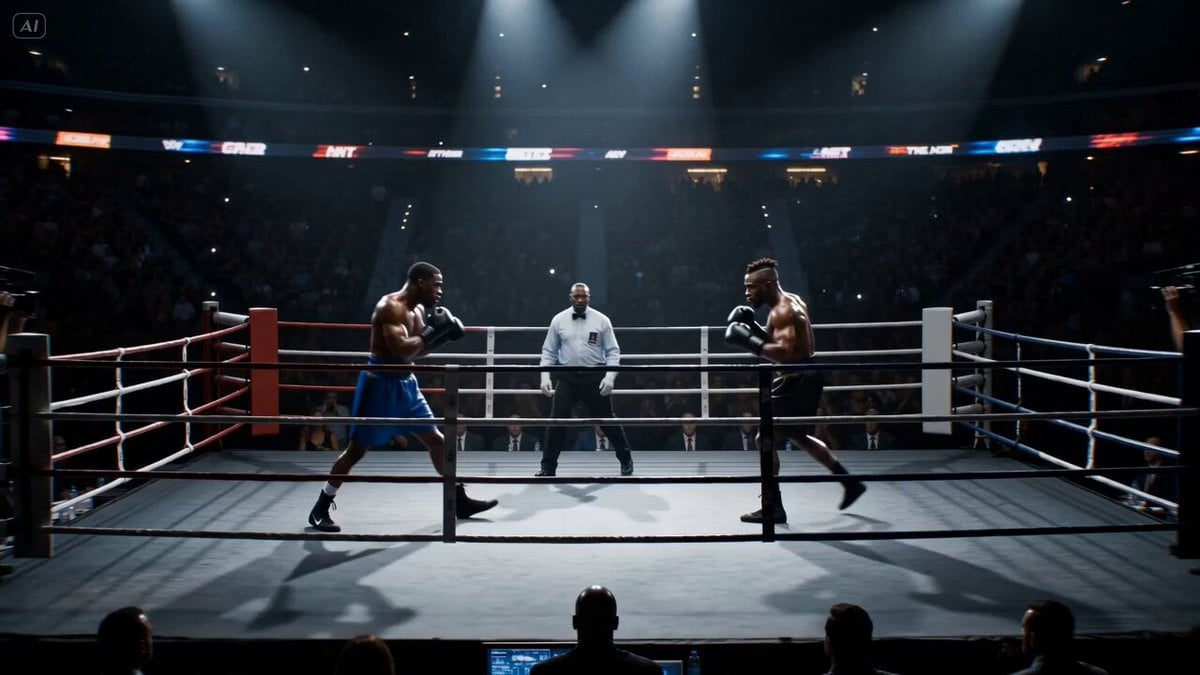
Cinematic Boxing Match Knockout
Browse template categories
Hypercar Tunnel Tracking Shot Video Prompt questions
How do I use the Hypercar Tunnel Tracking Shot Video Prompt template?
Add your photo if the template asks for one, edit the prompt if you like — the template's model and format are already selected — and press Generate. Your version opens in PicX Studio.
Can I customize the Hypercar Tunnel Tracking Shot Video Prompt template?
Yes. You can change the subject, setting, lighting, mood, format, and available model controls before creating your video.
Is the Hypercar Tunnel Tracking Shot Video Prompt template free?
Opening and editing this template is free. Generating uses credits, shown on the Generate button when you are signed in.
Which AI model should I use?
Start with Grok Imagine, which is the model associated with this template. You can compare another compatible model for a different finish.
Looking for something else? Browse all templates.

Your photo, any look
Thousands of ready templates for every top image and video model, from one credit balance.