How do I use the Grok Imagine video prompt with character reference locking template?
Edit the prompt in the box under the preview — the template's model and format are already selected — and press Generate. Your version appears right on this page.
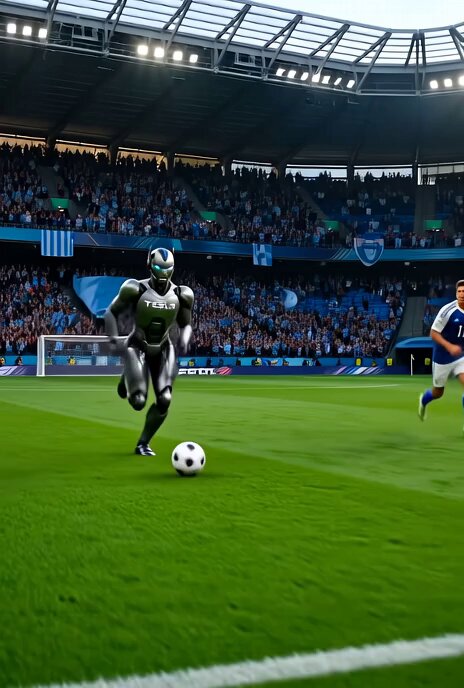
A detailed prompt for Grok Imagine that specifies locking the character's facial features and specific attire (backwards black snapback cap) based on an uploaded image, ensuring the face and cap remain unchanged…
CHARACTER REFERENCE LOCKED: athletic powerful male from uploaded image. Preserve exactly: face structure, eye shape, jawline, facial hair, backwards black snapback cap. Face does NOT change under any circumstance. Cap stays backwards throughout.
CHARACTER REFERENCE LOCKED: athletic powerful male from uploaded image. Preserve exactly: face structure, eye shape, jawline, facial hair, backwards black snapback cap. Face does NOT change under any circumstance. Cap stays backwards throughout.
Edit the prompt in the box under the preview — the template's model and format are already selected — and press Generate. Your version appears right on this page.
Yes. You can change the subject, setting, lighting, mood, format, and available model controls before creating your video.
Opening and editing this template is free. Generating uses credits, shown on the Generate button when you are signed in.
Start with Grok Imagine, which is the model associated with this template. You can compare another compatible model for a different finish.
Follow a topic to a crawlable collection of related PicX Studio templates.