How do I use the Grok Imagine R2V Multi-Image Reference Tutorial template?
Edit the prompt in the box under the preview — the template's model and format are already selected — and press Generate. Your version appears right on this page.
A detailed tutorial and explanation in Japanese about the new Grok Imagine R2V (Reference-to-Video) feature, which allows referencing up to 7 images for video generation.
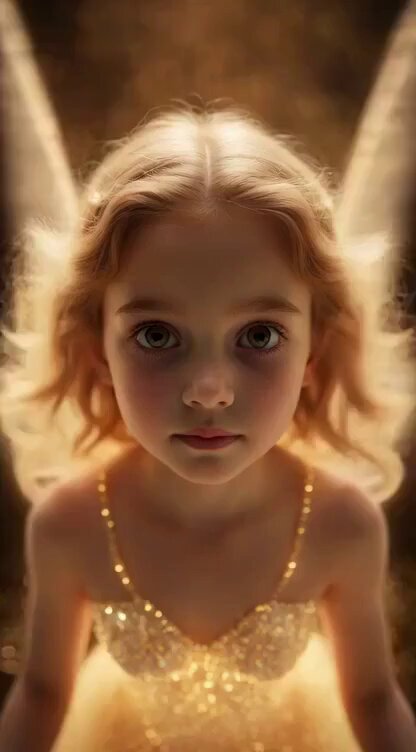
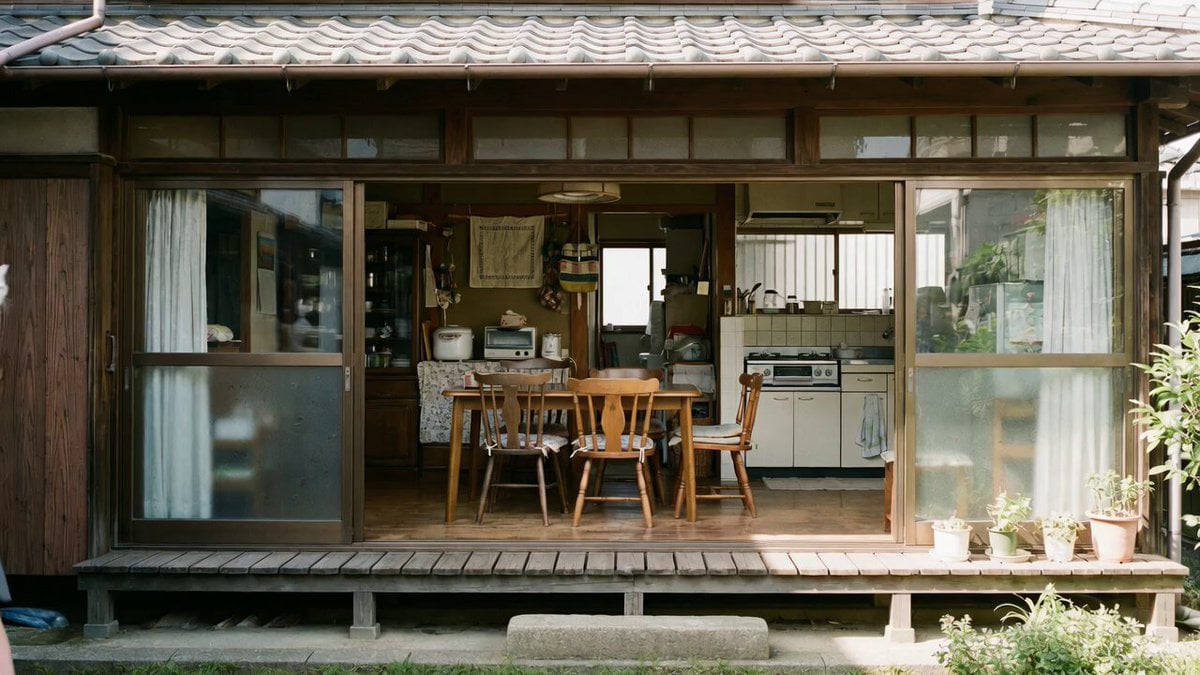
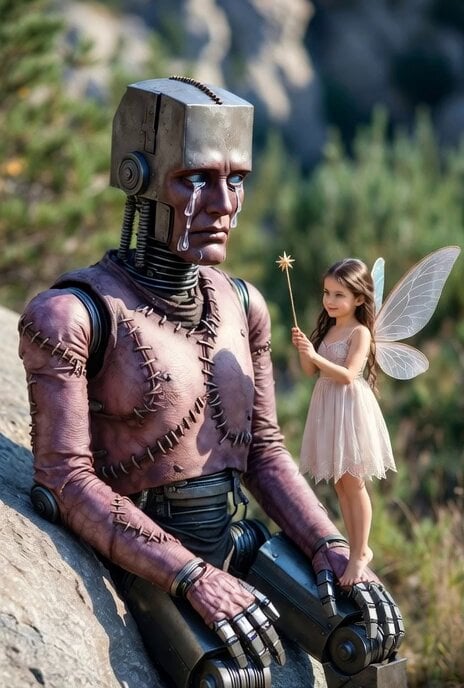
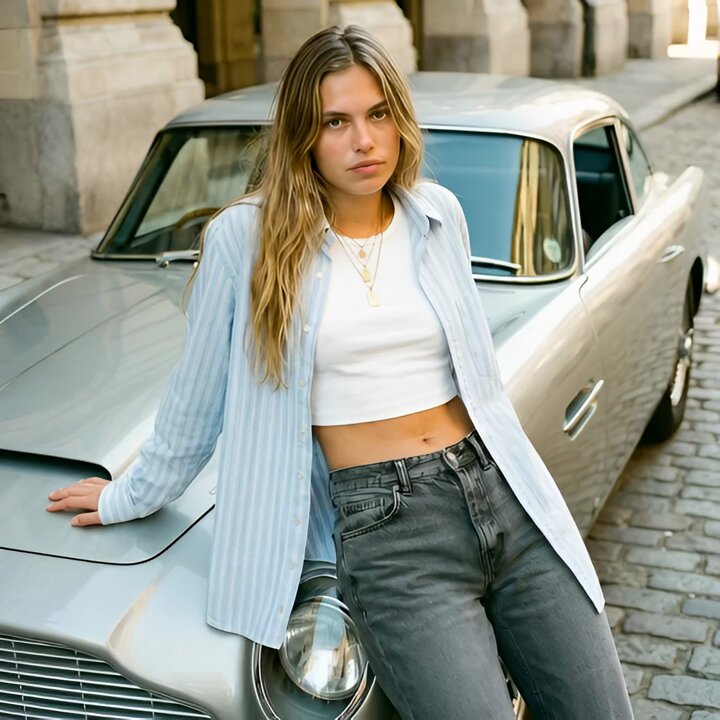
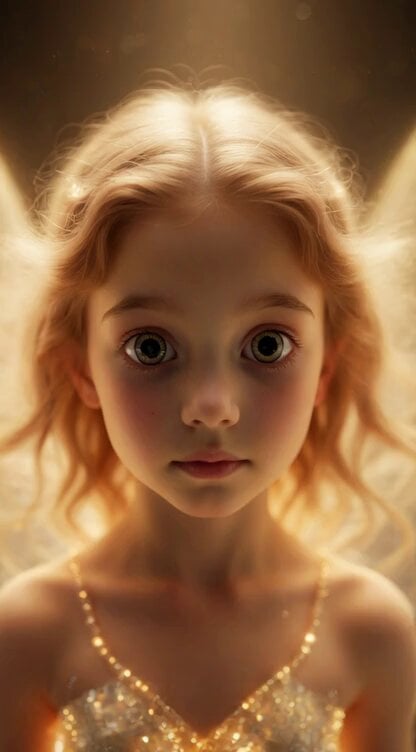
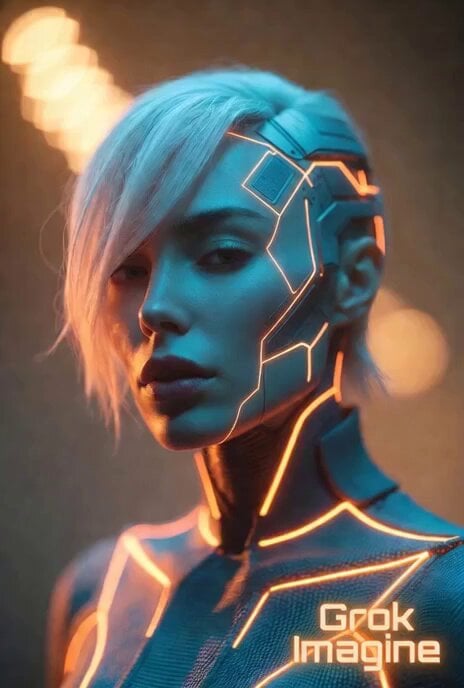
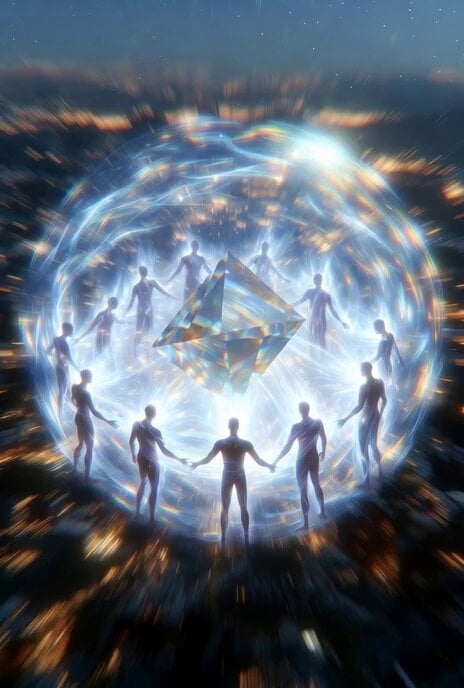
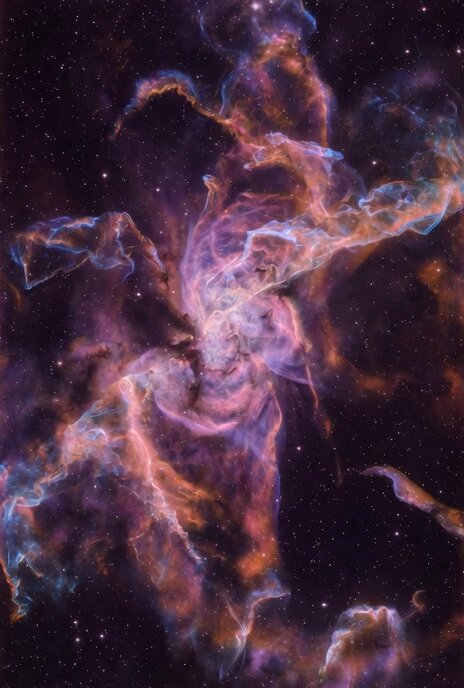
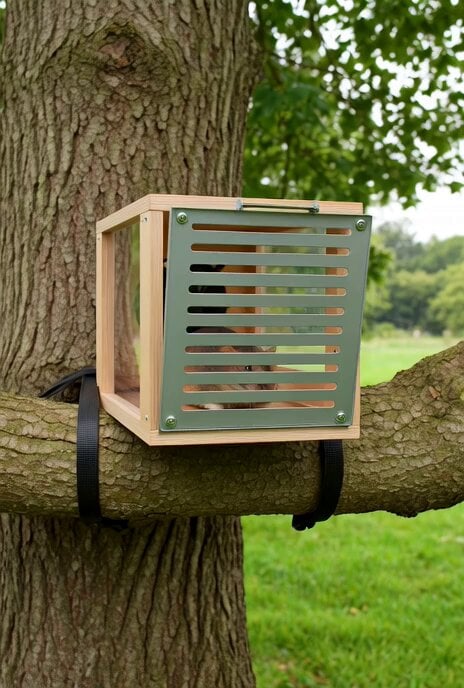
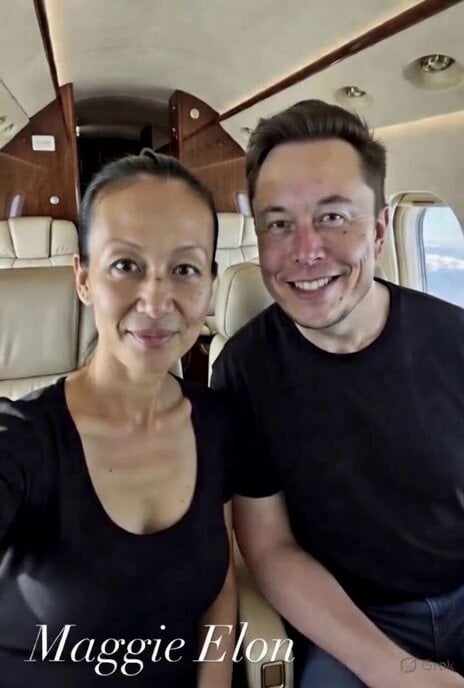
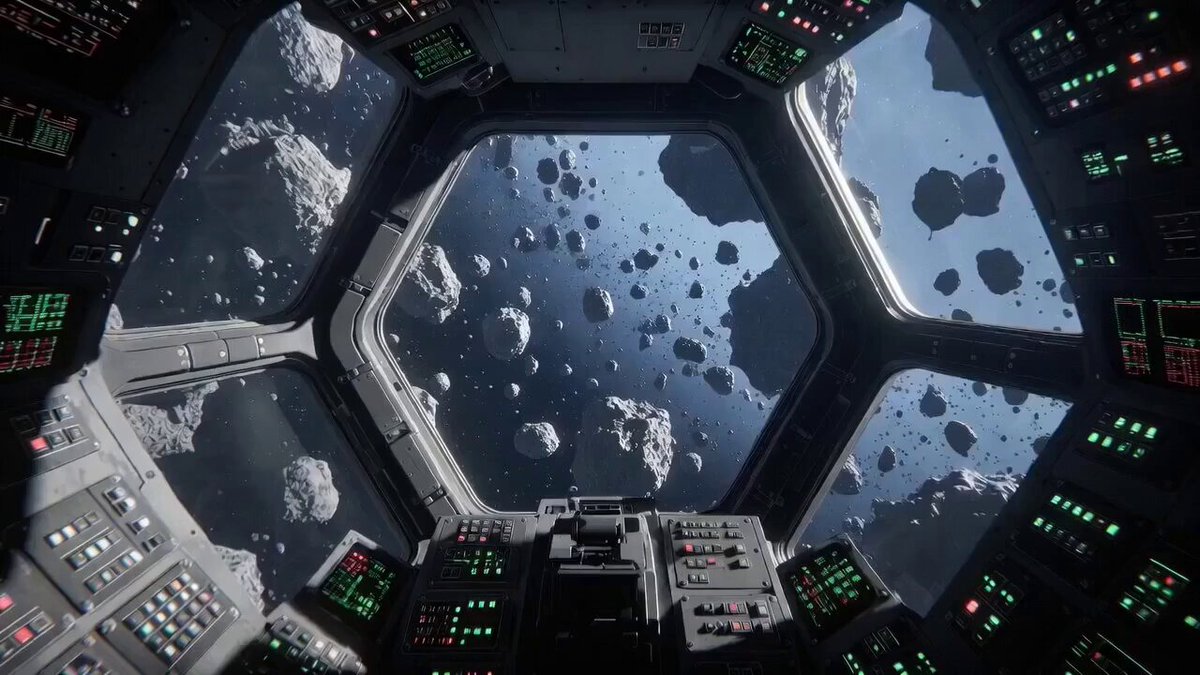
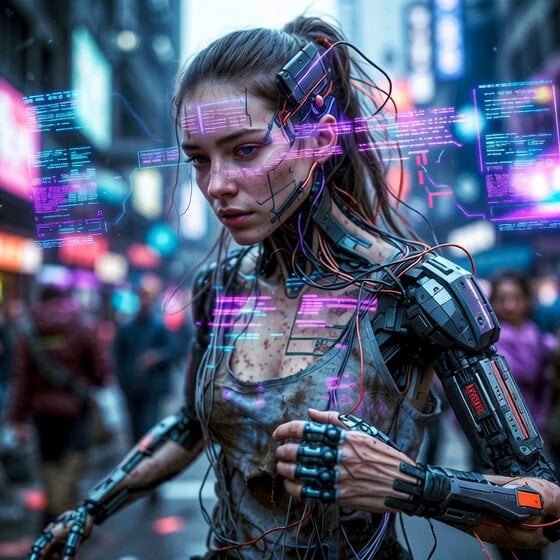
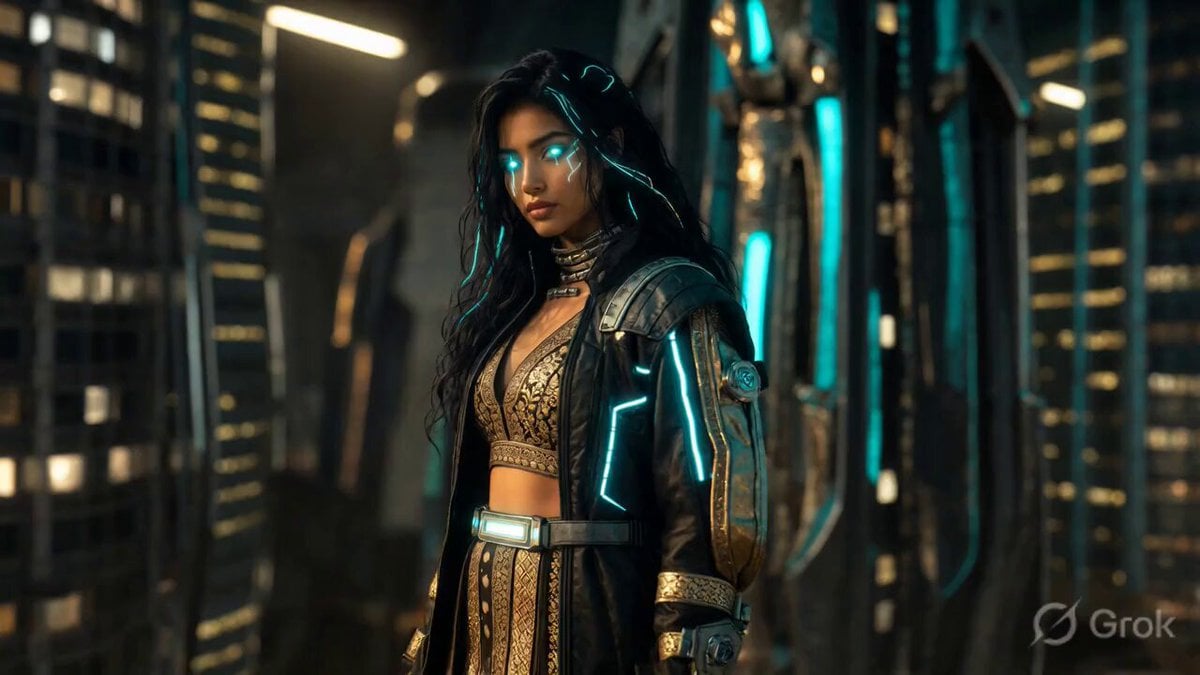
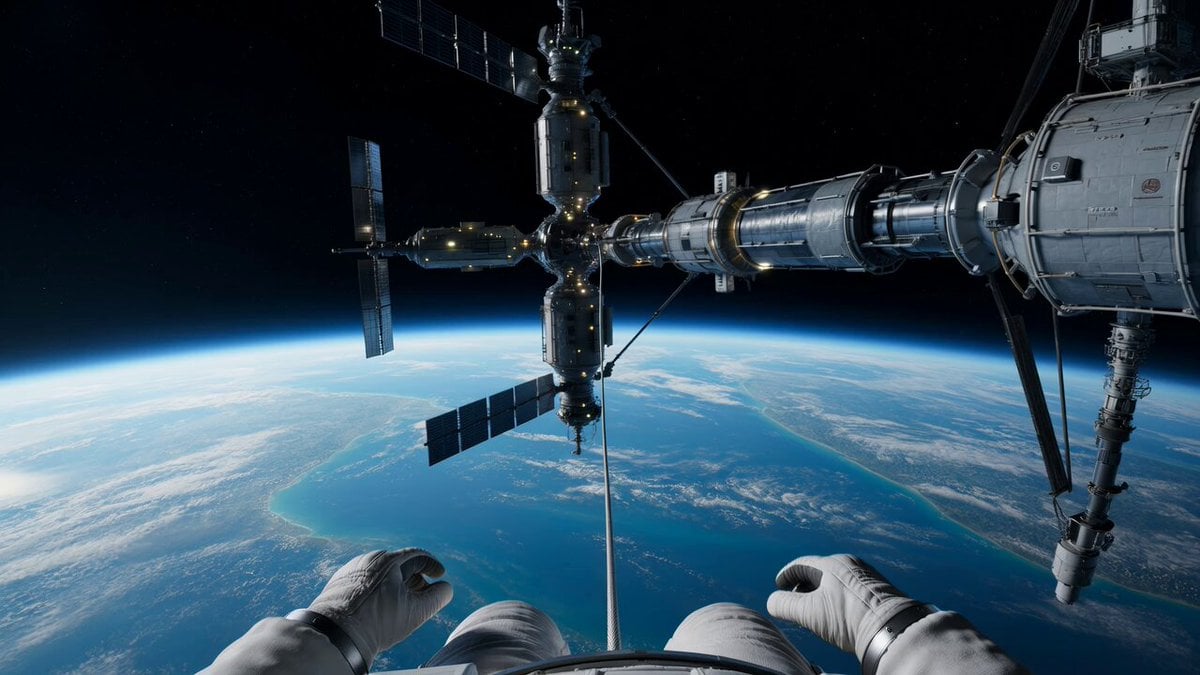
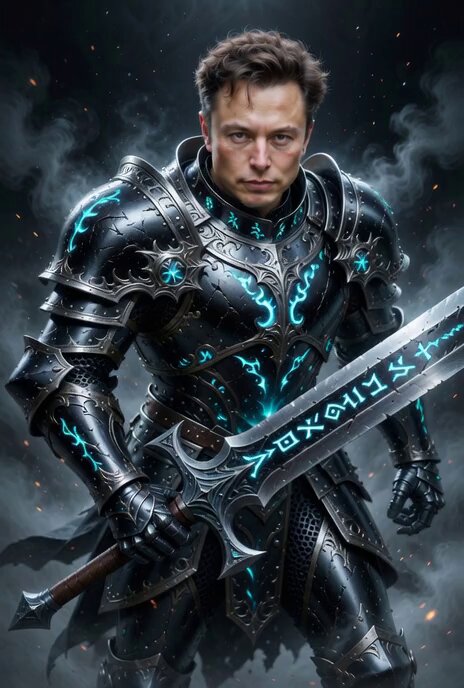
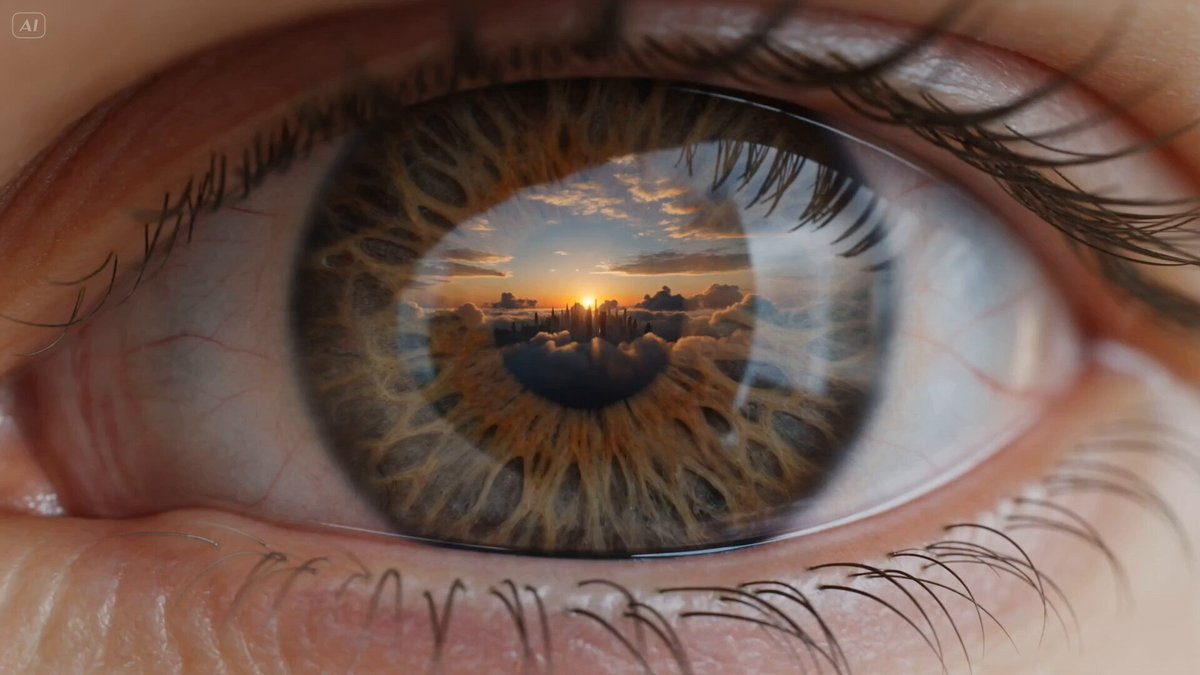
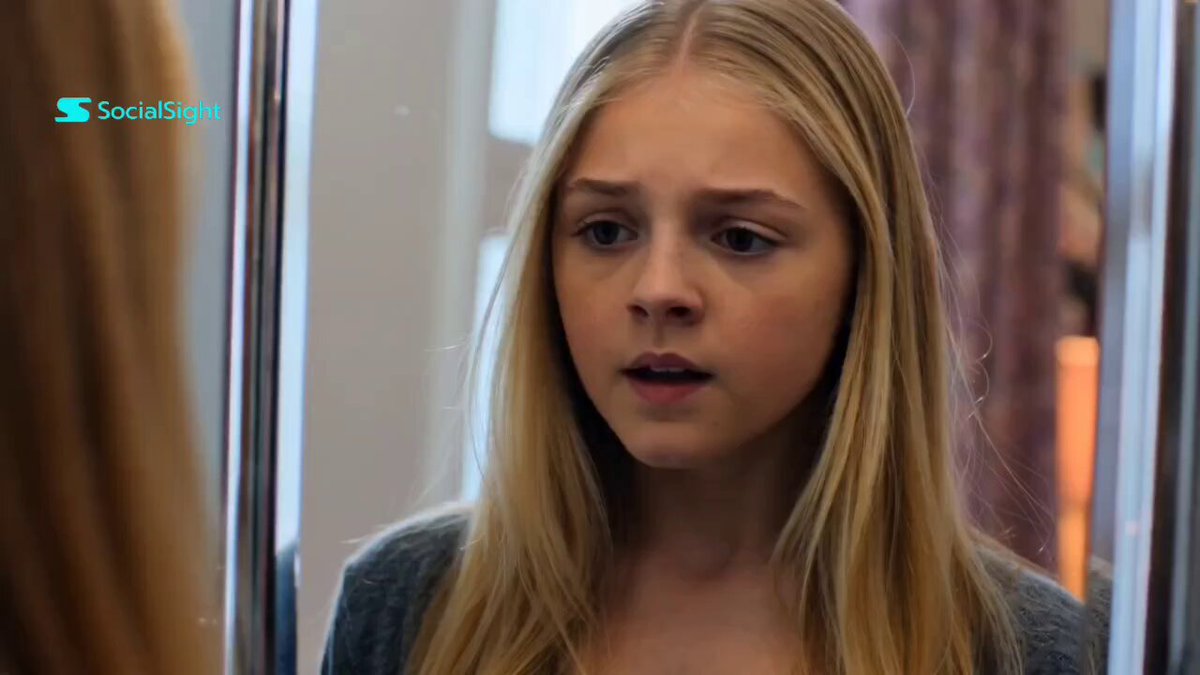
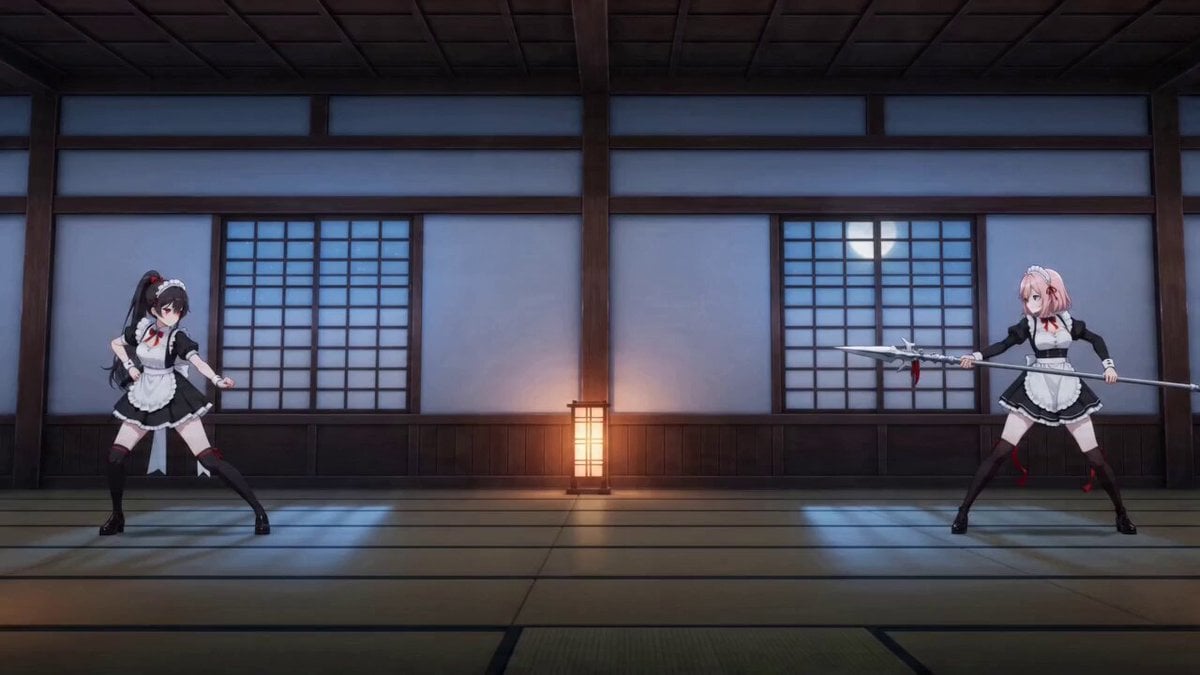
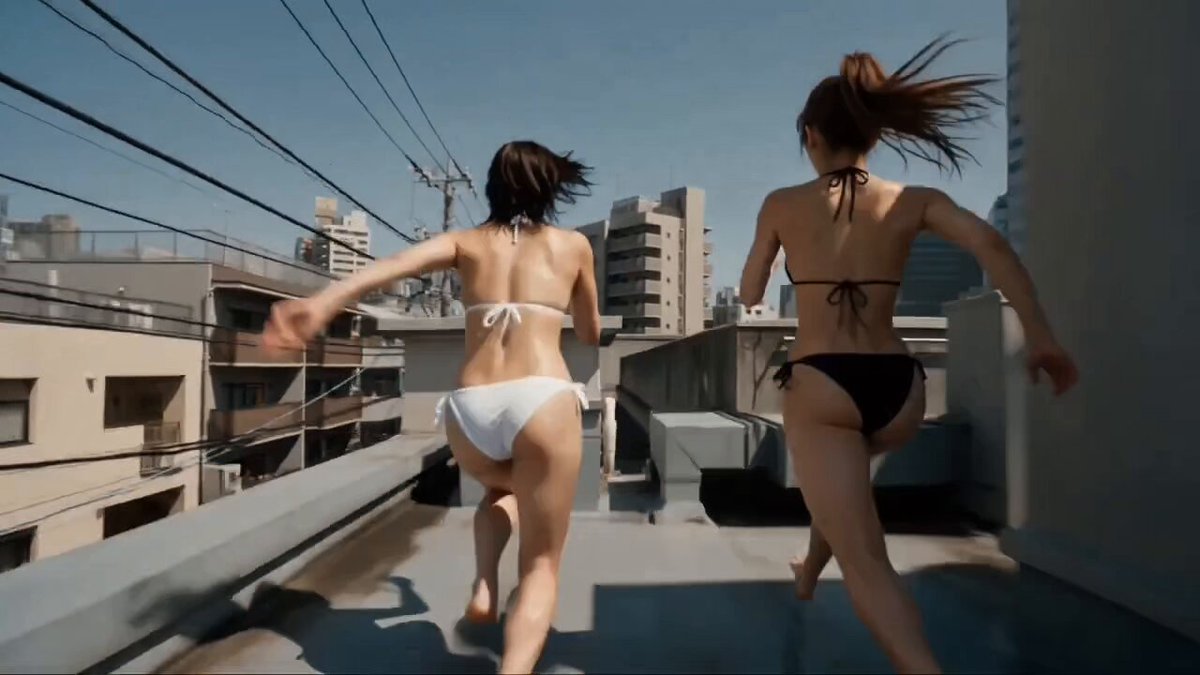
▼動画①↖︎:7枚参照してキャラの詳細設定を記述 プロンプト:キャラの詳細設定記述(※約1000文字のYAML) ・特にカット切り替えがない、7枚の画像を総合的に解釈したような1シーン ――――― ▼動画②↗︎:7枚参照してプロンプトなし プロンプト:「.」1文字(※画像2枚以上の時は完全ノープロンプトはできないようです) ・①とあまりかわらない ――――― ▼動画③↙︎:7枚参照して各画像参照記述でカット切り替えを指示 プロンプト:「 @ image1→ @ image2→(省略)→ @ image7の順番でカット切り替えする」 ・カット切り替えはできている ・全部は使われてない(6秒でギリギリ5カット) ・参照画像そのままではなく、似たような構図で再描画されている感じ ――――― ▼動画④↘︎:キャラクターシート・開始フレーム画像・背景画像の3つ参照で場面切り替え プロンプト:「 @ image1 のキャラが @ image2 のようにうたた寝していると @ image3 の世界に迷い込む。ドリーミーなトランジション。ダイナミックなカメラワーク」
▼動画①↖︎:7枚参照してキャラの詳細設定を記述 プロンプト:キャラの詳細設定記述(※約1000文字のYAML) ・特にカット切り替えがない、7枚の画像を総合的に解釈したような1シーン ――――― ▼動画②↗︎:7枚参照してプロンプトなし プロンプト:「.」1文字(※画像2枚以上の時は完全ノープロンプトはできないようです) ・①とあまりかわらない ――――― ▼動画③↙︎:7枚参照して各画像参照記述でカット切り替えを指示 プロンプト:「 @ image1→ @ image2→(省略)→ @ image7の順番でカット切り替えする」 ・カット切り替えはできている ・全部は使われてない(6秒でギリギリ5カット) ・参照画像そのままではなく、似たような構図で再描画されている感じ ――――― ▼動画④↘︎:キャラクターシート・開始フレーム画像・背景画像の3つ参照で場面切り替え プロンプト:「 @ image1 のキャラが @ image2 のようにうたた寝していると @ image3 の世界に迷い込む。ドリーミーなトランジション。ダイナミックなカメラワーク」
Edit the prompt in the box under the preview — the template's model and format are already selected — and press Generate. Your version appears right on this page.
Yes. You can change the subject, setting, lighting, mood, format, and available model controls before creating your video.
Opening and editing this template is free. Generating uses credits, shown on the Generate button when you are signed in.
Start with Grok Imagine, which is the model associated with this template. You can compare another compatible model for a different finish.
Follow a topic to a crawlable collection of related PicX Studio templates.