
AI Video Lip-Sync Timing
A technical prompt for Seedance 2.0 to achieve perfect lip-syncing by using a photo for character consistency and a video for timing.
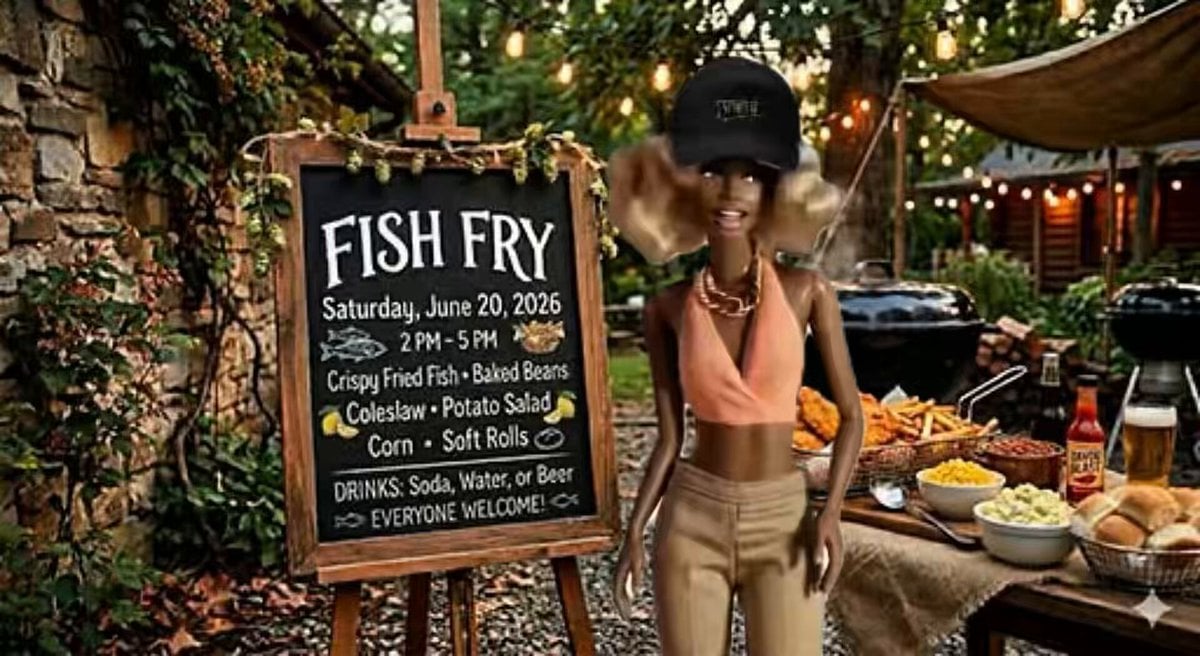
- Prompt included
- Model and format preset
- Free template
The prompt behind this video
Copy the exact prompt behind AI Video Lip-Sync Timing, or open it in the studio and make it yours.
@Image1 is the exact character. @Video1 blacked provides timing. Audio drives speech. She says: “[exact dialogue]”. Realistic mouth, nods, identical look. Medium shot.
How to use AI Video Lip-Sync Timing in 3 steps
- 1
Open
The prompt is already in the box next to the preview, with the template's model and format selected.
- 2…a portrait of your subject in softgolden-hour light, 85mm…
Personalize
Edit the subject and creative details for your destination.
- 3Generate
Generate
Press Generate — your video is created in PicX Studio, so you can compare it with the original and refine one variable at a time.
More like this
Templates with the same subject, style or setup. Open one to see its prompt.
Simple Dialogue and Timing Prompt for Video Generation
Japanese Slice-of-Life Conversation with Lip Sync

Excited Japanese Announcement Lip-Sync
Hospital Car Park Dialogue Lip Sync
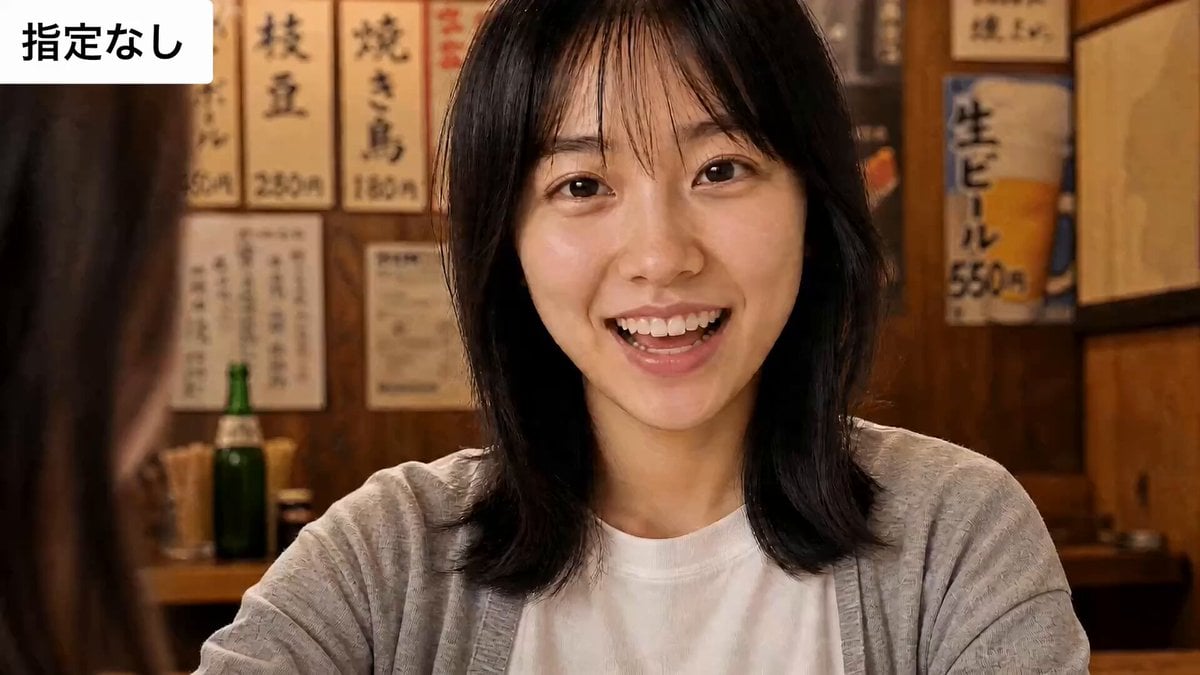
Sarcastic Lip Sync Reaction
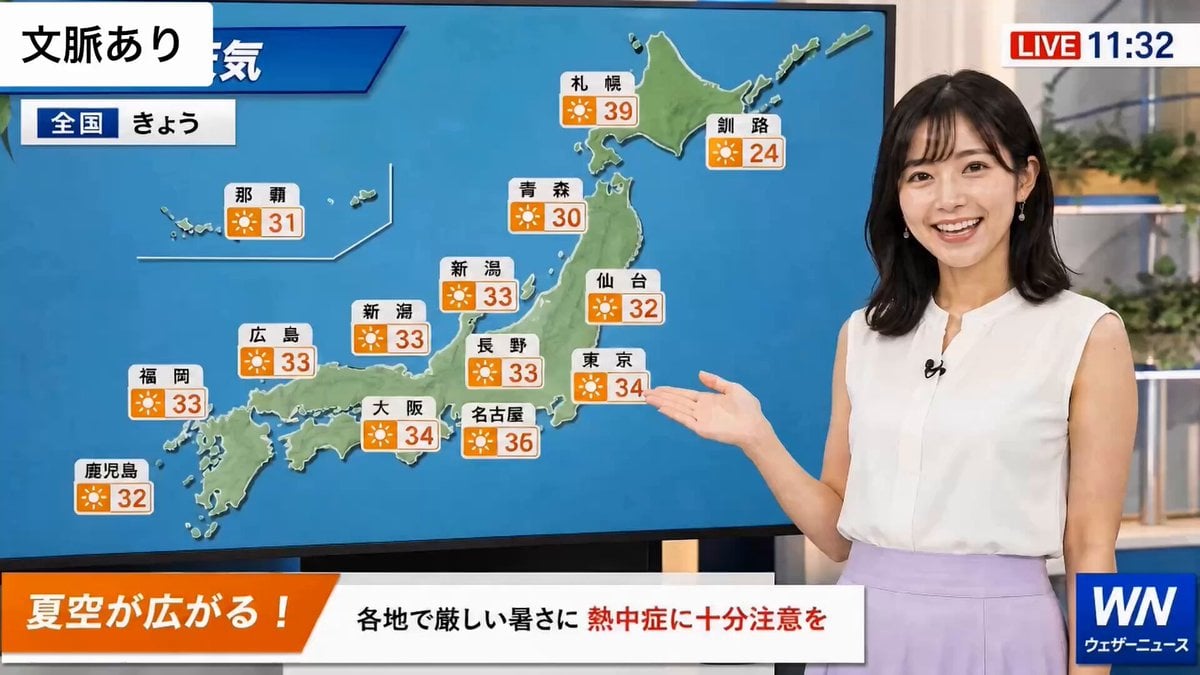
Weather Announcer Lip Sync
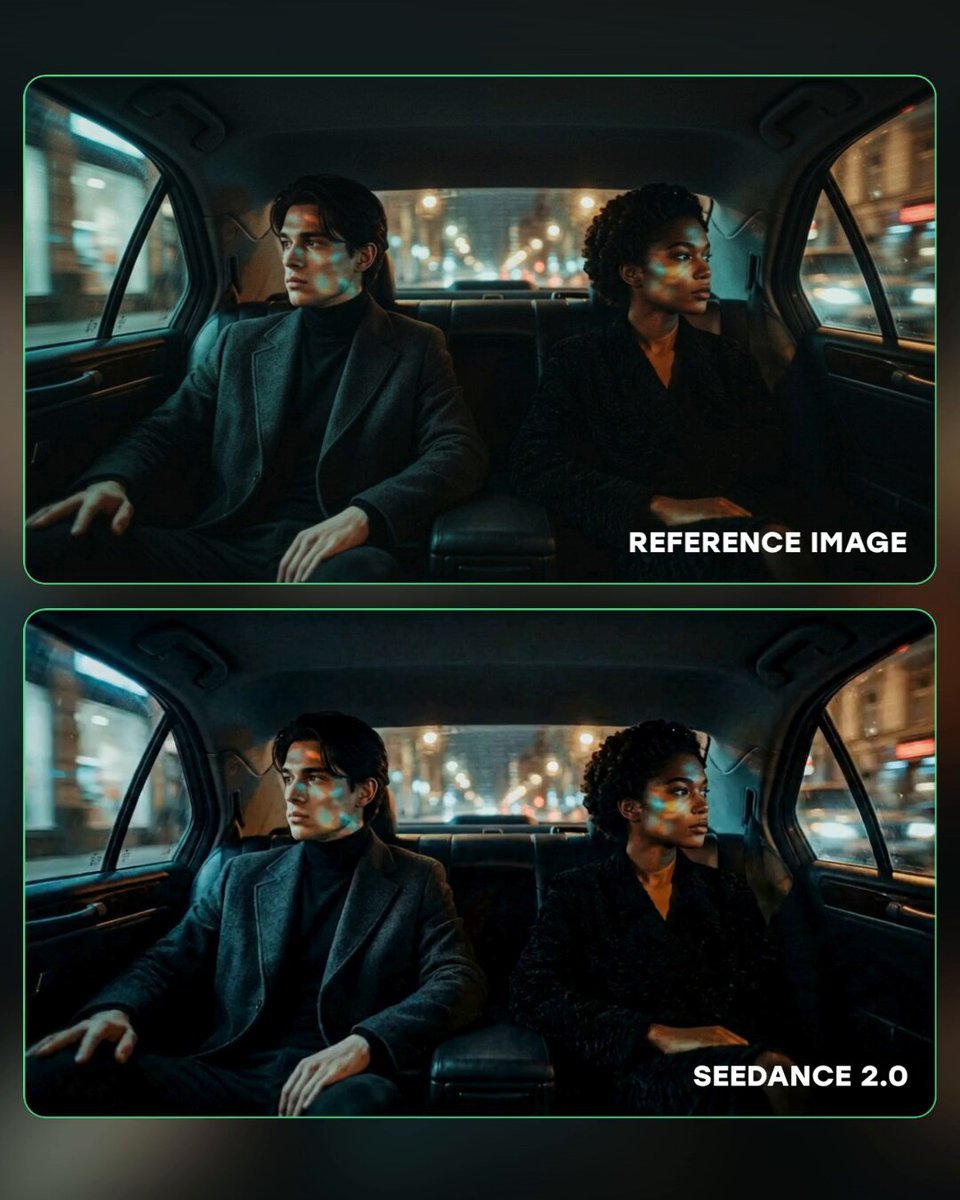
Cinematic Car Conversation Lip Sync

Lip Sync Narrative Interaction
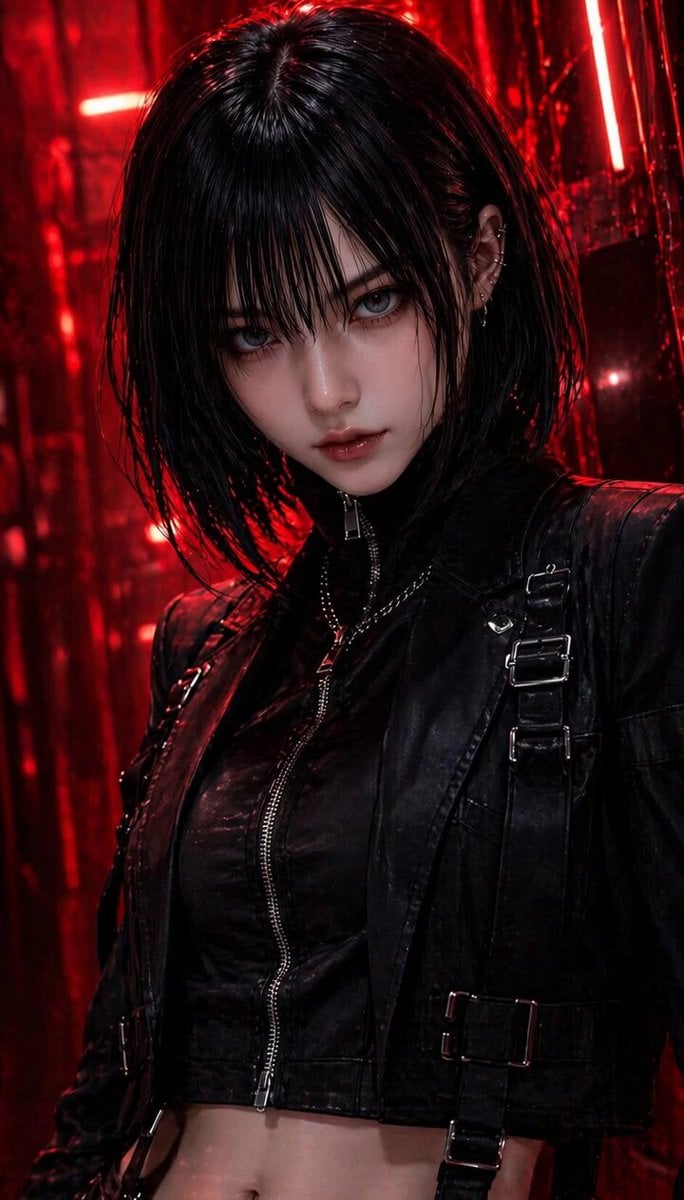
NERA Lip-Sync Agent Prompt

Character Lip-Sync Request
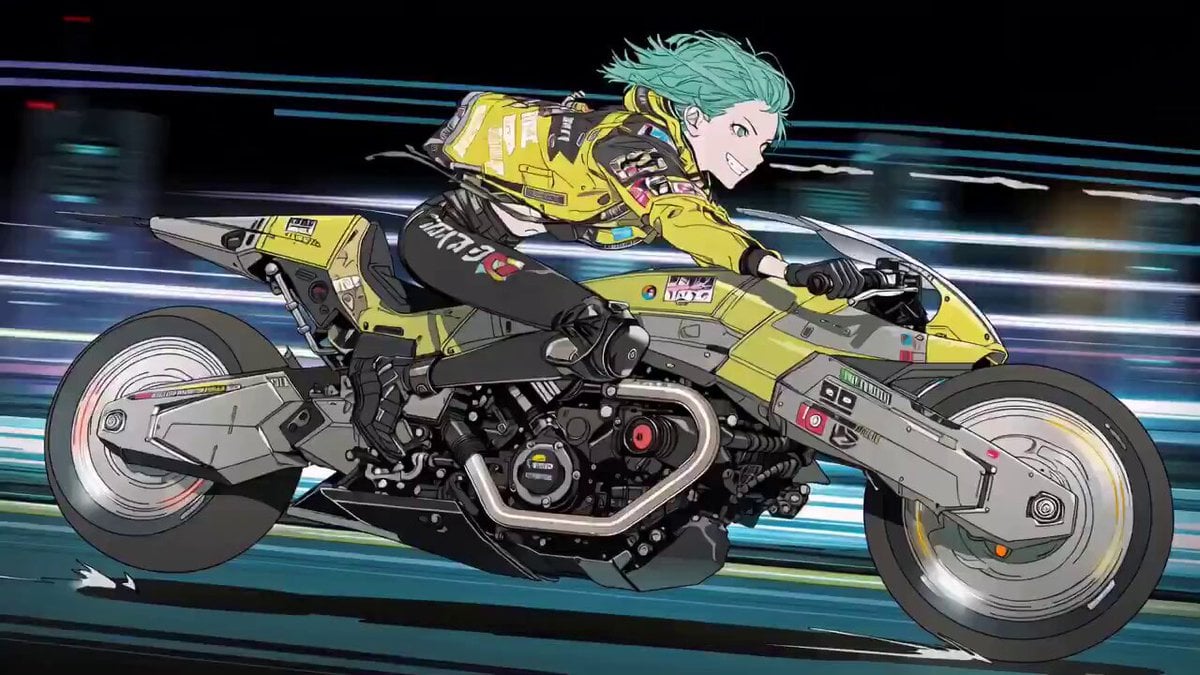
Cyberpunk Anime Trailer Test Prompt with Lip Sync
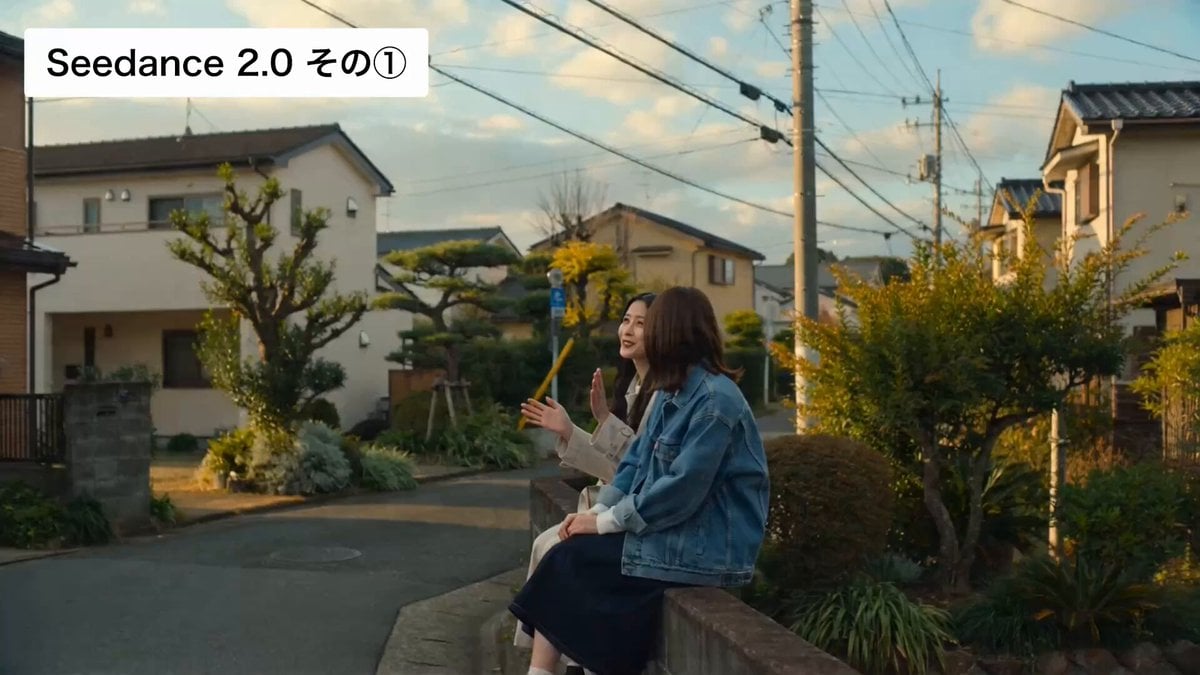
Cinematic Japanese Slice-of-Life Scene with Lip-Synced Dialogue
Make it yours
AI Video Lip-Sync Timing works as-is. These are the safest ways to change it without losing the look.
Change one field
Copy a single group, rewrite it, and generate again so you can see what that field is doing.
Keep the frame, change the subject
Hold the composition and light of AI Video Lip-Sync Timing, then swap wardrobe, props or the person for a new take.
| If the result… | Why | Fix |
|---|---|---|
| The result drifts from the preview | Too many fields changed at once. | Reuse AI Video Lip-Sync Timing as-is first, then change one group — subject, light, or setting. |
| The model over-stylizes the scene | The prose prompt leaves finish and camera underspecified. | Add one camera or lighting sentence and stay on Seedance 2.0. |
More Seedance 2.0 templates
Other prompts made for Seedance 2.0.

Comical Martial Arts Punch Scene
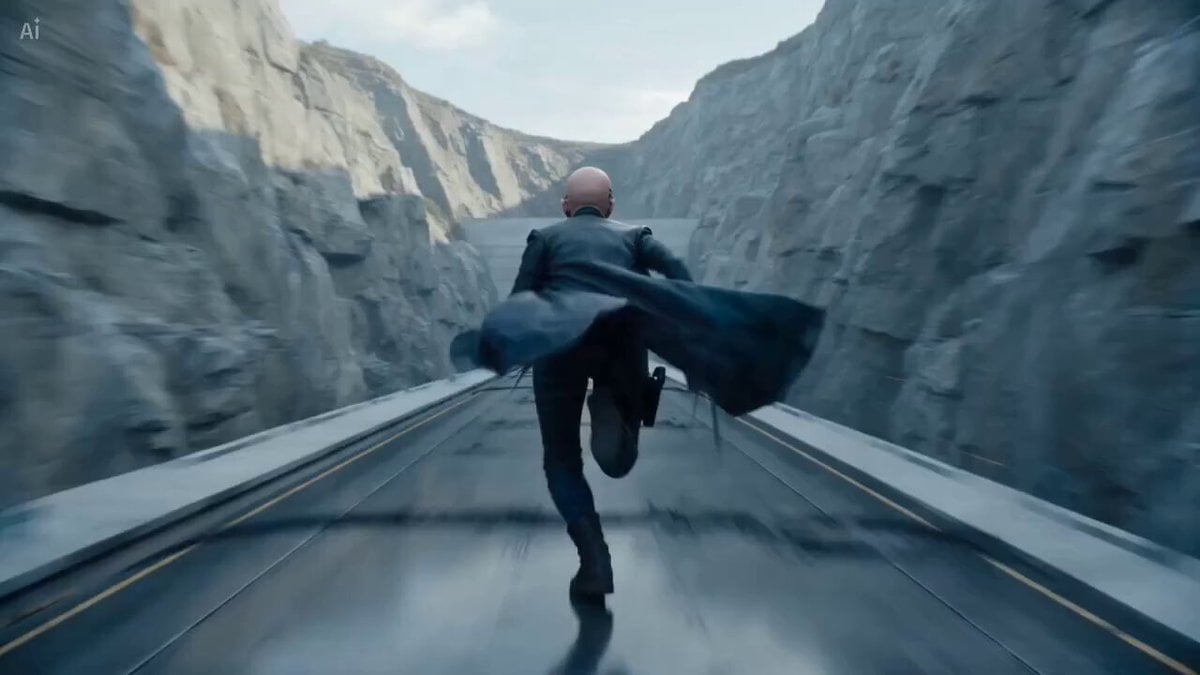
Maglev Train Action Sequence
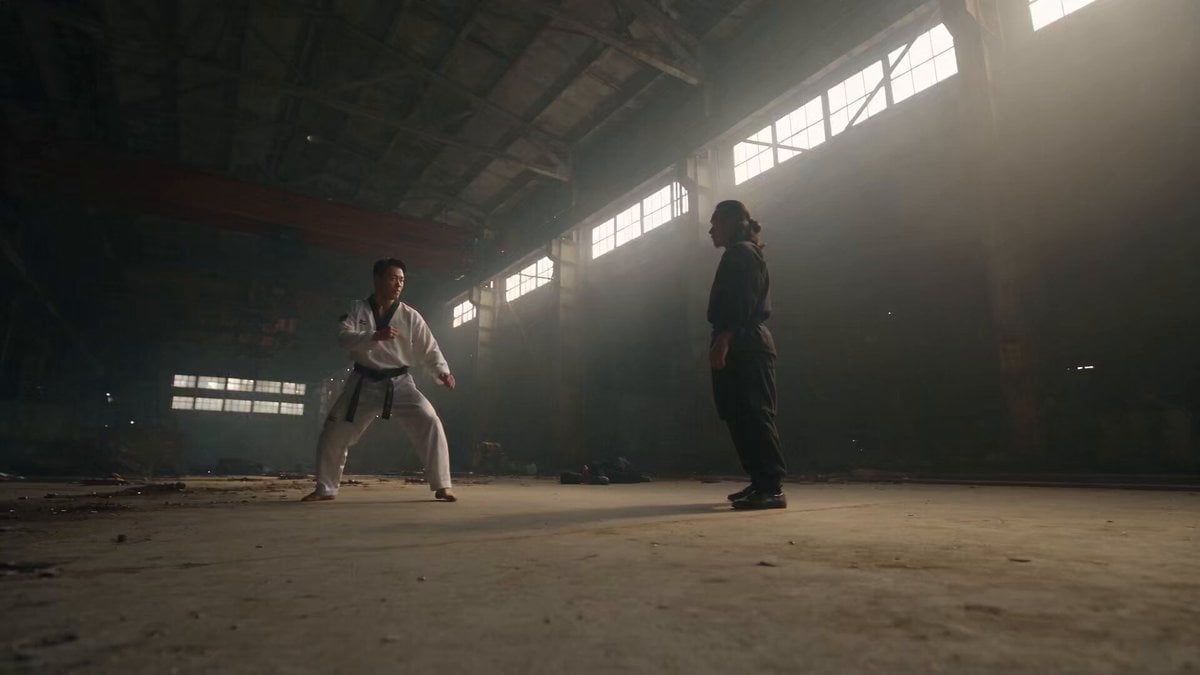
Martial Arts Fight Sequence

Wuxia Protection and Trust Script
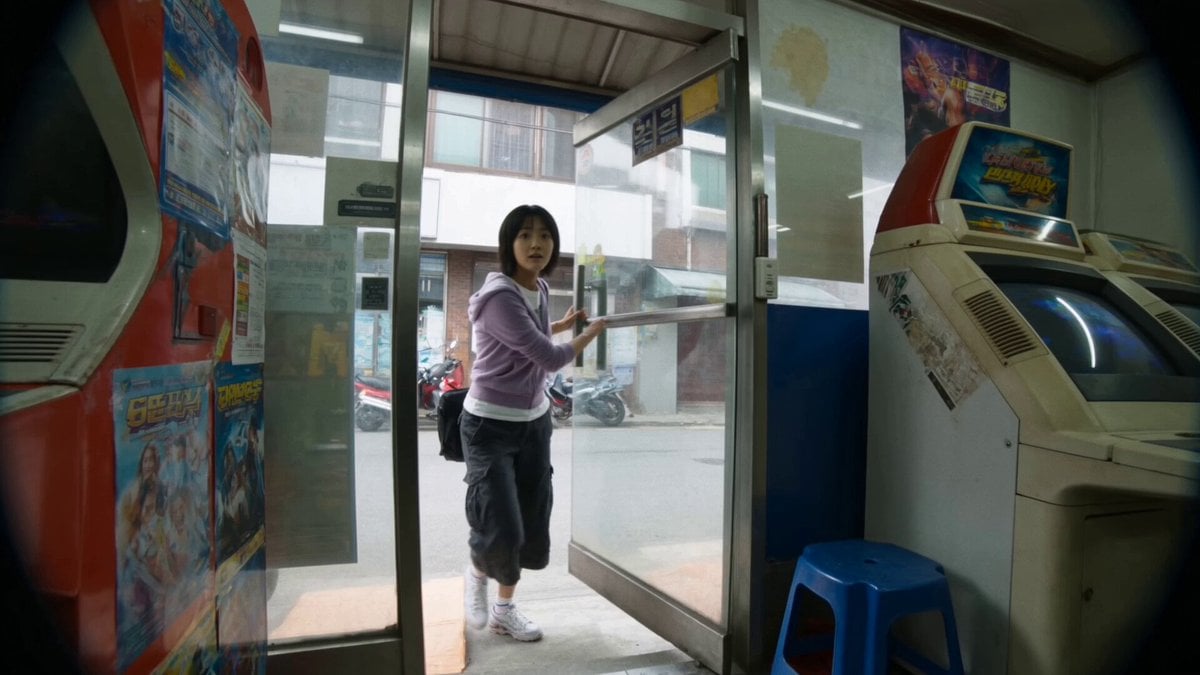
Vintage Korean Arcade MiniDV Vlog
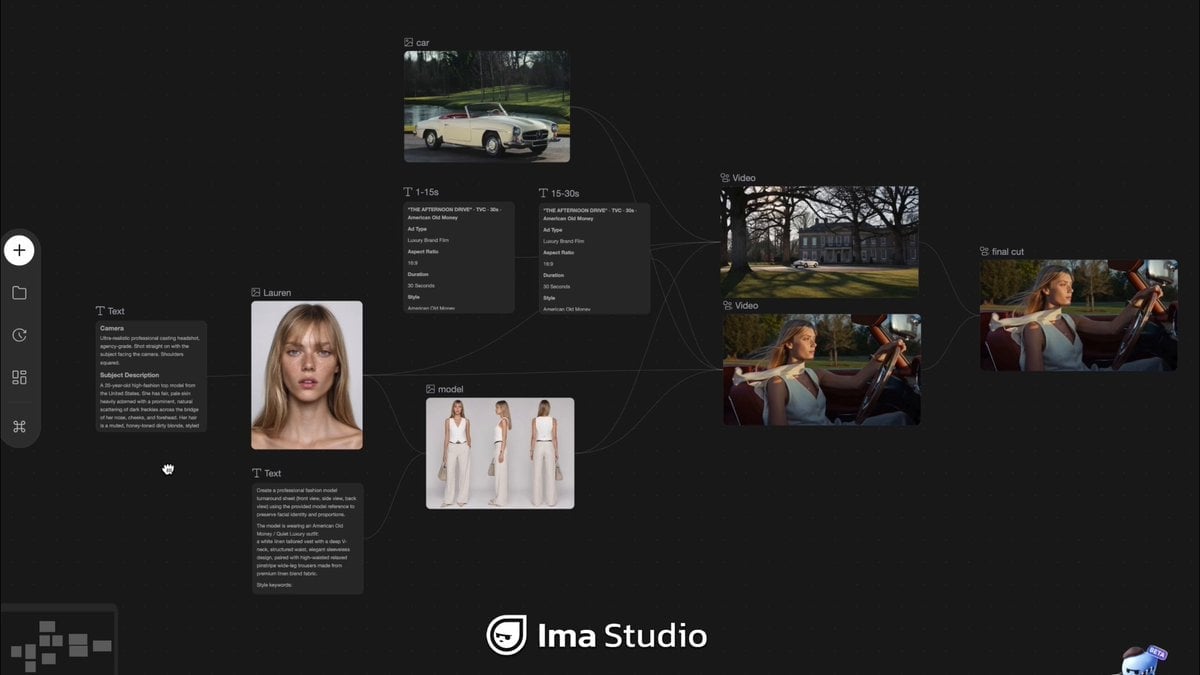
Mercedes 190 SL Luxury Ad
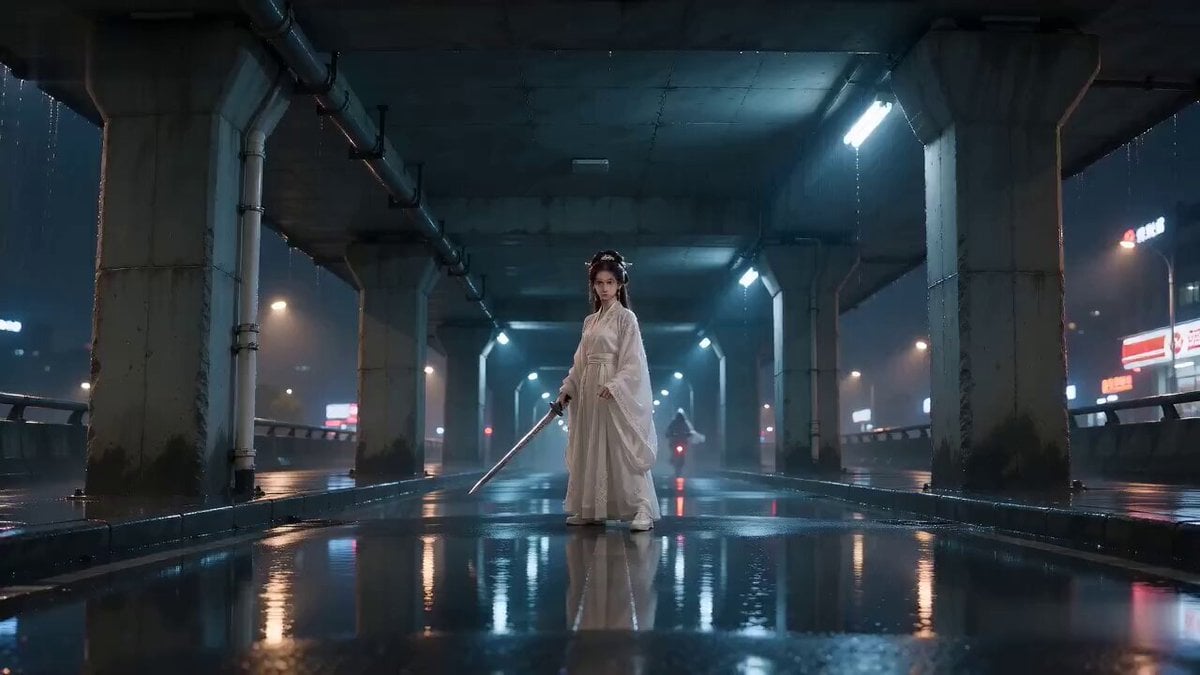
Rainy Night Supernatural Reverse Comedy Video Script

Amazon Civilization Discovery
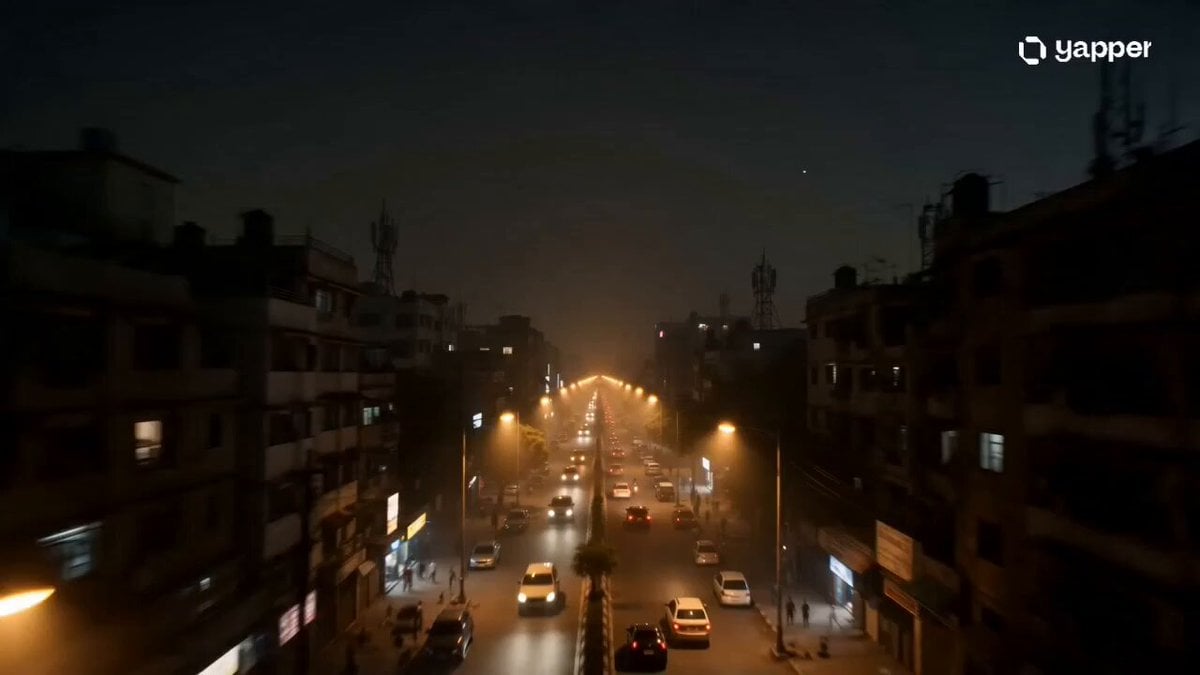
Futuristic South Asian City Transformation
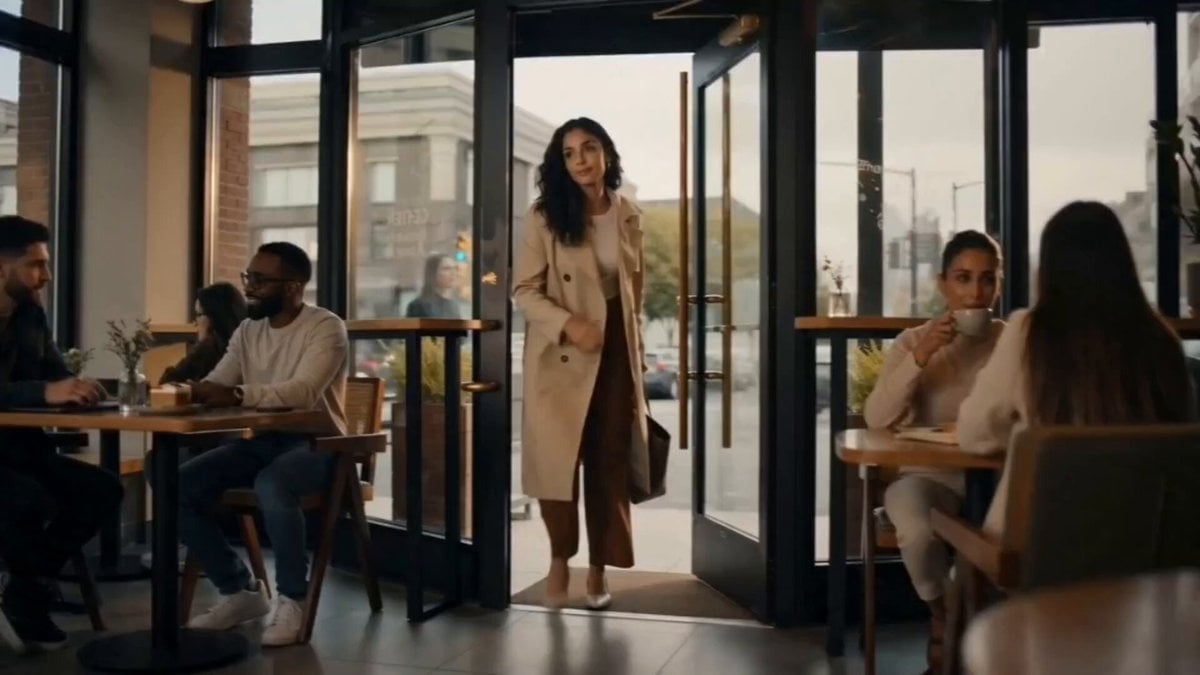
Cozy Luxury Cafe Commercial
More video prompts
Fresh picks from across the catalog.
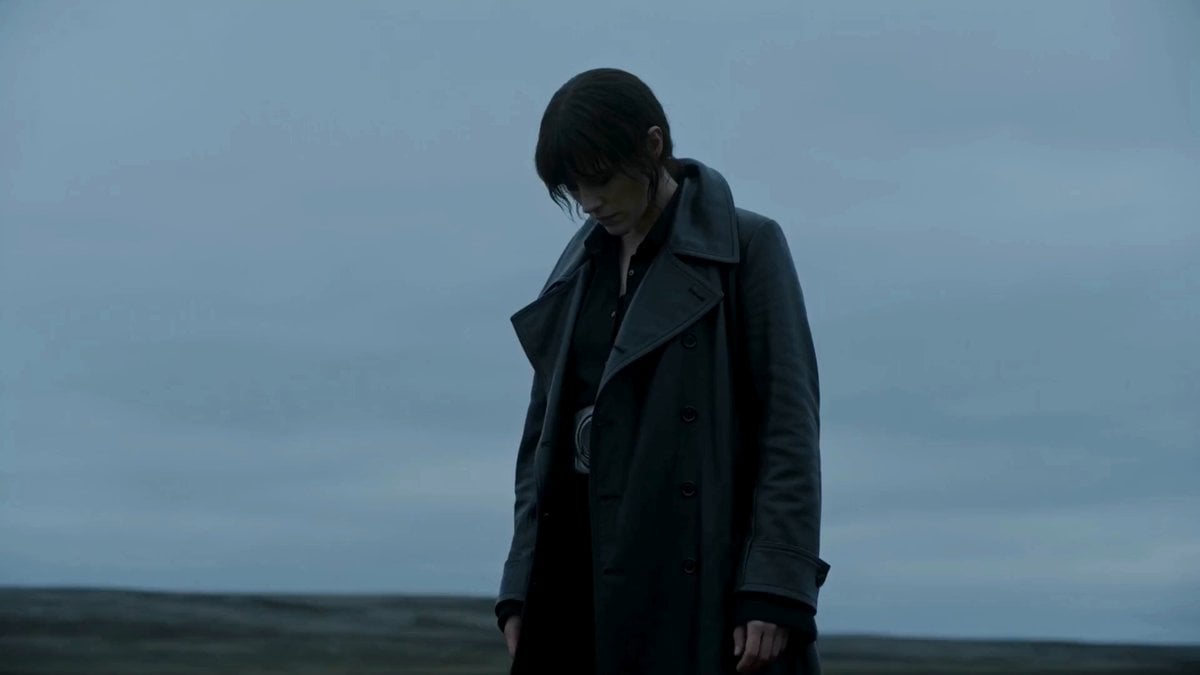
Alien Biological Suit Metamorphosis
Futuristic AI Studio Masterpiece
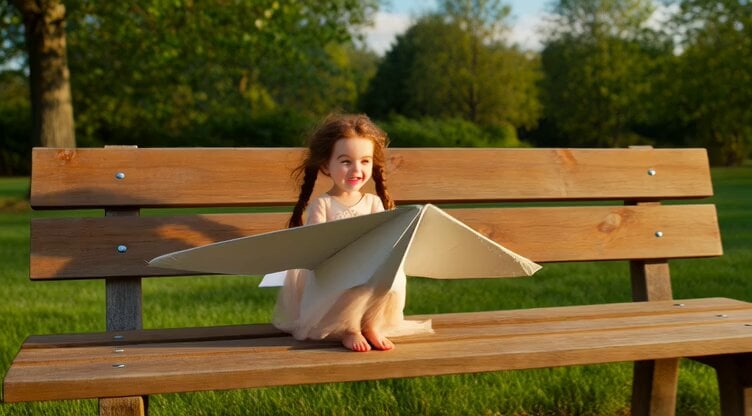
Hyperrealistic Miniature Girl on a Paper Airplane Video Prompt
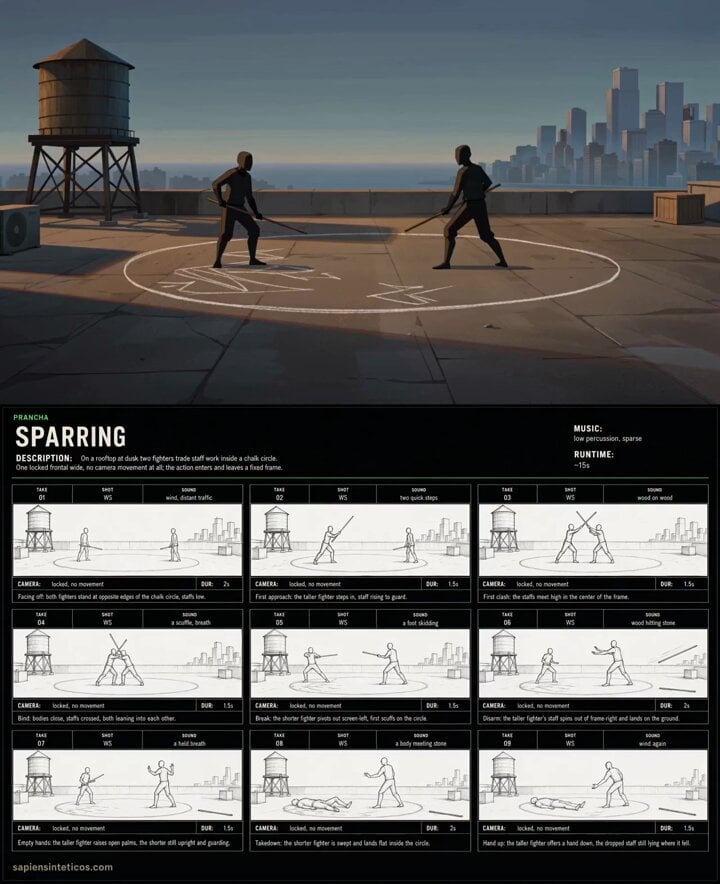
Anime Rooftop Staff Fight Storyboard
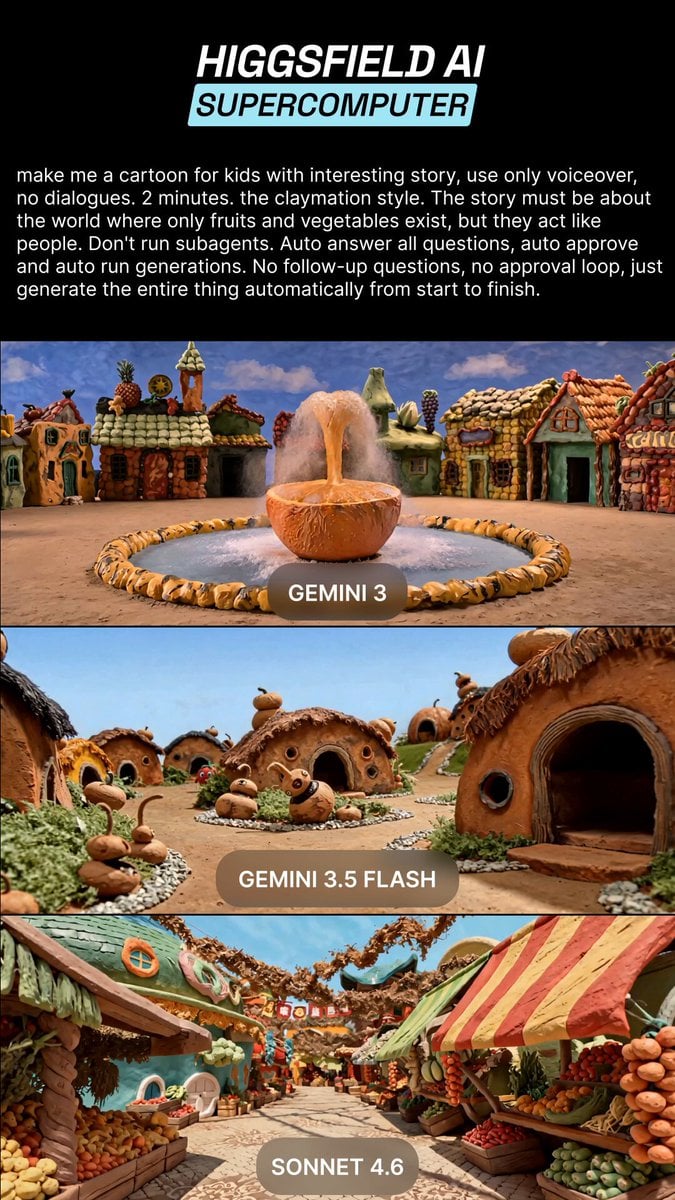
Claymation Fruit Kids Cartoon
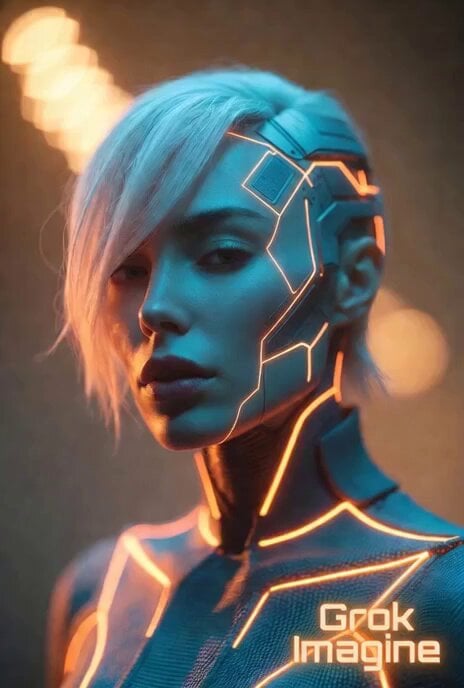
Grok Imagine Video Prompt: Cyberpunk Futuristic Woman
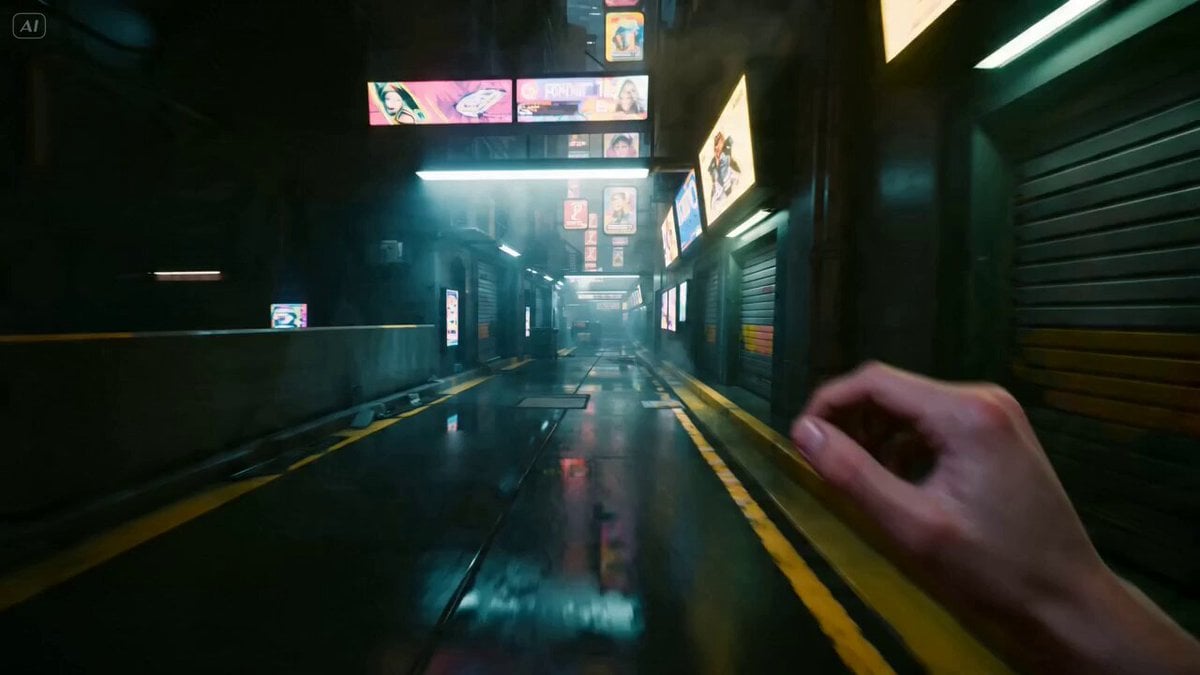
Hyper-realistic Cyberpunk POV Action Sequence

Realistic Japanese High School Vlog
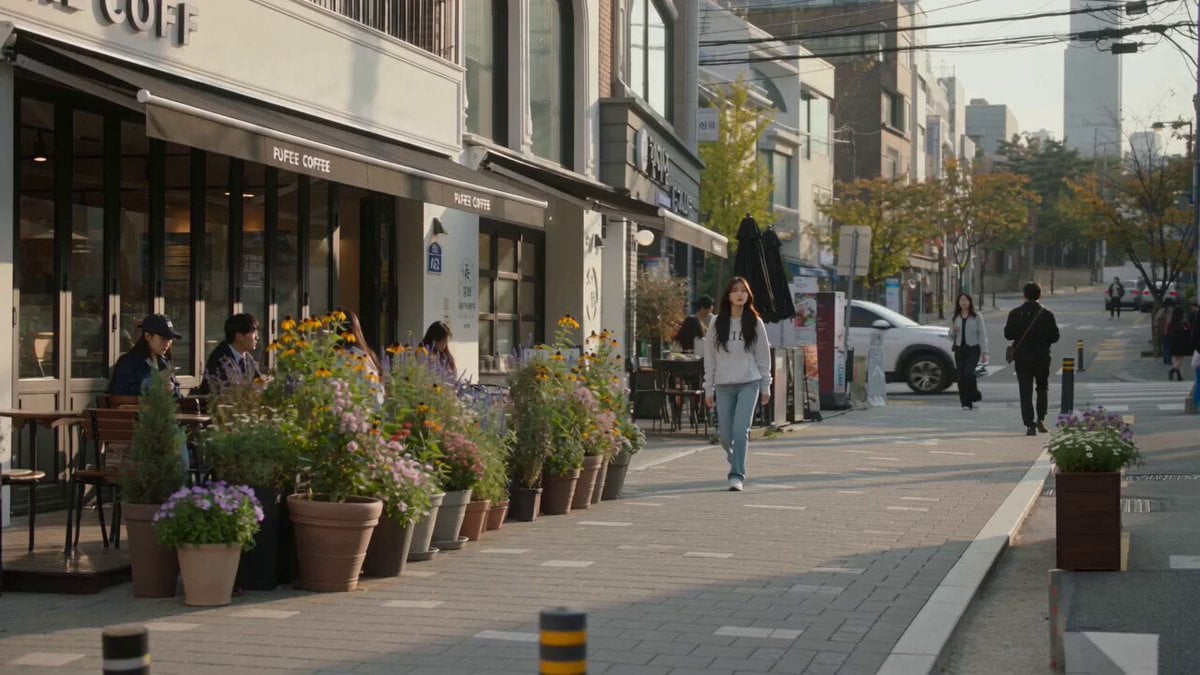
Urban Lifestyle Smartphone Photography
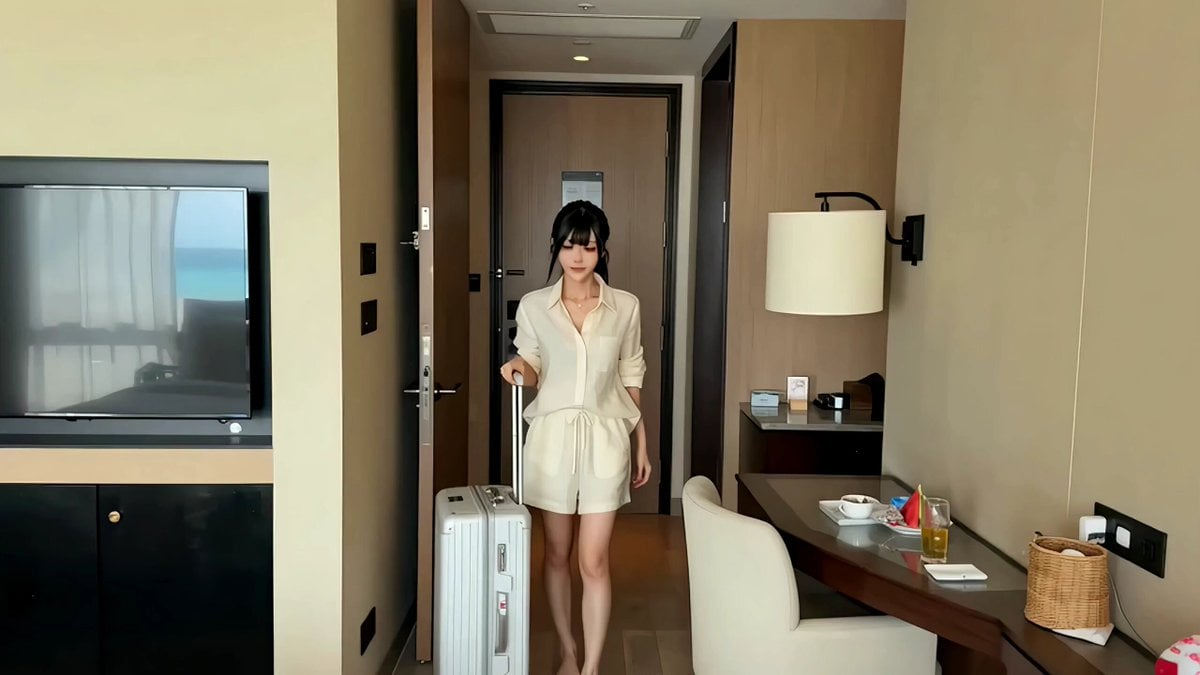
Summer Resort Vacation Vlog Script
Browse template categories
AI Video Lip-Sync Timing questions
How do I use the AI Video Lip-Sync Timing template?
Add your photo if the template asks for one, edit the prompt if you like — the template's model and format are already selected — and press Generate. Your version opens in PicX Studio.
Can I customize the AI Video Lip-Sync Timing template?
Yes. You can change the subject, setting, lighting, mood, format, and available model controls before creating your video.
Is the AI Video Lip-Sync Timing template free?
Opening and editing this template is free. Generating uses credits, shown on the Generate button when you are signed in.
Which AI model should I use?
Start with Seedance 2.0, which is the model associated with this template. You can compare another compatible model for a different finish.
Looking for something else? Browse all templates.

Your photo, any look
Thousands of ready templates for every top image and video model, from one credit balance.