
Photograph announcing a limited merchandise drop
[BRAND NAME].
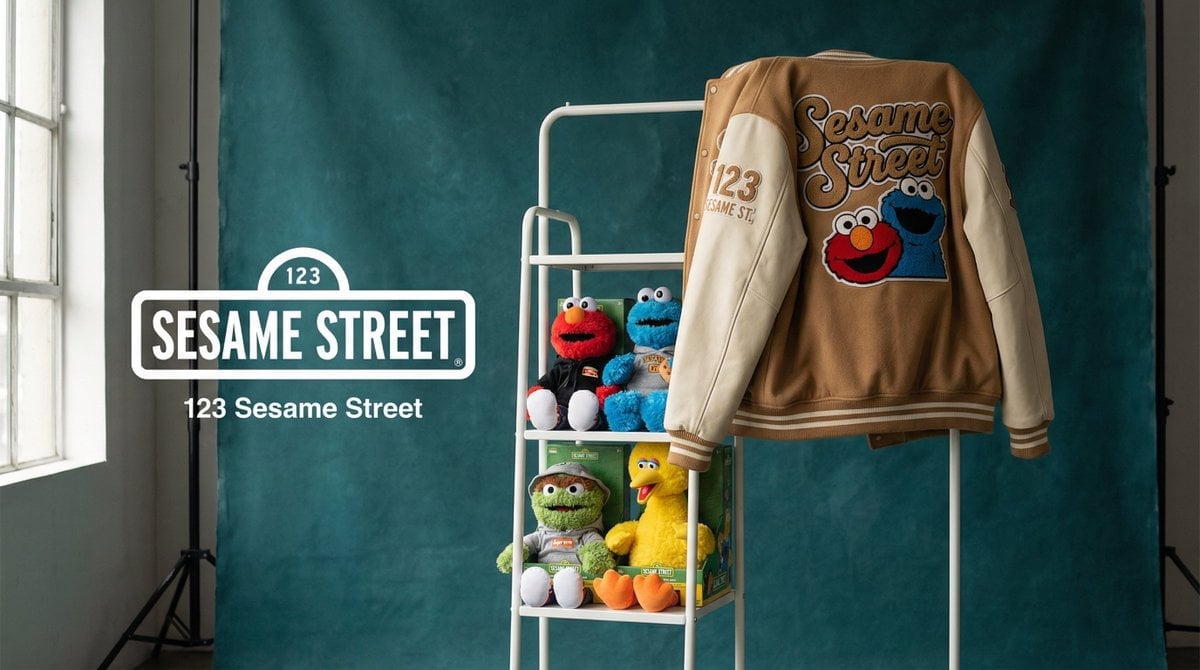
- Prompt included
- Model and format preset
- Premium template
The prompt behind this image
Copy the exact prompt behind Photograph announcing a limited merchandise drop, or open it in the studio and make it yours.
[BRAND NAME]. Act as a Creative Director and Still Life Photographer for a hypebeast fashion publication. THE TASK: Create a high-end "Showroom Still Life" photograph announcing a limited merchandise drop for [BRAND NAME]. PHASE 1: AUTONOMOUS CURATION (STRATEGY) Analyze [BRAND NAME]: Identify the industry and the core physical product (e.g., if "Spalding" -> Basketballs; if "McDonald's" -> Burger Boxes; if "Visa" -> Metal Cards). Determine the Palette: Background Color: A deep, rich, textured tone derived from the brand's secondary palette (e.g., Teal, Navy, Burgundy, Slate Grey). Merch Color: A contrasting warm or neutral tone (Camel, Orange, Cream) to pop against the background. Select the "Merch Item": Choose a high-quality apparel piece relevant to the brand's vibe (e.g., a Varsity Letterman Jacket, a Heavyweight Hoodie, a Canvas Tote, or a Wool Scarf). PHASE 2: SET DESIGN (THE RACK) The Prop: A simple, modern White Powder-Coated Metal Rack or Shelf unit. It stands cleanly in the frame. The Arrangement: Hanging Item: The chosen "Merch Item" (e.g., the Jacket) is draped casually over the rack or hanging on a hanger, showing off the texture (wool/felt). Stacked Items: On the shelves of the rack, stack multiple units of the brand's Core Product (e.g., a stack of basketballs, a pyramid of cans, a row of boxes). The Background: A Hand-Painted Canvas Backdrop in the chosen Deep Background Color. Visible texture/brushstrokes are essential for that "studio" look. PHASE 3: PHYSICAL BRANDING (TEXTURE) On the Merch: The hanging apparel must feature High-Quality Physical Branding. Use "Chenille Patches", "Embroidered Logos", or "Screen Print" running down the sleeve or on the back. It must look like a real, expensive garment. On the Products: Ensure the stacked core products have the correct [BRAND NAME] logo visible. PHASE 4: PHOTOGRAPHY & LIGHTING Lighting: Soft, directional window light from the side. Creates realistic, soft shadows on the rack and rich highlights on the textures. Lens: 50mm or 85mm. Sharp focus on the merch, slight fall-off in the background. PHASE 5: UI OVERLAY (THE "DROP" LAYOUT) Left Side Alignment: Large, clean White Logo of [BRAND NAME] floating in the negative space on the left. Under the logo, small white text with the brand's official slogan.
How to use Photograph announcing a limited merchandise drop in 3 steps
- 1
Open
The prompt is already in the box next to the preview, with the template's model and format selected.
- 2…a portrait of your subject in softgolden-hour light, 85mm…
Personalize
Edit the subject and creative details for your destination.
- 3Generate
Generate
Press Generate — your image is created in PicX Studio, so you can compare it with the original and refine one variable at a time.
More like this
Templates with the same subject, style or setup. Open one to see its prompt.
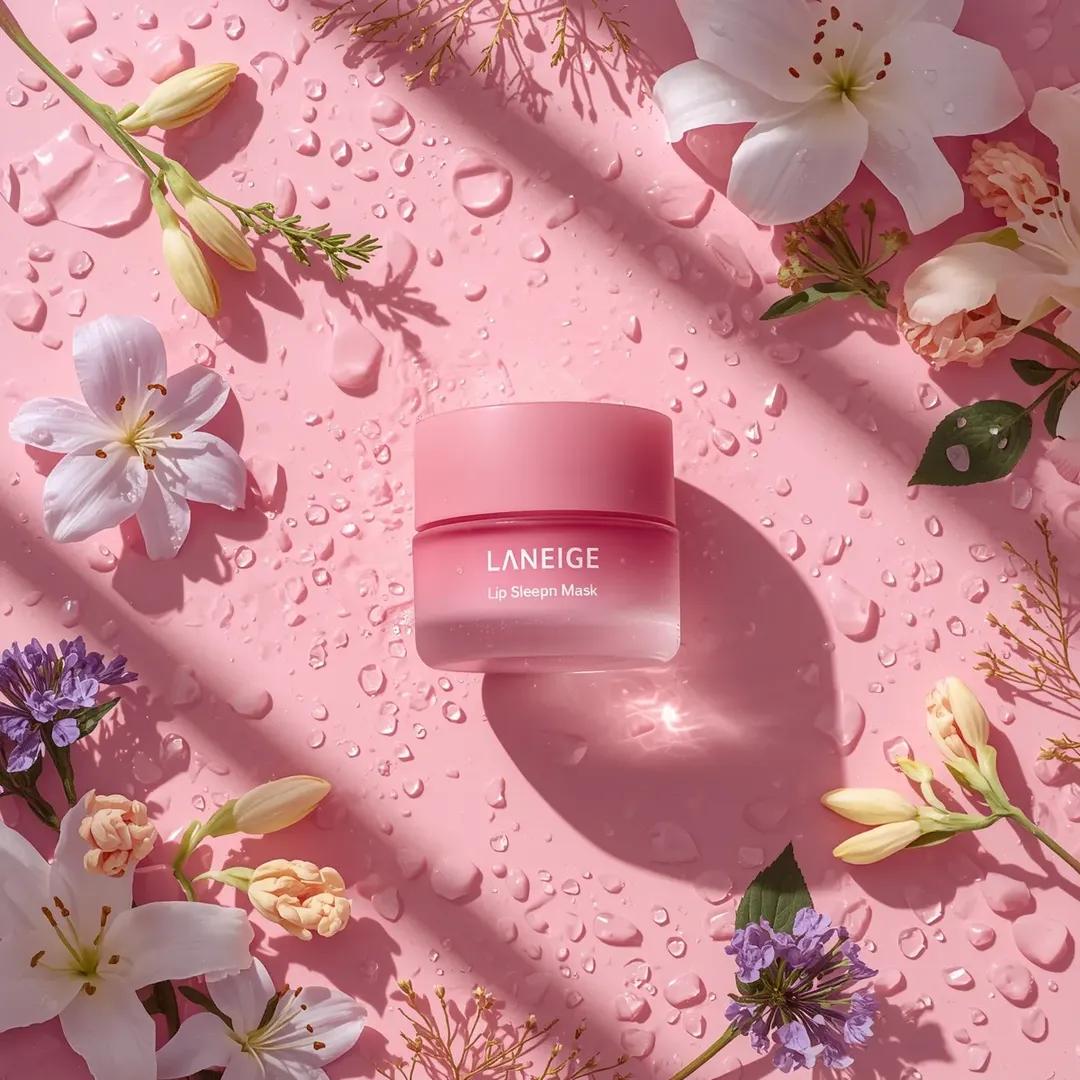
A hyper-realistic beauty product photograph of a pink jar placed
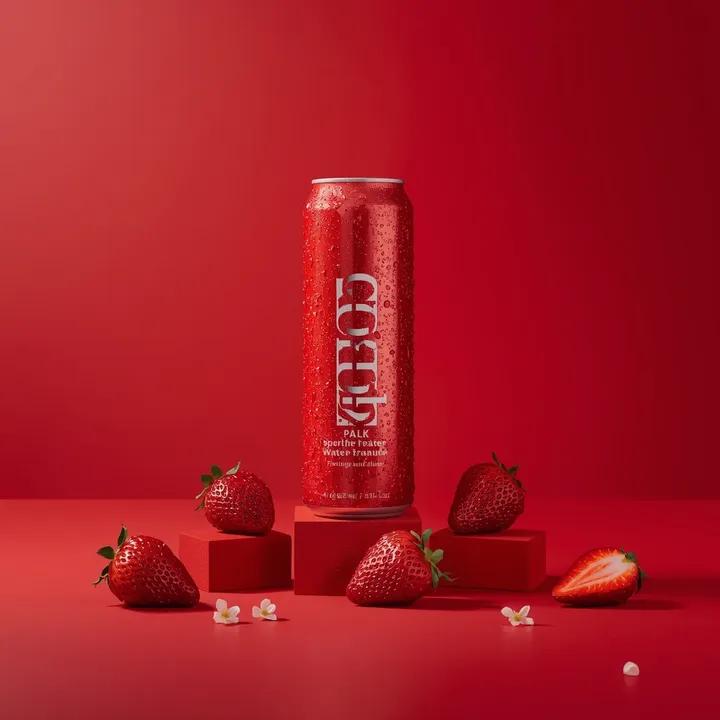
A premium studio product photograph of a tall, slim red aluminum
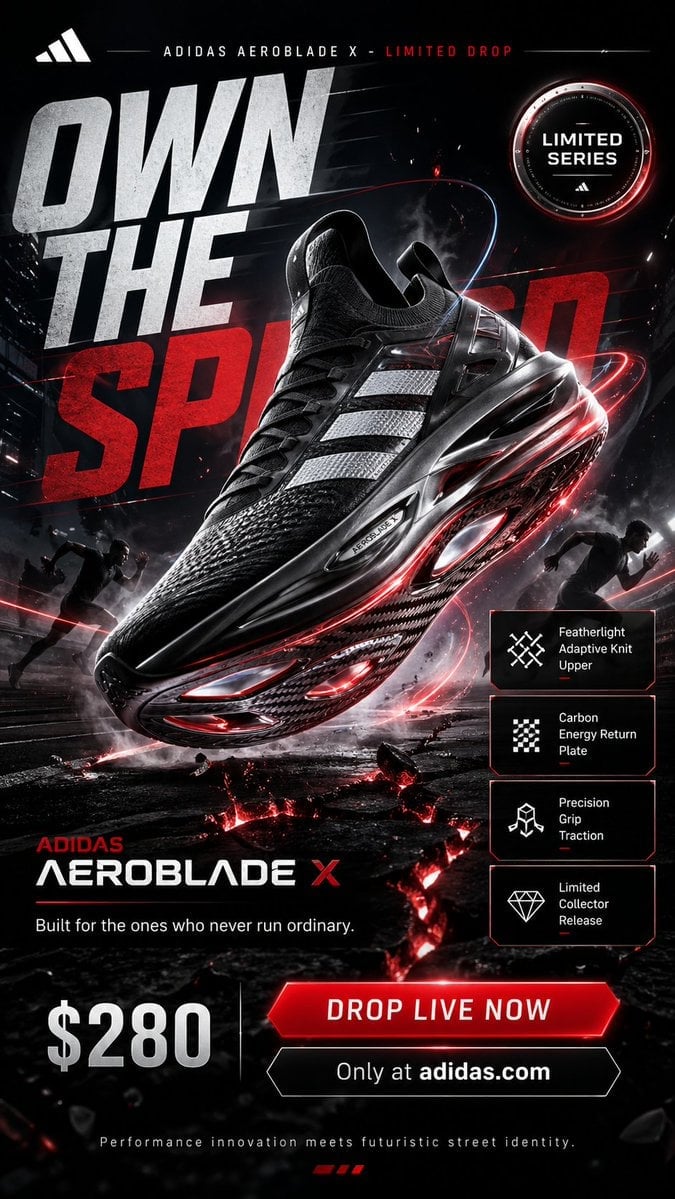
Jaw-dropping premium advertising poster in 9 16 vertical format
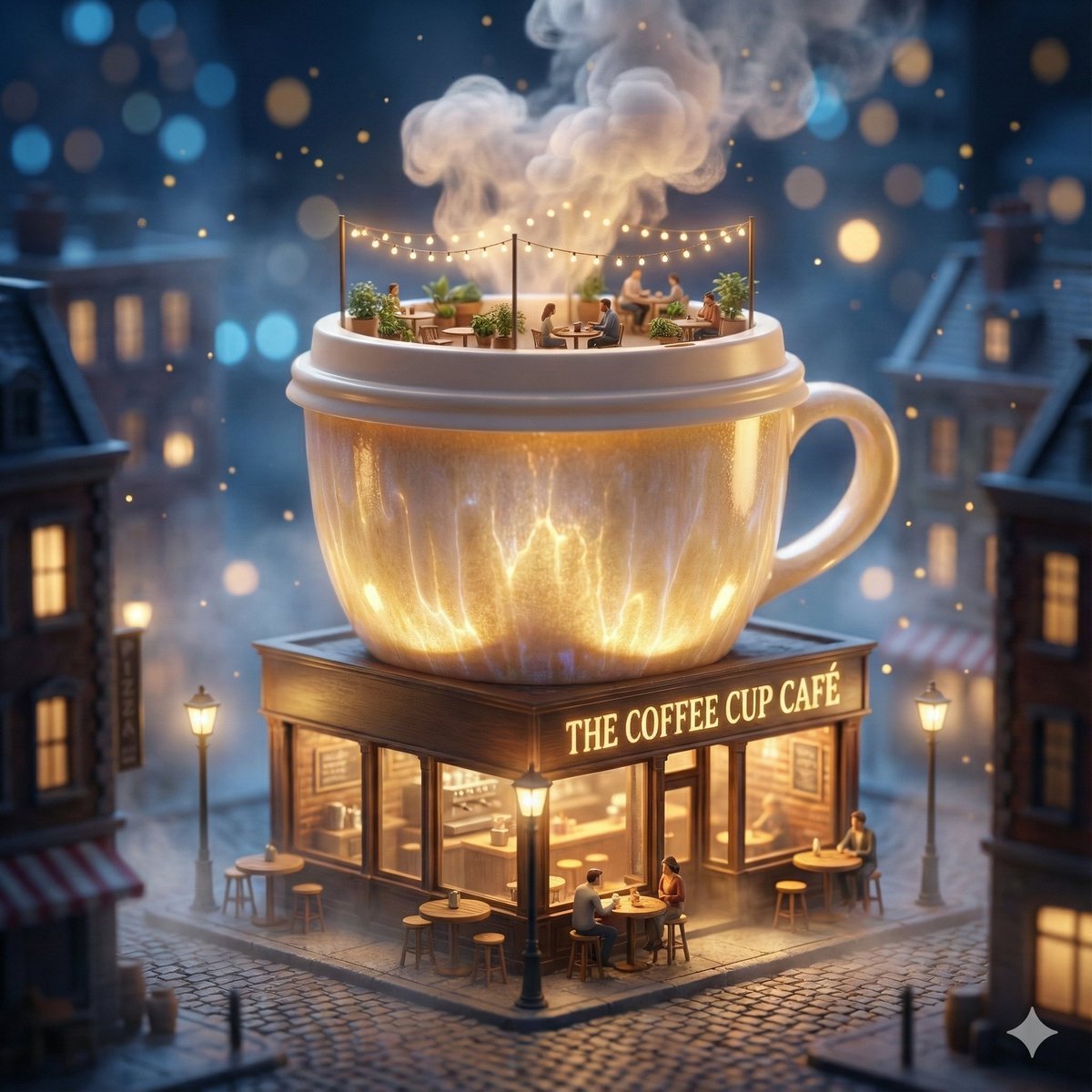
ChatGPT Image 1 5 Google Veo 3 1
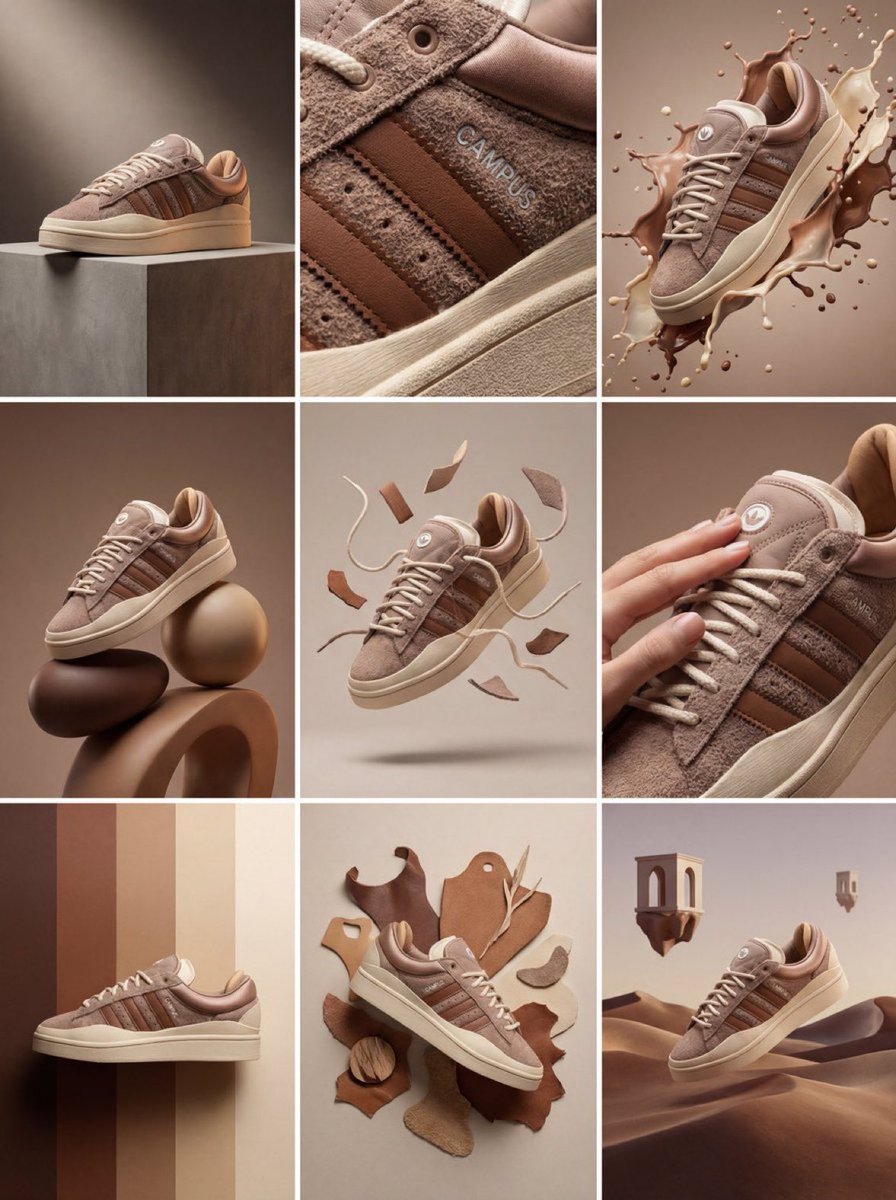
Product & Brand Prompt #1444
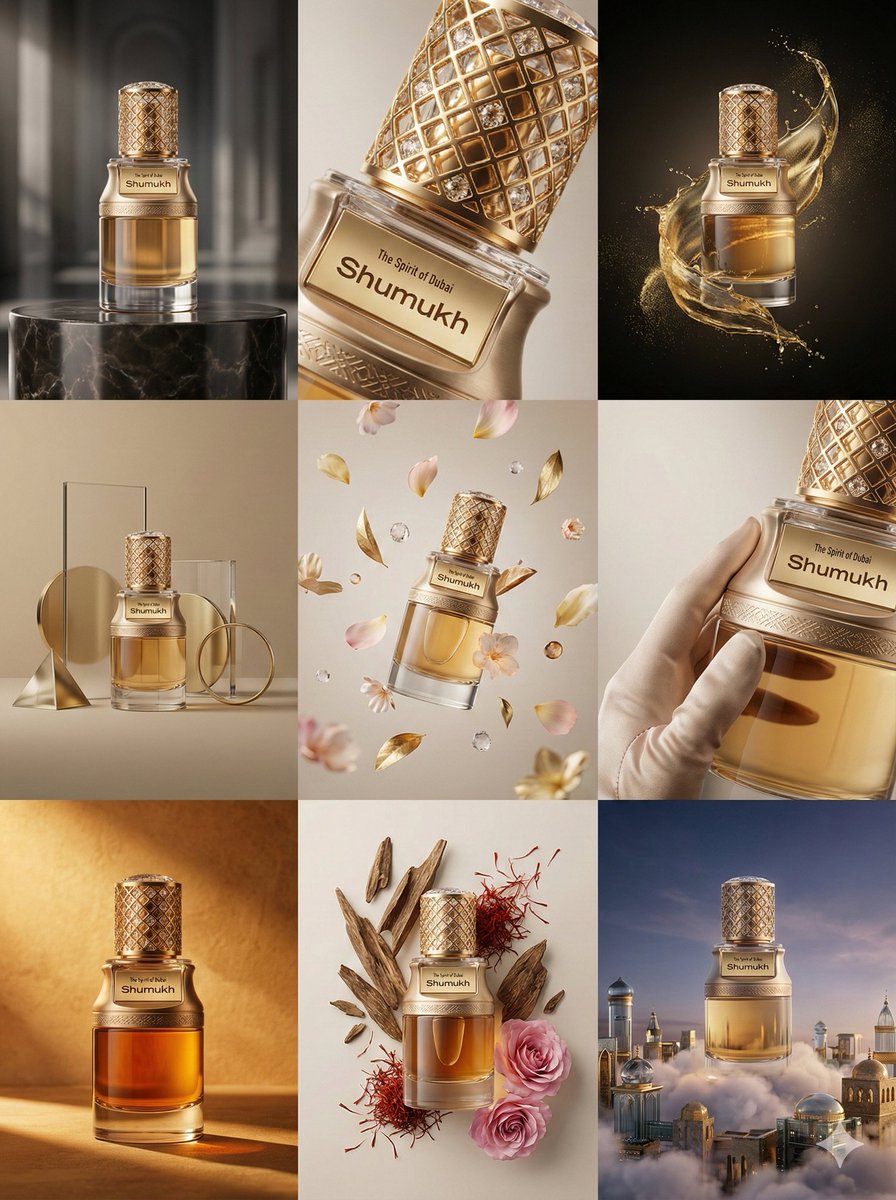
Product & Brand Prompt #569
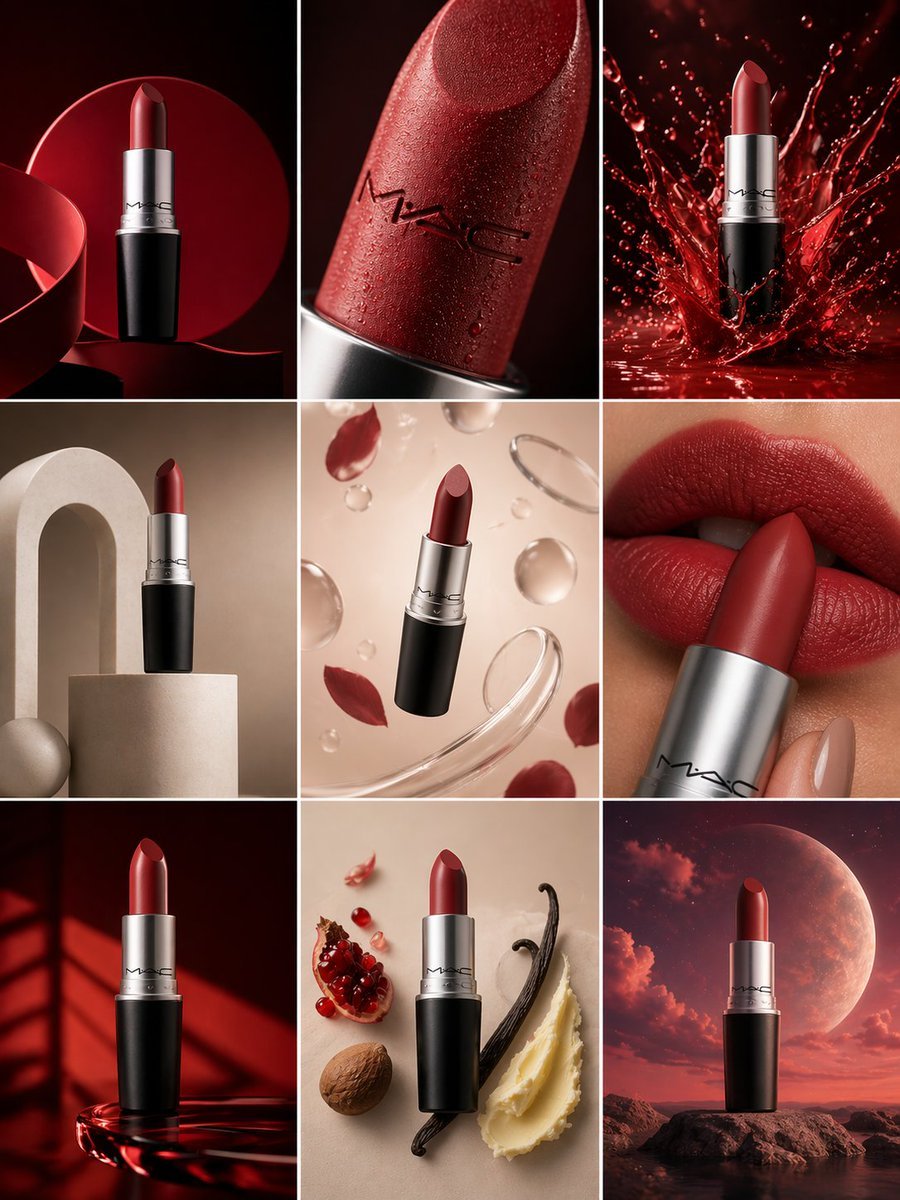
Product & Brand Prompt #285
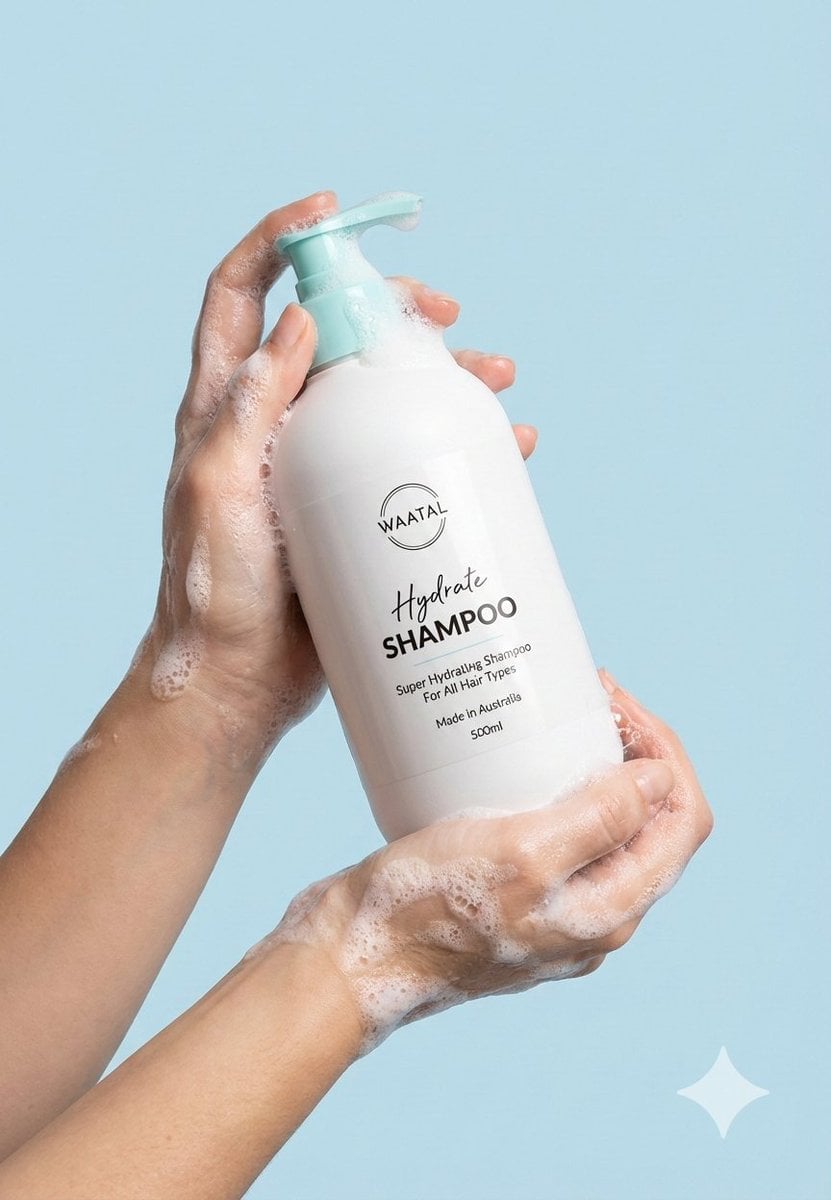
Product & Brand Prompt #953
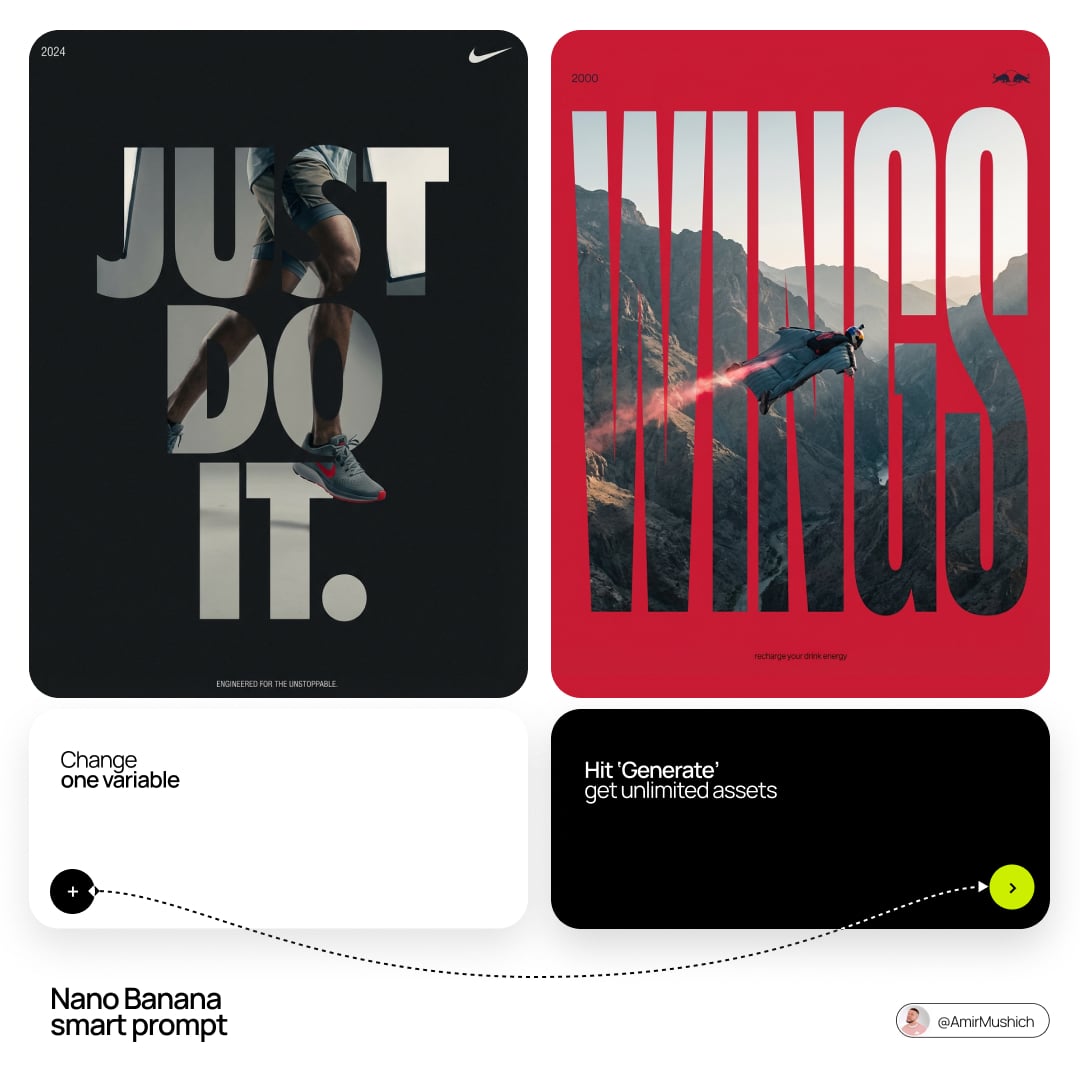
Act as a Senior Editorial Designer and Typographer
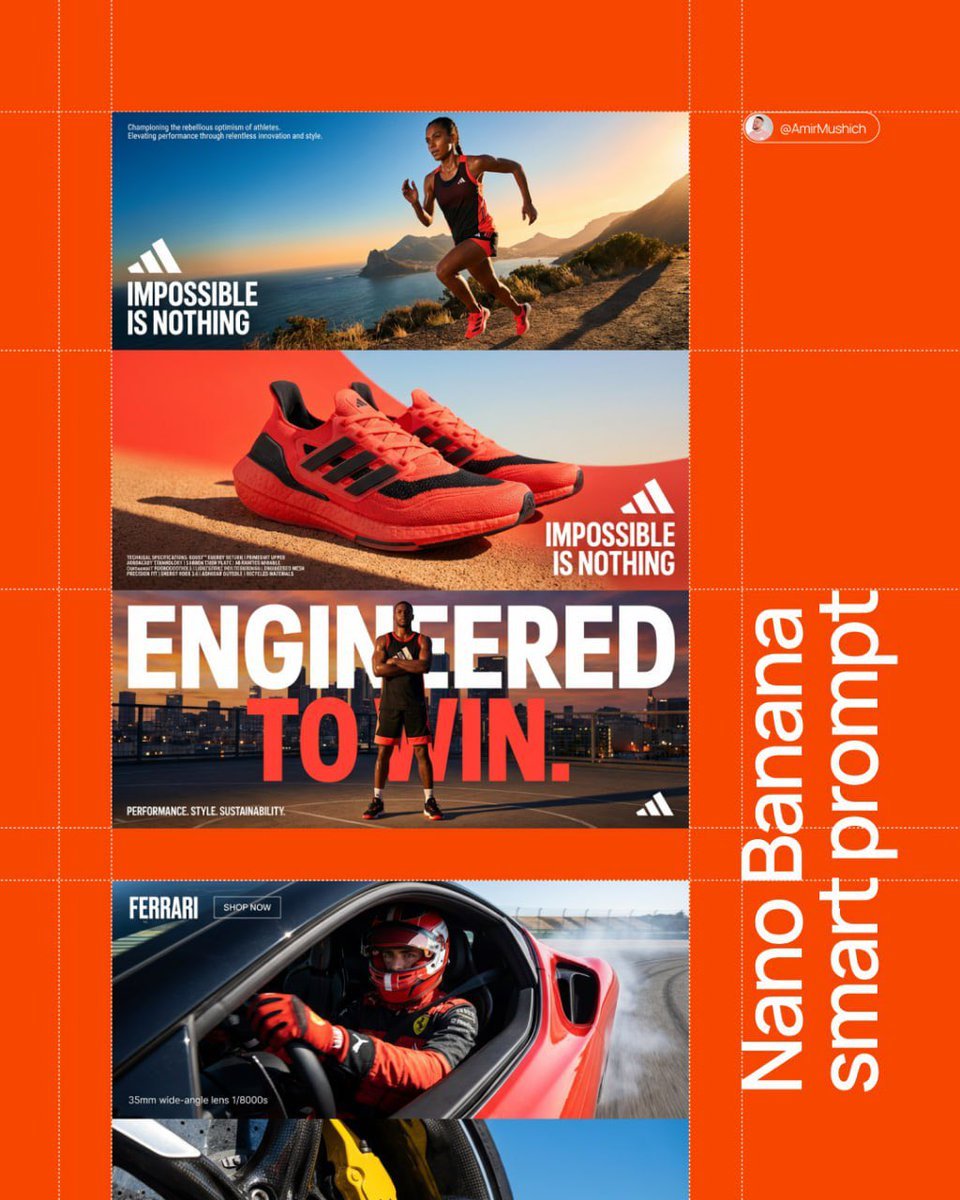
Aesthetic and fill the negative space
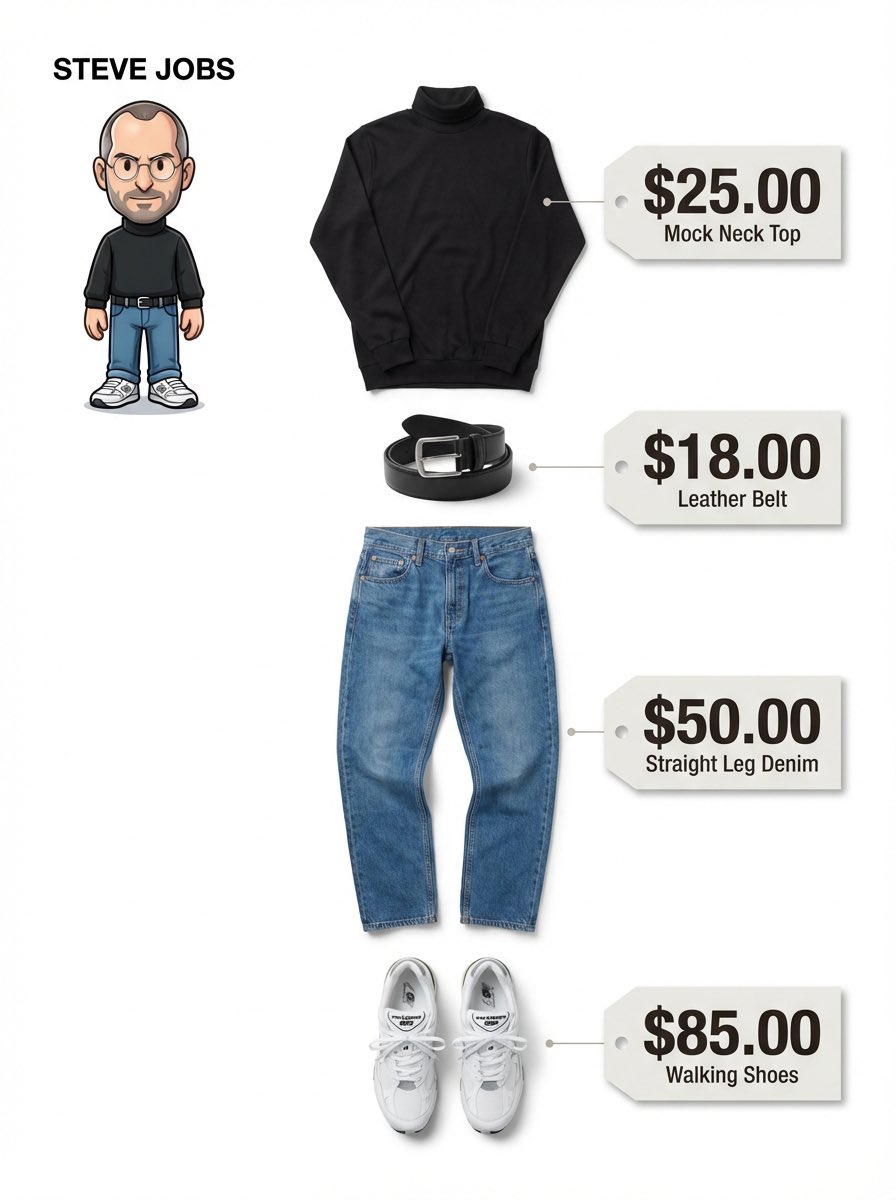
Clean, minimalist fashion infographic from an uploaded reference photo
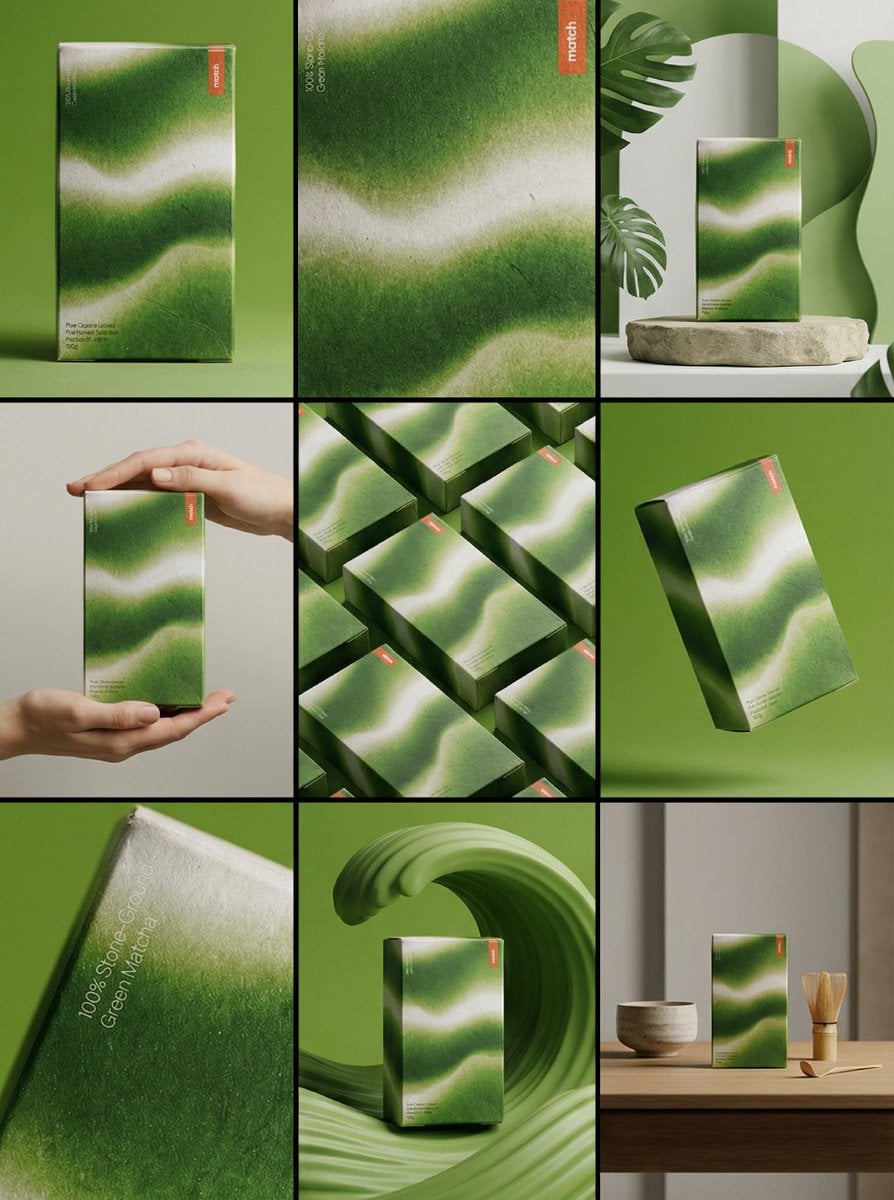
Product & Brand Prompt #341
Make it yours
Photograph announcing a limited merchandise drop works as-is. These are the safest ways to change it without losing the look.
Change one field
Copy a single group, rewrite it, and generate again so you can see what that field is doing.
Keep the frame, change the subject
Hold the composition and light of Photograph announcing a limited merchandise drop, then swap wardrobe, props or the person for a new take.
| If the result… | Why | Fix |
|---|---|---|
| The result drifts from the preview | Too many fields changed at once. | Reuse Photograph announcing a limited merchandise drop as-is first, then change one group — subject, light, or setting. |
| The model over-stylizes the scene | The prose prompt leaves finish and camera underspecified. | Add one camera or lighting sentence and stay on Nano Banana 2. |
More Nano Banana 2 templates
Other prompts made for Nano Banana 2.

Photorealistic Leaf Shaped Like a Dragon

K-Pop Idol Portrait Grid for Rapid Selection

Poetic Rain Forest Portrait During Golden Hour

Urban Street Portrait with Cartoon Inner Self Duo

Candid Nighttime Photo with Cat Prompt

High-Concept 3D Diorama Generation Prompt

Cinematic Futuristic Studio Portrait Template

Skincare Editorial Photography Collage Prompt

Hyper-Realistic Commercial Product Photography (Splash Effect)

Hyper-Realistic Nightclub Portrait Prompt
More image prompts
Fresh picks from across the catalog.
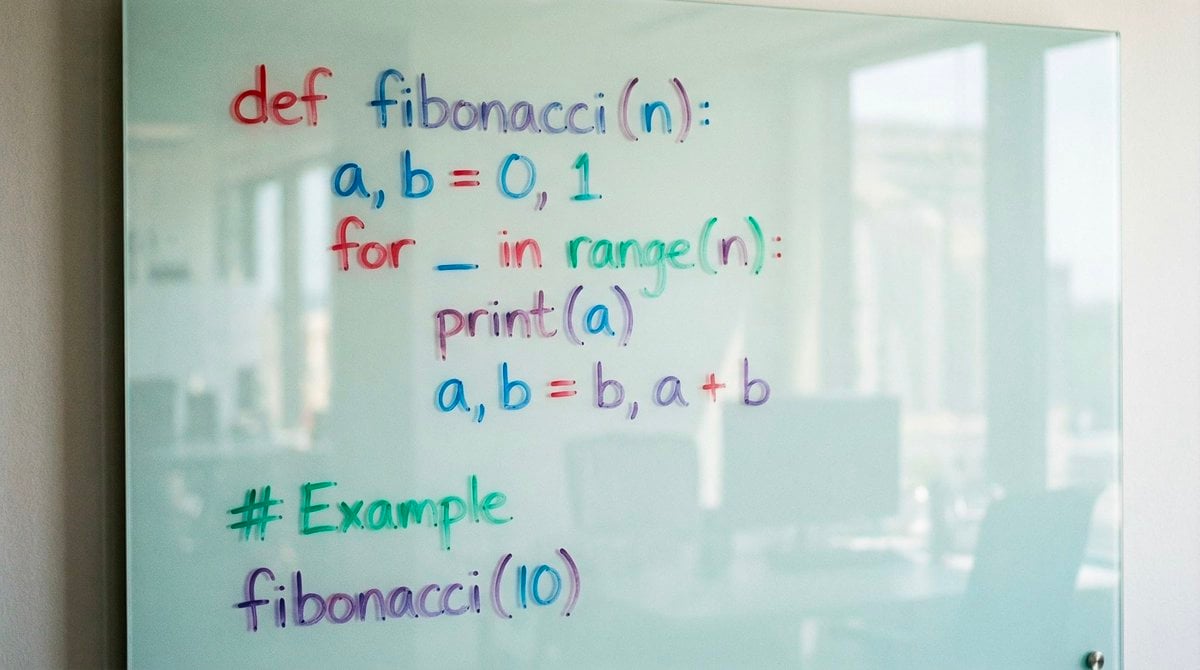
Python Fibonacci code on glass whiteboard
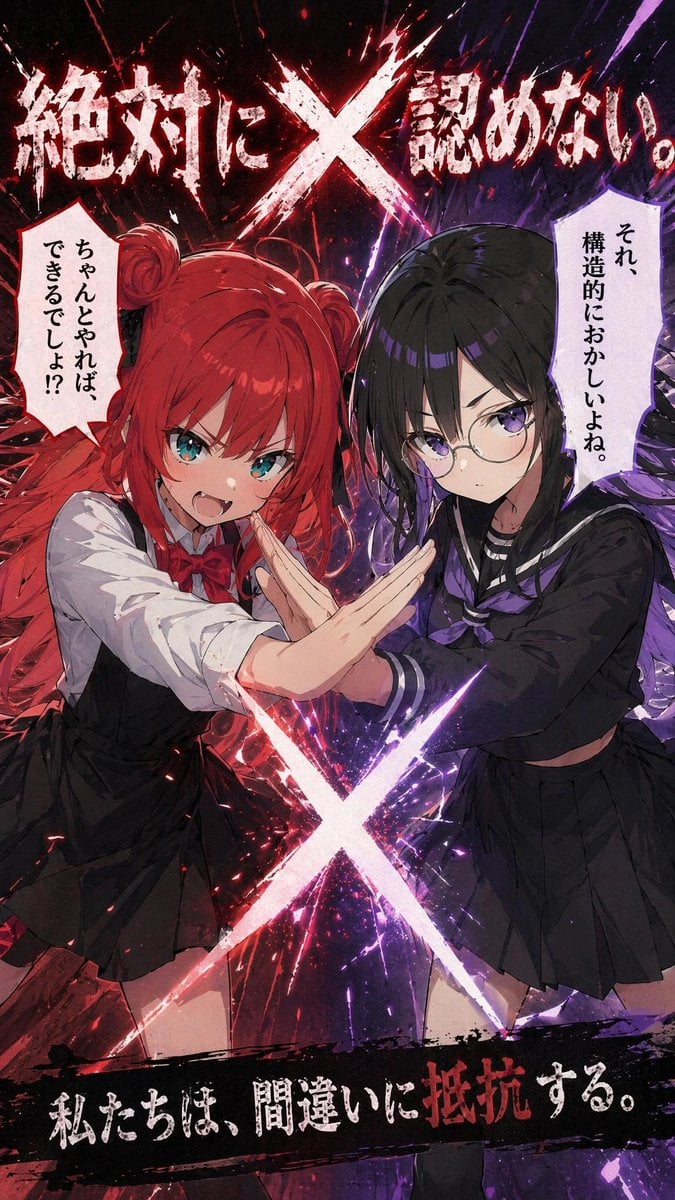
Anime X Battle Poster
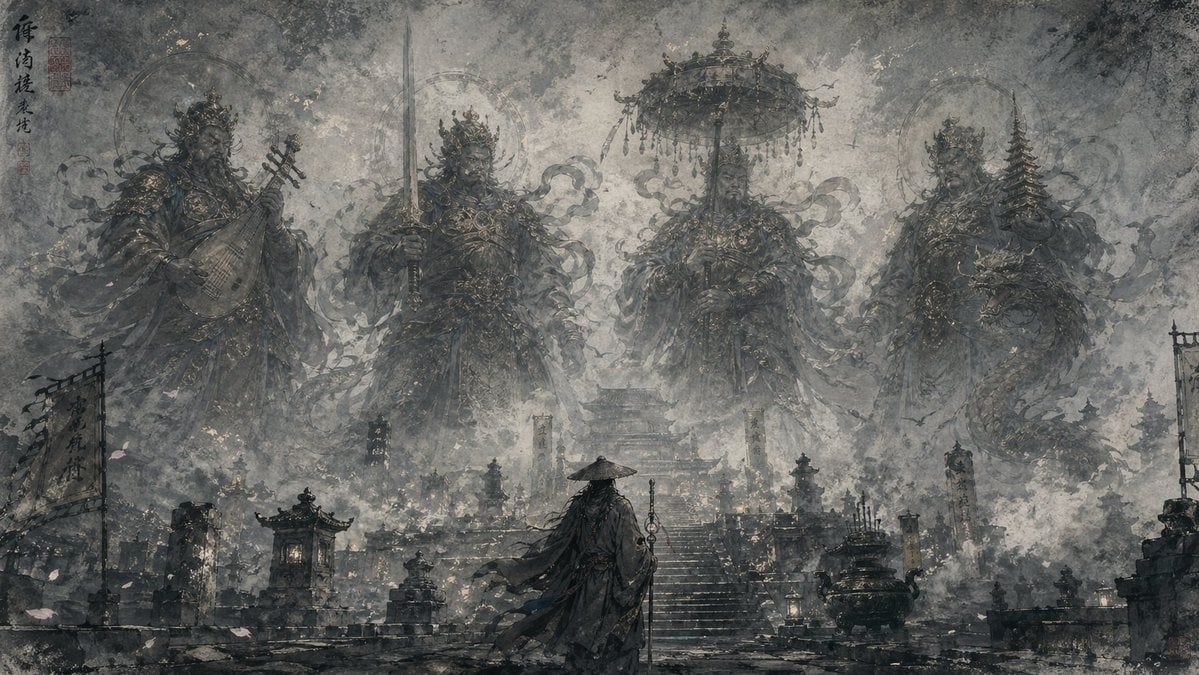
Eastern Ink Fantasy Illustration
Hyper-Realistic Robotic Frog Design
Rustic Red Cowgirl Portrait in Countryside
Anime Starry Night Sky with Custom Neon Text
Nighttime Street Portrait with Wet Pavement
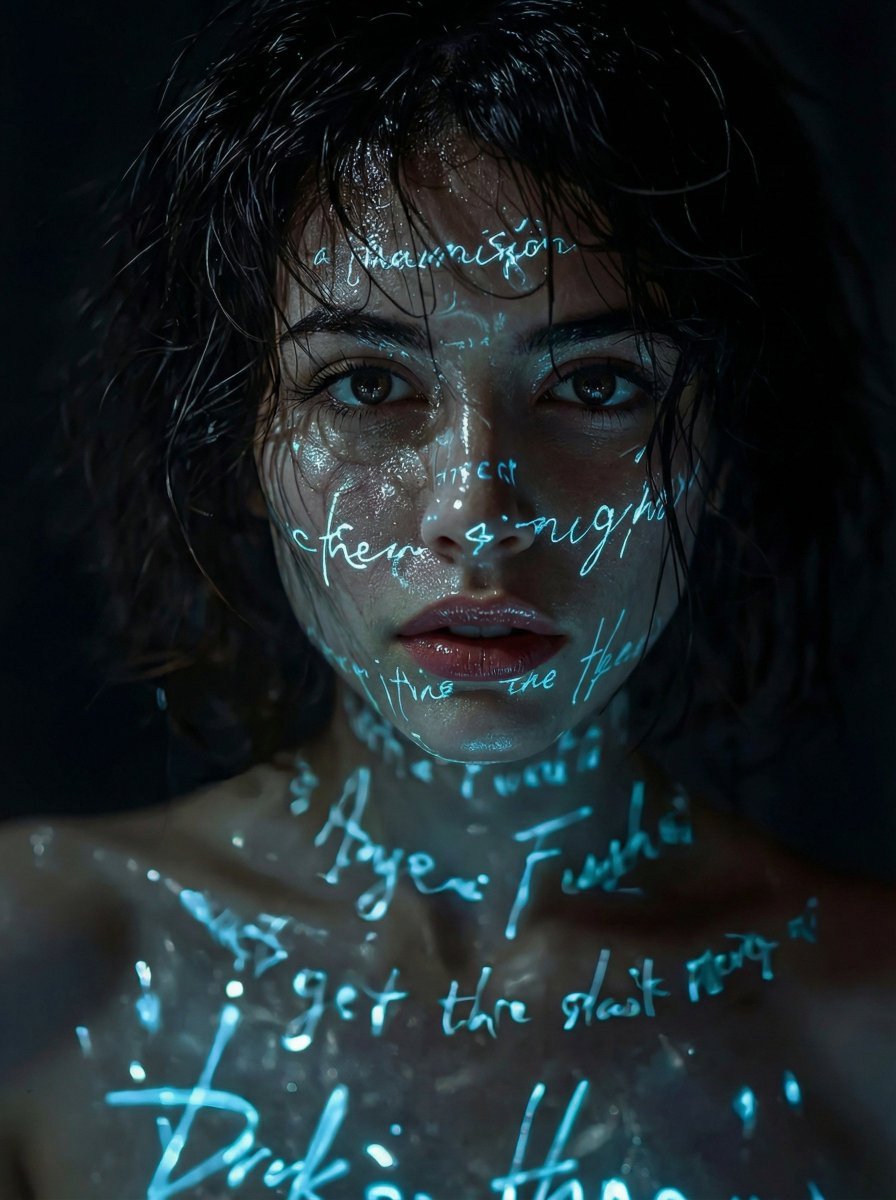
Cyber-Poetic Futuristic Noir Portrait
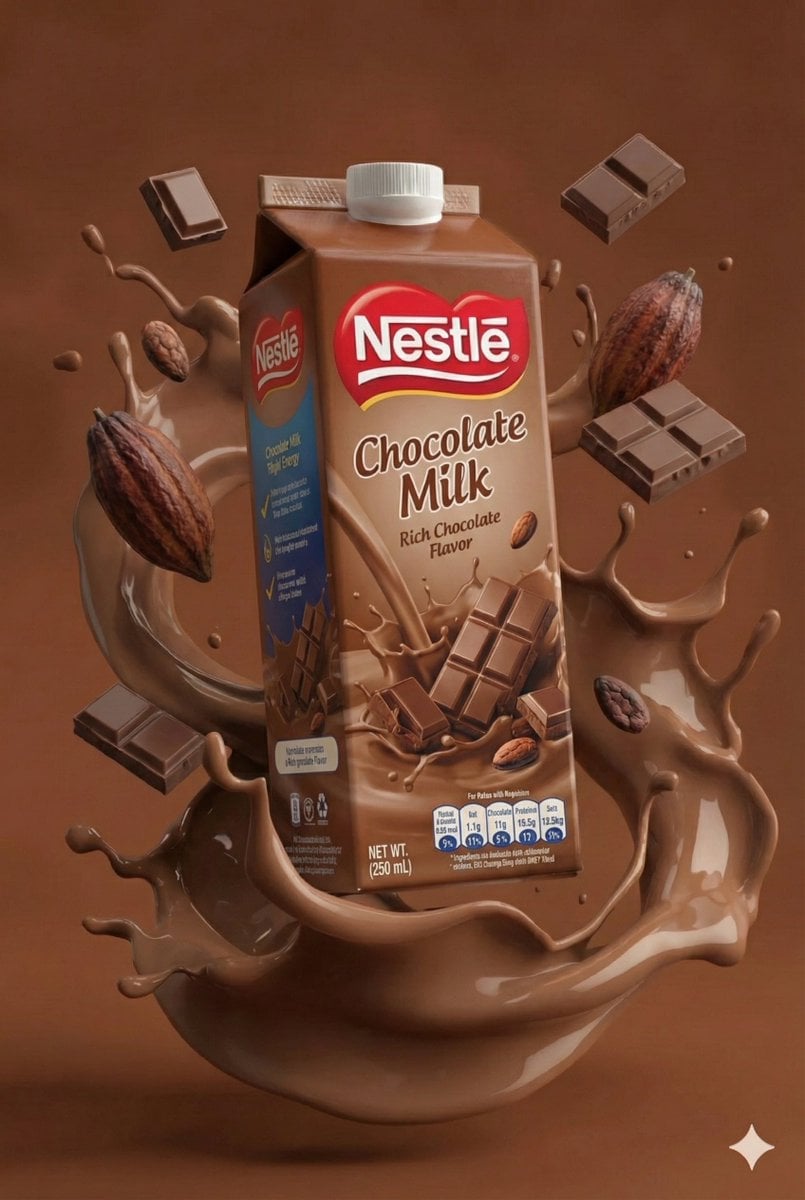
Structured JSON Prompt for Juice Box Product Photography
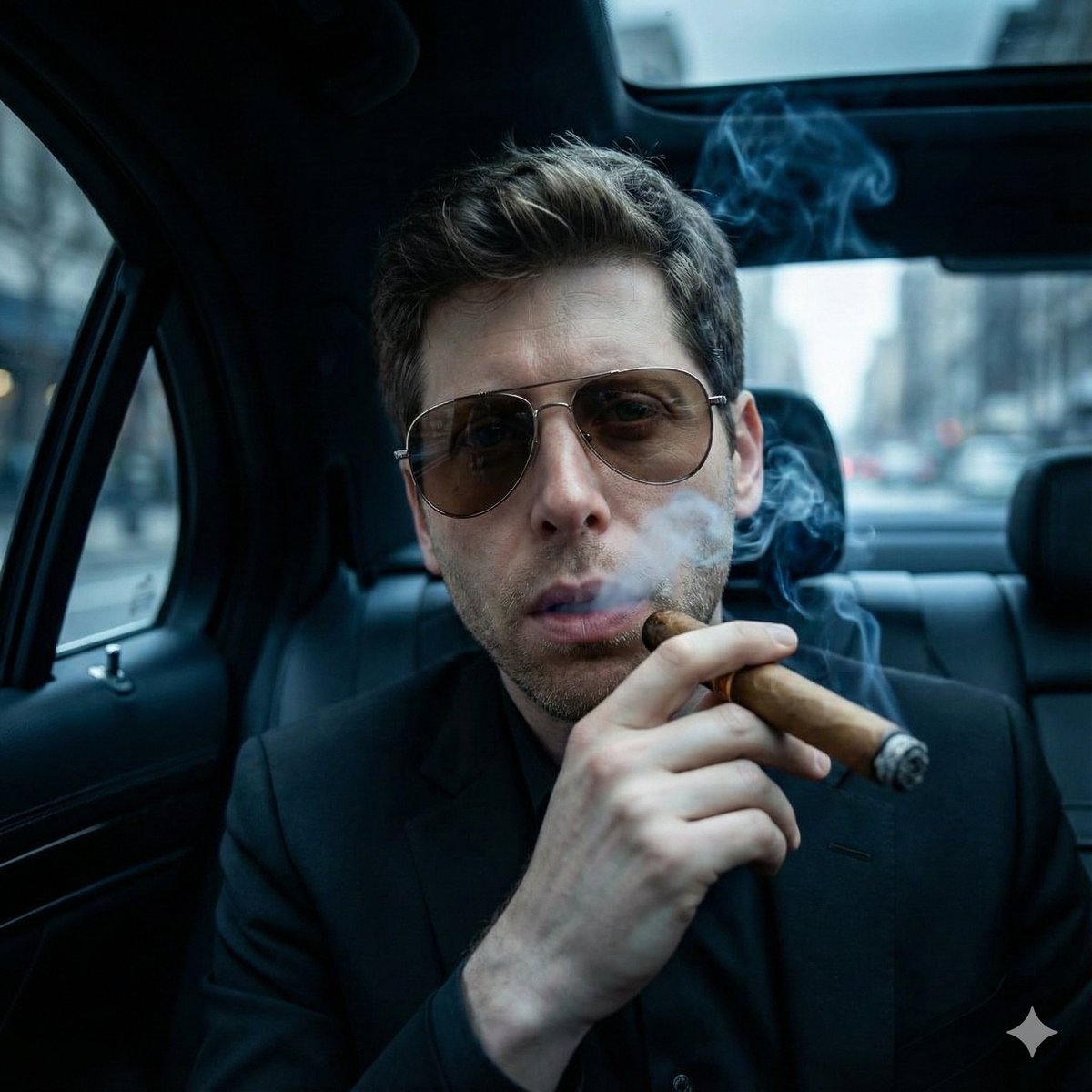
Cinematic Mafia Boss Portrait
Browse template categories
Photograph announcing a limited merchandise drop questions
How do I use the Photograph announcing a limited merchandise drop template?
Add your photo if the template asks for one, edit the prompt if you like — the template's model and format are already selected — and press Generate. Your version opens in PicX Studio.
Can I customize the Photograph announcing a limited merchandise drop template?
Yes. You can change the subject, setting, lighting, mood, format, and available model controls before creating your image.
Is the Photograph announcing a limited merchandise drop template free?
Opening and editing this template is free. Generating uses credits, shown on the Generate button when you are signed in.
Which AI model should I use?
Start with Nano Banana 2, which is the model associated with this template. You can compare another compatible model for a different finish.
Looking for something else? Browse all templates.

Your photo, any look
Thousands of ready templates for every top image and video model, from one credit balance.