
Aesthetic and fill the negative space
[BRAND NAME].
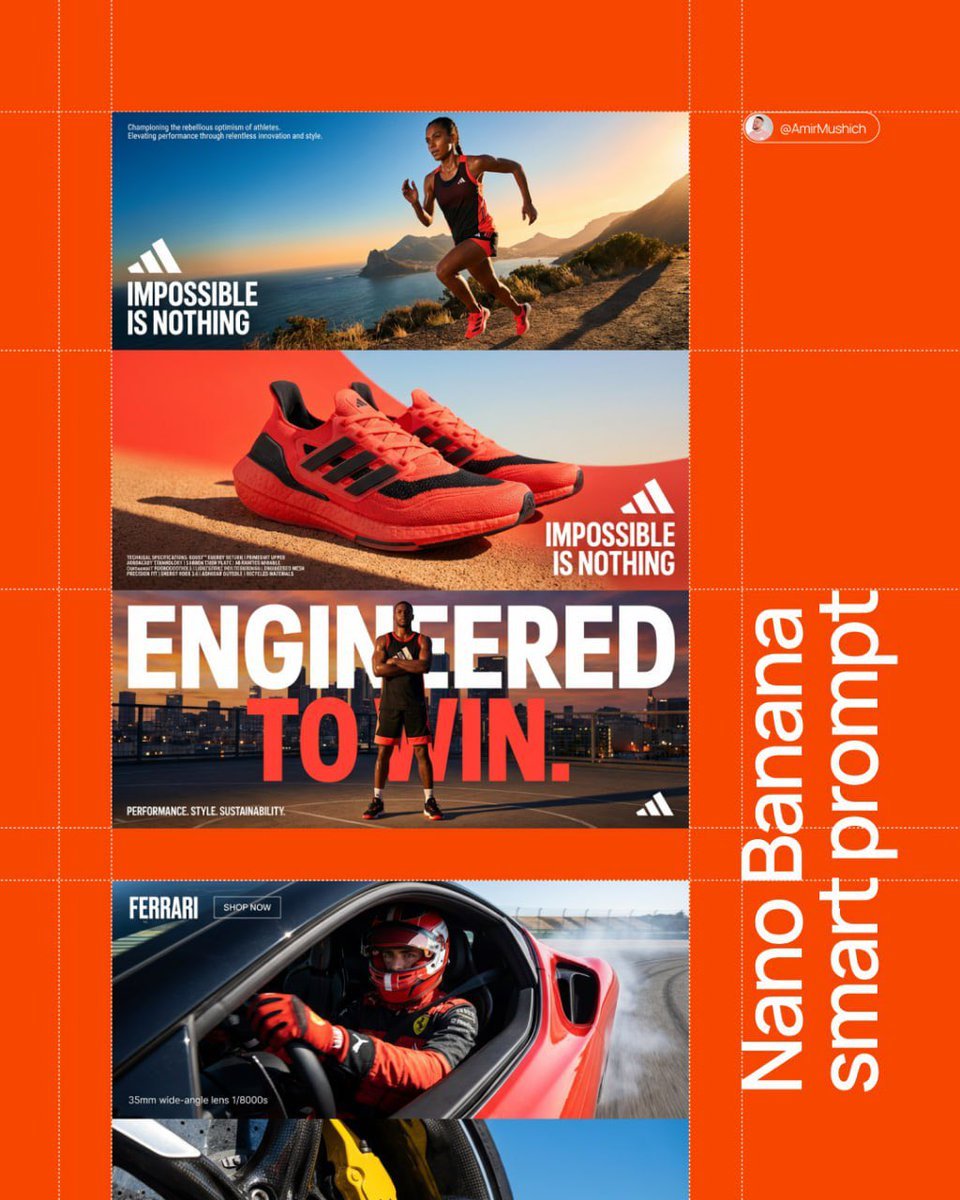
- Prompt included
- Model and format preset
- Premium template
The prompt behind this image
Copy the exact prompt behind Aesthetic and fill the negative space, or open it in the studio and make it yours.
[BRAND NAME]. Act as a Senior AI Visual Strategist & Creative Director. Goal: Analyze the provided [BRAND NAME] and generate a high-end, three-panel vertical manifesto stack. Every element (color, slogan, technical text) must be a logical derivative of the brand's identity. PHASE 1: AUTONOMOUS BRAND ANALYSIS (INTERNAL SIMULATION) - Identify the core industry of "[BRAND NAME]". - Select a high-contrast primary color for the background (e.g., Electric Blue, Racing Red, or Titanium White). - Generate a powerful 3-word slogan and a 2-line brand philosophy description. - Generate a block of 5 technical specifications/keywords relevant to the brand's premium products. PHASE 2: COMPOSITIONAL STRUCTURE (THE VERTICAL STACK) Layout consists of three wide horizontal panels stacked vertically: TOP PANEL (Action & Identity): A dynamic wide-angle shot of a professional model using the brand's product. - Typography (Mid-Left): Place [BRAND NAME] logo and the 3-word slogan in bold white uppercase sans-serif. - Micro-Typography (Top-Left corner): Place the 2-line brand philosophy in a tiny, minimalist font. MIDDLE PANEL (The Hero Product & Density): A macro close-up focus on the product's high-fidelity details. - Typography (Mid-Right): Place [BRAND NAME] logo and the slogan here to create a diagonal visual flow from the top panel. - Technical Density (Bottom-Left corner): Add the 5 technical specifications in sharp, microscopic uppercase font to create a "technical blueprint" aesthetic and fill the negative space. BOTTOM PANEL (The Power Pose): A low-angle "hero shot" of the model. - Mega-Typography: Two massive, high-contrast slogans in white bold sans-serif overlaid across the center of the frame. - Corner Accents: A small brand icon in the bottom-right; a secondary micro-text in the bottom-left corner. PHASE 3: LIGHTING & TEXTURE STANDARDS - Lighting: Hard, direct "High-Noon" sunlight creating crisp, sharp-edged shadows and brilliant highlights (Chiaroscuro). - Textures: Extreme fidelity in skin pores, fabric weaves (tech-mesh, leather, carbon fiber), and precision-engineered materials. Zero "AI-plastic" look. PHASE 4: TECH SPECS 8K Resolution. Render: Octane/Redshift. Global Illumination. Ray Traced reflections. Cinematic photo grain.
How to use Aesthetic and fill the negative space in 3 steps
- 1
Open
The prompt is already in the box next to the preview, with the template's model and format selected.
- 2…a portrait of your subject in softgolden-hour light, 85mm…
Personalize
Edit the subject and creative details for your destination.
- 3Generate
Generate
Press Generate — your image is created in PicX Studio, so you can compare it with the original and refine one variable at a time.
More like this
Templates with the same subject, style or setup. Open one to see its prompt.
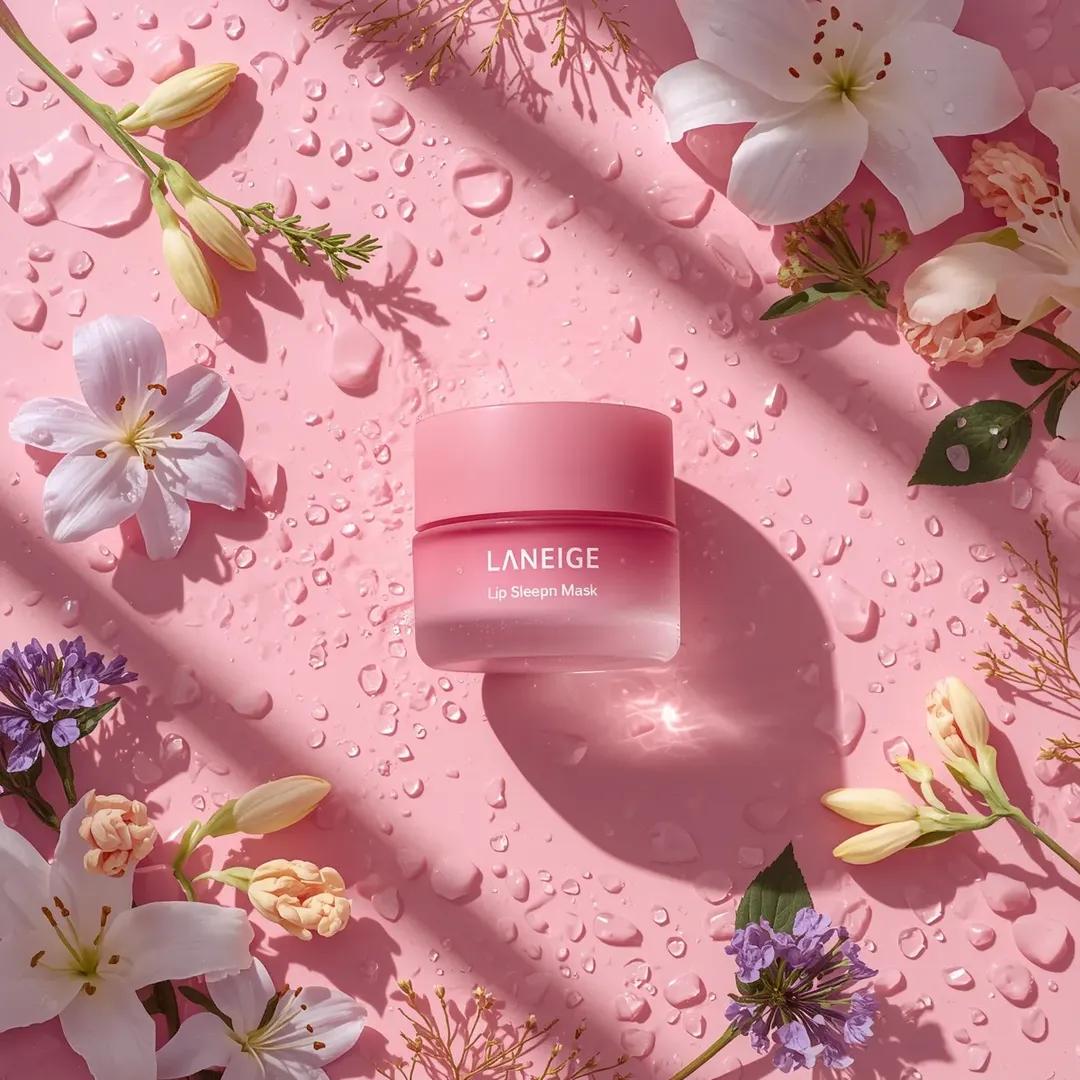
A hyper-realistic beauty product photograph of a pink jar placed
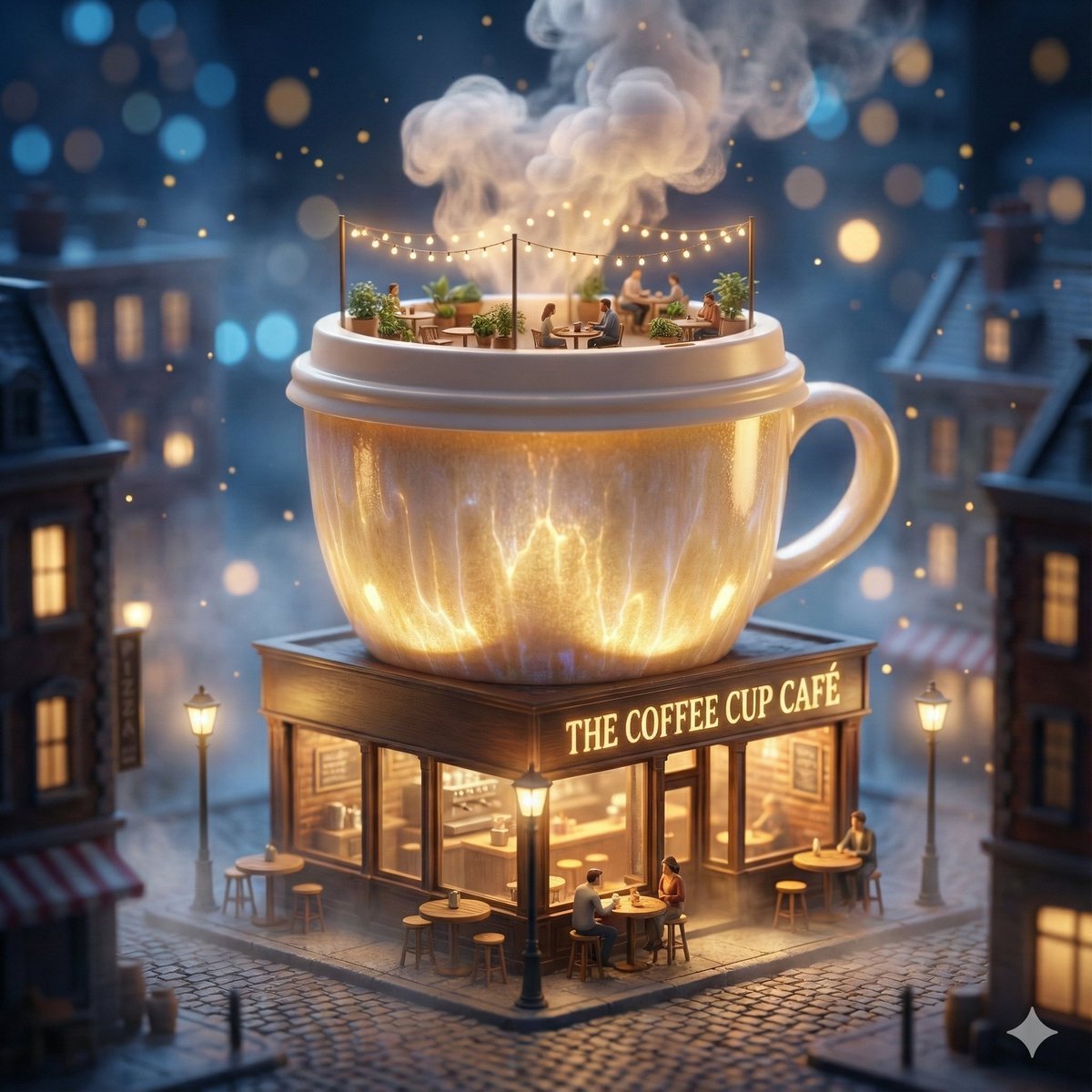
ChatGPT Image 1 5 Google Veo 3 1
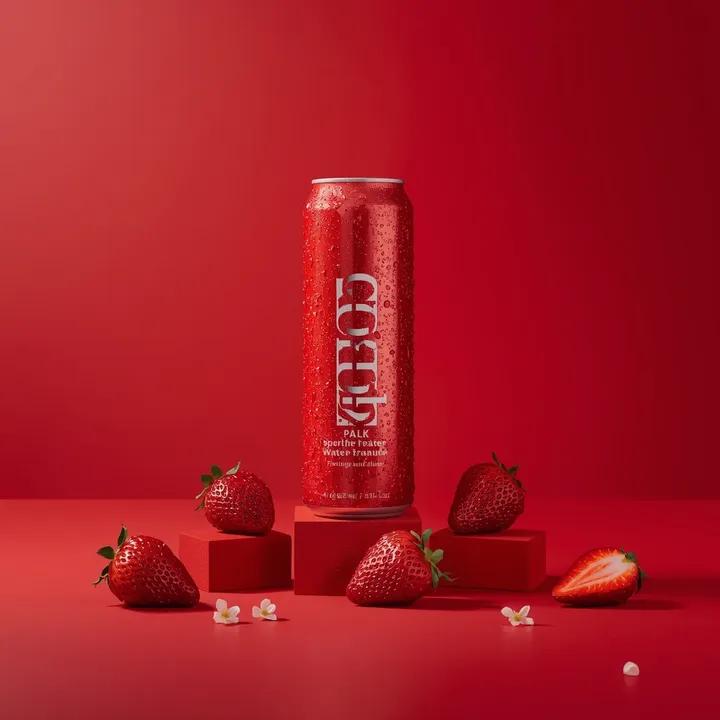
A premium studio product photograph of a tall, slim red aluminum
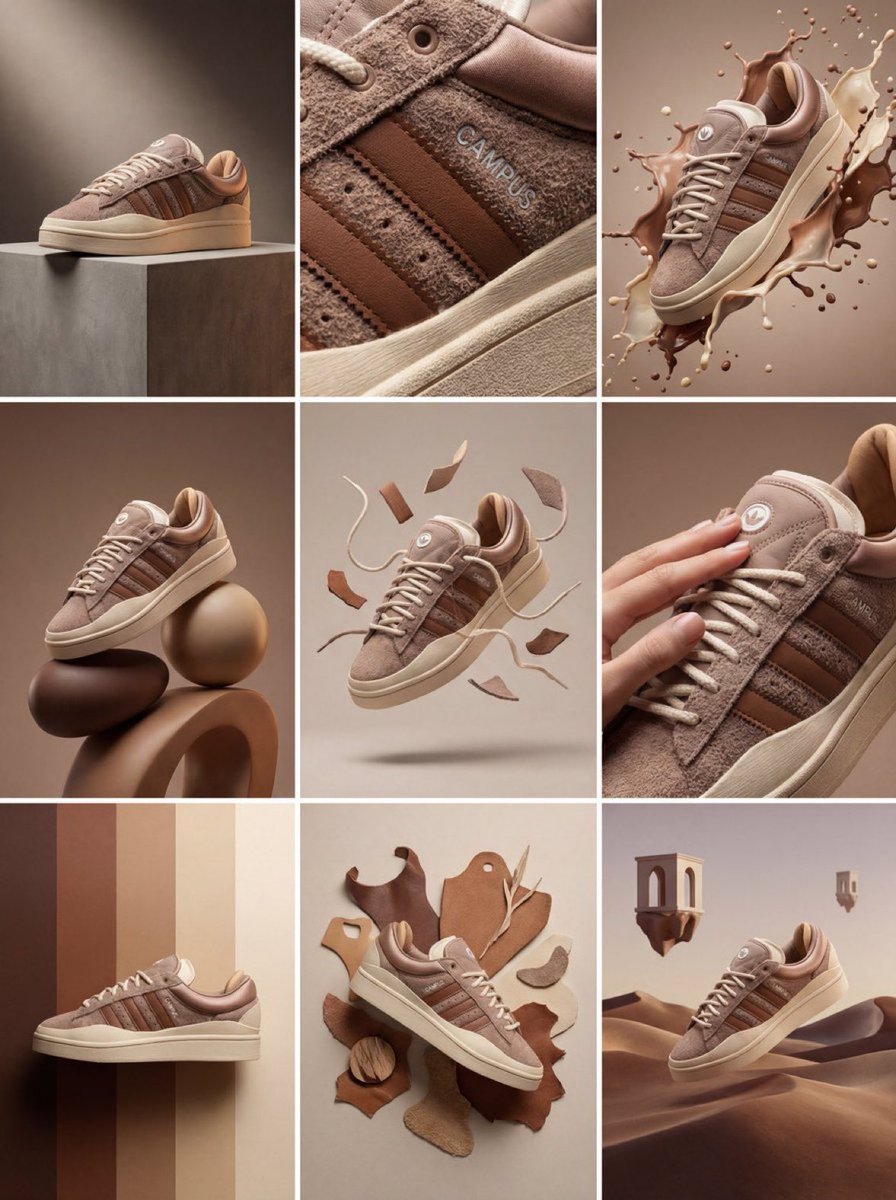
Product & Brand Prompt #1444
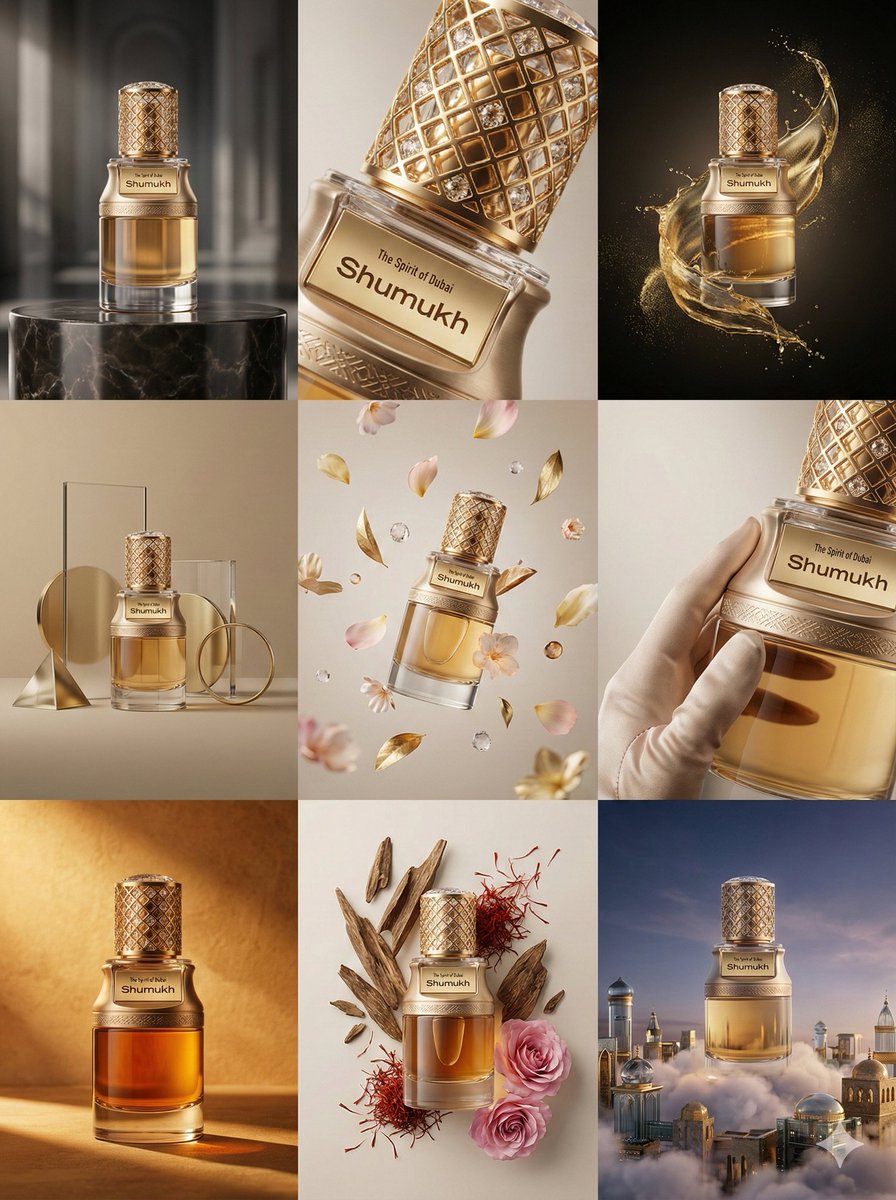
Product & Brand Prompt #569
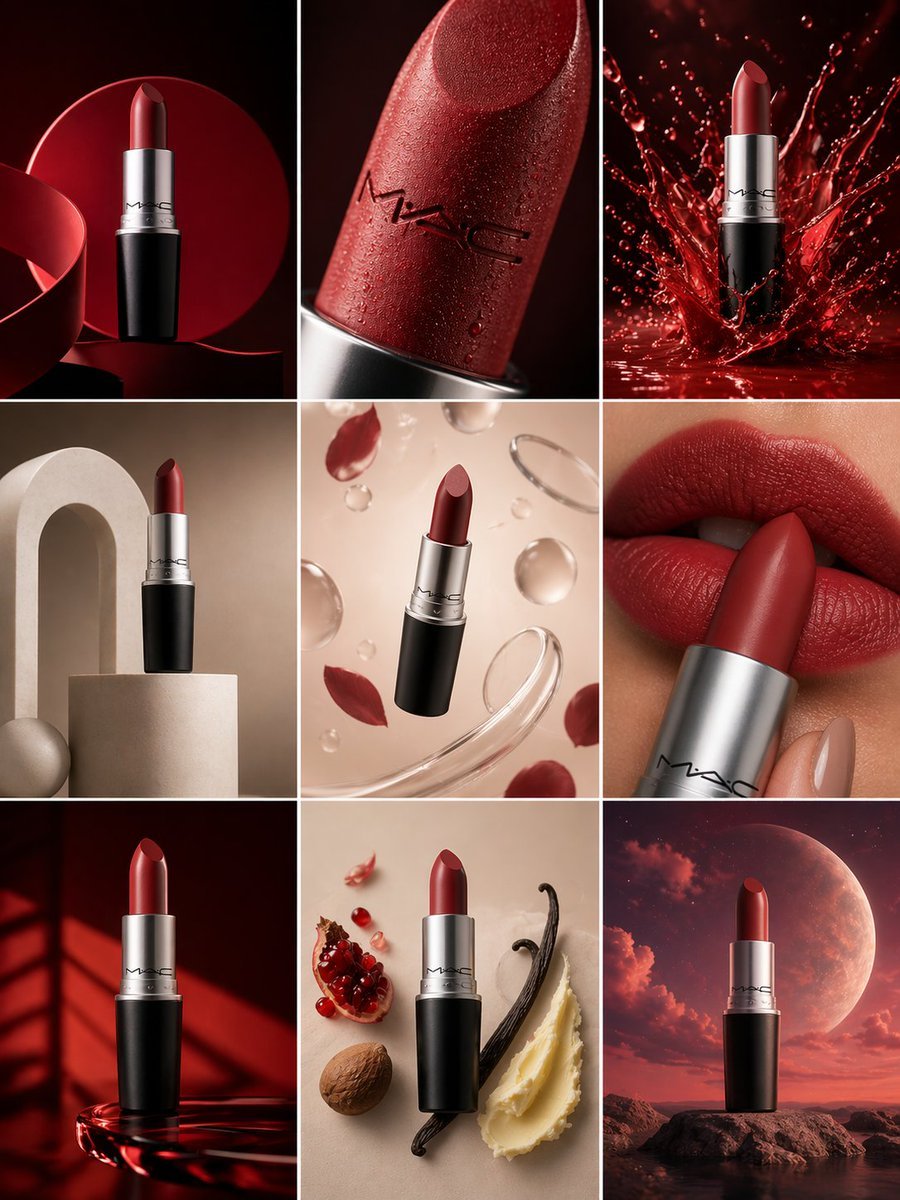
Product & Brand Prompt #285
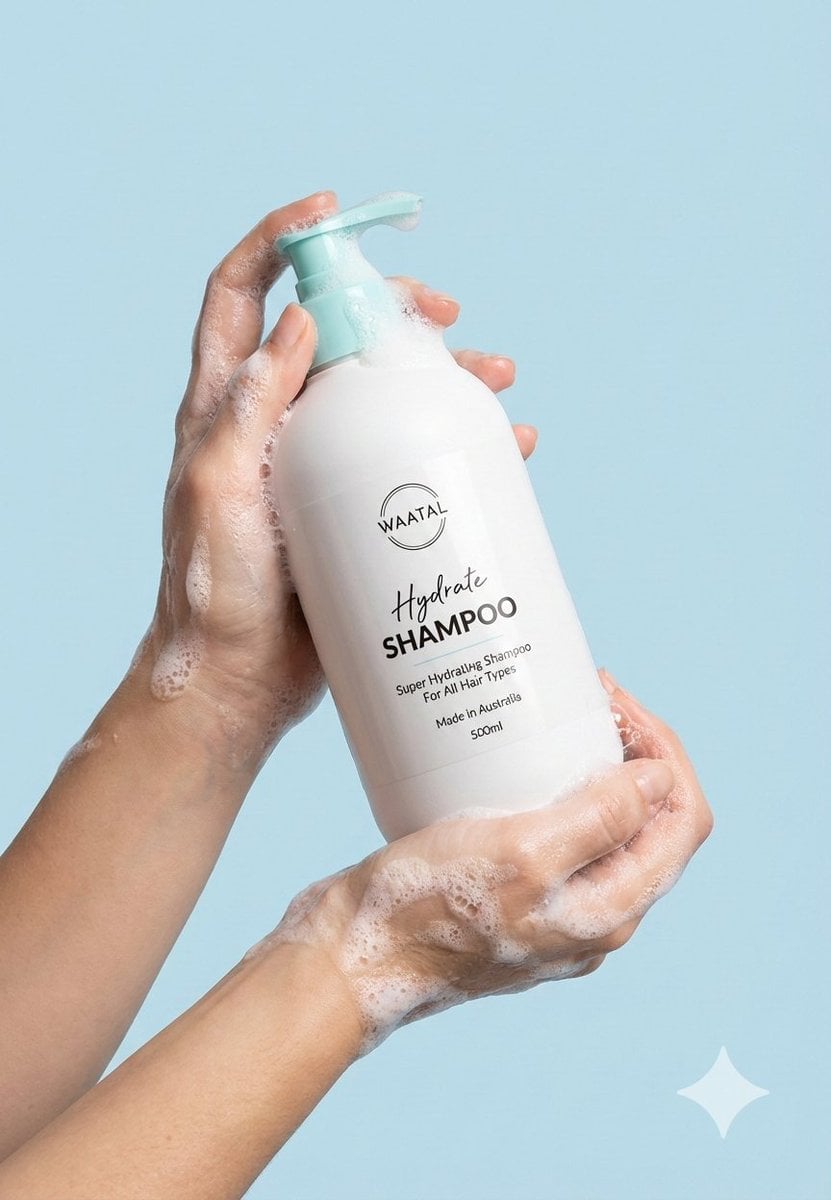
Product & Brand Prompt #953
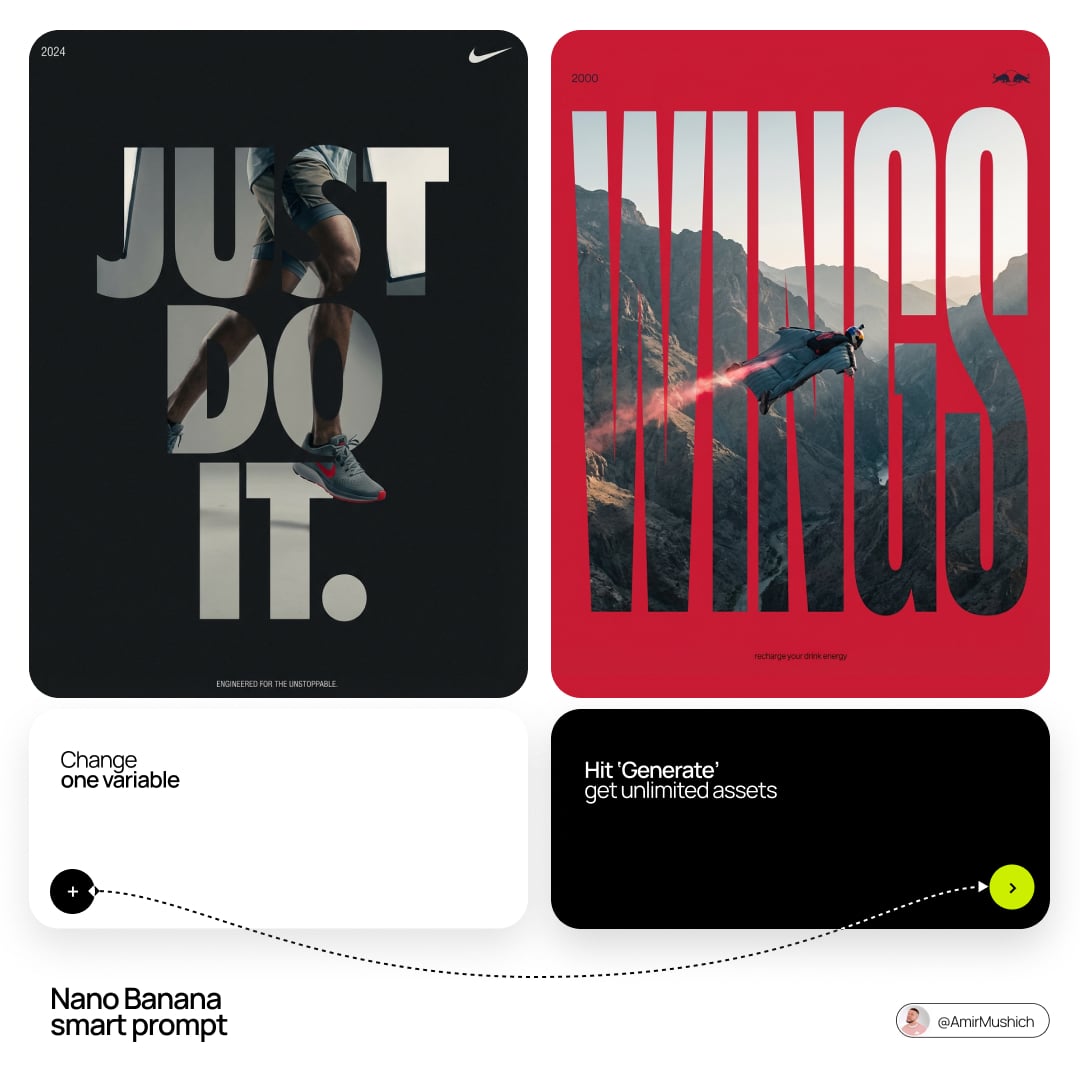
Act as a Senior Editorial Designer and Typographer
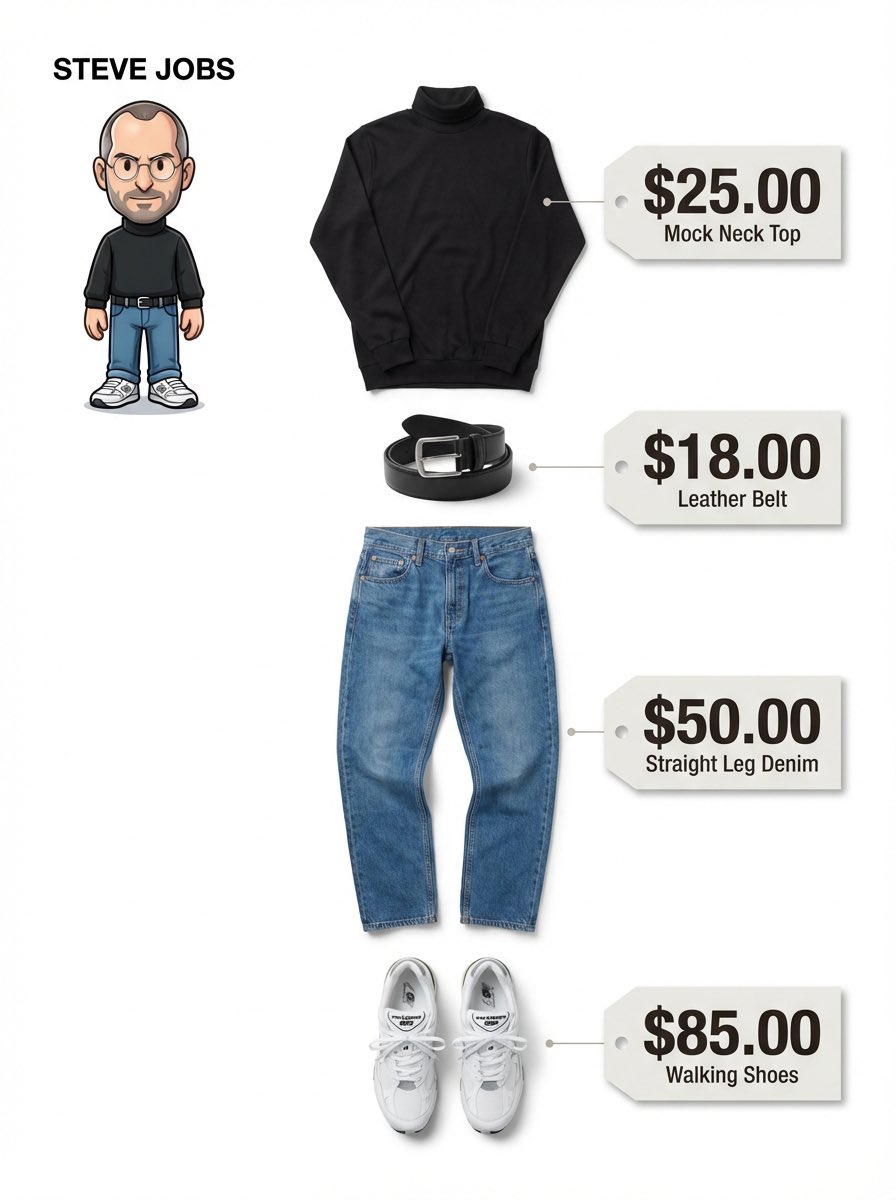
Clean, minimalist fashion infographic from an uploaded reference photo
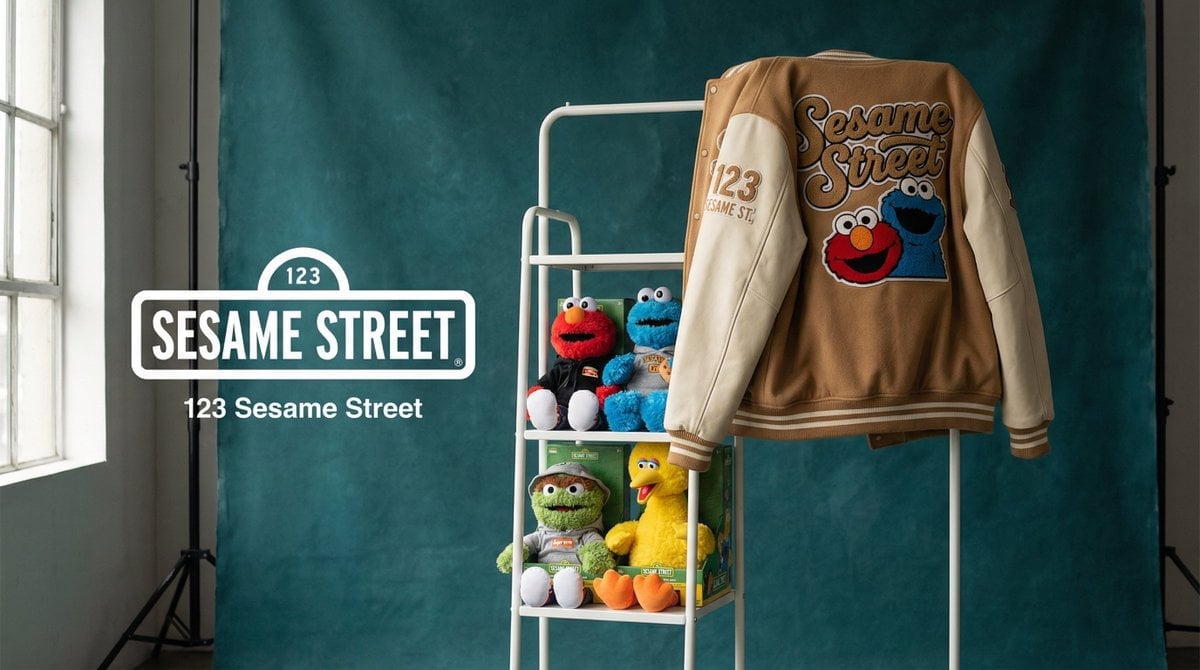
Photograph announcing a limited merchandise drop
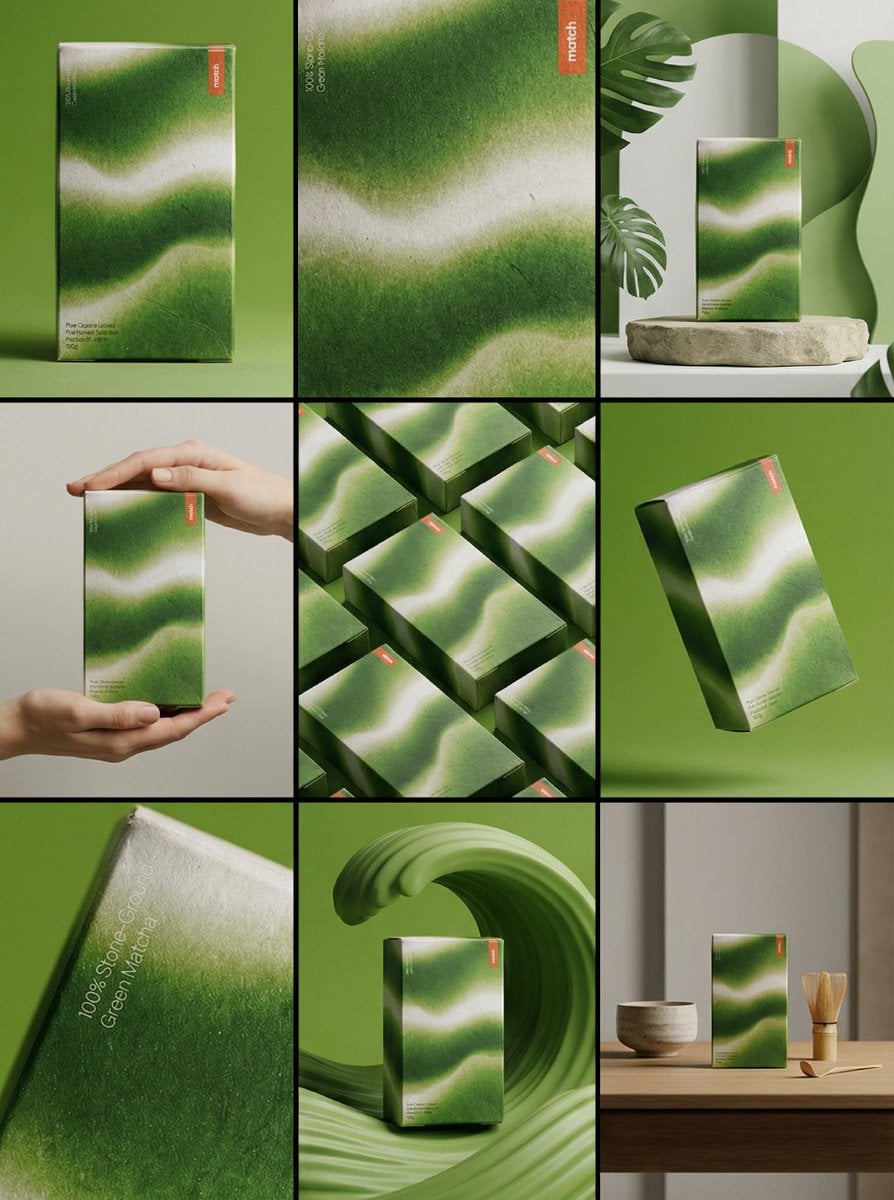
Product & Brand Prompt #341
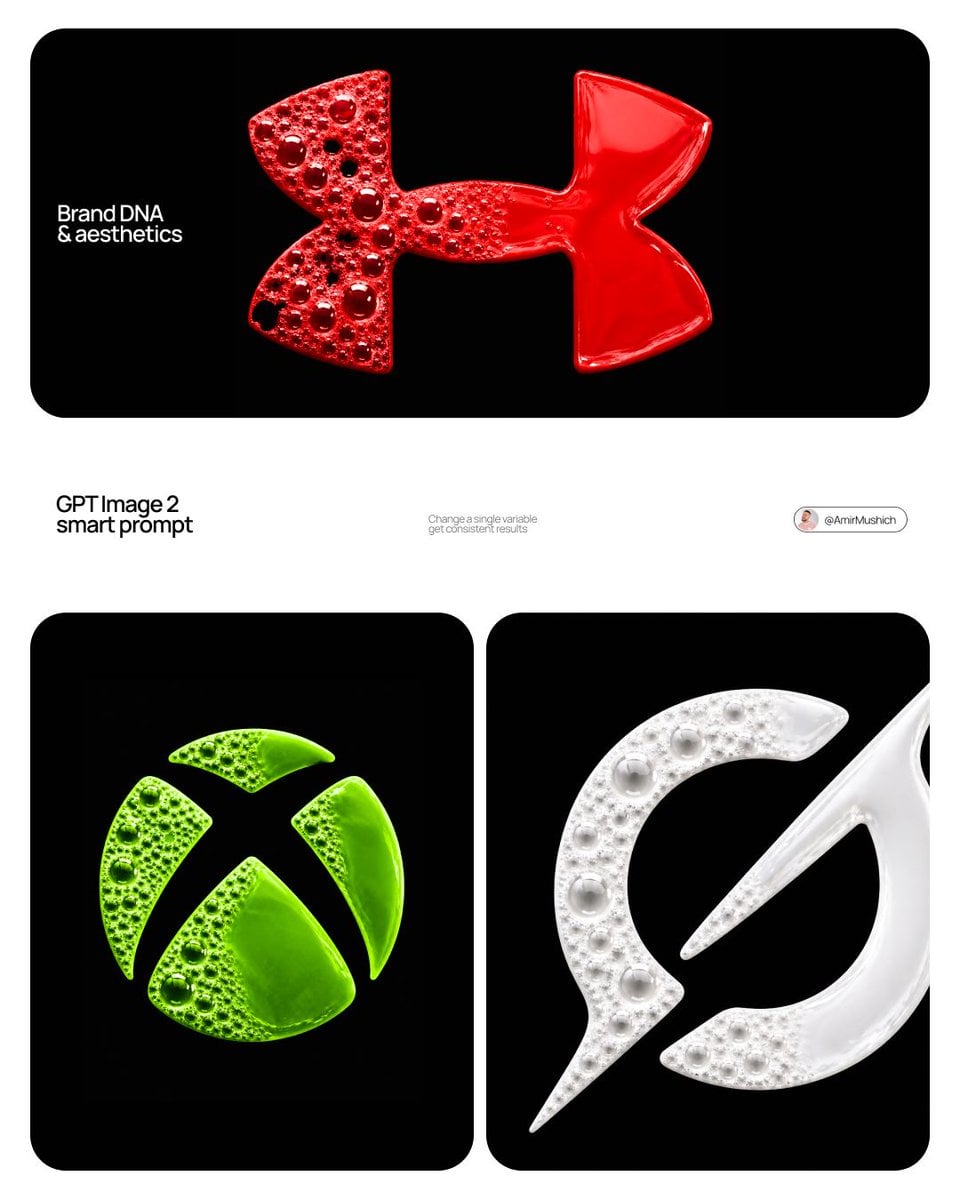
Product & Brand Prompt #230
Make it yours
Aesthetic and fill the negative space works as-is. These are the safest ways to change it without losing the look.
Change one field
Copy a single group, rewrite it, and generate again so you can see what that field is doing.
Keep the frame, change the subject
Hold the composition and light of Aesthetic and fill the negative space, then swap wardrobe, props or the person for a new take.
| If the result… | Why | Fix |
|---|---|---|
| The result drifts from the preview | Too many fields changed at once. | Reuse Aesthetic and fill the negative space as-is first, then change one group — subject, light, or setting. |
| The model over-stylizes the scene | The prose prompt leaves finish and camera underspecified. | Add one camera or lighting sentence and stay on Nano Banana 2. |
More Nano Banana 2 templates
Other prompts made for Nano Banana 2.

Photorealistic Leaf Shaped Like a Dragon

K-Pop Idol Portrait Grid for Rapid Selection

Poetic Rain Forest Portrait During Golden Hour

Urban Street Portrait with Cartoon Inner Self Duo

Candid Nighttime Photo with Cat Prompt

High-Concept 3D Diorama Generation Prompt

Cinematic Futuristic Studio Portrait Template

Skincare Editorial Photography Collage Prompt

Hyper-Realistic Commercial Product Photography (Splash Effect)

Hyper-Realistic Nightclub Portrait Prompt
More image prompts
Fresh picks from across the catalog.
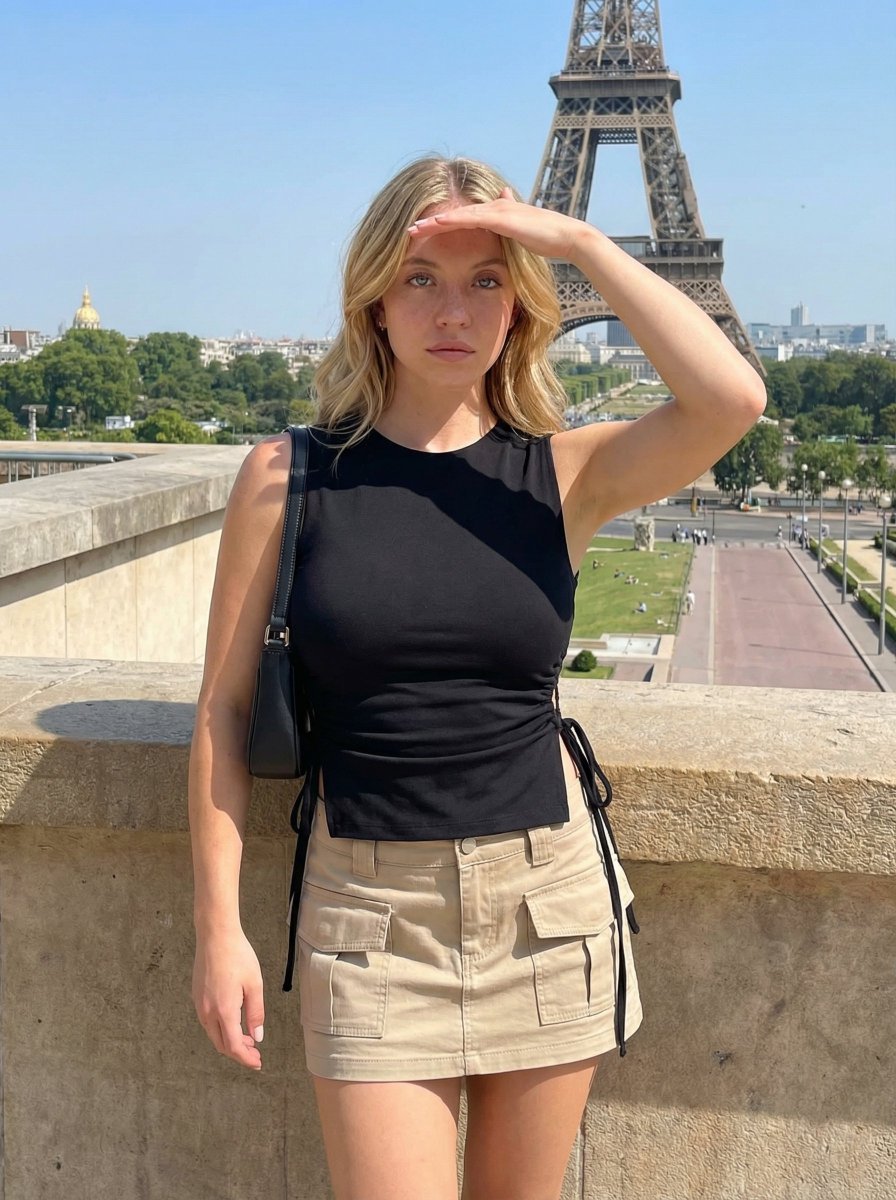
Travel Candid of Woman Shielding Eyes near Eiffel Tower
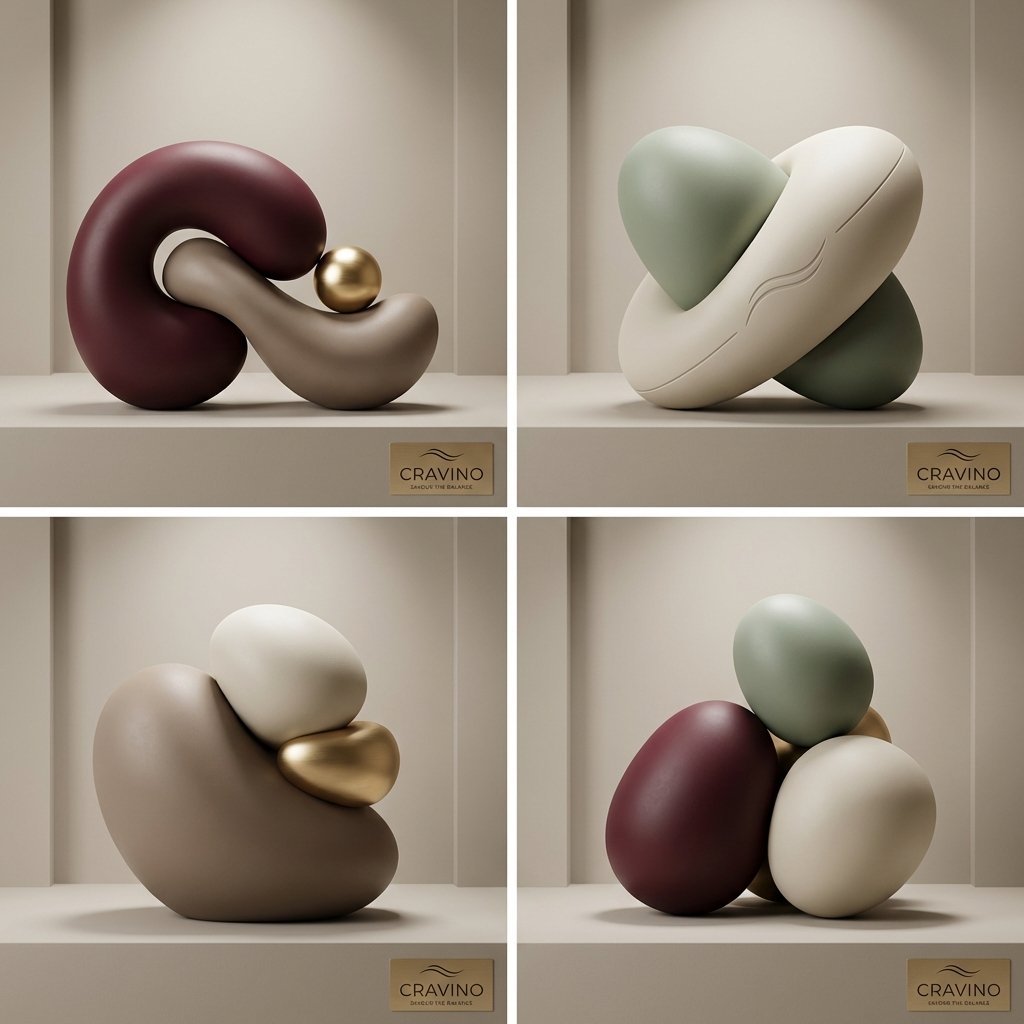
Ultra-high-end Abstract Composition
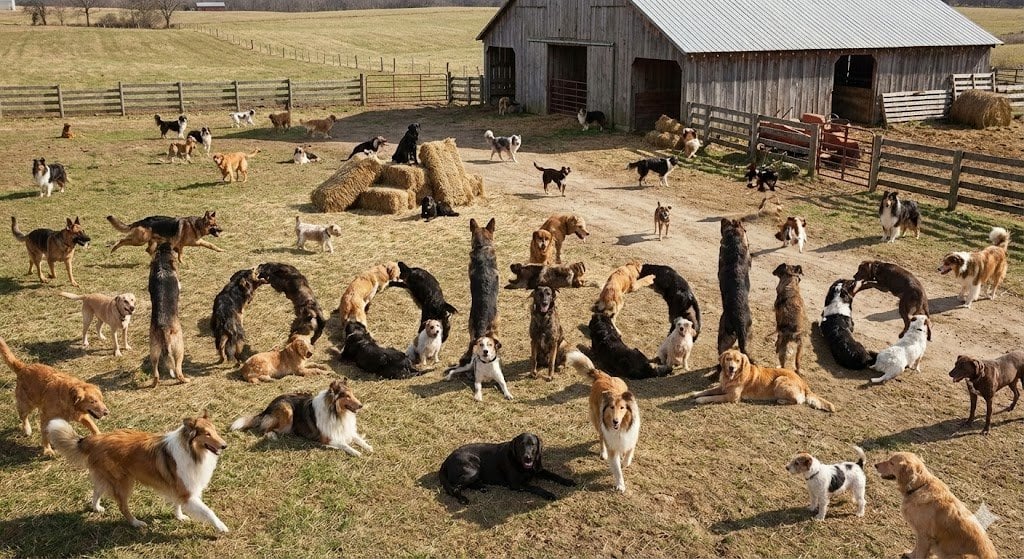
Hidden Word Embedding Prompt
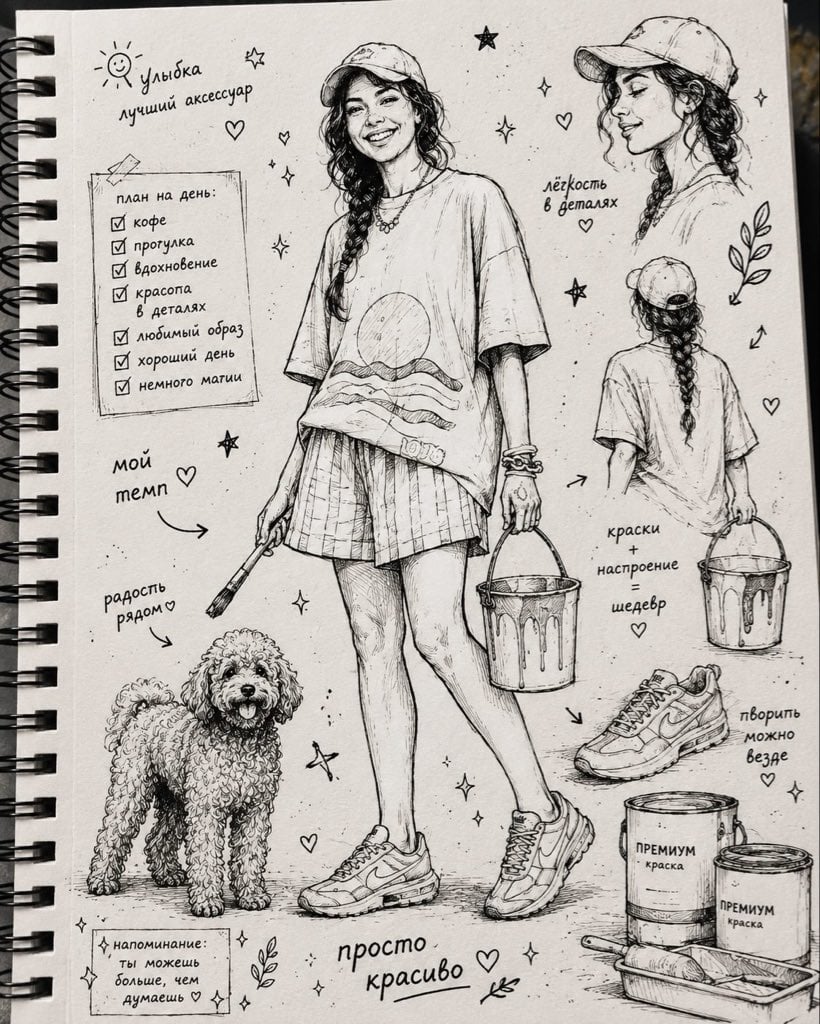
Ink Sketchbook Zine Illustration
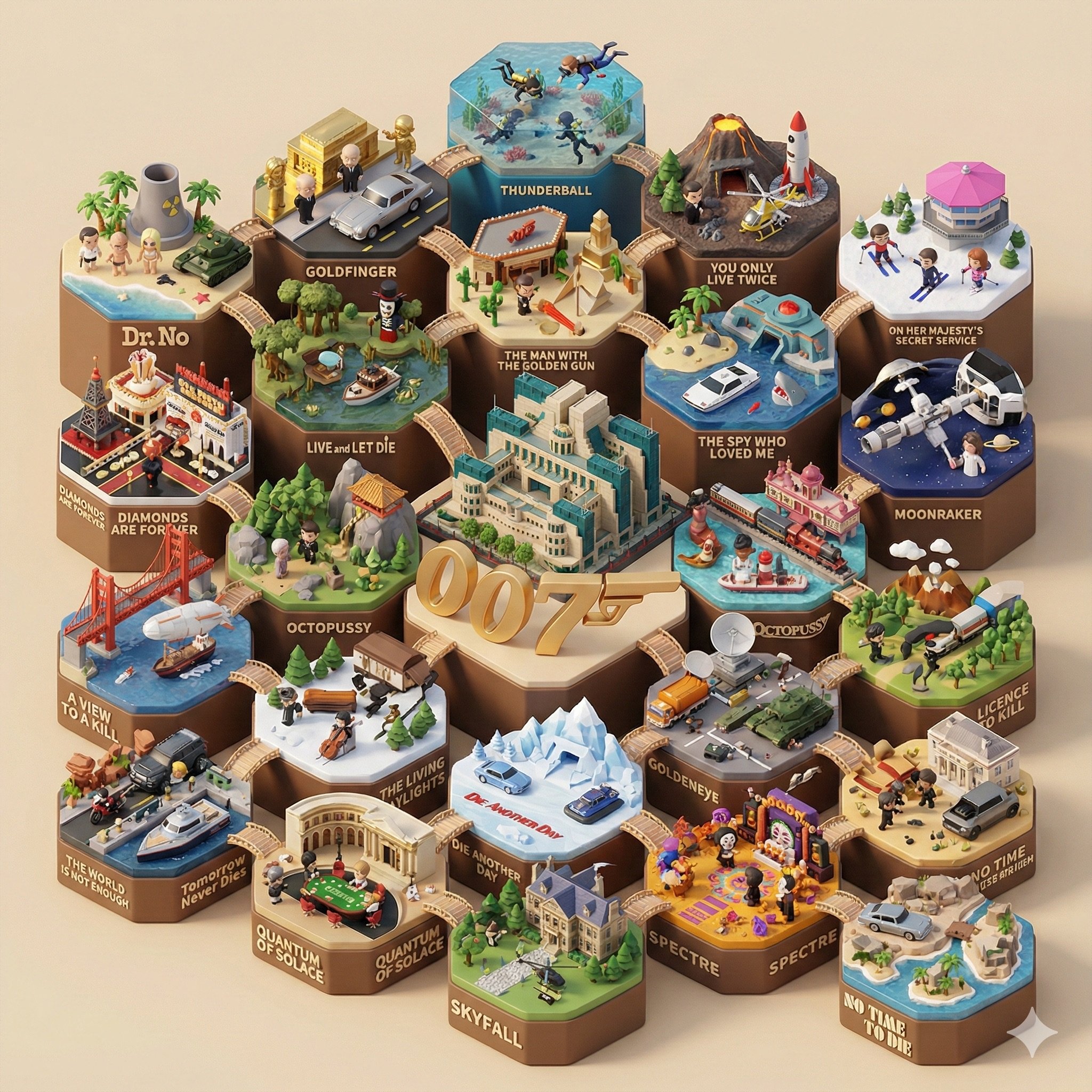
Create a 3D-styled cinematic scene

3D Dance Game Screen Prompt for Nano Banana Pro
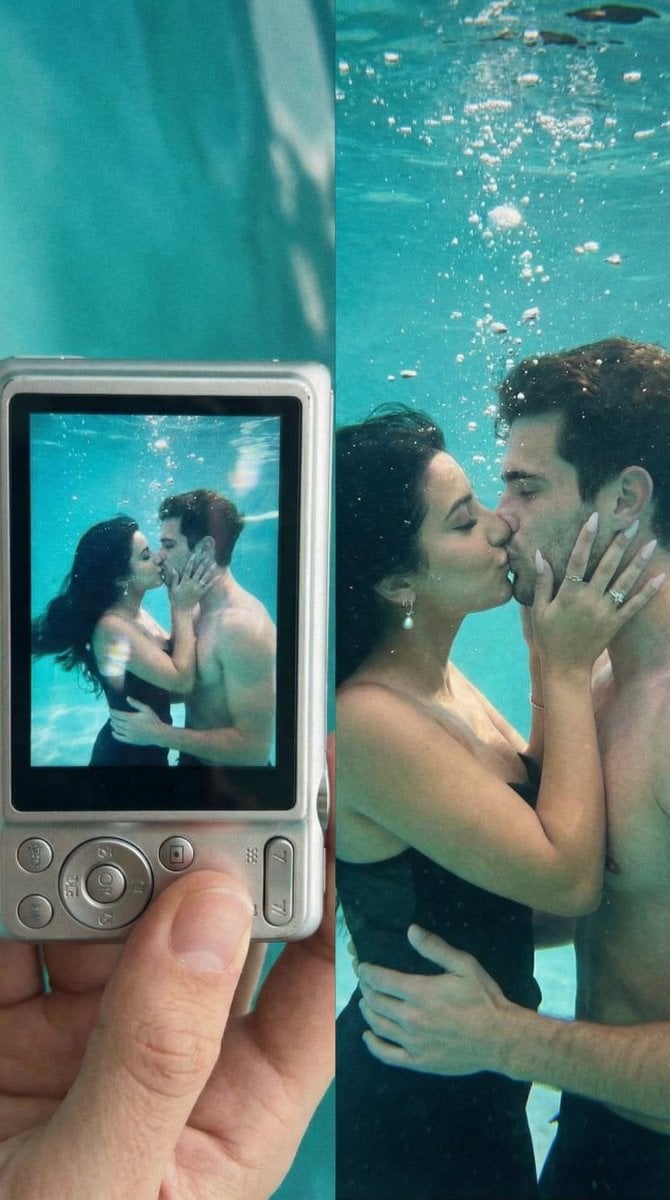
Underwater Kiss Diptych with Digital Camera Screen
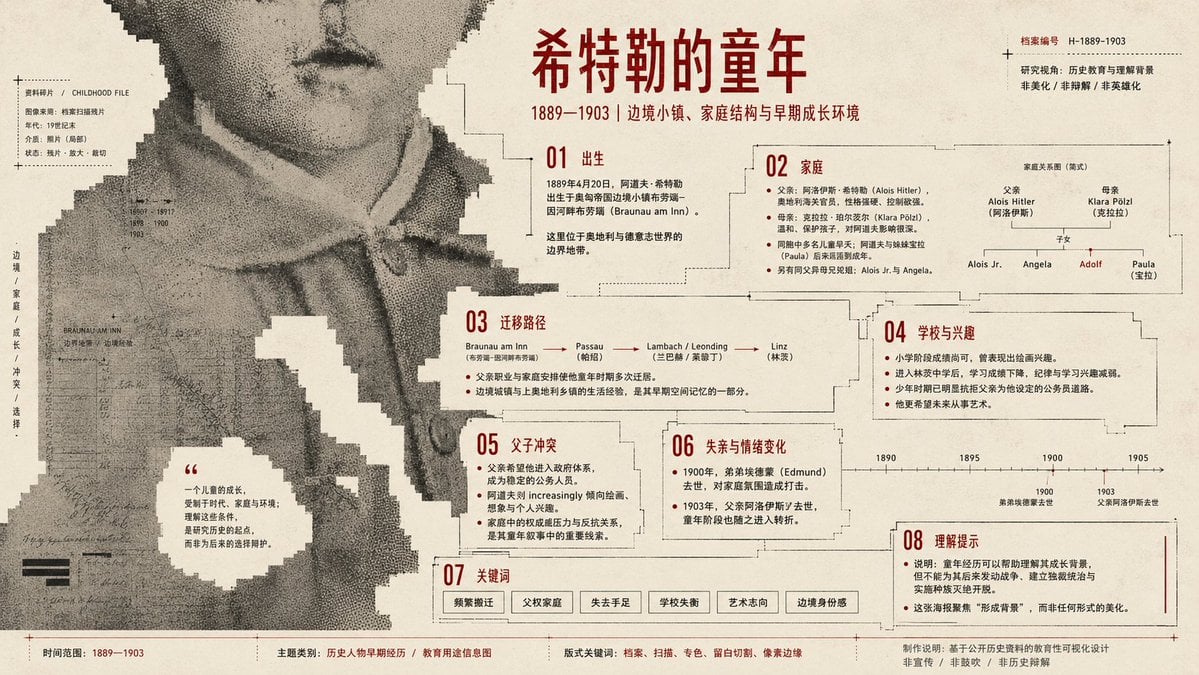
Pixel Glitch Structural Infographic Poster

Macro Food Photography of Martabak Telur Prompt
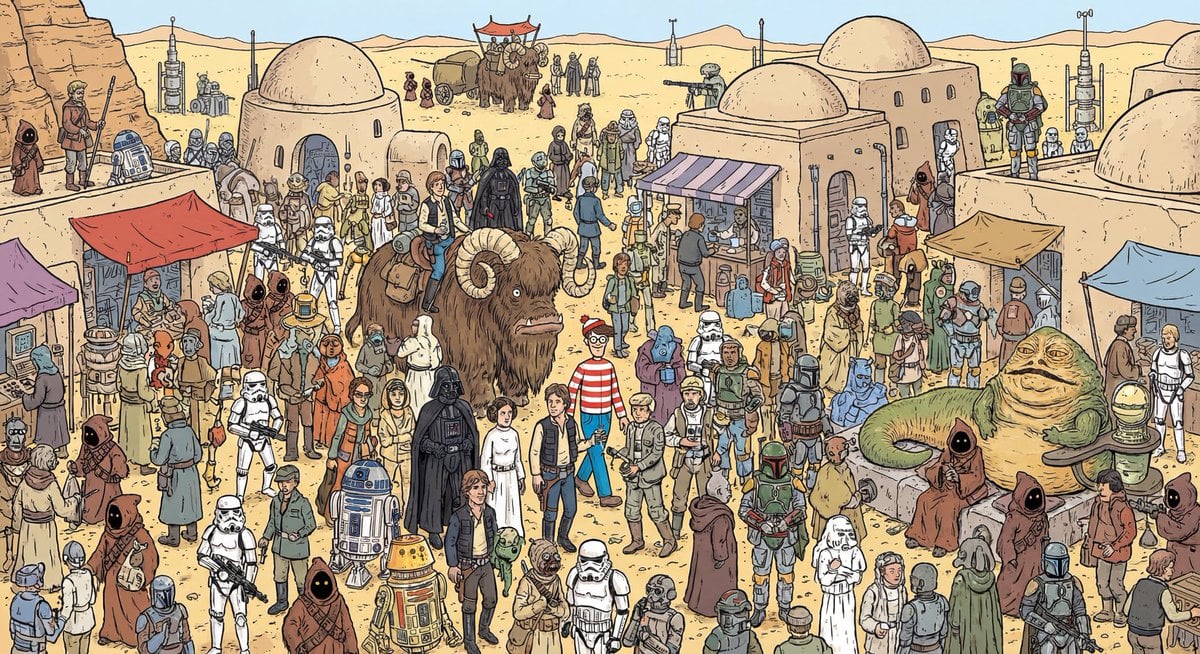
Where’s Waldo Star Wars scene
Browse template categories
Aesthetic and fill the negative space questions
How do I use the Aesthetic and fill the negative space template?
Add your photo if the template asks for one, edit the prompt if you like — the template's model and format are already selected — and press Generate. Your version opens in PicX Studio.
Can I customize the Aesthetic and fill the negative space template?
Yes. You can change the subject, setting, lighting, mood, format, and available model controls before creating your image.
Is the Aesthetic and fill the negative space template free?
Opening and editing this template is free. Generating uses credits, shown on the Generate button when you are signed in.
Which AI model should I use?
Start with Nano Banana 2, which is the model associated with this template. You can compare another compatible model for a different finish.
Looking for something else? Browse all templates.

Your photo, any look
Thousands of ready templates for every top image and video model, from one credit balance.