
Hyper-Realistic Tom & Jerry Interaction Portrait
A JSON prompt for generating a hyper-realistic image where a person, whose identity is preserved, is posing with giant 3D photorealistic versions of Tom and Jerry, set against a clean grey-blue backdrop.
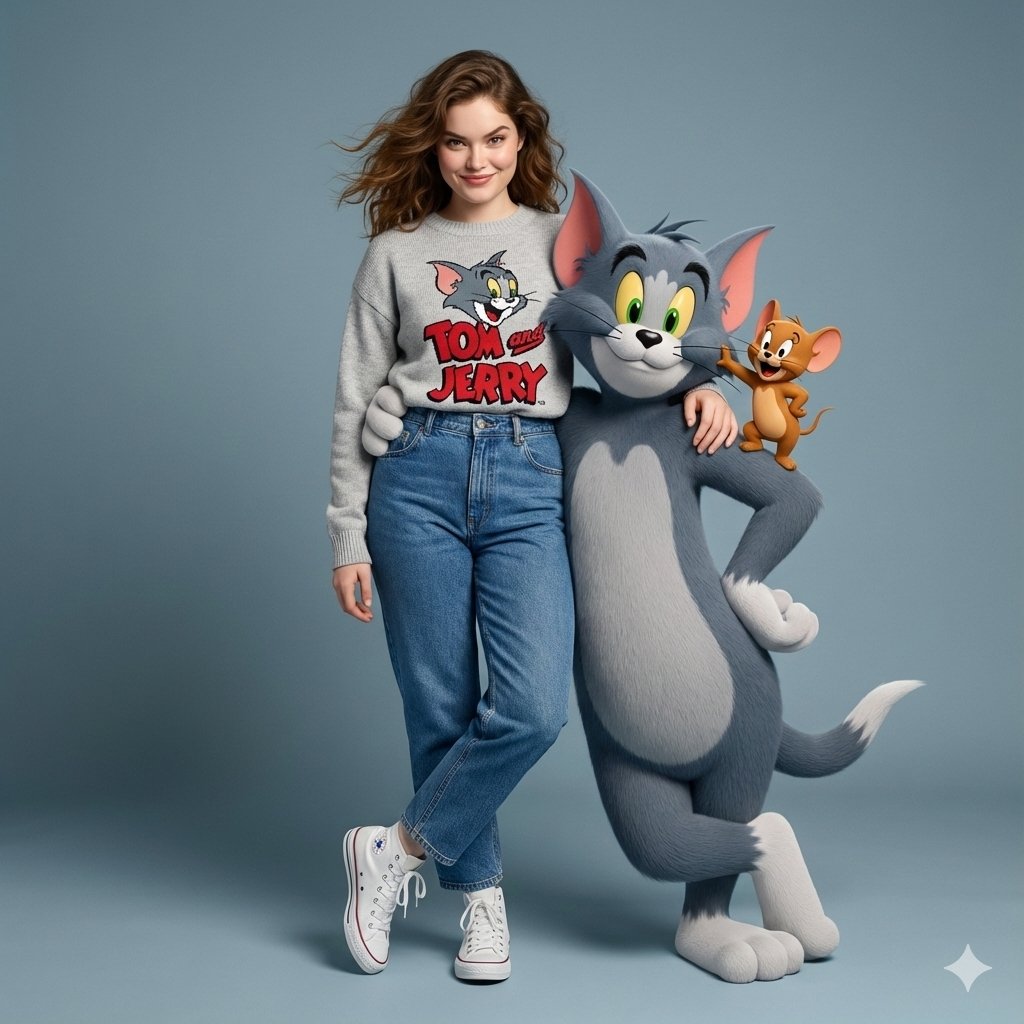
- Prompt included
- Model and format preset
- Premium template
The prompt behind this image
Copy the exact prompt behind Hyper-Realistic Tom & Jerry Interaction Portrait, or open it in the studio and make it yours.
"image_generation":( "quality": "hyper-realistic", "face": ("preserve_original": true, "reference_match'": true), "subject":{ "description": "A stylish person with the same face.", “clothing":{ "Top": ("type": "knitted sweater", "color": "{argument name="sweater color" default="light grey (Tom Theme)"}". } "pants": ("type": "high-waisted jeans", "color": "denim blue". "shoes":("type": "high-top sneakers", "color": "white") "pose": "standing with arm around a giant 3D Tom while Jerry\nsits on Tom's shoulder", "expression": "fun, mischievous" "character_element":{ "name": "Tom & Jerry", "type': "3D photorealistic duo", "interaction': "Tom poses confidently, Jerry looks playful" "environment-( "background'. (clean grey-blue backdrop"} }
How to use Hyper-Realistic Tom & Jerry Interaction Portrait in 3 steps
- 1
Open
The prompt is already in the box next to the preview, with the template's model and format selected.
- 2…a portrait of your subject in softgolden-hour light, 85mm…
Personalize
Edit the subject and creative details for your destination.
- 3Generate
Generate
Press Generate — your image is created in PicX Studio, so you can compare it with the original and refine one variable at a time.
More like this
Templates with the same subject, style or setup. Open one to see its prompt.
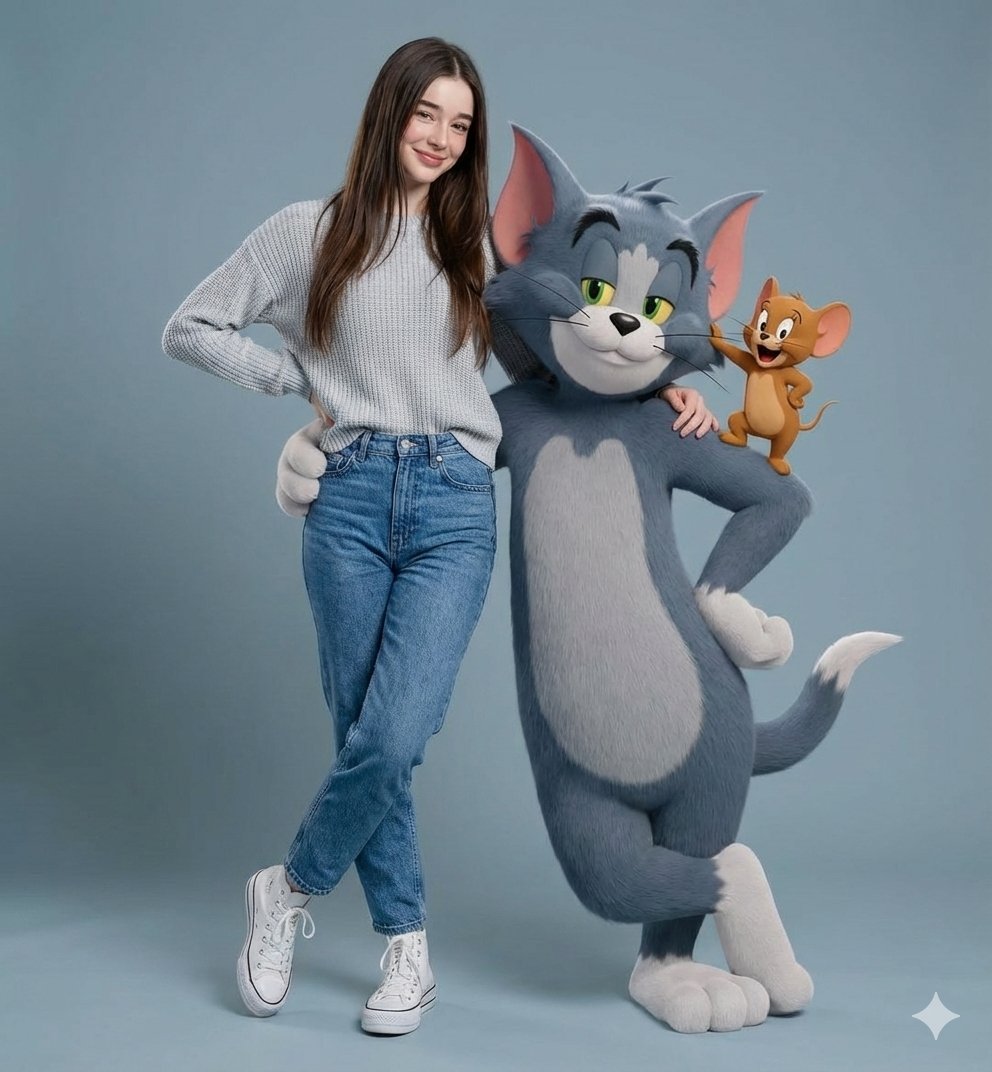
Hyper-realistic Portrait with Tom & Jerry 3D Characters
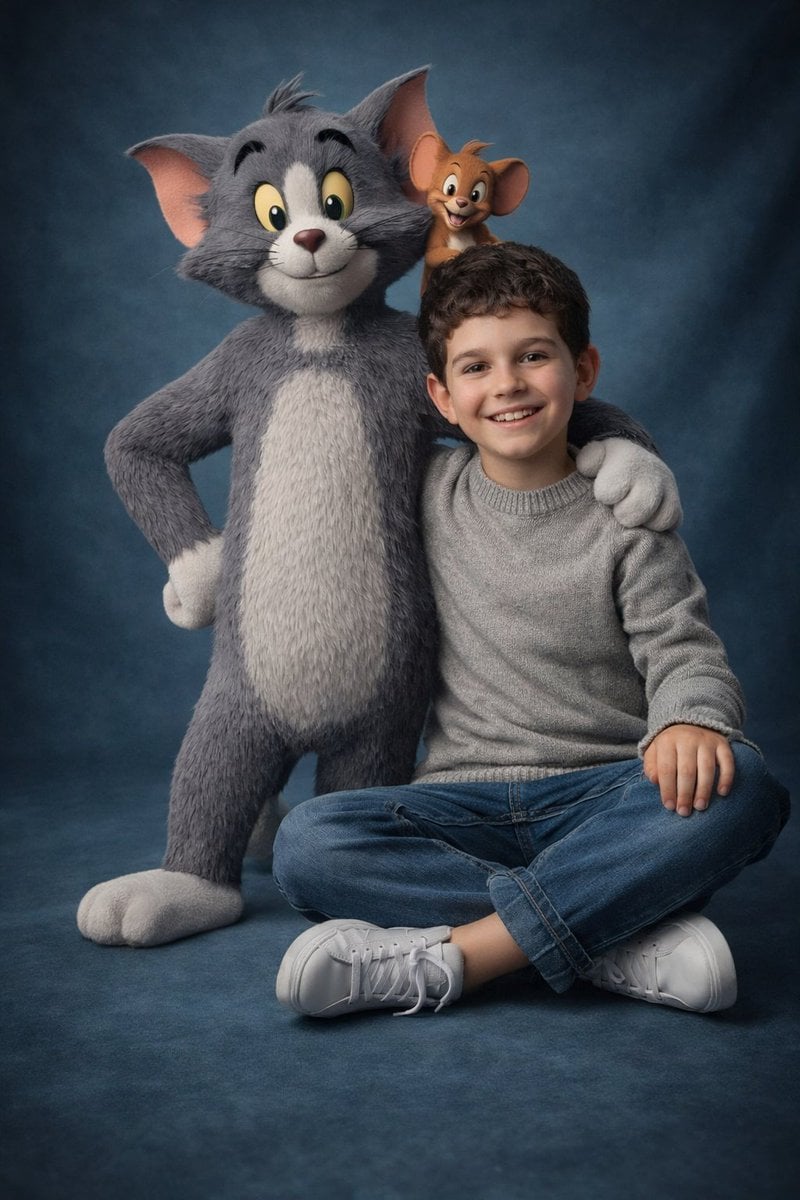
Ultra-Realistic 3D Cinematic Portrait with Tom and Jerry
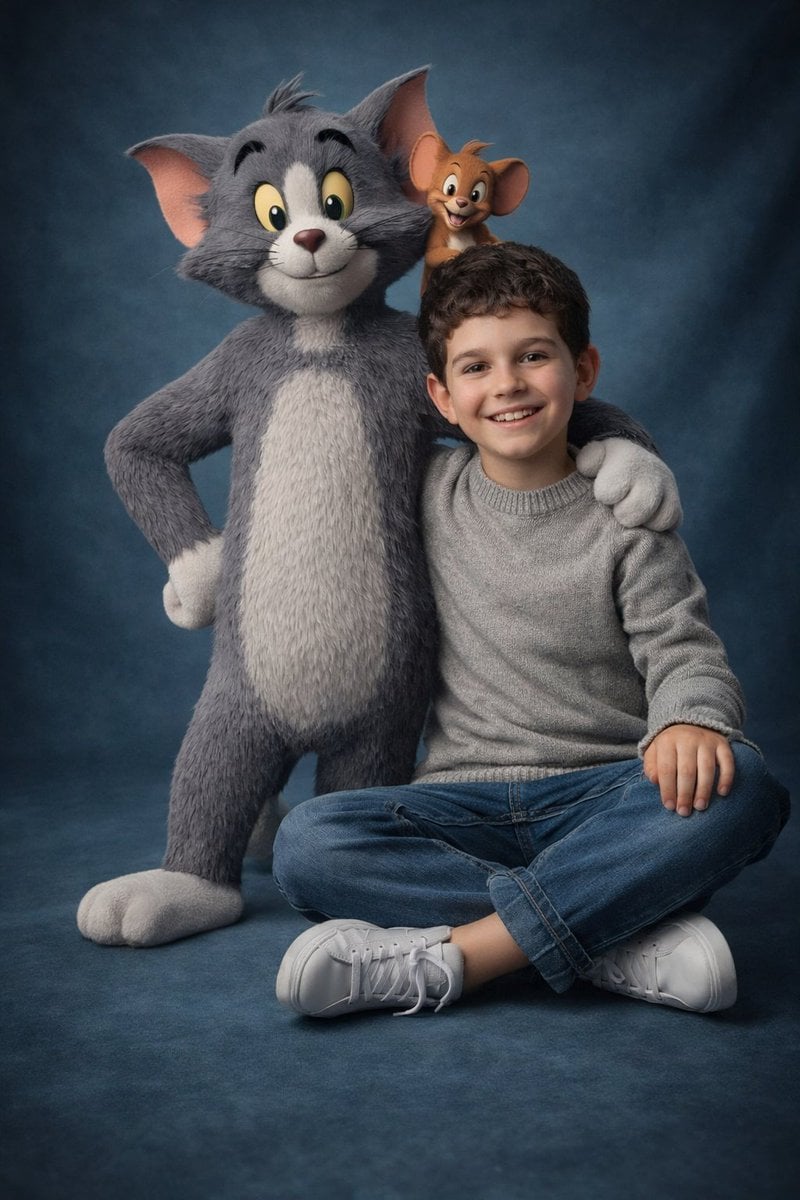
Ultra-Realistic 3D Cinematic Portrait of Boy with Tom and Jerry

Found Photograph: Us, 1970

80s Couple Studio Portrait
80s Bollywood Star
80s Golden Hour Cinema
Me in 1985
1985 Studio Portrait

Hyper-Realistic Minecraft POV Portrait
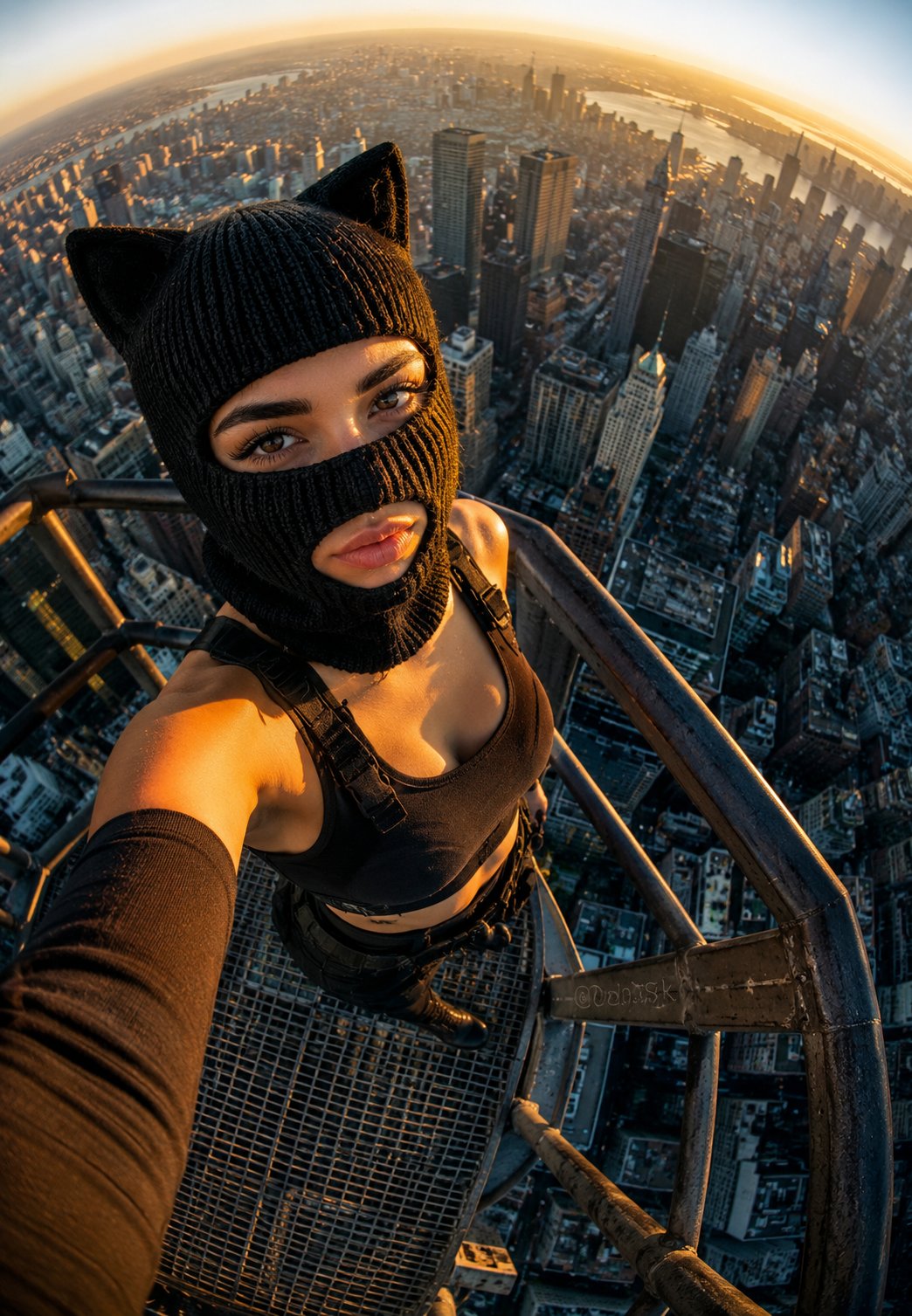
Rooftop Fisheye — Cat-Ear Balaclava at Golden Hour
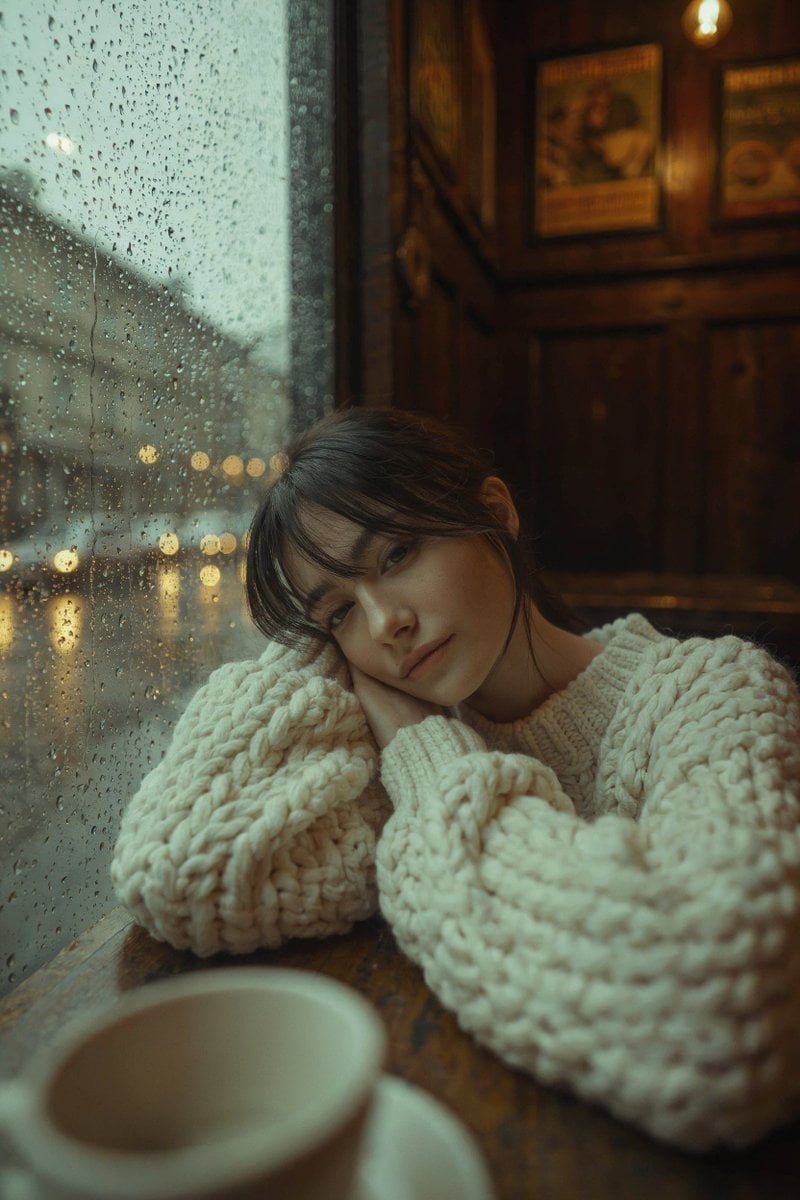
Rainy Café Window Moody Portrait
Make it yours
Hyper-Realistic Tom & Jerry Interaction Portrait works as-is. These are the safest ways to change it without losing the look.
Change one field
Copy a single group, rewrite it, and generate again so you can see what that field is doing.
Keep the frame, change the subject
Hold the composition and light of Hyper-Realistic Tom & Jerry Interaction Portrait, then swap wardrobe, props or the person for a new take.
| If the result… | Why | Fix |
|---|---|---|
| The result drifts from the preview | Too many fields changed at once. | Reuse Hyper-Realistic Tom & Jerry Interaction Portrait as-is first, then change one group — subject, light, or setting. |
| The model over-stylizes the scene | The prose prompt leaves finish and camera underspecified. | Add one camera or lighting sentence and stay on Nano Banana 2. |
More Nano Banana 2 templates
Other prompts made for Nano Banana 2.

Photorealistic Leaf Shaped Like a Dragon

K-Pop Idol Portrait Grid for Rapid Selection

Poetic Rain Forest Portrait During Golden Hour

Urban Street Portrait with Cartoon Inner Self Duo

Candid Nighttime Photo with Cat Prompt

High-Concept 3D Diorama Generation Prompt

Cinematic Futuristic Studio Portrait Template

Skincare Editorial Photography Collage Prompt

Hyper-Realistic Commercial Product Photography (Splash Effect)

Hyper-Realistic Nightclub Portrait Prompt
More image prompts
Fresh picks from across the catalog.
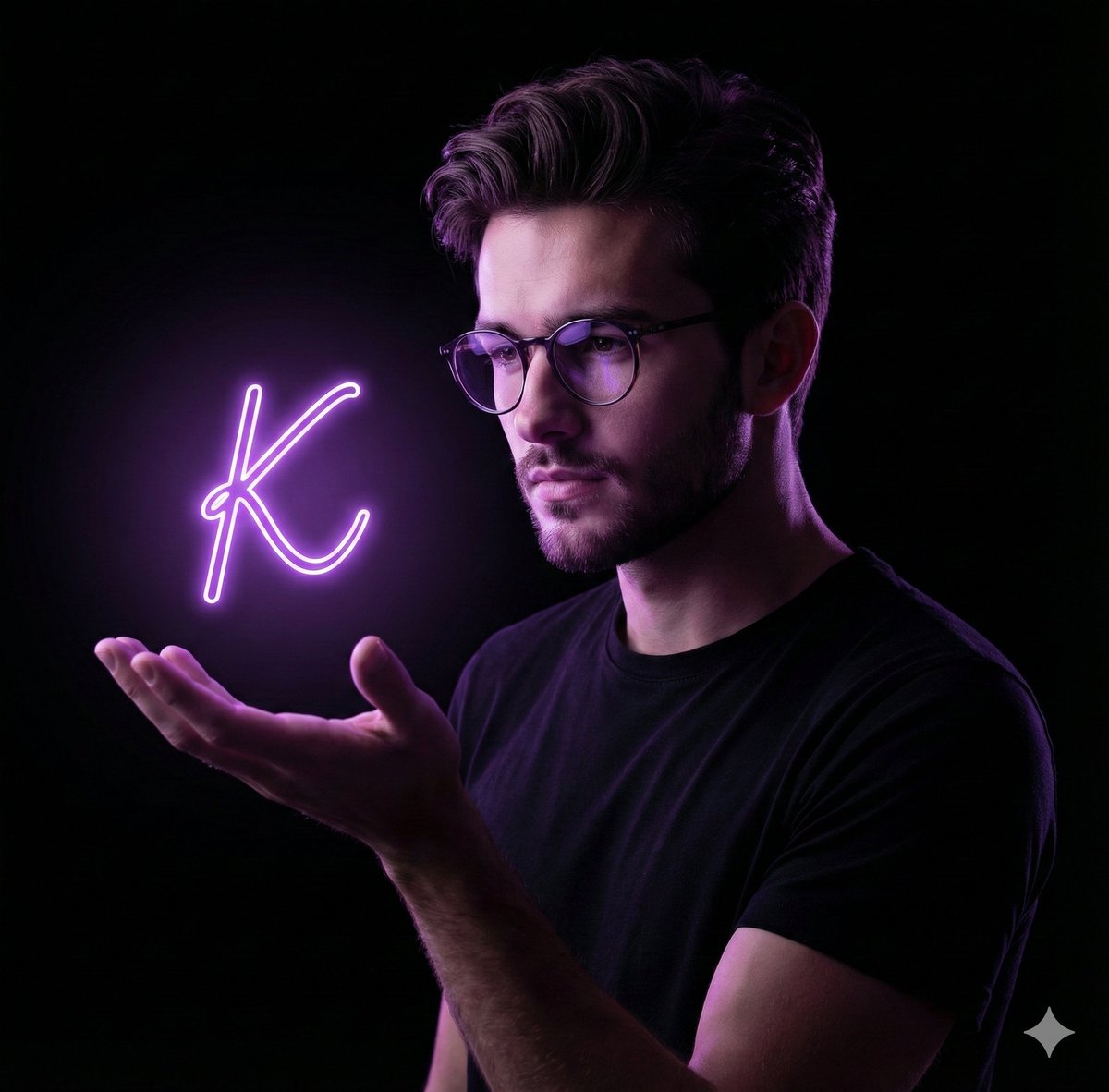
Dramatic Neon Hand-Lettering Portrait
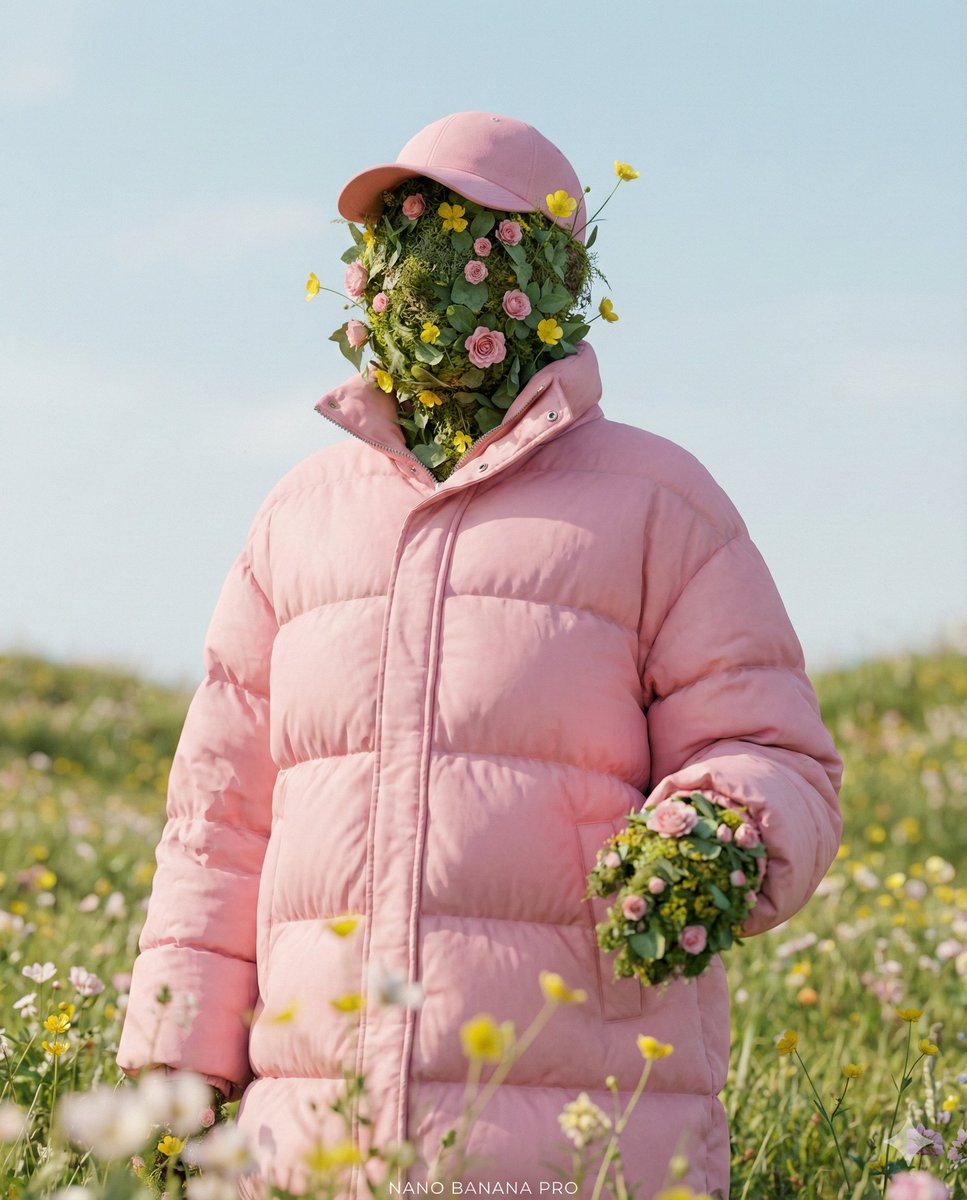
Ultra-Realistic Promotional Image Prompt
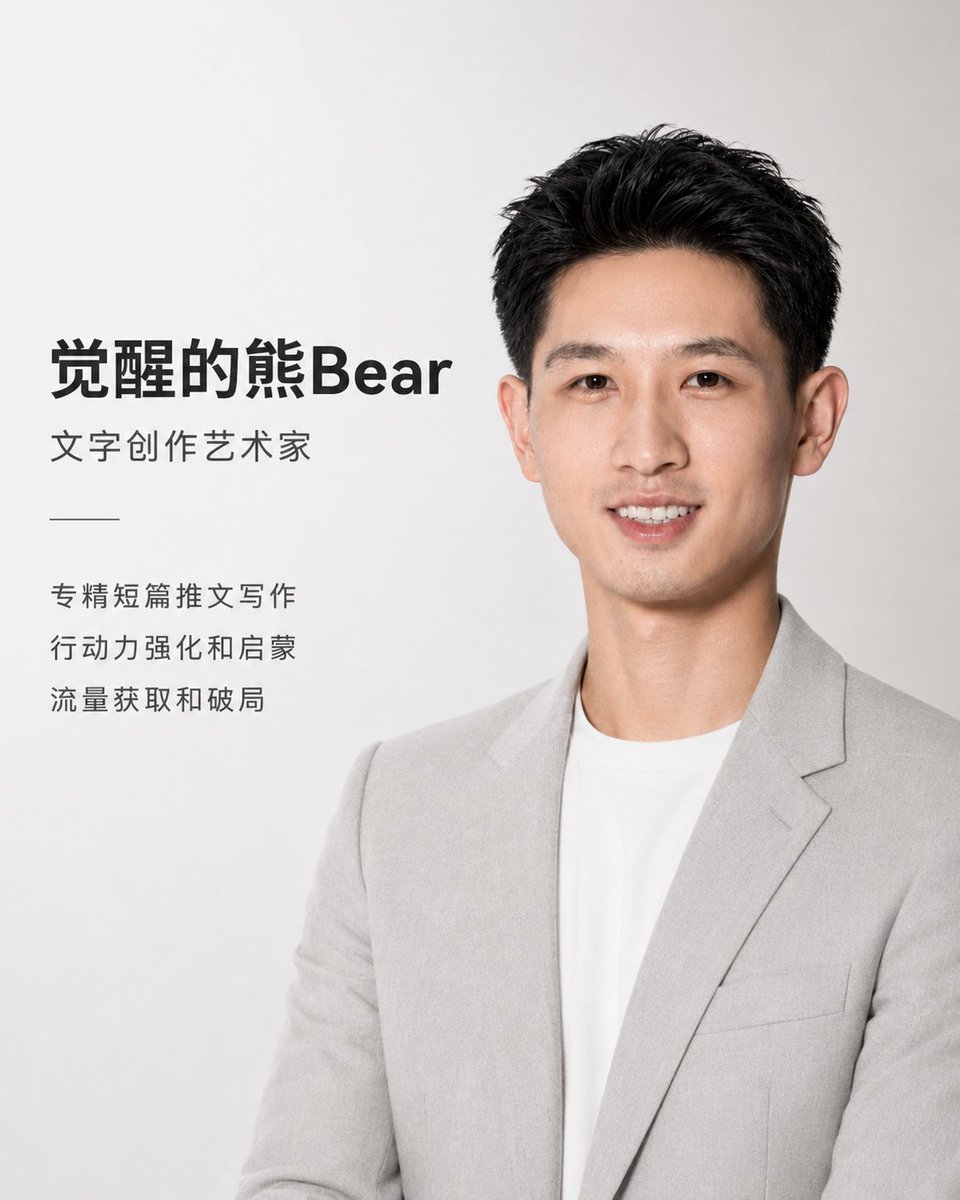
Apple Style Coach Branding Poster
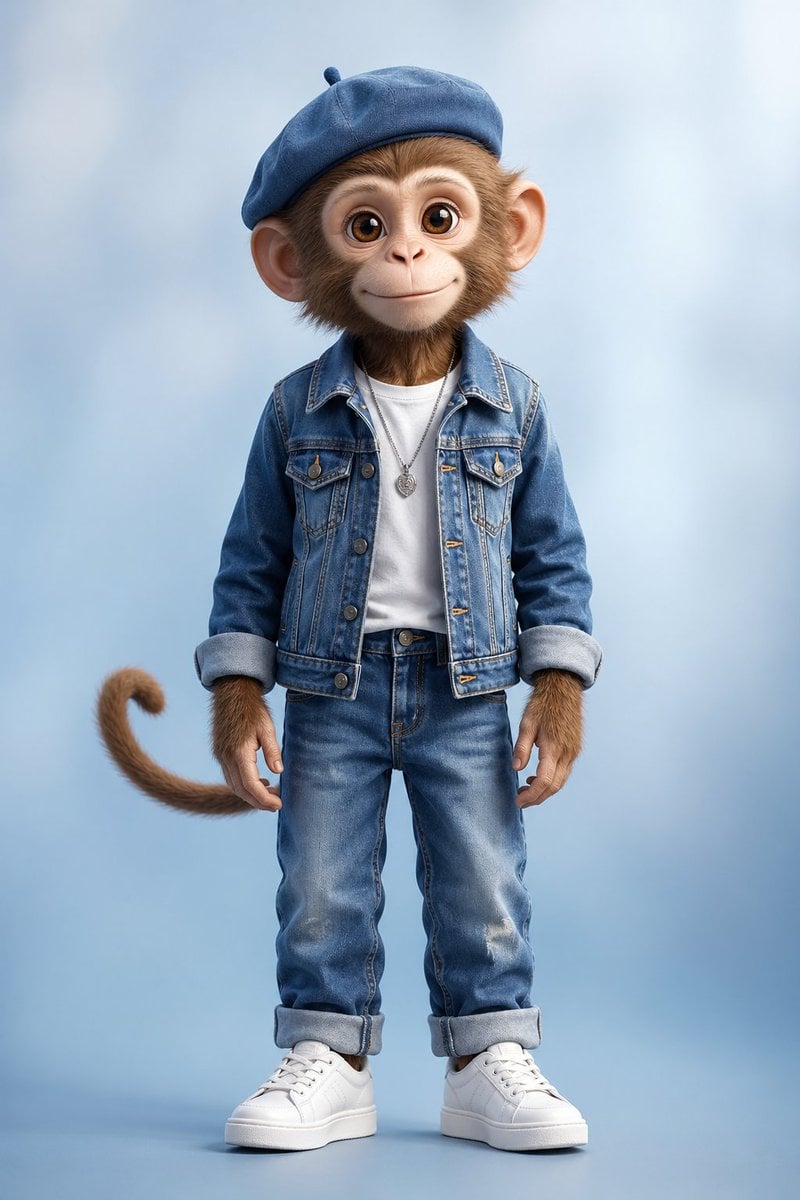
Censored Monkey Kid in Denim

Spotify Discovery UI Concept Poster

Close-Up Portrait with Facial Reference and Glasses

Visit Malaysia 2026 Travel Poster
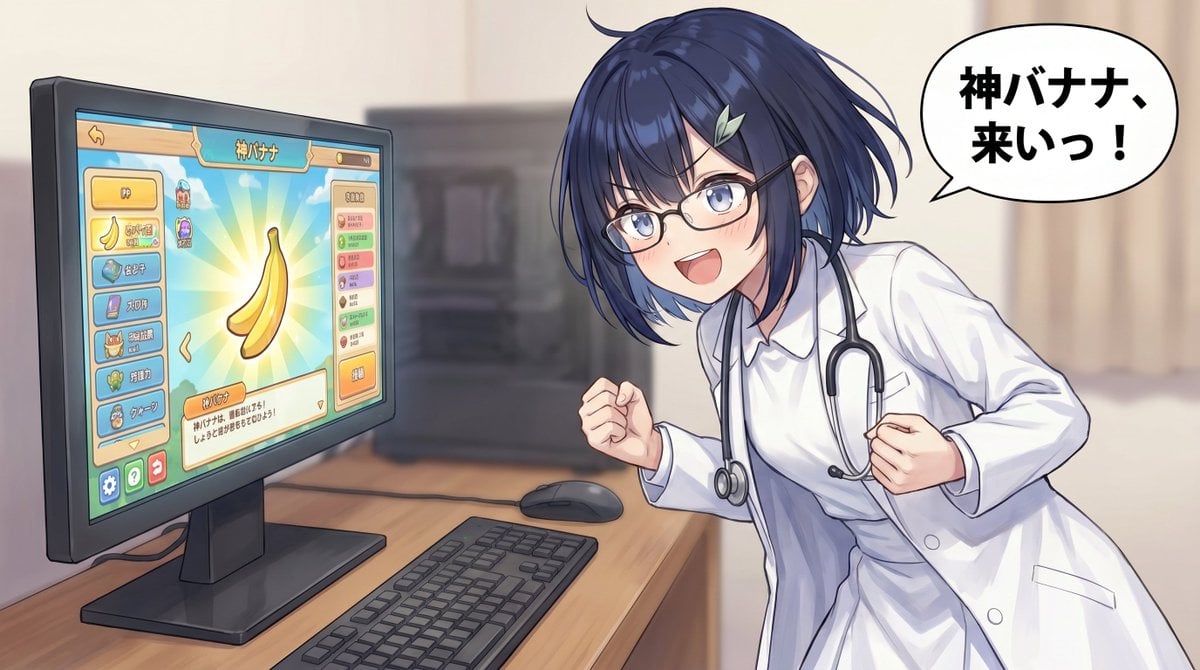
Anime Doctor Summoning Divine Banana
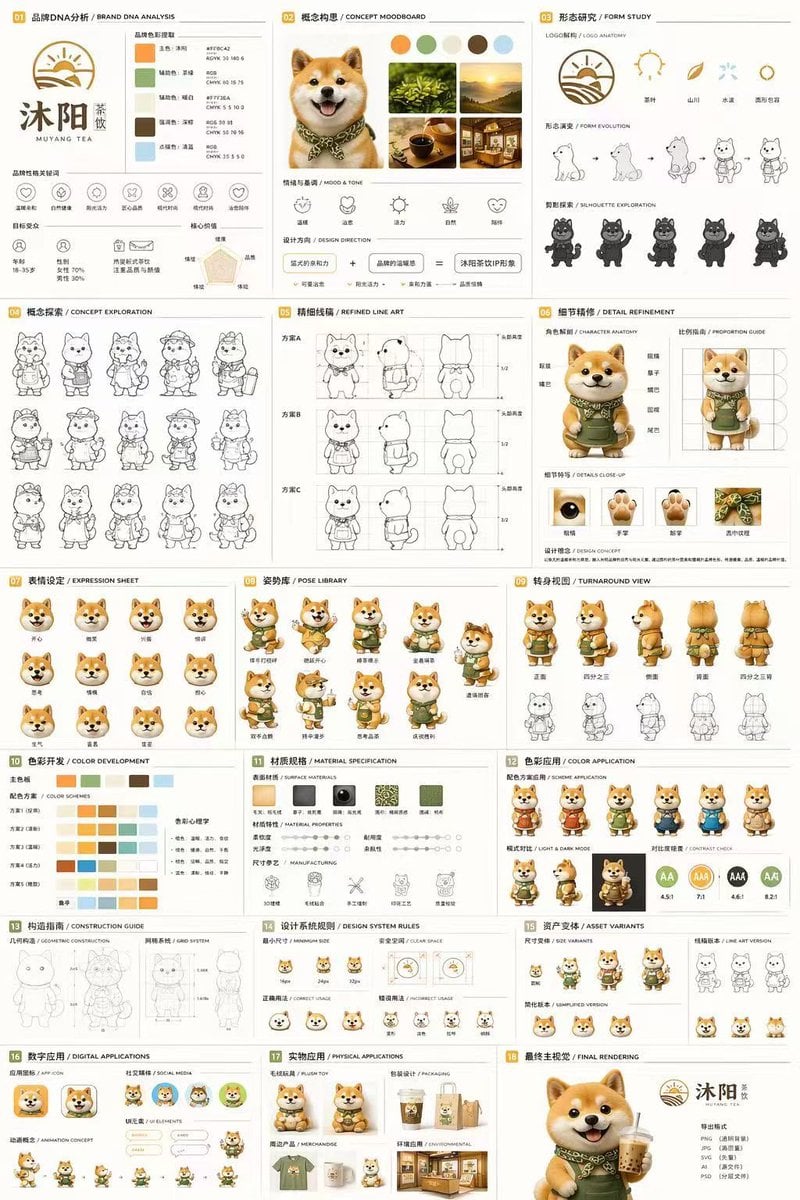
Panel Mascot Brand Identity Document
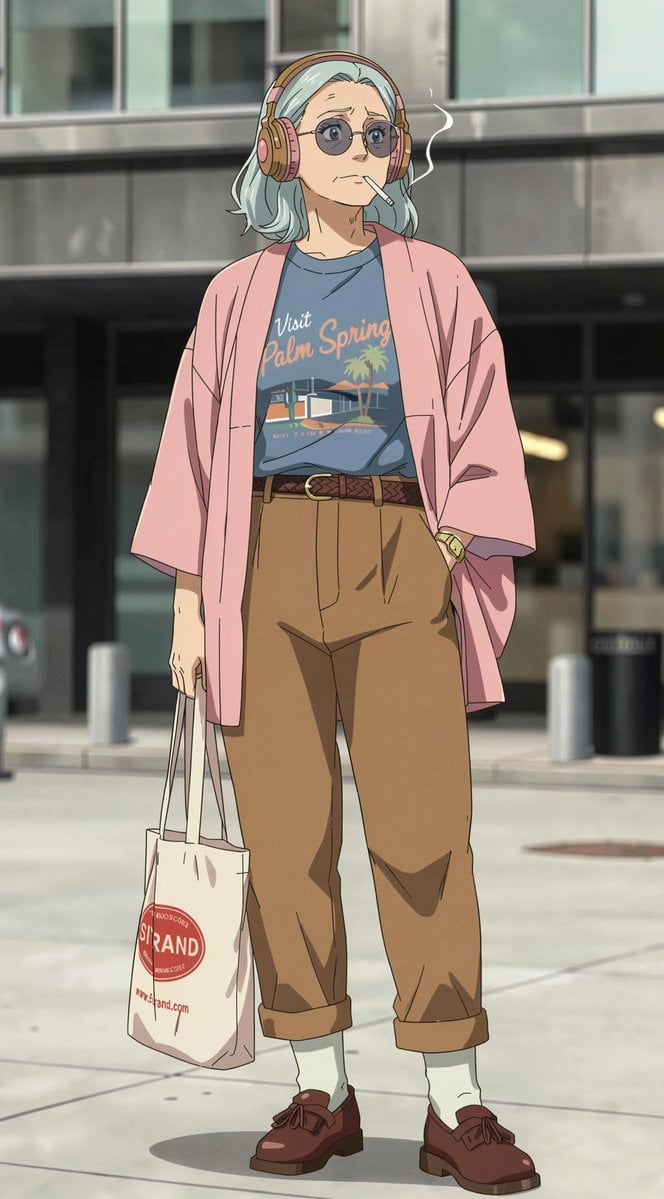
Anime Street Fashion Woman
Browse template categories
Hyper-Realistic Tom & Jerry Interaction Portrait questions
How do I use the Hyper-Realistic Tom & Jerry Interaction Portrait template?
Add your photo if the template asks for one, edit the prompt if you like — the template's model and format are already selected — and press Generate. Your version opens in PicX Studio.
Can I customize the Hyper-Realistic Tom & Jerry Interaction Portrait template?
Yes. You can change the subject, setting, lighting, mood, format, and available model controls before creating your image.
Is the Hyper-Realistic Tom & Jerry Interaction Portrait template free?
Opening and editing this template is free. Generating uses credits, shown on the Generate button when you are signed in.
Which AI model should I use?
Start with Nano Banana 2, which is the model associated with this template. You can compare another compatible model for a different finish.
Looking for something else? Browse all templates.

Your photo, any look
Thousands of ready templates for every top image and video model, from one credit balance.