
Image-to-Watercolor Illustration Prompt
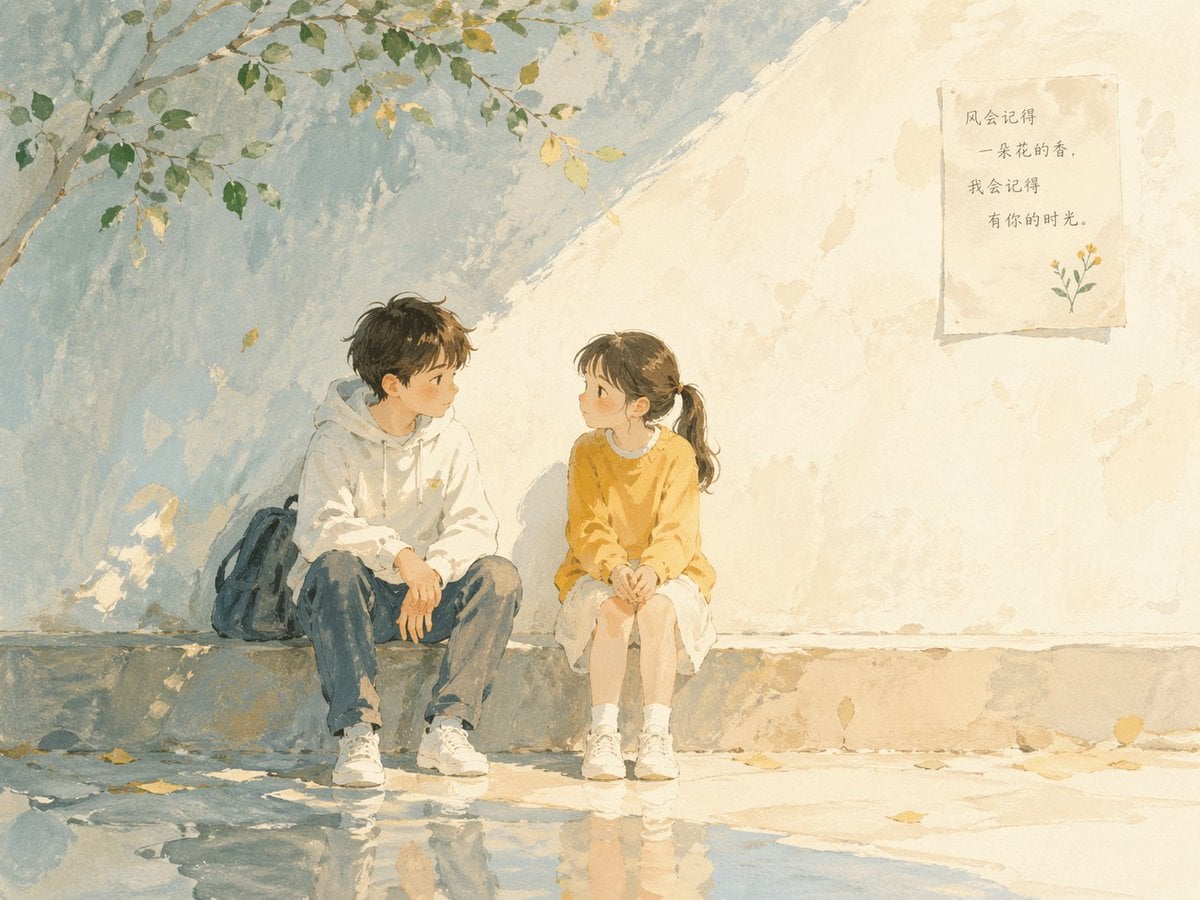
A prompt designed for image-to-image transformation, instructing the model to convert an uploaded photograph into a stylized watercolor illustration.
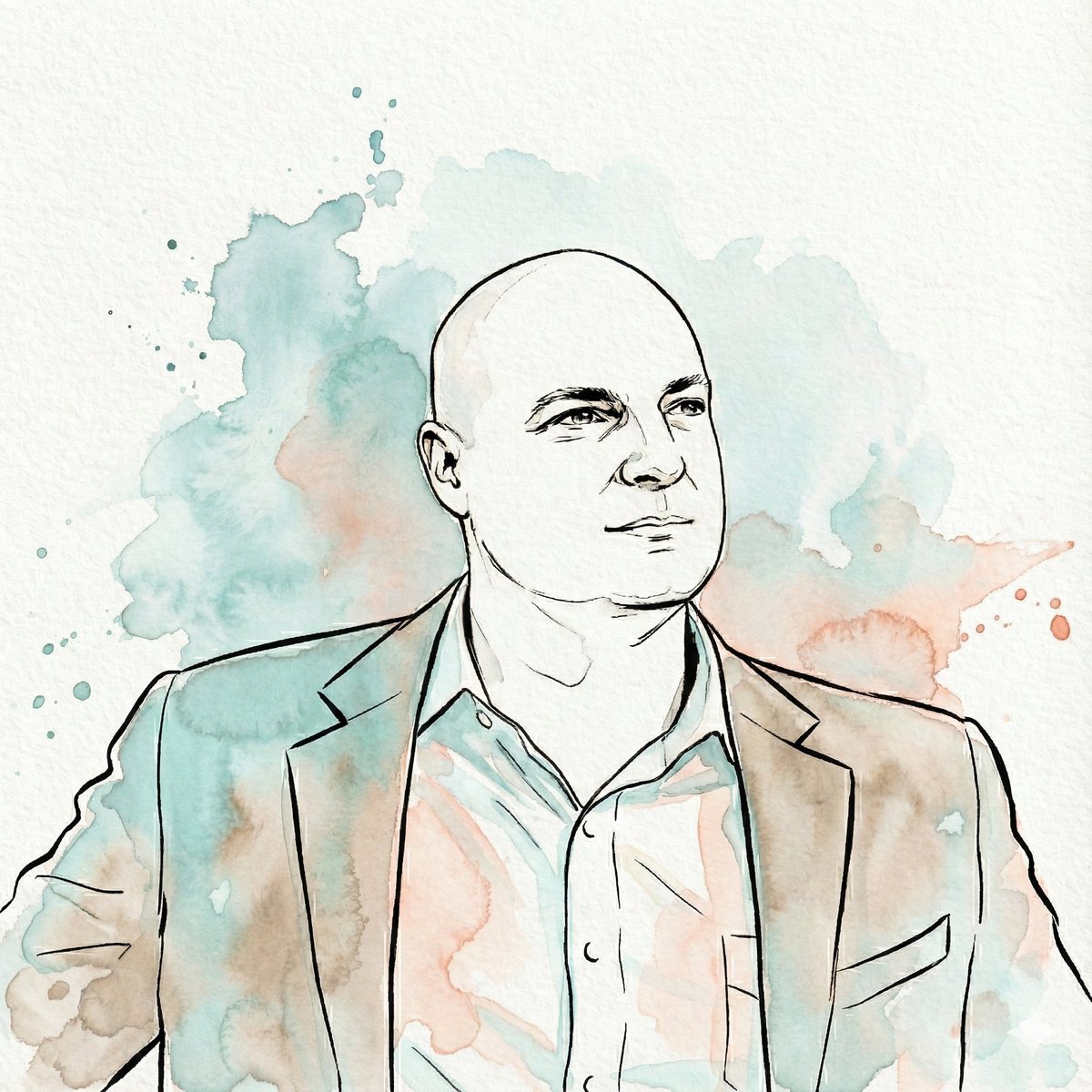
- Prompt included
- Model and format preset
- Premium template
The prompt behind this image
Copy the exact prompt behind Image-to-Watercolor Illustration Prompt, or open it in the studio and make it yours.
"Transform the subject of the uploaded image into a watercolor illustration rendered in a distinct, stylized aesthetic. The artwork must feature strong, expressive contour lines defining the subject's features, hair, and clothing. The color palette is limited to fluid washes of {argument name="primary color" default="teal"}, muted {argument name="secondary color" default="coral/peach"}, warm beige, and sepia tones used for shading and highlights, replacing natural colors entirely. The final image should emphasize the texture of cold-press paper, visible paint granulation, and loose watercolor bleed effects. The subject's likeness must be preserved accurately within this new medium, set against a white paper background with abstract splashes of teal and coral watercolor"
How to use Image-to-Watercolor Illustration Prompt in 3 steps
- 1Upload ImagePNG, JPG or paste
Add your photo
Upload the photo the template builds on. The prompt, model and format are already set.
- 2…a portrait of your subject in softgolden-hour light, 85mm…
Personalize
Edit the subject and creative details for your destination.
- 3Generate
Generate
Press Generate — your image is created in PicX Studio, so you can compare it with the original and refine one variable at a time.
More like this
Templates with the same subject, style or setup. Open one to see its prompt.
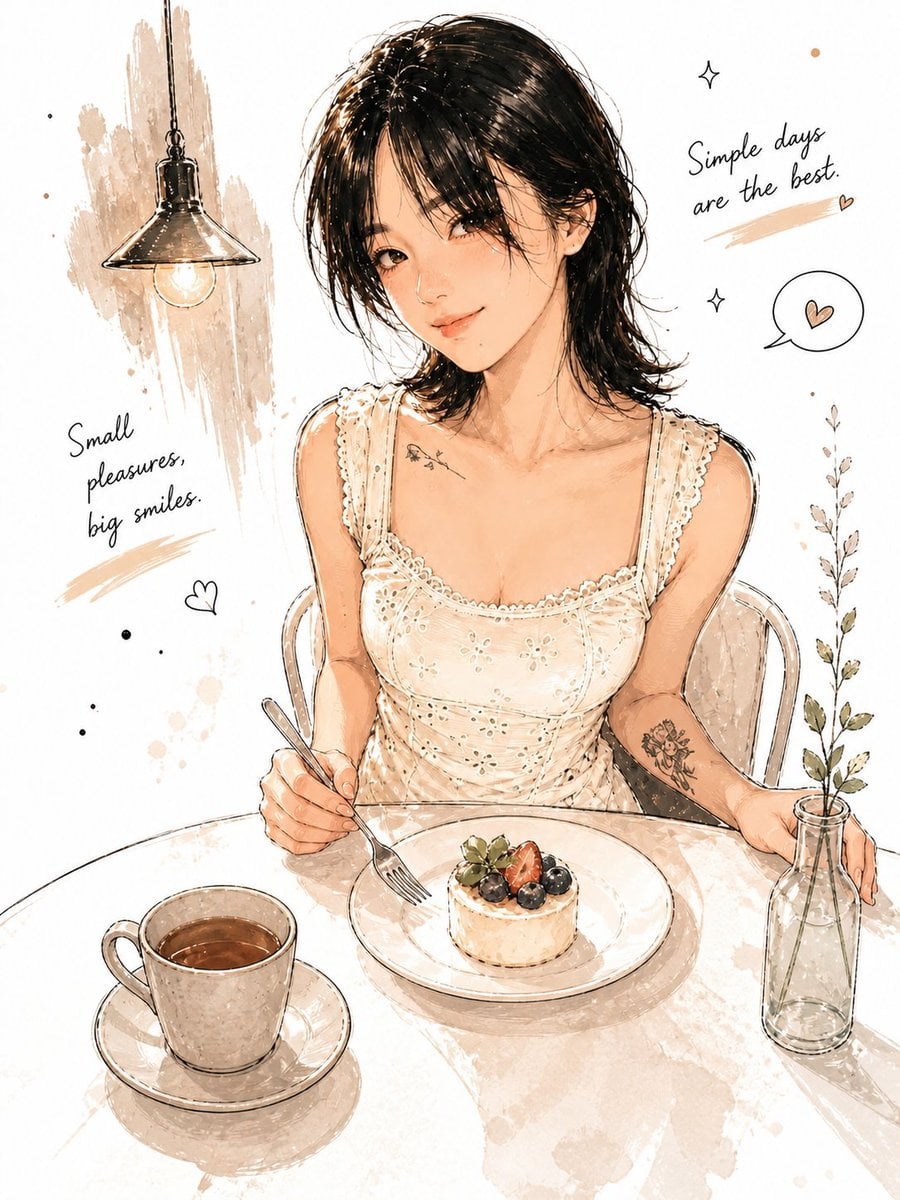
Watercolor Café Cheesecake Editorial Illustration
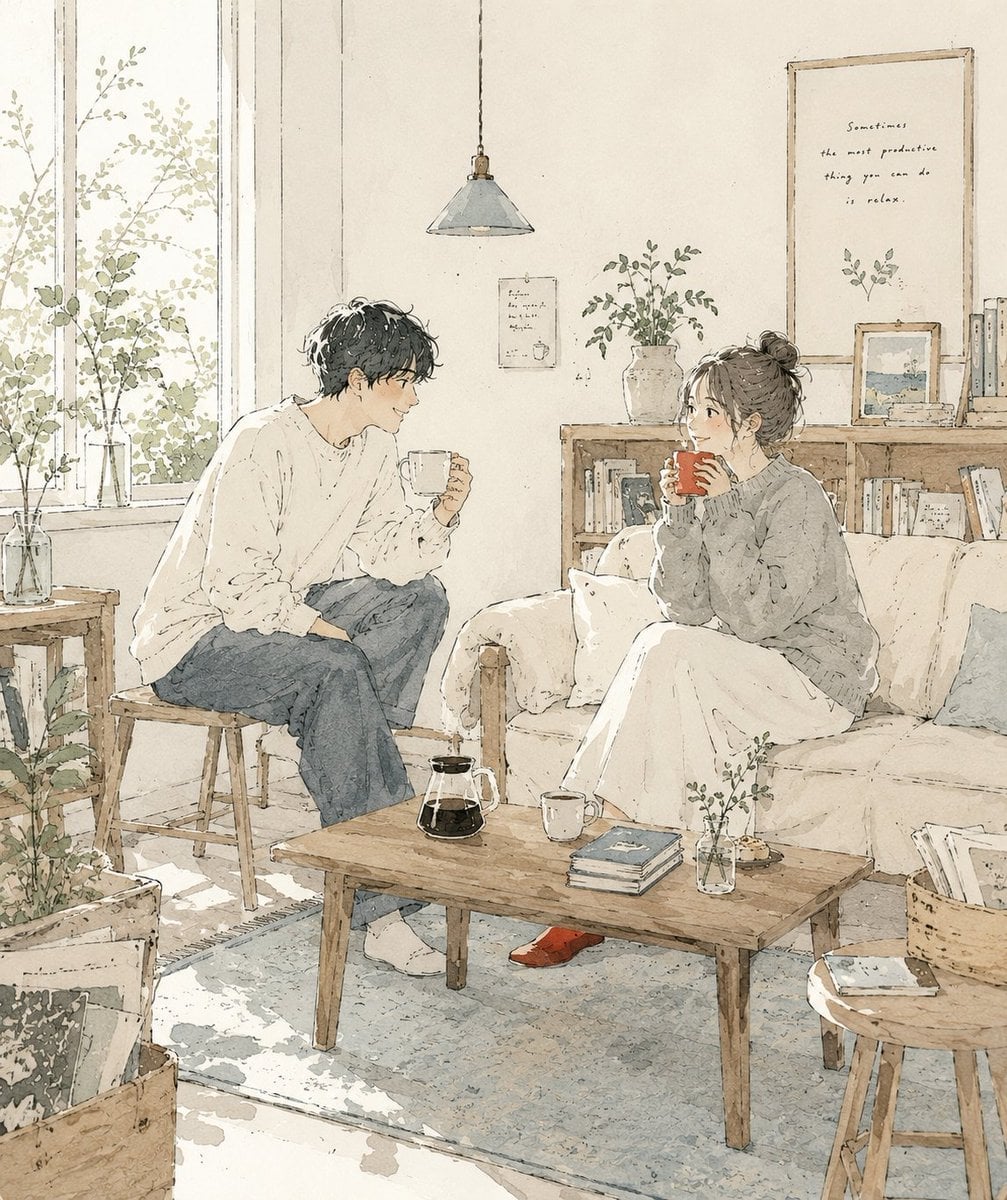
Japanese Café Sketch Duo Illustration
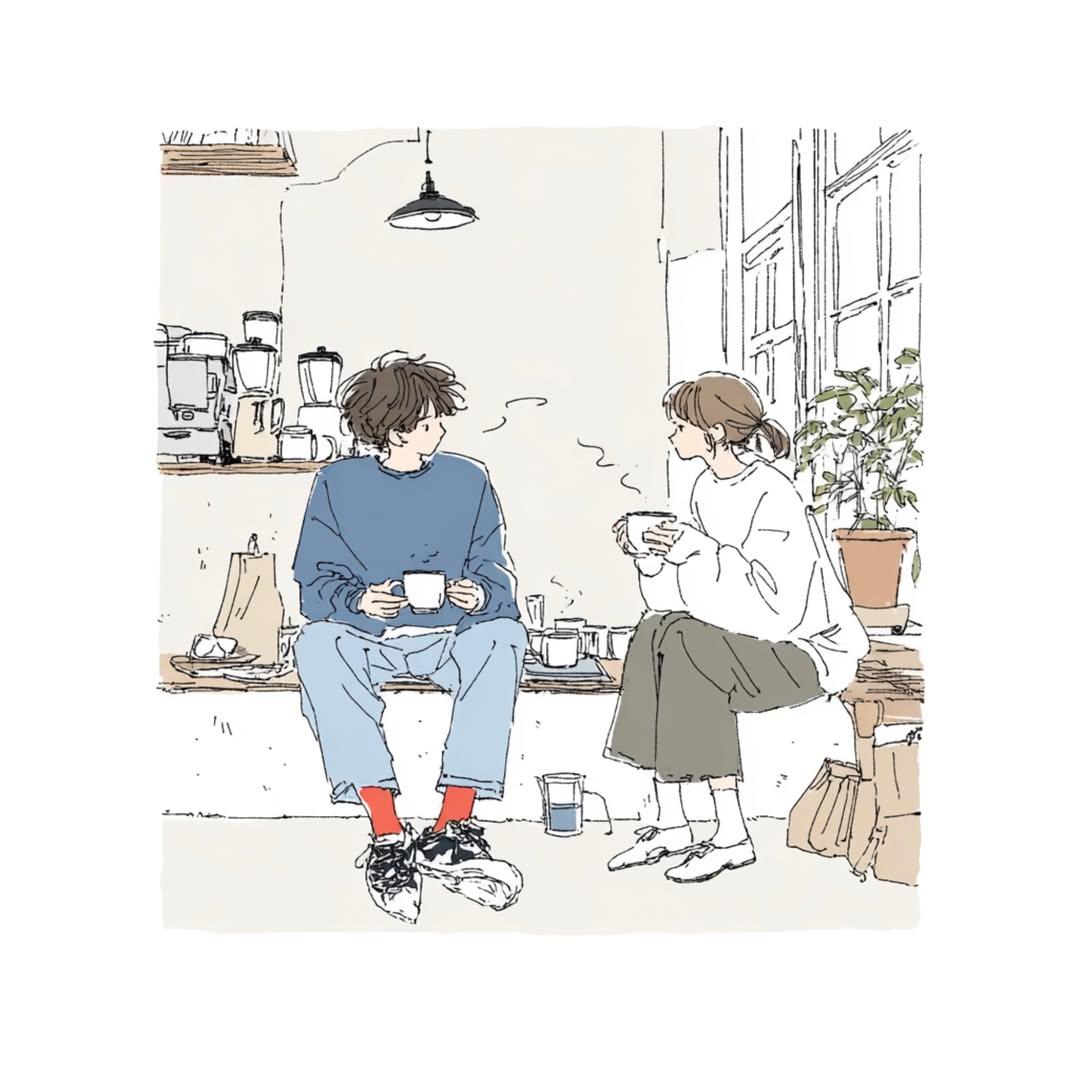
Delicate Japanese Café Lifestyle Illustration
Japanese Café Sketch Duo Illustration
Delicate Japanese Café Lifestyle Illustration
Watercolor Anim Finale Fireworks
Watercolor Anim Garden Maze
Watercolor Anim Rooftop Concert
Watercolor Anim Bicycle Coast

Watercolor Anim Castle Gate
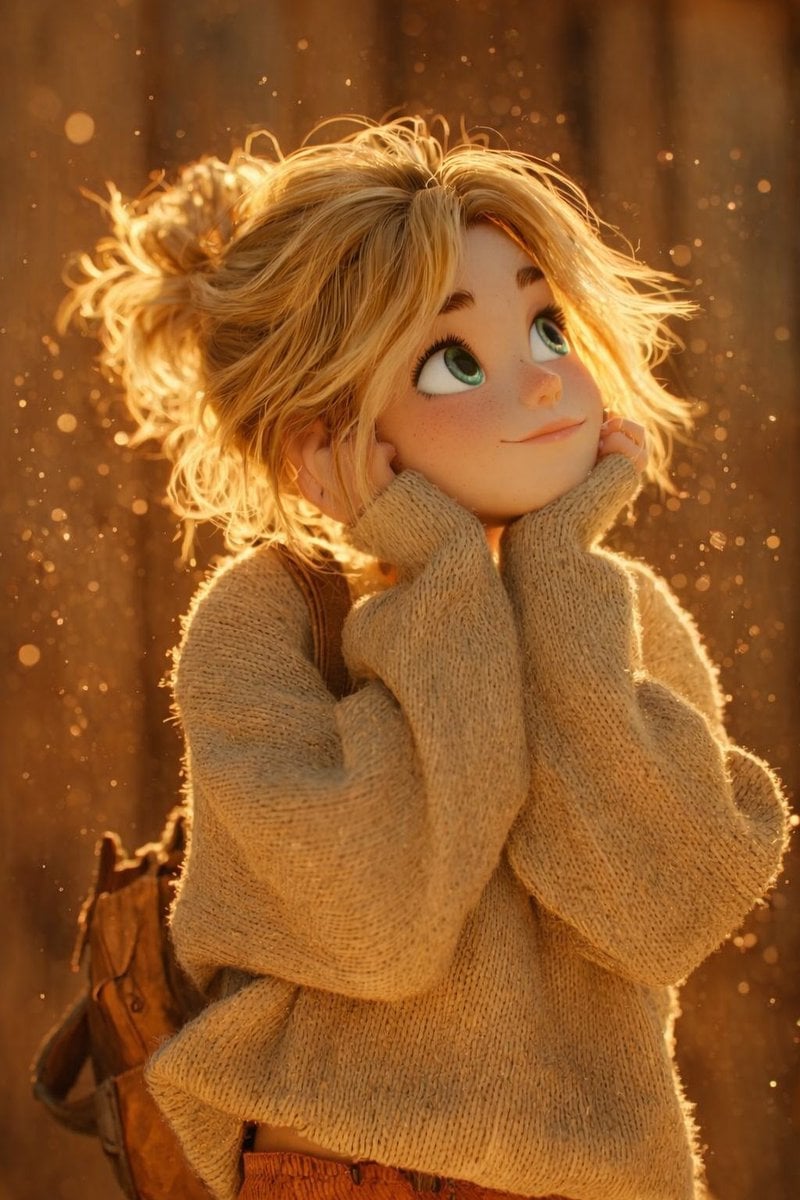
Watercolor Anim Kitchen Chaos
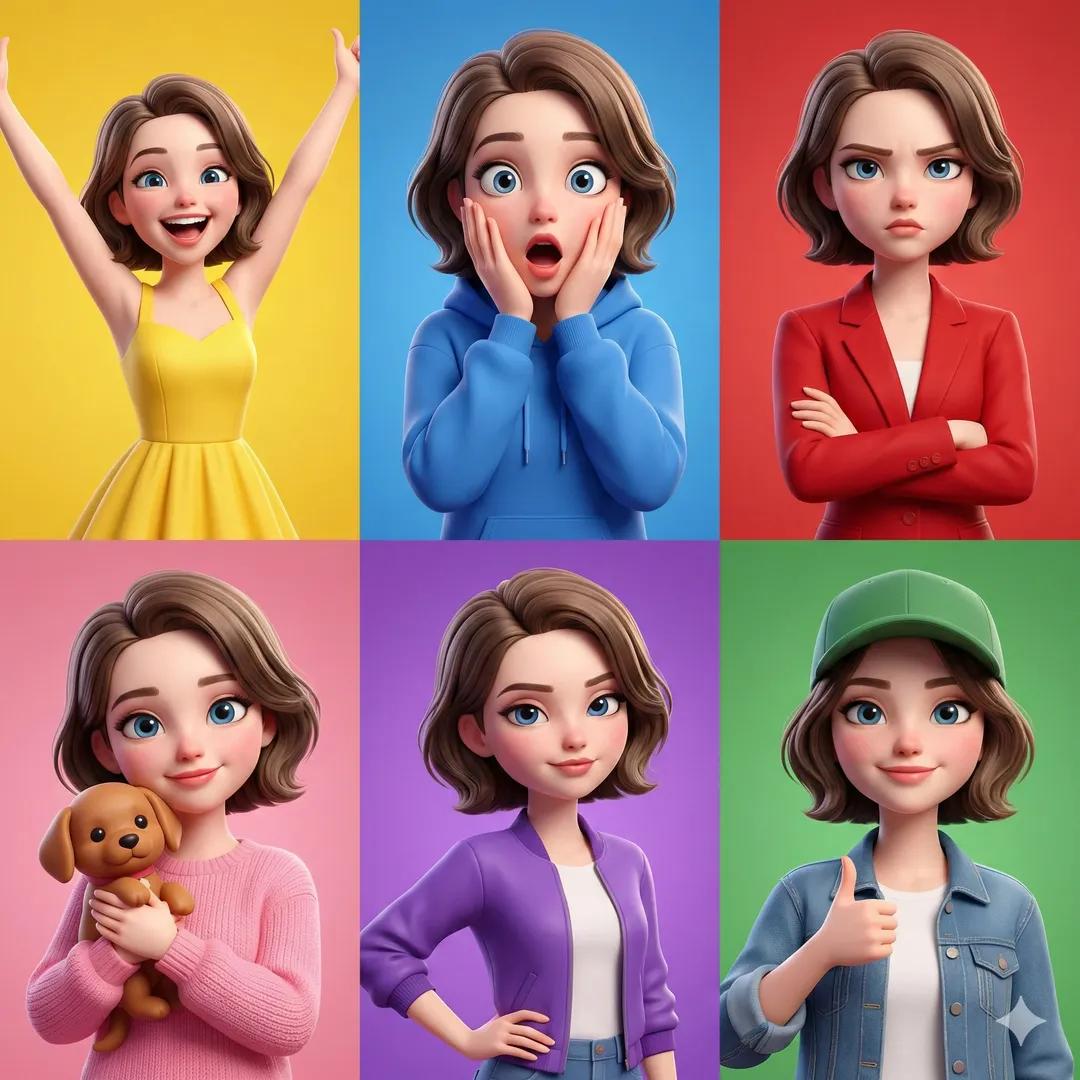
Watercolor Anim Carnival Ride
Make it yours
Image-to-Watercolor Illustration Prompt works as-is. These are the safest ways to change it without losing the look.
Change one field
Copy a single group, rewrite it, and generate again so you can see what that field is doing.
Keep the frame, change the subject
Hold the composition and light of Image-to-Watercolor Illustration Prompt, then swap wardrobe, props or the person for a new take.
| If the result… | Why | Fix |
|---|---|---|
| The result drifts from the preview | Too many fields changed at once. | Reuse Image-to-Watercolor Illustration Prompt as-is first, then change one group — subject, light, or setting. |
| The model over-stylizes the scene | The prose prompt leaves finish and camera underspecified. | Add one camera or lighting sentence and stay on Nano Banana 2. |
More Nano Banana 2 templates
Other prompts made for Nano Banana 2.

Photorealistic Leaf Shaped Like a Dragon

K-Pop Idol Portrait Grid for Rapid Selection

Poetic Rain Forest Portrait During Golden Hour

Urban Street Portrait with Cartoon Inner Self Duo

Candid Nighttime Photo with Cat Prompt

High-Concept 3D Diorama Generation Prompt

Cinematic Futuristic Studio Portrait Template

Skincare Editorial Photography Collage Prompt

Hyper-Realistic Commercial Product Photography (Splash Effect)

Hyper-Realistic Nightclub Portrait Prompt
More image prompts
Fresh picks from across the catalog.
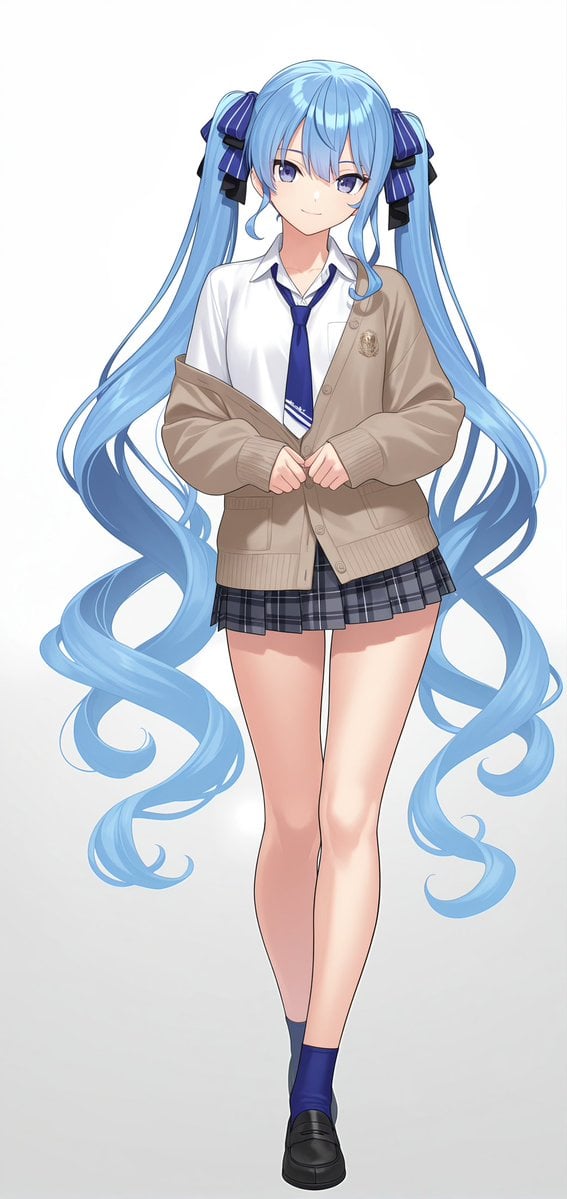
Anime Schoolgirl Full-Body Portrait
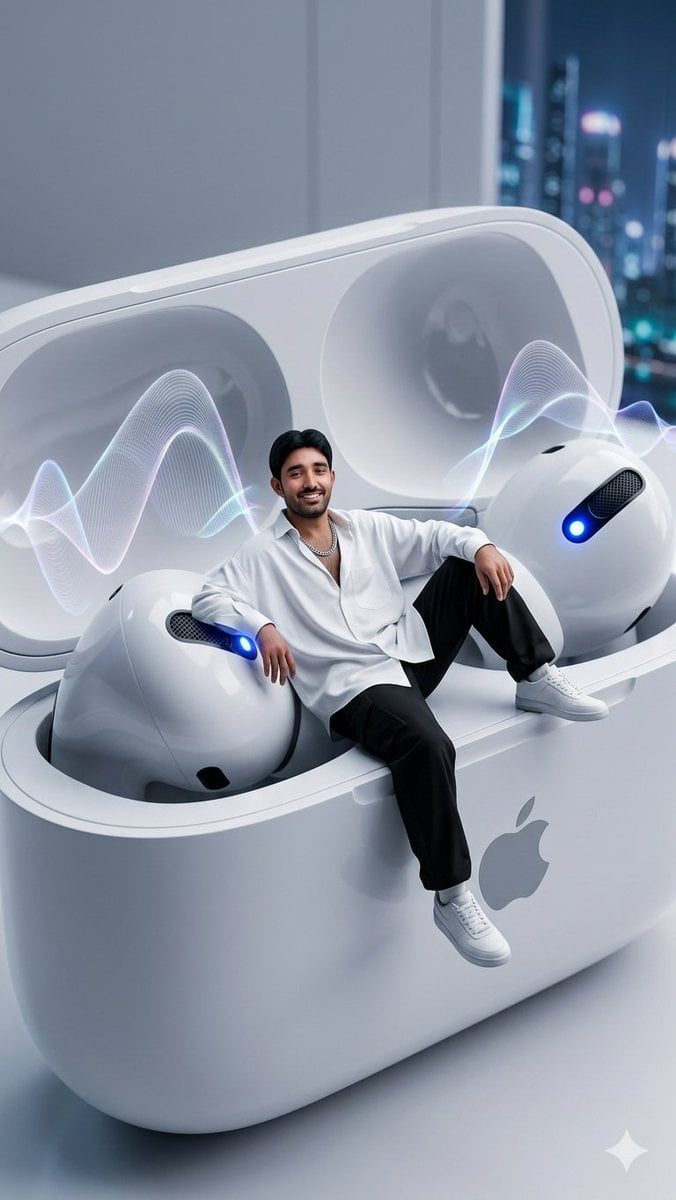
Miniature Man in Giant AirPods Ad
SmartStep Back to School Poster
Luxury Fashion Editorial Collage on Modern Staircase
Editorial Photograph of Woman with Roses in Prague (JSON)
Professional Brand Identity Guidelines Poster
Tilt-Shift City Map Scene
Fashion Studio Portrait in Pastel Green Varsity Jacket

Cinematic Portrait of Man in Leather Jacket and Sunglasses
Hyper-Chaotic Japanese Digicam Snapshot
Browse template categories
Image-to-Watercolor Illustration Prompt questions
How do I use the Image-to-Watercolor Illustration Prompt template?
Add your photo if the template asks for one, edit the prompt if you like — the template's model and format are already selected — and press Generate. Your version opens in PicX Studio.
Can I customize the Image-to-Watercolor Illustration Prompt template?
Yes. You can change the subject, setting, lighting, mood, format, and available model controls before creating your image.
Is the Image-to-Watercolor Illustration Prompt template free?
Opening and editing this template is free. Generating uses credits, shown on the Generate button when you are signed in.
Which AI model should I use?
Start with Nano Banana 2, which is the model associated with this template. You can compare another compatible model for a different finish.
Looking for something else? Browse all templates.

Your photo, any look
Thousands of ready templates for every top image and video model, from one credit balance.