How do I use the Figma Make Prompt Example Format template?
Edit the prompt in the box under the preview — the template's model and format are already selected — and press Generate. Your version appears right on this page.
This tweet provides an example format for the Figma Make prompts generated in Prompt 5, detailing the structure with placeholders for type, aesthetic, colors, typography, specific elements, interactions, CTA type…

'Build a {argument name="type" default="[type]"} website, using a {argument name="mood" default="[mood]"} aesthetic. Use {argument name="color" default="[color]"} as the primary color and {argument name="font" default="[font]"} typography. Include: 1) a hero section with {argument name="specific elements" default="[specific elements]"}, 2) a feature grid with {argument name="interactions" default="[interactions]"}, 3) a {argument name="CTA type" default="[CTA type]"} section. Fully responsive, with {argument name="animation style" default="[animation style]"} animation.' Generate 5 variations, from simple to complex.
'Build a {argument name="type" default="[type]"} website, using a {argument name="mood" default="[mood]"} aesthetic. Use {argument name="color" default="[color]"} as the primary color and {argument name="font" default="[font]"} typography. Include: 1) a hero section with {argument name="specific elements" default="[specific elements]"}, 2) a feature grid with {argument name="interactions" default="[interactions]"}, 3) a {argument name="CTA type" default="[CTA type]"} section. Fully responsive, with {argument name="animation style" default="[animation style]"} animation.' Generate 5 variations, from simple to complex.
Edit the prompt in the box under the preview — the template's model and format are already selected — and press Generate. Your version appears right on this page.
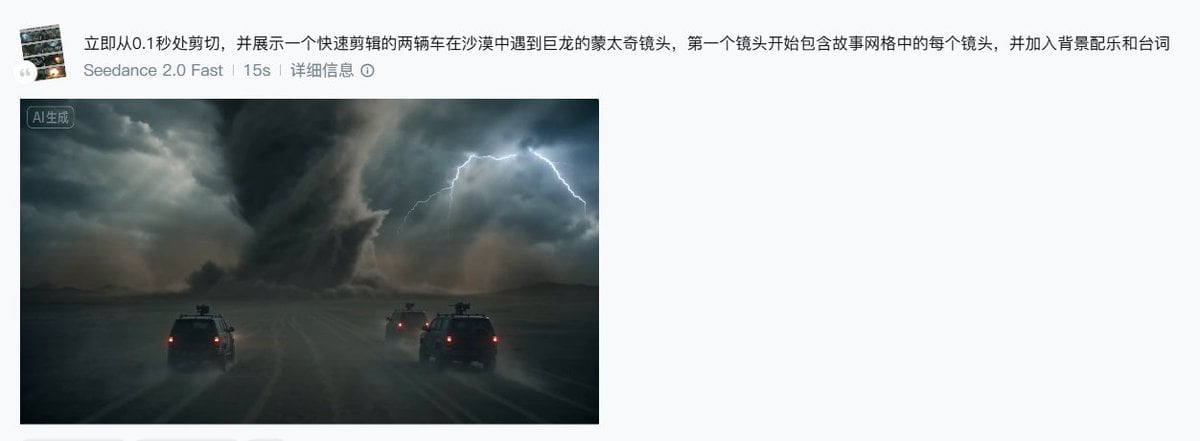
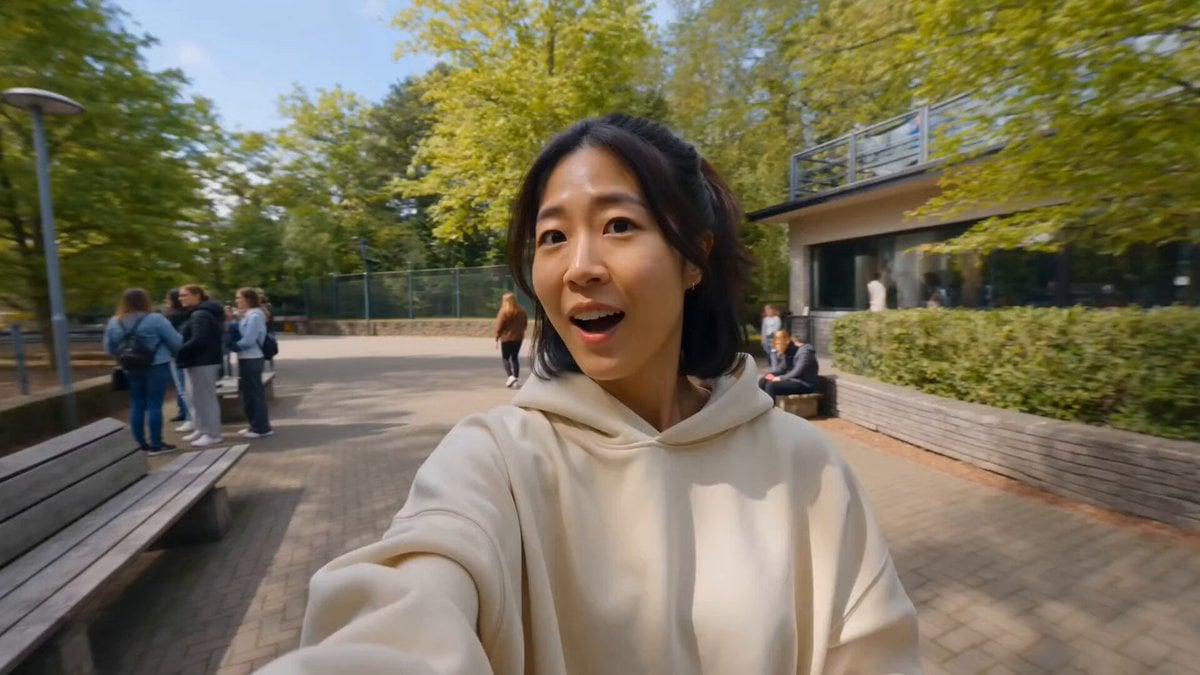
Yes. You can change the subject, setting, lighting, mood, format, and available model controls before creating your video.
Opening and editing this template is free. Generating uses credits, shown on the Generate button when you are signed in.
Start with Seedance 2.0, which is the model associated with this template. You can compare another compatible model for a different finish.
Follow a topic to a crawlable collection of related PicX Studio templates.