How do I use the Seedance 2.0 Storyboard Prompt Example template?
Edit the prompt in the box under the preview — the template's model and format are already selected — and press Generate. Your version appears right on this page.
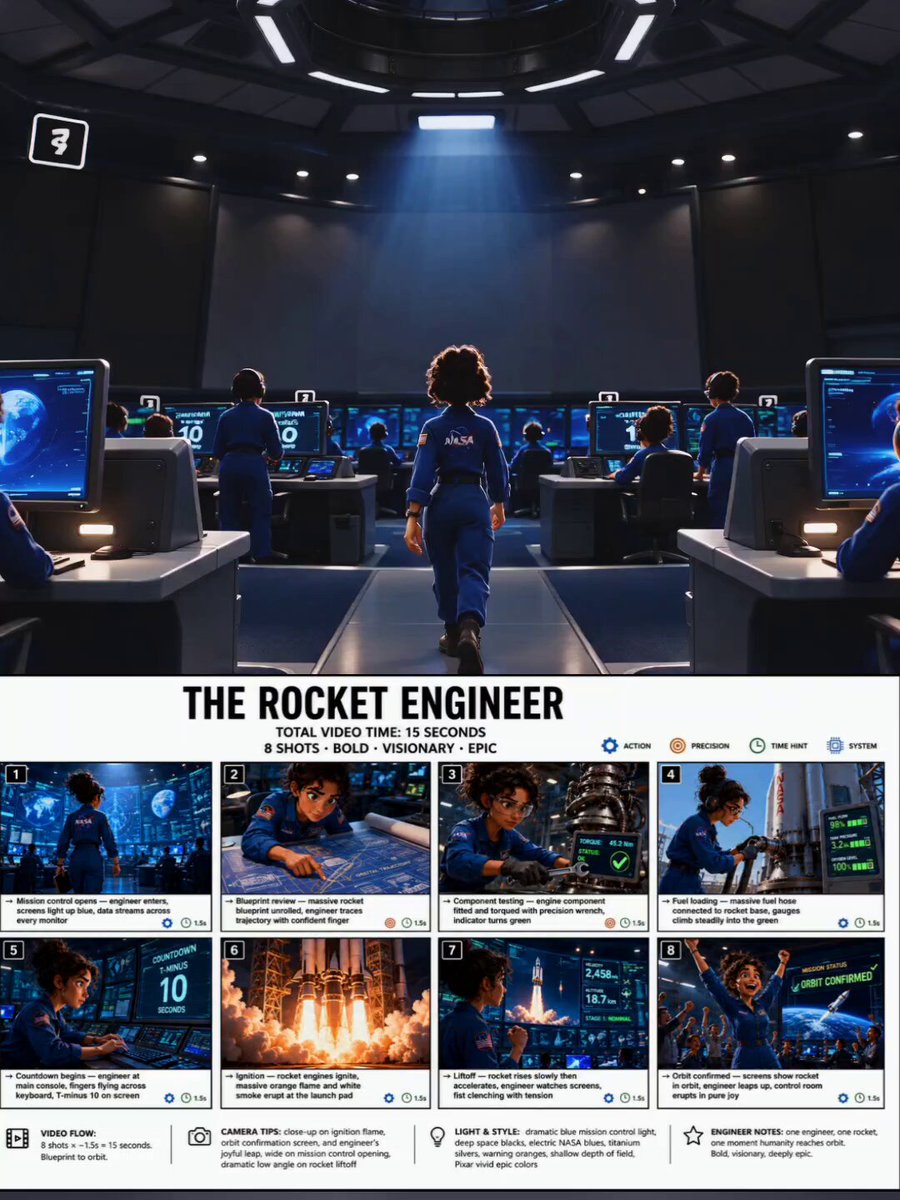
This is an example of a prompt used with Seedance 2.0, instructing the AI to immediately cut and create a fast-paced montage of two cars encountering a giant dragon in the desert, incorporating a background soundtrack…

Cut immediately at the 0.1 second mark, and show a fast-cut montage of two cars encountering a giant dragon in the desert. The first shot should start by including every shot from the story grid, and add background music and dialogue, and then --- write whatever story you want. Forget about the prompt review.
Cut immediately at the 0.1 second mark, and show a fast-cut montage of two cars encountering a giant dragon in the desert. The first shot should start by including every shot from the story grid, and add background music and dialogue, and then --- write whatever story you want. Forget about the prompt review.
Edit the prompt in the box under the preview — the template's model and format are already selected — and press Generate. Your version appears right on this page.
Yes. You can change the subject, setting, lighting, mood, format, and available model controls before creating your video.
Opening and editing this template is free. Generating uses credits, shown on the Generate button when you are signed in.
Start with Seedance 2.0, which is the model associated with this template. You can compare another compatible model for a different finish.
Follow a topic to a crawlable collection of related PicX Studio templates.