
Storyboard to Scene Generation
A simple prompt designed to convert an uploaded film storyboard into a continuous cinematic scene without on-screen text.
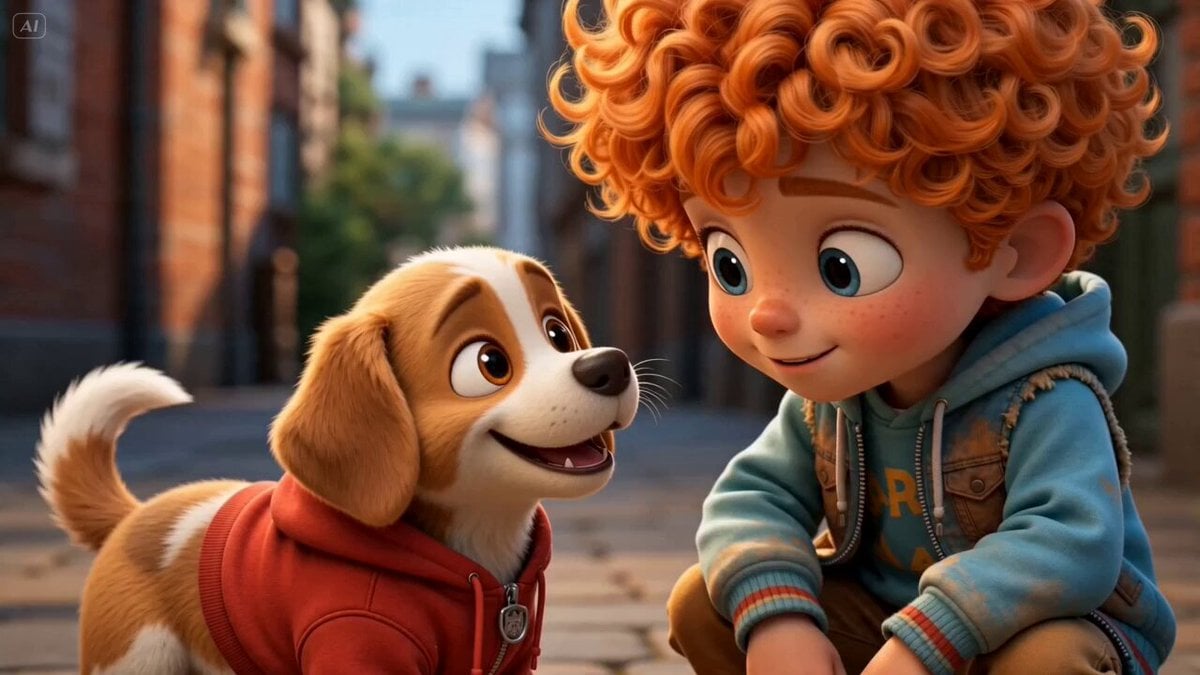
- Prompt included
- Model and format preset
- Premium template
The prompt behind this video
Copy the exact prompt behind Storyboard to Scene Generation, or open it in the studio and make it yours.
Create a clean, colorful storyboard poster in a 3x4 grid layout with 12 panels on a single page. Title at the top: "[MAIN TITLE]" Each panel must include: a scene number in a small circle, a short scene title, a colorful illustrated image, a 1–2 line description under the image. Main characters must remain visually consistent across all 12 panels: Character 1: [describe main character in detail] Character 2: [describe second character in detail] Theme/story: [overall story theme] Scene breakdown: [Scene title] – [what happens] [Scene title] – [what happens] [Scene title] – [what happens] [Scene title] – [what happens] [Scene title] – [what happens] [Scene title] – [what happens] [Scene title] – [what happens] [Scene title] – [what happens] [Scene title] – [what happens] [Scene title] – [what happens] [Scene title] – [what happens] [Scene title] – [what happens] Design style: cute 3D animated storybook style, warm emotional lighting, bright colors, soft shadows, child-friendly, clean panel borders, readable typography, neat poster composition, high detail. Important: Keep all 12 panels inside one single image. Make the layout clean and balanced. Keep the characters consistent in face, outfit, and colors. Make the text readable and properly placed. No cropped panels. No extra characters unless mentioned. Generate a scene using the shots in the uploaded film storyboard. No text on screen.
How to use Storyboard to Scene Generation in 3 steps
- 1Upload ImagePNG, JPG or paste
Add your photo
Upload the photo the template builds on. The prompt, model and format are already set.
- 2…a portrait of your subject in softgolden-hour light, 85mm…
Personalize
Edit the subject and creative details for your destination.
- 3Generate
Generate
Press Generate — your video is created in PicX Studio, so you can compare it with the original and refine one variable at a time.
More like this
Templates with the same subject, style or setup. Open one to see its prompt.
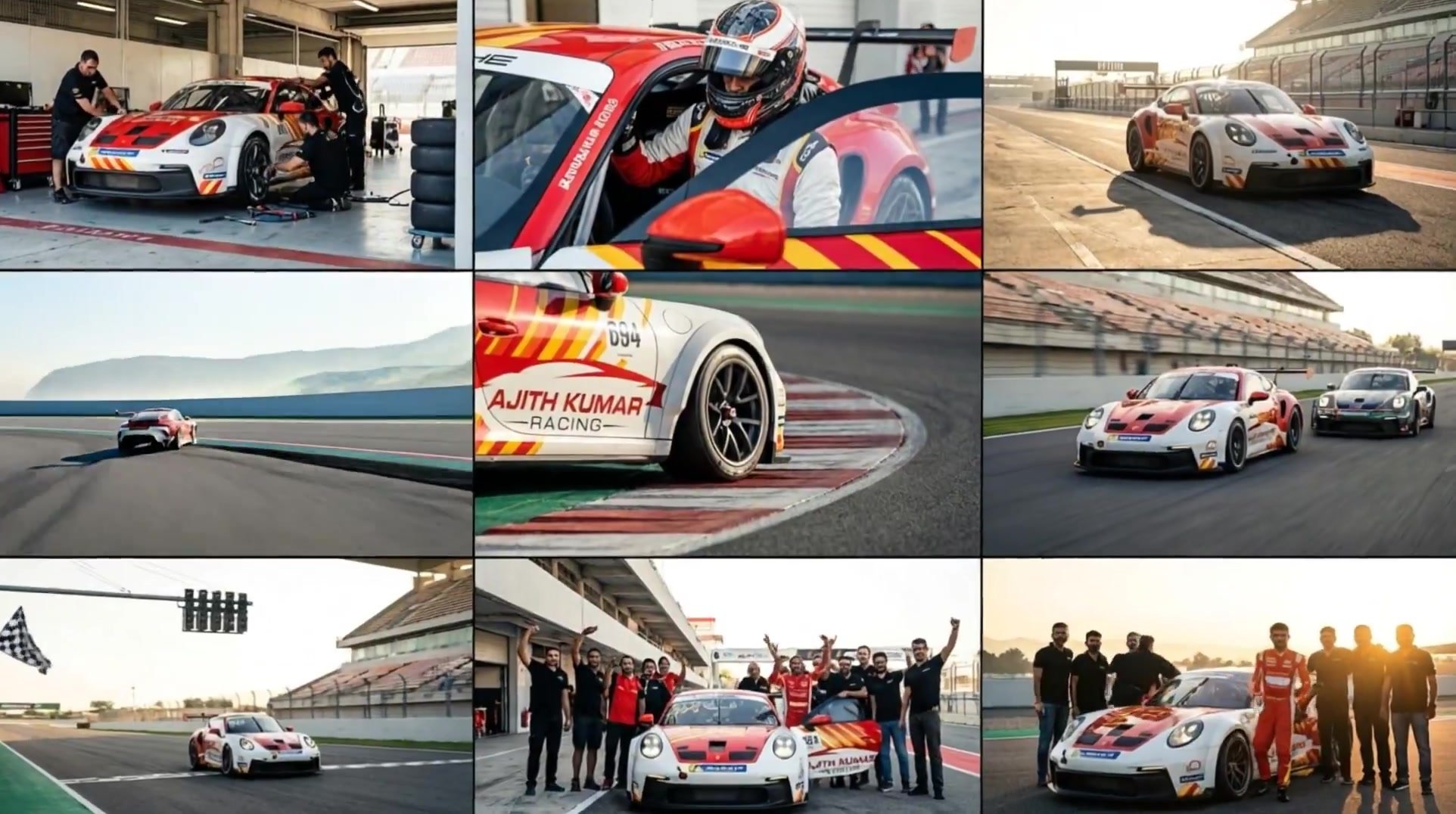
3x3 Grid Storyboard Racing — Kling 3.0 O3 Pro
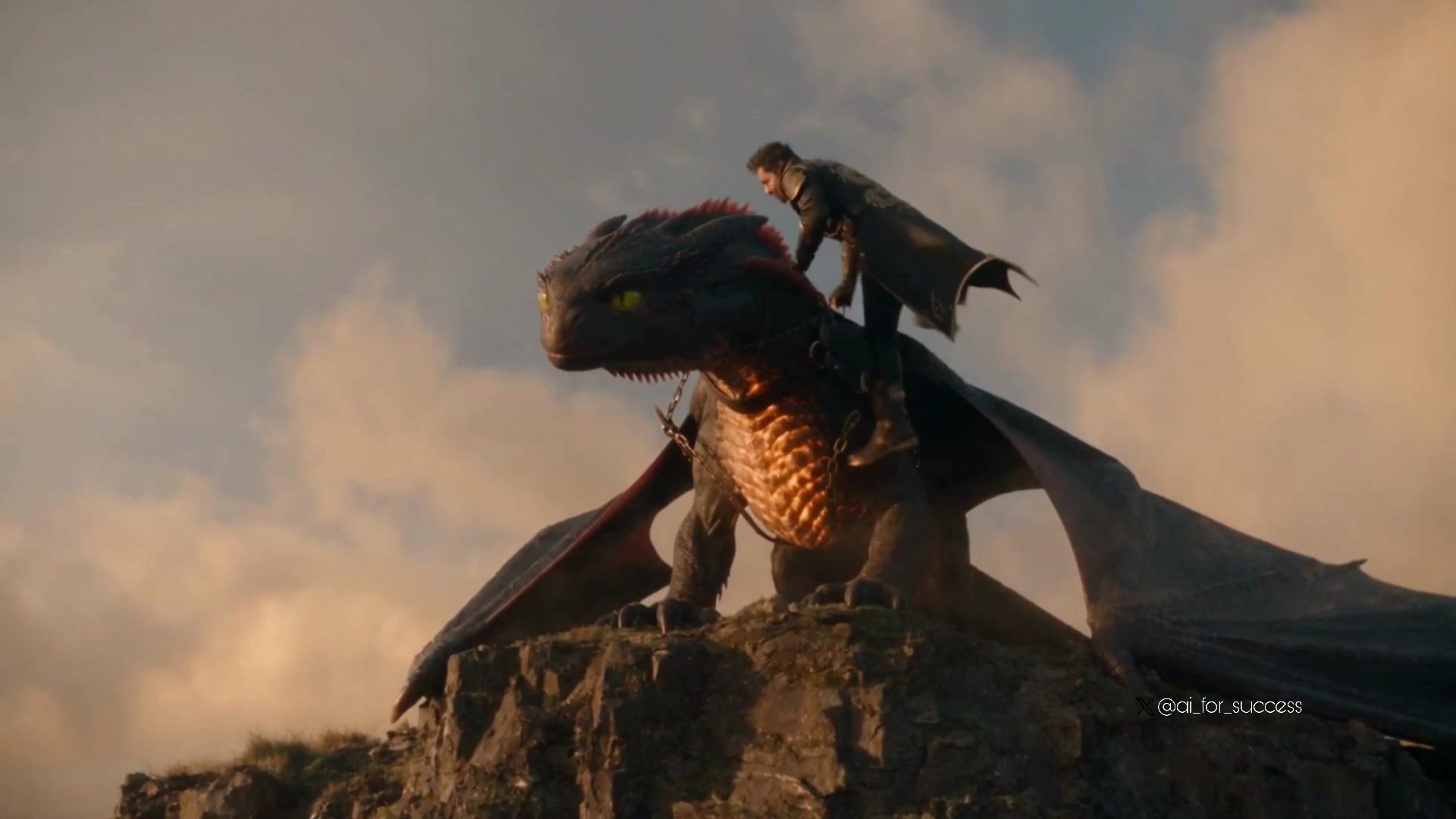
Dragon Rider Cinematic Flight — Seedance 2.5
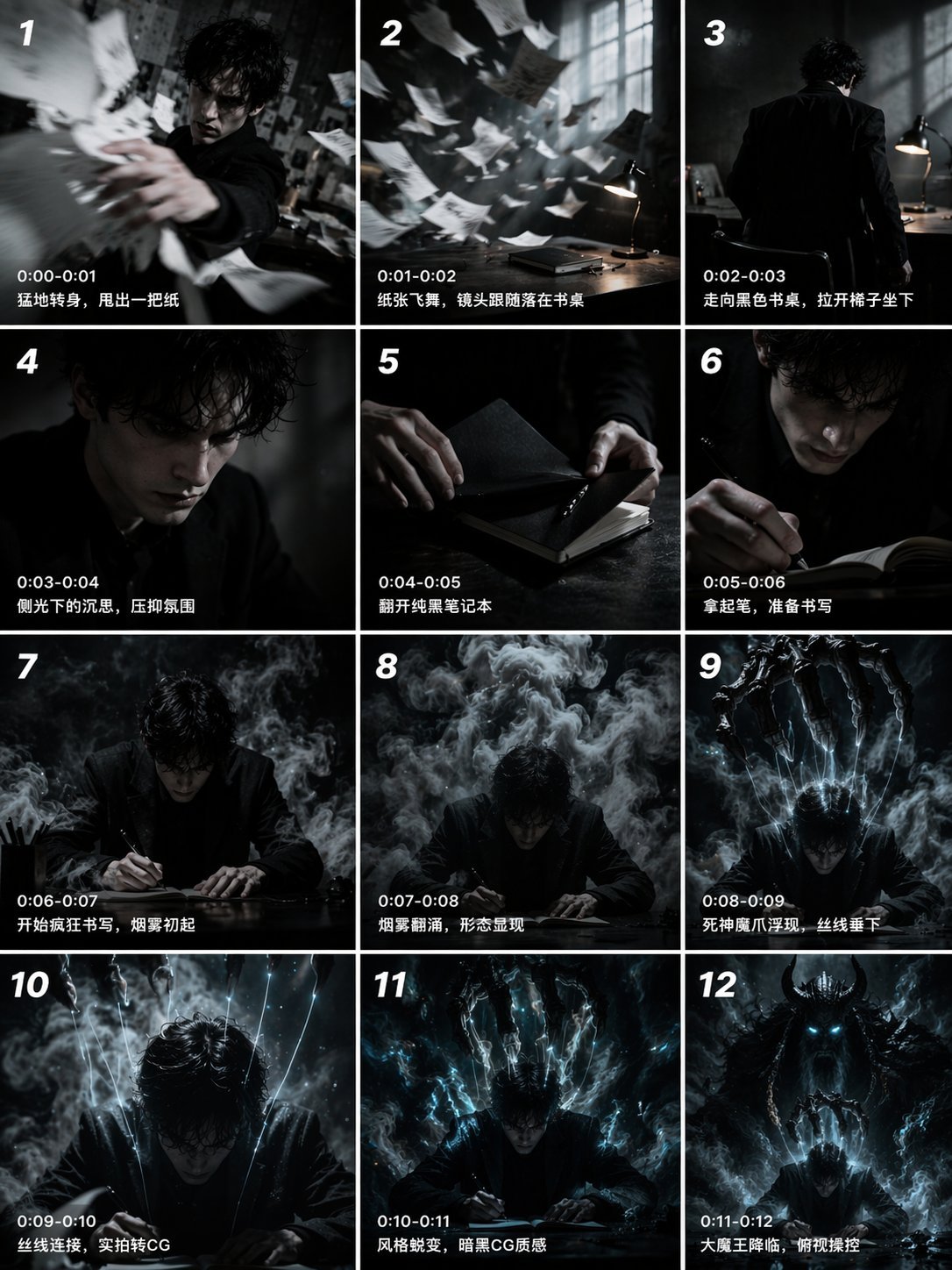
Gpt2 Gpt2 Seedance Storyboard to Video
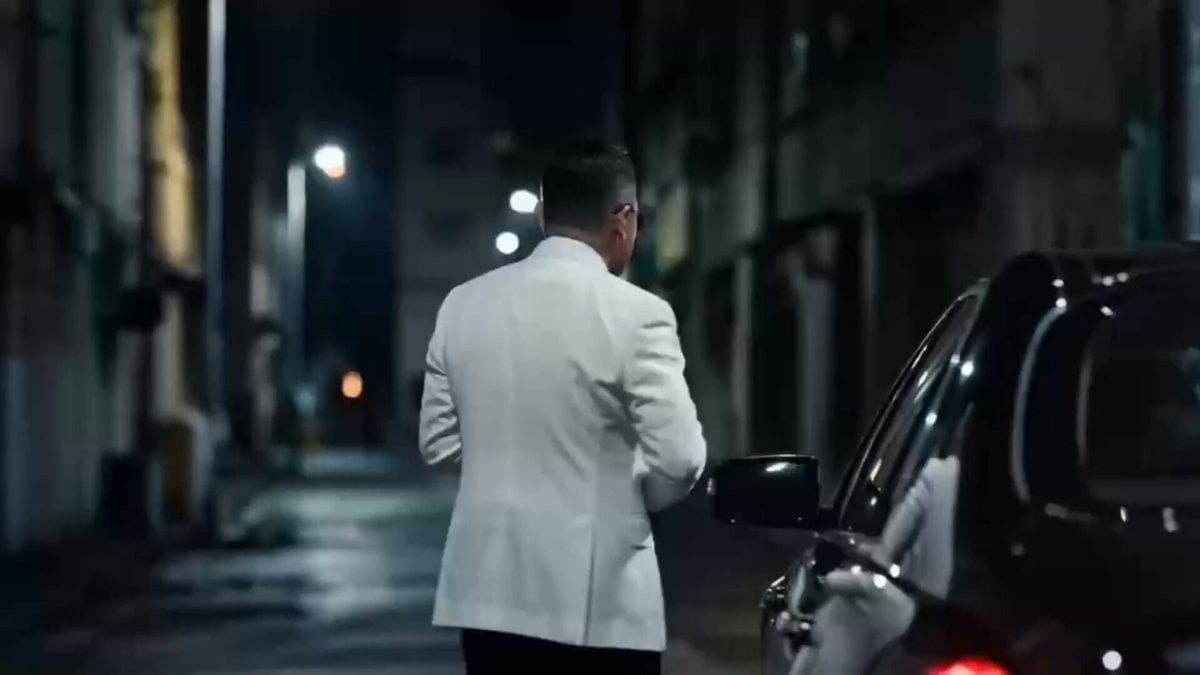
Storyboarding and Multi-Perspective Video Generation
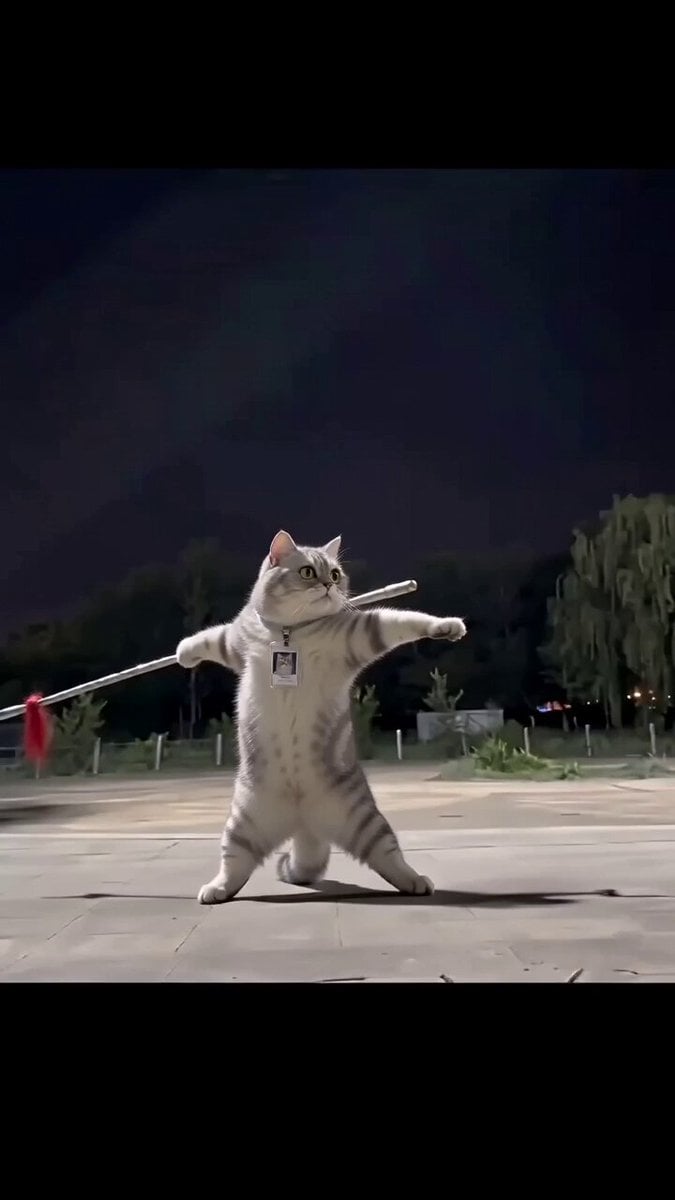
Real Animal Spear Dance Video Generation
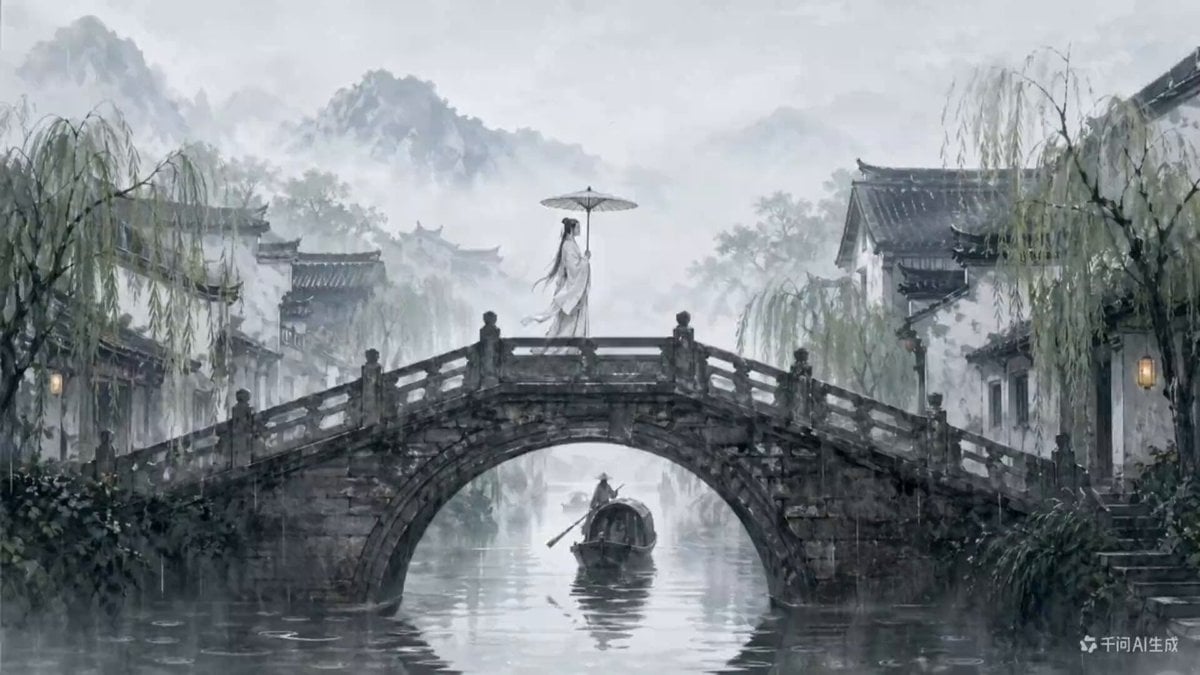
Traditional Chinese Ink Wash Video Generation
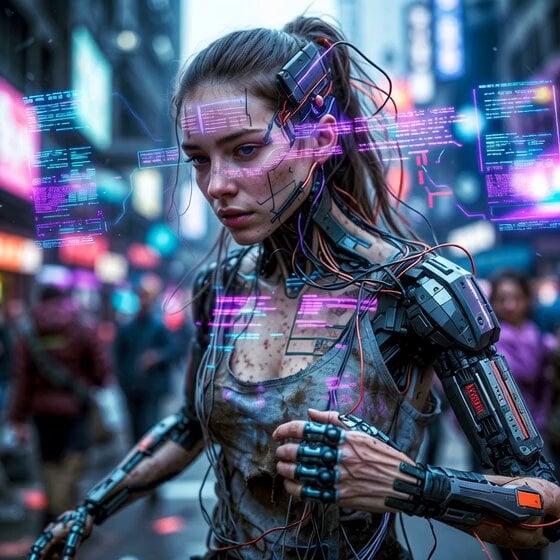
Cyberpunk Guerrilla Girl Video Generation
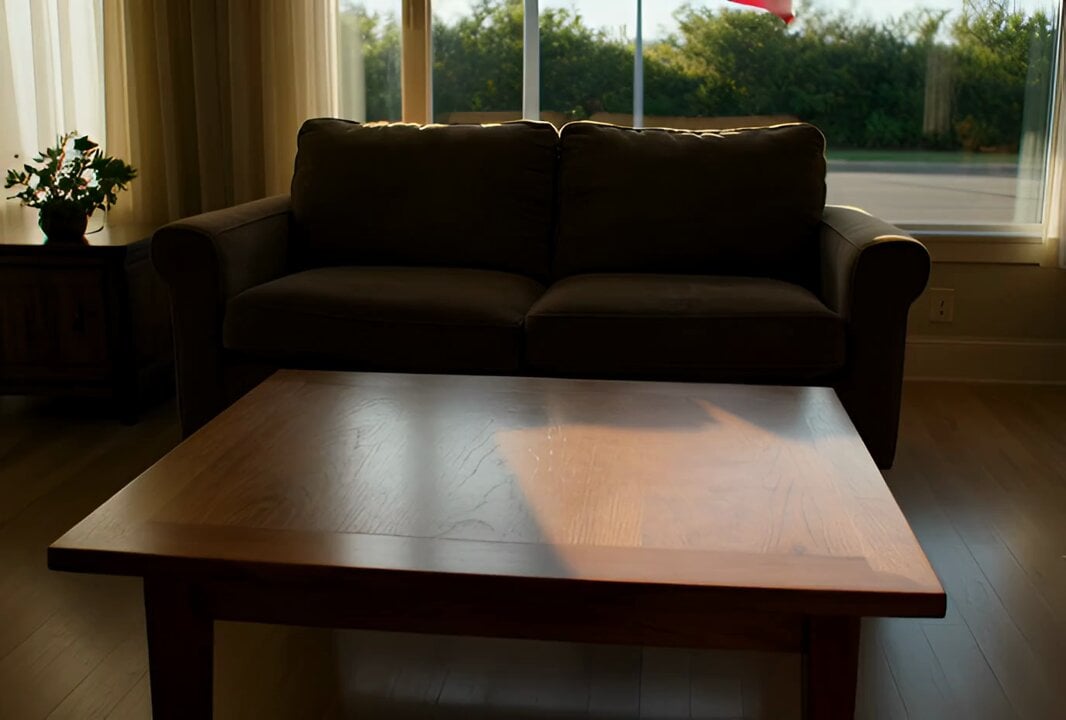
Interior View Video Generation Prompt
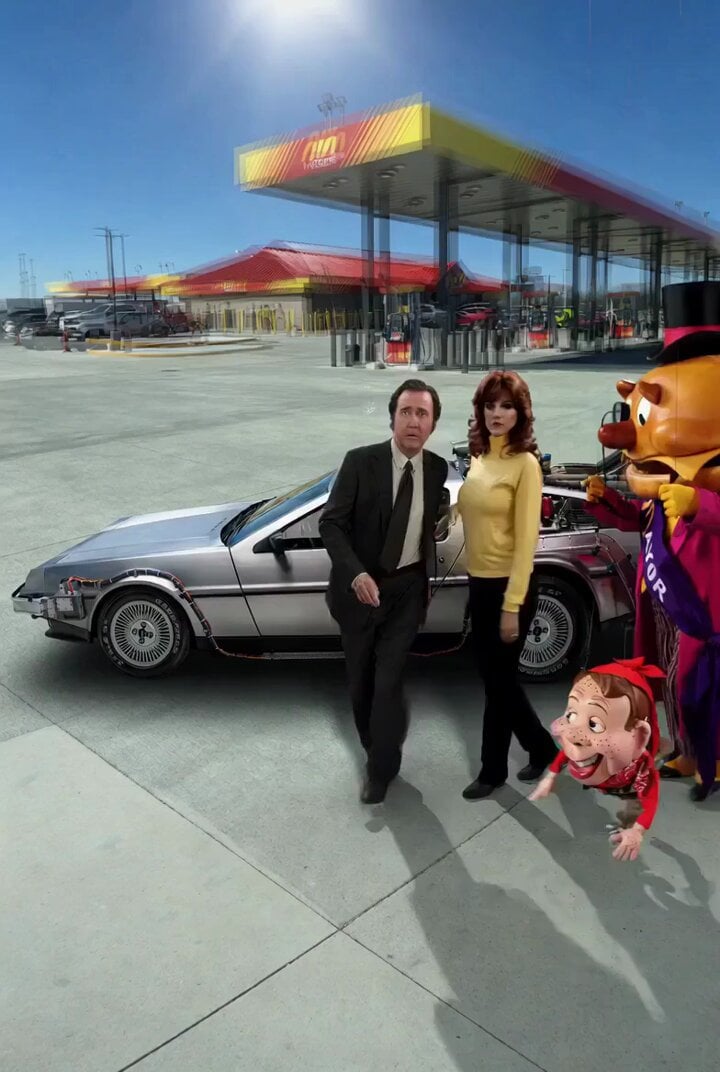
Back to the Future 4 R-rated Video Generation
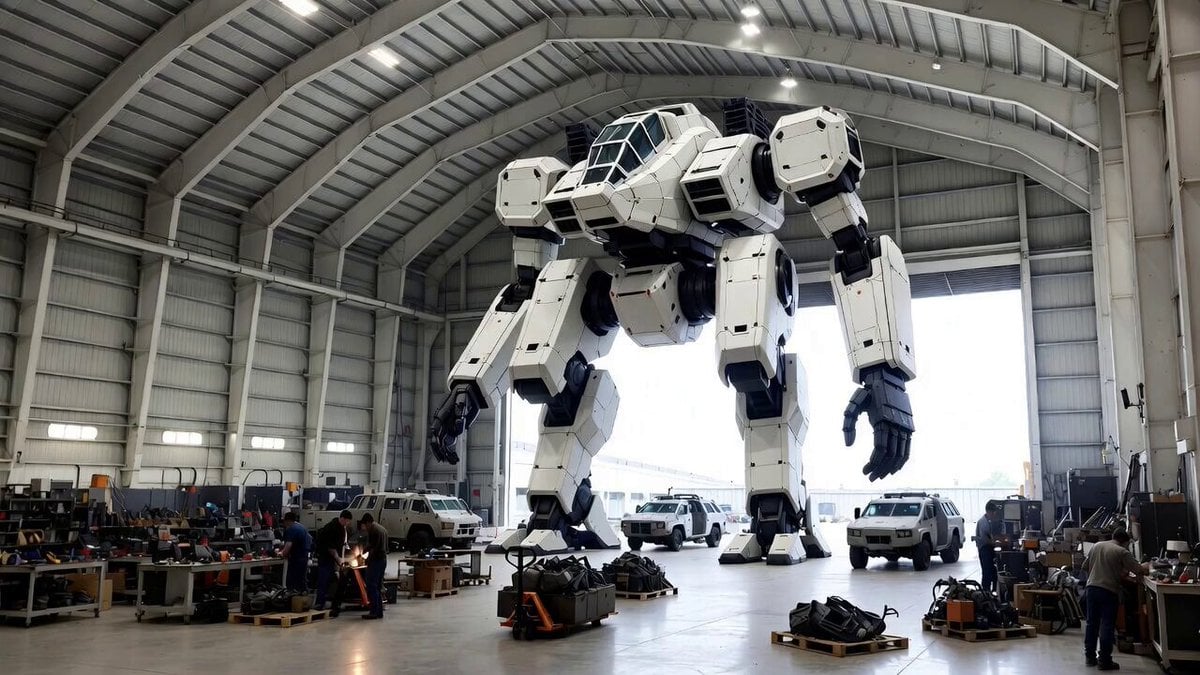
Video Generation Prompt: Mech in Aircraft Hangar
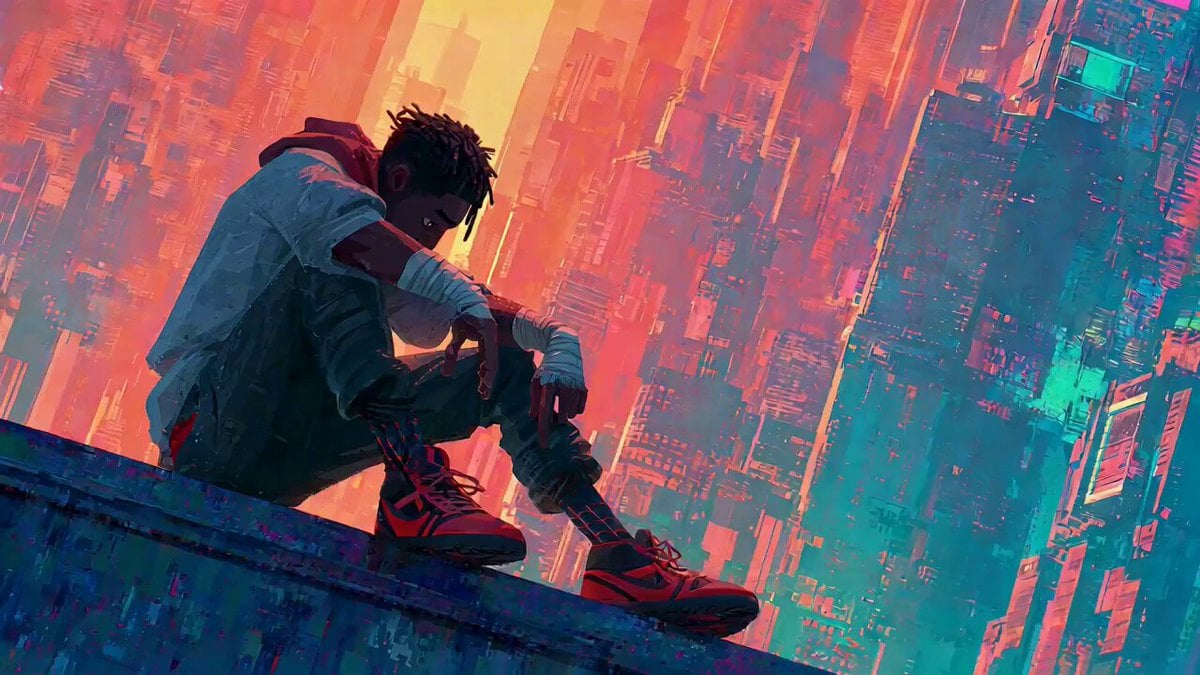
Video Generation Prompt with Image References
Seedance 2.0 Street Dance Video Generation
Make it yours
Storyboard to Scene Generation works as-is. These are the safest ways to change it without losing the look.
Change one field
Copy a single group, rewrite it, and generate again so you can see what that field is doing.
Keep the frame, change the subject
Hold the composition and light of Storyboard to Scene Generation, then swap wardrobe, props or the person for a new take.
| If the result… | Why | Fix |
|---|---|---|
| The result drifts from the preview | Too many fields changed at once. | Reuse Storyboard to Scene Generation as-is first, then change one group — subject, light, or setting. |
| The model over-stylizes the scene | The prose prompt leaves finish and camera underspecified. | Add one camera or lighting sentence and stay on Seedance 2.0. |
More Seedance 2.0 templates
Other prompts made for Seedance 2.0.
Comical Martial Arts Punch Scene
Maglev Train Action Sequence
Martial Arts Fight Sequence
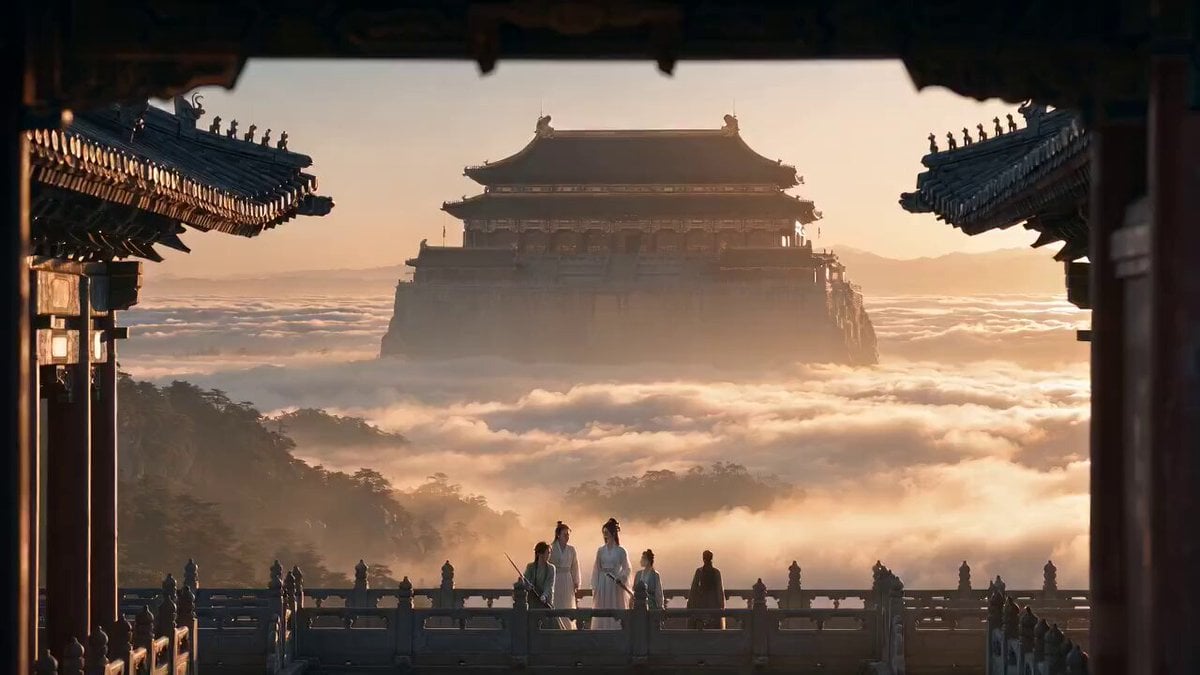
Wuxia Protection and Trust Script
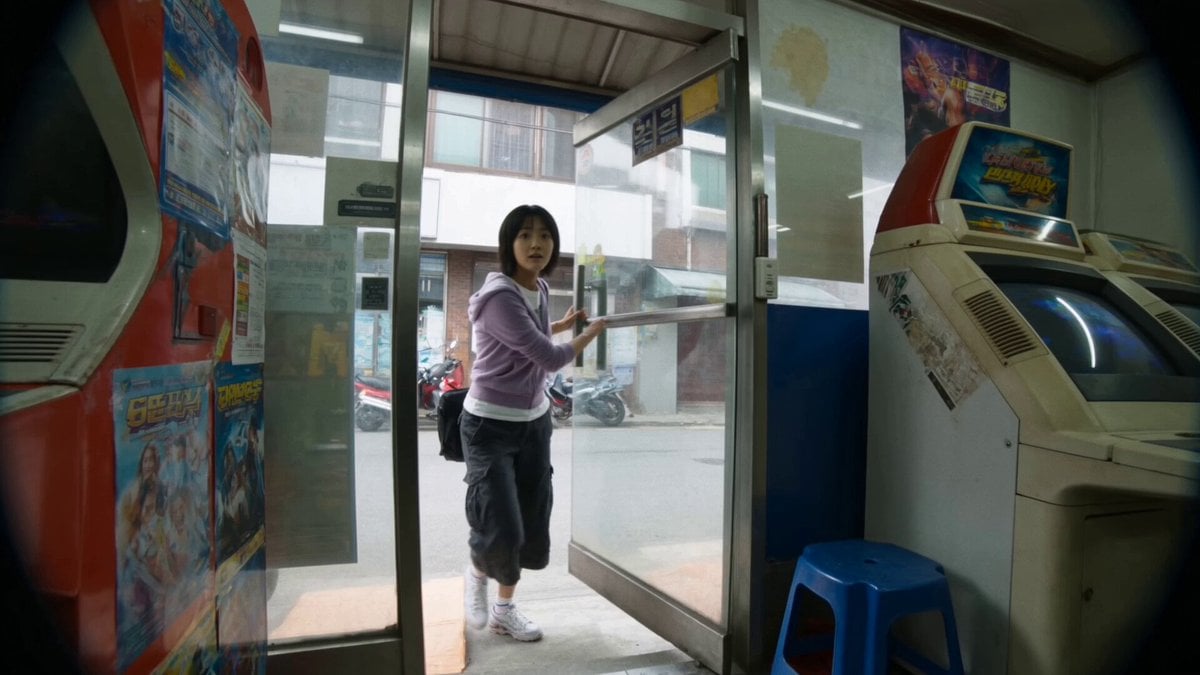
Vintage Korean Arcade MiniDV Vlog
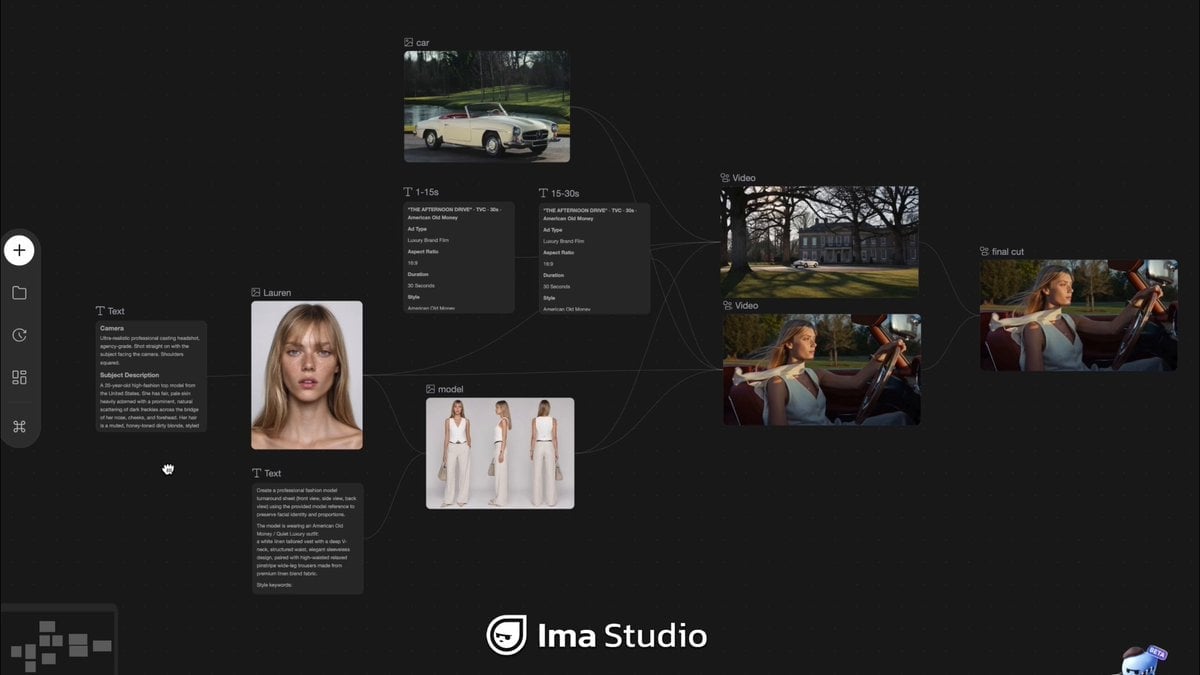
Mercedes 190 SL Luxury Ad
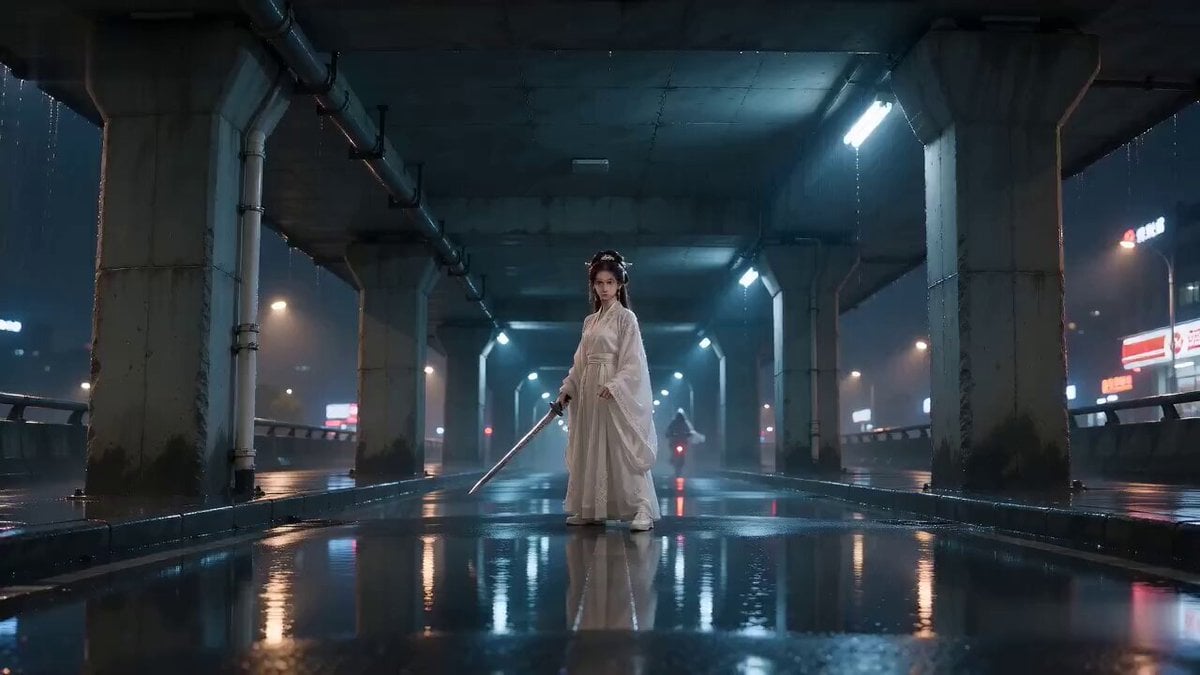
Rainy Night Supernatural Reverse Comedy Video Script
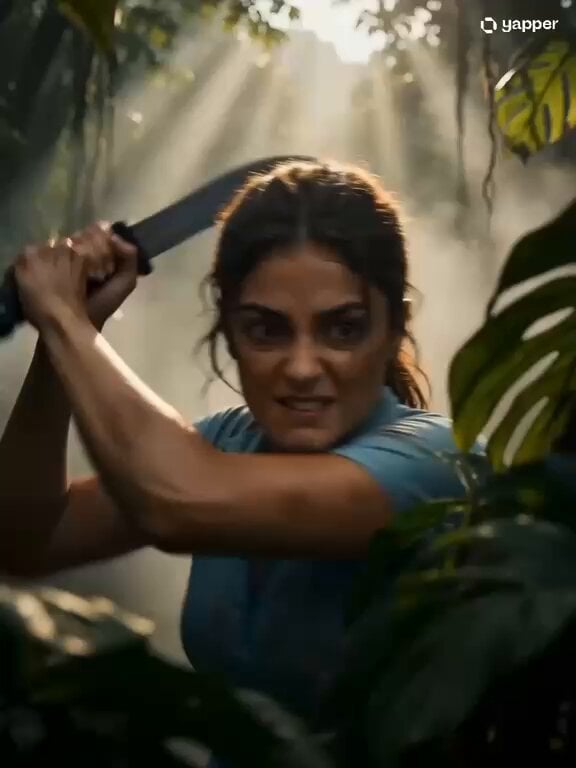
Amazon Civilization Discovery
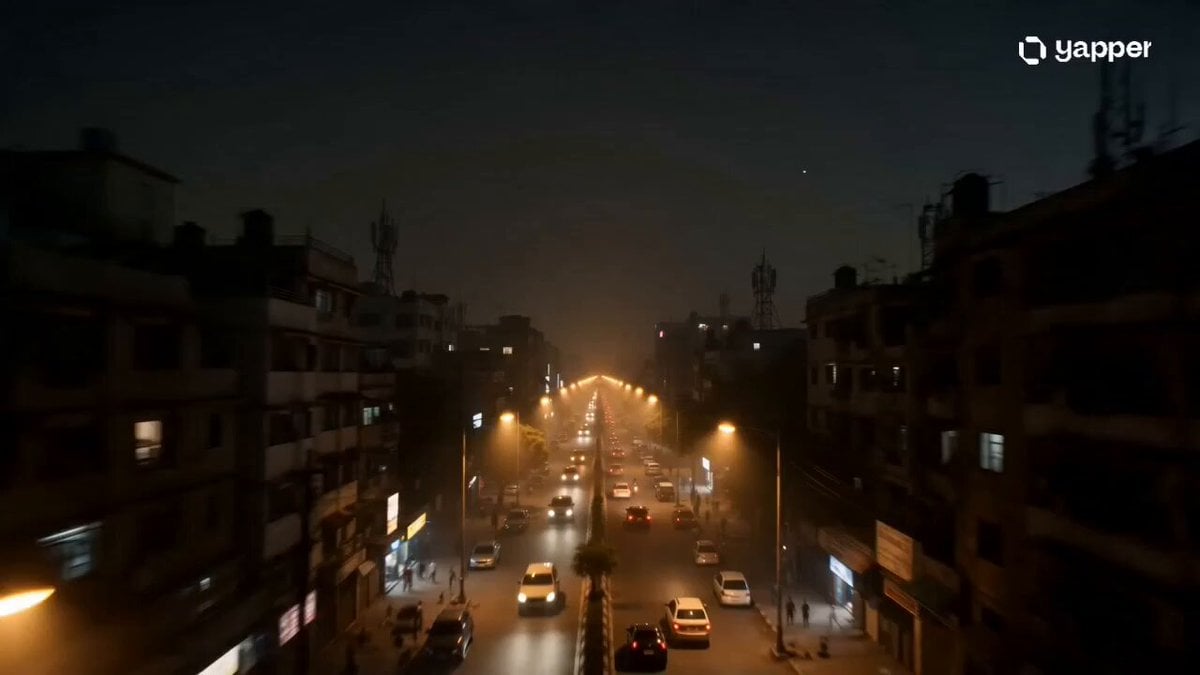
Futuristic South Asian City Transformation
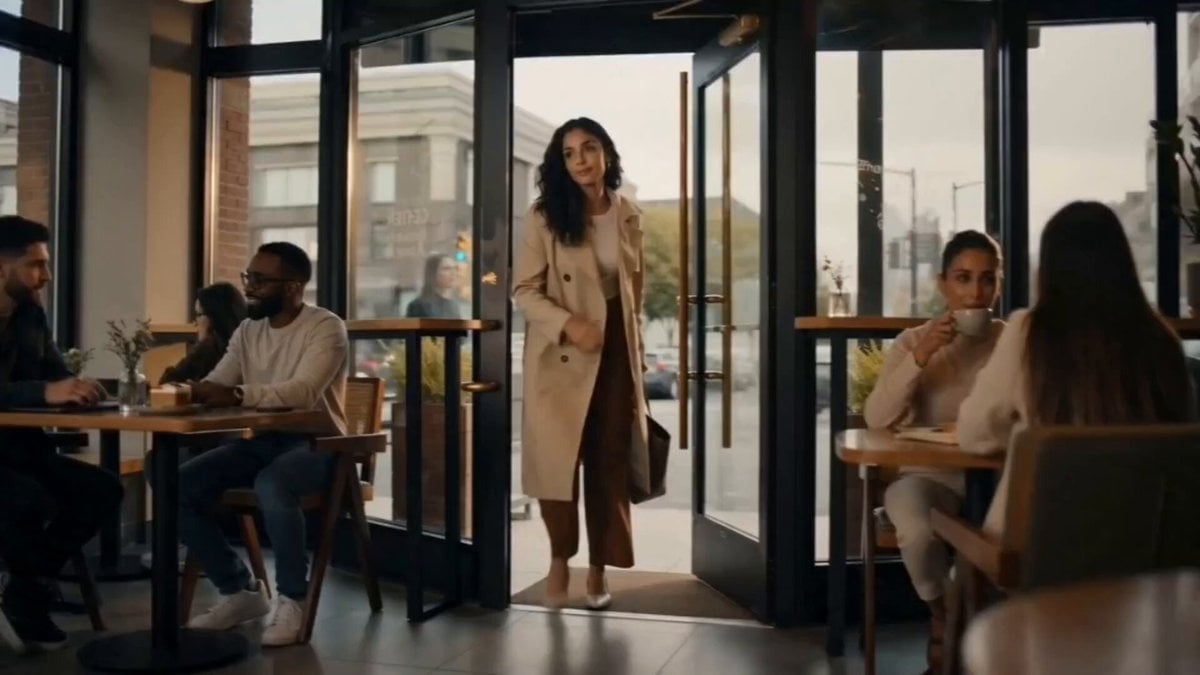
Cozy Luxury Cafe Commercial
More video prompts
Fresh picks from across the catalog.
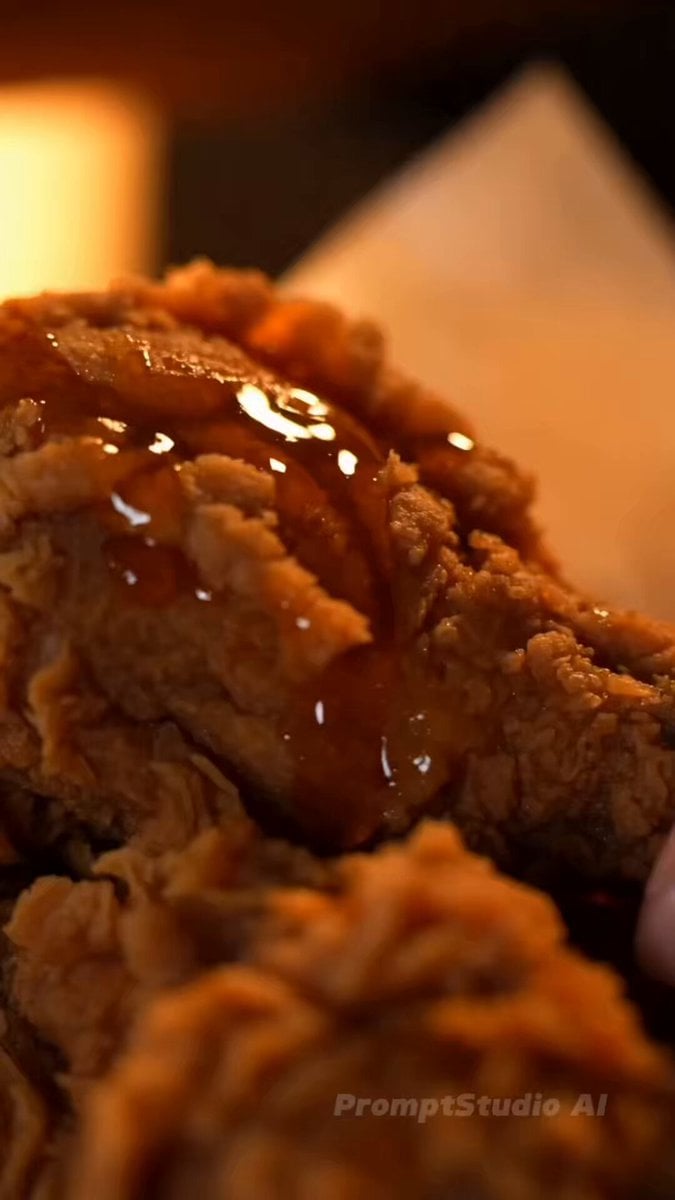
Cinematic Food ASMR with Aria
Ninja Wizard Levitation Jump
Sentient Robot Neon City Journey
Joseon Dynasty Historical Documentary
Futuristic Promotional Video for KIRI Engine
Tiny Man and Giant Quesadilla
The Alien Donut Animation
Blending words with bronze and white highlights in a corridor
Swans Tossing Rose on Lake
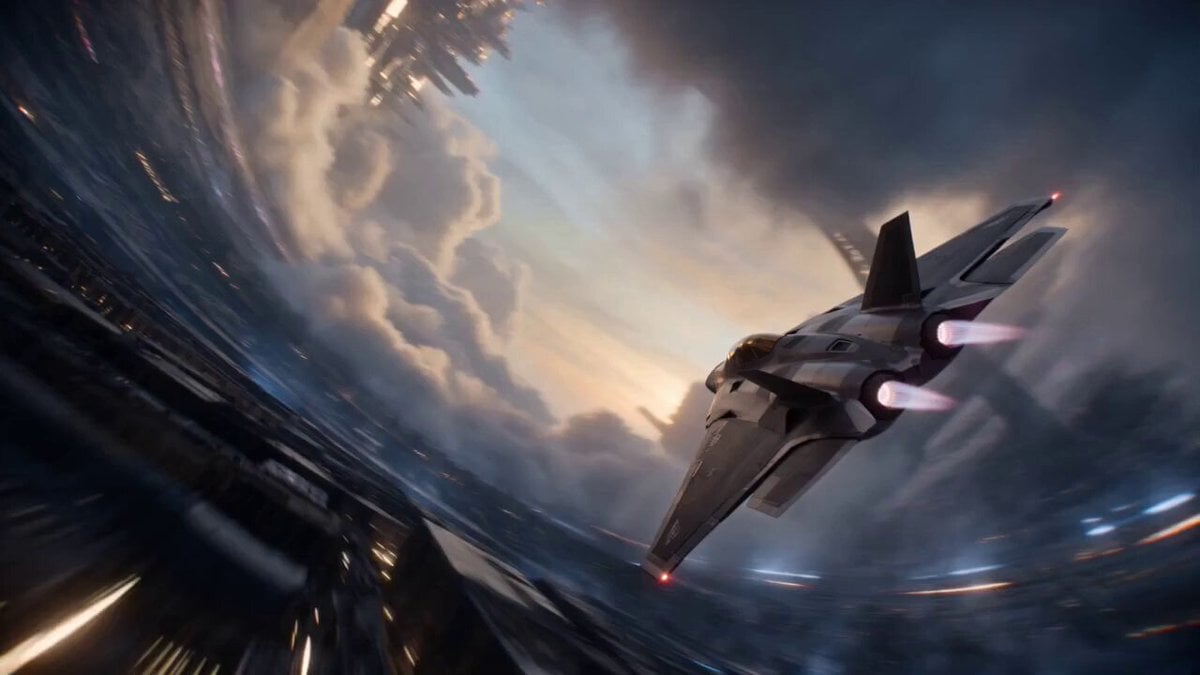
Cinematic Sci-Fi Ring World Action
Browse template categories
Storyboard to Scene Generation questions
How do I use the Storyboard to Scene Generation template?
Add your photo if the template asks for one, edit the prompt if you like — the template's model and format are already selected — and press Generate. Your version opens in PicX Studio.
Can I customize the Storyboard to Scene Generation template?
Yes. You can change the subject, setting, lighting, mood, format, and available model controls before creating your video.
Is the Storyboard to Scene Generation template free?
Opening and editing this template is free. Generating uses credits, shown on the Generate button when you are signed in.
Which AI model should I use?
Start with Seedance 2.0, which is the model associated with this template. You can compare another compatible model for a different finish.
Looking for something else? Browse all templates.

Your photo, any look
Thousands of ready templates for every top image and video model, from one credit balance.