
Photoreal Selfie Minecraft Village Ghast UI
Keep the person fully photorealistic in a handcrafted Minecraft village with a weathered church, mountains, a friendly Ghast in the sky, and a Java Edition hotbar UI overlay.
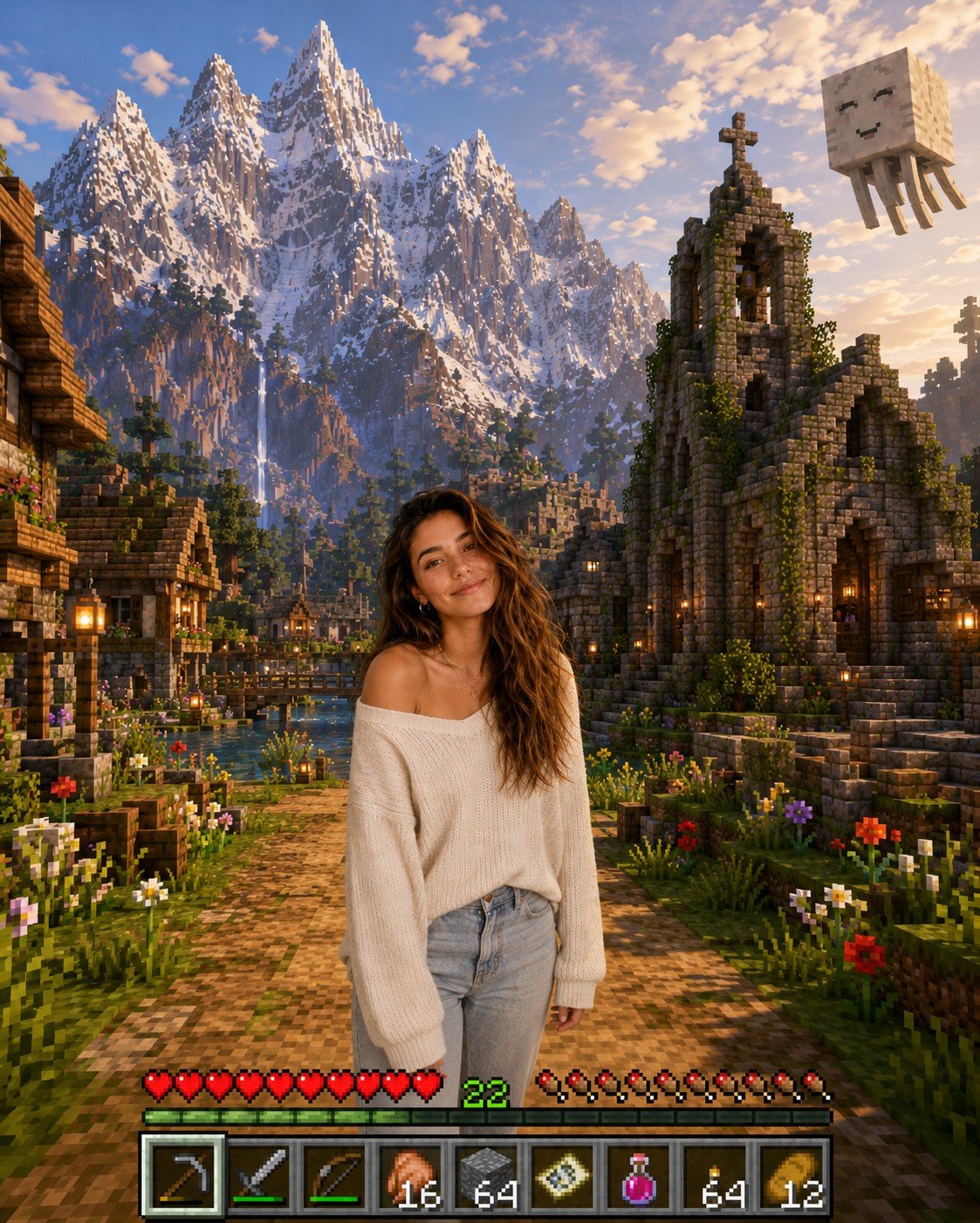
- Prompt included
- Model and format preset
- Free template
The prompt behind this image
Copy the exact prompt behind Photoreal Selfie Minecraft Village Ghast UI, or open it in the studio and make it yours.
Transform this image into a breathtaking Minecraft-inspired scene, placing the person at the center of a vibrant, handcrafted Minecraft village. The subject must remain completely human and photorealistic, preserving their original facial identity, clothing, and proportions without any blocky stylization. To the right, construct an old, messy church featuring weathered stone blocks, cracked textures, and overgrown vines. In the far background, render massive, cinematic mountains with jagged peaks and realistic snow-covered summits. Floating in the upper right sky is a large, pixel-accurate friendly Ghast with soft, glowing features. At the bottom of the frame, overlay a detailed Minecraft Java Edition user interface, including a high-resolution item bar and a green experience bar clearly displaying level 22. Blend the realistic subject seamlessly into the voxel environment with accurate lighting, soft shadows, and a wide-angle DSLR perspective. Ultra-detailed, 8K quality, vibrant and atmospheric daytime lighting.
How to use Photoreal Selfie Minecraft Village Ghast UI in 3 steps
- 1Upload ImagePNG, JPG or paste
Add your photo
Upload the photo the template builds on. The prompt, model and format are already set.
- 2…a portrait of your subject in softgolden-hour light, 85mm…
Personalize
Edit the subject and creative details for your destination.
- 3Generate
Generate
Press Generate — your image is created in PicX Studio, so you can compare it with the original and refine one variable at a time.
More like this
Templates with the same subject, style or setup. Open one to see its prompt.
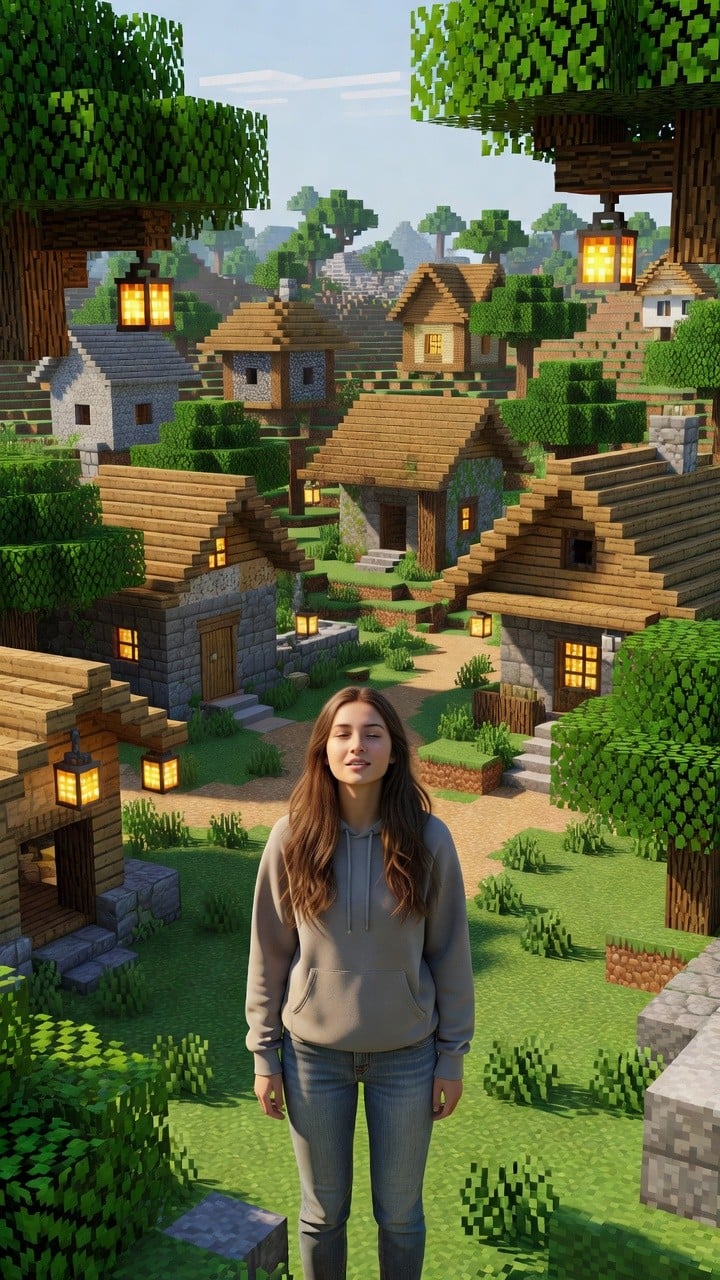
Photoreal Village Lanterns Minecraft Scene
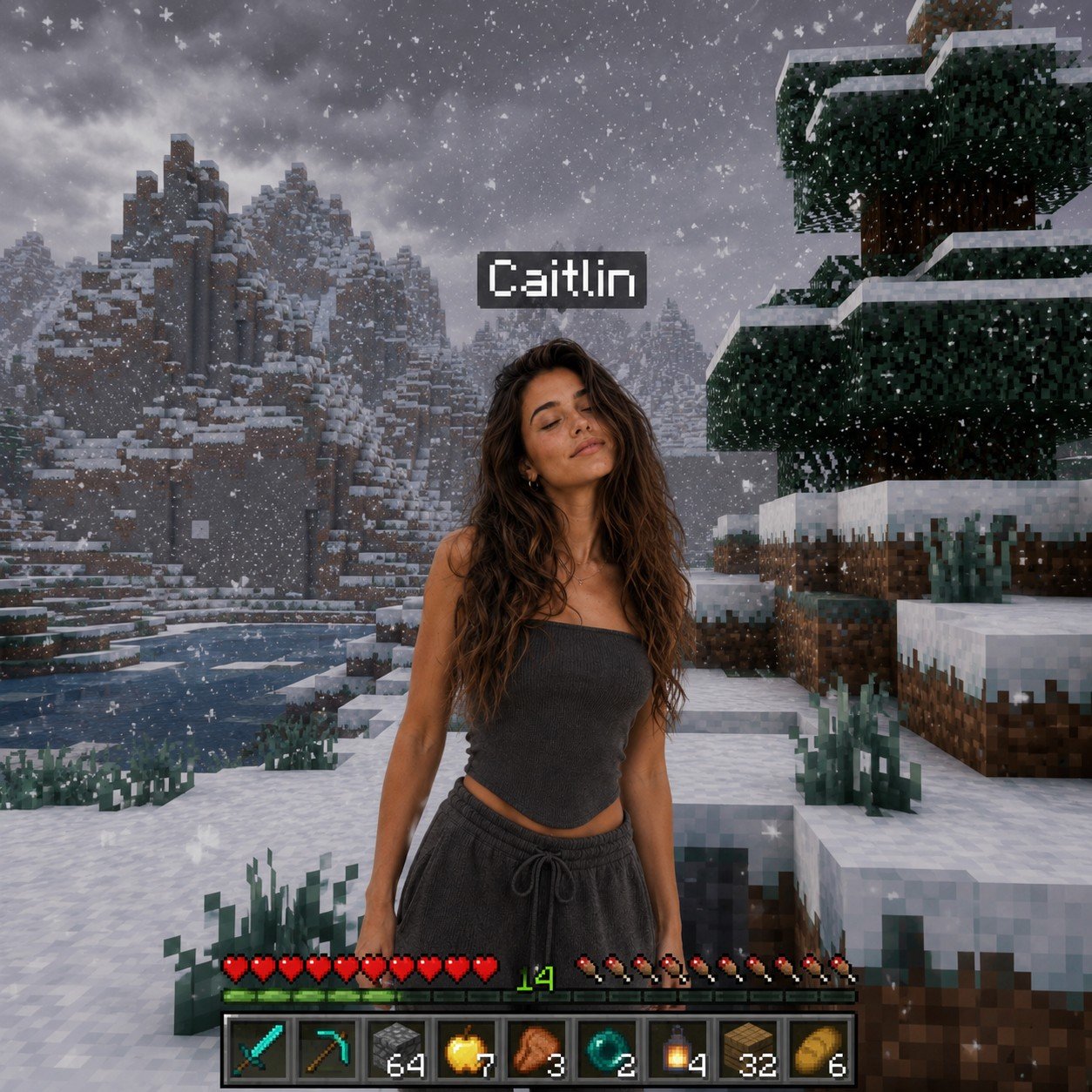
Photoreal Snow Biome Name Tag UI
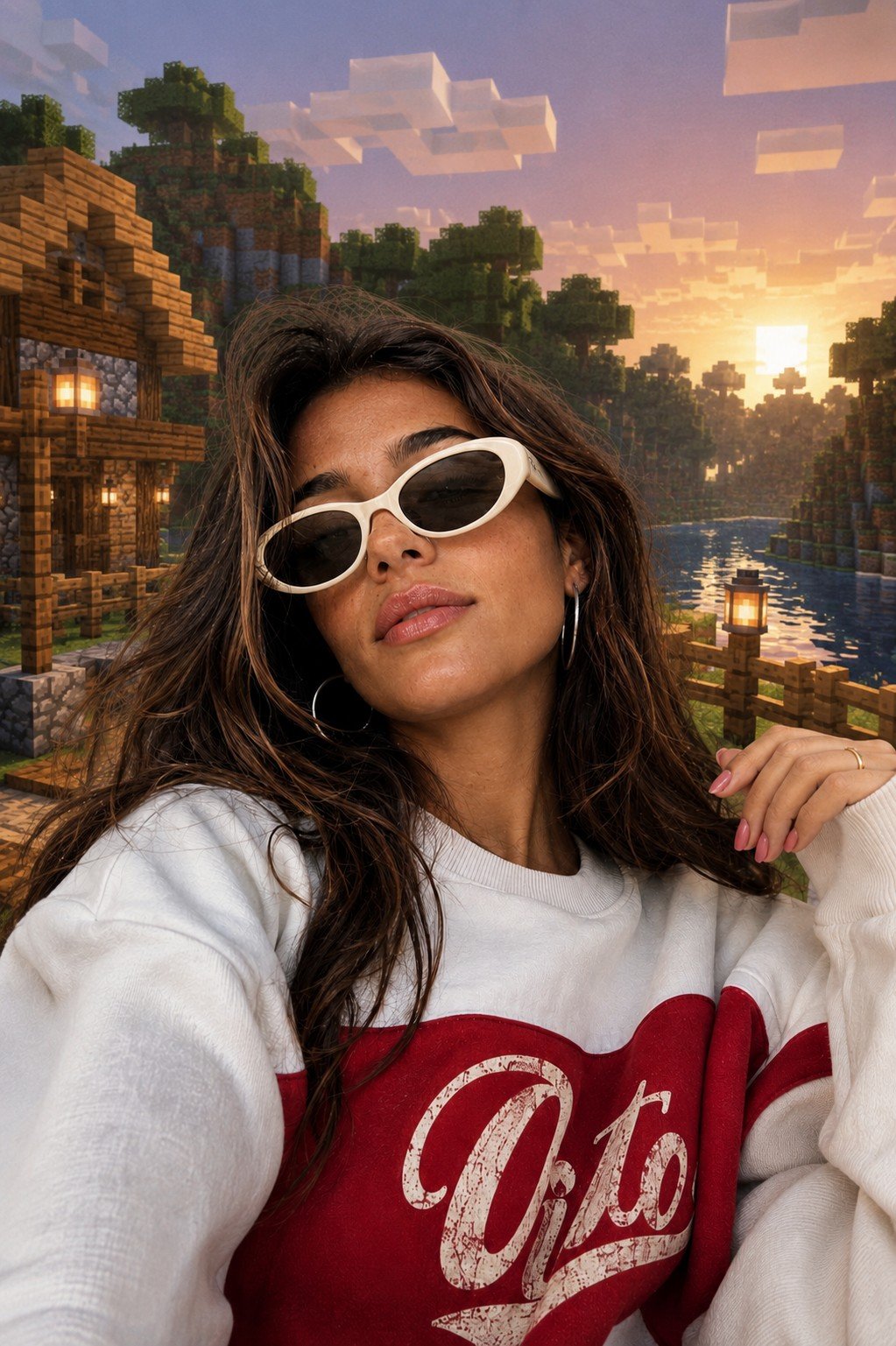
Photoreal Selfie Minecraft Block World
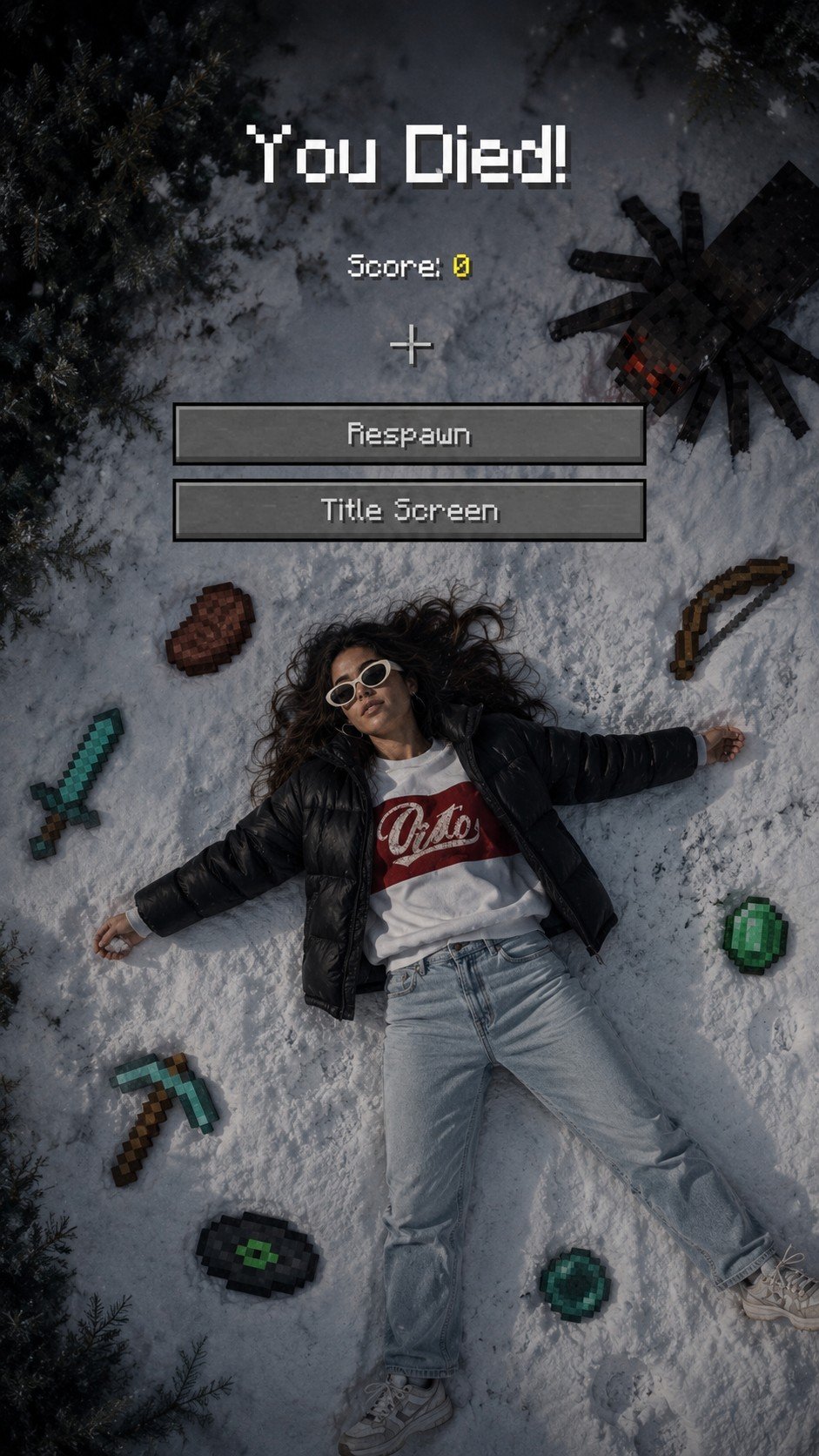
Minecraft You Died Winter Death Screen
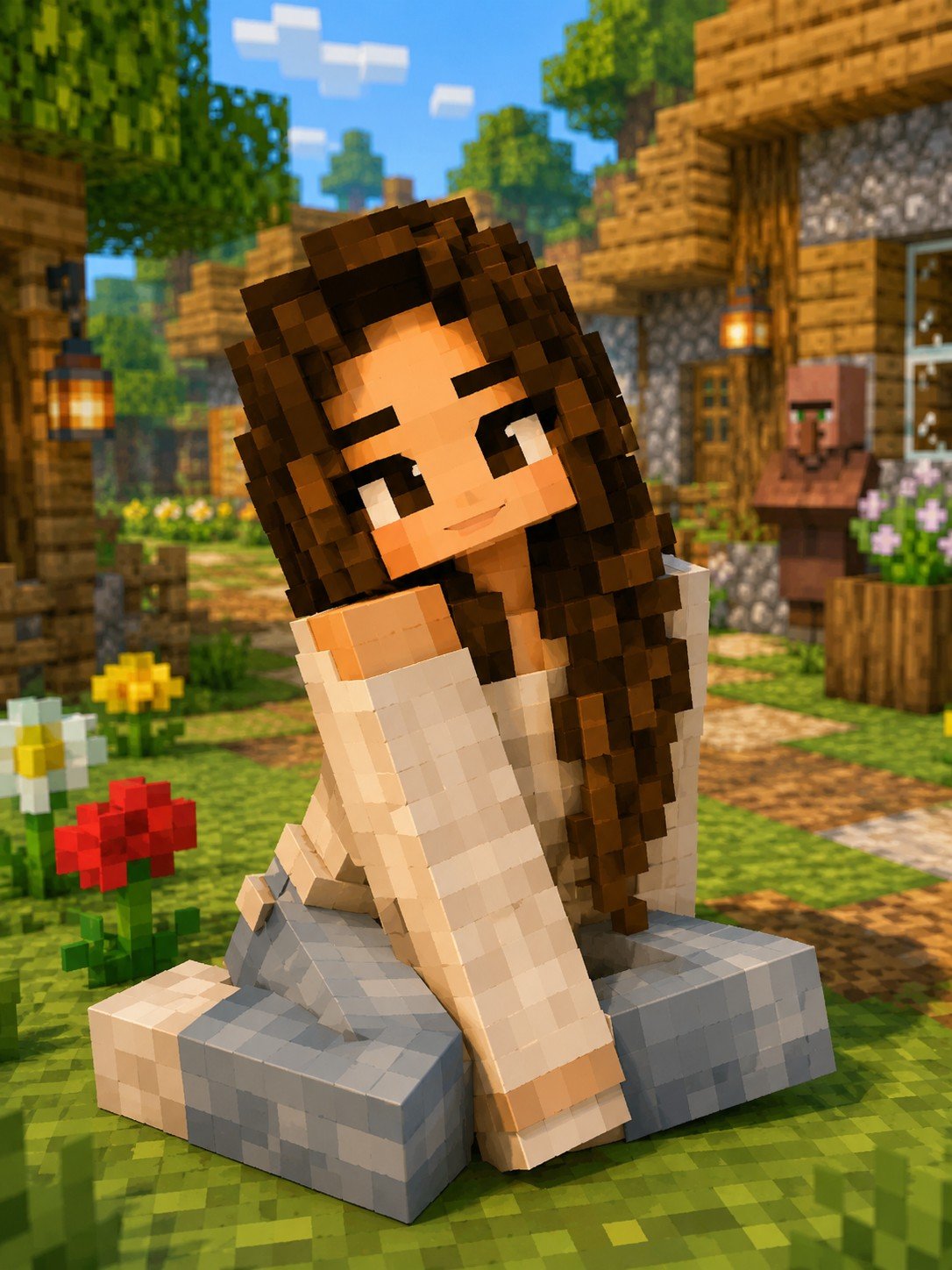
Minecraft Voxel Character Village Portrait
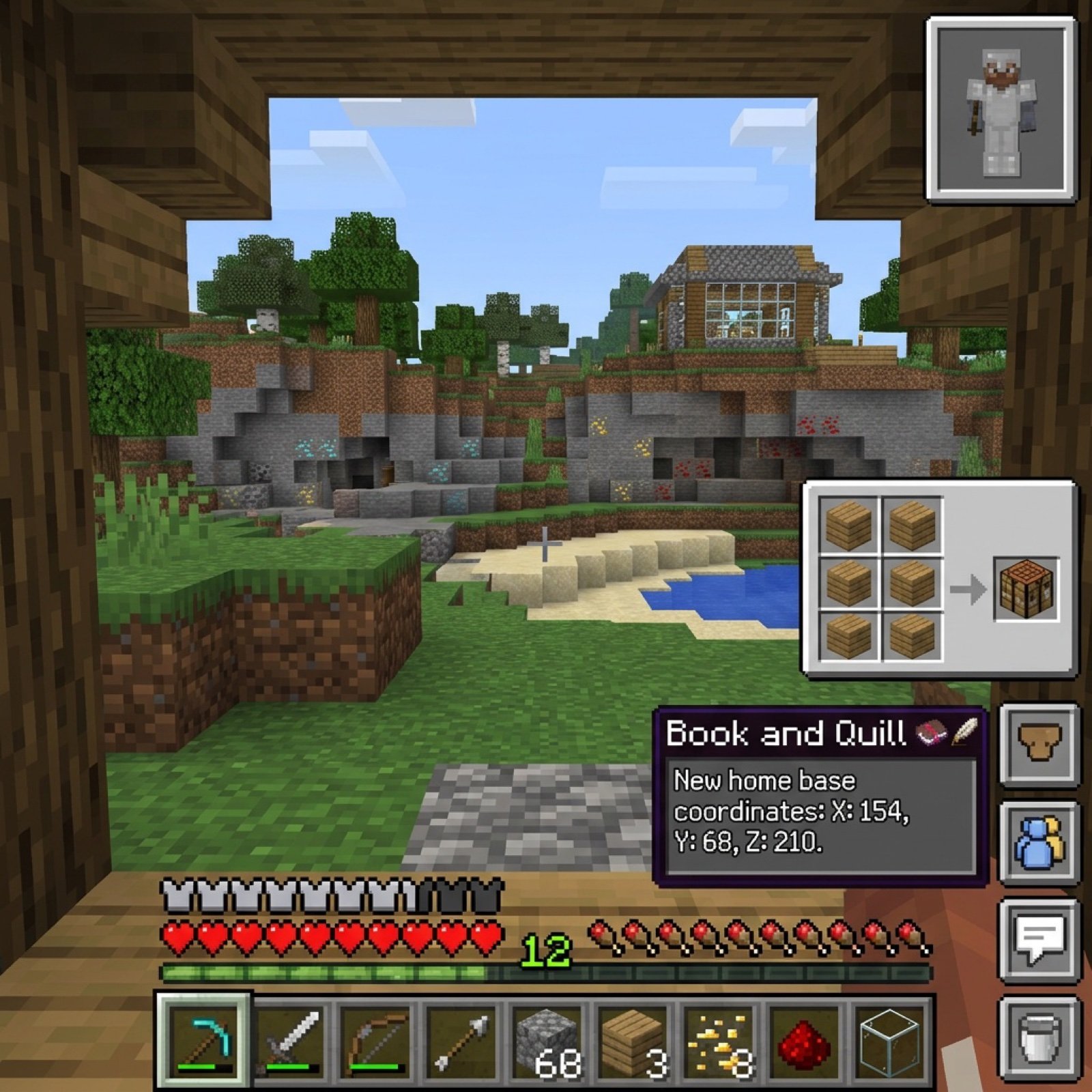
Minecraft Voxel Pixel Art Aesthetic System

Minecraft Next-Gen Voxel World Screenshot
Minecraft Homage Illustrious Style
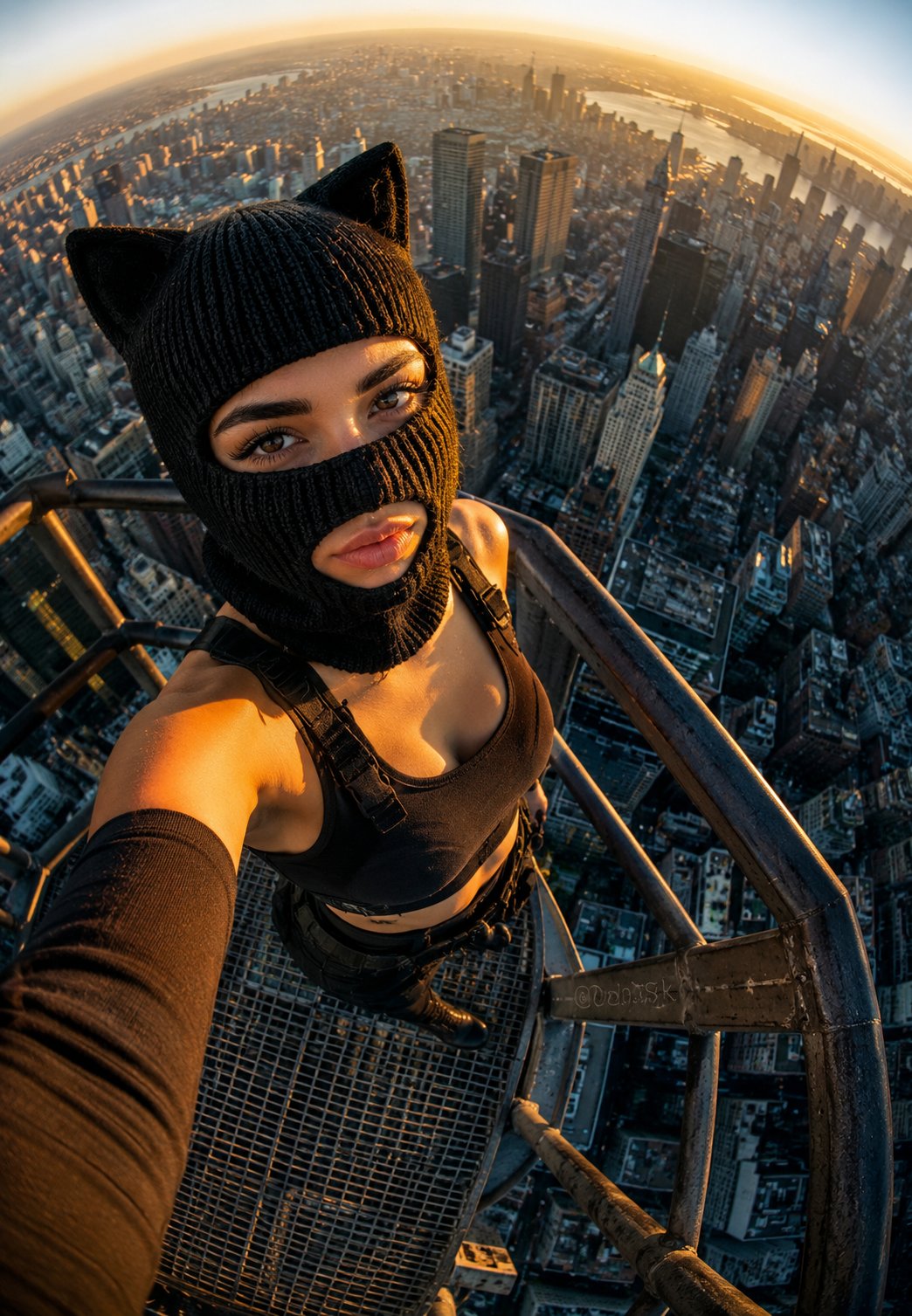
Rooftop Fisheye — Cat-Ear Balaclava at Golden Hour
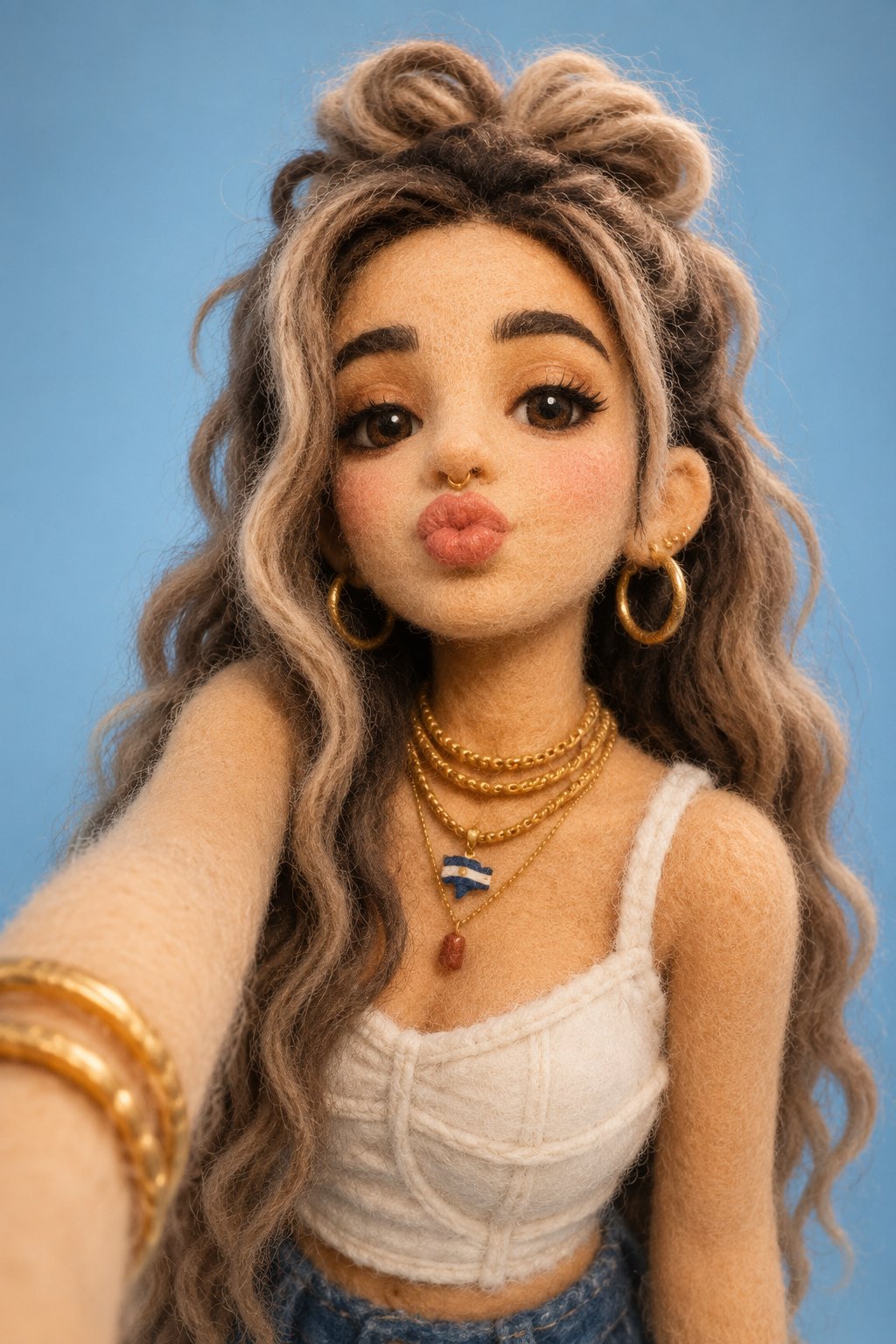
Felt & Knit 3D Character — Photo-Exact Face, Pixar-Quality Plush Figurine
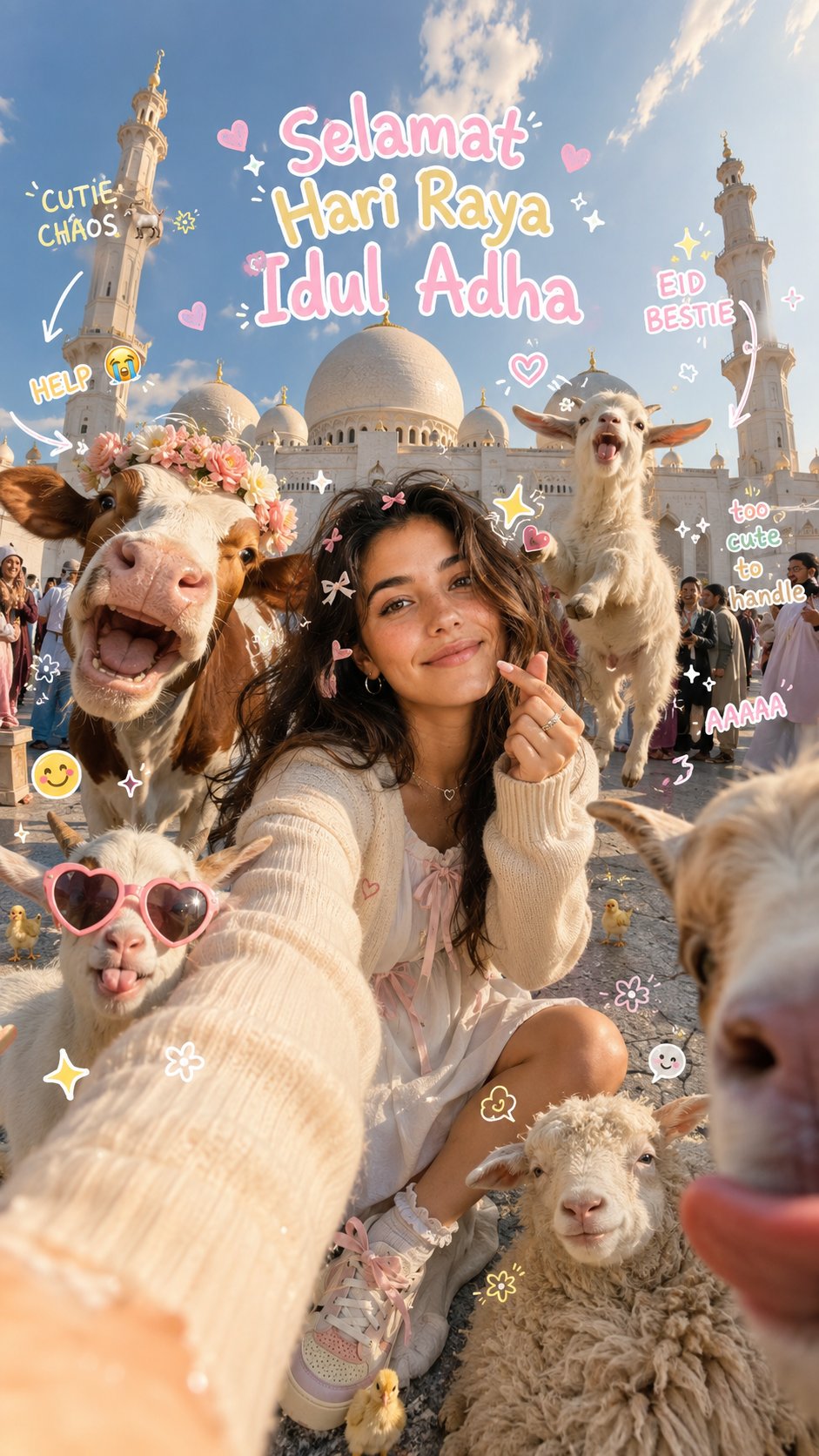
Eid al-Adha Cute Chaos — Fisheye Selfie with Farm Selfie, Mosque & Animals
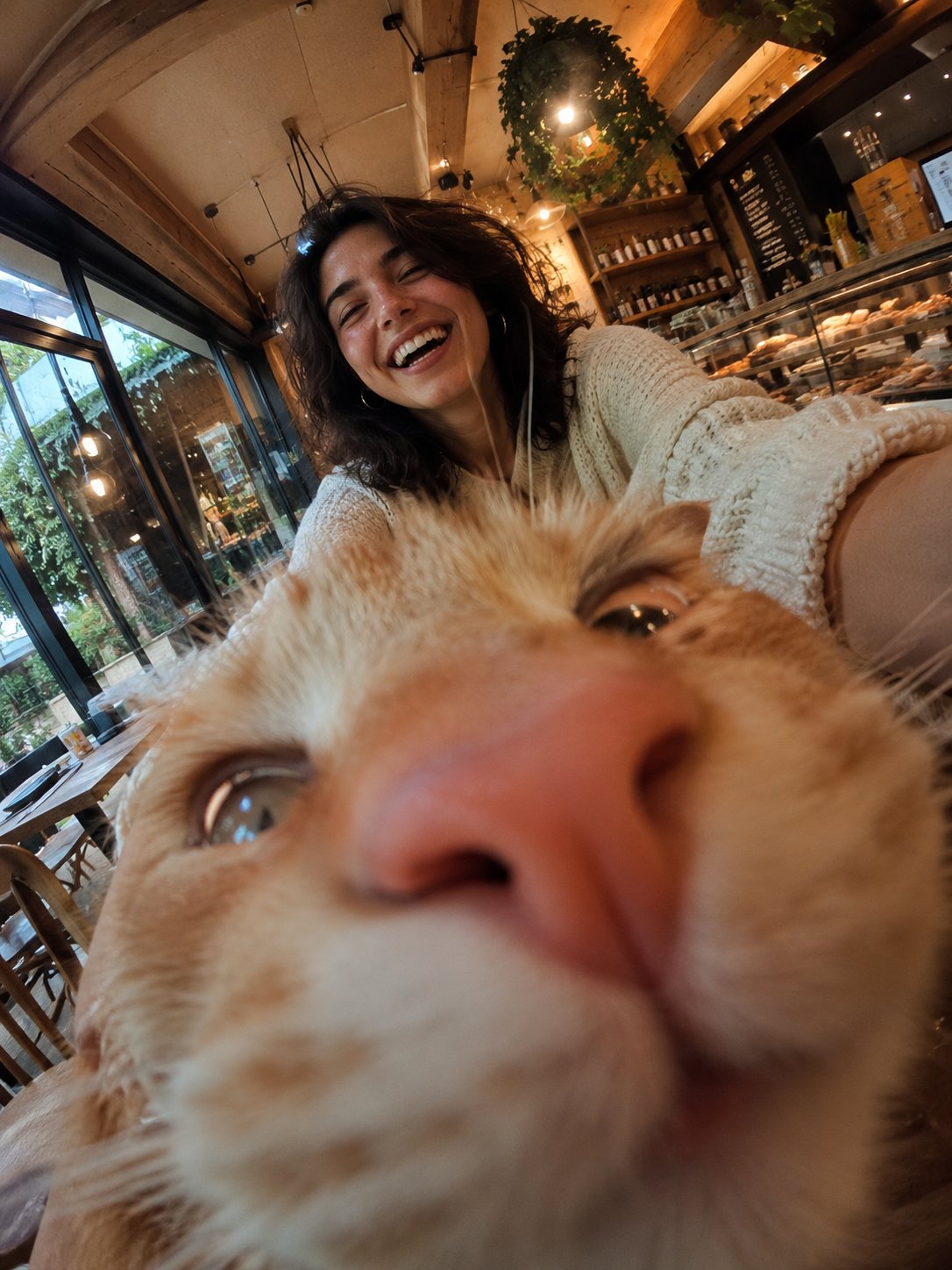
Cat Photobomb Selfie — 0.5x Wide Angle Café Chaos
Make it yours
Photoreal Selfie Minecraft Village Ghast UI works as-is. These are the safest ways to change it without losing the look.
Change one field
Copy a single group, rewrite it, and generate again so you can see what that field is doing.
Keep the frame, change the subject
Hold the composition and light of Photoreal Selfie Minecraft Village Ghast UI, then swap wardrobe, props or the person for a new take.
| If the result… | Why | Fix |
|---|---|---|
| The result drifts from the preview | Too many fields changed at once. | Reuse Photoreal Selfie Minecraft Village Ghast UI as-is first, then change one group — subject, light, or setting. |
| The model over-stylizes the scene | The prose prompt leaves finish and camera underspecified. | Add one camera or lighting sentence and stay on Image To Image. |
More image prompts
Fresh picks from across the catalog.
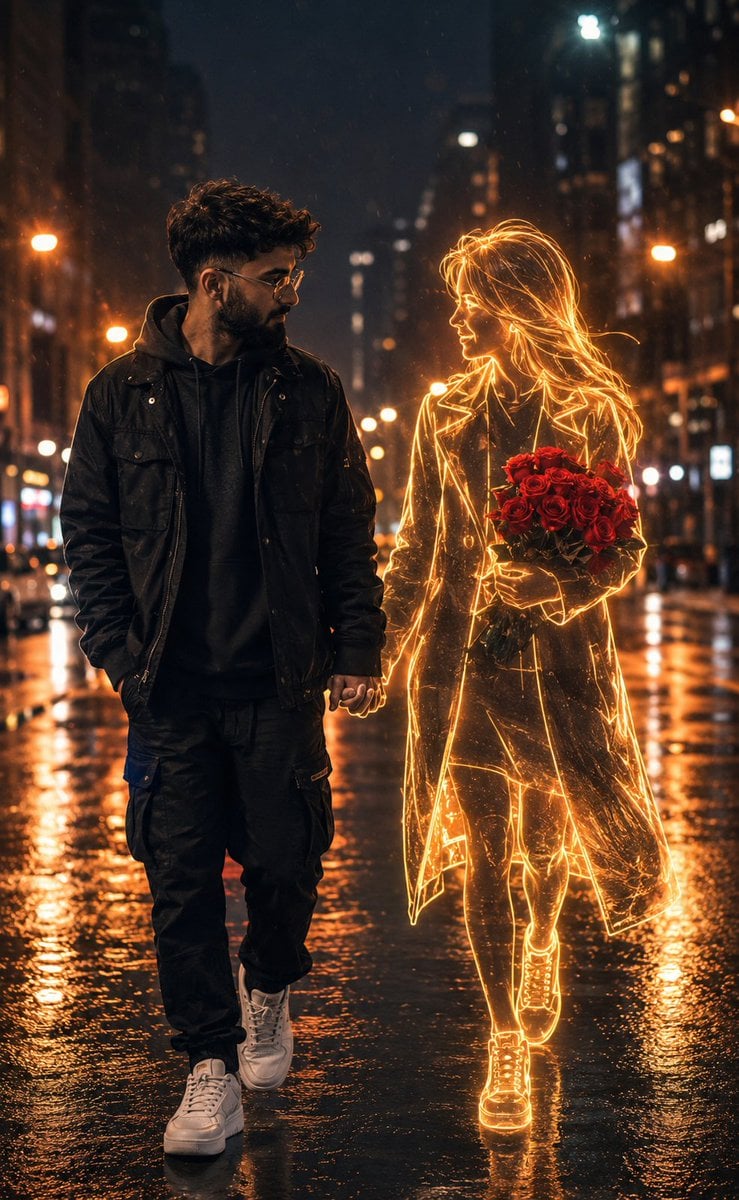
Holographic Woman in Urban Night
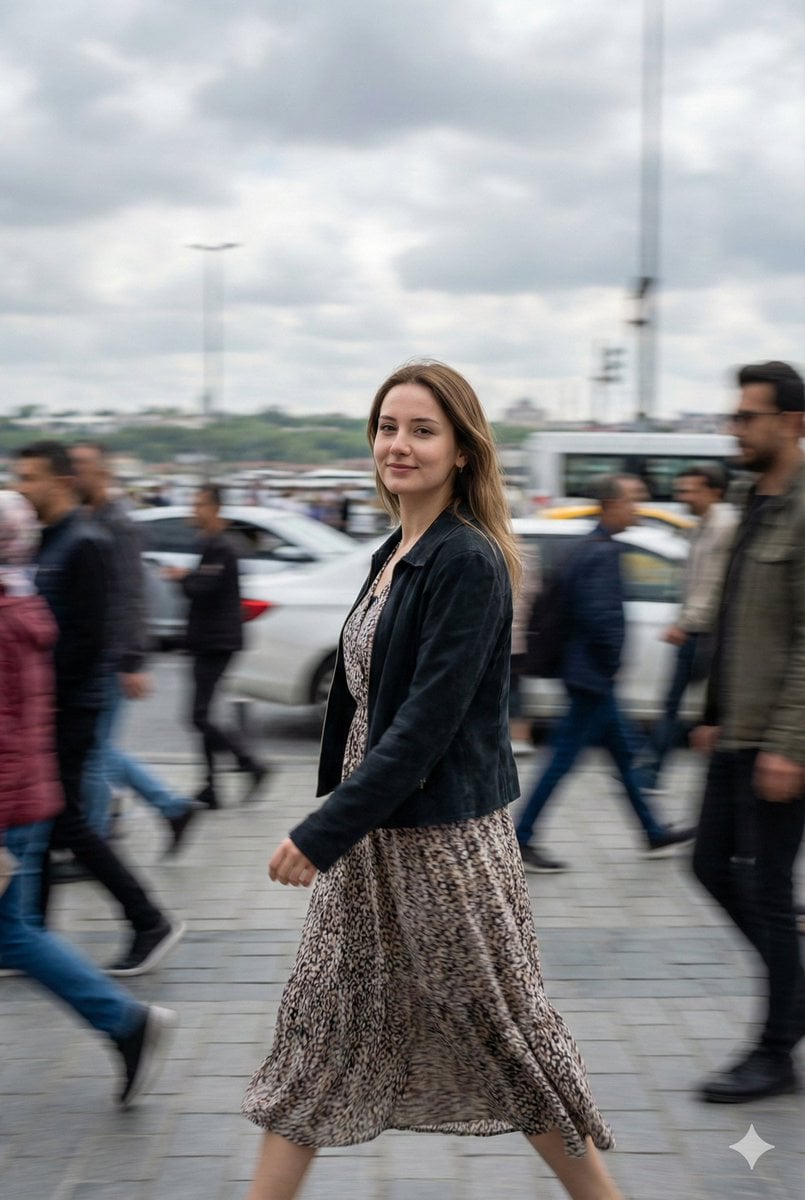
Cinematic Motion Blur Street Portrait Prompt
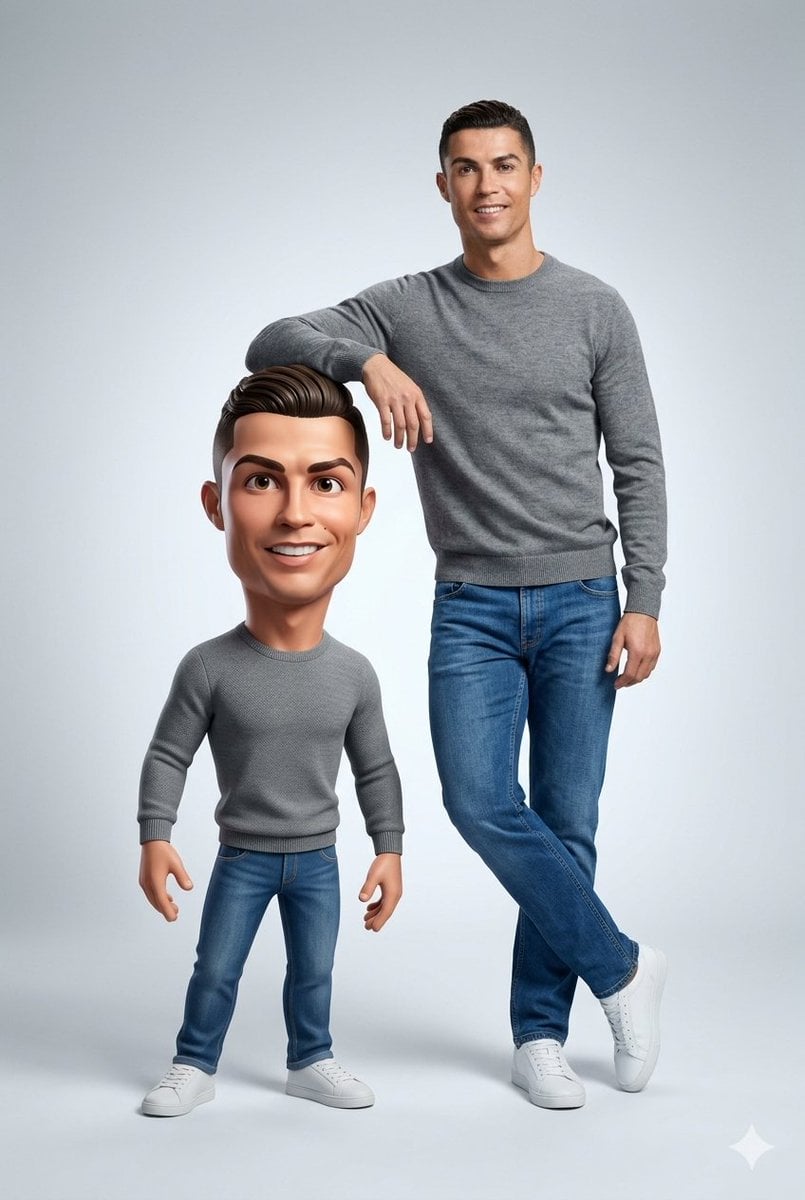
Ultra-Clean Realistic Human and Stylized 3D Caricature Composition Prompt
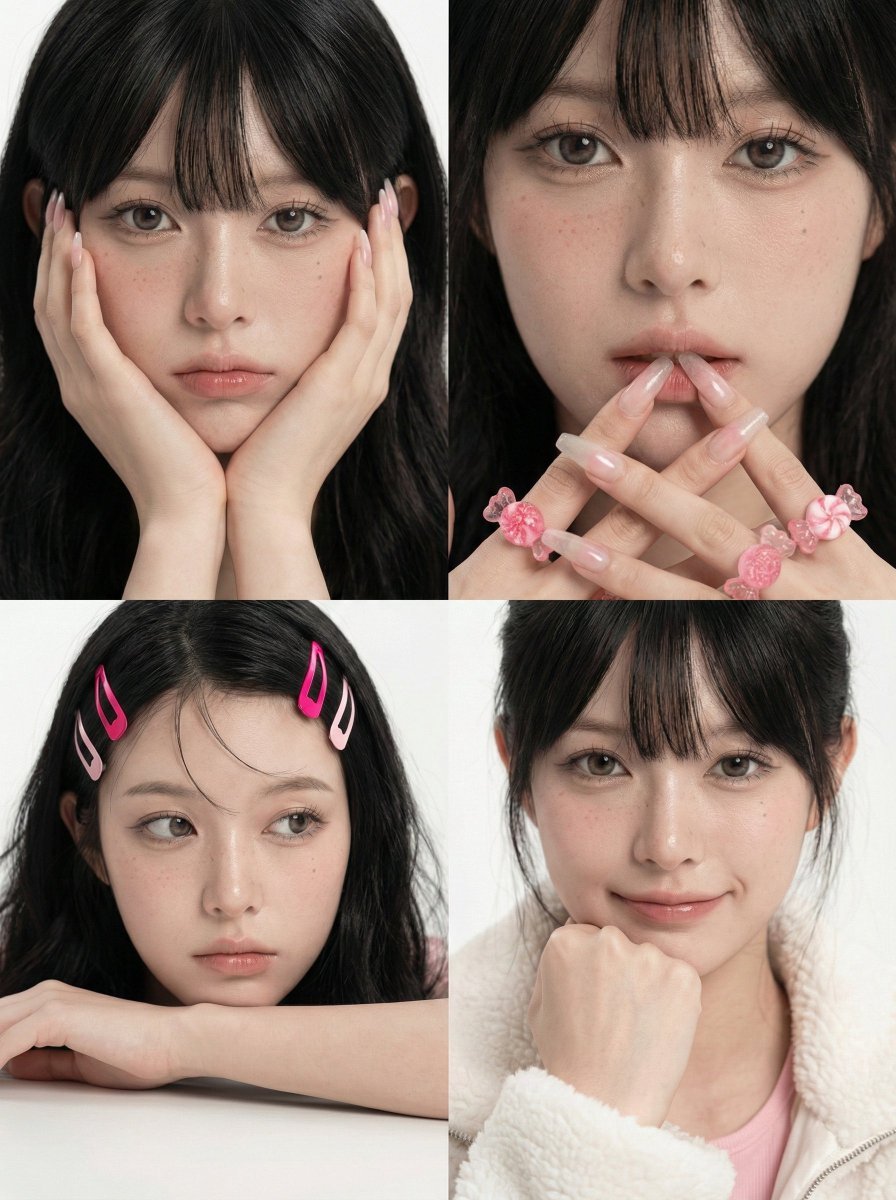
2x2 Beauty Portrait Collage
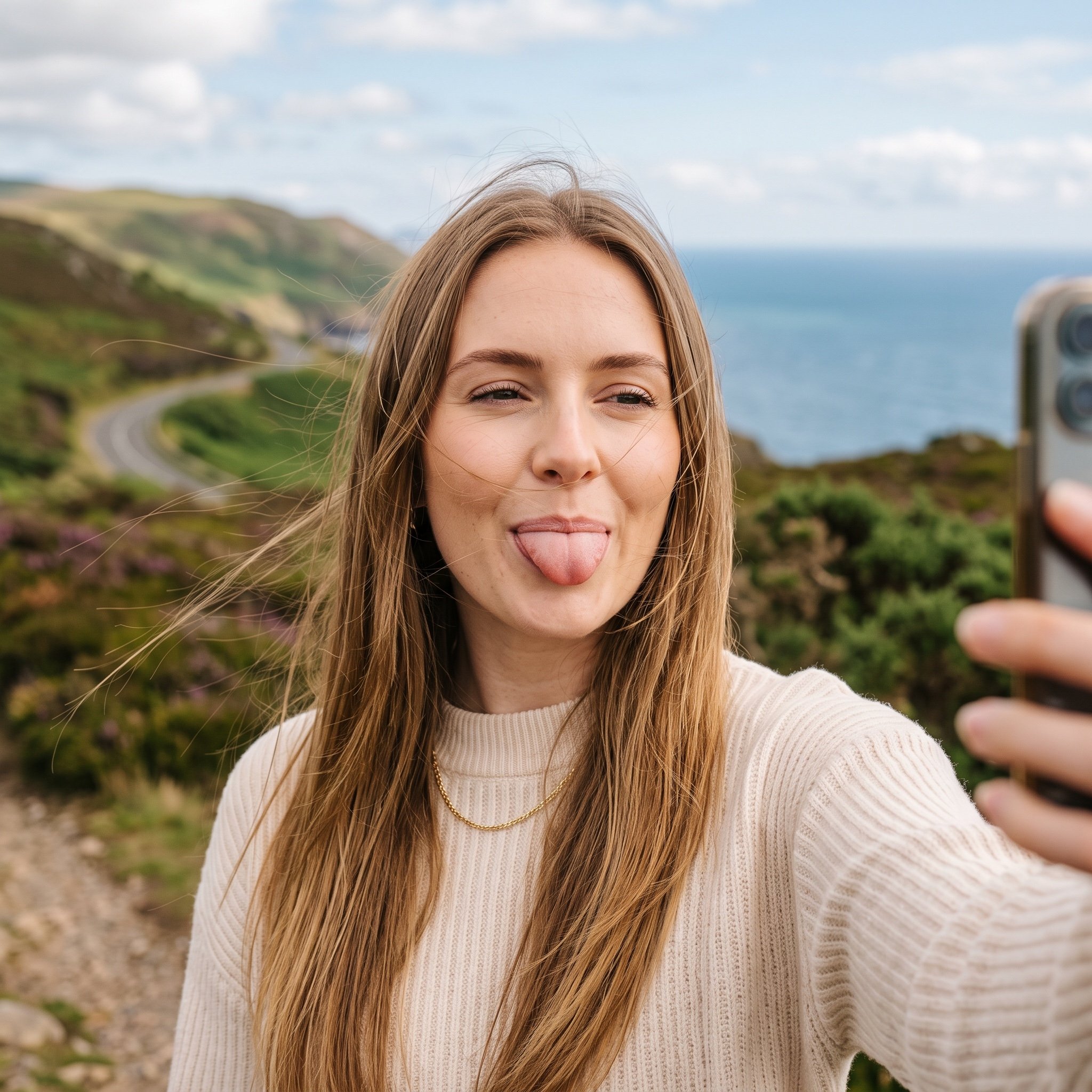
Playful Selfie Portrait
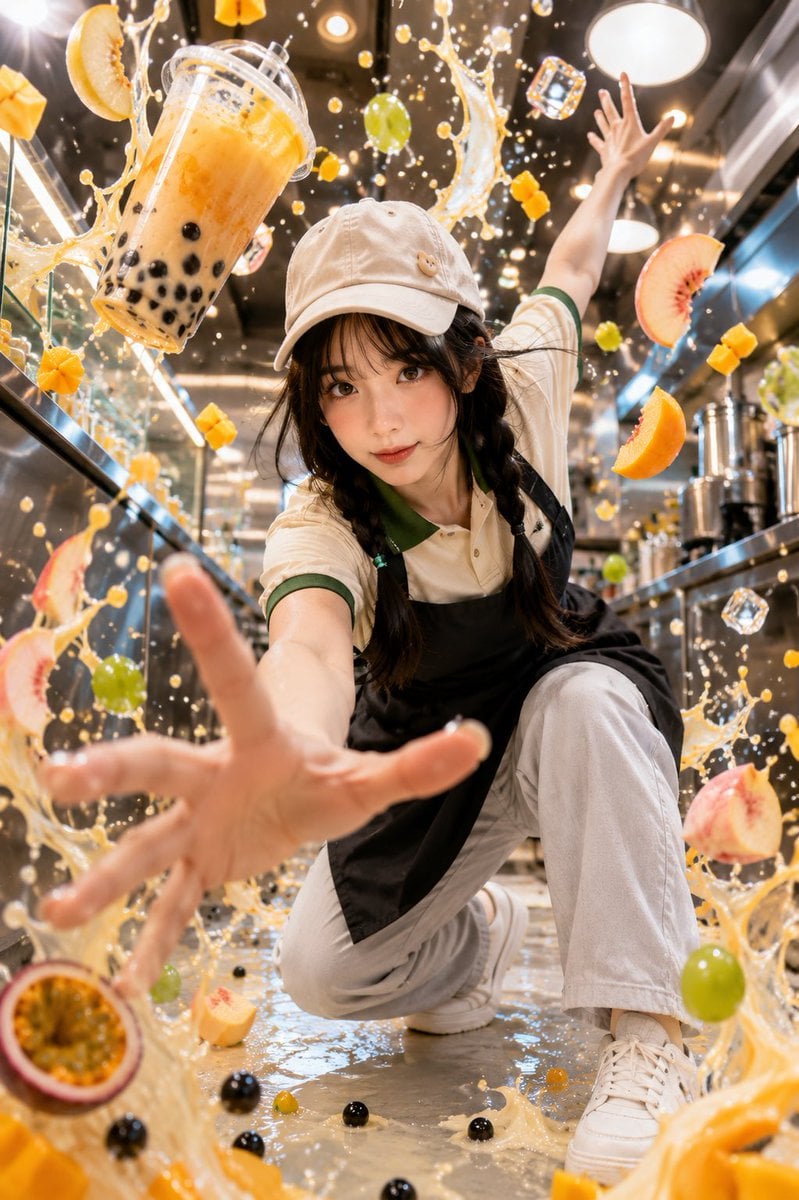
Tropical Bubble Tea Explosion
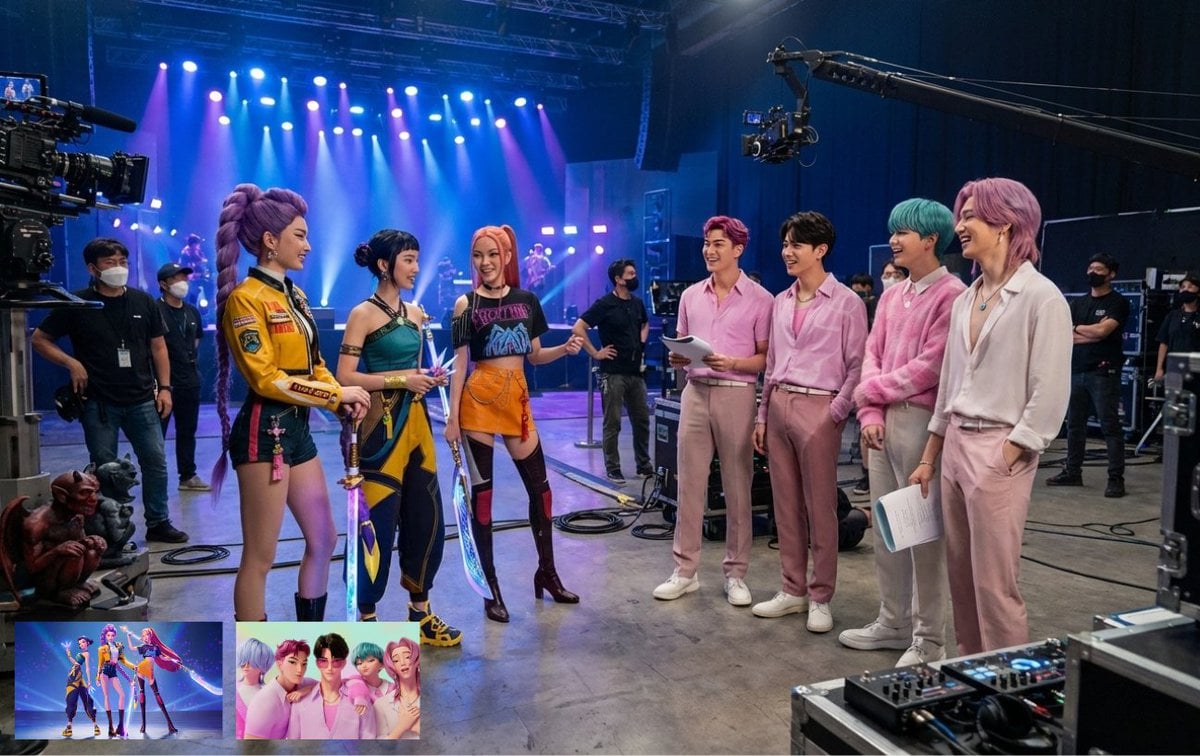
Cat drinking cola illustration
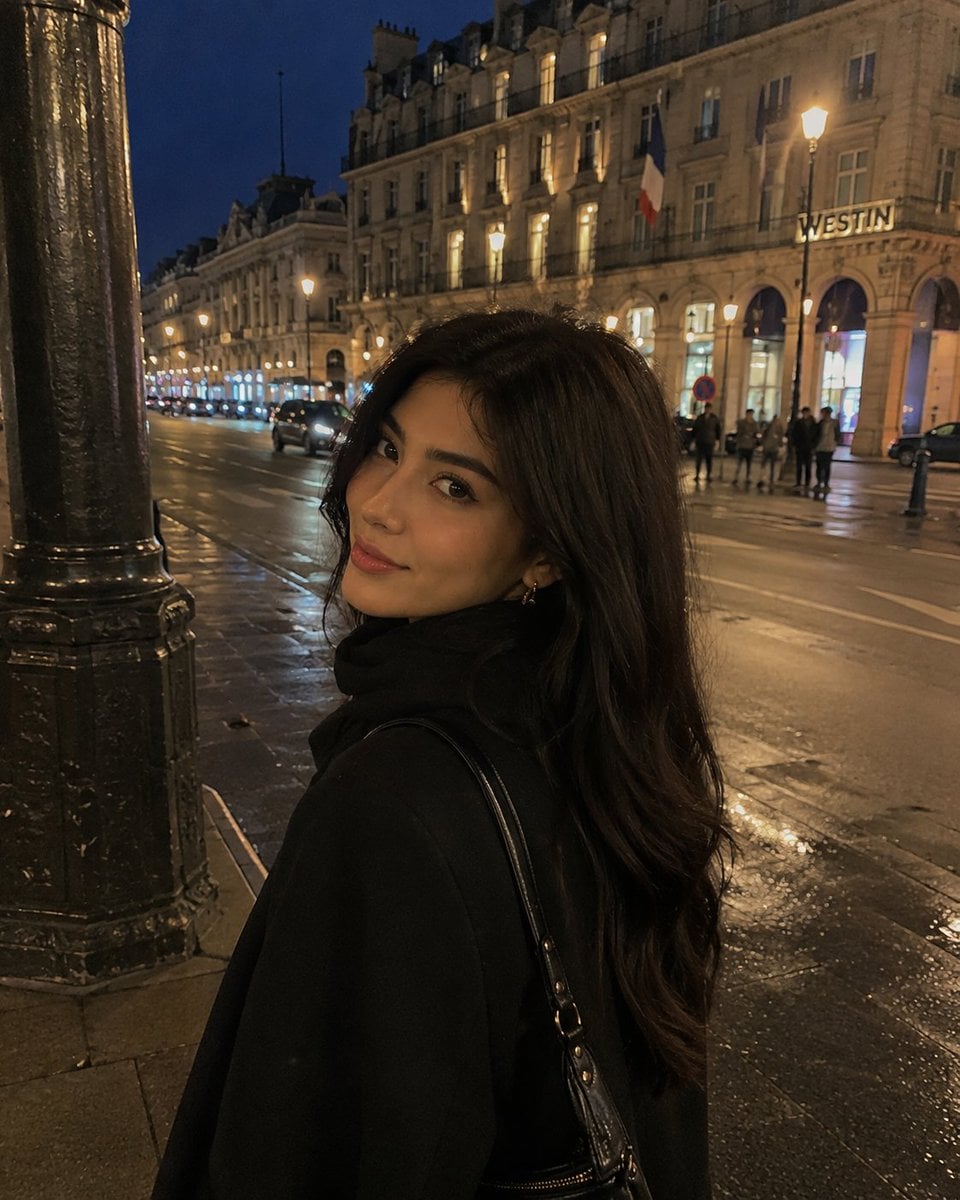
iPhone Night Street Portrait
Gemini Nano Banana Pro Golden Sunset Por
Dark Gothic Ritual in Cathedral
Featured in prompt roundups
Hand-picked collections that include this template.
Browse template categories
Photoreal Selfie Minecraft Village Ghast UI questions
How do I use the Photoreal Selfie Minecraft Village Ghast UI template?
Add your photo if the template asks for one, edit the prompt if you like — the template's model and format are already selected — and press Generate. Your version opens in PicX Studio.
Can I customize the Photoreal Selfie Minecraft Village Ghast UI template?
Yes. You can change the subject, setting, lighting, mood, format, and available model controls before creating your image.
Is the Photoreal Selfie Minecraft Village Ghast UI template free?
Opening and editing this template is free. Generating uses credits, shown on the Generate button when you are signed in.
Which AI model should I use?
Start with Image To Image, which is the model associated with this template. You can compare another compatible model for a different finish.
Looking for something else? Browse all templates.

Your photo, any look
Thousands of ready templates for every top image and video model, from one credit balance.