
Pixar-Style 3D Caricature Transformation
Transforms a real-life photo into a stylized 3D caricature with Pixar-inspired proportions while maintaining the subject's unique identity and details.
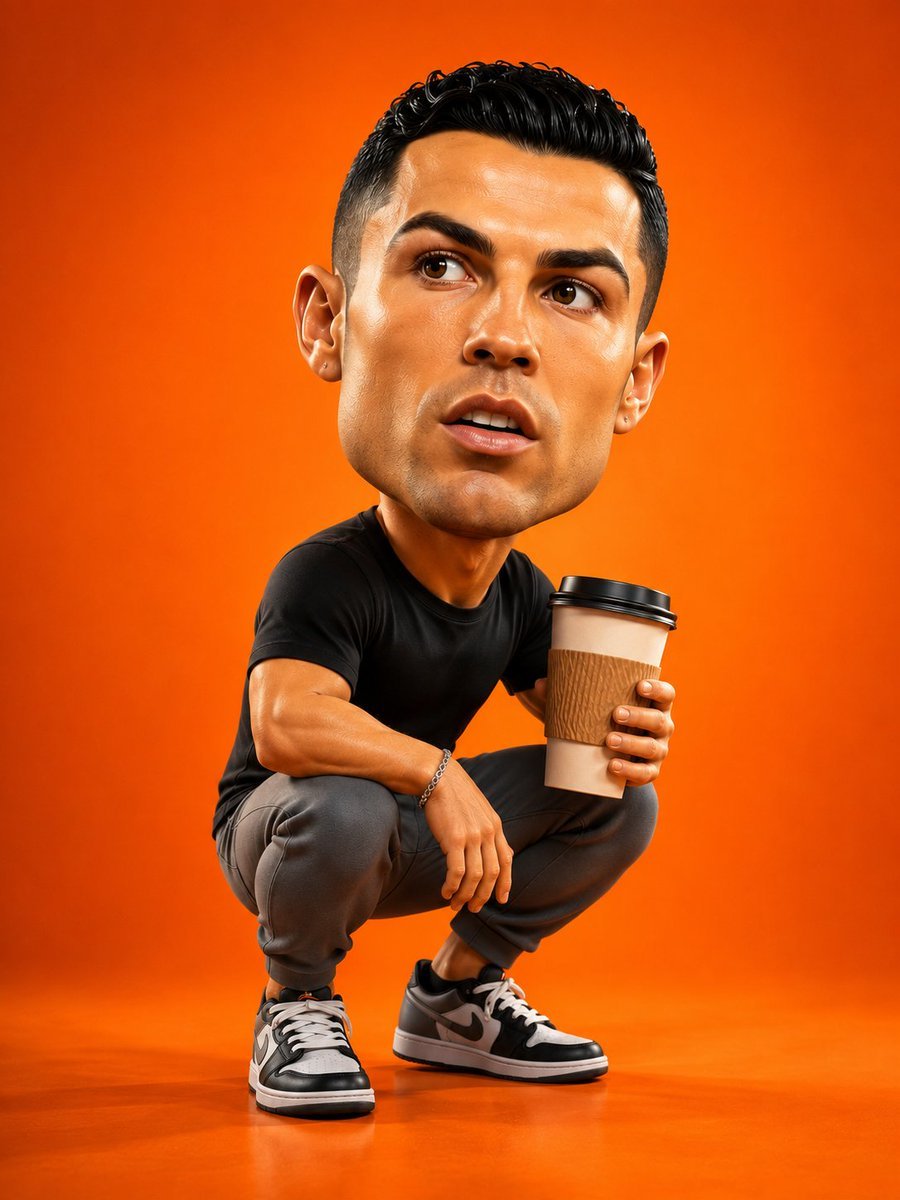
- Prompt included
- Model and format preset
- Premium template
The prompt behind this image
Copy the exact prompt behind Pixar-Style 3D Caricature Transformation, or open it in the studio and make it yours.
Using the uploaded photo as the only face reference, create a hyper-realistic 3D caricature while preserving 100% of the person's facial identity, skin tone, hairstyle, facial features, and expression. Transform the subject into a {argument name="character style" default="stylized character with an oversized head, large expressive eyes, exaggerated facial proportions, and a small realistic body in a playful Pixar-inspired style"}. The subject is {argument name="pose and clothing" default="crouching confidently while holding a large takeaway coffee cup, wearing a fitted black T-shirt, gray pants, casual sneakers, and a silver bracelet"}. Place the character on {argument name="background" default="a seamless vibrant orange studio background and floor with soft cinematic lighting, subtle shadows, and clean reflections"}. Preserve realistic skin pores, curly hair texture, clothing fabric details, and highly detailed coffee cup textures while maintaining the stylized proportions. Capture the scene with an ultra-wide 18mm lens from a slightly elevated angle for a dramatic perspective. Ultra-detailed 3D rendering, Octane Render, Unreal Engine 5 quality, ray-traced global illumination, cinematic color grading, 8K resolution, premium advertising illustration, vibrant colors, masterpiece.Negative prompt: low quality, blurry, flat lighting, distorted face, extra limbs, extra fingers, duplicated body parts, watermark, text, logo, noise, AI artifacts, low-poly, cartoon outline
How to use Pixar-Style 3D Caricature Transformation in 3 steps
- 1Upload ImagePNG, JPG or paste
Add your photo
Upload the photo the template builds on. The prompt, model and format are already set.
- 2…a portrait of your subject in softgolden-hour light, 85mm…
Personalize
Edit the subject and creative details for your destination.
- 3Generate
Generate
Press Generate — your image is created in PicX Studio, so you can compare it with the original and refine one variable at a time.
More like this
Templates with the same subject, style or setup. Open one to see its prompt.

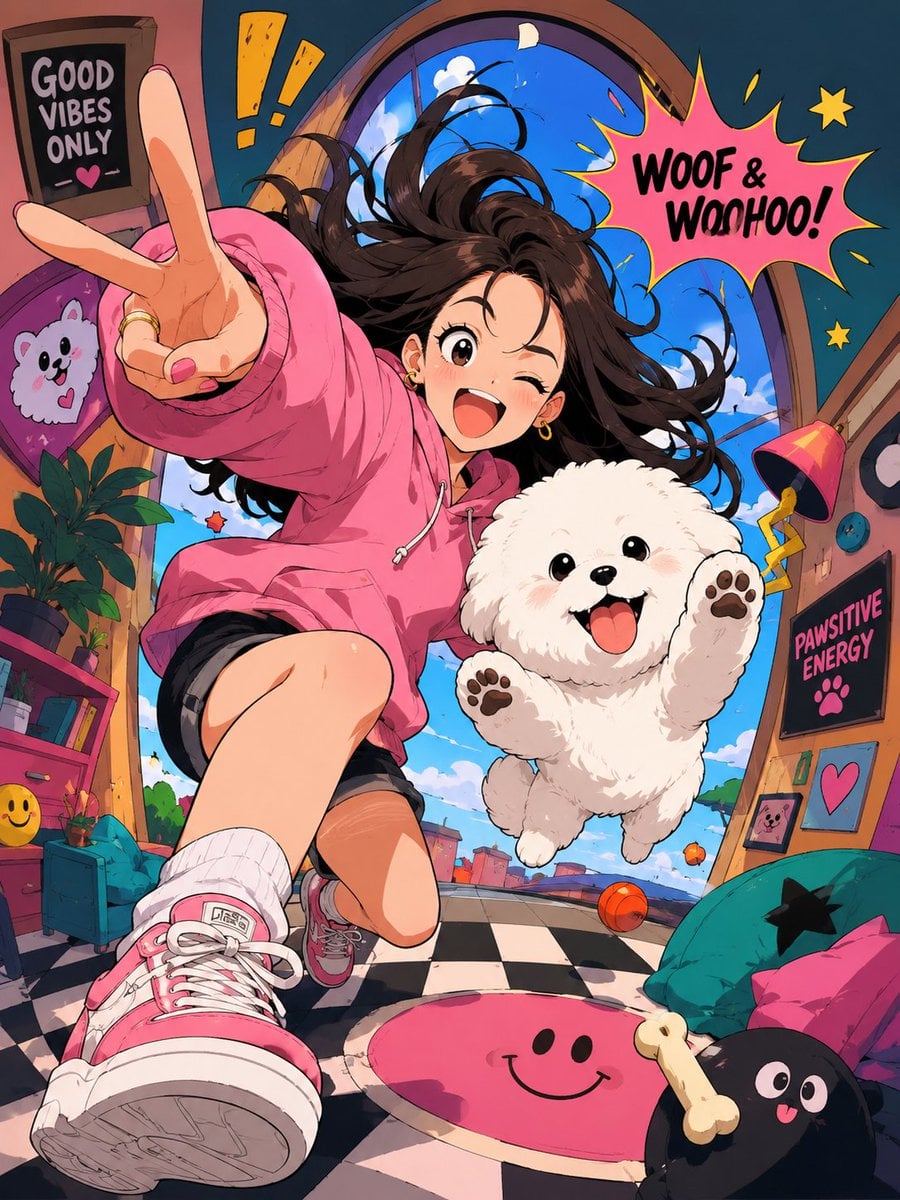
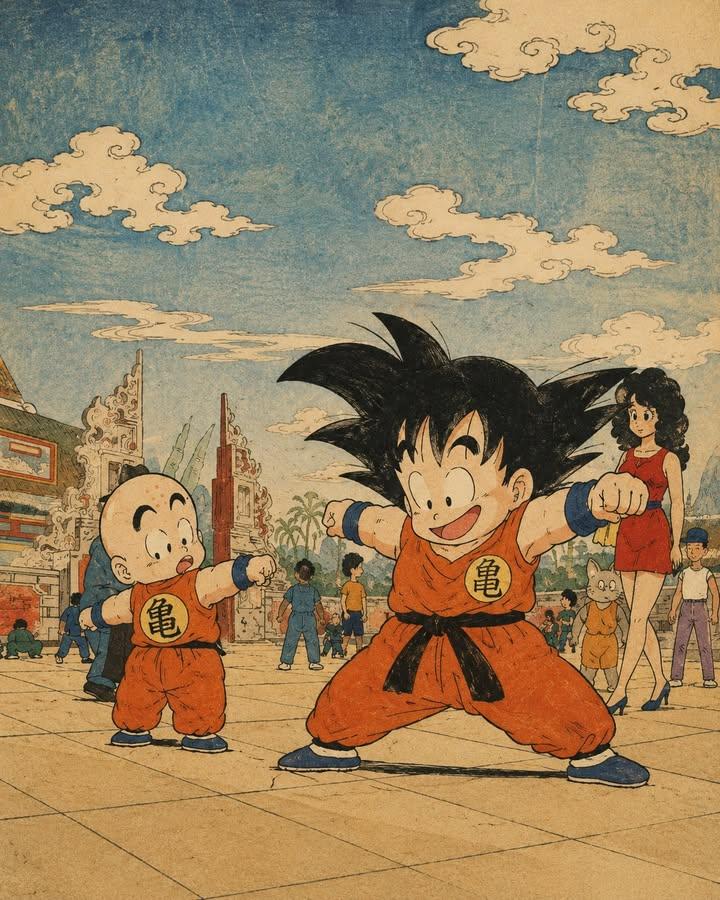
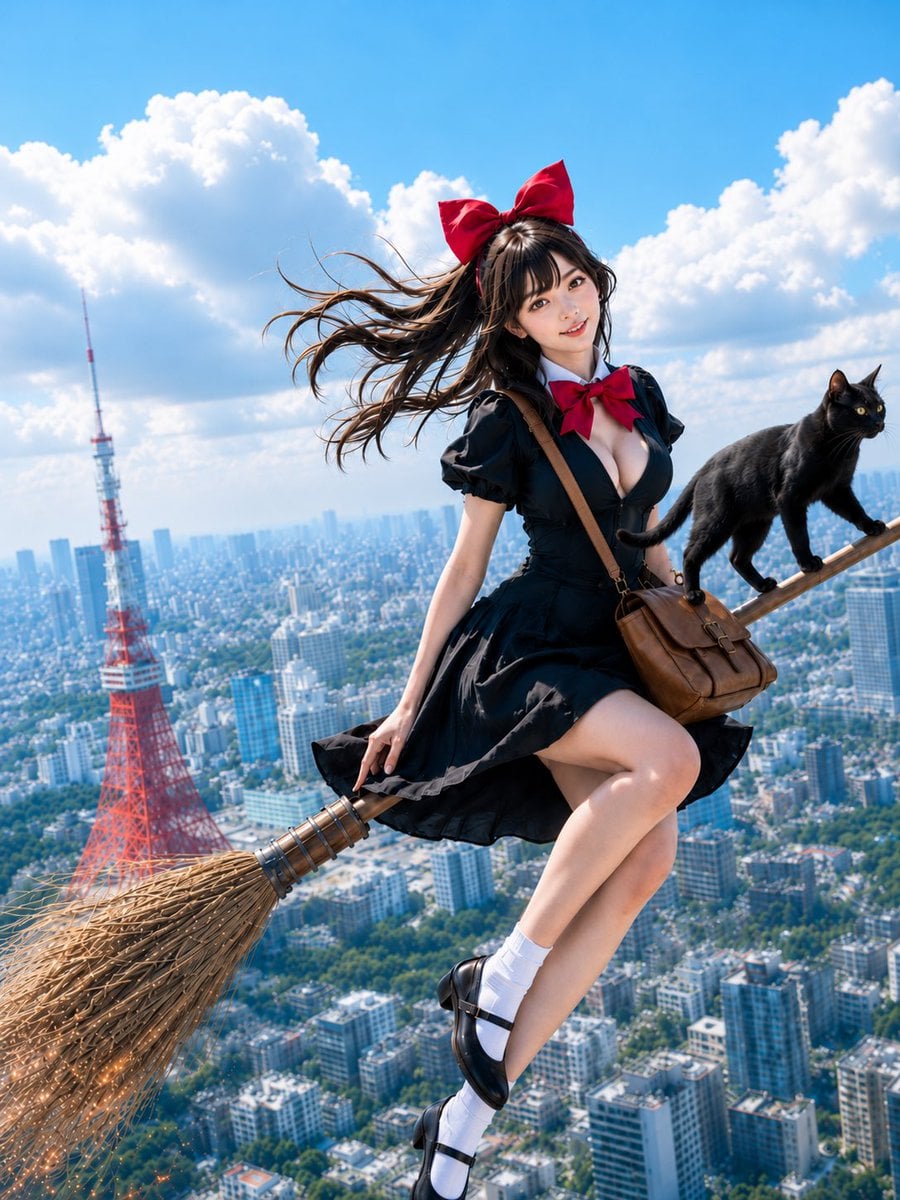
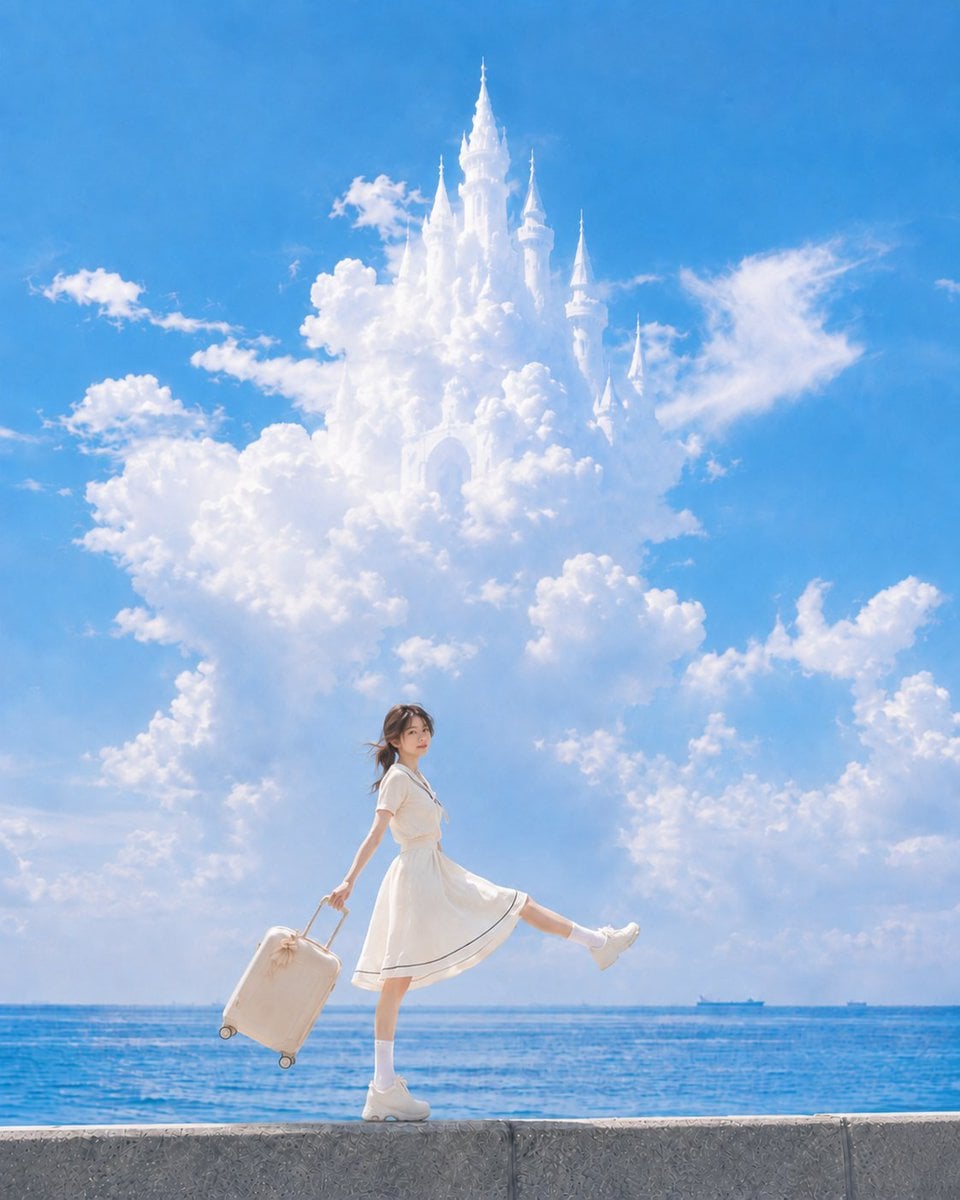
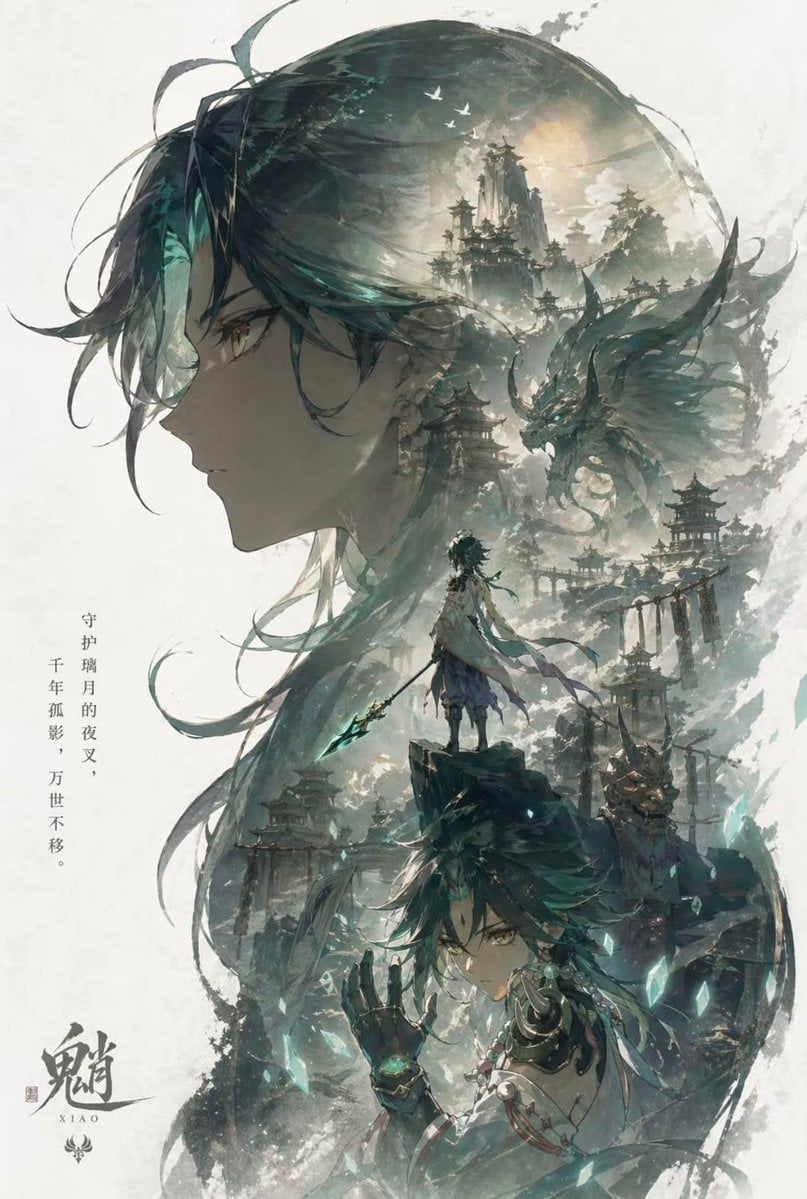
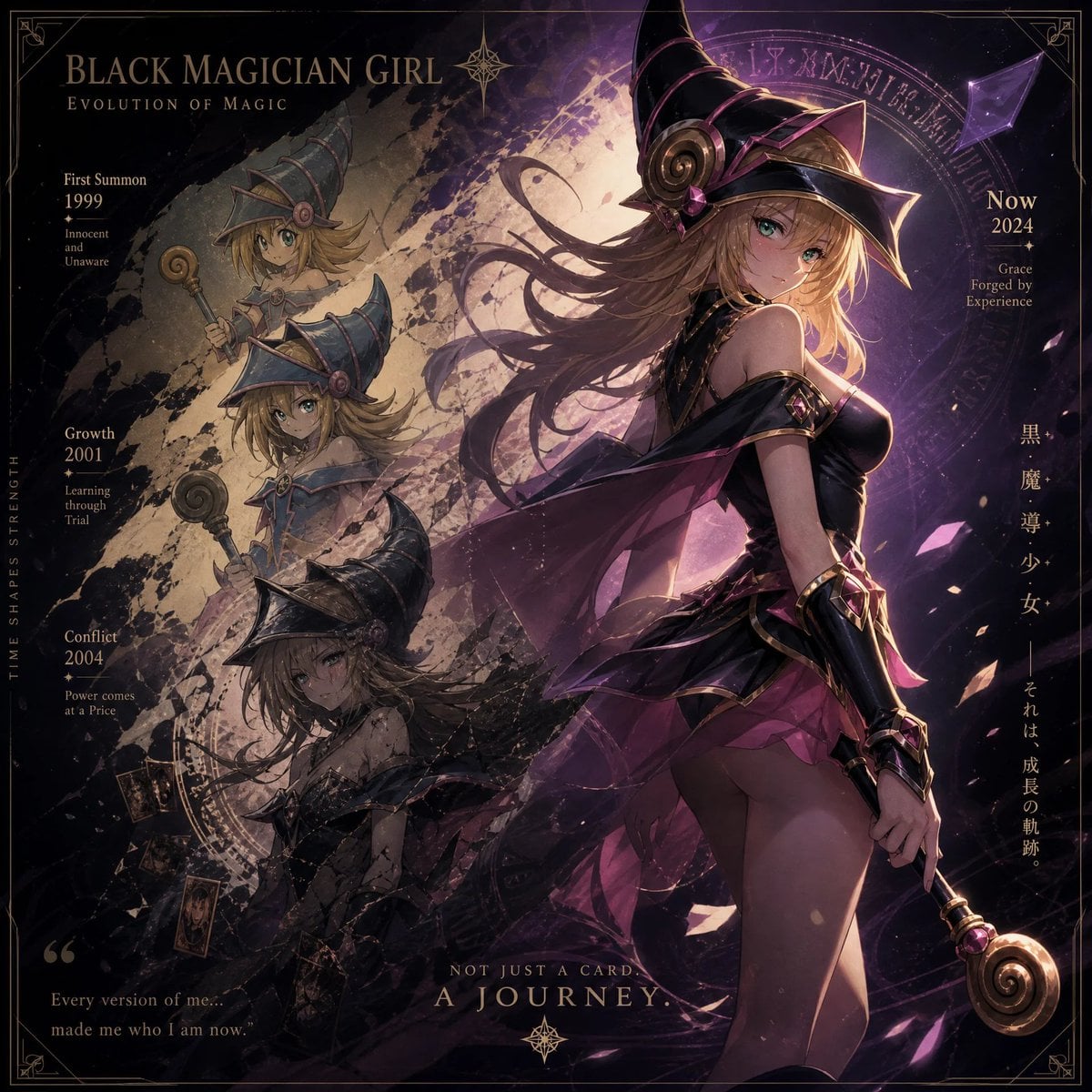
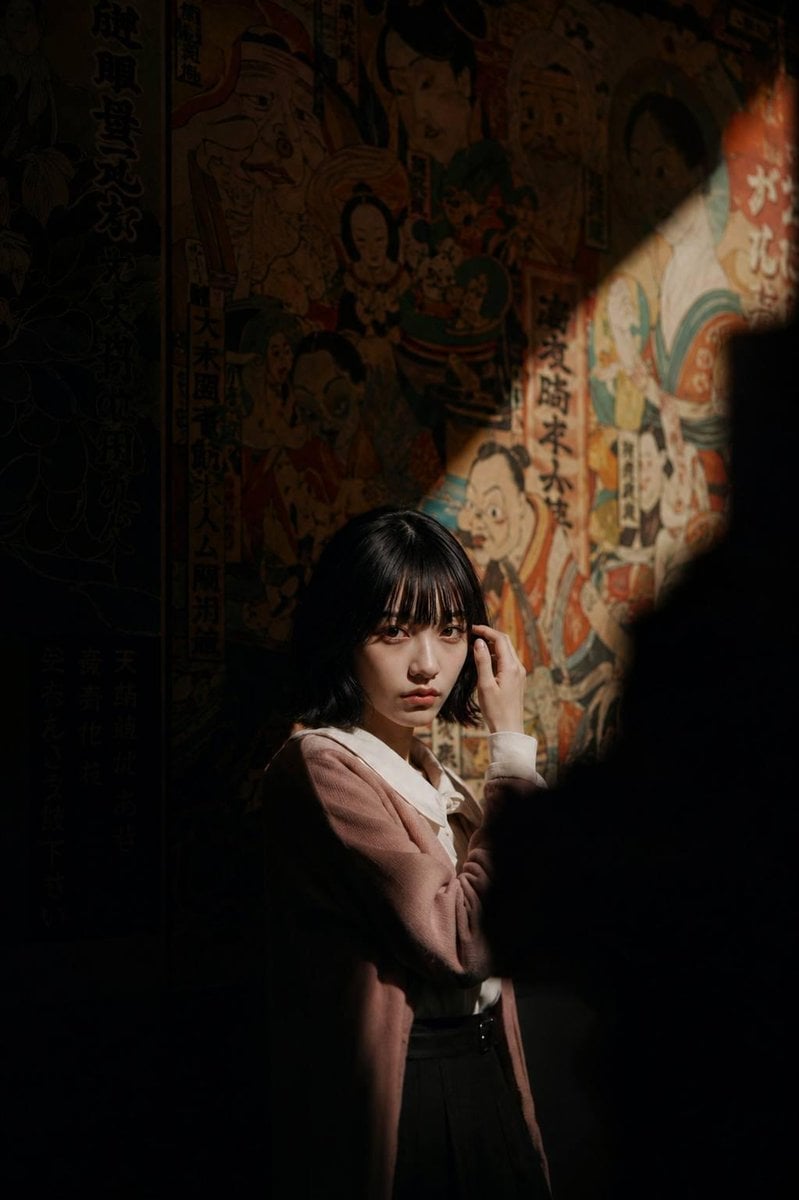
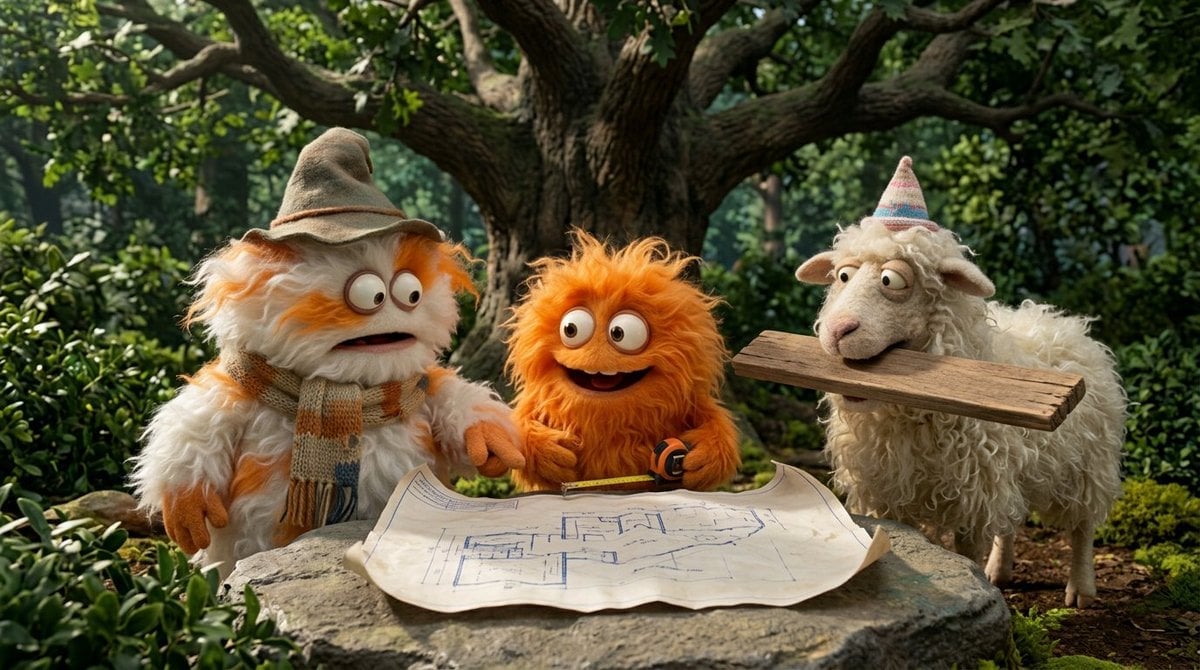
Make it yours
Pixar-Style 3D Caricature Transformation works as-is. These are the safest ways to change it without losing the look.
Change one field
Copy a single group, rewrite it, and generate again so you can see what that field is doing.
Keep the frame, change the subject
Hold the composition and light of Pixar-Style 3D Caricature Transformation, then swap wardrobe, props or the person for a new take.
| If the result… | Why | Fix |
|---|---|---|
| The result drifts from the preview | Too many fields changed at once. | Reuse Pixar-Style 3D Caricature Transformation as-is first, then change one group — subject, light, or setting. |
| The model over-stylizes the scene | The prose prompt leaves finish and camera underspecified. | Add one camera or lighting sentence and stay on GPT Image 2. |
More GPT Image 2 templates
Other prompts made for GPT Image 2.

Six VTuber Japanese Logo Sheet

Realistic Portrait of Woman and Deer

The Vista Modular Condo Poster

AI Model Routing Comparison Infographic

2.5D Anime Art Board

Isometric Productivity Desk Scene

New York Double Exposure Poster

Four-Panel AI Landscape Comparison

Japanese Tatami Lifestyle Magazine Cover

NESCAFÉ Coffee Map Poster
More image prompts
Fresh picks from across the catalog.
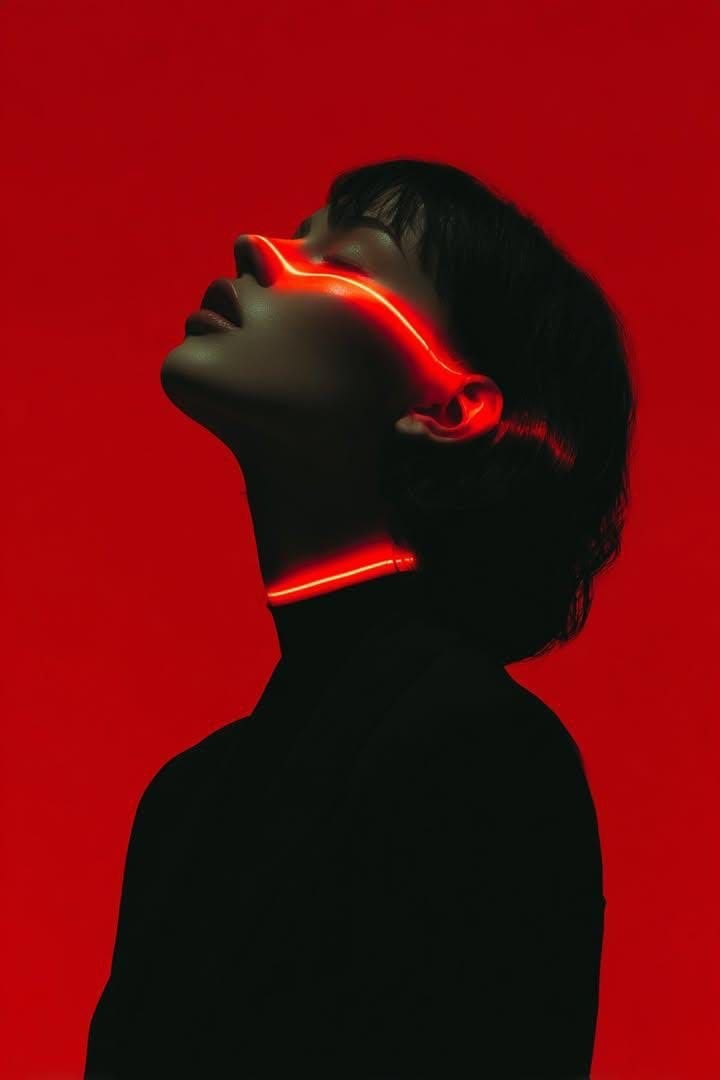
Cyberpunk Neon Portrait
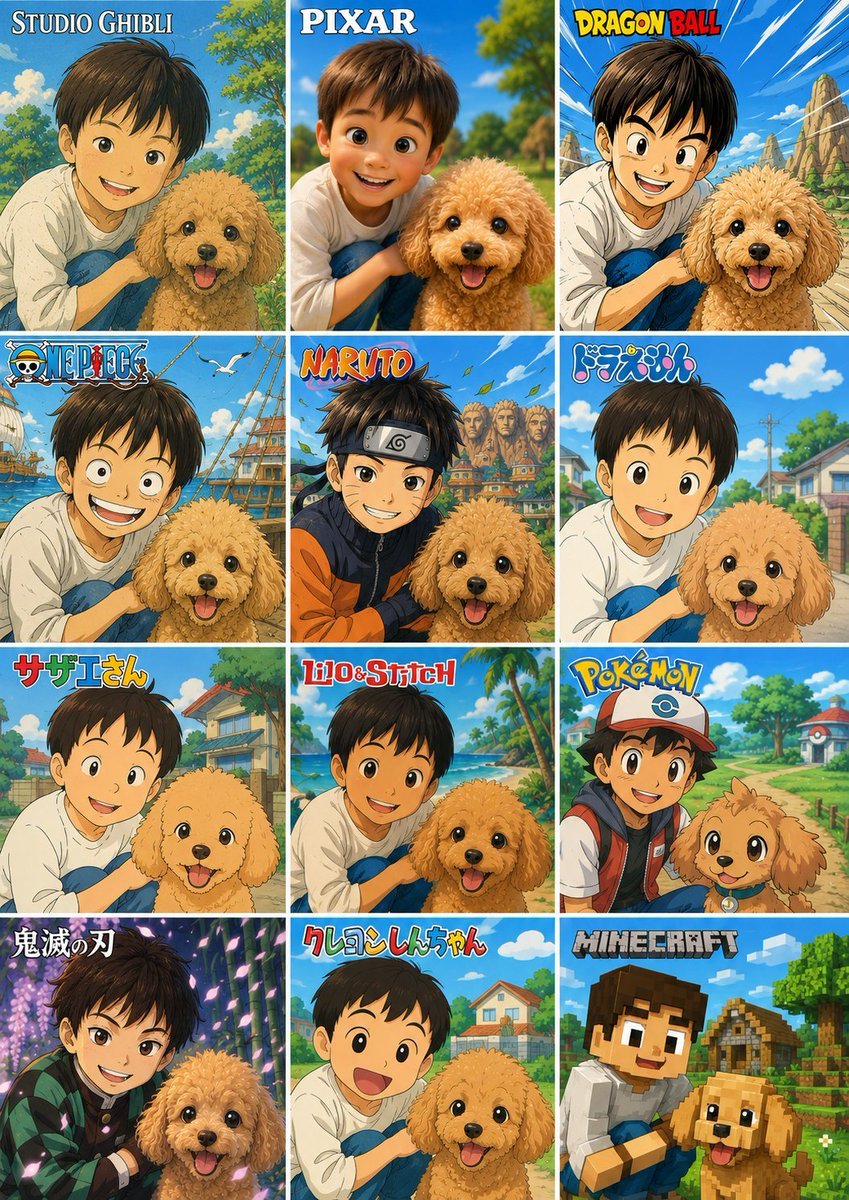
Style Anime Pet Collage
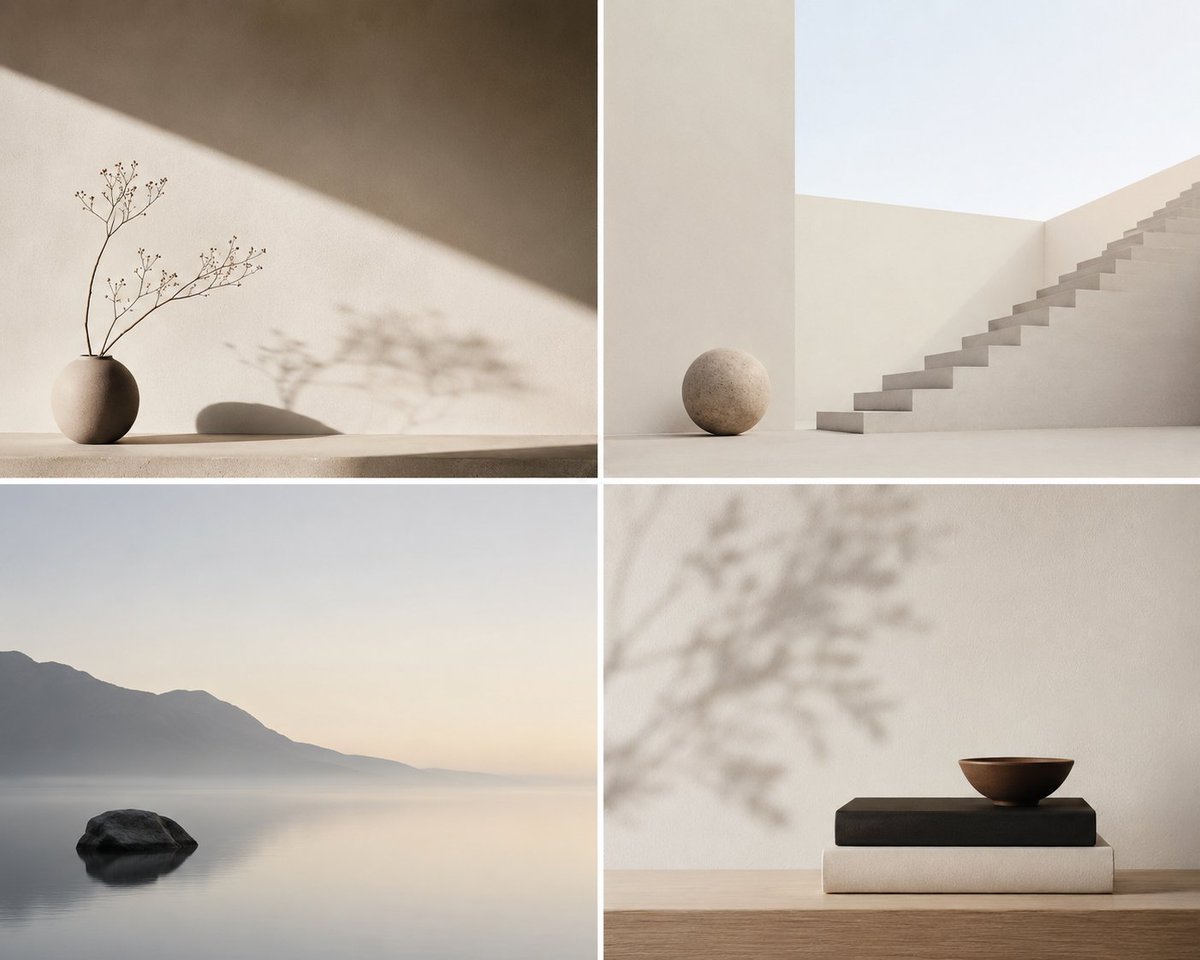
Minimalist Conceptual Scene Description
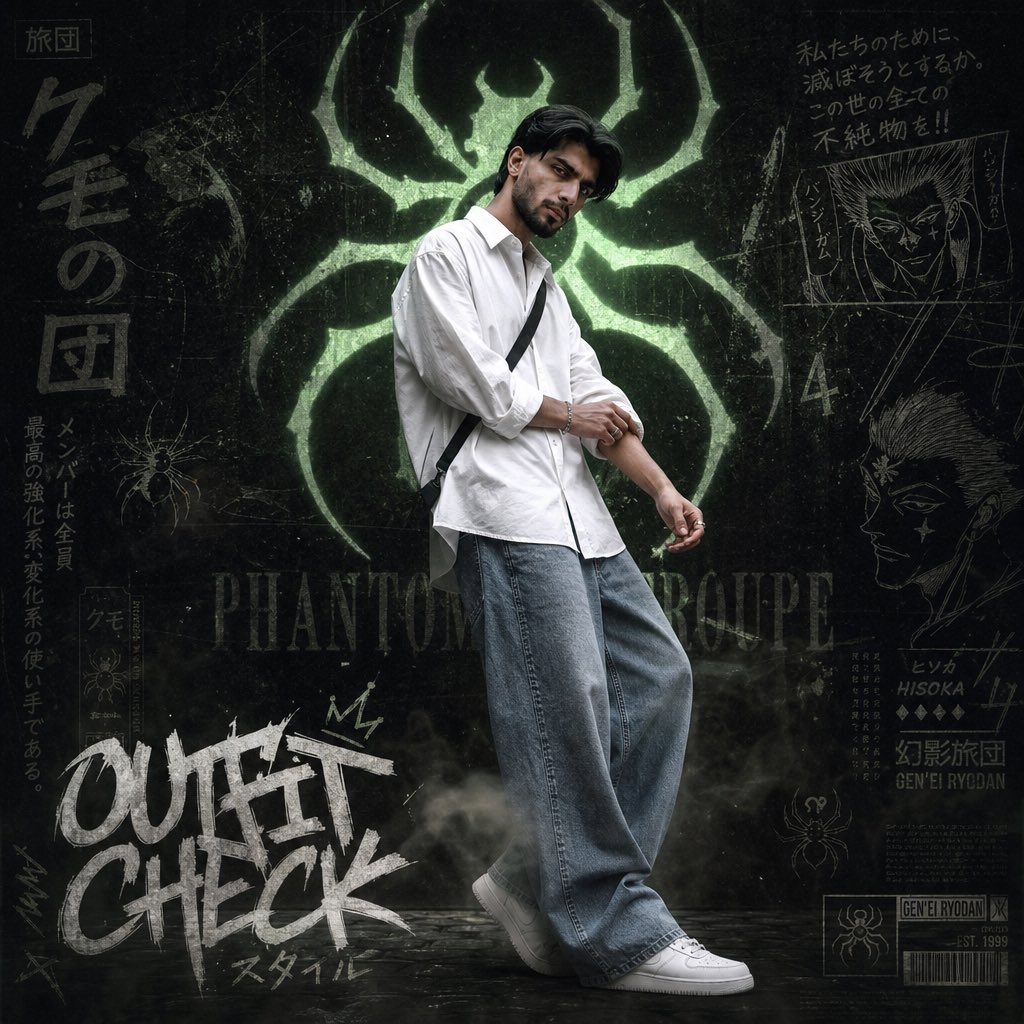
Anime Streetwear Poster
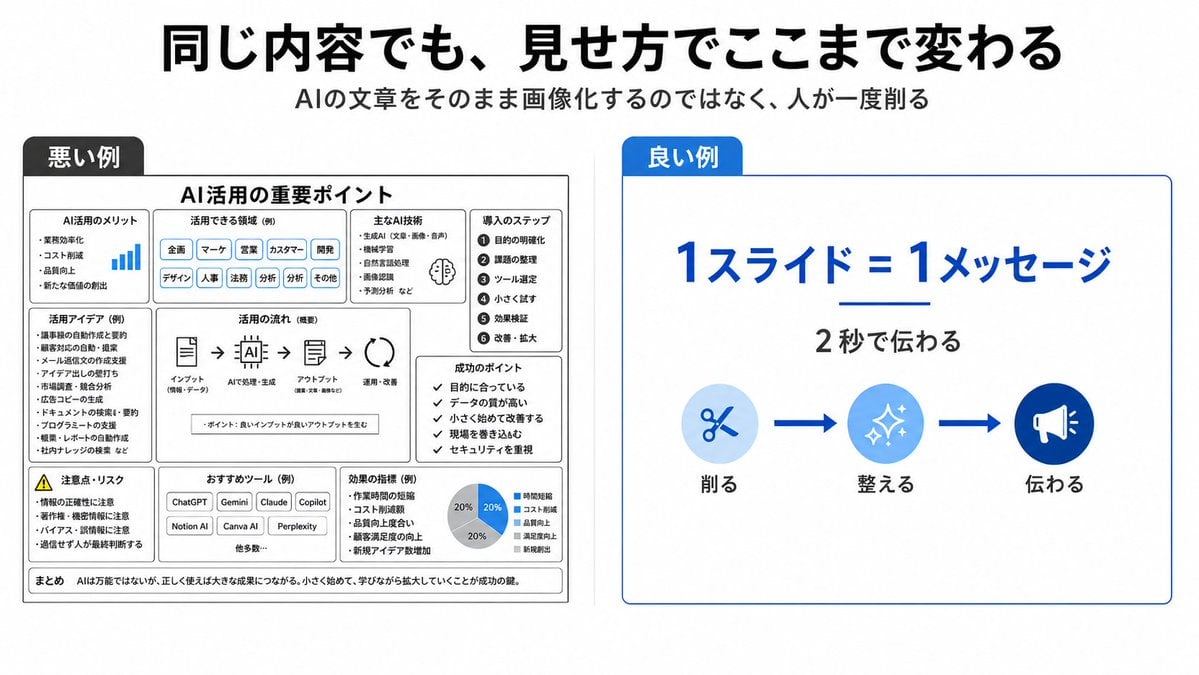
Bad vs Good Slide Design Infographic
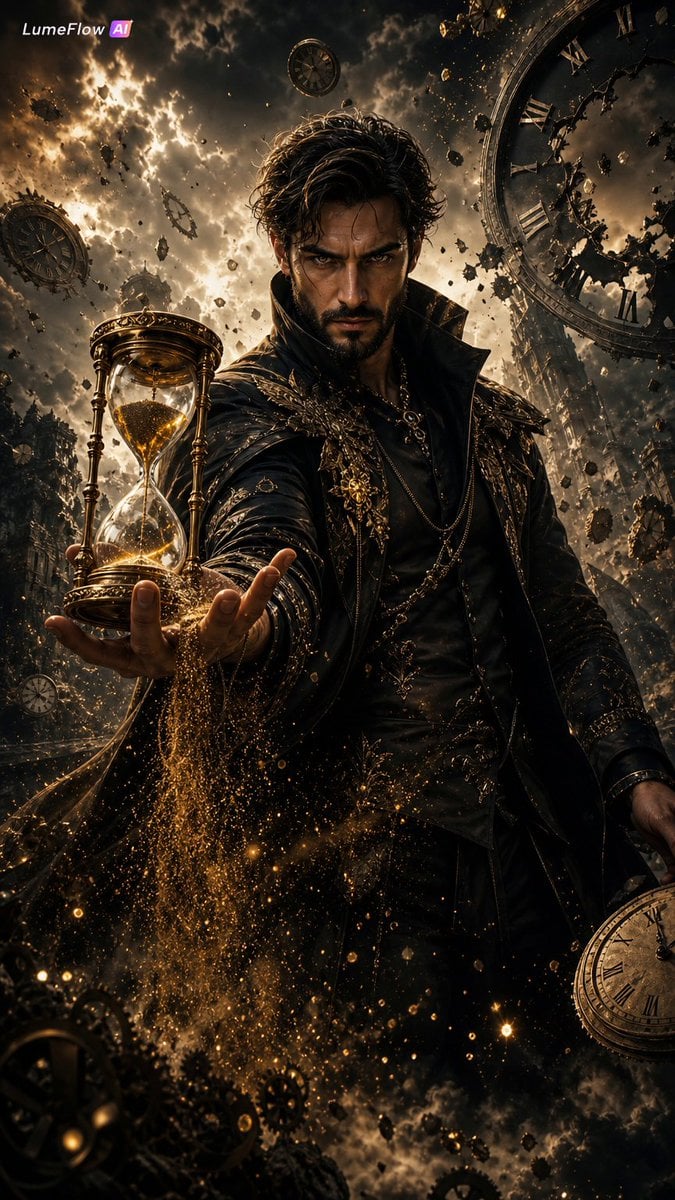
The Collector of Time Fantasy Scene
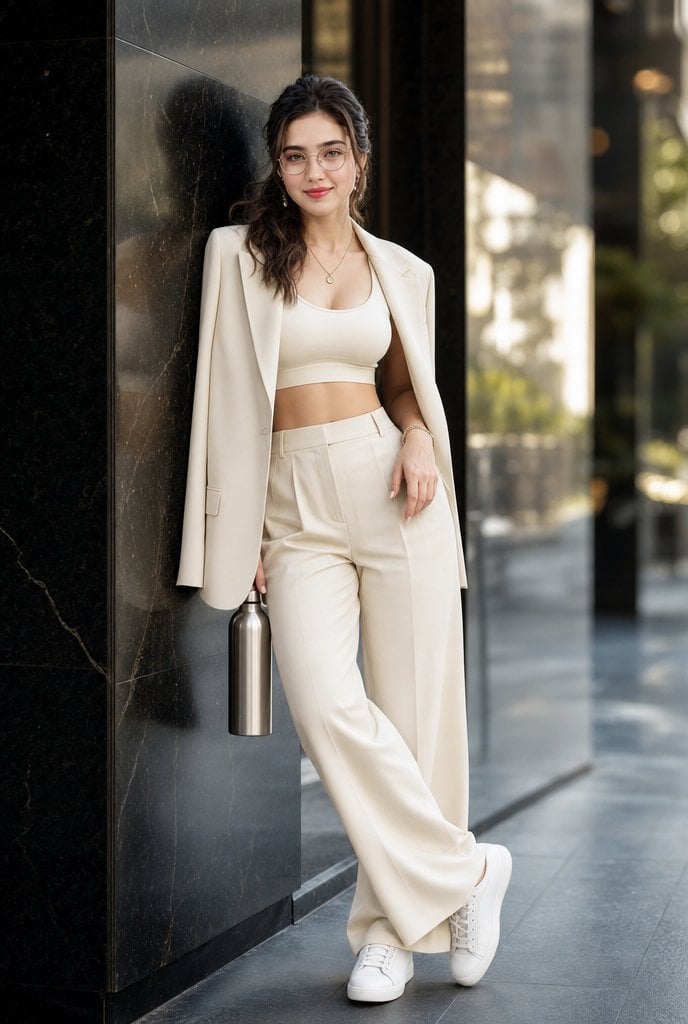
Cream Monochrome Urban Fashion Portrait
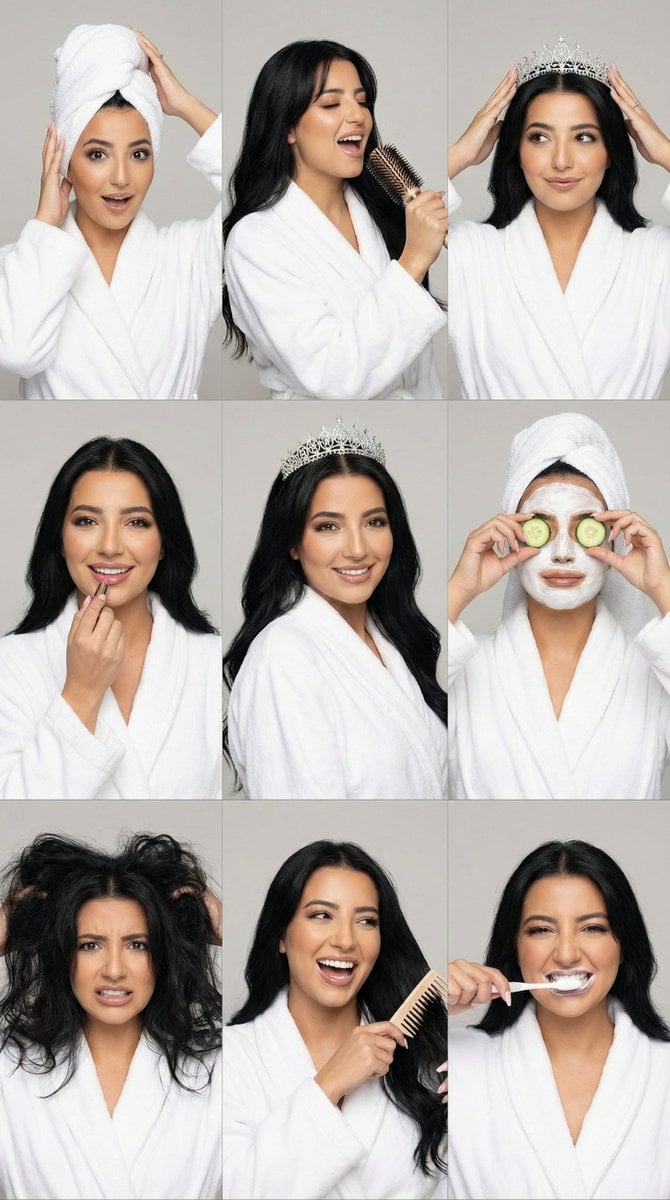
3x3 Photorealistic Beauty Photoshoot Grid with Identity Lock
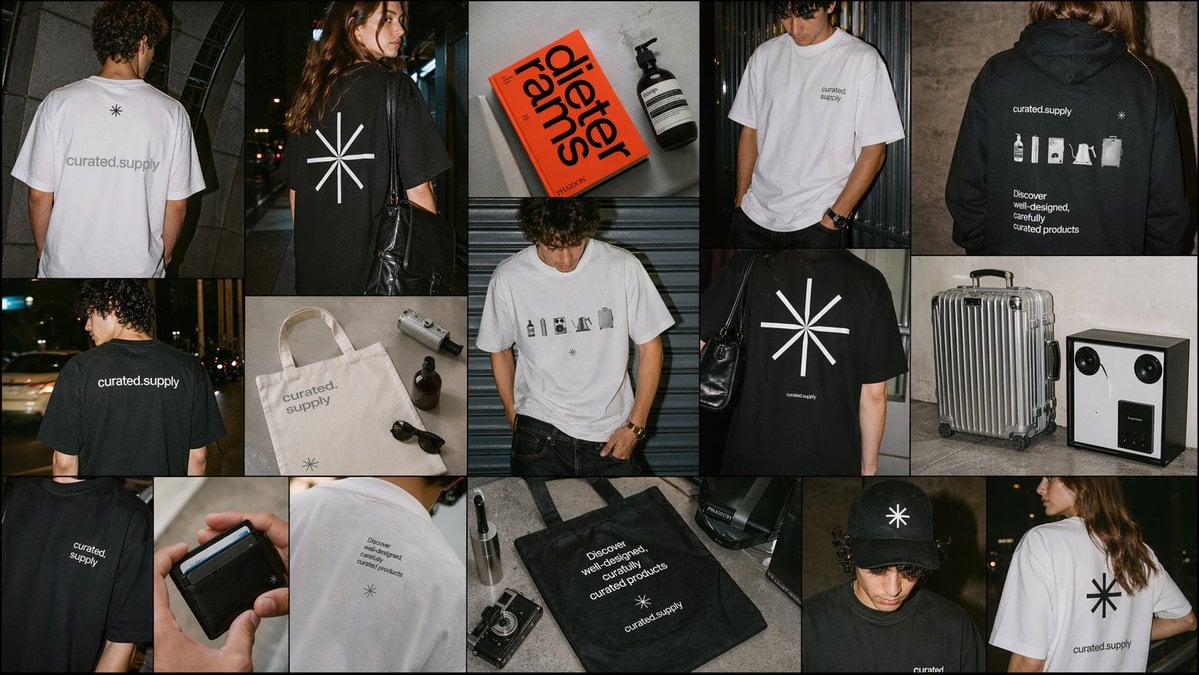
Minimal Streetwear Merch Moodboard
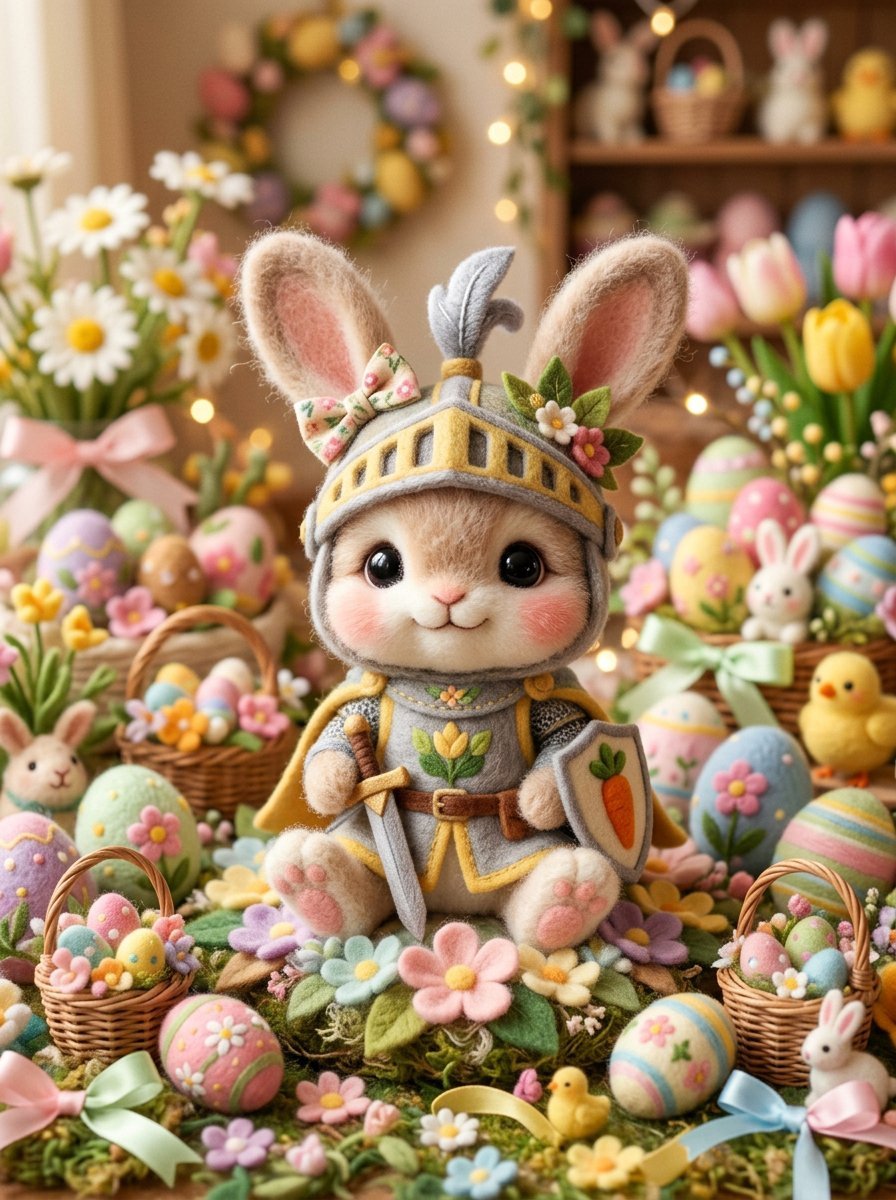
Kawaii Felt Easter Bunny with Customizable Outfit
Browse template categories
Pixar-Style 3D Caricature Transformation questions
How do I use the Pixar-Style 3D Caricature Transformation template?
Add your photo if the template asks for one, edit the prompt if you like — the template's model and format are already selected — and press Generate. Your version opens in PicX Studio.
Can I customize the Pixar-Style 3D Caricature Transformation template?
Yes. You can change the subject, setting, lighting, mood, format, and available model controls before creating your image.
Is the Pixar-Style 3D Caricature Transformation template free?
Opening and editing this template is free. Generating uses credits, shown on the Generate button when you are signed in.
Which AI model should I use?
Start with GPT Image 2, which is the model associated with this template. You can compare another compatible model for a different finish.
Looking for something else? Browse all templates.

Your photo, any look
Thousands of ready templates for every top image and video model, from one credit balance.