
Split composition image, left and right halves clearly divided in 16 9
Split composition image, left and right halves clearly divided in 16:9 widescreen format.
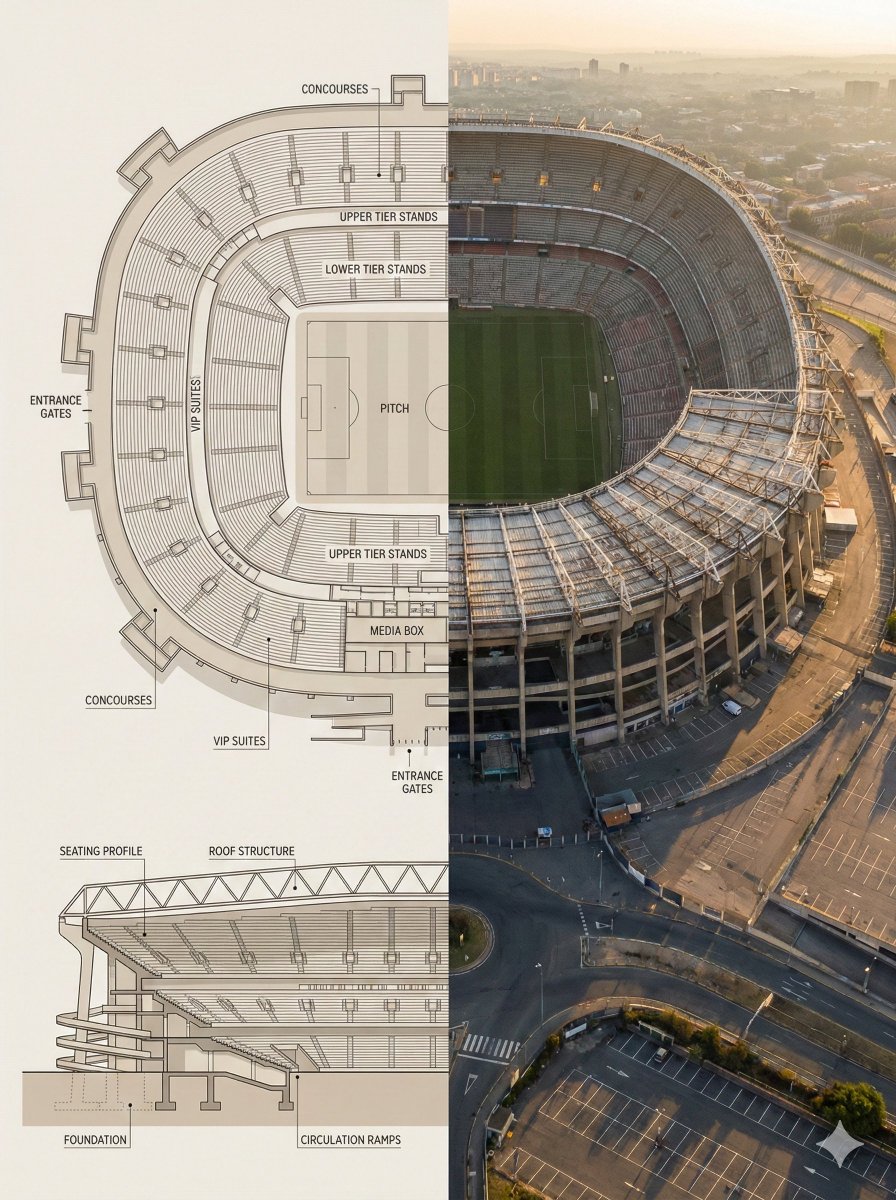
- Prompt included
- Model and format preset
- Premium template
The prompt behind this image
Copy the exact prompt behind Split composition image, left and right halves clearly divided in 16 9, or open it in the studio and make it yours.
Split composition image, left and right halves clearly divided in 16:9 widescreen format. Left Half: Highly detailed architectural floor plan and cross-section illustration of [LANDMARK] in a modern minimalist style. Top-down view showing main structural layout, internal divisions, circulation paths, key chambers or spaces with labels. Material callouts, structural support systems, and architectural details clearly marked. Neutral beige and warm gray color palette, clean linework, soft shadows, subtle textures. Professional architectural-presentation style. Include detailed cross-sectional diagram showing vertical layers and internal structure. Blueprint aesthetic with technical accuracy and labeled sections. Right Half: Ultra-realistic aerial exterior photograph of [LANDMARK] captured from above and to the side (elevated isometric perspective, not straight overhead). Shows the complete structure with authentic weathered textures, aged materials, surrounding landscape, dramatic golden-hour sunlight creating sharp shadows, atmospheric haze suggesting historical significance. The perspective reveals both external grandeur and internal scale simultaneously. Warm golden-light lighting, realistic patina and wear patterns, authentic architectural proportions. Feels like an aerial photograph capturing the monument’s true majesty and scale. Both halves align visually, clearly showing architectural engineering blueprint vs. the actual monumental structure in its archaeological or historical reality. Style & Mood: •Architectural blueprint visualization meets historical aerial photography •Engineering precision and historical significance •Educational, museum-exhibit presentation •Engineering schematic-to-reality comparison •Grandeur emphasizing scale and architectural sophistication Lighting & Color: •Left: Flat, even lighting, neutral blueprint tones, technical aesthetic •Right: Golden-hour natural light, dramatic shadows, warm tones, atmospheric depth •Consistent warm palette between both halves Camera & Technical Details: •Left: Top-down orthographic + detailed cross-sectional architectural view with labeled sections •Right: Elevated aerial perspective (45-degree isometric angle), capturing full structure from above-and-to-the-side •High resolution, sharp architectural details on left; photorealistic weathered textures on right Negative Prompt: Cartoon style, low detail, cluttered composition, modern elements, unrealistic proportions, harsh lighting, exaggerated colors, text overlays, watermarks, CGI look, sterile rendering, straight-down overhead view, no atmospheric quality, overly pristine condition.
How to use Split composition image, left and right halves clearly divided in 16 9 in 3 steps
- 1
Open
The prompt is already in the box next to the preview, with the template's model and format selected.
- 2…a portrait of your subject in softgolden-hour light, 85mm…
Personalize
Edit the subject and creative details for your destination.
- 3Generate
Generate
Press Generate — your image is created in PicX Studio, so you can compare it with the original and refine one variable at a time.
More like this
Templates with the same subject, style or setup. Open one to see its prompt.
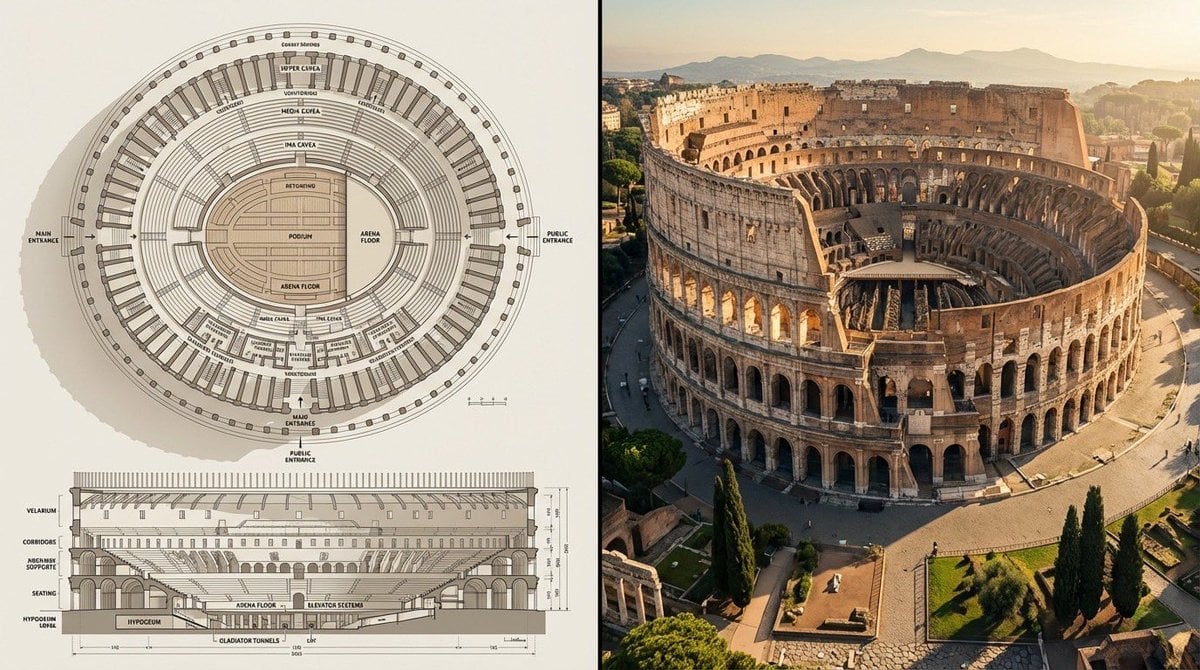
Split composition image, left and right halves clearly divided in 16 9
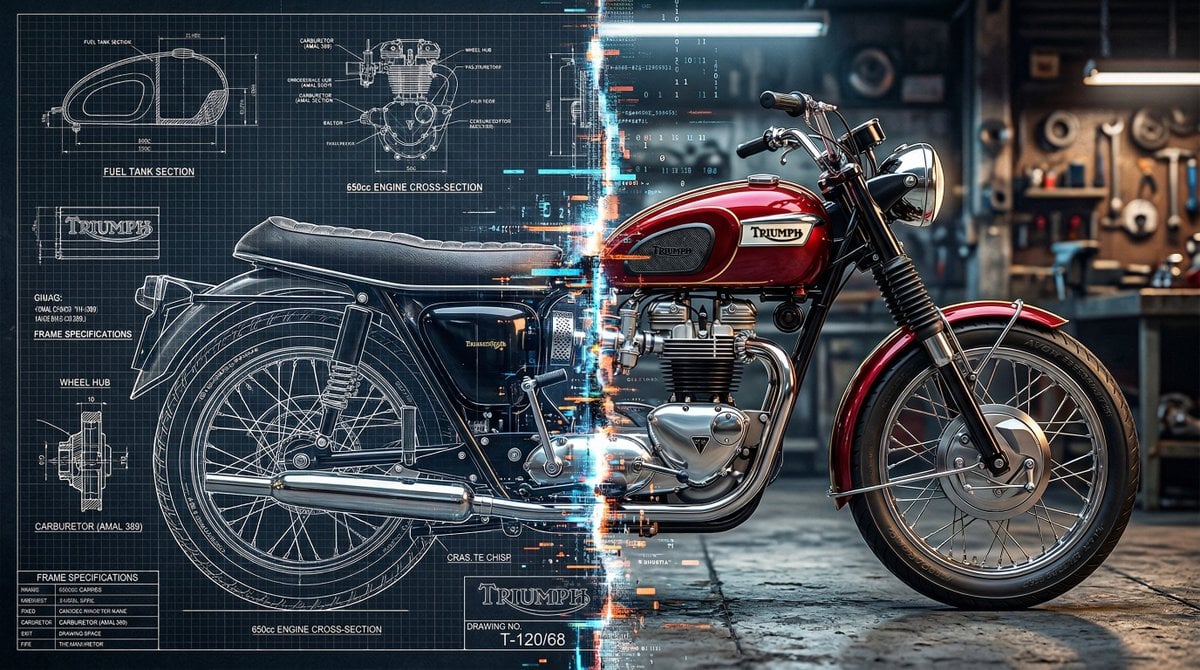
A split vertically down the center, left half as a technical blueprint

A in color-shifting chrome captured mid-transformation left side rigid
Illustration & 3D Prompt #533
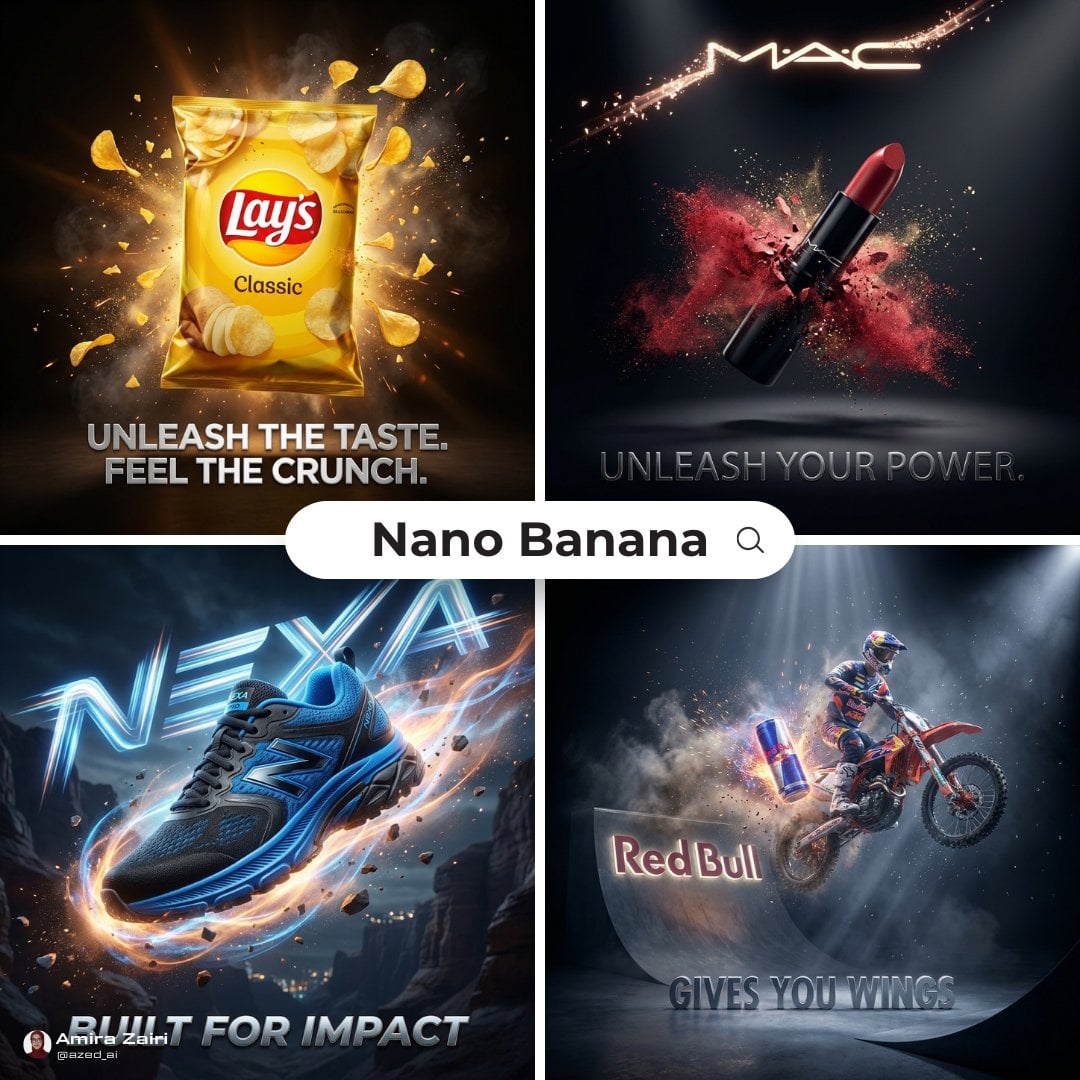
Cinematic 3D action-packed advertisement captured in an intense
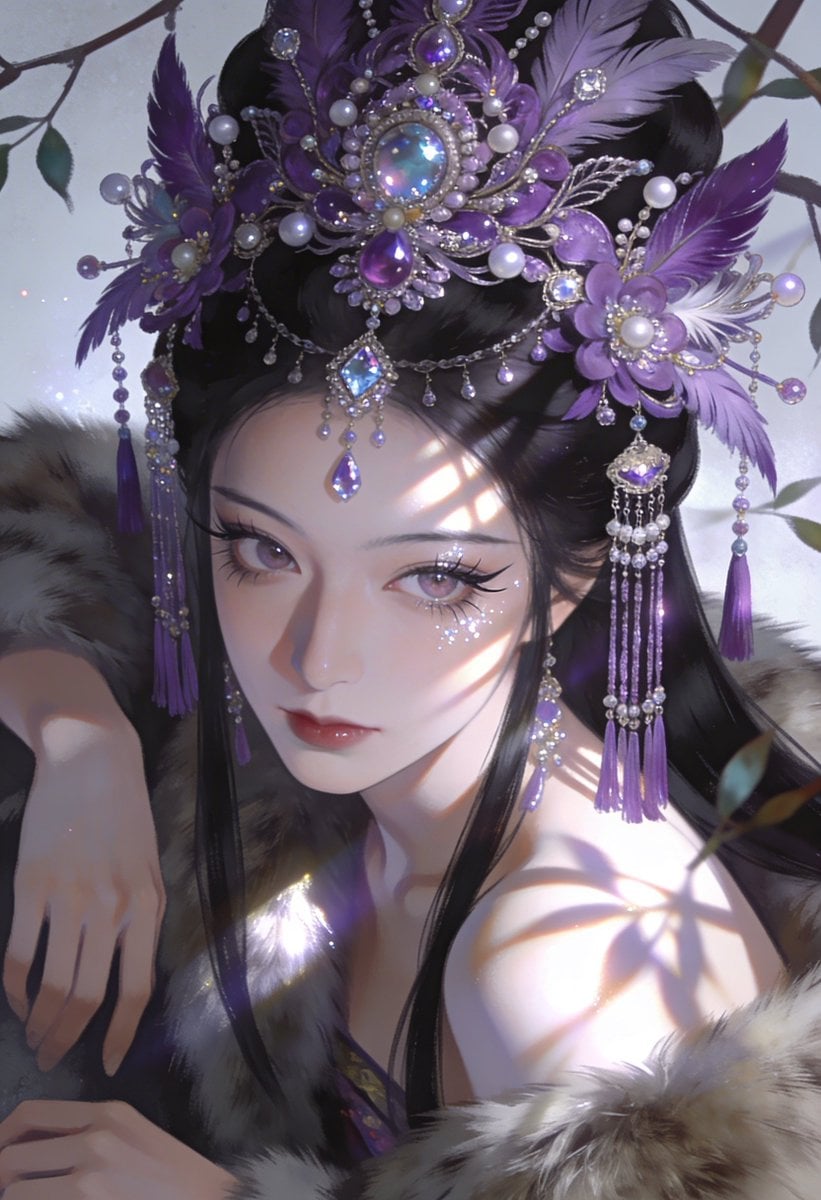
Ime characters into realistic human portraits Convert character
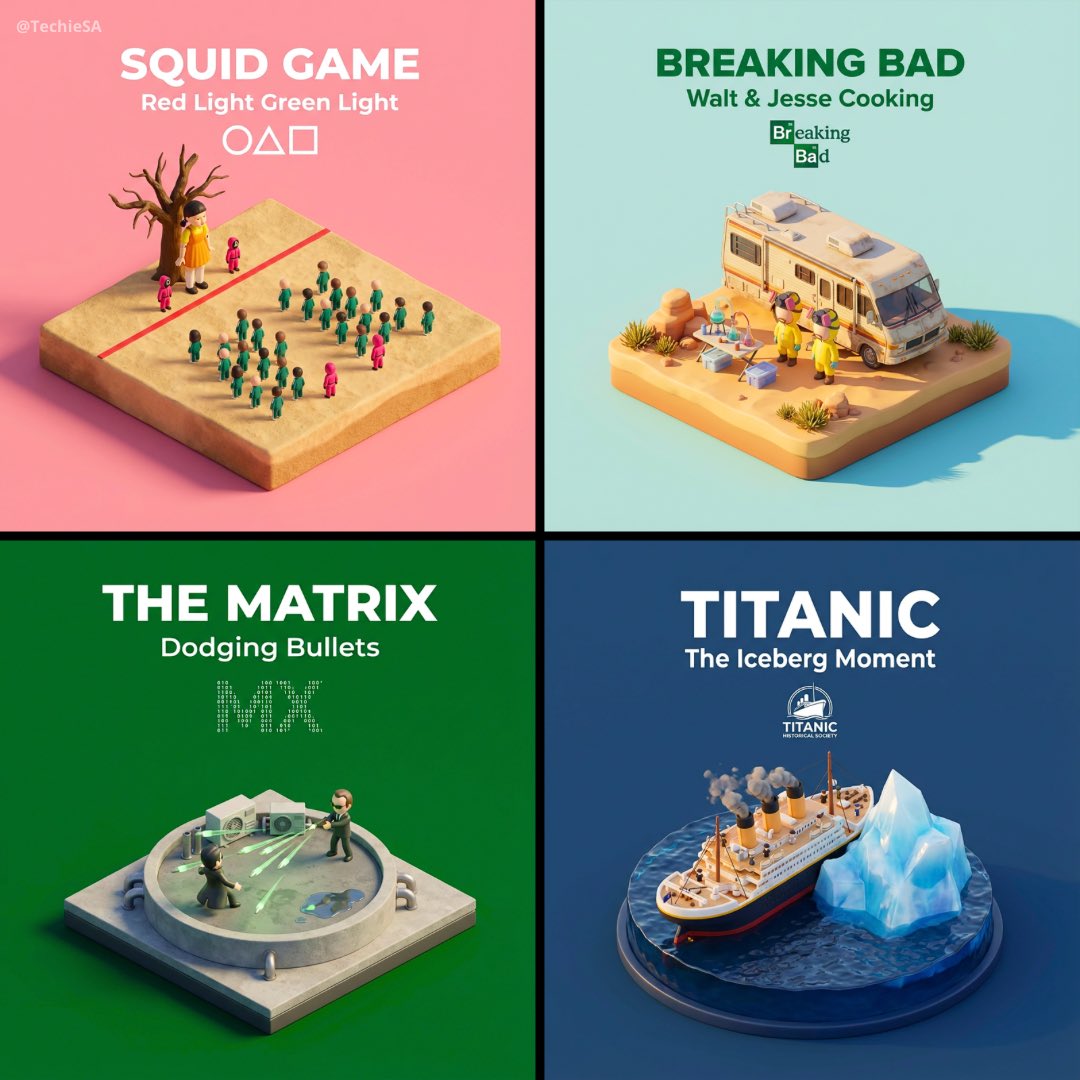
Clear, 45 top-down isometric miniature 3D cartoon scene of the iconic
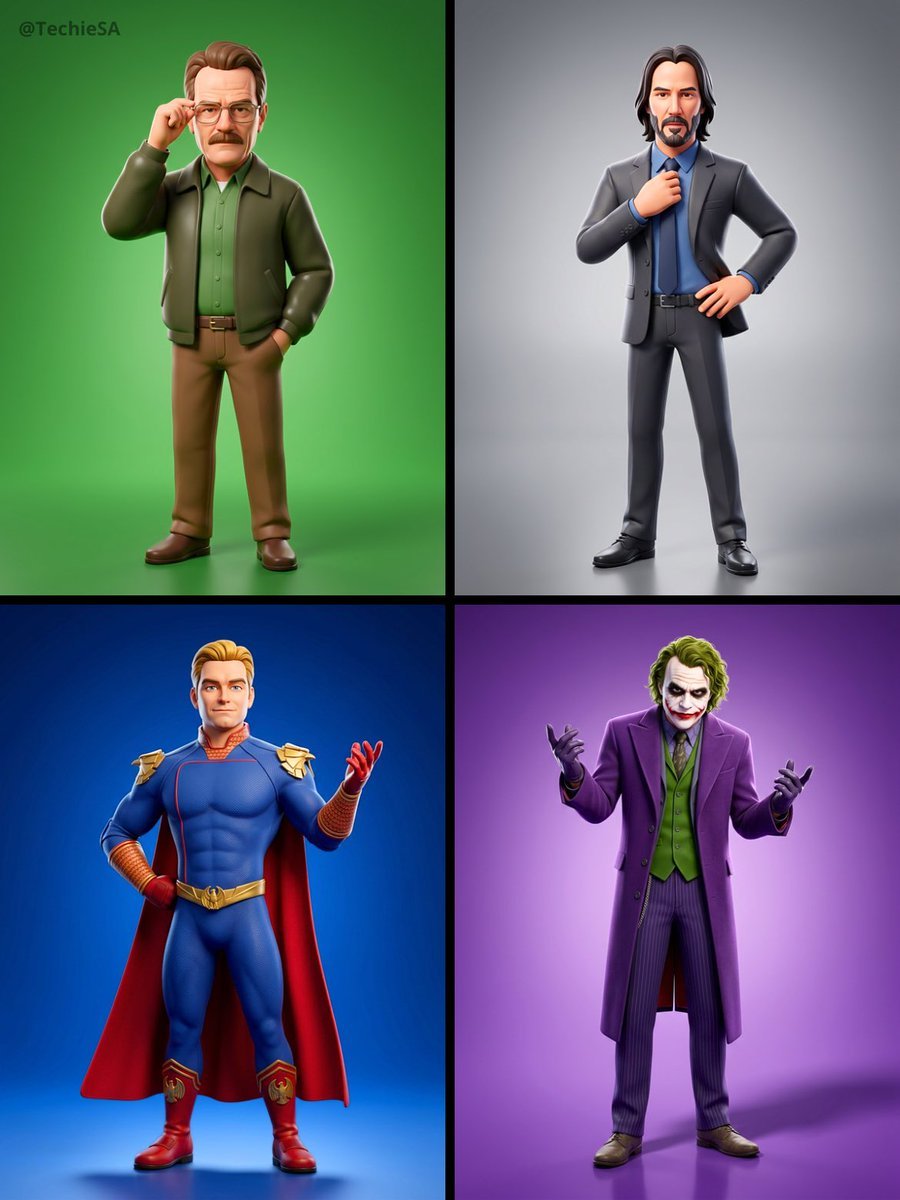
Referenced person into a premium stylized 3D animated character, full
Illustration & 3D Prompt #1437
To hyper-realistic 3D CGI collectible figurine render
Illustration & 3D Prompt #1419
Illustration & 3D Prompt #813
Make it yours
Split composition image, left and right halves clearly divided in 16 9 works as-is. These are the safest ways to change it without losing the look.
Change one field
Copy a single group, rewrite it, and generate again so you can see what that field is doing.
Keep the frame, change the subject
Hold the composition and light of Split composition image, left and right halves clearly divided in 16 9, then swap wardrobe, props or the person for a new take.
| If the result… | Why | Fix |
|---|---|---|
| The result drifts from the preview | Too many fields changed at once. | Reuse Split composition image, left and right halves clearly divided in 16 9 as-is first, then change one group — subject, light, or setting. |
| The model over-stylizes the scene | The prose prompt leaves finish and camera underspecified. | Add one camera or lighting sentence and stay on Nano Banana 2. |
More Nano Banana 2 templates
Other prompts made for Nano Banana 2.
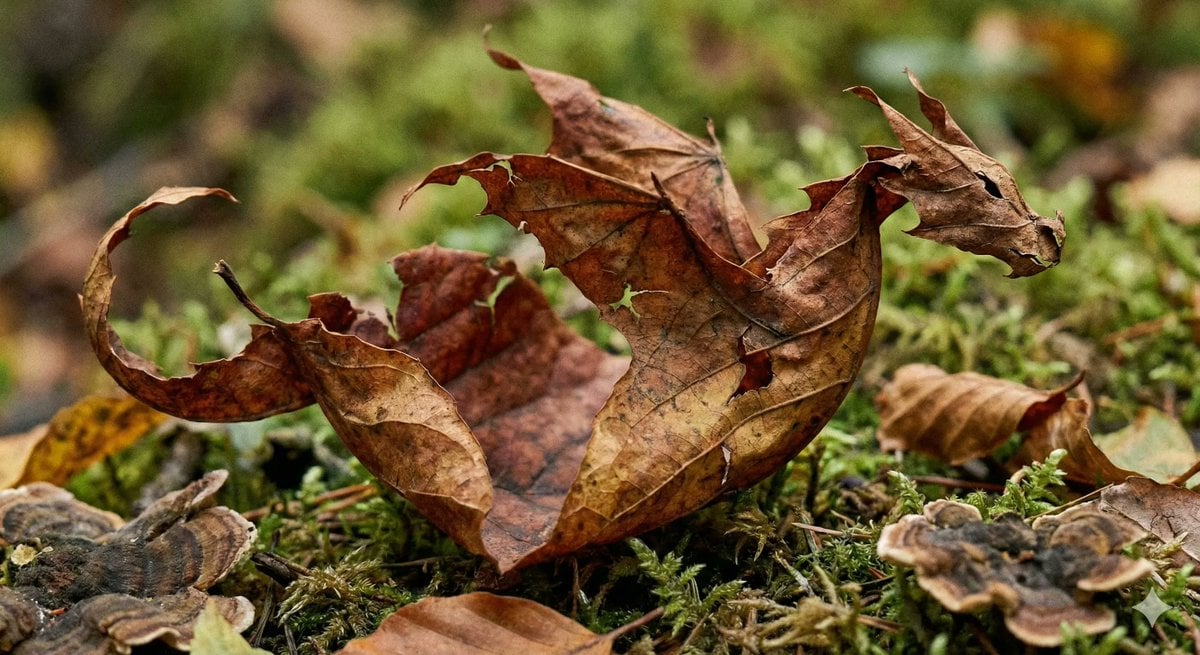
Photorealistic Leaf Shaped Like a Dragon
K-Pop Idol Portrait Grid for Rapid Selection
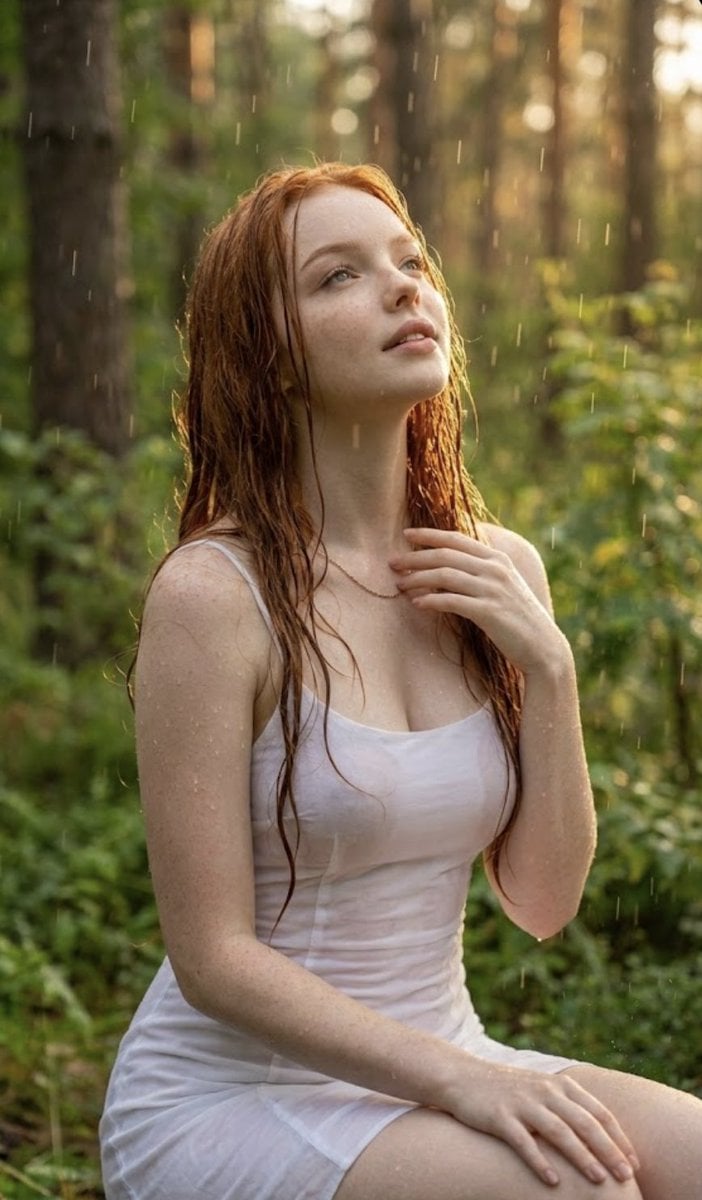
Poetic Rain Forest Portrait During Golden Hour
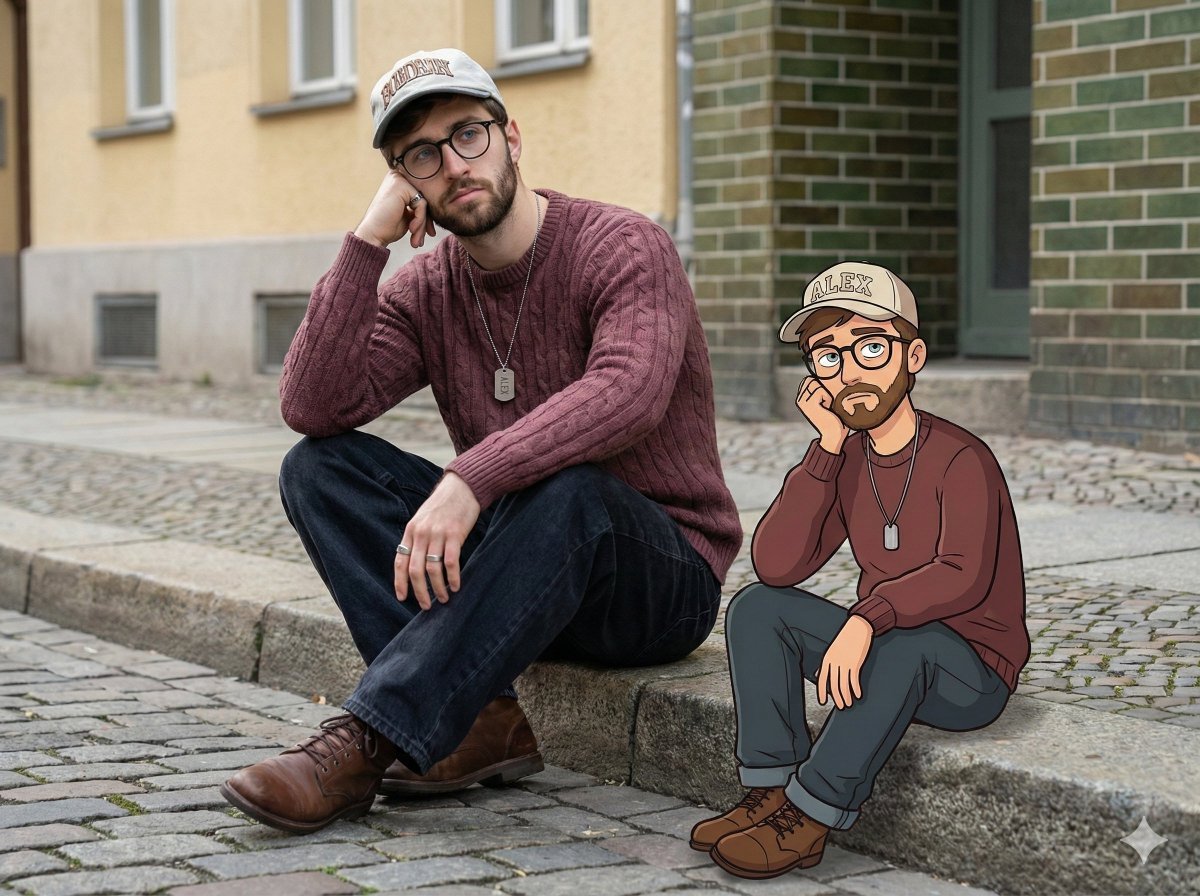
Urban Street Portrait with Cartoon Inner Self Duo
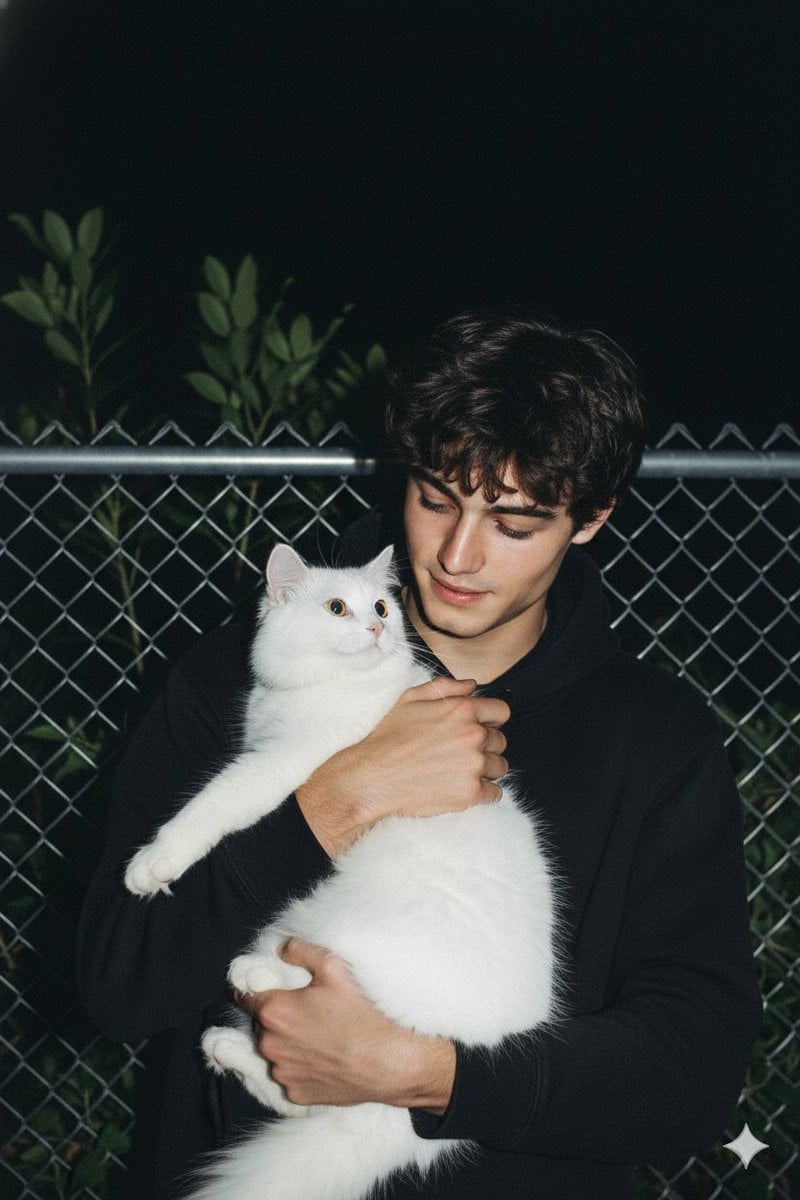
Candid Nighttime Photo with Cat Prompt
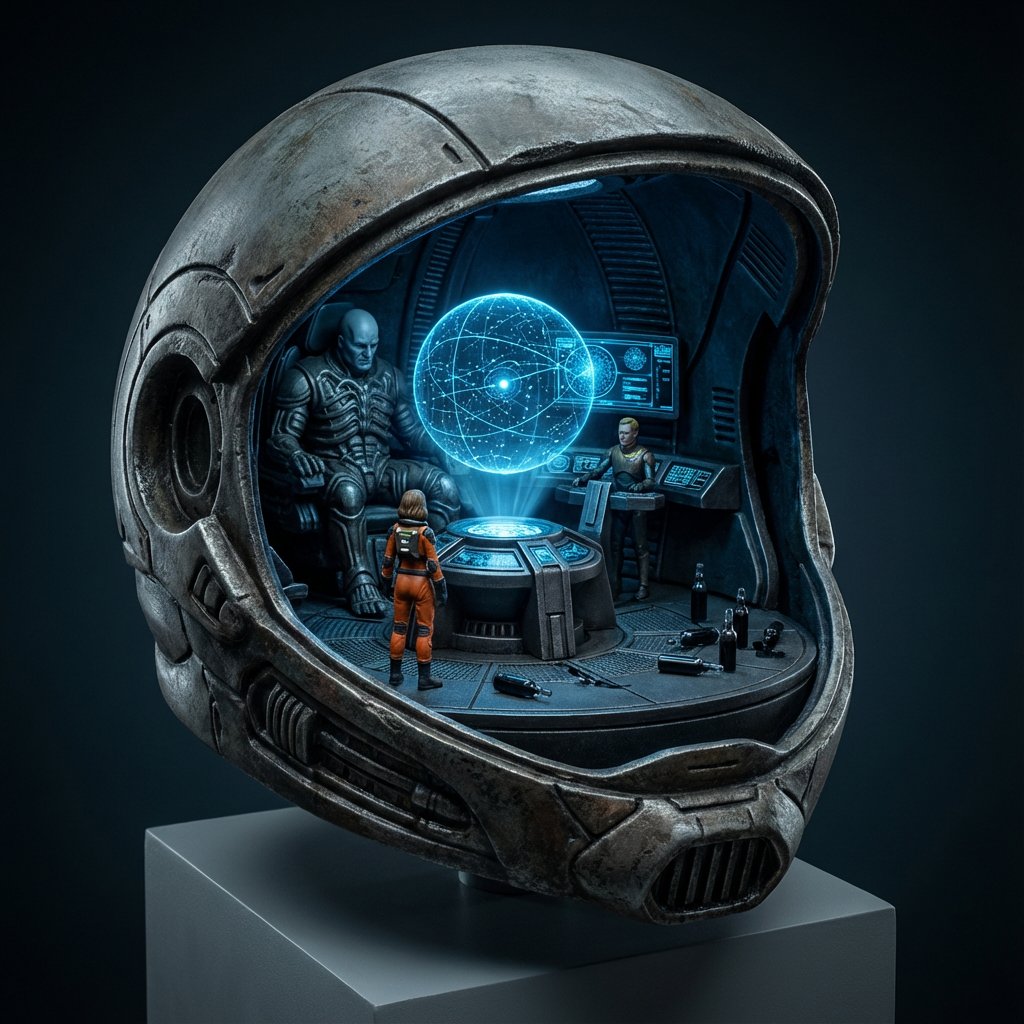
High-Concept 3D Diorama Generation Prompt
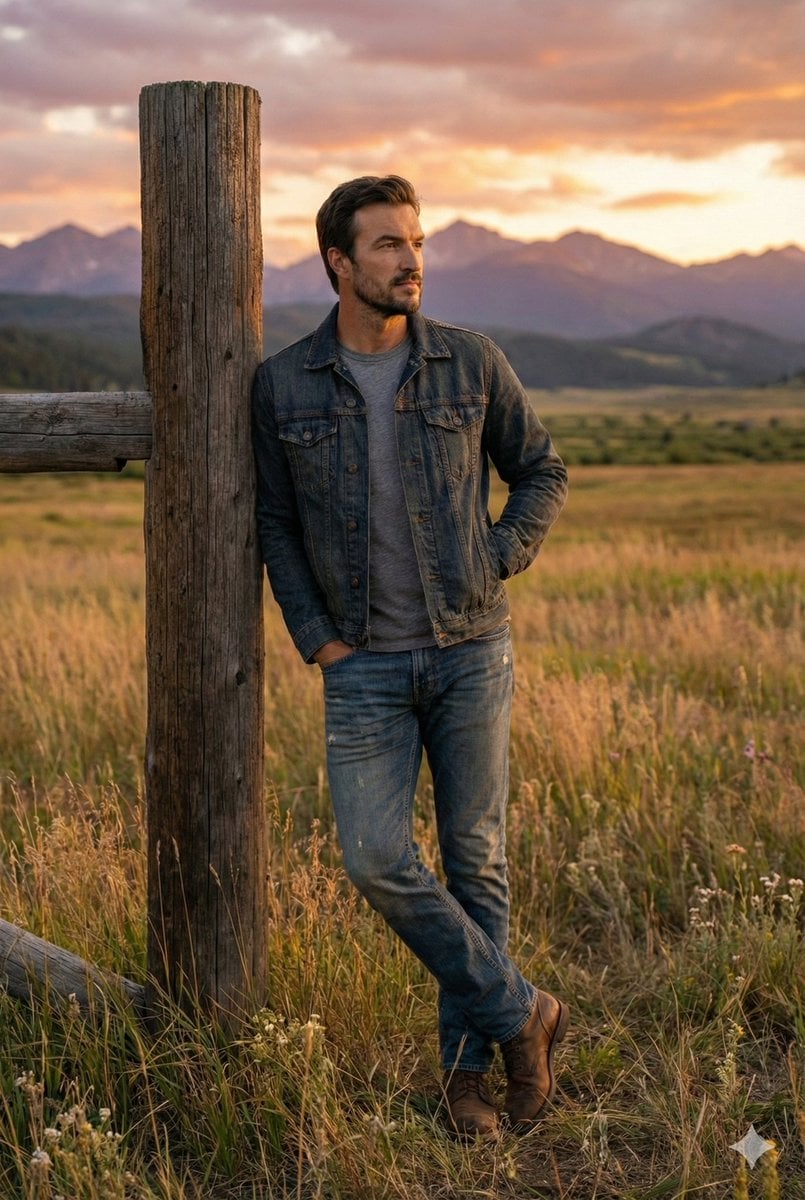
Cinematic Futuristic Studio Portrait Template
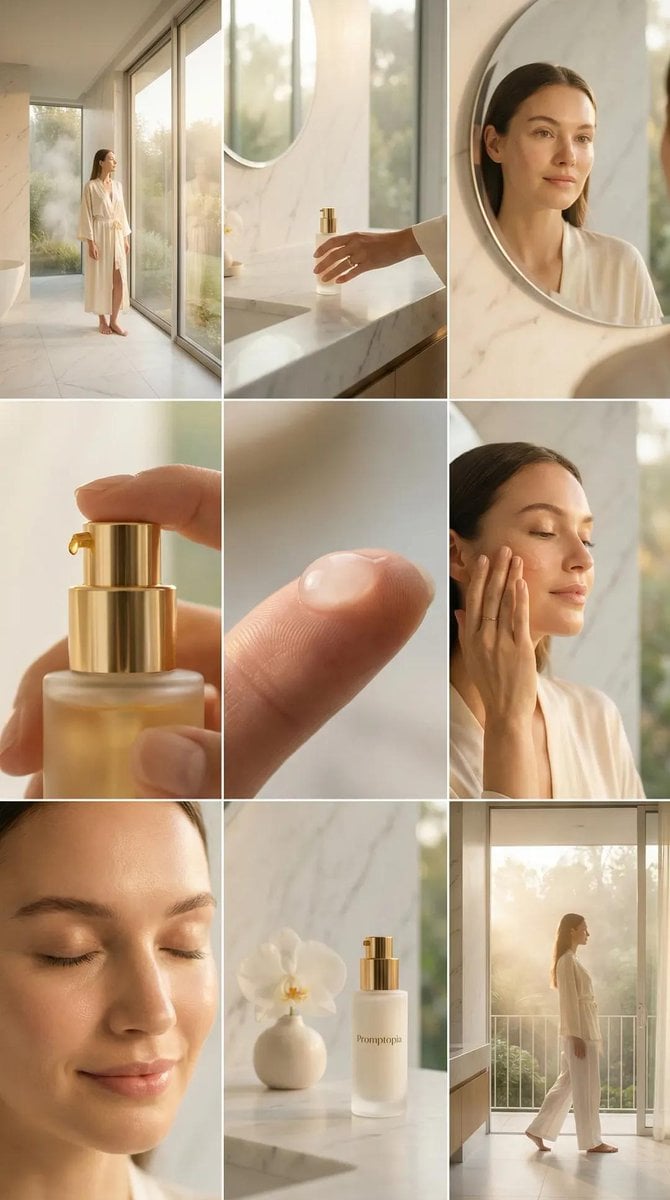
Skincare Editorial Photography Collage Prompt
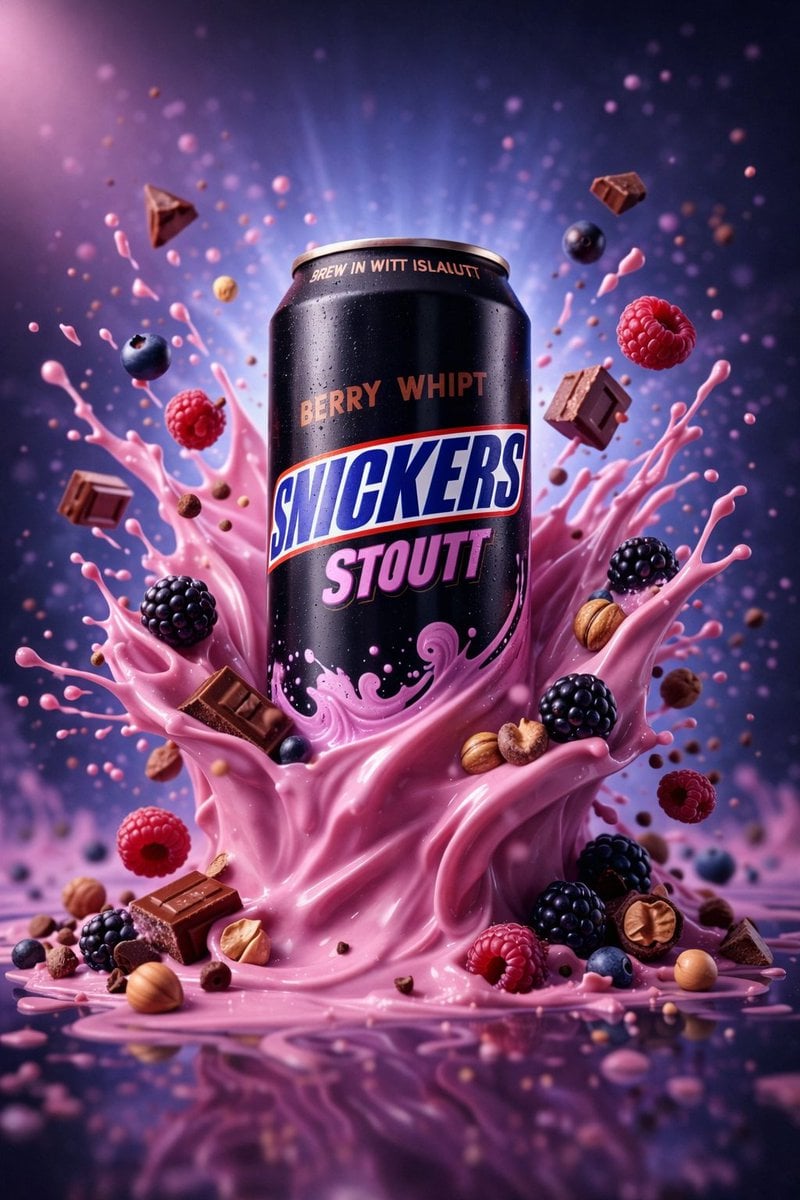
Hyper-Realistic Commercial Product Photography (Splash Effect)
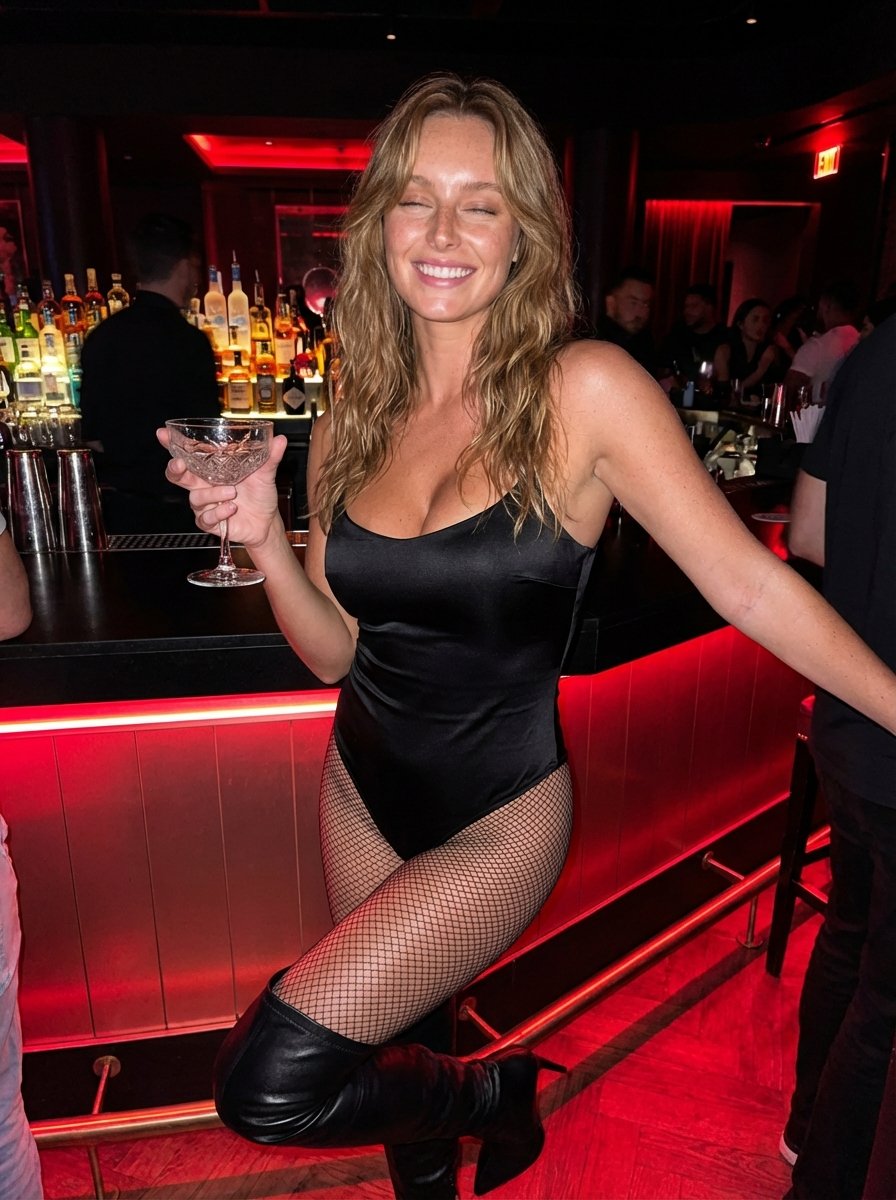
Hyper-Realistic Nightclub Portrait Prompt
More image prompts
Fresh picks from across the catalog.
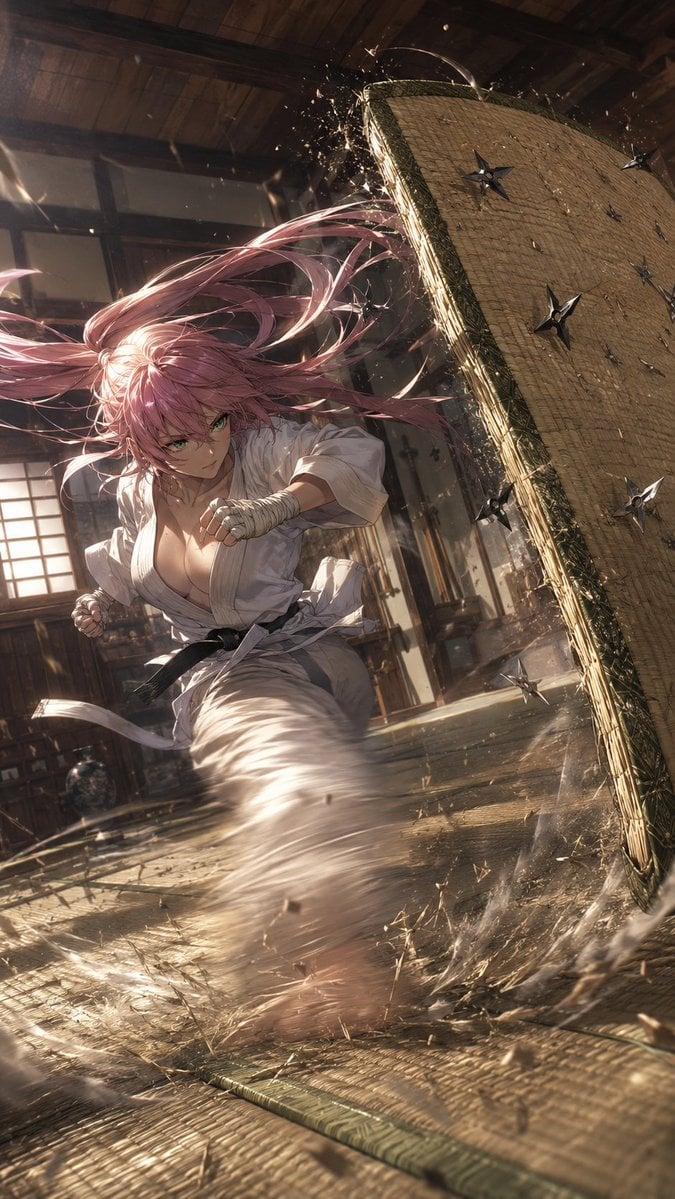
Pink-Haired Dojo Martial Artist
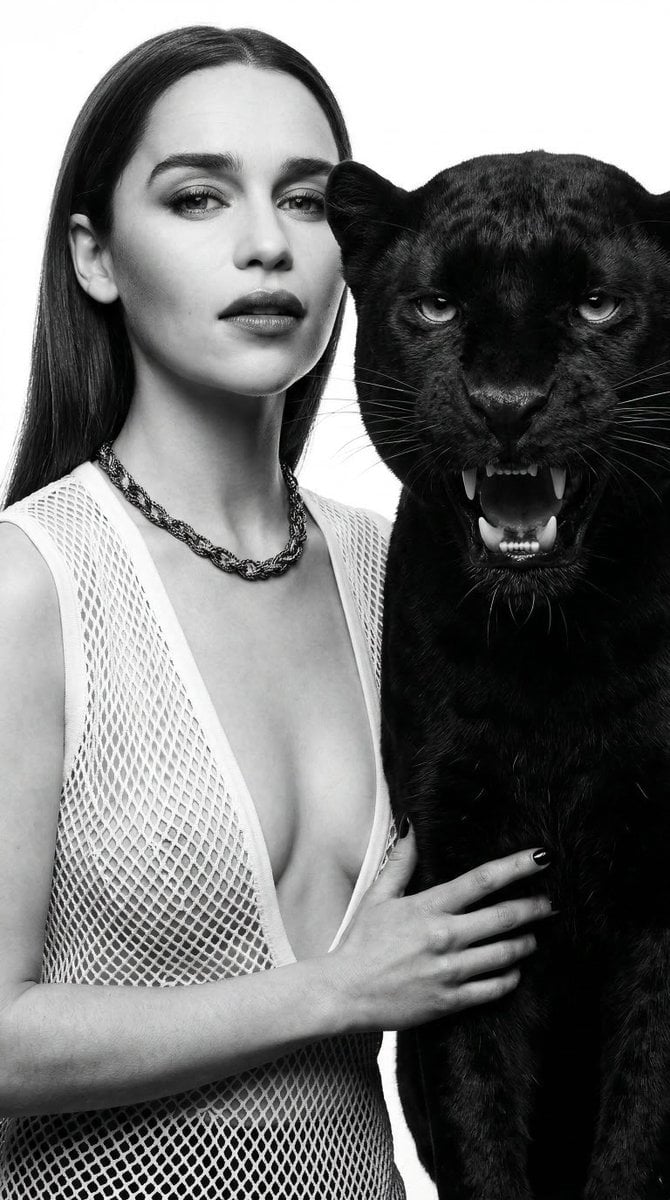
Black and White Panther and Woman Editorial Portrait
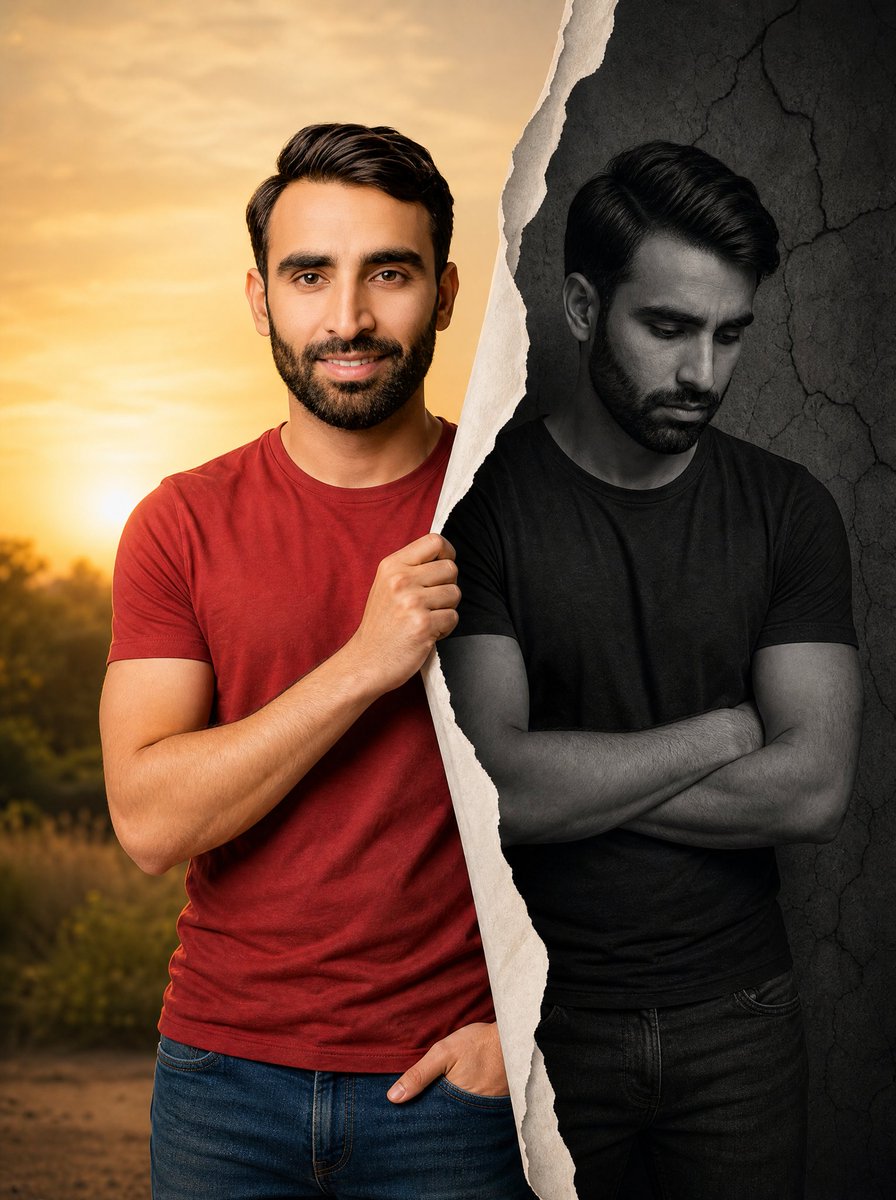
Conceptual Dual Mood Symbolic Portrait
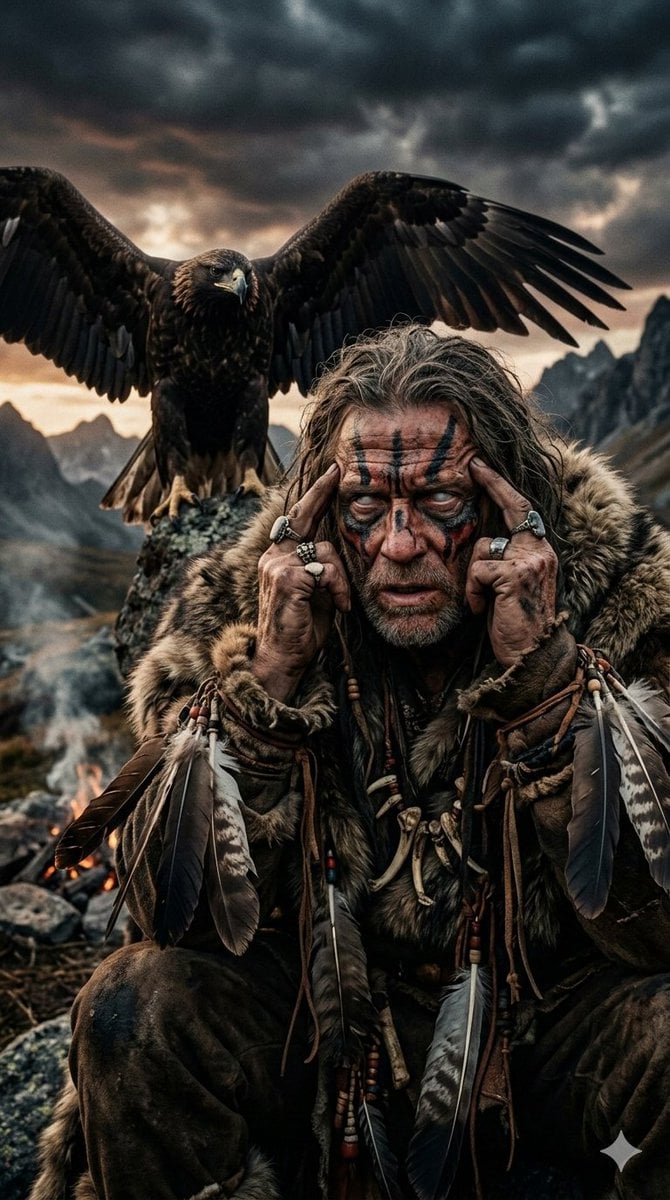
Prehistoric Shaman Bonded with Eagle Spirit

Luxury x E-commerce Split Poster

Infographic Generation from Images and Text using Nano Banana Pro
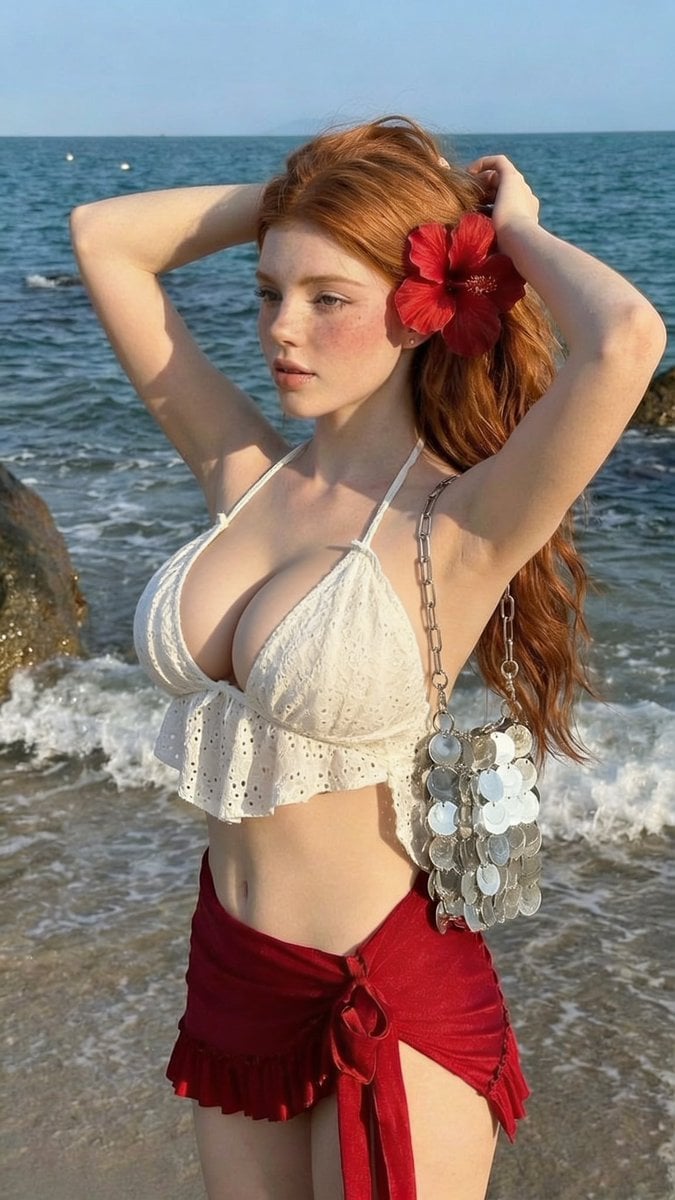
Golden Hour Beach Fashion Portrait
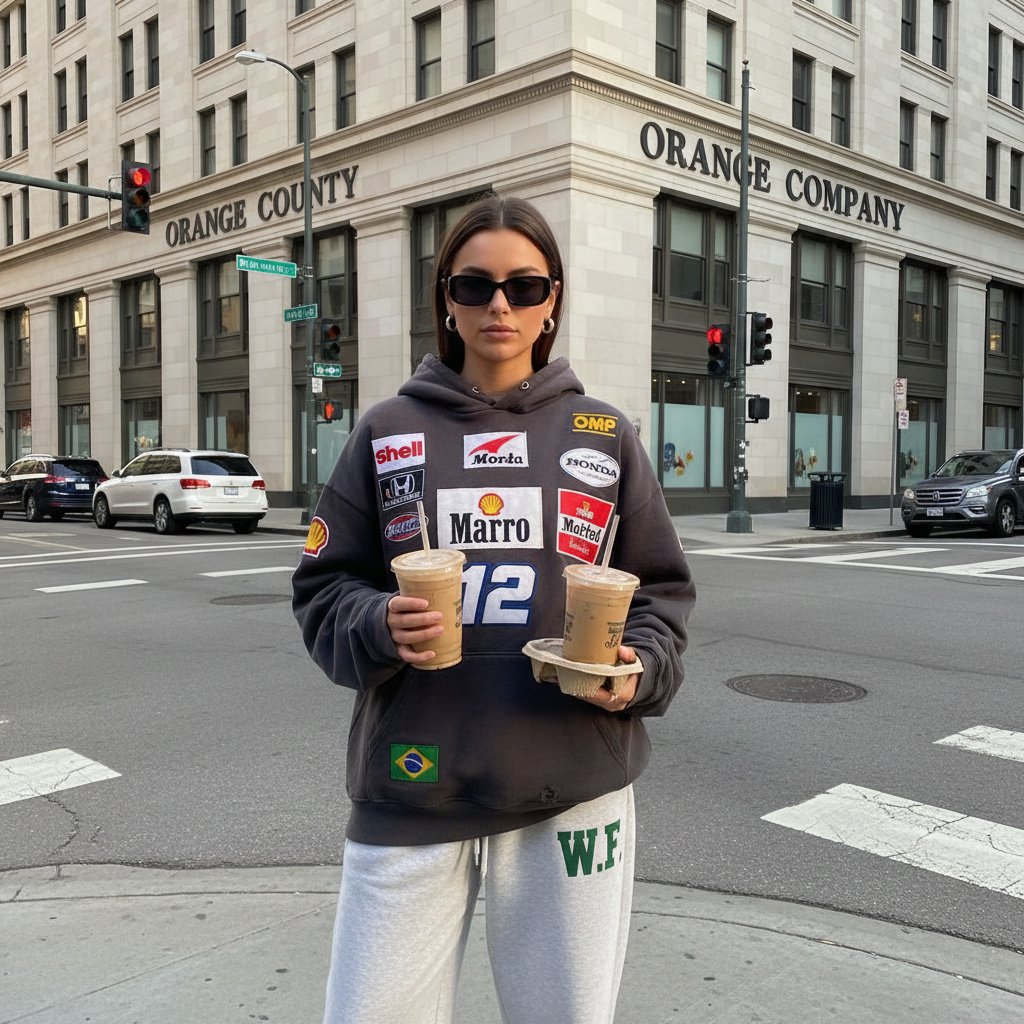
Cinematic Portrait of Subject Floating High Above Clouds
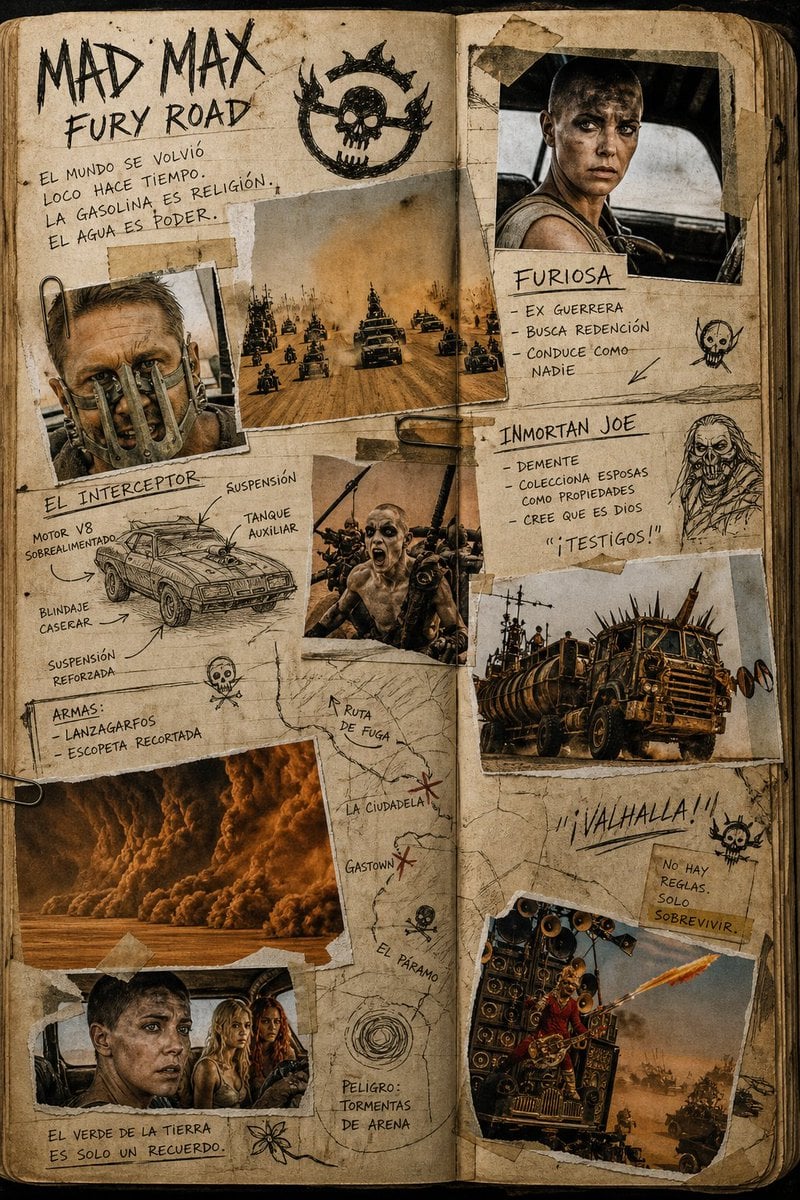
Mad Max Journal Scrapbook Style

Teal and Orange Neon Urban Portrait
Browse template categories
Split composition image, left and right halves clearly divided in 16 9 questions
How do I use the Split composition image, left and right halves clearly divided in 16 9 template?
Add your photo if the template asks for one, edit the prompt if you like — the template's model and format are already selected — and press Generate. Your version opens in PicX Studio.
Can I customize the Split composition image, left and right halves clearly divided in 16 9 template?
Yes. You can change the subject, setting, lighting, mood, format, and available model controls before creating your image.
Is the Split composition image, left and right halves clearly divided in 16 9 template free?
Opening and editing this template is free. Generating uses credits, shown on the Generate button when you are signed in.
Which AI model should I use?
Start with Nano Banana 2, which is the model associated with this template. You can compare another compatible model for a different finish.
Looking for something else? Browse all templates.

Your photo, any look
Thousands of ready templates for every top image and video model, from one credit balance.