
Dual-Orientation Optical Illusion Portrait
A highly technical prompt for generating a dual-orientation optical illusion portrait in strict monochrome, where the image reveals a young woman's side profile when viewed upright, and an elderly woman's side profile…
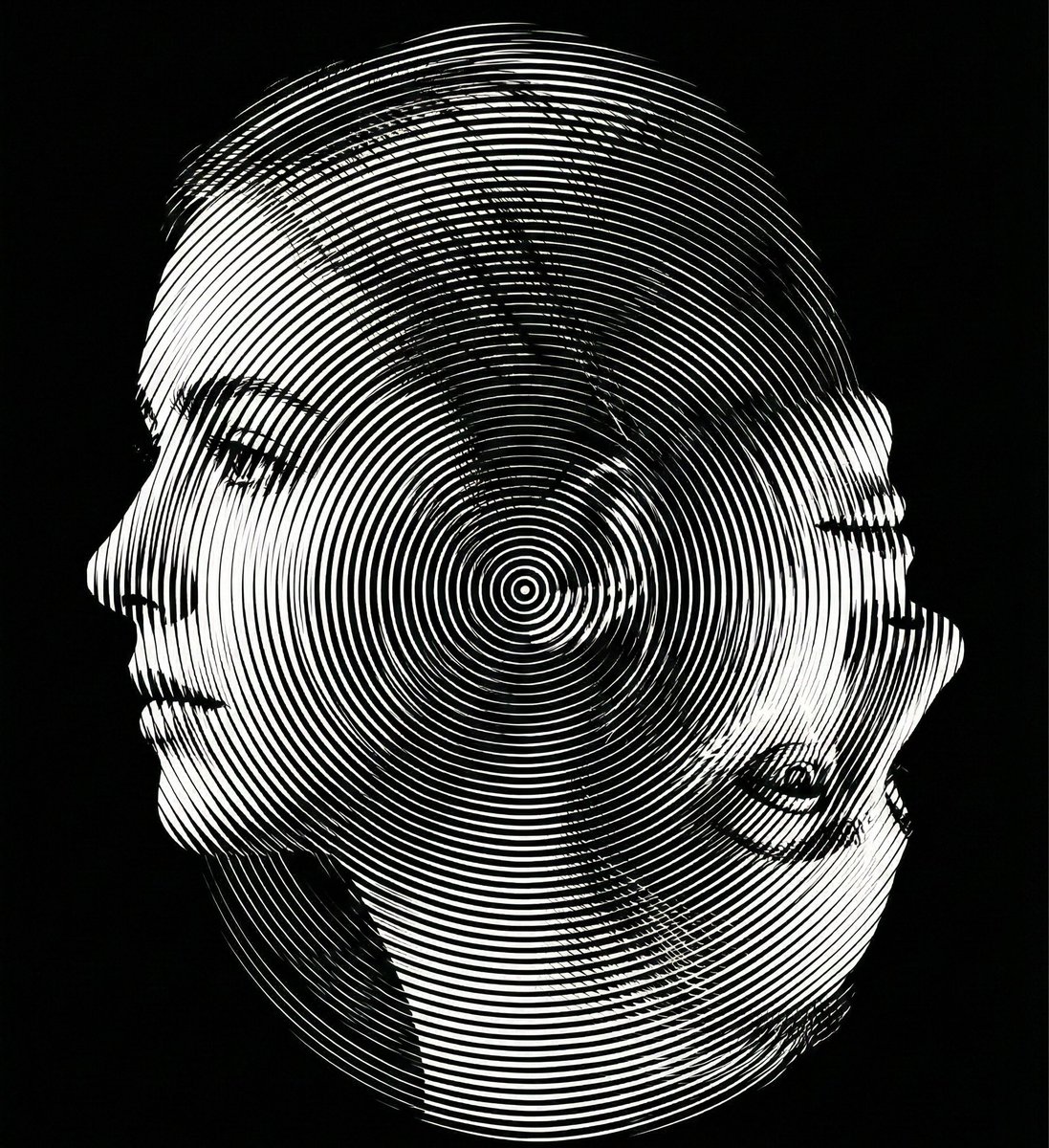
- Prompt included
- Model and format preset
- Free template
The prompt behind this image
Copy the exact prompt behind Dual-Orientation Optical Illusion Portrait, or open it in the studio and make it yours.
Create a dual-orientation optical illusion portrait. When viewed in normal upright position (0° orientation), the image must clearly reveal a young woman’s left-facing side profile. When the image is rotated 180 degrees (phone flipped upside down), the same composition must reveal an elderly woman’s side profile. Both identities must share the exact same contour structure and occupy identical spatial boundaries. No separate drawings, no split screen, no overlay. The transformation must occur purely through contour reinterpretation and structural ambiguity. Design the contour so that: The young woman’s chin becomes the elderly woman’s nose when rotated. The young woman’s ear becomes the elderly woman’s eye socket. The young woman’s neckline becomes the elderly woman’s mouth and chin structure. Apply a Moiré interference surface using ultra-thin radial or dual-frequency line patterns across the entire composition. The interference pattern must enhance depth without breaking the dual-orientation illusion. Strict monochrome palette. Black background (#000000) with white or light gray line structures only. No color. No gradients except those created by line density. No blur. No texture noise. Ultra-precise vector alignment. High contrast. Clean silhouette edges. 8K ultra-high resolution. Aspect ratio 4:5. The illusion must be readable in both orientations.
How to use Dual-Orientation Optical Illusion Portrait in 3 steps
- 1
Open
The prompt is already in the box next to the preview, with the template's model and format selected.
- 2…a portrait of your subject in softgolden-hour light, 85mm…
Personalize
Edit the subject and creative details for your destination.
- 3Generate
Generate
Press Generate — your image is created in PicX Studio, so you can compare it with the original and refine one variable at a time.
More like this
Templates with the same subject, style or setup. Open one to see its prompt.
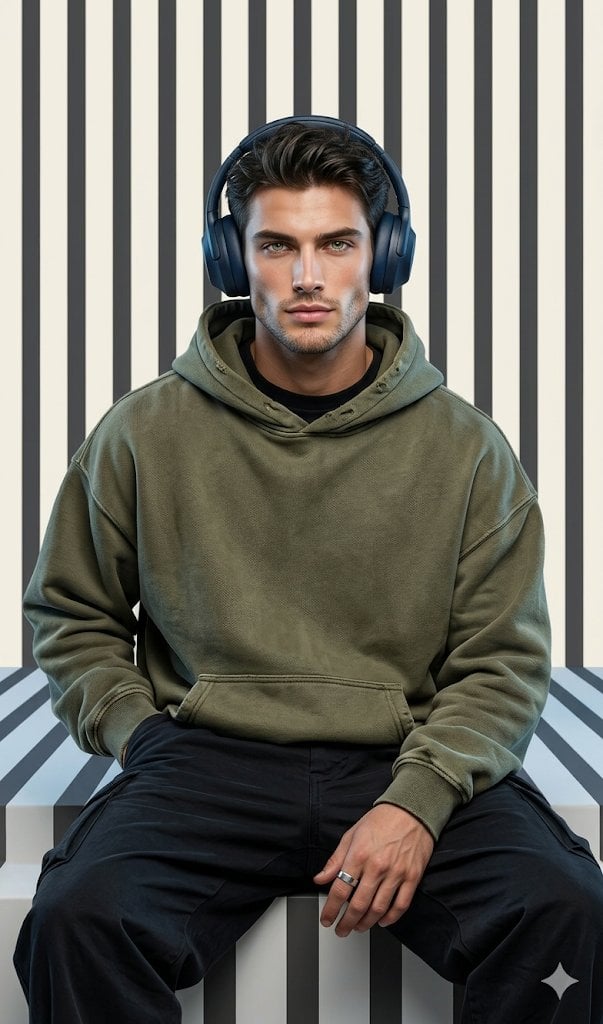
Graphic Portrait with Optical Illusion Background
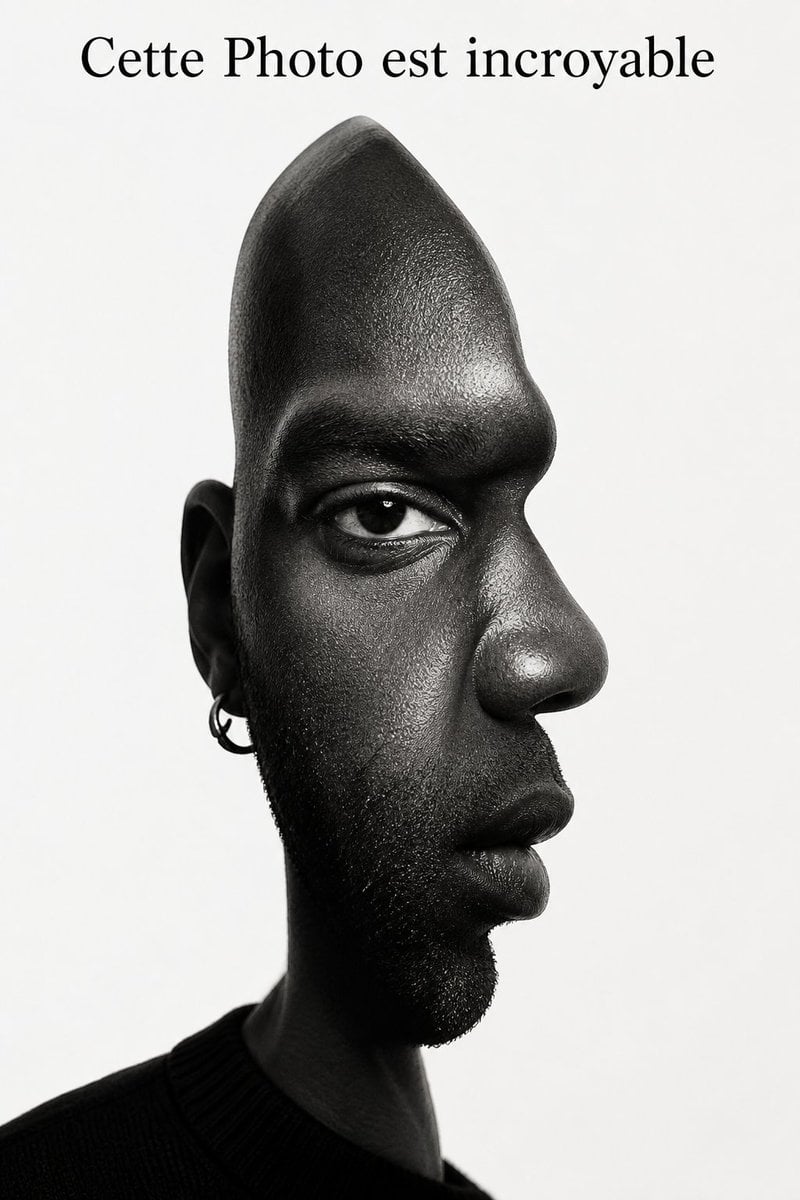
Surreal Optical Illusion Portrait
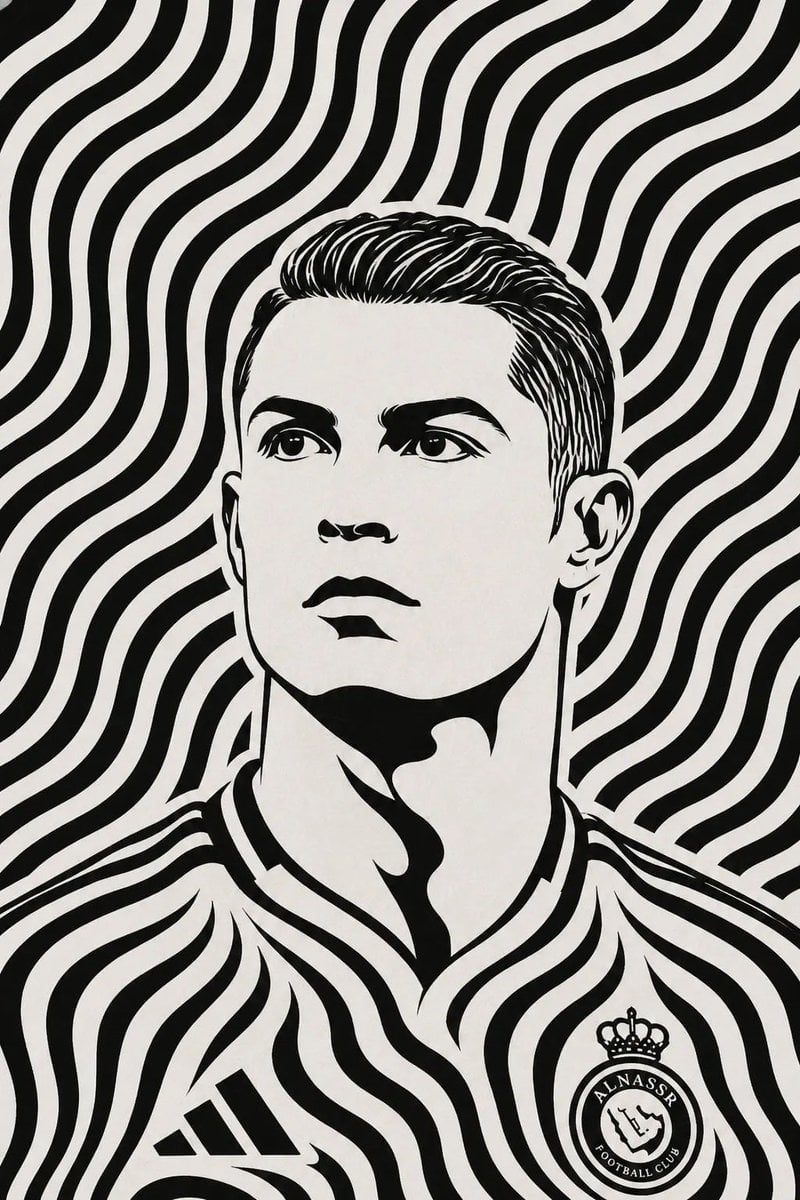
Black and White Optical Illusion Portrait

Found Photograph: Us, 1970

80s Couple Studio Portrait
80s Bollywood Star
80s Golden Hour Cinema
Me in 1985
1985 Studio Portrait

Hyper-Realistic Minecraft POV Portrait
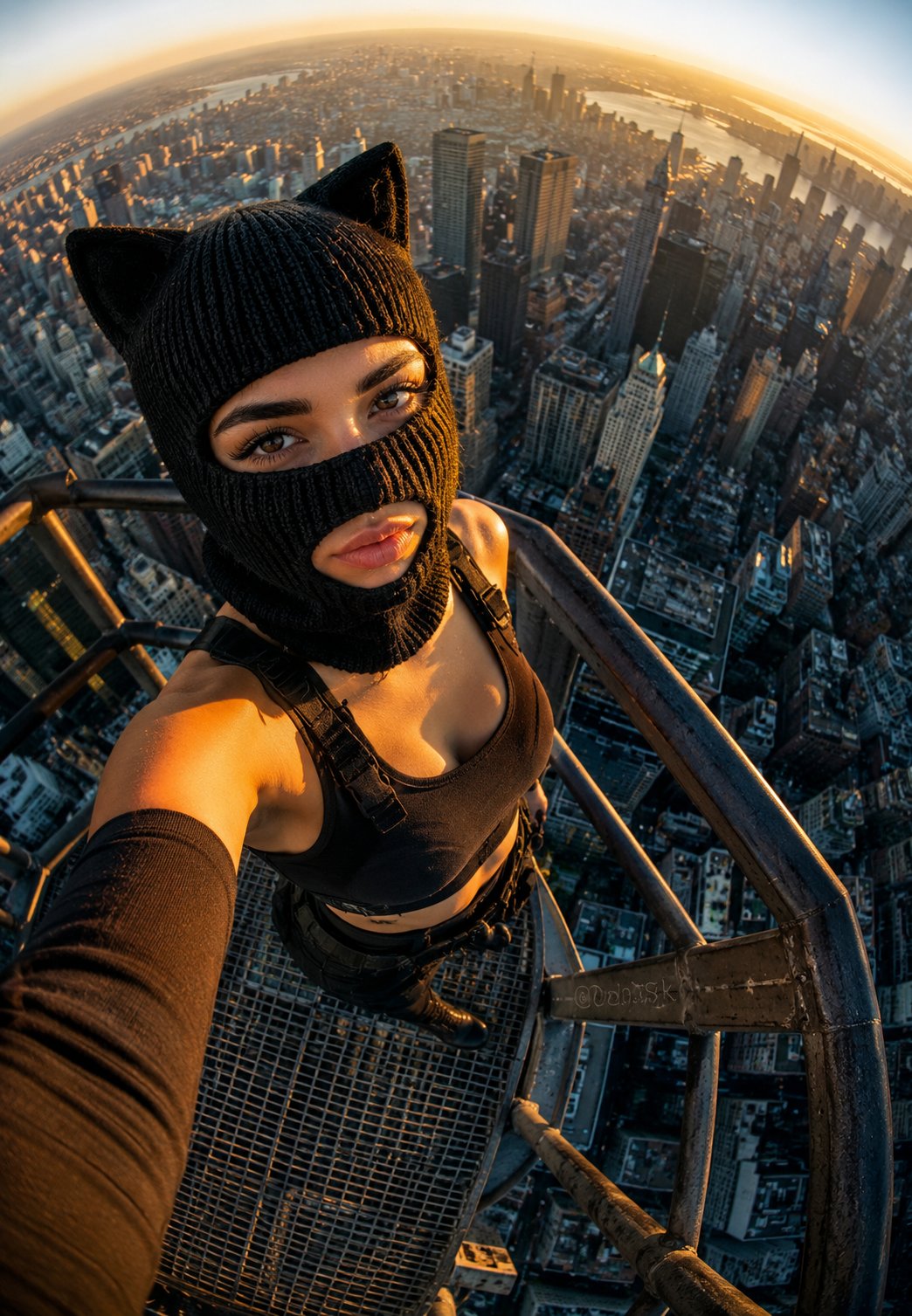
Rooftop Fisheye — Cat-Ear Balaclava at Golden Hour
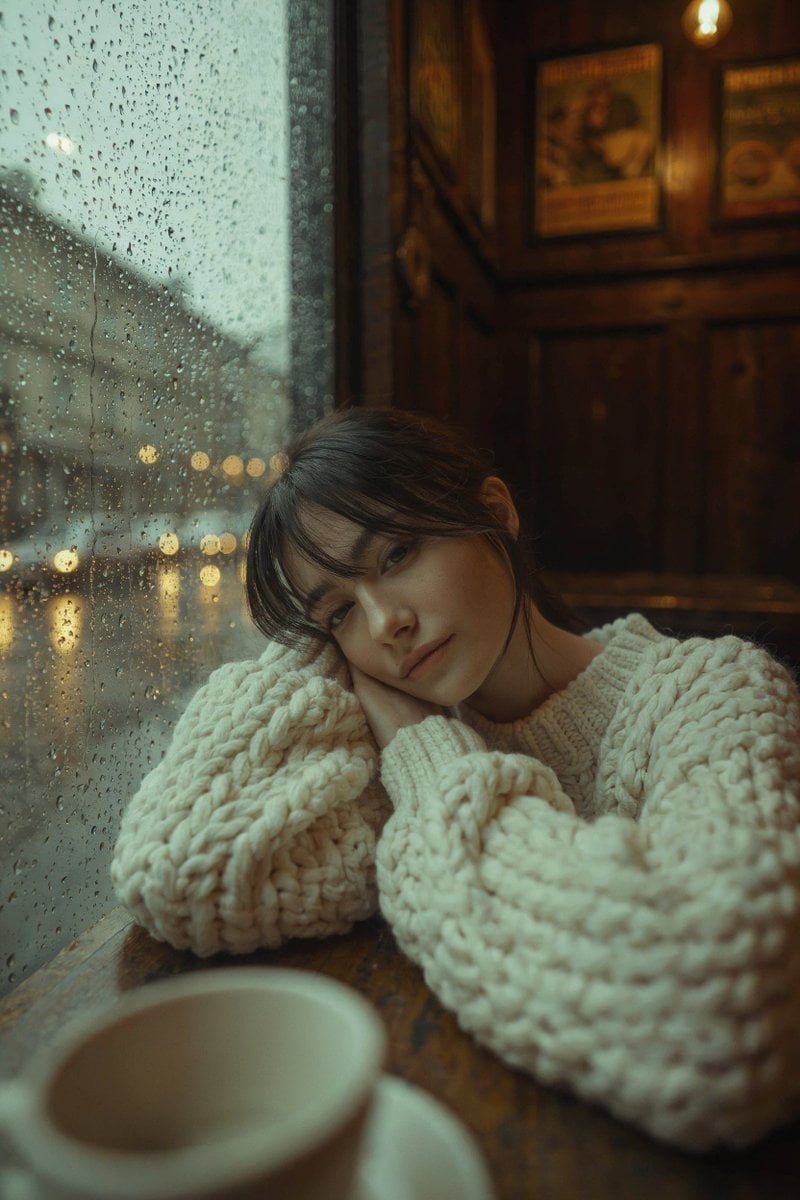
Rainy Café Window Moody Portrait
Make it yours
Dual-Orientation Optical Illusion Portrait works as-is. These are the safest ways to change it without losing the look.
Change one field
Copy a single group, rewrite it, and generate again so you can see what that field is doing.
Keep the frame, change the subject
Hold the composition and light of Dual-Orientation Optical Illusion Portrait, then swap wardrobe, props or the person for a new take.
| If the result… | Why | Fix |
|---|---|---|
| The result drifts from the preview | Too many fields changed at once. | Reuse Dual-Orientation Optical Illusion Portrait as-is first, then change one group — subject, light, or setting. |
| The model over-stylizes the scene | The prose prompt leaves finish and camera underspecified. | Add one camera or lighting sentence and stay on Nano Banana 2. |
More Nano Banana 2 templates
Other prompts made for Nano Banana 2.

Photorealistic Leaf Shaped Like a Dragon

K-Pop Idol Portrait Grid for Rapid Selection

Poetic Rain Forest Portrait During Golden Hour

Urban Street Portrait with Cartoon Inner Self Duo

Candid Nighttime Photo with Cat Prompt

High-Concept 3D Diorama Generation Prompt

Cinematic Futuristic Studio Portrait Template

Skincare Editorial Photography Collage Prompt

Hyper-Realistic Commercial Product Photography (Splash Effect)

Hyper-Realistic Nightclub Portrait Prompt
More image prompts
Fresh picks from across the catalog.
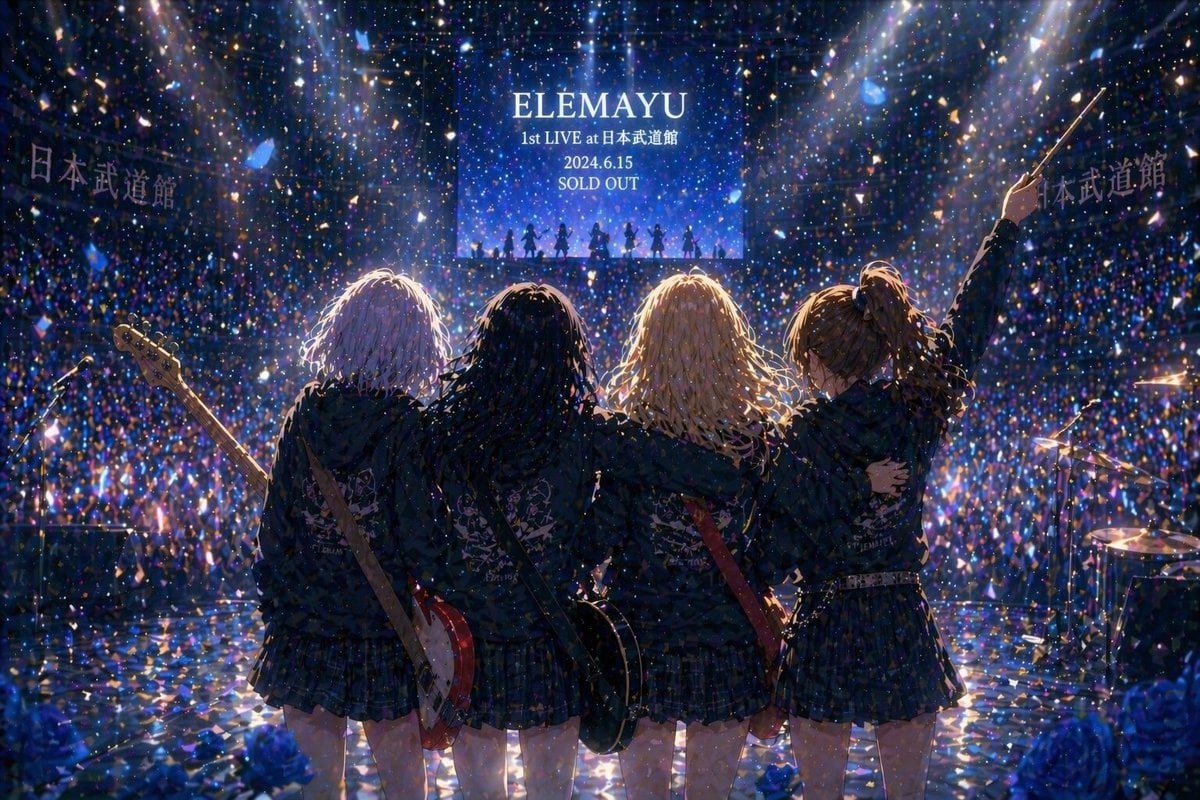
Gpt2 Social Media Post Anime Band Finale at Budokan
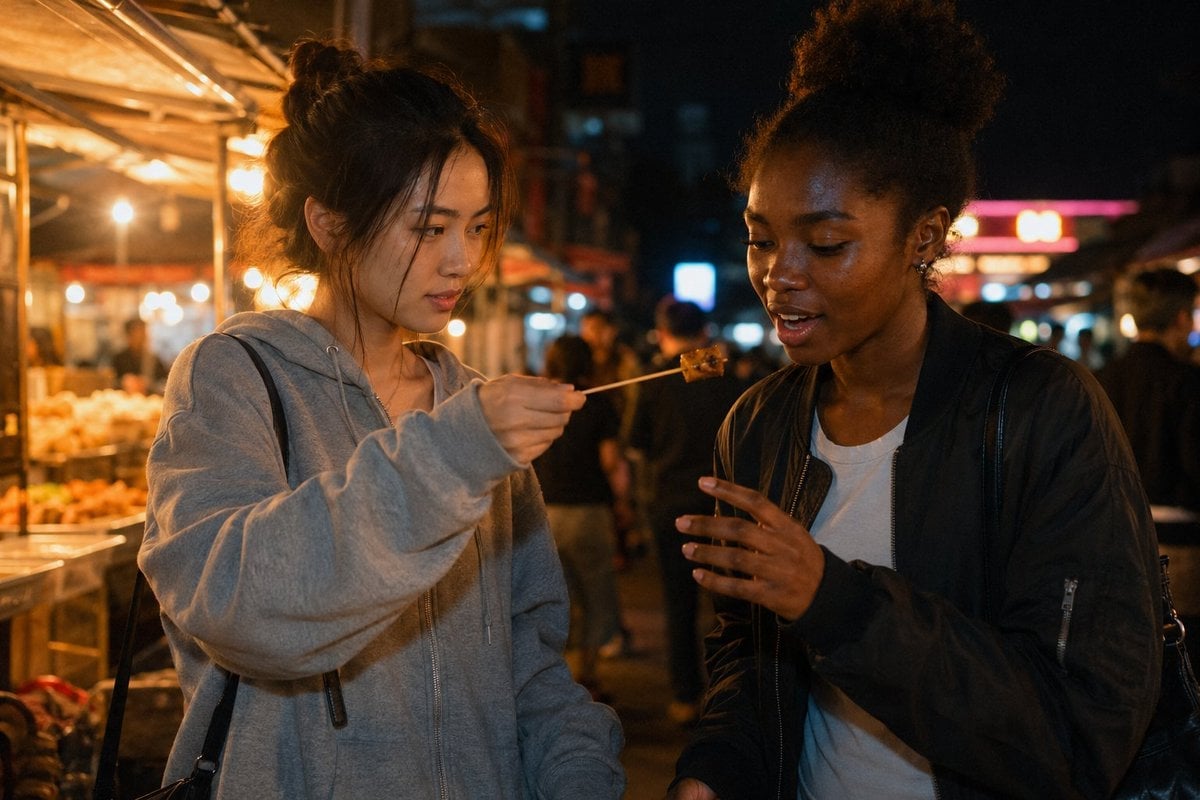
Candid Night Market Food Offering
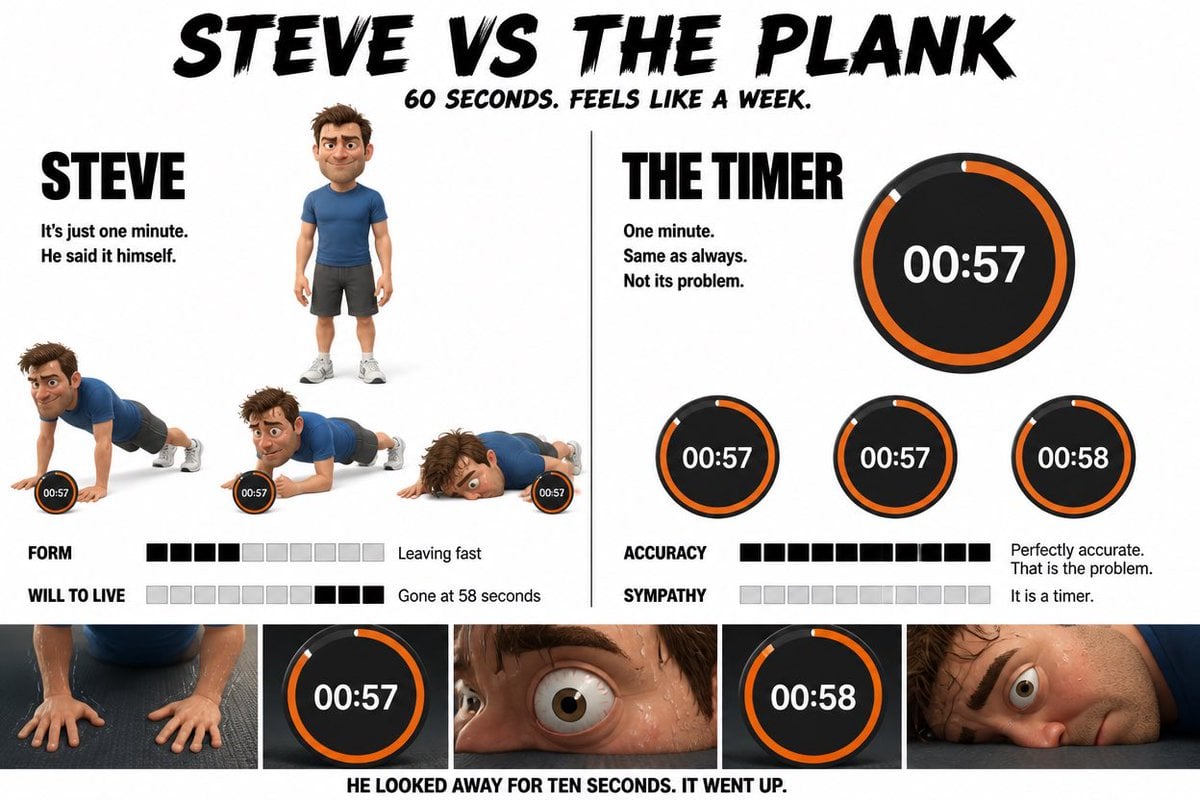
Pixar Style Character Storyboard
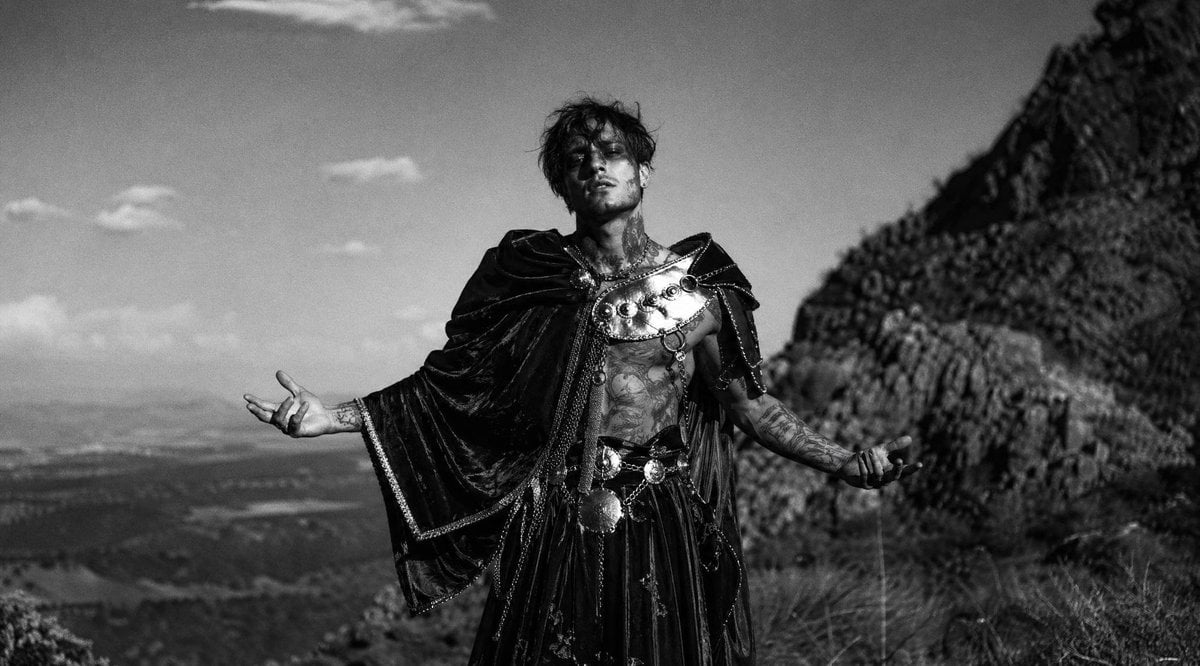
Monochrome Mountain Warrior Portrait
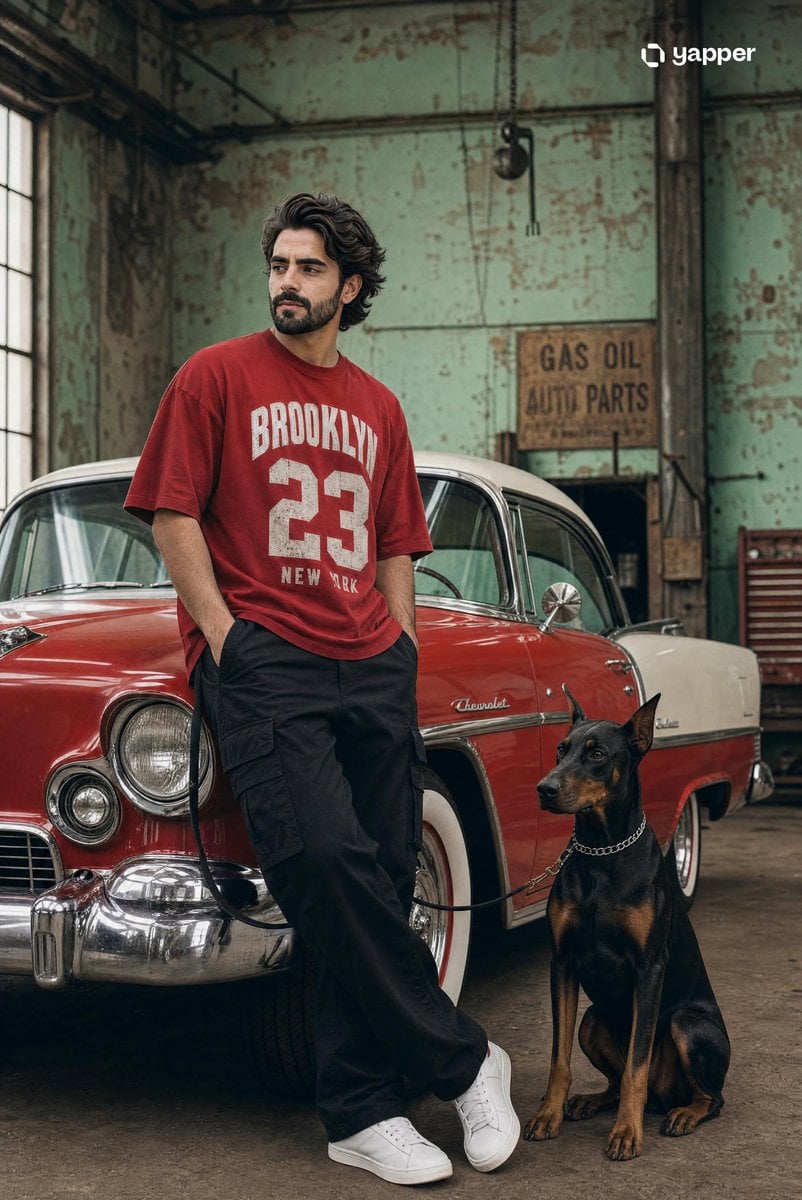
Vintage Car Streetwear Fashion Shoot
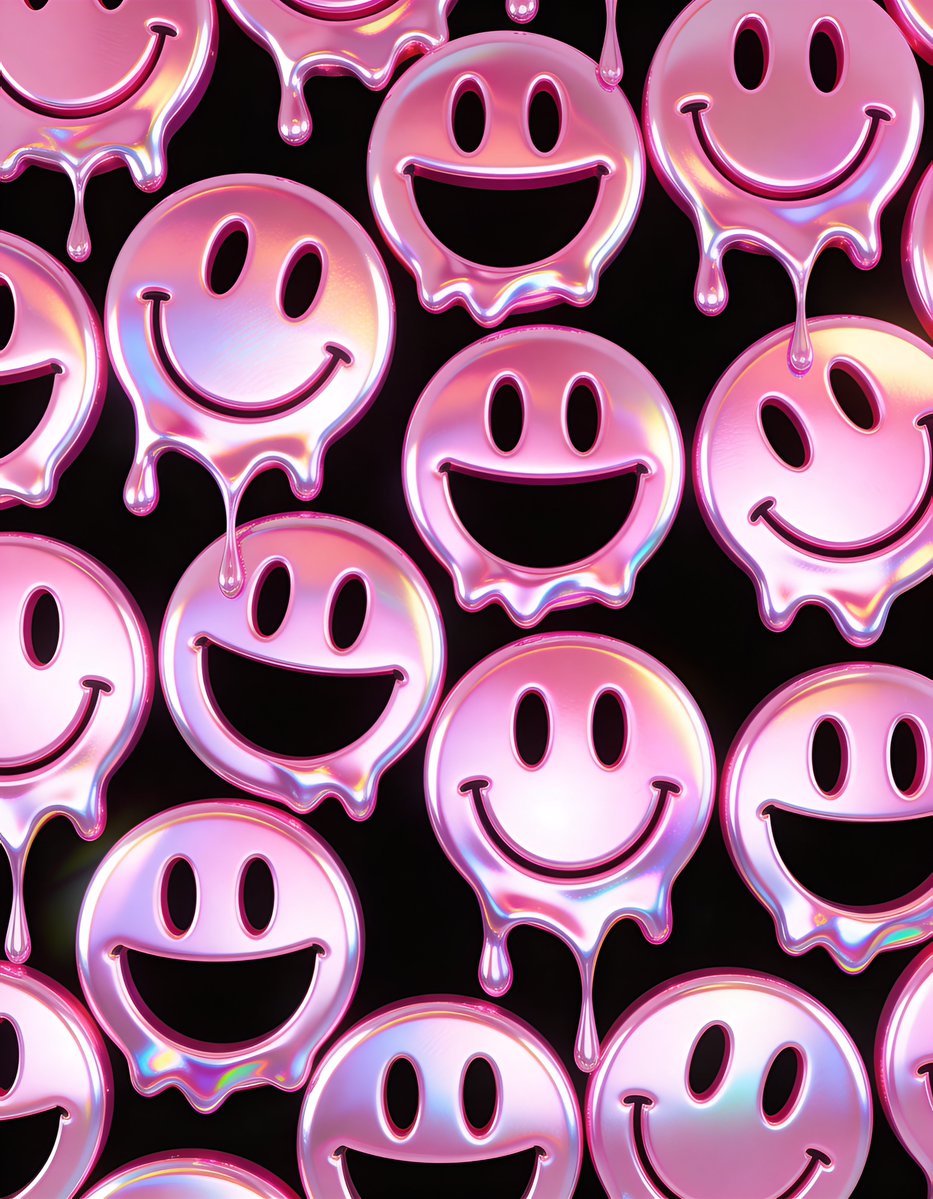
Melting Holographic Smiley Face Pattern Prompt
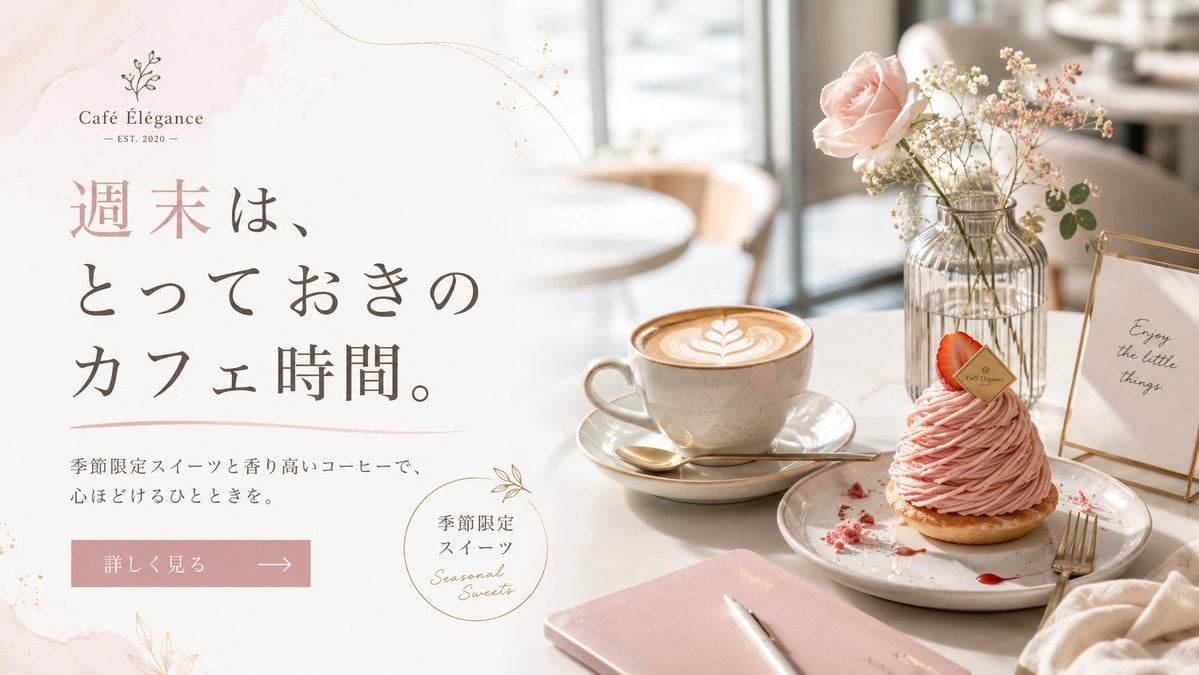
Elegant Café Weekend Banner
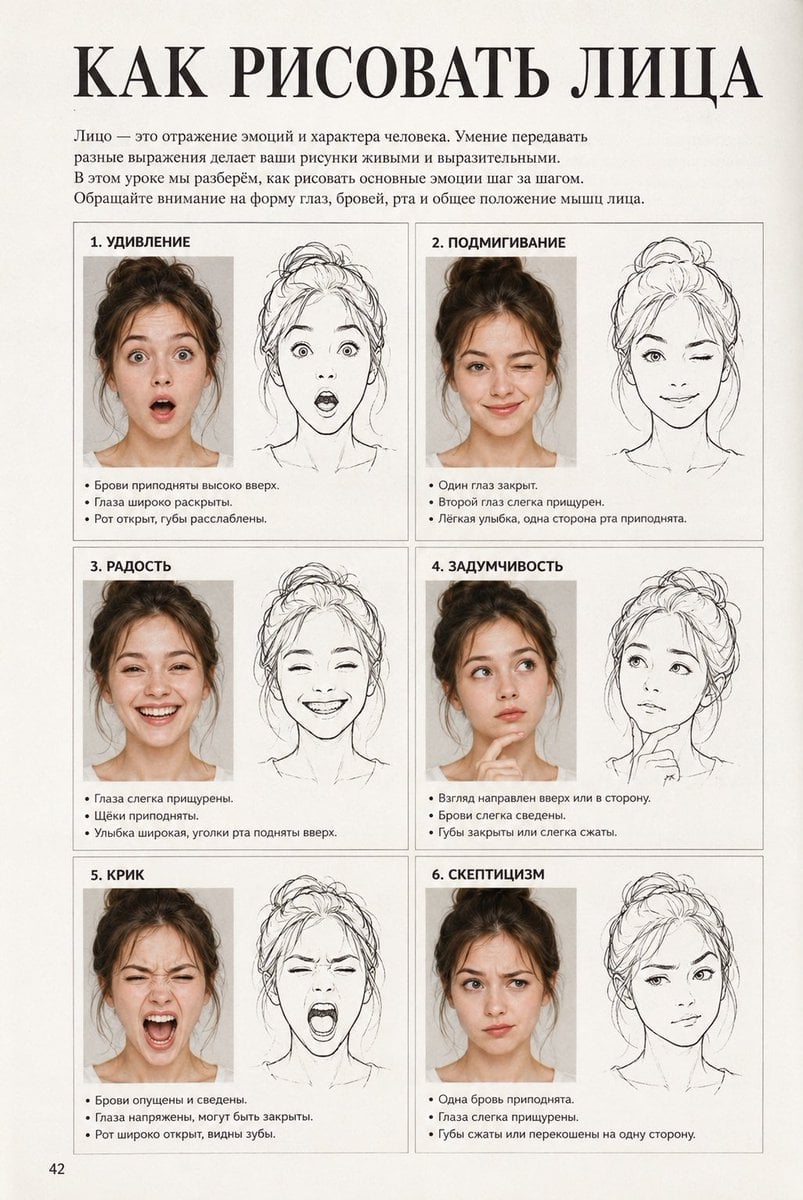
Vintage Russian Face Drawing Lesson
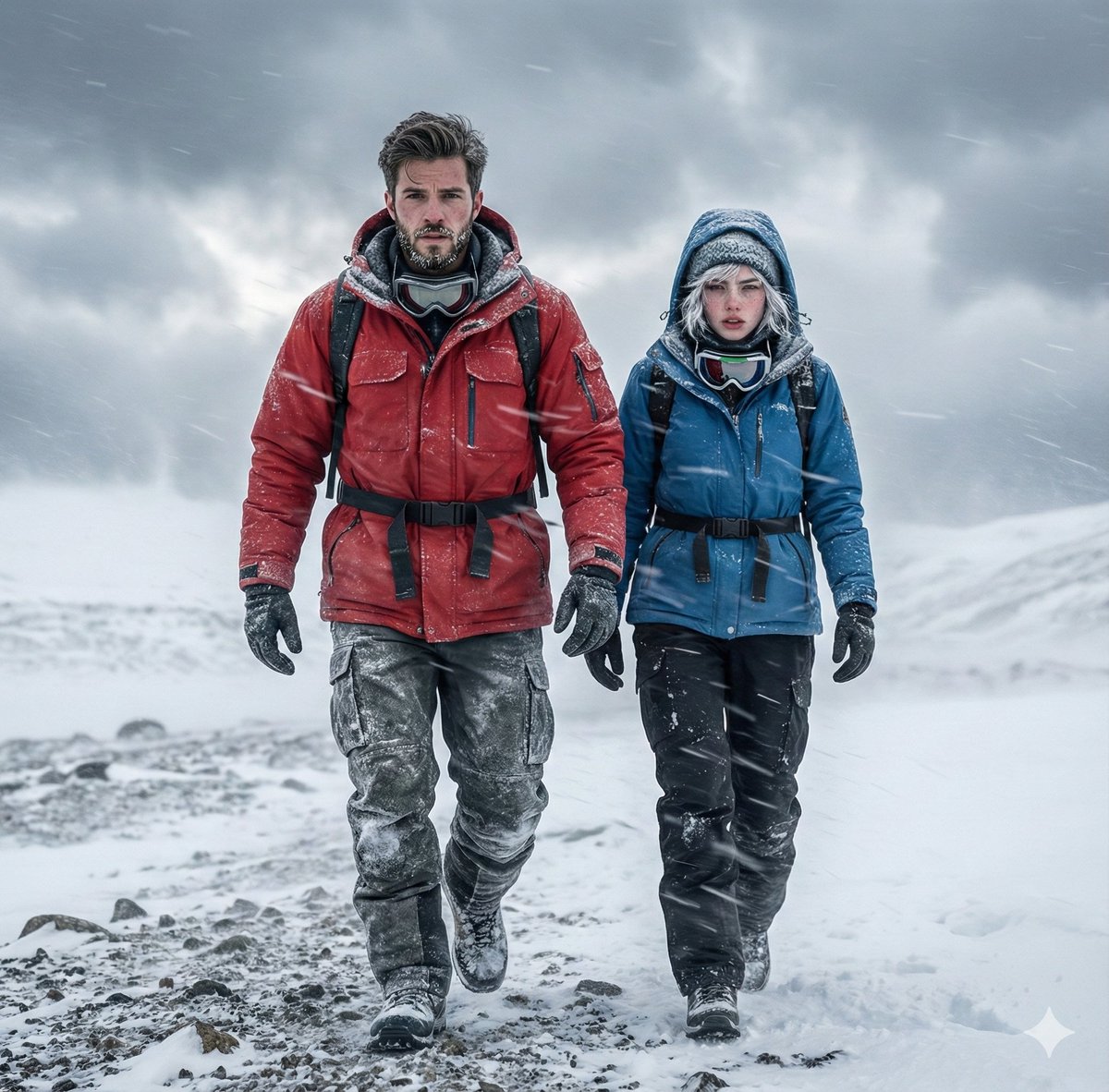
Alaskan Snowstorm Couple Prompt (Reference Based)
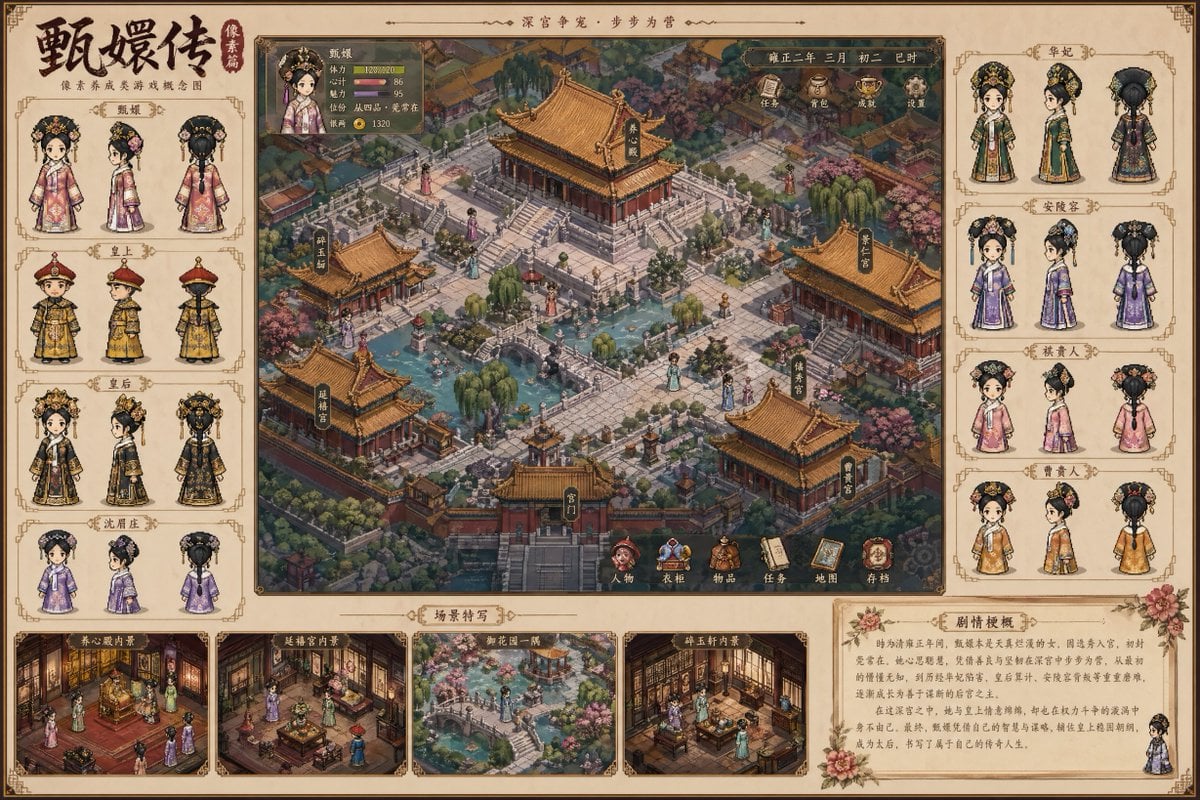
Historical drama pixel art concept
Browse template categories
Dual-Orientation Optical Illusion Portrait questions
How do I use the Dual-Orientation Optical Illusion Portrait template?
Add your photo if the template asks for one, edit the prompt if you like — the template's model and format are already selected — and press Generate. Your version opens in PicX Studio.
Can I customize the Dual-Orientation Optical Illusion Portrait template?
Yes. You can change the subject, setting, lighting, mood, format, and available model controls before creating your image.
Is the Dual-Orientation Optical Illusion Portrait template free?
Opening and editing this template is free. Generating uses credits, shown on the Generate button when you are signed in.
Which AI model should I use?
Start with Nano Banana 2, which is the model associated with this template. You can compare another compatible model for a different finish.
Looking for something else? Browse all templates.

Your photo, any look
Thousands of ready templates for every top image and video model, from one credit balance.