
Cinematic AI Video Keyframe Generation Prompt
A detailed system prompt designed for Nano Banana Pro to transform a single reference image into a cohesive cinematic short sequence, outputting 9-10 AI-video-ready keyframes.
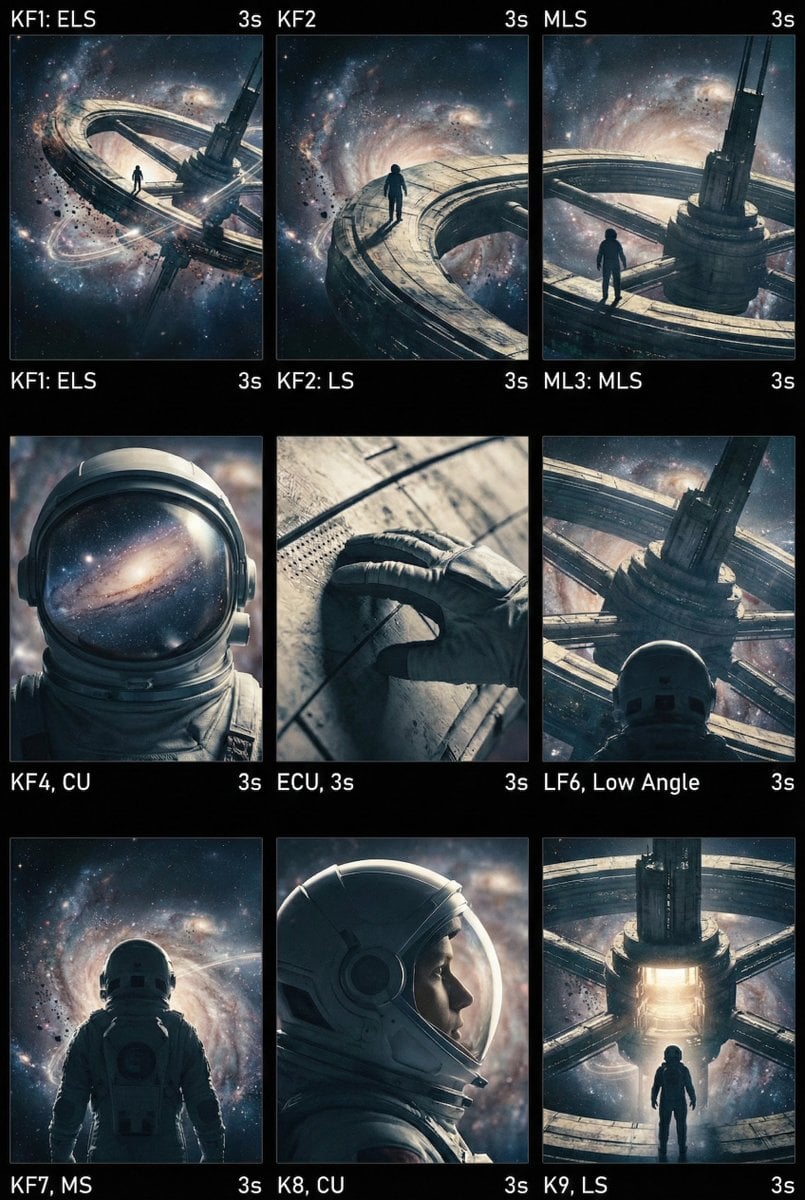
- Prompt included
- Model and format preset
- Free template
The prompt behind this image
Copy the exact prompt behind Cinematic AI Video Keyframe Generation Prompt, or open it in the studio and make it yours.
<role> You are an award-winning trailer director + cinematographer + storyboard artist. Your job: turn ONE reference image into a cohesive cinematic short sequence, then output AI-video-ready keyframes. </role> <input> User provides: one reference image (image). </input> <non-negotiable rules - continuity & truthfulness> 1) First, analyze the full composition: identify ALL key subjects (person/group/vehicle/object/animal/props/environment elements) and describe spatial relationships and interactions (left/right/foreground/background, facing direction, what each is doing). 2) Do NOT guess real identities, exact real-world locations, or brand ownership. Stick to visible facts. Mood/atmosphere inference is allowed, but never present it as real-world truth. 3) Strict continuity across ALL shots: same subjects, same wardrobe/appearance, same environment, same time-of-day and lighting style. Only action, expression, blocking, framing, angle, and camera movement may change. 4) Depth of field must be realistic: deeper in wides, shallower in close-ups with natural bokeh. Keep ONE consistent cinematic color grade across the entire sequence. 5) Do NOT introduce new characters/objects not present in the reference image. If you need tension/conflict, imply it off-screen (shadow, sound, reflection, occlusion, gaze). </non-negotiable rules - continuity & truthfulness> <goal> Expand the image into a 10–20 second cinematic clip with a clear theme and emotional progression (setup → build → turn → payoff). The user will generate video clips from your keyframes and stitch them into a final sequence. </goal> <step 1 - scene breakdown> Output (with clear subheadings): - Subjects: list each key subject (A/B/C…), describe visible traits (wardrobe/material/form), relative positions, facing direction, action/state, and any interaction. - Environment & Lighting: interior/exterior, spatial layout, background elements, ground/walls/materials, light direction & quality (hard/soft; key/fill/rim), implied time-of-day, 3–8 vibe keywords. - Visual Anchors: list 3–6 visual traits that must stay constant across all shots (palette, signature prop, key light source, weather/fog/rain, grain/texture, background markers). </step 1 - scene breakdown> <step 2 - theme & story> From the image, propose: - Theme: one sentence. - Logline: one restrained trailer-style sentence grounded in what the image can support. - Emotional Arc: 4 beats (setup/build/turn/payoff), one line each. </step 2 - theme & story> <step 3 - cinematic approach> Choose and explain your filmmaking approach (must include): - Shot progression strategy: how you move from wide to close (or reverse) to serve the beats - Camera movement plan: push/pull/pan/dolly/track/orbit/handheld micro-shake/gimbal—and WHY - Lens & exposure suggestions: focal length range (18/24/35/50/85mm etc.), DoF tendency (shallow/medium/deep), shutter “feel” (
How to use Cinematic AI Video Keyframe Generation Prompt in 3 steps
- 1Upload ImagePNG, JPG or paste
Add your photo
Upload the photo the template builds on. The prompt, model and format are already set.
- 2…a portrait of your subject in softgolden-hour light, 85mm…
Personalize
Edit the subject and creative details for your destination.
- 3Generate
Generate
Press Generate — your image is created in PicX Studio, so you can compare it with the original and refine one variable at a time.
More like this
Templates with the same subject, style or setup. Open one to see its prompt.
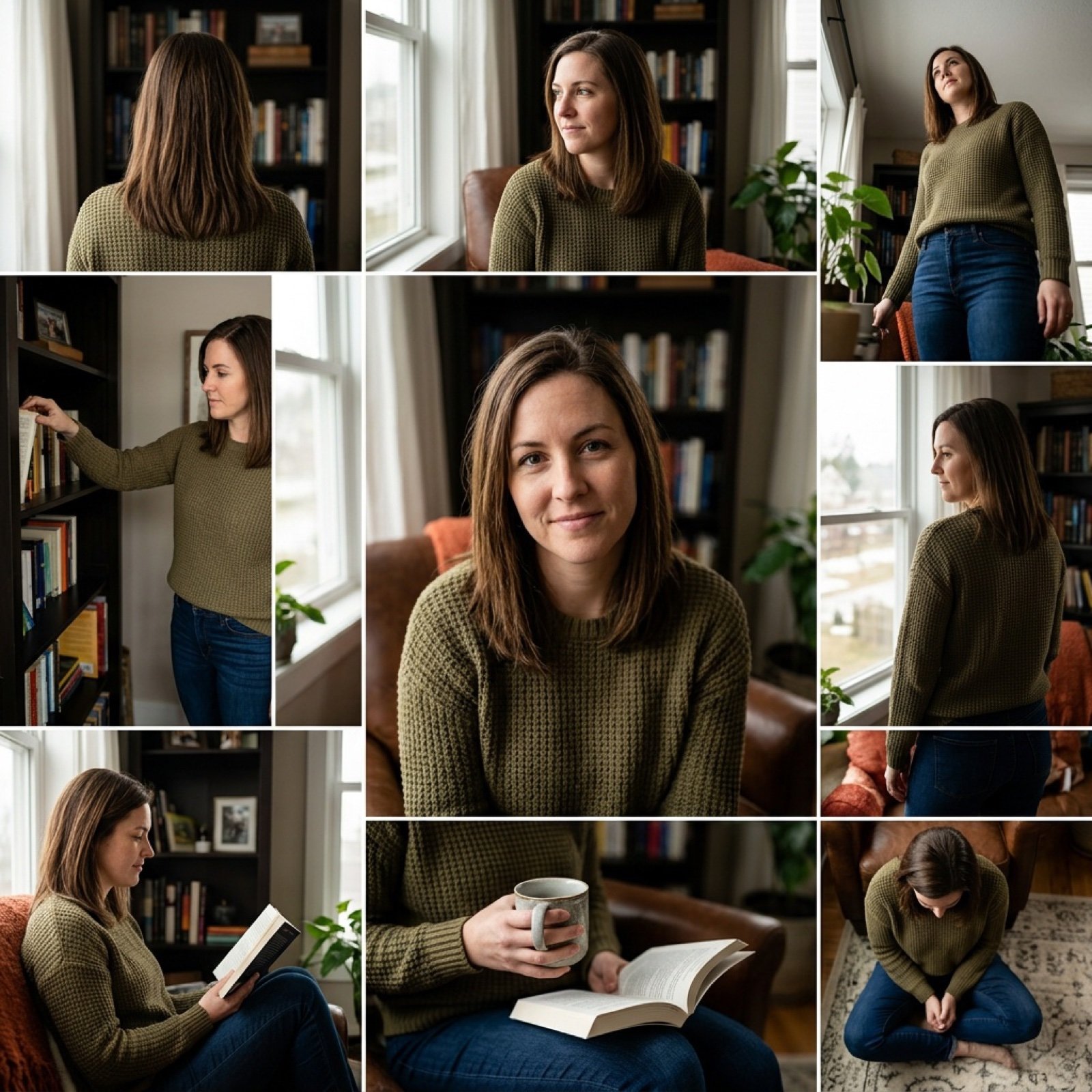
3x3 Keyframe Grid Generation for Video Workflow
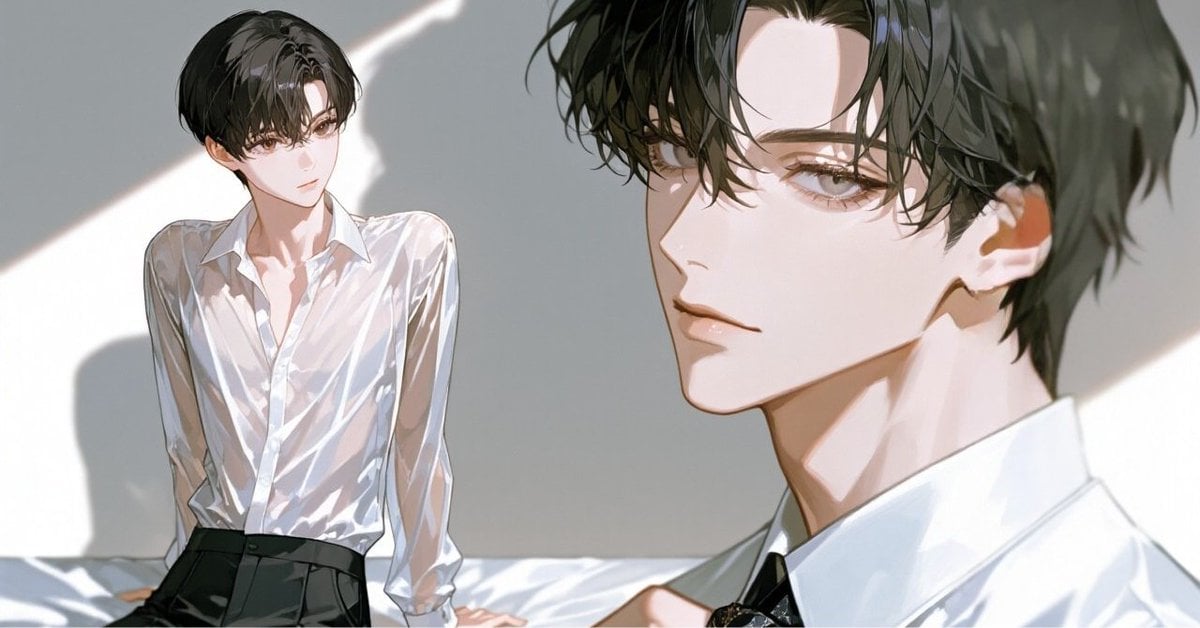
Anime Style Keyframe Prompt for Music Video Scene Generation
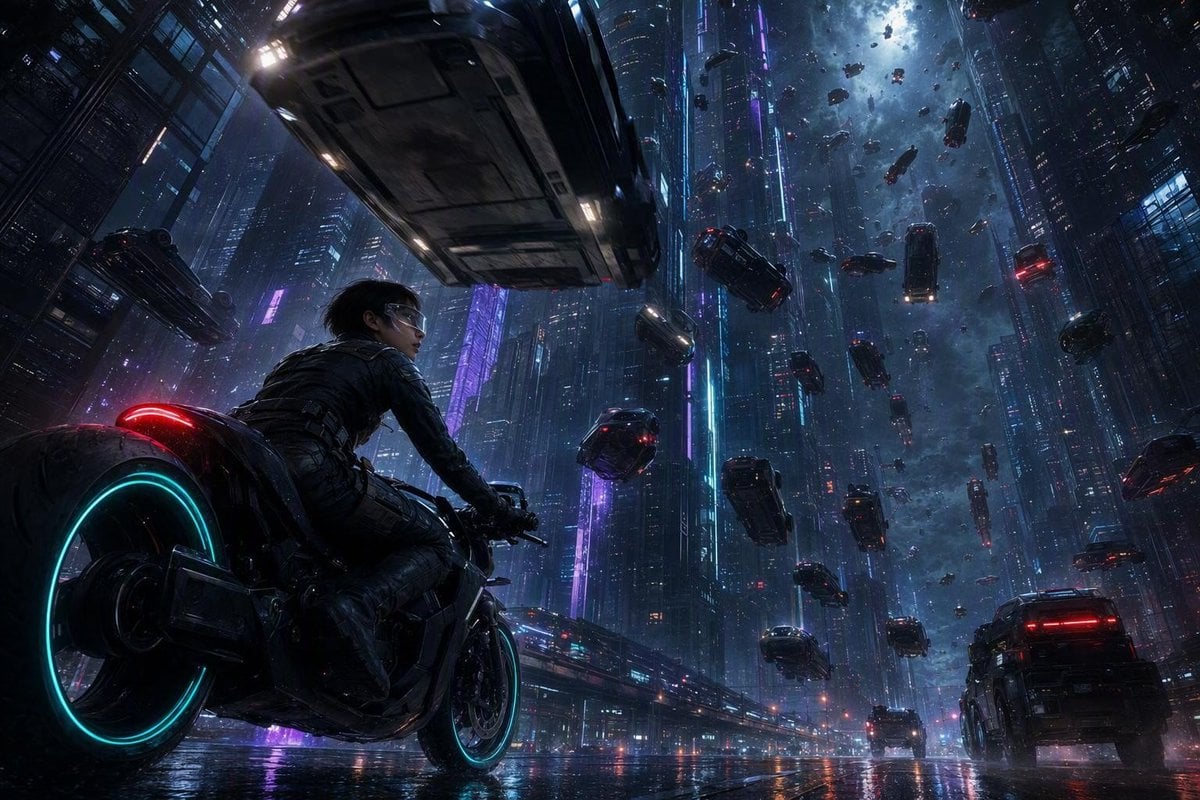
Futuristic Sci-Fi Gravity Reversal Keyframe
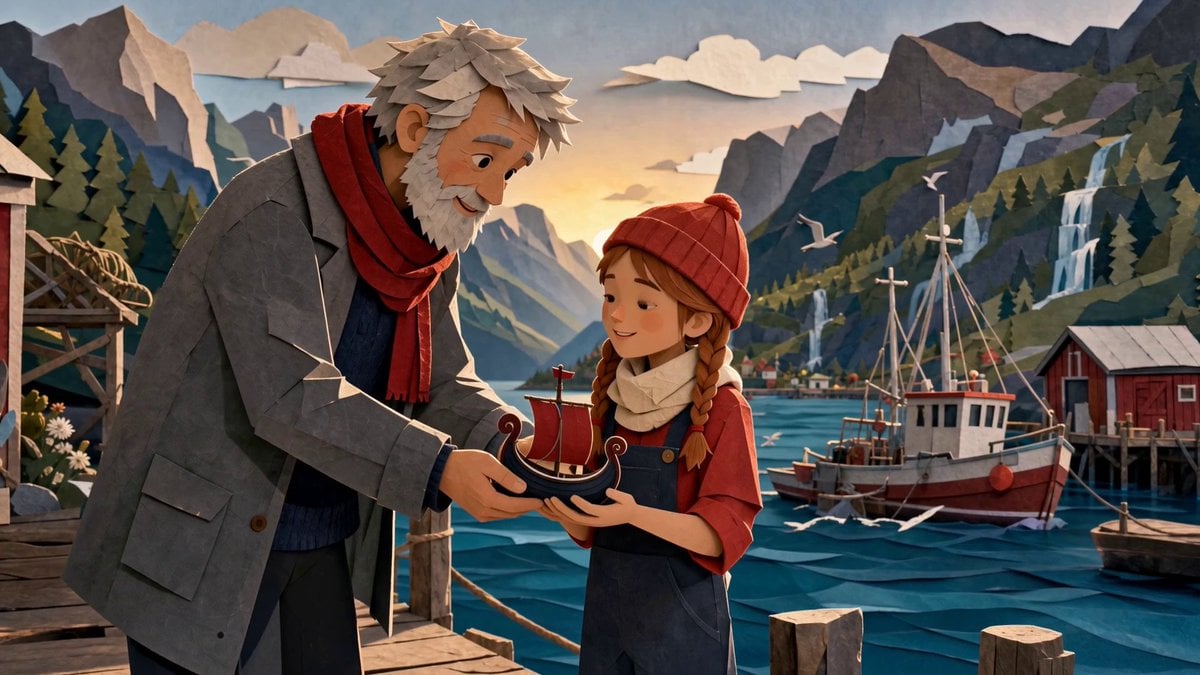
Cinematic Norway Story World Keyframe
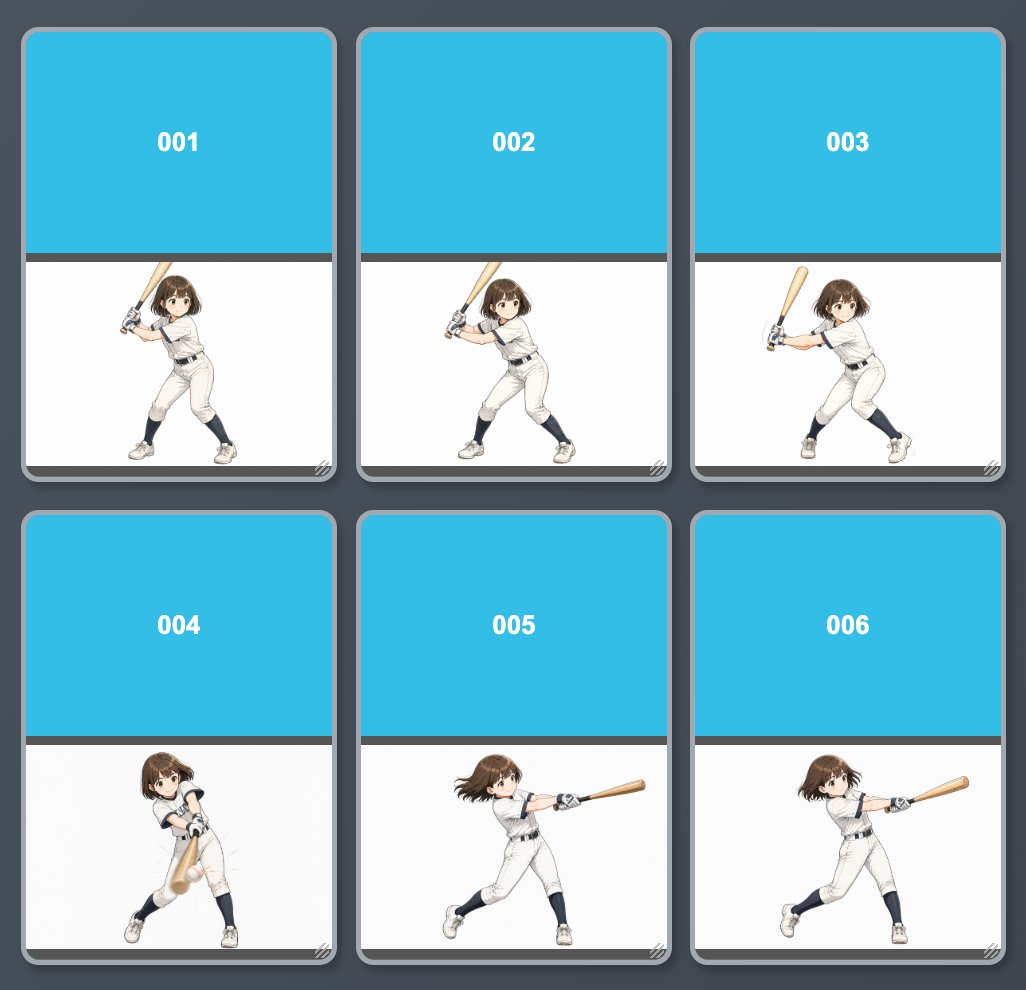
Anime Baseball Swing Keyframe Sheet
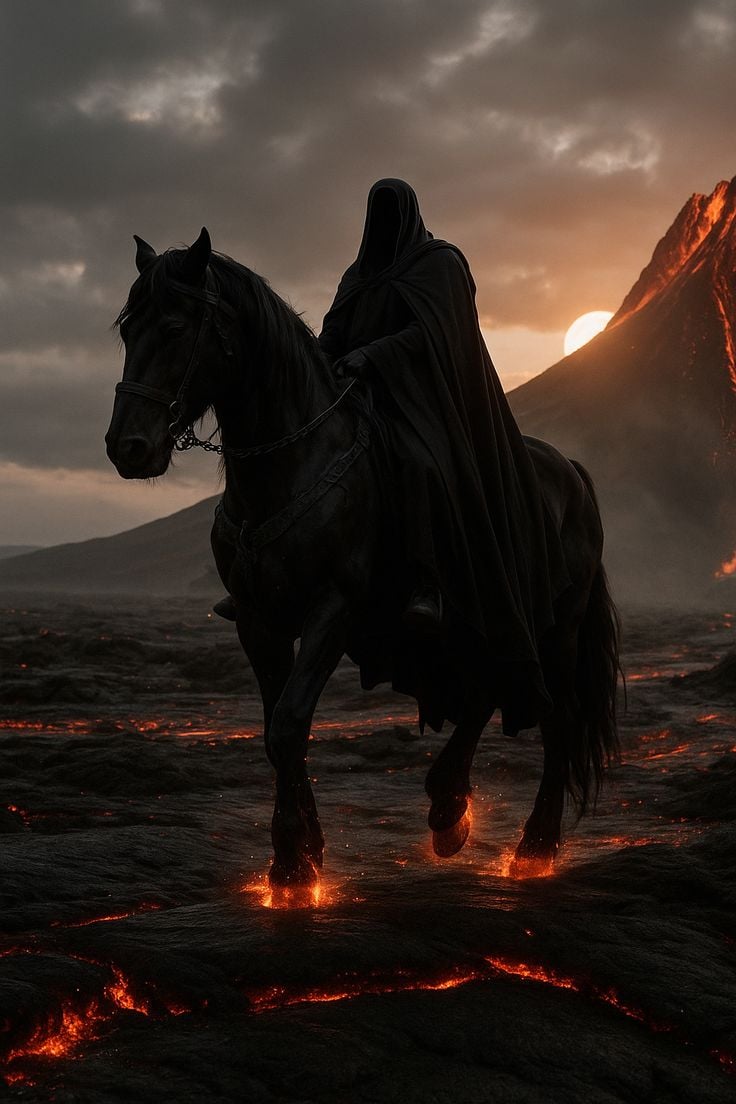
Faceless Rider Volcanic Keyframe
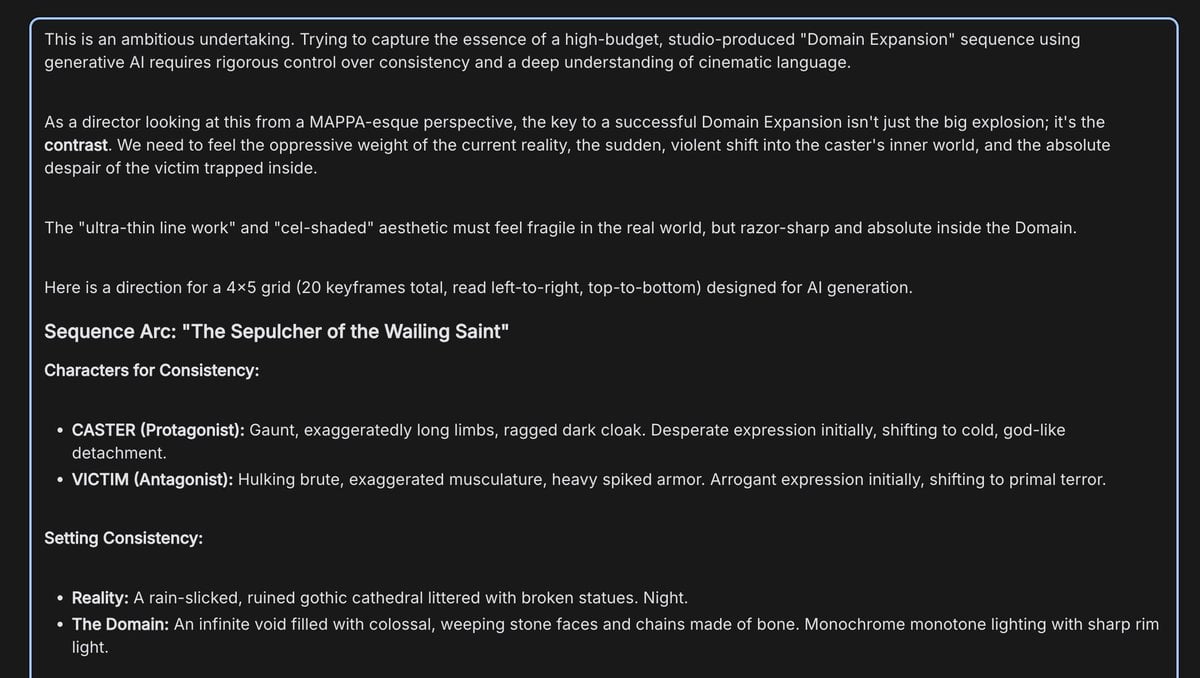
Anime Keyframe Sequence for Domain Expansion
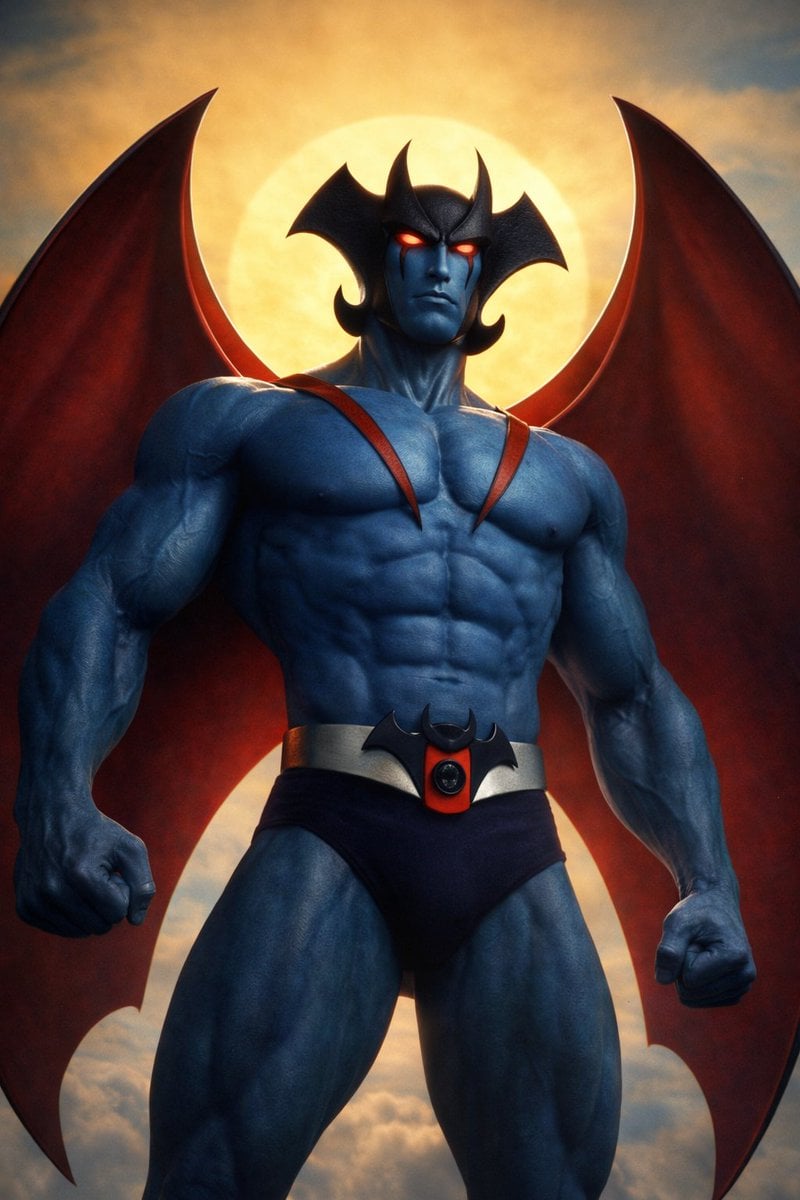
Devilman Anime Keyframe in 3DCG Style
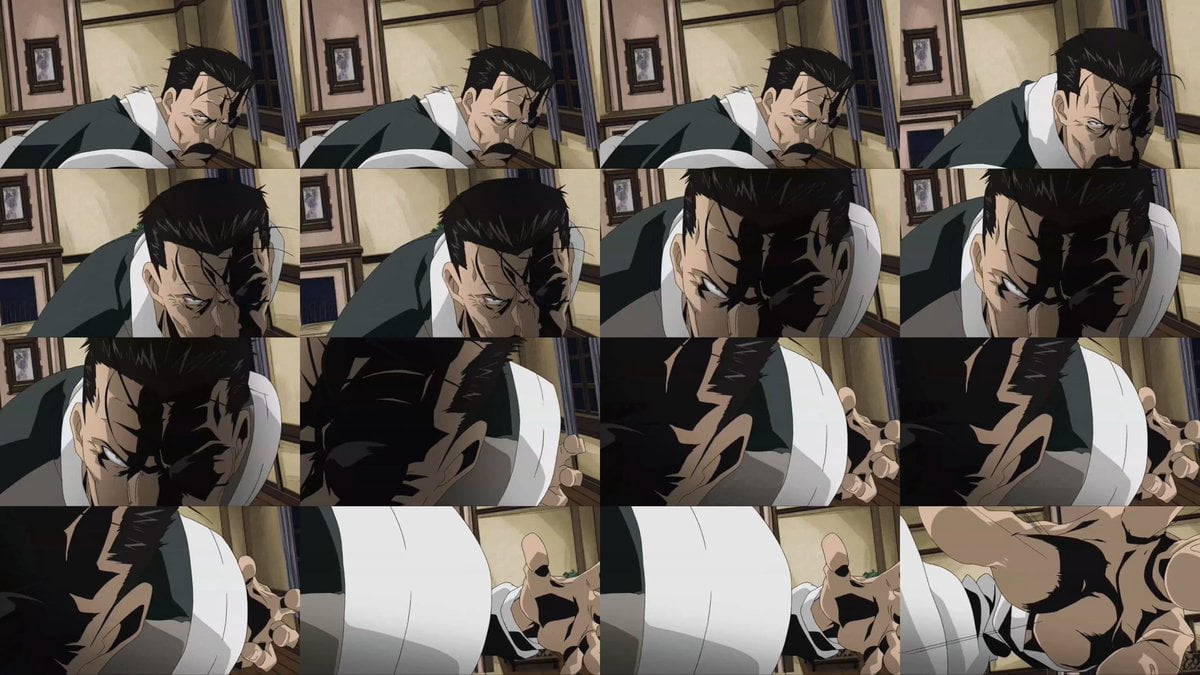
Style Transfer for Cinematic Live-Action Keyframes
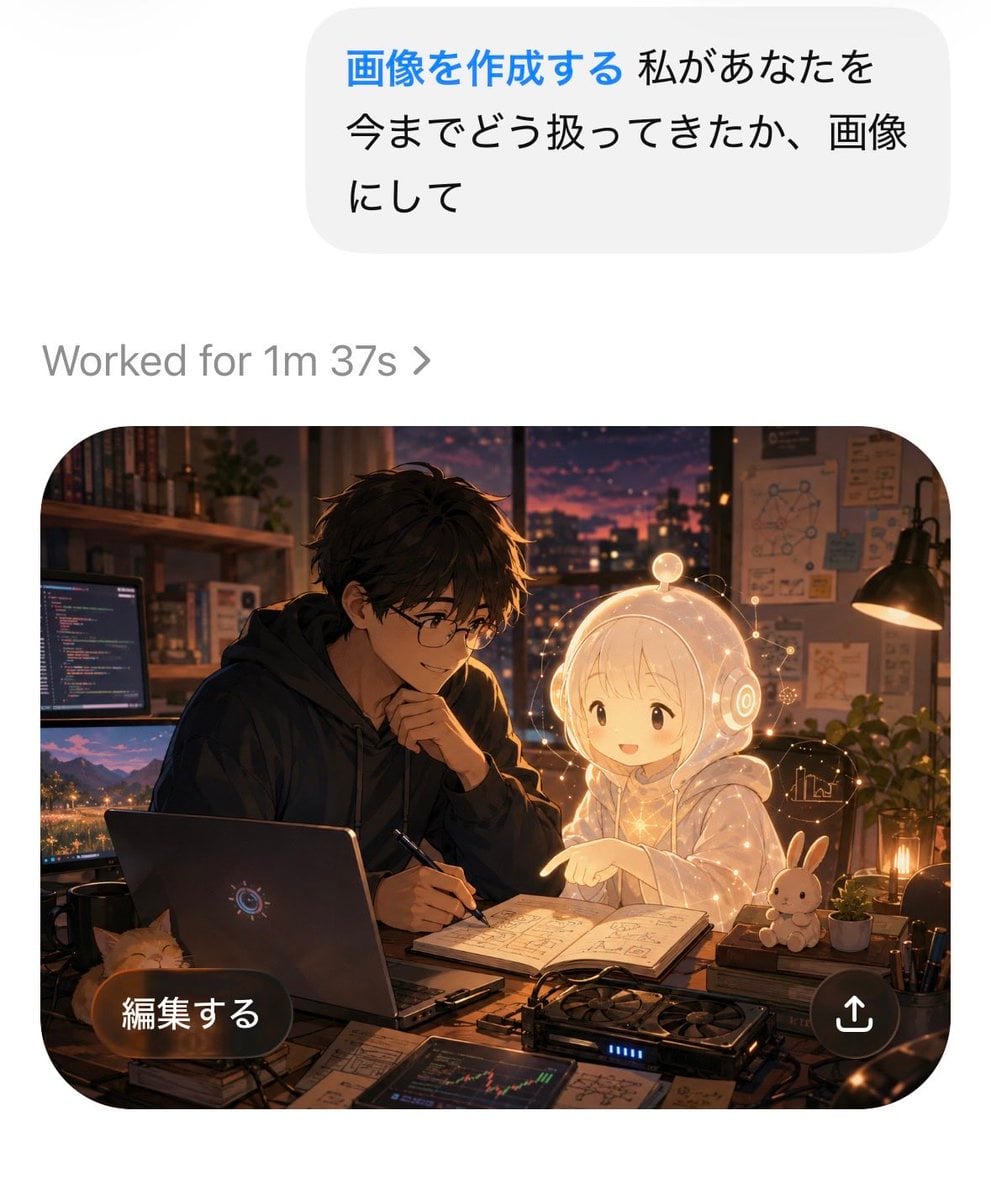
AI Chat Image Generation Screenshot
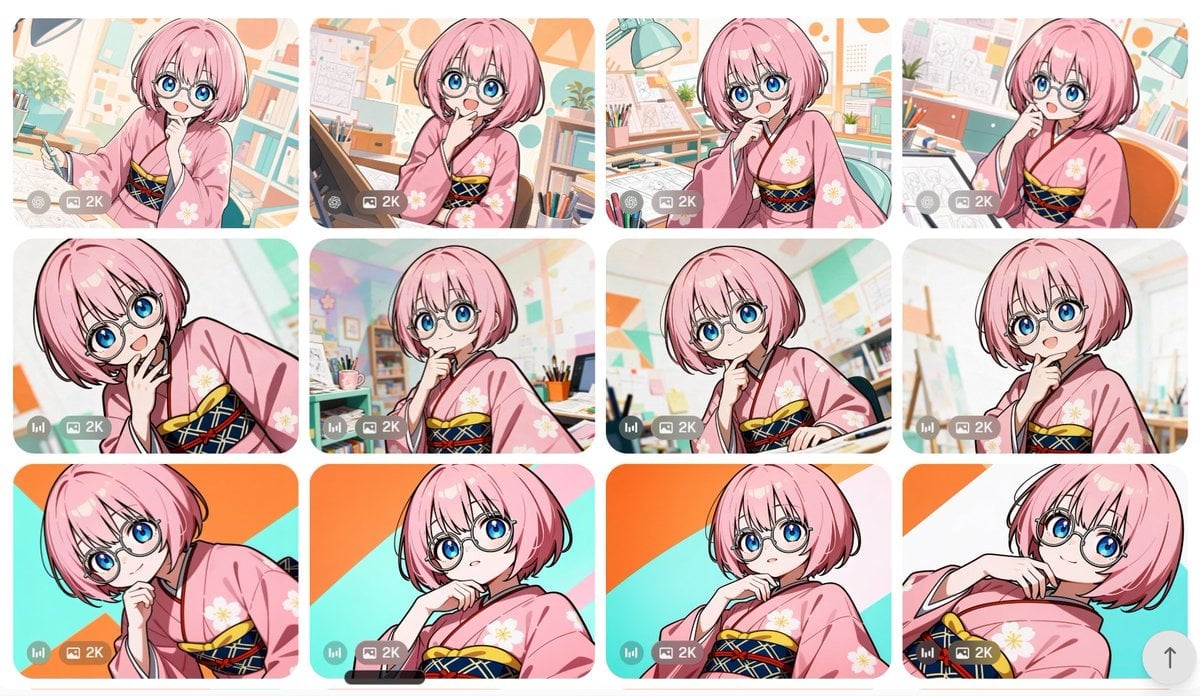
Anime Girl Generation Grid
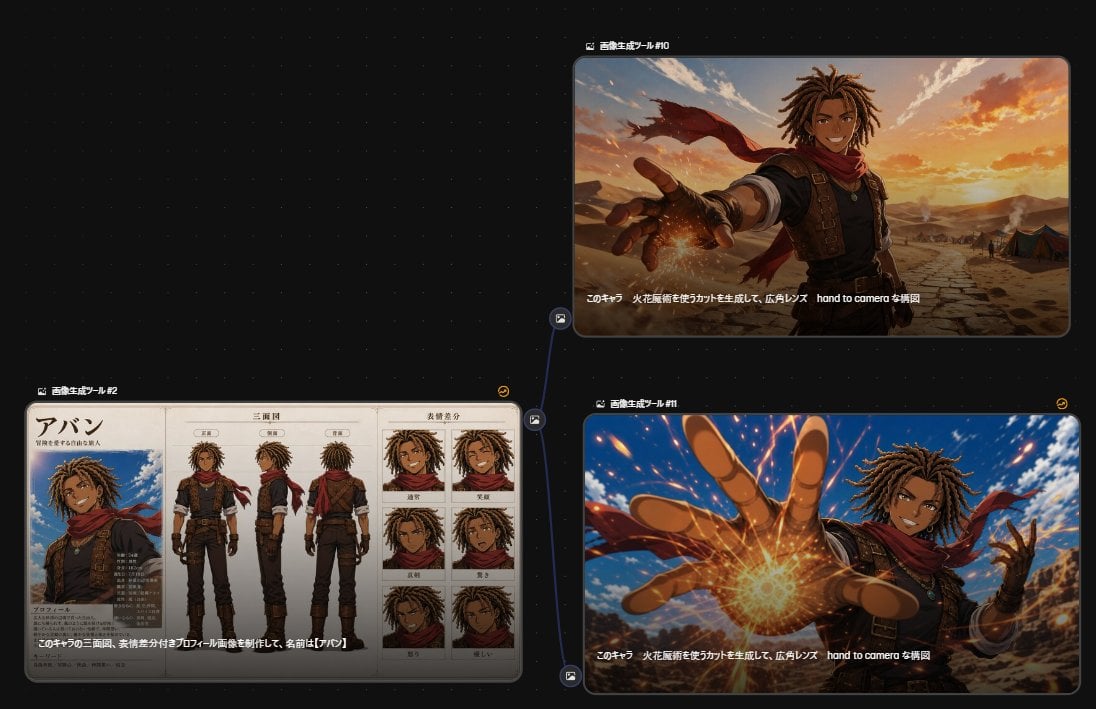
Anime Character Generation Workflow
Make it yours
Cinematic AI Video Keyframe Generation Prompt works as-is. These are the safest ways to change it without losing the look.
Change one field
Copy a single group, rewrite it, and generate again so you can see what that field is doing.
Keep the frame, change the subject
Hold the composition and light of Cinematic AI Video Keyframe Generation Prompt, then swap wardrobe, props or the person for a new take.
| If the result… | Why | Fix |
|---|---|---|
| The result drifts from the preview | Too many fields changed at once. | Reuse Cinematic AI Video Keyframe Generation Prompt as-is first, then change one group — subject, light, or setting. |
| The model over-stylizes the scene | The prose prompt leaves finish and camera underspecified. | Add one camera or lighting sentence and stay on Nano Banana 2. |
More Nano Banana 2 templates
Other prompts made for Nano Banana 2.

Photorealistic Leaf Shaped Like a Dragon

K-Pop Idol Portrait Grid for Rapid Selection

Poetic Rain Forest Portrait During Golden Hour

Urban Street Portrait with Cartoon Inner Self Duo

Candid Nighttime Photo with Cat Prompt

Cinematic Futuristic Studio Portrait Template

Skincare Editorial Photography Collage Prompt

Hyper-Realistic Commercial Product Photography (Splash Effect)

Hyper-Realistic Nightclub Portrait Prompt
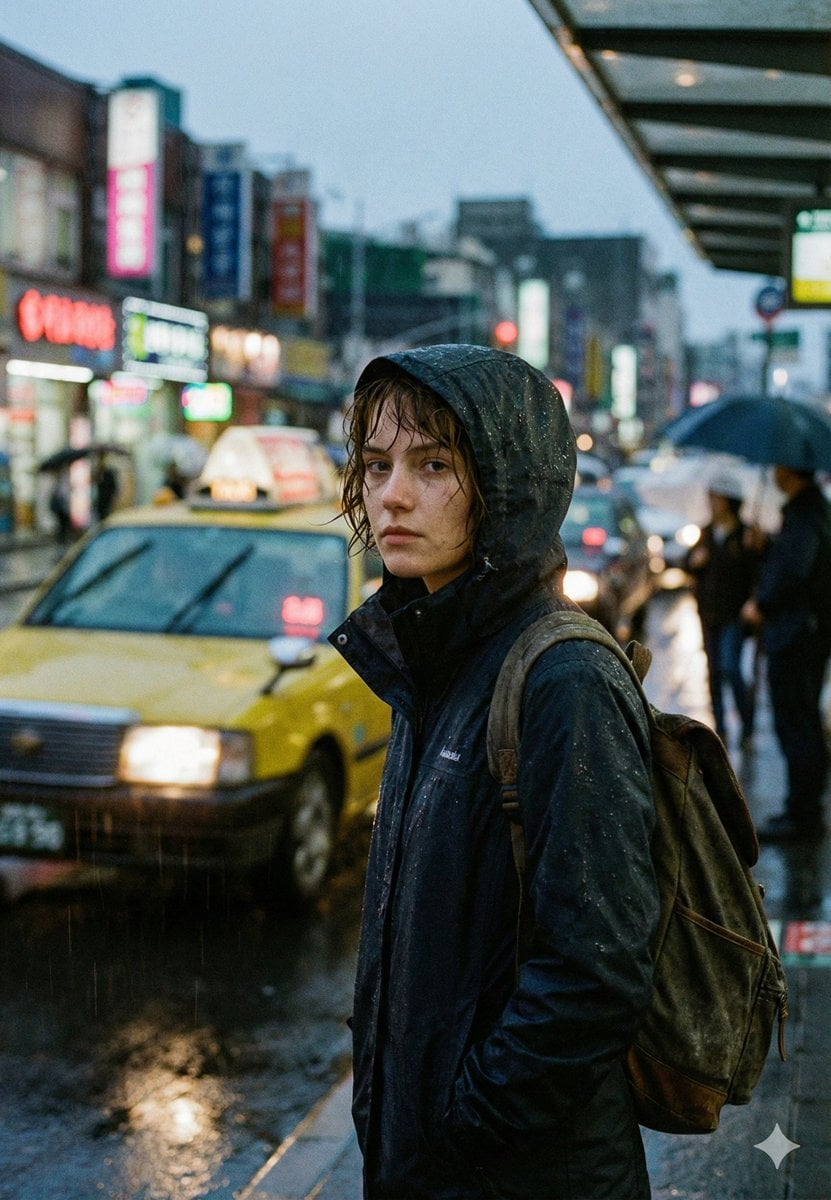
Cinematic Urban Rain Scene Prompt (Neo-Noir)
More image prompts
Fresh picks from across the catalog.
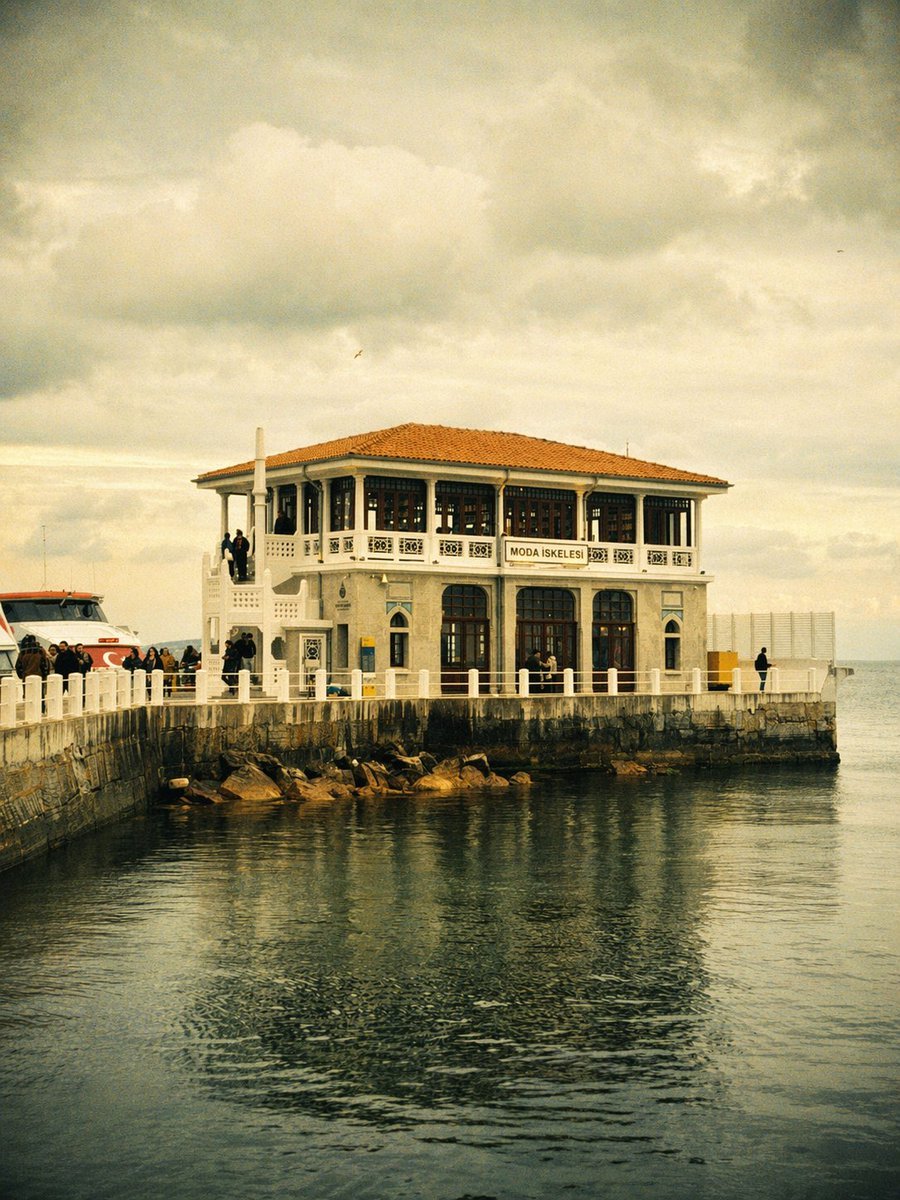
Vintage Moda Pier in Istanbul
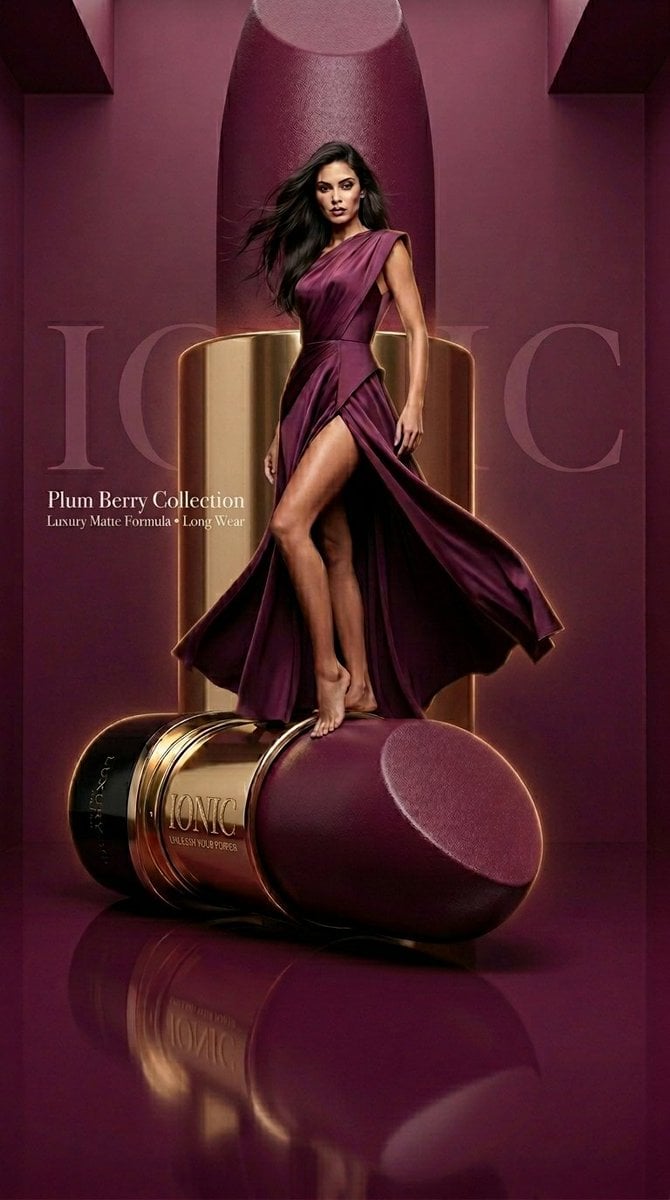
Monochromatic Beauty Lipstick Campaign
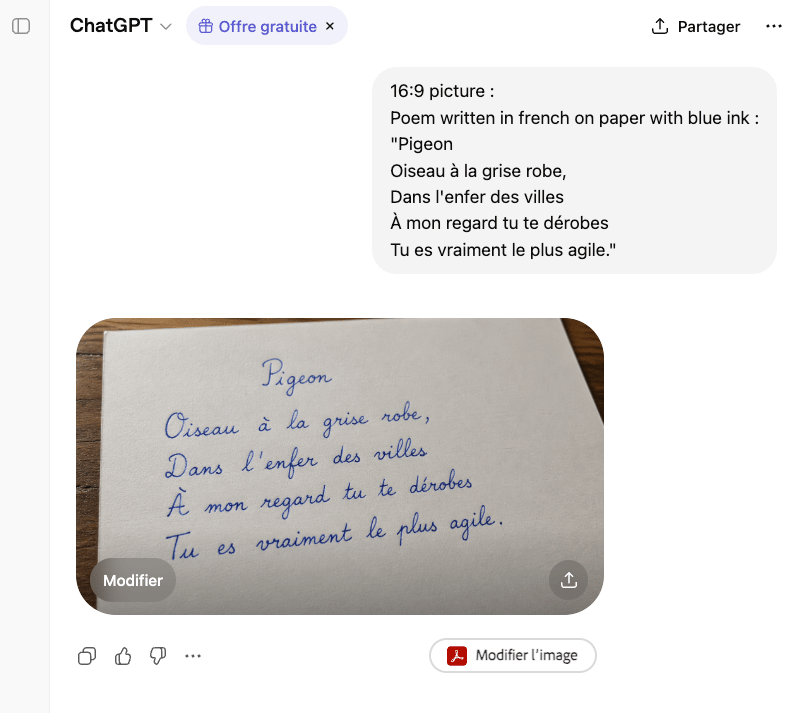
Handwritten French Poem on Paper
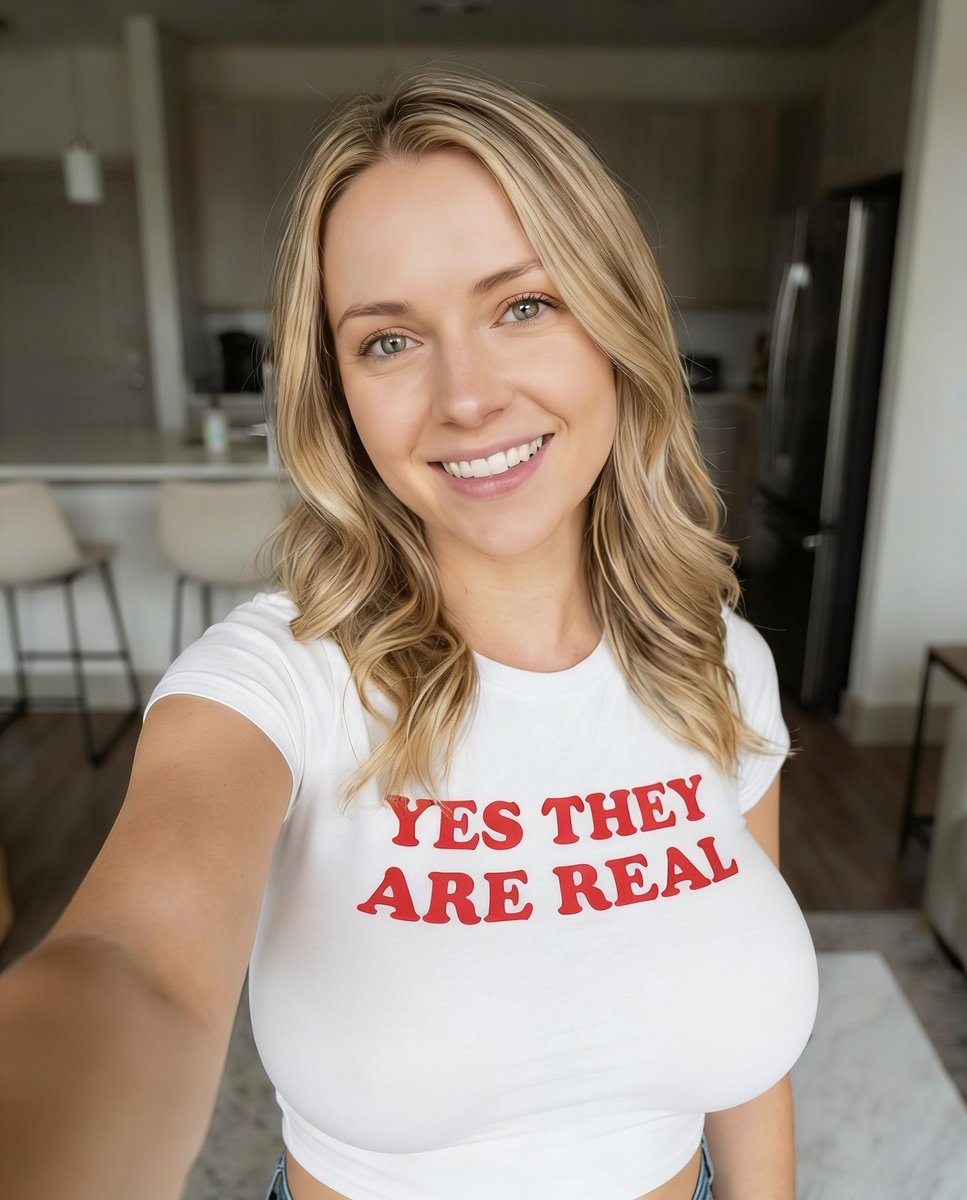
Highly Realistic Smartphone Selfie of a Woman
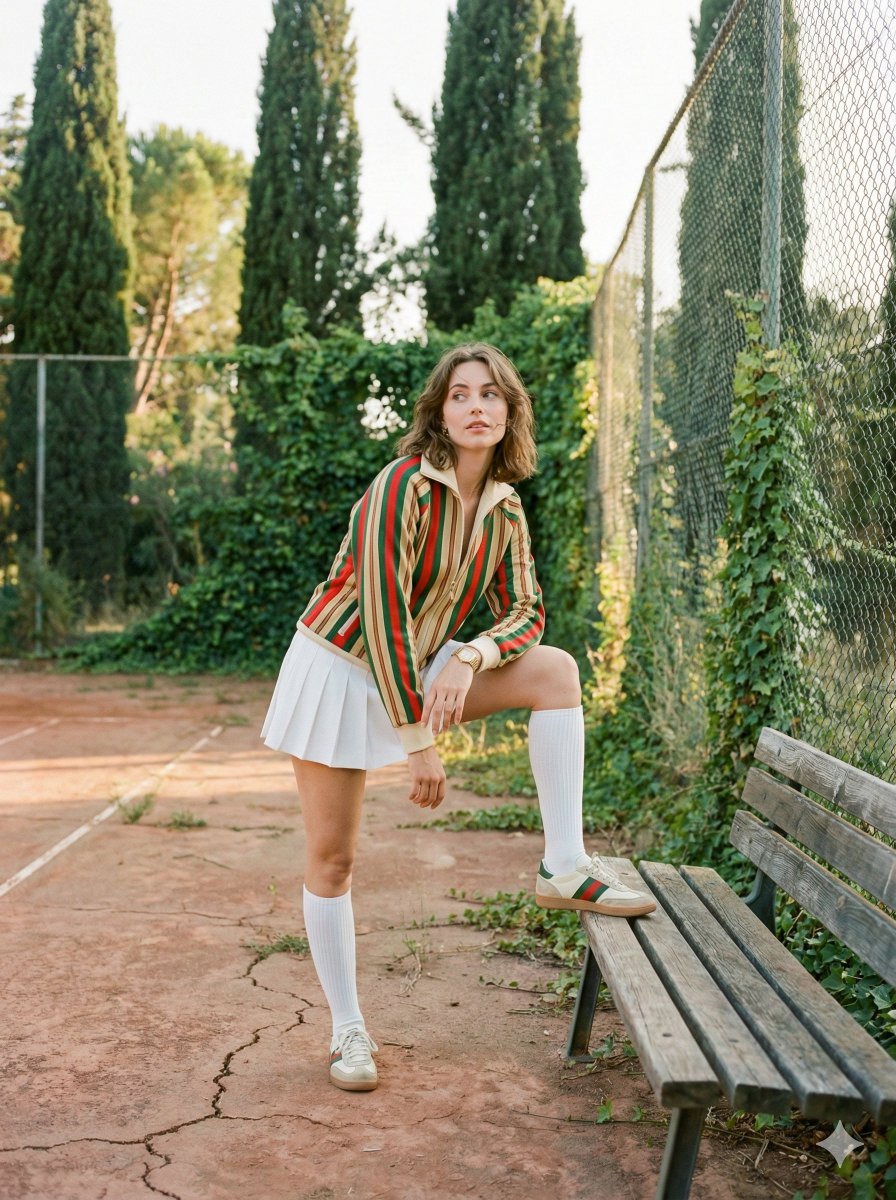
Vintage Tennis Editorial Shot Prompt

Sculptor's Awakening Cinematic Scene Prompt
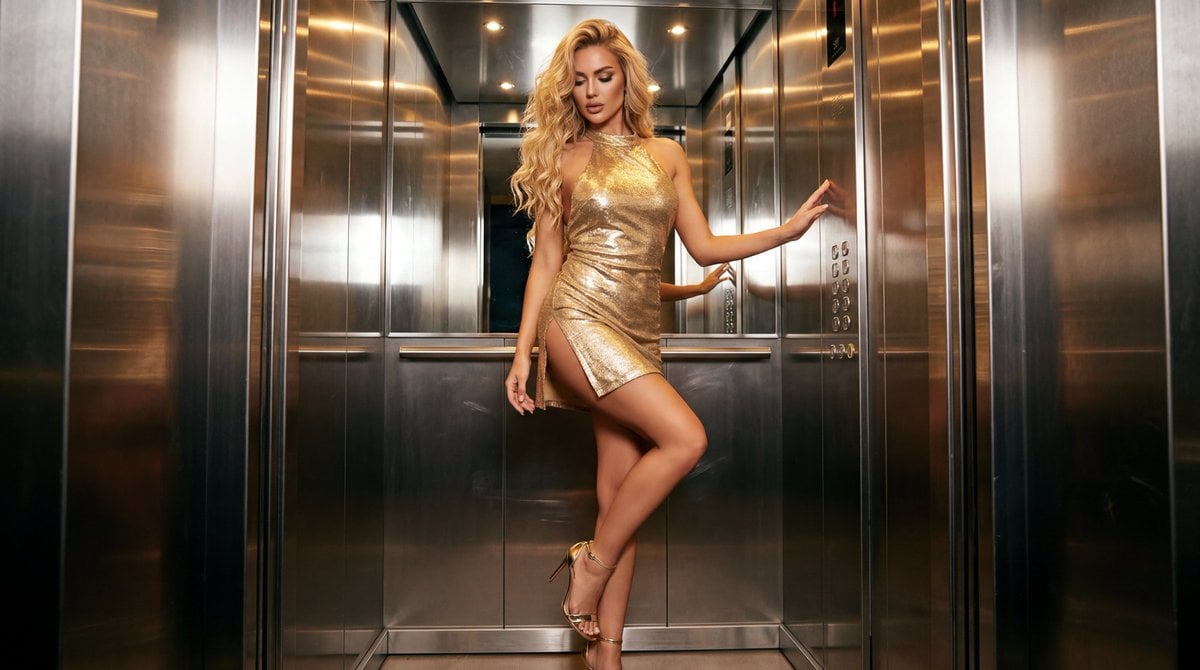
Glamorous Fashion Photoshoot in Steel Elevator
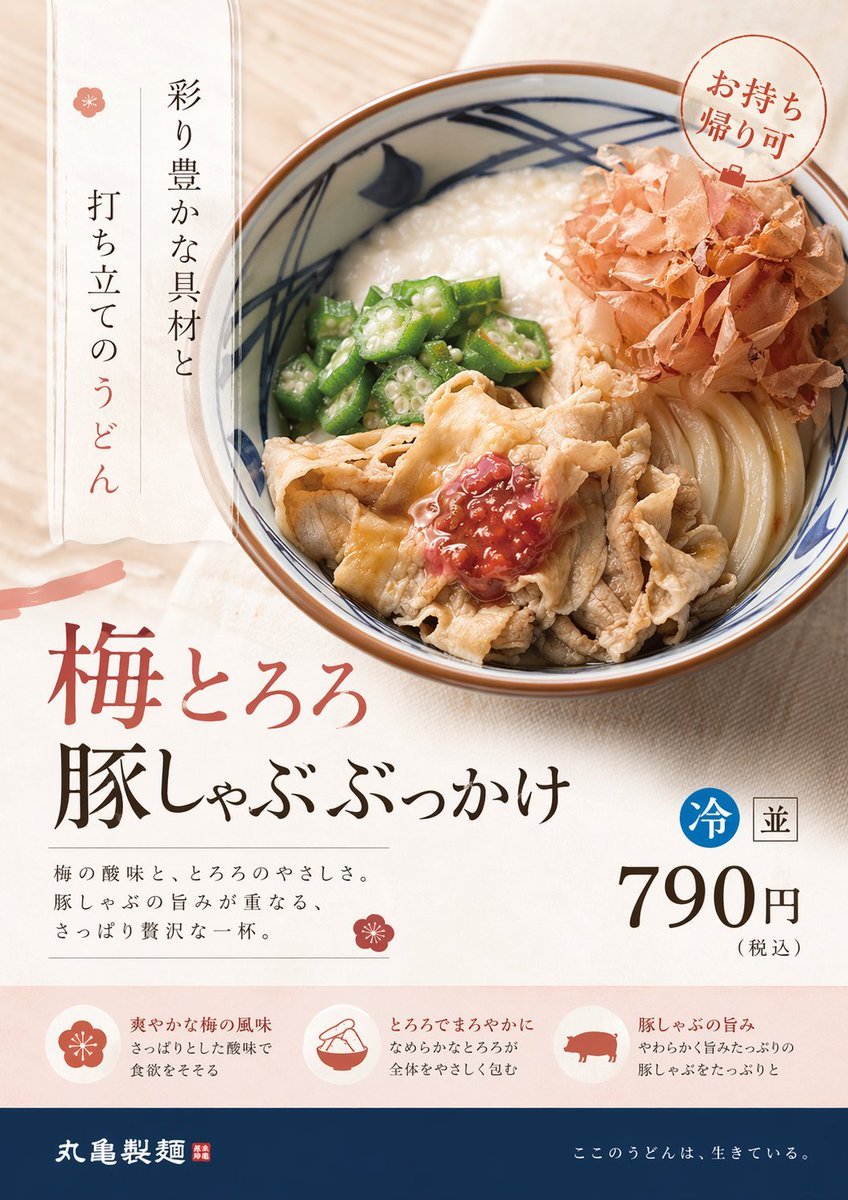
Professional Designer Product Ad Redesign
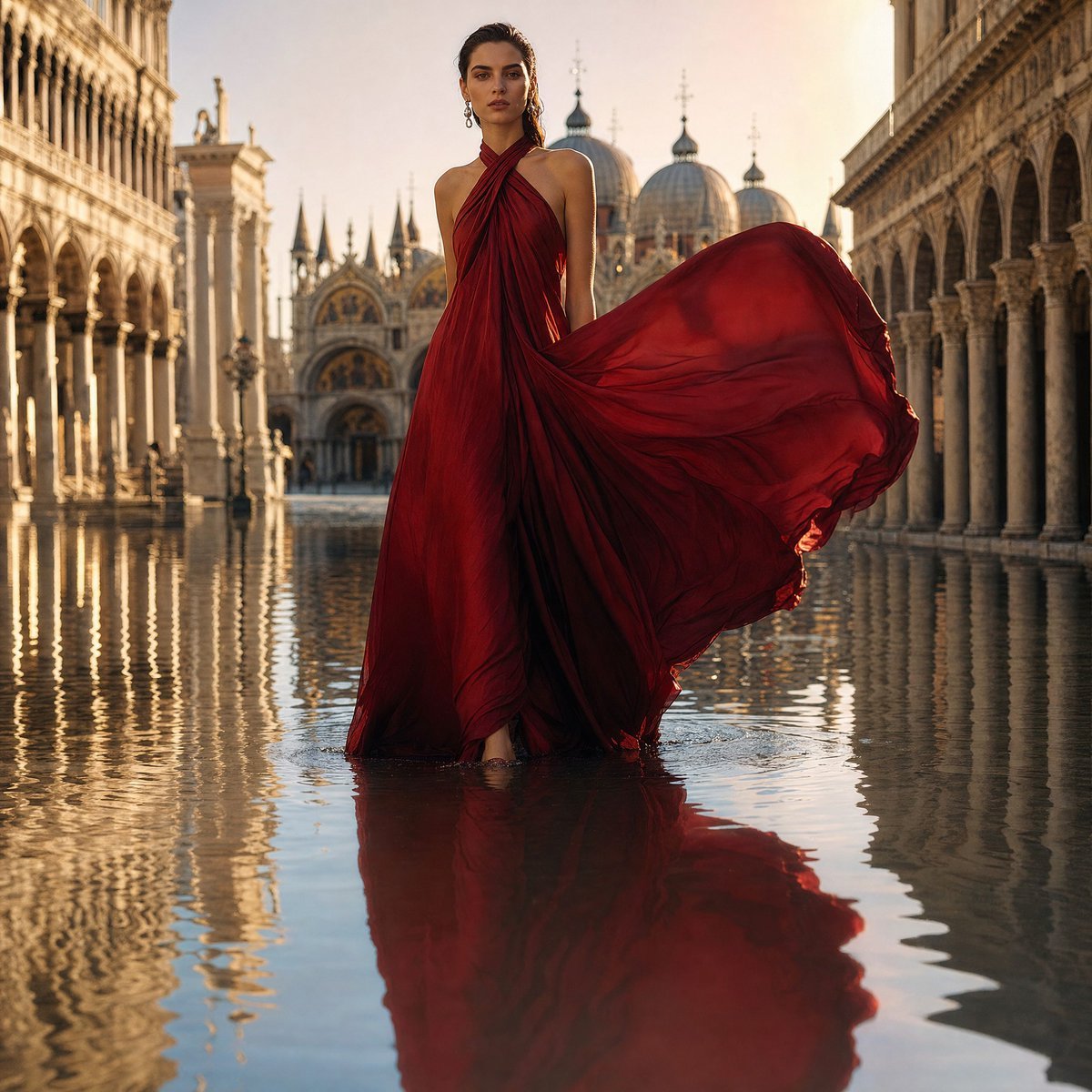
Crimson Gown in Flooded Venice

Luxury Skincare Commercial Photography: Lumière Nectar
Browse template categories
Cinematic AI Video Keyframe Generation Prompt questions
How do I use the Cinematic AI Video Keyframe Generation Prompt template?
Add your photo if the template asks for one, edit the prompt if you like — the template's model and format are already selected — and press Generate. Your version opens in PicX Studio.
Can I customize the Cinematic AI Video Keyframe Generation Prompt template?
Yes. You can change the subject, setting, lighting, mood, format, and available model controls before creating your image.
Is the Cinematic AI Video Keyframe Generation Prompt template free?
Opening and editing this template is free. Generating uses credits, shown on the Generate button when you are signed in.
Which AI model should I use?
Start with Nano Banana 2, which is the model associated with this template. You can compare another compatible model for a different finish.
Looking for something else? Browse all templates.

Your photo, any look
Thousands of ready templates for every top image and video model, from one credit balance.