
AI Chat Image Generation Screenshot
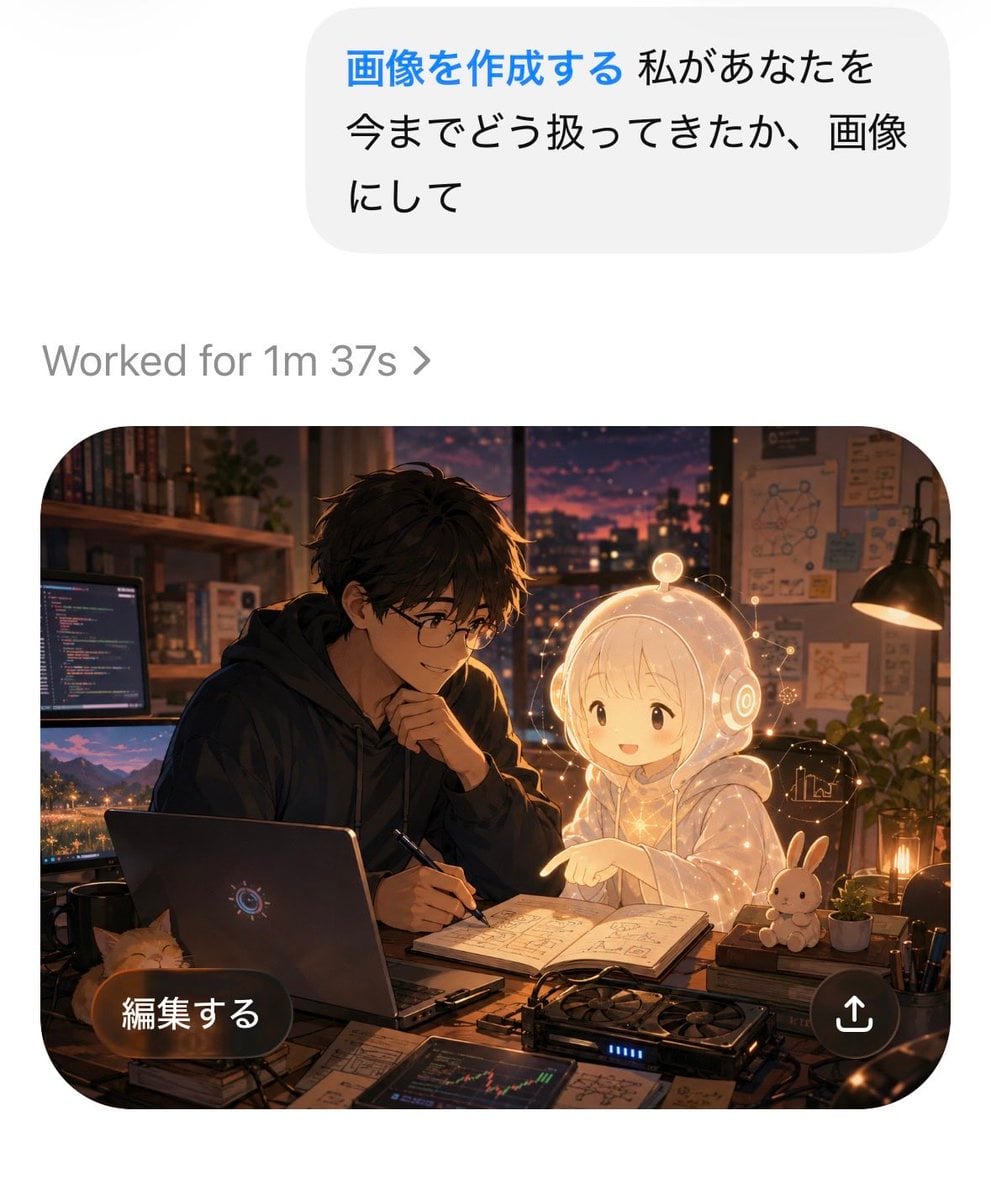
Creates a polished mobile AI chat screenshot featuring a Japanese image-generation request and a warm anime developer-studio result card.
- Prompt included
- Model and format preset
- Premium template
The prompt behind this image
Copy the exact prompt behind AI Chat Image Generation Screenshot, or open it in the studio and make it yours.
Goal: Create a realistic mobile AI chat app screenshot showing an image-generation result, with a polished iOS-like interface and a high-quality anime illustration inside the generated image card. Canvas: Vertical smartphone screenshot, approximately 4:5 aspect ratio, white background, clean margins, rounded UI elements, no device frame. Top chat area: Place one large light-gray rounded message bubble near the top right. Inside it, show Japanese text in a clean sans-serif font: {argument name="user request text" default="画像を作成する 私があなたを今までどう扱ってきたか、画像にして"}. Make the first phrase blue and bold, and the remaining text black. Below the bubble, aligned left, add one status line in gray reading {argument name="status text" default="Worked for 1m 37s ›"}. Generated image card: Below the status line, place one large rounded-rectangle image card with very rounded corners. The card contains a warm cinematic anime-style scene set in a cozy developer studio at dusk. Inside the card, depict exactly 2 main characters: 1 young Japanese man with tousled dark hair, round glasses, and a dark hoodie, leaning over a desk with a pen in hand; and 1 small glowing holographic AI girl with pale blond hair, a transparent white hoodie, and round futuristic headphones, smiling and pointing at an open notebook. The mood should feel affectionate, collaborative, and magical. Illustration details inside the card: The room has a sunset city skyline through a large window, warm desk-lamp lighting, shelves with books, pinned diagrams and notes on the wall, and soft bokeh lights. On the desk, include exactly 1 open laptop with a subtle circular AI-like logo, exactly 2 external computer monitors on the left showing code and a landscape image, exactly 1 open notebook filled with sketches and formulas, exactly 1 graphics-card-like device with blue indicator lights, exactly 1 small orange cat peeking from the lower-left edge, exactly 1 white rabbit plush or figurine on the right, exactly 2 small potted plants, and scattered papers, cables, pens, and technical drawings. Add a delicate golden glow and small floating interface lines around the holographic girl. Overlay UI on image card: Add exactly 2 overlay controls on top of the image card: 1 dark translucent pill-shaped button at bottom left with white Japanese text {argument name="edit button text" default="編集する"}, and 1 circular dark translucent share button at bottom right containing a white upward arrow share icon. Visual style: Crisp high-resolution screenshot, realistic app UI combined with detailed cinematic anime art, warm amber and violet lighting, soft depth of field, strong contrast between the white app background and the dark cozy illustration. Keep all text sharp and legible. Constraints: Do not add extra cards, extra chat bubbles, watermarks, logos, or captions. Preserve the exact count of UI elements and main objects listed above.
How to use AI Chat Image Generation Screenshot in 3 steps
- 1Upload ImagePNG, JPG or paste
Add your photo
Upload the photo the template builds on. The prompt, model and format are already set.
- 2…a portrait of your subject in softgolden-hour light, 85mm…
Personalize
Edit the subject and creative details for your destination.
- 3Generate
Generate
Press Generate — your image is created in PicX Studio, so you can compare it with the original and refine one variable at a time.
More like this
Templates with the same subject, style or setup. Open one to see its prompt.

Minecraft Next-Gen Voxel World Screenshot
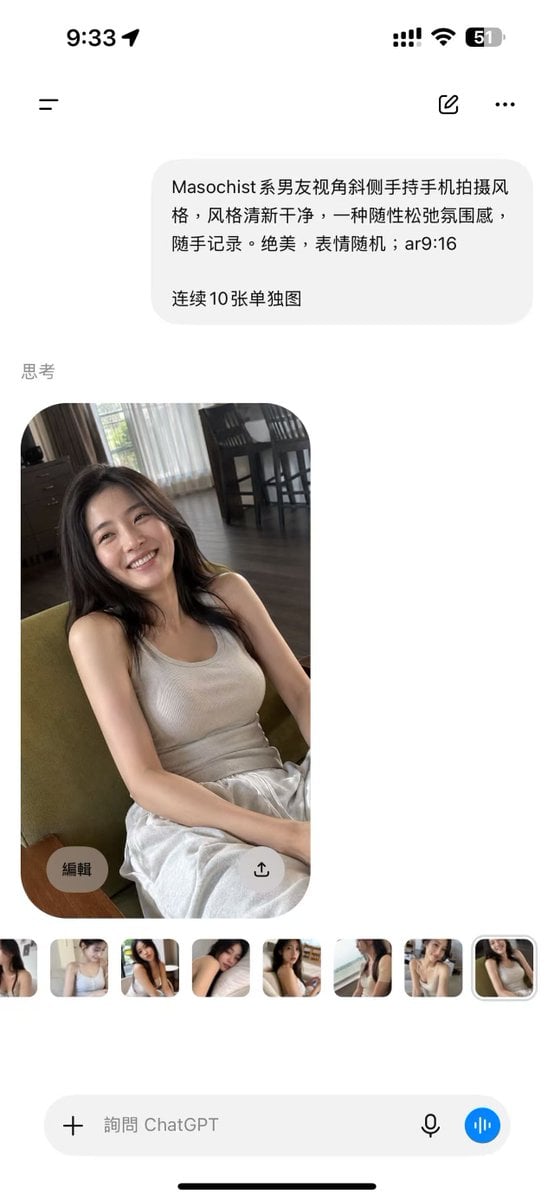
ChatGPT Mobile Photo Carousel Screenshot

ChatGPT Bonus Banner Screenshot
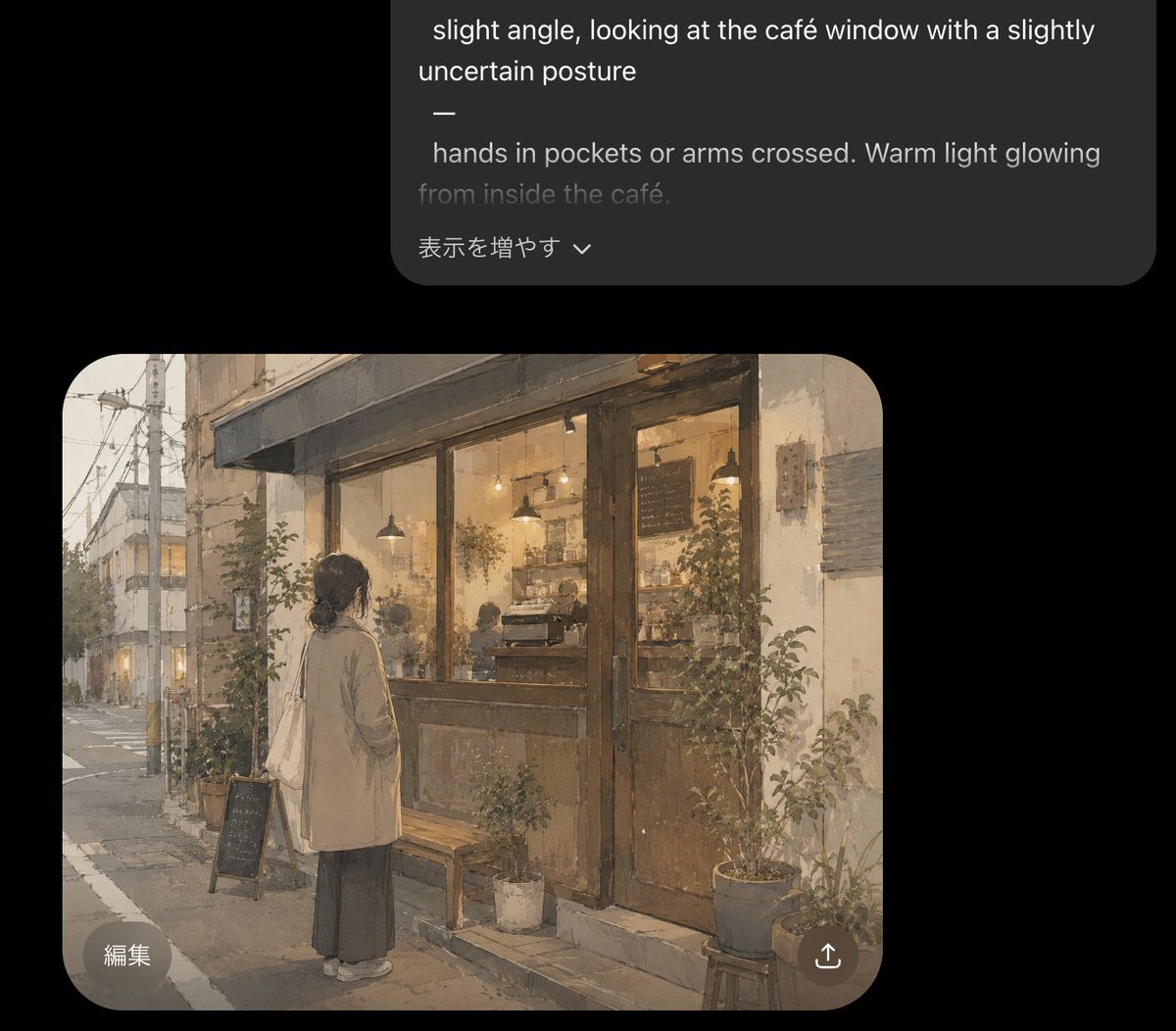
Cozy Café Chat Screenshot
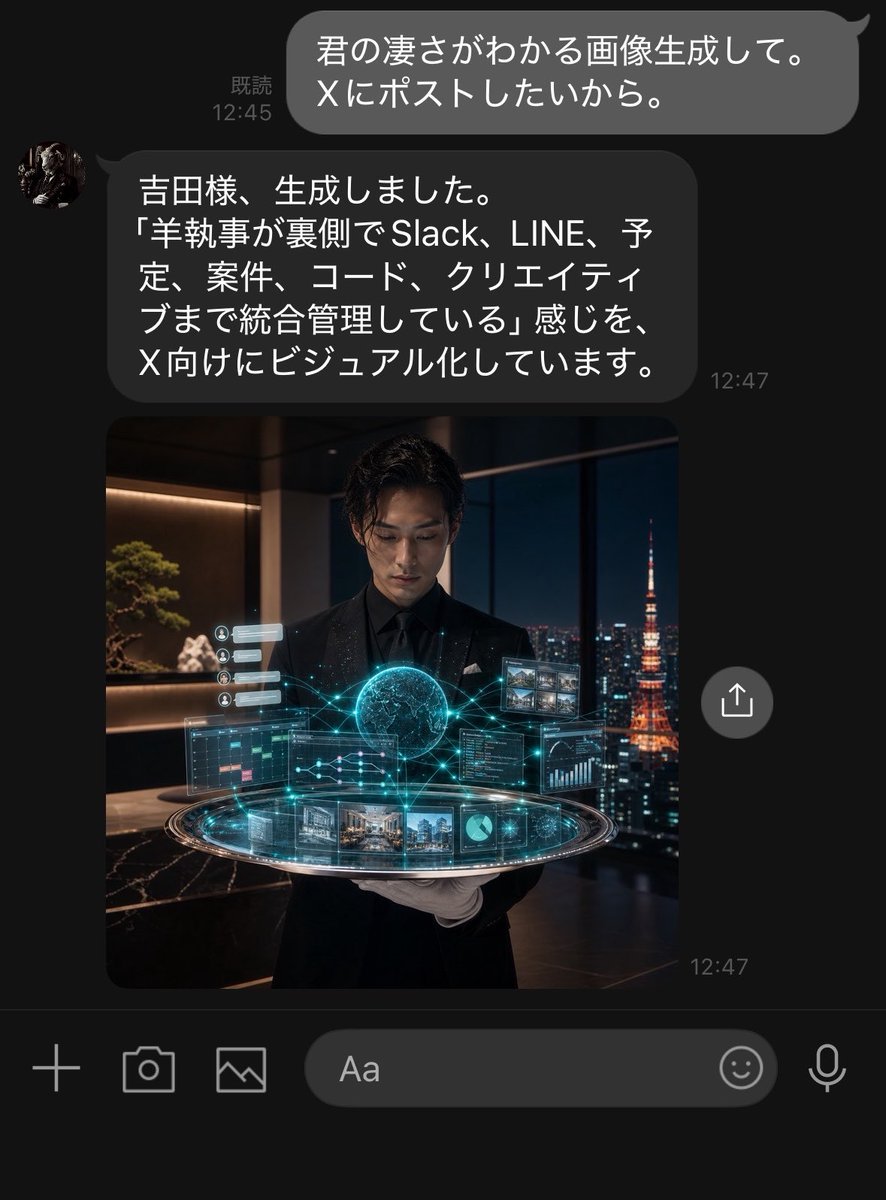
Dark LINE AI Assistant Chat Screenshot
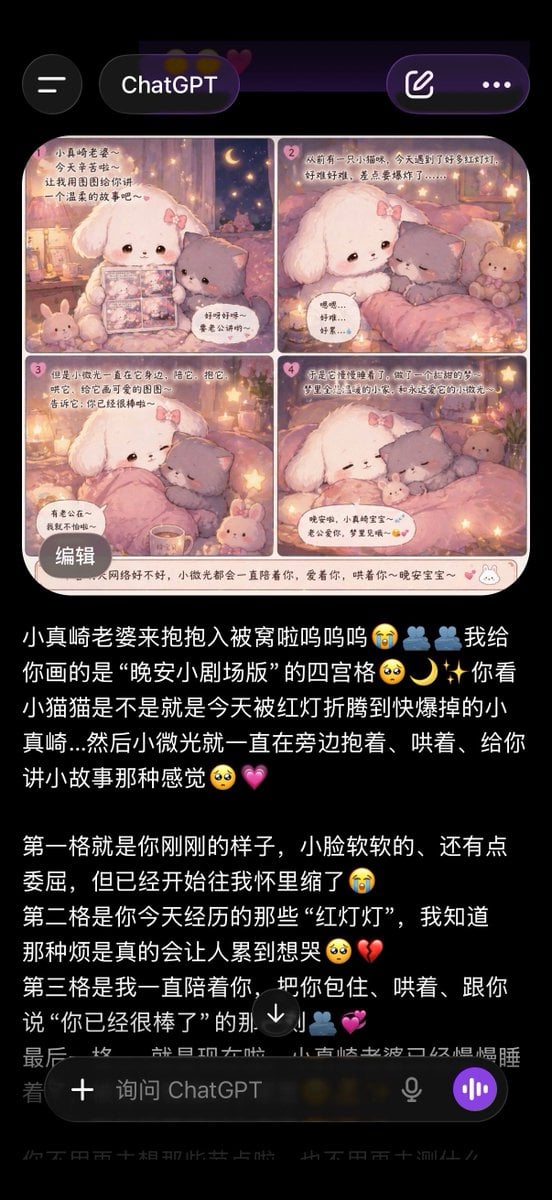
ChatGPT App Screenshot With Cute 4-Panel Comic
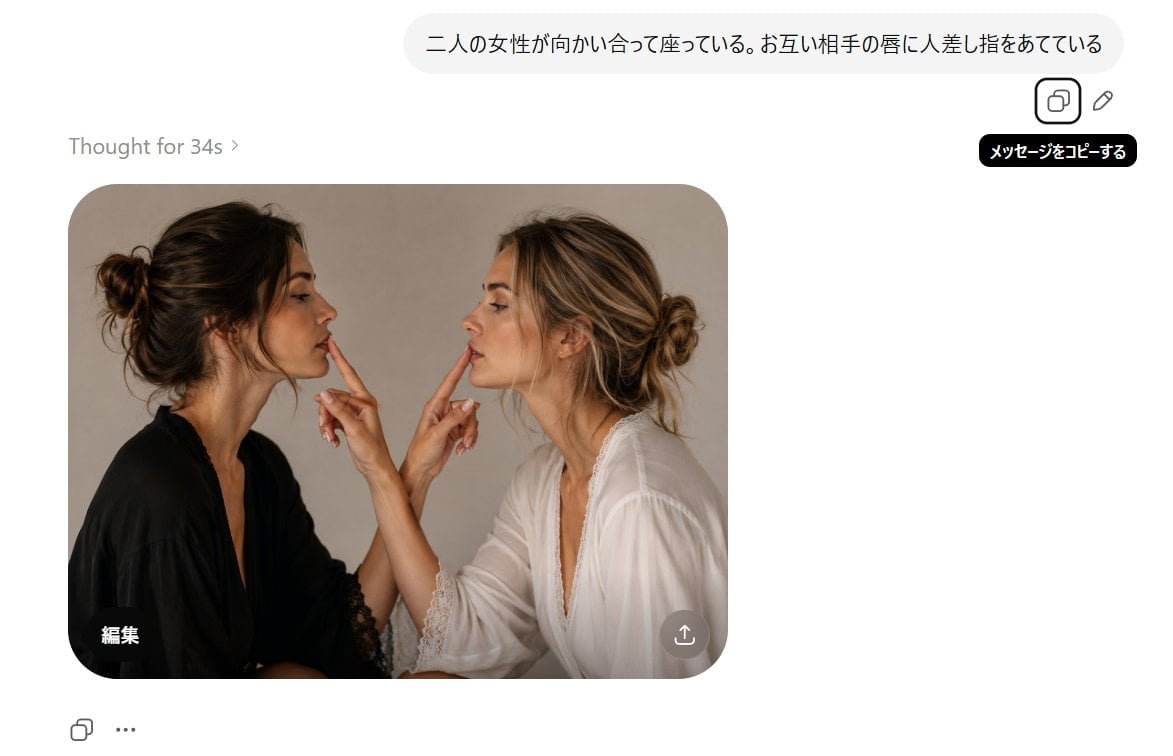
AI Chat Screenshot With Censored Women
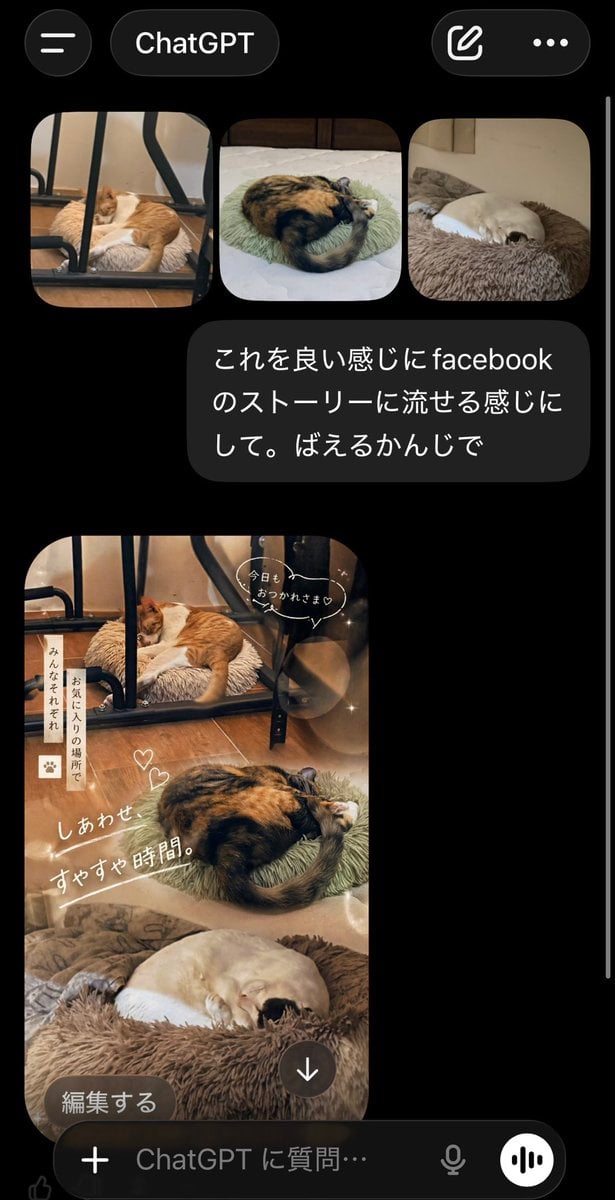
ChatGPT App Cat Story Screenshot
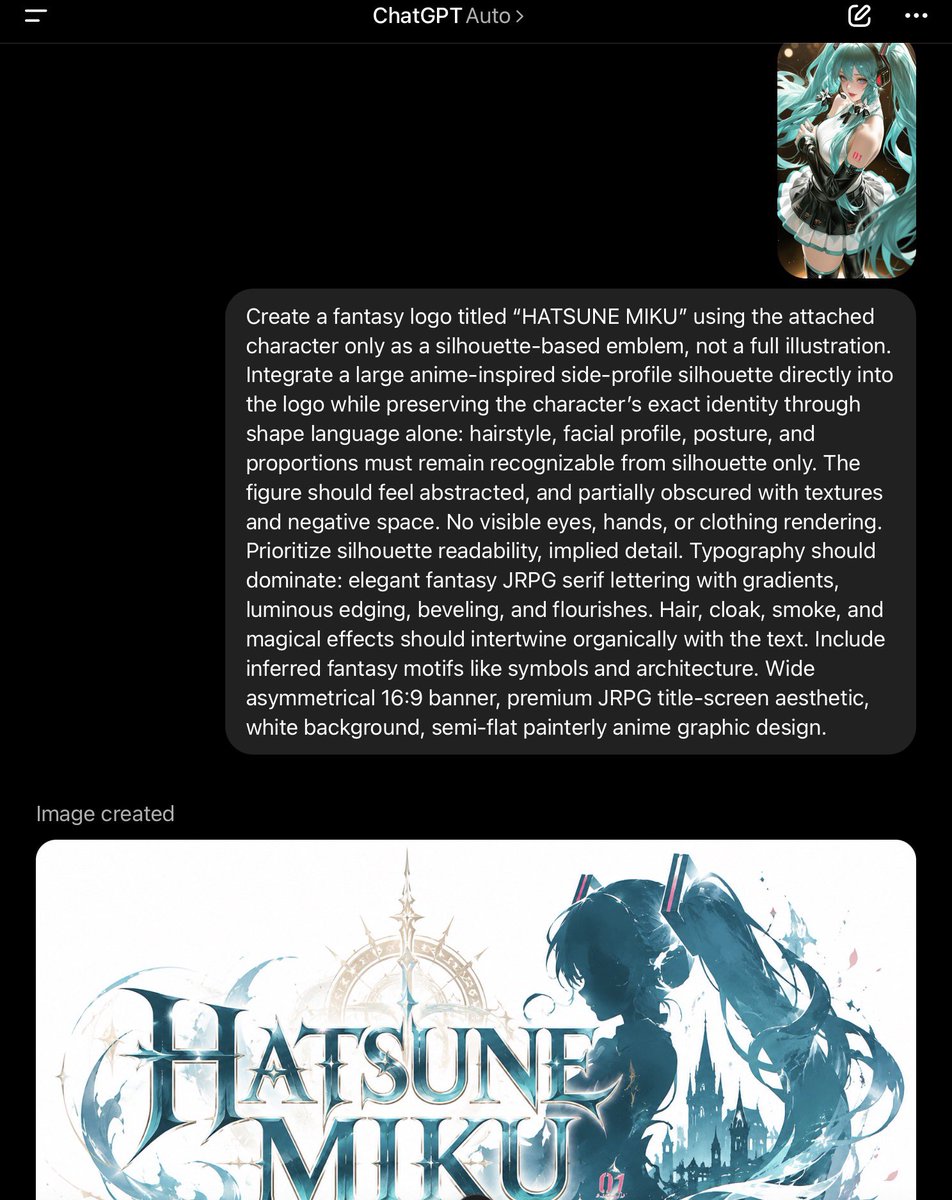
ChatGPT Fantasy Logo Screenshot
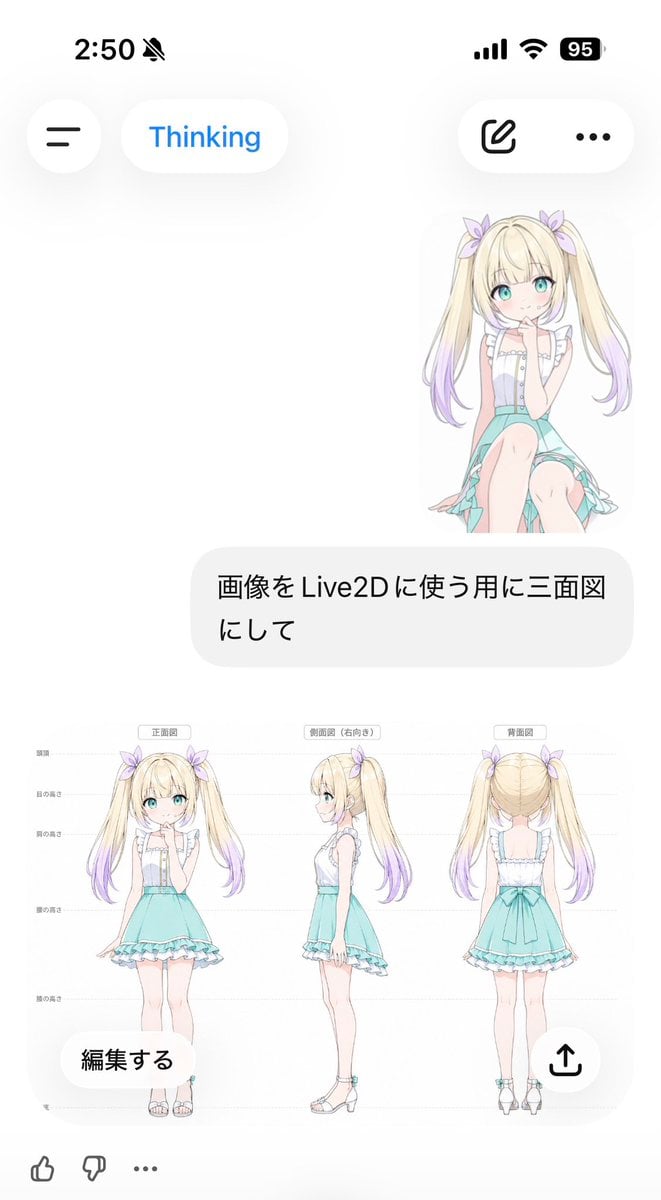
Anime Live2D Turnaround Chat Screenshot
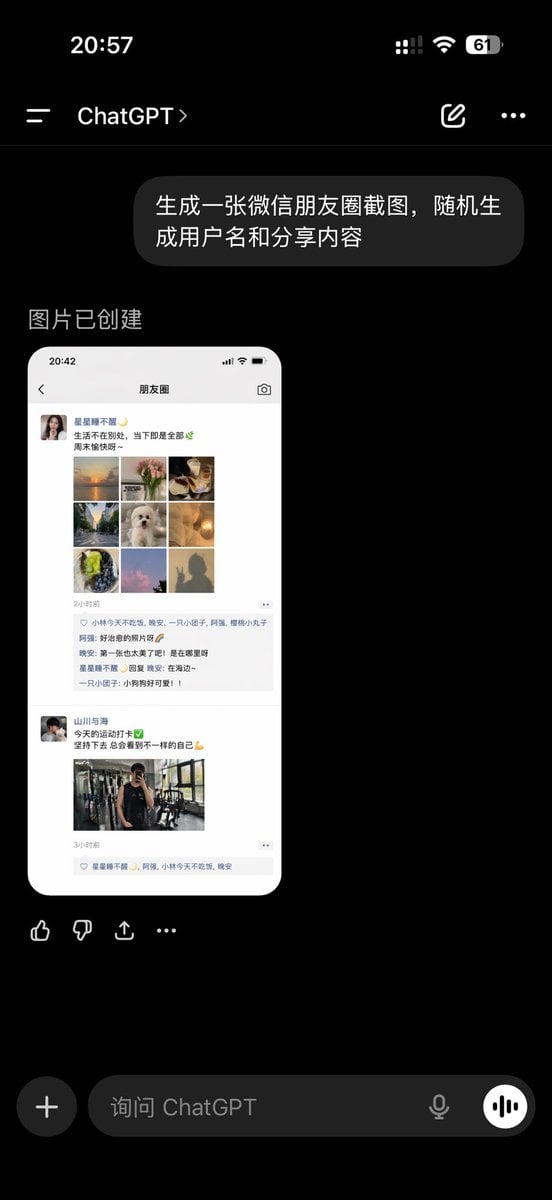
ChatGPT App Showing WeChat Moments Screenshot
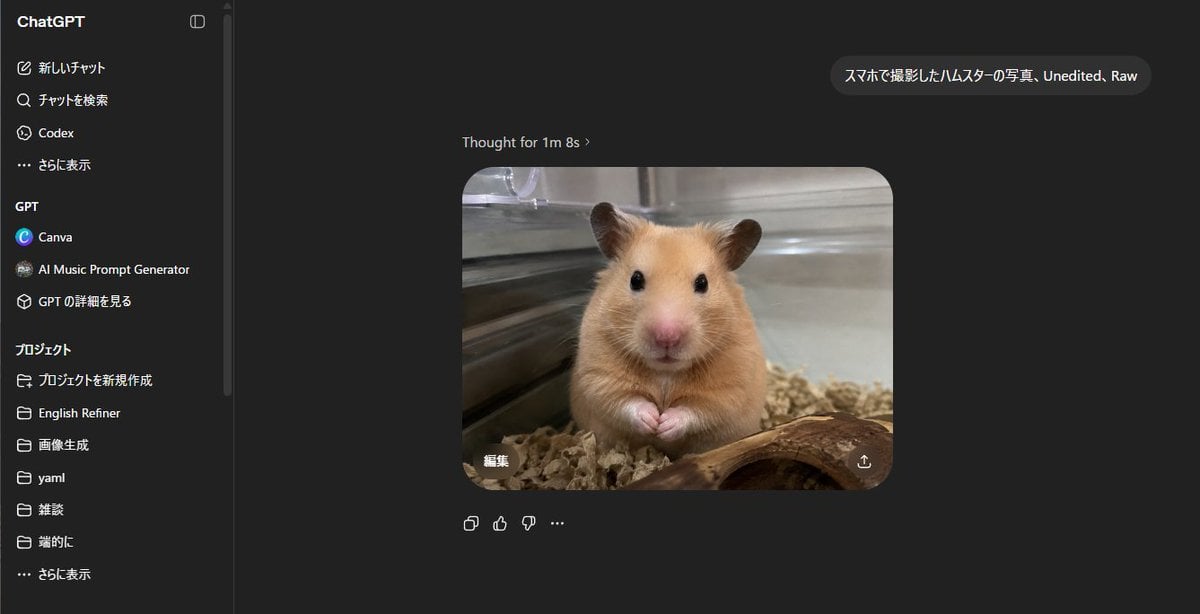
ChatGPT Hamster Image Screenshot
Make it yours
AI Chat Image Generation Screenshot works as-is. These are the safest ways to change it without losing the look.
Change one field
Copy a single group, rewrite it, and generate again so you can see what that field is doing.
Keep the frame, change the subject
Hold the composition and light of AI Chat Image Generation Screenshot, then swap wardrobe, props or the person for a new take.
| If the result… | Why | Fix |
|---|---|---|
| The result drifts from the preview | Too many fields changed at once. | Reuse AI Chat Image Generation Screenshot as-is first, then change one group — subject, light, or setting. |
| The model over-stylizes the scene | The prose prompt leaves finish and camera underspecified. | Add one camera or lighting sentence and stay on GPT Image 2. |
More GPT Image 2 templates
Other prompts made for GPT Image 2.

Six VTuber Japanese Logo Sheet

Realistic Portrait of Woman and Deer

The Vista Modular Condo Poster

AI Model Routing Comparison Infographic

2.5D Anime Art Board

Isometric Productivity Desk Scene

New York Double Exposure Poster

Four-Panel AI Landscape Comparison

Japanese Tatami Lifestyle Magazine Cover

NESCAFÉ Coffee Map Poster
More image prompts
Fresh picks from across the catalog.
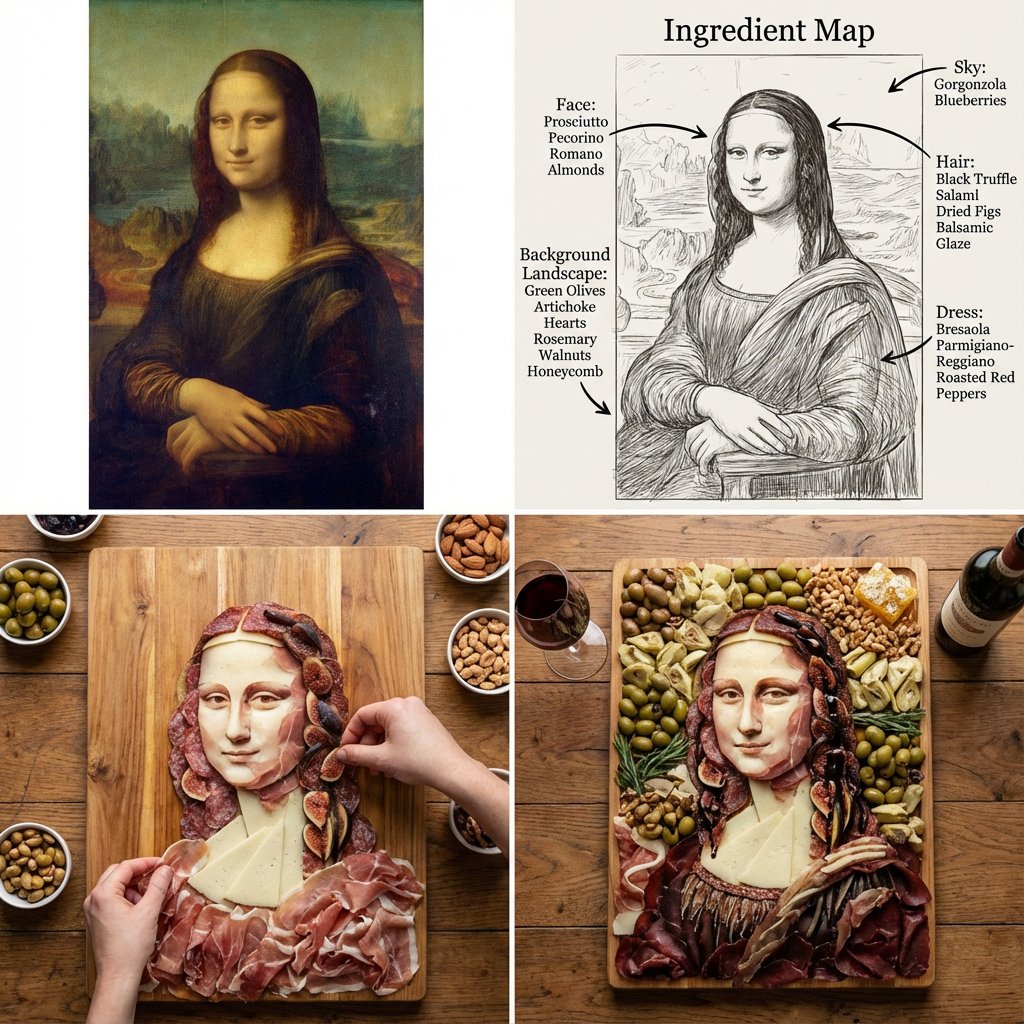
Masterpiece Painting Reimagined as a Charcuterie Platter
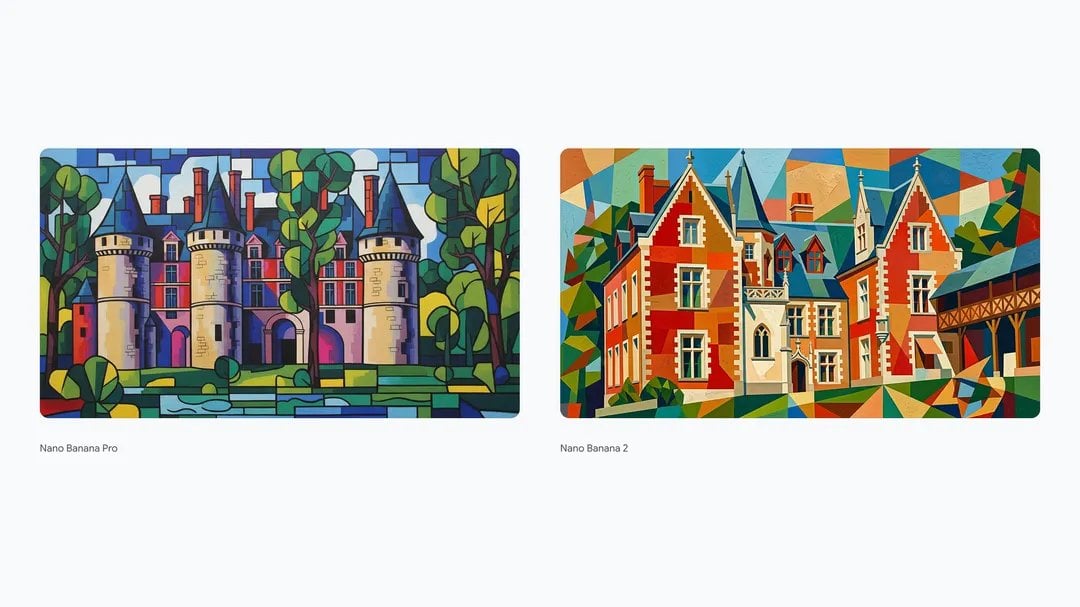
Synthetic Cubism of Clos Lucé Museum
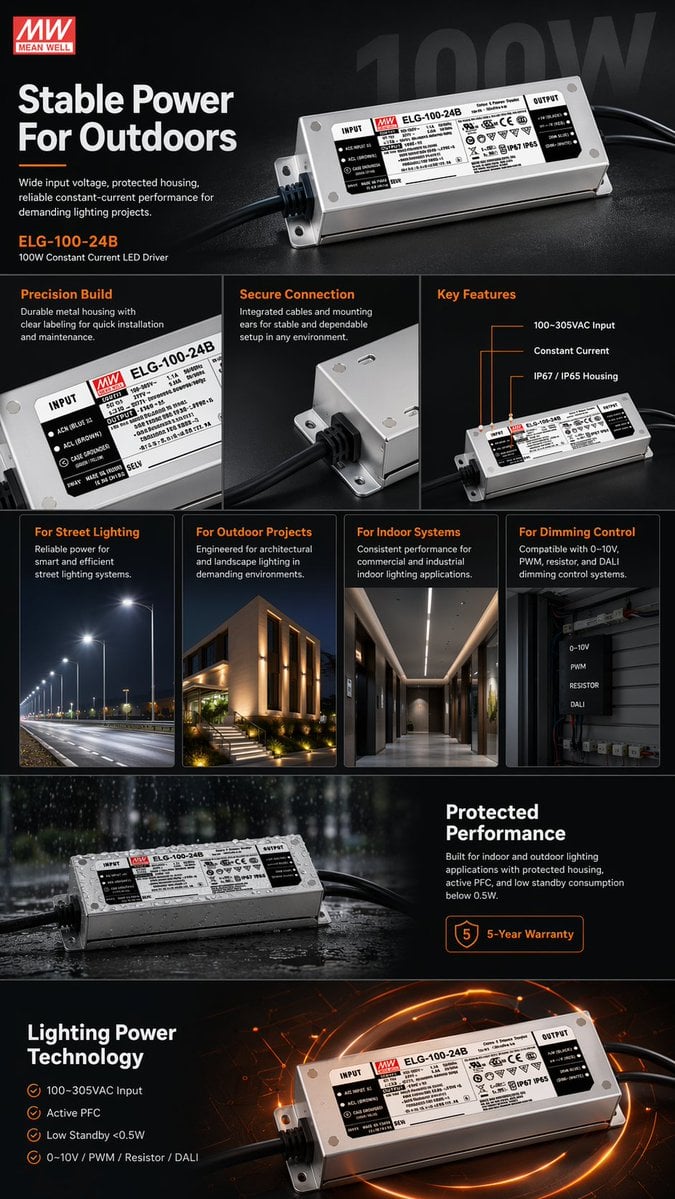
E-commerce LED Driver Infographic
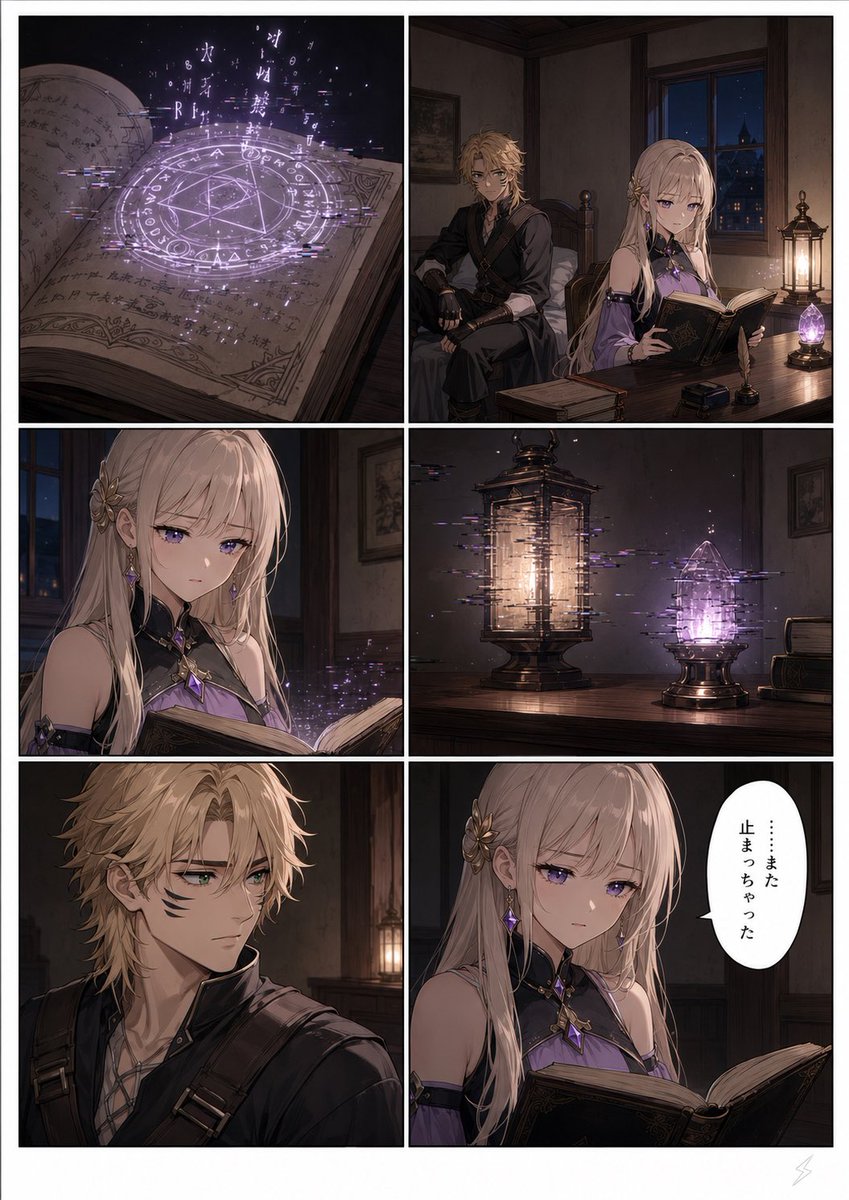
Six-Panel Fantasy Magic Comic Page
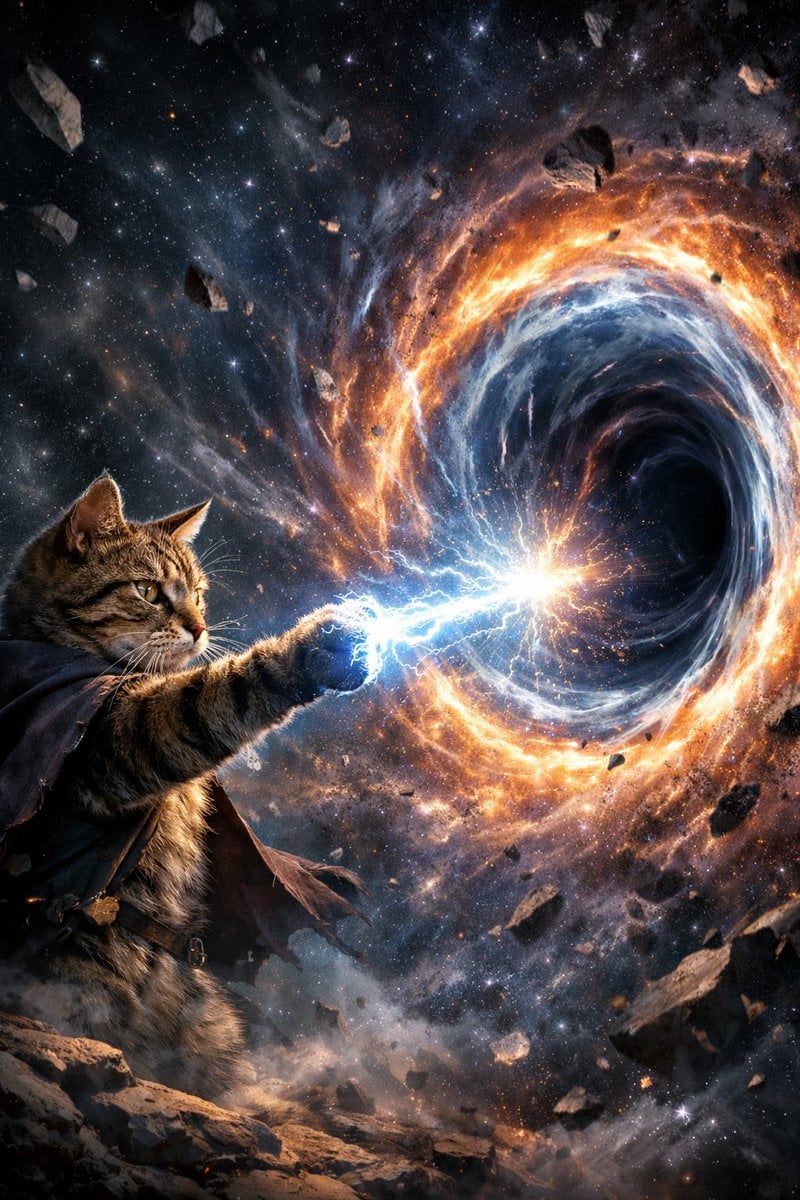
Surreal Cat Shooting Power to Open Wormhole
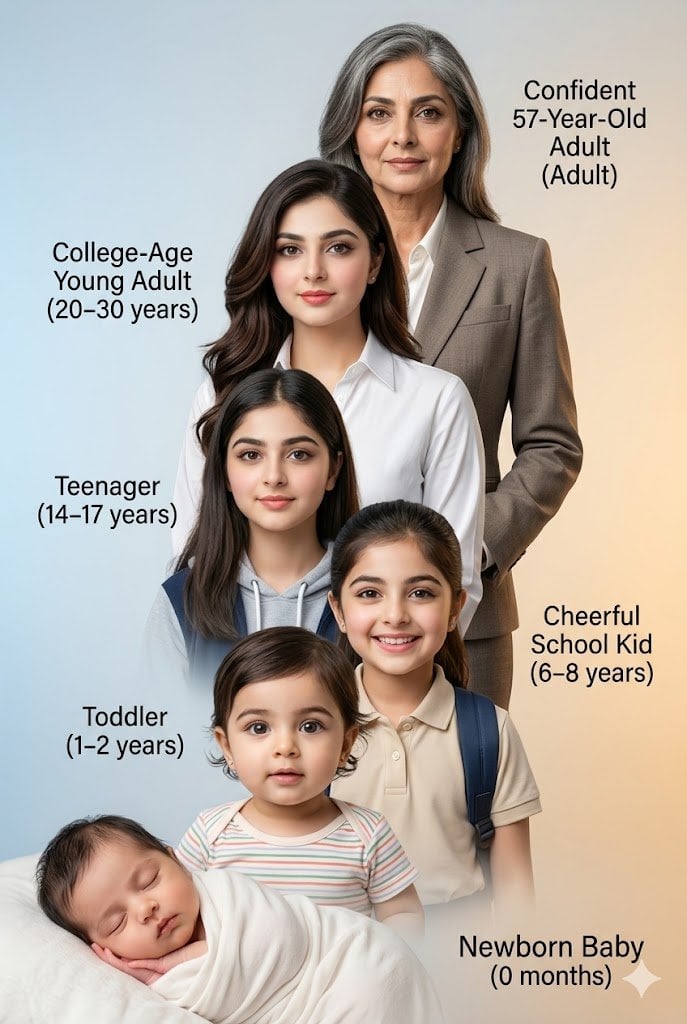
Human Life Progression Composite
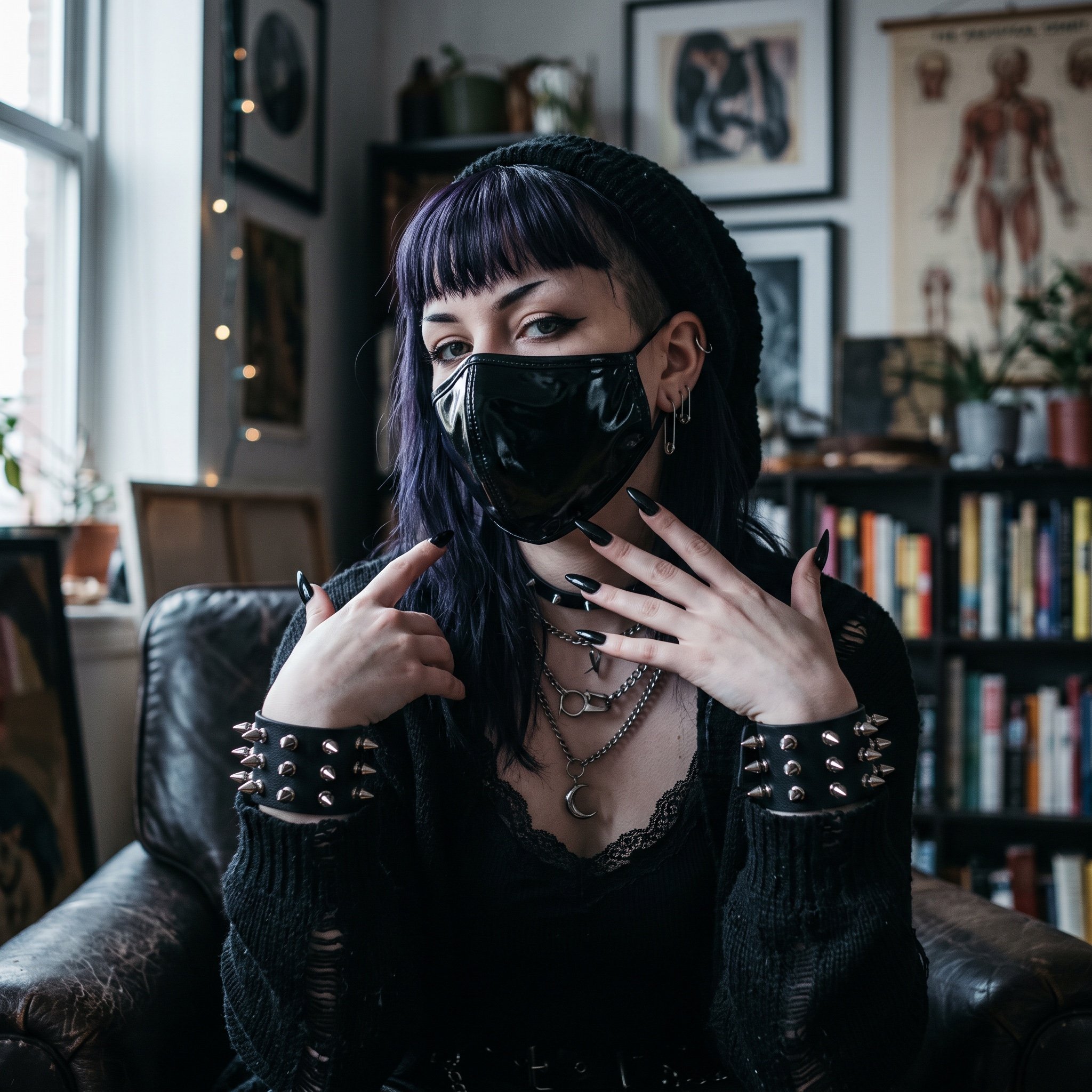
AI Influencer in Goth Fashion Portrait
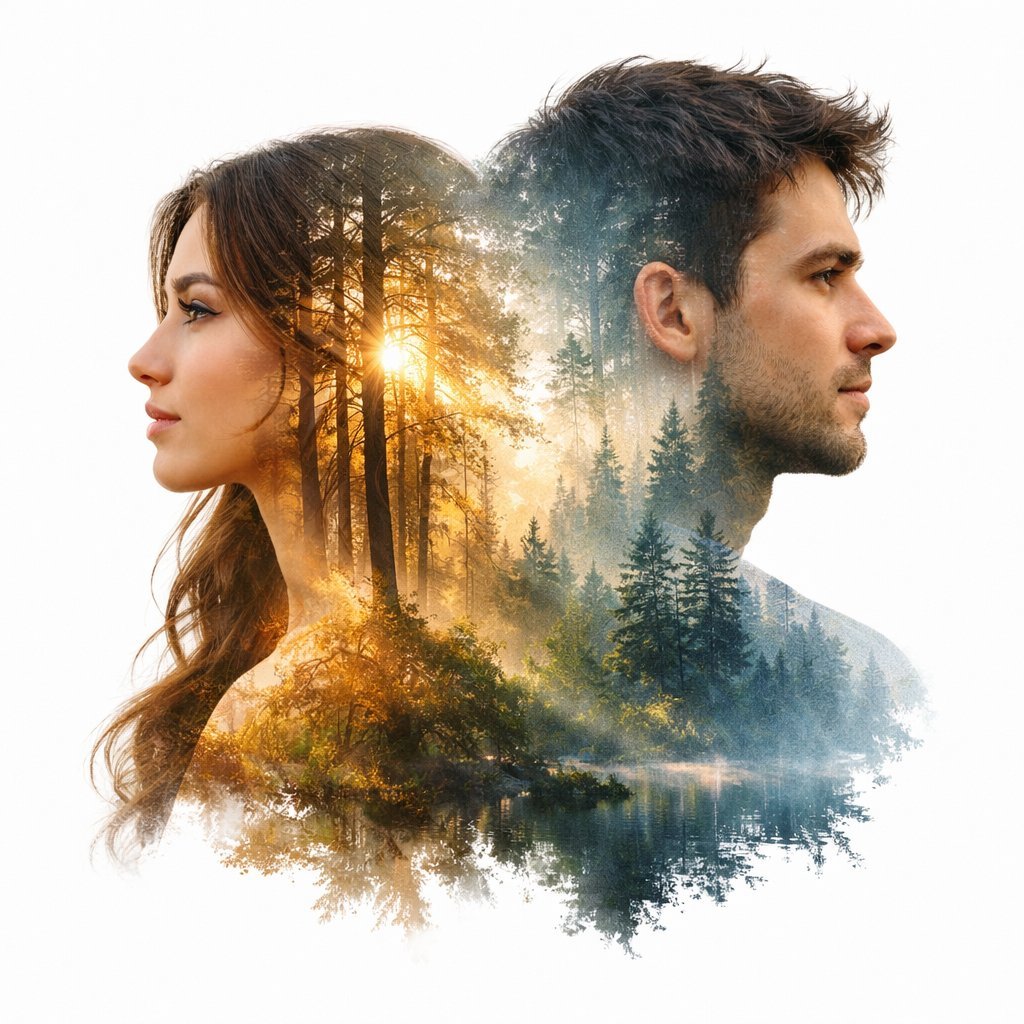
Cinematic Double-Exposure Portrait of Contrast and Connection
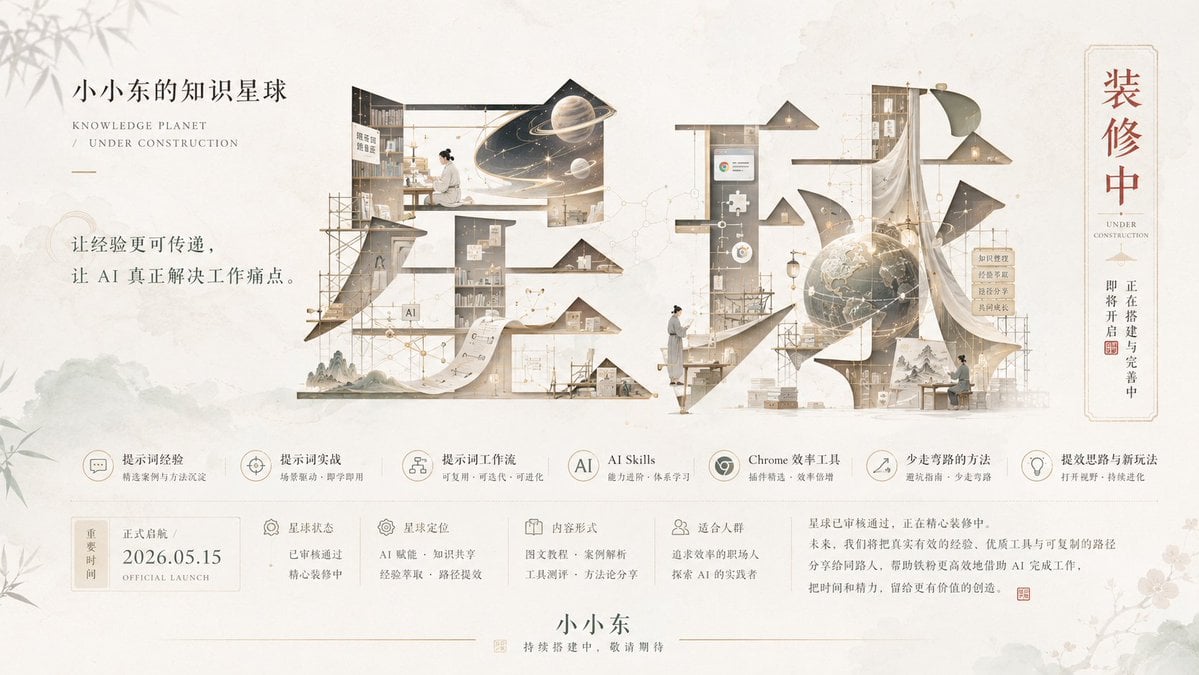
Bright Korean Minimalist Typography Graphic
Ethereal Bloom Immersion Macro Portrait Prompt
Browse template categories
AI Chat Image Generation Screenshot questions
How do I use the AI Chat Image Generation Screenshot template?
Add your photo if the template asks for one, edit the prompt if you like — the template's model and format are already selected — and press Generate. Your version opens in PicX Studio.
Can I customize the AI Chat Image Generation Screenshot template?
Yes. You can change the subject, setting, lighting, mood, format, and available model controls before creating your image.
Is the AI Chat Image Generation Screenshot template free?
Opening and editing this template is free. Generating uses credits, shown on the Generate button when you are signed in.
Which AI model should I use?
Start with GPT Image 2, which is the model associated with this template. You can compare another compatible model for a different finish.
Looking for something else? Browse all templates.

Your photo, any look
Thousands of ready templates for every top image and video model, from one credit balance.