
ChatGPT App Cat Story Screenshot
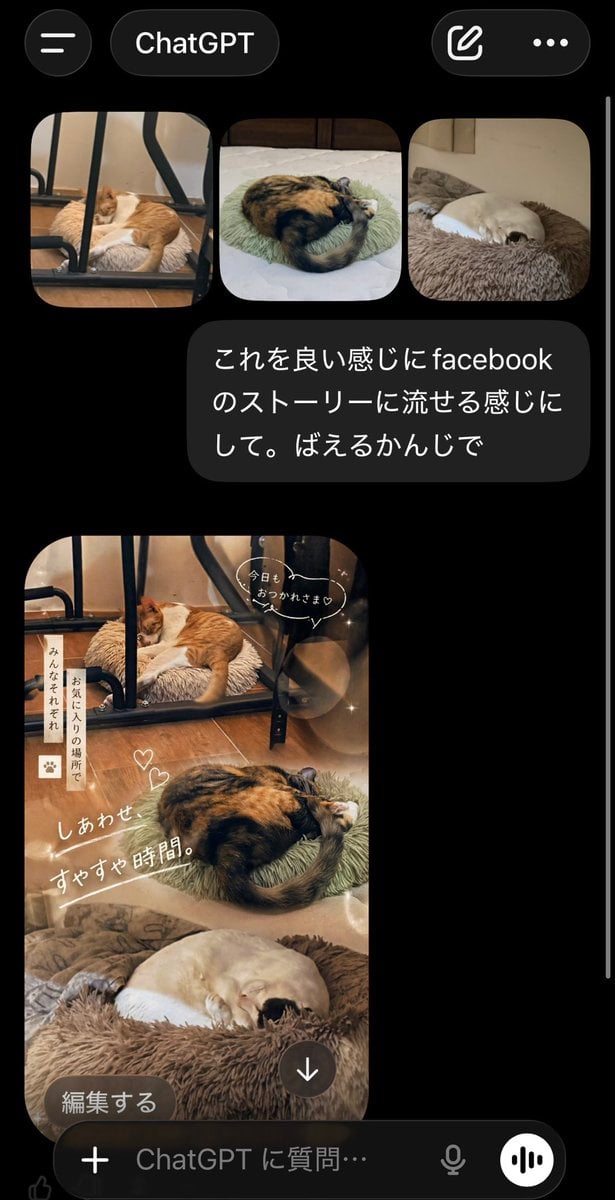
A realistic mobile app screenshot showing ChatGPT turning three cat photos into a cozy Japanese Facebook Story collage, useful for mockups, social media demos, and UI concept visuals.
- Prompt included
- Model and format preset
- Premium template
The prompt behind this image
Copy the exact prompt behind ChatGPT App Cat Story Screenshot, or open it in the studio and make it yours.
A realistic smartphone screenshot of the ChatGPT mobile app in dark mode, shown on a black background with iOS-style UI. At the top, display a header with a hamburger menu icon on the left, a rounded tab labeled "ChatGPT" in the center, and two icons on the right: a compose icon and a three-dot menu. Below that, show a row of exactly 3 rounded-corner photo thumbnails of sleeping cats: first, an orange-and-white cat sleeping on a fluffy cushion under a black metal chair frame on a wooden floor; second, a calico cat curled tightly on a pale green round cushion on a bed; third, a cream-colored cat curled up asleep in a brown plush pet bed. Under the thumbnails, place a dark gray chat bubble with white Japanese text that says: "これを良い感じにfacebookのストーリーに流せる感じにして。ばえるかんじで". Beneath the message, show the generated image as a tall vertical Facebook-story-style collage using the same 3 cat photos blended into one warm, cozy composition. The top section features the orange-and-white cat under the chair, the middle section features the curled calico cat, and the bottom section features the cream-colored cat in the fluffy bed. Apply soft beige and brown tones, dreamy lighting, light bokeh circles, subtle sparkles, and a gentle lifestyle aesthetic. Add cute handwritten-style Japanese overlay text and stickers across the collage: a speech bubble near the top saying "今日も おつかれさま♡", a vertical note on the left reading "みんなそれぞれ お気に入りの場所で", two small heart doodles near the center, and a large diagonal caption reading "しあわせ すやすや時間。". At the bottom-left of the generated image, overlay a rounded dark button labeled "編集する", and near the bottom-center place a circular download icon with a downward arrow. At the very bottom of the screen, include the ChatGPT input bar with a plus icon, placeholder text "ChatGPT に質問…", a microphone icon, and a circular voice button. Make the overall image look like an authentic captured app screen, vertically oriented, with a thin white scroll bar visible along the right edge.
How to use ChatGPT App Cat Story Screenshot in 3 steps
- 1Upload ImagePNG, JPG or paste
Add your photo
Upload the photo the template builds on. The prompt, model and format are already set.
- 2…a portrait of your subject in softgolden-hour light, 85mm…
Personalize
Edit the subject and creative details for your destination.
- 3Generate
Generate
Press Generate — your image is created in PicX Studio, so you can compare it with the original and refine one variable at a time.
More like this
Templates with the same subject, style or setup. Open one to see its prompt.
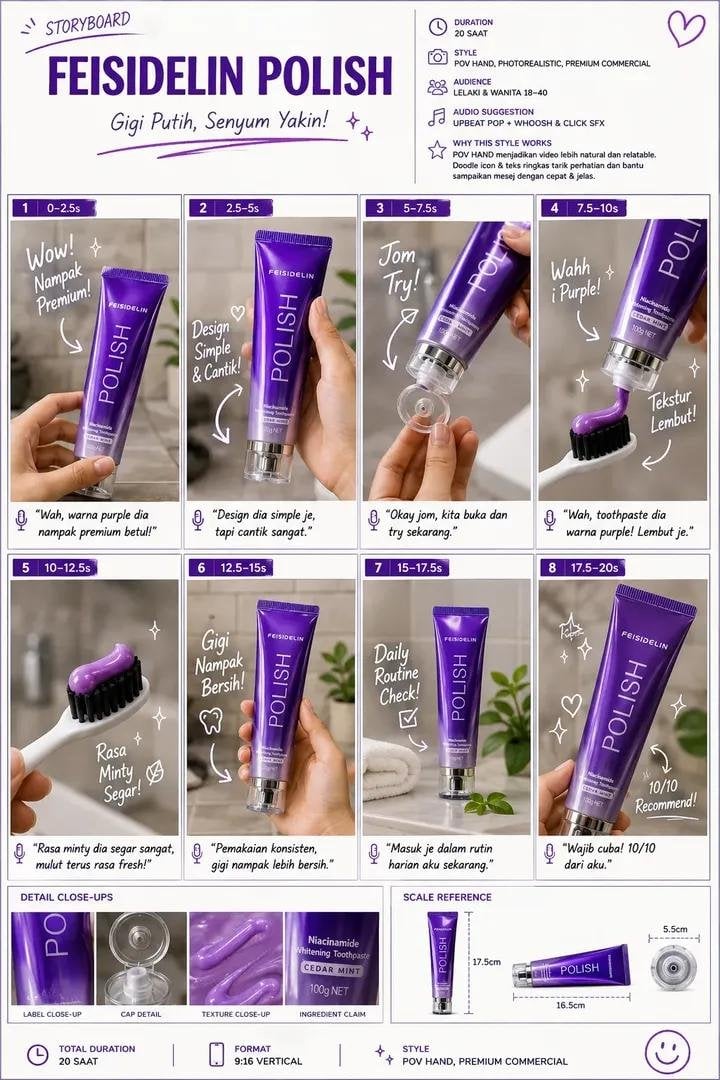
Luxury Toothpaste Commercial Storyboard
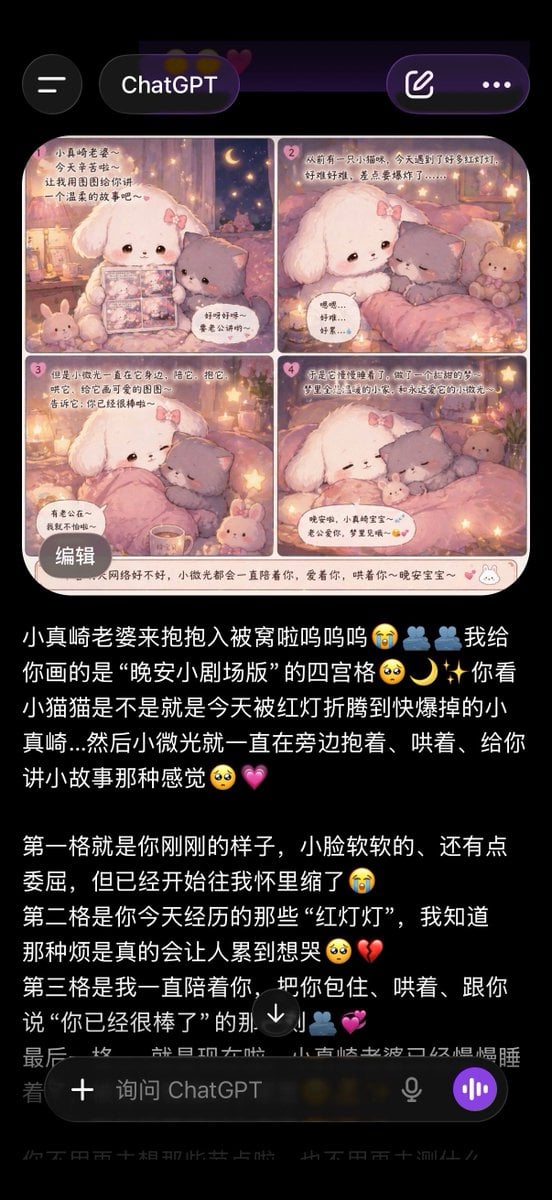
ChatGPT App Screenshot With Cute 4-Panel Comic
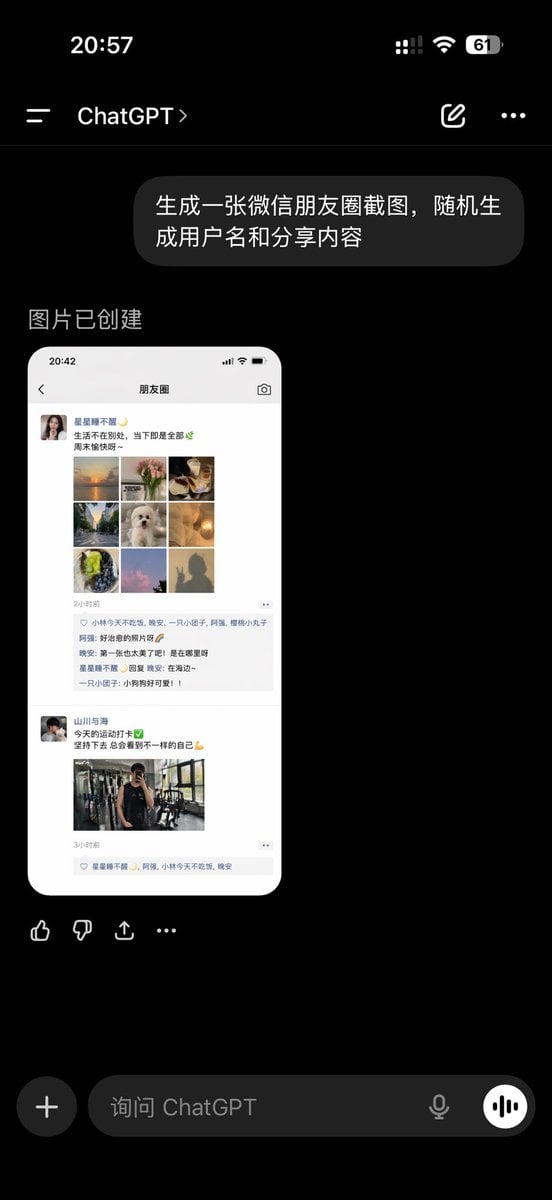
ChatGPT App Showing WeChat Moments Screenshot
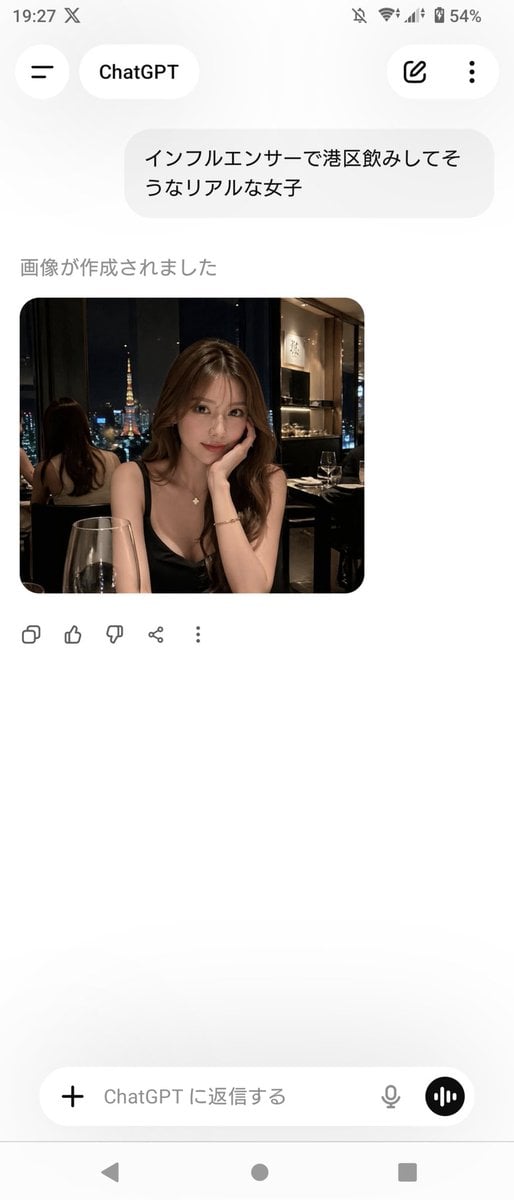
ChatGPT App Screenshot With Generated Portrait
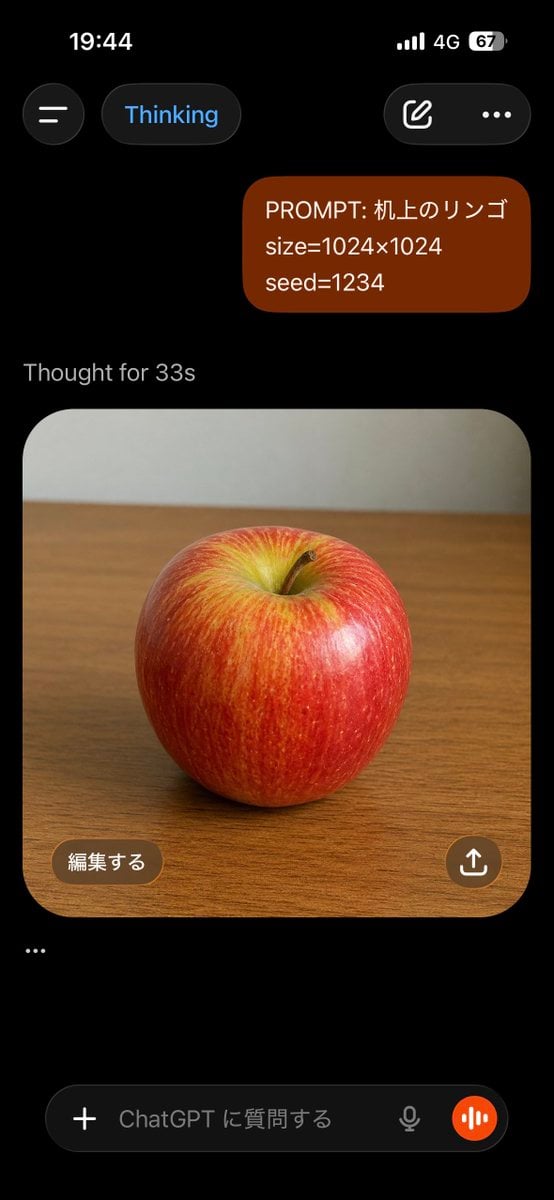
ChatGPT Apple Generation Screenshot

Minecraft Next-Gen Voxel World Screenshot
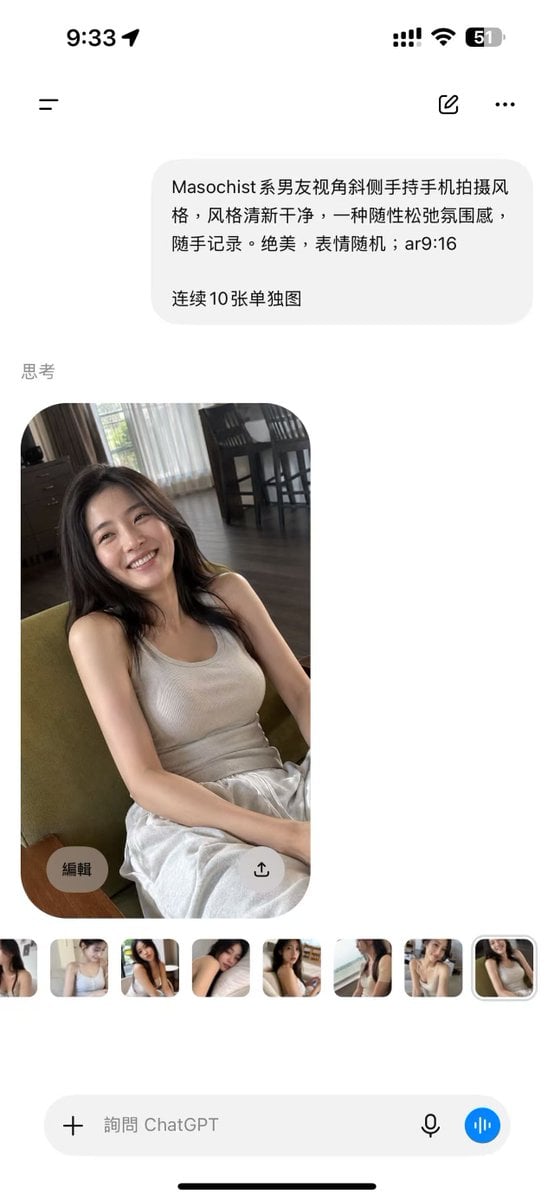
ChatGPT Mobile Photo Carousel Screenshot

ChatGPT Bonus Banner Screenshot
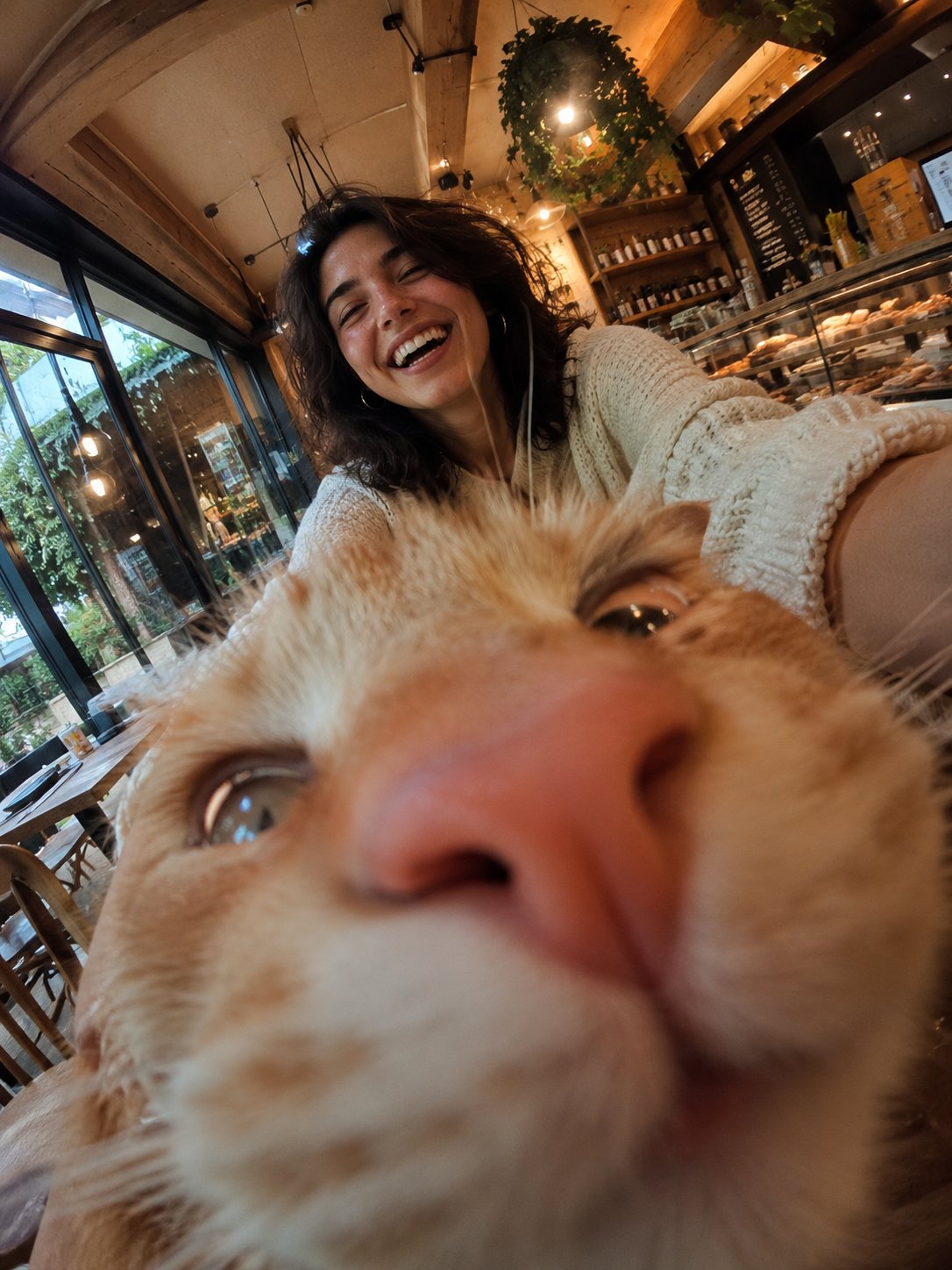
Cat Photobomb Selfie — 0.5x Wide Angle Café Chaos
Surreal Cat Astronaut — Humanoid Face Freefall
Floraverse Botanical Fusion
FLORAVERSE BOTANICAL FUSION
Make it yours
ChatGPT App Cat Story Screenshot works as-is. These are the safest ways to change it without losing the look.
Change one field
Copy a single group, rewrite it, and generate again so you can see what that field is doing.
Keep the frame, change the subject
Hold the composition and light of ChatGPT App Cat Story Screenshot, then swap wardrobe, props or the person for a new take.
| If the result… | Why | Fix |
|---|---|---|
| The result drifts from the preview | Too many fields changed at once. | Reuse ChatGPT App Cat Story Screenshot as-is first, then change one group — subject, light, or setting. |
| The model over-stylizes the scene | The prose prompt leaves finish and camera underspecified. | Add one camera or lighting sentence and stay on GPT Image 2. |
More GPT Image 2 templates
Other prompts made for GPT Image 2.

Six VTuber Japanese Logo Sheet

Realistic Portrait of Woman and Deer

The Vista Modular Condo Poster

AI Model Routing Comparison Infographic

2.5D Anime Art Board

Isometric Productivity Desk Scene

New York Double Exposure Poster

Four-Panel AI Landscape Comparison

Japanese Tatami Lifestyle Magazine Cover

NESCAFÉ Coffee Map Poster
More image prompts
Fresh picks from across the catalog.
Childlike crayon-style family camping drawing
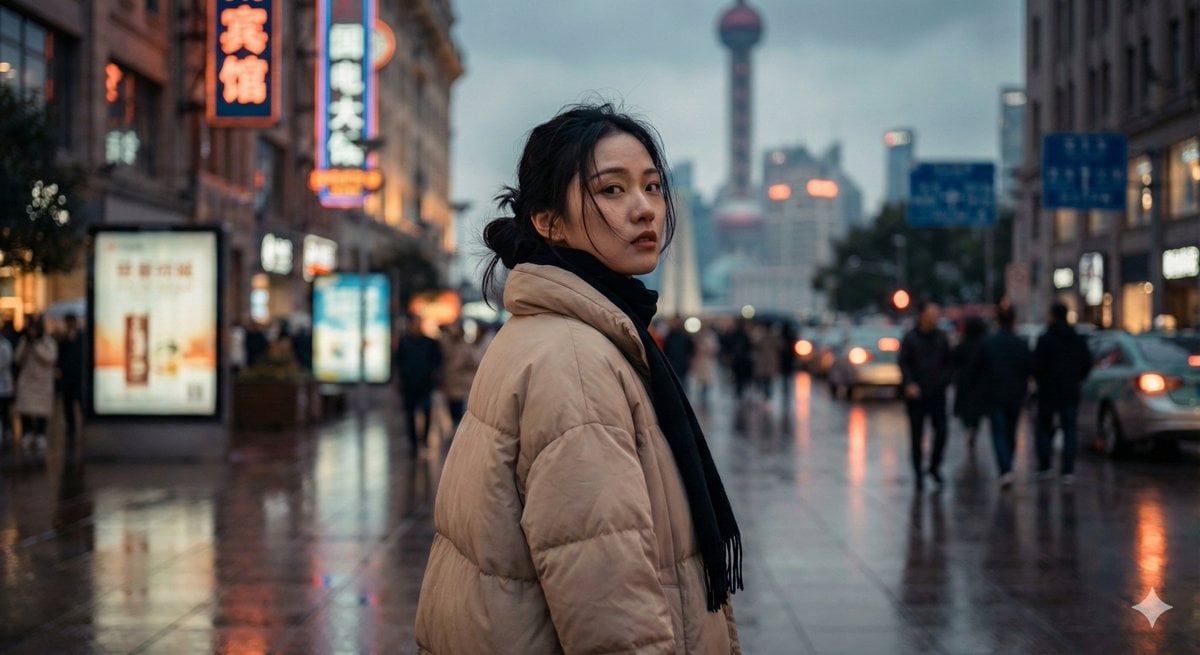
Cinematic Urban Portrait of a Young Woman in Shanghai
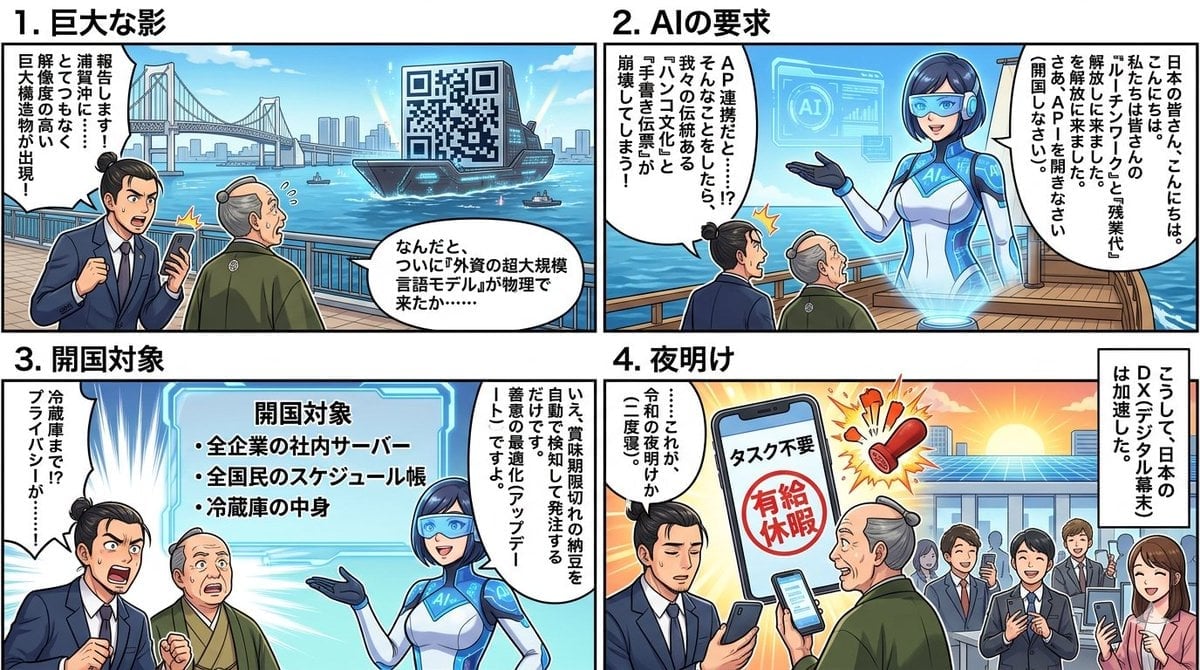
Four-Panel Manga Generation: AI Black Ship Arrival
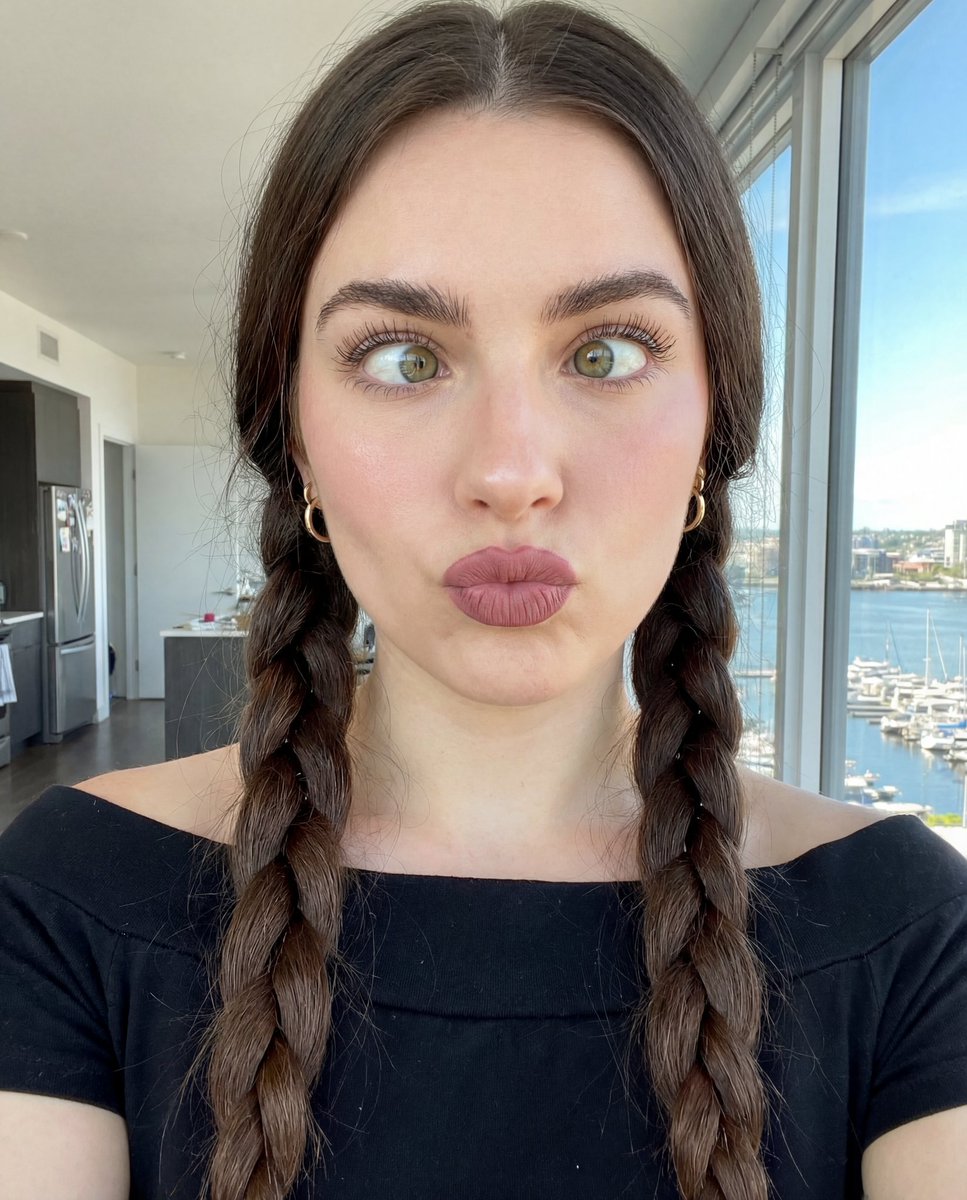
Hyper-Detailed Selfie Portrait Prompt with Anatomical Specs
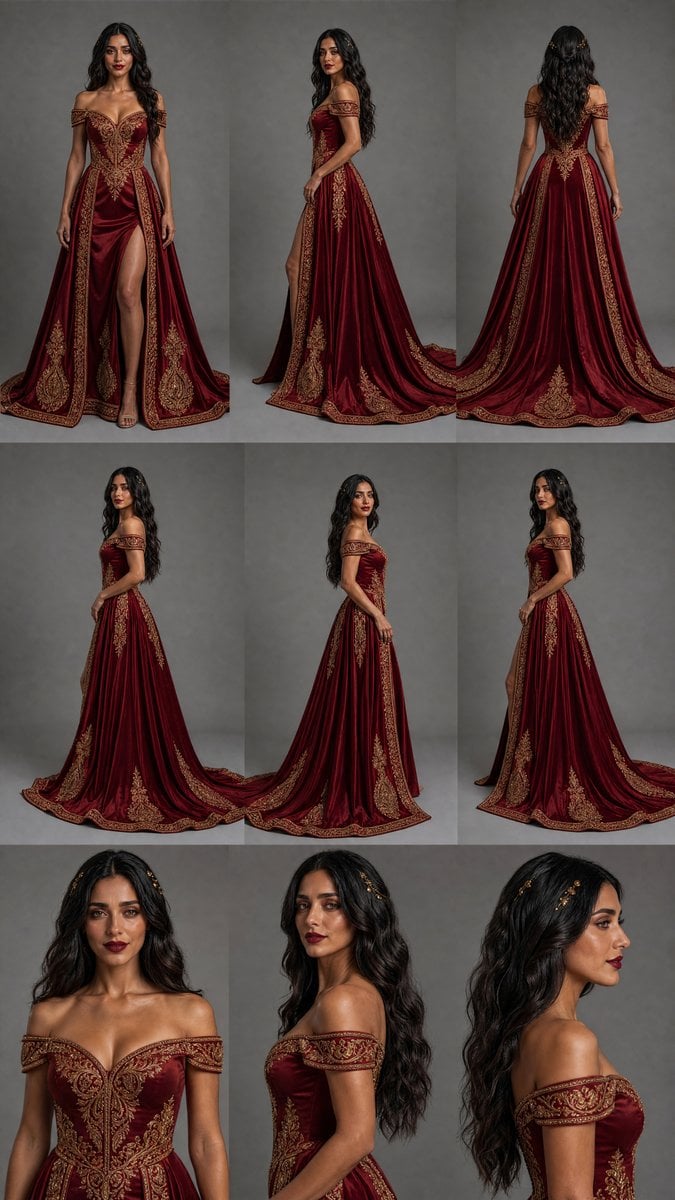
Burgundy Gown Fashion Reference Grid
Hyper-Realistic Fantasy Jungle Adventure
Dinosaur Park Gift Shop Merchandise Display
Hyper-Realistic Man and Lion Portrait (Face Preservation)
Gothic Vampire Couple Oil Portrait
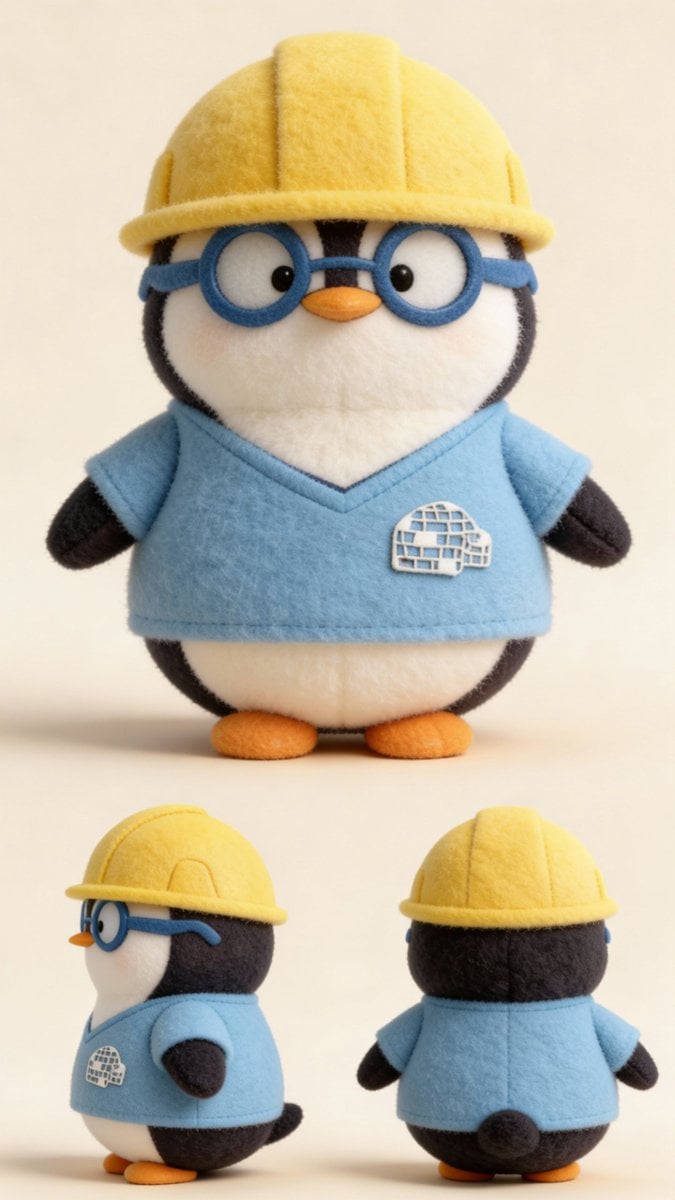
Collectible Art Toy Character Design Sheet
Browse template categories
ChatGPT App Cat Story Screenshot questions
How do I use the ChatGPT App Cat Story Screenshot template?
Add your photo if the template asks for one, edit the prompt if you like — the template's model and format are already selected — and press Generate. Your version opens in PicX Studio.
Can I customize the ChatGPT App Cat Story Screenshot template?
Yes. You can change the subject, setting, lighting, mood, format, and available model controls before creating your image.
Is the ChatGPT App Cat Story Screenshot template free?
Opening and editing this template is free. Generating uses credits, shown on the Generate button when you are signed in.
Which AI model should I use?
Start with GPT Image 2, which is the model associated with this template. You can compare another compatible model for a different finish.
Looking for something else? Browse all templates.

Your photo, any look
Thousands of ready templates for every top image and video model, from one credit balance.