
ChatGPT Bonus Banner Screenshot
Creates a smartphone ChatGPT-style screenshot featuring a Japanese LINE registration bonus banner with seven promotional benefits.

- Prompt included
- Model and format preset
- Premium template
The prompt behind this image
Copy the exact prompt behind ChatGPT Bonus Banner Screenshot, or open it in the studio and make it yours.
Goal: Create a realistic vertical smartphone screenshot of a ChatGPT-style conversation showing a user asking for a promotional bonus banner and the AI returning the finished banner image. Canvas: 9:16 mobile screenshot, approximately 586 × 1024 px, white background, iPhone-like status bar at the top showing 7:17, 5G, and a low battery indicator. Minimal clean app UI with soft shadows and rounded controls. Layout: At the top left place a circular hamburger menu button. At the top right place a floating rounded pill with two icons: an edit/pencil icon and a three-dot menu. In the upper middle-right, show a cute anime-style boy avatar with curly dark brown hair, large sparkling eyes, rosy cheeks, and a black hoodie, resting his cheek on one hand. Below him place one large rounded light-gray chat bubble with Japanese prompt text. Beneath the bubble place one wide horizontal promotional banner image, scaled to fit the phone width. Under the banner add small app action icons, then a bottom input bar with a plus icon, placeholder text, microphone icon, and green voice button. Chat bubble text: Use Japanese text exactly as visible, with the first phrase in blue: 「画像を作成する」 followed by black text: 「公式LINE登録で今だけもらえる7大特典というバナーを横長で作成して。ジャンルは対面営業完全攻略。添付の写真はコンテンツホルダーなので必ず使用して。JSON形式でプロンプトを出力してから画像生成して」 Banner design: Create a high-conversion Japanese lead-magnet banner for {argument name="campaign" default="official LINE registration"}. Use a luxury black, navy, and gold color scheme with bright highlights, diagonal metallic accents, and a premium sales-promotion feel. The banner headline should read 「今だけもらえる 7大特典」 with a very large gold “7” and bold white/gold typography. Include the topic subtitle {argument name="topic" default="対面営業完全攻略"}. Include the same anime boy avatar on the right side of the banner. Banner sections: Show exactly 7 benefit cards in a row across the bottom, each with a small thumbnail image, a numbered label, and Japanese title text. The seven visible cards are: 1)営業の勝負所を完全攻略, 2)アプローチトーク, 3)提案力強化テンプレート, 4)クロージング実践トーク集, 5)営業力UPチェックリスト, 6)営業ロールプレイ実演動画, 7)トップ営業のセット. Add a green LINE-themed call-to-action strip along the bottom reading 「今すぐLINE登録して豪華 7大特典を受け取る!」 with a small green LINE icon. Visual style: The phone UI should look like a real screenshot, while the avatar and banner should be polished AI-generated digital art. Keep the chat interface spacious and uncluttered, with realistic rounded corners, subtle shadows, and crisp Japanese typography. Constraints: Use exactly one chat bubble, exactly one avatar above the bubble, exactly one banner image, exactly seven benefit cards in the banner, exactly two icons in the top-right floating pill, and exactly four controls in the bottom input bar. Do not add extra messages, watermarks, or unrelated text.
How to use ChatGPT Bonus Banner Screenshot in 3 steps
- 1Upload ImagePNG, JPG or paste
Add your photo
Upload the photo the template builds on. The prompt, model and format are already set.
- 2…a portrait of your subject in softgolden-hour light, 85mm…
Personalize
Edit the subject and creative details for your destination.
- 3Generate
Generate
Press Generate — your image is created in PicX Studio, so you can compare it with the original and refine one variable at a time.
More like this
Templates with the same subject, style or setup. Open one to see its prompt.

Minecraft Next-Gen Voxel World Screenshot
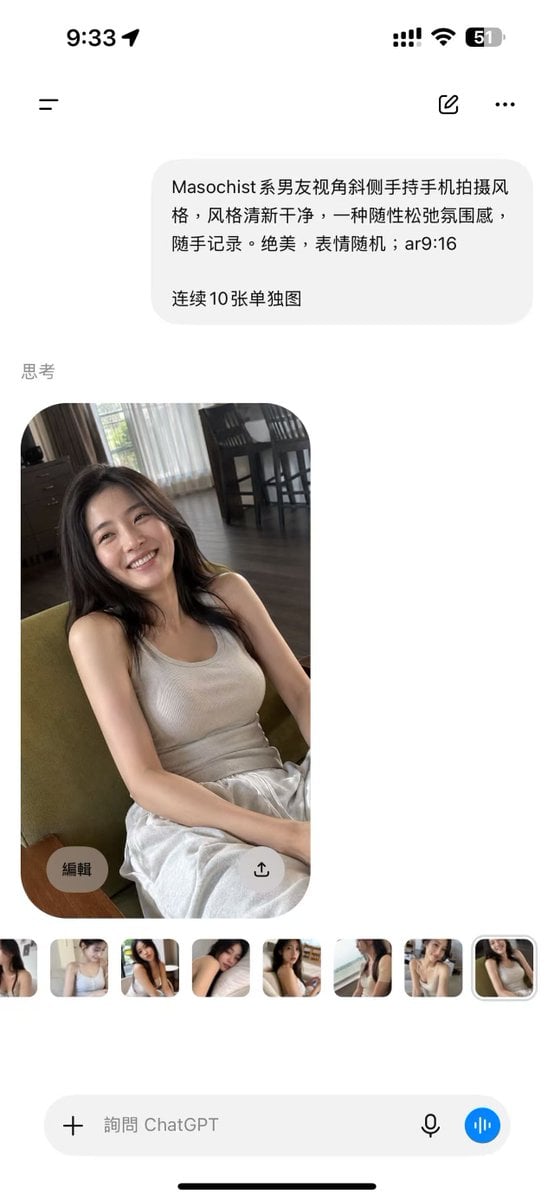
ChatGPT Mobile Photo Carousel Screenshot
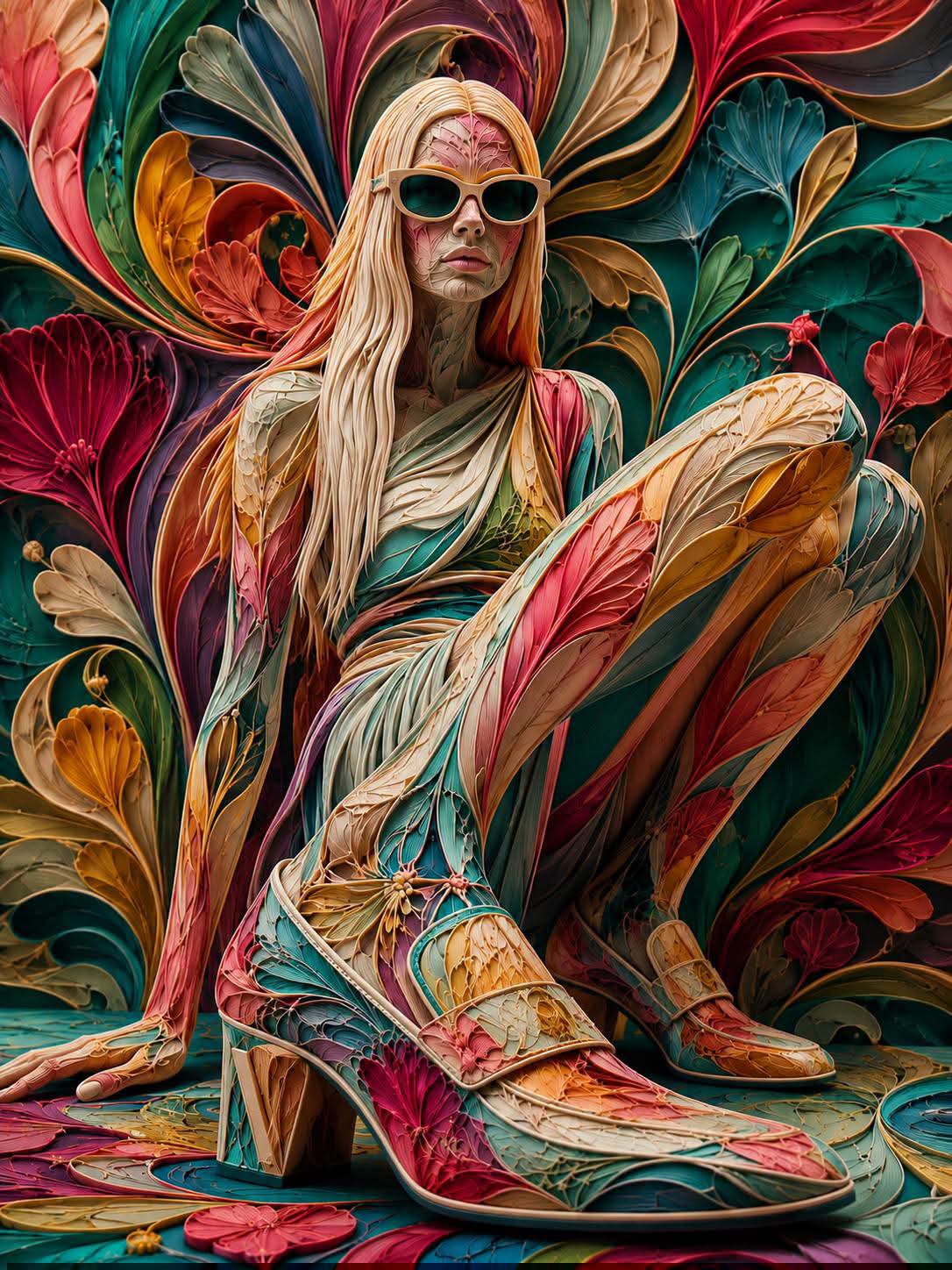
Floraverse Botanical Fusion
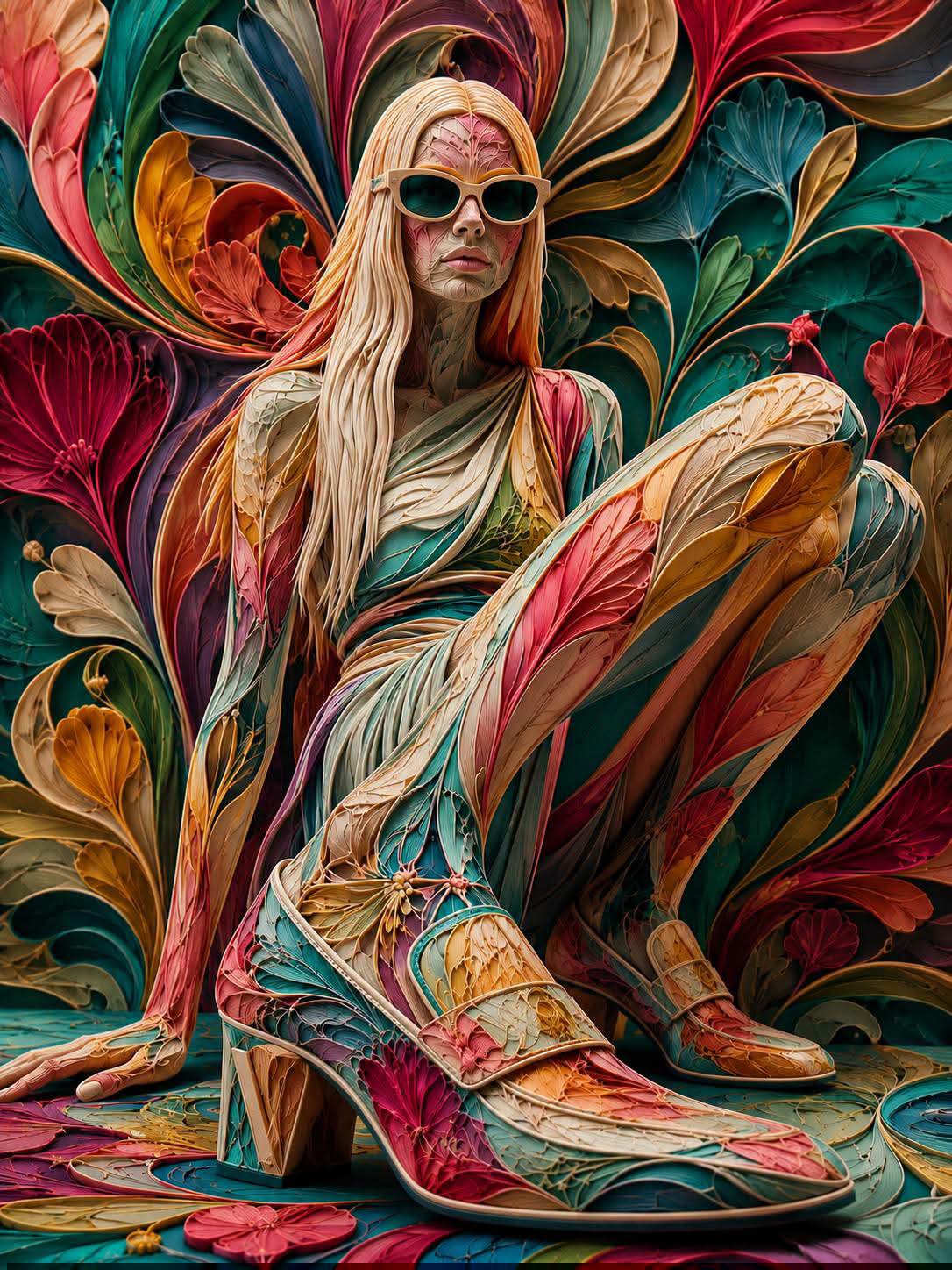
FLORAVERSE BOTANICAL FUSION
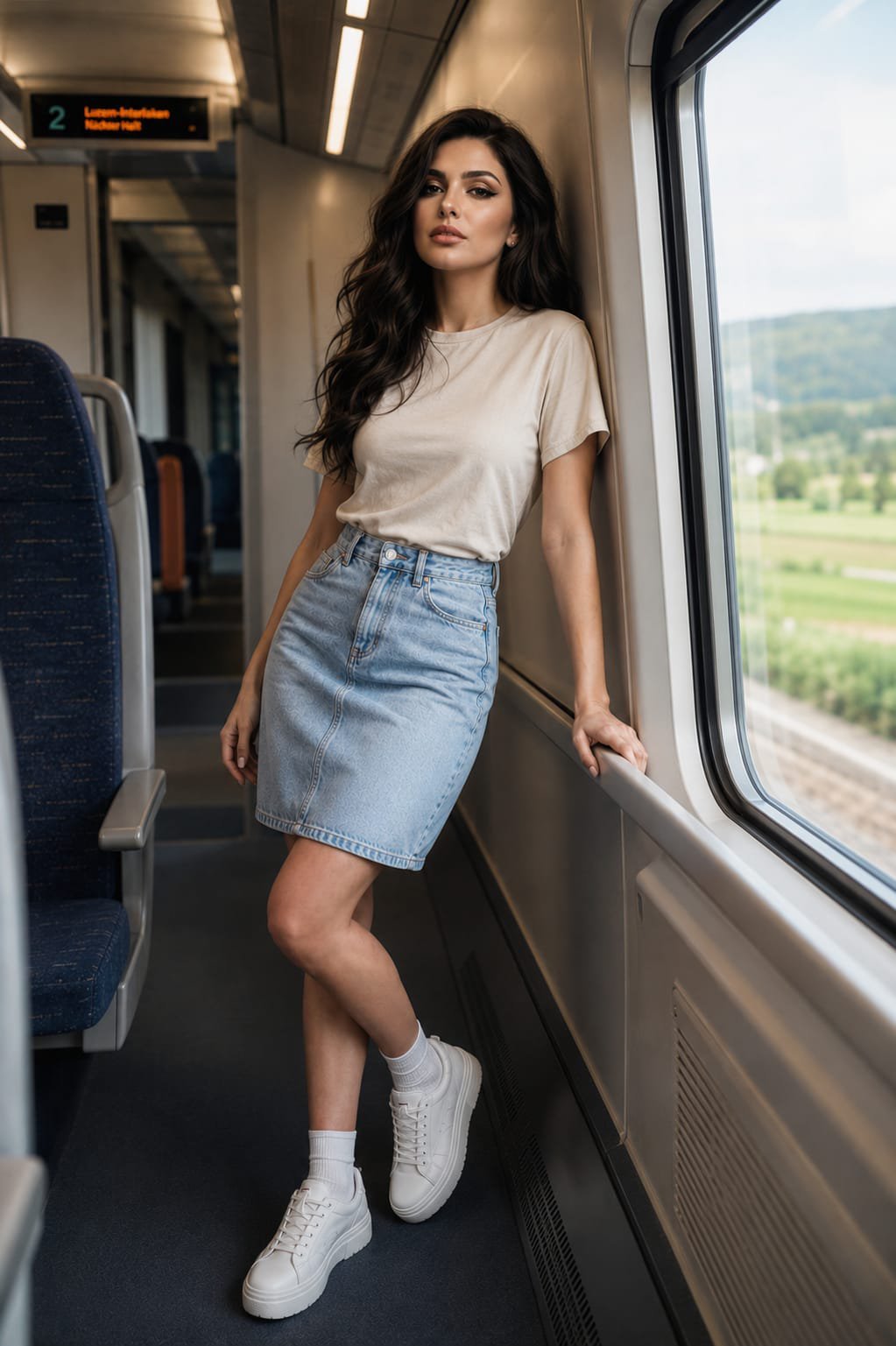
Face-Locked Train Window Lifestyle Portrait
Female Chef Chicken Biryani Luxury Kitchen
Leather Jacket Cream Trousers Fashion Sketch
Golden Hour Fedora Bar Doorway Street Style
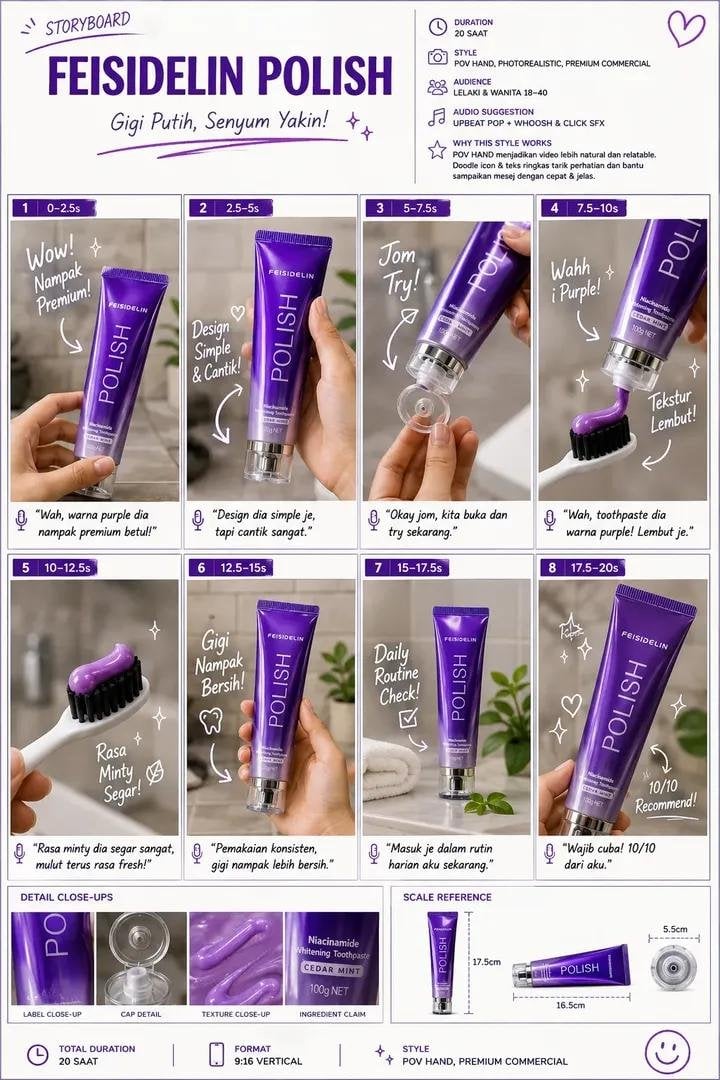
Luxury Toothpaste Commercial Storyboard
Unfinished Sketch Comes Alive Portrait
Surreal Minimalist Dark Collage Poster II
Open Travel Journal Overhead Still Life
Make it yours
ChatGPT Bonus Banner Screenshot works as-is. These are the safest ways to change it without losing the look.
Change one field
Copy a single group, rewrite it, and generate again so you can see what that field is doing.
Keep the frame, change the subject
Hold the composition and light of ChatGPT Bonus Banner Screenshot, then swap wardrobe, props or the person for a new take.
| If the result… | Why | Fix |
|---|---|---|
| The result drifts from the preview | Too many fields changed at once. | Reuse ChatGPT Bonus Banner Screenshot as-is first, then change one group — subject, light, or setting. |
| The model over-stylizes the scene | The prose prompt leaves finish and camera underspecified. | Add one camera or lighting sentence and stay on GPT Image 2. |
More GPT Image 2 templates
Other prompts made for GPT Image 2.

Six VTuber Japanese Logo Sheet

Realistic Portrait of Woman and Deer

The Vista Modular Condo Poster

AI Model Routing Comparison Infographic

2.5D Anime Art Board

Isometric Productivity Desk Scene

New York Double Exposure Poster

Four-Panel AI Landscape Comparison

Japanese Tatami Lifestyle Magazine Cover

NESCAFÉ Coffee Map Poster
More image prompts
Fresh picks from across the catalog.
Golden Magical Girl Action Key Visual
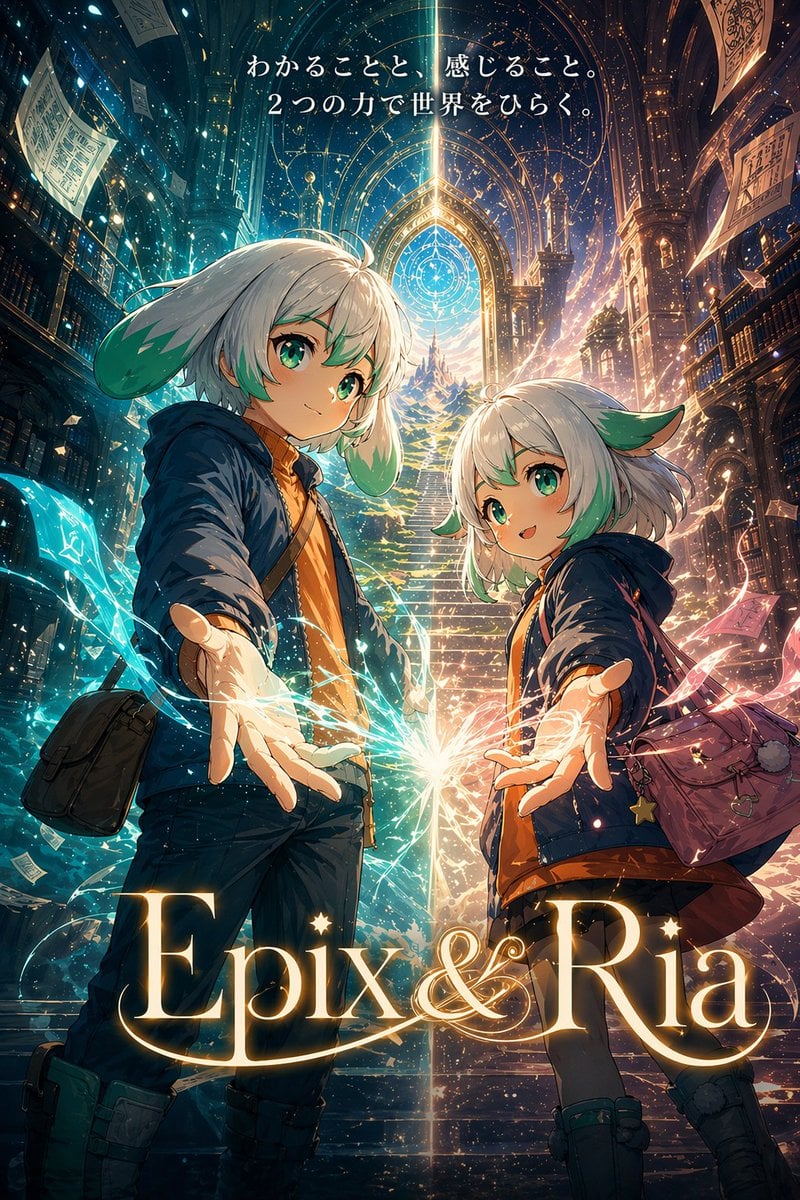
Fantasy Library Poster for Epix & Ria
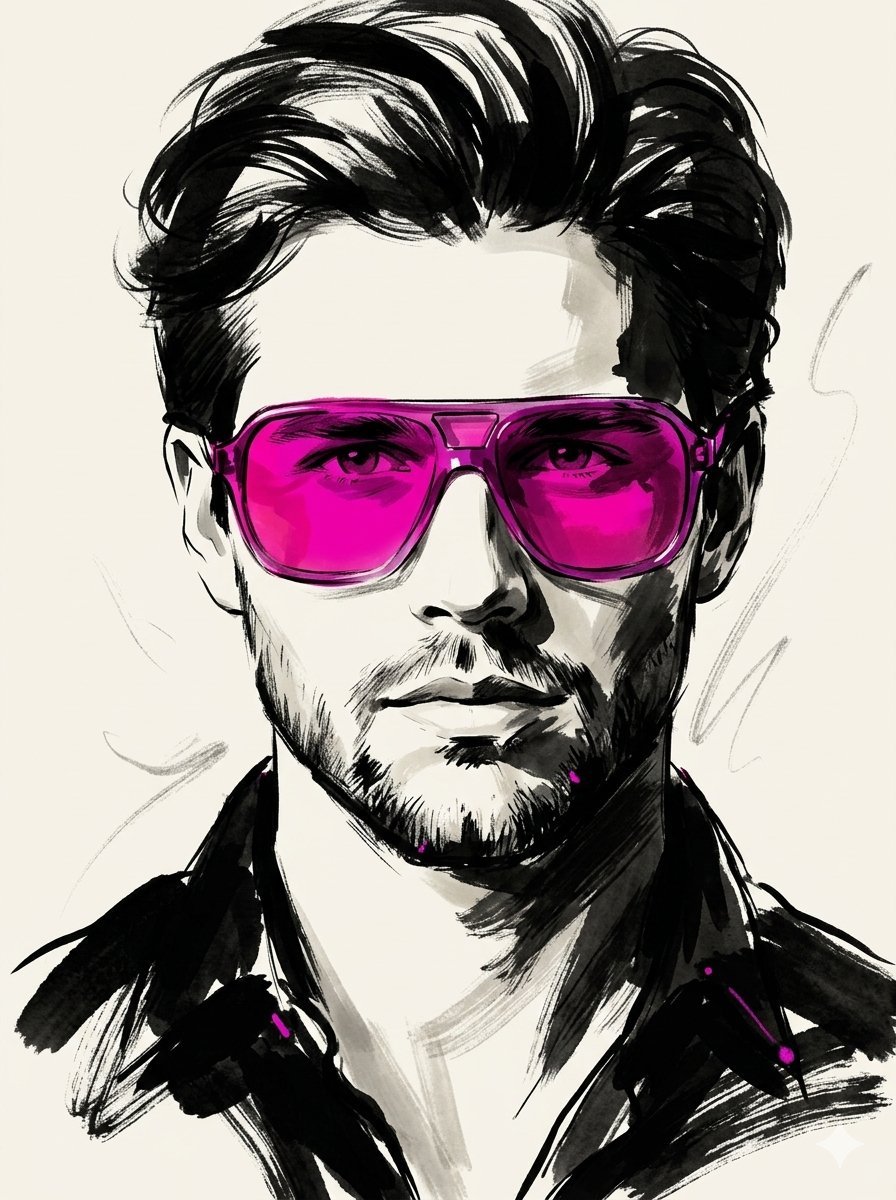
High-Fashion Ink Illustration Portrait
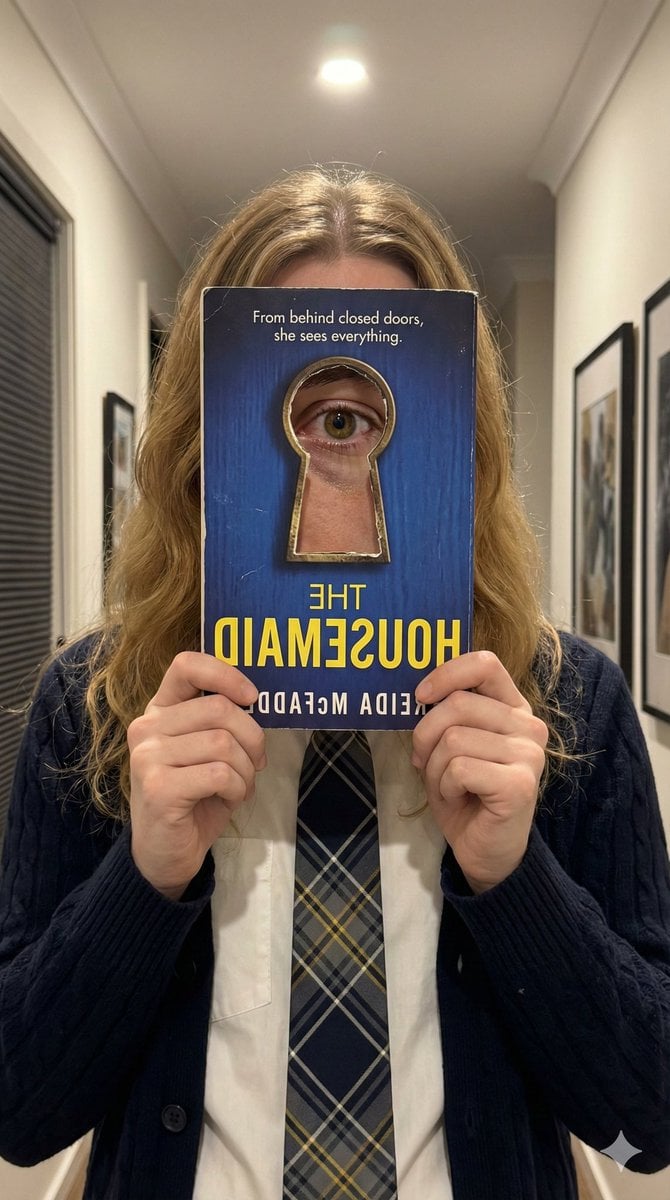
Trompe-l'œil Keyhole Illusion with Living Eye
3D Q-Version Healing Toy Movie Poster Prompt Template (Pokémon Example)
Turn Your Food Photos Into a Vintage Rec
Tropical Dessert Product Photography with Milk Splash
Hyper-Realistic Commercial Food Photography
Photorealistic Snapshot of a Woman with Tattoos in a Japanese Urban Setting
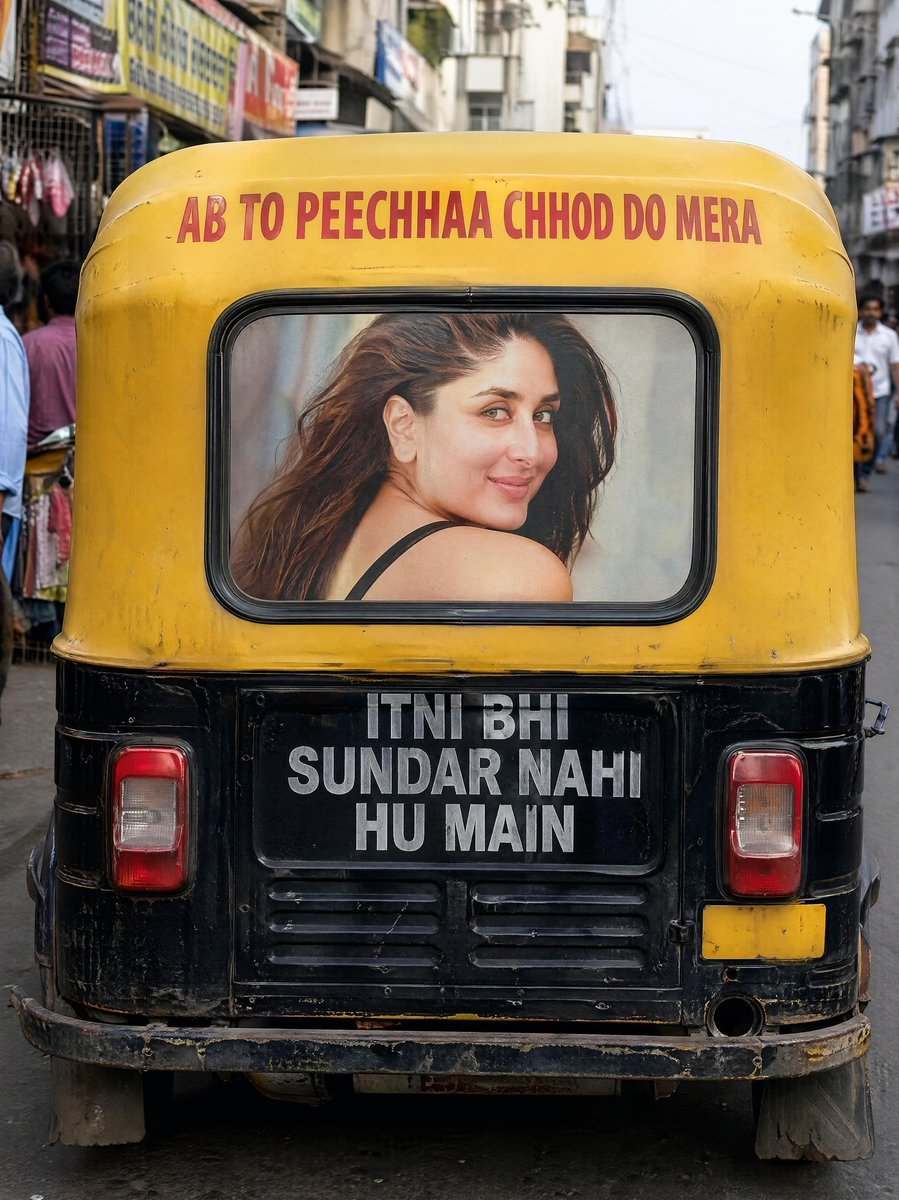
Indian Auto Rickshaw Street Photo
Browse template categories
ChatGPT Bonus Banner Screenshot questions
How do I use the ChatGPT Bonus Banner Screenshot template?
Add your photo if the template asks for one, edit the prompt if you like — the template's model and format are already selected — and press Generate. Your version opens in PicX Studio.
Can I customize the ChatGPT Bonus Banner Screenshot template?
Yes. You can change the subject, setting, lighting, mood, format, and available model controls before creating your image.
Is the ChatGPT Bonus Banner Screenshot template free?
Opening and editing this template is free. Generating uses credits, shown on the Generate button when you are signed in.
Which AI model should I use?
Start with GPT Image 2, which is the model associated with this template. You can compare another compatible model for a different finish.
Looking for something else? Browse all templates.

Your photo, any look
Thousands of ready templates for every top image and video model, from one credit balance.