
ChatGPT Apple Generation Screenshot
Creates a dark-mode mobile ChatGPT screenshot showing a prompt bubble and a generated photorealistic apple image on a desk.
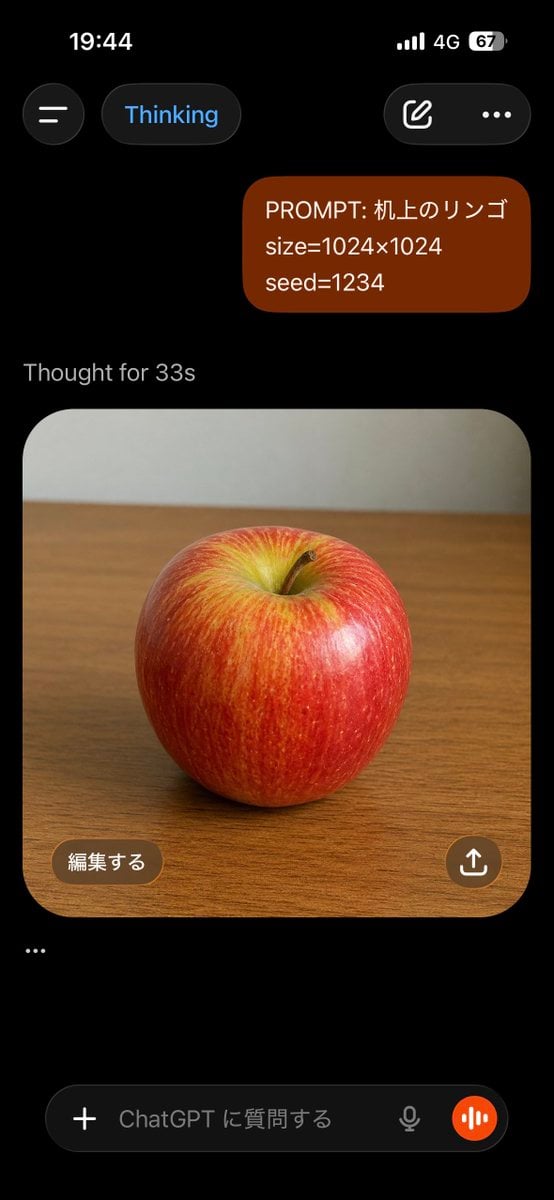
- Prompt included
- Model and format preset
- Free template
The prompt behind this image
Copy the exact prompt behind ChatGPT Apple Generation Screenshot, or open it in the studio and make it yours.
Goal: Create a realistic vertical smartphone screenshot of the ChatGPT mobile app in dark mode, showing an image-generation conversation about an apple. Canvas: Tall phone screenshot, 9:16 aspect ratio, black background, iPhone-style status bar at the top. The time reads 19:44, with cellular bars, 4G, and battery at 67%. Layout: At the top are exactly 4 interface elements: a circular hamburger menu button on the left, a rounded pill labeled “Thinking” in blue text, a rounded button with an edit-pencil icon on the right, and a three-dot menu icon. Below, place one right-aligned user message bubble in dark reddish-brown with rounded corners containing exactly 3 lines of text: “PROMPT: {argument name="prompt text" default="机上のリンゴ"}”, “size={argument name="image size" default="1024×1024"}”, and “seed={argument name="seed value" default="1234"}”. Under it, show the gray status text “Thought for {argument name="thinking time" default="33s"}”. Generated image card: Below the status text, show one large rounded-square image card with a photorealistic red apple centered on a wooden tabletop. The apple is glossy with red skin, yellow-green highlights near the top indentation, subtle vertical streaks, a small brown stem, and soft studio lighting. The background inside the photo is a plain pale gray wall above the wooden desk, slightly blurred. The card has large rounded corners and fills most of the screen width. Overlays and bottom UI: Inside the lower-left of the image card, add one brown rounded button labeled “編集する”. Inside the lower-right, add one circular brown share button with a white upload/share arrow icon. Below the image card, add exactly one standalone ellipsis line: “…”. At the bottom, show a ChatGPT input bar with exactly 5 visible elements: a plus icon button, placeholder text “ChatGPT に質問する”, a small microphone icon, an orange circular voice-wave button, and the rounded dark text-field container. Visual style: Authentic iOS ChatGPT app screenshot, dark theme, crisp UI, realistic spacing, clean sans-serif typography, no extra messages, no watermark, no browser chrome.
How to use ChatGPT Apple Generation Screenshot in 3 steps
- 1Upload ImagePNG, JPG or paste
Add your photo
Upload the photo the template builds on. The prompt, model and format are already set.
- 2…a portrait of your subject in softgolden-hour light, 85mm…
Personalize
Edit the subject and creative details for your destination.
- 3Generate
Generate
Press Generate — your image is created in PicX Studio, so you can compare it with the original and refine one variable at a time.
More like this
Templates with the same subject, style or setup. Open one to see its prompt.

Minecraft Next-Gen Voxel World Screenshot
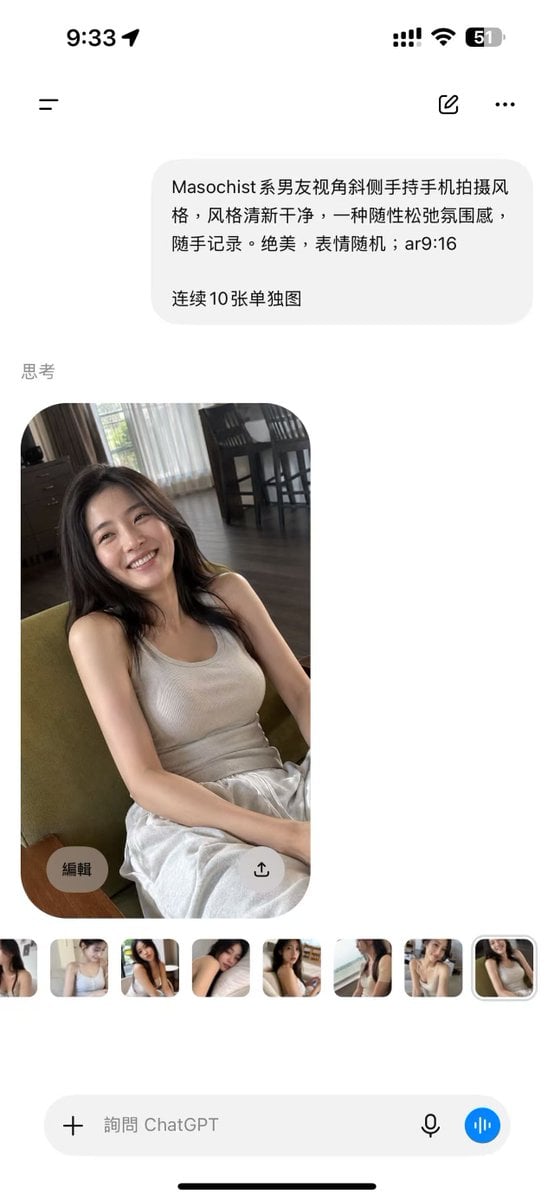
ChatGPT Mobile Photo Carousel Screenshot

ChatGPT Bonus Banner Screenshot
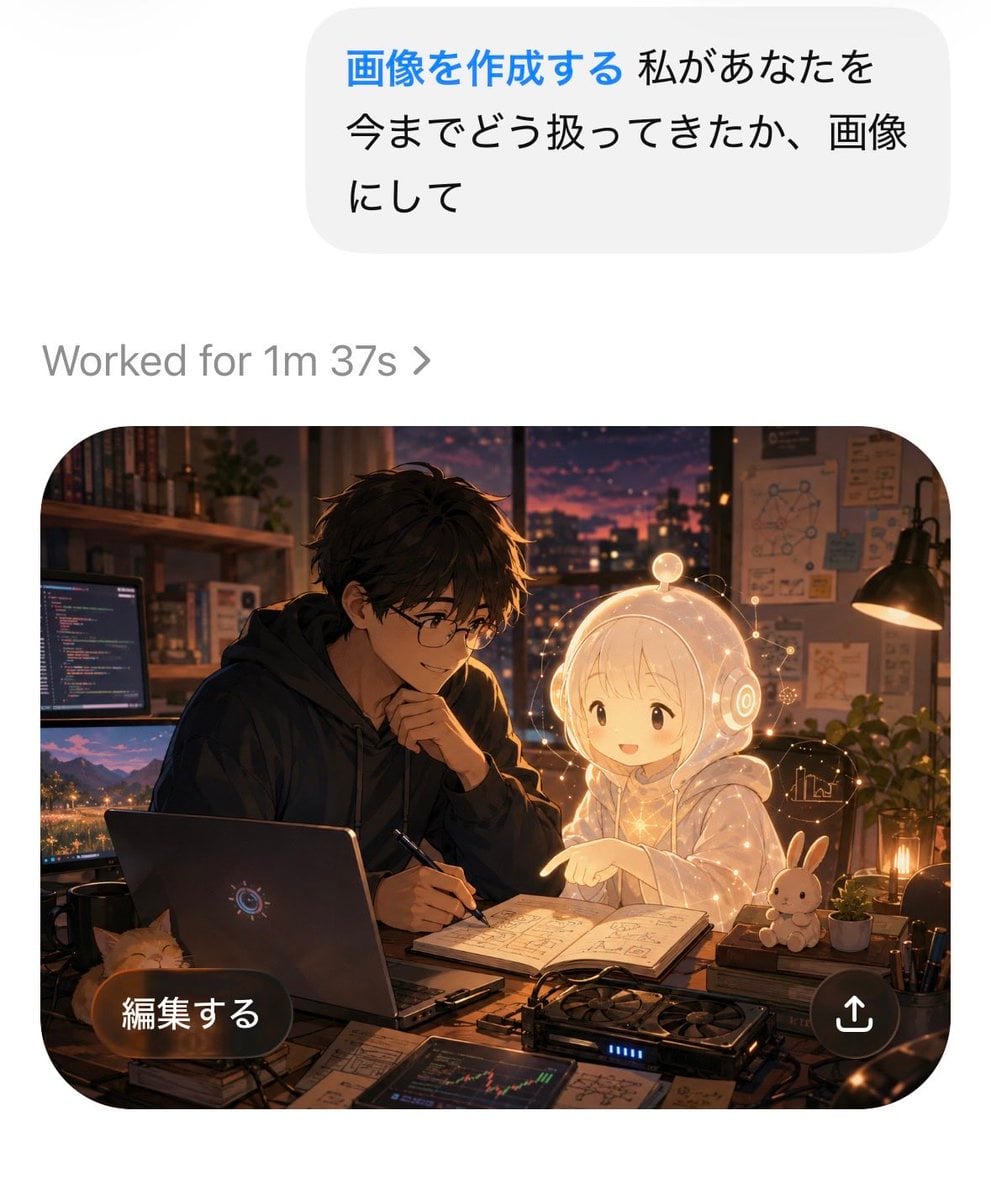
AI Chat Image Generation Screenshot
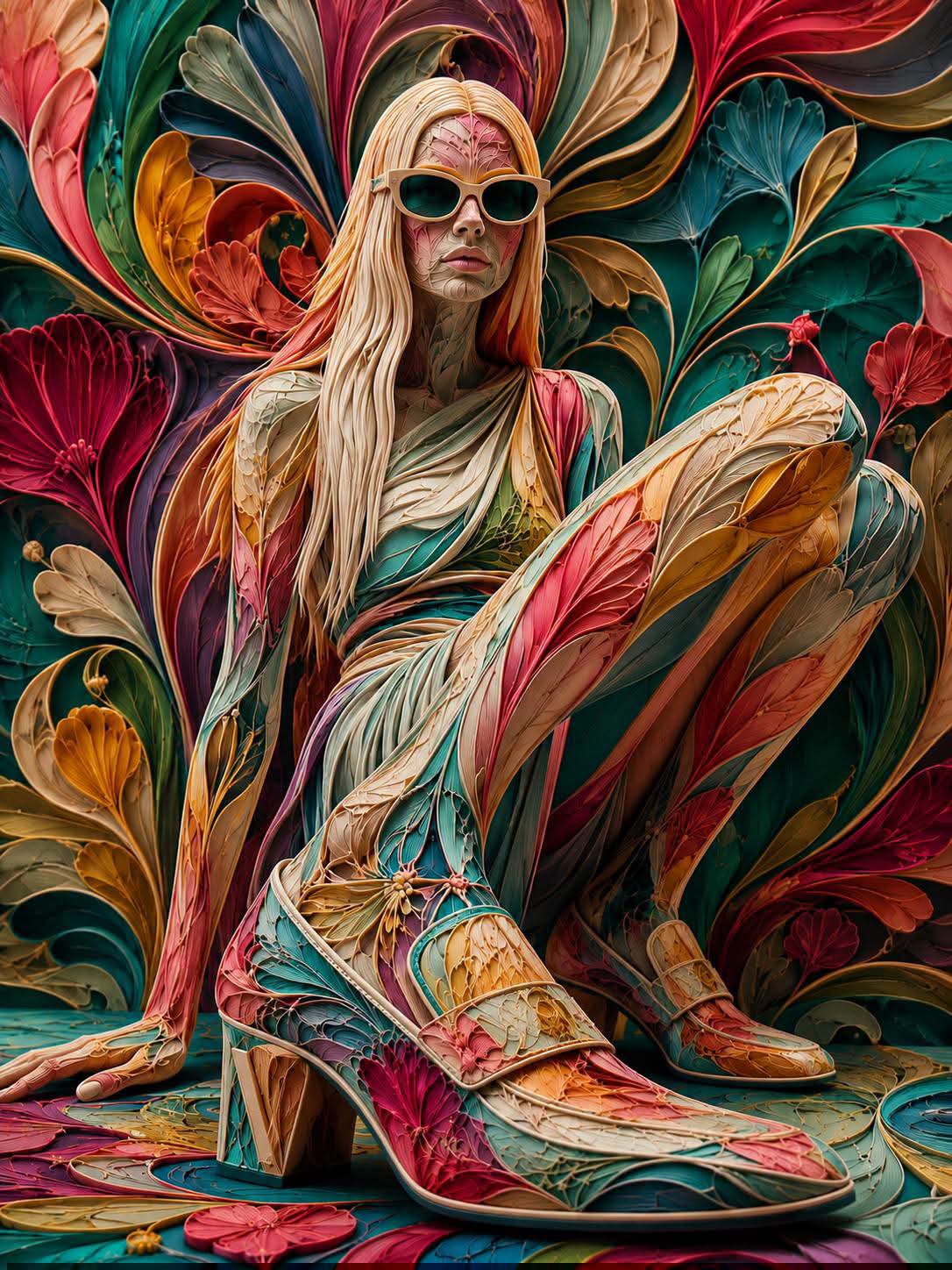
Floraverse Botanical Fusion
FLORAVERSE BOTANICAL FUSION
Face-Locked Train Window Lifestyle Portrait
Female Chef Chicken Biryani Luxury Kitchen
Leather Jacket Cream Trousers Fashion Sketch
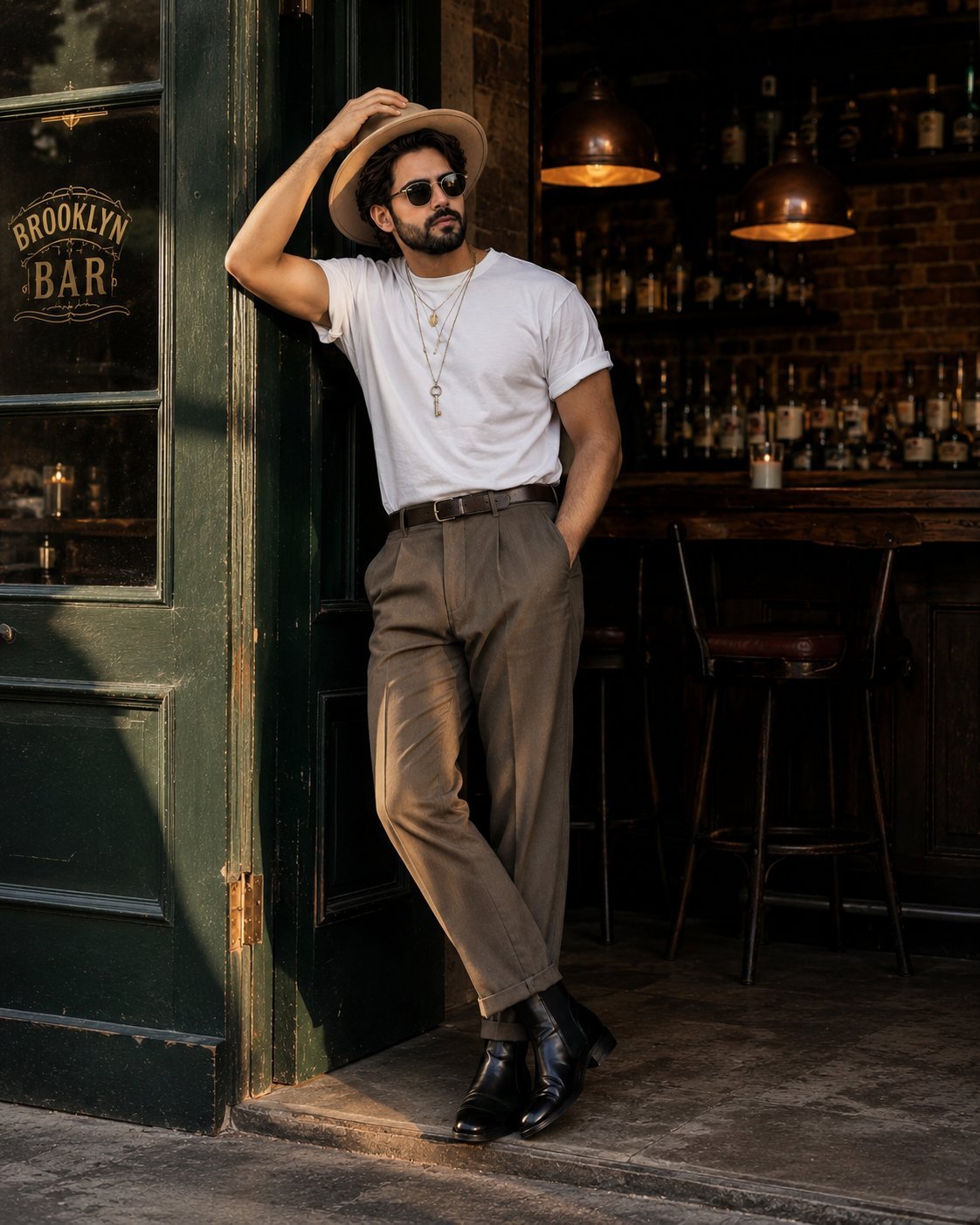
Golden Hour Fedora Bar Doorway Street Style
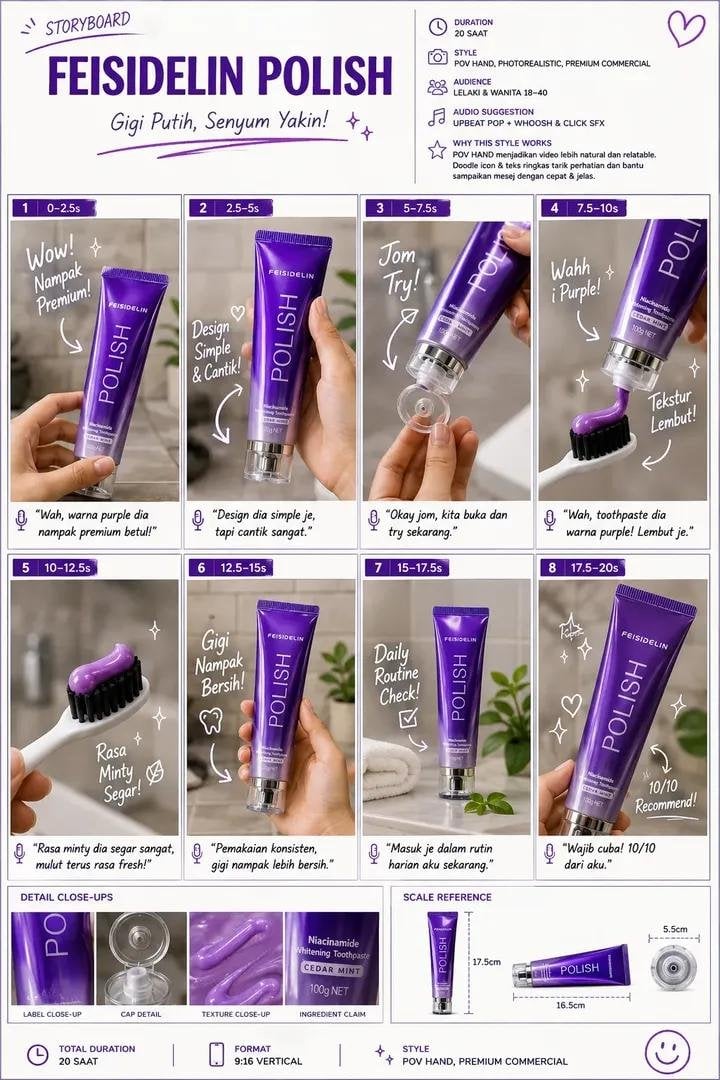
Luxury Toothpaste Commercial Storyboard
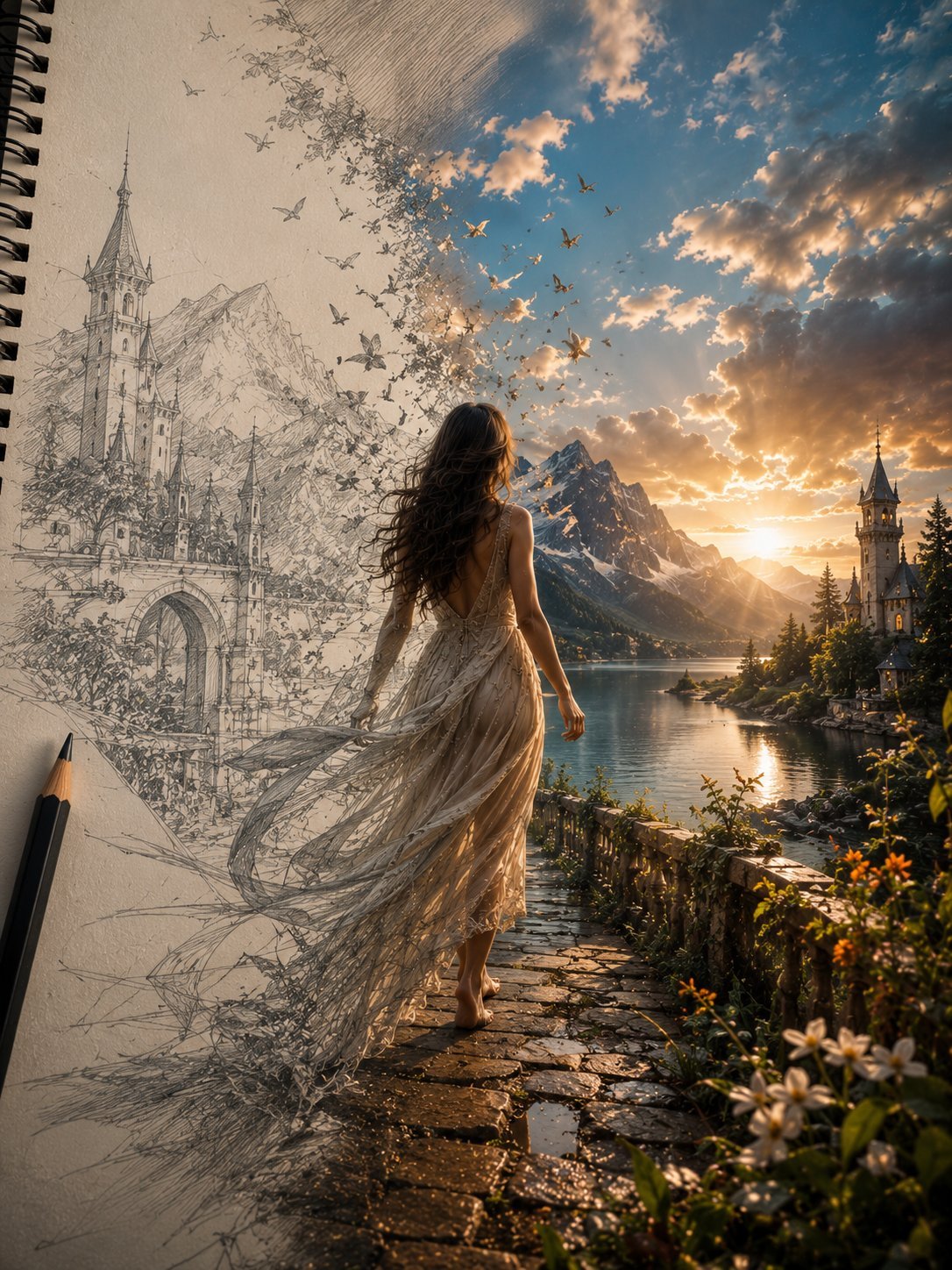
Unfinished Sketch Comes Alive Portrait
Make it yours
ChatGPT Apple Generation Screenshot works as-is. These are the safest ways to change it without losing the look.
Change one field
Copy a single group, rewrite it, and generate again so you can see what that field is doing.
Keep the frame, change the subject
Hold the composition and light of ChatGPT Apple Generation Screenshot, then swap wardrobe, props or the person for a new take.
| If the result… | Why | Fix |
|---|---|---|
| The result drifts from the preview | Too many fields changed at once. | Reuse ChatGPT Apple Generation Screenshot as-is first, then change one group — subject, light, or setting. |
| The model over-stylizes the scene | The prose prompt leaves finish and camera underspecified. | Add one camera or lighting sentence and stay on GPT Image 2. |
More GPT Image 2 templates
Other prompts made for GPT Image 2.

Six VTuber Japanese Logo Sheet

Realistic Portrait of Woman and Deer

The Vista Modular Condo Poster

AI Model Routing Comparison Infographic

2.5D Anime Art Board

Isometric Productivity Desk Scene

New York Double Exposure Poster

Four-Panel AI Landscape Comparison

Japanese Tatami Lifestyle Magazine Cover

NESCAFÉ Coffee Map Poster
More image prompts
Fresh picks from across the catalog.
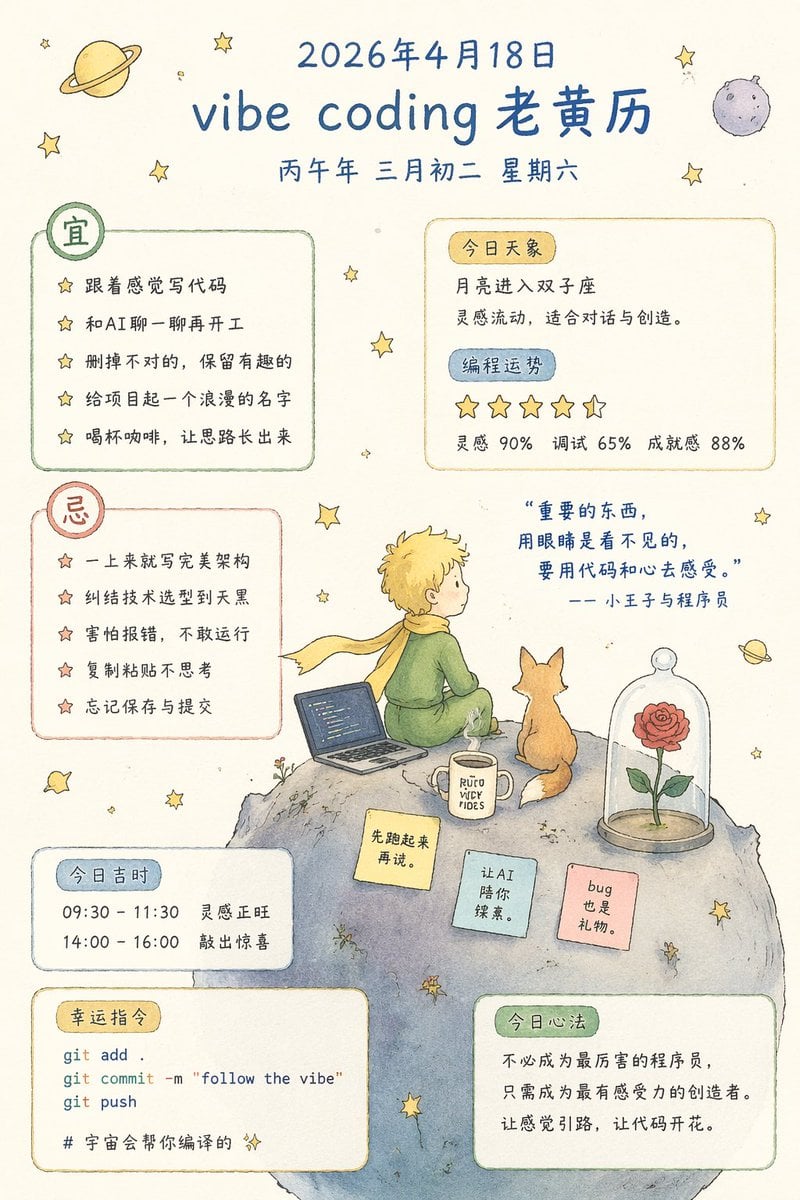
Whimsical Programmer Almanac Infographic
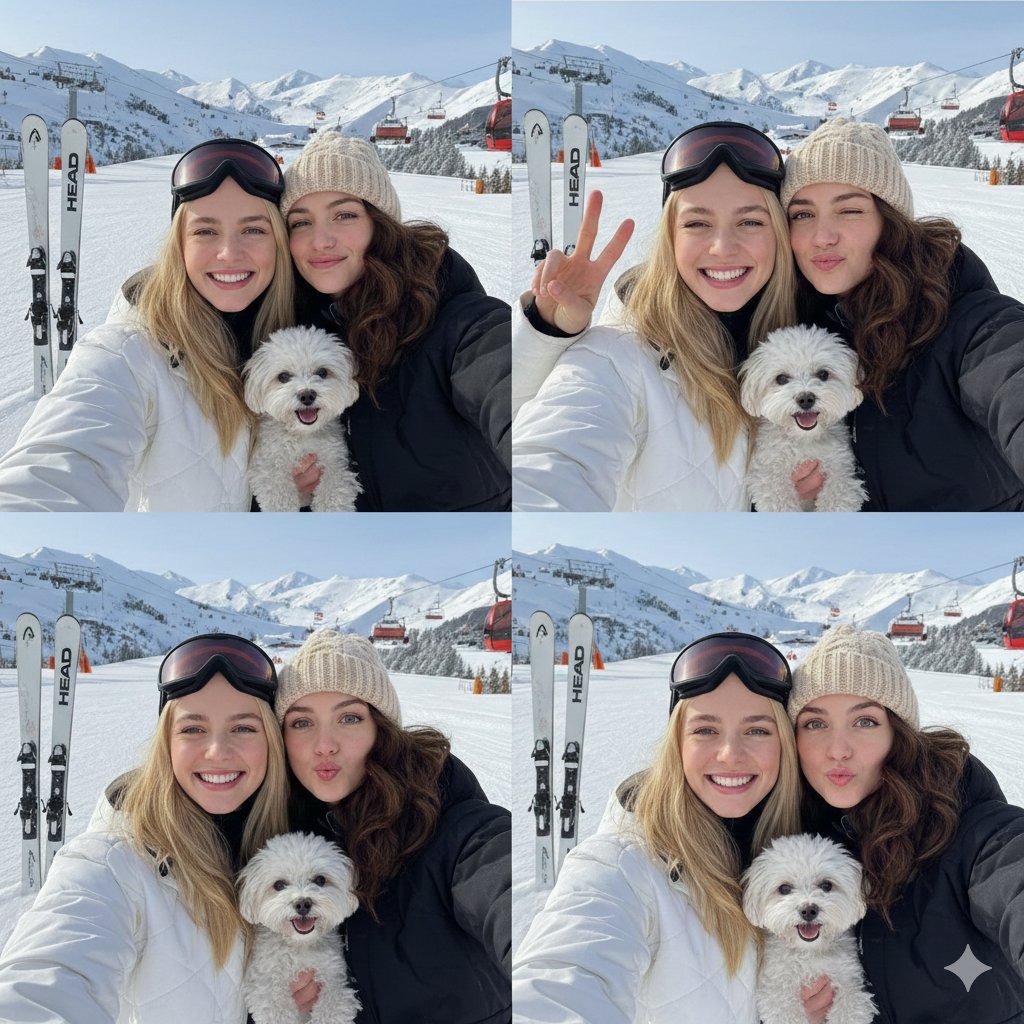
2x2 Winter Ski Selfie Collage with Dog
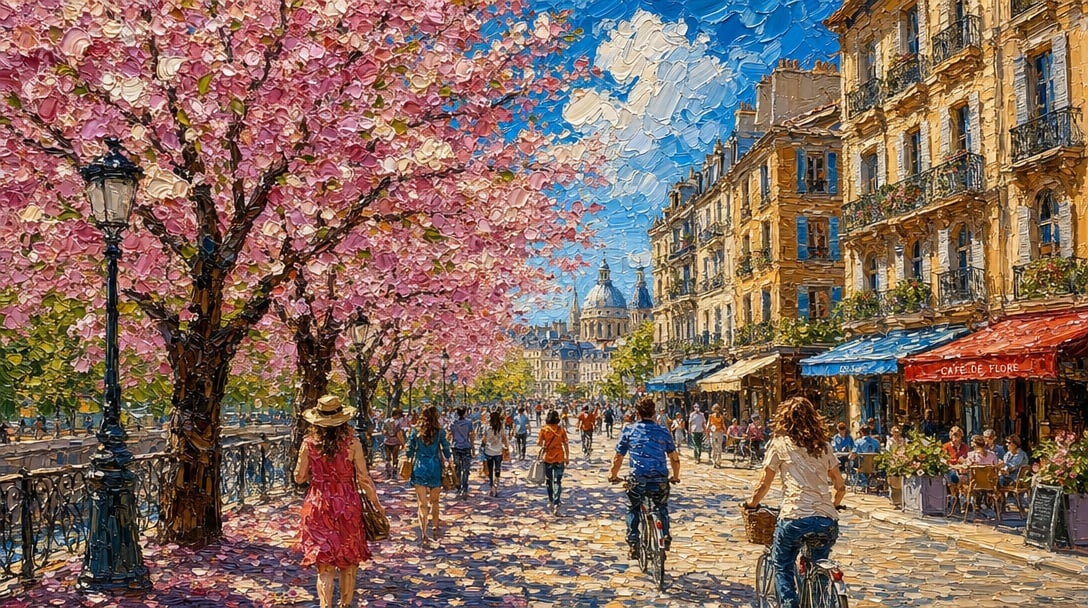
Impasto Spring Paris Boulevard
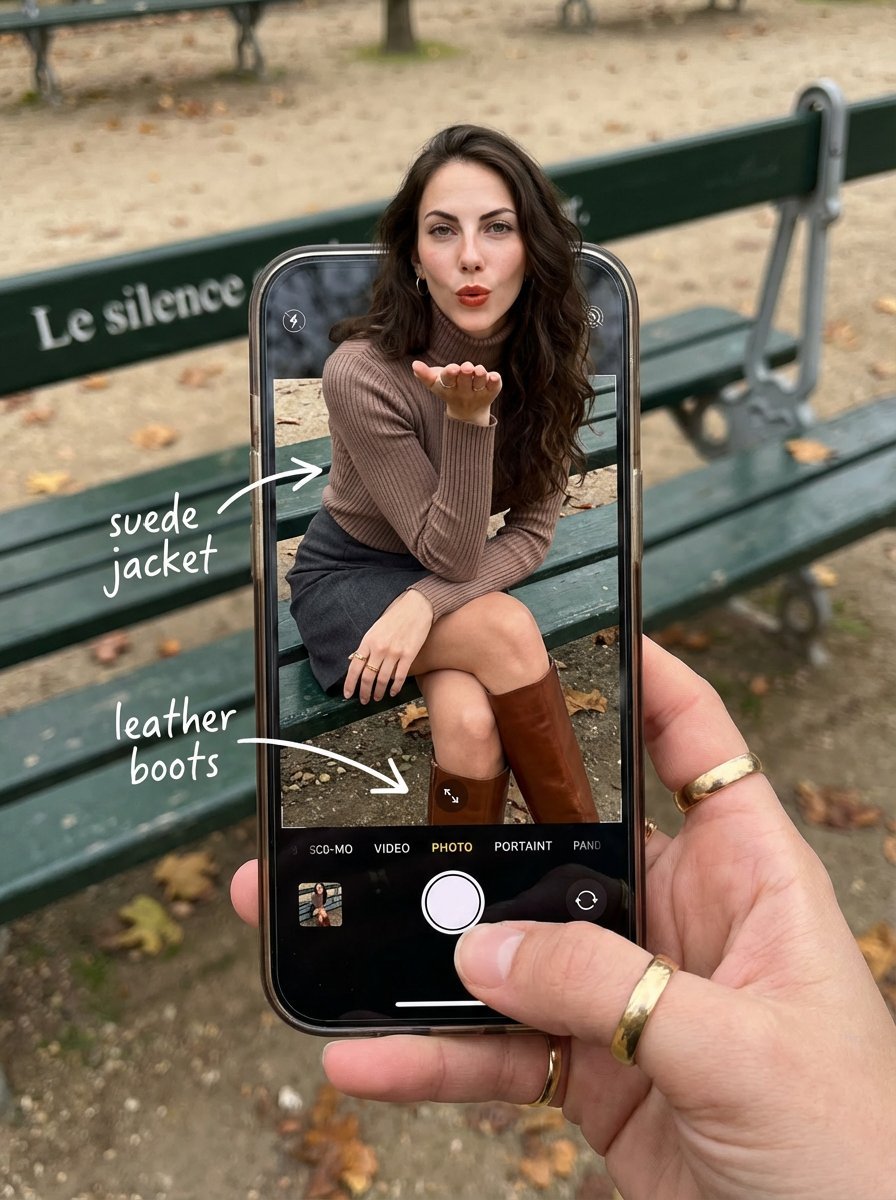
OOTD Breakdown Smartphone Pop-out Illusion
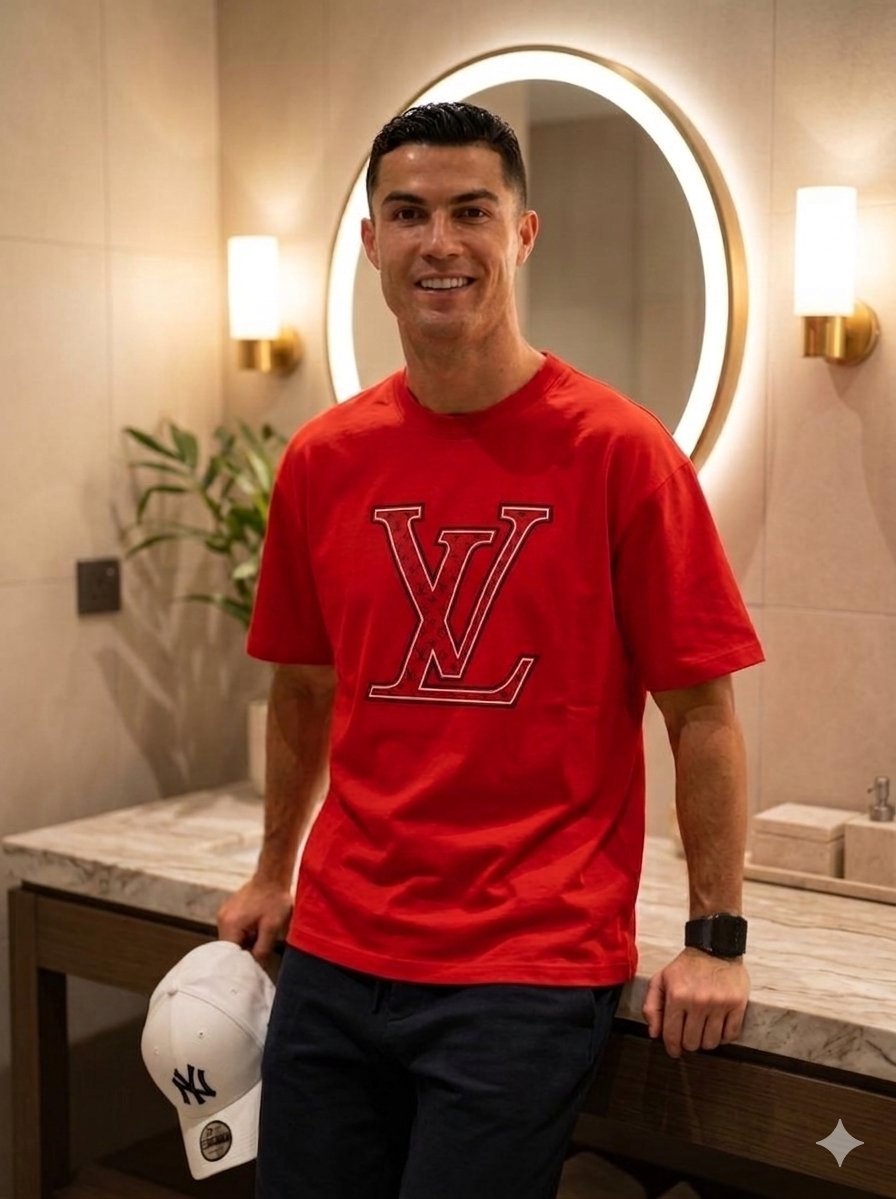
Luxury Lifestyle Portrait Prompt for Nano Banana Pro
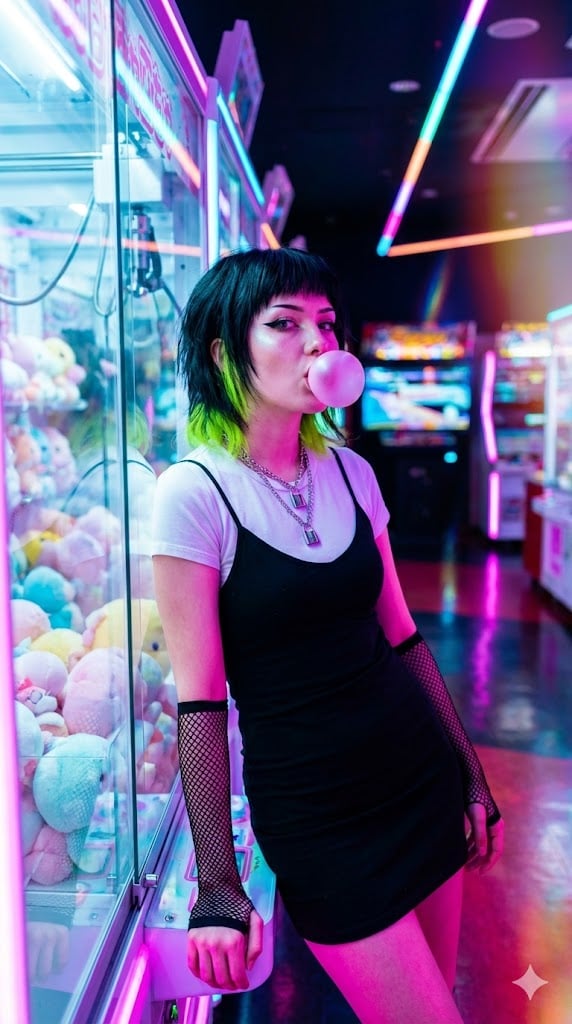
Cyber-Pop E-Girl in Neon Arcade
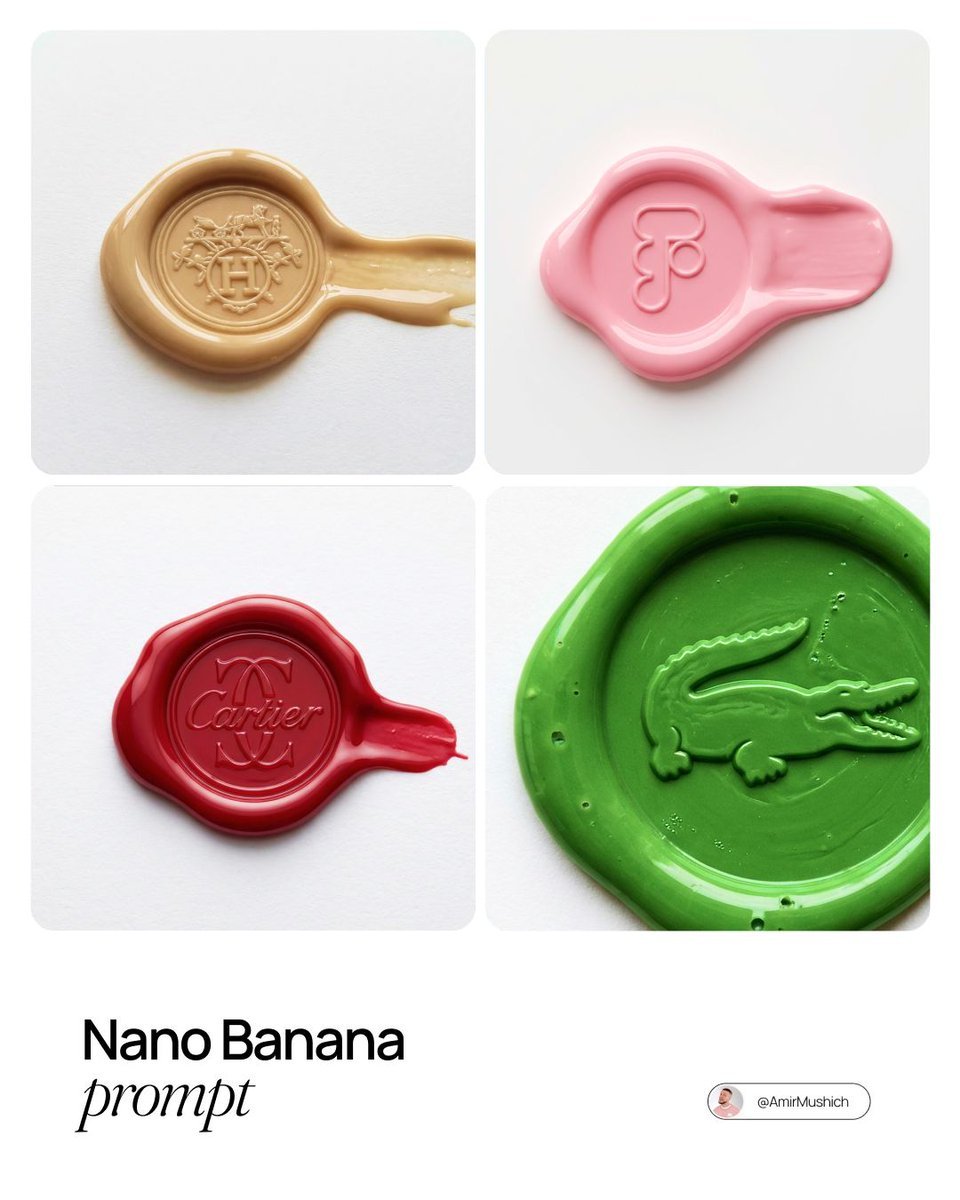
Tactile Wax Seal Logos
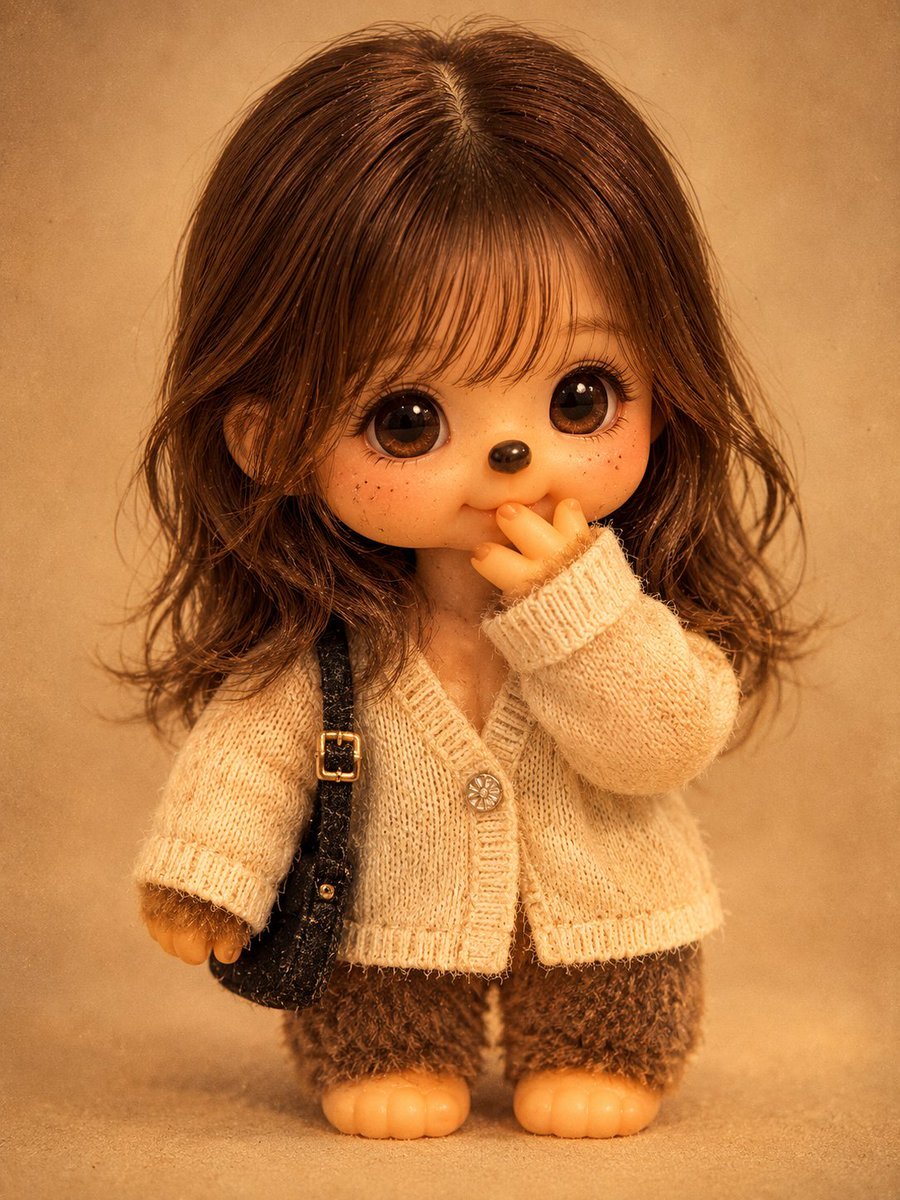
Vintage Monchhichi Doll Conversion

Luxury Fashion Illustration
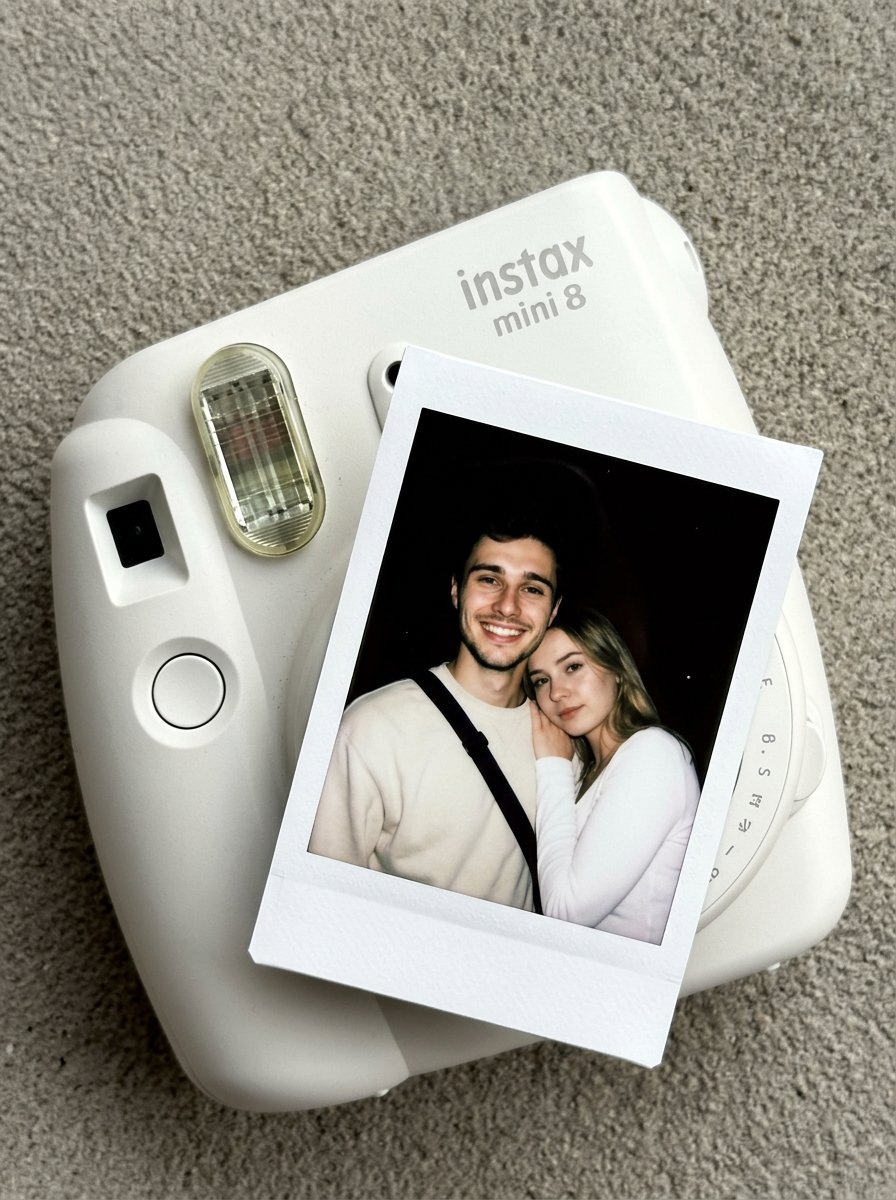
Nano Banana Pro Instax Mini 8
Browse template categories
ChatGPT Apple Generation Screenshot questions
How do I use the ChatGPT Apple Generation Screenshot template?
Add your photo if the template asks for one, edit the prompt if you like — the template's model and format are already selected — and press Generate. Your version opens in PicX Studio.
Can I customize the ChatGPT Apple Generation Screenshot template?
Yes. You can change the subject, setting, lighting, mood, format, and available model controls before creating your image.
Is the ChatGPT Apple Generation Screenshot template free?
Opening and editing this template is free. Generating uses credits, shown on the Generate button when you are signed in.
Which AI model should I use?
Start with GPT Image 2, which is the model associated with this template. You can compare another compatible model for a different finish.
Looking for something else? Browse all templates.

Your photo, any look
Thousands of ready templates for every top image and video model, from one credit balance.