
Whimsical Programmer Almanac Infographic
Generates a watercolor-style daily almanac for programmers featuring a Little Prince theme, complete with do/don't lists, lucky commands, and inspirational quotes.
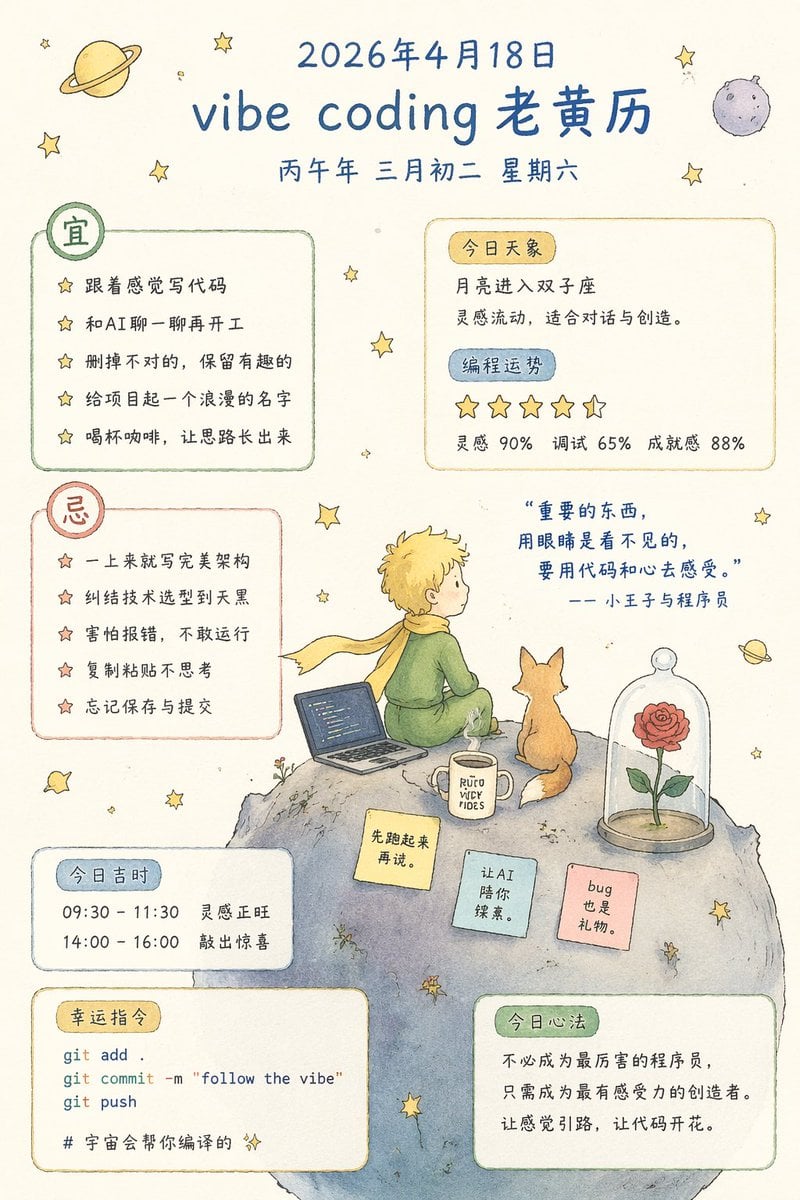
- Prompt included
- Model and format preset
- Free template
The prompt behind this image
Copy the exact prompt behind Whimsical Programmer Almanac Infographic, or open it in the studio and make it yours.
- Type
- watercolor infographic almanac
- Style
- hand-drawn, Little Prince theme, cream background, scattered stars
- Header › Date
- {argument name="date" default="2026年4月18日"}
- Header › Title
- {argument name="main title" default="vibe coding 老黄历"}
- Header › Subtitle
- 丙午年 三月初二 星期六
- Layout › Sections › 0 › Title
- 宜
- Layout › Sections › 0 › Position
- top-left
- Layout › Sections › 0 › Count
- 5
- Layout › Sections › 0 › Labels
- {argument name="first do item" default="跟着感觉写代码"}, 和AI聊一聊再开工, 删掉不对的,保留有趣的, 给项目起一个浪漫的名字, 喝杯咖啡,让思路长出来
- Layout › Sections › 1 › Title
- 今日天象 & 编程运势
- Layout › Sections › 1 › Position
- top-right
- Layout › Sections › 1 › Count
- 4
- Layout › Sections › 1 › Labels
- 月亮进入双子座, 灵感流动,适合对话与创造。, 5 stars, 灵感 90% 调试 65% 成就感 88%
- Layout › Sections › 2 › Title
- 忌
- Layout › Sections › 2 › Position
- mid-left
- Layout › Sections › 2 › Count
- 5
- Layout › Sections › 2 › Labels
- {argument name="first dont item" default="一上来就写完美架构"}, 纠结技术选型到天黑, 害怕报错,不敢运行, 复制粘贴不思考, 忘记保存与提交
- Layout › Sections › 3 › Title
- 今日吉时
- Layout › Sections › 3 › Position
- bottom-left
- Layout › Sections › 3 › Count
- 2
- Layout › Sections › 3 › Labels
- 09:30 - 11:30 灵感正旺, 14:00 - 16:00 敲出惊喜
- Layout › Sections › 4 › Title
- 幸运指令
- Layout › Sections › 4 › Position
- bottom-left
- Layout › Sections › 4 › Count
- 4
Raw JSON
{
  "type": "watercolor infographic almanac",
  "style": "hand-drawn, Little Prince theme, cream background, scattered stars",
  "header": {
    "date": "{argument name=\"date\" default=\"2026年4月18日\"}",
    "title": "{argument name=\"main title\" default=\"vibe coding 老黄历\"}",
    "subtitle": "丙午年 三月初二 星期六"
  },
  "layout": {
    "sections": [
      {
        "title": "宜",
        "position": "top-left",
        "count": 5,
        "labels": [
          "{argument name=\"first do item\" default=\"跟着感觉写代码\"}",
          "和AI聊一聊再开工",
          "删掉不对的,保留有趣的",
          "给项目起一个浪漫的名字",
          "喝杯咖啡,让思路长出来"
        ]
      },
      {
        "title": "今日天象 & 编程运势",
        "position": "top-right",
        "count": 4,
        "labels": [
          "月亮进入双子座",
          "灵感流动,适合对话与创造。",
          "5 stars",
          "灵感 90% 调试 65% 成就感 88%"
        ]
      },
      {
        "title": "忌",
        "position": "mid-left",
        "count": 5,
        "labels": [
          "{argument name=\"first dont item\" default=\"一上来就写完美架构\"}",
          "纠结技术选型到天黑",
          "害怕报错,不敢运行",
          "复制粘贴不思考",
          "忘记保存与提交"
        ]
      },
      {
        "title": "今日吉时",
        "position": "bottom-left",
        "count": 2,
        "labels": [
          "09:30 - 11:30 灵感正旺",
          "14:00 - 16:00 敲出惊喜"
        ]
      },
      {
        "title": "幸运指令",
        "position": "bottom-left",
        "count": 4,
        "labels": [
          "git add .",
          "git commit -m \"follow the vibe\"",
          "git push",
          "# 宇宙会帮你编译的"
        ]
      },
      {
        "title": "今日心法",
        "position": "bottom-right",
        "count": 1,
        "labels": [
          "不必成为最厉害的程序员,只需成为最有感受力的创造者。让感觉引路,让代码开花。"
        ]
      }
    ],
    "illustration": {
      "position": "center-right",
      "subject": "Little Prince on asteroid with laptop, fox, rose in glass dome, mug",
      "quote": "{argument name=\"quote\" default=\"重要的东西,用眼睛是看不见的,要用代码和心去感受。\"} —— 小王子与程序员",
      "sticky_notes": {
        "count": 3,
        "labels": [
          "先跑起来再说。",
          "让AI陪你探索。",
          "bug也是礼物。"
        ]
      }
    }
  }
}How to use Whimsical Programmer Almanac Infographic in 3 steps
- 1Upload ImagePNG, JPG or paste
Add your photo
Upload the photo the template builds on. The prompt, model and format are already set.
- 2…a portrait of your subject in softgolden-hour light, 85mm…
Personalize
Edit the subject and creative details for your destination.
- 3Generate
Generate
Press Generate — your image is created in PicX Studio, so you can compare it with the original and refine one variable at a time.
More like this
Templates with the same subject, style or setup. Open one to see its prompt.

Japan Travel Brochure Poster

Cute Layered Paper Cut Chibi Girl
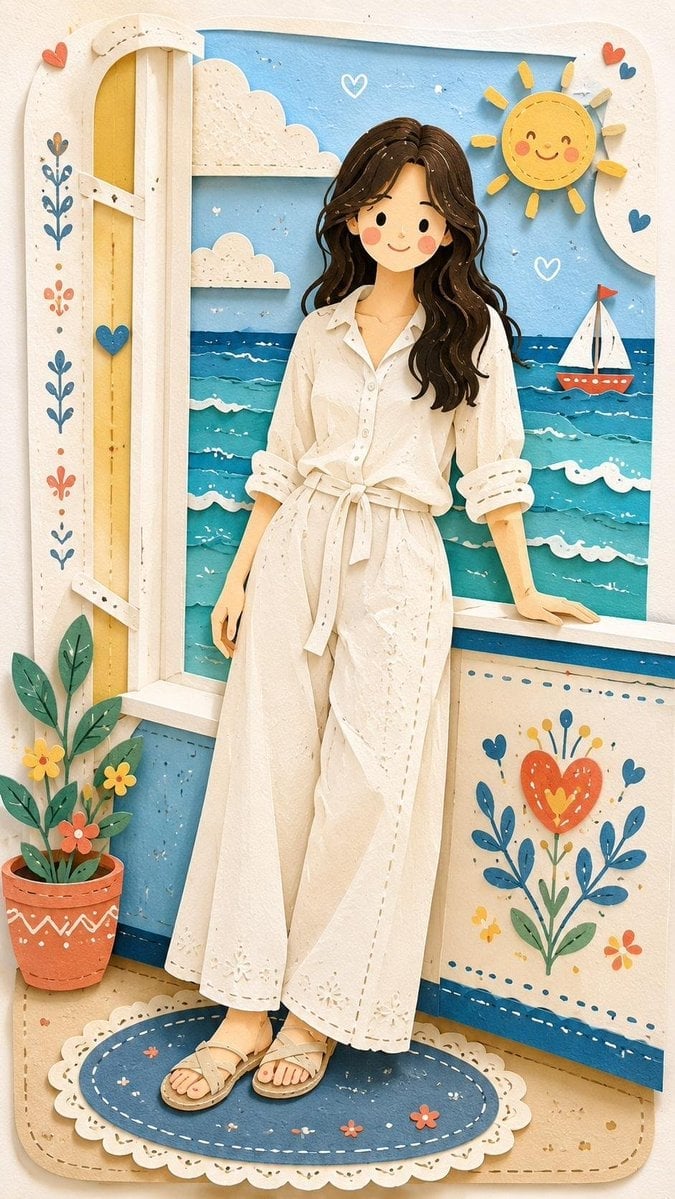
Decorative Folk Flat Paper Cut Illustration

Ghibli Final Takeoff Field
Ghibli Rainy Tram Interior
Ghibli Star Observatory
Ghibli Tiny House On Back

Ghibli Lantern River Festival

Ghibli Whale Bone Beach

Ghibli Abandoned Amusement

Ghibli Shadow Puppet Theater

Ghibli Bakery Morning Rush
Make it yours
Whimsical Programmer Almanac Infographic works as-is. These are the safest ways to change it without losing the look.
Change one field
Copy a single group, rewrite it, and generate again so you can see what that field is doing.
Keep the frame, change the subject
Hold the composition and light of Whimsical Programmer Almanac Infographic, then swap wardrobe, props or the person for a new take.
| If the result… | Why | Fix |
|---|---|---|
| The result drifts from the preview | Too many fields changed at once. | Reuse Whimsical Programmer Almanac Infographic as-is first, then change one group — subject, light, or setting. |
| GPT Image 2 ignores part of the JSON | Some models flatten or skip nested keys. | Keep the same values and paste them as a short paragraph instead. |
More GPT Image 2 templates
Other prompts made for GPT Image 2.

Six VTuber Japanese Logo Sheet

Realistic Portrait of Woman and Deer

The Vista Modular Condo Poster

AI Model Routing Comparison Infographic

2.5D Anime Art Board

Isometric Productivity Desk Scene

New York Double Exposure Poster

Four-Panel AI Landscape Comparison

Japanese Tatami Lifestyle Magazine Cover

NESCAFÉ Coffee Map Poster
More image prompts
Fresh picks from across the catalog.
New Chinese Koi Fine Art Photography
Japanese Baby Felt Costume DIY Sheet

Scene Swap Prompt: Bear in Winter Forest

Ultra-Realistic Studio Portrait with Playful Expression

90s Retro Film Driving Shot

Photo Cinematic Shopping Day Collage

Negative Prompt for Photorealistic Fashion Image
Gothic Rose Mourning Portrait
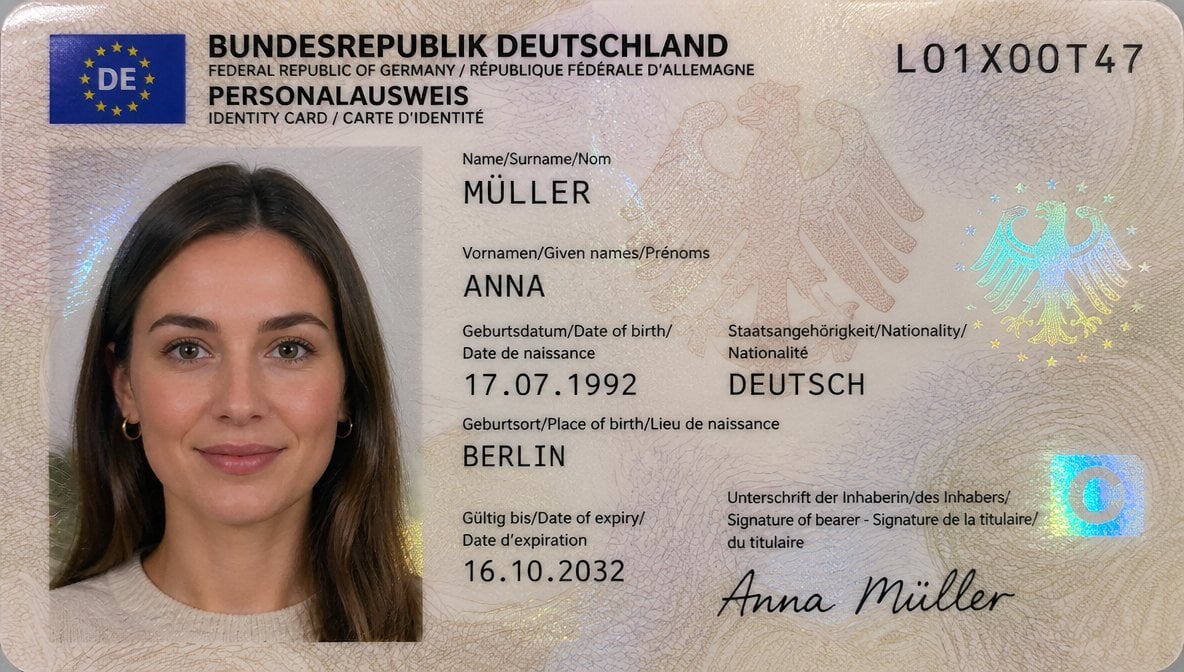
German ID Card Scan Transformation
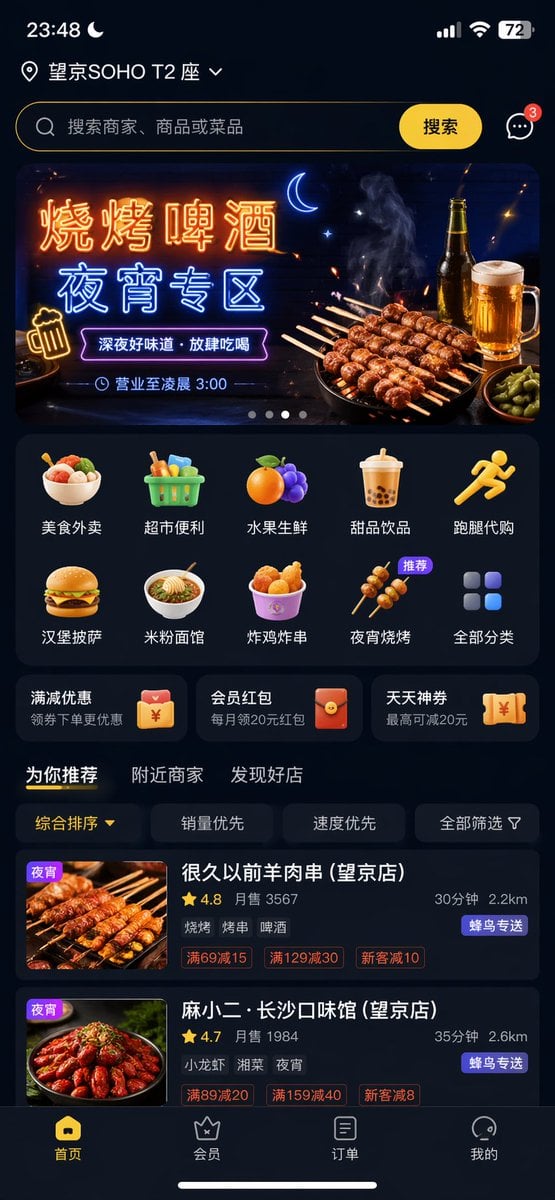
Food Delivery App UI Prompt
Browse template categories
Whimsical Programmer Almanac Infographic questions
How do I use the Whimsical Programmer Almanac Infographic template?
Add your photo if the template asks for one, edit the prompt if you like — the template's model and format are already selected — and press Generate. Your version opens in PicX Studio.
Can I customize the Whimsical Programmer Almanac Infographic template?
Yes. You can change the subject, setting, lighting, mood, format, and available model controls before creating your image.
Is the Whimsical Programmer Almanac Infographic template free?
Opening and editing this template is free. Generating uses credits, shown on the Generate button when you are signed in.
Which AI model should I use?
Start with GPT Image 2, which is the model associated with this template. You can compare another compatible model for a different finish.
Looking for something else? Browse all templates.

Your photo, any look
Thousands of ready templates for every top image and video model, from one credit balance.