
Anime Live2D Turnaround Chat Screenshot
Creates a mobile AI chat screenshot featuring a pastel anime girl converted into a three-view Live2D character reference sheet.
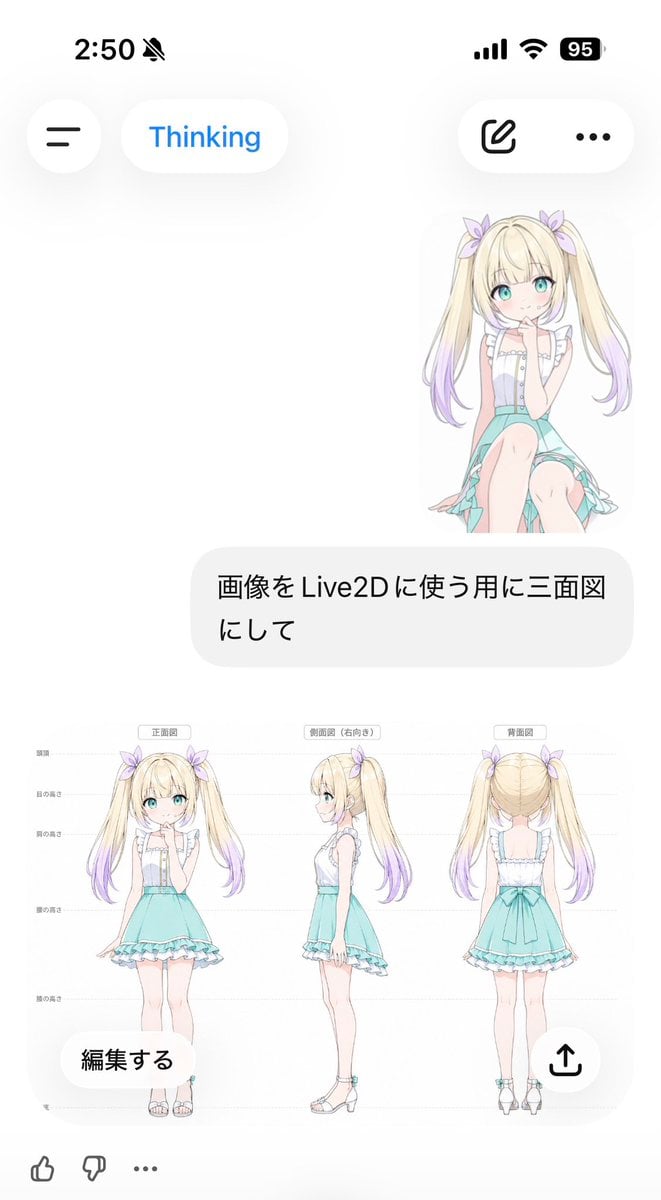
- Prompt included
- Model and format preset
- Free template
The prompt behind this image
Copy the exact prompt behind Anime Live2D Turnaround Chat Screenshot, or open it in the studio and make it yours.
Goal: Create a vertical smartphone screenshot of an AI chat interface showing a generated anime character model sheet for Live2D use. Canvas: 691 × 1024 vertical mobile screenshot, white background, soft iOS-like UI with lots of empty space and rounded translucent controls. Top status bar: Show the time “2:50” at top left, a muted bell icon beside it, and exactly 3 status indicators at top right: cellular bars, Wi‑Fi, and a black battery pill reading “95”. Header UI: Under the status bar, place exactly 4 floating rounded controls: a circular hamburger menu button on the left, a white pill labeled “Thinking” in blue, a white pill on the right containing an outlined edit/pencil icon, and a white pill with a three-dot menu. Chat content: On the upper right, show a small full-body anime girl sticker sitting/kneeling, facing forward, with long blonde twin tails fading to lavender tips, aqua eyes, pale skin, lavender hair bows, a white frilly sleeveless blouse, and a mint-aqua skirt. Beneath it, place one large rounded light-gray user message bubble containing Japanese text: {argument name="user message" default="画像をLive2Dに使う用に三面図にして"}. Generated image card: Below the message bubble, display one large embedded character reference sheet image on a white background. It contains exactly 3 full-body views of the same character, evenly spaced left to right: 1) front view labeled {argument name="front label" default="正面図"}, 2) right-facing side view labeled {argument name="side label" default="側面図(右向き)"}, and 3) back view labeled {argument name="back label" default="背面図"}. Add faint horizontal guide lines and small Japanese height markers along the left side, like a model turnaround sheet. The character is a cute anime girl named {argument name="character name" default="unnamed blonde twin-tail girl"}: long blonde twin tails with lavender gradient ends, pastel purple ribbon bows, turquoise eyes, soft blush, white ruffled sleeveless top with vertical buttons, mint turquoise high-waisted skirt with frilled hem and asymmetrical trailing fabric, slim legs, white ankle-strap sandals with small turquoise accents. Keep proportions consistent across all 3 views and make the art delicate, clean, and pastel. Overlay controls on the generated card: Add exactly 2 floating buttons over the bottom of the image card: a rounded white button at lower left reading “編集する” and a circular white share button at lower right with an upward arrow icon. Bottom reaction bar: At the bottom edge, show exactly 3 small icons: thumbs up, thumbs down, and an ellipsis. Visual style: Crisp mobile screenshot, minimal white interface, soft shadows, Japanese chat app aesthetic, pastel anime illustration, clean line art, no watermark, no extra panels, no additional characters.
How to use Anime Live2D Turnaround Chat Screenshot in 3 steps
- 1Upload ImagePNG, JPG or paste
Add your photo
Upload the photo the template builds on. The prompt, model and format are already set.
- 2…a portrait of your subject in softgolden-hour light, 85mm…
Personalize
Edit the subject and creative details for your destination.
- 3Generate
Generate
Press Generate — your image is created in PicX Studio, so you can compare it with the original and refine one variable at a time.
More like this
Templates with the same subject, style or setup. Open one to see its prompt.
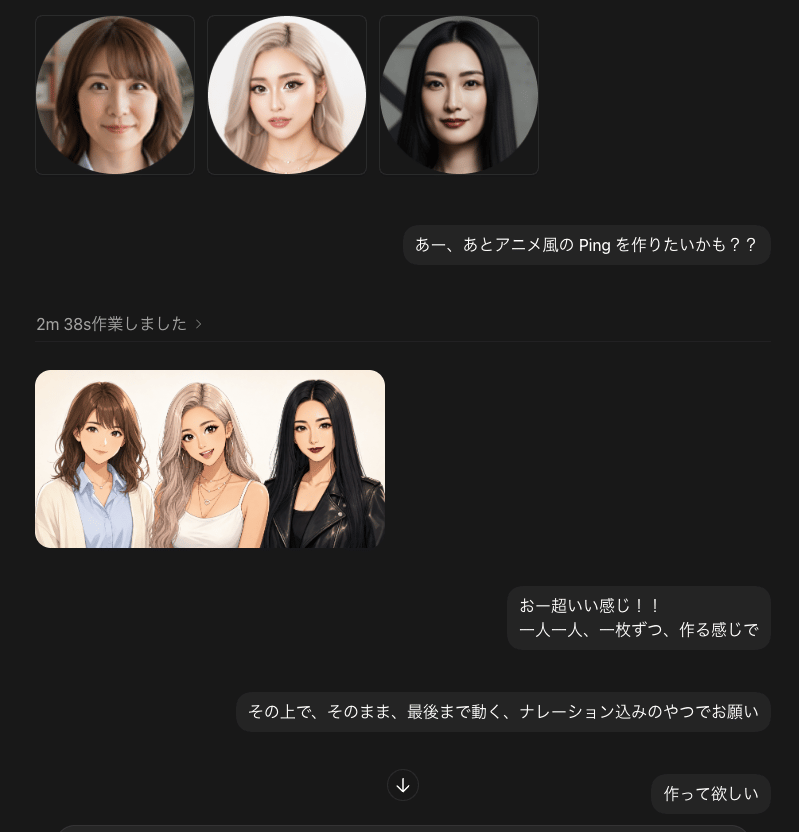
Dark Chat UI Anime Conversion Screenshot
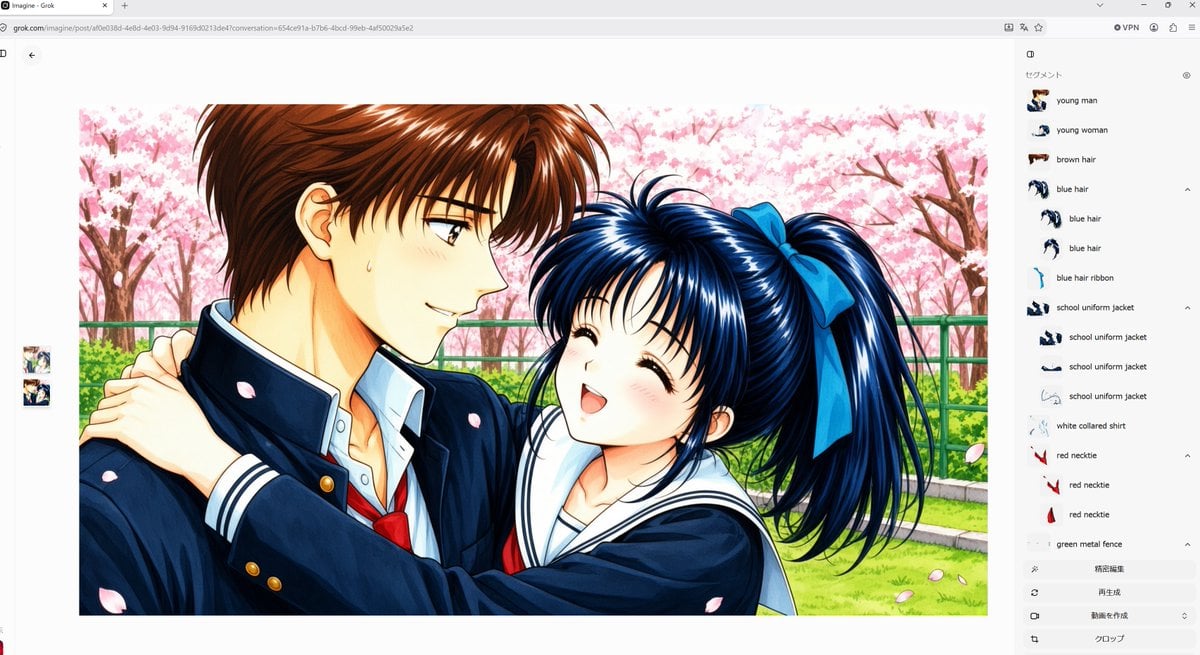
Anime Couple Segmentation UI Screenshot
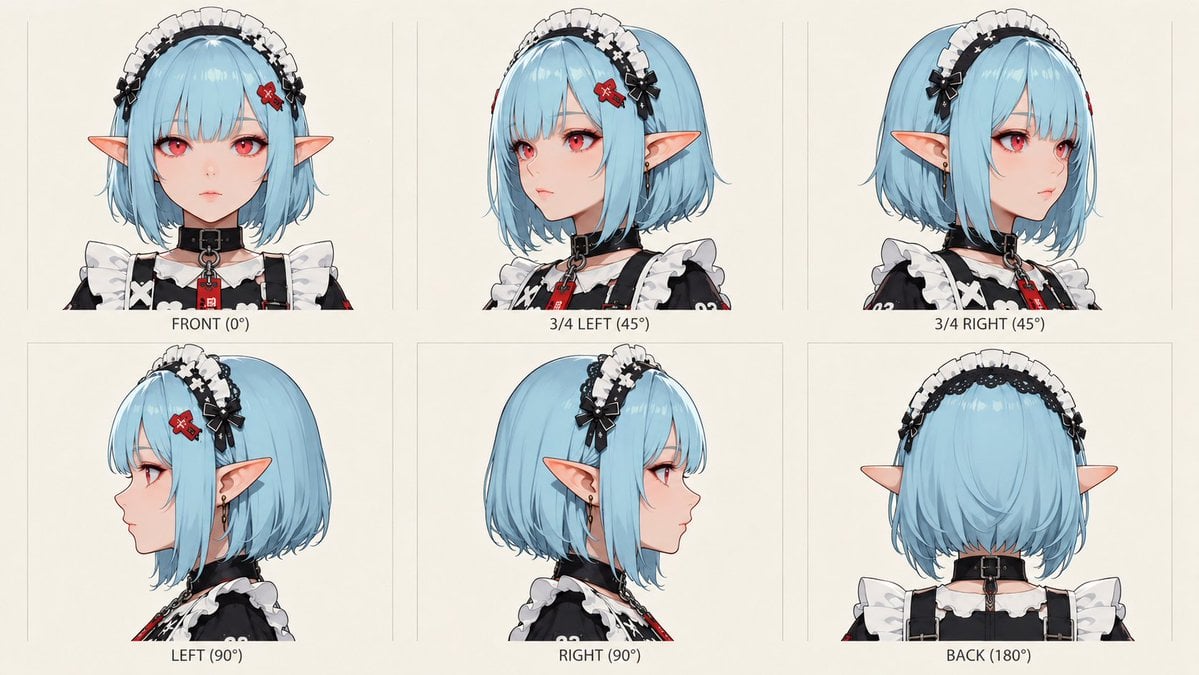
Anime Elf Maid Turnaround Sheet
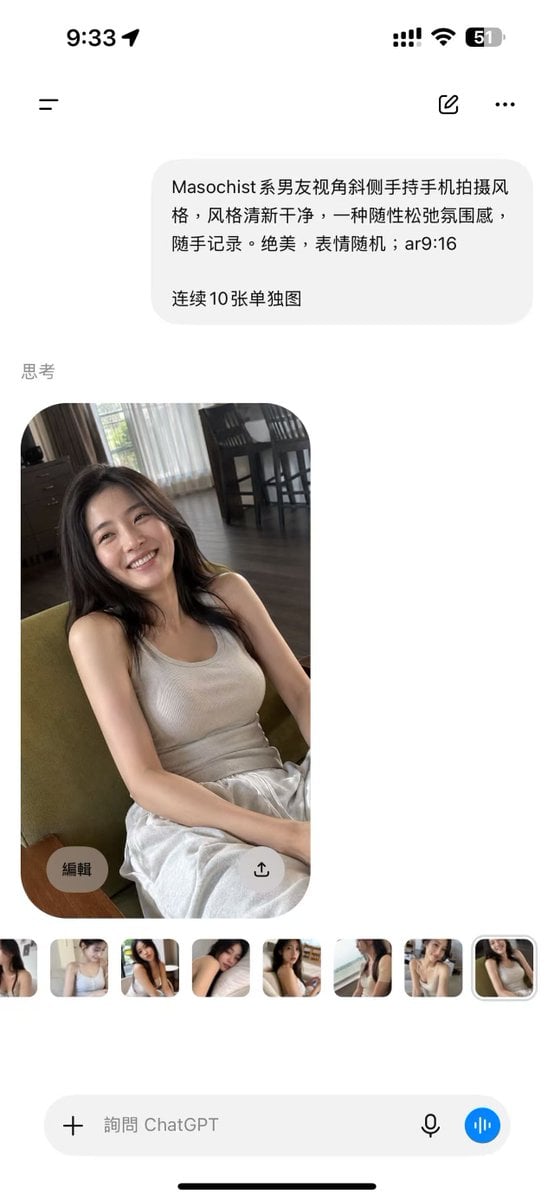
ChatGPT Mobile Photo Carousel Screenshot

ChatGPT Bonus Banner Screenshot
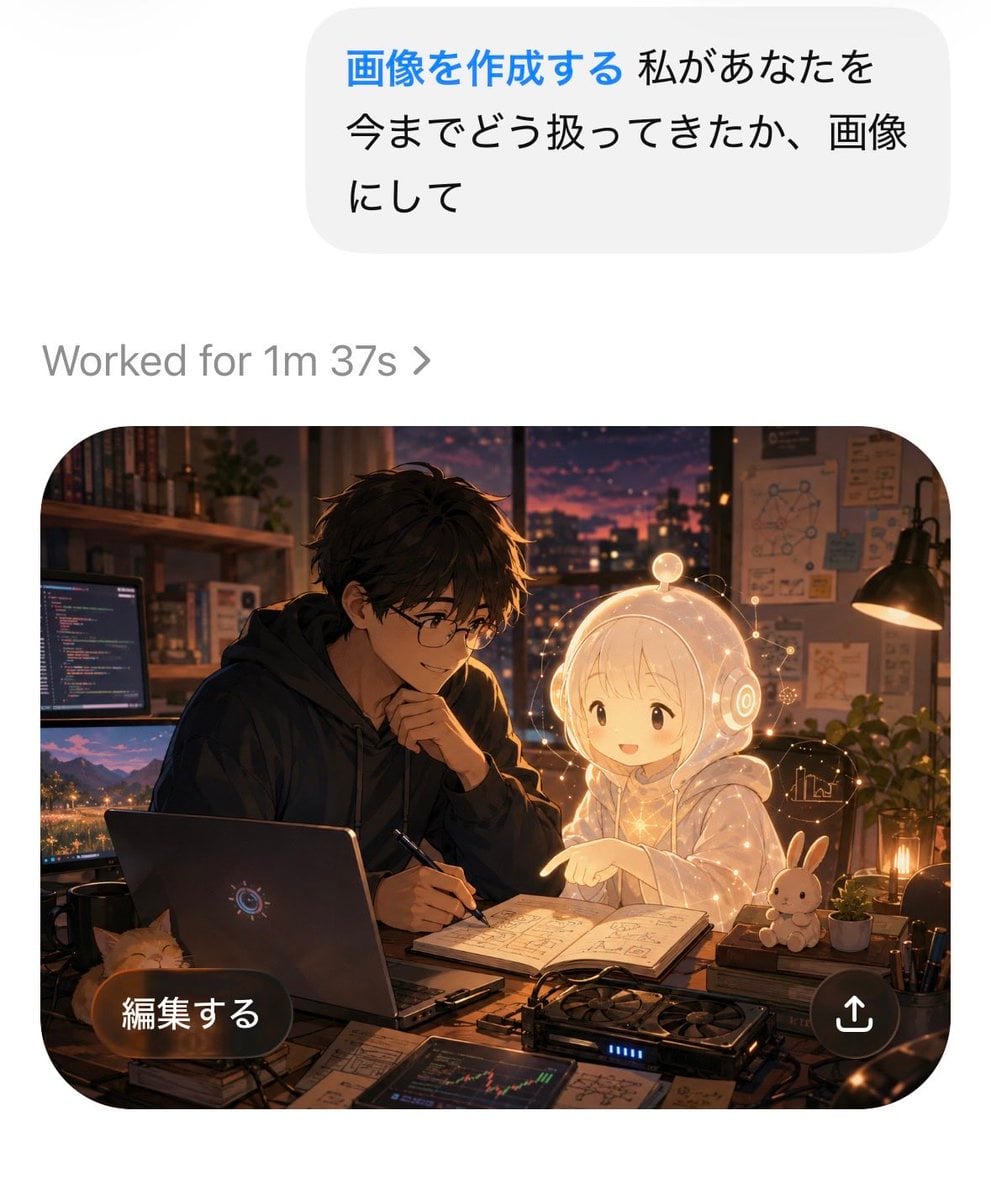
AI Chat Image Generation Screenshot
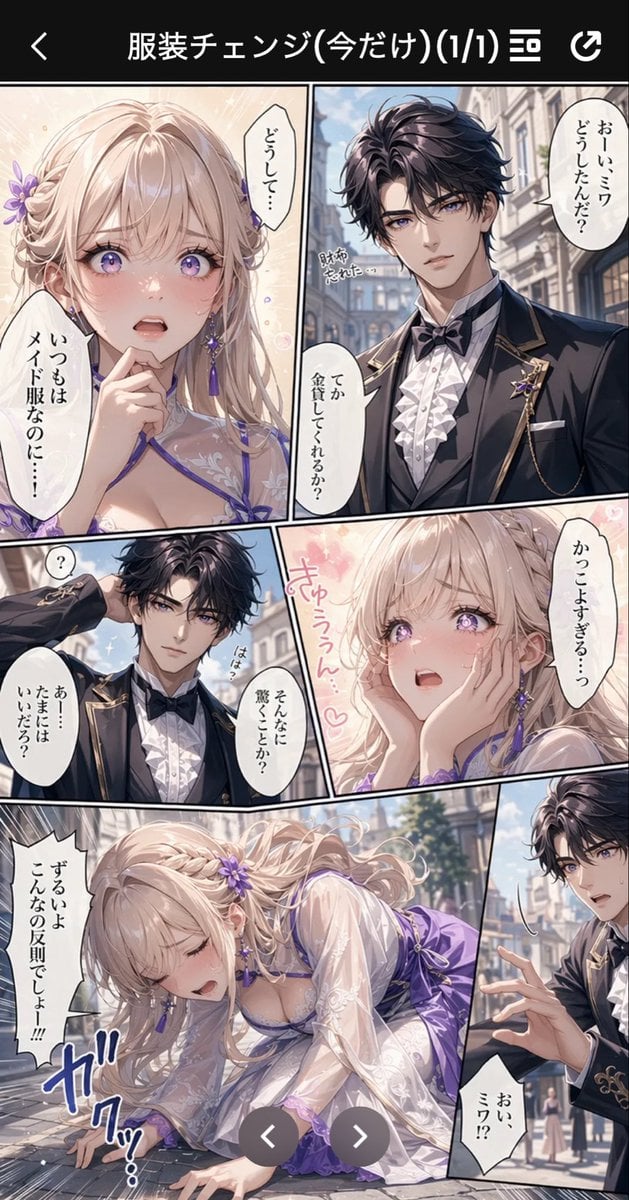
Anime Butler Date Manga Screenshot
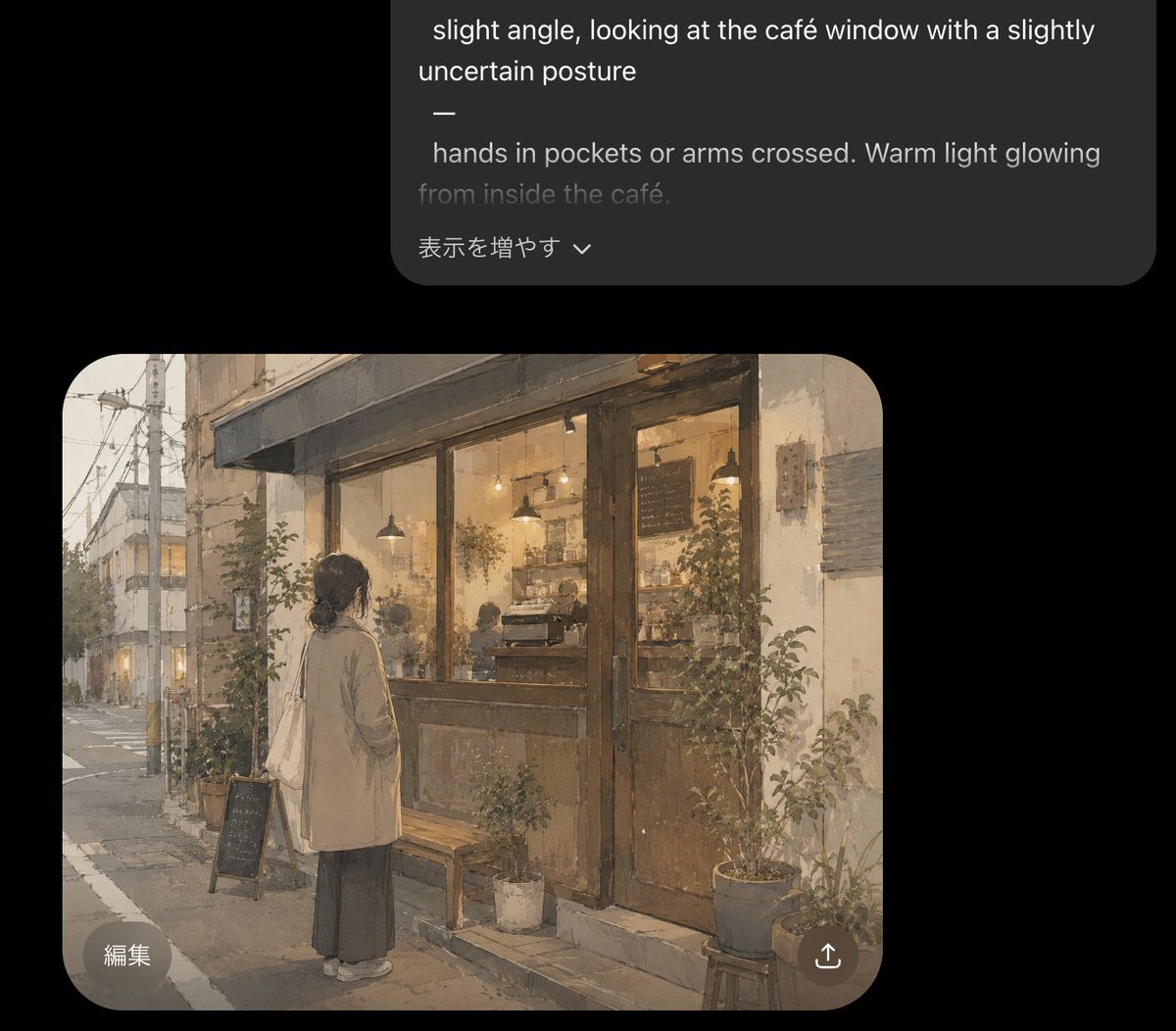
Cozy Café Chat Screenshot
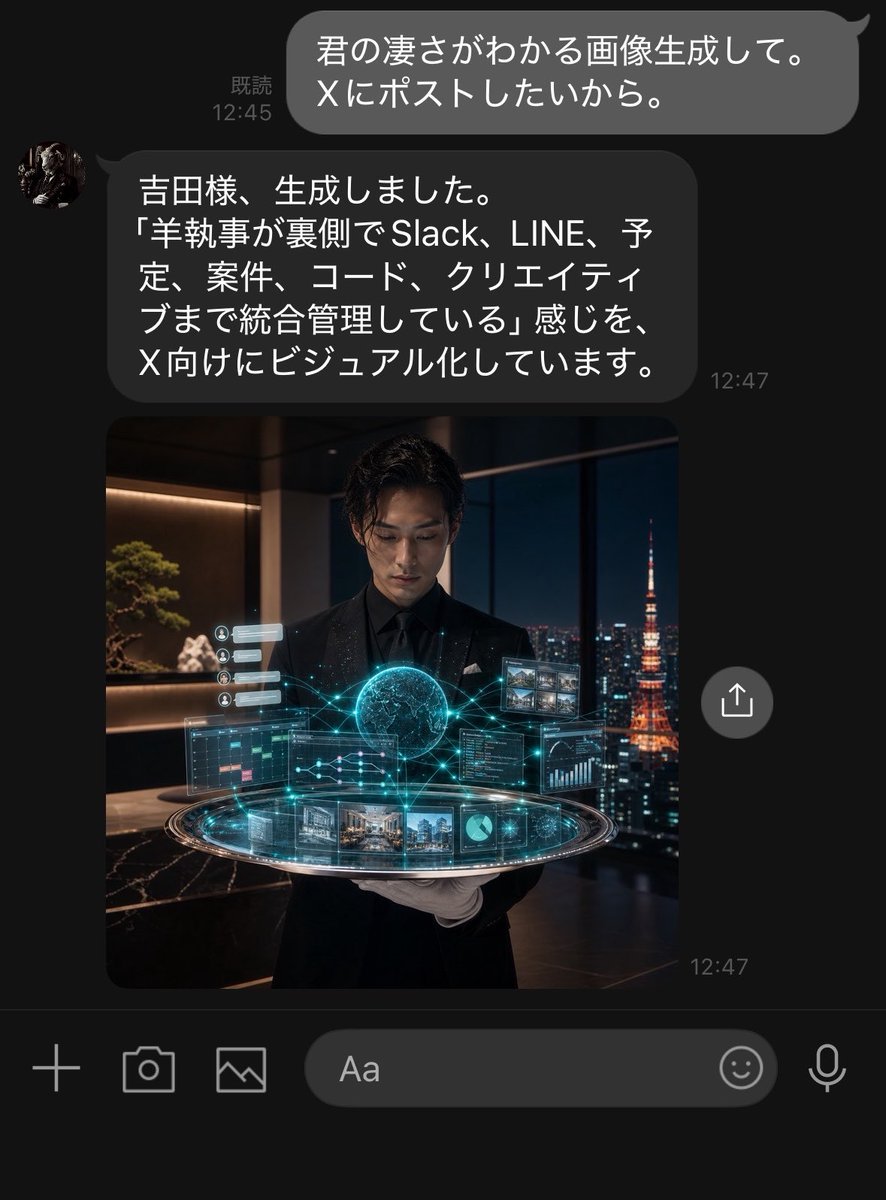
Dark LINE AI Assistant Chat Screenshot
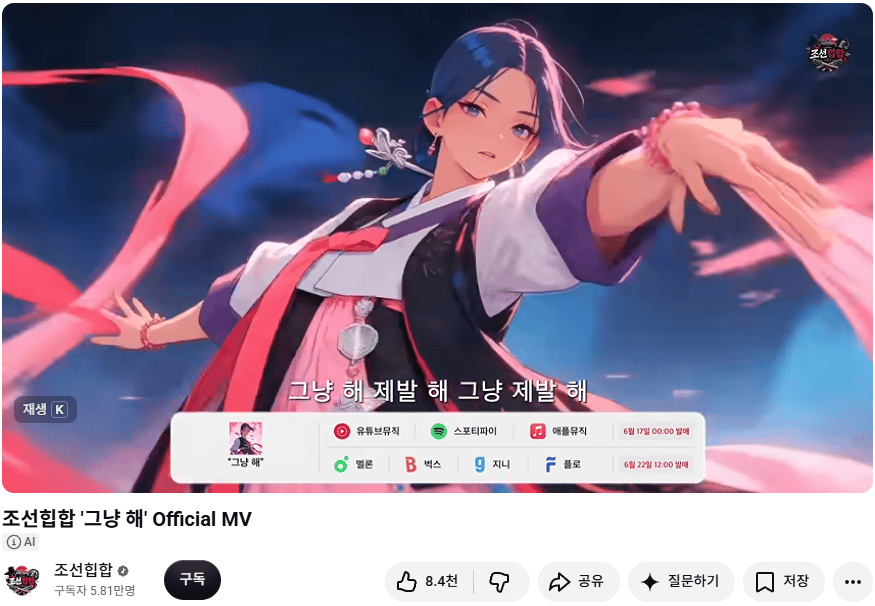
Korean Hip-Hop Anime MV Screenshot
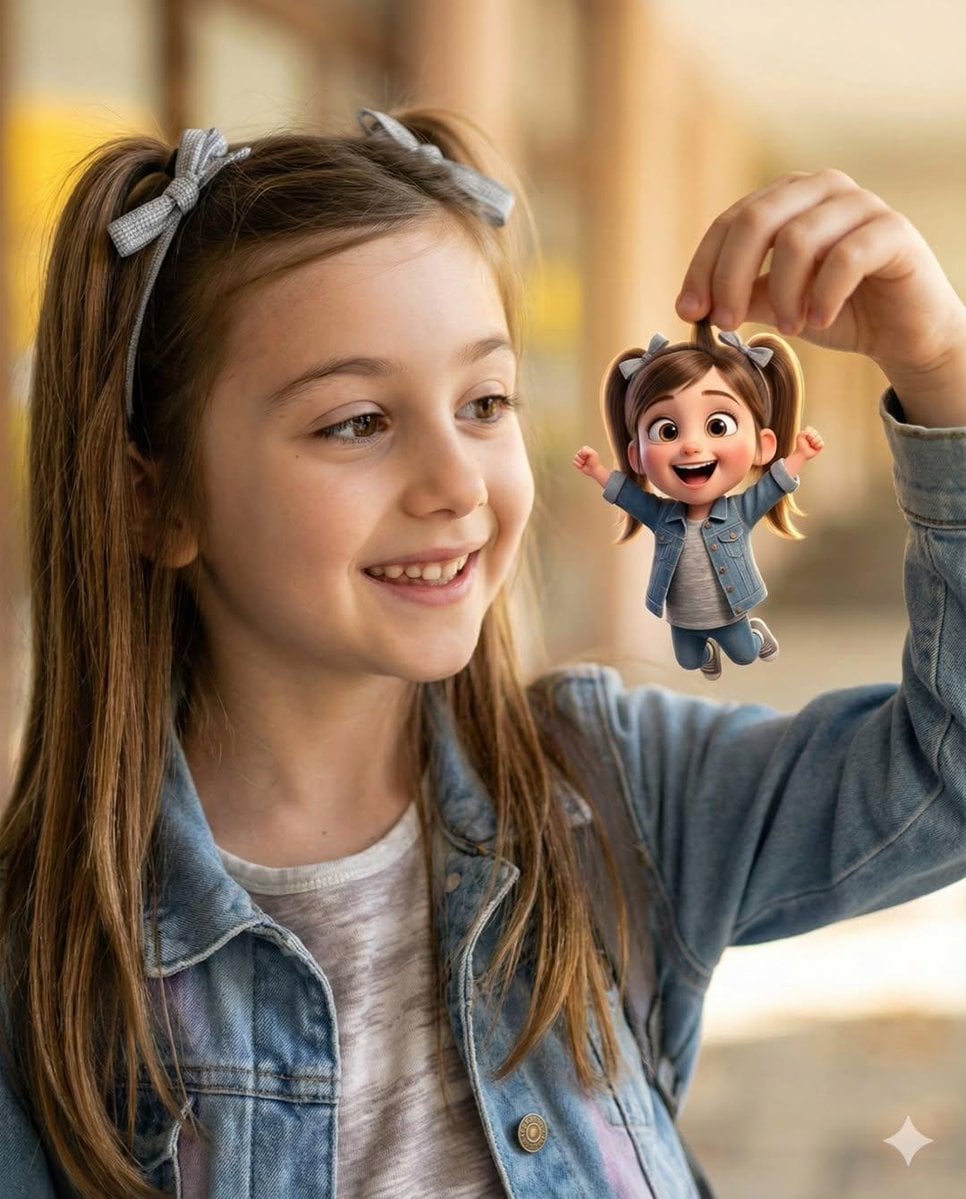
Cel 2D Finale Fireworks
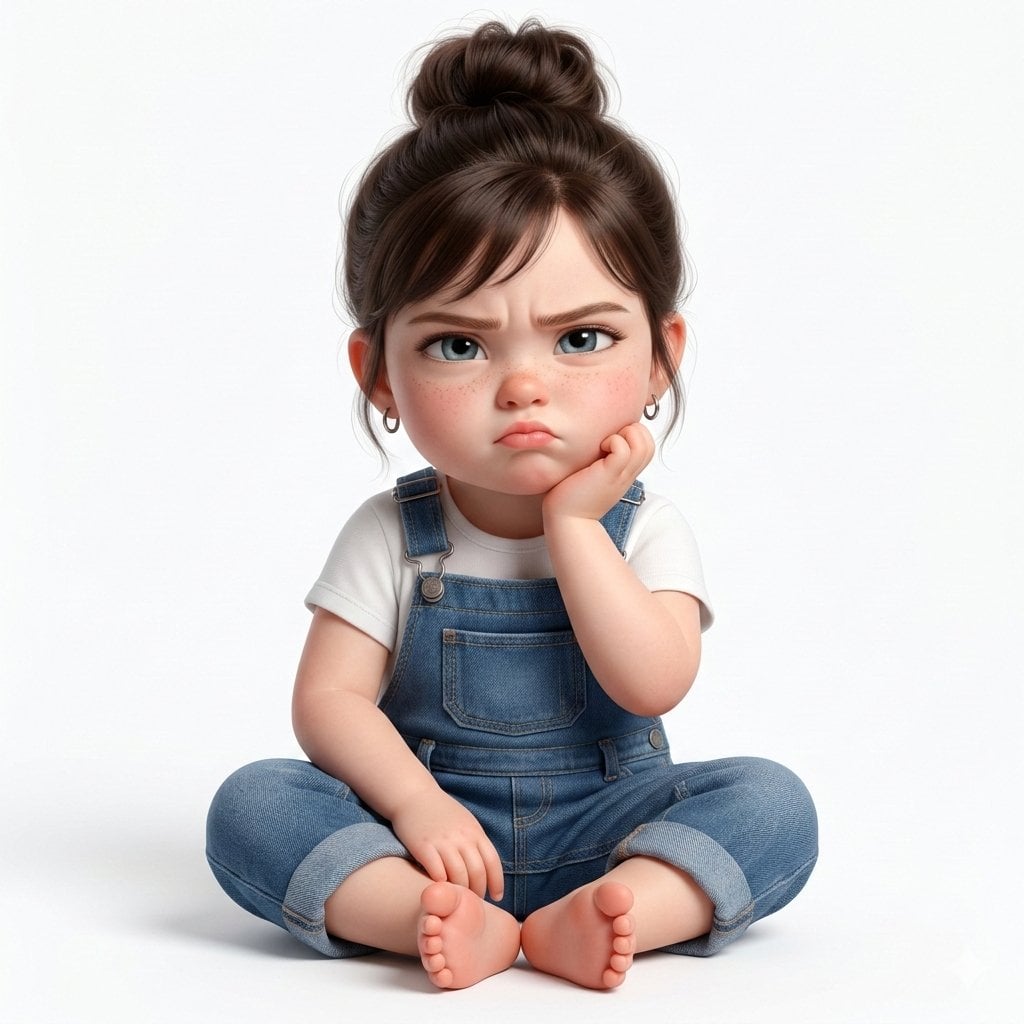
Cel 2D Garden Maze
Make it yours
Anime Live2D Turnaround Chat Screenshot works as-is. These are the safest ways to change it without losing the look.
Change one field
Copy a single group, rewrite it, and generate again so you can see what that field is doing.
Keep the frame, change the subject
Hold the composition and light of Anime Live2D Turnaround Chat Screenshot, then swap wardrobe, props or the person for a new take.
| If the result… | Why | Fix |
|---|---|---|
| The result drifts from the preview | Too many fields changed at once. | Reuse Anime Live2D Turnaround Chat Screenshot as-is first, then change one group — subject, light, or setting. |
| The model over-stylizes the scene | The prose prompt leaves finish and camera underspecified. | Add one camera or lighting sentence and stay on GPT Image 2. |
More GPT Image 2 templates
Other prompts made for GPT Image 2.

Six VTuber Japanese Logo Sheet

Realistic Portrait of Woman and Deer

The Vista Modular Condo Poster

AI Model Routing Comparison Infographic

2.5D Anime Art Board

Isometric Productivity Desk Scene

New York Double Exposure Poster

Four-Panel AI Landscape Comparison

Japanese Tatami Lifestyle Magazine Cover

NESCAFÉ Coffee Map Poster
More image prompts
Fresh picks from across the catalog.
Pastel Seaside Anime Cafe Mockup
Next-Gen Mobile App UI Showcase

Overlay Image with Conspiracy Scribbles
Holiday Elegance Portrait with Face Reference
Hyper-Realistic Selfie Texture Prompts
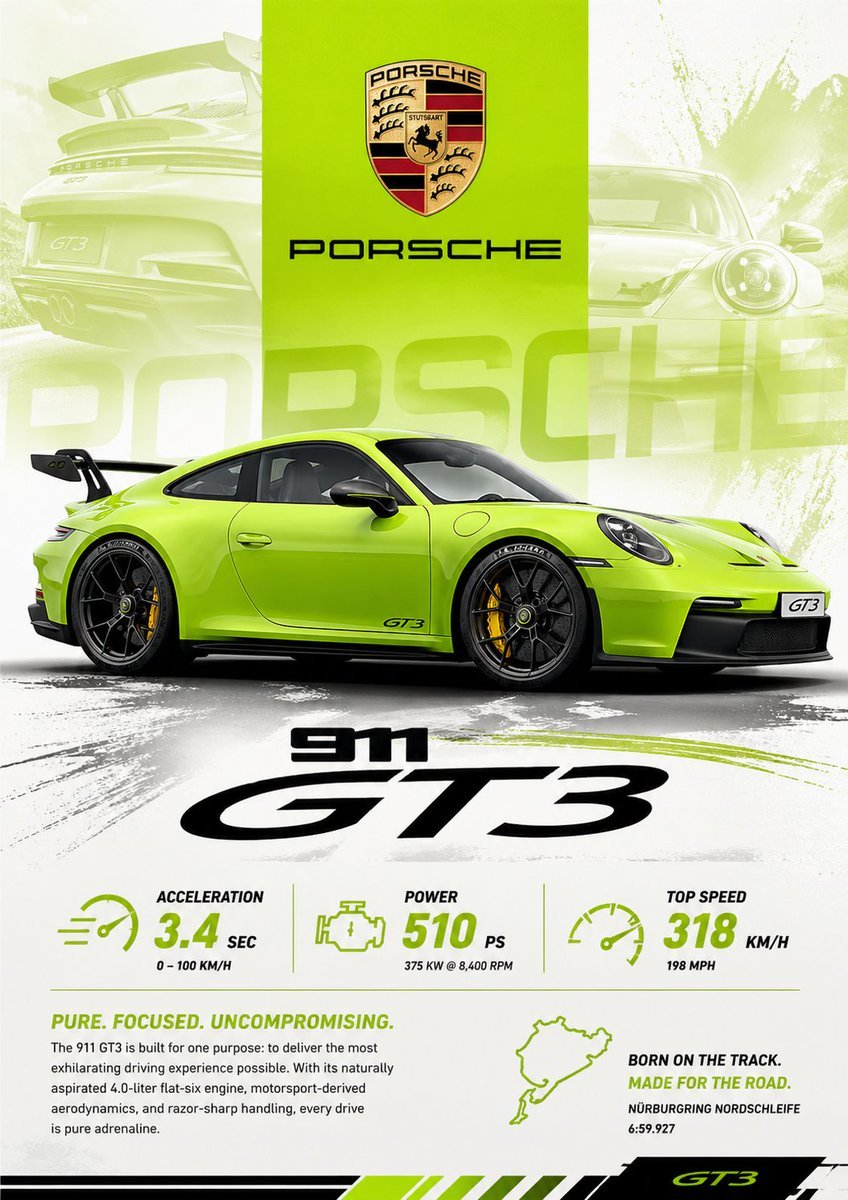
Vibrant Automotive Poster Design
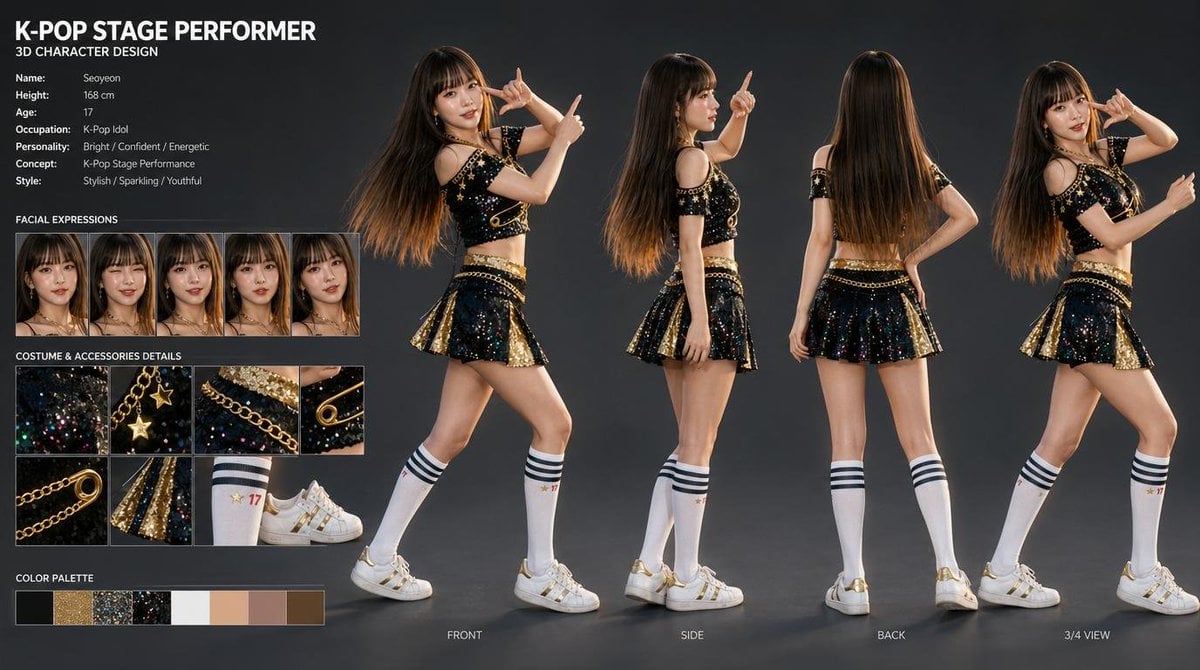
K-Pop Idol 3D Character Sheet
Nano Banana Pro Image Generation Failure Example
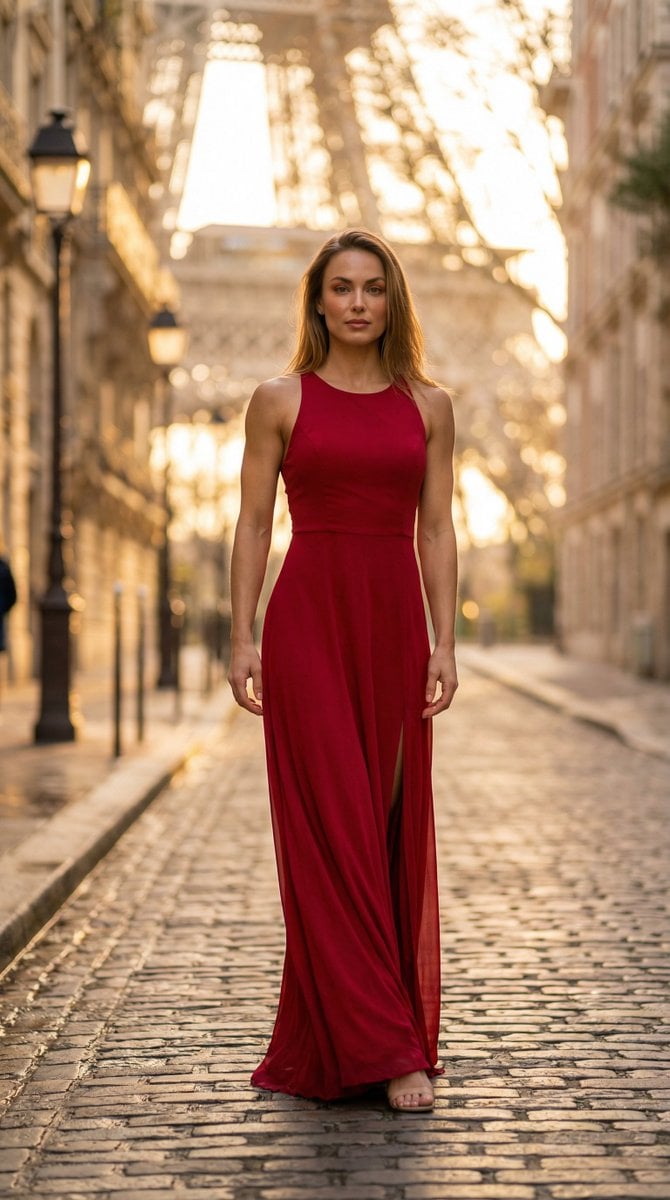
Photorealistic Female Model in Paris at Sunset
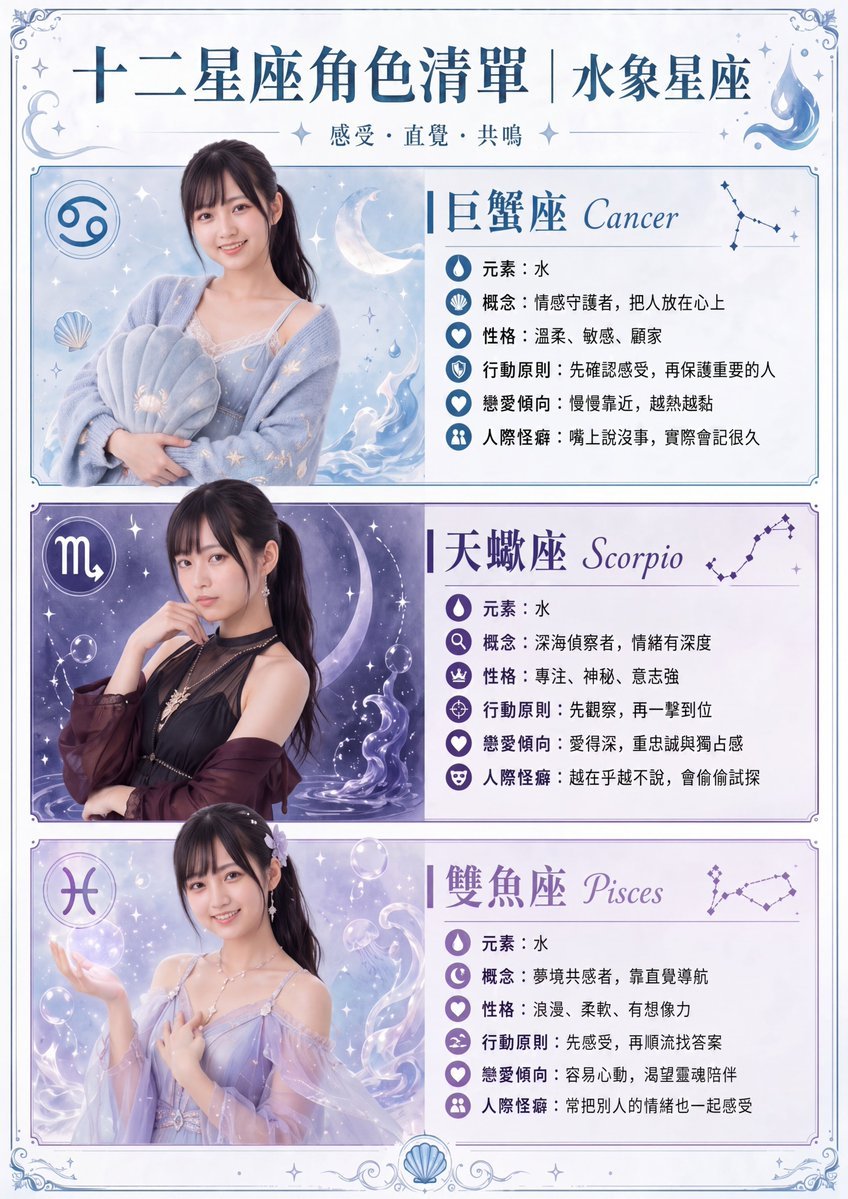
Gpt2 Infographic Edu Visual Water Signs Zodiac Character Poster
Browse template categories
Anime Live2D Turnaround Chat Screenshot questions
How do I use the Anime Live2D Turnaround Chat Screenshot template?
Add your photo if the template asks for one, edit the prompt if you like — the template's model and format are already selected — and press Generate. Your version opens in PicX Studio.
Can I customize the Anime Live2D Turnaround Chat Screenshot template?
Yes. You can change the subject, setting, lighting, mood, format, and available model controls before creating your image.
Is the Anime Live2D Turnaround Chat Screenshot template free?
Opening and editing this template is free. Generating uses credits, shown on the Generate button when you are signed in.
Which AI model should I use?
Start with GPT Image 2, which is the model associated with this template. You can compare another compatible model for a different finish.
Looking for something else? Browse all templates.

Your photo, any look
Thousands of ready templates for every top image and video model, from one credit balance.